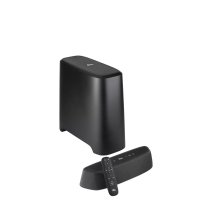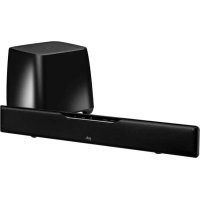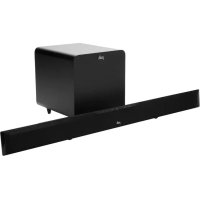
SurroundBar 9500BT - Soundbar POLK - Free user manual and instructions
Find the device manual for free SurroundBar 9500BT POLK in PDF.



User questions about SurroundBar 9500BT POLK
0 question about this device. Answer the ones you know or ask your own.
Ask a new question about this device
Download the instructions for your Soundbar in PDF format for free! Find your manual SurroundBar 9500BT - POLK and take your electronic device back in hand. On this page are published all the documents necessary for the use of your device. SurroundBar 9500BT by POLK.
USER MANUAL SurroundBar 9500BT POLK
IMPORTANT SAFETY INSTRUCTIONS
This product was designed and manufactured to meet strict quality and safety standards. There are, however, some installation and operation precautions which you should be particularly aware of.
- Read Instructions. All the safety and operating instructions should be read before the system is operated.
- Retain Instructions. The safety and operating instructions should be retained for future reference.
- Heed Warnings. All warnings on the appliances and in the operating instructions should be adhered to.
- Follow Instructions. All operating and use instructions should be followed.
- Cleaning. Unplug the appliance from wall outlet before cleaning. Do not use liquid cleaners or aerosol cleaners. Use a damp cloth for cleaning.
- Attachments. Do not use attachments not recommended by the product manufacturer as they may cause hazards.
- Water and Moisture. Do not use these appliances near waterfor example, near a bath tub, washbowl, kitchen sink, or laundry tub, in a wet basement, or near a swimming pool, and the like.
- Accessories. Do not place these appliances on an unstable cart, stand, tripod, bracket, or table. The audio/video products may fall, causing serious injury to a child or adult, and serious damage to the products. Use only with a cart, stand, tripod, bracket, or table recommended by the manufacturer, or sold with the appliances. Any mounting of the appliances should follow the manufacturer's instructions, and should use mounting accessories recommended by the manufacturer.
- Ventilation. Slots and openings in the cabinet are provided for ventilation and to ensure reliable operation of the appliances and to protect them from overheating, and these openings must not be blocked or covered. The openings should never be blocked by placing the products on a bed, sofa, rug, or other similar surface. This product should never be placed near or over a radiator or heat register. This product should not be placed in a built-in installation such as a bookcase or rack unless proper ventilation is provided or the manufacturer's instructions have been adhered to.
- Power Sources. This product should be operated only from the type of power source indicated on the marking labels. If you are not sure of the type of power supply to your home, consult your appliance dealer or local power company.
- Grounding or Polarization. This product is equipped with polarized alternating-current line plugs (plugs having one blade wider than the other). This plug will fit into the power outlet only one way. This is a safety feature. If you are unable to insert the plug fully into the outlet, try reversing the plug. If the plug should still fail to fit, contact your electrician to replace your obsolete outlet. Do not defeat the safety purpose of the polarized plug.
- Power Cord Protection. Power-supply cord should be routed so that it is not likely to be walked on or pinched by items placed upon or against it, paying particular attention to cords at plugs, convenience receptacles, and the point where they exit from the appliances.
- Lightning. For added protection for this audio/video product during a lightning storm, or when it is left unattended and unused for long periods of time, unplug it from the wall outlet and disconnect the antenna or cable system. This will prevent damage to the product due to lightning and power-line surges.
- Power Lines. An outside antenna system should not be located in the vicinity of overhead power lines or other electric light or power circuits, or where it can fall into such power lines or circuits. When installing an outside antenna system, extreme care should be taken to keep from touching such power lines or circuits as contact with them might be fatal.
- Overloading. Do not overload wall outlets and extension cords as this can result in a risk of fire or electric shock.
- Object and Liquid Entry. Never push objects of any kind into this product through openings, as they may touch dangerous voltage points or short out parts that could result in a fire or electric shock. Never spill liquid of any kind on this audio/video product.
- Servicing. Do not attempt to service this product yourself, as opening or removing covers may expose you to dangerous voltage or other hazards. Refer all servicing to qualified service personnel.
- Damage Requiring Service. Unplug this product from wall outlets and refer servicing to qualified service personnel under the following conditions:
a. When the power supply cord or plug is damaged. b. If liquid has been spilled, or objects have fallen into the product. c. If the product has been exposed to rain or water. d. If the product does not operate normally by following the operation instructions. Adjust only those controls that are covered by the operation instructions, as an improper adjustment of other controls may result in damage and will often require extensive work by a qualified technician to restore the product to its normal operation.
e. If the product has been dropped or the cabinet has been damaged.
f. When the product exhibits a distinct change in performance this indicates a need for service.
- Replacement Parts. When replacement parts are required, be sure the service technician has used replacement parts specified by the manufacturer or that the parts have the same characteristics as the original part. Unauthorized substitutions may result in fire, electric shock or other hazards.

CAUTION: Danger of EXPLOSION if battery is incorrectly replaced Replace only with the same or equivalent type. (CR2025)
WARNING: Do not expose batteries or battery pack to excessive heat such as sunshine, fire or the like.
- Safety Check. Upon completion of any service or repairs to this product, ask the service technician to perform safety checks to determine that the products are in proper operating condition.
- Carts and Stands. The appliances should be used only with a cart or stand that is recommended by the manufacturer. An appliance and cart combination should be moved with care. Quick stops, excessive force, and uneven surfaces may cause the appliance and cart combination to overturn. Use caution when moving the cart/apparatus combination to avoid injury from tip-over.
- This product is not intended for use outdoors.

The CAUTION marks shown here are located on the back of your SurroundBar Speaker System

CAUTION: To prevent electric shock, match wide blade of plug to wide slot, insert fully.

CAUTION: No naked flame sources, such as candles, should be placed on the apparatus.
CAUTION: The manufacturer is not responsible for any radio or TV interference caused by unauthorized modifications to this equipment. Such modifications could void the user authority to operate the equipment.
Radiation Exposure Statement
This device complies with FCC radiation exposure limits set forth for an uncontrolled environment and it also complies with Part 15 of the FCC RF Rules.
This equipment should be installed and operated with a minimum distance of 20 centimeters between the radiator and your body.
Class B Emissions Limits: This Class B digital apparatus meets all requirements of the Canadian Interference—Causing Equipment Regulations.
Operation
This equipment complies with Part 15 of the FCC Rules and Industry Canada RSS-210. Operation is subject to the following two conditions:
1) This device may not cause interference, and
2] This device must accept any interference, including interference that may cause undesired operation of the device.
The device meets the exemption from the routine evaluation limits in section 2.5 of RSS 102 and compliance with RSS-102 RF exposure, users can obtain Canadian information
Product Disposal: Certain international, national and/or local laws and/or regulations may apply regarding the disposal of this product. For further detailed information, please contact the retailer where you purchased this product or the Polk Importer/Distributor in your country. A listing of Polk Audio Importer/ Distributors can be found on the Polk website www.polkaudio.com or by contacting Polk at: 5801 Metro Drive, Baltimore, Maryland 21215, USA. Phone: +1-410-358-3600; in California: 1-800-377-7855.

Note:
This equipment has been tested and found to comply with the limits for a Class B digital device, pursuant to part 15 of the FCC Rules. These limits are designed to provide reasonable protection against harmful interference in a residential installation. This equipment generates, uses and can radiate radio frequency energy, and, if not installed and used in accordance with the instructions, may cause harmful interference to radio communications. However, there is no guarantee that interference will not occur in a particular installation. If this equipment does cause harmful interference to radio or television reception, which can be determined by turning the equipment off and on, the user is encouraged to try to correct the interference by one or more of the following measures: Reorient or relocate the receiving antenna. Increase the separation between the equipment and receiver. Connect the equipment into an outlet on a circuit different from that to which the receiver is connected. Consult the dealer or an experienced radio/TV technician for help.
PLEASE TAKE INVENTORY
Please check to ensure you have everything in your Polke SurroundBar 9500 BT carton. Inside, you should find:
- SurroundBar
Subwoofer
Remote Control (Battery Included) - Subwoofer Power Cord
24V Power Supply - 6' Digital (Optical) C
1/8" to 1/8" analog cable
1/8" to RCA adapter
Quick Start Guide
Owner's Manual
Online Registration Card
Important Note: If anything is missing or damaged, or if your Polk Audio SurroundBar 9500BT fails to operate, please notify your dealer immediately. We recommend keeping your original carton and packing materials in case you need to ship the unit in the future.
Thank you for choosing the SurroundBar 9500BT from Polk. You're about to discover how the legendary Polk sound makes watching TV and movies so much more exciting. Using a single bar loudspeaker and a wireless subwoofer, the SurroundBar 9500BT produces a wide soundstage and rich, full sound. Polk® Digital Logic offers spectacular performance and convenience. And there's even more about the SurroundBar 9500BT you'll enjoy:
- Sleek, shallow design (just 2 1/4" deep) complements today's shallower contemporary TVs.
- SmartBar™ programming enables you to program the SurroundBar to your TV's original IR remote control (Backup remote control included).
- Enjoy a rich, enveloping listening experience, better than any built-in TV speakers, thanks to Polk Digital Logic with SDA® Surround applied to Front and Surround channels.
- Discrete amplification of all 8 channels with electronic crossovers means each driver is tailored for better efficiency, lower distortion and better dynamics, closely matching that of a full-range system.
- Optimized Center Array creates a more realistic center channel experience for greater intelligibility of vocals and mid-range clarity. The array also creates greater SPL, dynamic range and better off-axis response.
- Play all your digital-encoded source material: Dolby Digital 5.1 and DTS 5.1.
-
SRS TruSurround HD4 creates a high quality, feature-rich surround sound experience from front-facing speaker configurations, complete with rich bass, high frequency detail and clear dialog.
Thunderous bass anywhere in the room thanks to a high efficiency wireless subwoofer, which can be placed up to 50^ away. -
Dual tuned ports on SurroundBar are designed and located to provide optimum blending of mid-range and subwoofer whether the bar is wall- or shelf- mounted.
Energy Star® certified. - 6' Optical Cable included for the quickest, easiest hookup from your TV to the SurroundBar 9500 BT.
Built-in keyhole slots for wall-mounting ensure a wide range of placement options. - Simple, touch-sensitive keypad controls on the bar include programming function for your existing remote control.
- Bluetooth® wireless technology apt-X® and AAC delivers high quality sound from you smartphone, tablet, computer or other compatible device.

Remote Control (Battery included)
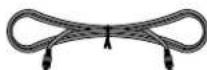
6' Digital (Optical) Cable
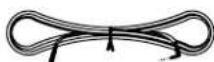
1/8" to 1/8" Analog Cable
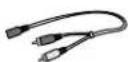
1/8" to RCA Adapter
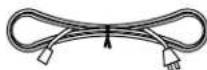
Subwoofer Power Cord

24V Power Supply
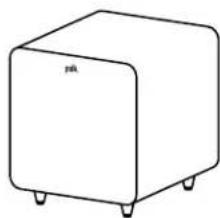
Subwoofer
Quick Start Guide
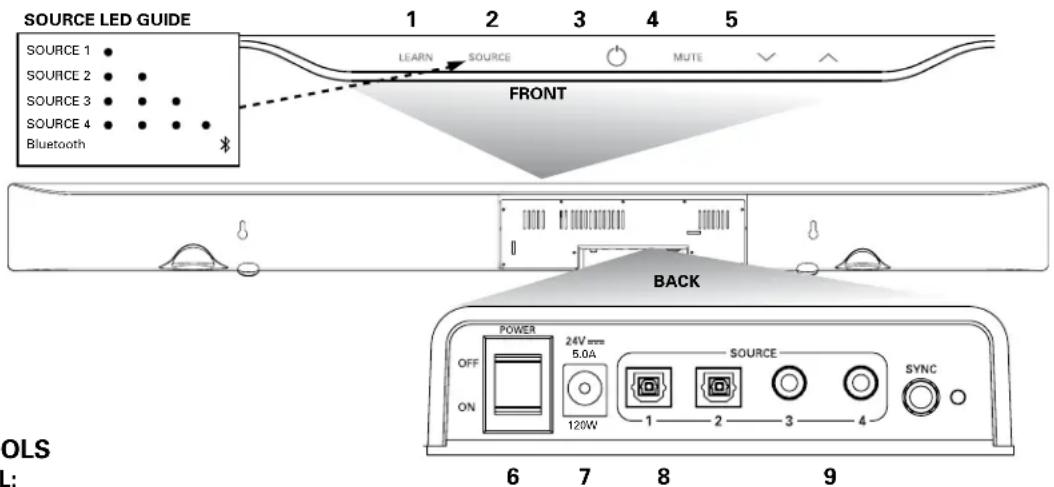
BAR CONTROLS FRONT PANEL:
- Learn—Puts the bar into "learning mode" so you can program it to respond to commands from your existing remote control.
- Source—Changes which input source you are listening to.
Source 1: digital/optical
Source 2: digital/optical
Source 3: analog
Source 4: analog
Source 5 Bluetooth (®): Bluetooth® wireless technology (See "PAIR AND CONNECT YOUR BLUETOOTH DEVICE WITH THE SURROUNDBAR" on page 8.)
LED—Blue light indicates which Source has been selected (see Source LED Guide above). Source 1 or 2 LEDs will light green if Dolby Digital signal is being decoded or orange if DTS is being decoded.
- Power () -Turns on the bar or puts it in standby mode.
LED-A light that shines green, orange or red to indicate operating status. - Mute—Mutes and unmutes the sound coming from the SurroundBar 9500 BT, indicated by green slow flash.
- Volume Up and Down ( ) Adjusts the volume of the SurroundBar 9500 BT.
BACK PANEL:
- Power Switch—Turns the bar on or off, but you can leave it on all the time.
- Power Connection—The bar power supply connects here.
- Audio Inputs (Source 1, 2, 3 or 4)—Where you connect your TV (or other sources) to the SurroundBar 9500 BT. Use the 6^ optical cable provided (Source 1 or 2 are digital) or 1/8 analog cable provided (Source 3 or 4 are analog).
- SYNC—The SYNC button ensures the subwoofer and bar are communicating. (See "SYNCING THE BAR AND WIRELESS SUBWOOFER" on page 7.)
BAR POWER (O) LED NORMAL OPERATING MODE:
Green Steady—Power is on; all is well.
Red Steady—The bar is in standby mode.
Green Two Blinks—A remote control or keypad operation signal is received successfully.
Green Slow Blinking—System is muted.
Green Fast Blinking (After pressing volume up button)—You have reached the maximum volume.
Green Fast Blinking (At power up)—The bar and subwoofer have established a wireless connection.
BAR POWER (O) LED LEARNING MODE: (See page 9 for instructions.)
Orange Blinking—The bar is in learning mode.
Orange Steady—The bar is in learning mode and a function has been selected.
Green Blinking—The bar has successfully learned a remote control command.
Red Blinking—The bar has failed to learn a remote control command.
Red and Orange Blinking—Learned IR codes have been successfully erased.
SOURCE LED
Green Blinking-Dolby Digital source recognized (Source 1 and 2 only).
Green Steady-Dolby Digital source received and is being decoded (Source 1 and 2 only).
Blue Steady-PCM or analog source received.
Orange Blinking—DTS source received and is recognized (Source 1 and 2 only).
Orange Steady-DTS source received and is being decoded (Source 1 and 2 only).
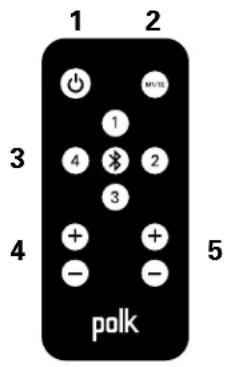
REMOTE CONTROL
- Power () -Turns on the bar or puts it in standby mode.
- Mute—Mutes and unmutes the sound coming from the SurroundBar 9500 BT.
- Source 1, 2, 3, 4 or 串 Changes which input source you are listening to.
- Volume Up and Down (+ / - ) Adjusts the master volume of the SurroundBar 9500BT system.
- SUB Volume Up and Down (+ / - ) Adjusts the volume of the subwoofer.
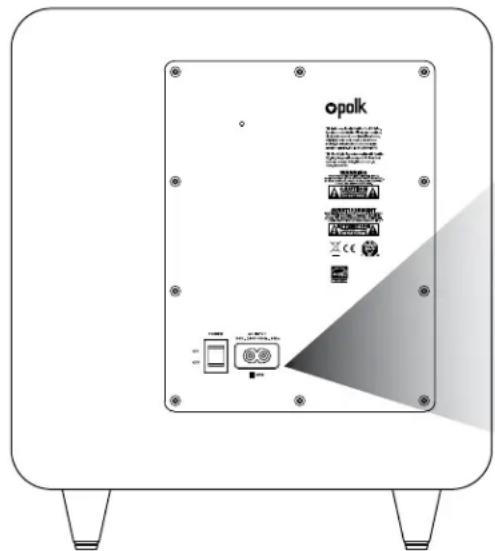
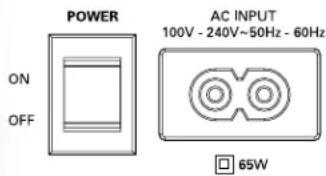
1 2
SUBWOOFER CONTROLS
- Power Switch—Turns the wireless subwoofer on or off, but you can leave it on all the time if you wish.
- Power Connection—The subwoofer power cord connects here.
THE STATUS LIGHT ON THE WIRELESS SUBWOOFER INDICATES THE FOLLOWING:
When light shines green:
a. Green Steady—The bar and subwoofer are connected.
b. Green Slow Blinking—The subwoofer is searching for the bar.
c. Green Fast Blinking—The subwoofer is in the process of connecting with the bar.
When light shines red:
a. Red Steady—The subwoofer is in standby mode.
b. Red Blinking—The subwoofer is in protection mode.
Specifications
| Dimensions | ||
| SurroundBar | 3 3/4" H x 44 1/2" W x 2 1/4" D | |
| (9.53 cm x 113.03 cm x 5.72 cm) | ||
| Subwoofer | 13 1/2" H x 12" W x 13 1/2" D | |
| (34.29 cm x 30.48 cm x 34.29 cm) | ||
| Weight | ||
| SurroundBar | 8 lbs (3.63 kg) | |
| Subwoofer | 18.2 lbs (8.26 kg) | |
| PowerRequirements | ||
| SurroundBar | 24V, 5 A | |
| Subwoofer | 100V - 240V~50Hz - 60Hz, 65W | |
| Model | SurroundBar 9500 BT | |
| Remote Battery | CR2025 | |
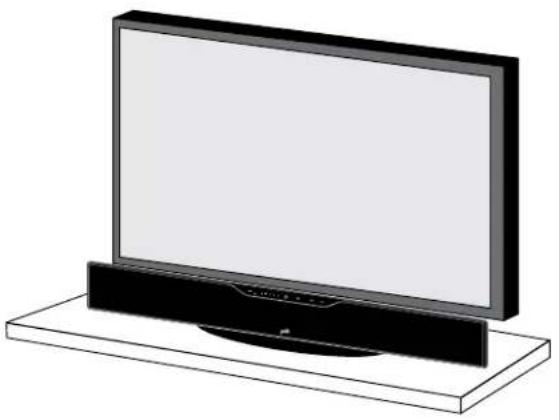
Shelf mounted bar sits in front of TV
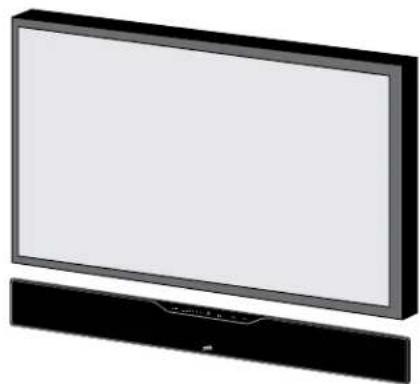
Wall mounted bar
It's easy. The bar comes with rubber feet already attached, so it will sit securely on any flat surface. Just center the bar under your TV screen. If your TV is housed in a media center, you can place the bar above the TV.
If your TV is wall mounted, the bar can mount right beneath it. The bar has built-in keyhole slots that make it easy.
Note: The rubber feet are detachable and may be removed entirely (for wall-mounting the bar) or moved along the bottom surface of the bar, depending upon your installation.
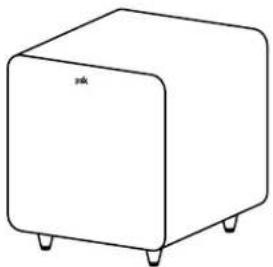
WHERE TO LOCATE YOUR SUBWOOFER FOR THE BEST SOUND
Your wireless subwoofer is really easy to place and can go just about anywhere in the room. Plus you don't have to worry about connecting wires, because the only wire you have to plug in is the power cord. And that's it.
Here's a little trick: If you place your subwoofer in a corner of your room, it will reinforce the subwoofer's output, making it sound louder.
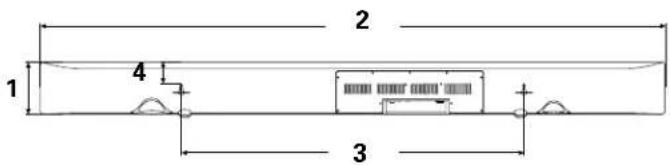
Overall Dimensions
- 33 / 4^aH (9.53 cm)
- 44 1/2" (113.03 cm)
Keyhole Slots
- 241 / 2'' (62.23 cm)
Top of Bar to Keyhole Slots
4.1 11/16" (4.29 cm)
Note: If you wall mount your SurroundBar, ensure that your wall anchors secure properly into the wall and that they can bear the weight of the SurroundBar, which is 8 lbs (3.63 kg).
HOW TO CONNECT YOUR BAR
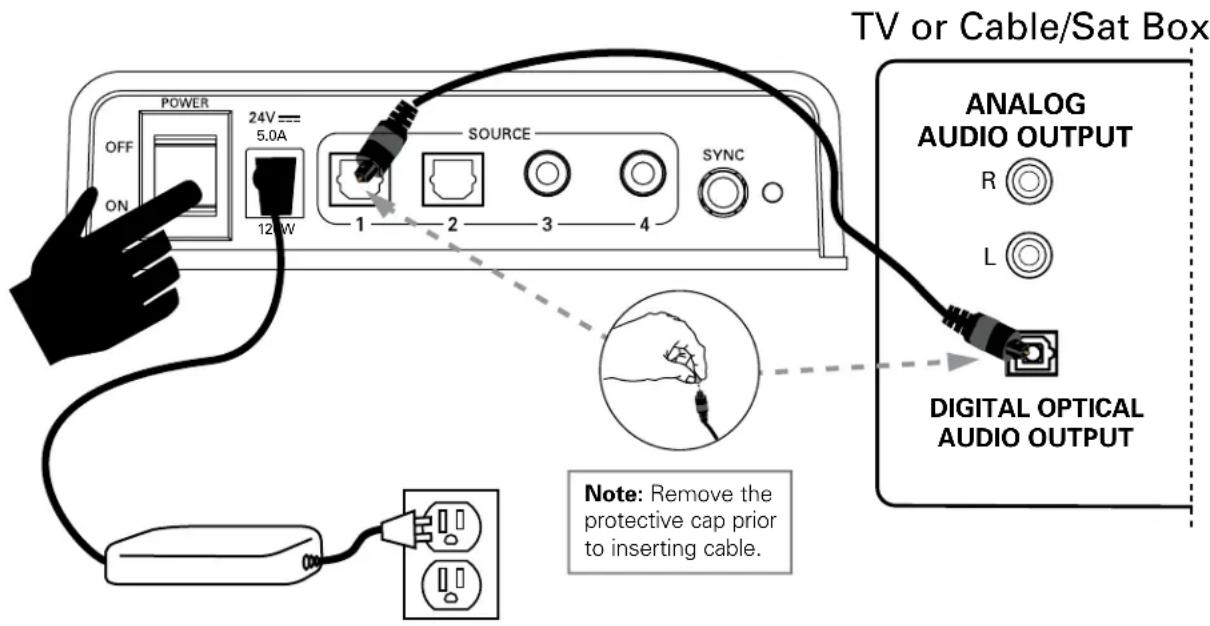
This is really easy too. You likely have many sources for your audio signal: your TV, your DVD player, or a cable/satellite box. The bar is able to accept audio from up to four different sources. The simplest approach is to connect the optical audio output of your TV to the optical input on the back of the bar. This method will provide the highest quality audio regardless of whether you are watching TV or watching your favorite DVD.
If your TV does not have an optical output, you can use the optical output from your DVD player or your cable/satellite box to connect to the optical input on the bar. Then simply use the other bar inputs for your other audio sources.
HOW TO CONNECT YOUR SUBWOOFER
Your subwoofer receives a wireless audio signal from the bar, so all you need to do is plug in the power cord and make sure the main power switch is ON.
SYNCING THE BAR AND WIRELESS SUBWOOFER
The SurroundBar 9500BT bar and wireless subwoofer come from the factory preset to work together. If the wireless subwoofer stops receiving an audio signal, follow these instructions to re-establish the connection.
- Turn off the subwoofer's AC Mains switch.
- Press and hold the SYNC button on the back of the bar for three (3) seconds.
- The LED on the back of the bar will blink, indicating that the bar and the subwoofer are ready to be connected.
- Turn on the subwoofer's AC Mains switch. When the subwoofer LED turns solid green, the bar and subwoofer are connected and ready to use.
BLUETOOTH WIRELESS TECHNOLOGY
To use your Bluetooth wireless technology device with the SurroundBar 9500BT, you must first pair your device with your SurroundBar.
Pairing creates the ability of your Bluetooth device to connect with your SurroundBar wirelessly. Pairing is like a handshake between your Bluetooth device and your SurroundBar 9500BT in which they meet and exchange information.
You only have to pair your SurroundBar with your Bluetooth device one time for this exchange of information to take place. After that you simply select the "polk soundbar" from your device list to make the connection to your SurroundBar.
The SurroundBar can hold 8 Bluetooth devices in its memory.
If enough devices pair after yours, your device could be dropped from the memory list.
Pair and connect your Bluetooth device with the SurroundBar:
- Make sure your Bluetooth device and SurroundBar 9500BT are both powered on.
- Activate the Bluetooth function on your Bluetooth source device. See your device's manual for instructions.
- Press the Bluetooth source button from the SurroundBar remote or press the SOURCE button on the SurroundBar until the Bluetooth source is selected.
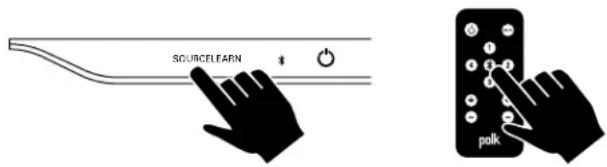
The Bluetooth symbol will illuminate, then begin slowly pulsing as it looks for the paired device.
- Your SurroundBar will now be displayed on your source device and available to pair and/or connect. Select the "polk soundbar" on your device to initiate the connection process.
- After a short delay (5 seconds), the two devices should now be connected. You should hear a short tone and the Bluetooth source symbol will now be steady blue.
- Play your music from your device!
Note: If your device asks for a passcode to pair to the SurroundBar, enter "0000."
How to disconnect with a Bluetooth device:
- Press and release the Remote Control Bluetooth button, or
- Press and release the Bluetooth Source button, or
- Turn off or disconnect the Bluetooth feature on your Bluetooth device.
The SurroundBar will emit a short tone and the Bluetooth source symbol will begin slowly pulsing when disconnected.
Automatic connection:
Any time you want to connect the last paired device and play it through the SurroundBar, do the following:
- Turn your device's Bluetooth function on.
- Enter Bluetooth source by pressing the Bluetooth source button from the remote or press the SOURCE button on the SurroundBar until the Bluetooth source is selected.
- After a short delay, the two devices will automatically connect. You will hear a short tone, and the Bluetooth source symbol will now be steady blue.
Note: By default, the last connected Bluetooth device will automatically connect if available.
Pair and/or connect to a device when in Bluetooth source, but disconnected:
- Engage the Bluetooth function on your Bluetooth source device. See your device's manual for instructions.
a. The SurroundBar will be displayed on your source device as available to pair and connect. Select the "polk soundbar" on your device to initiate the pairing and connection process.
After a short delay, the two devices should now be paired and connected. You should hear a short tone and the Bluetooth source symbol will now be steady blue.
How to disconnect:
Note: Anytime The SurroundBar exits SLEEP mode and is in Bluetooth source, the SurroundBar will automatically connect to the last paired Bluetooth device if the paired device's Bluetooth feature is on.
How To oPTIMizE THE SouND wHEN Tv SPEAKERS ARE oN
You should hear sound from the bar. If you don't, turn up the volume on the bar using its volume control buttons.
If your bar is connected to your TV, there's a very good chance your TV speakers are also playing. It's impossible to give specific instructions on how to turn off the speakers for every TV, but here's a way to do it that covers many of the TVs out there.
- On your TV remote control, find a "menu" or "setup" button.
- Press this button. You should see an on-screen menu.
- Next, look for an option to control audio functions and select it.
The setting to turn off your TV's internal speakers should be here.
If you can't turn off your TV internal speakers, don't worry. Your SurroundBar 9500BT will make your TV sound much better. To enjoy the best performance from your bar, you'll want it to play louder than your TV. Use the following steps to adjust the volume balance between your TV and the bar:
- If necessary, program your bar to respond to the volume up and down control commands of your TV remote. (See "HOW TO SETUP A REMOTE CONTROL FOR YOUR SURROUNDBAR" on page 9.)
- Turn your TV volume all the way down using the control buttons on your TV.
- Then, using the volume keys on your bar, set the volume to a normal listening level (do not use the remote control).
After you make these adjustments, your SurroundBar 9500BT should always be louder than your TV speakers. Then use the TV remote control to adjust the volume as you normally do.
FINE TuNINg youR SuBwooFER volumE IEvEI
The next thing you'll want to do is adjust the subwoofer to blend with your bar. This will ensure the system produces the best sound.
To set the subwoofer's volume, play a variety of source material—some music, a movie sound track with great special effects, a movie chapter or a part of a concert in which people are speaking. Adjust the volume until what you hear sounds natural to you in your normal viewing location.
SMARTBAR™ PROGRAMMING NOTE:
For your SurroundBar to respond to your remote control, you MUST FIRST program the bar to respond to your television's original IR (Infra-Red) remote. An RF (Radio Frequency) remote will not work. Other remotes (cable, satellite) will work only after you have programmed the bar to respond to the TV's IR remote.
Programming Instructions: Your SurroundBar is currently programmed to respond to the remote control that is included with the product. However, we strongly recommend programming the SurroundBar to also respond to your existing remote control using the steps illustrated below. This will enable you to operate all of your components using a single remote control. While programming the SurroundBar, ignore anything that may be displayed on the TV screen.
Example: To teach your bar the "Volume Up" command of your remote control:
The SurroundBar is turned on and the LED is solid green. And you have sound coming from the bar.
Press and hold "LEARN" for 2 seconds, or until LED blinks orange, then release the "LEARN" button.
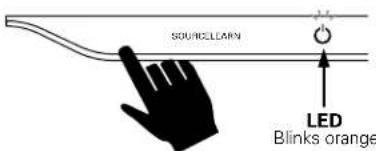
Press and release Volume Up "LED turns solid orange.

4 Hold TV remote 1^ - 2^ from SurroundBar.
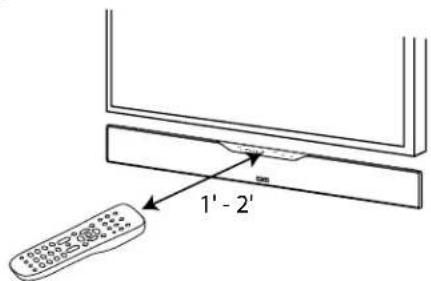
5 Tap "Volume Up" button on your TV's remote control 4-8 times, once per second. Tap, do not hold.
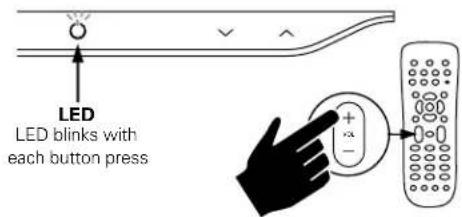
6 When the LED blinks green quickly for 3 seconds, the command has been learned. The LED will become solid green.
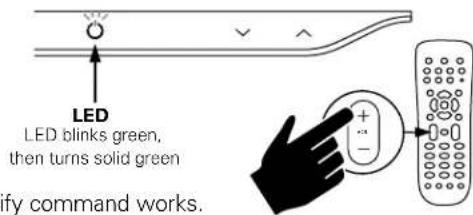
Repeat steps 1-6 to program "Volume Down" (√), Source, Mute and Power buttons (○).
Note: If your bar fails to learn certain IR remote codes, the power LED will blink red. Try erasing any previously programmed codes (see below) and carefully repeat steps 1-6 above.
Code Erasing Procedure: If you have programmed your SurroundBar to respond to a remote control and you no longer want it to do so, erase the codes by pressing the LEARN key for about two seconds while the unit is in standby mode (power LED is red). You'll know that previously learned codes have been successfully erased when the power LED blinks orange twice.
Note: This procedure removes ALL of your bar's remote control programming. If you only need to change the programming for some of the bar buttons, follow the six steps in the sequence previously described to redo any previous programming.
The SurroundBar will continue to respond to the provided credit card remote control.
SUB VOLUME CONTROL ON THE BAR
While unit is on and LED is solid green.
- Tap LEARN once, LED () turns orange.
- To adjust sub volume, tap up (∧) or down (∨).
- To return to master volume, tap LEARN again, LED () turns green.
NOTE: Bass can also be adjusted with included remote control.
TROUBLESHOOTING
The bar does not power on.
- Ensure you have plugged the power supply into a live wall outlet.
- Ensure that all components of the power supply are connected properly.
- Ensure the power supply is properly connected to the bar power input.
- Ensure the rear panel power switch is in the "ON" position.
The subwoofer does not power on.
- Ensure the subwoofer is plugged into a live wall outlet.
- Ensure the rear panel power switch is in the "ON" position.
No sound from the bar.
- Check that the TV or cable box is providing a signal. If necessary, check using an alternate source.
- Check that the bar is receiving power and is turned on.
- Turn up the volume of the bar.
- Check the input cables to make sure they are connected securely.
- Turn up the volume of your television or cable box.
- Check mute status: Is the bar status light slowly blinking green? If so, press the MUTE button on the bar.
No sound from the subwoofer.
See section "Subwoofer does not power on."
- Turn up the subwoofer volume using the remote control.
- Is the subwoofer status indicator blinking green? If so, the bar and subwoofer's wireless connection has been lost. Turn off both the bar and subwoofer. Then turn them back on to re-establish communication. If this does not fix the issue, refer to the section "SYNCING THE BAR AND WIRELESS SUBWOOFER," on page 7.
The sound coming from the bar is distorted.
Try turning down the volume of your audio source, if possible.
Audio processing (see FAQ's on page 12) there may be audio processing occurring prior to reaching the bar. Disable this processing.
The included remote control won't work.
- Ensure the battery's protective plastic tab has been removed.
- Replace the battery (CR2025).
Bass output is not loud enough.
- Turn up the subwoofer's volume using the remote control.
- Place the subwoofer closer to a corner of the room.
- Move subwoofer closer to viewing location within the room.
The bar won't learn my remote control commands.
- Carefully follow the programming instructions on the previous page of this manual.
- Hold the remote steady and 1-2 feet from the front of the bar.
- Quickly "tap" the button on your existing remote until the status LED blinks green.
Note: The bar learns almost all IR commands, but some IR protocols cannot be programmed.
The volume of my television speakers gets louder than my SurroundBar 9500BT system over time.
- Turn off your TV speakers per the instructions on page 9 of this manual.
- When the remote control volume button is held down, your television may change volume levels faster than the bar. Use the buttons on the bar to adjust the volume of the bar to the correct balance with the TV speakers.
The subwoofer's output is intermittent, or sounds weak or is distorted.
- The wireless subwoofer could be too far away from the bar to receive a sufficiently strong signal. Try moving the subwoofer closer.
My Bluetooth device and bar will not disconnect.
- Some Bluetooth devices will constantly attempt to connect to a paired device, so you must turn off the Bluetooth function on your device to allow other devices to connect to the bar.
FAQ'S (FREQUENTLY ASKED QUESTIONS)
My TV does not have an optical output. How do I connect my audio?
You have several options for connecting your audio:
- Use the optical output of your source unit (cable/satellite box, DVD player, etc.) and connect directly to the SurroundBar 9500 BT using the supplied optical cable.
- Use the 1/8'' (3.5mm) analog / headphone output of your TV (if available) and connect directly to the SurroundBar 9500 BT using the supplied 1/8'' (3.5mm) to 1/8'' (3.5mm) analog cable.
- Use the RCA audio outputs (white/red pair) on your TV (if available) and connect directly to the SurroundBar 9500 BT using the supplied 1/8'' (3.5mm) to 1/8'' (3.5mm) analog cable and 1/8'' (3.5mm) to RCA adapter.
What if my provided optical cable is too short?
- We did our best to provide a cable of adequate length; however, there might be a few setup instances in which the cable may be too short. If that is your situation, your local electronics store will have cables that meet your required length.
My audio sounds strange and distorted.
- Your SurroundBar 9500BT requires a clean, unaltered stereo or Dolby Digital or DTS signal for proper audio performance. If the sound from your SurroundBar 9500 BT is strange or distorted, then check the audio menus of whatever source(s) are connected to your SurroundBar 9500 BT and make sure any audio processing is turned off.
Why can't I successfully program the SurroundBar 9500_BT to respond to my remote control?
- There are many remote control formats, and we have done our best to make the SurroundBar 9500 BT compatible with the most popular brands. However, there are likely some cases in which the bar will not be able to learn your remote codes. In this case, please use the remote control provided with the SurroundBar 9500 BT product or try a different universal remote control.
Note: RF only remotes will not work with this system.
How do I control the SurroundBar 9500BT?
There are three ways to control your SurroundBar 9500BT:
- Use the touch-sensitive buttons on the front of the bar.
- Use the provided remote control.
- Program the SurroundBar 9500BT to respond to your existing remote (see instructions page 10).
My SurroundBar 9500BT was responding to commands, but now it isn't. What should I do?
- In this rare event, simply turn off the power (switch located on the back of the bar), wait a few seconds, and then turn the power back on. This should restore control.
How do I erase previously learned remote control commands?
- If you have programmed your SurroundBar 9500BT to respond to a remote control and you no longer want it to do so, then you can erase the codes by pressing the LEARN key for about two seconds while the unit is in standby mode (power LED is red). The SurroundBar 9500BT will continue to respond to the provided credit card remote control.
Can I adjust the subwoofer level control from the bar keypad if I cannot locate the provided remote control?
- Yes. You can control the subwoofer volume from the bar keypad by tapping the LEARN key prior to using the volume buttons. When the power LED shines orange, the volume keys ( ) control the subwoofer volume. Tap the LEARN key again when you are done with the adjustment.
To contact Customer Service/Technical Support:
- If you have a question or comment, please feel free to call us or email us. In North America and Canada, call Polk Audio Customer Service: 800-377-7655 (M-F 9-5:30 EST) or via email polkcs@polkaudio.com. Outside the US, call 410-358-3600.
A Note Regarding wireless Performance:
Like all wireless devices, your SurroundBar 9500r may be susceptible to RF interference from such sources as microwave ovens, Wi-Fi computer systems, video game systems, cordless telephones, blue tooth systems, baby monitors and other devices. In particular, any devices operating in the 2.4GHz band may cause intermittent wireless connections between the SurroundBar 9500r speaker and the subwoofer. It is also possible that your SurroundBar 9500r System may affect other wireless systems. For the most part, you can avoid wireless performance problems by physically separating these devices from your SurroundBar 9500r System. Maintaining a distance of several feet or more between your SurroundBar 9500r speaker and any wireless device should prevent any mutual interference effects. If you do notice any subwoofer signal dropouts take care to identify the root cause (most commonly having other wireless devices too close) and resolve accordingly. Any interference effects from a microwave oven will cease once the oven stops operating and may be resolved on a long-term basis by increasing the physical distance between your SurroundBar 9500r System and the microwave oven.
WARNING: LISTEN CAREFULLY
Polk Audio loudspeakers and subwoofer are capable of playing at extremely high volume levels, which could cause serious or permanent hearing damage. Polk Audio, Inc. accepts no liability for hearing loss, bodily injury or property damage resulting from the misuse of its products.
Keep these guidelines in mind and always use your own good judgment when controlling volume:
- You should limit prolonged exposure to volumes that exceed 85 decibels(dB).
Refer to the Occupational Health and Safety Administration (OSHA) guidelines at
www.osha.gov/dts/osta/atm/noiso/standards_more.html.
Polk Audio is a DEI Holdings, Inc. Company. Polk Audio, Polk, The Speaker Specialists, SDA, Polk Digital Logic and SurroundBar are registered trademarks of Polk Audio, Inc.
Products that have earned the Energy Star are designed to protect the environment through superior energy efficiency.
Manufactured under license from Dolby Laboratories, Dolby and the double-D symbol are registered trademarks of Dolby Laboratories.
Manufactured under license under U.S. Patent Nos: 5,956,674; 5,974,380; 6,487,535 & other U.S. and worldwide patents issued & pending. DTS, the Symbol, & DTS and the Symbol together are registered trademarks & DTS Digital Surround and the DTS logos are trademarks of DTS, Inc. Product includes software. © DTS, Inc. All Rights Reserved.

is a trademark of SRS Labs, Inc. TruSurround HD4 technology
is incorporated under license from SRS Labs, Inc.
The Bluetooth® word mark and logos are registered trademarks owned by Bluetooth SIG, Inc. and any use of such marks by Polk is under license. Other trademarks and trade names are those of their respective owners.
The "aptX software is copyright CSR plc or its group companies. All rights reserved. The aptX mark and the aptX logo are trade marks of CSR plc or one of its group companies and may be registered in one or more jurisdictions."
FRANÇAIS
CONSIGNES DE SECURITÉ IMPORTANTES
OU PLACER VOTRE SUBWOOFER POUR MAXIMISER SA PERFORMANCE
- 241 / 2^ (62,23 cm)
INDICADOR LED DEL SUBWOOFER
SurroundBar 8 lbs (3.63 kg)
Subwoofer 18.2 lbs (8.26 kg)
Polk Audio, Inc., warrants to the original retail purchaser only. This warranty will terminate automatically prior to its stated expiration if the original retail purchaser sells or transfers the Product to any other party. Polk Audio, Inc., warrants, to the original retail purchaser only, that the LOUDSPEAKERISI, PASSIVE CROSSOVER COMPONENTISI and ENCLOSURE on this Polk Audio Loudspeaker Product will be free from defects in material and workmanship for a period of three (3) years
from the date of original retail purchase from a Polk Audio Authorized Dealer. Furthermore, Polk Audio, Inc., warrants, to the original retail purchaser only, that any AMPLIFIER OR OTHER ELECTRONIC COMPONENT that may be included in this Polk Audio Loudspeaker Product will be free from defects in material and workmanship for a period of one (11) year from the date of original retail purchase from a Polk Audio Authorized Dealer. To allow Polk Audio to offer the best possible warranty service, please fill out the Product Registration Card(s) and send it to the Factory at the address provided on the Product Registration Card(s) within ten (10) days of the date of original purchase. Defective Products must be shipped, together with proof of purchase, prepaid insured to the Polk Audio Authorized Dealer from whom you purchased the Product, or to the Factory at 1 Viper Way, Vista, California 92081. Products must be shipped in the original shipping container or its equivalent; in any case the risk of loss or damage in transit is to be borne by you.
If upon examination at the Factory or Polk Audio Authorized Dealer it is determined that the unit was defective in materials or workmanship at any time during this Warranty period, Polk Audio or the Polk Audio Authorized Dealer will, at its option, repair or replace this Product at no additional charge, except as set forth below. All replaced parts and Products become the property of Polk Audio Products replaced or repaired under this warranty will be returned to you, within a reasonable time, freight prepaid. This warranty does not include service or parts to repair damage caused by accident, disaster, misuse, abuse, negligence, inadequate packing or shipping procedures, commercial use, voltage inputs in excess of the rated maximum of the unit, cosmetic appearance of cabinetry not directly attributable to defect in materials or workmanship, or service, repair, or modification of the Product which has not been authorized or approved by Polk Audio. This warranty shall terminate if the serial number on the Product has been removed, tampered with or defaced.
This warranty is in lieu of all other expressed warranties. If this Product is defective in materials or workmanship as warranted above, your sole remedy shall be repair or replacement as provided above. In no event will Polk Audio, Inc. be liable to you for any incidental or consequential damages arising out of the use or inability to use the Product, even if Polk Audio, Inc., or a Polk Audio Authorized Dealer, has been advised of the possibility of such damages, or for any claim by any other party. Some states do not allow the exclusion or limitation of consequential damages, so the above limitation and exclusion may not apply to you. All implied warranties on this Product are limited to the duration of this expressed Warranty. Some states do not allow limitation on how long an implied Warranty lasts, so the above limitations may not apply to you. This Warranty gives you specific legal rights, and you also may have other rights which vary from state to state. This Warranty applies only to Products purchased in the United States of America, its possessions, and U.S. and NATO armed forces exchanges and audio clubs. The Warranty terms and conditions applicable to Products purchased in other countries are available from the Polk Audio Authorized Distributors in such countries.
CUSTOMER SERVICE
Thank you for your Polk Audio purchase. If you have a question or comment, please feel free to call us or email us. In North America and Canada, call Polk Audio Customer Service 800-377-7655 (M-F, 9-5:30 EST) or via email polkcs@polkaudio.com. Outside the US, call 410-358-3600.