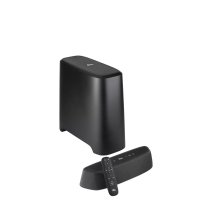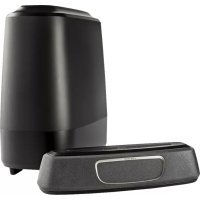
MagniFi Mini - Soundbar POLK - Free user manual and instructions
Find the device manual for free MagniFi Mini POLK in PDF.



User questions about MagniFi Mini POLK
0 question about this device. Answer the ones you know or ask your own.
Ask a new question about this device
Download the instructions for your Soundbar in PDF format for free! Find your manual MagniFi Mini - POLK and take your electronic device back in hand. On this page are published all the documents necessary for the use of your device. MagniFi Mini by POLK.
USER MANUAL MagniFi Mini POLK
Thank you for your Polk purchase. If you have a question or comment, please feel free to call or email us.
Technical Assistance
In North America, call Polk Customer Service at 800-377-POLK(7655) (M-F, 9 a.m.-5:30 p.m. EST)
Outside the US, call +1-410-358-3600
The complete owner's manual can be found online at www.polkaudio.com
What's in the Box
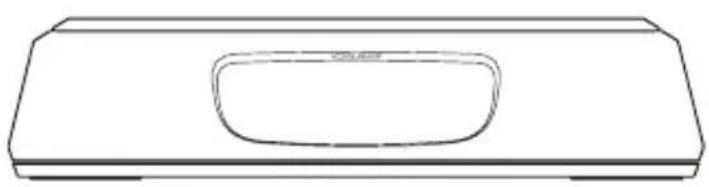
Sound bar
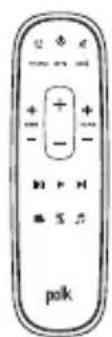
Remote control

Sound bar power cord
Batteries

Sound bar power supply

Literature
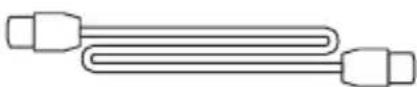
6.5' HDMI cable

6' Optical cable
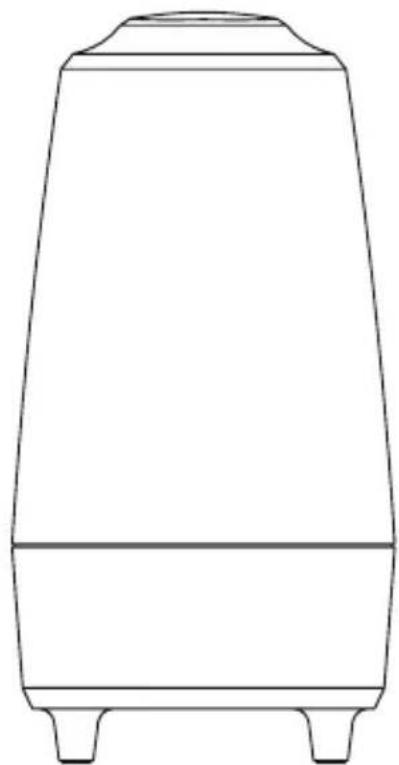
Subwoofer
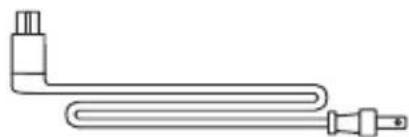
Subwoofer power cord

6' AUX cable
Connecting Your MagniFi Mini to Your TV
Is an HDMI input jack on your TV labeled "ARC"?
YES NO
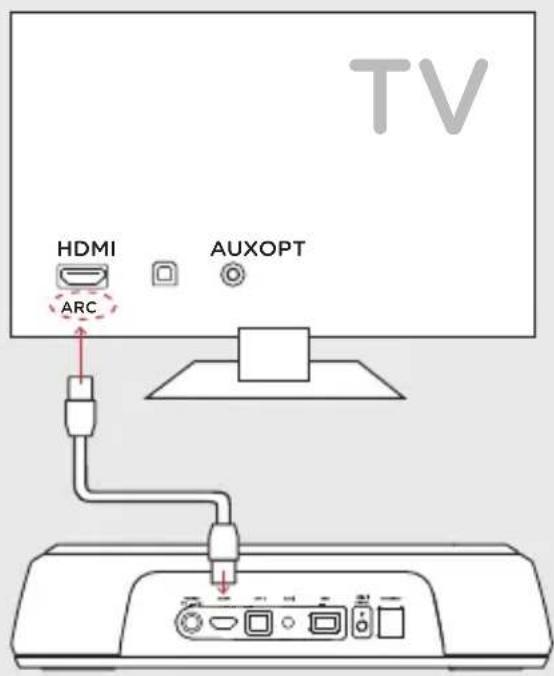
Use the provided HDMI cable to connect the sound bar to the TV.
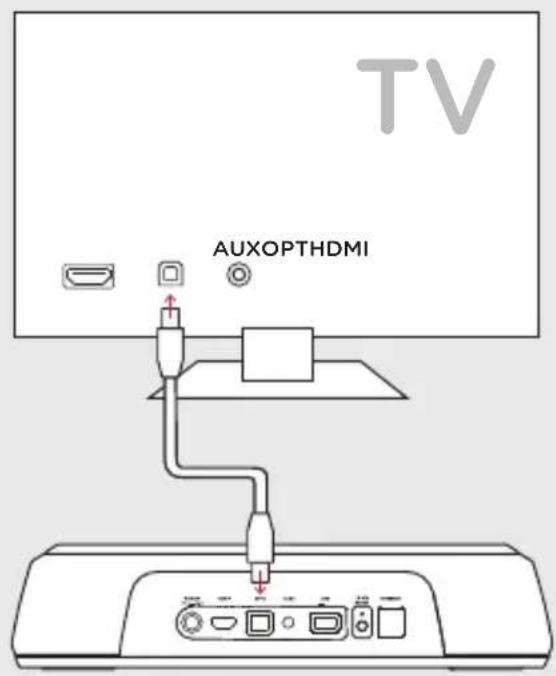
Use the provided Optical cable to connect the sound bar to the TV.
*You MUST have an HDMI ARC input on your TV to use HDMI.
1b.
Don't have HDMI or Optical input available on your TV?
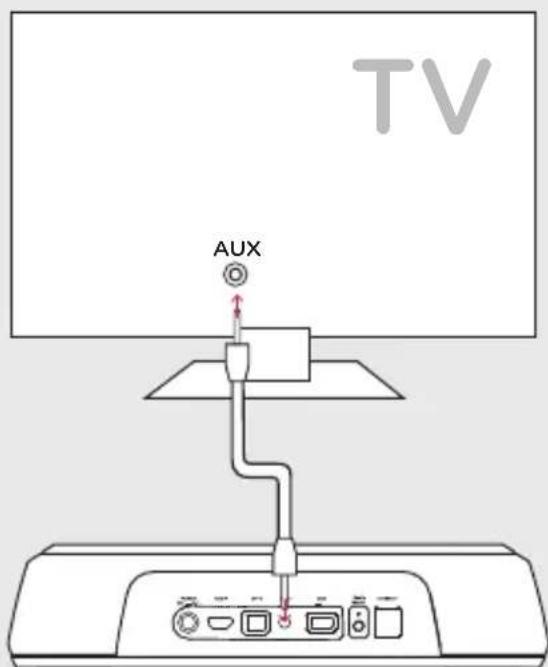
If your TV does not have an HDMI ARC or optical output, connect the sound bar to the TV with the provided AUX cable.
(Only HDMI and optical inputs support Dolby 5.1 decoding)
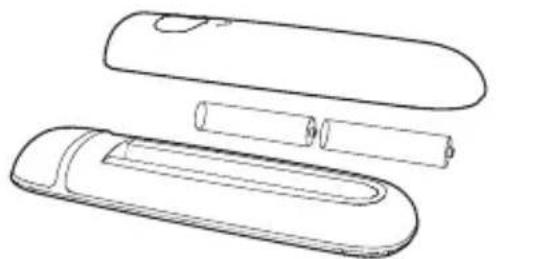
Remote battery installation
Insert the provided AAA batteries.
3.
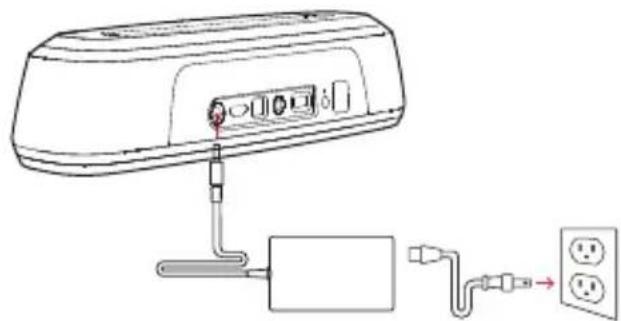
Connect the sound bar power cord to an AC outlet
A red LED will pulse on the front of the sound bar indicating boot up.

Position subwoofer and connect to an AC outlet (for best performance place on the same wall as the TV)
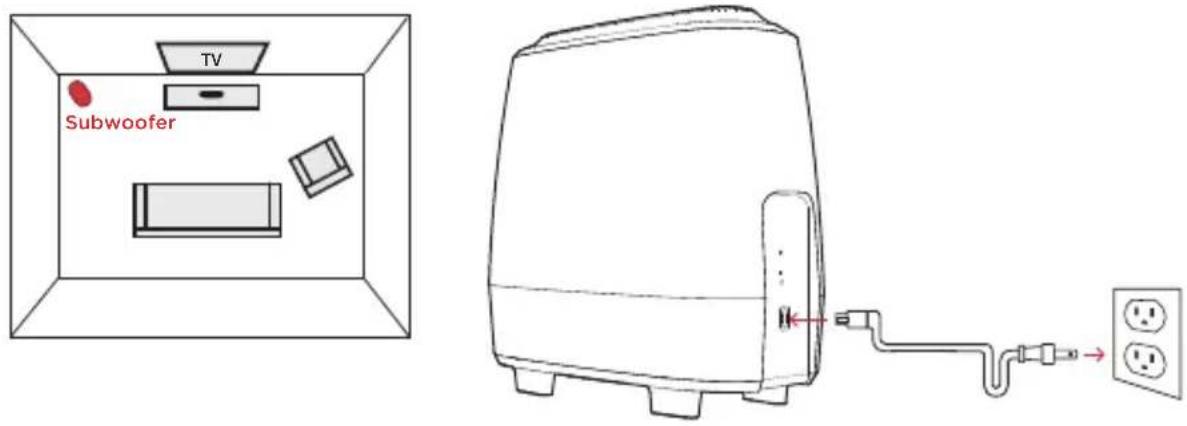
NOTE: The MagniFi Mini sound bar and wireless subwoofer are preset at the factory to work together. Should your wireless subwoofer stop receiving an audio signal, follow these instructions to re-establish the connection:
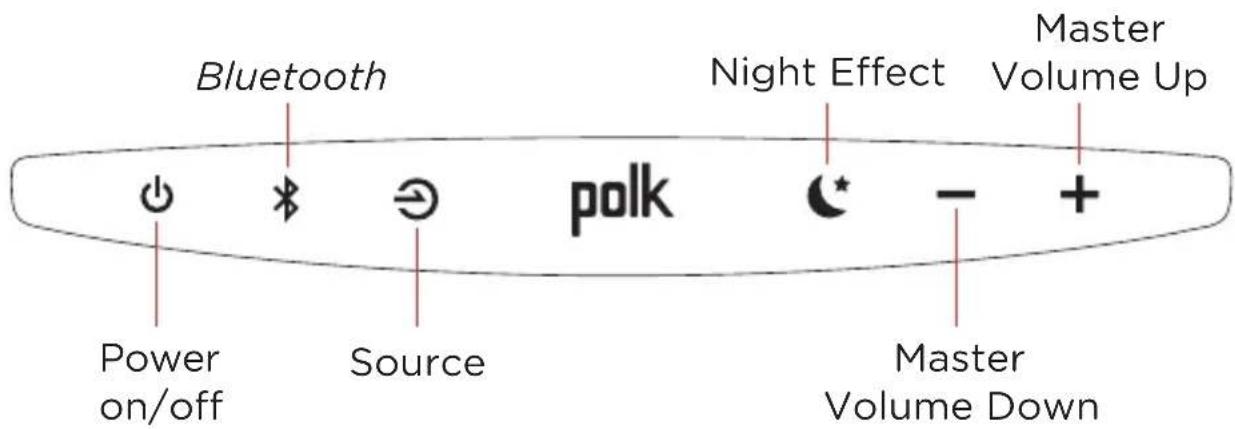
- Turn on your sound bar. On the sound bar simultaneously press and hold the Bluetooth button and the source button for 3 seconds.
- Press and hold the SYNC button on the back of the subwoofer for 3 seconds.
- The green LED on the back of the subwoofer will start flashing at a faster rate, indicating that the sound bar and the subwoofer are connecting, the LED is solid green when connected.

Turn on your sound bar
Press the Power button on the sound bar or remote.
NOTE: make sure TV internal speakers are off when using optical and aux inputs.
Remote Control
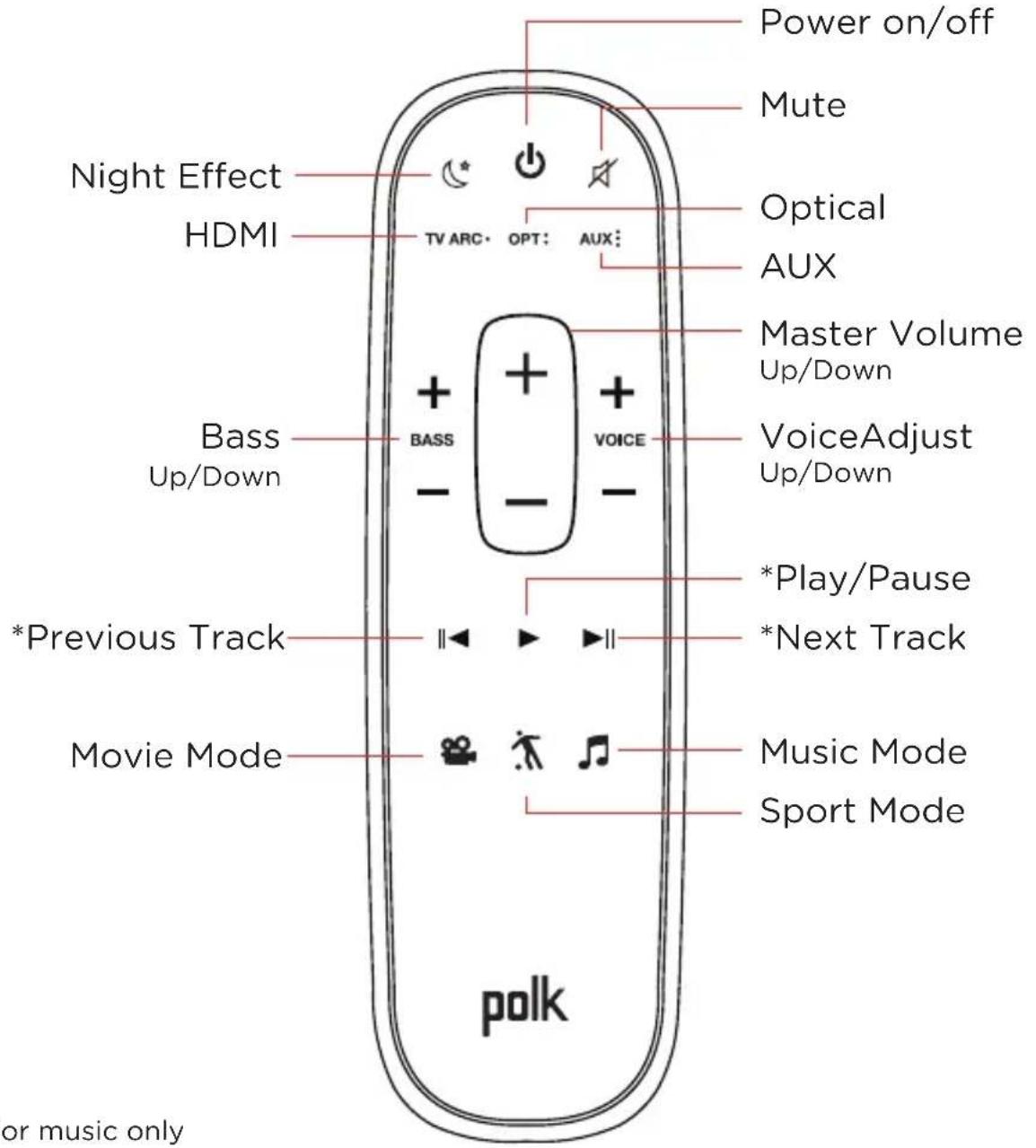
*For music only
Sound Bar Top Panel
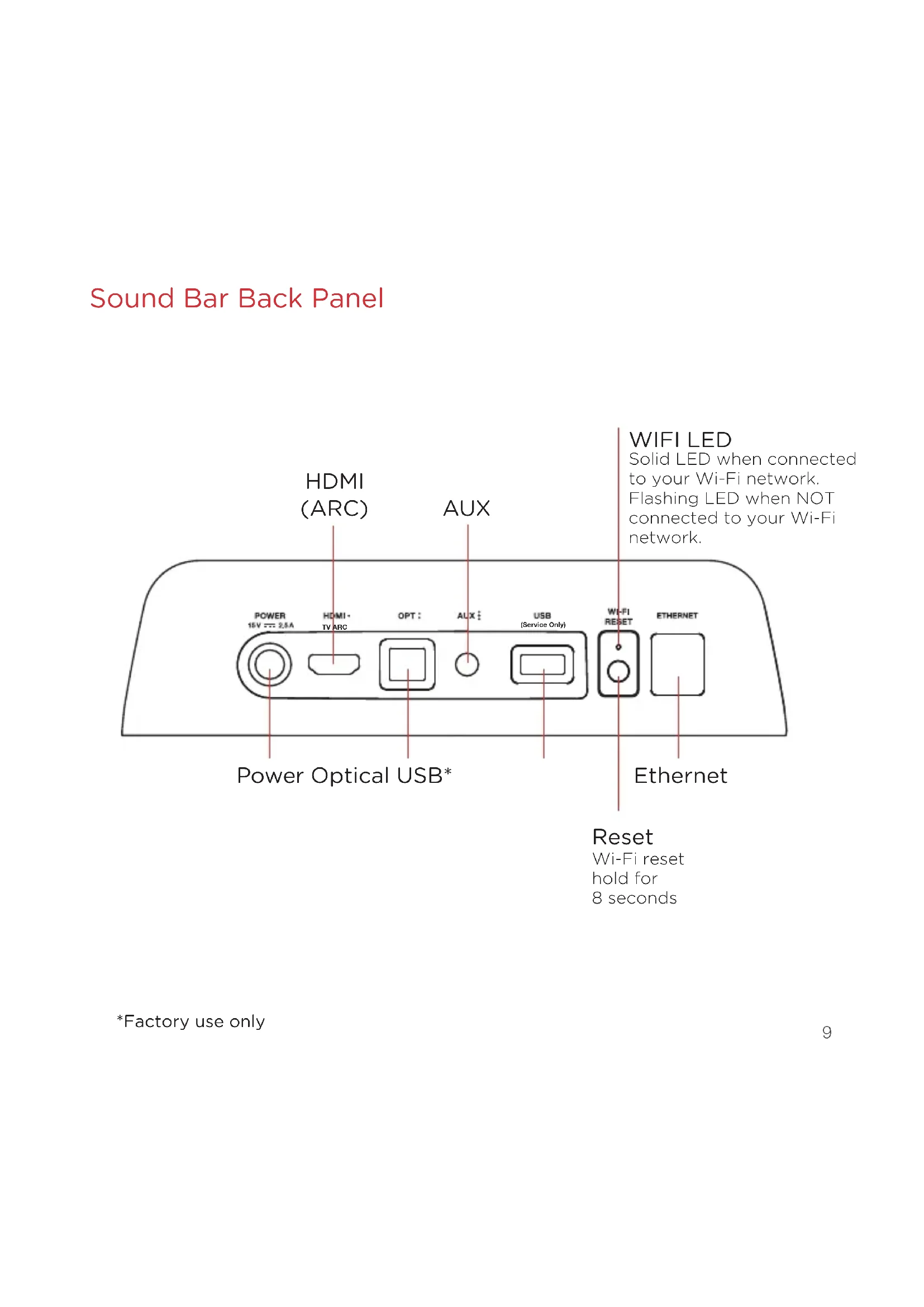
Sound Bar Back Panel
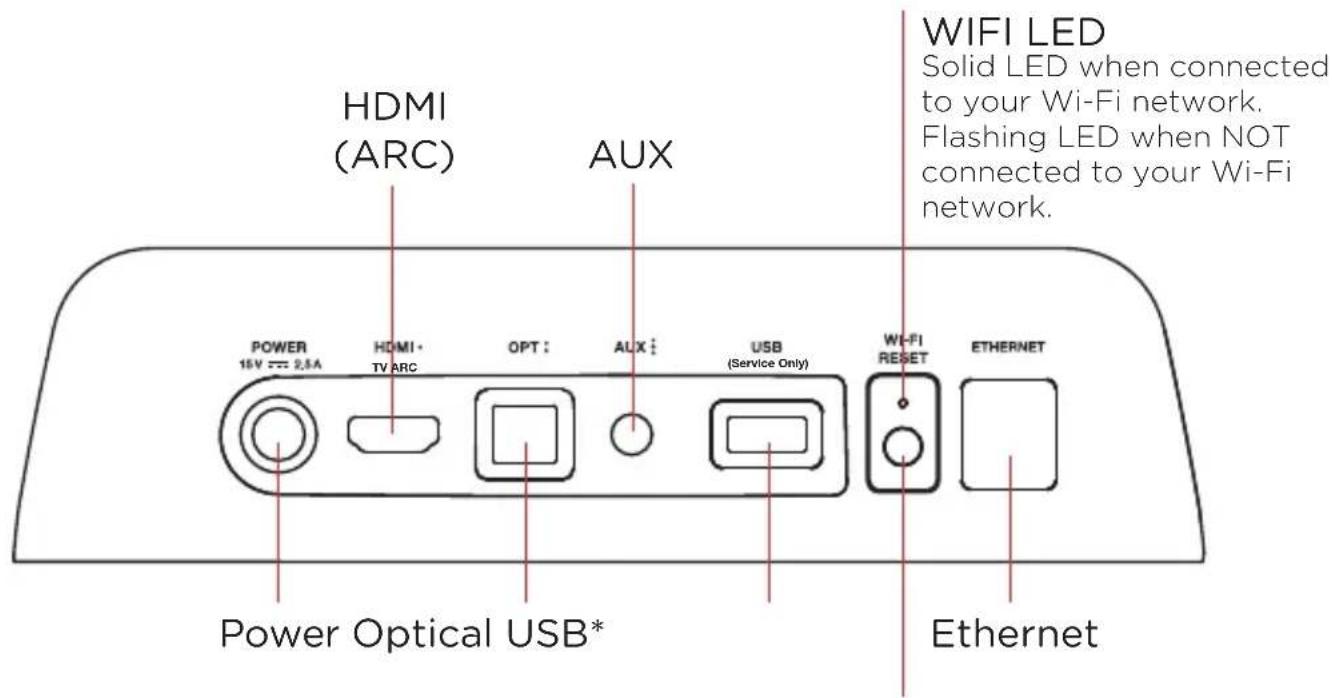
Reset
Wi-Fi reset
hold for
8 seconds
Sound Bar LEDs
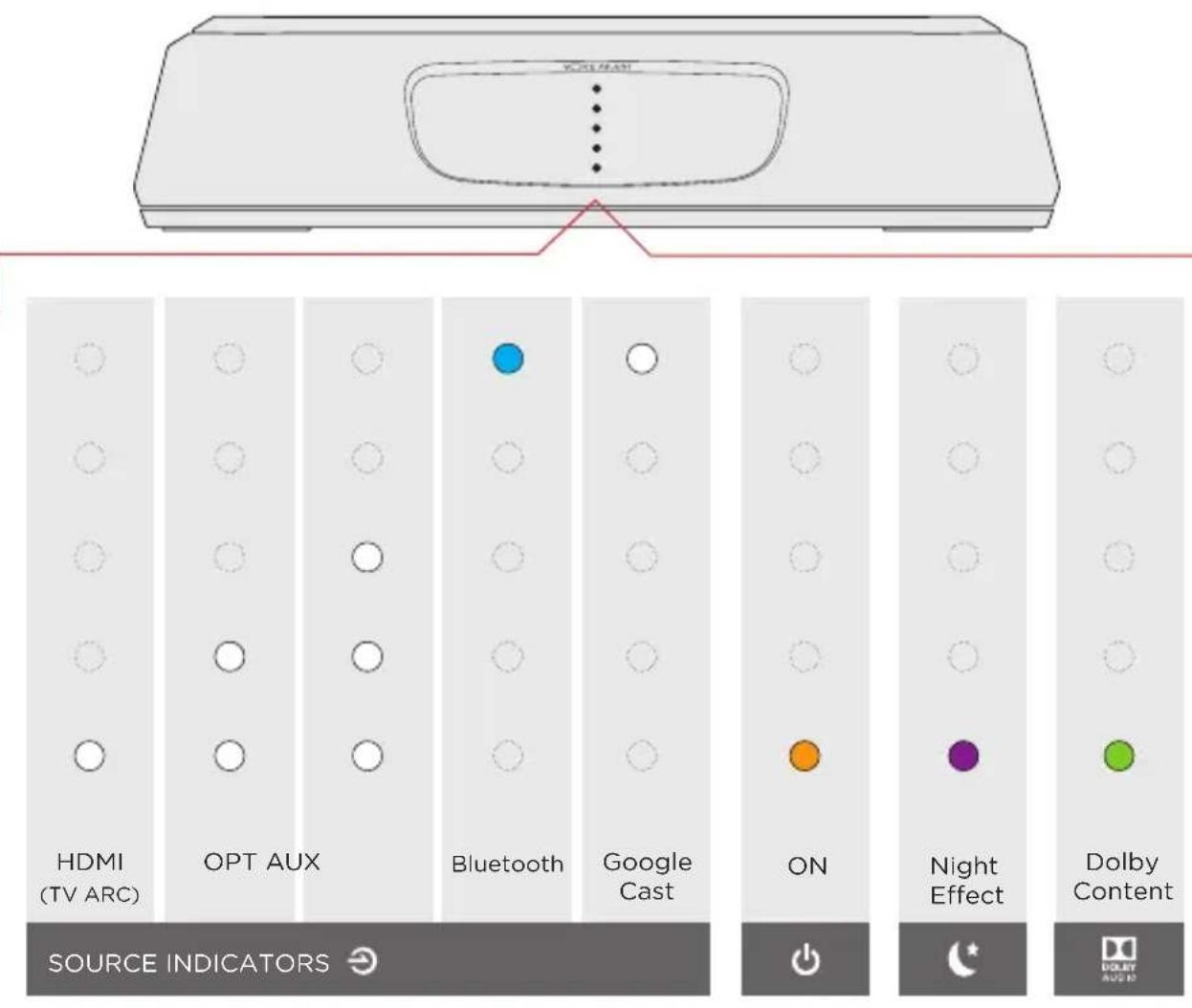
The MagniFi Mini has a vertical row of LED lights that provide status indications, like source, volume and listening modes.
Using Your TV or Cable/Satellite Remote (IR only) to Control the MagniFi Mini
The MagniFi Mini works best with the included remote, however you can also teach it to respond to your favorite TV or cable IR remote by following these steps:
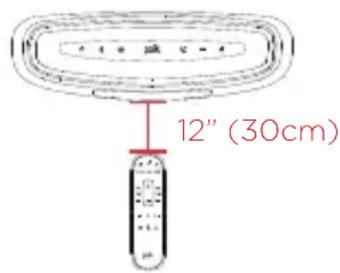
IMPORTANT: Hold both remotes about 12^ (30cm) directly in front of the MagniFi Mini when pressing their respective buttons, make sure you wait at least 1 second between button presses, make sure your remotes have fresh batteries
- Enter learn mode by pressing and holding the Source button on the sound bar until you hear a tone and the lights on the front of the sound bar pulse up and down.
- Press and release the button on the MagniFi Mini remote that you want to learn (ex: Volume Up).
- Press and Release the corresponding button on YOUR remote repeatedly until you hear a two note ascending tone. NOTE: Make sure you wait at least 1 second between button presses!
- Repeat steps 2 and 3 to learn Volume Down, Mute, and Power buttons from your remote.
- Exit learn mode by pressing and holding the Source button on the sound bar again until you hear a tone and the lights on the front of the sound bar stop pulsing.
- Verify that your remote can control the buttons you programmed (ex: Volume up) on the MagniFi Mini.
NOTE:
- You will hear a different (descending) tone if the command failed to learn. Please try again.
MagniFi Mini will exit Learn mode after 1 minute of in activity, saving any learned codes
Optimizing Your Listening Experience
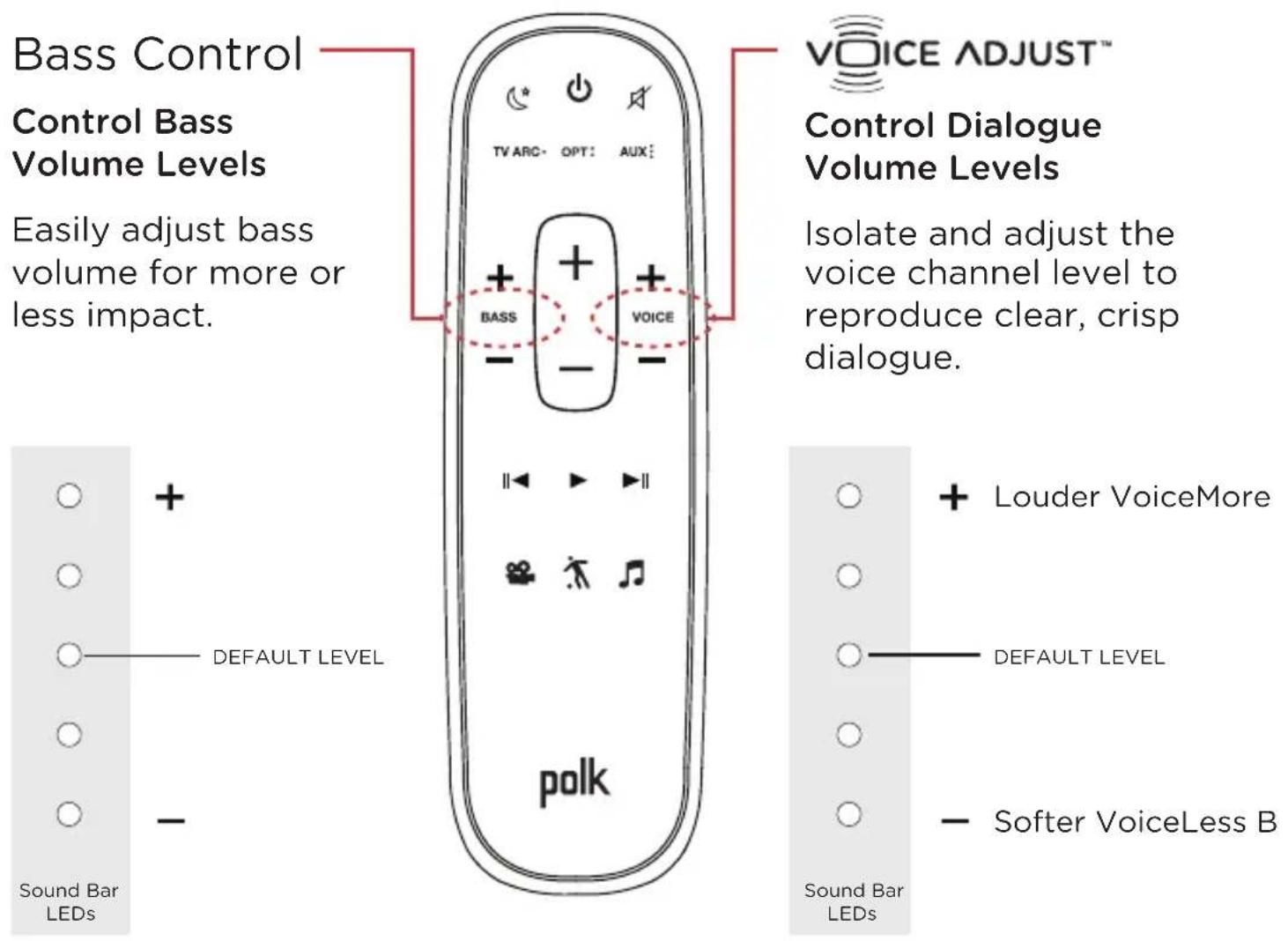

Movie Mode
Enhances audio reproduction in TV and movies.

Sport Mode
Enhances audio whenever you're watching sporting events, news and talk shows.

Music Mode
Enhances audio whenever you're listening to music, or watching TV or movies that have music playing in them.

Night Effect
Reduces bass and volume dynamics while improving voice intelligibility for low-volume listening.
Music Services
How to Set Up Google CastTM
- Power on the sound bar.
- From your phone, tablet or computer visit: chromecast.com/setup
- Download the Google Home app, click on the devices tab within the app and select MagniFi Mini. Follow in app setup instructions.


- When you're streaming Google Cast, a white LED will appear on the sound bar.
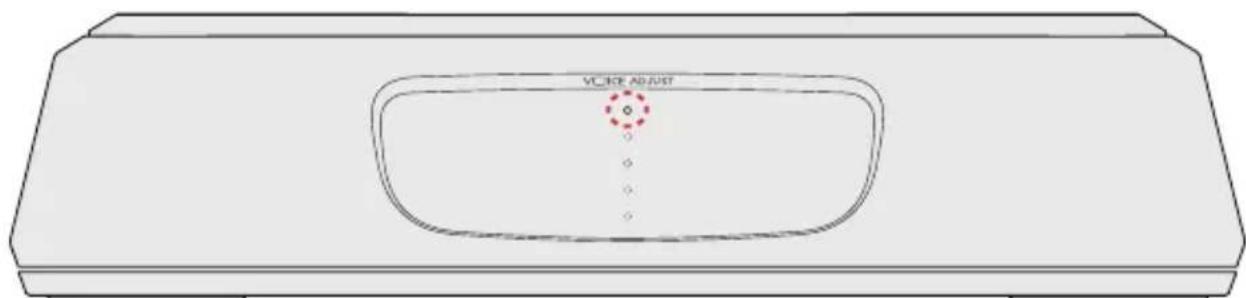
How to hear your TV again: When you are finished using Google Cast, press the source button on the sound bar or remote (TV ARC, OPT, AUX).
How to Set Up Bluetooth®
- To enable Bluetooth, press the Bluetooth button on the sound bar. A blue LED will slowly pulse on the sound bar.
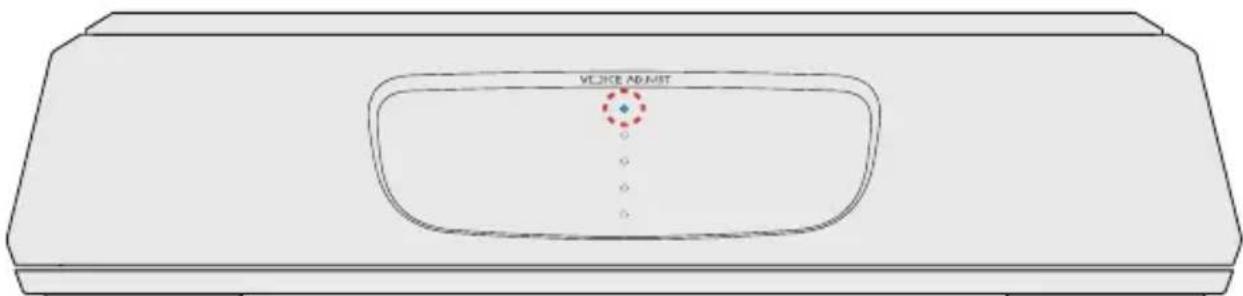
- Go to the Bluetooth devices section on your phone, tablet or computer and select Polk MagniFi Mini. The LED is solid blue when Bluetooth is connected.
Note: To take control when another device is connected, press the Bluetooth button.
How to hear your TV again: When you are finished using Bluetooth, press the source button on the sound bar or remote (TV ARC, OPT, AUX).