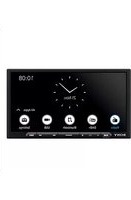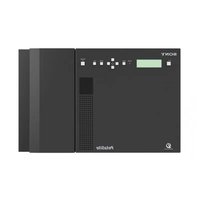
CDXGT474UM - Cd player/recorder SONY - Free user manual and instructions
Find the device manual for free CDXGT474UM SONY in PDF.



User questions about CDXGT474UM SONY
0 question about this device. Answer the ones you know or ask your own.
Ask a new question about this device
Download the instructions for your Cd player/recorder in PDF format for free! Find your manual CDXGT474UM - SONY and take your electronic device back in hand. On this page are published all the documents necessary for the use of your device. CDXGT474UM by SONY.
USER MANUAL CDXGT474UM SONY
FM/MW/LW Compact Disc Player
Operating Instructions GB
Be sure to install this unit in the dashboard of the car for safety. For installation and connections, see the supplied installation/connections manual.
Notice for customers: the following information is only applicable to equipment sold in countries applying EU Directives
The manufacturer of this product is Sony Corporation, 1-7-1 Konan, Minato-ku, Tokyo, 108-0075 Japan. The Authorized Representative for EMC and product safety is Sony Deutschland GmbH, Hedelfinger Strasse 61, 70327 Stuttgart, Germany. For any service or guarantee matters please refer to the addresses given in separate service or guarantee documents.
Laser Diode Properties
- Emission Duration: Continuous
- Laser Output: Less than 53.3 W (This output is the value measurement at a distance of 200mm from the objective lens surface on the Optical Pick-up Block with 7mm aperture.)
ZAPPIN and Quick-BrowZer are trademarks of Sony Corporation.
Windows Media is either a registered trademark or trademark of Microsoft Corporation in the United States and/or other countries.
This product contains technology subject to certain intellectual property rights of Microsoft. Use or distribution of this technology outside of this product is prohibited without the appropriate license(s) from Microsoft.
MPEG Layer-3 audio coding technology and patents licensed from Fraunhofer IIS and Thomson.
Android is a trademark of Google Inc. Use of this trademark is subject to Google Permissions.
Warning if your car's ignition has no ACC position
Be sure to set the Auto Off function (page 14). The unit will shut off completely and automatically in the set time after the unit is turned off, which prevents battery drain. If you do not set the Auto Off function, press and hold SOURCE/OFF until the display disappears each time you turn the ignition off.
Table of contents
Getting Started 4
Canceling the DEMO mode 4
Setting the clock 4
Detaching the front panel 4
Location of controls 5
Main unit. 5
Radio 6
Storing and receiving stations. 6
RDS. 7
CD. 9
Playing a disc. 9
USB devices. 9
Playing back a USB device. 9
Searching and playing tracks 10
Playing tracks in various modes. 10
Searching a track by name - Quick-BrowZerTM 11
Searching a track by listening to track passages - ZAPPINTM 11
Sound Settings and Setup Menu. 12
Enjoying sophisticated sound functions - Advanced Sound Engine 12
Adjusting setup items 14
Using optional equipment. 17
Auxiliary audio equipment 17
Additional Information. 17
Precautions 17
Maintenance 18
Specifications. 19
Troubleshooting 19
Getting Started
Canceling the DEMO mode
You can cancel the demonstration display which appears while this unit is turned off.
1 Press (MENU), rotate the control dial until "DISPLAY" appears, then press it.
2 Rotate the control dial until "DEMO" appears, then press it.
3 Rotate the control dial to select "DEMO-OFF," then press it.
The setting is complete.
4 Press (BACK) twice.
The display returns to normal reception/ play mode.
Setting the clock
The clock uses a 24-hour digital indication.
1 Press (MENU), rotate the control dial until "GENERAL" appears, then press it.
2 Rotate the control dial until "CLOCK-ADJ" appears, then press it.
The hour indication flashes.
3 Rotate the control dial to set the hour and minute.
To move the digital indication, press (SEEK) - / +
4 After setting the minute, press (MENU).
The setup is complete and the clock starts.
To display the clock, press DSPL.
Detaching the front panel
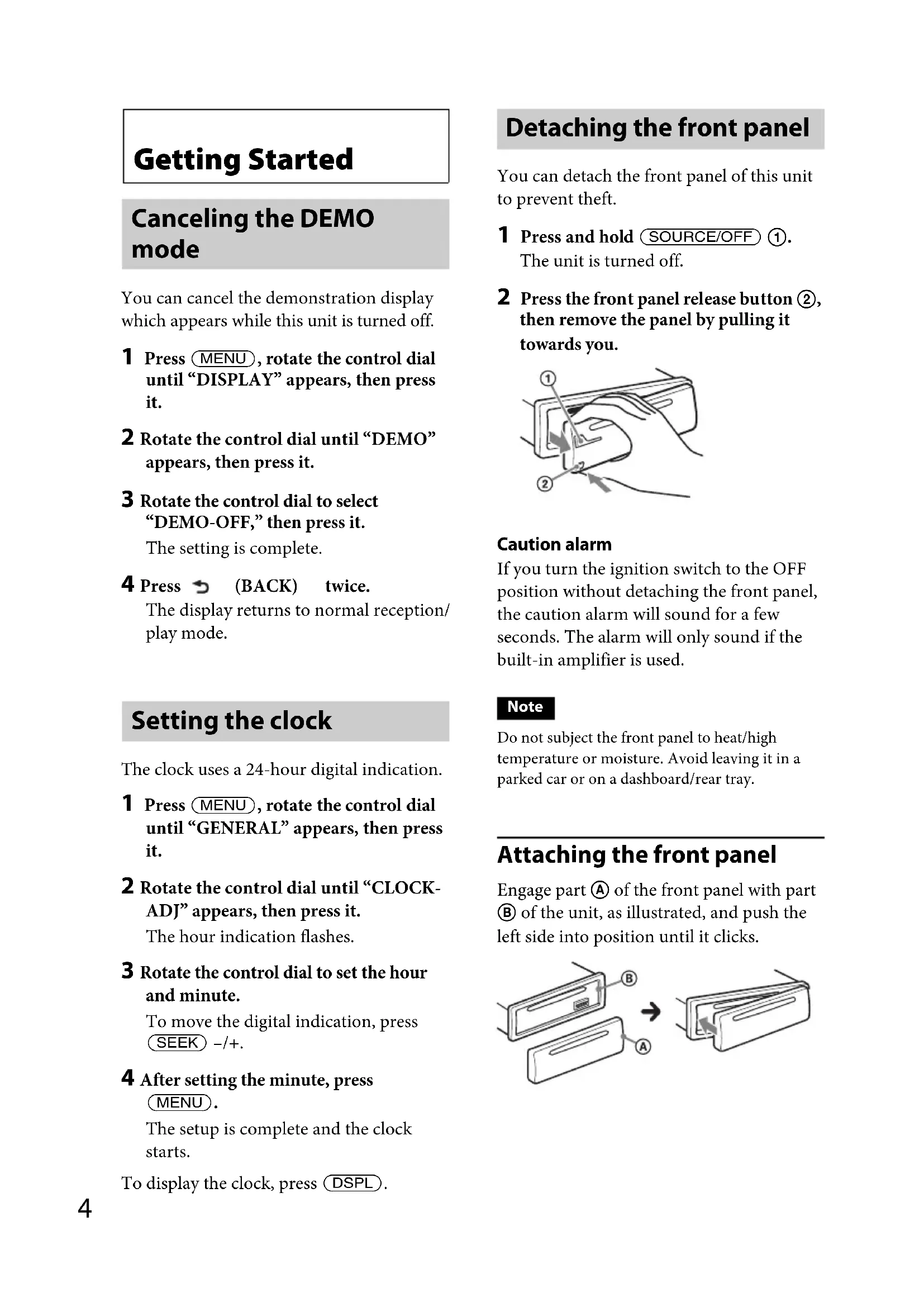
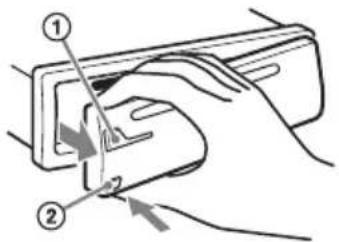
You can detach the front panel of this unit to prevent theft.
1 Press and hold SOURCE/OFF ①. The unit is turned off.
2 Press the front panel release button ② then remove the panel by pulling it towards you.
Caution alarm
If you turn the ignition switch to the OFF position without detaching the front panel, the caution alarm will sound for a few seconds. The alarm will only sound if the built-in amplifier is used.
Note
Do not subject the front panel to heat/high temperature or moisture. Avoid leaving it in a parked car or on a dashboard/rear tray.
Attaching the front panel
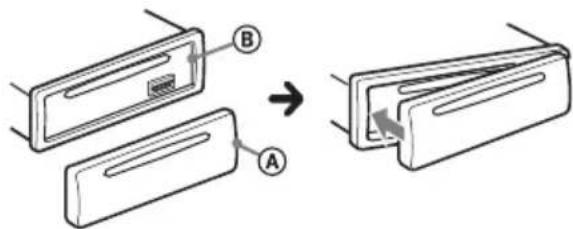
Engage part A of the front panel with part B of the unit, as illustrated, and push the left side into position until it clicks.
Location of controls
Main unit
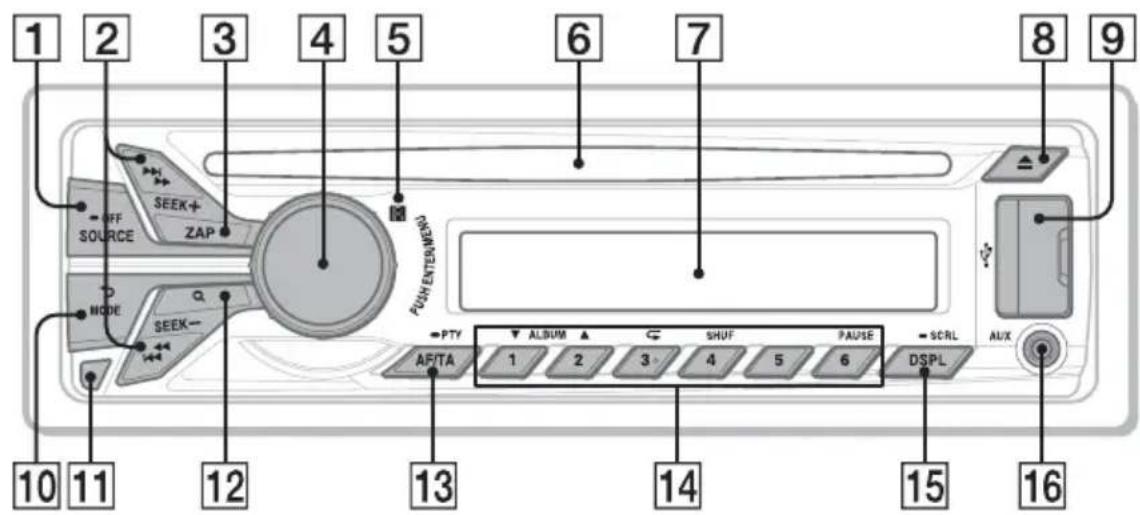
This section contains instructions on the location of controls and basic operations.
1 SOURCE/OFF button
Press to turn on the power; select the source (Radio/CD/USB/AUX).
Press repeatedly to change to another source.
Press and hold for 1 second to turn off the power.
Press and hold for more than 2 seconds to turn off the power and the display disappears.
SEEK + / - buttons
Radio:
To tune in stations automatically (press); find a station manually (press and hold).
CD/USB:
To skip a track (press); skip tracks continuously (press, then press again within about 2 seconds and hold); reverse/fast-forward a track (press and hold).
3 ZAP button page 11
To enter ZAPPINTM mode.
4 Control dial/ENTER/MENU button page 14
Rotate to adjust volume.
Press to enter setup mode.
5 Receptor for the remote commander
6 Disc slot
Insert the disc (label side up), playback starts.
7 Display window
8 (Eject) button
To eject the disc.
9 USB port page 9
10 BACK)/MODE button page 6
Press to return to the previous display; select the radio band (FM/MW/LW).
11 Front panel release button page 4
12 Q(BROWSE) button page 11
To enter the Quick-BrowZerTM mode (CD/USB).
13 AF (Alternative Frequencies)/
TA (Traffic Announcement)/
PTY (Program Type) button page 7
To set AF and TA (press); select PTY (press and hold) in RDS.
14 Number buttons
Radio:
To receive stored stations (press); store stations (press and hold).
CD/USB:
1/2:ALBUM▼/▲ (during MP3/
WMA/AAC playback)
To skip an album (press); skip albums continuously (press and hold).
3: (Repeat)* page 10
4:SHUF page 10
6: PAUSE
To pause playback. Press again to resume playback.
DSPL(Display)/SCRL(Scroll) button page 7,9,10
To change display items (press); scroll a display item (press and hold).
16 AUX input jack page 17
- This button has a tactile dot.
Radio
Storing and receiving stations
Caution
When tuning in stations while driving, use Best Tuning Memory (BTM) to prevent an accident.
Storing automatically — BTM
1 Press SOURCE/OFF repeatedly until "TUNER" appears.
To change the band, press MODE repeatedly. You can select from FM1, FM2, FM3, MW or LW.
2 Press (MENU), rotate the control dial until "GENERAL" appears, then press it.
3 Rotate the control dial until "BTM" appears, then press it.
The unit stores stations in order of frequency on the number buttons.
Storing manually
1 While receiving the station that you want to store, press and hold a number button (① to ⑥) until “MEM” appears.
Receiving the stored stations
1 Select the band, then press a number button (① to ⑥).
Tuning automatically
1 Select the band, then press (SEEK) +/- to search for the station.
Scanning stops when the unit receives a station. Repeat this procedure until the desired station is received.
Tip
If you know the frequency of the station you want to listen to, press and hold (SEEK) + / - to locate the approximate frequency, then press (SEEK) + / - repeatedly to fine adjust to the desired frequency (manual tuning).
RDS
FM stations with Radio Data System (RDS) service send inaudible digital information along with the regular radio program signal.
Notes
- Depending on the country/region, not all RDS functions may be available.
- RDS will not work if the signal strength is too weak, or if the station you are tuned to is not transmitting RDS data.
Changing display items
Press DSPL.
Setting AF (Alternative Frequencies) and TA (Traffic Announcement)
AF continuously retunes the station to the strongest signal in a network, and TA provides current traffic information or traffic programs (TP) if received.
1 Press / TA repeatedly until the desired setting appears.
Select To
AF-ON activate AF and deactivate TA.
TA-ON activate TA and deactivate AF.
AF/TA-ON activate both AF and TA.
AF/TA-OFF deactivate both AF and TA.
Storing RDS stations with the AF and TA setting
You can preset RDS stations along with the AF/TA setting. If you use the BTM function, only RDS stations are stored with the same AF/TA setting.
If you preset manually, you can preset both RDS and non-RDS stations with the AF/TA setting for each.
1 Set AF/TA, then store the station with BTM or manually.
Receiving emergency announcements
With AF or TA on, emergency announcements will automatically interrupt the currently selected source.
Tip
If you adjust the volume level during a traffic announcement, that level will be stored into memory for subsequent traffic announcements, independently from the regular volume level.
Staying with one regional program - REGIONAL
When the AF function is on: this unit's factory setting restricts reception to a specific region, so you will not be switched to another regional station with a stronger frequency.
If you leave this regional program's reception area, set "REG-OFF" in setup during FM reception (page 15).
Note
This function does not work in the UK and some other areas.
Local Link function (UK only)
This function enables you to select other local stations in the area, even if they are not stored on your number buttons.
1 During FM reception, press a number button (① to (6) ) on which a local station is stored.
2 Within 5 seconds, press again a number button of the local station. Repeat this procedure until the local station is received.
Selecting PTY (Program Types)
Use PTY to display or search for a desired program type.
1 Press and hold AF / TA (PTY) during FM reception.
The current program type name appears if the station is transmitting PTY data.
2 Rotate the control dial until the desired program type appears, then press it.
The unit starts to search for a station broadcasting the selected program type.
Type of programs
NEWS (News), AFFAIRS (Current Affairs), INFO (Information), SPORT (Sports), EDUCATE (Education), DRAMA (Drama), CULTURE (Culture), SCIENCE (Science), VARIORED (Varied), POP M (Pop Music), ROCK M (Rock Music), EASY M (M.O.R. Music), LIGHT M (Light classical), CLASSICS (Serious classical), OTHER M (Other Music), WEATHER (Weather), FINANCE (Finance), CHILDREN (Children's program), SOCIAL A (Social Affairs), RELIGION (Religion), PHONE IN (Phone In), TRAVEL (Travel), LEISURE (Leisure), JAZZ (Jazz Music), COUNTRY (Country Music), NATION M (National Music), OLDIES (Oldies Music), FOLK M (Folk Music), DOCUMENT (Documentary)
Note
You may receive a different radio program from the one you select.
Setting CT (Clock Time)
The CT data from the RDS transmission sets the clock.
1 Set "CT-ON" in setup (page 15).
Note
The CT function may not work properly even though an RDS station is being received.
CD
Playing a disc
This unit can play CD-DA (also containing CD TEXT) and CD-R/CD-RW (MP3/WMA/AAC files (page 18)).
1 Insert the disc (label side up).
Playback starts automatically. To eject the disc, press
Notes
- When ejecting/inserting a disc, keep any USB devices disconnected to avoid damage to the disc.
- Corresponding codec is MP3 (.mp3), WMA (.wma), and AAC (.m4a).
Changing display items
Press DSPL. Displayed items may differ depending on the disc type, recording format and settings.
USB devices
- MSC (Mass Storage Class)-type USB devices compliant with the USB standard can be used.
- Backup of data to a USB device is recommended.
- MSC (Mass Storage Class)-type AndroidTM Phone compliant with the USB standard can be used.
Depending on the Android Phone, setting the USB connection mode to MSC is required.
Notes
- Connect the USB device after starting the engine.
Depending on the USB device, malfunction or damage may occur if it is connected before starting the engine.
Corresponding codec is MP3 (.mp3), WMA (.wma), AAC (.m4a) and AAC (.mp4). - For details on the compatibility of your USB device, visit the support site on the back cover.
Playing back a USB device
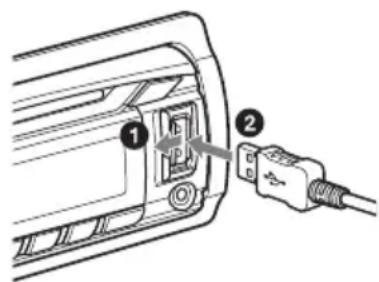
1 Open the USB cover, then connect the USB device to the USB port.
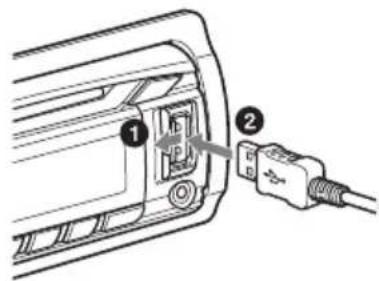
Playback starts.
If a USB device is already connected, to start playback, press (SOURCE/OFF) repeatedly until "USB" appears.
To stop playback, press and hold SOURCE/OFF for 1 second.
To remove the USB device, stop the USB playback, then remove the USB device.
Notes
- Do not use USB devices so large or heavy that they may fall down due to vibration, or cause a loose connection.
- Do not detach the front panel during playback of the USB device, otherwise USB data may be damaged.
Changing display items
Press DSPL.
Displayed items may differ depending on the USB device, recording format and settings.
Notes
The maximum number of tracks is 10,000.
- It may take time for playback to begin, depending on the amount of recorded data.
- During playback or fast-forward/reverse of a VBR (Variable Bit Rate) MP3/WMA/AAC file, elapsed playing time may not display accurately.
- Playback of the following MP3/WMA/AAC files is not supported.
- lossless compression
-copyright-protected - DRM (Digital Rights Management) files
- Multi-channel audio files
Searching and playing tracks
Playing tracks in various modes
You can listen to tracks repeatedly (repeat play) or in random order (shuffle play). Available play modes differ depending on the selected sound source.
1 During playback, press ③ () or 4 (SHUF) repeatedly until the desired play mode appears.
Playback in selected play mode may take time to start.
Repeat play
| Select To play |
| TRACK track repeatedly. |
| ALBUM album repeatedly. |
| OFF track in normal order (Normal play). |
Shuffle play
| Select To play | |
| SHUF ALBUM album in random order. | |
| SHUF DISC*1 | disc in random order. |
| SHUF DEVICE*2 | device in random order. |
| SHUF OFF track in normal order (Normal play). | |
1 CD only
2 USB only
Searching a track by name — Quick-BrowZer™
You can search for a track in a CD or USB device easily by category.
1 Press (BROWSE)\*.
The unit enters the Quick-BrowZer mode, and the list of search categories appears.
When the track list appears, press
(BACK) repeatedly until the desired search category appears.
- During USB playback, press BROWSE) for more than 2 seconds to directly return to the beginning of the category list.
2 Rotate the control dial to select the desired search category, then press it to confirm.
3 Repeat step 2 until the desired track is selected.
Playback starts.
To exit the Quick-BrowZer mode, press Q (BROWSE).
Note
When entering the Quick-BrowZer mode, the repeat/shuffle setting is canceled.
Searching by skip items — Jump mode
When many items are in a category, you can search for a desired item quickly.
1 Press (SEEK) + in Quick-BrowZer mode.
The item name will appear.
2 Rotate the control dial to select the item near the one desired.
The list is skipped in steps of 10% of the total number of items in the list.
3 Press MENU.
The display returns to the QuickBrowZer mode and the selected item appears.
4 Rotate the control dial to select the desired item and press it.
Playback starts if the selected item is a track.
To cancel Jump mode, press BACK) or SEEK
Searching a track by listening to track passages — ZAPPIN™
By playing back short track passages in a CD or USB device in sequence, you can search for a track you want to listen to. ZAPPIN mode is suitable for searching for a track in shuffle or shuffle repeat mode.
1 Press during playback.
Playback starts from a passage of the next track. You can select the playback time (page 15).
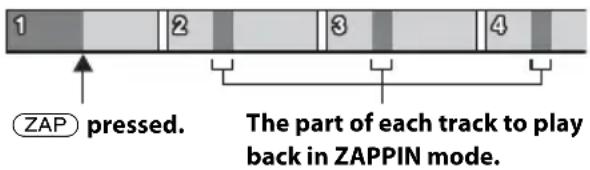
Track
2 Press (MENU) or (ZAP) when a track you want to listen is played back.
The track that you select returns to normal play mode from the beginning.
Pressing BACK) will also play back the chosen track.
Tips
- Press SEEK +/- in ZAPPIN mode to skip a track.
- Press ① / ② (ALBUM / ) in ZAPPIN mode to skip an album.
Sound Settings and Setup Menu
Enjoying sophisticated sound functions — Advanced Sound Engine
Advanced Sound Engine creates an ideal in-car sound field with digital signal processing.
Selecting the sound quality - EQ7 Preset
You can select an equalizer curve from 7 equalizer curves (XPLOD, VOCAL, EDGE, CRUISE, SPACE, GRAVITY, CUSTOM or OFF).
1 During reception/playback, press (MENU), rotate the control dial until "SOUND" appears, then press it.
2 Rotate the control dial until "EQ7 PRESET" appears, then press it.
3 Rotate the control dial until the desired equalizer curve appears, then press it.
4 Press (BACK) twice.
To cancel the equalizer curve, select "OFF" in step 3.
Tip
The equalizer curve setting can be memorized for each source.
Customizing the equalizer curve — EQ7 Setting
"CUSTOM" of EQ7 allows you to make your own equalizer settings.
1 After selecting a source, press (MENU), rotate the control dial until "SOUND" appears, then press it.
2 Rotate the control dial until "EQ7 SETTING" appears, then press it.
3 Rotate the control dial until "BASE" appears, then press it.
You can select an equalizer curve as a basis for further customizing.
4 Rotate the control dial to select the equalizer curve, then press it.
5 Setting the equalizer curve.
Rotate the control dial to select the frequency range, then press it.
SET BANI
BAND1:63 Hz
BAND2:160 Hz
BAND3: 400Hz
BAND4:1kHz
BAND5: 2.5kHz
BAND6: 6.3kHz
BAND7: 16.0kHz
Rotate the control dial to adjust the volume level, then press it.
The volume level is adjustable in 1 dB steps, from -6 dB to +6 dB.
B1 +6dB
Repeat steps 1 and 2 to adjust other frequency ranges.
6 Press BACK) to return to the previous display.
The equalizer curve is stored in "CUSTOM."
Optimizing sound by Time Alignment - Listening Position
The unit can simulate a natural sound field by delaying the sound output from each speaker to suit your position.
The options for "POSITION" are indicated below.
FRONT L (1): Front left
FRONT R (2): Front right
FRONT (3): Center front
ALL (4): In the center of your car
OFF: No position set
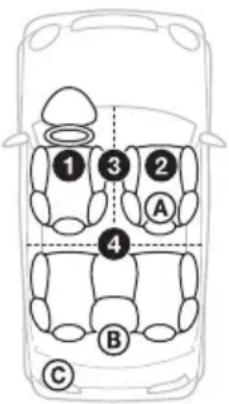
You can also set the approximate subwoofer position from your listening position if:
- the audio output is set to "SUB-OUT" (page 15).
- the listening position is set to other than "OFF."
The options for "SET SW POS" are indicated below.
NEAR (A) : Near
NORMAL (B): Normal
FAR () : Far
1 During reception/playback, press (MENU), rotate the control dial until "SOUND" appears, then press it.
2 Rotate the control dial until "POSITION" appears, then press it.
3 Rotate the control dial until "SET F/R POS" appears, then press it.
4 Rotate the control dial to select from "FRONT L," "FRONT R," "FRONT" or "ALL," then press it.
5 Rotate the control dial until "SET SW POS" appears, then press it.
6 Rotate the control dial to select the subwoofer position from "NEAR," "NORMAL" or "FAR," then press it.
7 Press BACK) to return to the previous display.
To cancel listening position, select "OFF" in step 4.
Adjusting the listening position
You can fine-tune the listening position setting.
1 During reception/playback, press (MENU), rotate the control dial until "SOUND" appears, then press it.
2 Rotate the control dial until "POSITION" appears, then press it.
3 Rotate the control dial until "ADJ POSITION" appears, then press it.
4 Rotate the control dial to adjust the listening position, then press it. Adjustable range: +3 "CENTER" - 3
5 Press ACK) to return to the previous display.
DM+ Advanced
DM+ Advanced improves digitally compressed sound by restoring high frequencies lost in the compression process.
1 During playback, press (MENU), rotate the control dial until "SOUND" appears, then press it.
2 Rotate the control dial until "DM+" appears, then press it.
3 Rotate the control dial to select "ON," then press it.
4 Press BACK) twice.
Tip
The DM+ setting can be memorized for each source other than the tuner.
Using rear speakers as subwoofer — Rear Bass Enhancer
Rear Bass Enhancer enhances the bass sound by applying a low pass filter setting (page 15) to the rear speakers. This function allows the rear speakers to work as a subwoofer if one is not connected.
1 During reception/playback, press (MENU), rotate the control dial until "SOUND" appears, then press it.
2 Rotate the control dial until "RB ENH" appears, then press it.
3 Rotate the control dial until "RBE MODE" appears, then press it.
4 Rotate the control dial to select from "1," "2" or "3," then press it.
5 Press BACK) to return to the previous display.
Using a subwoofer without a power amplifier — Subwoofer Direct Connection
You can use the subwoofer without a power amplifier when it is connected to the rear speaker cord.
Note
Be sure to connect a 4 - 8 ohm subwoofer to either of the rear speaker cords. Do not connect a speaker to the other rear speaker cord.
1 During reception/playback, press (MENU), rotate the control dial until "SOUND" appears, then press it.
2 Rotate the control dial until "SW DIREC" appears, then press it.
3 Rotate the control dial until "SW MODE" appears, then press it.
4 Rotate the control dial to select "1," "2" or "3," then press it.
5 Press BACK) to return to the previous display.
For details on the settings for the subwoofer phase, position, low pass filter frequency and the low pass filter slope, see page 15.
Adjusting setup items
1 Press (MENU), rotate the control dial until the desired category appears, then press it.
2 Rotate the control dial until the desired item appears, then press it.
3 Rotate the control dial to select the setting, then press it. The setting is complete.
4 Press BACK) to return to the previous display.
- For CLOCK-ADJ and BTM settings, step 4 is not necessary.
The following items can be set depending on the source and setting:
GENERAL:
CLOCK-ADJ (Clock Adjust) (page 4)
CAUT ALM*1 (Caution Alarm)
Activates the caution alarm: "ON," "OFF" (page 4).
BEEP
Activates the beep sound: "ON," "OFF."
AUTO OFF
Shuts off automatically after a desired time when the unit is turned off: "NO," "30S (Seconds)," "30M (Minutes)," "60M (Minutes)."
AUX - A^*1 (AUX Audio)
Activates the AUX source display: "ON,"
"OFF" (page 17).
REAR/SUB*1
Switches the audio output: "SUB-OUT"
(subwoofer), "REAR-OUT" (power amplifier).
CT (Clock Time)
Activates the CT function: "ON," "OFF" (page 8).
REGIONAL*2
Restricts reception to a specific region:
"ON," "OFF" (page 7).
BTM^*3 (page 6)
ZAPPIN*4
ZAP TIME (Zappin Time)
Selects the playback time for the
ZAPPIN function.
-Z.TIME-1 (about 6 seconds),
"Z.TIME-2 (about 15 seconds),"
"Z.TIME-3 (about 30 seconds)."
ZAP BEEP (Zappin Beep)
Applies a beep sound between track
passages: "ON," "OFF."
1 When the unit is turned off.
2 When FM is received.
3 When the tuner is selected.
4 When the CD or USB is selected.
SOUND:
EQ7 PRESET (page 12)
EQ7 SETTING (page 12)
POSITION
SET F/R POS (Set Front/Rear Position)
(page 12)
ADJ POSITION*1 (Adjust Position)
(page 13)
SET SW POS*1*2 (Set Subwoofer
Position) (page 13)
BALANCE
Adjusts the sound balance: "RIGHT-15"
- "CENTER" - "LEFT-15."
FADER
Adjusts the relative level: "FRONT-15" -
"CENTER" - "REAR-15."
DM^*3 (page 13)
LOUDNESS (Dynamic Loudness)
Reinforces bass and treble for clear
sound at low volume levels: "ON,"
"OFF."
ALO (Automatic Level Optimizer)
Adjust the playback volume level of all
playback sources to the optimum level:
"ON," "OFF."
RB ENH*4 (Rear Bass Enhancer)
RBE MODE (Rear Bass Enhancer
Mode)
Selects the rear bass enhancer mode: "1,"
"2," "3," "OFF."
LPF FREQ (Low Pass Filter Frequency)
Selects the subwoofer cut-off frequency:
LPF SLOP (Low Pass Filter Slope)
Selects the LPF slope: "1," "2," "3."
SW DIREC*5 (Subwoofer Direct
Connection)
SW MODE (Subwoofer Mode)
Selects the subwoofer mode: "1," "2," "3,"
"OFF."
SW PHASE (Subwoofer Phase)
Selects the subwoofer phase: "NORM,"
"REV."
SW POS*1 (Subwoofer Position)
(page 13)
Selects the subwoofer position: "NEAR,"
"NORMAL," "FAR."
LPF FREQ (Low Pass Filter Frequency)
Selects the subwoofer cut-off frequency:
LPF SLOP (Low Pass Filter Slope)
Selects the LPF slope: "1," "2," "3."
S.WOOFER\*2 (Subwoofer)
SW LEVEL (Subwoofer Level)
Adjusts the subwoofer volume level:
“+10 dB”-“0 dB”-“-10 dB.”
("ATT" is displayed at the lowest setting.)
SW PHASE (Subwoofer Phase)
Selects the subwoofer phase: "NORM," "REV."
SW POS*1 (Subwoofer Position)
Selects the subwoofer position: "NEAR," "NORMAL," "FAR."
LPF FREQ (Low Pass Filter Frequency)
Selects the subwoofer cut-off frequency: "50Hz," "60Hz," "80Hz," "100Hz," "120Hz."
LPF SLOP (Low Pass Filter Slope)
Selects the LPF slope: "1," "2," "3."
HPF (High Pass Filter)
HPF FREQ (High Pass Filter Frequency)
Selects the front/rear speaker cut-off frequency: "OFF," "50Hz," "60Hz," "80Hz," "100Hz," "120Hz."
HPF SLOP (High Pass Filter Slope)
Selects the HPF slope (effective only when HPF FREQ is set to other than "OFF"): "1," "2," "3."
AUX VOL\*6 (AUX Volume level)
Adjusts the volume level for each connected auxiliary equipment: +18dB - 0dB - -8dB
This setting negates the need to adjust the volume level between sources.
DISPLAY:
DEMO (Demonstration)
Activates the demonstration: "ON," "OFF."
DIMMER
Changes the display brightness: "ON," "OFF."
AUTO SCR* (Auto Scroll)
Scrolls long items automatically: "ON," "OFF."
M.DISPLAY (Motion Display)
- "SA": to show moving patterns and spectrum analyzer.
-
"OFF": to deactivate the Motion Display.
-
When the CD or USB is selected.
Using optional equipment
Auxiliary audio equipment
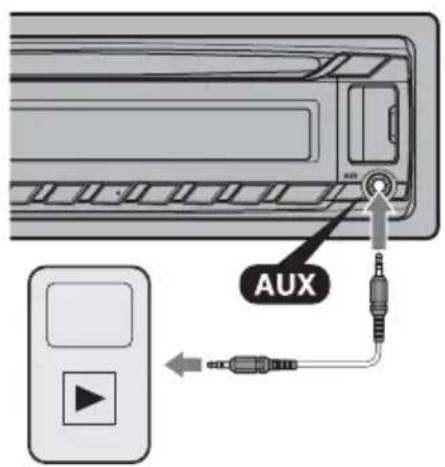
By connecting an optional portable audio device to the AUX input jack (stereo mini jack) on the unit and then simply selecting the source, you can listen on your car speakers.
Connecting the portable audio device
1 Turn off the portable audio device.
2 Turn down the volume on the unit.
3 Connect the portable audio device to the unit with a connecting cord (not supplied)*.
- Be sure to use a straight type plug.
Adjusting the volume level
Be sure to adjust the volume for each connected audio device before playback.
1 Turn down the volume on the unit.
2 Press SOURCE/OFF repeatedly until "AUX" appears.
3 Start playback of the portable audio device at a moderate volume.
4 Set your usual listening volume on the unit.
5 Adjust the input level (page 16).
Additional Information
Precautions
Cool off the unit beforehand if your car has been parked in direct sunlight.
- Do not leave the front panel or audio devices brought in inside the car, or it may cause malfunction due to high temperature in direct sunlight.
- Power antenna (aerial) extends automatically.
Moisture condensation
Should moisture condensation occur inside the unit, remove the disc and wait for about an hour for it to dry out; otherwise the unit will not operate properly.
To maintain high sound quality
Do not splash liquid onto the unit or discs.
Notes on discs
-
Do not expose discs to direct sunlight or heat sources such as hot air ducts, nor leave it in a car parked in direct sunlight.
-
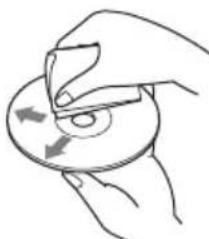
Before playing, wipe the discs with a cleaning cloth from the center out. Do not use solvents such as benzine, thinner, commercially available cleaners.
- This unit is designed to play back discs that conform to the Compact Disc (CD) standard. DualDiscs and some of the music discs encoded with copyright protection technologies do not conform to the Compact Disc (CD) standard, therefore, these discs may not be playable by this unit.
- Discs that this unit CANNOT play
- Discs with labels, stickers, or sticky tape or paper attached. Doing so may cause a malfunction, or may ruin the disc.
- Discs with non-standard shapes (e.g., heart, square, star). Attempting to do so may damage the unit.
-8cm / in) discs.
Notes on CD-R/CD-RW discs
The maximum number of: (CD-R/CD-RW only)
- folders (albums): 150 (including root folder)
-
files (tracks) and folders: 300 (may less than 300 if folder/file names contain many characters)
displayable characters for a folder/file name: 32 (Joliet)/64 (Romeo) -
If the multi-session disc begins with a CD-DA session, it is recognized as a CD-DA disc, and other sessions are not played back.
- Discs that this unit CANNOT play
- CD-R/CD-RW of poor recording quality.
- CD-R / CD-R W recorded with incompatible recording device.
- CD-R/CD-RW which is finalized incorrectly.
- CD-R/CD-RW other than those recorded in music CD format or MP3 format conforming to ISO9660 Level 1/Level 2, Joliet/Romeo or multi-session.
Maintenance
Cleaning the connectors
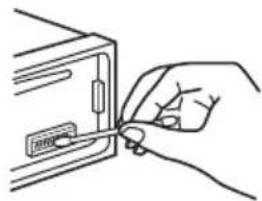
The unit may not function properly if the connectors between the unit and the front panel are not clean. In order to prevent this, detach the front panel (page 4) and clean the connectors with a cotton swab. Do not apply too much force. Otherwise, the connectors may be damaged.
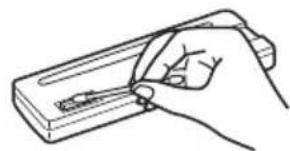
Notes
- For safety, turn off the ignition before cleaning the connectors, and remove the key from the ignition switch.
- Never touch the connectors directly with your own fingers or with any metal device.
Playback order of MP3/WMA/ AAC files
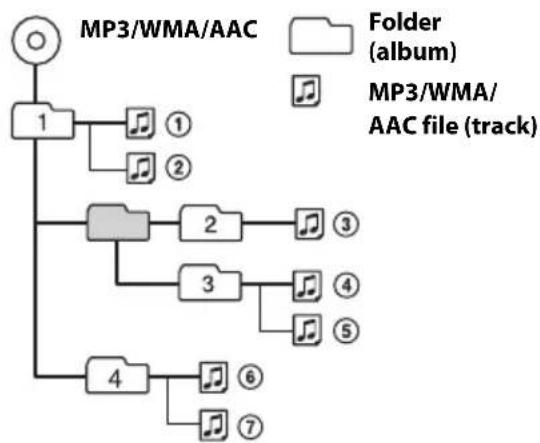
If you have any questions or problems concerning your unit that are not covered in this manual, consult your nearest Sony dealer.
Specifications
Tuner section
FM
Tuning range: 87.5 - 108.0 MHz
Antenna (aerial) terminal:
External antenna (aerial) connector
Intermediate frequency: 25kHz
Usable sensitivity: 8 dBf
Selectivity: 75 dB at 400kHz
Signal-to-noise ratio: 80 dB (stereo)
Separation: 50dB at 1kHz
Frequency response: 20 - 15,000Hz
MW/LW
Tuning range:
MW: 531 - 1,602 kHz
LW: 153 - 279kHz
Antenna (aerial) terminal:
External antenna (aerial) connector
Intermediate frequency:
9,124.5 kHz or 9,115.5 kHz/4.5 kHz
Sensitivity: MW: 26 V , LW: 45 V
CD Player section
Signal-to-noise ratio: 120 dB
Frequency response: 10 - 20,000Hz
Wow and flutter: Below measurable limit
USB Player section
Interface: USB (Full-speed)
Maximum current: 1 A
Power amplifier section
Output: Speaker outputs
Speaker impedance: 4 - 8 ohms
Maximum power output: 52W× 4 (at 4 ohms)
General
Outputs:
Audio outputs terminal (rear/sub switchable)
Power antenna (aerial)/Power amplifier control terminal (REM OUT)
Inputs:
Remote controller input terminal
Antenna (aerial) input terminal
Power requirements: 12 V DC car battery (negative ground (earth))
Dimensions: Approx. 178 × 50 × 177 ~mm (7^1 / 8 × 2 × 7 in) (w/h/d)
Mounting dimensions: Approx. 182 × 53 × 160 ~mm (7^1 / 4 × 2^1 / 8 × 6^5 / 16 in) (w/h/d)
Mass: Approx. 1.2kg (2 lb 11 oz)
Supplied accessories:
Parts for installation and connections (1 set)
Optional accessories/equipment:
Remote commander: RM-X114
Your dealer may not handle some of the above listed accessories. Please ask the dealer for detailed information.
Design and specifications are subject to change without notice.
Troubleshooting
The following checklist will help you remedy problems you may encounter with your unit. Before going through the checklist below, check the connection and operating procedures.
For details on using the fuse and removing the unit from the dashboard, refer to the installation/connections manual supplied with this unit.
If the problem is not solved, visit the support site on the back cover.
General
No power is being supplied to the unit.
Check the connection or fuse.
The power antenna (aerial) does not extend.
The power antenna (aerial) does not have a relay box.
No sound.
The ATT function is activated.
The position of the fader control "FADER" is not set for a 2-speaker system.
No beep sound.
The beep sound is canceled (page 14).
An optional power amplifier is connected and you are not using the built-in amplifier.
The contents of the memory have been erased.
The power supply lead or battery has been disconnected or not connected properly.
The unit is reset.
- Store again into the memory.
Stored stations and correct time are erased. The fuse has blown.
Makes noise when the position of the ignition is switched.
The leads are not matched correctly with the car's accessory power connector.
During playback or reception, demonstration mode starts.
If no operation is performed for 5 minutes with "DEMO-ON" set, demonstration mode starts.
- Set "DEMO-OFF" (page 16).
The display disappears from/does not appear in the display window.
The dimmer is set to "DIM-ON" (page 16).
The display disappears if you press and hold SOURCE/OFF
- Press SOURCE/OFF on the unit until the display appears.
The connectors are dirty (page 18).
The Auto Off function does not operate.
The unit is turned on. The Auto Off function activates after turning off the unit.
- Turn off the unit.
The operation buttons do not function. The disc will not eject.
Press DSPL and (BACK)/ MODE for more than 2 seconds.
The contents stored on the memory are erased.
For your safety, do not perform the reset operation while you are driving
Radio reception
The stations cannot be received.
The sound is hampered by noises.
The connection is not correct.
- Check the connection of the car antenna (aerial).
- If the auto antenna (aerial) will not go up, check the connection of the power antenna (aerial) control lead.
Preset tuning is not possible.
Store the correct frequency in the memory.
The broadcast signal is too weak.
Automatic tuning is not possible.
The broadcast signal is too weak. Perform manual tuning.
RDS
The SEEK starts after a few seconds of listening.
The station is non-TP or has weak signal.
- Deactivate TA (page 7).
No traffic announcements.
Activate TA (page 7).
The station does not broadcast any traffic announcements despite being TP.
- Tune in another station.
PTY displays "----".
The current station is not an RDS station.
RDS data has not been received.
The station does not specify the program type.
Program service name flashes.
There is no alternative frequency for the current station.
- Press SEEK +/- while the program service name is flashing. "PI SEEK" appears and the unit starts searching for another frequency with the same PI (Program Identification) data.
CD playback
The disc cannot be loaded.
Another disc is already loaded.
The disc has been forcibly inserted upside down or in the wrong way.
The disc does not play back.
Defective or dirty disc.
The CD-Rs/CD-RWs are not for audio use (page 18).
MP3/WMA/AAC files cannot be played back.
The disc is incompatible with the MP3/WMA/AAC format and version. For details on playable discs and formats, visit the support site.
MP3/WMA/AAC files take longer to play back than others.
The following discs take a longer time to start playback.
- a disc recorded with a complicated tree structure.
- a disc recorded in Multi Session.
- a disc to which data can be added.
The display items do not scroll.
For discs with very many characters, those may not scroll.
"AUTO SCR" is set to "OFF."
-
Set “A. SCRL-ON” (page 16).
-
Press and hold DSPL (SCRL).
The sound skips.
Installation is not correct.
- Install the unit at an angle of less than 45^ in a sturdy part of the car.
Defective or dirty disc.
USB playback
You cannot play back items via a USB hub.
This unit cannot recognize USB devices via a USB hub.
Cannot play back items.
A USB device does not work.
- Connect it again.
A USB device takes longer to play back.
The USB device contains files with a complicated tree structure.
The sound is intermittent.
The sound may be intermittent at a high-bit-rate of more than 320 kbps.
Error displays/Messages
CHECKING
The unit is confirming the connection of a USB device.
- Wait until confirming the connection is finished.
ERROR
The disc is dirty or inserted upside down.
- Clean or insert the disc correctly.
A blank disc has been inserted.
The disc cannot play due to a problem.
-Insertanotherdisc.
USB device was not automatically recognized.
- Connect it again.
Press to remove the disc.
FAILURE
The connection of speakers/amplifiers is incorrect.
- See the installation/connections manual of this model to check the connection.
HUB NO SUPRT (Hubs Not Supported)
USB hub is not supported on this unit.
NO AF (No Alternative Frequencies)
There is no alternative frequency for the current station.
- Press + / - while the program service name is flashing. The unit starts searching for another frequency with the same PI (Program Identification) data ("PI SEEK" appears).
NO DEV (No Device)
"USB" is selected as source without a USB device connected. A USB device or a USB cable has been disconnected during playback.
- Be sure to connect a USB device and USB cable.
NO MUSIC
The disc or USB device does not contain a music file.
- Insert a music CD in this unit.
- Connect a USB device with a music file in it.
NO NAME
A disc/album/artist/track name is not written in the track.
NOTP
The unit will continue searching for available TP stations.
OFFSET
There may be an internal malfunction.
- Check the connection. If the error indication remains on in the display, consult your nearest Sony dealer.
OVERLOAD
USB device is overloaded.
- Disconnect the USB device, then change the source by pressing SOURCE/OFF
- Indicates that the USB device is out of order, or an unsupported device is connected.
PUSH EJT (Push Eject)
The disc cannot be ejected.
- Press (eject).
READ
The unit is reading all track and album information on the disc.
- Wait until reading is complete and playback starts automatically. Depending on the disc structure, it may take more than a minute.
USB NO SUPRT (USB Not Supported)
The connected USB device is not supported.
- For details on the compatibility of your USB device, visit the support site.
"LLL" 77707
During reverse or fast-forward, you have reached the beginning or the end of the disc and you cannot go any further.
1
The character cannot be displayed with the unit.
If these solutions do not help improve the situation, consult your nearest Sony dealer.
If you take the unit to be repaired because of CD playback trouble, bring the disc that was used at the time the problem began.
Wichtig!
HPF FREQ (Frequenz des
Hochpassfilters)
(Defilement) page 8, 11, 12
La lecture commence.
DEMO (Demonstration)
Premere Anything to do, be done.
Premiere questioned because of the fact that he had been in a car.
Premiere asked because of the fact that he had been in a car.
Premiere asked because of the fact that he had been in a car.
RB ENH* (Rear Bass Enhancer)
RBE MODE (modo Rear Bass Enhancer)
SHUF OFF track in normale
1 Druk op (BROWSE)*.
Interface: USB (Full-speed)
Maximale voeding: 1 A
Versterker
If you have any questions or for the latest support information on this product, please visit the web site below:
Site d'assistance
Register your product online now at: