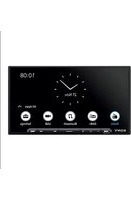
XAV-AX6050 - Cd player/recorder SONY - Free user manual and instructions
Find the device manual for free XAV-AX6050 SONY in PDF.



| Product type | CD player/recorder with multimedia receiver and touch screen |
| Brand | Sony |
| Model | XAV-AX6050 |
| Dimensions (W/H/D) | Approx. 178 mm × 100 mm × 132 mm |
| Weight | Approximately 1.0 kg |
| Power supply | Vehicle battery 12 V DC (negative ground), current consumption 10 A |
| Display | 17.6 cm (6.95 inch) color LCD touch screen, resolution 800 × 480, active TFT matrix |
| FM radio | Range 87.5 – 108 MHz, 50/100 kHz selectable step |
| AM radio | Range 531 – 1602 kHz |
| DAB/DAB+ radio | Range 174.928 – 239.200 MHz |
| Bluetooth | Version 5.0, profiles A2DP, AVRCP, HFP, PBAP, codecs SBC, AAC, LDAC |
| Wi-Fi | IEEE 802.11 a/n/ac, 5 GHz band |
| USB port | USB Type-C (high speed), max current 3.0 A |
| HDMI input | Formats 480p, 576p, 720p |
| Output power | 55 W × 4 (at 4 Ω) |
| Compatibility | Apple CarPlay (wired/wireless), Android Auto (wired/wireless) |
| Additional functions | Voice control (VOICE), steering wheel remote control, rear view camera, GPS, hands-free microphone |
| Package contents | Main unit, power cable, connection cables, microphone, mounting base, GPS antenna, release keys, screws |
| Operating temperature | Not specified, but avoid direct sunlight and heat sources |
| Maintenance | Clean with a dry cloth; do not use chemical products |
Frequently Asked Questions - XAV-AX6050 SONY
User questions about XAV-AX6050 SONY
0 question about this device. Answer the ones you know or ask your own.
Ask a new question about this device
Download the instructions for your Cd player/recorder in PDF format for free! Find your manual XAV-AX6050 - SONY and take your electronic device back in hand. On this page are published all the documents necessary for the use of your device. XAV-AX6050 by SONY.
USER MANUAL XAV-AX6050 SONY
To cancel the demonstration (Demo Mode) display, see page 6. To switch the FM tuning step, see page 6.
https://rd1.sony.net/help/ev/xav-ax60/h_zz/
Warning
For safety, be sure to install this unit in the dashboard of the car as the rear side of the unit becomes hot during use. For details, see "Connection/Installation" (page 9).
Made in Thailand
The nameplate indicating operating voltage, etc., is located on the bottom of the chassis.
The validity of the CE marking is restricted to only those countries where it is legally enforced, mainly in the countries EEA (European Economic Area) and Switzerland. The validity of the UKCA marking is restricted to only those countries where it is legally enforced, mainly in the UK.
WARNING
To prevent fire or shock hazard, do not expose the unit to rain or moisture.
To avoid electrical shock, do not open the cabinet. Refer servicing to qualified personnel only.
Notice for customers: the following information is only applicable to equipment sold in countries applying EU directives and/or UK applying relevant statutory requirements
This product has been manufactured by or on behalf of Sony Corporation.
EU Importer: Sony Europe B.V.
Inquiries to the EU Importer or related to product compliance in Europe should be sent to the manufacturer's authorized representative, Sony Belgium, bijkantoor van Sony Europe B.V., Da Vincilaan 7-D1, 1930 Zaventem, Belgium.


Hereby, Sony Corporation declares that this equipment is in compliance with Directive 2014/53/EU.
The full text of the EU declaration of conformity is available at the following internet address: https://compliance.sony.eu
Hereby, Sony Corporation declares that this equipment is in compliance with the UK relevant statutory requirements.
The full text of the declaration of conformity is available at the following internet address: https://compliance.sony.co.uk
Disposal of waste batteries and electrical and electronic equipment (applicable in the European Union and other countries with separate collection systems)
This symbol on the product, the battery or on the packaging indicates that the product and the battery shall not be treated as household waste. On certain batteries this symbol might be used in combination with a chemical symbol. The chemical symbol for lead (Pb) is added if the battery contains more than 0.004% lead.
By ensuring that these products and batteries are disposed of correctly, you will help to prevent potentially negative consequences for the environment and human health which could be caused by inappropriate waste handling. The recycling of the materials will help to conserve natural resources.
In case of products that for safety, performance or data integrity reasons require a permanent connection with an incorporated battery, this battery should be replaced by qualified service staff only.
To ensure that the battery and the electrical and electronic equipment will be treated properly, hand over these products at end-of-life to the appropriate collection point for the recycling of electrical and electronic equipment.
For all other batteries, please view the section on how to remove the battery from the product safely. Hand the battery over to the appropriate collection point for the recycling of waste batteries.
For more detailed information about recycling of this product or battery, please contact your local Civic Office, your household waste disposal service or the shop where you purchased the product or battery.
Warning if your car's ignition has no ACC position
Do not install this unit in a car that has no ACC position. The display of the unit does not turn off even after turning the ignition off, and this causes battery drain.
Disclaimer regarding services offered by third parties
Services offered by third parties may be changed, suspended, or terminated without prior notice. Sony does not bear any responsibility in these sorts of situations.
About Change of the Unit
For the latest functions, refer to "Help Guide" on the website.
The QR code and URL can be found on the front cover.
Important notice
Caution
IN NO EVENT SHALL SONY BE LIABLE FOR ANY INCIDENTAL, INDIRECT OR CONSEQUENTIAL DAMAGES OR OTHER DAMAGES INCLUDING, WITHOUT LIMITATION, LOSS OF PROFITS, LOSS OF REVENUE, LOSS OF DATA, LOSS OF USE OF THE PRODUCT OR ANY ASSOCIATED EQUIPMENT, DOWNTIME, AND PURCHASER'S TIME RELATED TO OR ARISING OUT OF THE USE OF THIS PRODUCT, ITS HARDWARE AND/OR ITS SOFTWARE.
Dear customer, this product includes a radio transmitter.
According to UNECE Regulation no. 10, a vehicle manufacturers may impose specific conditions for installation of radio transmitters into vehicles.
Please check your vehicle operation manual or contact the manufacturer of your vehicle or your vehicle dealer, before you install this product into your vehicle.
Emergency calls
This BLUETOOTH car handsfree and the electronic device connected to the handsfree operate using radio signals, cellular, and landline networks as well as user-programmed function, which cannot guarantee connection under all conditions. Therefore do not rely solely upon any electronic device for essential communications (such as medical emergencies).
On BLUETOOTH communication
- Microwaves emitting from a BLUETOOTH device may affect the operation of electronic medical devices. Turn off this unit and other BLUETOOTH devices in the following locations, as it may cause an accident.
- where inflammable gas is present, in a hospital, train, airplane, or petrol station
- near automatic doors or a fire alarm
- This unit supports security capabilities that comply with the BLUETOOTH standard to provide a secure connection when the BLUETOOTH wireless technology is used, but security may not be enough depending on the setting. Be careful when communicating using BLUETOOTH wireless technology.
- We do not take any responsibility for the leakage of information during BLUETOOTH communication.
If you have any questions or problems concerning your unit that are not covered in this manual, consult your nearest Sony dealer.
Guide to Parts and Controls
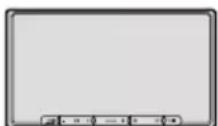
Main Unit
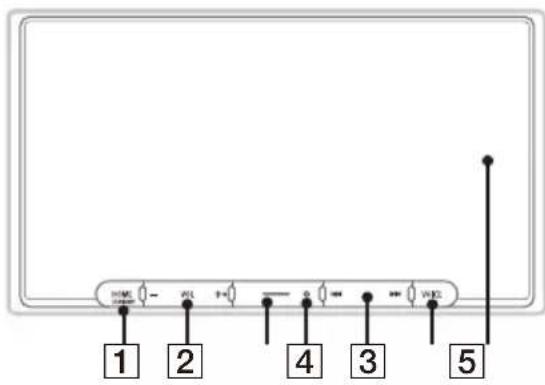
The VOL (volume) + button has a tactile dot.
1 HOME
Displays the HOME screen.
STANDBY
Press and hold to turn off the unit.
Press and hold for more than 10 seconds to reset the unit.
VOL (volume) +/-
3 Custom
Registers functions (Mute, Disp. Off, Source Change).
To register, select [Settings] [Customize] [Custom Button].
4 Receptor for the remote commander
5I/previous/next)
Functions differently depending on the selected source:
- [Radio]: select a preset station.
- [DAB + ] : select a preset station.
- [USB]/[Bluetooth Audio]: move to the previous/next content.
- [Apple CarPlay]/[Android Auto]: move to the previous/next content.
Press and hold to:
- [Radio]: tune into a station automatically (SEEK+/SEEK-).
- [DAB + ] : select a station from the Station List.
- [USB]/[Bluetooth Audio]: fast-reverse/fast-forward.
6 VOICE
Activates the voice command function for Apple CarPlay and Android AutoTM.
7 Display/touch screen
Screen Displays
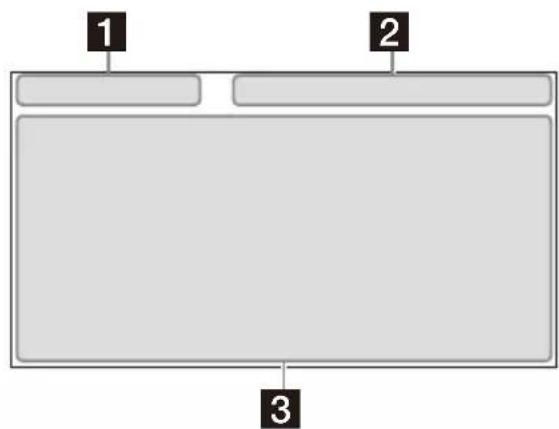
Playback screen:
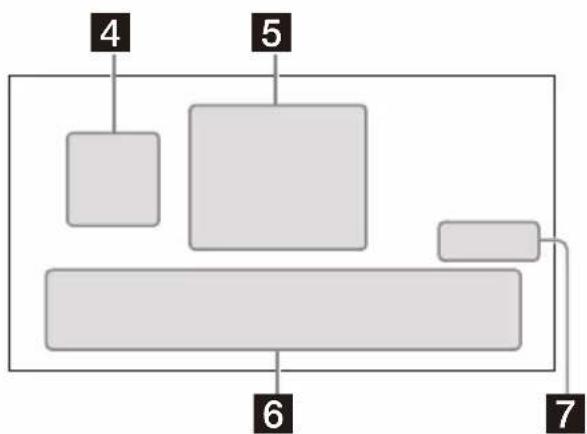
HOME1 screen:
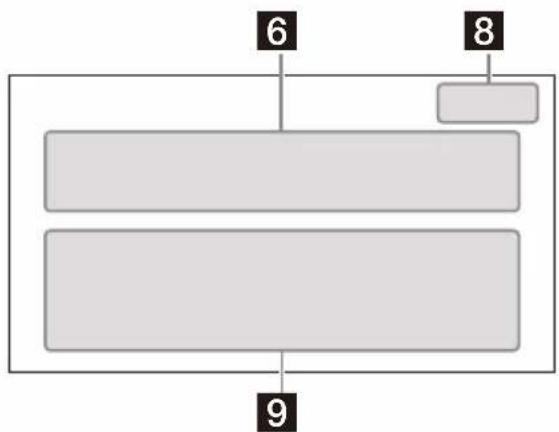
HOME2 screen:
1 Status indication (left side)
back) Returns to the previous display.
(list) Opens the list. The available lists differ depending on the source.
Status indication (right side)
Clock Displays the time which was set on the Date/Time setting.
(mute) Lights up when the sound is muted.
... (option) Opens the source option menu. The available items differ depending on the source.
device) Displays the device's name to connect to the unit.
antenna)Indicates the signal strength status of the connected mobile phone.
(battery) Indicates the remaining battery status of the connected mobile phone.
3 Application specific area
Displays playback controls/indications or show the unit's status. Displayed items differ depending on the source.
4 (Apple CarPlay)/Android Auto)
Displays when connecting Apple CarPlay/Android Auto.
5Clock
Displays the date and time which were set on the Date/Time setting.
6 Apps area (Favorite)
Up to 5 Apps can be set. Apps can be changed. You can set your Favorite Apps.
All Apps
Opens the HOME2 screen.
8 Close
Returns to the HOME1 screen.
9 Apps area
Displays all Apps except for Favorite Apps.
Apps icon list
| Android Auto | Apple CarPlay | Radio |
| DAB+ | Bluetooth | Phone |
| Settings USB | HMI | |
| RearCam | Devices |
Basic Operations
Switching the FM Tuning Step
Set the FM tuning step of your country or region.
1 Press HOME, touch [Settings] [Application] [Radio Tuning Steps], then set the radio frequency depending on the receiving area.
2 To exit the setup menu, touch back) twice.
Note
When changing the FM tuning step, both FM and AM preset stations are reset.
Using Apple CarPlay Wirelessly
When using Apple CarPlay for the first time, device registration is required. Follow the procedure in "Pairing with a Bluetooth Device" (page 6).
Note
Make sure the GPS antenna (aerial) is connected. For details, see "Installing the GPS antenna (aerial)" (page 13).
Using Android Auto
When using Android Auto wirelessly for the first time, device registration is required. Follow the procedure in "Pairing with a Bluetooth Device" (page 6).
When using Android Auto with a USB cable, connect the Android Auto compatible AndroidTM phone to the unit with the USB cable.
Pairing with a Bluetooth® Device
When connecting a BLUETOOTH device for the first time, mutual registration (called "pairing") is required. Pairing enables this unit and other devices to recognize each other.



When turning on the unit, the unit sends the BLUETOOTH signal.
To pair from the settings of this unit
1 Press HOME, then touch [Settings].
If [Settings] is not set in the Favorite area, touch [All Apps] to display the HOME2 screen, then select [Settings].
2 Touch [Device Connection].
3 Touch [+Add New Device].
4 Operate the BLUETOOTH device according to its message on the [Add New Device] screen.
If a passkey input is required on the BLUETOOTH device, input [0000].
The registered device name appears on the [Device Connection] screen.
You can connect or disconnect the registered device on this screen.
To pair from the BLUETOOTH device
When setting the BLUETOOTH setting of the BLUETOOTH device to [ON], select "XAV-AX6050" on the setting screen of your BLUETOOTH device and then proceed to the pairing steps. Follow the instructions on the screen of the unit.
Canceling the Demonstration Mode
1 Press HOME, then touch [Settings].
If [Settings] is not set in the Favorite area, touch [All Apps] to display the HOME2 screen, then select [Settings].
2 Touch [System], then touch [Demo Mode] to set to [Off].
3 To exit the setup menu, touch (stack) twice.
Updating the Firmware
To update the firmware, visit the support site, then follow the online instructions.
URL: https://www.sony.eu/support
To update the firmware with USB tethering mode
When using the smartphone with tethering function, you can update the firmware with USB tethering mode.
Connect your smartphone to the USB port, then follow the instructions on the screen of the unit.
Notes
- During the update with a USB connection, do not disconnect the USB cable or USB device.
- A network connection may be required, and high packet communication fees may be incurred.
Additional Information
Precautions
Note on safety
Comply with your local traffic rules, laws, and regulations.
About iPhone
- Compatible iPhone models:
iPhone 13 Pro Max, iPhone 13 Pro, iPhone 13, iPhone 13 mini, iPhone 12 Pro Max, iPhone 12 Pro, iPhone 12, iPhone 12 mini, iPhone SE (2nd generation), iPhone 11 Pro Max, iPhone 11 Pro, iPhone 11, iPhone XS Max, iPhone XS, iPhone XR, iPhone X, iPhone 8 Plus, iPhone 8, iPhone 7 Plus, iPhone 7, iPhone SE, iPhone 6s Plus, iPhone 6s, iPhone 6 Plus, iPhone 6, iPhone 5s
- Use of the Made for Apple badge means that an accessory has been designed to connect specifically to the Apple product(s) identified in the badge, and has been certified by the developer to meet Apple performance standards. Apple is not responsible for the operation of this device or its compliance with safety and regulatory standards. Please note that the use of this accessory with an Apple product may affect wireless performance. Check the Apple CarPlay website for supported iOS versions. Update to the latest iOS version before use.
If you have any questions or problems concerning your unit that are not covered in this Operating Instructions, consult your nearest Sony dealer.
Specifications
Monitor section
Display type: Wide LCD color monitor
Dimensions: 17.6 cm/ 6.95 in
System: TFT active matrix
Number of pixels: 1,152,000 pixels (800 × 3 (RGB) × 480
Radio section
DAB/DAB+
Tuning range: 174.928 MHz - 239.200 MHz Antenna (aerial) terminal: External antenna (aerial) connector
FM
Tuning range: 87.5 MHz - 108.0 MHz (at 50 kHz step) 87.5 MHz - 108.0 MHz (at 100 kHz step)
FM tuning step: 50 kHz/100 kHz switchable
Usable sensitivity: 7 dBf
Signal-to-noise ratio: 70 dB (mon)
Separation at 1 kHz: 45 dB
AM
Tuning range: 531kHz - 1,602kHz Sensitivity: 32~ V
USB player section
Interface: USB Type-C® (Hi-speed) Maximum current: 3.0 A
HDMI section*
Input format: 480p, 576p, 720p
* HDMI output is not available.
BLUETOOTH section
Communication System: BLUETOOTH Standard version 5.0
Output: BLUETOOTH Standard Power Class 1 (Max. Conducted +7.5 dBm)
Maximum communication range*1: Line of sight approx. 10m (33 ft)
Frequency band: 2.4 GHz band (2.4000 GHz - 2.4835 GHz)
Modulation method: FHSS
Compatible BLUETOOTH Profiles2: A2DP (Advanced Audio Distribution Profile) 1.3.1 AVRCP (Audio Video Remote Control Profile) 1.6.1 HFP (Handsfree Profile) 1.7.1 PBAP (Phone Book Access Profile) 1.2
Corresponding codec: SBC, AAC, LDAC™
*1 The actual range will vary depending on factors such as obstacles between devices, magnetic fields around a microwave oven, static electricity, reception sensitivity, antenna (aerial) performance, operating system, software application, etc.
*2 BLUETOOTH standard profiles indicate the purpose of BLUETOOTH communication between devices.
Wi-Fi section
Compatible standards: IEEE802.11 a/n/ac
Radio frequency: 5 GHz band (5.725 GHz - 5.850 GHz)
Output power: Max. conducted 10 dBm
Frequency Tolerance: 20 ppm
Power amplifier section
Outputs: Speaker outputs
Speaker impedance: 4 -8
Maximum power output: 55W× 4 (at 4
General
Power requirements:
12 V DC car battery (negative ground (earth))
Rated current consumption: 10 A
Dimensions (maximum):
Approx. 178mm× 100mm× 132mm
(71 / 8 in × 4 in × 51 / 4 in)(w / h / d)
Mounting dimensions:
Approx. 182mm× 111mm× 115mm
(7^1 / 4 in × 4^3 / 8 in × 4^5 / 8 in) (w/h/d)
Mass: Approx. 1.0 kg (2 lb 4 oz)
Package contents:
Main unit (1)
Parts for installation and connections (1 set)
Ask the dealer for detailed information.
Design and specifications are subject to change without notice.
Copyrights
The Bluetooth® word mark and logos are registered trademarks owned by Bluetooth SIG, Inc. and any use of such marks by Sony Group Corporation and its subsidiaries is under license. Other trademarks and trade names are those of their respective owners.
Windows Media is either a registered trademark or trademark of Microsoft Corporation in the United States and/or other countries.
This product is protected by certain intellectual property rights of Microsoft Corporation. Use or distribution of such technology outside of this product is prohibited without a license from Microsoft or an authorized Microsoft subsidiary.
Apple, iPhone, and Apple CarPlay are trademarks of Apple Inc., registered in the U.S. and other countries.
IOS is a trademark or registered trademark of Cisco in the U.S. and other countries and is used under license.
Android and Android Auto are trademarks of Google LLC.
To use Android Auto on your car display, you'll need an Android phone running Android 8 or higher, an active data plan, and the Android Auto app.
To wirelessly use Android Auto on your car display, you need a compatible Android smartphone with an active data plan. You can check which smartphones are compatible at g.co/androidauto/ requirements.
The Wi-Fi CERTIFIED™ Logo is a certification mark of Wi-Fi Alliance®.
LDAC and LDAC logo are trademarks of Sony Corporation.
USB Type-C and USB-C are registered trademarks of USB Implementers Forum.
The terms HDMI, HDMI High-Definition Multimedia Interface, HDMI Trade dress and the HDMI Logos are trademarks or registered trademarks of HDMI Licensing Administrator, Inc.
All other trademarks are trademarks of their respective owners.
Connection/Installation
Cautions
- Do not install this unit in a car that has no ACC position. The display of the unit does not turn off even after turning the ignition off, and this causes battery drain.
- Run all ground (earth) leads to a common ground (earth) point.
- Do not get the leads trapped under a screw or caught in moving parts (e.g., seat railing).
- Before making connections, turn the car ignition off to avoid short circuits.
- Connect the power supply leads ① to the unit and speakers before connecting it to the auxiliary power connector.
- Be sure to insulate any loose unconnected leads with electrical tape for safety.
- Choose the installation location carefully so that the unit will not interfere with normal driving operations.
- Avoid installing the unit in areas subject to dust, dirt, excessive vibration, or high temperature, such as in direct sunlight or near heater ducts.
- Use only the supplied mounting hardware for a safe and secure installation.
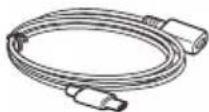
- Be sure to use the supplied USB extension cables.
- To avoid injury, be careful not to drop the display during installation.
- When installing, be careful not to cut off your fingers with the metal parts of the brackets and mounting base.
- Do not pinch your fingers when attaching the display to the unit.
- When using the unit for a long period of time, there may be a possibility that the screws securing the display may come loose. Periodically tighten these screws.
- Do not make any changes or modifications to the unit other than those described in this manual.
Note on the power supply lead (yellow)
When connecting this unit in combination with other stereo components, the amperage rating of the car circuit to which the unit is connected must be higher than the sum of each component's fuse amperage rating.
Note on installing in cars with a start-stop system
The unit may restart when starting the engine from start-stop. In this case, turn off the start-stop system of your car.
Note on installing in cars with electric parking brake system
For cars with electric parking brakes, some related functions (such as video blocking function) may not work properly.
Mounting angle adjustment
Adjust the mounting angle to less than 30^ .
Parts List for Installation
① Power supply leads (1) ② Connection cables (Audio/Camera) (1)
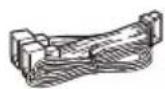
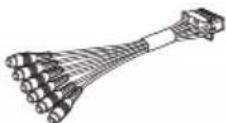
③ Mounting screw (5× .9mm 7/32 × max.3/8 in))4
④ Microphone (1)

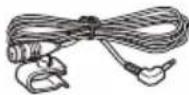
⑤ Flat-mount base (1) ⑥ Double-sided tape (1)
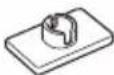

⑦ USB Type-C extension cable ⑧ GPS antenna (aerial) (1) (1)
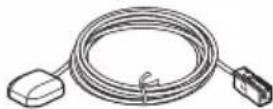
GPS antenna (aerial) (1)
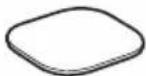
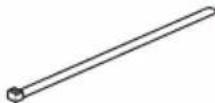
Metal plate (1) Cable tie (2)
Cable tie (2)
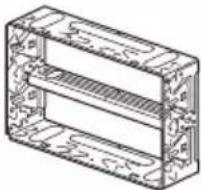
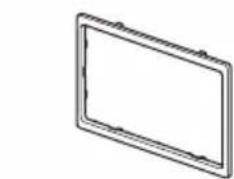
11 Mounting sleeve (1) 12 Trim ring (1)
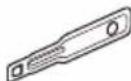
13 Release key (2)
This parts list does not include all the package contents.
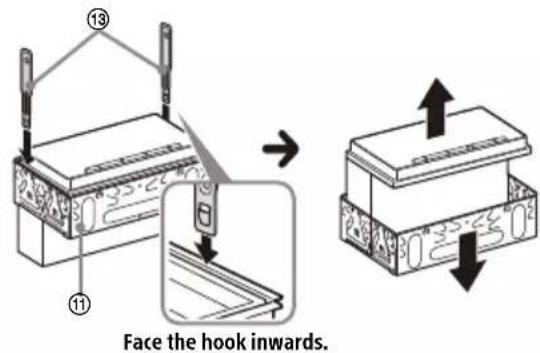
The mounting sleeve is attached to the unit before shipping. Before mounting the unit, use the release keys to remove the mounting sleeve from the unit. For details, see "Removing the mounting sleeve" (page 15).
- Keep the release keys ⑬ for future use as they are also necessary if you remove the unit from your car.
Connection
- To prevent short circuits, insulate leads with a cover or tape.
Note that the unit may be damaged if it is connected incorrectly or by short circuits at the leads.
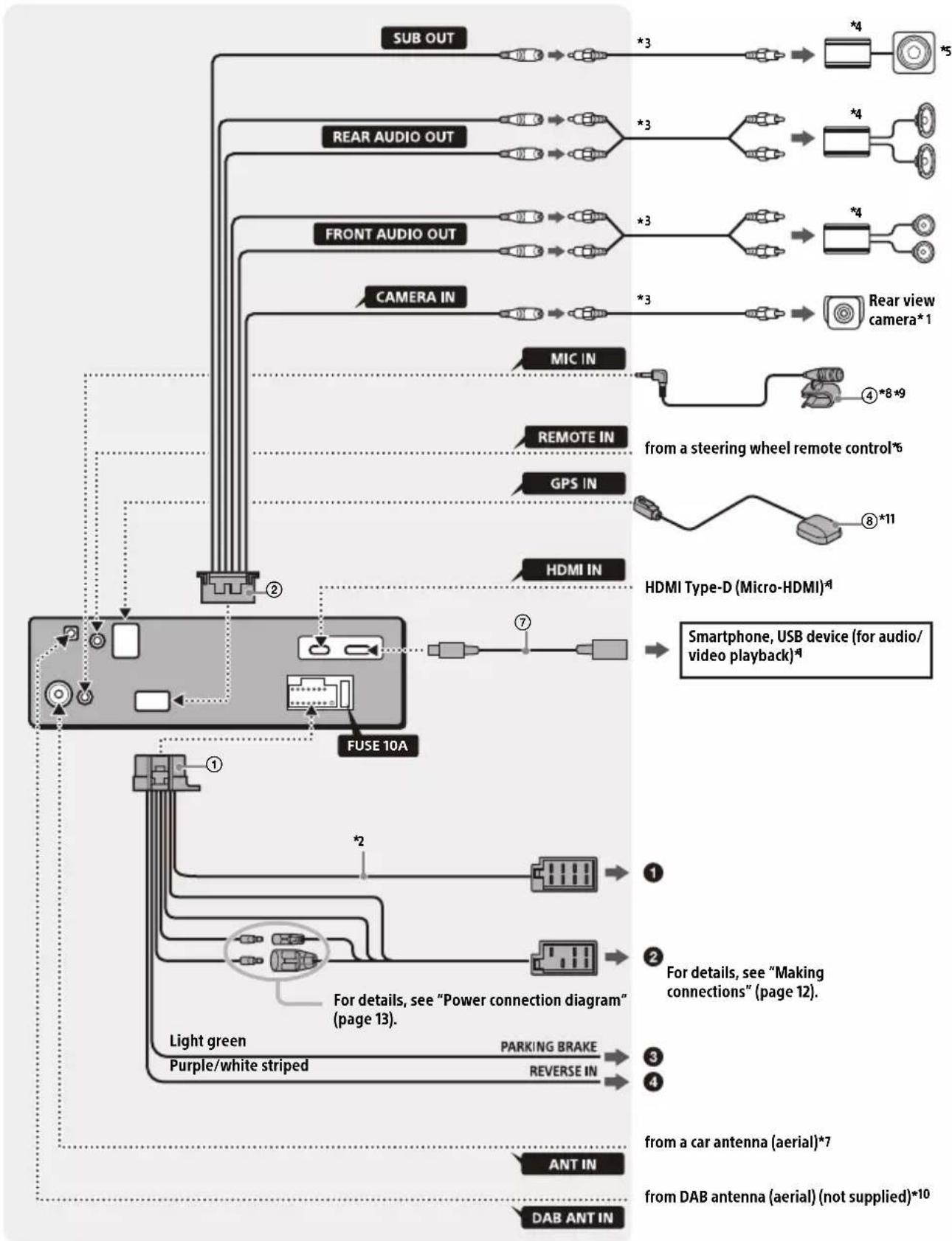
^1 Not supplied
2 Speaker impedance: 4 Ω to 8 Ω × 4
3 RCA pin cord (not supplied)
4 Power amplifier (not supplied)
5 Subwoofer (not supplied)
6 Depending on the type of car, use an adaptor for a steering wheel remote control (not supplied). For details on using the steering wheel remote control, see "Using the steering wheel remote control" (page 14).
7 Depending on the type of car, use an adaptor (not supplied) if the antenna (aerial) connector does not fit.
8 Whether in use or not, route the microphone input cord so it does not interfere with driving operations. Secure the cord with a clamp, etc., if it is installed around your feet.
9 For details on installing the microphone, see "Installing the microphone" (page 13).
10 Set [Antenna Power] to [On] (default) or [Off] depending on the type of DAB antenna (aerial) (not supplied). Max. supply current 0.1 A
*11 Connect when using Apple CarPlay with a wireless connection.
Making connections
If you have a power antenna (aerial) without a relay box, connecting this unit with the power supply leads ① may damage the antenna (aerial).
To the car's speaker connector
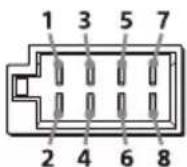
| 1 | Rear speaker (right) | ⊕ | Purple |
| 2 | ⊗ | Purple/black striped | |
| 3 | Front speaker (right)/black striped | ⊕ | Gray |
| 4 | d | ||
| 5 | Front speaker (left) | ⊕ | White |
| 6 | White/black striped | ||
| 7 | Rear speaker (left) | ⊕ | Green |
| 8 | Green/black striped |
the car's power connector
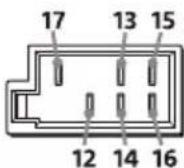
| 12 | continuous power supply | Yellow |
| 13 | power antenna (aerial) / power amplifier control (REM OUT) (MAX 0.4 A) | Blue/white striped |
| 14 | switched illumination power supply | Orange/white striped |
| 15 | switched power supply Red | |
| 16 | ground (earth) Black | |
| 17 | maintain the accurate location of your car when using Apple CarPlay with a wireless connection | Pink |
3 To the parking brake switch lead
The mounting position of the parking brake switch lead depends on your car. Be sure to connect the parking brake lead (light green) of the power supply leads ① to the parking brake switch lead.
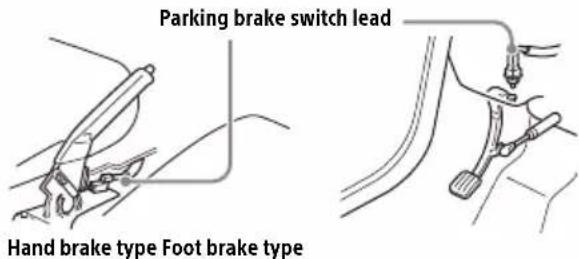
To the +12V power terminal of the car's rear lamp lead (only when connecting the rear view camera)
Rear View Camera Connection
Installation of a rear view camera (not supplied) is required before use.
Connect a rear view camera power cord (lead) to the accessory power terminal.
Memory hold connection
When the yellow power supply lead is connected, power will always be supplied to the memory circuit even when the ignition switch is turned off.
Speaker connection
- Before connecting the speakers, turn the unit off.
- Use speakers with an impedance of 4 to 8 , and with adequate power handling capacities to avoid damage.
Power connection diagram
Check your car's auxiliary power connector and match the connections of leads correctly depending on the car.
Auxiliary power connector
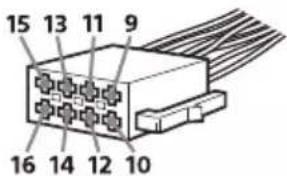
Common connection
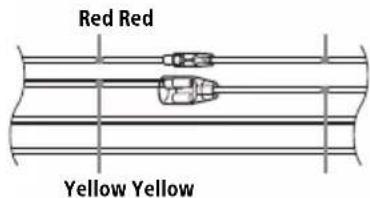
| 12 | continuous power supply | Yellow |
| 15 | switched power supply Red |
When the positions of the red and yellow leads are inverted
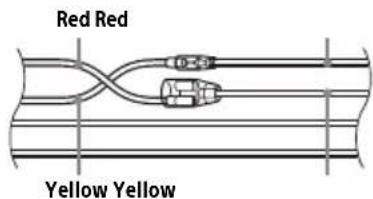
| 12 s | switched power supply | Yellow |
| 15 | continuous power supply | Red |
For cars without ACC position
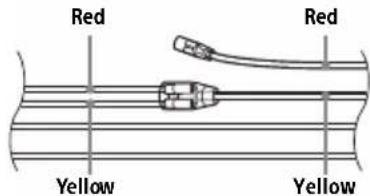
After matching the connections and switching power supply leads correctly, connect the unit to the car's power supply. If you have any questions and problems connecting your unit that are not covered in this manual, consult the car dealer.
Installing the microphone
To capture your voice during handsfree calling, you need to install the microphone ④.
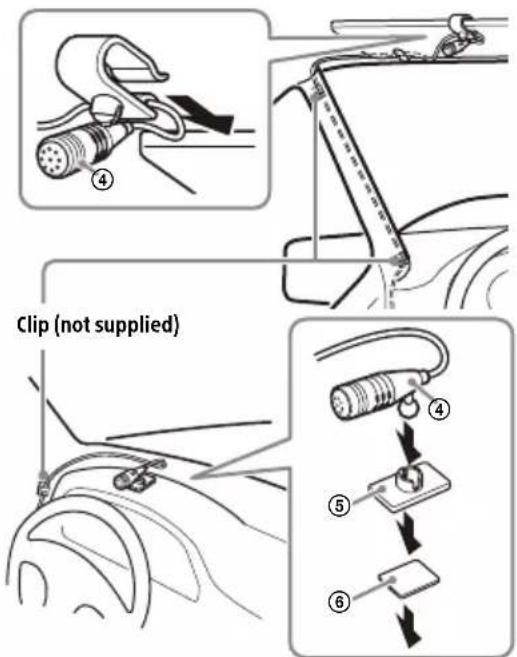
Cautions
- It is extremely dangerous if the cord becomes wound around the steering column or gearstick. Be sure to keep it and other parts from interfering with your driving operations.
If airbags or any other shock-absorbing equipment are in your car, contact the store where you purchased this unit or the car dealer before installation.
Notes
- When mounting on the dashboard, remove the visor clip carefully from the microphone ④ , then attach the flatmount base ⑤ to the microphone ④ .
- Before attaching the double-sided tape ⑥ , clean the surface of the dashboard with a dry cloth.
Installing the GPS antenna (aerial)
- Choose a location where no obstacle blocks GPS satellite reception so as to achieve the best reception.
- Make sure the GPS antenna (aerial) ⑧ does not interfere with the operation of car equipment.
- Some types of front windshields (windscreens) block GPS satellite radio waves. Make sure the signal reception is not blocked.
- When using Apple CarPlay with a wireless connection, make sure the GPS antenna (aerial) ⑧ is connected.
1 Decide the installation location on the dashboard, then clean the attachment surface.
Choose a flat surface where:
the GPS antenna (aerial) ⑧ can be positioned horizontally.
- operation of the passenger-side airbag is not impeded.
GPS satellite reception is not blocked by anything inside the car or the windshield (windscreen) wipers.
2 Remove the tape of the metal plate ⑨ , then attach it on the dashboard.
3 Remove the tape of the GPS antenna (aerial) ⑧, then attach it on the metal plate ⑨.
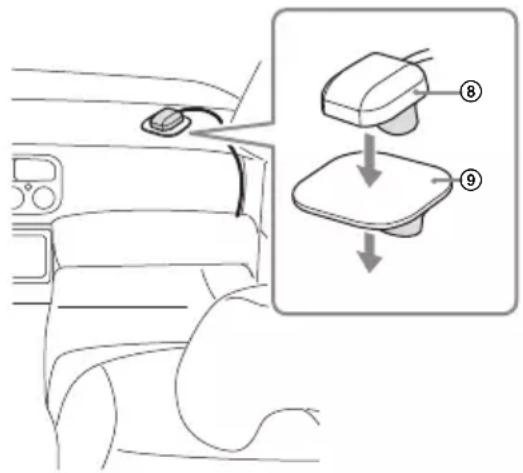
Cautions
- It is extremely dangerous if the cord becomes wound around the steering column or gearstick. Be sure to keep it and other parts from interfering with your driving operations.
- If airbags or any other shock-absorbing equipment are in your car, contact the store where you purchased this unit or the car dealer before installation.
Notes
- Be sure to use the metal plate (9), otherwise signal reception may be poor.
- Do not install the GPS antenna (aerial) ⑧ close to other electrical equipment, otherwise signal reception may be unstable.
- If the surface of the metal plate (9) is cold, the tape may not stick firmly. Warm up its surface with a hair dryer, etc., before applying the tape.
- If there is no flat surface on which to install the GPS antenna (aerial) ⑧, bend the metal plate ⑨ to fit a curved surface before installing.
Using the steering wheel remote control
When using the steering wheel remote control
Installation of the connection cable RC-SR1 (not supplied) is required before use.
1 Select [Settings] [System] [Steering Wheel Settings].
2 Set the [Custom] switch to [On].
You can make the registration to enable the steering wheel remote control. When the registration is complete, the steering wheel remote control becomes available.
Notes on installing the connection cable RC-SR1 (not supplied)
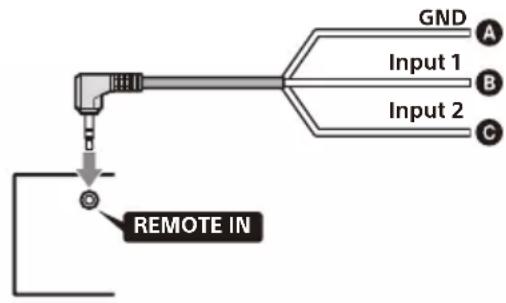
A Black
Green
Brown
Refer to the support site for details, then connect each lead properly to the appropriate leads.
Making an improper connection may damage the unit.
URL: https://www.sony.eu/support
- Consulting the dealer or an experienced technician for help is recommended.
- RC-SR1 may not be sold in your country or region.
When using an adaptor for the steering wheel remote control
Depending on the type of car, use an adaptor for the steering wheel remote control (not supplied).
1 Select [Settings] [System] [Steering Wheel Settings].
2 Set the [Custom] switch to [Off].
The adaptor for the steering wheel remote control is enabled.
Using a USB device and/or an HDMI device
Installation of the USB Type-C extension cable ⑦ and/or an HDMI cable (HDMI Type-D or Micro-HDMI) (not supplied) is required before use.
1 Connect the USB Type-C extension cable ⑦ to the USB port and/or an HDMI cable (not supplied) to the HDMI terminal at the back panel of the unit.
2 Pass the cable tie 10 through the cable holder, then tie cable tie 10 around the USB Type-C extension cable 7 and/or HDMI cable (not supplied).
The USB Type-C extension cable ⑦ and HDMI cable (not supplied) are secured to the unit.
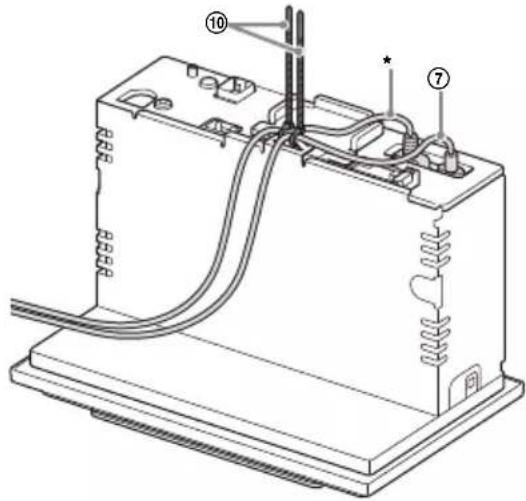
- HDMI cable (HDMI Type-D or Micro-HDMI) (not supplied)
3 Connect the installed USB Type-C extension cable ⑦ to a USB device and/or HDMI cable to an HDMI device.
4 Press HOME, then touch [USB] or [HDMI].
Installation
Removing the mounting sleeve
Before installing the unit, remove the mounting sleeve from the unit.
1 Insert both release keys ⑬ until they click, and pull down the mounting sleeve ⑪, then pull up the unit to separate.
Mounting the unit in the dashboard
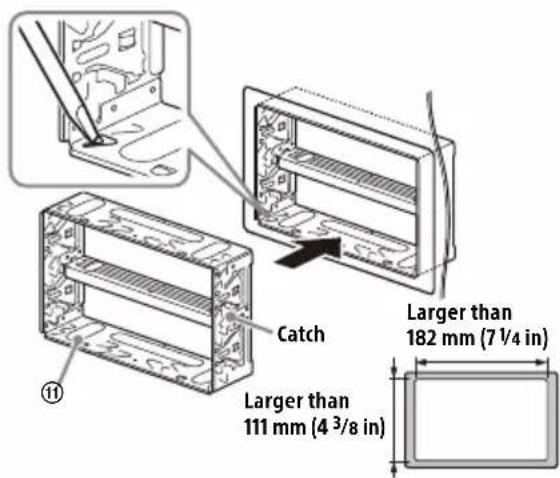
- Before installing, make sure the catches on both sides of the mounting sleeve (1) are bent inwards 3.5 ~mm (5/32 in).
- For Japanese cars, see "Mounting the unit in a Japanese car" (page 16).
1 Position the mounting sleeve inside the dashboard, then bend the claws outward for a tight fit.
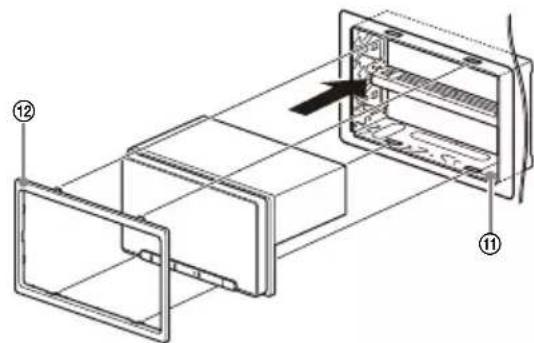
2 Mount the unit onto the mounting sleeve ⑪.
Notes
- If the catches are straight or bent outwards, the unit will not be installed securely and may spring out.
- Make sure the 4 catches on the trim ring ⑫ are properly engaged in the slots of the mounting sleeve ①
Mounting the unit in a Japanese car
You may not be able to install this unit in some makes of Japanese cars. In such a case, consult your Sony dealer.
Example
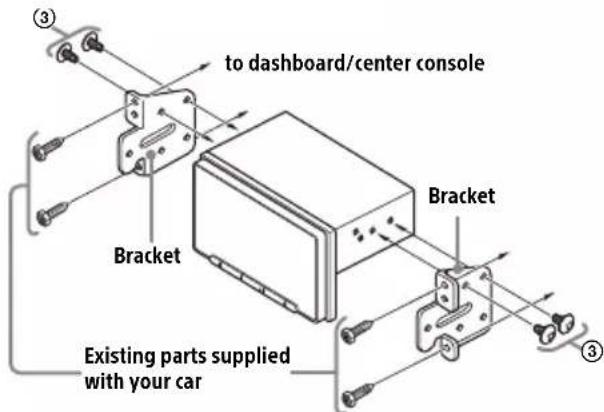
When mounting this unit to the preinstalled brackets of your car, use the mounting screws ③ in the appropriate screw holes based on your car: T for TOYOTA and N for NISSAN.
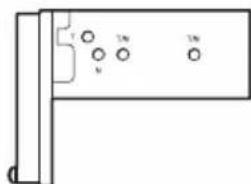
Note
To prevent malfunction, install only with the mounting screws ③.
Fuse replacement
When replacing the fuse, be sure to use one matching the amperagerating stated on the original fuse. If the fuse blows, check the power connection and replace the fuse. If the fuse blows again after
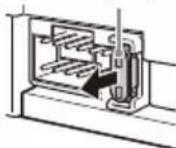
Fuse (10 A)
replacement, there may be an internal malfunction. In such a case, consult your nearest Sony dealer.
About License
END USER LICENSE AGREEMENT
IMPORTANT:
BEFORE USING THE SOFTWARE, PLEASE READ THIS END USER LICENSE AGREEMENT ("EULA") CAREFULLY. BY USING THE SOFTWARE YOU ARE ACCEPTING THE TERMS OF THIS EULA. IF YOU DO NOT ACCEPT THE TERMS OF THIS EULA, YOU MAY NOT USE THE SOFTWARE.
This EULA is a legal agreement between you and Sony Corporation ("SONY"). This EULA governs your rights and obligations regarding the AV Receiver firmware of SONY and/or its third party licensors (including SONY's affiliates) and their respective affiliates (collectively, the "THIRD-PARTY SUPPLIERS"), together with any updates/upgrades provided by SONY, any printed, on-line or other electronic documentation for such software, and any data files created by operation of such software (collectively, the "SOFTWARE").
Notwithstanding the foregoing, any software in the SOFTWARE having a separate end user license agreement (including, but not limited to, GNU General Public license and Lesser/Library General Public License) shall be covered by such applicable separate end user license agreement in lieu of the terms of this EULA to the extent required by such separate end user license agreement ("EXCUSED SOFTWARE").
SOFTWARE LICENSE
The SOFTWARE is licensed, not sold. The SOFTWARE is protected by copyright and other intellectual property laws and international treaties.
COPYRIGHT
All right and title in and to the SOFTWARE (including, but not limited to, any images, photographs, animation, video, audio, music, text and "applets" incorporated into the SOFTWARE) is owned by SONY or one or more of the THIRD-PARTY SUPPLIERS.
GRANT OF LICENSE
SONY grants you a limited license to use the SOFTWARE solely in connection with your compatible device ("DEVICE") and only for your individual, non-commercial use. SONY and the THIRD-PARTY SUPPLIERS expressly reserve all rights, title and interest (including, but not limited to, all intellectual property rights) in and to the SOFTWARE that this EULA does not specifically grant to you.
REQUIREMENTS AND LIMITATIONS
You may not copy, publish, adapt, redistribute, attempt to derive source code, modify, reverse engineer, decompile, or disassemble any of the SOFTWARE, whether in whole or in part, or create any derivative works from or of the SOFTWARE unless such derivative works are intentionally facilitated by the SOFTWARE. You may not modify or tamper with any digital rights management functionality of the SOFTWARE. You may not bypass, modify, defeat or circumvent any of the functions or protections of the SOFTWARE or any mechanisms operatively linked to the SOFTWARE. You may not separate any individual component of the SOFTWARE for use on more than one DEVICE unless expressly authorized to do so by SONY. You may not remove, alter, cover or deface any trademarks or notices on the SOFTWARE. You may not share, distribute, rent, lease, sublicense, assign, transfer or sell the SOFTWARE. The software, network services or other products other than SOFTWARE upon which the SOFTWARE's performance depends might be interrupted or discontinued at the discretion of the suppliers (software suppliers, service suppliers, or SONY). SONY and such suppliers do not warrant that the SOFTWARE, network services, contents or other products will continue to be available, or will operate without interruption or modification.
EXCUDED SOFTWARE AND OPEN SOURCE COMPONENTS
Notwithstanding the foregoing limited license grant, you acknowledge that the SOFTWARE may include EXCUDED SOFTWARE. Certain EXCUDED SOFTWARE may be covered by open source software licenses ("Open Source Components"), which means any software licenses approved as open source licenses by the Open Source Initiative or any substantially similar licenses, including but not limited to any license that, as a condition of distribution of the software licensed under such license, requires that the distributor make the software available in source code format. If and to the extent disclosure is required, please visit oss.sony.net/Products/Linux or other SONY-designated web site for a list of applicable OPEN SOURCE COMPONENTS included in the SOFTWARE from time to time, and the applicable terms and conditions governing its use. Such terms and conditions may be changed by the applicable third party at any time without liability to you. To the extent required by the licenses covering EXCUDED SOFTWARE, the terms of such licenses will apply in lieu of the terms of this EULA. To the extent the terms of the licenses applicable to EXCUDED SOFTWARE prohibit any of the restrictions in this EULA with respect to such EXCUDED SOFTWARE, such restrictions will not apply to such EXCUDED SOFTWARE. To the extent the terms of the licenses
applicable to Open Source Components require SONY to make an offer to provide source code in connection with the SOFTWARE, such offer is hereby made.
USE OF SOFTWARE WITH COPYRIGHTED MATERIALS
The SOFTWARE may be capable of being used by you to view, store, process and/or use content created by you and/or third parties. Such content may be protected by copyright, other intellectual property laws, and/or agreements. You agree to use the SOFTWARE only in compliance with all such laws and agreements that apply to such content. You acknowledge and agree that SONY may take appropriate measures to protect the copyright of content stored, processed or used by the SOFTWARE. Such measures include, but are not limited to, counting the frequency of your backup and restoration through certain SOFTWARE features, refusal to accept your request to enable restoration of data, and termination of this EULA in the event of your illegitimate use of the SOFTWARE.
CONTENT SERVICE
PLEASE ALSO NOTE THAT THE SOFTWARE MAY BE DESIGNED TO BE USED WITH CONTENT AVAILABLE THROUGH ONE OR MORE CONTENT SERVICES ("CONTENT SERVICE"). USE OF THE SERVICE AND THAT CONTENT IS SUBJECT TO THE TERMS OF SERVICE OF THAT CONTENT SERVICE. IF YOU DECLINE TO ACCEPT THOSE TERMS, YOUR USE OF THE SOFTWARE WILL BE LIMITED. You acknowledge and agree that certain content and services available through the SOFTWARE may be provided by third parties over which SONY has no control. USE OF THE CONTENT SERVICE REQUIRES AN INTERNET CONNECTION. THE CONTENT SERVICE MAY BE DISCONTINUED AT ANY TIME.
INTERNET CONNECTIVITY AND THIRD PARTY SERVICES
You acknowledge and agree that access to certain SOFTWARE features may require an Internet connection for which you are solely responsible. Further, you are solely responsible for payment of any third party fees associated with your Internet connection, including but not limited to Internet service provider or airtime charges. Operation of the SOFTWARE may be limited or restricted depending on the capabilities, bandwidth or technical limitations of your Internet connection and service. The provision, quality and security of such Internet connectivity are the sole responsibility of the third party providing such service.
EXPORT AND OTHER REGULATIONS
You agree to comply with all applicable export and re-export restrictions and regulations of the area or country in which you reside, and not to transfer, or authorize the transfer, of the SOFTWARE to a prohibited country or otherwise in violation of any such restrictions or regulations.
HIGH RISK ACTIVITIES
The SOFTWARE is not fault-tolerant and is not designed, manufactured or intended for use or resale as on-line control equipment in hazardous environments requiring fail-safe performance, such as in the operation of nuclear facilities, aircraft navigation or communication systems, air traffic control, direct life support machines, or weapons systems, in which the failure of the SOFTWARE could lead to death, personal injury, or severe physical or environmental damage ("HIGH RISK ACTIVITIES"). SONY, each of the THIRD-PARTY SUPPLIERS, and each of their respective affiliates specifically disclaim any express or implied warranty, duty or condition of fitness for HIGH RISK ACTIVITIES.
EXCLUSION OF WARRANTY ON SOFTWARE
You acknowledge and agree that use of the SOFTWARE is at your sole risk and that you are responsible for use of the SOFTWARE. The SOFTWARE is provided "AS IS," without warranty, duty or condition of any kind.
SONY AND EACH OF THE THIRD-PARTY SUPPLIERS (for purposes of this Section, SONY and each of the THIRD-PARTY SUPPLIERS shall be collectively referred to as "SONY") EXPRESSLY DISCLAIM ALL WARRANTYES, DUTIES OR CONDITIONS, EXPRESS OR IMPLIED, INCLUDING, BUT NOT LIMITED TO, THE IMPLIED WARRANTYES OF MERCHANTABILITY, NONINFRINGEMENT AND FITNESS FOR A PARTICULAR PURPOSE. SONY DOES NOT WARRANTY OR MAKE ANY CONDITIONS OR REPRESENTATIONS (A) THAT THE FUNCTIONS CONTAINED IN ANY OF THE SOFTWARE WILL MEET YOUR REQUIREMENTS OR THAT THEY WILL BE UPDATED, (B) THAT THE OPERATION OF ANY OF THE SOFTWARE WILL BE CORRECT OR ERROR-FREE OR THAT ANY DEFECTS WILL BE CORRECTED, (C) THAT THE SOFTWARE WILL NOT DAMAGE ANY OTHER SOFTWARE, HARDWARE OR DATA, (D) THAT ANY SOFTWARE, NETWORK SERVICES (INCLUDING THE INTERNET) OR PRODUCTS (OTHER THAN THE SOFTWARE) UPON WHICH THE SOFTWARE'S PERFORMANCE DEPENDS WILL CONTINUE TO BE AVAILABLE, UNINTERRUPTED OR UNMODIFIED, AND (E) REGARDING THE USE OR THE RESULTS OF THE USE OF THE SOFTWARE IN TERMS OF ITS CORRECTNESS, ACCURACY, RELIABILITY, OR OTHERWISE.
NO ORAL OR WRITTEN INFORMATION OR ADVICE GIVEN BY SONY OR AN AUTHORIZED REPRESENTATIVE OF SONY SHALL CREATE A WARRANTY, DUTY OR CONDITION OR IN ANY WAY INCREASE THE SCOPE OF THIS WARRANTY. SHOULD THE SOFTWARE PROVE DEFECTIVE YOU ASSUME THE ENTIRE COST OF ALL NECESSARY SERVICING, REPAIR OR CORRECTION. SOME JURISDICTIONS DO NOT ALLOW THE EXCLUSION OF IMPLIED WARRANTYES, SO THESE EXCLUSIONS MAY NOT APPLY TO YOU.
LIMITATION OF LIABILITY
SONY AND EACH OF THE THIRD-PARTY SUPPLIERS (for purposes of this Section, SONY and each of the THIRD-PARTY SUPPLIERS shall be collectively referred to as "SONY") SHALL NOT BE LIABLE FOR ANY INCIDENTAL OR CONSEQUENTIAL DAMAGES FOR BREACH OF ANY EXPRESS OR IMPLIED WARRANTY, BREACH OF CONTRACT, NEGLIGENCE, STRICT LIABILITY OR UNDER ANY OTHER LEGAL THEORY RELATED TO THE SOFTWARE, INCLUDING, BUT NOT LIMITED TO, ANY DAMAGES ARISING OUT OF LOSS OF PROFITS, LOSS OF REVENUE, LOSS OF DATA, LOSS OF USE OF THE SOFTWARE OR ANY ASSOCIATED HARDWARE, DOWN TIME AND USER'S TIME, EVEN IF ANY OF THEM HAVE BEEN ADVISED OF THE POSSIBILITY OF SUCH DAMAGES. IN ANY CASE, EACH AND ALL OF THEIR AGGREGATE LIABILITY UNDER ANY PROVISION OF THIS EULA SHALL BE LIMITED TO THE AMOUNT ACTUALLY PAID FOR THE PRODUCT. SOME JURISDICTIONS DO NOT ALLOW THE EXCLUSION OR LIMITATION OF INCIDENTAL OR CONSEQUENTIAL DAMAGES, SO THE ABOVE EXCLUSION OR LIMITATION MAY NOT APPLY TO YOU.
ENTIRE AGREEMENT, WAIVER, SEVERABILITY
This EULA and SONY's privacy policy, each as amended and modified from time to time, together constitute the entire agreement between you and SONY with respect to the SOFTWARE. The failure of SONY to exercise or enforce any right or provision of this EULA shall not constitute a waiver of such right or provision. If any part of this EULA is held invalid, illegal, or unenforceable, that provision shall be enforced to the maximum extent permissible so as to maintain the intent of this EULA, and the other parts will remain in full force and effect.
GOVERNING LAW AND JURISDICTION
The United Nations Convention on Contracts for the International Sale of Goods shall not apply to this EULA. This EULA shall be governed by the laws of Japan, without regards to conflict of laws provisions. Any dispute arising out of this EULA shall be subject to the exclusive venue of the Tokyo District Court in Japan, and the parties hereby
consent to the venue and jurisdiction of such courts.
EQUITABLE REMEDIES
Notwithstanding anything contained in this EULA to the contrary, you acknowledge and agree that any violation of or non-compliance with this EULA by you will cause irreparable harm to SONY, for which monetary damages would be inadequate, and you consent to SONY obtaining any injunctive or equitable relief that SONY deems necessary or appropriate in such circumstances. SONY may also take any legal and technical remedies to prevent violation of and/or to enforce this EULA, including, but not limited to, immediate termination of your use of the SOFTWARE, if SONY believes in its sole discretion that you are violating or intend to violate this EULA. These remedies are in addition to any other remedies SONY may have at law, in equity or under contract.
TERMINATION
Without prejudice to any of its other rights, SONY may terminate this EULA if you fail to comply with any of its terms. In case of such termination, you must: (i) cease all use, and destroy any copies, of the SOFTWARE; (ii) comply with the requirements in the section below entitled "Your Account Responsibilities".
AMENDMENT
SONY RESERVES THE RIGHT TO AMEND ANY OF THE TERMS OF THIS EULA AT ITS SOLE DISCRETION BY POSTING NOTICE ON A SONY DESIGNATED WEB SITE, BY EMAIL NOTIFICATION TO AN EMAIL ADDRESS PROVIDED BY YOU, BY PROVIDING NOTICE AS PART OF THE PROCESS IN WHICH YOU OBTAIN UPGRADES/UPDATES OR BY ANY OTHER LEGALLY RECOGNIZABLE FORM OF NOTICE. If you do not agree to the amendment, you should promptly contact SONY for instructions. Your continued use of the SOFTWARE after the effective date of any such notice shall be deemed your agreement to be bound by such amendment.
THIRD-PARTY BENEFICIARIES
Each THIRD-PARTY SUPPLIER is an express intended third-party beneficiary of, and shall have the right to enforce, each provision of this EULA with respect to the SOFTWARE of such party.
Should you have any questions concerning this EULA, you may contact SONY by writing to SONY at applicable contact address of each area or country.
Copyright © 2020 Sony Corporation
Notice on license
This product contains software that Sony uses under a licensing agreement with the owner of its copyright. We are obligated to announce the contents of the agreement to customers under requirement by the owner of copyright for the software.
For details on software licenses, select [Settings] [System] [Open Source Licenses].
Notice on GNU GPL/LGPL applied software
The software included in this product contains copyrighted software that is licensed under the GPLv2 and other licenses which may require access to source code. You may find a copy of the relevant source code as required under the GPLv2 (and other licenses) at
http://www.sony.net/Products/Linux/.
To download, please access the URL, then select the model name "XAV-AX6050."
You may obtain the source code as required by the GPLv2 on a physical medium from us for a period of three years after our last shipment of this product by applying through the form at http://www.sony.net/Products/Linux/.
This offer is valid to anyone in receipt of this information.
Please note that Sony cannot answer or respond to any inquiries regarding the content of the source code.
Avertissement
Raccordement/Installation
Attention
Copyright © 2020 Sony Corporation
URL: https://www.sony.eu/support
(2,4000 GHz - 2,4835 GHz)
PBAP (Phone Book Access Profile) 1.2
URL: https://www.sony.eu/support
Copyright © 2020 Sony Corporation
Hinweise zur Lizenz
https://compliance.sony.eu
174,928 MHz - 239,200 MHz
Terminal de antenna:
Conector de antenna externa
FM
URL: https://www.sony.eu/support
Copyright © 2020 Sony Corporation
URL: https://www.sony.eu/support
De firmware updaten via de USB-tetheringmodus
Interface: USB Type-C® (Hi-speed)
Maximale stroom: 3,0 A
HDMI-gedeelte*
Ingangsformaat: 480p, 576p, 720p
- HDMI-uitgang is nicht beschikkaar.
BLUETOOTH
Communicationsystem:
BLUETOOTH-standard versie 5.0
Uitvoer:
BLUETOOTH-standard Vermogensklasse 1
PBAP (Phone Book Access Profile) 1.2
Overeenkomstige codec: SBC, AAC, LDAC™
URL: https://www.sony.eu/support
UITGESLOTEN SOFTWARE EN OPENSOURCE-COMPONENTEN
Copyright © 2020 Sony Corporation
Opmerking over licences
PBAP (Phone Book Access Profile) 1.2
Motsvarande kodek: SBC, AAC, LDAC™
https://compliance.sony.eu
Hrvatski
Sony Corporation ovime izjavljupe da je ova oprema u skladu s Direktivom 2014/53/EU.
https://compliance.sony.eu
Cesky
Sony Corporation timto prohlasuje, ze toto zairzeni je v souladu se smernici 2014/53/EU.
Uplne zneni EU prohlasei o shode je k dispozici na teto internetové adrese:
https://compliance.sony.eu
Dansk
https://compliance.sony.eu
English
Hereby, Sony Corporation declares that this equipment is in compliance with Directive 2014/53/EU.
The full text of the EU declaration of conformity is available at the following internet address: https://compliance.sony.eu
Eesti keel
https://compliance.sony.eu
Suomi
https://compliance.sony.eu
Italiano
https://compliance.sony.eu
Lietuviy kalba
https://compliance.sony.eu
Norsk
Herved erklærer Sony Corporation at utstyrstypen er i samsvar med direktiv 2014/53/EU. EU-erklæring fulltekst finner du pa Internett under: https://compliance.sony.eu
Polski
- Warning
- Warning if your car's ignition has no ACC position
- Disclaimer regarding services offered by third parties
- About Change of the Unit
- Important notice
- Caution
- Emergency calls
- On BLUETOOTH communication
- Guide to Parts and Controls
- Main Unit
- Screen Displays
- Status indication (left side)
- Status indication (right side)
- Application specific area
- (Apple CarPlay)/Android Auto)
- 5Clock
- Apps area (Favorite)
- All Apps
- Close
- Apps area
- Apps icon list
- Basic Operations
- Switching the FM Tuning Step
- Note
- Using Apple CarPlay Wirelessly
- Using Android Auto
- Pairing with a Bluetooth® Device
- To pair from the settings of this unit
- Canceling the Demonstration Mode
- Updating the Firmware
- To update the firmware with USB tethering mode
- Notes
- Additional Information
- Precautions
- Note on safety
- About iPhone
- - Compatible iPhone models:
- Specifications
- Monitor section
- Radio section
- DAB/DAB+
- FM
- AM
- USB player section
- HDMI section*
- BLUETOOTH section
- Wi-Fi section
- Power amplifier section
- General
- Copyrights
- Connection/Installation
- Cautions
- Note on the power supply lead (yellow)
- Note on installing in cars with a start-stop system
- Note on installing in cars with electric parking brake system
- Mounting angle adjustment
- Parts List for Installation
- Connection
- Making connections
- To the car's speaker connector
- the car's power connector
- To the parking brake switch lead
- To the +12V power terminal of the car's rear lamp lead (only when connecting the rear view camera)
- Rear View Camera Connection
- Memory hold connection
- Speaker connection
- Power connection diagram
- Common connection
- When the positions of the red and yellow leads are inverted
- For cars without ACC position
- Installing the microphone
- Installing the GPS antenna (aerial)
- Using the steering wheel remote control
- When using the steering wheel remote control
- Notes on installing the connection cable RC-SR1 (not supplied)
- When using an adaptor for the steering wheel remote control
- Using a USB device and/or an HDMI device
- Installation
- Removing the mounting sleeve
- Mounting the unit in the dashboard
- Mounting the unit in a Japanese car
- Example
- Fuse replacement
- About License
- END USER LICENSE AGREEMENT
- IMPORTANT:
- SOFTWARE LICENSE
- COPYRIGHT
- GRANT OF LICENSE
- REQUIREMENTS AND LIMITATIONS
- EXCUDED SOFTWARE AND OPEN SOURCE COMPONENTS
- USE OF SOFTWARE WITH COPYRIGHTED MATERIALS
- CONTENT SERVICE
- INTERNET CONNECTIVITY AND THIRD PARTY SERVICES
- EXPORT AND OTHER REGULATIONS
- HIGH RISK ACTIVITIES
- EXCLUSION OF WARRANTY ON SOFTWARE
- LIMITATION OF LIABILITY
- ENTIRE AGREEMENT, WAIVER, SEVERABILITY
- GOVERNING LAW AND JURISDICTION
- EQUITABLE REMEDIES
- TERMINATION
- AMENDMENT
- THIRD-PARTY BENEFICIARIES
- Notice on license
- Notice on GNU GPL/LGPL applied software
- Avertissement
- Raccordement/Installation
- Attention
- Hinweise zur Lizenz
- De firmware updaten via de USB-tetheringmodus
- HDMI-gedeelte*
- BLUETOOTH
- UITGESLOTEN SOFTWARE EN OPENSOURCE-COMPONENTEN
- Opmerking over licences
- Hrvatski
- Cesky
- Dansk
- English
- Eesti keel
- Suomi
- Italiano
- Lietuviy kalba
- Norsk
- Polski
Brand : SONY
Model : XAV-AX6050
Category : Cd player/recorder