
RTX2060O6GSI - Graphic card ASUS - Free user manual and instructions
Find the device manual for free RTX2060O6GSI ASUS in PDF.
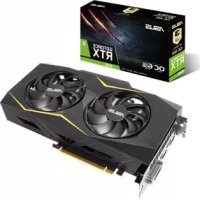


| Product Type | Graphics Card |
| Brand | ASUS |
| Model | RTX2060O6GSI |
| Graphics Processor | NVIDIA GeForce RTX 2060 |
| Video Memory | 6 GB GDDR6 |
| Interface | PCI Express 3.0 x16 |
| Display Connectors | 1 x HDMI 2.0b, 1 x DisplayPort 1.4, 1 x DVI-D |
| Recommended Power Supply | 500 W |
| Power Connectors | 1 x 8-pin PCIe |
| Dimensions | 26.7 x 11.8 x 4.0 cm |
| Weight | 800 g |
| Maximum Temperature | 88 °C |
| Key Features | Ray tracing support, DLSS, VR Ready, ASUS GPU Tweak II |
| Supported Operating System | Windows 10 / 8.1 / 7 (64-bit) |
| Maintenance and Cleaning | Dust regularly with a soft cloth. Do not use liquids. |
| Safety | Avoid moisture and extreme temperatures. Disconnect before handling. |
| Spare Parts and Repairability | Failures are rare. Contact ASUS customer service for any replacement. |
Frequently Asked Questions - RTX2060O6GSI ASUS
User questions about RTX2060O6GSI ASUS
0 question about this device. Answer the ones you know or ask your own.
Ask a new question about this device
Download the instructions for your Graphic card in PDF format for free! Find your manual RTX2060O6GSI - ASUS and take your electronic device back in hand. On this page are published all the documents necessary for the use of your device. RTX2060O6GSI by ASUS.
USER MANUAL RTX2060O6GSI ASUS
ASUS GPU Tweak II User Manual
Q10790
First Edition
August 2015
Contents
English. 3
繁體中文 14
简体中文 25
Francais 36
日本語 47
Italiano 58
Pycckn 69
Čestina. 80
Nederlands 91
Elambdaeta 102
Portuguese 113
Polish 124
Spanish 135
Ukrainian 146
German 157
Knowing GPU Tweak II
ASUS GPU Tweak II utility allows you to monitor and tweak the settings of your ASUS graphics card for optimal performance. It has two user interfaces, the Simple Mode and Professional Mode, that allow you to quickly monitor your preset and customized profiles, boost the GPU settings for your game-changing enjoyment, or do some advanced tweaking on the GPU settings for optimal performance.
ASUS GPU Tweak II includes these ASUS-exclusive preset power-saving and gaming profiles:

OC Mode
Silent Mode
Gaming Mode
My Profile
System requirements
AMD 7000 Series GPU or higher NVIDIA 600 Series GPU or higher 32-/64-bit Microsoft*Windows 10/8/8.1/7
Installing GPU Tweak II
- Ensure that you have installed the ASUS graphics card and its driver. Refer to the ASUS graphics card user manual for details on installing its driver.
- Locate the ASUS GPU Tweak II driver folder and double-click the setup.exe file to start the installation.
- Follow the onscreen instructions to finish the installation.
Launching GPU Tweak II
Double-click the GPU Tweak icon on the desktop. - Click Start > All Programs > ASUS > GPU Tweak II to launch the program.
Simple Mode
Simple Mode provides you with a quick way to monitor your GPU settings in real-time, and tweak some system settings via Gaming Booster for your game-changing enjoyment.
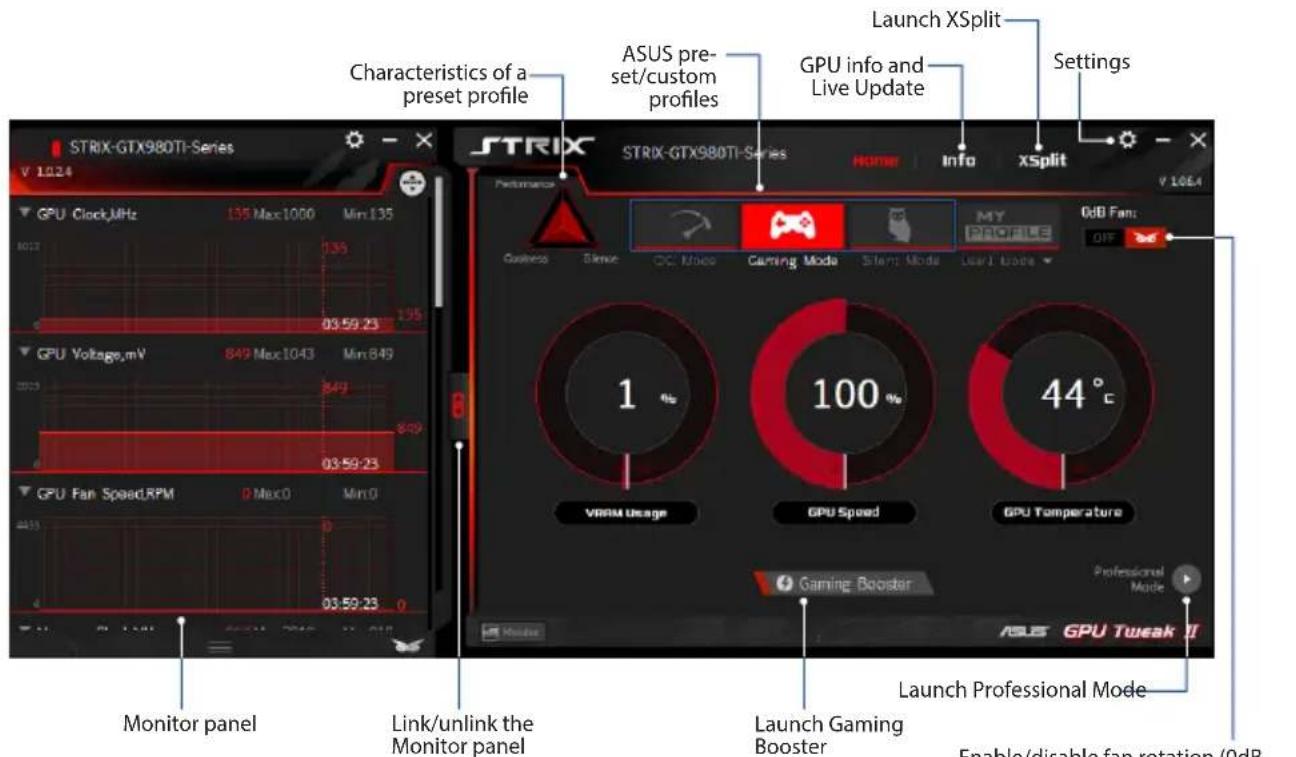
Enable/disable fan rotation (0dB Fan)* * Appears only on an ASUS Graphics card with 0dB Fan function.
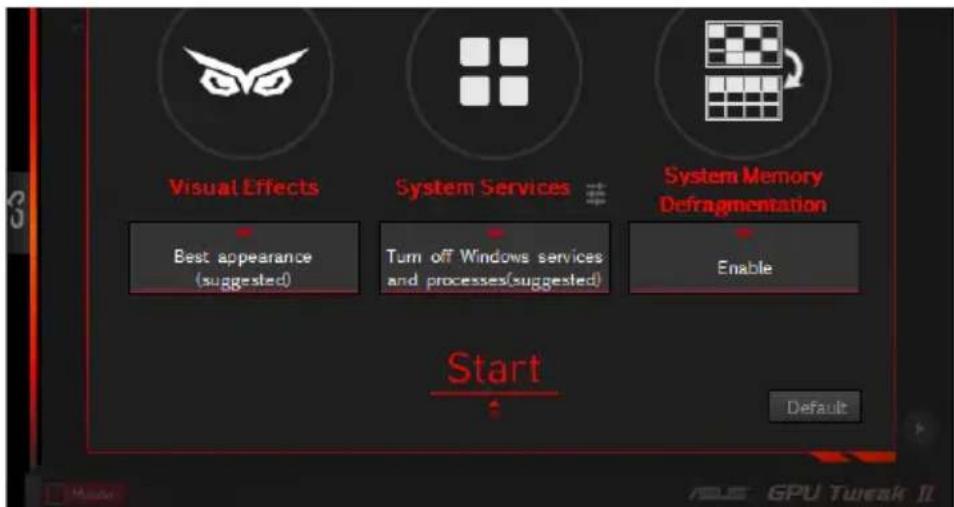
Gaming Booster
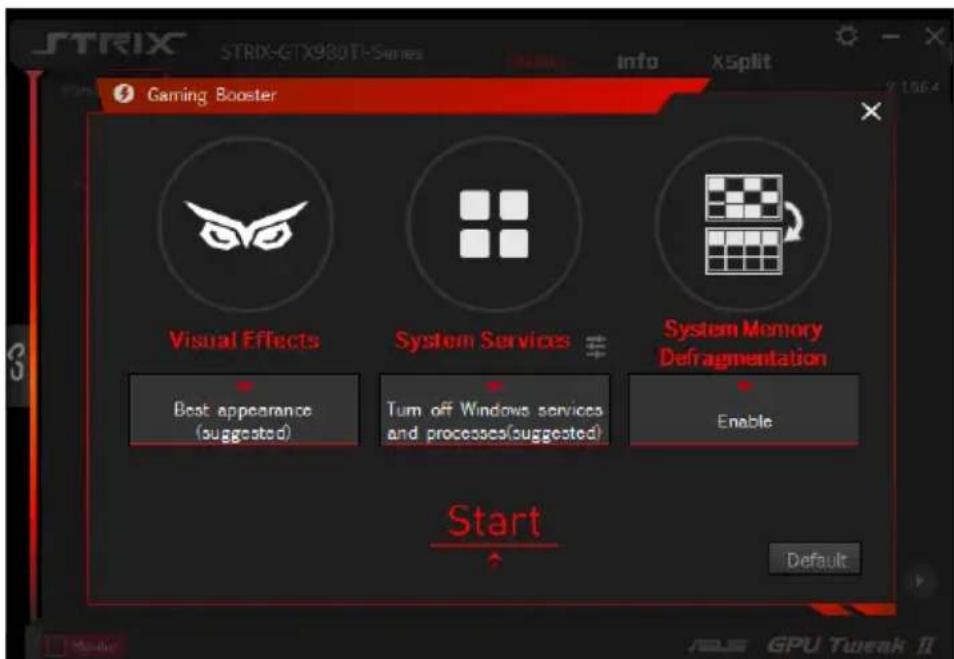
Get that game-changing performance edge with Gaming Booster, which helps optimize your system for a seamless and faster game play in your computer games.
Gaming Booster offers you these three (3) functions:
Visual Effects: Lets you turn off the Windows® visual effects to intensify the processor performance. System Services: Lets you automatically or manually turn off Windows® services or processes.
- System Services setting: Lets you manually choose the services or processes that you want to stop.
- System Memory defragmentation: Lets you rearrange and clean your system memory without closing any processes.
Professional Mode
Configure the GPU settings like a pro, and get the optimal performance from your ASUS Graphics card.
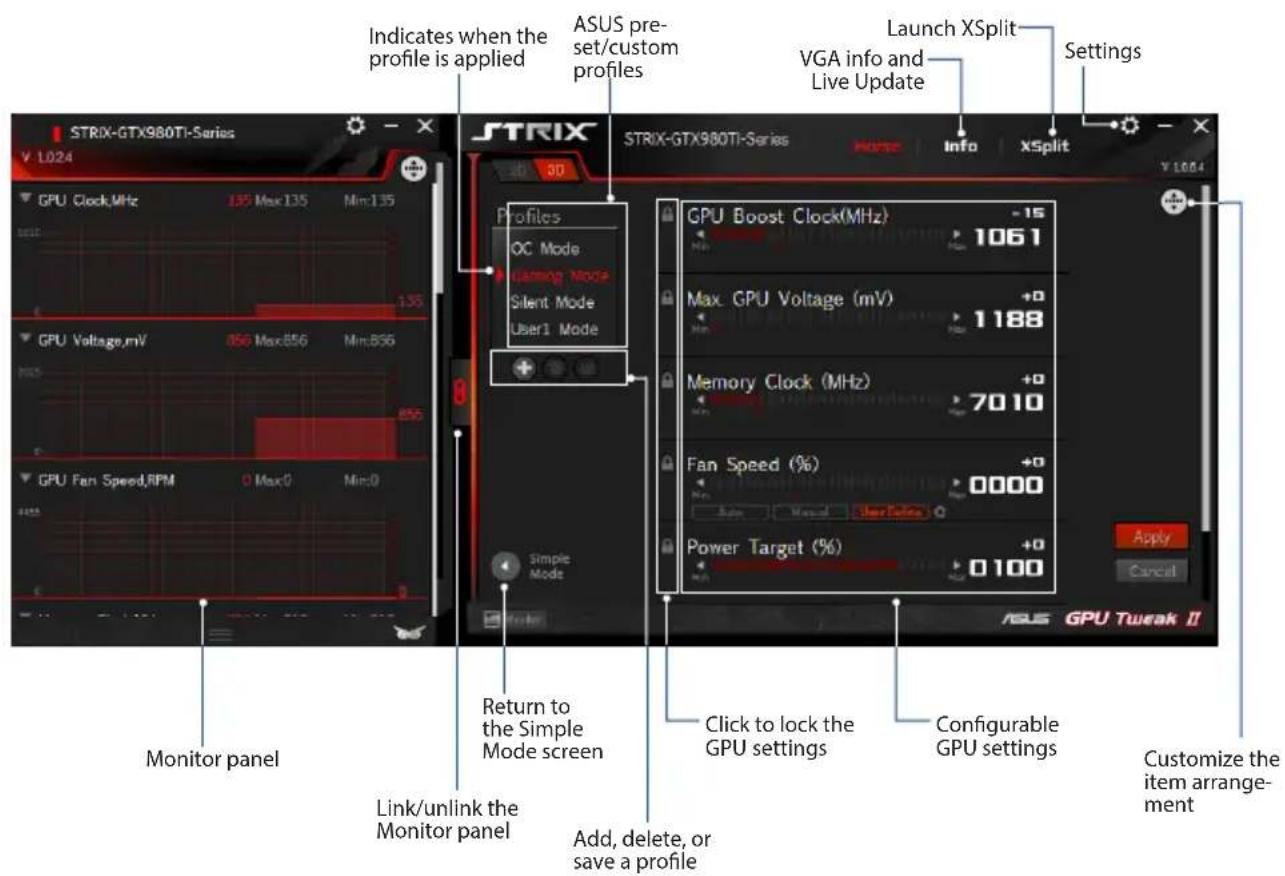
Configuring a profile
- Select the profile that you want to configure.
- Select the GPU setting, then key in your preferred value.
- When done, click Apply
Adding a profile
- Click + then assign the profile name.
- Set your preferred values.
- When done, click save the profile.
Applying a profile
- Select the profile, then click Apply to apply the profile.
Deleting a profile
- Select the profile, then click to delete the profile.
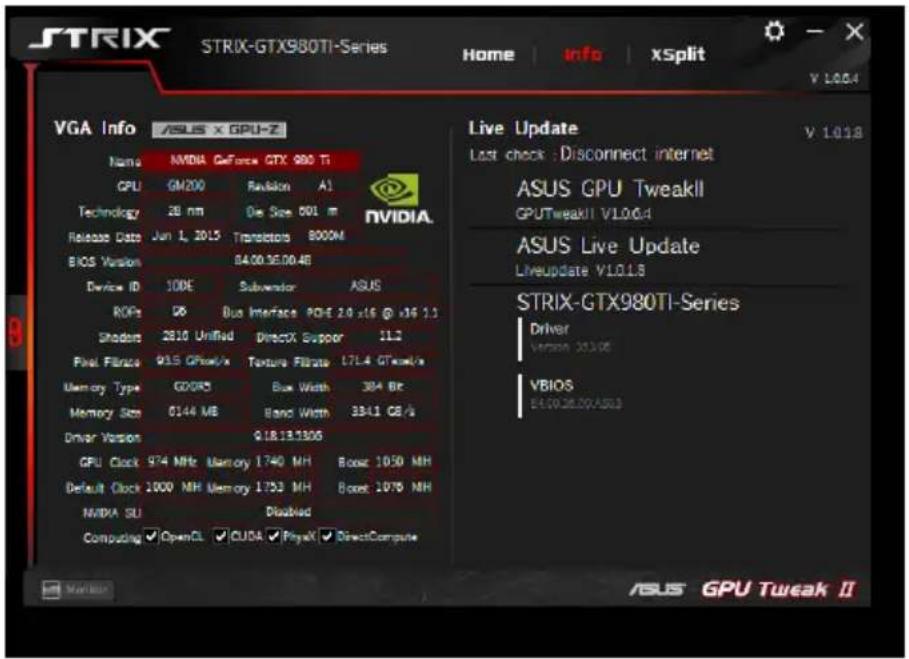
Getting the VGA info and Live Update
The Info screen provides you with information and live updates about your ASUS VGA card.
NOTE: Ensure that your computer is connected to the Internet to get the Live Update.
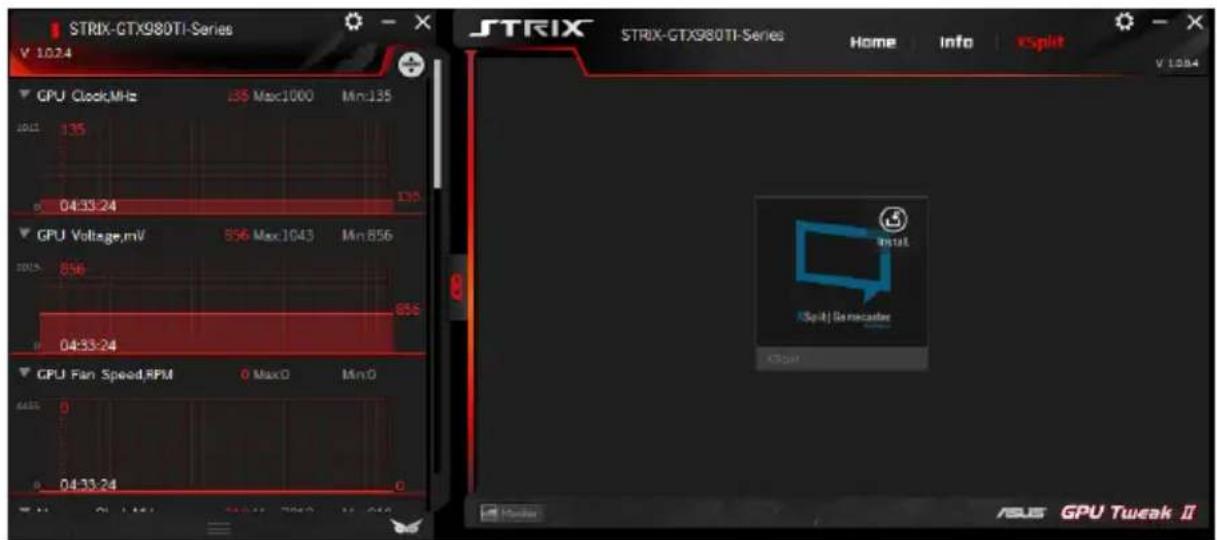
Launching XSplit
Install and launch XSplit Gamecaster from GPU Tweak II.
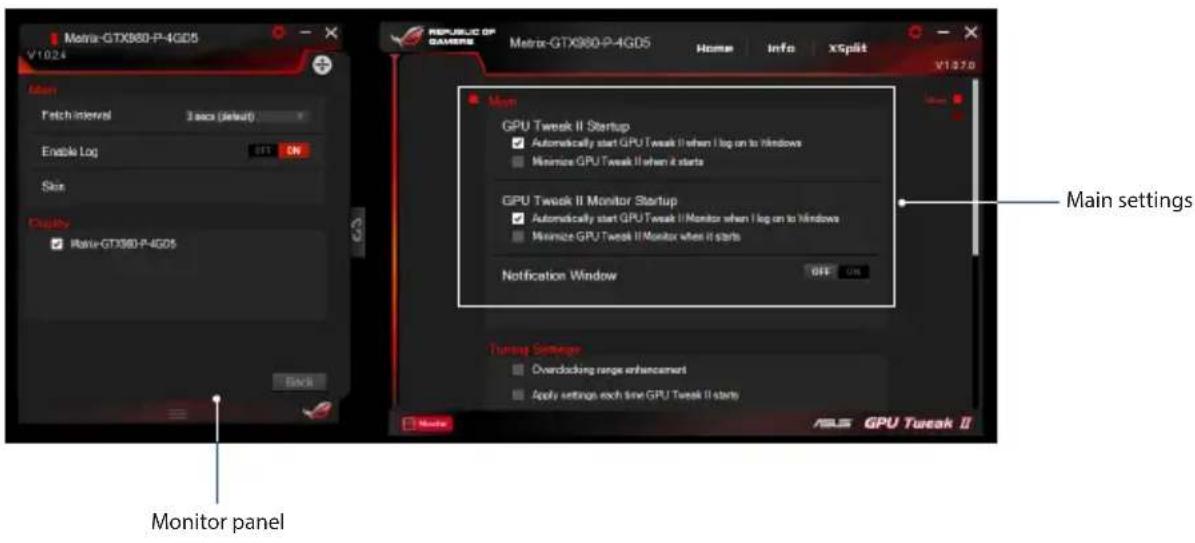
Using the Settings screen
The Settings screen allows you to configure the GPU Tweak II settings such as Main, Tuning Settings, Live Update, and Keyboard Shortcuts.
Main
From the Main settings, you can select any of these options on launching GPU Tweak II:
- Automatically launch GPU Tweak II or its Monitor panel on Windows® startup.
- Minimize GPU Tweak II or its Monitor panel once launched.
- Turn the notification window on/off.
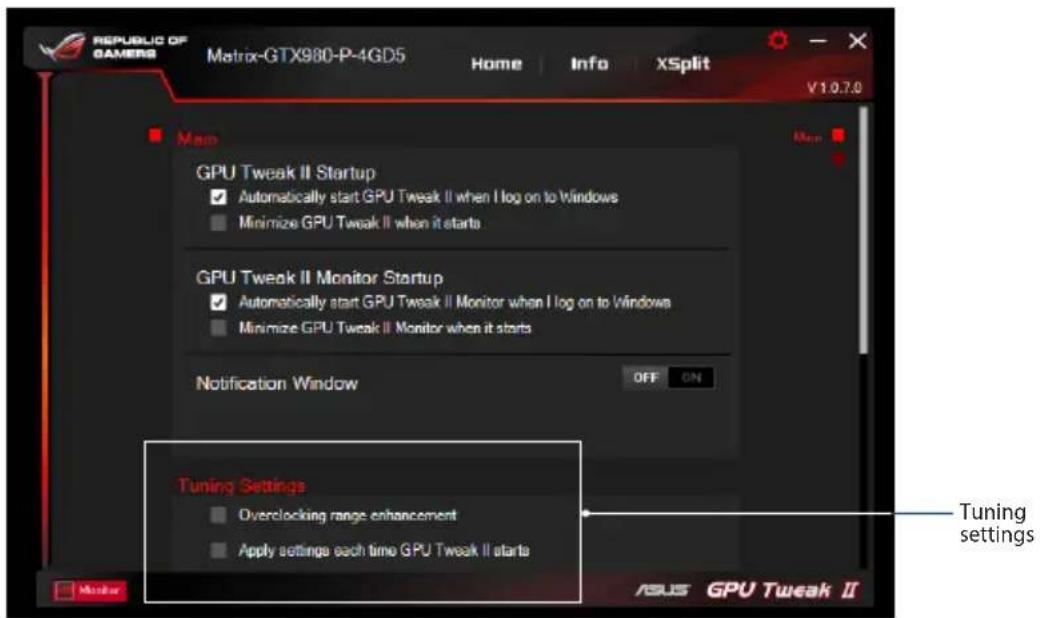
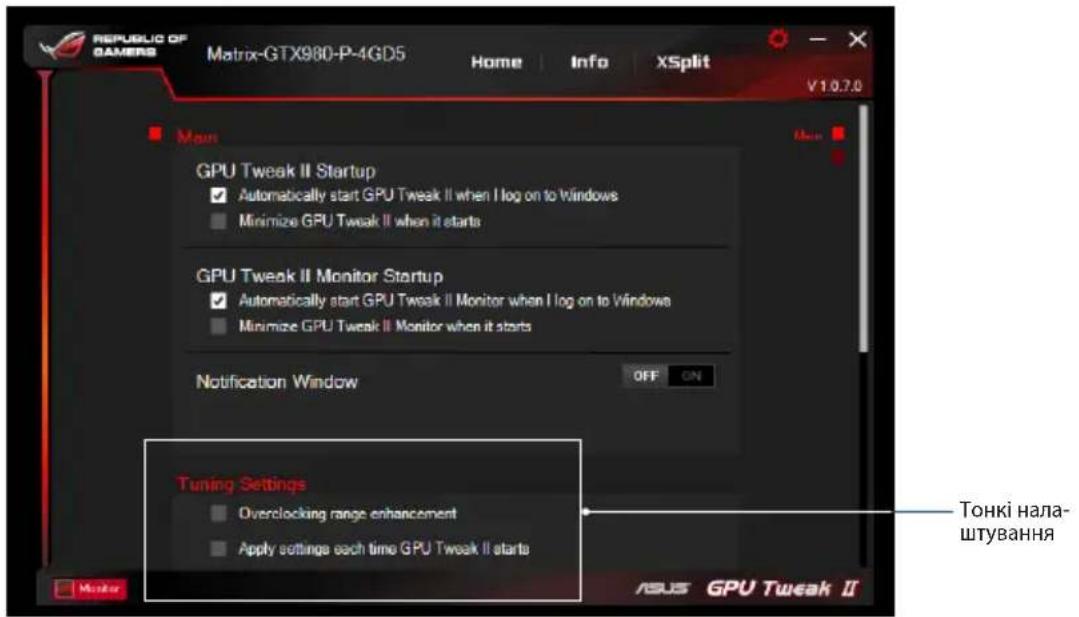
Tuning Settings
From the Tuning Settings, you can select any of these options on applying the GPU Tweak II settings:
- Enhance the overclocking range.
- Apply the settings on GPU Tweak startup.
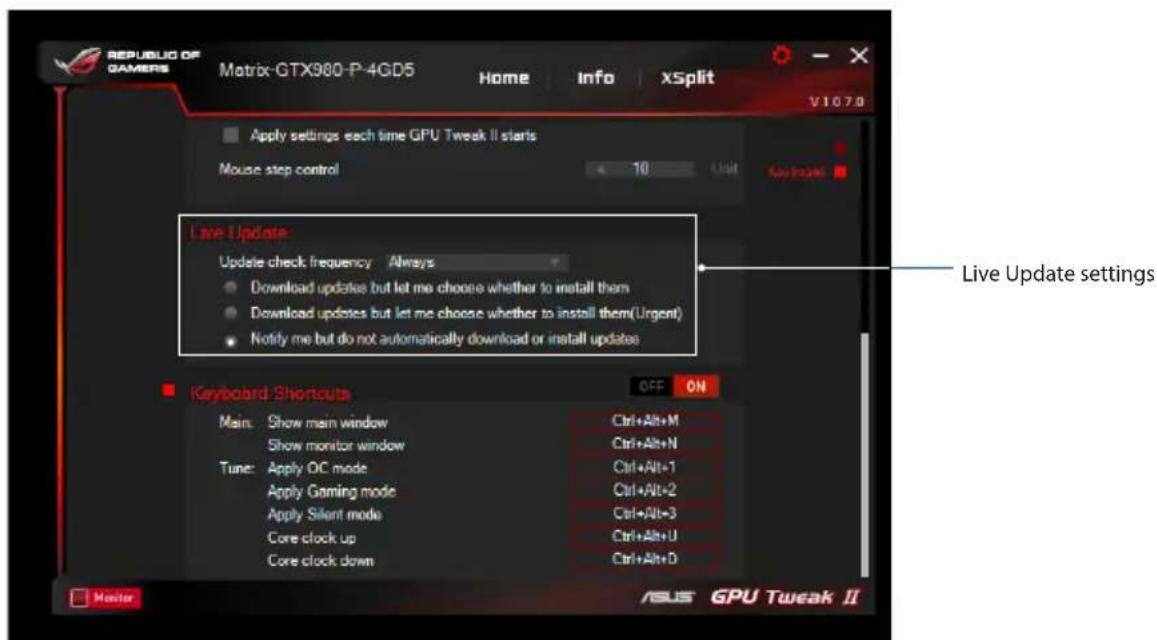
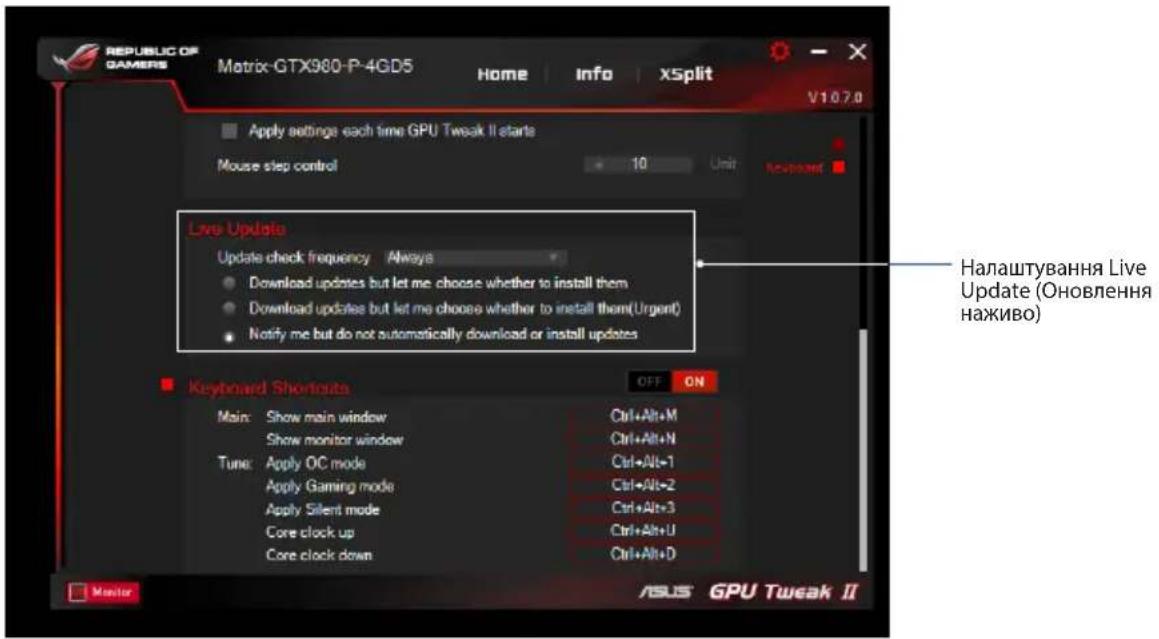
Live Update
Receive notifications on the latest VBOS and driver updates from Live Update. Configure and select the following Live Update options:
- Set the Update check frequency as to when you want to receive the Live Update.
- Select any of the Live Update options:
- Download updates but let me choose whether to install them: Select this option to automatically download updates, and decide whether to manually install them.
- Download important updates but let me choose whether to install them: Select this option to automatically download critical updates, and decide whether to manually install them.
- Notify me but do not automatically download or install updates: Select this option to receive notifications only, and decide whether to manually download and install the updates.
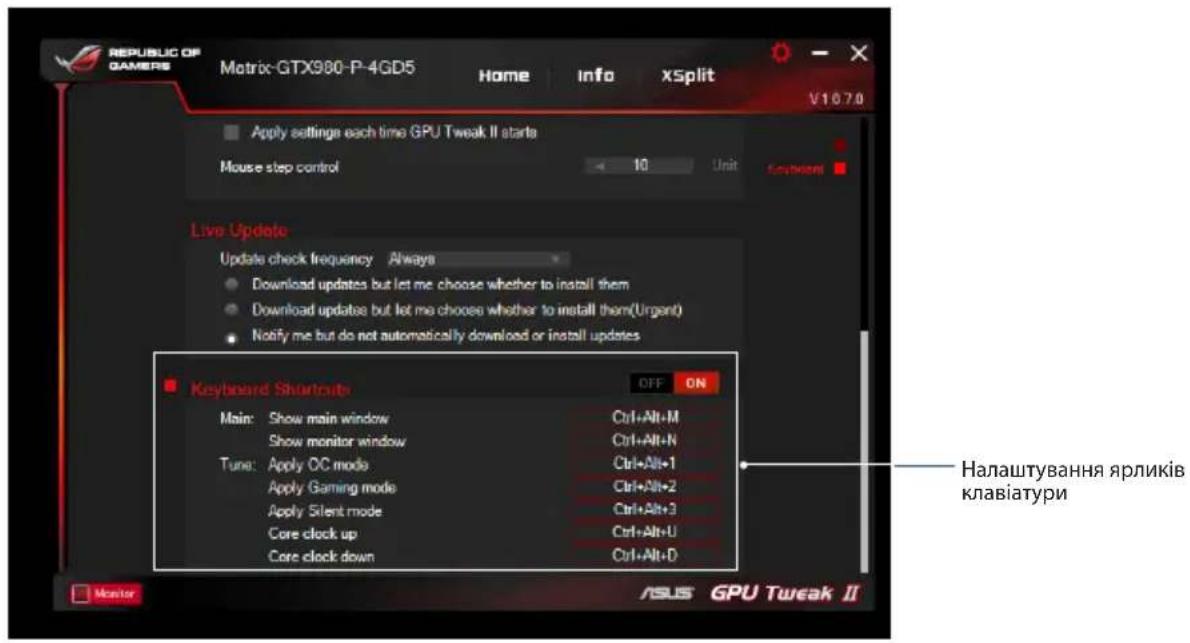
Keyboard Shortcuts
Turn on/off the Keyboard Shortcuts to quickly show the main screen or apply some quick adjustments.

Understanding GPU Tweak II
Gaming Mode
My Profile
System requirements
- System Services: Allows you to select a service or process to stop.
System Memory defragmentation: Allows you to rearrange and clean system memory without closing any processes.
Professional Mode
Configure CPU settings, make adjustments, and get optimal performance characteristics for your ASUS graphics card.
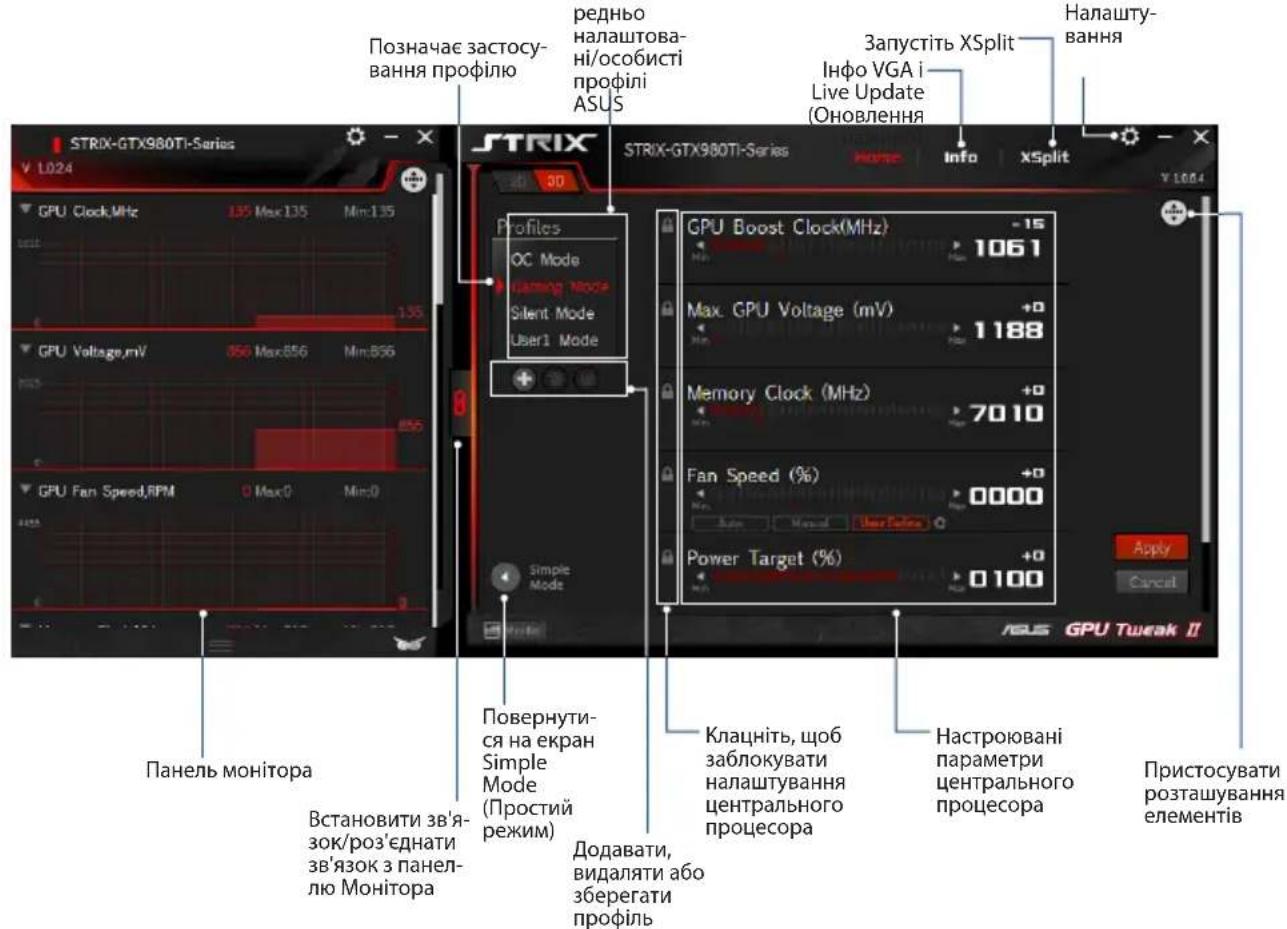
Profile configuration
- Select the profile you want to configure.
- Select the CPU settings and enter the desired values.
- Click Apply.
Add a new profile
- Click and enter a name for the profile.
- Set the desired values.
- Click Save to save the profile.
Apply a profile
Select a profile, then click Apply to apply the profile.
Select a profile
Select a profile, then click to apply the profile.
In Tuning Settings, you can select any GPU Tweak II application:
Increase the display overclocking. Apply the settings during GPU Tweak startup.
Update BIOS
Get notifications about the latest VBIOS and driver updates via Live Update. Configure and select the following options in Live Update:
Set the update check frequency to the frequency at which you want to receive Live Update. Select any option in Live Update to:
Download updates, but allow me to choose whether to install them: Set this option to automatically download updates and give me the right to choose whether to install them manually. Download important updates, but allow me to choose whether to install them: Set this option to automatically download critical updates and allow me to choose whether to install them manually. Notify me, but do not download or install updates automatically: Set this option to receive only notifications and allow me to choose whether to download and install updates manually.
Keyboard shortcuts
Enable/Disable keyboard shortcuts, which show the main screen and enter certain corrections.



- ASUS GPU TWEAK II USER MANUAL
- CONTENTS
- KNOWING GPU TWEAK II
- SYSTEM REQUIREMENTS
- INSTALLING GPU TWEAK II
- LAUNCHING GPU TWEAK II
- SIMPLE MODE
- GAMING BOOSTER
- PROFESSIONAL MODE
- CONFIGURING A PROFILE
- ADDING A PROFILE
- APPLYING A PROFILE
- DELETING A PROFILE
- GETTING THE VGA INFO AND LIVE UPDATE
- LAUNCHING XSPLIT
- USING THE SETTINGS SCREEN
- MAIN
- TUNING SETTINGS
- LIVE UPDATE
- KEYBOARD SHORTCUTS
- UNDERSTANDING GPU TWEAK II
- PROFILE CONFIGURATION
- ADD A NEW PROFILE
- APPLY A PROFILE
- SELECT A PROFILE
- UPDATE BIOS
Brand : ASUS
Model : RTX2060O6GSI
Category : Graphic card