INEW611DC - Browser ALPINE - Free user manual and instructions
Find the device manual for free INEW611DC ALPINE in PDF.



| Product Type | GPS car radio with DVD player, 6.5" touch screen and integrated navigation |
| Brand | Alpine |
| Model | INEW611DC (INE-W611D) |
| Power Supply | 14.4 V DC (11-16 V allowed) |
| Output Power | 50 W × 4 (max) |
| Screen | 6.5 inch TFT LCD, resolution 800 × 480, active matrix |
| FM Receiver | 87.5-108 MHz, sensitivity 9.3 dBf |
| AM Receiver | 531-1602 kHz, sensitivity 25.1 μV |
| DAB Receiver | Band III (174.928-239.2 MHz) and L-Band (1452.96-1490.624 MHz) |
| GPS Navigation | Integrated TomTom, reception 1575.42 MHz, sensitivity -130 dBm |
| Connectivity | Bluetooth (HFP, PBAP, A2DP, AVRCP), USB 2.0, HDMI, AUX input |
| Compatibility | Apple CarPlay, Android Auto, iPod/iPhone (via Lightning USB cable), iPod touch |
| USB Audio Formats | MP3, WMA, AAC, FLAC, OGG, APE, MP2 |
| USB Video Formats | AVI, MPEG, WMV, ASF, MP4, M4V, 3GP, 3G2, MOV, FLV (up to 30 fps) |
| Disc Player | DVD (video), CD audio |
| Main Functions | GPS navigation, dual screen, voice control (Siri), RDS radio, DAB+, Bluetooth audio, iPod, USB, HDMI MirrorLink |
| Safety | Handbrake required for video; do not watch while driving; installation by professional |
| Operating Temperature | -20 °C to +60 °C |
| Maintenance | Clean the screen with a soft dry cloth; do not use chemicals |
| Repairability | Spare parts and repair by Alpine authorized center; do not disassemble yourself |
Frequently Asked Questions - INEW611DC ALPINE
User questions about INEW611DC ALPINE
0 question about this device. Answer the ones you know or ask your own.
Ask a new question about this device
Download the instructions for your Browser in PDF format for free! Find your manual INEW611DC - ALPINE and take your electronic device back in hand. On this page are published all the documents necessary for the use of your device. INEW611DC by ALPINE.
USER MANUAL INEW611DC ALPINE
Please record the serial number of your unit in the space provided below and keep it as a permanent record.
SERIAL NUMBER :
ISO SERIAL NUMBER:
INSTALLATION DATE :
This symbol means important instructions. Failure to heed them can result in serious injury or death.
INSTALL THE PRODUCT CORRECTLY SO THAT THE DRIVER CANNOT WATCH TV/VIDEO UNLESS THE VEHICLE IS STOPPED AND THE PARKING BRAKE IS APPLIED.
It is dangerous for the driver to watch TV/Video while driving a vehicle. Installing this product incorrectly enables the driver to watch TV/Video while driving. This may cause a distraction, preventing the driver from looking ahead, thus causing an accident. The driver or other people could be severely injured.
DO NOT WATCH VIDEO WHILE DRIVING.
Watching the video may distract the driver from looking ahead of the vehicle and cause an accident.
DO NOT OPERATE ANY FUNCTION THAT TAKES YOUR ATTENTION AWAY FROM SAFELY DRIVING YOUR VEHICLE.
Any function that requires your prolonged attention should only be performed after coming to a complete stop. Always stop the vehicle in a safe location before performing these functions. Failure to do so may result in an accident.
DO NOT FOLLOW ROUTE SUGGESTIONS IF THE NAVIGATION SYSTEM INSTRUCTS YOU TO PERFORM AN UNSAFE OR ILLEGAL MANEUVER, OR PLACES YOU IN AN UNSAFE SITUATION OR AREA.
This product is not a substitute for your personal judgement. Any route suggestions by this system should never supersede any local traffic regulations or your personal judgement or knowledge of safe driving practice.
KEEP THE VOLUME AT A LEVEL WHERE YOU CAN STILL HEAR OUTSIDE NOISES WHILE DRIVING.
Excessive volume levels that obscure sounds such as emergency vehicle sirens or road warning signals (train crossings, etc.) can be dangerous and may result in an accident. LISTENING AT LOUD VOLUME LEVELS IN A CAR MAY ALSO CAUSE HEARING DAMAGE.
MINIMIZE DISPLAY VIEWING WHILE DRIVING.
Viewing the display may distract the driver from looking ahead of the vehicle and cause an accident.
DO NOT DISASSEMBLE OR ALTER.
Doing so may result in an accident, fire or electric shock.
USE ONLY IN CARS WITH A 12 VOLT NEGATIVE GROUND.
(Check with your dealer if you are not sure.) Failure to do so may result in fire, etc.
KEEP SMALL OBJECTS SUCH AS SCREWS OUT OF THE REACH OF CHILDREN.
Swallowing them may result in serious injury. If swallowed, consult a physician immediately.
USE THE CORRECT AMPERE RATING WHEN REPLACING FUSES.
Failure to do so may result in fire or electric shock.
DO NOT BLOCK VENTS OR RADIATOR PANELS.
Doing so may cause heat to build up inside and may result in fire.
USE THIS PRODUCT FOR MOBILE 12V APPLICATIONS.
Use for other than its designed application may result in fire, electric shock or other injury.
MAKE THE CORRECT CONNECTIONS.
Failure to make the proper connections may result in fire or product damage.
BEFORE WIRING, DISCONNECT THE CABLE FROM THE NEGATIVE BATTERY TERMINAL.
Failure to do so may result in electric shock or injury due to electrical shorts.
DO NOT ALLOW CABLES TO BECOME ENTANGLED IN SURROUNDING OBJECTS.
Arrange wiring and cables in compliance with the manual to prevent obstructions when driving. Cables or wiring that obstruct or hang up on places such as the steering wheel, shift lever, brake pedals, etc. can be extremely hazardous.
DO NOT SPLICE INTO ELECTRICAL CABLES.
Never cut away cable insulation to supply power to other equipment. Doing so will exceed the current carrying capacity of the wire and result in fire or electric shock.
DO NOT DAMAGE PIPE OR WIRING WHEN DRILLING HOLES.
When drilling holes in the chassis for installation, take precautions so as not to contact, damage or obstruct pipes, fuel lines, tanks or electrical wiring. Failure to take such precautions may result in fire.
DO NOT USE BOLTS OR NUTS IN THE BRAKE OR STEERING SYSTEMS TO MAKE GROUND CONNECTIONS.
Bolts or nuts used for the brake or steering systems (or any other safety-related system), or tanks should NEVER be used for installations or ground connections. Using such parts could disable control of the vehicle and cause fire etc.
DO NOT INSTALL IN LOCATIONS WHICH MIGHT HINDER VEHICLE OPERATION, SUCH AS THE STEERING WHEEL OR SHIFT LEVER.
Doing so may obstruct forward vision or hamper movement etc. and results in serious accident.

CAUTION
This symbol means important instructions. Failure to heed them can result in injury or material property damage.
HALT USE IMMEDIATELY IF A PROBLEM APPEARS.
Failure to do so may cause personal injury or damage to the product. Return it to your authorized Alpine dealer or the nearest Alpine Service Centre for repairing.
HAVETHE WIRING AND INSTALLATIONDONE BY EXPERTS.
The wiring and installation of this unit requires special technical skill and experience. To ensure safety, always contact the dealer where you purchased this product to have the work done.
USE SPECIFIED ACCESSORY PARTS AND INSTALL THEM
SECURELY.
Be sure to use only the specified accessory parts. Use of other than designated parts may damage this unit internally or may not securely install the unit in place. This may cause parts to become loose resulting in hazards or product failure.
ARRANGE THE WIRING SO IT IS NOT CRIMPED OR PINCHED BY A SHARP METAL EDGE.
Route the cables and wiring away from moving parts (like the seat rails) or sharp or pointed edges. This will prevent crimping and damage to the wiring. If wiring passes through a hole in metal, use a rubber grommet to prevent the wire's insulation from being cut by the metal edge of the hole.
DO NOT INSTALL IN LOCATIONS WITH HIGH MOISTURE OR DUST.
Avoid installing the unit in locations with high incidence of moisture or dust. Moisture or dust that penetrates into this unit may result in product failure.
- The following screen examples of INE-W611D used in this manual are for reference only. They may differ from the actual screen displays.
Getting Started
Location of Controls
The screen design used in the Owner's Manual may differ from the actual screen.
For INE-W611D
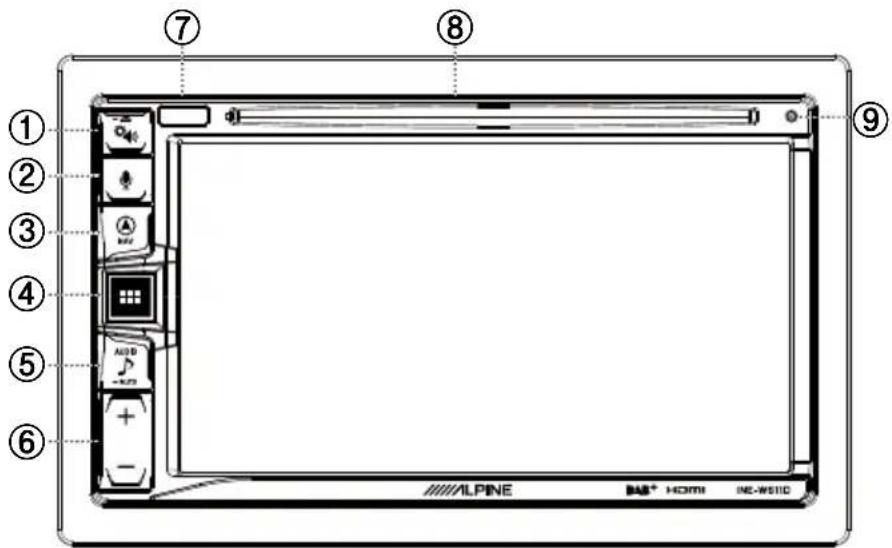
① Sound Settings or Eject button
Displays the [Tone/Fader/Balance] settings screen.
Press and hold this button to eject Disc.
② or VOICE button
Depending on the connected smartphone, press to recall Siri function or voice recognition mode.
③ A (NAV) button
Recalls the navigation map screen.
Press again to switch to Navigation menu screen.
Press and hold this button for at least 2 seconds to change to Go Home route screen. (If Home is not set yet, it will change to the Home setting screen.)
For details of navigation operations, refer to "Navigation System OM (Owner's Manual)" in the CD-ROM.
Recalls the connected smartphone's map screen.
Depending on the smartphone, this function may not be available.
④ ALL MENUS or (Power Off) button
Recalls the All Menus screen.
Press and hold this button for at least 2 seconds to tum the power off.
⑤ (AUDIO) or -MUTE (MUTE) button
Displays the Audio/Visual screen.
When pressed and held, mutes the volume.
⑥ A- button
Press to adjust the volume.
⑦ Remote Sensor
Point the remote control transmitter towards the remote sensor within a range of 2 metres.
⑧ Disc insert slot
Inserts/ejects discs
⑨ RESET switch
The system of this unit is reset.
Turning Power On/Off
Some of this unit's functions cannot be performed while the is vehicle is in motion. Be sure to stop your vehicle in a safe location and apply the parking brake, before attempting these operations.
1 Turn the ignition key to the ACC or ON position. The system turns on.
Press and hold the All Menus/ (Power Off) button for more than 2 seconds to turn the power off.
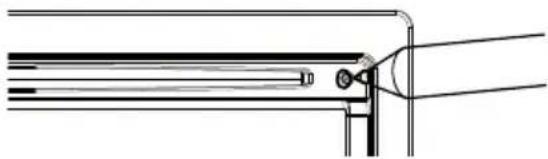
Be sure to press the RESET switch when using the unit for the first time, after changing the car battery, etc.
1 Turn off the unit power.
2 Press the RESET switch with a ballpoint pen or similar pointed object.
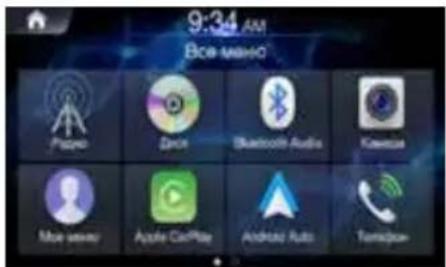
All Menus Screen
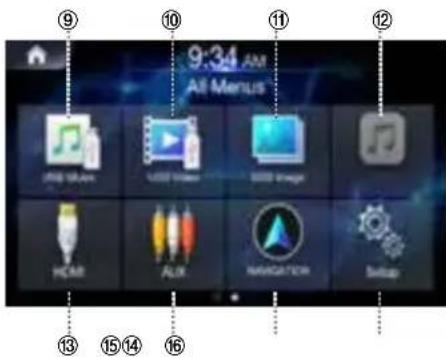
The All Menus Screen displays all of the available modes that can be selected to operate the system.
Press the All Menu button. The All Menus Screen is displayed
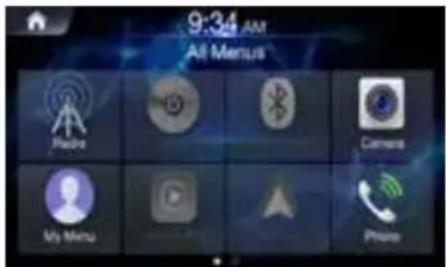
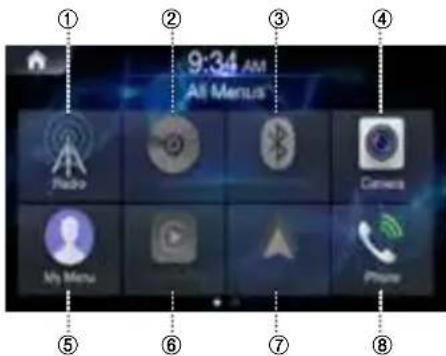
All Menus Screen example
① Radio button
② DISC button
③ Bluetooth Audio button
④ Camera button
⑤ My Menu button
⑥ Apple CarPlay
⑦ Android Auto
⑧ Phone button
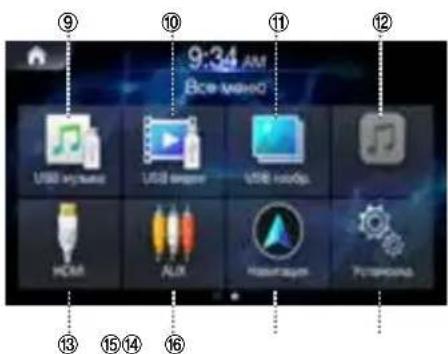
⑨ USB Music button
USB Video button
⑪ USB Image button
⑫ iPod button
③ HDMI
AUX button
Navigation button
Setup button
Key Features
About Dual Screen
Dual Screen allows you to display the Navigation and Audio/Visual screens simultaneously.
Dual Screen
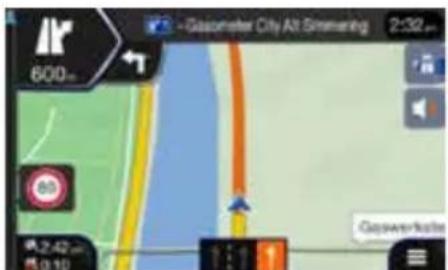
Navigation full Screen
My Menu
Frequently used functions such as the Audio or Navigation mode can be easily recalled by adding them to the My Menu screen. For details, see "My Menu Function"
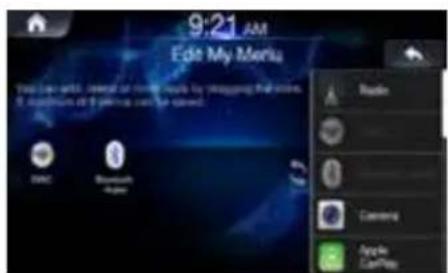
My Menu Screen Example
- Frequently used functions and useful functions can be customised for your convenience.
- You can register up to 8 menus.
- You cannot add the same feature more than once.
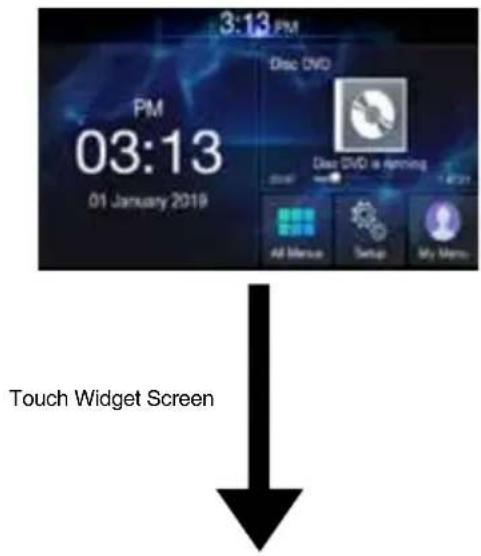
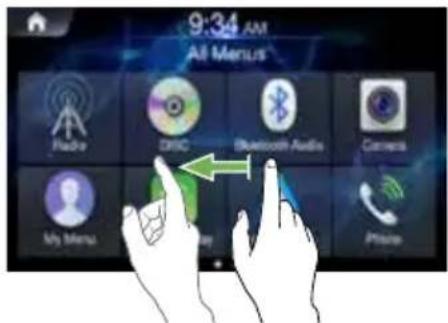
Swiping the Touch Screen
You can change a screen or a page by swiping the touchscreen vertically or horizontally with your finger. For details, see "Touch Screen Operation".
Swipe the display with your finger lightly.
Android Auto
Android Auto is designed to make it easier to use apps from your phone while you're on the road. Navigate with Google Maps, listen to playlists or podcasts from your favourite apps, and more. Download the Android Auto App from the Google Play store before continuing. Connect your Android compatible Phone to begin using Android Auto.
Press the All Menu button. The All Menus screen is displayed.
2 Touch [Android Auto]. The Android Auto screen is displayed.
- For details operation of Android Auto, refer to "Android Auto" in the Owner's Manual (CD-ROM).
Owner's manual Apple CarPlay
Apple CarPlay
Apple CarPlay is a smarter, safer way to use your iPhone in the car. Apple CarPlay takes the things you want to do with your iPhone while driving and puts them right on this unit. You can get directions, make calls, send and receive messages, and listen to music, all in a way that allows you to stay focused on the road. Just plug in your iPhone to this unit and go. For details, refer to Owner's Manual (CD-ROM).
Press or VOICE to activate Siri function of the iPhone.
You can make a call, play music, etc., by using Siri function of the iPhone.
You can also control Apple CarPlay on touchscreen.
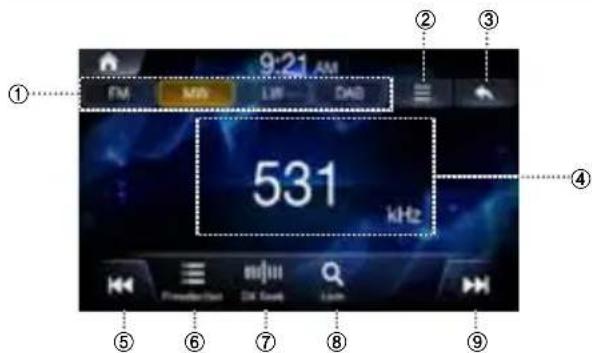
Radio/RDS
FM Radio Main Screen
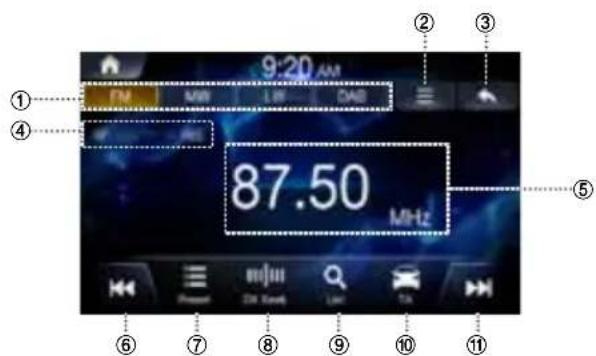
① Radio Band Tab
If you select the desired tab, the selected Radio mode will operate.
② Menu (AF/Regional/Sound Settings)
③ Displays the Previous Screen
④ RDS Indicator (AF/EON/TP/TA/REG)
Displays the ON/OFF state of the features.
⑤ Information Display
Displays information such as frequency, station name, preset number, radio text.
(6) Decreases Frequency
⑦ Displays the preset screen
Changes Tuning Mode
Switches the tuning mode used to search radio broadcasts between Manual, Preset, or DX Seek.
⑨ Displays the list screen
Traffic Announcement On/Off
Increases Frequency
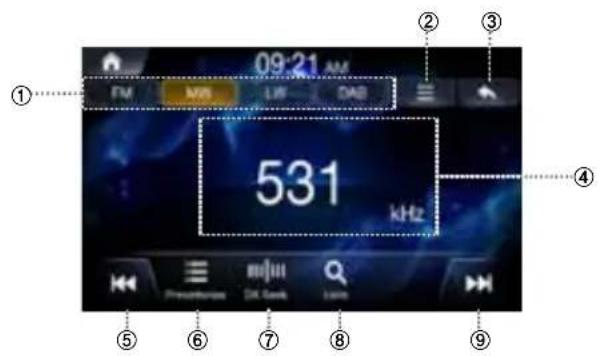
MW/LW (AM) Radio Main Screen
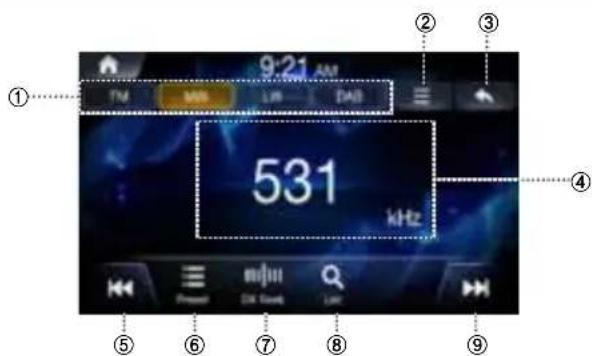
① Radio Band Tab
If you select the desired tab, the selected Radio mode will operate
② Menu (Sound Settings)
③ Displays the Previous Screen
④ Information Display
preset number and frequency
⑤ Decreases Frequency
⑥ Displays the preset screen
⑦ Changes Tuning Mode
Switches the tuning mode used to search radio broadcasts between Manual Tune, Preset, or DX Seek.
⑧ Displays the list screen
⑨ Increases Frequency
DAB/DAB+/DMB Audio
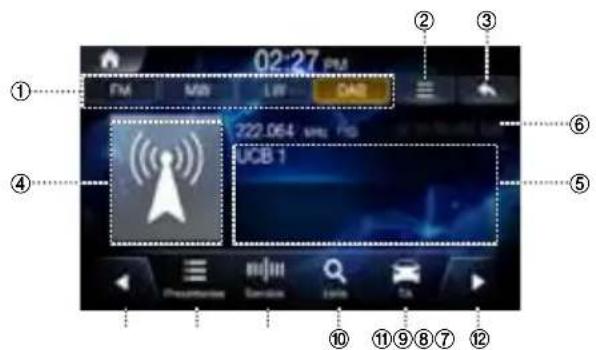
DAB main screen
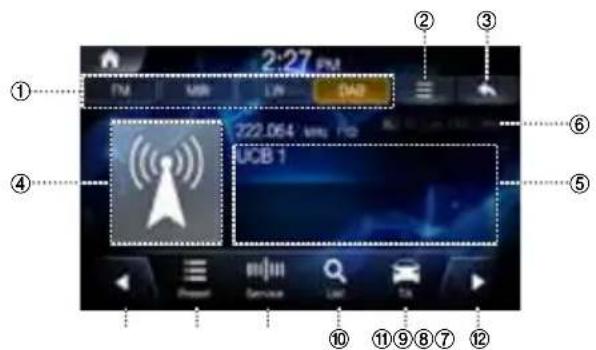
① Radio Band Tab
If you select the desired tab, the selected Radio mode will operate.
② Menu (DRC, DAB Antenna, Soft link, Sound Settings)
③ Displays the Previous Screen
④ Slide Show
Displays the program information, artist photos, and advertisements that are synchronised with the Service component currently being received.
⑤ Information Display
Displays information such as frequency, station name, preset number, radio text.
⑥ DAB indicator (SL, TA, FM, DRC, DAB)
Displays the ON/OFF state of the features.
⑦ Decreases Frequency
⑧ Displays the preset screen
⑨ Changes Tuning Mode
Switches the tuning mode used to search radio stations between Service or Preset.
10 Displays the list screen
① Traffic Information mode On/Off
② Increases Frequency
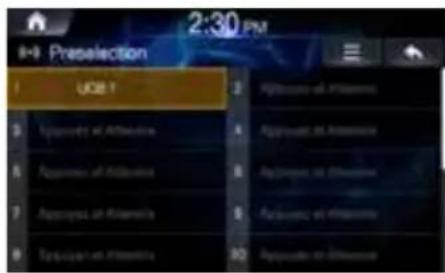
Selecting DAB Station
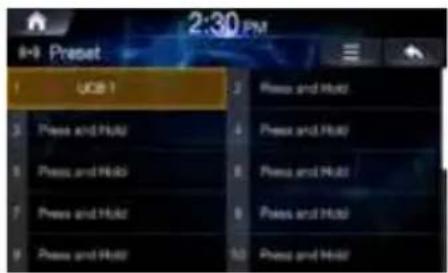
Selecting station from Presets
1 Touch Preset
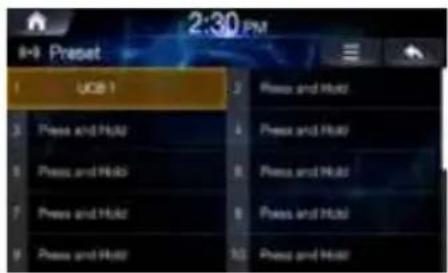
2 From the presets, select the station you want to listen to.
Selecting station from List
1 Touch List
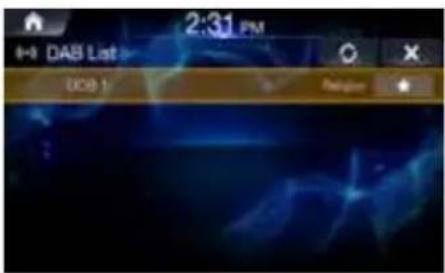
2 From the lists, select the station you want to listen to.
Press the Refresh Update the list.
USB Flash drive Operation
You can play back music files (MP3/WMA/AAC/FLAC/OGG/APE/MP2) and video files (AVI/MKV/MP4/ASF/WMV/MPG/3GP/MOV/FLV) stored in a USB flash drive on the internal player of this system.
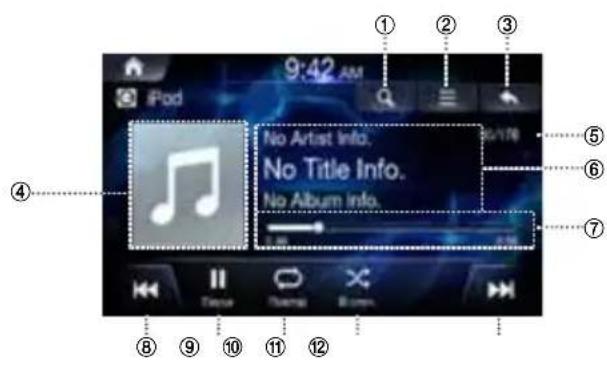
USB Music main screen example
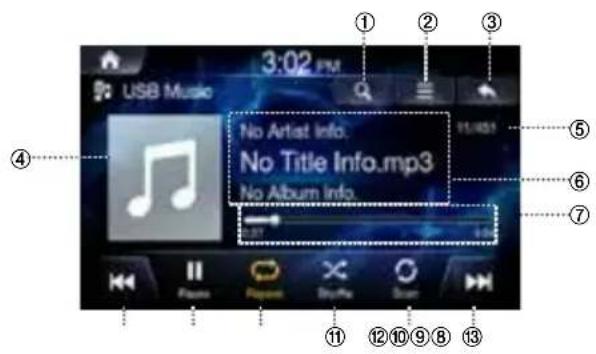
① Displays the list screen
② Menu (Album Cover, Add to Playlist, Sound Settings)
③ Displays the Previous Screen
④ Artwork Display
⑤ Current Song no.Total Song no.
⑥ Information Display
⑦ Play Time and Play Bar
⑧ Previous File
⑨ Play/Pause
10 Repeat
⑩ Shuffle
12 Scan
Next File
Playing USB Music Files
Press the All Menus button → touch [USB Music]. Or in the Home screen, touch [All Menus] → [USB Music].
2 Touch and select the desired file. If play time is over 3 seconds, pressing will play the current file from the beginning.
3 Touch to play USB music. While playing, touch to pause USB music.
Searching USB Music Files
You can search the music file in the List screen.
1 Touch display USB Music list screen.
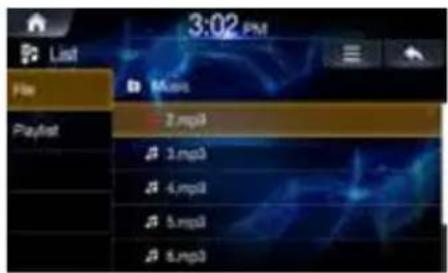
2 Search the desired category and file. It is possible to search by File, Playlist, Artist, Song and Album.
3 Touch the desired file to play.
- In the List screen, it is possible to add current song to playlist by touching → [Add to Playlist].
DISC-DVD
Disc DVD Main Screen
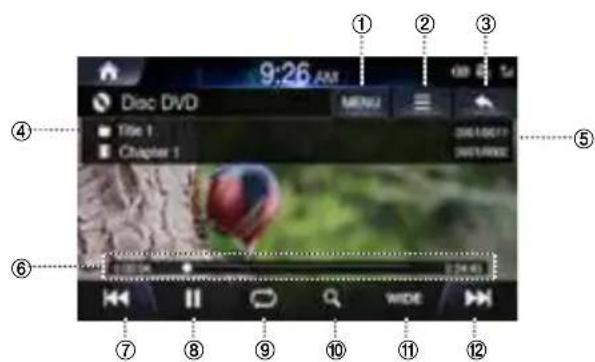
① Displays the list screen
② Menu
③ Displays the Previous Screen
④ Chapter and Title Information
⑤ Chapter and Title Index
⑥ Play Time and Play Bar
⑦ Previous Chapter
⑧ Play/Pause
Repeat
Top menu
16:9/4:3LB/4:4PS
12 Next Chapter
Playing a DVD
Press the All Menus button → touch [Disc Video]. Or in the Home screen, touch [All Menus] → [DISC].
2 Touch or select the desired Chapter.
3 Touch to play a DVD. While playing, touch to pause a DVD.
Viewing in Full Screen
Touch the screen in a non-menu area to view the DVD in full screen.
If you want to display the menu, touch the screen.
- If there are no operations for 10 seconds, the menu will automatically disappear.
Searching Titles/Chapters
1 Touch List
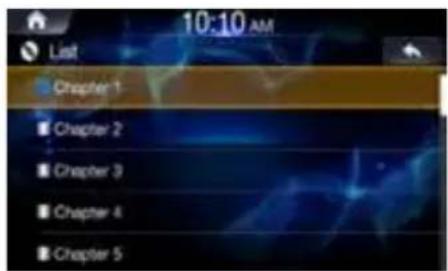
2 Search the desired title and chapter.
3 Touch the desired title and chapter to play.
Searching from Top Menu
1 Touch to display Top Menu screen.
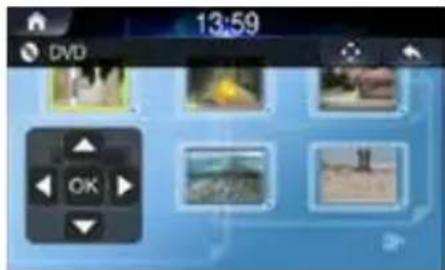
2 Touch
3 Search the desired chapter and title. Touch the controller up/down/left/right directions to select the desired menu and touch Enter
- The Top menu and DVD menu options can only be used within DVDs that support these features.
iPod Music
A separately sold Lightning to USB cable (KCU-471i), etc., is required depending on the type of iPod/iPhone.
iPod Music Main Screen
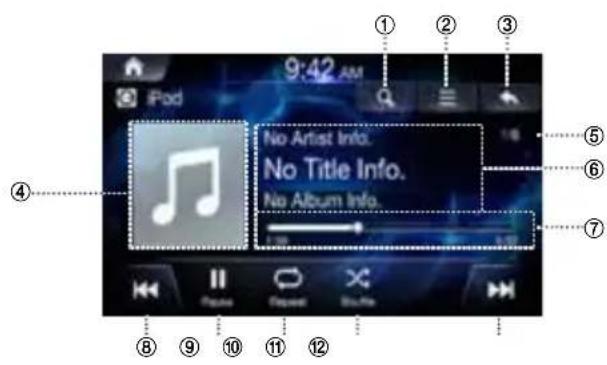
① Displays the list screen
② Menu
③ Displays the Previous Screen
④ Artwork Display
⑤ Current Song no./Total Song no.
Information Display
⑦ Play Time and Play Bar
8 Previous File
⑨ Play/Pause
Repeat
⑩ Shuffle
Next File
Playing iPod Music
Press the All Menus button → touch [iPod Music]. Or in the Home screen, touch [All Menus] → [iPod Music].
2 Touch or and select the desired file. If play time is over 3 seconds, pressing will play the current file from the beginning.
3 Touch to play iPod music. While playing, touch to pause iPod music.
The feature may operate differently depending on the iPod specification.
Searching iPod Music Files
You can search the files in the List screen.
1 Touch display iPod Music list screen.
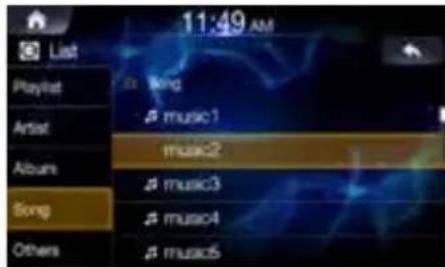
2 Search the desired category and file. It is possible to search by Playlist, Artist Album, song and others.
3 Touch the desired file to play.
Bluetooth Audio
Music saved in the mobile phone, portable player, etc. can be played in the car through Bluetooth audio streaming.
- Bluetooth audio can be played only when a Bluetooth phone or Bluetooth audio device has been connected. To play Bluetooth audio, connect the Bluetooth phone to the car system. For more information on connecting Bluetooth, please refer to the user's manual [Pairing and connecting the unit and a Bluetooth phone].
- The feature may operate differently depending on the Bluetooth device.
Bluetooth Audio Main Screen
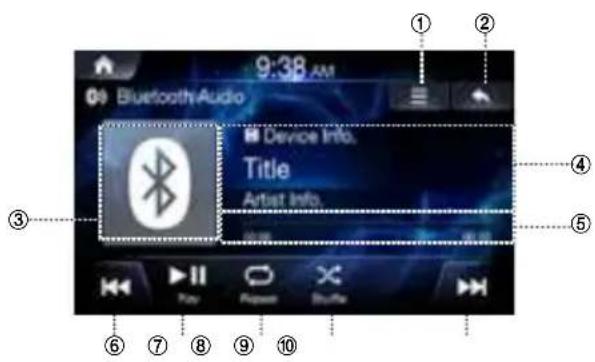
① Menu
② Displays the Previous Screen
③ Bluetooth Icon
④ Information Display
⑤ Play Time and Play Bar
6 Previous File
⑦ Play/Pause
⑧ Repeat
⑨ Shuffle
10 Next File
Playing Bluetooth Audio
Press all menus button → touch [Bluetooth Audio] Or in the Home screen, touch [All Menus] → [Bluetooth Audio].
Touch and select the desired file.
If play time is over 3 seconds, pressing will play the current file from the beginning.
Touch to play Bluetooth Audio.
While playing, touch to pause Bluetooth Audio.
- The title/artist info may not be supported in some devices. When it is not supported, only the symbol will be displayed.
- The play/pause feature may operate differently depending on the device.
Connection Settings
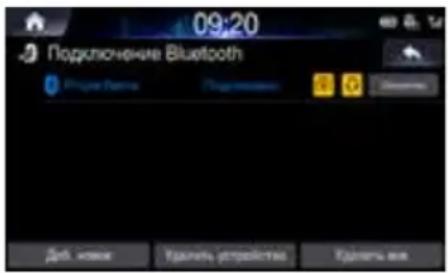
Touch Menu → [Connections Settings] to set connections.
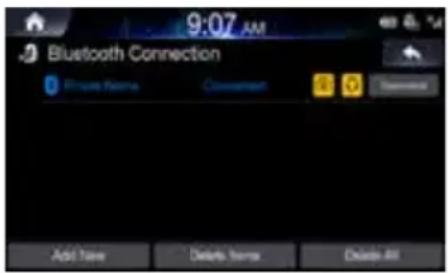
When a Device is Already Paired
Connecting a Bluetooth Device
- Touch [Connections Settings].
- Touch the device name to connect.
Disconnecting a Bluetooth Device
- Touch → [Connections Settings].
- Touch the device name to disconnect.
Changing a Bluetooth Device
If multiple Bluetooth devices are registered in this system, you can change the connection from the registered devices.
If you want to connect a another device, first disconnect the connected Bluetooth device.
- Touch → [Connections Settings].
- Disconnect the connected device.
- Touch the device name to pair.
Fast-forwarding or Rewinding File
Usingor.
1 While playing, touch and hold. Touch and hold for more than 1 second to rewind or fast-forward at 4x speed. Keep touching to switch the speed to 20x.
2 Release to play the track at normal speed.
Repeat
1 Touch Each time the button is touched, the mode is changed.
Select the desired mode.
One File : repeats play of currently playing file.
- On : repeats the all files in the Bluetooth Audio.
- Off : turns the Repeat feature off.
Shuffle
1 Touch Each time the button is touched, the mode is changed.
Select the desired mode.
- On : plays files in the current category in random order.
- Off : turns the shuffle feature off.
Sound Settings
Touch →[Sound Settings]
Map Functions
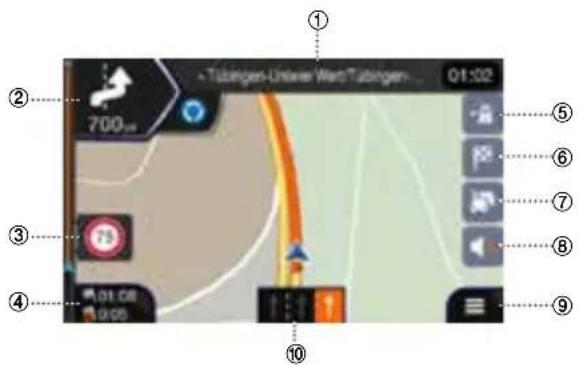
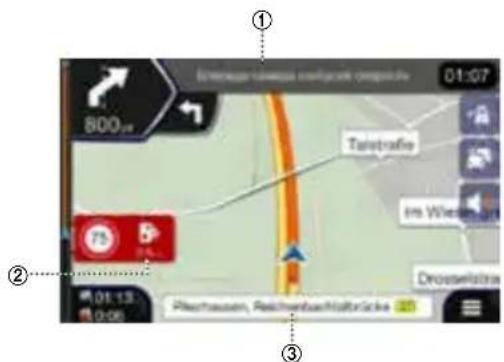
Below is an overview of different buttons and icons on the map display. For more detailed information about this screen, please see the Owner's Manual.
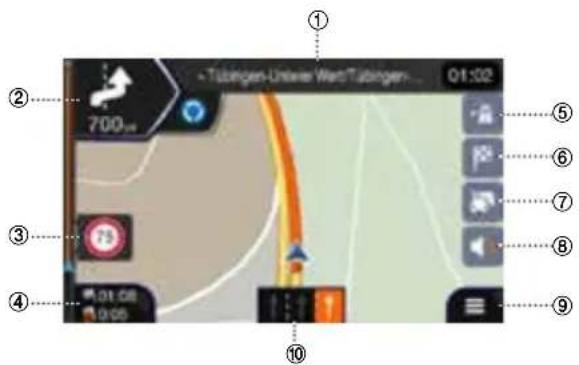
① Next street
② Next turn preview
③ Speed limit warning
④ Data fields
⑤ Motorway services
⑥ Destination Menu
⑦ Traffic
Sound settings
Access to Main Menu
10 Lane information
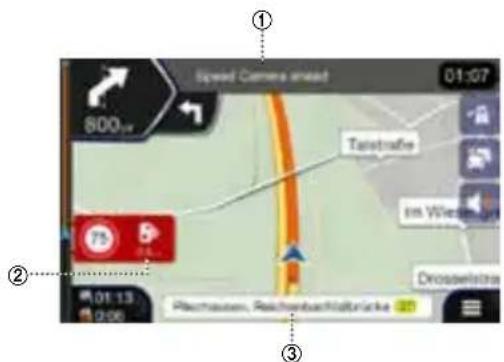
① Speed camera warning
② Speed camera Alert
③ Street name
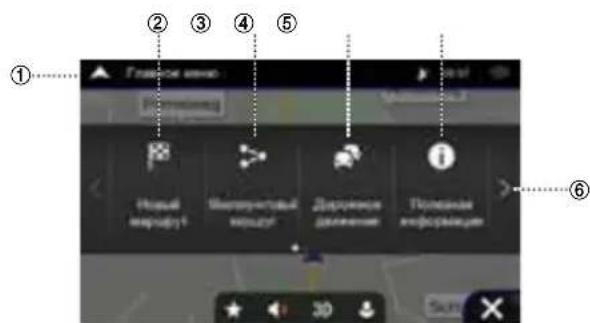
Navigation Menu
To access the Navigation Menu, touch on the icon on the right lower corner of the map screen.

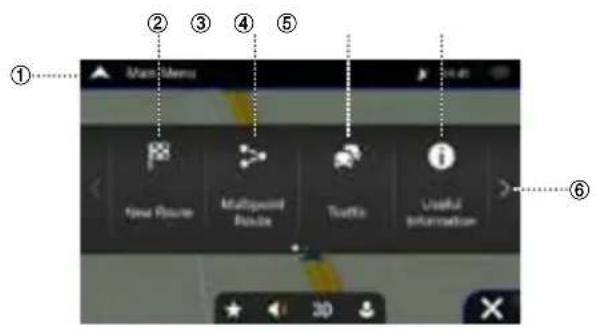
① Access the Map
Click on the arrow
② New Route
Select your destination by entering an address or its coordinate, or by selecting a Place, a Saved Location, or a Saved Route. You can also look up your recent destinations from the History.
③ Multipoint Route
Build your route from one or more route points.
You can also plan a route independently of your current GPS position by setting a new starting point.
④ Traffic
Access to check the traffic summary
Useful Information
Access additional options and check navigation-related information.
⑥ Next Menu
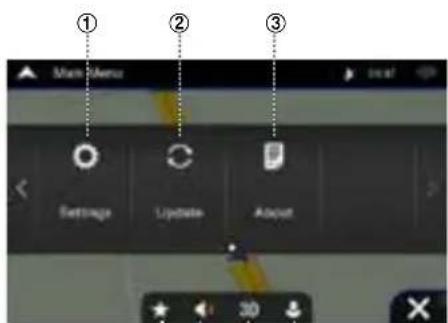


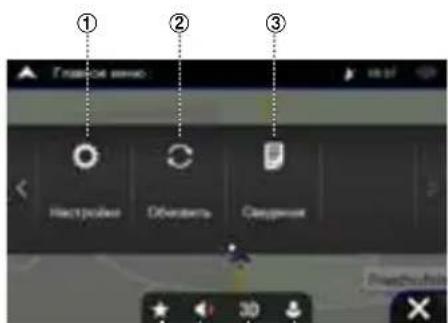
① Settings
Customise the way the navigation works
② Update
Enable Map updates for users
③ About
Version Information, Contents, Legal, credits and etc.
④ Favorites
Saved favorite location
⑤ Volume
Change the volume settings to Alerts Only/Muted/volume On
⑥ View
Change the views to 2D/2DNorth-Up/3D
⑦ User Profiles
New user profiles can be added and customized
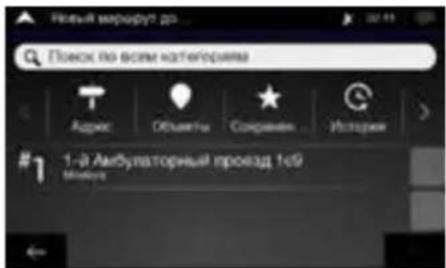
Setting a Destination
The following example describes how to search for a destination when choosing [Town/Postcode] from [Address].
- You can search and narrow down the Country/State by starting from [Country/State].
1 Touch [New Route] from the Navigation Menu.
2 Touch [Address].
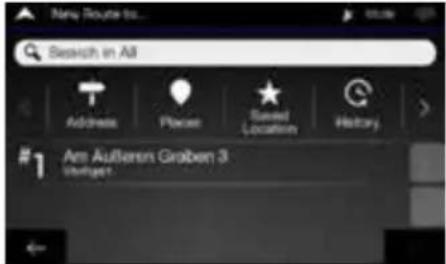
3 Touch [Town/Postcode].
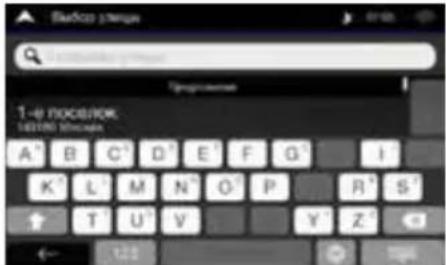
4 Enter the town name or postcode. Touch to display the candidate list.
5 Enter the desired street name.
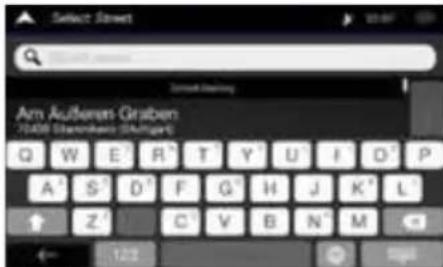
Touch to display the candidate list.
6 Enter the house number or crossing street.
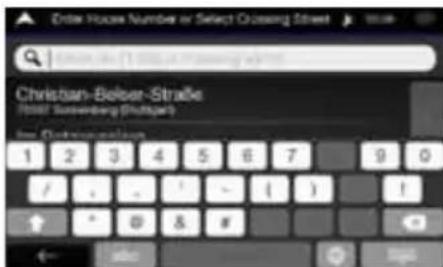
7 Select your destination
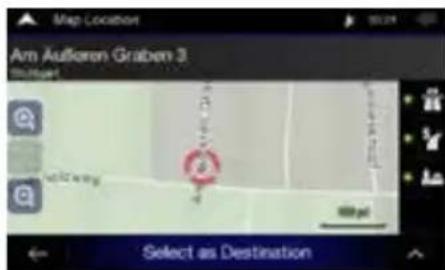
Confirm the location of your destination or click for more detailed information
8 Route Summary
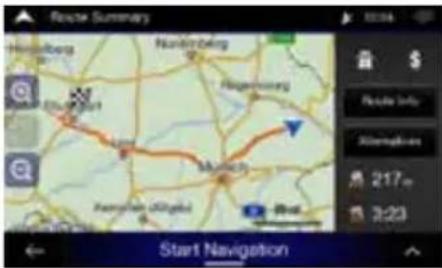
The route is calculated, and a map appears, showing the entire route. Here you can check route information and route alternatives
9 Touch modify the route parametres, or touch [Start Navigation] to start your journey.
Specifications
MONITOR SECTION
Screen Size 6.5" (INE-W611D)
LCD Type Transparent type TN LCD
Operation System TFT active matrix
Number of Picture Elements 1,152,000 pcs. (800× 480× 3
(RGB))
Effective Number of Picture Elements
99% or more
Illumination System LED
FM TUNER SECTION
Tuning Range 87.5-108.0 MHz
Mono Usable Sensitivity 9.3 dBf (0.8 µ V/75 ohms)
50 dB Quieting Sensitivity 13.5 dBf (1.3 μV/75 ohms)
Alternate Channel Selectivity 80 dB
Signal-to-Noise Ratio
65dB
Stereo Separation 35 dB
AM TUNER SECTION
Tuning Range 531-1,602KHz
Usable Sensitivity 25.1 µV / 28 dBf
MW TUNER SECTION
Tuning Range 531-1,602 kHz
Usable Sensitivity 25.1 µV / 28 dBf
LW TUNER SECTION
Tuning Range 153-281 kHz
Sensitivity (IEC Standard) 31.6 µ V/30 dBf
DAB SECTION
Tuning Range BAND III 174.928 - 239.2 MHz
Tuning Range L-BAND 1,452.96 - 1,490.624 MHz
Usable Sensitivity -101 dBm
Signal-to-Noise Ratio 85 dB
USB SECTION
USB requirements USB 2.0
Max. Power Consumption 1,500 mA (CDP Support)
USB Class USB (Mass Storage Class)
File System FAT16/32
Decoding Format MP3/WMA/AAC/FLAC/OGG/APE/MP2
Number of Channels 2-Channels (Stereo)
Frequency Response*1 5 - 20,000 Hz (±1 dB)
Total Harmonic Distortion 0.016% (at 1 kHz)
Dynamic Range 95 dB (at 1 kHz)
Signal-to-Noise Ratio 85 Db
Channel Separation 75 dB (at 1 kHz)
*1 Frequency response may differ depending on the encoder software/bit rate.
HDMI SECTION
Input Format
480p/720p
GPS SECTION
GPS Reception frequency
1,575.42 ±1 MHz
GPS Reception sensitivity -130 dBm max.
Bluetooth SECTION
Bluetooth Specification
Bluetooth v4.0
Frequency band
2,402-2,480 MHz
Output Power
-6-+4 dBm Ave. (Power class 2)
Profile
HFP (Hands-Free Profile)
PBAP (Phone Book Access Profile)
A2DP (Advanced Audio
Distribution Profile)
AVRCP (AudioVideo Remote
Control Profile)
GENERAL
Power Requirement
14.4VDC
Operating temperature
(11-16 V allowable)
-4°F to +140°F
(-20°C to +60°C)
Maximum Power Output
50W×4
Power output: measured at 4 Ohms and ≤ 1% THD+N
S/N: 80 dBA (reference: 1 W into 4 Ohms)
Audio output level
Preout (Front, Rear):
4V/10k ohms (max.)
Preout (Subwoofer):
4V/10k ohms (max.)
Weight(unit only)
2.05 kg
CHASSIS SIZE
Width
178 mm
Height
100 mm
Depth
142 mm
NOSE SIZE
Width
178 mm
Height
100 mm
Depth
21.3 mm
- Due to continuous product improvement, specifications and design are subject to change without notice.
- The LCD panel is manufactured using an extremely high precision manufacturing technology. Its effective pixel ratio is over 99.99% . This means that there is a possibility that 0.01% of the pixels could be either always ON or OFF.
Copyrights and Trademarks
- Apple, iPhone, iPod, and iPod touch are trademarks of Apple Inc., registered in the U.S. and other countries. Apple CarPlay is a trademark of Apple Inc.
- Use of the Apple CarPlay logo means that a vehicle user interface meets Apple performance standards. Apple is not responsible for the operation of this vehicle or its compliance with safety and regulatory standards. Please note that the use of this product with iPhone, or iPod may affect wireless performance.
- "Made for iPod," and "Made for iPhone," mean that an electronic accessory has been designed to connect specifically to iPod, or iPhone, respectively, and has been certified by the developer to meet Apple performance standards. Apple is not responsible for the operation of this device or its compliance with safety and regulatory standards. Please note that the use of this accessory with iPod, or iPhone may affect wireless performance.
- Google, Android, Android Auto, Google Play and other marks are trademarks of Google Inc.
- Manufactured under license from Dolby Laboratories. Dolby and the double-D symbol are trademarks of Dolby Laboratories.
- The Bluetooth® word mark and logos are registered trademarks owned by the Bluetooth SIG, Inc. and any use of such marks by Alpine Electronics, Inc. is under license.
- The terms HDMI and HDMI High-Definition Multimedia Interface, and the HDMI Logo are trademarks or registered trademarks of HDMI Licensing, LLC in the United States and other countries.
- ©2006-2018 TomTom. All rights reserved. This material is proprietary and the subject of copyright protection, database right protection and other intellectual property rights owned by TomTom or its suppliers. The use of this material is subject to the terms of a license agreement. Any unauthorised copying or disclosure of this material will lead to criminal and civil liabilities.
- DVD is a trademark of DVD Format/Logo Licensing Corporation.
About the Rules of Bluetooth Electromagnetic Radiation Regulation

Declaration of Conformity
Inhaltsverzeichnis
PBAP (Phone Book Access Profile /
A2DP (Advanced Audio
Distribution Profile / Hochwertiger Audio
About the Rules of Bluetooth Electromagnetic Radiation Regulation

Declaration of Conformity
Contenu
Écran principal Radio OM/OL (AM)
Selection de station DAB
1 Effleurez Preselection
Specification Bluetooth
Bluetooth v4.0
Bande de fréquence
2402-2480MHz
Puisance de sortie
Poids (unite seulment)
2.05 kg
DIMENSIONS DU CHASSIS
Largeur
178 mm
Hauteur
100 mm
Profondeur
142 mm
DIMENSIONS DE LA PARTIE AVANT
Largeur
178 mm
Hauteur
100 mm
Profondeur
21.3 mm
Pantalla principal de radio MW/LW (AM)
Pantalla principal DAB
4 V/10k ohmios (max.)
4 V/10k ohmios (max.)
File system FAT16/32
PBAP (Phone Book Access Profile)
A2DP (Advanced Audio
Distribution Profile)
AVRCP (Audio/Video Remote)
Control Profile)
INSTALLATIONSTEKNIKER:
INKÖPSSTÄLLE:
Made for

iPod

iPhone

Works with
Apple CarPlay

HIGH-DEFINITION MULTIMEDIA INTERFACE
androidauto


Bluetooth




DOLBY AUDIO


WARNING
ANVAND DENNA PRODUKT FÜR MOBILA 12V-APPLIKATIONER.
SKARVA INTE ELKABLAR.
DRA KABLAR SA ATT DE INTE PRESSAS MOT ELLER KLAMS AV ETT VASST METALLHORN.
Attvalja station fransnabbvalen
1 Peka på Preset
2 Valj den station du vill lyssna pa fran dina snabbval.
Mottagningsomrade 87,5-108,0 MHz
Enkanalig anecdbar kanslighet 9,3 dBf (0,8 µ V/75 ohm)
Kanslighat vid 50 dB:s storavstand 13,5 dBf (1,3 µV / 75 ohm)
Alternative kanalselektivitet 80 dB
Forhallande signal/brus
65dB
Stereoseparation 35 dB
AM-MOTTAGARE
Mottagningsomrade 531-1602 KHz
Anvandbar kanslighet 25,1 µV / 28 dBf
MW-MOTTAGARE
Mottagningsomrade 531-1602 kHz
Anvandbar kanslighet 25,1 µV / 28 dBf
LW-MOTTAGARE
Mottagningsomrade 153-281 kHz
Kanslighat (IEC standard) 31,6 µV / 30 dBf
DAB
Mottagningsomrade BAND III 174,928-239,2 MHz
Mottagningsomrade L-BAND 1452,96-1490,624 MHz
Anvandbar kansliget -101 dBm
Forhallande signal/brus 85 dB
USB
USB-krav USB 2.0
Bluetooth-specification
Bluetooth v4.0
Frekvensband
2402-2480MHz
Uteffekt
PBAP (Phone Book Access Profile)
A2DP (Advanced Audio
Distribution Profile)
AVRCP (Audio/Video Remote
Control Profile)
ALLMÄNT
Stromforsorjning
14.4VDC
Drifttemperatur
(11-16 V tolerans)
-20°C till +60°C
(-4°F till +140°F)
Maximal uteffekt
50W×4
⑤ (AUDIO)- of -MUTE (DEMPEN)-toets
PBAP (Phone Book Access Profile)
A2DP (Advanced Audio
Distribution Profile)
AVRCP (Audio/Video Remote
Control Profile)
ALGEMEEN
XPAHNTE MEJKNE IPEdMETbl, HAPPMEP BnHTbl, MBECTAX,HEIOCTUINbIX INI DETeN.
IpornataBaHne TaKnx NpeMeTob MoKeT npNBecTN K cepBe3HbIM TpaBmAM. Ecnn pe6eHOK NpOrnToN IIOo6HbN NpeDMET, HEmeDNeHHO 6baTNTecb K BpaUy.
PNI 3AMEHE INPEOXPAHNTJEI NCIONb3yITE TOJIbKO INPEOXPAHNTJIN TOI JOE HOMHAJA.
Heco6IIOeHHe daHHoro Tpe6OBAHnMoKet npBecT K Bo3ropaHIO n nopaxKeHIO 3NEKTpUYeCKM TOKOM.
HE 3AKPbIBAHTE BEHTINJRAUHOHHbIE OTBEPCTN INI PAHEJI N PADIATOPA.
B npotNBHom cnyae HaPpeB BHyTpEHnx DeTaneMooKeT npNBecTu BO3ropaHIO.
NCIOJIb3yIte 3TOT NPOdyKT TOJIbKO B ABTOMOBnJAX C HANPRJXEHEM BOPTOBOIN CETN 12B.
HenpaBnBHeO nCNoB3oBaHne MoKET npNBeCTK BO3rOpaHIO, nopaxKeHHIO 3JekTpncEckm TokOM INIpyTm TpaBMam.
PABINbHO BbIIOHHTE BCE NOKIIOUEHEN.
HenpaBnIbHoe noKJIouHe Hne MoKeT npVBecTu K Bo3ropaHIO nIN NOBpeKdEHIO yCTpoCTBa.
NEPED NOOKHIOUHEHEM CHIMMTE KJIEMMY
OTPUATEJIbHOI NOJIOCA AKKUMYJTOPHO BATAPEI.
HecobnDHeHne 3TOrTO Tpe6oBaHnMoKet PnBBeCTN K npaKeHHO 3JIeKTPnueckm TKOM INI K TpaBMc BCNEdCTBNE KOPOTKOHO 3AmbKaHn.
HE DONYCKAITE CNNETEHNA KABENE C OKPYKAIOUMN OBJEKTAMN.
PpoknaBbAaTe npoBOKy u Ka6eN B COOTBeCTBn C nHCTpyKUmaM B pkyOBODCTBE, YTO6bI N36EkaTb NOMEX BO BpEMr BOxDeHMa. Ka6eN I npoBOKa, 6nOKnpuOuNe DoCTyn K pyneBOMy KOncy, pbuay nepeKnHueHnpepaH, peaTn TopMo3a T. D., MOYr PpNBecTN K ONaChbIM CNTyaUmR M BO BpEMr BOxDeHMa.
HE CPAUBAIte 3JIeKTPnueCKne KABEJI.
HnKOrda He cpeaTe Ka6eBHyIO n3oJauIO dIraNoaHn HApyoe o6OpUoBaHne. B npOTNBOM cnUyae 6yET npeBbIeHa DOnyCTMaH Harpy3Ka NO TOKy dAHHoro npOBOda, YTO MOKeT npUBecTu K Bo3ropaHIO IIN NopaxeHIO 3JIeKTPuYeCKIM TOKOM.
HE NOBPEI NTTE TPY6ONPOBObI IN NPOBOKU PNI CBEPJIENH NTBPCTN.
PnCBepeHnYcTaHOBOHybIXOTBepCTN B KOpnyce npmnte Mepbl npeOocTopoXHocTn, YTO6bl N36exaTb KOHTaT, NOBpeKHeHn nn 3aKnopBaHn Tpy6ok, TOnIINBONpOBoOOB, 6aKOB nn 3JeKtponpOBoDkn. Heco6IIODeHne 3tOro Tpe6oBaHn MOKeT pNBecTn K Bo3ropaHIO.
HE NCIOJIb3yIte BOJITbI IIN TAIKN TOPMO3HOI CNCTEMbl IIN CNTEMbl PYJEBOTO YNPABJIENIA 3A3EMJIENIA.
BontbIraiknN3Topmo3HOcCTEmblcCTEmblpyeBOrO ynpaBHeHn(n6oIIO60dpyroCnCTEmblc8a3aHHoC 6e3oNaChocTbU)nn6bakOB HNKoΓA He cneDyET nCnoJIb3OBA Tb npuycTaHOBKe nn3a3emNeHN. NcNoIb3OBAHne TaKx DeTaN MeKet 6loKupoBaTb ynpaBHeHne ABToMObHm E npuBeCTN K BO3ropaHnIO uDPyHM OnaCHbIM CNTyaUNM.
HE YCTAHABJIBAIte YCTPOINCTBO B MECTAX, IDE OHO MOKET MEJATb PABOTE ABTOMOJIЯ, HAPPIMEP PAnOM C PYJEBBIM KOJECOM NII PyiArom PEPEKJIIOUeHnI PEPeDAy.
3TO MoXeT yxuWntb 63Op nIIN 3aTpYdHNT bDnXKeHne, YTO MoXeT npUBeCTN K cepbe3HO abapnn.

BHIMAHNE
3TOT CnMBOJ 6Oo3Haayet BaXHbIe HhCTpyKcun.
IX Heco6JIIOJeHne MoXe T npVBecTN K TpaBMe
IIIN NOBpeKdEHNIO NMyeCTBa.
PNI BO3HKNHOBEHIN HENCIPABHOCTE HEMEDIEHHO NPEKPATNTE NCIOJIb3OBAHNE IPODYKTA.
B npotubnom Cnyae 3to moKet npnbectn K noJyehnTo pABMbI nIN NobpeKeHHIO npOyKaT. BepHnte npOyKT cBOeMy ABTOB0AHOMy DnEpy Alpine nIN B 6nNkaaun cepBnchbI ueHTP Alpine dner pemOnTa.
POKIAKAPIOBOIDN YCTAHOBKA DONKHBI BbINOHHTBCNCEUJAINTAMN.
Дл npokлади npobodи u yctahOBk DaHHoro ycToiCTBa Heo6xOIMbI cneuaJIbHbIe TexHueCKHe HaBbIKn ObIt. B ueJIX oecneehn 6e3onacHOCTn dЯ BBINONHeHna DaHHo paBoTb BCerda ObpaauTeCb K DInepy, y KOtOpRo npno6peHo ycToiCTBO.
NCIOJIb3yIte CNEUJAIN3NPOBAHHbie BCNOMORATEJIbHbIE KOMHOHEThbI N TAUATEJIbHO INX 3AKPENJIYTE.
IcnoIb3yIte TOLbKO CneuaJIaHIuN3IupOBaHHIbe BCNOOMaTeJIbHbIe KOMNoHEHTbl. IcnoIb3OBAHHe KOMNoHEHTOB,OTJNUHbIX OTpeKoMeHdyeMbIX,MOKeT BbI3BaTb BHyTpEHHne NOBpeXDeHHyUCtpoCTBa HIN CTaTb PnUHHo erO HeHaJeKHo YCTaHOBKn. Bpe3yIbTaTe KOMNoHEHTbl MOYr pacWataTbcR,TO MOKeT npUBecTI K BO3HNKHOBeHHIO ONaCHbIX CNTyaUH NIN c6oAM B pa6Ote yCTpoCTBa.
IPOKJIaIbIBAIte IPOBOJky TAKIM O6Pa3OM, YTO6bl OHA HE IPEPENBALACb H HE 3AUEMJIACb OCTPbIMM METALLIueCKIMN KPARMI.
PpoknabBaIte Ka6eHn npoBOKy BdaHn OT nOBnKbIX qacte (HaNPmep, HnpaBnHOx CnDEhBy) nOCtpbIX KpaEB. 3TO no3BOJNT npedOTbPAITb 3aUeMJIeHne n NOBpeKdHne npoBOIOB.Ecnn npoBOKa npoxOHT ueE3 MeTAJIINueckoe OTBepCTne, INONb3ayIte pe3INHOoe yNtOHTeNBHOe KOJIbO, 4TO6bl npedOTbPAITb NOBpeXDeHne I30JIuMu MeTAJIINueCKMN KpaAMN OTBepCTnR.
HE YCTAHABINBAIYE YCTPOIcTBO B MECTAX C BBICOKIM YPOBHEM BNAXHOCTN JIN 3ANbIEHHOCTN.
YcTpoNCTBO He cneNyET yCTaHABnBaTb B MeCTax, NOBepKeHHbIX 3HaHTeJIbHOMy BO3DeIcTBnIO BNaI ININ PbJIN. IPOHKnHOBeHne B YcTpoNCTBO BnAIn ININ PbJIN MOKet IpNBecTn K C6oM B erO pa6ote.
① HacTpoNk 3Byka NIn KOnKa Bb6poc
OTo6paKaet 3KpHn HacTpoKn [TeM6p/Feiuepe/BanAHC.
HaXMMTE n ydepKnuBaIe 3Ty KHOKNy, YTObI N3BneYb DnCK.
② HnKhoNkaTOLOCOBbIEyHKUIN
Haxmnte 3ty KhoNky dny akTbauu Siri nn peXnma pacno3habaHn rOncobix KOAmH (B 3abucnmoCTn OT noKnHoueHHOro cMaprfoHa).
③ A Khonka NAV (Habirauy)
OtkpbBaet KapTu HABURAUHOHOnCnCTeMbI.
HaxMnte 3Tu KHONky eue pa3, YTO6bI nepeKIOuHTbcra Ha 3kpan MeHIO HABURAuIN.
HaxMnte u ydePxNBaTe 3Tu KHONky He MeHee 2 cekyHd dna nepexoHa ha DomauHHN 3kpan.(Ecnn DomauHHN 3kpan He yctahOBnEh,CnCTema nepeJeT B pa3deJn HAcTPOKn DomauHero 3kpana).
PiOp6Na HOpMaunr O fynKUnx HABURAUHOHOn CnCTeMbI npBedeHa B pyKOBoDCTBe noJIb3OBaTeIn
HABURAUHOHOn CnCTeMbI, KOtOpoe MoKHO HaITn Ha CD-ROM OTkpbBaet 3kpan KaTbI noIKNoeHHOro CmApTfoHa.
HeKOTopbIe MDoJI N CMapTfoHOB He NoJdePExNBaIOT 3Tu fynKcuio.
④ KhONka Bce MeHIO NIN BBIKNIOueHn NITaHn
OTo6paKaaET rnaBbI 3KpaH (Bce MeHIO).
IIa BbIKNoUeHn IITaHn YcTPOiCTBa HaxMITE 3Ty KHOInky
UYdePknBaHTe ee He MeHee 2 cekyHd.
⑤ Khonka(AUDIO[ayno])nnMUTEOTKIOUeHne 3ByKa
OTo6paKaet3kpan peKIMMa BocIpOn3BedeHn 3Byka/BnJeO. HaxMnte n ydepXnBaIte 3Ty KHOJky dIy OTKnIOueHn 3Byka.
⑥ Khonka +/ - Haxmnte 3ty kHONky dnypeynpOBKn rpomKocTn.
⑦ DaTnK nylbTa Dy
HanpaBbTe nepedaTuk nyIbTa nuctaHcNHO ynpabNeHHa DaTukn DnCTaHcNHO ynpabNeHH, npn 3Tom npJIbTdoJKeH haoDttbcHa paCtOHH He 6oJee 2 MetpoB.
⑧ CnotДнЯДиСka
3arpy3ka/n3BneueHne nncka
⑨пеклочаTeь CBPOC
BbInonHJeTcpe3aRpy3ka CnCTeMbI daHHoro yctpoiCTBa.
BkJIIOUeHne N BbIKIIOUeHne NItAHnA
Bo Bpem DnKHeHn ABTomO6nI HekToPbIe yHKuIN yCTpoiCTBa Heoctynbl. Ipeep BblonHHeHem 3TNx onepaun O6raTeBHO octahOBITE ABtOMO6nIb B 6e30nachOM MeCTe IN BkIOUHTe CTOHOHbTOpMO3.
1 NobeprHnte KIOUy B 3aMke 3axnraHnB noJoxeHne ACC nn ON.
CnCTema BkJIIOHTcra.
2ДЯ BBIKHIOUeHnI NHTAHN yCTpOcTBA HAXMNTe n ydepxnBaIte He MeHee 2 cekyHd KHonky (rnaBbI kpaH)/(BbIK. nHTAHN).
C6poc cnCTembl
063aTeIbHO HaxMITE nepeKIOHateJIb C5POC npn nepBOM nCNOJb3OBAHN yCTpoNCTBa, noCne 3aMeHb ABTOMObHOro aKKyMyIITopA uT. d.
1 OTKIIOUHTe IITaHHe ycTpoNCTBa.
2 Haxmnte nepeknouateIb CBPOC cTepxHem 7apKOBo pyuKn nHaJIOrHuBIM ocTpOKHeYhBIM npedmetom.

3KpaH rIaBHoro MeHIO
Ha 3kpahe rnaBHO MHe OTo6paKaIOTcBcepeKIMbl, KOToPbIe MoXHO Bb6paTb Dnla pa60Tb CcnCTemOn.
HaKMTe KONky TnabHoro MeHIO. OTo6pa3ntcAkapaTnabHoro MeHIO.
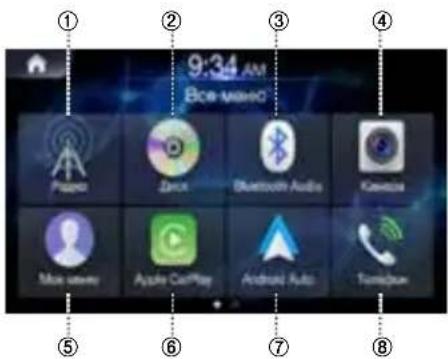
IpIMep 3KpaHa rNaBHOro MeHIO
① KhoIIKa PaHNo
② KhoNka Dnck
③ Khonka Bluetooth Audio
④ KhonkaKamepa
⑤ Khonka Moe MeHIO
⑥ Apple CarPlay
⑦ Android Auto
⑧ Khonka Tenephoh
⑨ Khonka USB my3bika
10 Khonka USB Bndeo
⑪ Khonka USB n306paexeHn
② Khonka iPod
③ HDMI
14 KhoNka AUX
15 Khonka Hambraцья
16 Khonka YctaHObKa
OchOBHbIe yHKcIM
OФункции ДвОнHorO 3KpaHaДвОнHorO 3KpaHa
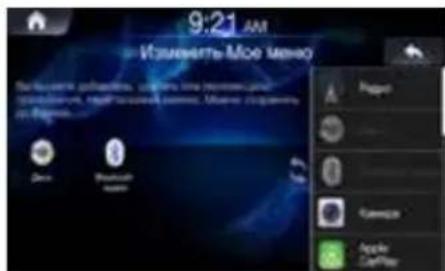
Itpmep 3kpaHa Moe MeHIO
-ДяубCTBaИСнOB3OBAHЯМоЖHOДОПНHTeNBHO HAcTpOHTb YacToИСнOB3yEmbIи NOnE3HbIeФyHKUIN.
- MoxH0 yka3aTb Do 8 fynKlui.
- OndyntyKeFyHKUHHeNb3BHeCTN BMeHIO DBaXkbl.
1 KocHTecb OTo6paKeHnE 3KpaHa rnaBHOrO MeHO.
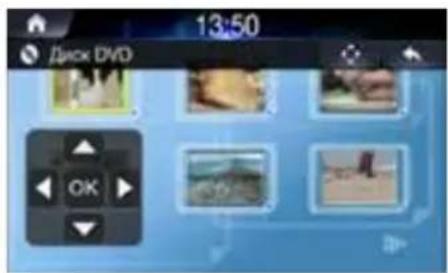
2 KocHTecb
3 BbInonHnTe nonck Heo6xOuMoN rnaBbI Ha3BaHn.
Kochntecb cTpeIok BBepx/Bn3/BneBO/BnpaBO Ha nyIbTe Dny Bb6opa Tpe6yemoro MeHIO, Nocne Yero Kochntecb Enter
-ФунклгпавHorO MeHIO U MeHIO DVD MOxH OTOIb3OBaTb TOnIbKO C DVD-DuckamN, NOДePKeKBAHOUUM 3TNФункLng.
iPod Music
B 3aBcHmocTo Tnla iPod/iPhone moKeT noTepeBaTaCkabEnb Lightning - USB (KCU-471i), kOtbpI npio6pTaETcOtDeIbHo.
Главнын заразн музбikn iPod
① NepexoHa 3KpaH cnNcKa
② MeHNO
③ IepexoHa npdeBidyuNkpaH
④ 06NoxxKa aIb6oma
⑤ NéTekyuèn KOMno3uùn / o6üee KOI-BO KOMno3uùn
⑥ 3kpaHnHΦopMaun
⑦ BpemBocnpoun3BeDeHnNnHnKaTOp BOCnpoun3BeDeHnN
⑥ PpebIyuynΦaun
⑨ Bocnpoun3BeDenHe/Naay3a
10 NobTop
⑪ CnyaHoe BocnpOn3BeDeHne
⑫ Cnedyuonn faan
Bocnpon3BeDeHne my3bIKn iPod
1 Haxmnte KhoNky rnaBHoro MeHIO → nKocnItecb [iPod my3bika]. Nio6o KocnItecb [Bce meHIO] → [iPod my3bika] Ha domaunem ekpahe.
Kochntecbnn, yobbl Bbl6paTb Tpe6yembl paan.
Ecni Bpem BoCpOn3BeDeHn npeBbIaet 3ceynbl, npn Haxatm| Tekyu# paan 6ydt BoCpOn3BODNTbc# c Haaya.
3 Kocnntecb JIy Bocnpo3BeHnMy3bIKn C iPod.
KochntecbIpynOCTaHOBKn Bocnpoun3BeJeHn My3bKn CiPod.
3TaФункиMoKet pa60taTb no-pa3Homy B 3aBnCmOCTN OT xapakTePuctnIK iPod.
KocnTecbI I nI npnoCTaHOBKn BOCnpou3BeDeHna.
- HeKOTOpbIe yCTpoiCTBa MOrTy He NoDJIepKINBaTb OTo6paKeHHe Ha3BaHnI/HCNoNHTeNkOMNo3uN. Ecnn yCTpoiCTBO He NoDJIepKINBaET 3Ty FyHKUIO, Bdyet OTo6paXaTBc TOnbKO CnMBoJ.
-Функия BOCNPOU3BedeHINI/ny3bIMOKeT pa6oTaTB NO-pa3HOMY B 3aBVCNUMOCTN OT XapaKTEpuCTNK yCTPOICTBA.
Hac tropon noKJIOueHnA
TTo6bI HacTpOuNb PoKnHoueHne, KocHTecb MeHo [HaCtpoJa PoKnHoueHn].

Korda copjxehne c yctpoiCTBOM yxe BbINOJIHeHO
IoknueHne ycTpoNCTBa Bluetooth
- KocHTecb [HacTpoIka nOdkNIOueHn].
- KocHTecb HmEnH yCTpOcTBa, KOtOpoe Heo6xOdmo NOkNHOyTb.
DtkJIOueHne yCTpoIcTba Bluetooth
- KocHTecb →[HacTpoIka nOdknHoueHn].
2.KoCHNTecb HMeHn yCTpOJCTBa,KOTOpoe Heo6XoIMo OTKIIIOHTb.
13MeHeHne yctpoiCTBa Bluetooth
Ecnn B cnCTeme 3apeHnctpnpoBaHO HeckOJIbKO yCTpoiCTB Bluetooth, moKHO BBIupaTb ycTPOiCTBa dna noKnIOUeHn.
Ecnn Tpe6yETcnoKKnHouHTb HOBoe ycTpoiCTBO, cHaayana cneJeYET OTKnHouHTb ycTpoiCTBO Bluetooth, noKnHoueHHoe B daHHbIMoMeHT.
- KocHTecb →[HacTpoIka nOdknHoueHn].
- Otkliouhte nodkloueHHoe yctpoictBO.
- KocHTecb ImeHn ycTpoNCTBa, dna KOtOporo Heo6xOdmo BbINOJHNTb cOpJXeHne.
BbIbepe Tpe6yeMbI peXIM.
On:BOcnpo3BeJeHne paIIOB B TeKyuie IanKe B CnyaHOM NopRke.
- Off :Выклочецпе рекима сунчаного BOCIPON3BedeHЯ.
Hac tropon 3Byka
KocnHTeCb → [HacTpoKn 3Byka]
Функция KapТыI
Hnke npedctabne H KpaKm 063op KhoNOK n 3auchOB KapbI. Boone noDpo6HyIO INΦopMaunO 6 3OM 3kpaHe CM. B pykoBODCTBE nonb3oBaTeTn.
① Ha3BaHne cIeDyUoUeYnUcBi
② O63op cIeIyIooero noBopoTa
③ OrpaHnueHne ckopocTn
④ NopJraDaHHbIX
⑤ DopoKhbIe cepBnCbI
⑥ MeHOMecTaHa3HaueHnA
⑦ DopoXHoe DBHXeHne
⑧ HacTpoKn 3Byka
⑨ Dóctyn B rIaBHOe MeHIO
⑩ NnΦopMaunO noJonoce
① Ппдунржденио Камеpe КОТюг КСОРOCТИ
② 06o3HaueHne KaMepbl KOHTpOJa CKOpocTn
③ Ha3BaHne yInu4bI
Mehno Habnraun
Дяdoctук МMeHHO Habraun KocHTecb 3HaKa B npaBOM HxHEm yIy 3KpaHa KapTbi.
①Дoc'tynк KapTe
HaxMMTe cTpeJiky
② Hobbin MappyT
Bb6epTe MeCTo Ha3HaueHn, BBeJa aDpec Nn KoopDnHaTbI, JIn6o Bb6epTe MeCTO, COxpaHeHHoe MeCTo Ha3HaueHn Nn COxpaHeHHb MapwpyT.
TaKKe MoXHO npocMoTpeTb HeaABHHe MeCTa Ha3HaueHnBa pa3dene NCTOpIN Noe3dOK.
③ MapwpyT C HeckoBkMn ToKamN
CocTaBbTe MapuTy C nCnObl30BaHMeM OdHoi NnHEckoJIbKIN IpomexyToHbIX ToeK.
Takke MoXHo CnIaHnpOBaTb Mapwpy He3aBncmO OT BaXnx TeKyuXx GPS-KoOpDnHaT, yCTaHOBnHB HOByO CTapTOByO TOky.
④ DopoXHoe DBNXeHne
OCTyN K INHOpMaUN O DOPOXHOM DVBXKeHN
⑤ PnoJeaHOpMaun
OCTyN K DOnONHHTeNBHM ONUIM N pOBepKa DaHHbIX, CB3aHHbIX C HABURAUEI.
⑥ Cnejdyuüee MeHou
④ ⑤ ⑥ ⑦
① HactpoKn
HacTPOIka HABIRaCIOHHO CNTEmbl
② 06HOBJIeHne
BkIIOueHHe o6HOBHeHn Kap TnIa nOJIb3OBaTeJe
③ CBeHn
HOpmaqna O Bepcn, coepkaHne, npnuecka HOpmaqna, ABopbl n. d.
④ N36paHHoe
CoxpaHeHHbIe n36paHHbIe MeCTa Ha3HaueHnA
⑤ PpOMKOCTb
N3meHeHne rPOMKoCTn dIra napameTpoB TOnbKO ONOBeHnA/ 3Byk BblKnIOHeH/3Byk BKnIOHeH
⑥ BnA
N3MeHHe BnDa KapTb 2D/2DceBep BBepxy/3D
⑦ PpOΦnIIN NOJb3OBaTeNei
3decb moxho 06abntb Hactpontb HOBble npoФnIN NOb3OBaTeNei
BbOД mecTa Ha3HaueHnIa
B cneDyUOxN npMepax NOKa3AHO, KAK BbINOHNb NcCK MeCTa Ha3HaueHHc NcIOb3OBaHHem [TOpOJ/INHeKc] B pa3dene [AApec]. Moxho cy3nTb Dnana3OH NOnCKa, Hauab Co [ctpaHb/WTata].
1 KocHTecb [Hobbl MappyT] B MeHIO HABnraun.
2 KocnTecb [Aapec].
3 KocnTecb [TopoI/InHaeKc].
4 BBeHrTe Ha3BaHne ropOda HnNoHTOBbI nHKeK. KocHrTeCb DnA OTo6paXeHn CnUCKa BO3MOxHbIX BApHaHTOB.
5 BBeDnTe Ha3BaHne ynnu.
Kochnutecb Dnro oTo6paXeHna CnUcKa Bo3MOxHbIX BapnaHTOB.
6 BBeDHTe HOMep Doma IJIH Ha3BaHne nepecekaooue yIuIbI.
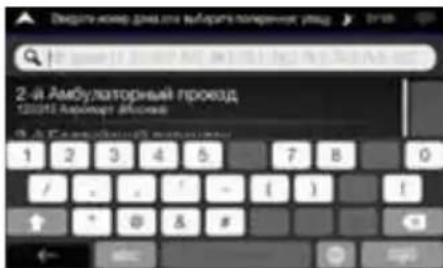
7 BbI6epnte MeTo Ha3HaueHn.
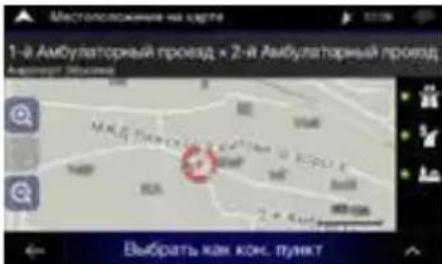
IoTBePnte MeTo Ha3HaueHnJIn60 HaxMnTe DJIa IOnyHeHn 6OJe NoPp6HoHnHOpMaun.
8 063op mapupyta.
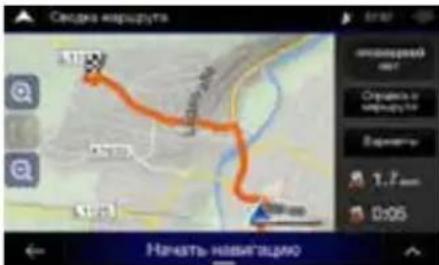
BbnoJHReTc paCet MappyTa, nocJe cyero noRbIeTcKapTa, Ha KOTopoO oTo6paXaETc MaPpTy CeJIHKOM.3Decb MoKHO NOCMOTpeb HnΦopMauIO O MappTy e aJIbTePAHTNBHeIe MappTybl.
9 KocHTecb 13meHeHna napaMeTPOB Mapwpyta, n6o KoCHNTecb [Haatb HABnrau]y, TTo6bl Haatb Noe3dky.
TexHHueckne xapaKtepncTnKn
MOHNTOP
Pa3mep 3kpana 6,5dnoMa (INE-W611D)
Tn JKK-dncnnpe Pnpo3paHbI TN LCD
PpHnIeCTBnA KTHBna MaTpNa TFT
KolnycheTbO 3nementOB 13o6paXeHnIa 1 152 000 nIKcSeIeN
(800× 480× 3 RGB))
KoJIuHcTeBO 3ΦΦeKTHBbIx
3nEMeHTOBn06paXeHn
CnCTema noCDBeTkn LED
99% nnn 6onee
FM-TIOHEP
Huaanoh HactpouKn 87,5-108,O M
TpororobayyBCTBNTeJIbHOCTbMOHO9,3D5(0,8MKB/75OM)
IoporobayyBCTBHTbHOCb5013,5D6(1,3MKB/75OM)
136bnpateJIbHOCTb no
coeHemy kaHany 80
OTHOWEHNE CnHAn/Um 65
IepexoHoe 3atyXaHne MeKdY
CTepeokahanam 35
AM-TIOHEP
Hnana3OH HacTpoKn 531-1602 K
ToporobayyBCTBnteHbOcTB25,1MKB/28dΦ
MW-TIOHEP
Hnana3OH HactpoKu 531-1602 K
ToporobayyBCTBntbHocTb25,1MkB/28dEΦ
LW-TIOHEP
HuaanohnHaetpoKn153-281K
YbCTBnTeNbHocTb (CTaHapT M3K) 31,6 MkB/30 dEΦ
DAB
MOUHOCTb 1500 mA (noDpeKka CDP)
Knacc USB USB (Knacc MaccoBo namrtn)
FaHIOBAR CnCTema FAT16/32
Формд ekodирова NM3/WMA/AAC/FLAC/OGG/APE/MP2
KoJIueCTBO KaHaIOB 2-KaHaJIbHbI 3ByK (CTepeO)
YacToTHaXapakTepeNtka*1 5-20000T(±1D5)
CymMapnKo3ΦΦnEHT
rampMOHuecknx nCKaXeHH 0,016% (npn 1 K)
HnHaMHecknn Dnana3OH 95 d5 (npn 1 KfU)
OTHOeHHe CmHnA/UmYM 85D
Pa3HeceHne KaHaNoB 75 d5 (npn 1 KfU)
*1 Yactotnay xapaKtepncTka MoKeT OTNIuHATbcra B 3aBcHmOCTN ot nporpaMMHoro oBeCneHnry yCTpoiCTBa KoInpoBaHn / ckopoctn nepedau (6ntpeTa).
HDMI
ΦopMaT BVoDa
480p/720p
GPS
Hactota npneMa GPS-cnHaIa
1575,42±1MΓ
YyBCTBHTeJIbHOcTb npHema GPS
-130 AB mKc.
Cunhana
Bluetooth
CneuФнkauaia Bluetooth Bluetooth v4.0
YactoTHbI dnaa3OH
2402-2480 M
BbIXoHaN MaOuHocTb
PBAP (Phone Book Access Profile)
A2DP (Advanced Audio
Distribution Profile)
AVRCP (Audio/Video Remote
Control Profile)
OBUHNE
TnTaHne
14.4B NOCTOHHHOROTOKA
(Donyckaetca11-16B)
Paboua TempepaTypa
0T - 20°C dσ + 60 °C
(OT-4°Fdo+140°F)
MaKcHmAbHaBbIXoDHaMoUHocTb 50BTx4
BbIXOHaH MaOHHocTb HmepeHa npn Harpy3ke 4 Om n ≤ 1% THD+N
- OTHOHeHHe cunHan/7yM: 80 Da (npu moUHocTu 1 Bn Harpy3ke 4 OM)
YpOBeHb BixoDHorO ayDIOcNHaHa
PpeBapnteHbHbBbXoD
(φροήτ, ζθή)
4 B/10 kOM (MaKc.)
PpeBapNTeHbHbI BbIXoD
(cabbyΦe):
4 B/10 kOM (MaKc.)
Macca(Tonbko ycTpoiCTBO)
2,05K
PA3MEP KOPNYCA
LInpHa
178MM
BbICota
100 MM
TnybHa
142 MM
PA3MEP TOLOBHON YACTN
山
178MM
Bbicota
100MM
TnybHa
21,3 MM
- I3-3a HENPEPBIBHORO COBepueHCTBOBAHn npoDyKta ero TexHHueckne XapaKTepnCTmIKu KOHCTpyKUN MOYr N3MeHrTbC8 6e3 ppeBapntelhoro yBeDoMHeHn.
- Panaheb LCD n3rotobnha no cbepxtoHou texhONorHn. KoNueCTBO 3ΦΦeKTHBbIX NIKCeNei npEbIaet 99,99%. 3TO O3Haayet, YTO CyueCTByET BepoTHocTb 0,01% HAnuNya NIKCeNei, KOToPbIE BCERda BKIOUeHb IIN BcERda BBKIOUeHbI.
AВTOPСКЕ паВа И TopROВье Маркн
- Apple, iPhone, iPod, iPod touch Hebrew TCA TOBapHBIM 3HaKAMN Kopnpaunn Apple Inc., 3apeHCTpnpoBAHHbIMN B CUSA n npynx cTpaHax. Apple CarPlay ABnreTCA TOBAPHBIM 3HaKOM Kopnpaunn Apple Inc.
- IcnoIb3OBAHne nOrToNa Apple CarPlay o3Haayet, yTo IOnb3OBAteBckn INTEppeic ABTomo6nla COOTBeTCTBye TcAnDapTAM IpOn3BOdInTeBHOCTN Apple. KomnaHnAe Apple He Hecet OTBeTCTBEHHOCHT 3a pa60Ty dAnHOrO ABTomo6nla Nn Ero COOTBeTCTBNE Tpe6OBAHmC tAnDapTOB 6e3OnaCHOCTN n PpaOBbIX HOpM. Heo6xOIMMo IMeTB B BuNy, yTo IcNoIb3OBAHne daHHoro npOdykTa c iPhone nn C iPod MoXET NOBnraTb Ha pa60Ty BeCnpoBOdHoi CB3n.
MapknpoBa "Made for iPod" (CdaNaHO dna iPod) n "Made for iPhone" (CdaNaHO dna iPhone) o3hauaet, yto 3neKtpnoHoe ycTBo pa3pa6oTaHO dna NODKnUOeHHn CneuHaNBHO K iPod n iPhone, cooTBeTCTBHeHO, n 6bIIO ceptNfucnPoBaHO npOn3BODnteJeM KaCooTBeTCTByIOuee Tpe6oBaHHm CTahdaptOB fYHKUHOHnPOBaHHn KOMnAHnApple. KomnAHA Apple He Hecet OTBeTCTBeHHocTH 3a pa6oTy daHHoro ycTPOcTBA INI erO COoTBeTCTBNE Tpe6oBaHHm CTahdaptOB 6eONaCHOCTN IN PabOBbIX HopM. Heo6xOJMo IMMeTb B BVdy, YTO INCNOlb3OBAHHe DaHHoro akceccyapa c iPod nIN iPhone MoKeT NOBnraTb Ha pa6oTy beCnpoBOHDHO CBa3N. - Google, Android, Android Auto, Google Play и руче 3нakи влготсюварнызнakамКомпанGoogle Inc.
- I3roToBneHo no nIueH3nn KOMnAHn Dolby Laboratories. Dolby n DboHoi cIMBOJ D YbJIOTc TOBaPbIMn 3HaKaMn Dolby Laboratories.
Toprobay Tekctobara Mapka Bluetooth® nlorotnbl BLUETOOTH YBIAKTO3 3apernctpnpoabHHoT TopROBm ApkoN npHnAeKAT KOMPAnHHu Bluetooth SIG, Inc., nIIO6oe nCNOJb3OBaHne DaHHbIX Toprobix Mapok KompanHei Alpine Electronics, Inc. OcyueCTBnEeTCB COOTBeTCTBN C NOyueHHo NIMeHnei.
- TepMHbH HDMI n HDMl High-Definition Multimedia Interface n Iorotn HDMI rBnTcra ToBaHbIMn 3HaKaMn nn 3apeInCTpnpoBaHHbIMn ToBaPbHMn 3HaKaMn KOMNaHm HDMI Licensing, LLC B CUSA n npynx ctpaHax.
2006-2018 TomTom. Bce npaba 3aunuHbI. DAnHbI MaTePnA RnBnreCn HntNtKeTpyAubHO Co6CTBeHHocTbO, OxpaHReMoN 3aKoHaMn O 3aUnite ABTOPcKnx nPaB, 3aUnite DoCTyNa K 6Ba3am DaHHbIX N 3aUnite DpyrNX npab Ha nHTeNtKeTpyAubHyIO CO6CTBeHHocTb, PnHaNDexKaUyIO KOMnAHm TomTom nJIn ee NoCTaBUnkAM. NcNoIb3OBaHne DaHHOro MaTePnA Na perJaMaHTnpyeTcNOJoxHeHmN JInueH3IOHHO CorlaWeHn. IIO6oe HecaHKUOnHPOBaHnOE KonIpOBaHne INn pa3rJaSeHne DAHHOR MaTePnA Na BIneET 3a Co6OJ OTBeTCTBeHHocTb B pAmkax yrONBO HorO n rpaKaDaHcCKOr 3aKOHDoTaNbCTBa.
DVD
RABJIETC TOpROBm MapKoN DVD Format/Logo Licensing Corporation.
O npabnax B oTHoWeHn 3JIeKtpomarHHTHO n3nyeHn Bluetooth

DeknapauncoOTBeTCTBn
Spis tresci
NIE WOLNO DOPUSCIĆ, ABY KABLE ZAPLATÁLY SIE W ZNAJDUJACE SIE W POBLÍZU PRZEDMIOTY.
PBAP (Phone Book Access Profile)
A2DP (Advanced Audio
Distribution Profile)
AVRCP (Audio/Video Remote)
Control Profile)
OGOLNE
- INSTALL THE PRODUCT CORRECTLY SO THAT THE DRIVER CANNOT WATCH TV/VIDEO UNLESS THE VEHICLE IS STOPPED AND THE PARKING BRAKE IS APPLIED
- DO NOT WATCH VIDEO WHILE DRIVING
- DO NOT OPERATE ANY FUNCTION THAT TAKES YOUR ATTENTION AWAY FROM SAFELY DRIVING YOUR VEHICLE
- DO NOT FOLLOW ROUTE SUGGESTIONS IF THE NAVIGATION SYSTEM INSTRUCTS YOU TO PERFORM AN UNSAFE OR ILLEGAL MANEUVER, OR PLACES YOU IN AN UNSAFE SITUATION OR AREA
- KEEP THE VOLUME AT A LEVEL WHERE YOU CAN STILL HEAR OUTSIDE NOISES WHILE DRIVING
- MINIMIZE DISPLAY VIEWING WHILE DRIVING
- DO NOT DISASSEMBLE OR ALTER
- USE ONLY IN CARS WITH A 12 VOLT NEGATIVE GROUND
- KEEP SMALL OBJECTS SUCH AS SCREWS OUT OF THE REACH OF CHILDREN
- USE THE CORRECT AMPERE RATING WHEN REPLACING FUSES
- DO NOT BLOCK VENTS OR RADIATOR PANELS
- USE THIS PRODUCT FOR MOBILE 12V APPLICATIONS
- MAKE THE CORRECT CONNECTIONS
- BEFORE WIRING, DISCONNECT THE CABLE FROM THE NEGATIVE BATTERY TERMINAL
- DO NOT ALLOW CABLES TO BECOME ENTANGLED IN SURROUNDING OBJECTS
- DO NOT SPLICE INTO ELECTRICAL CABLES
- DO NOT DAMAGE PIPE OR WIRING WHEN DRILLING HOLES
- DO NOT USE BOLTS OR NUTS IN THE BRAKE OR STEERING SYSTEMS TO MAKE GROUND CONNECTIONS
- DO NOT INSTALL IN LOCATIONS WHICH MIGHT HINDER VEHICLE OPERATION, SUCH AS THE STEERING WHEEL OR SHIFT LEVER
- CAUTION
- HALT USE IMMEDIATELY IF A PROBLEM APPEARS
- HAVETHE WIRING AND INSTALLATIONDONE BY EXPERTS
- USE SPECIFIED ACCESSORY PARTS AND INSTALL THEM
- SECURELY
- ARRANGE THE WIRING SO IT IS NOT CRIMPED OR PINCHED BY A SHARP METAL EDGE
- DO NOT INSTALL IN LOCATIONS WITH HIGH MOISTURE OR DUST
- GETTING STARTED
- LOCATION OF CONTROLS
- TURNING POWER ON/OFF
- ALL MENUS SCREEN
- KEY FEATURES
- ABOUT DUAL SCREEN
- MY MENU
- SWIPING THE TOUCH SCREEN
- ANDROID AUTO
- APPLE CARPLAY
- RADIO/RDS
- FM RADIO MAIN SCREEN
- MW/LW (AM) RADIO MAIN SCREEN
- DAB/DAB+/DMB AUDIO
- DAB MAIN SCREEN
- SELECTING DAB STATION
- USB FLASH DRIVE OPERATION
- USB MUSIC MAIN SCREEN EXAMPLE
- PLAYING USB MUSIC FILES
- SEARCHING USB MUSIC FILES
- DISC-DVD
- DISC DVD MAIN SCREEN
- PLAYING A DVD
- VIEWING IN FULL SCREEN
- SEARCHING TITLES/CHAPTERS
- SEARCHING FROM TOP MENU
- IPOD MUSIC
- IPOD MUSIC MAIN SCREEN
- PLAYING IPOD MUSIC
- SEARCHING IPOD MUSIC FILES
- BLUETOOTH AUDIO
- BLUETOOTH AUDIO MAIN SCREEN
- PLAYING BLUETOOTH AUDIO
- CONNECTION SETTINGS
- WHEN A DEVICE IS ALREADY PAIRED
- FAST-FORWARDING OR REWINDING FILE
- REPEAT
- SHUFFLE
- SOUND SETTINGS
- MAP FUNCTIONS
- NAVIGATION MENU
- SETTING A DESTINATION
- SPECIFICATIONS
- MONITOR SECTION
- FM TUNER SECTION
- AM TUNER SECTION
- MW TUNER SECTION
- LW TUNER SECTION
- DAB SECTION
- USB SECTION
- HDMI SECTION
- GPS SECTION
- BLUETOOTH SECTION
- GENERAL
- CHASSIS SIZE
- NOSE SIZE
- COPYRIGHTS AND TRADEMARKS
- ABOUT THE RULES OF BLUETOOTH ELECTROMAGNETIC RADIATION REGULATION
- INHALTSVERZEICHNIS
- CONTENU
- ÉCRAN PRINCIPAL RADIO OM/OL (AM)
- SELECTION DE STATION DAB
- DIMENSIONS DU CHASSIS
- DIMENSIONS DE LA PARTIE AVANT
- PANTALLA PRINCIPAL DE RADIO MW/LW (AM)
- PANTALLA PRINCIPAL DAB
- WARNING
- ANVAND DENNA PRODUKT FÜR MOBILA 12V-APPLIKATIONER
- SKARVA INTE ELKABLAR
- DRA KABLAR SA ATT DE INTE PRESSAS MOT ELLER KLAMS AV ETT VASST METALLHORN
- AM-MOTTAGARE
- MW-MOTTAGARE
- LW-MOTTAGARE
- DAB
- USB
- ALLMÄNT
- ALGEMEEN
- XPAHNTE MEJKNE IPEDMETBL, HAPPMEP BNHTBL, MBECTAX,HEIOCTUINBIX INI DETEN
- PNI 3AMEHE INPEOXPAHNTJEI NCIONB3YITE TOJIBKO INPEOXPAHNTJIN TOI JOE HOMHAJA
- HE 3AKPBIBAHTE BEHTINJRAUHOHHBIE OTBEPCTN INI PAHEJI N PADIATOPA
- NCIOJIB3YITE 3TOT NPODYKT TOJIBKO B ABTOMOBNJAX C HANPRJXEHEM BOPTOBOIN CETN 12B
- PABINBHO BBIIOHHTE BCE NOKIIOUEHEN
- NEPED NOOKHIOUHEHEM CHIMMTE KJIEMMY
- OTPUATEJIBHOI NOJIOCA AKKUMYJTOPHO BATAPEI
- HE DONYCKAITE CNNETEHNA KABENE C OKPYKAIOUMN OBJEKTAMN
- HE CPAUBAITE 3JIEKTPNUECKNE KABEJI
- HE NOBPEI NTTE TPY6ONPOBOBI IN NPOBOKU PNI CBEPJIENH NTBPCTN
- HE NCIOJIB3YITE BOJITBI IIN TAIKN TOPMO3HOI CNCTEMBL IIN CNTEMBL PYJEBOTO YNPABJIENIA 3A3EMJIENIA
- HE YCTAHABJIBAITE YCTPOINCTBO B MECTAX, IDE OHO MOKET MEJATB PABOTE ABTOMOJIЯ, HAPPIMEP PANOM C PYJEBBIM KOJECOM NII PYIAROM PEPEKJIIOUEHNI PEPEDAY
- BHIMAHNE
- PNI BO3HKNHOBEHIN HENCIPABHOCTE HEMEDIEHHO NPEKPATNTE NCIOJIB3OBAHNE IPODYKTA
- POKIAKAPIOBOIDN YCTAHOBKA DONKHBI BBINOHHTBCNCEUJAINTAMN
- NCIOJIB3YITE CNEUJAIN3NPOBAHHBIE BCNOMORATEJIBHBIE KOMHOHETHBI N TAUATEJIBHO INX 3AKPENJIYTE
- IPOKJIAIBIBAITE IPOBOJKY TAKIM O6PA3OM, YTO6BL OHA HE IPEPENBALACB H HE 3AUEMJIACB OCTPBIMM METALLIUECKIMN KPARMI
- HE YCTAHABINBAIYE YCTPOICTBO B MECTAX C BBICOKIM YPOBHEM BNAXHOCTN JIN 3ANBIEHHOCTN
- BKJIIOUEHNE N BBIKIIOUEHNE NITAHNA
- C6POC CNCTEMBL
- 3KPAH RIABHORO MEHIO
- OCHOBHBIE YHKCIM
- OФУНКЦИИ ДВОНHORO 3KPAHAДВОНHORO 3KPAHA
- ГЛАВНЫН ЗАРАЗН МУЗБIKN IPOD
- BOCNPON3BEDEHNE MY3BIKN IPOD
- HAC TROPON NOKJIOUEHNA
- KORDA COPJXEHNE C YCTPOICTBOM YXE BBINOJIHEHO
- BBIBEPE TPE6YEMBI PEXIM
- HAC TROPON 3BYKA
- ФУНКЦИЯ KAPТЫI
- MEHNO HABNRAUN
- BBOД MECTA HA3HAUEHNIA
- TEXHHUECKNE XAPAKTEPNCTNKN
- MOHNTOP
- FM-TIOHEP
- AM-TIOHEP
- MW-TIOHEP
- LW-TIOHEP
- HDMI
- GPS
- BLUETOOTH
- OBUHNE
- PA3MEP KOPNYCA
- PA3MEP TOLOBHON YACTN
- AВTOPСКЕ ПАВА И TOPROВЬЕ МАРКН
- SPIS TRESCI
- NIE WOLNO DOPUSCIĆ, ABY KABLE ZAPLATÁLY SIE W ZNAJDUJACE SIE W POBLÍZU PRZEDMIOTY
- OGOLNE
Brand : ALPINE
Model : INEW611DC
Category : Browser