
ET1612IUKS - Desktop computer ASUS - Free user manual and instructions
Find the device manual for free ET1612IUKS ASUS in PDF.
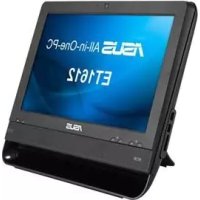



| Product Type | All-in-One Desktop Computer |
| Brand | ASUS |
| Model | ET1612IUKS |
| Dimensions (approx.) | Width: 38 cm, Height: 30 cm, Depth: 5 cm |
| Weight | Approximately 3.5 kg |
| Power Supply | External power adapter, 65 W |
| Display | 15.6 inches, resolution 1366 x 768 pixels |
| Processor | Intel Celeron or Intel Atom (depending on version) |
| RAM | 2 GB to 4 GB DDR3 |
| Storage | Hard drive 500 GB - 1 TB |
| Operating System | Windows 8 (pre-installed) |
| Main Features | All-in-One computer with digital/analog TV tuner, DVD player, webcam, integrated speakers |
| Connectivity | Wi-Fi 802.11 b/g/n, Bluetooth 4.0, Ethernet RJ45, USB 2.0/3.0 ports, HDMI, VGA, headphone/mic jack |
| TV Tuner | Analog and digital (DVB-T), compatible with cable and antenna |
| Remote Control | Included, infrared, with media and TV functions |
| Maintenance and Cleaning | Unplug the device before cleaning. Use a soft, dry cloth. Do not use abrasive products. |
| Safety | Do not expose to moisture, do not block ventilation openings, use only the provided adapter. |
| Spare Parts and Repairability | Hard drive and memory accessible via a panel. For other repairs, contact an ASUS authorized center. |
| General Information | Manual available in multiple languages at support.asus.com. 2-year warranty. |
Frequently Asked Questions - ET1612IUKS ASUS
User questions about ET1612IUKS ASUS
0 question about this device. Answer the ones you know or ask your own.
Ask a new question about this device
Download the instructions for your Desktop computer in PDF format for free! Find your manual ET1612IUKS - ASUS and take your electronic device back in hand. On this page are published all the documents necessary for the use of your device. ET1612IUKS by ASUS.
USER MANUAL ET1612IUKS ASUS
Before launching your TV Tuner application, check if your digital TV-in or analog TV-in cable is connected.
Launching your TV Tuner Application
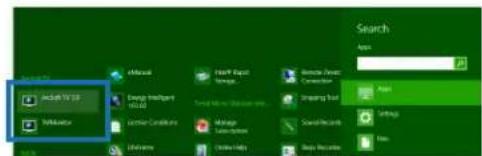
To launch ArcSoft TV 5.0 in Windows® 8, do one of the following:
From the Windows desktop, click the ArcSoft TV 5.0 icon.
NOTE: The ArcSoft TV desktop shortcut icon is not available for AIO ET2300.

- Click to launch the search screen for applications. Type "ArcSoft" in the search field and click the ArcSoft TV icon from the search results.
Setting up your TV Tuner Application
To set up ArcSoft TV 5.0:
- On the main menu, click Live TV.
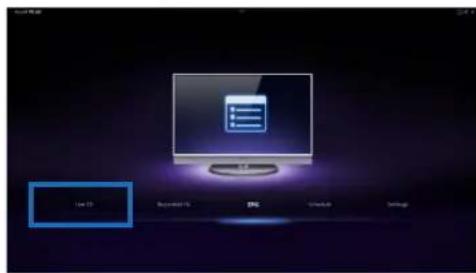
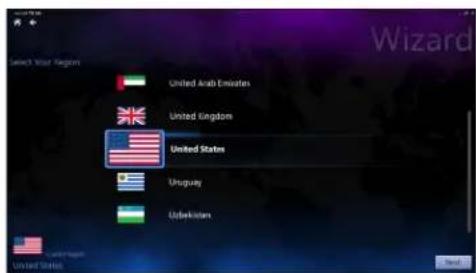
- The Setup Wizard will launch to guide you through setting up your TV Tuner application. Select your country or region and click Next to continue.
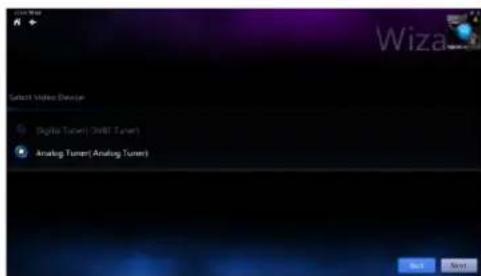
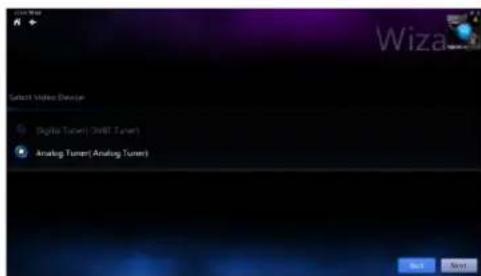
- The Setup Wizard will attempt to detect the installed TV Tuner device. Select the appropriate TV tuner card which came with your All-in-One PC.
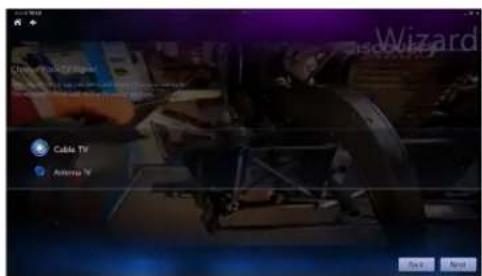
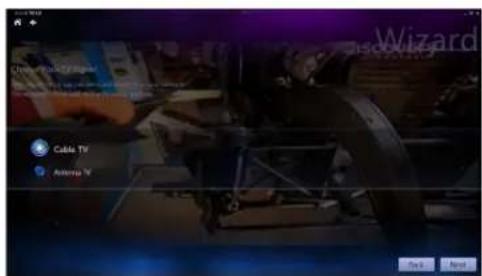
- Select the type of television service you use.
- Select Cable TV for cable television.
- Select Antenna TV for television received via an antenna.
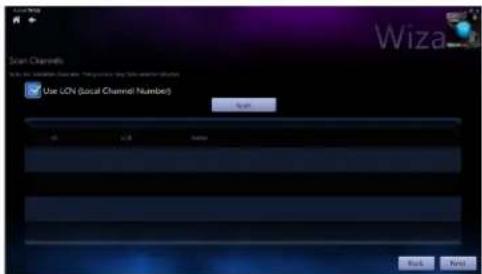
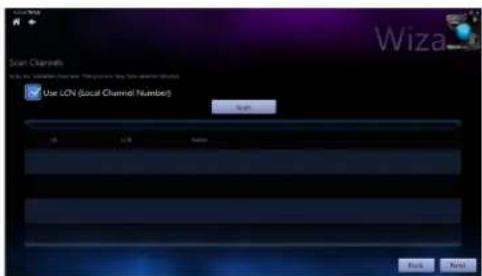
- Click Scan to begin scanning for available channels.
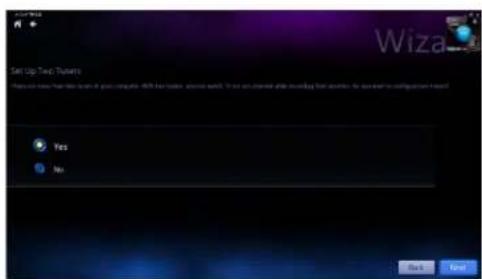
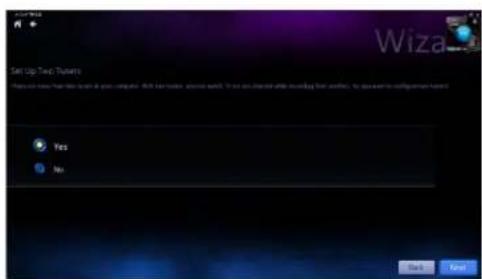
- If your All-in-One PC came with both an analog and digital TV tuner, the Setup Wizard will prompt you to set up your second TV tuner.
- Select Yes to set up the second TV Tuner.
- Select No to complete the Setup Wizard.

- Click Finish to complete the Setup Wizard.
Scheduling recordings of TV broadcasts
To schedule recordings of TV broadcasts:
- On the main menu, click Schedule.
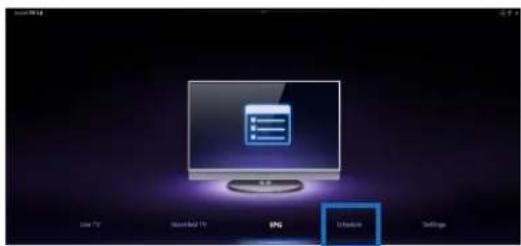
- On the left panel, click Add.
- Configure the following options:
Program Name - Channel Frequency - Start Date/Time - Specify the date/time of recording. Duration - Specify length of recording. - Shut down the computer when finished recording
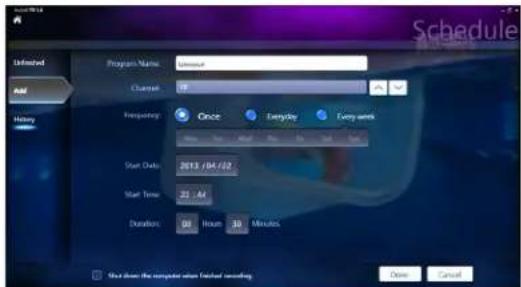
- Click Done to save settings and schedule recording.
NOTE: The All-in-One PC needs to be powered on to automatically record TV broadcasts.
- To schedule additional recordings, repeat steps 1~4.
NOTE: The number of recordings you can schedule is limited by the available storage on your All-in-One PC.
Using the Entertainment Program Guide (EPG)
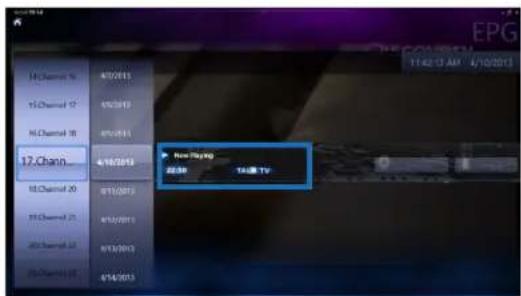
The EPG displays the time and TV programs playing on a specified channel and date.
NOTE: EPG is only available for All-in-One PCs with a digital TV tuner.
Using the Live TV Onscreen Controls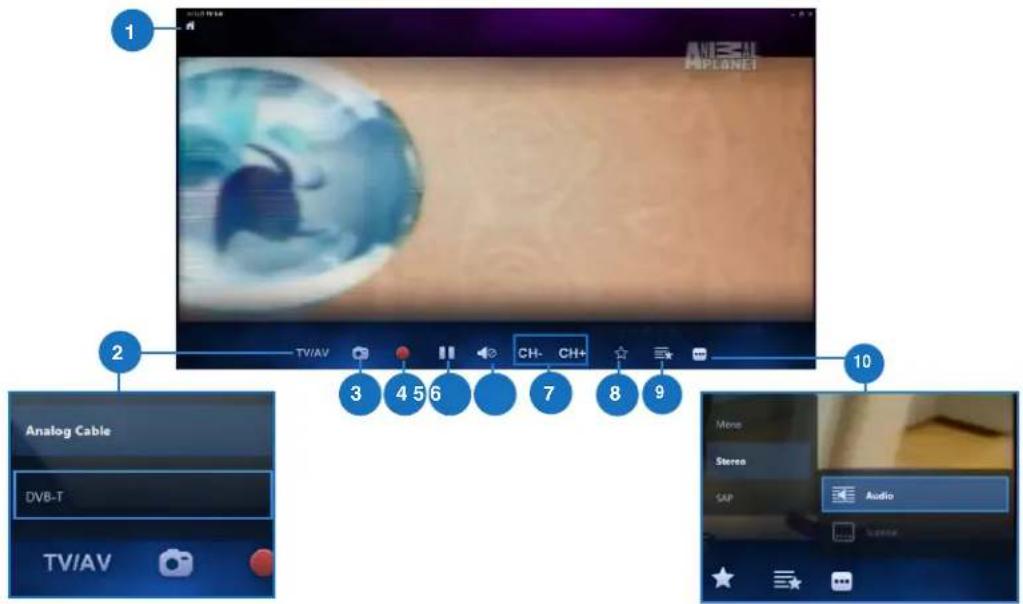
Home button
Click this icon to go to the Arcsoft TV 5.0 main menu.
2 TV/AV
Click this button to toggle between analog TV and digital TV.*
*This item is only available for All-in-One PCs with both an analog and digital TV tuner.
Take a screenshot
Click this button to take a screen capture of the video or media playing.
4 Record
Click this button to begin recording the television broadcast.
5 Pause
Click this button to pause recording or playback.
Volume Controls
Click this button to display onscreen volume controls to increase/decrease volume.
CH-/CH+
Click this button to increase or decrease the channel by one.
8 Add to Favorites
Click this button to add this channel to the Favorites list.
9 Favorites List
Click this button to display the list of saved Favorites.
Subtitles and Audio Tracks
Click this button to display the list of available subtitles and audio channels/tracks.
Using the Remote Control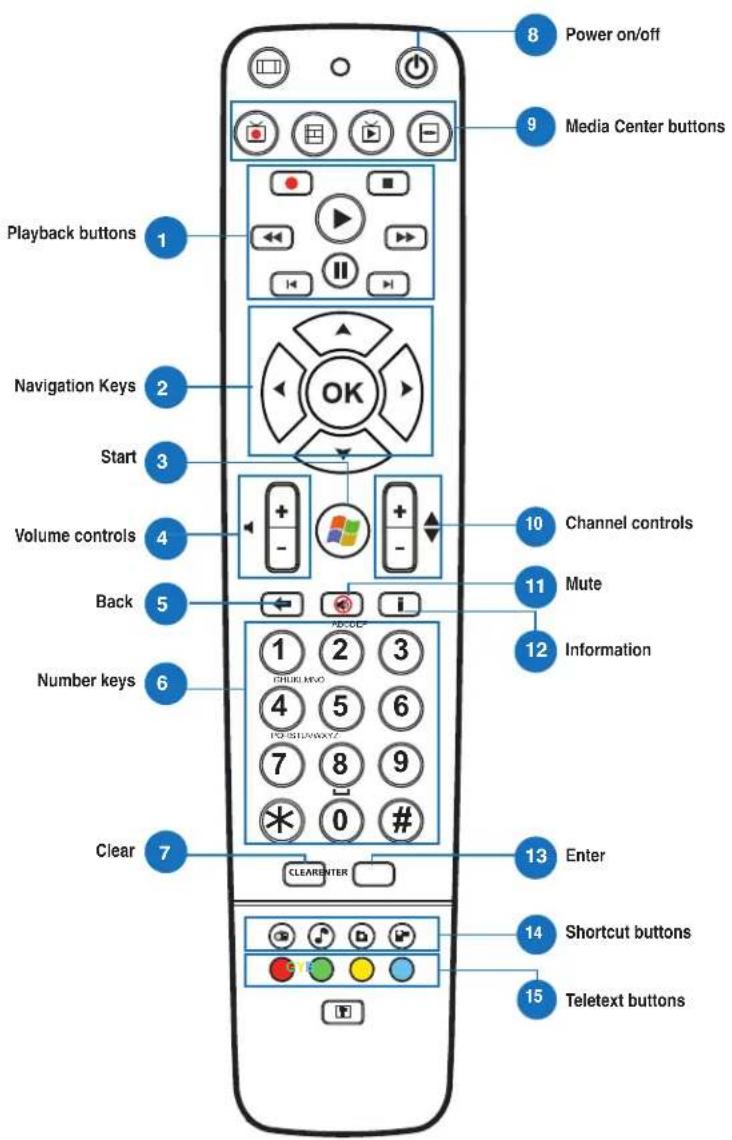

Playback Buttons

Play
Starts playing media. If playback is paused, pressing this button begins playback from the current position.

Pause
Pauses media playback at the current position.

Stop
Stops playing media at the current position.

Record
Record the TV show to disk. If pressed while Live TV is on, records the current show. If pressed from the EPG screen, records a TV show or TV series to disk.

Fast Forward
Speeds up the playback of the media file to the first forward value (3X).

Rewind
Reverses direction of playback and speeds up the time base to the first rewind value (3X).

Skip Forward
Skipping forward one increment when this button is pressed.

Skip Back
Skipping backward one increment when this button is pressed.

Navigation Keys

Press the up/down keys to move through the menu bar in a submenu.
Press the up/down keys to decrease/increase a numerical value.
Press the left/right keys to move through the main menus in the Home screen.
Press the left/right keys to move through the items in a submenu.
Press OK to confirm the selection.


Start*
Takes the user to the Windows Media Center Start menu.
*This button is only available for All-in-One PCs installed with Windows Media Center.
| 4 | Volume controls Press the (+) button to increase the volume by one unit. Press the (-) button to decrease the volume by one unit. | |
| 5 | Back Moves back one position in the user interface, | |
| 6 | Number keys | |
| 7 | Clear Clear any entered user input. | |
| 8 | Power on/off Press this button to put the All-in-One PC to sleep mode. Press a second time to wake up the system from sleep mode. | |
| 9 | Media Center Buttons* | |
| Record TV Displays the Recorded TV page in Windows Media Center. | ||
| Guide Displays the media guide in Windows Media Center. | ||
| Live TV Shows live TV on the currently selected channel. | ||
| DVD menu Displays the DVD menu. | ||
| *These buttons are only available for All-in-One PCs installed with Windows Media Center. | ||
| 10 | Channel controls Increases/decreases the current channel by one. | |
| 11 | Mute Mutes the computer audio. | |
| 12 | Information Press to display information about the movie, video, or music. | |
| 13 | Enter Press this button to select an option or input text. | |

Media Center Shortcut buttons

Displays the main Radio page in Windows Media Center.

Displays the Music Library in Windows Media Center.

Displays the Picture Library in Windows Media Center.

Displays the Video Library in Windows Media Center.
*These buttons are only available for All-in-One PCs installed with Windows Media Center.


Teletext buttons*
Press these buttons to access Teletext features when available.
*These buttons are only available for All-in-One PCs installed with Windows Media Center.
NOTE:
- To avail of Windows Media Center features, you can purchase a Windows 8 Media Center Pack separately.
- You can download a version of this manual in a different language at the ASUS support site at http://support.asus.com
All-in-OnePC
English
All-in-One PC TV
Quick guide
Select Yes (Ja) to install the second TV tuner. Select No (Nej) to complete the installation guide.
9 Favorites list
Press this button to display the list of saved favorite channels.
10 Subtitles and audio tracks
Shut down the computer when finished
Using the program guide (EPG = Electronic Program Guide)
Shows the main page for radio in Windows Media Center.

6 Volume adjustment
Press this button to adjust the volume.
CH-/CH+
Press this button to change the channel.
8 Favorites
Press this button to add this channel to favorites.
9 Paused
Press this button to display the selected list.
10 Subtitles and Audio Tracks
Press this button to display available subtitles and audio channels/tracks.
All-in-One PC
Using the DY button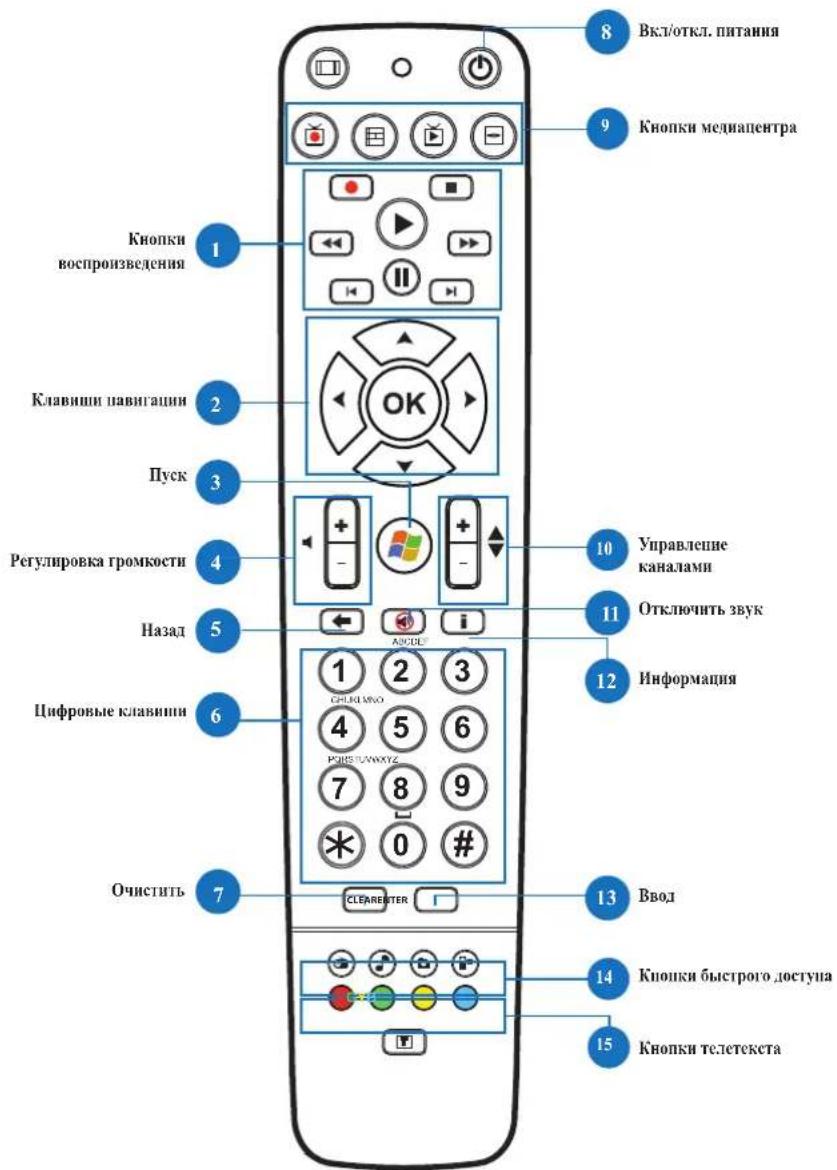

6

Play/Pause button


Play
Starts playback of the file. If playback is paused, pressing this button resumes playback from the current position.
Pause
Pauses playback at the current position.
Stop
Stops playback.
Record
Records the current program. If pressed while viewing a program, records the current program. If pressed on the EPG screen, records the program on the disk.
Fast forward
Fast forward (3X) playback.
Rewind
Rewind (3X) playback.
Forward
Increases the fast forward speed.
Backward
Increases the rewind speed.

Navigation keys

Use the Up/Down keys for navigation in the menu.
Use the Up/Down keys to increase/decrease the volume.
Use the Left/Right keys for navigation in the main menu.
Use the Left/Right keys to navigate through the menu items.
Press OK to confirm the selection.


Nyc
Press the button to launch Windows Media Center.
* This button is available only on a computer with Windows Media Center.
All-in-One PC
14 Hotkeys

Displays the Media Center start page in Windows Media Center.

Displays the Music page in Windows Media Center.

Displays the Pictures page in Windows Media Center.

Displays the Videos page in Windows Media Center.
* These buttons are available only on a computer with Windows Media Center.

Hotkey for Teletext*
Use these buttons to access teletext functions, if available.
* These buttons are available only on a computer with Windows Media Center.
NOTE:
- To use the Windows Media Center functions, you can purchase Windows 8 Media Center separately. The user manual in other languages can be downloaded from the ASUS website at http://support.asus.com
Monitoimi-PC-TV
Quick Guide
Setting the Digital/Analog TV tuner
- LAUNCHING YOUR TV TUNER APPLICATION
- SETTING UP YOUR TV TUNER APPLICATION
- SCHEDULING RECORDINGS OF TV BROADCASTS
- TO SCHEDULE RECORDINGS OF TV BROADCASTS
- USING THE ENTERTAINMENT PROGRAM GUIDE (EPG)
- HOME BUTTON
- TV/AV
- TAKE A SCREENSHOT
- RECORD
- PAUSE
- VOLUME CONTROLS
- CH-/CH
- ADD TO FAVORITES
- FAVORITES LIST
- SUBTITLES AND AUDIO TRACKS
- PLAYBACK BUTTONS
- PLAY
- STOP
- FAST FORWARD
- REWIND
- SKIP FORWARD
- SKIP BACK
- NAVIGATION KEYS
- START
- MEDIA CENTER SHORTCUT BUTTONS
- TELETEXT BUTTONS
- NOTE
- ALL-IN-ONEPC
- ALL-IN-ONE PC TV
- QUICK GUIDE
- USING THE PROGRAM GUIDE (EPG = ELECTRONIC PROGRAM GUIDE)
- ALL-IN-ONE PC
- PLAY/PAUSE BUTTON
- FORWARD
- BACKWARD
- NYC
- HOTKEYS
- HOTKEY FOR TELETEXT
- MONITOIMI-PC-TV
- SETTING THE DIGITAL/ANALOG TV TUNER
Brand : ASUS
Model : ET1612IUKS
Category : Desktop computer