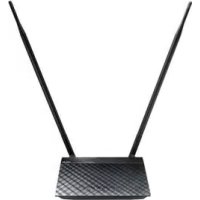
ASUS RTN12HP - Wireless Access Point

RTN12HP - Wireless Access Point ASUS - Free user manual and instructions

Find the device manual for free RTN12HP ASUS in PDF.

English EN Download 💬 AI Question 10 questions ⚙️ Specs
📄

Document temporarily unavailable

The manual is currently being transferred to our new server. It will be accessible again in a few hours. Thank you for your patience.

View the manual : Français FR English EN
Pick your language and provide your email: we'll send you a specifically translated version.
Product Type High-speed N wireless router / Wireless access point
Model RT-N12 HP
Brand ASUS
Wireless standards IEEE 802.11b/g/n
Frequency 2.4 GHz
Maximum transmission power 200 mW (adjustable)
LAN ports 4 RJ-45 10/100 Mbps ports
WAN port 1 RJ-45 10/100 Mbps port
Buttons WPS, Reset, Power
Antennas External antennas (fixed or removable, not specified)
Power supply 12 V DC power adapter
Dimensions (approx.) 160 x 110 x 30 mm
Weight (approx.) 260 g
Key features Router, access point, QIS, QoS, guest network, WPS, DHCP server, firewall, parental controls (via interface)
Wireless security WEP, WPA, WPA2, MAC filtering
Management Web interface (192.168.1.1), Device Discovery and Firmware Restoration utilities
Firmware update Via web interface or Firmware Restoration utility in rescue mode
Maintenance and cleaning Unplug the power, clean with a dry, soft cloth. Avoid liquids and abrasive products.
Operating temperature 0°C to 40°C (estimated)
Operating humidity 50% to 90% (estimated)
Certifications FCC, CE, IC
Box contents Router, power adapter, RJ-45 network cable, quick start guide, warranty card
Warranty See included warranty card

Frequently Asked Questions - RTN12HP ASUS

How to reset the RT-N12 HP router to factory defaults?
Press and hold the Reset button on the back of the router for more than 5 seconds. The router will restart with default settings (IP address 192.168.1.1, username admin, password admin).
How to set up the wireless network for the first time?
Connect the router to your modem via the WAN port, then plug in the power. Open a browser and go to 192.168.1.1. Use the default username and password (admin/admin). The Quick Internet Setup (QIS) wizard will guide you to configure the Internet connection and wireless settings (SSID, security key).
What to do if I forgot the router login password?
You must reset the router to factory defaults by holding the Reset button for more than 5 seconds. Then, use the default username and password admin/admin to log in and set a new password.
How to update the router firmware?
Download the latest firmware from support.asus.com. Log in to the web interface (192.168.1.1), go to Administration > Firmware Update, select the downloaded file and click Upload. Do not turn off the power during the update.
How to create a guest network?
In the web interface, go to Guest Network. Enable the function, set an SSID and an authentication method (e.g., WPA2). You can limit access time or enable Intranet access. Click Apply to save.
How to adjust the transmission power on the RT-N12 HP?
In the web interface, go to Wireless > Professional. In the Transmission Power Adjustment field, enter a value between 0 and 200 mW. Higher power may improve range but can cause network instability. Click Apply.
What to do if I cannot access the router web interface?
Ensure your computer is connected to the router (via cable or Wi-Fi). Make sure to obtain an IP address automatically (DHCP). Disable proxy server in network settings. Clear your browser cookies and temporary files. If the problem persists, reset the router.
How to use the router in access point mode?
During initial setup via QIS, select Access Point mode. Connect the router's WAN port to your existing network. Use the Device Discovery utility to find the router's IP address in access point mode.
What do the LED indicators on the router mean?
Power LED: solid = router ready, slow blinking = rescue mode, fast blinking = WPS in progress. Wireless LED: solid = Wi-Fi active, blinking = data transfer. WAN LED: solid = Internet connection established. LAN 1-4 LED: solid = device connected, blinking = activity.
How to contact ASUS technical support in France?
You can call 0821 23 27 87 (toll service) Monday to Friday from 9:00 AM to 5:45 PM. For more information, visit support.asus.com.

User questions about RTN12HP ASUS

0 question about this device. Answer the ones you know or ask your own.

Ask a new question about this device

The email remains private: it is only used to notify you if someone responds to your question.

No questions yet. Be the first to ask one.

Download the instructions for your Wireless Access Point in PDF format for free! Find your manual RTN12HP - ASUS and take your electronic device back in hand. On this page are published all the documents necessary for the use of your device. RTN12HP by ASUS.

USER MANUAL RTN12HP ASUS

Manual assistant
Powered by Anthropic
Waiting for your message
Product information

Brand : ASUS

Model : RTN12HP

Category : Wireless Access Point