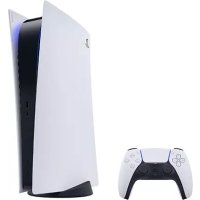
PlayStation 5 - Game console SONY - Free user manual and instructions
Find the device manual for free PlayStation 5 SONY in PDF.



| Product type | Gaming console |
| Brand | Sony |
| Model | PlayStation 5 |
| Dimensions (approx.) | 390 x 260 x 104 mm (without stand) |
| Weight (approx.) | 4.5 kg |
| Power supply | 350 W (max.) |
| Processor | AMD Zen 2 8 cores / 16 threads, variable frequency up to 3.5 GHz |
| Graphics processor | AMD RDNA 2, 36 compute units, variable frequency up to 2.23 GHz (10.3 TFLOPs) |
| RAM | 16 GB GDDR6 |
| Internal storage | 825 GB SSD (custom) |
| Connectivity | HDMI 2.1, 3x USB-A, 1x USB-C, Gigabit Ethernet, Wi-Fi 6, Bluetooth 5.1 |
| Maximum resolution | 4K at 120 Hz, 8K (via future update) |
| Main features | 4K HDR gaming, ray tracing, ultra-fast loading times, haptic feedback and adaptive triggers (DualSense controller), PS4 backwards compatibility |
| Care and cleaning | Clean with a soft, dry cloth. Do not use liquids. Avoid dust and moisture. |
| Safety | Safety guide provided. Do not unplug when the power indicator is on. |
| Spare parts and repairability | DualSense controller, stand, USB, HDMI, and power cables. For repairs, contact Sony support. |
| General information | Home gaming console. Compatible with DualSense wireless controllers. Plays Ultra HD Blu-ray discs and digital games. |
Frequently Asked Questions - PlayStation 5 SONY
User questions about PlayStation 5 SONY
0 question about this device. Answer the ones you know or ask your own.
Ask a new question about this device
Download the instructions for your Game console in PDF format for free! Find your manual PlayStation 5 - SONY and take your electronic device back in hand. On this page are published all the documents necessary for the use of your device. PlayStation 5 by SONY.
USER MANUAL PlayStation 5 SONY
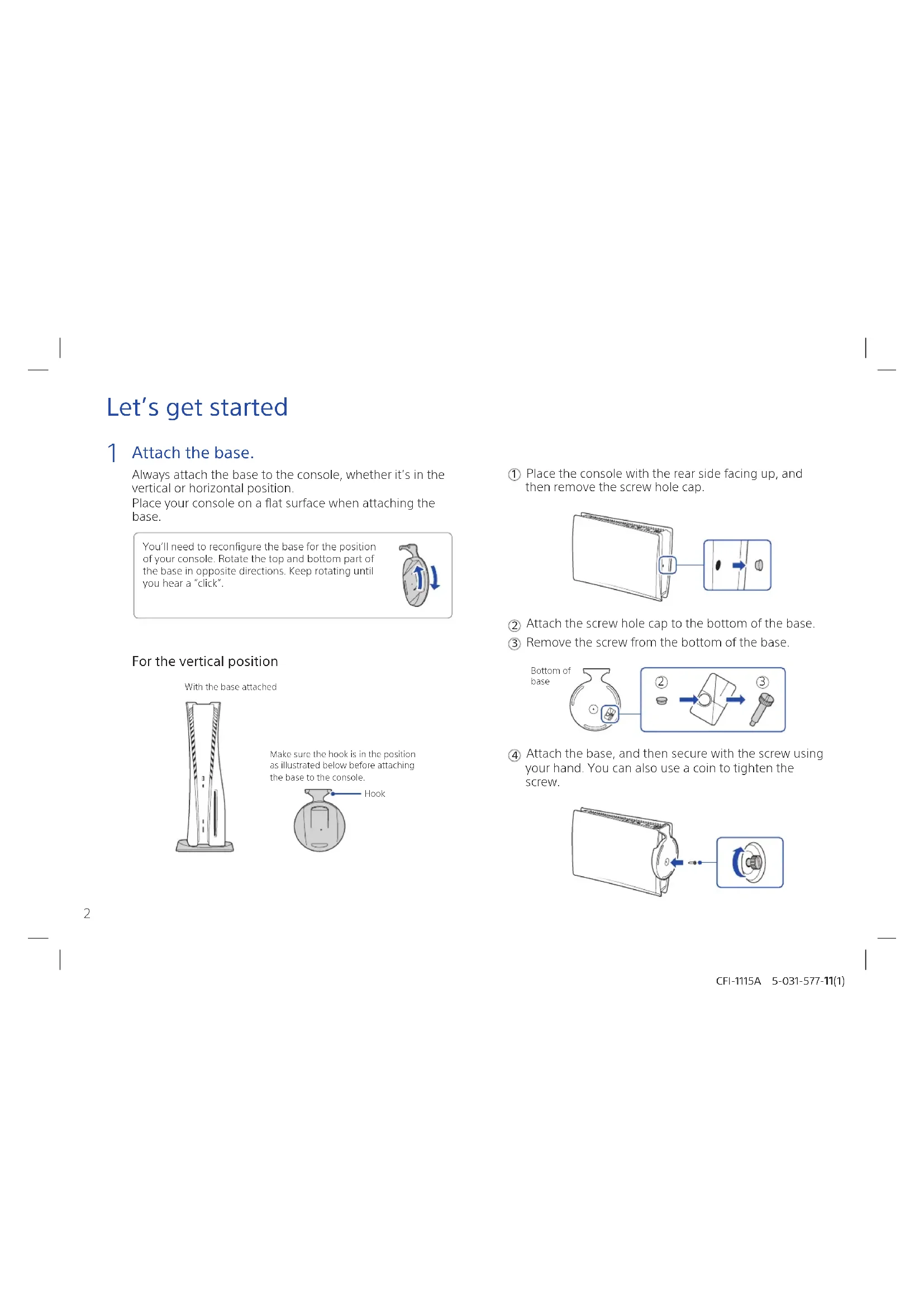
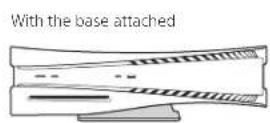
Always attach the base to the console, whether it's in the vertical or horizontal position.
Place your console on a flat surface when attaching the base.
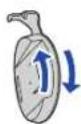
You'll need to reconfigure the base for the position of your console. Rotate the top and bottom part of the base in opposite directions. Keep rotating until you hear a "click".
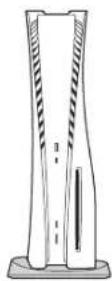
For the vertical position
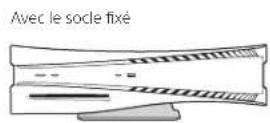
With the base attached
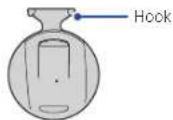
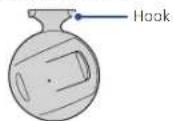
Make sure the hook is in the position as illustrated below before attaching the base to the console.
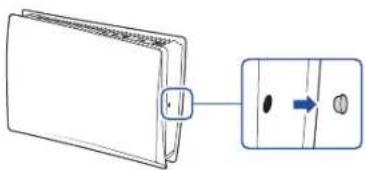
① Place the console with the rear side facing up, and then remove the screw hole cap.
natural_image
Diagram of a wallet with a close-up view showing internal components (no text or symbols)② Attach the screw hole cap to the bottom of the base.
③ Remove the screw from the bottom of the base.
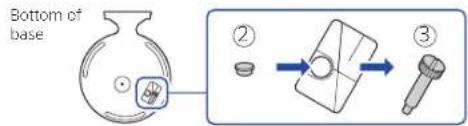
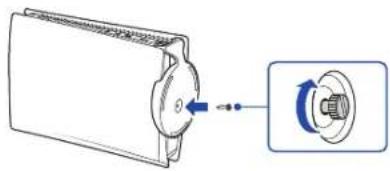
④ Attach the base, and then secure with the screw using your hand. You can also use a coin to tighten the screw.
natural_image
Diagram of a mechanical component with a pulley and rotating shaft, showing alignment (no text or symbols)Let's get started
For the horizontal position
Make sure the hook is in the position as illustrated below before attaching the base to the console.
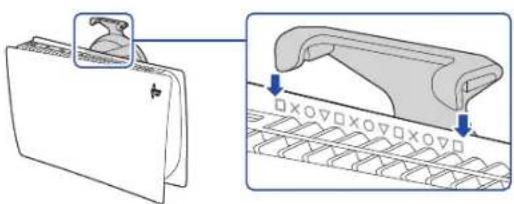
① Place the console with the rear side facing up. Align the base with the marked area on the console, and press the base in firmly.
natural_image
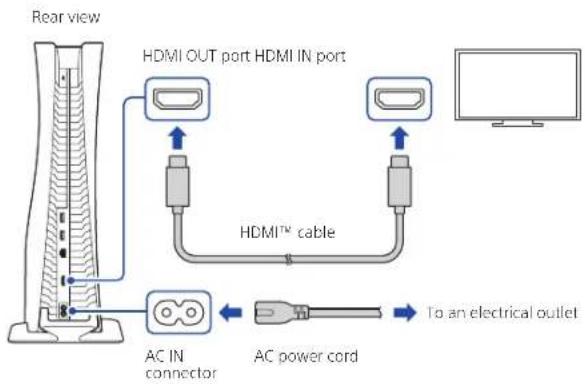
Diagram showing a file folder and a 3D mechanical component with mounting holes (no text or symbols)2 Connect the HDMI cable and the AC power cord.
Use the included cables. Make all connections before plugging the AC power cord into an electrical outlet.
EN
Let's get started
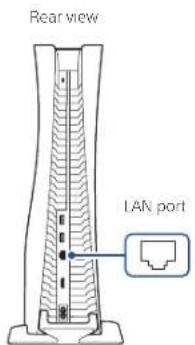
3 Connect the LAN cable.
For a wired connection to the internet, use a LAN cable (not included). If you're going to use Wi-Fi®, don't connect a LAN cable and skip to the next step.
4 Turn on your TV and set the input to HDMI.
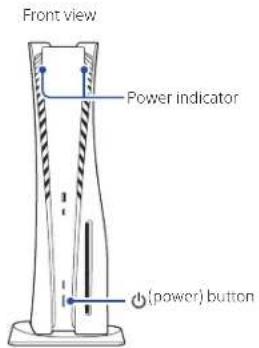
5 Turn on your PlayStation®5 console by pressing the (power) button.
The power indicator blinks blue, and then turns white.
If you leave the console idle for 60 seconds after you turn it on, the screen reader turns on. You can listen to on-screen text and other important information read aloud to help you accomplish what you want to do. Screen reader is available only in certain languages.
Let's get started
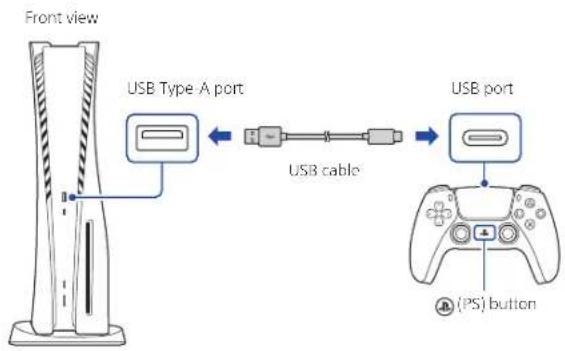
6 Connect your wireless controller to your console using a USB cable, and then press the (PS) button.
To pair your controller, connect it with a USB cable to the USB port on your console. When you press the Ⓐ (PS) button, the controller turns on.
7 Make it your own.
You're almost done! Follow the on-screen instructions to
- Set up your console Select your language, configure your internet connection settings, and manage your power save settings.
Select Optimized Experience in Power Options for Rest Mode to charge your controller during rest mode or to enable your update files to install automatically (page 12).
- Set up your account Create a new account or sign in with an existing account, such as one you created on a PlayStation®4 console. See also "For PS4 users" (page 6).
- Download your content Download purchased PS5™ games and media apps. If you have a PS4™ console, you can transfer the data to your PS5 console.
You'll know that setup is complete when Welcome to PlayStation 5 appears on your screen.
Will a child be using your PS5 console? See also "Parental controls" (page 6).
- The setup options that you see are tailored to your needs, based on information such as your network environment and the account that you're signed into.
- You can go back and change any of your settings by selecting Settings from the home screen.
For PS4 users
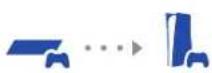
Play some PS4 games on your PS5 console
You can play select compatible PS4 games in disc or digital formats on your PS5 console with a system software update.
Transfer data from a PS4 console to your PS5 console
Connect your PS4 console and PS5 console to the same network to transfer data such as game save data, user information, and downloaded content. If you have a USB drive that you've been using as USB extended storage for your PS4 console, you can continue using it by simply connecting it to your PS5 console.
Use the same account you created on a PS4 console
There's no need to create a new account for your PS5 console. Just sign in with your existing account and your game history, trophies, profile, and any exchanges you've had with friends will transfer to your PS5 console.

Parental controls
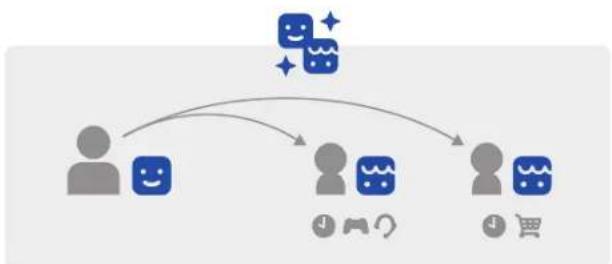
You can manage settings for children who use your PS5 console. Parental controls let you set restrictions on the games children can play, when and how long they play, whether or not they can chat, and more.
Each adult (and child ( ) need their own separate accounts. When you create an account for a child, it's automatically linked to your account, creating a family. You can set parental controls only for children in your family.
You can use an existing account, such as one you created on a PS4 console, for your PS5 console. Your family and parental control settings will carry over to your PS5 console.
flowchart
graph TD
    A["User"] --> B["App"]
    A --> C["Phone"]
    A --> D["Shopping Cart"]
    B --> E["App"]
    C --> F["Phone"]
    D --> G["Shopping Cart"]
Parental controls
Create an account for a child
You can create a child account and set parental controls at the same time.
Press the 📄PS) button to open the control center. Select your profile picture, then select Switch User. From the user selection screen, select Add User to create an account.
Review and change your parental control settings
We recommend that you check the child's parental controls regularly. You can review or update them by selecting Settings ❖ Family and Parental Controls from the home screen.
Game rating icons
Each game comes with a game rating icon that helps you determine whether it's age-appropriate for the child.
| Approximate age of user | 6 10 13 | 17 | ||
| Game rating labels |  | [7HYS] |  |  |
Find out more about parental control features and setup in the User's Guide (page 13).
What's on the screen
Home screen
From the home screen, you can go to two types of content: games or media. In the games home, you'll find your games, PlayStation™ Store, and other game-related apps. In the media home, you'll find music, video, and other non-game related apps.
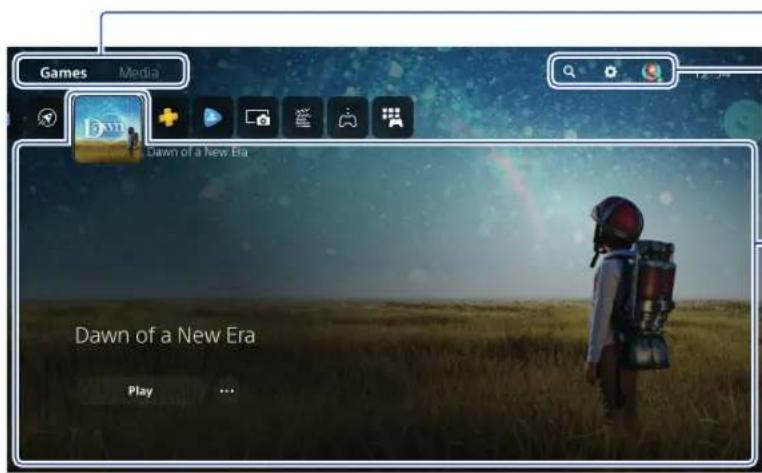
Switch home screens
Switch between games and media.
Search, change your settings, and edit your profile.
Hub
Learn more about the game or app you selected, and find related information.
- On the PS5 console, the Ⓧutton confirms selected items.
- To return to the home screen while your game or app is running, select Home from the control center, or press and hold the IPS) button on your controller.
What's on the screen
Control center
Press the 📄PS) button to open the control center.
You can access a variety of features without leaving your game or app.
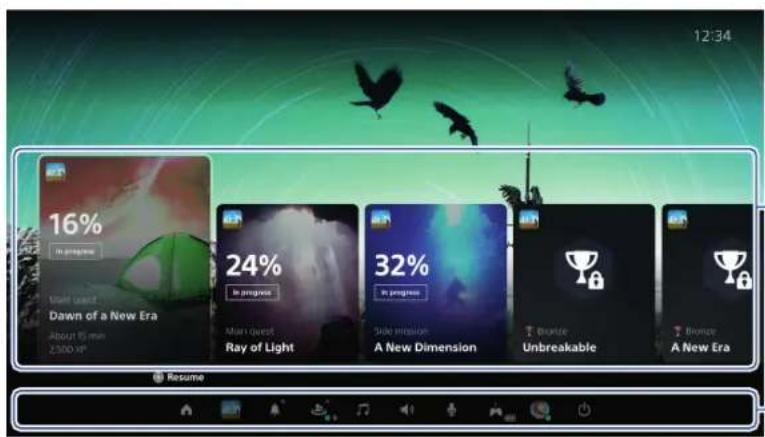
Cards
Cards show you features and activities related to your games and apps that are available depending on what you're doing at that moment. Select a card to learn more, or jump to the next card.
Controls
Select Home ▶ no return to your home screen, and Power ▶ to turn off your PS5 console. Perform other basic functions here, too.
Get quick access to the functions and settings you use most during gameplay.
Let's play
Play a game from a disc
Insert the disc.
Game data will start copying, and you'll get a notification when the game is ready to play.
Select the game from your games home.
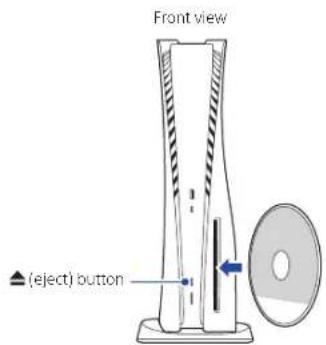
Eject the disc
Press the ▲(eject) button to eject the disc.
Play a digital game
You can play a game that you downloaded from
PlayStation Store
You'll get a notification when the game is downloaded and ready to play.
Select the game from your games home.
To purchase and download games, you'll need to connect your console to the internet and sign in to your account.
Use your controller
Charge your controller
With your PS5 console turned on or in rest mode, use a USB cable to connect your controller to the console. When your console is in rest mode, the light bar on your controller slowly blinks orange. After charging is complete, the light bar turns off.
To charge your controller while your console is in rest mode, go to Settings > System > Power Saving > Features Available in Rest Mode > Supply Power to USB Ports, and select an option other than Off.
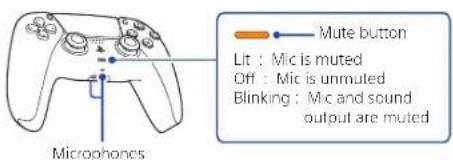
Mute your microphone
Each time you press the mute button, your mic switches between muted (button lit) and unmuted (button off).
Press and hold the mute button to mute your mic and to turn off sound output from the speakers on your controller and TV. Press the mute button again to return to the original state.
Use multiple controllers
You can use up to 4 controllers at once. Press the (IPS) button to assign numbers to your controllers. The player indicator lights turn on accordingly. Numbers are assigned in order from 1, and you can determine your controller's number by the number of lights that turn on.
![Light bar Player indicator [PS] button](/content/2026/03/505472/images/ef6e08a312bedd8d75a7359d233e3305da5b3bfea66aef5b35760ead6e859f3e.jpg)
- You'll need to pair your controller when you use it for the first time (page 5).
- When you play a PS4 game, your controller's light bar glows blue, red, green, or pink based on the order that the controller is connected. This is separate from the player indicator.
Turn on your PS5 console with a controller
Press the PS) button on a controller that has finished pairing to turn on your PS5 console.
Shutting down

Caution
Disconnect the AC power cord from the electrical outlet only when the power indicator is off. If you disconnect it while the power indicator is on solidly or blinking, data might be lost or become corrupted, and you might damage your console.
Put your console in rest mode
In rest mode, your console stays on, but at a lower power consumption. You can do things like charge your controller, automatically update your system software, and keep your game or app suspended in rest mode.
For some features, you'll need to enable their settings to use them. Go to Settings ⚙ > System > Power Saving > Features Available in Rest Mode.
Select Power from the control center, and then select Enter Rest Mode. The power indicator blinks white, and then turns orange. To exit rest mode, press the IPS) button.
Turn off your console completely
Select Power from the control center, and then select Turn Off PS5. The power indicator blinks white, and then the console turns off.
Power indicator
| White Console is on. | |
| Orange Console is in rest mode. | |
| Off Console is off. | |
Further information
Safety Guide
Learn how to use your PS5 console safely with the supplied Safety Guide. This printed manual also contains product warranty terms and information about specifications. Be sure to read it before using your console.
User's Guide
Find out about everything your PS5 console can do. Learn how to configure settings and how to use each function. From your PS5 console's home screen, go to Settings ✿ User's Guide, Health & Safety, and Other Information >User's Guide.
Customer Support Website
Find online support information such as step by step troubleshooting and frequently asked questions by visiting playstation.com/help.

"PlayStation", "PS5" and "PS4" are registered trademarks or trademarks of Sony Interactive Entertainment Inc.
"SONY" and "are registered trademarks or trademarks of Sony Group Corporation.
The terms HDMI and HDMI High-Definition Multimedia Interface, and the HDMI Logo are trademarks or registered trademarks of HDMI Licensing Administrator, Inc. in the United States and other countries.
Wi-Fi ^® is a registered trademark of Wi-Fi Alliance ^® .
Design and specifications are subject to change without notice.
Information about system functionality and images published in this document may vary from those for your console, depending on the system software version in use. Also, the illustrations and screen images used in this guide may vary from the actual product.
Premiers pas
1 Fixez le socle.
natural_image
Diagram of a mechanical component with a rotating wheel and a close-up view showing a circular component (no text or symbols)Premiers pas
Pour la position horizontale
natural_image
Illustration of a folding folder and a mechanical component with grid pattern (no text or symbols)Cartes
natural_image
Diagram of a wallet with a close-up view showing internal components (no text or symbols)flowchart
graph LR
    A["Bottle with label 'e'"] --> B["Step ②: Box and lid"]
    B --> C["Step ③: Pen and ink tube"]
natural_image
Diagram of a mechanical device with a rotating knob and a close-up inset showing rotational motion (no text or symbols)Comencemos
natural_image
Diagram showing a folding folder and a mechanical component with grid patterns (no text or symbols)Cartas
© 2021 Sony Interactive Entertainment Inc.
Printed in Japan / Imprimé au Japon / Impreso en Japón

5-031-577-11(1)
CFI-1115A 5-031-577-11(1)



- For the horizontal position
- Connect the HDMI cable and the AC power cord.
- Connect the LAN cable.
- Turn on your PlayStation®5 console by pressing the (power) button.
- Connect your wireless controller to your console using a USB cable, and then press the (PS) button.
- Make it your own.
- For PS4 users
- Play some PS4 games on your PS5 console
- Transfer data from a PS4 console to your PS5 console
- Use the same account you created on a PS4 console
- Parental controls
- Create an account for a child
- Review and change your parental control settings
- Game rating icons
- What's on the screen
- Home screen
- Switch home screens
- Hub
- Control center
- Cards
- Controls
- Let's play
- Play a game from a disc
- Play a digital game
- Use your controller
- Charge your controller
- Mute your microphone
- Use multiple controllers
- Turn on your PS5 console with a controller
- Shutting down
- Caution
- Put your console in rest mode
- Turn off your console completely
- Further information
- Safety Guide
- User's Guide
- Customer Support Website
- Premiers pas
- Fixez le socle.
- Pour la position horizontale
- Cartes
- Cartas
Brand : SONY
Model : PlayStation 5
Category : Game console