
SCPH-75004 - Game console SONY - Free user manual and instructions
Find the device manual for free SCPH-75004 SONY in PDF.

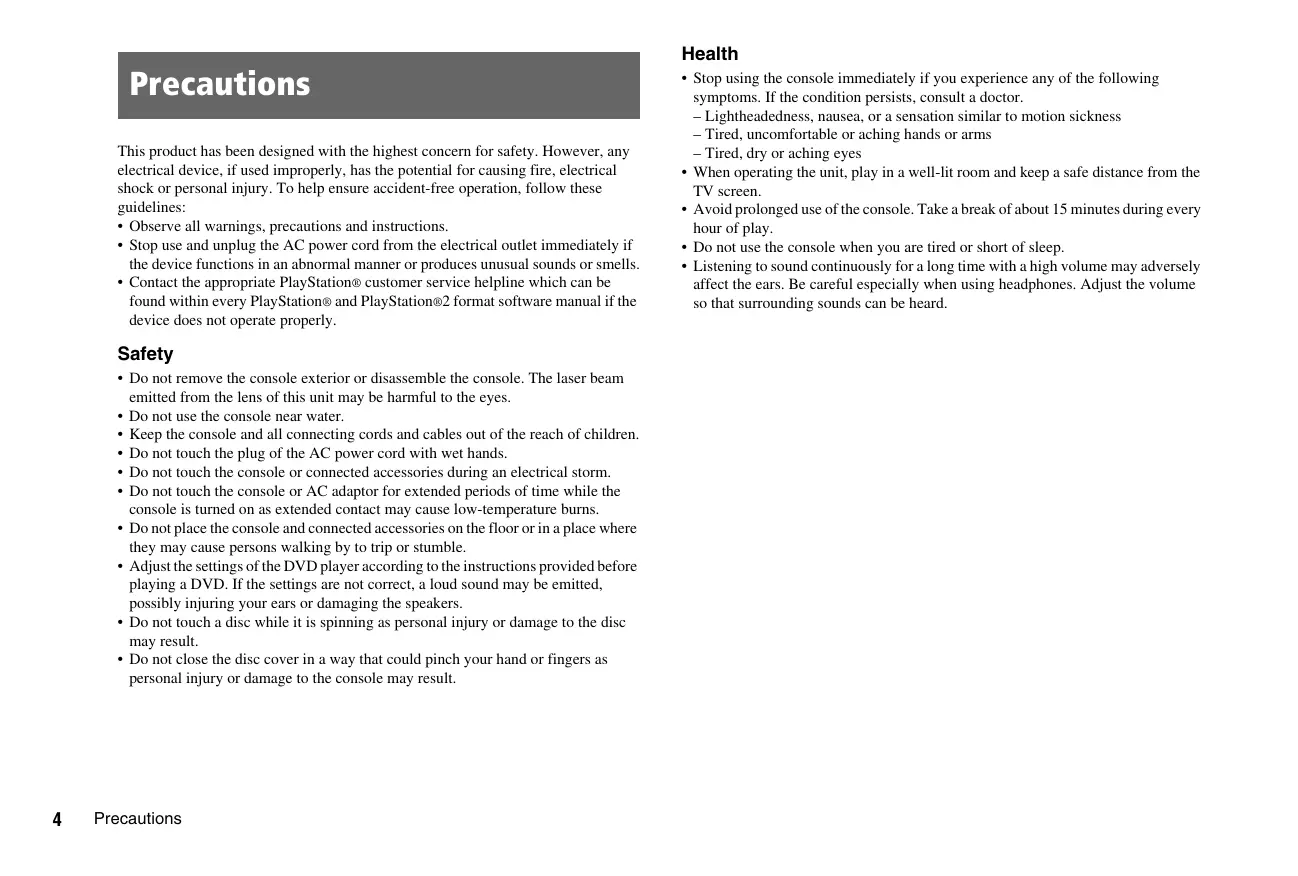


| Product Type | Game console |
| Brand | Sony |
| Model | SCPH-75004 |
| Dimensions (W × H × D) | Approx. 230 × 28 × 152 mm |
| Weight | Approx. 900 g |
| Power supply | AC adapter 100-240 V, 50/60 Hz; output 8.5 V, 5.65 A |
| Power consumption | 5.3 A (max) |
| Compatible disc types | PlayStation 2 DVD-ROM, PlayStation 2/PlayStation CD-ROM, audio CD, DVD-Video, DVD-RW (VR mode) |
| Video formats | PAL (composite, S-Video, component, RGB output) |
| Digital audio output | Optical (DIGITAL OUT OPTICAL); formats: Dolby Digital, DTS, MPEG |
| Controller ports | 2 ports (DualShock 2 controller included) |
| Memory Card slots | 2 slots (Memory Card 8 MB for PS2 and PS1 Memory Card) |
| USB ports | 2 USB connectors |
| Network connector | Ethernet 10Base-T/100Base-TX |
| Operating temperature | 5 °C to 35 °C |
| Included accessories | Console, DualShock 2 controller, AC adapter, AV cable (composite), Euro-AV plug, power cord, instruction manual |
| Main features | Play PS2 and PS1 games, DVDs, CDs; network functionality; memory card management |
| Maintenance | Clean with a soft dry cloth; dust ventilation slots with a low-power vacuum cleaner |
| Safety | Class 1 laser; avoid exposure to humidity and heat sources |
| Warranty | Manufacturer's warranty (duration varies by country); repair by authorized service |
Frequently Asked Questions - SCPH-75004 SONY
User questions about SCPH-75004 SONY
0 question about this device. Answer the ones you know or ask your own.
Ask a new question about this device
Download the instructions for your Game console in PDF format for free! Find your manual SCPH-75004 - SONY and take your electronic device back in hand. On this page are published all the documents necessary for the use of your device. SCPH-75004 by SONY.
USER MANUAL SCPH-75004 SONY
To reduce the risk of fire or electric shock, do not expose this apparatus to rain or moisture.
To prevent fire or shock hazard, do not place a container filled with liquids on top of the console.
To avoid electrical shock, do not open the cabinet. Refer servicing to qualified personnel only.
Caution
Use of controls or adjustments or performance of procedures other than those specified herein may result in hazardous radiation exposure.
The use of optical instruments with this product will increase eye hazard.
CLASS 1 LASER PRODUCT
LUOKAN 1 LASERLAITE
KCLASS 1 LASERAPPARAT
This appliance is classified as a CLASS 1 LASER product under IEC60825-1: 2001.
This equipment has been tested and found to comply with the limits set out in the EMC Directive using a connection cable shorter than 3 metres (9.8 feet).
Read carefully before operating your PlayStation®2 console
A few people may experience epileptic seizures when viewing flashing lights or patterns in our daily environment. These persons may experience seizures while watching TV or playing video games, including DVD-Videos or games played on the PlayStation®2 console. Players who have not had any seizures may nonetheless have an undetected epileptic condition. Consult your physician before operating the PlayStation®2 console if you have an epileptic condition or experience any of the following symptoms while watching TV programmes or playing video games: altered vision, muscle twitching, other involuntary movements, loss of awareness of your surroundings, mental confusion, and/or convulsions.
Some PlayStation® or PlayStation®2 format software titles may perform differently on this console than they do on previous PlayStation®2 or PlayStation® consoles, or may not perform properly on this console. For more information, visit our Web site at www.playstation.com

Where you see this symbol on any of our electrical products or packaging, it indicates that the relevant electrical product should not be disposed of as general household waste in Europe. To ensure the correct waste treatment of the product, please dispose of it in accordance with any applicable local laws or requirements for disposal of electrical equipment. In so doing, you will help to conserve natural resources and improve standards of environmental protection in treatment and disposal of electrical waste.
Table of contents
WARNING 2
Precautions. 4
Preparation
Getting started. 7
Part names. 8
Connecting to a TV 9
Connecting digital audio equipment 12
Connecting the controller. 12
Connecting the AC adaptor and AC power cord 13
Turning the console on and off 14
Games
Playing a game 15
Using Memory Cards. 18
Audio CDs
Playing an audio CD 20
DVDs
Watching a DVD. 22
Using the playback modes 26
Adjusting DVD player settings 28
Main menu
Displaying the main menu. 35
Using the Browser screen. 35
Using the System Configuration menu. 36
Using the Version Information screen. 39
Networking
Connecting to a network. 42
Creating network settings 44
Additional information
Compatible software. 45
Accessories 46
GUARANTEE. 47
Specifications 48
Troubleshooting. 50
Precautions
This product has been designed with the highest concern for safety. However, any electrical device, if used improperly, has the potential for causing fire, electrical shock or personal injury. To help ensure accident-free operation, follow these guidelines:
- Observe all warnings, precautions and instructions.
- Stop use and unplug the AC power cord from the electrical outlet immediately if the device functions in an abnormal manner or produces unusual sounds or smells.
- Contact the appropriate PlayStation® customer service helpline which can be found within every PlayStation® and PlayStation®2 format software manual if the device does not operate properly.
Safety
- Do not remove the console exterior or disassemble the console. The laser beam emitted from the lens of this unit may be harmful to the eyes.
- Do not use the console near water.
- Keep the console and all connecting cords and cables out of the reach of children.
- Do not touch the plug of the AC power cord with wet hands.
- Do not touch the console or connected accessories during an electrical storm.
- Do not touch the console or AC adaptor for extended periods of time while the console is turned on as extended contact may cause low-temperature burns.
- Do not place the console and connected accessories on the floor or in a place where they may cause persons walking by to trip or stumble.
- Adjust the settings of the DVD player according to the instructions provided before playing a DVD. If the settings are not correct, a loud sound may be emitted, possibly injuring your ears or damaging the speakers.
- Do not touch a disc while it is spinning as personal injury or damage to the disc may result.
- Do not close the disc cover in a way that could pinch your hand or fingers as personal injury or damage to the console may result.
Health
- Stop using the console immediately if you experience any of the following symptoms. If the condition persists, consult a doctor.
- Lightheadedness, nausea, or a sensation similar to motion sickness
-Tired, uncomfortable or aching hands or arms
-Tired, dry or aching eyes - When operating the unit, play in a well-lit room and keep a safe distance from the TV screen.
- Avoid prolonged use of the console. Take a break of about 15 minutes during every hour of play.
- Do not use the console when you are tired or short of sleep.
- Listening to sound continuously for a long time with a high volume may adversely affect the ears. Be careful especially when using headphones. Adjust the volume so that surrounding sounds can be heard.
Use and handling
- Do not throw or drop the console or accessories, or expose them to strong physical shock.
- Do not place the console or accessories on surfaces that are unstable, tilted or subject to vibration.
- Do not expose the console or accessories to high temperatures, high humidity or direct sunlight (use in an environment where temperatures range from 5^ to 35^ ).
- Do not place the console or accessories in locations subject to sudden temperature change (for example, changes of 10^ per hour or more).
- Do not leave the console or accessories in a car with its windows closed (particularly in summer).
- Do not place the console in locations of poor ventilation such as small, enclosed areas, directly against a wall or on a thick carpet or bedding.
- Do not expose the console to dust, smoke or steam. This can cause the console to malfunction.
- Do not allow liquid or small particles to get into the console.
- Do not put any objects on the console.
- Do not touch or insert foreign objects into the connectors of the console or accessories.
- Do not place the console close to magnetic fields produced by magnets or loudspeakers.
- Do not set the console other than in the vertical or horizontal position. When placing in the vertical position, use the Vertical Stand (for PlayStation®2) (sold separately) that is compatible with this console. Also, do not change the position while the console is turned on.
AC adaptor and AC power cord use
- To help ensure safe operation, regularly inspect the AC adaptor and AC power cord. If damaged, stop use immediately and contact the appropriate PlayStation® customer service helpline which can be found within every PlayStation® and PlayStation®2 format software manual.
- Do not use a power cord other than the supplied AC adaptor and AC power cord.
- Check that there is no dust or lint on the power plug before inserting into an electrical outlet. If the plug becomes dirty, wipe it off with a dry cloth before connecting.
- Unplug the AC power cord from the electrical outlet before cleaning or moving the console, or when you do not intend to use the console for an extended period of time. When disconnecting, grasp the power cord by the plug and pull straight out of the electrical socket. Never pull by the cord and do not pull out at an angle.
- Do not connect the AC adaptor and/or AC power cord to a voltage transformer or inverter.
Notes on safety when using the Analog Controller (DUALSHOCK®2)*
- Stop using the console immediately if you begin to feel tired or if you experience discomfort or pain in your hands or arms while operating the Analog Controller (DUALSHOCK®2). If the condition persists, consult a doctor.
- The Analog Controller (DUALSHOCK®2) is intended for use with the hands only. Do not bring it into contact with your head, face or the bones of any other part of the body.
- The vibration function of the Analog Controller (DUALSHOCK®2) can aggravate injuries. Do not use the vibration function if you have any ailment or injury to the bones, joints or muscles of your hands or arms. Note that some PlayStation®2 and PlayStation® format software titles set the vibration function to "On" by default. In most cases, the vibration function can be set to "Off" in the options menu of the software. Do not play such titles using the Analog Controller (DUALSHOCK®2) unless you have set the vibration function to "Off".
-
Avoid prolonged use of the Analog Controller (DUALSHOCK®2). Take a break at about 30-minute intervals.
-
These notes also apply to other controllers.
Connecting with a network cable
Do not connect network cables or telephone cords of the following types to the network connector:
- Standard residential telephone lines
Network cables not appropriate for use with a 10Base-T/100Base-TX network - Any ISDN (digital) compatible phone or data line
PBX phone lines - Other "unknown" types of telephone lines
Disc handling
- Do not touch the disc surface when handling a disc; hold it by the edges.
- Do not stick paper or tape onto discs and do not write on discs.
- Fingersprints, dust, dirt or scratches on the disc can distort the picture or reduce sound quality. Always handle carefully and make sure discs are clean before use.
- Do not leave discs near a heat source, in direct sunlight or in high humidity.
- Store discs in their cases when not in use - scratched and damaged discs will not function correctly.
- Clean discs using a soft cloth, lightly wiping from the centre outwards.
Do not use solvents such as benzine, commercially available cleaners not intended for CDs or anti-static spray intended for vinyl LPs.
- Do not leave a disc in the console when moving or changing the position of the console.
- Do not use irregularly shaped discs (for example, heart- or star-shaped discs) or damaged, re-shaped or repaired discs.
Never disassemble the console or supplied accessories
Use the PlayStation®2 console and accessories according to the instructions in this manual. No authorisation for the analysis or modification of the console, or the analysis and use of its circuit configurations, is provided. There are no user-serviceable components inside the PlayStation®2 console. Disassembling the console will void the guarantee. Additionally, there is a risk of exposure to laser radiation as well as to electrical shock hazards.
When connecting the console to a plasma or projection* TV
Do not leave a still image on the TV screen for an extended period of time, as this may leave a faint image permanently on the screen.
Moisture condensation
If the console or disc is brought directly from a cold location to a warm one, moisture may condense on the lens inside the console or on the disc. Should this occur, the console may not operate properly. In this case, remove the disc and turn off and unplug the console. Do not put the disc back in until the moisture evaporates (this may take several hours). If the console still does not operate properly, contact the appropriate PlayStation® customer service helpline which can be found within every PlayStation® and PlayStation®2 format software manual.
Cleaning
- For safety reasons, before cleaning the console or connected accessories, 1) turn off the console, 2) disconnect the power plug for the console from the electrical outlet, and 3) remove the network cable from the network connector.
- When cleaning the console, use a soft, dry cloth. Do not use paint thinner, solvents, other chemicals or a chemically-treated dust cloth to clean the product.
- When dust accumulates in the console vents, remove the dust with a low-powered vacuum cleaner.
- Do not touch the lens located inside the disc cover. To help protect the lens from dust, keep the disc cover closed except when inserting or removing discs.
Exterior protection
To help prevent damage to the painted parts, follow the precautions below:
- Do not spill liquids such as alcohol, benzine, paint thinner or other chemicals on the product.
- Do not place any rubber, vinyl or plastic items on the painted surfaces for an extended period of time.
Preparation
Getting started
Checking the package contents
Check that you have all of the following items. If any items are missing, contact the appropriate PlayStation® customer service helpline which can be found within every PlayStation® and PlayStation®2 format software manual.
PlayStation®2 console...1
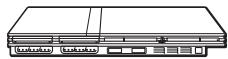
□ AC adaptor...1
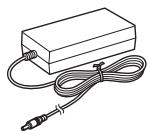
Euro-AV connector plug...1
□ Instruction Manual...1
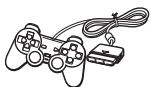
□ Analog Controller (DUALSHOCK®2)...1
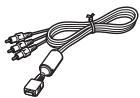
AV Cable (integrated audio/video)...1
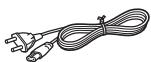
□ AC power cord...1
Positioning the console
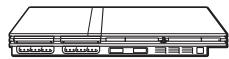
You can place the console in either the horizontal or vertical position.
Horizontal position
Set the console horizontally.
Vertical position
When setting the console in the vertical position, use the SCPH-70110 E Vertical Stand (for PlayStation®2) (sold separately).
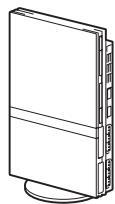
Note
Some Vertical Stands (for PlayStation®2) cannot be used with this model of the PlayStation®2 console (▶ page 46). Choose the SCPH-70110 E when purchasing a Vertical Stand.
Caution
Do not place the console in locations where it may be exposed to the following conditions:
- Places subject to excessive cigarette smoke or dust. Cigarette smoke residue or dust build-up on the internal components, such as the lens, may cause the console to malfunction.
- Places subject to extreme temperatures, in direct sunlight, near a heat source, or in a car with its windows closed (particularly in summer). These conditions may warp the exterior of the console or cause the console to malfunction.
- Places close to magnetic fields, such as those produced by magnets or loudspeakers.
- Places subject to vibration.
Part names
PlayStation®2 console front
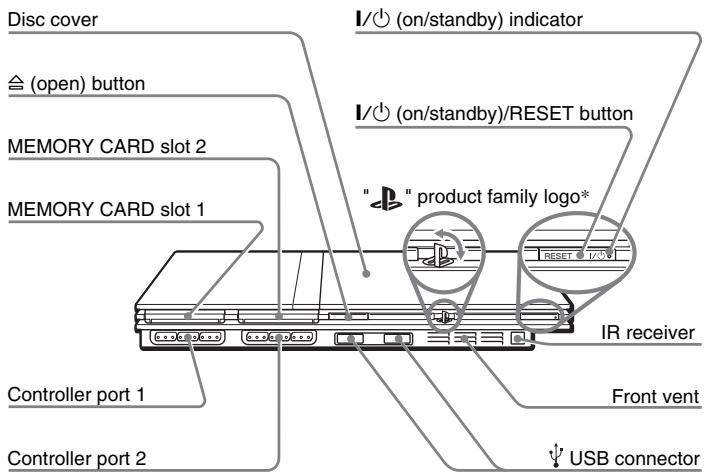
* The "▶" product family logo can be rotated to match the horizontal or vertical positioning of the console.
Note
You can connect USB devices that are compatible with the PlayStation®2 console. Note, however, that not all USB-compatible products work with the PlayStation®2 console. Refer to the instructions supplied with the device to be connected for more information.
PlayStation®2 console rear
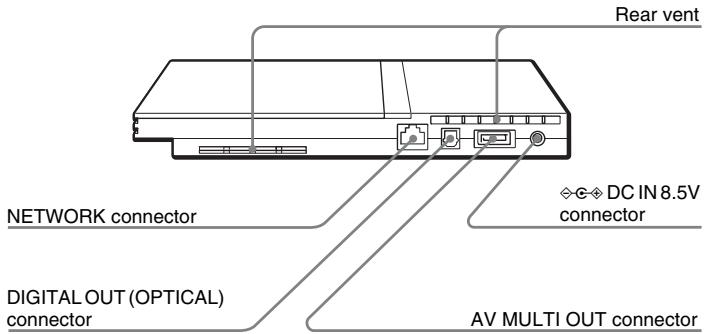
Note
For part names of the Analog Controller (DUALSHOCK®2), see "Using the Analog Controller (DUALSHOCK®2)" ( 一 page 17).
Connecting to a TV
Before connecting
- Do not plug the AC power cord for the console into the electrical outlet until you have made all other connections.
- Check that the TV is turned off.
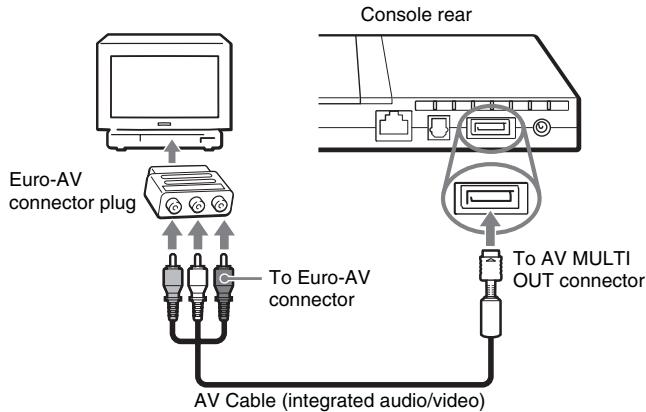
Connecting to a TV using the supplied AV Cable
Connect the console to the TV as shown below.
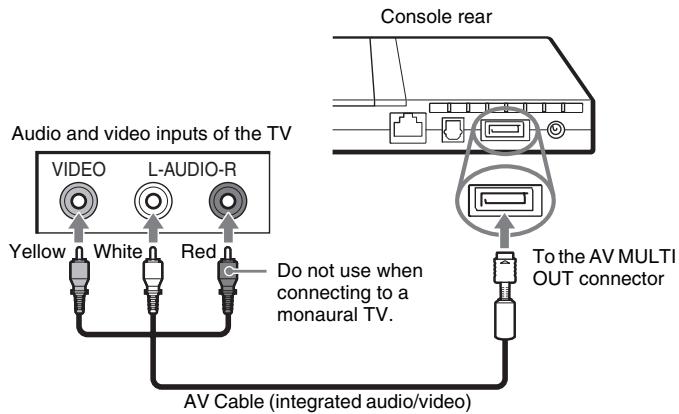
Caution
If you display a still image on a plasma or projection TV screen for an extended period of time, "ghosting" may occur. This is a characteristic of these types of TVs. Static, non-moving images, such as console setting menus, DVD menus or paused images, may leave a faint image permanently on the TV screen if left on for an extended time. Refer to the instructions supplied with your TV for details.
Except those of LCD screen types
Note
The console can be connected to a VCR or an integrated TV/VCR. Note, however, that if you play a DVD with copy-protection encryption, picture quality may be reduced.
Connecting to a TV with a Euro-AV connector using the Euro-AV connector plug
Connect your PlayStation®2 console to the Euro-AV connector (SCART) on the TV using the Euro-AV connector plug and AV Cable (integrated audio/video), making sure you match the colour-coded plugs of the AV Cable to the matching jacks of the connector plug.
After connecting
Set your TV to the appropriate video input mode. Refer to the Instruction Manual of your TV.
When using cables sold separately
Picture quality differs depending on the type of cable used. Use the information below to determine the best connection method.
If you use a cable sold separately, refer to the instructions supplied with the cable.
| TV | Cable type |
| A TV with S VIDEO inputs | SVIDEO Cable (SCPH-10060 E) |
| A TV without video inputs | RFU Adaptor (SCPH-10072 C) |
| A TV with Euro-AV (SCART) connector | Euro-AV Cable (SCPH-10142) |
| A TV with component video input connectors | Component AV Cable (for PlayStation®2) (SCPH-10100 E) |
Picture quality scale

AV Cable (supplied)
SVIDEO Cable
Component AV Cable
RFU Adaptor
This scale is intended only as a reference. Depending on the product or condition of your TV, the picture quality may be different.
When using the Euro-AV Cable, picture quality may vary depending on your TV's AV connection.
For optimum picture quality, connect your Euro-AV cable to an RGB-compatible socket on your TV. Refer to the instructions supplied with your TV for details.
Notes
- The DVD player's progressive scan mode is only available when playing a disc recorded in NTSC format, and viewed on a TV that supports progressive scan (480p).
- You cannot connect the console to a TV with component video inputs that are exclusively for HDTV use (Y PB PR). Refer to the instructions supplied with your TV for details.
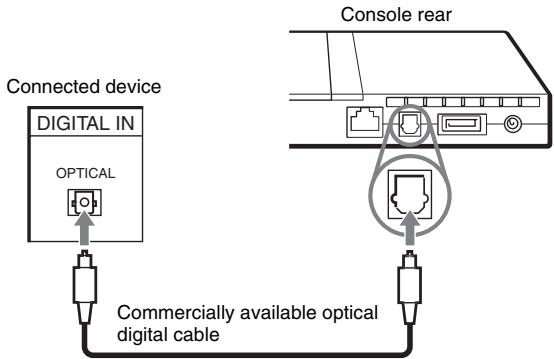
Connecting digital audio equipment
By using a commercially available optical digital cable, you can enjoy surround sound with the effect of being in a movie theatre or a concert hall. When connecting the console to audio equipment with digital connectors, refer to the instructions supplied with the device to be connected.
Notes
- If you connect the console to audio equipment using an optical digital cable, it may affect the audio output of some PlayStation®2 format software with the result that no sound is produced. If this happens, use a cable such as the supplied AV Cable (integrated audio/video) and connect it to the console's AV MULTI OUT connector. Do not use an optical digital cable.
- After connecting digital audio equipment, set "Digital Out (Optical)" to "On" in the System Configuration menu. For details, see "Digital Out (Optical)" ( 一 page 37).
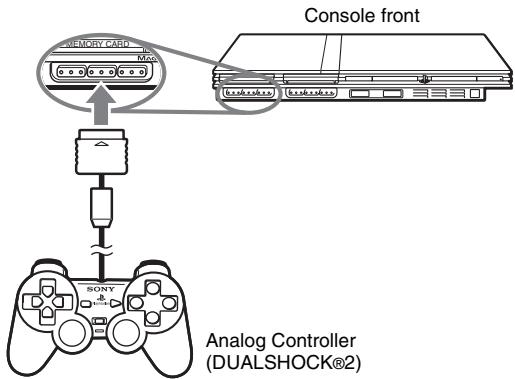
Connecting the controller
1 Insert the Analog Controller (DUALSHOCK®2) into a controller port of the console.
Note
Some software titles designate a specific controller port to be used. Refer to the instructions supplied with the software for details.
Connecting the AC adaptor and AC power cord

Warnings
- The socket-outlet shall be installed near the equipment and shall be easily accessible.
- Do not plug the AC power cord for the console into the electrical outlet until you have made all other connections.

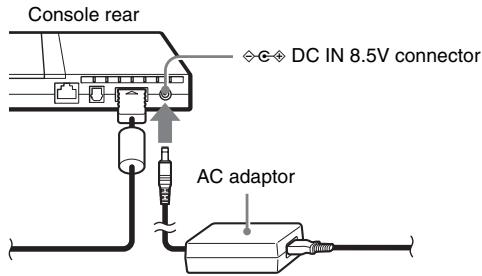
Connect the AC power cord to the AC adaptor.
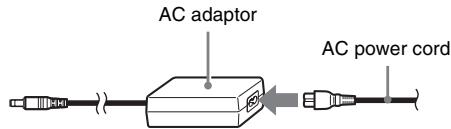

Plug the connector of the AC adaptor into the DC IN 8.5V connector on the console rear.

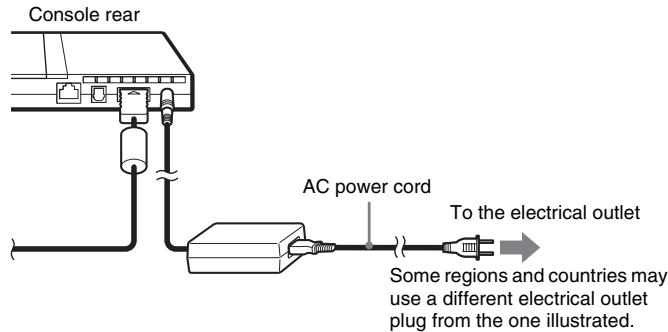
Plug the AC power cord into the electrical outlet.
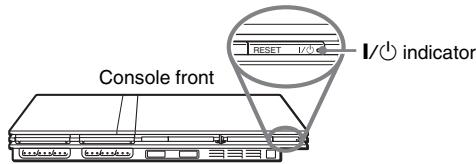
The / (on/standby) indicator on the console front will light up in red to indicate that the console is in standby mode.
Turning the console on and off
Before turning on the console
Do not turn on the console until you have finished these steps. Refer to the instructions supplied with your TV for details.
- Turn on the TV.
- Change your TV setting to display output from the line to which the console is connected.
Turning on the console
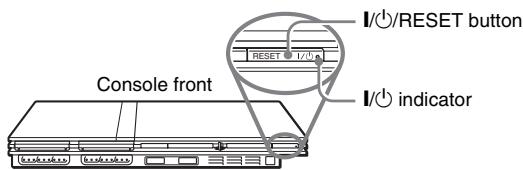
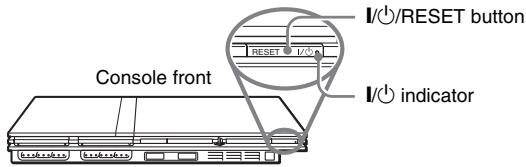
1 Check that the I/ (on/standby) indicator on the console front is lit up in red.
2 Press the I/ (on/standby)/RESET button on the console front.
The I/O indicator on the console front will turn green and output from the console will be displayed on the TV.
Notes
- The first time you turn on the console after purchase, screens for setting "Language", "Time Zone" and "Daylight Savings Time (Summer Time)" will be displayed. Follow the on-screen instructions to complete the settings.
- If you connect the console to a wide-screen TV, set "Screen Size" in the System Configuration menu ( 艹 page 37).
Turning off the console
1 Press and hold the I/RESET button on the console front for more than a second.
The I/ indicator will turn red to indicate that the console has entered standby mode.
Warning
The power is not completely turned off when the console is in standby mode. If you do not plan to use the console for an extended period of time, unplug the AC power cord from the electrical outlet.
Games
Playing a game
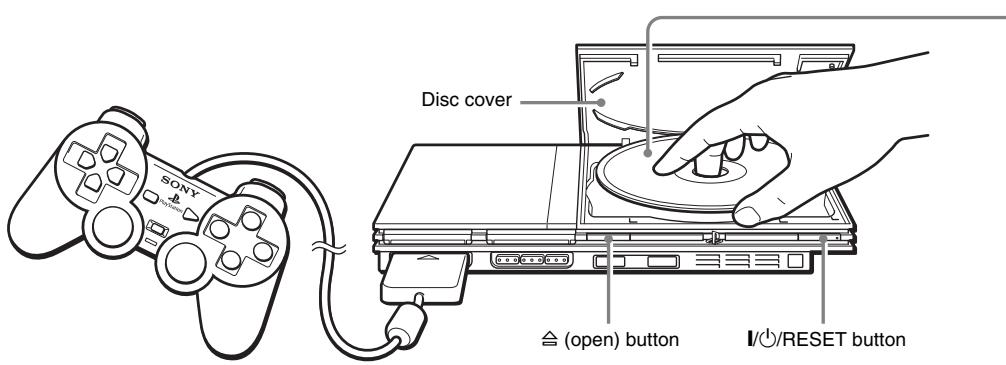
Place the disc in the console with the label side facing up.
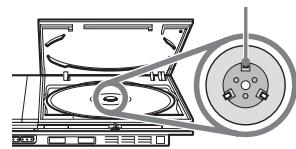
Place the disc so that all three tabs are above the disc's surface.
Before playing a game
Check that the connections to the TV and audio equipment are correct and that the precautions have been met.
"Precautions" (page 4)
"Connecting to a TV" (→ page 9)
"Connecting the controller"(page 12)
- "Connecting the AC adaptor and AC power cord" (▶ page 13)
Note
To play online games, you first need to connect to and set up a network. See "Connecting to a network" ( 一 page 42) for details.
Starting a game
1 Turn on the console (page 14).
The main menu is displayed (▶ page 35).
2 Press the (open) button on the console front.
The disc cover opens.
3 Place the disc in the console.
Set the disc in the disc holder with the label side facing up.
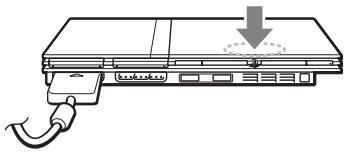
4 Close the disc cover.
Push the middle of the disc cover. After the disc cover is closed, the game will start.
Push the middle of the disc cover.
Notes
- You can also start a game from the Browser screen (▶ page 35).
- If you turn on the console after inserting a disc, the game will start automatically.
To reset a game
Press the / (on/standby)/RESET button on the console front. Do not accidentally press the / /RESET button while playing a game, as doing so will cause the game to reset.
Ending a game
Caution
When removing a disc, check that the disc has stopped completely. Do not touch the disc if it is spinning, as doing so may cause injury, damage to the disc or console malfunction.
1 Press the button on the console front.
2 Remove the disc.
Hold down the black centre part of the console, and then lift the disc by the edges.
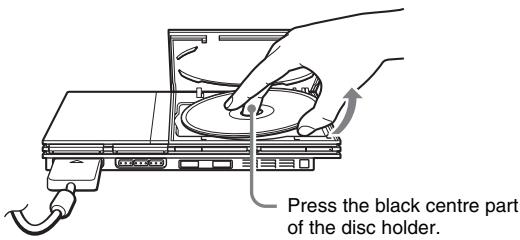
3 Close the disc cover.
4 Press the I/O/RESET button.
The main menu is displayed (→ page 35).
Changing game discs
1 Open the disc cover and remove the disc.
When removing a disc, hold down the black centre part of the disc holder and then lift the disc by the edges.
2 Insert a disc.
3 Close the disc cover and reset the console.
The new game will start.
Note
You do not need to turn off the console when changing games.
Using the Analog Controller (DUALSHOCK®2)
The Analog Controller (DUALSHOCK®2) is equipped with a pressure-sensitive button function. It also has a vibration function.
Part names
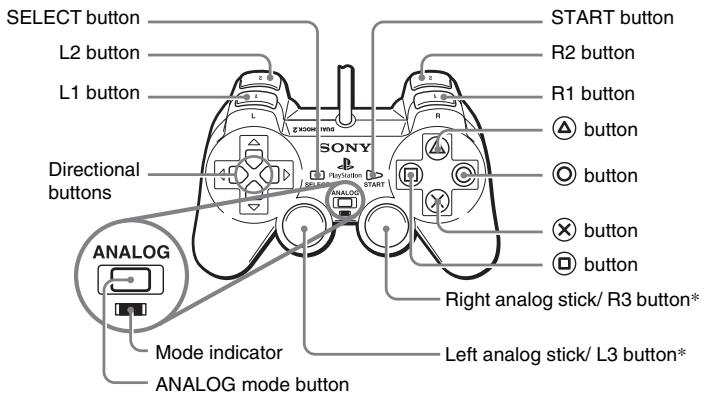
- The left and right analog sticks, or the L3 and R3 buttons, function only in analog mode (indicator: red).
- The L3 and R3 buttons function when the analog sticks are pressed.
Note
Before using the Analog Controller (DUALSHOCK®2), with the console turned on, rotate the left and right analog sticks once with your thumbs before starting a game. Do not twist the analog sticks, but rotate as if drawing a circle as shown in the diagram.
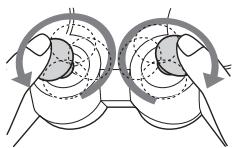
About mode switching
The ANALOG mode button can be used to switch between two modes. Switch to the appropriate mode for use. Note, however, that some software titles make this adjustment automatically.

Notes
- When using the Analog Controller in digital mode, the left and right analog sticks do not function. Also, the pressure-sensitive button function is turned off.
- Depending on the software, you may not be able to switch modes even if you press the ANALOG mode button.
About analog controls
- When playing a PlayStation®2 format software title, you can use all buttons in analog mode except for the START, SELECT, L3 and R3 buttons.
- When playing a PlayStation® format software title, only the left and right analog sticks can be used in analog mode.
Note
Depending on the software, the buttons for use in analog mode may be limited. Refer to the instructions supplied with the software for details.
About the vibration function
The vibration function can be set to ON or OFF in the software options menu.
Note
Depending on the software, the vibration function may be set to "On" automatically.
About using the Analog Controller (DUALSHOCK®) (SCPH-110 E)
You can use the Analog Controller (DUALSHOCK®) (SCPH-110 E) with the PlayStation®2 console, but the functions of the buttons in analog mode may be different from those of the Analog Controller (DUALSHOCK®2). Only the left and right analog sticks can be used in analog mode.
Note
Not all PlayStation®2 format software titles support the use of the Analog Controller (DUALSHOCK®) (SCPH-110 E). The Analog Controller (DUALSHOCK®2) should be used in such cases.
Using Memory Cards
You can save and load game data using a Memory Card. You can also delete game data or copy game data from one Memory Card to another.
About Memory Card types
There are two types of Memory Cards. Select a Memory Card suitable for the software in use.
| Memory Card type | Compatible software | Amount of memory |
| Memory Card (8MB) (for PlayStation®2) (SCPH-10020 E) | PlayStation®2 format software | Approx. 8 MB |
| Memory Card (SCPH-1020 E) | PlayStation® format software | 15 memory blocks (approx. 120 KB) |
Note
The Memory Card (8MB) (for PlayStation®2) uses "MagicGate", a technology that helps protect copyrighted content through data encryption and hardware authentication.
MAGICGATE is a term of copyright protection technology developed by Sony Group.
"MagicGate" does not guarantee compatibility with other products bearing the "MagicGate" trademark.
Inserting a Memory Card
Insert the Memory Card into a MEMORY CARD slot on the console front.
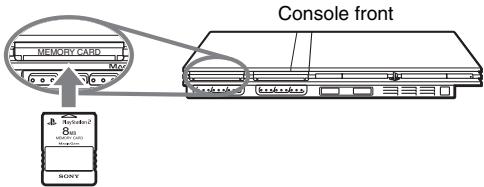
Note
Some software titles designate a specific MEMORY CARD slot to use. Refer to the instructions supplied with the software for details.
Saving or loading game data
Depending on the software, the procedure for saving or loading may vary. Refer to the instructions supplied with the software for details.
Copying or deleting game data
1 At the Browser screen (▶ page 35), use the directional buttons to select the icon for the Memory Card you want to use for copying or deleting data and then press the × button.
2 Select the icon for the data you want to copy or delete, and then press the × button.
3 Select "Copy" or "Delete", and then press the button.
When copying game data, check that two Memory Cards are inserted in the console. If you have selected "Delete", skip to step 5.
4 Select the destination, and then press the × button.
5 Select "Yes", and then press the button.
While copying or deleting data, do not remove the Memory Cards.
6 When copying or deleting is completed, press the button.
Notes
- To view information about a game data item, select the icon for the data and then press the button to check the details.
-
Compatibility between software and Memory Cards:
-
You cannot save or copy PlayStation®2 format software to a Memory Card (SCPH-1020 E).
- You cannot save PlayStation® format game data to a Memory Card (8MB) (for PlayStation®2). You can, however, copy PlayStation® format game data from a Memory Card (SCPH-1020 E) to a Memory Card (8MB) (for PlayStation®2) for storage purposes. Note that such game data cannot be loaded directly from a Memory Card (8MB) (for PlayStation®2).
Audio CDs
Playing an audio CD
Playing a CD
1 Turn on the console and insert the disc (→ page 15).
Follow steps 1 to 4 of "Starting a game".
The track numbers are displayed.
2 Using the directional buttons, select the track number you want to play and then press the × button.
Playback begins.
Notes
- If you turn on the console after inserting a disc, the track numbers are displayed automatically.
- You can also start playback from the Browser screen ( 一 page 35).
Caution
To play an audio CD recorded in DTS format, you must connect a device with a DTS decoder to the DIGITAL OUT (OPTICAL) connector ( page 12).
Note that an extremely loud noise may be emitted if the device does not have a DTS decoder or if it is connected to the AV MULTI OUT connector.
Operating the CD player during playback
Using the directional buttons, select the icon for the desired track and then press the button.
| Icon (button*) | Function |
| (L1 button) | Go to the beginning of the current or previous track |
| (L2 button) | Fast reverse |
| (R2 button) | Fast forward |
| (R1 button) | Go to the beginning of the next track |
| (START button) | Start playback |
| (START button) | Pause playback |
| (SELECT button) | Stop playback |
- You can operate directly by pressing the buttons of the Analog Controller (DUALSHOCK®2).
Note
You can also use the DVD Remote Control (for PlayStation®2) (sold separately).
Ending audio CD playback
1 Using the directional buttons, select and then press the × button.
Playback stops. Press the (open) button on the console front to remove the disc.
Playing in various modes
You can set for "Play Mode" and "Repeat".
| Play Mode | Normal | Plays tracks as recorded on the CD |
| Program | Plays tracks in a specified order | |
| Shuffle | Plays tracks in a random order | |
| Repeat | Off | Does not play the CD repeatedly |
| All | Plays all tracks repeatedly | |
| 1 | Plays a track repeatedly |
1 At the Browser screen (▶ page 35), use the directional buttons to select the audio CD icon and then press the button.
The Play Options screen is displayed.
2 Select "Play Mode" or "Repeat", and then press the × button.
3 Select the desired setting, and then press the button.
If you select "Program", the screen for specifying track order will be displayed. Select the tracks you want to play.
4 Press the button.
The Browser screen is displayed.
5 Select the audio CD icon, and then press the × button.
The track numbers are displayed, and the setting option is shown in the lower left of the screen.
6 Select the desired track, and then press the × button.
Playback begins.
Notes
- You can also access the Play Options screen from the screen displaying the tracks by selecting the Audio CD icon in the upper left corner of the screen and pressing the button.
- You can set "Play Mode" and "Repeat" at the same time.
DVDs
Watching a DVD
You can operate the DVD player using the following methods.
- Using the on-screen Control Panel
- Operating directly using the Analog Controller (DUALSHOCK®2)
- Using the DVD Remote Control (for PlayStation®2) (sold separately)
The following instructions assume use of the Control Panel to operate the DVD player. Some operations may be different depending on the method used.
Notes
- For details about playing a DVD, refer to the instructions supplied with the DVD.
- The PlayStation®2 console plays disc content as recorded in the DVD software.
Note that not all features are available on all DVDs.
Using the Control Panel
1 Start playback of the DVD (→ page 24).
2 Press the SELECT button.
The Control Panel is displayed. If you press the SELECT button again, the display will change its position on the screen.
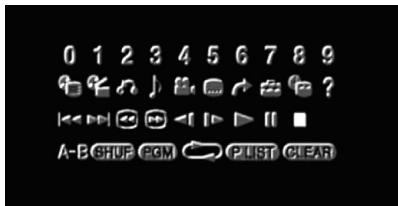
3 Using the directional buttons, select an icon and then press the × button.
Note
To turn off the Control Panel, press the SELECT button (once or twice), or press the button.
Control Panel item list
You can access the following options in the Control Panel.
| Icon | Function | |
| Menu | Displays the DVD-Video menu | |
| Top Menu | Displays the DVD-Video menu | |
| ○ | Return | Returns to the previously selected screen within the DVD's menu |
| J | Audio Options | Displays and changes audio options on DVDs with multiple audio tracks |
| ○ | Angle Options | Displays and changes viewing angles on DVDs recorded with multi-angle options |
| ○ | Subtitle Options | Displays and changes subtitle options on DVDs with subtitle options |
| → | Go To | Skipping to the selected title, chapter or the specified time, and starts playback (↔ page 24) |
| ○ | Setup | Displays and changes options for language, picture quality, Parental Control level, audio, etc. (↔ page 28) |
| ○ | Time Display | Displays the current title or chapter number, the elapsed time, etc. (↔ page 25) |
| ? | Help | Displays the direct button functions of the Analog Controller (DUALSHOCK®2) |
| 0~9 | Go to Chapter | Used to enter the number of a chapter you want to play (↔ page 24) |
| ←/→ | Previous/Next | Returns/skips to the beginning of the current, previous or next chapter |
| ←/→ | Search | Fast reverses/forwards playback on the screen to help you find a particular scene (↔ page 25) |
| ←/→ | Slow | Changes to playback/reverse playback in slow-motion |
| Icon | Function | |
| ▲ | Play | Starts playback |
| II | Pause | Pauses playback |
| ■ | Stop | Stops playback (▶ page 24) |
| A-B | A-B Repeat | Specifies a scene for playback, and starts playback of the scene that has been set (▶ page 27) |
| SHUF | Shuffle Play | Begins playback of titles or chapters in a random order (▶ page 27) |
| PGM | Program Play | Begins playback of titles or chapters in a programmed sequence (▶ page 26) |
| → | Repeat Play | Selects repeated playback of all the titles on the disc, or one title or one chapter (▶ page 27) |
| PLIST | Original/Play List | For DVD-RW discs (VR mode), selects Original or Play List content to play (▶ page 26) |
| CLEAR | Clear | Cleans selected numbers or playback modes (▶ page 28) |
Notes
- You can use "?" to check the options that can be accessed directly using the buttons of the Analog Controller. To access the options directly using the controller, you must clear the Control Panel from the screen.
- Depending on the playback mode, some options may not be available or cannot be adjusted.
Playing a DVD
1 Turn on the console and insert a disc (→ page 15).
Follow steps 1 to 4 of "Starting a game". Playback begins.
Notes
- If you turn on the console after inserting a disc, playback will begin automatically.
- You can also start playback from the Browser screen (▶ page 35).
Ending DVD playback
1 During playback, select in the Control Panel (▶ page 22) and then press the × button.
Playback stops. Press the (open) button on the console front, and then remove the disc.
Playing a DVD from the last stopping point (Resume Play)
1 During playback, select in the Control Panel (→ page 22) and then press the button.
2 Select , and then press the button.
Playback begins from the point where you stopped the disc in step 1.
To clear Resume Play
After step 1, select and then press the button.
Selecting a specific scene for playback
Selecting a scene by chapter number
1 During playback, select the desired chapter number in the Control Panel (→ page 22) and then press the × button.
Playback of the selected chapter begins. If you want to play a chapter with a single digit number (i.e. 1-9), enter a leading zero. For example, enter as "01".
Selecting a scene by title number, chapter number or by specifying the time
1 During playback, select in the Control Panel (▶ page 22) and then press the × button.
2 Select an item, and then press the button.
| Title | Specifies the title number |
| Chapter | Specifies the chapter number |
| C XX:XX:XX (or T XX:XX:XX) | Specifies the elapsed time for the chapter (or title) |
3 Select the numbers for the desired scene, and then press the button.
Playback of the selected chapter begins.
Finding a particular point on a DVD (Search)

You can search either forwards or backwards to quickly locate a particular point on a DVD.
1 During playback, select or in the Control Panel ( page 22) and then press and hold the × button.
Search speed changes as shown below when you press either the up or down directional button while holding down the button.
Search 3
Search 2
Search 1
- Slow
2 Release the button when you reach the point you are searching for.
Playback returns to normal speed.
Note
To use the Analog Controller to Search during playback, press and hold down the L2 or R2 button to begin searching. Use the directional buttons to change speeds. Release the L2 or R2 button when you reach the point you are searching for.
Displaying playback information

You can display information such as the current title number or elapsed time.
1 During playback, select in the Control Panel (▶ page 22) and then press the × button.
The display changes as shown below each time you press the button.
| Title X Chapter X | Title number and chapter number | ||
| Title X Chapter X C XX:XX:XX | Elapsed time of current chapter | ||
| Title X Chapter X C - XX:XX:XX | Remaining time of current chapter | ||
| Title X Chapter X T XX:XX:XX | Elapsed time of current title | ||
| Title X Chapter X T - XX:XX:XX | Remaining time of current title | ||
| (Off) | |||
Selecting Original or Play List for DVD-RW playback PLIST
When using a DVD-RW disc (VR mode), you can select the type of titles you want to play.
1 With playback stopped, select PLST in the Control Panel (→ page 22) and then press the × button.
Original and Play List will be selected in turn each time you press the button.
| Original | Plays content in the originally recorded sequence |
| Play List | Plays edited content. Play List is the default setting. |
Notes
- Slow-motion play in reverse is not available for DVD-RW discs (VR mode).
- You cannot use this function with Resume Play. Clear Resume Play (▶ page 24) before selecting this feature.
Using the playback modes
Using the various playback modes, you can play titles or chapters in the order you want or repeat playback of a specific scene. There are four playback modes:
Program Play (▶ page 26)
- Shuffle Play (▶ page 27)
- Repeat Play (→ page 27)
A-B Repeat ( page 27)
The following instructions assume use of the Control Panel (▶▶ page 22) to operate the DVD player.
Notes
- You can play combinations of Program Play, Shuffle Play, and Repeat Play. Note, however, that some Shuffle Play or Repeat Play options may not be available depending on the combination.
- The PlayStation®2 console plays disc content as recorded in the DVD software.
Program Play PGM
You can create programmes to play titles and chapters in any order.
1 During playback, select PcM in the Control Panel (→ page 22) and then press the × button.
2 Select a programme number, and then press the × button. If no programmes have been set, the only option will be "1. Title".
3 Select the title number, and then press the × button.
4 Select the chapter number, and then press the button.
To play all the chapters, select "All". Repeat steps 2 to 4 to set other titles or chapters.
5 Press the START button.
Program Play begins.
Note
The setting will not be cleared after Program Play finishes.
Shuffle Play SHUF
You can set this option for random playback of all titles or chapters recorded on a disc. Playback order will be different each time Shuffle Play is used.
1 Select SHUF in the Control Panel (→ page 22), and then press the × button.
The display changes as shown below each time you press the button.
| Title Shuffle | Plays titles in random order |
| Chapter Shuffle | Plays chapters in random order |
| Shuffle Off | Clears Shuffle Play |
2 Select , and then press the button.
Repeat Play

You can set this option to play titles or chapters repeatedly.
1 Select in the Control Panel (→ page 22), and then press the × button.
The display changes as shown below each time you press the button.
| Disc Repeat | Repeats playback of all titles |
| Title Repeat | Repeats playback of one title |
| Chapter Repeat | Repeats playback of one chapter |
| Repeat Off | Clears Repeat Play |
2 Select , and then press the button.
A-B Repeat A-B
You can set a specific scene to be played repeatedly.
1 During playback, select A-B in the Control Panel (▶ page 22) and then press the × button at the point you want to start repeated playback.
The starting point (point A) is set.
2 Press the × button at the point you want to end repeated playback.
The ending point (point B) is set, and repeated playback of the section from A to B begins.
Clearing playback modes CLEAR
Clearly playback modes to allow normal playback.
1 Select CLEAR in the Control Panel (→ page 22), and then press the × button.
A message stating, "Play mode contents cleared", is displayed and the console returns to normal playback.
Note
If multiple playback modes have been set in a combination, all playback modes are cleared.
Adjusting DVD player settings
You can use the Control Panel to adjust DVD player settings, such as the language for subtitles, audio language, and Parental Control level.
Notes
- Some DVDs do not support all settings. The PlayStation®2 console plays disc content as recorded in the DVD software. If the DVD does not support the features listed, you will not be able to change the settings.
-
The following options are not available during playback or Resume Play ( ·s page 24). Clear Resume Play before changing these settings.
-
"Menu", "Audio" and "Subtitles" in Language Setup
- "TV Type" and "Progressive" in Screen Setup
- "Parental Control" in Custom Setup
- "DTS" and "Audio Track Auto Select Mode" in Audio Setup
You can change DVD player settings using the following procedure:
1 Select in the Control Panel (→ page 22), and then press the button.
The Setup icon bar is displayed.
2 Select the icon for the setting you want to change, and then press the × button.
The current setting for each item is displayed.
3 Select the desired item, and then press the button.
The menu option becomes active and can be selected.
4 Select the desired setting, and then press the button.
The setting of the item is completed. For details, see the instructions for each item ( pages 29 to 34).
Notes
- The default setting for each menu item is underlined in the explanations below.
- To return to the Control Panel after making settings, press the SELECT button.
-
Settings are saved when you do any of the following:
-
Stop playback (including stopping Resume Play)
- Open the disc cover
Setting language options
In "Language Setup" you can choose the language for the DVD's menu, audio and subtitles. Note that if you select a language that is not recorded on the DVD, one of the recorded languages is selected automatically.
| Menu | Selects the language for the DVD's menu |
| Audio | Selects the language for the DVD's audio track |
| Subtitles | Selects the language for the DVD's subtitles |
Note
If you select "Audio Follow" for subtitles, the subtitle language will automatically be set to match the language selected for the DVD's audio track.
Setting TV display options
In the Screen Setup menu, you can set the screen size (aspect ratio) and other options that affect picture quality.
TV Type
You can set the aspect ratio to match the screen of the connected TV.
| 16:9 | Select this option when using a wide-screen TV or a standard TV with special 16:9/wide-screen functionality. |
| 4:3 Letter Box | Select this option when using a standard TV. This setting displays a wide picture with margins on the upper and lower portions of the screen. |
| 4:3 PAN SCAN | Select this option when using a standard TV. This setting displays a picture adjusted to the height of the screen, cutting off portions at left and right that do not fit. |
Note
When you set "Progressive" to "On", "TV Type" is automatically set to "16:9".
DNR (Digital Noise Reduction)
You can use this setting to help reduce roughness in the on-screen image and produce a cleaner picture.
| Off | DNR is not used. |
| DNR1 | Increases picture quality |
| DNR2 | Increases picture quality (maximum) |
Notes
- "DNR2" is more effective for reducing image roughness than "DNR1", but in some cases an afterimage may appear. If this occurs, select "Off".
- The DNR function may produce limited results on some DVDs.
- When you set "Progressive" to "On", "DNR" is automatically turned off and cannot be turned on.
Outline Sharpening
You can sharpen or soften the outline of the on-screen image. The higher the value, the sharper the outline. Normally, select "0".
| •-2 | •-1 | •0 | •+1 | •+2 |
Note
Depending on the DVD, Outline Sharpening may produce limited results.
Display
During playback, you can display playback status information in the top right corner of the screen for a few seconds.
| On | Playback status information is displayed for a few seconds. |
| Off | Playback status information is not displayed. |
Progressive
You can display an image in which the picture updates all the lines in one pass. In most cases, this results in a clearer, flicker-free image. This feature is available only if your TV and AV Cable* support progressive scan (480p).
- The Component AV Cable (for PlayStation®2) (sold separately) is compatible with progressive scan.
| On | Select this option when the console is connected to a TV that supports progressive scan (480p).* |
| Off | Select this option when the console is connected to a standard TV. |
- The DVD player's progressive scan mode is only available when playing a disc recorded in NTSC format, and viewed on a TV that supports progressive scan (480p).
Notes
- If picture quality is reduced or no image is displayed, set "Progressive" to "Off" when the console is connected to a TV without the necessary equipment. If you accidentally set this option to "On" for such a TV, picture quality may be reduced or the picture may not be displayed. To clear the setting, follow these steps:
1 Check that you have a DVD in the console.
2 Press the I/ (on/standby)/RESET button on the console front. Then press and hold down the START button of the Analog Controller (DUALSHOCK®2) in controller port 1 until the DVD picture is displayed. The "Progressive" setting is returned to "Off", allowing the DVD-Video to be displayed as normal. You can also cancel this setting using the "Clear Progressive Setting" ( page 40) option in the Version Information screen.
- DVDs can contain video-based and film-based material, which use different frame rates. When playing video-based material using progressive scan, some images may appear unnatural. If this occurs, set "Progressive" to "Off" and view in standard interlace mode.
-
When you set "Progressive" to "On", "TV Type" (* page 29) is automatically set to "16:9".
-
DVD-RW disc (VR mode) content can only be viewed in standard interlace format. The "Progressive" option is not available when playing such content.
Setting viewer options
Pause mode
You can use this option to set the picture status when playback is paused.
| Auto | A picture with moving elements is displayed without jitter. Normally select this position. |
| Frame | A picture without moving elements can be displayed at high resolution. |
Parental Control
In some regions, the viewing of some DVD content may be restricted based on viewer age or other factors. You can use the Parental Control feature to restrict the level of content that may be viewed through your console.
The lower the value, the stricter the restriction.
Setting Parental Control
1 Select "Parental Control", and then press the button.
The screen for registering a password is displayed. If a password has already been registered, the screen for confirming the password is displayed.
2 Select a number, and then press the × button.
Repeat step 2 to enter a four-digit password. If you want to clear a number, press the button. When registering a password, you are required to enter it again for confirmation.
3 Select "Region", and then press the button.
The list of region options is displayed.
4 Select the region to base the Parental Control level on, and then press the × button.
If you select "Other", see "Region code list" (▶ page 32).
5 Select "Level", and then press the button.
The list of level options is displayed.
6 Select a restriction level, and then press the button.
To clear Parental Control
With DVD playback stopped, go to step 6 in "Setting Parental Control" and set "Level" to "Off".
Region code list
To enter a Parental Control region code, select "Other" in step 4 of "Setting Parental Control" ( page 31). Use the directional buttons to select the first letter, and then press the right directional button. Then select the next letter and press the button.
| Region | Code | Region | Code |
| Austria | AT | Malta | MT |
| Belgium | BE | Netherlands | NL |
| Czech Republic | CZ | Norway | NO |
| Denmark | DK | Poland | PL |
| Finland | FI | Portugal | PT |
| France | FR | Russia | RU |
| Germany | DE | Slovakia | SK |
| Greece | GR | Spain | ES |
| Ireland | IE | Sweden | SE |
| Israel | IL | Switzerland | CH |
| Italy | IT | Turkey | TR |
| Luxembourg | LU | United Kingdom | GB |
Changing your password
In step 2 of "Setting Parental Control" (▶ page 31), complete the following steps:
1 Using the directional buttons, select "Change Password" and then press the × button.
The screen for changing the password is displayed.
2 Select a number, and then press the button.
Repeat step 2 to enter a four-digit password. You are required to enter it again for confirmation.
Playing a disc restricted by Parental Control
1 Start playback of the DVD (→ page 24).
You will be prompted to temporarily change the Parental Control level to allow playback. This usually occurs immediately at disc start-up but may also occur at different times depending on the DVD.
2 Using the directional buttons, select "Yes" and then press the × button.
The screen for entering the password is displayed.
3 Select a number, and then press the button.
Repeat step 3 to enter the four-digit password. After entering the password, playback will begin again. When DVD playback is stopped, the Parental Control level returns to the original setting.
Notes
- If you forget your password, see "Troubleshooting" (▶ page 52).
- If you do not set a password, you cannot change the Parental Control settings.
- Some DVDs with the Parental Control feature do not allow use of playback modes ( ** pages 26 to 27).
Setting sound options
Audio Digital Out
You can switch the method of outputting the audio signal when you connect the following audio devices to the DIGITAL OUT (OPTICAL) connector.

Caution
When the console is connected to an audio device without a Dolby Digital, DTS or MPEG decoder, set "Dolby Digital", "DTS" and "MPEG" to "Off". If you set these options to "On" without the necessary decoder, you may have no sound or an extremely loud noise may be emitted.
Digital Out (Optical)
This option sets the type of output for the DIGITAL OUT (OPTICAL) connector.
| On | Select this option when you want sound (audio signal) to be output through the DIGITAL OUT (OPTICAL) connector. Settings for "Dolby Digital", "DTS" and "MPEG" are displayed. |
| Off | Select this option when you do not want sound to be output through the DIGITAL OUT (OPTICAL) connector. Settings for "Dolby Digital", "DTS" and "MPEG" are not displayed. |
Dolby Digital
This option sets Dolby Digital as the output signal for the DIGITAL OUT (OPTICAL) connector.
| On | Select this option when the console is connected to an audio device with a built-in Dolby Digital decoder. |
| Off | Select this option when the console is connected to an audio device without a built-in Dolby Digital decoder. |
DTS
This option sets DTS as the output signal for the DIGITAL OUT (OPTICAL) connector.
| On | Select this option when the console is connected to an audio device with a built-in DTS decoder. |
| Off | Select this option when the console is connected to an audio device without a built-in DTS decoder. |
MPEG
This option sets MPEG AUDIO as the output signal for the DIGITAL OUT (OPTICAL) connector.
| On | Select this option when the console is connected to an audio device with a built-in MPEG decoder. |
| Off | Select this option when the console is connected to an audio device without a built-in MPEG decoder. |
Audio Track Auto Select Mode
This setting gives priority to the audio track that contains the highest number of channels when you play a DVD on which multiple audio formats (PCM, Dolby Digital, DTS or MPEG) are recorded. If PCM, Dolby Digital, DTS and MPEG have the same number of channels, the console selects PCM, Dolby Digital, DTS and MPEG audio tracks in that order.
| On | Priority given |
| Off | No priority given |
Notes
- If you set "DTS" to "Off" in "Audio Digital Out" (▶ page 33), the DTS audio track is not played.
- Depending on the DVD, the audio channel with priority may be predetermined. In this case, the audio track will be selected based on the DVD's order of priority.
DVD Volume
You can set this option if the audio output level of the DVD is low. You can set this only when "Digital Out (Optical)" is set to "Off" in "Audio Digital Out" ( page 33).
| +2 | Turns up the volume (maximum) |
| +1 | Turns up the volume |
| Standard | Normally select this option. |
Caution
If you set this option to "+" or "+2", the sound may become distorted. If this happens, change the setting to "Standard". Also note that if you set the volume too high, it may harm your hearing or damage the speakers.
Main menu
Displaying the main menu
From the main menu, you can access information and change various settings. You can also move to the following screens from the main menu. The main menu is displayed when you turn on the console without a disc inserted.
- Browser screen (▶ page 35)
- System Configuration menu (▶ page 36)
- Version Information screen (▶ page 39)
1 Turn on the console (→ page 14).
The main menu is displayed. Note that it may take some time for the main menu to be displayed.
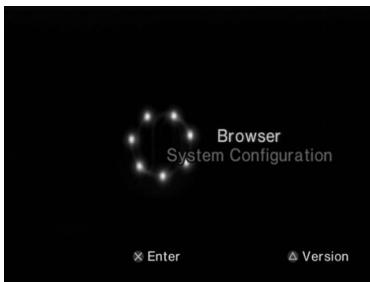
Note
If you turn on the console with a disc inserted, the main menu will not be displayed. To display the main menu, press the (open) button on the console front and remove the disc. Then press the I/ (on/standby)/RESET button to reset the console.
Using the Browser screen
You can do the following from the Browser screen:
- Copy or delete game data saved on a Memory Card
- Start a game
- Start playback of an audio CD
- Start playback of a DVD
1 Display the main menu (→ page 35).
2 Using the directional buttons, select "Browser" and then press the × button.
The Browser screen is displayed.
3 Insert a disc or Memory Card.
The icon for the inserted item is displayed on the Browser screen.
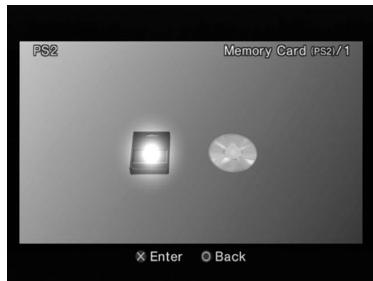
4 Select an icon, and then press the button.
- When you select the Memory Card icon, icons for data saved on the Memory Card are displayed. To copy or delete saved game data, see "Copying or deleting game data" (▶ page 19).
- If you select the icon for a PlayStation®2 or PlayStation® format software disc, the game will start.
- When you select the icon for an audio CD disc, the tracks contained on the CD are displayed. See "Playing an audio CD" ( page 20).
- If you select the icon for a DVD disc, playback of the DVD will begin.
Note
The message "There is no data" is displayed on the Browser screen when no Memory Card or disc is inserted in the console.
Using the System Configuration menu
From the System Configuration menu, you can change settings for numerous options including language or time display, and audio or video output method.
1 Display the main menu (→ page 35).
2 Using the directional buttons, select "System Configuration" and then press the button.
The System Configuration menu is displayed.
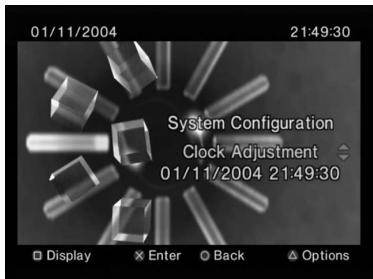
3 Select an item, and then press the button.
The menu option becomes active and can be selected.
4 Select the desired setting, and then press the button.
For details, see the instructions for each menu item (▶ pages 37 to 38).
Notes
- The default setting for each menu item is underlined in the explanations below.
- Changes to each setting are saved and remain in effect even after you turn off or reset the console.
Clock Adjustment
You can set the date and time. Use the directional buttons to set "Year", "Month", "Day", "Hour", "Minute" and "Second". The setting goes into effect when you press the button.
Optional settings
If you press the button at the "Clock Adjustment" screen, you can set options such as "Date Format" or "Time Format". Use the directional buttons and the button to make each setting.
| Time Format | Sets the system clock to either 12-hour or 24-hour clock display |
| Date Format | Sets the display order of year, month and day |
| Time Zone | Sets the time zone |
| Daylight Savings Time | Sets Standard or Daylight Savings (Summer Time). Normally select "Standard". |
Screen Size
You can set the display mode for the TV.
| 4:3 | Select this option when using a standard TV with the console. |
| Full* | Select this option when using a standard TV with the console. The black margins on the upper and lower portions of the screen are cut off. |
| 16:9 | Select this option when using a wide-screen TV or a standard TV with special 16:9/wide-screen functionality. |
- "Full" display mode is compatible with the System Configuration menu, Browser screen and audio CD screen.
Digital Out (Optical)
You can set whether to output the signal through the DIGITAL OUT (OPTICAL) connector.
| On | Select this option when you want to output signal through the DIGITAL OUT (OPTICAL) connector. |
| Off | Select this option when you do not want to output signal through the DIGITAL OUT (OPTICAL) connector. |
Component Video Out
When using the Component AV Cable (for PlayStation®2) (sold separately), you must set the mode to match the input jacks on your TV.
| Y Cb/Pb Cr/Pr | Select this option when connecting the console to component video input connectors. |
| RGB | Select this option when connecting the console to RGB input connectors. |
Note
The "RGB" setting is only for PlayStation®2 and PlayStation® format software. When you watch a DVD, the mode automatically switches to "Y Cb/Pb Cr/Pr".
Remote Control
You can set this option when using the DVD Remote Control (for PlayStation®2) (sold separately).
| Gameplay Function On | Select this option when operating PlayStation®2 or PlayStation® format software with the DVD Remote Control. |
| Gameplay Function Off | Select this option when not operating PlayStation®2 or PlayStation® format software with the DVD Remote Control. |
Note
The following limitations apply when the DVD Remote Control is set to "Gameplay Function On":
- Depending on the software, some remote control buttons may not work properly.
- The buttons of the DVD Remote Control will not work when two or more buttons are pressed at the same time.
- Some software titles may stop operating properly when a controller is removed from controller port 1. If this happens, set to "Gameplay Function Off".
Language
You can use this option to select the language displayed on the main menu, Browser screen, System Configuration menu, and Version Information screen.
| English | Displays messages in English |
| French | Displays messages in French |
| Spanish | Displays messages in Spanish |
| German | Displays messages in German |
| Italian | Displays messages in Italian |
| Dutch | Displays messages in Dutch |
| Portuguese | Displays messages in Portuguese |
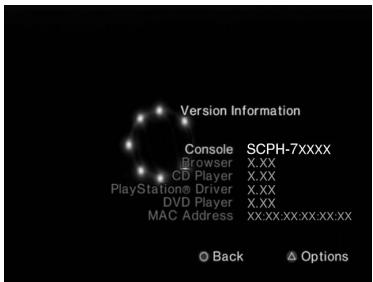
Using the Version Information screen
You can check version information for various console components by selecting this option. You can also change optional settings for some items.
1 At the main menu ( page 35), press the button.
The Version Information screen is displayed.
Optional settings
Optional settings are available for "Console", "PlayStation® Driver" and "DVD Player". "DVD Player" can be set only if the DVD player's "Progressive" option is set to "On".
1 Using the directional buttons, select an item and then press the button.
The current setting for the item is displayed.
2 Select an item, and then press the × button.
The available options are displayed.
3 Select the desired setting, and then press the button.
For details, see the instructions for each item (→ pages 39 to 41).
Note
The default setting for each menu item is underlined in the explanations below.
Console
The PlayStation®2 console automatically adjusts its internal settings for optimal playback. When "Diagnosis" is set to "On", the console makes additional adjustments.
Diagnosis
| Off | Diagnosis is turned off. |
| On | Diagnosis is turned on. |
Note
The "Diagnosis" setting will automatically return to the default setting in the following cases:
- When playback of PlayStation®2 or PlayStation® format software or a DVD begins
- When the console is reset
- When the console is turned off
PlayStation® Driver
You can set the PlayStation® Driver programme to optimise performance of PlayStation® format software.
Note
The settings will automatically return to the default settings in the following case:
- When the console is turned off
Disc Speed
| Standard | Loads discs at normal speed |
| Fast | Loads discs at high speed |
Note
Set to "Standard" in the following cases:
- When fast loading does not produce improved results
- When using a software that is not compatible with fast loading
Texture Mapping
| Standard | Displays as normal |
| Smooth | Displays with reduced roughness in on-screen images |
Note
Set to "Standard" in the following cases:
- When smooth texture mapping does not produce improved results
- If the picture does not display properly when set to "Smooth"
DVD Player
If you set "Progressive" to "On" when the console is connected to a TV without the necessary equipment, the picture quality may be reduced or the picture may not be displayed. You can clear the "Progressive" setting by following the procedure below.
Remove the DVD before clearing the setting.
Clear Progressive Setting
| No | Leaves the "Progressive" setting on |
| Yes | Clears the "Progressive" setting |
1 Display the Version Information screen.
2 Using the directional buttons, select "DVD Player" and then press the () button.
The "Clear Progressive Setting" option is displayed.
3 Press the button.
4 Select "Yes", and then press the button.
5 Press the button twice.
The display returns to the main menu.
6 Press the (open) button on the console front, and place a DVD in the console.
7 Close the disc cover.
Playback begins.
Note
The setting will not be cleared if 1) you do not start a DVD after step 4 or 2) you reset or turn off the console before step 6.
Networking
Connecting to a network
You can enjoy online games by connecting the PlayStation®2 console to a broadband network. To play all online games, you will need the following:
A Network Access Disc (supplied separately)
- A Memory Card (8MB) (for PlayStation®2) (sold separately)
- A service contract with a Broadband service provider (sold separately)
- An Ethernet Cable (sold separately)
- An External Network Device such as a Broadband enabled digital set-top box, a cable modem, an ADSL modem or a router (sold separately)
Notes
- You cannot play online games with this console using a dial-up or ISDN connection.
- USB connectivity from the External Network Device to the USB connector is not supported.
- There are two types of network cables: straight-through cable and crossover cable. Ensure that you use the correct type of cable when connecting your PlayStation®2 console to your Broadband Internet connection. Refer to the instructions supplied with the network device, or your Broadband Internet Service Provider for details.
Connecting with a network cable
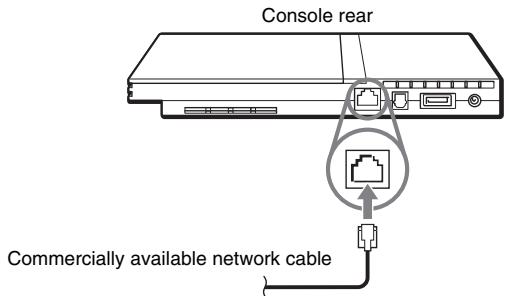
You can connect the console to a network using an Ethernet network cable connected to the NETWORK connector on the console rear. You can connect to a 100 Base-TX or 10 Base-T network. Refer to the instructions supplied with the network device for details.
Basic network setup
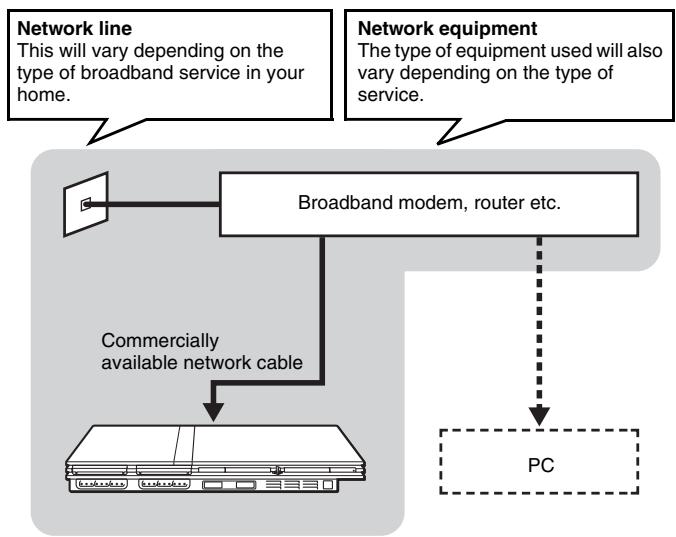
Note
When connecting the console and a PC to the network, a network device such as a router or a hub may be required. Refer to the instructions supplied with the network device for details.
For more information on network setup, visit www.playstation.com
Warning
Do not plug the AC power cord for the console into the electrical outlet until you have made all other connections.
1 Connect the Ethernet network cable to the NETWORK connector on the console rear.
2 Insert the connector on the network cable to the network device.
The connection method will vary depending on the network device. Refer to the instructions supplied with the network device for details.

Warning
Do not connect network cables or telephone cords of the following types to the network connector; too much electrical current may pass through the connector, causing a malfunction, excessive heat or fire in the connector:
- Standard residential telephone lines
- Network cables not appropriate for use with a 10Base-T/100Base-TX network
- Any ISDN (digital) compatible phone or data line
PBX phone lines - Other "unknown" types of telephone lines
Creating network settings
After you have connected a network cable to the console, you will need to create and save network settings. To do this you need a Network Access Disc supplied by registering your PlayStation®2 console. You can register your PlayStation®2 console by completing the Registration Card enclosed or by visiting www.ps2registration.com
Items you will need
To create a network setting, you will need the following items:
- A Memory Card (8MB) (for PlayStation®2) (sold separately)
- Login and network setup information provided by your Broadband Internet Service Provider
Note
Depending on the type of Internet service used, you may need to provide your Broadband Internet Service Provider with your MAC Address. You can find the MAC Address for your console listed in the Version Information screen (▶ page 39).
Additional information
Compatible software
You can play discs of the following types on the PlayStation®2 console:
| Disc type | Disc logo |
| PlayStation®2 format DVD-ROM [12 cm, Silver] | "®, PlayStation®2 logo and PAL designation |
| PlayStation®2 format CD-ROM [12 cm, Blue] | "®, PlayStation®2 logo and PAL designation |
| PlayStation® format CD-ROM [12 cm, Black] | PlayStation® logo and PAL designation |
| Audio CD [12 cm, 8 cm] | COMPACT DIGITAL AUDIO |
| DVD-Video* [12 cm, 8 cm] | DVD VIDEOTM The "DVD VIDEO" logo is a trademark. |
| DVD-RW (VR mode) [12 cm, 8 cm] | DVD RWTM The "DVD-RW" logo is a trademark. |
- Throughout this manual, the term "DVD-Video" is used to refer to DVD-R, DVD-RW (Video mode), DVD+R and DVD+RW discs.
About PlayStation®2 format CD-ROM and DVD-ROM, and PlayStation® format CD-ROM discs
The console can only play discs with the PAL designation.
Discs marked with NTSC U/C, NTSC C or
NTSC J cannot be played.
About DVD-Videos
- The console can only play discs recorded for the PAL broadcast standard. You cannot play discs recorded for other broadcast standards (such as NTSC) on this console (unless the NTSC disc displays the "ALL" label and an NTSC compatible TV is used).
- DVD-Videos are assigned a number (region code) for the geographic region in which the disc can be played. This console can only play discs marked with region code "2" or "ALL".


About DVD-R, DVD-RW, DVD+R and DVD+RW discs
- Some discs may not be playable due to scratches, dust or problems encountered during recording.
- Only discs that have been "finalised" can be played.
- Sections of video recorded on CPRM (Content Protection for Recordable Media)-compatible DVD-RW discs or on CPRM-compatible DVD-R discs using the "copy-once" capability cannot be played on this console.
Music discs encoded with copyright protection technologies
The audio CD playback feature of this product is designed to conform to the Compact Disc (CD) standard. Recently, some record companies have started marketing music discs encoded with copyright protection technologies. Some of these music discs do not conform to the CD standard and may not be playable on this product.
About DualDiscs
A DualDisc is a two-sided disc product which contains DVD recorded material on one side and digital audio material on the other side. However, since the audio material side does not conform to the Compact Disc (CD) standard, playback on this product is not guaranteed.
Accessories
Optional accessories are available for this model of PlayStation®2 console. When using optional accessories, be sure to purchase those that are compatible with this model of PlayStation®2 console. Contact the appropriate PlayStation® customer service helpline which can be found within every PlayStation® and PlayStation®2 format software manual or visit www.playstation.com for details on the accessories that can be used with this model.
Accessories not compatible with this model of PlayStation®2 console
The following accessories are not compatible with this model of PlayStation®2 console:
| Model number | Product name |
| SCPH-10350 E | Network Adaptor (Ethernet) (for PlayStation®2) |
| SCPH-1070 E | Multitap |
| SCPH-10090 E | Multitap (for PlayStation®2) |
| SCPH-10040 E | Vertical Stand (for PlayStation®2) |
| SCPH-10110 E | Horizontal Stand (for PlayStation®2) |
| - | Product that use the ™ S400 i.LINK connector |
i.LINK and i.LINK logo "B" are trademarks.
About the DVD Remote Control (for PlayStation®2)
- This model of the PlayStation®2 console features a built-in IR receiver. When operating with a DVD Remote Control (for PlayStation®2) (sold separately), do not insert an IR Receiver (for PlayStation®2) into a controller port of the console.
- When purchasing a DVD Remote Control for use with this console, choose one that does not include a separate IR Receiver Unit.
- You cannot open or close the disc cover using the DVD Remote Control.
About Multitaps
Only the Multitap (for PlayStation®2) (SCPH-70120 E)* (sold separately) can be used with this console. Do not connect Multitap products with other model numbers to the console as this may result in damage to the console.
- You can use this product with both PlayStation®2 and PlayStation® format software titles.
GUARANTEE
GUARANTEE
Thank you for buying this Product. The term "Product" means the PlayStation®2 computer entertainment system together with the accessories and/or peripherals with which it is packaged. This Guarantee does not cover any software whether or not packaged with the Product.
Sony Computer Entertainment Europe Ltd ("SCEE") guarantees that this Product is free from defects in material and workmanship that result in Product failure during normal usage in accordance with the terms set out in below and will, for a period of 1 (one) year from the date of original purchase, repair or (at SCEE's option) replace any component part of this Product, free of charge, where it is faulty due to defective materials or workmanship. Replacement will be with a new or refurbished component or unit, at SCEE's option, which is guaranteed for the remainder of the original Guarantee Period.
This Guarantee is in addition to your statutory consumer rights (under applicable law) and does not affect them in any way.
This Guarantee is given to you by Sony Computer Entertainment Europe Ltd of 30 Golden Square, London, W1F 9LD, United Kingdom.
IMPORTANT
-
If you need to claim under this Guarantee, please call your local Customer Service helpline (listed on the Customer Registration Card and in a PlayStation® and PlayStation®2 format software manuals) for return instructions and other guidance.
-
This Guarantee is only valid:
i. in Austria, Belgium, France, Germany, Italy, Luxembourg, the Netherlands, Portugal, Spain and Switzerland; and
ii. when the original sales receipt or invoice or other proof of purchase (indicating the date of purchase and retailer's name) is presented together with the faulty Product (and has not been altered or defaced since the date of original purchase); and
iii. when the Guarantee seal and the serial number on the Product have not been damaged, altered or removed.
- You may not claim under this Guarantee when the Product is damaged as a result of:
i. commercial use, accident, fair wear and tear, negligence, abuse, or misuse (including, without limitation, failure to use this Product for its normal purpose and/or in accordance with instructions on proper use and maintenance, or installation or use in a manner inconsistent with applicable local technical or safety standards);
ii. use in conjunction with any unauthorised peripheral (including, without limitation, game enhancement devices, adaptors and power supply devices);
iii. any adaptation or adjustment to, or alteration of, the Product carried out for any reason, and whether properly carried out or not;
iv. maintenance or repairs carried out other than by a SCEE authorised service facility; or
v. use in conjunction with unauthorised software, virus infection, or fire, flood or other natural calamity.
- To the extent permitted by applicable law, this Guarantee will be your sole and exclusive remedy in relation to defects in this Product and all other guarantees, warranties, terms and conditions, express or implied by statute or otherwise, in respect of this Product are excluded and neither SCEE nor any other Sony entity, or their suppliers or authorised service facilities, will be liable for any special, incidental, indirect or consequential loss or damage.
If this Product needs any repair which is not covered by this Guarantee, please call your local Customer Service helpline for advice. If your home country is not one of those listed, please contact your retailer.
Please complete and return the enclosed (Freepost) Customer Registration Card.
Specifications
General
| Power requirements | ◇⓷⓸ DC IN 8.5V |
| Electrical current consumption (approx.) | 5.3 A |
| Console dimensions (approx.) | 230 × 28 × 152 mm (w/h/d) |
| Console mass (approx.) | 900 g |
| Signal format | PAL |
| Operating temperature | 5 °C to 35 °C |
| Inputs/outputs on the console front | Controller port (2) MEMORY CARD slot (2) USB connector (2) |
| Inputs/outputs on the console rear | NETWORK connector ◇⓷⓸ DC IN 8.5V connector AV MULTI OUT connector DIGITAL OUT (OPTICAL) connector |
AC adaptor
Power requirements 100-240 V AC, 50 / 60Hz
Voltage/electrical current 8.5 V, 5.65 A output (approx.)
Adaptor dimensions (approx.) 60 × 28 × 124 ~mm(w / h / d)
Adaptor mass (approx.) 350g
Supplied accessories
page 7
Design and specifications are subject to change without notice.
Copyrights
This product incorporates copyright protection technology that is protected by method claims of certain U.S. patents and other intellectual property rights owned by Macrovision Corporation and other rights owners. Use of this copyright protection technology must be authorized by Macrovision Corporation, and is intended for home and other limited viewing uses only unless otherwise authorized by Macrovision Corporation. Reverse engineering or disassembly is prohibited.
This product is manufactured under license from Dolby Laboratories. "Dolby" and the double-D symbol are trademarks of Dolby Laboratories. Confidential unpublished works. ©1992-1997 Dolby Laboratories. All rights reserved.
"DTS" and "DTS Digital Out" are trademarks of Digital Theater Systems, Inc.
About national export control
This product may fall within the scope of national export control legislation. You must comply fully with the requirements of such legislation and of all other applicable laws of any jurisdiction in relation to this product.
About copy protection
Attempted copying of DVD's played on this device, may be prevented or restricted by copy protection technology contained on the DVD.
Attempted recording or copying of DVD's for private use by the removal or circumvention of copy protection technology may be prohibited under applicable law.
About access control
This product incorporates access control technology. Use of software not specifically designed for this product (excluding DVD-Videos and audio CDs) and copies of software designed for this product are prevented by access control. Unauthorized transfer, delivery, display, export, import, or transmission of programs, devices, or the product modified with programs or devices, to defeat the purpose of this access control feature is or may be prohibited by law.
Troubleshooting
Go through this section if you experience difficulty in operating the PlayStation®2 console. Should any problem persist, call the PlayStation® service line at the number listed on your guarantee card for assistance.
Check the following items first:
- The console is turned on.
- The AC power cord is connected properly to the electrical outlet.
- The cables are correctly and securely connected.
Check also for the TV or monitor and other connected devices.
Picture
There is no picture on the TV screen.
Check whether the I / (on/standby) indicator on the console front is lit in red. If it is red, press the I / (on/standby)/RESET button to turn on the console (the I / indicator will turn green).
Switch the input mode of the TV (or VCR) as appropriate for the connector in use on the console.
Try using another compatible AV Cable. There may be a problem with the AV Cable in use.
Set "Component Video Out" to "Y Cb/Pb Cr/Pr" in the System Configuration menu (▶ page 38) when connecting the console to the component AV inputs on a TV. Use the supplied AV Cable (integrated audio/video) to make the setting, and then connect to the TV using the Component AV Cable (for PlayStation®2) (sold separately).
Check that the inserted disc can be played with the PlayStation®2 console (→ page 45).
Picture noise appears on the TV screen.
- Check that the disc is clean and does not have any scratches. If the disc is dirty, clean it (▶ page 6).
If you move the console from a cold to a warm location, allow the console to adjust to room temperature before use.
If moisture condensation occurs, remove the disc and do not use the console for several hours until the condensation evaporates (▶ page 6).
For some output connectors on a TV, the component video output setting needs to be set. Check that the correct settings have been made (▶ page 38).
→ Some PlayStation® format software titles may not perform properly on the PlayStation®2 console. For more information, call the PlayStation® service line at the number listed on your guarantee card for assistance.
Some TVs may experience a bouncing effect in their pictures when using the PlayStation®2 console. If this happens, connect the console to another TV.
"The disc could not be read" is displayed on the screen.
- Check that the disc is placed in the console with the label side facing up (▶▶ page 15).
- Check that the disc is clean and does not have any scratches. If the disc is dirty, clean it (**) page 6).
There is no picture or picture noise appears when playing a DVD.
→ When playing a DVD, connect the console to the TV directly (▶ page 10). If the video signal from the console is coming through a VCR to the TV, copy protection on some DVDs may affect picture quality.
If the console is connected to a TV or cable that does not support progressive scan (480p), no image will be displayed when you set "Progressive" to "On" in the Control Panel. Clear the "Progressive" setting ( pages 30, 40). If picture noise appears when using a TV that supports progressive scan (480p), also clear the "Progressive" setting.
The Component AV Cable (for PlayStation®2) (sold separately) is compatible with progressive scan.
→ A DVD-R or DVD-RW disc that is not finalised cannot be played on the PlayStation®2 console.
Content of a video recorded on CPRM-compatible DVD-R or CPRM-compatible DVD-RW discs cannot be played on the PlayStation®2 console.
See also "There is no picture on the TV screen" and "Picture noise appears on the TV screen".
The aspect ratio does not change even when playing the DVD with the aspect ratio setting adjusted and/or playing 16:9 pictures of a DVD.
Depending on the DVD, the aspect ratio cannot be changed.
Check that the console is connected to the TV directly. If there is a selector or receiver (AV amplifier) connected between the console and TV, depending on the type of device connected, the aspect ratio cannot be changed.
Depending on the TV, the aspect ratio cannot be changed.
The size of the video image and the TV screen do not match.
Set the aspect ratio to match your TV screen (▶ page 29). If changing the setting does not work, try adjusting the aspect ratio of your TV. Refer to the instructions supplied with your TV for details.
Sound
There is no sound.
Switch the input mode of the TV (or VCR) as appropriate for the connector in use on the console.
Check that the TV volume is not set to "mute". Also check that the TV volume level is set properly.
If the console is connected to an audio device, check the settings on the connected device. Refer to the instructions supplied with the device for details.
Try using another compatible AV Cable (▶ page 9). There may be a problem with the AV Cable in use.
Some PlayStation®2 format software titles do not support audio output from the DIGITAL OUT (OPTICAL) connector. Connect the console to the audio device using an analog AV Cable, such as the supplied AV Cable (integrated audio/video) ( page 9).
Sound quality is poor.
Check that the disc is clean and does not have any scratches. If the disc is dirty, clean it (**) page 6).
If you move the console from a cold to a warm location, allow the console to adjust to room temperature before use.
→ If moisture condensation occurs, remove the disc and do not use the console for several hours until the condensation evaporates (▶ page 6).
Some PlayStation® format software titles may not perform properly on the PlayStation®2 console. For more information, contact the appropriate PlayStation® customer service helpline which can be found within every PlayStation® and PlayStation®2 format software manual.
There is no sound or the sound quality from the digital audio equipment is poor.
Check that the disc is clean and does not have any scratches. If the disc is dirty, clean it (**) page 6).
Set "Digital Out (Optical)" to "On" in the System Configuration menu (** page 37).
If playing a DTS audio track using an audio device with a built-in DTS decoder, check that the settings are correct (▶ pages 33, 37). If the console is connected to an audio device without a built-in DTS decoder, select tracks other than DTS audio tracks to play.
Some PlayStation®2 format software titles do not support audio output from the DIGITAL OUT (OPTICAL) connector. Connect the console to the audio device using an analog AV Cable, such as the supplied AV Cable (integrated audio/video) ( page 9).
See also "There is no sound" and "Sound quality is poor".
Surround effect is not present when playing a DVD with a Dolby Digital audio track.
- Check that the console is connected to an audio device with a built-in Dolby Digital decoder using an optical digital cable.
Check that the settings of the audio device are correct. Refer to the instructions supplied with the device for details.
Set "Dolby Digital" to "On" in "Audio Digital Out" (▶ page 33).
For some DVDs with a Dolby Digital audio track, the output signal may not comprise the entire 5.1 channel range.
Operation
The controller does not function.
If the software title is compatible only with the Analog Controller (DUALSHOCK®2), it will not work properly with the Analog Controller (DUALSHOCK®). Use a controller that is appropriate for the software title. Refer to the instructions supplied with the software for details.
Check that the controller is set to the appropriate mode for the software. Refer to the instructions supplied with the software for details.
Try using another controller that is compatible with the PlayStation®2 console. There may be a problem with the controller in use.
The console does not recognise the Memory Card. Data cannot be saved or copied to the Memory Card.
- Check that the Memory Card is compatible with the software in use (---> page 18).
Check that the Memory Card is inserted securely ( 一 page 19).
Check that you are saving the data correctly. Refer to the instructions supplied with the software for details.
Data cannot be saved if there is not enough free space on the Memory Card.
Try using another Memory Card. There may be a problem with the Memory Card in use.
Data saved on a Memory Card is corrupted.
While saving, loading, copying or deleting data, do not attempt any of the following. Doing so may damage the data.
- Do not remove the Memory Card or the controller.
- Do not open the disc cover.
- Do not reset the console.
- Do not turn off the console.
Corrupted data can be deleted in the Browser menu (▶ page 19).
The console does not function properly.
Static electricity and other similar occurrences may affect the console's operation. Turn off the console and unplug it from the electrical outlet. Then, replug and turn on the console by pressing the / /RESET button.
The I/ indicator flashes in red and the console does not work.
Do not use the console until the flashing stops. Placing the console in an extremely hot location or blocking the console's vents raises the internal temperature of the console, thereby preventing proper operation.
The console makes noise or shakes.
BecausePlayStation®2 format software titles load at a higher speed thanPlayStation®format software titles, the noise or vibration may be greater.
The DVD does not play.
- Check that the DVD has the correct region code. Also check that the broadcast signal of the disc is compatible with the console (▶ page 45).
The Parental Control feature may be set on the disc. Follow the on-screen instructions and temporarily raise the level of Parental Control ( 艹 page 32).
You forget your password.
You can clear the password using the following procedure:
1 Start a DVD, and then stop playback.
Clear Resume Play (▶ page 24). Use a DVD without the Parental Control feature.
2 At the Control Panel, select and then press the button (▶ page 22).
3 Select "Parental Control", and then press the button.
The screen to enter a password is displayed. If the screen to register a password is displayed, no password had been registered before. In this case, register a new password.
4 Press the SELECT button.
The screen to clear the password is displayed.
5 Enter the number "7444".
The registered password is cleared, and the screen for registering a password is displayed. Enter a new password ( 一 一 page 31).
Some functions are not available.
Depending on the DVD, some functions may not be available:
- Stop, Search, Slow, Program Play, Shuffle Play or Repeat Play may be prohibited.
- The audio language cannot be changed on discs that do not have multiple audio tracks. Also, some DVDs do not allow the audio language to be changed.
- If multilingual subtitles are not recorded on the DVD, you cannot change the language for the subtitles. It may not be possible to change the subtitle language or turn the subtitles off.
- If multiple angles are not recorded on the DVD, you cannot change the viewing angles. Changing the viewing angles may be prohibited.
- You can only select PLST when playing a DVD-RW disc (VR mode). Check whether a DVD-RW disc (VR mode) is inserted in the console.
Some DVD settings cannot be changed.
- Some settings cannot be changed during playback or Resume Play ( 一 page 28). Stop playback completely or clear Resume Play ( 一 page 24) before attempting to adjust the settings.
Network
Connection to the network cannot be established.
Check that the network settings are correct. Refer to the instructions supplied with the software or the information from your Internet service provider and adjust the setting accordingly.
The network is busy. Wait a few minutes, and then try to access the network again.
- Check that the network cable is properly connected (▶ page 43).
Check that you are using the correct type of network cable (▶ page 43).
Check that the network settings or connections of the network device are correct. Refer to the instructions supplied with the network device for details.
AVERTISSEMENT
Installes la console horizontally.
Installation vertical
Lecture programme (PGM)
DIGITAL OUT (OPTICAL)
DIGITAL OUT (OPTICAL)
Désactiver Balayage Progressif
USCITA AUDIO DIGITALE
DIGITAL OUT (OPTICAL)
DIGITAL OUT (OPTICAL)
Connectore DIGITAL OUT (OPTICAL)
Adattatore AC
DIGITAL OUT (OPTICAL)
DIGITAL OUT (OPTICAL)


- Caution
- Read carefully before operating your PlayStation®2 console
- Table of contents
- Preparation
- Games
- Audio CDs
- DVDs
- Main menu
- Networking
- Additional information
- Precautions
- Safety
- Health
- Use and handling
- AC adaptor and AC power cord use
- Notes on safety when using the Analog Controller (DUALSHOCK®2)*
- Connecting with a network cable
- Disc handling
- Never disassemble the console or supplied accessories
- When connecting the console to a plasma or projection* TV
- Moisture condensation
- Cleaning
- Exterior protection
- Getting started
- Checking the package contents
- Positioning the console
- Horizontal position
- Vertical position
- Note
- Part names
- PlayStation®2 console front
- PlayStation®2 console rear
- Connecting to a TV
- Before connecting
- Connecting to a TV using the supplied AV Cable
- Connecting to a TV with a Euro-AV connector using the Euro-AV connector plug
- After connecting
- When using cables sold separately
- Picture quality scale
- RFU Adaptor
- Notes
- Connecting digital audio equipment
- Connecting the controller
- Connecting the AC adaptor and AC power cord
- Warnings
- Connect the AC power cord to the AC adaptor.
- Plug the connector of the AC adaptor into the DC IN 8.5V connector on the console rear.
- Plug the AC power cord into the electrical outlet.
- Turning the console on and off
- Before turning on the console
- Turning on the console
- Turning off the console
- Warning
- Playing a game
- Before playing a game
- Starting a game
- Close the disc cover.
- To reset a game
- Ending a game
- Press the button on the console front.
- Remove the disc.
- Close the disc cover.
- Press the I/O/RESET button.
- Changing game discs
- Open the disc cover and remove the disc.
- Insert a disc.
- Close the disc cover and reset the console.
- Using the Analog Controller (DUALSHOCK®2)
- About mode switching
- About analog controls
- About the vibration function
- About using the Analog Controller (DUALSHOCK®) (SCPH-110 E)
- Using Memory Cards
- About Memory Card types
- Inserting a Memory Card
- Saving or loading game data
- Copying or deleting game data
- Playing an audio CD
- Playing a CD
- Turn on the console and insert the disc (→ page 15).
- Using the directional buttons, select the track number you want to play and then press the × button.
- Operating the CD player during playback
- Ending audio CD playback
- Using the directional buttons, select and then press the × button.
- Playing in various modes
- Watching a DVD
- Using the Control Panel
- Control Panel item list
- Playing a DVD
- Turn on the console and insert a disc (→ page 15).
- Ending DVD playback
- During playback, select in the Control Panel (▶ page 22) and then press the × button.
- Playing a DVD from the last stopping point (Resume Play)
- During playback, select in the Control Panel (→ page 22) and then press the button.
- Select , and then press the button.
- To clear Resume Play
- Selecting a specific scene for playback
- Selecting a scene by chapter number
- During playback, select the desired chapter number in the Control Panel (→ page 22) and then press the × button.
- Selecting a scene by title number, chapter number or by specifying the time
- Select an item, and then press the button.
- Select the numbers for the desired scene, and then press the button.
- Finding a particular point on a DVD (Search)
- During playback, select ↔ or → in the Control Panel ( → page 22) and then press and hold the × button.
- Release the button when you reach the point you are searching for.
- Displaying playback information
- Selecting Original or Play List for DVD-RW playback PLIST
- With playback stopped, select PLST in the Control Panel (→ page 22) and then press the × button.
- Using the playback modes
- Program Play PGM
- Shuffle Play SHUF
- Repeat Play
- A-B Repeat A-B
- Clearing playback modes CLEAR
- Select CLEAR in the Control Panel (→ page 22), and then press the × button.
- Adjusting DVD player settings
- Select the desired setting, and then press the button.
- Setting language options
- Setting TV display options
- TV Type
- DNR (Digital Noise Reduction)
- Outline Sharpening
- Display
- Progressive
- Setting viewer options
- Pause mode
- Parental Control
- Setting Parental Control
- To clear Parental Control
- Region code list
- Changing your password
- Select a number, and then press the button.
- Playing a disc restricted by Parental Control
- Start playback of the DVD (→ page 24).
- Using the directional buttons, select "Yes" and then press the × button.
- Select a number, and then press the button.
- Setting sound options
- Audio Digital Out
- Digital Out (Optical)
- Dolby Digital
- DTS
- MPEG
- Audio Track Auto Select Mode
- DVD Volume
- Displaying the main menu
- Turn on the console (→ page 14).
- Using the Browser screen
- Select an icon, and then press the button.
- Using the System Configuration menu
- Clock Adjustment
- Optional settings
- Screen Size
- Component Video Out
- Remote Control
- Language
- Using the Version Information screen
- At the main menu ( page 35), press the button.
- Using the directional buttons, select an item and then press the button.
- Select an item, and then press the × button.
- Select the desired setting, and then press the button.
- Console
- Diagnosis
- PlayStation® Driver
- Disc Speed
- Texture Mapping
- DVD Player
- Clear Progressive Setting
- Close the disc cover.
- Connecting to a network
- Basic network setup
- Connect the Ethernet network cable to the NETWORK connector on the console rear.
- Insert the connector on the network cable to the network device.
- Creating network settings
- Items you will need
- Compatible software
- About PlayStation®2 format CD-ROM and DVD-ROM, and PlayStation® format CD-ROM discs
- About DVD-Videos
- About DVD-R, DVD-RW, DVD+R and DVD+RW discs
- Music discs encoded with copyright protection technologies
- About DualDiscs
- Accessories
- Accessories not compatible with this model of PlayStation®2 console
- About the DVD Remote Control (for PlayStation®2)
- About Multitaps
- GUARANTEE
- IMPORTANT
- Specifications
- General
- AC adaptor
- Supplied accessories
- Copyrights
- About national export control
- About copy protection
- About access control
- Troubleshooting
- Check the following items first:
- Picture
- There is no picture on the TV screen.
- Picture noise appears on the TV screen.
- "The disc could not be read" is displayed on the screen.
- There is no picture or picture noise appears when playing a DVD.
- The aspect ratio does not change even when playing the DVD with the aspect ratio setting adjusted and/or playing 16:9 pictures of a DVD.
- The size of the video image and the TV screen do not match.
- Sound
- There is no sound.
- Sound quality is poor.
- There is no sound or the sound quality from the digital audio equipment is poor.
- Surround effect is not present when playing a DVD with a Dolby Digital audio track.
- Operation
- The controller does not function.
- The console does not recognise the Memory Card. Data cannot be saved or copied to the Memory Card.
- Data saved on a Memory Card is corrupted.
- The console does not function properly.
- The I/ indicator flashes in red and the console does not work.
- The console makes noise or shakes.
- The DVD does not play.
- You forget your password.
- Enter the number "7444".
- Some functions are not available.
- Some DVD settings cannot be changed.
- Network
- Connection to the network cannot be established.
- AVERTISSEMENT
- Installation vertical
- Lecture programme (PGM)
- Désactiver Balayage Progressif
- USCITA AUDIO DIGITALE
- Adattatore AC
Brand : SONY
Model : SCPH-75004
Category : Game console