
PS4 Pro - Game console SONY - Free user manual and instructions
Find the device manual for free PS4 Pro SONY in PDF.


| Product Type | Game Console |
| Model | PS4 Pro |
| Brand | Sony |
| Dimensions (W x H x D) | Approx. 295 x 55 x 327 mm |
| Weight | Approx. 3.3 kg |
| Power Supply | AC 100-240V, 50/60Hz, Max 310W |
| Processor | Custom x86-64 AMD Jaguar (8 cores) @ 2.1GHz |
| GPU | AMD Radeon (4.20 TFLOPS) |
| Memory | 8GB GDDR5 |
| Storage | 1TB HDD |
| Video Output | HDMI 2.0 (up to 4K 60fps), HDR10 |
| Audio Output | Optical digital, HDMI, analog |
| Connectivity | Wi-Fi 802.11 a/b/g/n/ac, Bluetooth 4.0, Ethernet (10BASE-T/100BASE-TX/1000BASE-T) |
| USB Ports | 3 x USB 3.0 (2 front, 1 rear) |
| Controllers Included | 1 x DualShock 4 (v2) |
| Key Features | 4K gaming, HDR support, Boost Mode for PS4 games, 1TB storage |
| Maintenance | Clean with soft dry cloth; do not use liquids. Keep vents unobstructed. |
| Safety Precautions | Do not block air vents; avoid extreme temperatures; use only supplied power cord. |
| Spare Parts | Controllers, cables, power supply (contact Sony for replacement) |
| Repairability | Not user-serviceable; contact Sony Support for repairs. |
| Package Contents | PS4 Pro console, DualShock 4 controller, HDMI cable, USB cable, power cord, mono headset, printed materials |
| Warranty | Manufacturer warranty varies by region; check warranty card. |
Frequently Asked Questions - PS4 Pro SONY
User questions about PS4 Pro SONY
0 question about this device. Answer the ones you know or ask your own.
Ask a new question about this device
Download the instructions for your Game console in PDF format for free! Find your manual PS4 Pro - SONY and take your electronic device back in hand. On this page are published all the documents necessary for the use of your device. PS4 Pro by SONY.
USER MANUAL PS4 Pro SONY
natural_image
PlayStation logo featuring stylized 'P' and CD icon (no text or symbols)PS4® Pro
Welcome to PlayStation®
Quick Start Guide
Let's get started
1 Connect to your TV.
Make all connections before plugging the AC power cord into an electricity supply. Use the supplied HDMI cable for the connection.
Rear view

To an electricity supply
You can transfer saved data from your current PlayStation®4 system to your new PS4™ system. If you intend to do this, we recommend completing the data transfer during the initial set up process for your new system. If you do it later, any saved data on the new system will be lost. For guidance on transferring data and the types of data you can transfer, refer to the User's Guide. manuals.playstation.net/gb/04.html
2 Connect to the Internet.
We recommend use of a LAN cable (sold separately) for a more stable network connection. If you prefer to use a wireless connection (Wi-Fi), don't connect a LAN cable.
Rear view
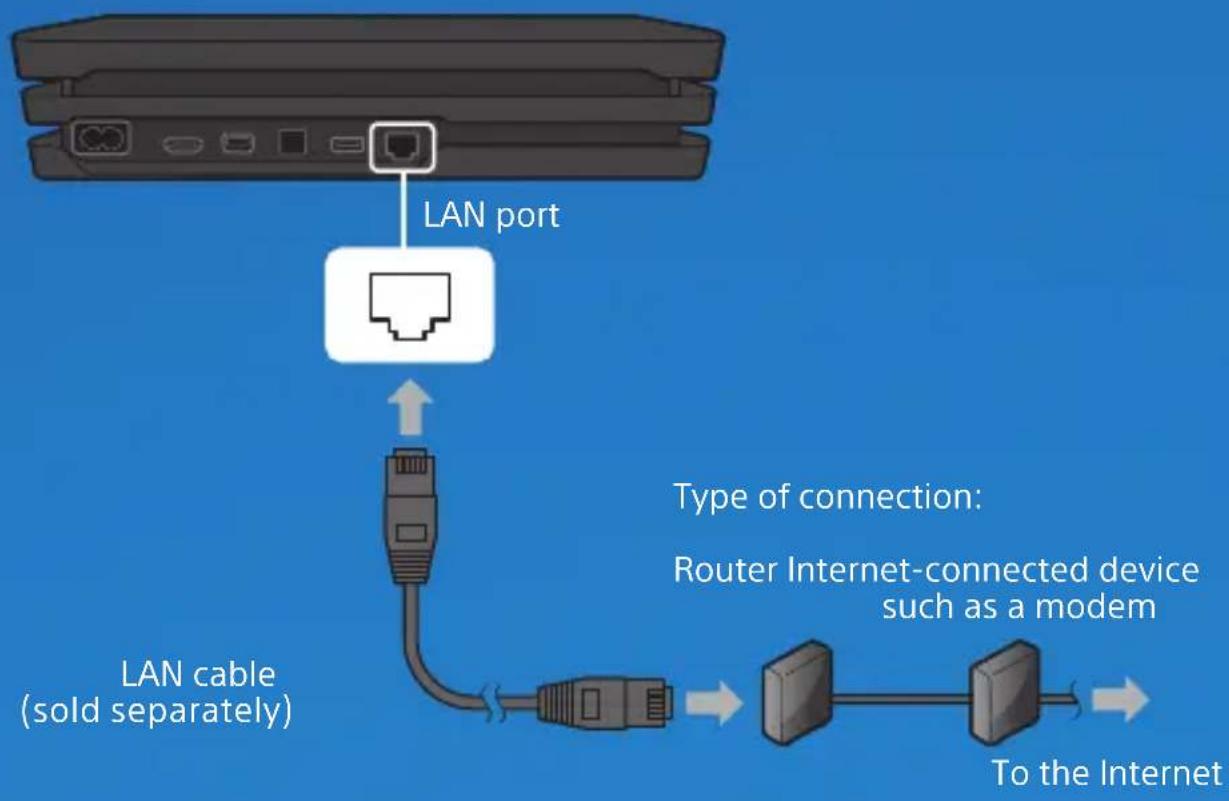
flowchart
graph TD
    A["LAN port"] --> B["LAN cable (sold separately)"]
    B --> C["Router Internet-connected device such as a modem"]
    C --> D["To the Internet"]
Get the most out of your PS4™ system by connecting to the Internet. You'll be able to play games online and connect with Friends.*1
3 Turn on your TV and set the input to HDMI.
4 Turn on your PS4™ system by pressing the (power) button.
The power indicator blinks blue, and then turns white.
Front view
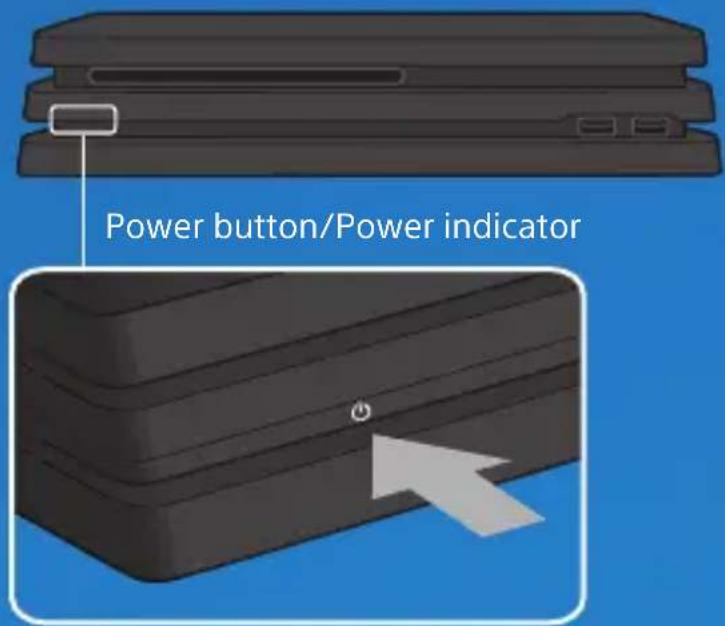
If your TV does not display a picture when the power indicator turns white, restart your system. Press the (power) button for at least 7 seconds to turn off your system, and then turn it on again.
5 Connect your DUALSHOCK®4 wireless controller to your system using the USB cable, and then press the (PS) button.
Your controller pairs with your system and turns on.
Front view
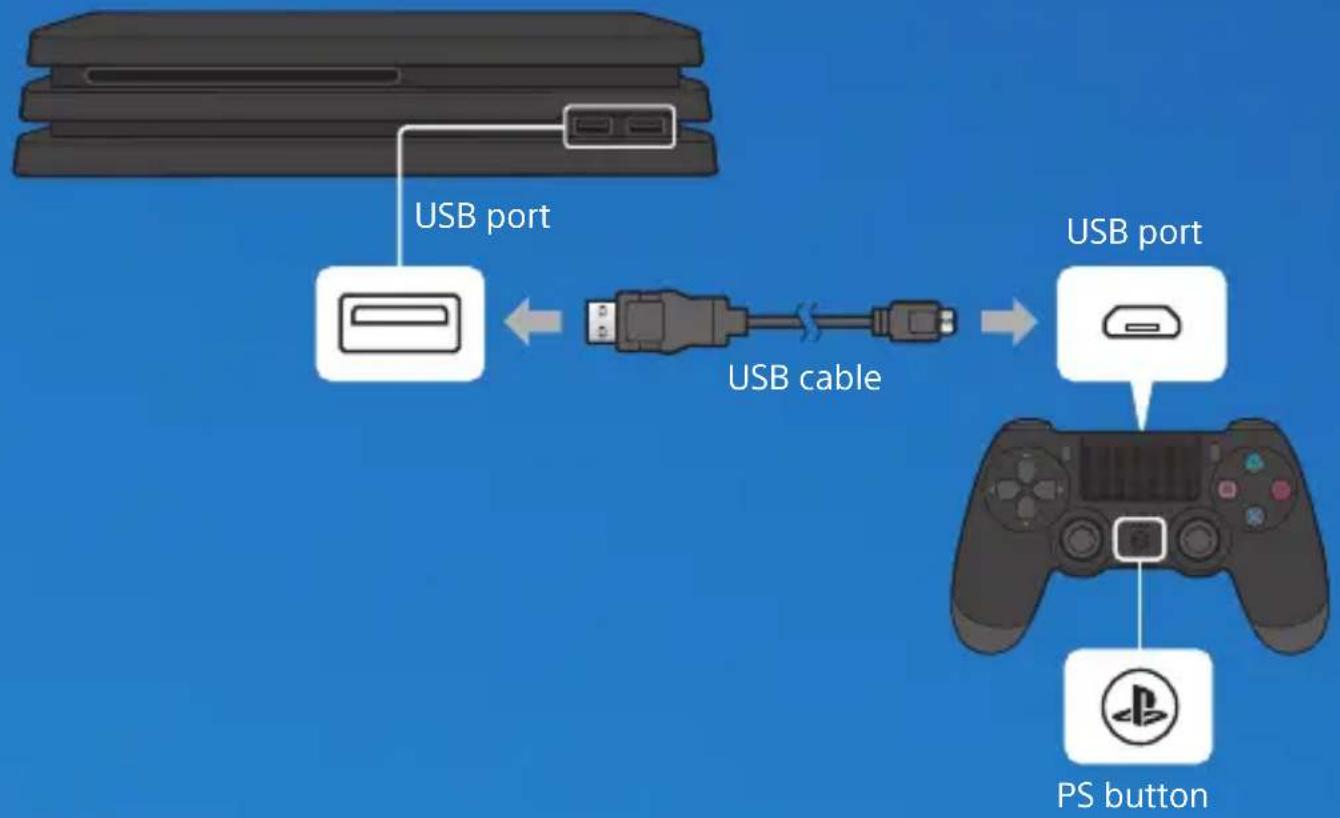
flowchart
graph LR
    A["Game Console"] -->|USB port| B["USB cable"]
    B --> C["PS button"]
    style A fill:#f9f,stroke:#333
    style C fill:#ccf,stroke:#333
- You'll need to pair a controller when you use it for the first time and when you use your controller on another PS4™ system. If you want to use two or more controllers, you must pair each controller.
- After you've paired your controller, you can disconnect the USB cable and use your controller wirelessly.
- It's possible to use up to four controllers at the same time. When you press the (PS) button, the light bar glows in your assigned colour. The first controller to connect is blue, with subsequent controllers glowing red, green, and pink.
EN
6 Make it your own.
You're almost done! Follow the on-screen instructions to set up an Internet connection, set the date and time, and configure other settings - then select [Start Now] from the setup screen.
After you set up your Internet connection, a system software update may automatically download. Future updates will improve performance and add new features.
Will a child be using your PS4 ^™ system? If so, be sure to read the "Parental controls" section.
To later change any settings that you skipped, select Settings) from the function screen.
Parental controls
We recommend parents/guardians create a separate account for each child that will use the PS4™ system, with an accurate date of birth for each, to help us provide an age-appropriate experience.
Parents and guardians can also use a range of parental controls to tailor the child's experience, including preventing or limiting expenditure on PlayStation™ Store and controlling their opportunities to message and chat, to exchange user-created content – such as images and videos – and to use the in-built Internet Browser.
For further details on what can be restricted and how to set restrictions, refer to the User's Guide. manuals.playstation.net/gb/01.html
You can restrict the use of games that have age limitations by setting the parental control level according to the following table.
Europe, Africa and India
| Player's Age | Under 3 | 3-6 7-11 | 12-15 16-17 | 18 and over | ||
| PS4TM Parental Control Setting | 1 2 3 5 7 9 | |||||
| Highest game age rating |  |  |  |  |  |
EN
Germany
| Player's Age Under 6 | 6-11 | 12-15 | 16-17 | 18 and over | ||
| PS4TM Parental Control Setting | 1 | 3 | 5 | 7 | 9 | |
| Highest game age rating | 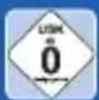 |  |  |  | 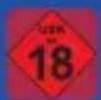 | |
Take a look around
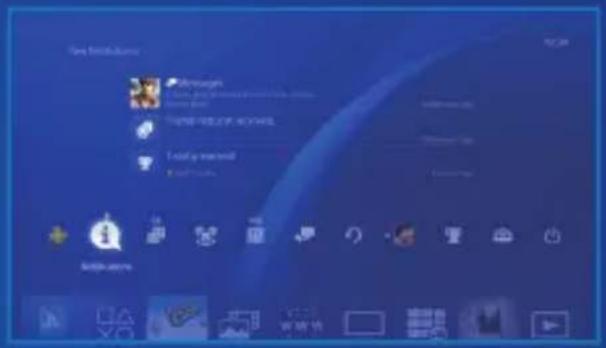
Function screen
Access PS4 ^™ system features, including notifications, your Friends, and settings.
natural_image
Abstract geometric symbol with four symmetrical shapes inside a dark circle, no text or symbols present.Up button
Down button
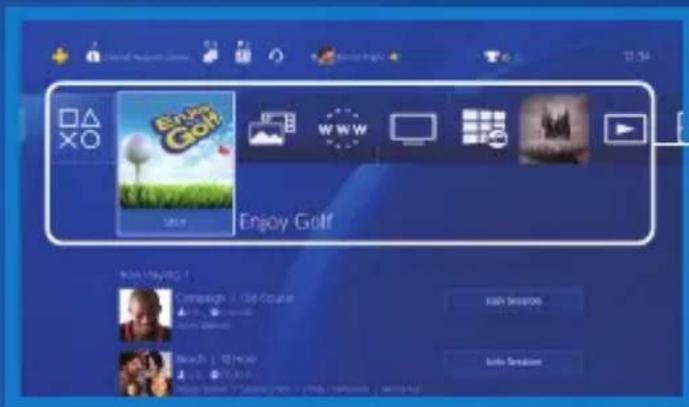
Home screen
Content area
Access your games and other content.
natural_image
Abstract geometric pattern with four symmetrical shapes inside a dark circle on a blue background (no text or symbols)Up button
Down button
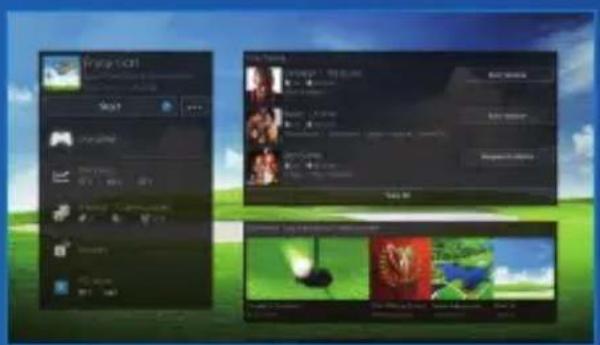
Content info screen
The latest information about the selected content is displayed.
EN
Let's play
Start the game
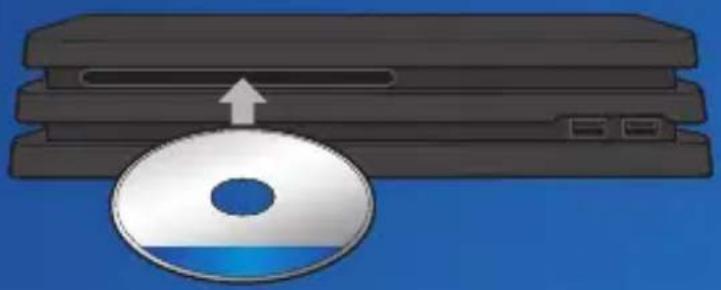
Insert a disc. Select the game from the content area to start playing. No game disc? Check out PlayStation™ Store for downloadable games. See "Sign in to PlayStation™ Network".
Front view
natural_image
Illustration of a CD or DVD disc with an arrow pointing to a physical setup (no text or symbols)Return to the home screen from a game
To return to the home screen without ending a game, press the ⏻ (PS) button.
To resume playing the game, select it from the content area.
End the game
Press and hold the ⒽPS) button, and then select [Close Application] from the quick menu that appears.
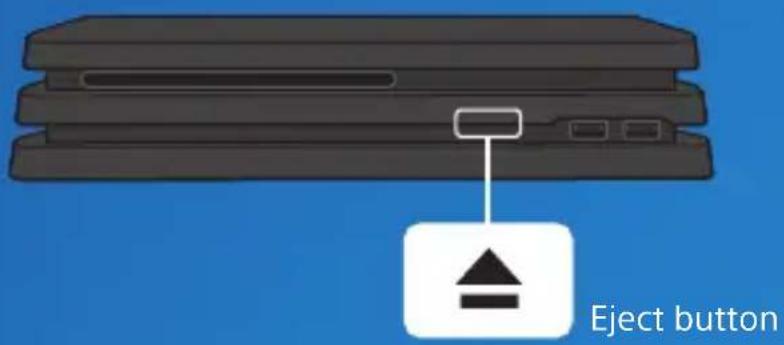
Eject the disc
Press the ▲(eject) button.
Front view
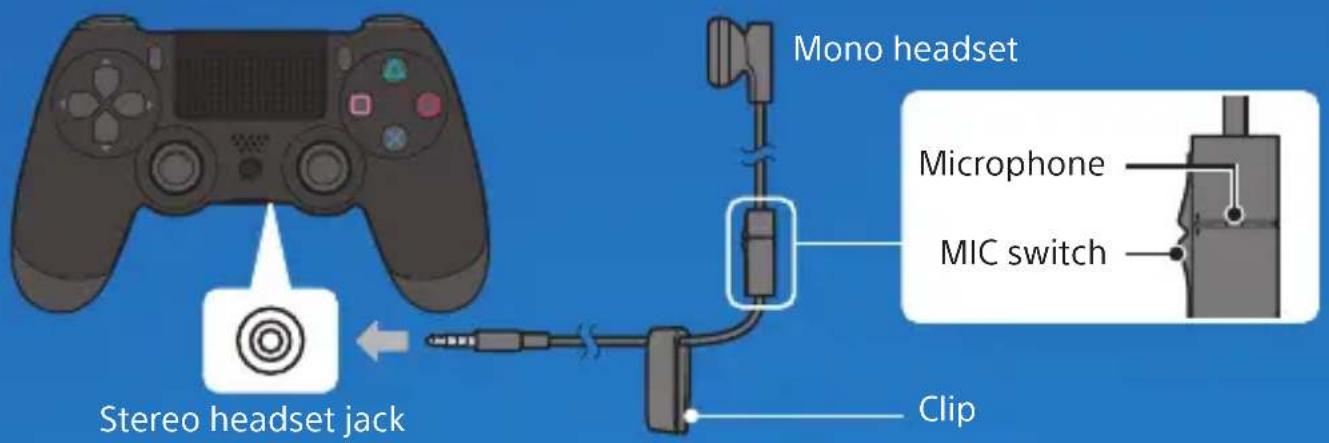
Connect the mono headset
For in-game voice chat, plug the mono headset into your controller's stereo headset jack.
Charge your controller
With your PS4™ system either on or in rest mode, connect your controller using a USB cable. For details on rest mode, read the "Shutting down" section.
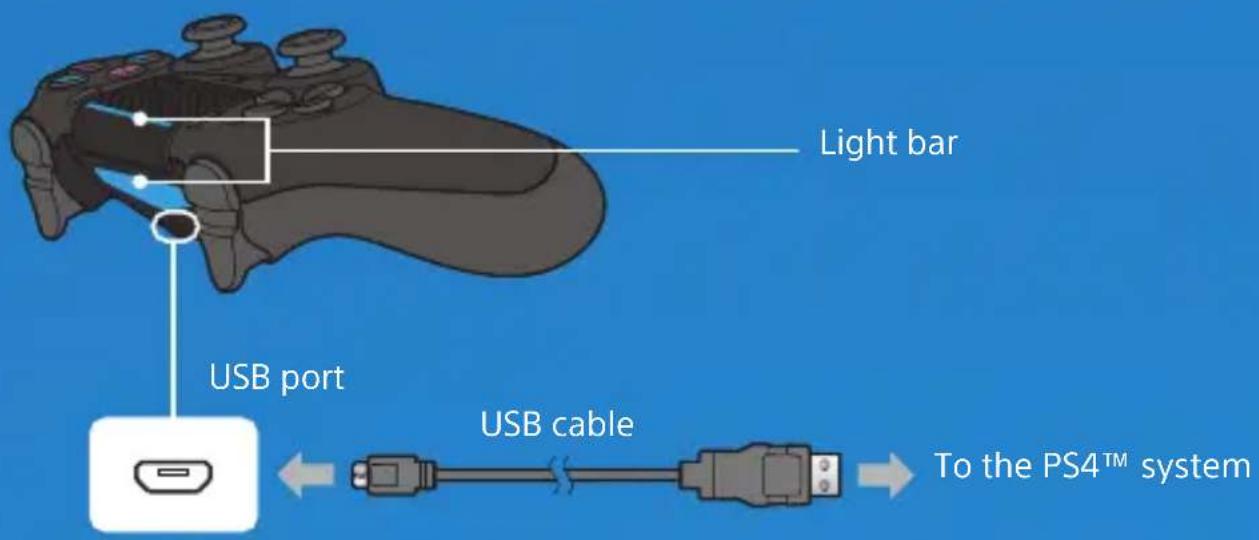
To charge your controller while your system is in rest mode, select an option other than [Off] in (Settings) > [Power Saving Settings] > [Set Features Available in Rest Mode] > [Supply Power to USB Ports].
Sign in to PlayStation™ Network
PlayStation™ Network is an online service that lets you expand your enjoyment of your PS4™ system. Sign in to download games from PlayStation™ Store, share your gameplay, and use a variety of other features and services.


Chat


Share your gameplay
Download games Connect with Friends
To sign in to PlayStation™ Network, you must have an account for PlayStation™ Network. For details on signing in, refer to the User's Guide. manuals.playstation.net/gb/03.html
PlayStation™ Network, PlayStation™ Store and PlayStation® Plus subject to terms of use and country and language restrictions. Users are responsible for Internet service fees. Charges apply for some content and / or services. Users must be 7 years or older and users under 18 require parental consent. Additional age restrictions may apply. Service availability is not guaranteed. Online features of specific games may be withdrawn on reasonable notice - playstation.com/gameservers. Full terms apply: PSN Terms of Service at playstation.com/legal.
Share your gaming experience
Share your gameplay online
Press the SHARE button and choose one of these options for sharing your gameplay online.
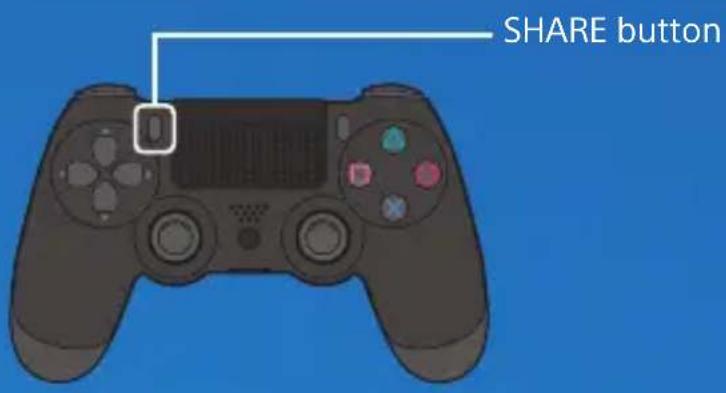

Upload a screenshot
Capture a screenshot of your gameplay and upload it to your social networks, or use 📂 (Messages) to send it to Friends.

Upload a video clip
Your PS4™ system continuously records the last 15 minutes of gameplay. You can upload a video clip of the recorded gameplay to your social networks.

Broadcast your gameplay live
Broadcast your gameplay to a live streaming service so others can watch your adventures.
EN
View shared gameplay
Use (Live from PlayStation) to view broadcasts, video clips, or screenshots shared by other players.

Play a game together
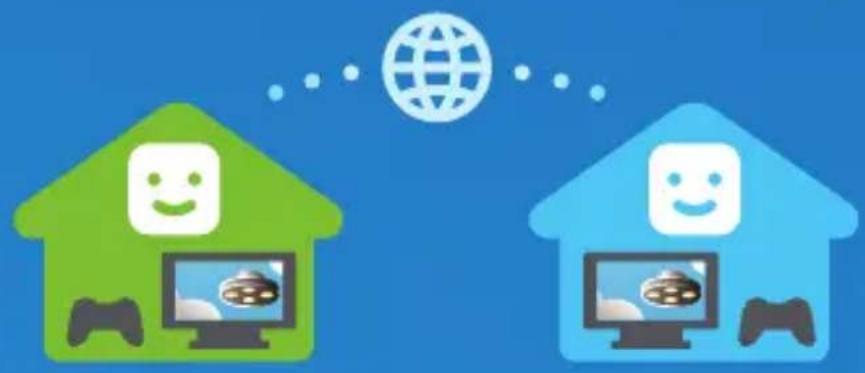
Use (Share Play) to share the game screen with another player and play the same game together.*2
natural_image
Two stylized houses with smiling face icons connected by a globe and computer screens (no text or symbols)For details on the share feature, refer to the User's Guide. manuals.playstation.net/gb/02.html


Caution
Disconnect the AC power cord from the electricity supply only when the power indicator is off. If you disconnect it while the power indicator is lit or blinking, data might be lost or become corrupted, and you might damage your system. Be sure to read the "Turn off your system completely" section below.
Put your system in rest mode
When your system is in rest mode, it keeps operating, but at a lower power consumption. You can configure your system to download files and charge a controller while it's in rest mode.
Select (Power) from the function screen, and then select [Power Options] > [Enter Rest Mode]. The power indicator blinks white, and then turns orange.
To exit rest mode, press the ⏻(PS) button.
Turn off your system completely
Select (Power) from the function screen, and then select [Turn Off PS4]. The power indicator blinks white, and then turns off.
Power indicator
| White System is on. | |
| Orange System is in rest mode. | |
| Off System is off. |
Further information
User's Guide
Find out about everything your PS4 ^™ system can do. Learn how to configure settings and how to use each function.
Select 📁 (Settings) > ✕ (User's Guide/Helpful Info) > ✖ (User's Guide) from the function screen.
You can also view the User's Guide by visiting: manuals.playstation.net/document/gb/ps4/
You must have an Internet connection to view the User's Guide.
Safety Guide
Learn how to use your PS4 ^™ system safely. This manual also contains information about specifications. Be sure to read it before using your system.
*1PlayStation 4 online multiplayer requires paid-for PlayStation Plus subscription.
PlayStation®Plus subscription only available to holders of an account for PlayStation™ Network with access to PlayStation™ Store and high-speed Internet. PlayStation®Plus content and services vary by subscriber age.
*2 Share Play: Unlimited 60 minute sessions. PlayStation®Plus membership, high-speed Internet (2 Mbps upload recommended), PS4™ system and account for PlayStation™ Network required. Country, game and other restrictions apply: playstation.com/shareplay.
"4", "PlayStation", "PSA", "DUALSHOCK" and "PlayStation Shapes Logo" are registered trademarks or trademarks of Sony Interactive Entertainment Inc.
"SONY" and "are registered trademarks or trademarks of Sony Corporation."
The terms HDMI and HDMI High-Definition Multimedia Interface, and the HDMI Logo are trademarks or registered trademarks of HDMI Licensing Administrator, Inc. in the United States and other countries.
Design and specifications are subject to change without notice.
Information about system functionality and images published in this document may vary from those for your system, depending on the system software version in use. Also, the illustrations and screen images used in this guide may vary from the actual product.
The information contained in this guide is subject to change without notice.

bar
| Category | Value | |---|---| | Category 1 | 100 | | Category 2 | 100 | | Category 3 | 100 | | Category 4 | 100 | | Category 5 | 100 | | Category 6 | 100 | | Category 7 | 100 | | Category 8 | 100 | | Category 9 | 100 | | Category 10 | 100 | | Category 11 | 100 | | Category 12 | 100 | | Category 13 | 100 | | Category 14 | 100 | | Category 15 | 100 | | Category 16 | 100 | | Category 17 | 100 | | Category 18 | 100 | | Category 19 | 100 | | Category 20 | 100 | | Category 21 | 100 | | Category 22 | 100 | | Category 23 | 100 | | Category 24 | 100 | | Category 25 | 100 | | Category 26 | 100 | | Category 27 | 100 | | Category 28 | 100 | | Category 29 | 100 | | Category 30 | 100 | | Category 31 | 100 | | Category 32 | 100 | | Category 33 | 100 | | Category 34 | 100 | | Category 35 | 100 | | Category 36 | 100 | | Category 37 | 100 | | Category 38 | 100 | | Category 39 | 100 | | Category 40 | 100 | | Category 41 | 100 | | Category 42 | 100 | | Category 43 | 100 | | Category 44 | 100 | | Category 45 | 100 | | Category 46 | 100 | | Category 47 | 100 | | Category 48 | 100 | | Category 49 | 100 | | Category 50 | 100 | | Category 51 | 100 | | Category 52 | 100 | | Category 53 | 100 | | Category 54 | 100 | | Category 55 | 100 | | Category 56 | 100 | | Category 57 | 100 | | Category 58 | 100 | | Category 59 | 100 | | Category 60 | 100 | | Category 61 | 100 | | Category 62 | 100 | | Category 63 | 100 | | Category 64 | 100 | | Category 65 | 100 | | Category 66 | 100 | | Category 67 | 100 | | Category 68 | 100 | | Category 69 | 100 | | Category 70 | 100 | | Category 71 | 100 | | Category 72 | 100 | | Category 73 | 100 | | Category 74 | 100 | | Category 75 | 100 | | Category 76 | 100 | | Category 77 | 100 | | Category 78 | 100 | | Category 79 | 100 | | Category 80 | 100 | | Category 81 | 100 | | Category 82 | 100 | | Category 83 | 100 | | Category 84 | 100 | | Category 85 | 100 | | Category 86 | 100 | | Category 87 | 100 | | Category 88 | 100 | | Category 89 | 100 | | Category 90 | 100 | | Category 91 | 100 | | Category 92 | 100 | | Category 93 | 100 | | Category 94 | 100 | | Category 95 | 100 | | Category 96 | 100 | | Category 97 | 100 | | Category 98 | 100 | | Category 99 | 100 | | Total (Total) = [sum of values] / [sum of values] * [sum of values] * [sum of values] * [sum of values] * [sum of values] * [sum of values] * [sum of values] * [sum of values] * [sum of values] * [sum of values] * [sum of values] * [sum of values] * [sum of values] * [sum of values] * [sum of values] * [sum of values] * [sum of values] * [sum of value] * [sum of values] * [sum of value] * [sum of value] * [sum of value] * [sum of value] * [sum of value] * [sum of value] * [sum of value] * [sum of value] * [sum of value] * [sum of value] * [sum of value] * [sum of value] * [sum of value] * [sum of value] * [sum of value]
Sony
Interactive
Entertainment


- PS4® Pro
- Quick Start Guide
- Let's get started
- Connect to your TV.
- Connect to the Internet.
- Connect your DUALSHOCK®4 wireless controller to your system using the USB cable, and then press the (PS) button.
- Make it your own.
- Parental controls
- Take a look around
- Function screen
- Home screen
- Content area
- Content info screen
- Let's play
- Start the game
- Return to the home screen from a game
- End the game
- Eject the disc
- Connect the mono headset
- Charge your controller
- Sign in to PlayStation™ Network
- Share your gaming experience
- Share your gameplay online
- Upload a screenshot
- Upload a video clip
- Broadcast your gameplay live
- View shared gameplay
- Play a game together
- Caution
- Put your system in rest mode
- Turn off your system completely
- Further information
- User's Guide
- Safety Guide
Brand : SONY
Model : PS4 Pro
Category : Game console