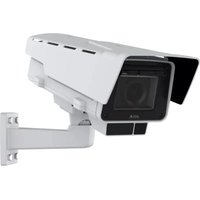
P3346VE - Surveillance Camera AXIS - Free user manual and instructions
Find the device manual for free P3346VE AXIS in PDF.



User questions about P3346VE AXIS
0 question about this device. Answer the ones you know or ask your own.
Ask a new question about this device
Download the instructions for your Surveillance Camera in PDF format for free! Find your manual P3346VE - AXIS and take your electronic device back in hand. On this page are published all the documents necessary for the use of your device. P3346VE by AXIS.
USER MANUAL P3346VE AXIS
This document includes instructions for installing AXIS P3343-VE, AXIS P3344-VE and AXIS P3346-VE on your network. Previous experience of networking will be beneficial when installing the product.
Legal Considerations
Video and audio surveillance can be prohibited by laws that vary from country to country. Check the laws in your local region before using this product for surveillance purposes.
This product includes one (1) H.264 decoder license. To purchase further licenses, contact your reseller.
Electromagnetic Compatibility (EMC)
This equipment generates, uses and can radiate radio frequency energy and, if not installed and used in accordance with the instructions, may cause harmful interference to radio communications. However, there is no guarantee that interference will not occur in a particular installation.
If this equipment does cause harmful interference to radio or television reception, which can be determined by turning the equipment off and on, the user is encouraged to try to correct the interference by one or more of the following measures: Re-orient or relocate the receiving antenna. Increase the separation between the equipment and receiver. Connect the equipment to an outlet on a different circuit to the receiver. Consult your dealer or an experienced radio/TV technician for help. Shielded (STP) network cables must be used with this unit to ensure compliance with EMC standards.
USA - This equipment has been tested and found to comply with the limits for a Class B computing device pursuant to Subpart B of Part 15 of FCC rules, which are designed to provide reasonable protection against such interference when operated in a commercial environment. Operation of this equipment in a residential area is likely to cause interference, in which case the user at his/her own expense will be required to take whatever measures may be required to correct the interference.
Canada - This Class B digital apparatus complies with Canadian ICES-003.
Europe - C This digital equipment fulfills the requirements for radiated emission according to limit B of EN55022, and the requirements for immunity according to EN55024 residential and commercial industry.
Japan - This is a class B product based on the standard of the Voluntary Control Council for Interference from Information Technology Equipment (VCCI). If this is used near a radio or television receiver in a domestic environment, it may cause radio interference. Install and use the equipment according to the instruction manual.
Australia - This electronic device meets the requirements of the Radio communications (Electromagnetic Compatibility) Standard AS/NZS CISPR22.
Equipment Modifications
This equipment must be installed and used in strict accordance with the instructions given in the user documentation. This equipment contains no user-serviceable components. Unauthorized equipment changes or modifications will invalidate all applicable regulatory certifications and approvals.
Liability
Every care has been taken in the preparation of this document. Please inform your local Axis office of any inaccuracies or omissions. Axis Communications AB cannot be held responsible for any technical or typographical errors and reserves the right to make changes to the product and documentation without prior notice. Axis Communications AB makes no warranty of any kind with regard to the material contained within this document, including, but not limited to, the implied warranties of merchantability and fitness for a particular purpose. Axis Communications AB shall not be liable nor responsible for incidental or consequential damages in connection with the furnishing, performance or use of this material.
RoHS
This product complies with both the European RoHS directive, 2002/95/EC, and the Chinese RoHS regulations, ACPEIP.

WEEE Directive
The European Union has enacted a Directive 2002/96/EC on Waste Electrical and Electronic Equipment (WEEE Directive). This directive is applicable in the European Union member states.
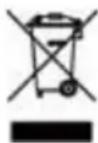
The WEEE marking on this product (see right) or its documentation indicates that the product must not be disposed of together with household waste. To prevent possible harm to human health and/or the environment, the product must be disposed of in an approved and environmentally safe recycling process. For further information on how to dispose of this product correctly, contact the product supplier, or the local authority responsible for waste disposal in your area. Business users should contact the product supplier for information on how to dispose of this product correctly. This product should not be mixed with other commercial waste. For more information, visit www-axis.com/techsup/commercial waste
Support
Should you require any technical assistance, please contact your Axis reseller. If your questions cannot be answered immediately, your reseller will forward your queries through the appropriate channels to ensure a rapid response. If you are connected to the Internet, you can:
- download user documentation and firmware updates
- find answers to resolved problems in the FAQ database. Search by product, category, or phrases
- report problems to Axis support by logging in to your private support area.
AXIS P3343-VE, AXIS P3344-VE, and AXIS P3346-VE
Network Cameras use a 3.0V CR2032 Lithium battery.
Safeguards
Please read through this Installation Guide carefully before installing the product. Keep the Installation Guide for further reference.

CAUTION!
- When transporting the Axis product, use the original packaging or equivalent to prevent damage to the product.
- Store the Axis product in a dry and ventilated environment.
- Avoid exposing the Axis product to vibration, shocks or heavy pressure and do not install the camera on unstable brackets, unstable or vibrating surfaces or walls, since this could cause damage to the product.
- Only use handtools when installing the Axis product, the use of electrical tools or excessive force could cause damage to the product.
- Do not use chemicals, caustic agents, or aerosol cleaners. Use a damp cloth for cleaning.
- Only use accessories and spare parts provided or recommended by Axis.
- Do not attempt to repair the product by yourself, contact Axis or your Axis reseller for service matters.

IMPORTANT!
This Axis product must be used in compliance with local laws and regulations.
Battery replacement
This Axis product uses a 3.0V CR2032 Lithium battery as the power supply for its internal real-time clock (RTC). Under normal conditions this battery will last for a minimum of 5 years. Low battery power affects the operation of the RTC, causing it to reset at every power-up. A log message will appear when the battery needs replacing. The battery should not be replaced unless required!
If the battery does need replacing, please contact www-axis.com/techsup for assistance.
- Danger of Explosion if battery is incorrectly replaced.
- Replace only with the same or equivalent battery, as recommended by the manufacturer.
- Dispose of used batteries according to the manufacturer's instructions.
Cleaning of dome cover
- Be careful not to scratch or damage the dome cover. Do not clean a dome cover that looks clean to the eye and never polish the surface. Excessive cleaning can damage the surface.
- For general cleaning of a dome cover it is recommended to use a non-abrasive, solvent-free neutral soap or detergent with water and a soft cloth. Rinse well with clean lukewarm water. Dry with a soft cloth to prevent water spotting.
- Never use harsh detergents, gasoline, benzene or acetone etc. and avoid cleaning in direct sunlight or at elevated temperatures.
AXIS P33-VE Series Network Camera Installation Guide
Follow these instructions to install the network camera
- "Package contents" on page 5
- "Hardware overview" on page 6
- "Install the hardware" on page 7
- "Assign an IP address" on page 10
- "Set the password" on page 13
- "Adjust the Lens" on page 15
- "Complete the installation" on page 16
Important!
This product must be used in compliance with local laws and regulations.
Notes:
- Before you begin, make sure that the package contents, power supply, and the required cables, tools, and documentation are available. See Package contents below.
- This network camera is intended to operate with PoE; if not available use Axis PoE Midspan 1 port (not included)
Package contents
| Item Models/variants/notes | |
| Network camera with heating module | AXIS P3343-VEAXIS P3344-VEAXIS P3346-VE |
| Mounting bracket | |
| Dome covers Clear transparent | coverSmoked transparent cover |
| Cable shield | |
| Weather shield | |
| Labels 2 adhesive serial no. labels | |
| Mounting kit Resitorx screw driver, drill template, 5-meter network cable with gasket4 screws and plugs, 2 long screws, 2 M4x8 screws1 gasket, terminal block connector | |
| CD AXIS Network Video Product CD including product documentation,installation tools and other software | |
| Printed Materials Installation Guide (this document)Axis Warranty DocumentAVHS Authentication key | |
| Optional accessories See wwwaxis.com for information on available accessories | |
Hardware overview
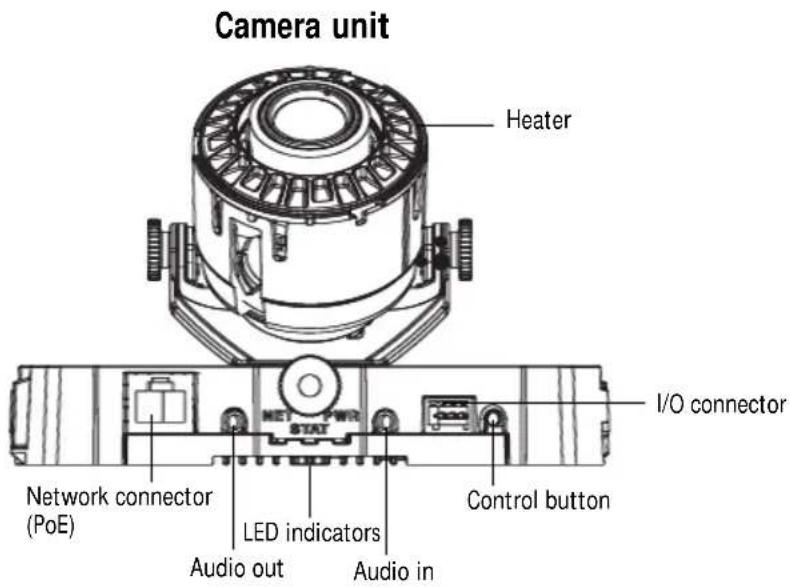
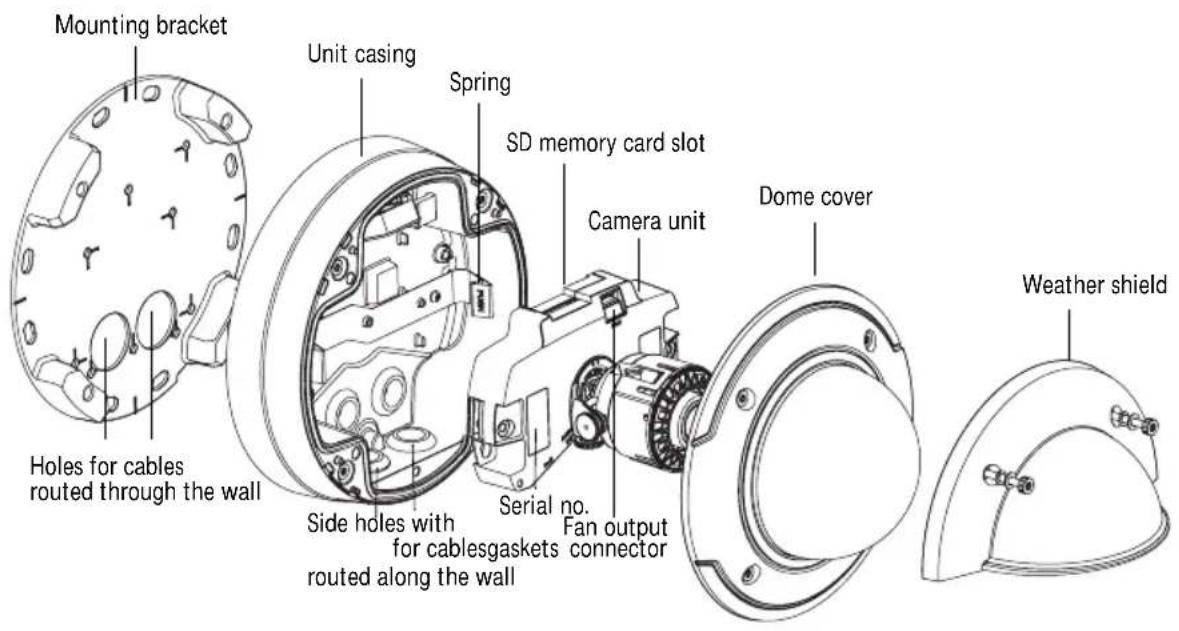
Caution!
The heater in the camera unit may be hot.
Dimension (HxW)
AXIS P3343-VE/AXIS P3344-VE = 110 x 179 mm (4.3 x 7.105")
AXIS P3346-VE = 117 x 179 mm (4.59" x 7.05")
Weight
AXIS P3343-VE/AXIS P3344-VE = 1.4kg (3.09 lb.)
AXIS P3346-VE = 1.6 kg (3.5 lb)
Install the hardware
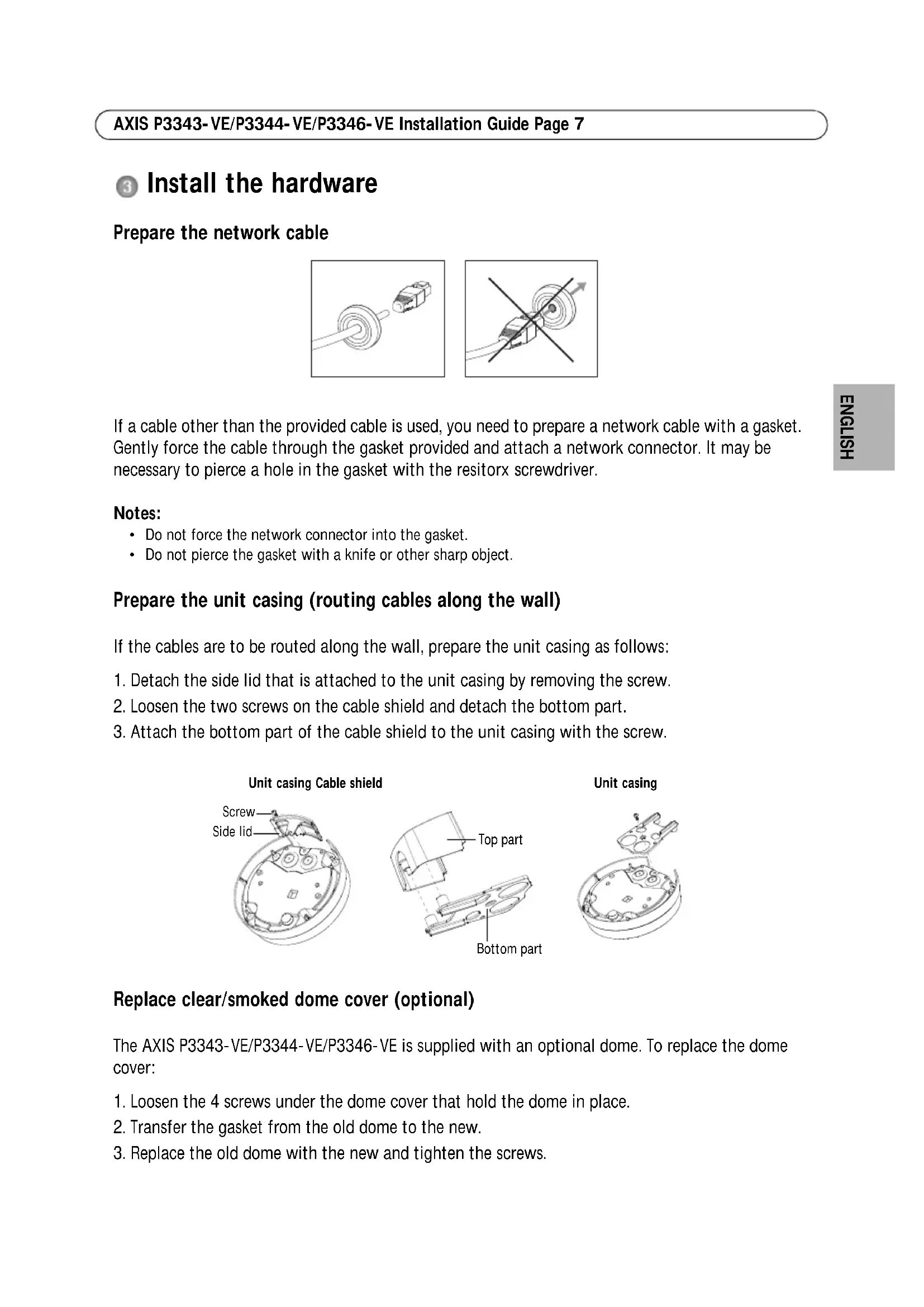
Prepare the network cable
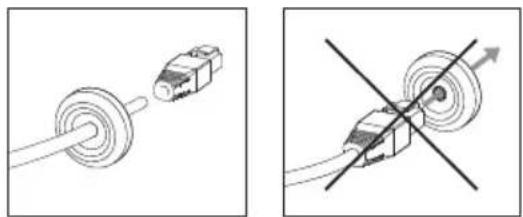
If a cable other than the provided cable is used, you need to prepare a network cable with a gasket. Gently force the cable through the gasket provided and attach a network connector. It may be necessary to pierce a hole in the gasket with the resitorx screwdriver.
Notes:
- Do not force the network connector into the gasket.
- Do not pierce the gasket with a knife or other sharp object.
Prepare the unit casing (routing cables along the wall)
If the cables are to be routed along the wall, prepare the unit casing as follows:
- Detach the side lid that is attached to the unit casing by removing the screw.
- Loosen the two screws on the cable shield and detach the bottom part.
- Attach the bottom part of the cable shield to the unit casing with the screw.
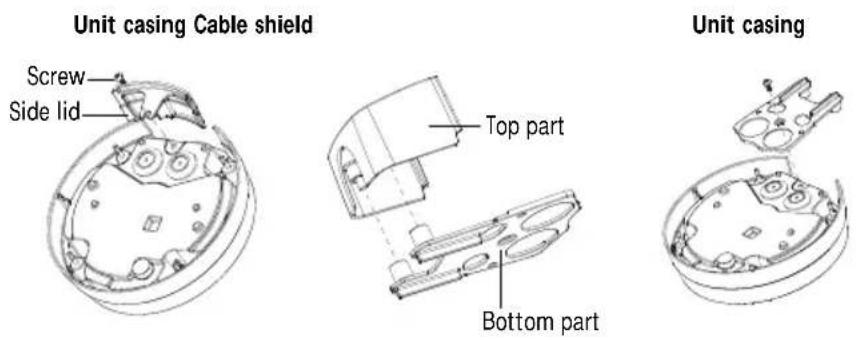
Replace clear/smoked dome cover (optional)
The AXIS P3343-VE/P3344-VE/P3346-VE is supplied with an optional dome. To replace the dome cover:
- Loosen the 4 screws under the dome cover that hold the dome in place.
- Transfer the gasket from the old dome to the new.
- Replace the old dome with the new and tighten the screws.
Route the cables
Depending on whether you want to route the cables through or along the wall, follow the relevant instructions below.
Routing cables along the wall
- Using the drill template drill 4 holes in the wall.
- Attach the mounting bracket to the wall using the 4 screws provided, or screws appropriate for the wall material.
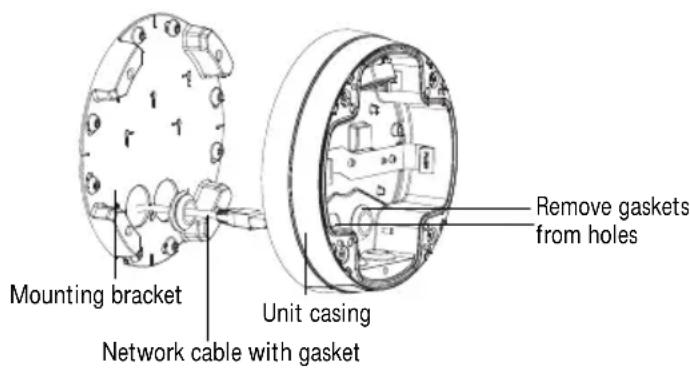
- Remove the camera unit from the unit casing by pushing the springs aside.
- Remove the gaskets from the side holes in the unit casing. If there is only one cable, remove only one gasket.
- Place the unit casing on the mounting bracket and attach it by tightening the four screws.
- Pull the cables up through the side holes in the unit casing.
- Drag the gaskets along the cable and plug them into the holes. The gaskets should fit snugly in the holes with no folds or bends.
- Re-attach the top part of the cable shield by tightening the two screws.
Note: To avoid moisture-related problems it is recommended that the cables are routed to the camera from below with the cable holes facing downwards.
Routing cables through the wall
- Using the drill template drill 4 holes in the wall.
- Route the network cable (and the I/O, audio cable if necessary) through the wall and through the holes in the mounting bracket.
- Attach the mounting bracket to the wall using the 4 screws provided, or screws appropriate for the wall material.
- Remove the camera unit from the unit casing by pushing the springs aside.
- Remove the gaskets from the back holes in the unit casing. If there is only one cable, remove only one gasket.
- Route the cables through these holes.
- Drag the gaskets along the cables and plug them into the holes. The gaskets should fit snugly in the holes with no folds or bends.
- Attach the unit casing to the mounting bracket by tightening the four screws.
Install the camera unit
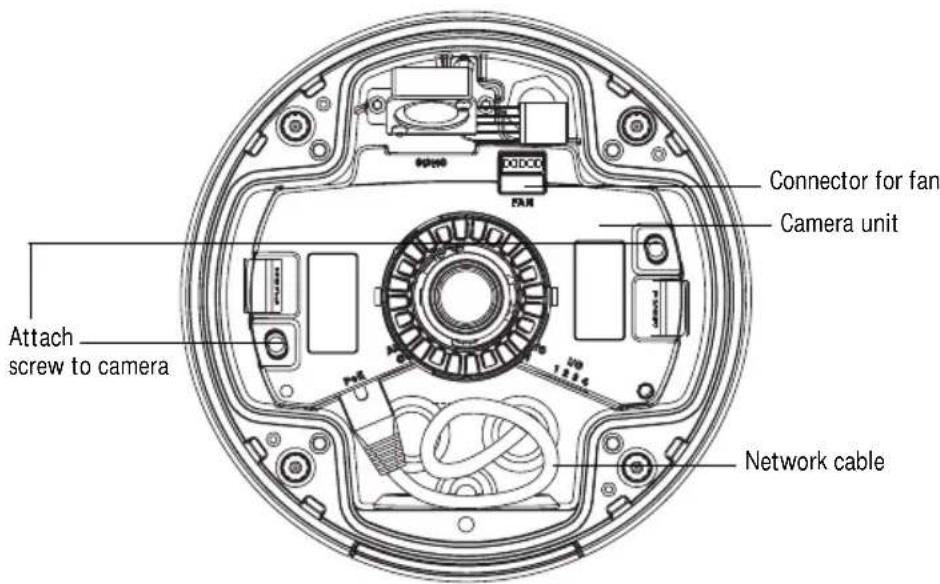
- Attach the network cable to the camera unit; and the cable for audio and I/O if required. It is recommended that the network cable is twisted to a loop as shown in the illustration above.
Note: Be careful not to stretch or bend the network cable too much since this could cause damage to the network cable.
- Insert the SD memory card (optional).
- Pull aside the springs in the unit casing and click the camera unit in place.
- Attach the fan connector to the connector in the camera unit.
- Attach the two M4x8 20 screws to the camera for greater stability. These screws are only necessary to secure against heavy shocks and vibrations.
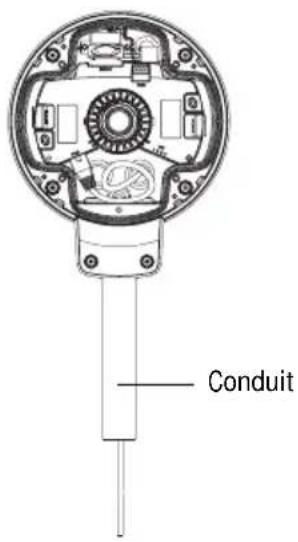
Note: The AXIS P3343-VE/P3344-VE/P3346-VE can also be fitted with a metal conduit for protecting the cabling when cables are routed along the wall.

Assign an IP address
The AXIS P3343-VE/P3344-VE/P3346-VE Network Camera is designed for use on an Ethernet network and requires an IP address for access. Most networks today have a DHCP server that automatically assigns IP addresses to connected devices. If your network does not have a DHCP server, the AXIS AXIS P3343-VE/P3344-VE/P3346-VE Network Camera will use 192.168.0.90 as the default IP address.
AXIS IP Utility and AXIS Camera Management are the recommended methods for setting an IP address in Windows. These free applications are available on the Axis Network Video Product CD supplied with this product, or they can be downloaded from www-axis.com/techsup Depending on the number of cameras you wish to install, use the method that suits you best.
| Method Recommended for Operating system | ||
| IP AXIS IP Utility See page 11 | Single camera Small installations | Windows |
| AXIS Camera Management See page 12 | Multiple cameras Large installations Installation on a different subnet | Windows 2000 Windows XP Pro Windows 2003 Server Windows Vista Windows 7 |
Notes:
- If you are unable to set the IP address, check for any firewall blocking the operation.
See page 17 for other available methods for setting or discovering the IP address of the AXIS P3343-VE/P3344-VE/P3346-VE Network Camera, in relation to other operating systems.
AXIS IP Utility - single camera/ small installation
AXIS IP Utility automatically discovers and displays Axis devices on your network. You can also manually set a static IP address through this application. AXIS IP Utility is available on the Axis Network Video Product CD, or it can be downloaded from www-axis.com/techsup
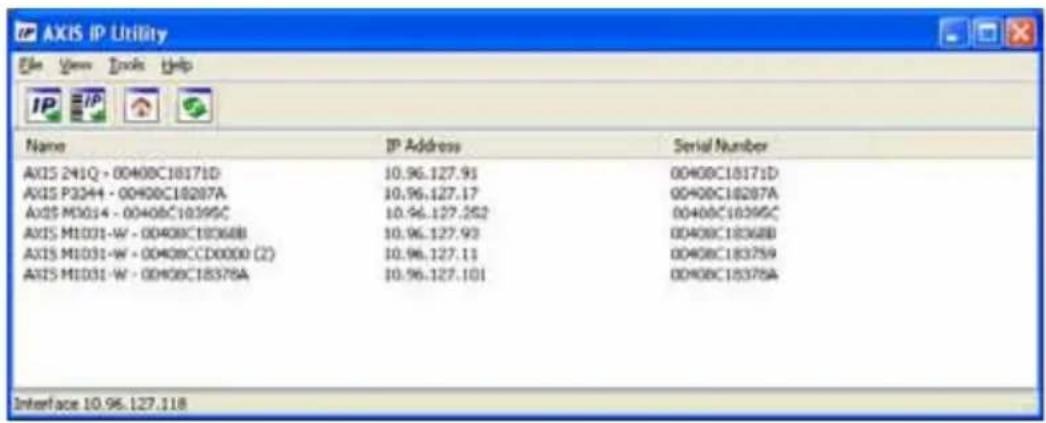
Note that you must install the AXIS P3343-VE/P3344-VE/P3346-VE Network Camera on the same network segment (physical subnet) as the computer running AXIS IP Utility.
Automatic discovery
- Check that the AXIS P3343-VE/P3344-VE/P3346-VE Network Camera is connected to the network and that power has been applied.
- Start AXIS IP Utility.
- When AXIS P3343-VE/P3344-VE/P3346-VE appears in the window, double-click to open the camera's home page.
- See page 13 for instructions on how to set the password.
Set the IP address manually (optional)
- Acquire an unused IP address on the same network segment your computer is connected to.
- Select the AXIS P3343-VE/P3344-VE/P3346-VE in the list.
- Click the button Assign new IP address to selected device and enter the IP address.
- Click the Assign button and follow on-screen instructions. Note that the camera must be restarted within two minutes for the new IP address to be set.
- Click the Home Page button to access the camera's web pages.
- See page 13 for instructions on how to set the password.
AXIS Camera Management - multiple cameras/large installations
AXIS Camera Management can automatically discover multiple Axis devices, show connection status, manage firmware upgrades, and set IP addresses.
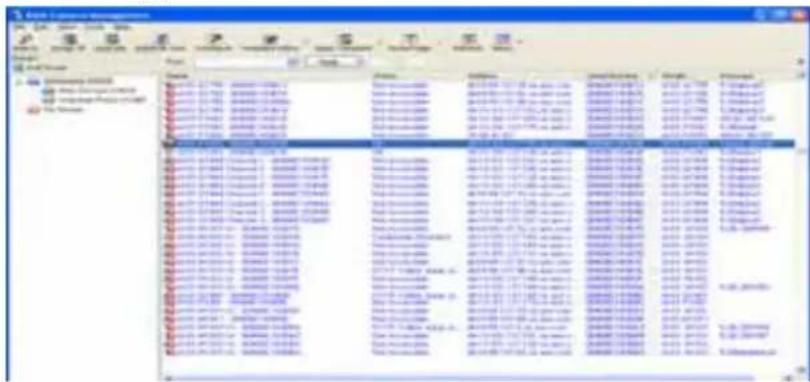
Automatic discovery
- Check that the camera is connected to the network and that power has been applied.
- Start AXIS Camera Management. When the camera appears in the window, right-click the link and select Live View Home Page.
- See page 13 for instructions on how to set the password.
Assign an IP address in a single device
- Select AXIS P3343-VE/P3344-VE/P3346-VE in AXIS Camera Management and click the Assign IP button
- Select Assign the following IP address and enter the IP address, the subnet mask, and default router the device will use.
- Click OK.
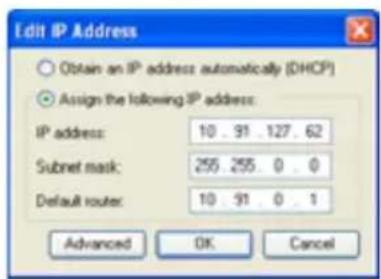
Assign IP addresses in multiple devices
AXIS Camera Management speeds up the process of assigning IP addresses to multiple devices, by suggesting IP addresses from a specified range.
- Select the devices you wish to configure (different models can be selected) and click the Assign IP button
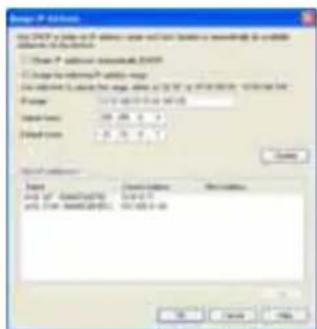
- Select Assign the following IP address range and enter the range of IP addresses, the subnet mask, and default router the devices will use.
- Click the OK button.

Set the password
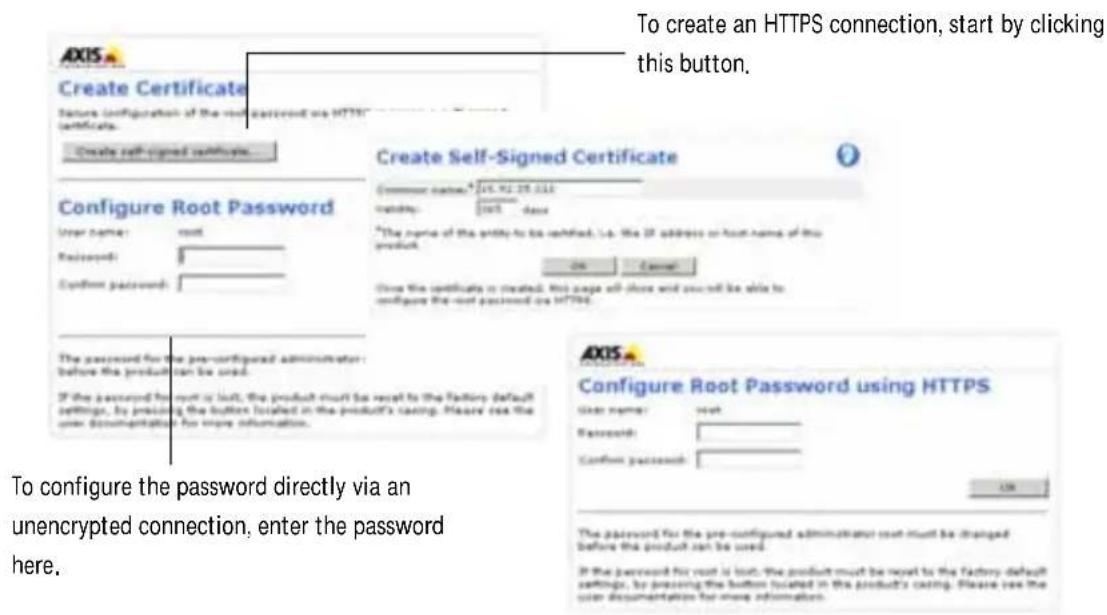
To gain access to the product, the password for the default administrator user root must be set. This is done in the Configure Root Password dialog, which is displayed when the AXIS P3343-VE/P3344-VE/P3346-VE is accessed for the first time.
To prevent network eavesdropping when setting the root password, this can be done via an encrypted HTTPS connection, which requires an HTTPS certificate.
To set the password via a standard HTTP connection, enter it in the Configure Root Password window.
To set the password via an encrypted HTTPS connection, follow these steps:
- Click the Create self-signed certificate button.
- Provide the requested information and click OK. The certificate is created and the password can now be set securely. All traffic to and from the AXIS P3343-VE/P3344-VE/P3346-VE Network Camera is encrypted from this point on.
- Enter a password and then re-enter it to confirm the spelling. Click OK. The password has now been configured.
- To log in, enter the user name "root" in the dialog as requested.
Note: The default administrator user name root cannot be deleted.
- Enter the password as set above, and click OK. If the password is lost, the AXIS P3343-VE/P3344-VE/P3346-VE must be reset to the factory default settings. See page 21.
The Live View page of the AXIS P3343-VE/P3344-VE/P3346-VE appears. The Setup link to the right gives you menu options that allow you to customize the camera.
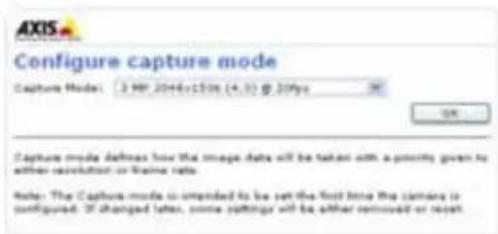
- The capture mode must be set the first time the network camera is accessed. Select the desired capture mode from the drop-down list and click OK.
Note: The capture mode can be changed later from the product's web pages, but this will reset most other settings. For more information, see the online help or User's Manual.
AXIS P3346
- If required, click Yes to install AMC (AXIS Media Control), which allows viewing of the video stream in Internet Explorer. You will need administrator rights on the computer to do this.
Note: To install AMC in Windows 7/Windows Vista, you must run Internet Explorer as administrator. Right-click the Internet Explorer icon and select Run as administrator.
Access the video stream
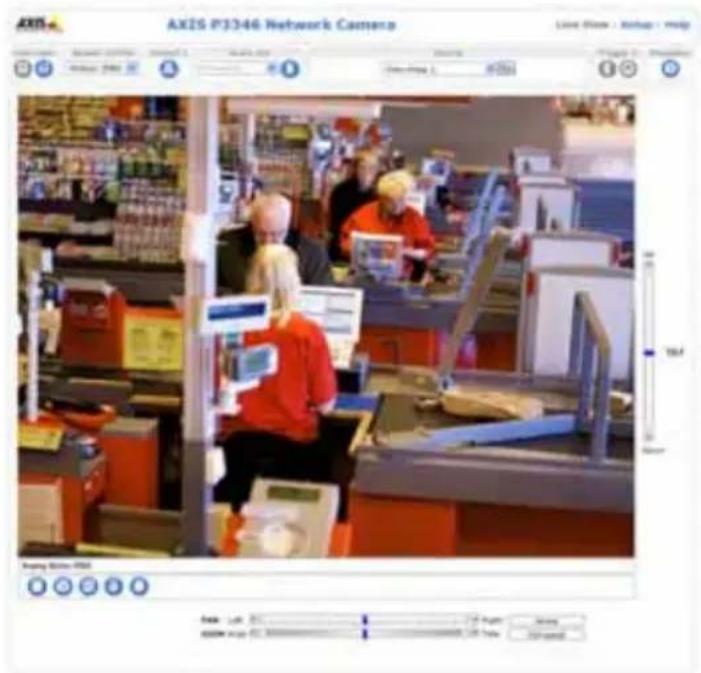
The Live View page of the network camera is displayed. The Setup link leads to menus which allow you to customize the camera.
Note: To install AMC in Windows 7/Windows Vista, you must run Internet Explorer as an administrator. Right-click the Internet Explorer icon and select Run as administrator.

Adjust the Lens
Open the Live View page in the web interface and make the following adjustments to the camera:
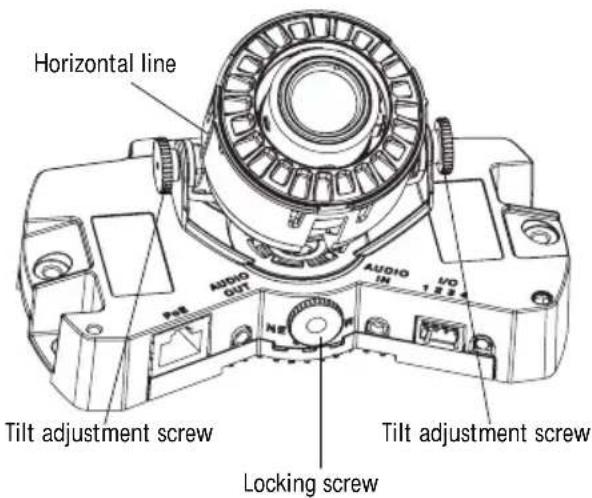
- Loosen the locking screw and tilt adjustment screws.
- Turn the lens (with the lens holder) to the desired position. Make sure the horizontal lines on either side of the lens are aligned horizontally
Note: Ensure that the mark on the lens cover, between the horizontal lines, is facing up.
- Once satisfied, gently tighten the locking screw and tilt adjustment screws to secure the camera's position.
- Open the Focus Adjustment page in the Web interface under Setup > Focus & Zoom, and follow the on-screen instructions. Use the image window to adjust the focus and zoom. Go to Setup > Video & Image > Advanced in your web interface and see the online help for more information.
Note: Due to the dome's refraction, the image may appear slightly out of focus once the dome has been placed. To correct this go to the Focus Adjustment page in the Web interface under Setup > Focus & Zoom, and adjust the focus again.
Warning! Adjusting the focus and zoom manually can damage the lens.

Complete the installation
- Rotate the black protective shield inside the dome cover so it is aligned with the camera's position.
- If required, attach the weather shield to the camera before you attach the dome cover. To do this remove the two screws in the dome cover. Transfer the washers from these
Black protective shield
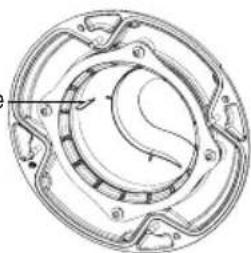
screws to the two long screws provided. Attach the weather shield using the two long screws.
- Attach the dome cover to the unit casing by tightening the 4 screws.
Other methods of setting the IP address
The table below shows the other methods available for setting or discovering the IP address. All methods are enabled by default, and all can be disabled.
| Use in operating system | Notes | |
| UPnP™ | Windows When enabled on your computer, the camera is automatically detected and added to "My Network Places." | |
| Bonjour | MAC OSX (10.4 or later) | Applicable to browsers with support for Bonjour. Navigate to the Bonjour bookmark in your browser (e.g. Safari) and click on the link to access the camera's web pages. |
| AXIS Dynamic DNS Service | All A free service from Axis that allows you to quickly and simply install your camera. Requires an Internet connection with no HTTP proxy. See www-axiscam.net for more information. | |
| ARP/Ping | All See below. The command must be issued within 2 minutes of connecting power to the camera. | |
| View DHCP server admin pages | All To view the admin pages for the network DHCP server, see the server's own documentation. | |
AXIS Video Hosting System (AVHS)
The camera can also be connected to an AVHS service for hosted video. If you have subscribed to an AVHS service, follow the instructions in the Service Provider's Installation Guide. For more information and help to find a local AVHS Service Provider, go to www-axis.com/hosting The camera owner authentication key is supplied with this product. The key is associated with the camera's unique serial number (S/N) as shown on the top of the label.
Note: Save the key for future reference.
Set the IP address with ARP/Ping
- Acquire a free static IP address on the same network segment your computer is connected to.
- Locate the serial number (S/N) on the AXIS P3343-VE/P3344-VE/P3346-VE label.
- Open a command prompt on your computer and enter the following commands:
| Windows syntax Windows example | |
| arp -s <IP Address> <Serial Number>ping -l 408 -t <IP Address> | arp -s 192.168.0.125 00-40-8c-18-10-00 ping -l 408 -t 192.168.0.125 |
| UNIX/Linux/Mac syntax UNIX/Linux/Mac example | |
| arp -s <IP Address> <Serial Number> temp ping -s 408 <IP Address> | arp -s 192.168.0.125 00:40:8c:18:10:00 temp ping -s 408 192.168.0.125 |
- Restart the AXIS P3343-VE/P3344-VE/P3346-VE, by disconnecting and reconnecting the network cable.
- Close the command prompt when you see 'Reply from 192.168.0.125:...' or similar.
- In your browser, type in http://
in the Location/Address field and press Enter on your keyboard.
Notes:
- To open a command prompt in Windows: from the Start menu, select Run... and type cmd. Click OK.
- To use the ARP command on a Mac OS X, use the Terminal utility in Application > Utilities.
Unit connectors
Network connector - RJ-45 Ethernet connector. Supports Power over Ethernet. Using shielded cables is recommended.
Audio in - 3.5mm input for a mono microphone, or a line-in mono signal (left channel is used from a stereo signal).
Audio out - Audio output (line level) that can be connected to a public address (PA) system or an active speaker with a built-in amplifier. A pair of headphones can also be attached. A stereo connector must be used for the audio out.
SDHC memory card slot - The high capacity SD memory card can be used for local recording with removable storage.
I/O terminal connector - Used in applications for e.g. motion detection, event triggering, time lapse recording and alarm notifications. It provides the interface to:
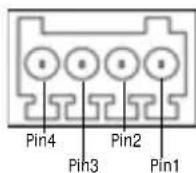
- 1 transistor output - For connecting external devices such as relays and LEDs. Connected devices can be activated by the
VAPIX Application Programming Interface (API), by the output buttons on the Live View page or by an Event Type. The output will show as active (shown under Event Configuration > Port Status) if the alarm device is activated. - 1 digital input - An alarm input for connecting devices that can toggle between an open and closed circuit, for example: PIRs, door/window contacts, and glass break detectors. When a signal is received the state changes and the input becomes active (shown under Event Configuration > Port Status).
Auxiliary power and GND
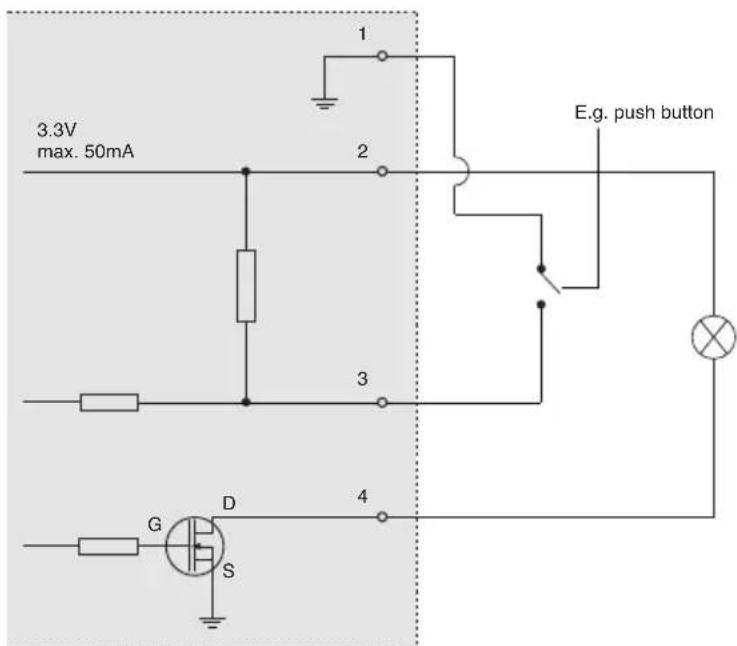
| Function Pin | Notes | Specifications | |
| GND 1 Ground | |||
| 3.3V DC Power | 2 Can be used to power auxiliary equipment. Note: This pin can only be used as power out. | Max. load = 50mA | |
| Digital Input | 3 Connect to GND to activate, or leave floating (or unconnected) to deactivate. | Min. input= -40V DC Max. input= +40V DC | |
| Digital Output | 4 Uses an open-drain NFET transistor with the source connected to GND. If used with an external relay, a diode must be connected in parallel with the load, for protection against voltage transients. | Max. load = 100mA Max voltage = +40V DC | |
The following connection diagram gives an example of how to connect an auxiliary device to the AXIS P3343-VE/P3344-VE/P3346-VE.
LED indicators
| LED Color | Indication | |
| Network | Green | Steady for connection to a 100 Mbit/s network. Flashes for network activity. |
| Amber | Steady for connection to 10 Mbit/s network. Flashes for network activity. | |
| Unlit No network connection. | ||
| Status Green | Steady green for normal operation. | |
| Amber Steady during startup; flashes once during reset to factory default or while restoring settings. | ||
| Red Slow flash for failed upgrade. | ||
| Power Green | Normal operation. | |
| Amber Flashes green/amber during firmware upgrade. | ||
Resetting to the Factory Default Settings
This will reset all parameters, including the IP address, to the factory default settings:
- Disconnect power from the camera.
- Press and hold the Control button and reconnect power (see "Hardware overview" on page 6).
- Keep the Control button pressed for about 15 seconds until the Status indicator displays amber.
- Release the Control button. The process is complete after about 1 minute (when the Status indicator turns green). The network camera has been reset to the factory default settings. The default IP address is 192.168.0.90
- Re-assign the IP address.
- Refocus the camera.
It is also possible to reset parameters to factory default via the web interface. Go to Setup > System Options > Maintenance.
Accessing the camera from the Internet
Once installed, your AXIS P3343-VE/P3344-VE/P3346-VE is accessible on your local network (LAN). To access the camera from the Internet, network routers must be configured to allow incoming traffic, which is usually done on a specific port
- HTTP port (default port 80) for viewing and configuration
- RTSP port (default port 554) for viewing H.264 video streams
Please refer to the documentation for your router for further instructions. For more information on this and other topics, visit the Axis Support Web at www-axis.com/techsup
Further information
The user's manual is available from the Axis Web site at www-axis.com or from the Axis Network Video Product CD supplied with this product.
Tip!
Visit www-axis.com/techsup to check if there is updated firmware available for your Axis product. To see the currently installed firmware version, see Setup > About in your web interface.
Mesures de sécurité
© Axis Communications AB, 2009-2010
Ver. 2.1
Printed: December 2010
Part No. 41402