Wii Music (Wii) - Game NINTENDO - Free user manual and instructions
Find the device manual for free Wii Music (Wii) NINTENDO in PDF.


User questions about Wii Music (Wii) NINTENDO
0 question about this device. Answer the ones you know or ask your own.
Ask a new question about this device
Download the instructions for your Game in PDF format for free! Find your manual Wii Music (Wii) - NINTENDO and take your electronic device back in hand. On this page are published all the documents necessary for the use of your device. Wii Music (Wii) by NINTENDO.
USER MANUAL Wii Music (Wii) NINTENDO
natural_image
3D illustration of musicians performing on grand piano and drums, no text or symbols presentNEED HELP WITH INSTALLATION, BESOIN D'AIDE POUR L'INSTALLATION ¿NECESITAS AYUDA DE INSTALACIÓN, MAINTENANCE OR SERVICE? L'ENTRETIEN OU LA RÉPARATION? MANTENIMIENTO O SERVICIO?
Nintendo Customer Service
SUPPORT.NINTENDO.COM or call 1-800-255-3700
NEED HELP PLAYING A GAME? Recorded tips for many titles are available on Nintendo's Power Line at (425) 885-7529. This may be a long distance call, so please ask permission from whoever pays the phone bill. If the information you need is not on the Power Line, you may want to try using your favorite Internet search engine to find tips for the game you are playing. Some helpful words to include the search, along with the game's title, are: "wa through," "FAQ," "codes," and "tips."
The official seal is your assurance that this product is licensed or manufactured by Nintendo. Always look for this seal when buying video game systems, accessories, games and related products.
natural_image
Illustration of cartoon musicians performing various instruments including drums, a grand piano, and a violin (no text or symbols present)WiiMusic™
INSTRUCTION BOOKLET FOLLETO DE INSTRUCCIONESMODE D'EMPLOI
PLEASE CAREFULLY READ THE Wii™ OPERATIONS MANUAL COMPLETELY BEFORE USING YOUR Wii HARDWARE SYSTEM, GAME DISC OR ACCESSORY. THIS MANUAL CONTAINS IMPORTANT HEALTH AND SAFETY INFORMATION.
IMPORTANT SAFETY INFORMATION: READ THE FOLLOWING WARNINGS BEFORE YOU OR YOUR CHILD PLAY VIDEO GAMES.
WARNING - Seizures
- Some people (about 1 in 4000) may have seizures or blackouts triggered by light flashes or patterns, and this may occur while they are watching TV or playing video games, even if they have never had a seizure before.
- Anyone who has had a seizure, loss of awareness, or other symptom linked to an epileptic condition should consult a doctor before playing a video game.
- Parents should watch their children play video games. Stop playing and consult a doctor if you or your child has any of the following symptoms:
Convulsions Eye or muscle twitching Altered vision Loss of awareness Involuntary movements Disorientation
• To reduce the likelihood of a seizure when playing video games:
- Sit or stand as far from the screen as possible.
- Play video games on the smallest available television screen.
- Do not play if you are tired or need sleep.
- Play in a well-lit room.
- Take a 10 to 15 minute break every hour.
WARNING - Repetitive Motion Injuries and Eyestrain
Playing video games can make your muscles, joints, skin or eyes hurt. Follow these instructions to avoid problems such as tendinitis, carpal tunnel syndrome, skin irritation or eyestrain:
- Avoid excessive play. Parents should monitor their children for appropriate play.
• Take a 10 to 15 minute break every hour, even if you don't think you need it. - If your hands, wrists, arms or eyes become tired or sore while playing, or if you feel symptoms such as tingling, numbness, burning or stiffness, stop and rest for several hours before playing again.
- If you continue to have any of the above symptoms or other discomfort during or after play, stop playing and see a doctor.
CAUTION - Motion Sickness
Playing video games can cause motion sickness in some players. If you or your child feel dizzy or nauseous when playing video games, stop playing and rest. Do not drive or engage in other demanding activity until you feel better.
IMPORTANT LEGAL INFORMATION
This Nintendo game is not designed for use with
any unauthorized device. Use of any such device will invalidate your Nintendo product warranty. Copying of any Nintendo game is illegal and is strictly prohibited by domestic and international intellectual property laws. "Back-up" or "archival" copies are not authorized and are not necessary to protect your software. Violators will be prosecuted.
REV-E
WARRANTY & SERVICE INFORMATION
REV-Q
You may need only simple instructions to correct a problem with your product. Try our website at support.nintendo.com or call our Consumer Assistance Hotline at 1-800-255-3700, rather than going to your retailer. Hours of operation are 6 a.m. to 7 p.m., Pacific Time, Monday - Sunday (times subject to change). If the problem cannot be solved with the troubleshooting information available online or over the telephone, you will be offered express factory service through Nintendo. Please do not send any products to Nintendo without contacting us first.
HARDWARE WARRANTY
Nintendo of America Inc. ("Nintendo") warrants to the original purchaser that the hardware product shall be free from defects in material and workmanship for twelve (12) months from the date of purchase. If a defect covered by this warranty occurs during this warranty period, Nintendo will repair or replace the defective hardware product or component, free of charge.* The original purchaser is entitled to this warranty only if the date of purchase is registered at point of sale or the consumer can demonstrate, to Nintendo's satisfaction, that the product was purchased within the last 12 months.
GAME & ACCESSORY WARRANTY
Nintendo warrants to the original purchaser that the product (games and accessories) shall be free from defects in material and workmanship for a period of three (3) months from the date of purchase. If a defect covered by this warranty occurs during this three (3) month warranty period, Nintendo will repair or replace the defective product, free of charge.*
SERVICE AFTER EXPIRATION OF WARRANTY
Please try our website at support.nintendo.com or call the Consumer Assistance Hotline at 1-800-255-3700 for troubleshooting information and repair or replacement options and pricing.*
*In some instances, it may be necessary for you to ship the complete product, FREIGHT PREPAID AND INSURED FOR LOSS OR DAMAGE, to Nintendo. Please do not send any products to Nintendo without contacting us first.
WARRANTY LIMITATIONS
THIS WARRANTY SHALL NOT APPLY IF THIS PRODUCT: (a) IS USED WITH PRODUCTS NOT SOLD OR LICENSED BY NINTENDO (INCLUDING, BUT NOT LIMITED TO, NON-LICENSED GAME ENHANCEMENT AND COPIER DEVICES, ADAPTERS, AND POWER SUPPLIES); (b) IS USED FOR COMMERCIAL PURPOSES (INCLUDING RENTAL); (c) IS MODIFIED OR TAMPERED WITH; (d) IS DAMAGED BY NEGLIGENCE, ACCIDENT, UNREASONABLE USE, OR BY OTHER CAUSES UNRELATED TO DEFECTIVE MATERIALS OR WORKMANSHIP; OR (e) HAS HAD THE SERIAL NUMBER ALTERED, DEFACED OR REMOVED.
ANY APPLICABLE IMPLIED WARRANTIES, INCLUDING WARRANTIES OF MERCHANTABILITY AND FITNESS FOR A PARTICULAR PURPOSE, ARE HEREBY LIMITED IN DURATION TO THE WARRANTY PERIODS DESCRIBED ABOVE (12 MONTHS OR 3 MONTHS, AS APPLICABLE). IN NO EVENT SHALL NINTENDO BE LIABLE FOR CONSEQUENTIAL OR INCIDENTAL DAMAGES RESULTING FROM THE BREACH OF ANY IMPLIED OR EXPRESS WARRANTIES. SOME STATES DO NOT ALLOW LIMITATIONS ON HOW LONG AN IMPLIED WARRANTY LASTS OR EXCLUSION OF CONSEQUENTIAL OR INCIDENTAL DAMAGES, SO THE ABOVE LIMITATIONS MAY NOT APPLY TO YOU.
This warranty gives you specific legal rights. You may also have other rights which vary from state to state or province to province.
Nintendo's address is: Nintendo of America Inc., P.O. Box 957, Redmond, WA 98073-0957 U.S.A.
This warranty is only valid in the United States and Canada.

© 2008 Nintendo. TM, & and the Will logo are trademarks of Nintendo. © 2008 Nintendo.
How to Play Wii Music

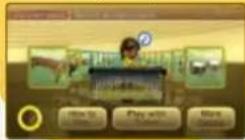
Play Instruments
First, try out playing instruments in Instrument Improv. 7 . Here you can play instruments in whatever way moves you!
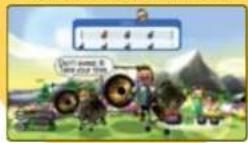
Learn New Music Styles
Once you've recorded enough performances, you'll open up. Lessons, 13, where you can learn to arrange music in new ways.
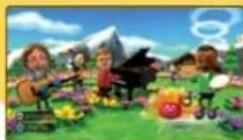
Play in Jam Session
In "jam session", you can perform together with up to three other players and save your recorded performance.
Save Your Favorite Performances
You can save all your performances as "videos" × 16 and view them later.
text_image
Wii Music Wii MusicWiiMestis
Controls 5
Jam Modes 7
Jam Session 9
Lessons 13
Videos 14
Games 17
Drum Mode 19
Song Credits 20
Staff Credits 20
Wii Music lets you make music easily by playing instruments using the Wii Remote, Nunchuk, and Wii Balance Board.
Main Menu
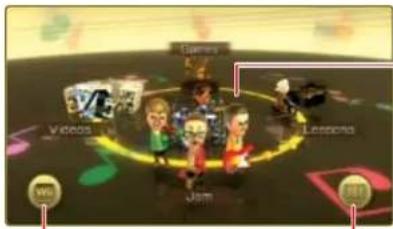
The main menu is displayed upon starting up the game. Point at the image for the section you want to play for select it with 📄 or 📃 and press Ⓐ. Select 🔍 to play drums using the Wii Balance Board or select 🔍 to return to the Wii Menu.
text_image
Games Videos Jpm GamesReturn to Wii Menu
Main Menu
Jam 7-9
Lessons p.13
Videos 14-16
Games a 17-18
Saving Your Game
Any progress you make in the Jam and Barnes sections will automatically be saved to a save file. Creating a new save file requires 53 blocks of empty storage space on the Wii console. In addition, you can save your jam sessions as "videos" after every song performance. See page 14 for more information on videos.
System Menu Update
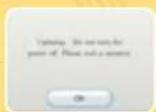
Please note that when first loading the Game Disc into the Wii console, the Wii will check if you have the latest system menu, and if necessary a Wii system update screen will appear. Press OK to proceed.
CAUTION: Wrist Strap Use
Please use the wrist strap to help prevent injury to other people or damage to surrounding objects or the Wii Remote in case you accidentally let go of the Wii Remote during game play.
Also remember the following:
• Make sure all players put on the wrist strap properly when it is their turn.
- Do not let go of the Wii Remote during game play.
- Dry your hands if they become moist.
- Allow adequate room around you during game play and make sure that
all areas you might move into are clear of other people and objects.
- Stay at least three feet from the television.
• Use the Wii Remote Jacket.
Controls
Wii Music mainly uses the Wii Remote™ and Nunchuk™ controllers. In Drum mode, you can also use the Wii Balance Board™ accessory.
● Wii Remote and Nunchuk
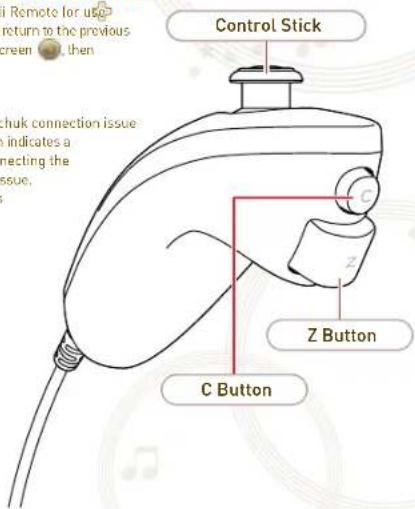
On menu screens, point with the Wii Remote for use or 📄, then press Ⓐ to confirm. To return to the previous screen, press ⚠ or point at the on-screen ⚡, then press Ⓐ.
- If you have a Wii Remote and Nunchuk connection issue during play, a will appear, which indicates a Nunchuk connection error. Reconnecting the Nunchuk will usually resolve the issue. (Please consult the Wii Operations Manual if it does not.)
text_image
Control Stick C Z Button C Button Remote for use return to the previous screen, then chuk connection issue indicates a connecting the issue.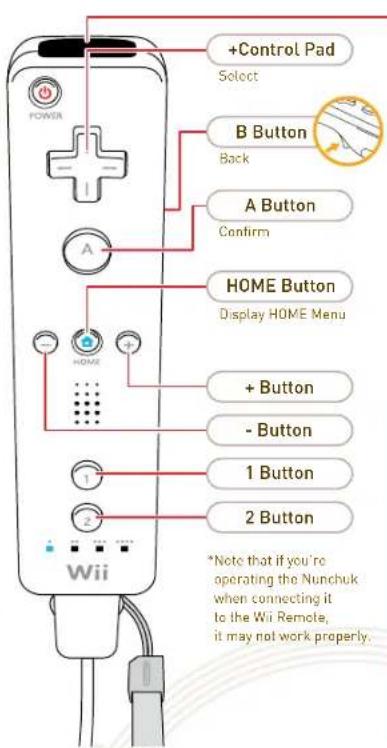
text_image
+Control Pad Select B Button Back A Button Confirm HOME Button Display HOME Menu + Button - Button 1 Button 2 Button *Note that if you're operating the Nunchuk when connecting it to the Wii Remote, it may not work properly.Pointer
"Pointing" refers to aiming the pointer at specific points on the screen.
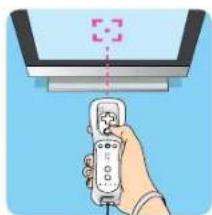
natural_image
Illustration of a hand holding a remote control device with a monitor and antenna above (no text or symbols)Wii Balance Board
In addition to the Wii Remote and Nunchuk, you can also perform using the Wii Balance Board in Drum mode. ^19 . You can also learn about various drumming methods with the Drum Lessons mode.
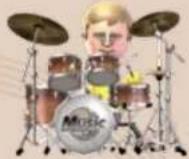
Instrument Controls
Controls for instruments played in a jam session ^8-12 vary by instrument, generally falling into the control methods shown below. For control details about an instrument, select How to Play in Instrument Improve ^7 .
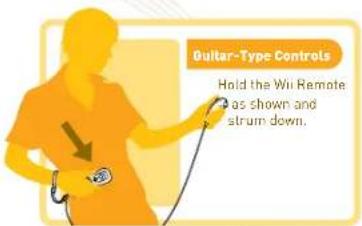
text_image
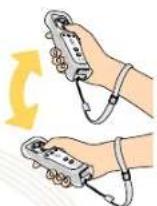
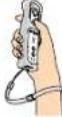
Ouitar-Type Controls Hold the Wii Remote as shown and strum down.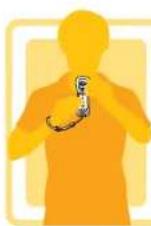
Trumpet-Type Control
Hold the Wii Remote lengthwise with facing upward and press① and/or②.
While playing in jam sessions, press to perform various poses and actions.

Violin-Type Controls Press B C or Z while moving the Wi Remote left and right
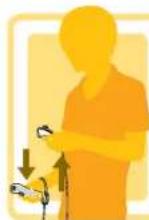
Drum-Type Controls
Hold the Wii Remote and Nunchuk in front of your body, swinging them firmly up and down.
Jam Modes
After you select Jam on the main menu, you can try out instruments in Instrument Improv or perform jam sessions with a Quick Jam or Custom Jam.
• In modes that involve selecting an instrument before you perform a song, you can try out the instruments during selection. You can ultimately select from over 60 instruments and play a total of 50 songs, but many selectable options (songs, instruments, stages, and music stylizations) will be locked when you first start Wii Music and will unlock as you create videos. Some songs, instruments and stages are unlocked by playing Games mode:
Instrument Improv
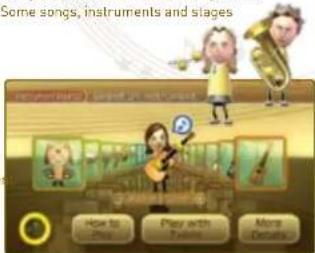
You can freely select and play instruments in Instrument Improv mode. Once you select your Mi™ point at an instrument panel and press, or switch between instruments using + and -. You can then play the instrument, or you can select more options. Select to quit Instrument Improv and return to the Jam menu. Also, if you hold down A, +, or -, you can skip quickly between instrument categories.
text_image
Some songs, instruments and stages How to Play Play with Songs More DetailsLearning Instrument Controls
On the Instrument Improv screen, select How to Play to view controls for the current instrument. Press Ⓐ to turn pages.
Instrument Details
Using the More Details option, you can view interesting trivia about the selected instrument
- On instrument-selection screens, if you play instruments, you'll see a 📋 appear next to the Mii. This indicates that you are currently using the controls to play the instrument and you cannot use pointer control or activate screen buttons. This state will end a few moments after you finish playing with a selected instrument, and then you can point and select.
Play with Tutes
Select the Play with Tutes option to practice with other instruments being played in the background. As you play, more and more instrument parts will join in to play with you. (The combination of instruments changes randomly.) To stop playing with Tutes, press and select Change Instruments.
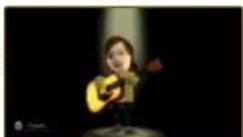
Play the instrument in whatever way you want. As you continue...

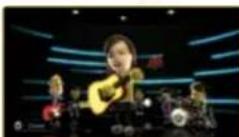
...Tutes will appear and play along with your performance.
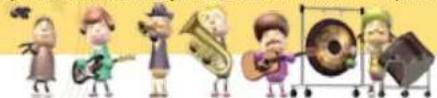
The Tutes are musical helpers who play their instruments automatically. Since they'll adjust their play to what the player is doing, you can thoroughly enjoy the improvisational nature of a jam session even in Instrument Improv mode.
natural_image
Illustration of cartoon musicians performing various musical instruments including a string, harp,&B, and mallet (no text or symbols present)Jam Session: Quick Jan
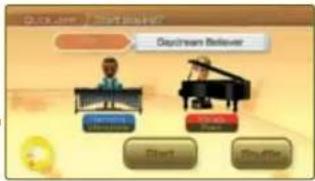
For a quick, easy way to jump into a jam session, choose a Quick Jam to have the song, stage, instruments, and band parts all selected for you. After you select the number of players and choose your Mils, the random jam-session settings will be displayed. (At this time, you can practice playing the selected instrument.) Select the Start option to begin with those random settings, or select Shuffle to change to new random settings.
text_image
DoYour Believer Start FinishJam Session: Custom Jam
In a Custom Jam, you'll select the song, stage, instruments, and band parts, then perform in a jam session. First, you'll select the number of players and Mis, then the song and stage.
Song and Stage Selection
Select the jam-session song and stage, then select OK.
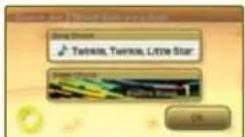
Point to the song or stage, then press
Ⓐ to bring up the related list of
options to select from.
(You'll unlock some more songs and
stages as you make more videos.)

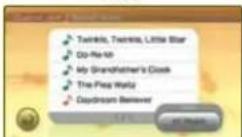
The Next icon marks newly unlocked songs, and appears for the five most recently played songs. You can also filter the song list by Not Played or Recently Played songs
Instrument and Part Selection
Point at the band part you want to play, then press A to select it. Press + or - to scroll through all the instruments available for that band part, then A to confirm. To turn off any band parts from your performance, point at the part, then press B. Select OK, then Start to begin the jam session.
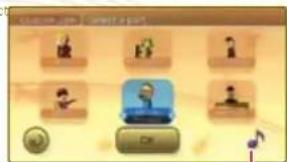
text_image
Game interface screenshot showing a grid of icons with Chinese text labels, one icon highlighted in blue.Options
Point at ♪ and press Ⓐ to display the Options menu below, where you can change jam-session options.

Add/Remove Parts
For parts not controlled by players, you can select between a Tute helper who plays his or her part automatically, or the Mii who played that part previously, or removing the part altogether. [Mii performance data will be saved for only the last five performed songs.]

Stylize Parts
You can change the combination of instruments based on music style.

Change Tempo
You can change the song tempo. Point at the tempo slider and press Ⓐ to grab it, then move it left or right.

Change Miis
You can access the Mii selection screen to change Mii is used to perform with.

Load Video Data
If you have a video 14 for the same song, you can load it into your jam session to use its selections and recorded music in all parts, or even to change it!
Jam Session
In jam sessions, players perform songs together using the Wii Remote and Nunchuk to play instruments. When your performance is finished, you can save your jam session.
What's a Jam Session?
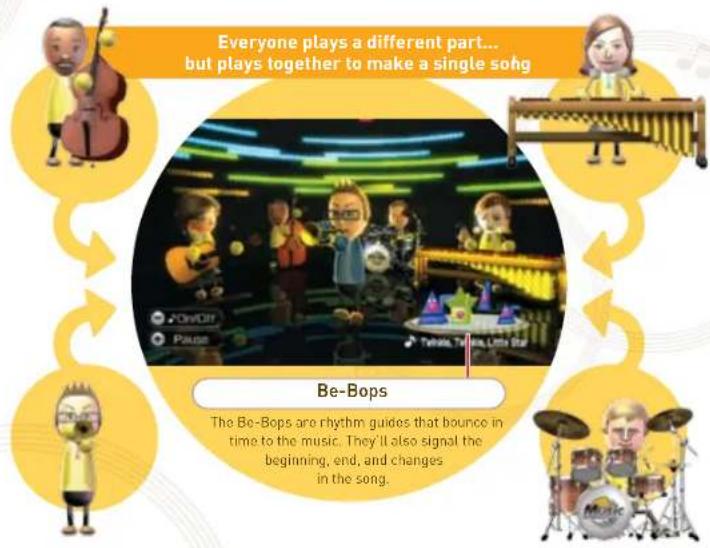
Each player plays his or her own part and instrument, then combines with other players in a band to perform music. In Wii Music, that's called a "jam session. Up to four players can enjoy "jamming" together. With six parts in each song, parts not played by players are performed automatically by a Tute helper. (Note: you can also remove parts or replace Tutes with Mir performance data from a previous Custom Jam.)
text_image
Everyone plays a different part... but plays together to make a single song Be-Bops The Be-Bops are rhythm guides that bounce in time to the music. They'll also signal the beginning, end, and changes in the song.In jam sessions, you can turn on a music-flow guide (see next page) to get a sense of how to play your instrument, especially for songs or instruments that you're unfamiliar with. But even if a music-flow guide is turned on, you do not need to play along with it. Feel free to change how you play to create a unique jam with your style!
Music-Flow Guide
If you press during a jam session, you can display a music-flow guide for your instrument. The guide gives you suggestions about when to play that are shown as notes in gray. Notes indicating what you have already played are shown in blue for Player 1. Press again to hide the music-flow guide.
Notes for Players 2, 3, and 4 are shown in red, green, and yellow, respectively.
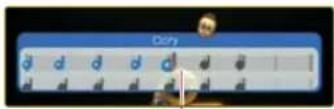
Timing Marker
After Performing
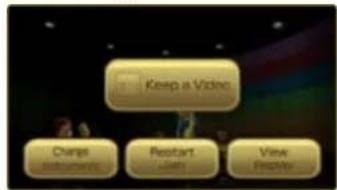
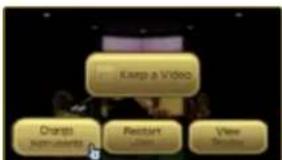
When you are finished performing, the following menu is displayed.
text_image
Keep a Video Change Restart View RestartKeep a Video Save your jam session performance as a video.
Change Instruments End the jam session and return to the part- and instrument-selection screen. If you choose a different part in the same song, you can use overdubbing to perform with the previously recorded parts 12.
Restart Jam Start a performance over again from the beginning.
View Replay Watch your performance. To quit, press ⚠ to pause, then select Quit.
Pause Menu
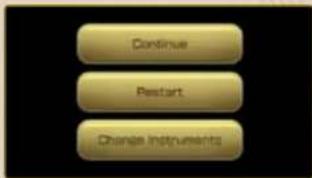
Press + during a jam session to pause the performance and access the pause menu. Press + or select Continue to return to your performance.
text_image
Continue Restart Change InstrumentsContinue Return to the performance.
Restart Start again from the beginning.
Change Instruments End jam session, then reselect parts and/or instruments.
- Keeping a Video
If you select Keep a Video after your performance, you can save video 14 of your jam session. First, you must assign points to your performance showing how much you liked it. Point at the slider, press A to grab it, then move the slider left or right for press 11 to assign a point ranking to your jam session. Select OK to proceed to jacket creation.
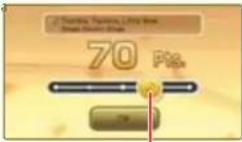
Slider
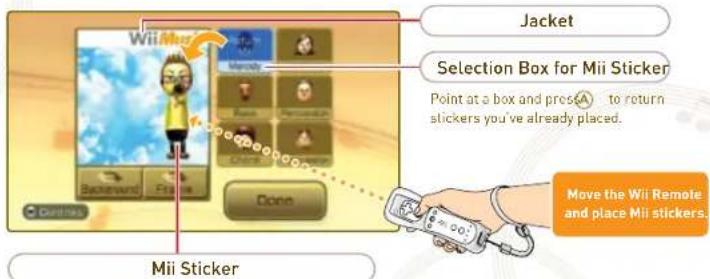
Jacket Creation
You can design your own video jacket. Use "Mii stickers" and select from different backgrounds and frames to customize the jacket. Press to see control details. Select Done when your design is finished.
text_image
Jacket Selection Box for Mii Sticker Point at a box and pressA to return stickers you've already placed. Move the Wii Remote and place Mii stickers. Mii StickerPoint at a Mii head and press to select it. Then you can move the Mii sticker around the jacket. Press again to place it. Before placing it, you can use and to change the sticker's pose, or move the Wii Remote toward and away from the TV screen to change its size.
Finishing up Your Video Creation
Once your finalized jacket is displayed, press Ⓐ to watch your video. To skip past the video, point at the screen, press ✕, then select ✗. Finally, select Done to finish your video creation.
- Up to 100 videos can be saved. Upon exceeding 100, videos will automatically be deleted, starting with those with the lowest point values.
Solo Videos
Wii Music saves your previous performances for up to the last five songs. This feature allows one person to record all parts of a song so you can make videos all by yourself.
natural_image
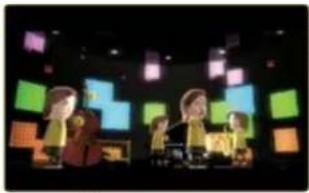
Three people in a dimly lit room with colorful sticky notes and no visible text or symbolsHow to Make Solo Videos
After finishing your jam session, select Change Instruments. You will notice that your Mii and the part you just performed will automatically be left in that part. Then, if you pick another part and begin a jam session, you can perform an "overdub session" along with the previously recorded part.
text_image
Keep a Video Orange Supplements Restart Video ResultsSelect Change Instruments after performing to add on a new part to a song.

text_image
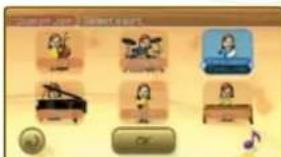
Game interface screenshot showing character selection icons with names like '熊' and '琴'If you repeat this process, you can perform all parts by yourself and create a solo video.
- It's recommended that you let a Tute take the Melody part while you perform your first part.
Overdubbing
Select Load Video Data from the Custom Jam instrument- and part-selection screen to record your own parts over a video. You can use this technique to add your own performances to videos sent from friends to virtually jam with friends and make new videos.
text_image
Wii Music Wii MusicLessons
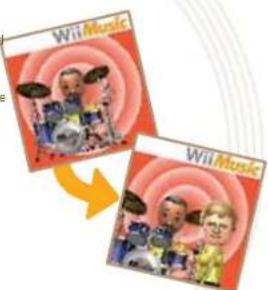
The Lessons mode shows players the basics of Wii Music, plus many ways to further enjoy Wii Music, including using special performance techniques for specific music styles and unique song arrangements.
Jam Basics
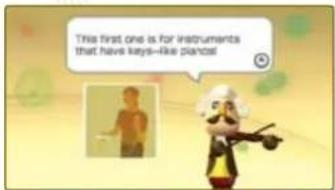
Learn how to go hands-on with Wii Music instruments and how to perform in a basic jam session.
text_image
This first one is for instruments that have keys-like pianos!Jam Mastery
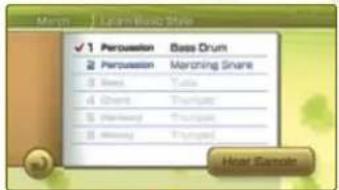
Learn tips for making your own unique song arrangements in a variety of different musical styles. Select your Mii, then select a lesson. For each music style, you'll put together arrangements by playing through each band part in order. (Note: Jam Mastery lessons are unlocked as you create more videos.)
text_image
Mens Learn Basic Style ✓ 1 Perusion Bass Drum ✓ Perusion Marching SinaeNeed Tutta
Chant Thurspan
Maruning Thurspan
Memory Tringspan
Hotel Escalie
natural_image
Cartoon illustration of a bearded man in historical attire holding a ball, with musical notes and strings (no text or symbols)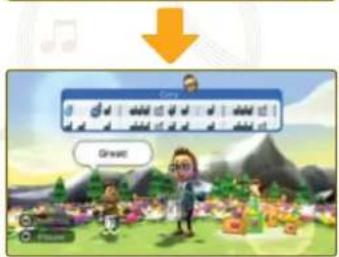
text_image
GriwetVideos
In the Videos mode, you can view all the videos you've saved, and also exchange videos with friends who own Wii Music through WiiConnect24.
What's a "Video"?
A Wii Music video is a recording of your jam session that you can save, then replay and watch as a music video. After finishing a jam session, simply save it as a video by selecting Keep a Video.
• Up to 100 videos can be saved.
- Upon exceeding 100 videos, videos will automatically be deleted, starting with those with the lowest point values.

text_image
Illustration showing four cartoon figures with musical notes and a downward arrow, likely representing a music or rhythm concept.Save your favorite jam sessions as videos!
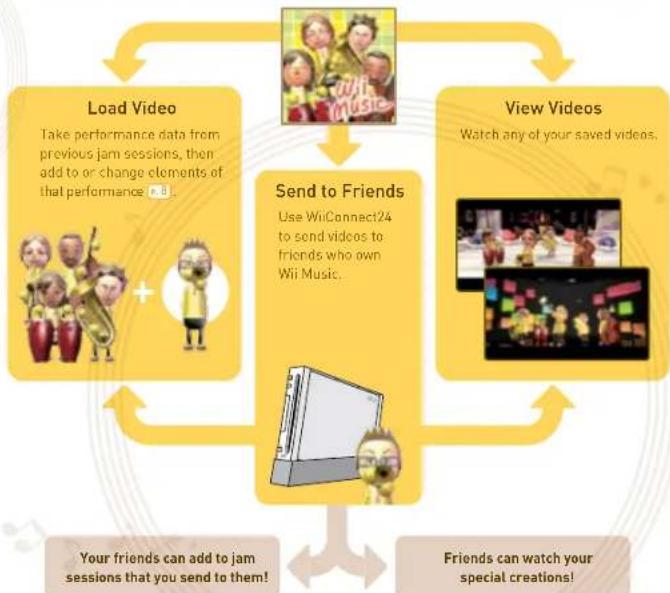
flowchart
graph TD
    A["Load Video\nTake performance data from previous jam sessions, then add to or change elements of that performance n.8."] --> B["Send to Friends\nUse WiiConnect24 to send videos to friends who own Wii Music."]
    C["View Videos\nWatch any of your saved videos."] --> B
    B --> D["Your friends can add to jam sessions that you send to them!"]
    B --> E["Friends can watch your special creations!"]
Methods for Viewing Videos
Select the Videos mode from the main menu, then select a method for viewing videos.
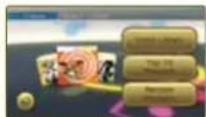
Video Library
Select individual videos to view or send to friends.
Top-10 Playback
Play back the top-10 ranked videos.
Random Playback
Play back random videos from among all saved videos
Video Library
All saved videos are displayed, 10 per page, in order of popularity-point value. When displaying in order of point value, videos sent from friends will come first. (Note: Unranked videos are displayed with a yellow frame. Rank them to place them in the list.)
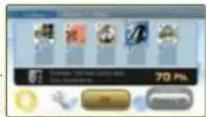
Sharing Settings
Turn video sharing on or off, plus change MI display settings.
OK
Select video and proceed to the Videos menu.
Sort By
Switch between different sort methods.
Sharing Settings
Setting video sharing to "ON" sends information to your Wii Friends that tells them you have Wii Music; which can lead to sharing videos between friends who own Wii Music. Also, setting the Mii display for videos received to "OFF" will result in friends' Mis being replaced with Wii Music Guest Mis during playback. (Note: Updates to your Wii Friend Roster after changing video sharing settings, and the ability to send and receive videos between friends, could take several days or more.)
Videos Menu
Select a video and then choose OK to display the video menu.
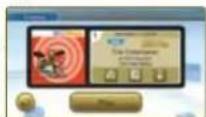
Play
Play back video
The image is too blurry to recognize any text content.
Send to Friend
Send the video to Wi Friends (16).
3
Change Points
Reassign a popularity-point score to the Videos.
日
Delete
Delete the video. Caution: Deleted videos cannot be restored.
Video Playback
Press + during video playback to display a control menu. You can pause, skip ahead, and more by pointing at the control icons, then pressing A.
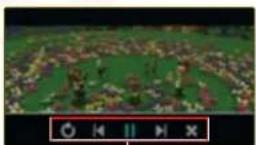
Control Menu
Single-Video Playback
Random/Top-10 Playback
©
Repeat video Loop all videos
|
Return to beginning First to beginning of video, then previous song
/
Pause/play Pause/play
▶
Return to beginning To next video
×
End video End video
Send to Friend
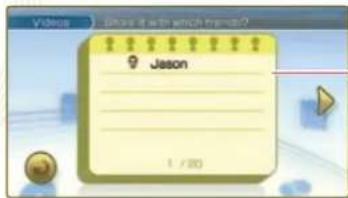
Select the Send to Friend option from the Videos menu to send a video to Wii Friends via WiiConnect24. Choose which Wii Friends to send to, then select OK. You can send a video to up to eight friends at once. (Note: You can only share videos with Wii Friends who own Wii Music. Turn on video-sharing settings using Sharing Settings if you want to share videos [15]).
text_image
Video Show it with which more? Jason 1 / 80Wii Friend Roster
This is a list of friends registered on your Wii console. The names of the Wii Friends who own Wii Music will be displayed in black.
What is WiiConnect24?

our home's Internet connection. WiiConnect24 connects the Wii console to the 24 hours a day, even when the console is turned off, which enables a variety of transmissions and message sharing between friends and family.
Video Sharing Warning
• To share videos with a friend using the Send to Friend option, you and the friend must both satisfy the following conditions.
-Wii system is connected to the Internet via broadband connection and has WiiConnect24 enabled. -WiiConnect24 is not restricted by the Wii system's Parental Controls.
-Wil Music video-sharing settings are set to "ON."
*For details on Internet and WiiConnect24 settings, consult the Wii Operations Manual.
• To share videos, you and the other party must be registered as Wii Friends on each other's systems.
*For more details, consult the Wii Operations Manual.
- Data for videos sent during operation of Wii Music is limited to 10 blocks.
*Note: Wii Friends who receive your Wii Music videos can send your videos to their Wii Friends. Your videos can also be modified by anyone who receives the videos. You cannot retract a video once you have sent it.
Games
The Games mode features Mii Maestro, Handbell Harmony, and Pitch Perfect, three minigames for one to four players.
• In each minigame, participants play at the same time. A Wii Remote is required for each player when playing with multiple participants. IA Nunchuk for each player is required only for Handbell Harmony.

Mii Maestro
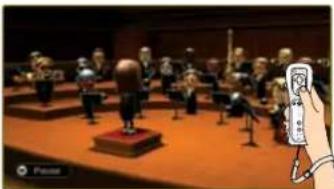
Conduct an orchestra by waving a baton.
Raise the Wii Remote to get the attention of your musicians. Wave the Wii Remote to start, then begin conducting after the countdown,
1
natural_image
Orchestra performance on stage with conductor and assistant (no visible text or symbols)2
Wave the Wii Remote like a real conductor. You can alter the performance by changing the tempo and force of your waving.


Hold Ⓐ or Ⓑ while waving to add powerful impact to the performance with a "mega hit," (Overusing the "mega hit," however, will tire out your musicians and result in lost points.).

Handbell Harmony

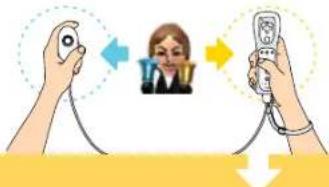
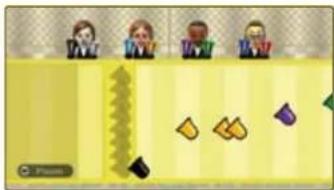
Ring your handbells in time with the music-flow guide.
1
text_image
Illustration showing two hands holding remote control devices with a face detection icon and directional arrows indicating interaction or feedback.The Wii Remote and Nunchuk correspond to the Mii's two bells.
2
natural_image
Game scene with four character portraits on a striped background, showing scattered yellow and purple pieces (no text or symbols)When your own bell color reaches the yellow bar, wave the Wii Remote (or Nunchuk).
Bells with 📄 require you to press A or B on the Wii Remote or C or Z on the Nunchuk while waving.


Pitch Perfect

Take on tone-recognition challenges.
1
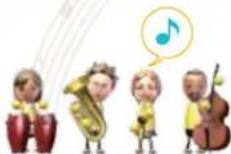
Read the question, then point at the on-screen speaker or Mis and press A to hear their tones.
2
natural_image
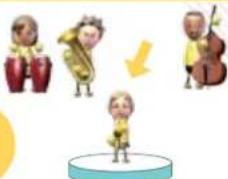
Illustration of four cartoon musicians on a podium with a yellow arrow indicating direction (no text or symbols)Point at Miis and hold down to grab them. Place the correct Mii on the platform, then let go of the button to drop the Mii.
Drum Mode

Wii Balance Board Required
Select from the main menu to access Drum mode, which uses the Wii Balance Board in addition to the Wii Remote and Nunchuk.
• To play this mode, you will need the Wii Balance Board that is sold with the Wii software "Wii Fit" (sold separately). This mode is unavailable for users without a Wii Balance Board.
- Select from the Drum mode menu to perform a Wii Balance Board operational check
- The Wii Balance Board must be synchronized with your Wii console before use. Do not synchronize the board with the console until instructed to do so by the Wii Music game program. See pages 7-8 in the Wii Balance Board Operations Manual for synchronization instructions.
Lessons
Drum Lessons
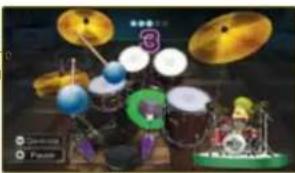
Take lessons to learn how to play real-life drums by using the Wii Remote, Nunchuk, and Wii Balance Board, and following the on-screen instructions.
natural_image
Game scene with multiple drums, playing instruments, and a green table (no readable text or symbols)Jam
Free Play
Freely play the drums.
Jam Session
Use the "Wii Balance Board Drums" to perform in a jam session with other instruments. As in a usual jam session, select a song and stage. You can also load videos created in Jam mode's Quick Jam and Custom Jam, and videos made in this mode can be loaded into Custom Jam.
● Caution for Playing Drums with the Wii Balance Board
For this mode, sit on a chair or sofa, place both feet on the Wii Balance Board, and keep your heels down as you tap your feet up and down to control the drum pedals. While playing the "Wii Balance Board Drums," do not sit on anything but furniture designed to support a seated person.
- Note: If you are having trouble controlling the hi-hat with your left foot, try shifting your weight or adjusting your posture.
- Also, if you are playing on an upper floor, be aware that playing Drum mode may result in noise being heard on the floor below you.
SONG CREDITS STAFF CREDITS
EMI:
CHAROTS OF FIRE
Dy Vangelis
Published by EMI APR, MUSIC INC. [ASDAPI]
At Rights Reserved. Used by Per centum
DAYDREAM BELIEVER
By John Stewart
Published by EMI BLACKWOOD MUSIC INC. (EMI)
At Rights Reserved. Used by Permission.
Dr. Sling
Published by EMI BLACKWOOD MUSIC INC. (EMI)
At Rights Reserved. Used by Permission.
ILL DE THERE
By Hel Davis, Berry Cordy, Jr., Willie Hutch and Bob West
Published by JOBETE MUSIC CO., INC. (ASCAP)
At Rights Reserved. Used by Permission
I'VE NEVER BEEN TO ME
By Ronald Miller and Kenneth Hirsch
Published by STONE DIAMOND MUSIC CORP. (BVI)
At Rights Reserved. Lead by Permission.
MATERIAL GIRL
3, Peter Brown and Robert Fars
Published by EMI BLACKWOOD MUSIC INC. (EMU)
At Rights Reserved. Used by Permission
PLEASE MR. POSTMAN
By Brian Holland, Georgia Dottins, William Garrett, Hcbert
Datenan and Freddie Gorman
Published by EMI BLACKWOOD MUSIC INC. (EMI)
JCBETE MUSIC CO., INC. (WSCP) and STONE AGATE
MUSIC (A Division of Jobate Music Co., Inc.) IBM
All Rights Reserved. Used by Permies on.
SEPTEMBER
By Maurice White, A. McKay and Alex Willes.
Published by EMI APRIL MUSIC INC (ASCAPI and EMI
BLACKWOOD MUSIC INC. IBM
At Rights Reserved. Used by Permission.
SUKYAKI
B, Rakuzse Ei and Hachidei Nakamura
Published by BEECHWOOD MUSIC CORP. (SMII)
At Rights Reserved. Used by Permission
THE LOGO-MOTION
B. Cattle King and Berry Griffin
Published by SCREEN GONG-EMI MUSIC INC. (EMI)
At Rights Reserved. Used by Permission.
WOMAN
By John Lennon
Published by: EMI BLACKWOOD MUSIC INC. IBM
At Rights Reserved. Used by Permian
Warner/Chappell
"Wake Me Lu Before You Do Do" 100% Interest
(Georges Michael)
© 1984 Whamp Music LTD (PBS)
Al Right, Dr. Bellell of Waino Music LTD. (PRSI)
Administered by Charcoal S. (IT), JASICAE
At Rights Reserved. Used By Re-pression
Virtie Bell Fock
Joe Beel and Jim Bootho
© 1957 (Revised) Chapel S. CO., Inc (ASCAPI
At Rights Reserved. Used by Permissian
Williamson Music:
DO-RE-M
Written by Richard Hodgare & Oscar Hammerstein II
Williamson Music (ASCAP)
It is a violation of Federal Copyright Law to copy, duplicate or
reproduce this Product, or any partners of this Product without the express written permission of the copyright owner.
GENERAL PRODUCER
Shicyu Mijamoto
- 2017年1月1日
PRODUCER
Telzchi Teila
2、本次发行的种类及数量
CO-PRODUCER
Katsuya Eupchi
法定代表人:朱培明
DIRECTOR
Kezum Toteka
(1) 本报告书的摘要、修订稿
SUBDIRECTORS
Juni Moni
Makete W
Mizuhiro Hikin
PROGRAMMING DIRECTOR
Yusuka Shibata
(1)
PROGRAMMING
Yulichire Okarn
Kazuna Sumaki
Shinji Ozre
Wataru Taneka
Shoichi Obeyashi
Jun ltc
Shintaro Sato
DESIEN DIRECTOR
Koji Tashashi
- 2017年
CHARACTER DESIGN
Tajairi Kurb
Hicohita Shiroda
STAGE DESIGN
Jun Takemure
Takuro Shimizu
Melvora Development Group
Vanserv.
MUSIC SUPPORT
Krii Kavaku
Rap Kardas
SOUND PROGRAMMING SUPPORT
SODD TH Yoji Inoszki
Cup Images
DEBUG
DE05
Laurell, Ivea
Takuchin Co., Ltd.
super ris
5.17.01.01K
Davil Nivin
Krisuka Guwbe
Kenyu Kohle Vino Mio
Bire Mijeroga
表决权委托书
NEW COORDINATION
Marc Doyal
The Beagle
Rudha Yamasaki
Sally, Myagi
(一)本次发行
NCE COORDINATION
Mesako Mainako
Stefan Woming
Chau Seydimx
natural_image
Illustration of a hand holding a remote control device above a monitor (no text or symbols visible)Wii Balance Board
natural_image
Illustration of cartoon children playing musical instruments including harp, saxophone, string instrument, and gong (no text or symbols)Concert : Rapide
text_image
Turkey in the Star Turkey in the Startext_image
Game interface screenshot showing a grid of icons with labels like '游戏', '游戏', '游戏手', and '游戏脚本'.Options
natural_image
Group of people in a dimly lit indoor space with colorful sticky notes on the wall (no visible text or symbols)flowchart
graph TD
    A["Conserver"] --> B["Active Management"]
    A --> C["Assessment"]
    A --> D["Review for a Service"]
text_image
Game interface screenshot showing a list of musical instruments with icons and buttons, likely for a music or children's game.natural_image
Cartoon illustration of a bearded man in historical attire holding a ball, with musical notes and strings (no text or symbols)
text_image
Trào zièn!Vidéoclips
natural_image
Illustration of four cartoon musicians in a row with musical notes and arrows, no text or symbols present.natural_image
Orchestra performance on stage with conductor and receiver, no visible text or symbols2
text_image
Illustration showing two hands holding remote control devices with a person speaking, connected by arrows indicating interaction or communication.text_image
Game interface screenshot showing three character portraits with a yellow background and floating icons on the right.natural_image
Illustration of four cartoon figures on a podium with a yellow arrow pointing to them (no text or symbols)text_image
Cock box Power
Concert
Jeu libre
text_image
Screenshot of a virtual game interface with labeled UI elements including Video, Image, and R12 controlsnatural_image
Illustration of a hand holding a remote control device with a monitor above it (no text or symbols visible)Wii Balance Board
natural_image
Group of people in a dimly lit indoor setting with colorful sticky notes and no visible text or symbolstext_image
Piano 3. Specializing a fan of passengers Piano 4. Specializing a fan of passengers Piano 5. Specializing a fan of passengers Piano 6. Specializing a fan of passengers Piano 7. Specializing a fan of passengers Piano 8. Specializing a fan of passengers Piano 9. Specializing a fan of passengers Piano 10. Specializing a fan of passengers Piano 11. Specializing a fan of passengers Piano 12. Specializing a fan of passengers Piano 13. Specializing a fan of passengers Piano 14. Specializing a fan of passengers Piano 15. Specializing a fan of passengers Piano 16. Specializing a fan of passengers Piano 17. Specializing a fan of passengers Piano 18. Specializing a fan of passengers Piano 19. Specializing a fan of passengers Piano 20. Specializing a fan of passengersnatural_image
Cartoon illustration of a bearded man in 18th-century attire with balls, no text or symbols present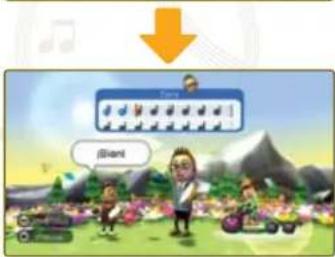
text_image
BiantVideos
natural_image
Four cartoon characters in colorful oval frames connected by a downward arrow, with musical notes and a yellow musical note on the left (no text or symbols on figures)natural_image
Illustration of a traditional Chinese opera performance on stage with musicians and a handheld remote (no text or symbols visible)2