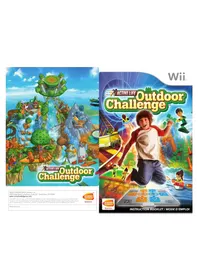
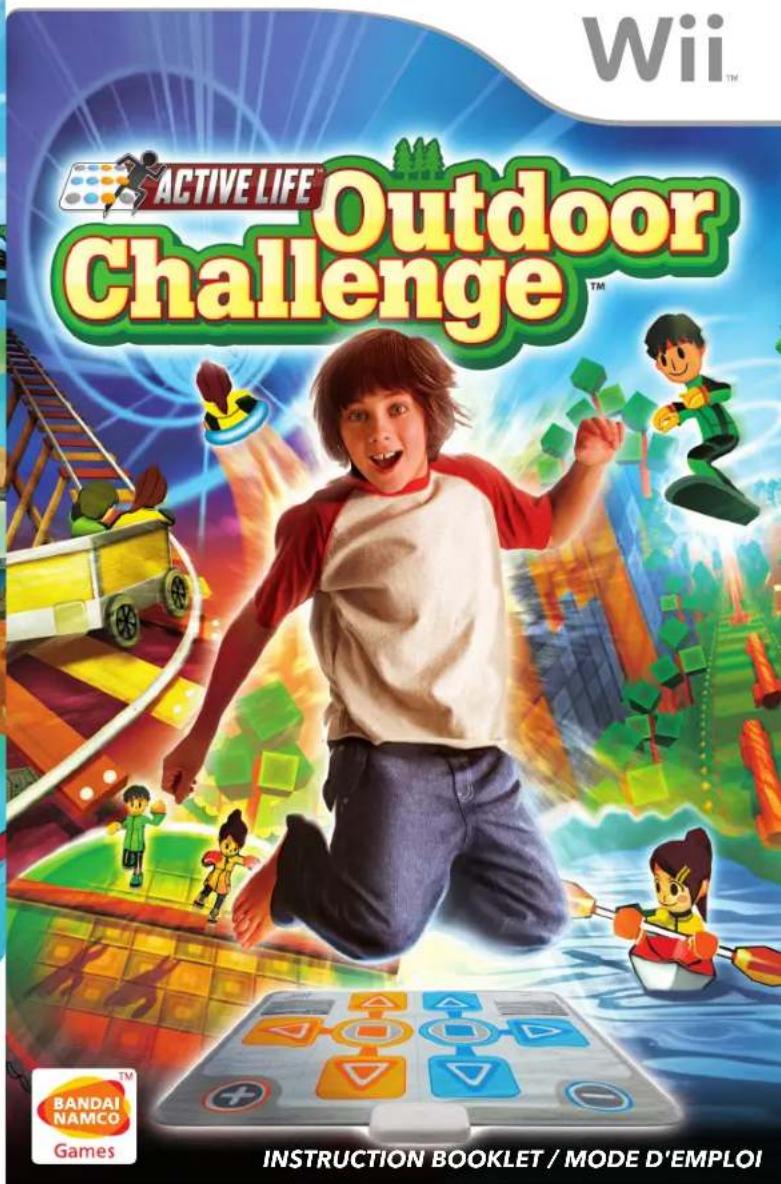
Active Life Outdoor Challenge (Wii) - Game NINTENDO - Free user manual and instructions
Find the device manual for free Active Life Outdoor Challenge (Wii) NINTENDO in PDF.



| Product type | Video game for Wii console |
| Dimensions | 13.5 × 19 × 1.5 cm (game case) |
| Weight | 100 g (case) |
| Power | Powered by the Wii console (no additional battery required) |
| Main functions | Sports adventure game with control mat, Single Player modes (Sports Adventures, Exercises, Free Play) and Multiplayer modes (Sports Adventures, Showdown, Teamwork), over 15 mini-games, character creation, leaderboards, automatic saving |
| Care and cleaning | Clean the control mat with a soft, dry cloth. Do not use chemicals. Dry completely before use. |
| Safety | Warnings: risk of epileptic seizure, injuries from repetitive movements, nausea. Always use the Wii Remote wrist strap. Play barefoot on the mat. Take breaks every hour. |
| Spare parts and repairability | Limited 90-day warranty by NAMCO BANDAI Games America Inc. For returns, contact customer service (support@namcobandaigames.com). |
| General information | Brand: Nintendo; Model: Active Life Outdoor Challenge (Wii); Manual languages: French, English; Number of pages: 28 |
Frequently Asked Questions - Active Life Outdoor Challenge (Wii) NINTENDO
User questions about Active Life Outdoor Challenge (Wii) NINTENDO
0 question about this device. Answer the ones you know or ask your own.
Ask a new question about this device
Download the instructions for your Game in PDF format for free! Find your manual Active Life Outdoor Challenge (Wii) - NINTENDO and take your electronic device back in hand. On this page are published all the documents necessary for the use of your device. Active Life Outdoor Challenge (Wii) by NINTENDO.
USER MANUAL Active Life Outdoor Challenge (Wii) NINTENDO
NAMCO BANDAI Games America Inc.
4555 Great America Parkway, Suite 201, Santa Clara, CA 95054
www.namcobandaigames.com
ACTIVELITE™: Outdoor Challenge™/82008 NAMCO BANDAI Games Inc. NAMCO BANDAI Games logo is a trademark of NAMCO BANDAI. The ratings loan is a registered trademark of the Entertainment Software Association. All other trademarks and trade names are the property of their respective owners, U.S. Patent Nos. 5,269,687; 5,354,202 and 5,577,913 used under license from Mickey Games West Inc.
PRINTED IN U.S.A.

Games
PLEASE CAREFULLY READ THE Wii™ OPERATIONS MANUAL COMPLETELY BEFORE USING YOUR Wii HARDWARE SYSTEM, GAME DISC OR ACCESSORY. THIS MANUAL CONTAINS IMPORTANT HEALTH AND SAFETY INFORMATION.
IMPORTANT SAFETY INFORMATION: READ THE FOLLOWING WARNINGS BEFORE YOU OR YOUR CHILD PLAY VIDEO GAMES.
WARNING - Seizures
- Some people (about 1 in 4000) may have seizures or blackouts triggered by light flashes or patterns, and this may occur while they are watching TV or playing video games, even if they have never had a seizure before.
- Anyone who has had a seizure, loss of awareness, or other symptom linked to an epileptic condition, should consult a doctor before playing a video game.
- Parents should watch their children play video games. Stop playing and consult a doctor if you or y o uchild has any of the following symptoms:
Convulsions Eye or muscle twitching Altered vision Loss of awareness Involuntary movements Disorientation
- To reduce the likelihood of a seizure when playing video games:
-
Sit or stand as far from the screen as possible.
-
Play video games on the smallest available television screen.
- Do not play if you are tired or need sleep.
- Play in a well-lit room.
- Take a 10 to 15 minute break every hour.
WARNING - Repetitive Motion Injuries and Eyestrain
Playing video games can make your muscles, joints, skin or eyes hurt. Follow these instructions to avoid problems such as tendonitis, carpal tunnel syndrome, skin irritation or eyestrain:
- Avoid excessive play. Parents should monitor their children for appropriate play.
• Take a 10 to 15 minute break every hour, even if you don't think you need it. - If your hands, wrists, arms or eyes become tired or sore while playing or if you feel symptoms such as tingling, numbness, burning or stiffness, stop and rest for several hours before playing again.
- If you continue to have any of the above symptoms or other discomfort during or after p l ay, stop playing and see a doctor.
CAUTION - Motion Sickness
Playing video games can cause motion sickness in some players. If you or your child feels dizzy or nauseous when playing video games, stop playing and rest. Do not drive or engage in other demanding activity until you feel better.
IMPORTANT LEGAL INFORMATION
This Nintendo game is not designed for use with
any unauthorized device. Use of any such device will invalidate your Nintendo product warranty. Copying of any Nintendo game is illegal and is strictly prohibited by domestic and international intellectual property laws. "Back-up" or "archival" copies are not authorized and are not necessary to protect your software. Violators will be prosecuted.
REV-E

The Official Seal is your assurance that this product is licensed or manufactured by Nintendo. Always look for this seal when buying video game systems, accessories, games and related products.

ACTIVE LIFE™: Outdoor Challenge™&©2008 NAMCO BANDA Games Inc. NAMCO BANDAI Games logo is a trademark of NAMCO BANDAI. The listings icon is a registered trademark of the Entertainment Software Association, All other trademarks and trade names are the property of their respective owners. U.S. Patent Nos. 5,269,687; 5,354,202 and 5,577,913 used under license from Midway Games West Inc.
Nintendo, WI and the Official Seal are trademarks of Nintendo. © 2006 Nintendo
Licensed by Nintendo
Nintendo
CAUTION: WRIST STRAP USE
Please use the wrist strap to help prevent injury to other people or damage to surrounding objects or the Wii Remote in case you accidentally let go of the Wii Remote during game play.
Also remember the following:
• Make sure all players put on the wrist strap properly when it is their turn.
• Do not let go of the Wii Remote during game play.
• Dry your hands if they become moist.
- Allow adequate room around you during game play and make sure that all areas you might move into are clear of other people and objects.
- Stay at least three feet from the television.
SYSTEM MENU UPDATE
Please note that when first loading the Game Disc into the Wii console, the Wii will check if you have the latest system menu, and if necessary a Wii system update screen will appear. Press OK to proceed.
Connecting the Mat Controller.....2 Game Controls.....12
Wii Remote™ Controls ....3 View/Delete Personal Data ....22
Let's Select a Mode ....5 View Rankings....23
Let's Choose a Character ....6 Options....23
Single-Player Mode....7 Credits....48
Multi-Player Mode....11 Warranty ....53
Connecting the Mat Controller
Mat Controller
This page explains basic controls for the Mat Controller. For in-game control methods, please see page 12 onwards.
![graph TD A["Start"] --> B{Confirm / Pause Menu} B -->|Yes| C["Action 1"] B -->|No| D["Action 2"] C --> E["Control 1"] D --> F["Control 2"] E --> G["Action 3"] F --> H["Action 4"] G --> I["Action 5"] H --> J["Action 6"] I --> K["Action 7"] J --> L["Action 8"] K --> M["Action 9"] L --> N["Action 10"]…](/content/2026/03/497774/images/b2e49dd5f562944224ecebfd02a2b7aad5114bcd219de511a8743d3f102259eb.jpg)
Important Safety Information
Make sure that the Wii console's power is turned OFF
Important: Connect the Mat Controller before turning on your Wii console.
Connecting the Mat Controller
Connect the Mat Controller's plug to the corresponding Controller Socket on the Wii console. Be sure to connect it to Controller Socket 1 on the Wii console.
Note: If you connect the Mat Controller to any Controller Socket besides
Controller Socket 1, you will not be able to use it for gameplay.

PRECAUTIONS FOR USE OF THE ACTIVE LIFE™ MAT CONTROLLER
Important Safety Information
- Step on the Mat Controller only in your bare feet. DO NOT WEAR SOCKS. Shoes may damage the Mat Controller's sensors.
- Position the Mat Controller away from hard flooring or furniture or sharp corners. You may want to place cushions around the Mat Controller to break any fall.
- Dry the mat thoroughly before using to prevent any slipping. If the Mat Controller becomes wet with sweat or other liquid, stop playing and dry it.
- Do not play with the Mat Controller if you are currently consulting a doctor, if you are pregnant, or if vigorous exercise may be bad for your health. If you experience pain, discomfort or fatigue while using the Mat Controller discontinue use.
- Do not use the Mat Controller if you are under the influence of alcohol or other drugs that can impair your balance, perceptions and judgment.
- Children should be supervised by an adult to ensure safe use of the Mat Controller.
- Do not keep the Mat Controller near open flames or other heat sources.
- Do not hit the Mat Controller with your fists.
Notes
- Only connect and remove the mat when the Wii console is turned OFF. When disconnecting the mat, be sure to hold it by the plug (not the cord).
- If the Wii console is shaken during gameplay, there is a chance that it will malfunction and/or damage the game disc. Place the Wii console in a location where it will not be shaken or otherwise damaged.
- When playing, wear clothing that makes it as easy to move around as possible.
- Playing while wearing socks or shoes can lead to falls, accidents, injury, and damage to game hardware.

Wii Remote™ Controls
Wii Remote
Here we explain the basic controls for the Wii Remote. For information on in-game controls for specific games, see page 12 and onwards.
Pointer
- Select menu items

Power Button
-Turn power ON/OFF

+Control Pad
- Move cursor

A Button
Confirm
- Send message

+ Button
- Confirm
- Pause menu

-Button
Cancel

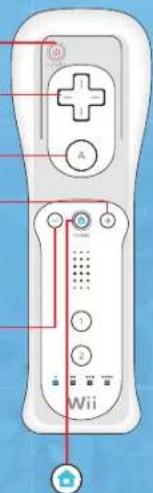
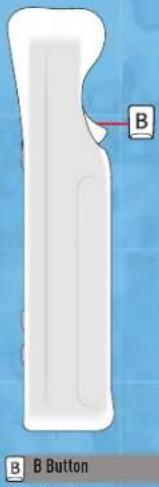
- Display/close HOME Button Menu
* The 1 Button and 2 Button are not used.
* In this instructional booklet, the Pointer is used to choose a menu item. Similarly A Button and + Button are used for confirming a selection, and B Button and - Button are used for canceling a selection and going back to the previous screen.
Saving
You must have at least 5 blocks of free space in order to save game data. In ACTIVE LIFE": Outdoor Challenge, game data is automatically saved after finishing a game, or whenever individual data is registered. You may turn auto-save functions ON or OFF in the Options.
Let's Select a Mode
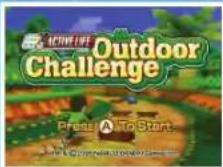
After starting up the game, the Main Menu will be displayed at which point you can select a mode. Point to the mode you want to play, and press A Button or + Button.
Single Player Mode
In this mode, one person can enjoy "Outdoor Adventure", "Exercise Training", and "Free Play". See page 7.
Multi-Player Mode
Two friends can enjoy "Outdoor Adventure", "Friend Battle", or "Teamwork". See page 11.
View/Delete Personal Data
Browse or delete individual data that has been saved See page 22.
View Rankings
View rankings achieved by players for each game in "Free Play" in Single Player Mode. See page 23.
Options
Adjust game settings, such as switching auto-save ON and OFF, and turning display of ghosts ON and OFF. See page 23.
Let's Choose a Character
Character Selection Screen
Point to the character you'd like to play as, then press A Button or + Button. If you select "Start without saving", no data except for game rankings will be saved.
About Miis
In ACTIVE LIFE: Outdoor Challenge, you can play using Miis that you've created in the Mii Channel.
* Refer to the "Wii Operations Manual – Channels and Settings" for more information about creating Miis in the Mii Channel.
* If you selected "Start without saving" on the Character Selection Screen, you'll be able to choose from the Miis saved on your Wii Remote. Miis saved on the Wii console will not be able to be chosen.
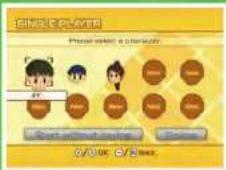
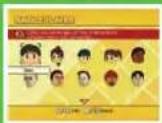
Creating individual data the first time you play!
[1] Point to "New" and press A Button or + Button. Individual data will be created.
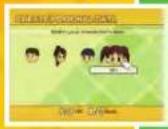
[2] Point to the character you'd like to use, then press A Button or + Button. If Mii data that you've saved in the Mii Channel is saved on the Wii console, you'll be able to pick a Mii.
* You can't select a Mii saved on the Wii Remote to create individual data.
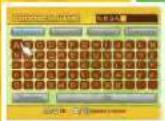
[3] Time to input your name! Point to a character and press A Button or + Button to input it. After confirming the name, your individual data will be complete.
* If you chose a Mii in step [2], then you'll be able to select a body type for your Mii, rather than inputting a name. Point to either "Adult" or "Child" and press A Button or + Button to confirm.
How Do I Erase Individual Data?
Point to "Delete" on the Character Selection Screen and press A Button or + Button. Next, point to the data you'd like to erase, and press A Button or + Button to erase it.

Single Player Mode
Single Player Game Mode Selection Screen
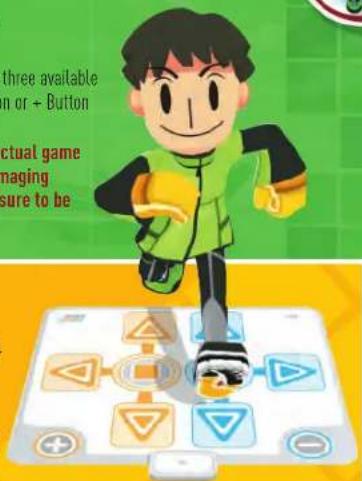
Choose a game mode to play from the three available options by pointing to it. Press A Button or + Button to confirm.
• Wearing socks or shoes during actual game play can result in slipping or damaging the game equipment. Please be sure to be barefoot while playing.
Outdoor Adventure
In this game mode, you tackle an athletic course made up of several single player events. See page 8.
Exercise Training
This option helps you to gradually get into shape. Select the activities where you feel you need the most training. See page 9.
Free Play
In this game mode, you are free to choose and play whichever events you want. See page 10.
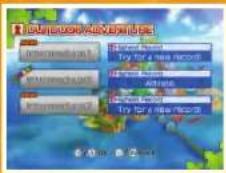
Outdoor Adventure
Choose an outdoor course!
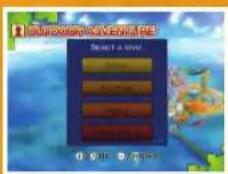
Point to the outdoor course you wish to play, and press A Button or + Button. As you complete courses, new ones become available.
Look at what's in each outdoor course!
Once you select an outdoor course, a Confirmation Screen appears to let you view the events of that course.
Verify the goal of the game and start!
After you've taken a look at what's in the selected outdoor course, point to "Start!" and press A Button or + Button. The game's goal will be shown, and the game will start.
After finishing the course, check out your results!
Once you've completed all of the games for an outdoor course, the Results Screen is displayed. You can press B Button or - Button to view your results in greater detail. Press A Button or + Button to close the Results Screen and continue.
Original Courses
Original courses are outdoor courses that you can create yourself. To create a course, point to "Create" and press A Button or + Button. Select "Play" using the same controls in order to play an outdoor course that you've created.
Set up games!
Point to the stage you'd like to set up and press A Button or + Button. Then, use the same controls to select a game for that stage.
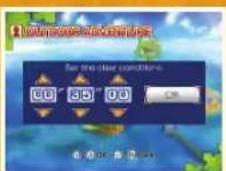
Set the difficulty level and clear conditions!
You can set the course's difficulty level, as well as the conditions necessary to complete the course. Point to ↑ or ↓ and press A Button or + Button to change settings. Once you've finished, select "OK".

Exercise Training

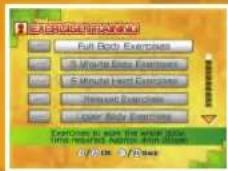
Select a type of training!
Point to the type of training you'd like to do and press A Button or + Button. You can scroll through the list of training types by pointing to ↑ or ↓ and pressing A Button or + Button. If you select the graph icon next to a training type, you'll be able to view a daily results graph for that training type.
Verify training content and goals, then start the game!
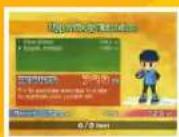
Once you select a type of training, you can view what games are in the selected training course. If you point to "Start!" and press A Button or + Button, the goal for the training course will be displayed, and the games will begin.
Check your results!
After you've finished all of the games in the training, the Results Screen will appear, and you can view your results in graph form. Also, when you clear at least one training course in a day, you'll receive a stamp showing that you completed that day's training.
Graphs and AP (Active Points)
After completing training, you'll receive a number of AP (Active Points), calculated based on how much exercise you performed and other factors. The number of AP received will be graphed on a daily line graph. Point to the "graph icon" and press A Button or + Button. On the Graph Screen, you can check your stamps by pressing A Button or + Button.
*The value shown on the graph represents the highest number of AP received for each day.


Free Play
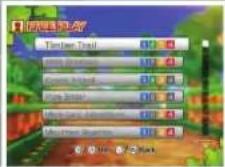
Choose a game!
Point to the game you want to play, and press A Button or + Button. Scroll through the list of games by pointing to
or ↓ and pressing A Button or + Button. Next, point to a level and press A Button or + Button.
Check the controls, then start the game!
Once you select a difficulty level, the game's controls are displayed. Point to "Start!" and press A Button or + Button to start the game.
Check your results!
When you complete the game, the Results Screen appears. If you scored in the top five, your name is displayed in the rankings.
* Depending on the game, record ghosts may appear in Free Play Mode. See page 23 for more information about ghosts.
About Difficulty Level
Each event has difficulty levels that can be chosen for it. More difficulty levels can be unlocked in Free Play Mode by completing the various difficulty levels of "Beginner", "Intermediate" and "Advanced" in the Outdoor Adventure Single Player Mode.
Multi-Player Mode
Multi-Player Game Mode Selection Screen
After selecting Multi-Player Mode, you will be presented with three available game modes. Point to the option you want to play, then press A Button or + Button.
Outdoor Adventure
In this game mode, you and a friend take on several outdoor courses, composed of various activities. This mode works in the same way as Outdoor Adventure in Single Player Mode (see pg. 8).
Friend Battle
In this mode, two people can compete in various activities. Game selection here works in the same way as Free Play in Single Player Mode (see pg. 10).
Teamwork
In these cooperative games, two players can see how well they work together.
Teamwork
Choose a game!
Point to the game you'd like to play, then press A Button or + Button.
Check the controls, then start the game!
Once you select a game, the game's controls are displayed. Point to "Start!" and press A Button or + Button to start the game.
Check your results!
Once you finish the game, the Results Screen is displayed. Teamwork Ratio, as well as your total AP [Active Points], will be displayed.
Game Controls
How Do I View an Explanation of the Control Scheme for a Game?
Detailed, on-screen instructions in both Single Player and Multi-Player modes are available for each game.
- In Free Play, Friend Battle and Teamwork modes, each game's control scheme automatically appears when you choose a game.
- In Outdoor Adventure, after selecting an outdoor course, the Confirmation Screen will appear. Point to any game on this screen and press A Button or + Button to view an explanation of that game's control scheme.
- In Exercise Training, after selecting a type of training, you will be taken to a list of games in that training course. On this screen, point to any game and press A Button or + Button to view an explanation of the game's control scheme.
The Controls Explanation Screen
On the Controls Explanation Screen, point to → and press A Button or + Button to advance to the next page. Point to ← and press A Button or + Button to go back to the previous page. You can return to the Game Confirmation Screen by pressing B Button or - Button.
* Note: Most screenshots shown in the following sections are from Free Play in Single Player Mode. Other modes may vary slightly.
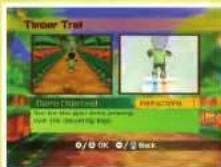
Timber Trail
Run as fast as you can while jumping over and dodging logs.
• SINGLE PLAYER MODE/MULTI-PLAYER (FRIEND BATTLE)
• CONTROL METHOD: MAT CONTROLLER
(1) Time Elapsed (2) Best Time
(3) Shows current progress (4) Speedometer
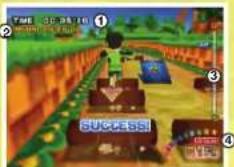
Mole Stomper
Try to quickly hit all of the moles as they appear.
- SINGLE PLAYER MODE
• CONTROL METHOD: MAT CONTROLLER
(1) Score (2) High Score
(3) Time Limit

Kayak Attack
Go kayaking down a raging river!
- SINGLE PLAYER MODE
• CONTROL METHOD: MAT CONTROLLER / Wii Remote
(1) Time Elapsed (2) Best Time
(3) Shows current progress (4) Speedometer
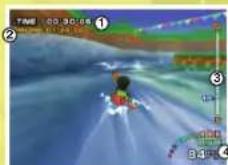
Escaping from a Whirlpool
TIP: Quickly take alternating steps on and while swinging the Wii Remote to escape from a whirlpool.
Speed Up
TIP: Head for the parts of the river where the water's a different color to gain a speed boost.
Hitting Jumps
TIP: Steer your kayak onto the jump ramps throughout the river to go flying through the air!
Pipe Slider
Slide down a slick pipe while dodging obstacles.
- SINGLE PLAYER MODE
• CONTROL METHOD: MAT CONTROLLER
(1) Time Elapsed (2) Best Time
(3) Shows current progress (4) Speedometer
* Note: Do not hit the mat with your fists.
TIP:
Slide through dash zones to boost your speed for a limited time.
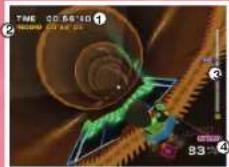
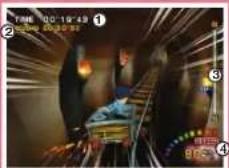
Mine Cart Adventure
Take a wild mine cart ride!
- SINGLE PLAYER MODE / MULTI-PLAYER MODE [TEAMWORK]
• CONTROL METHOD: MAT CONTROLLER / Wii Remote
(1) Time Elapsed (2) Best Time
(3) Shows current progress (4) Speedometer
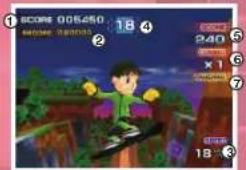
Mountain Boarder

Slide through a grassy field on your board while landing tricks.
- SINGLE PLAYER MODE
• CONTROL METHOD: MAT CONTROLLER
(1) Score (2) High Score
(3) Speedometer (4) Time Limit
(5) Obtained Score (6) Total Combos
(7) Result
"Goofy Foot" Stance
Stand on and to go straight. Take your feet off of and at the same time to jump. Release and press to turn left. Release and press to turn right.
Use obstacles as jumps
TIP: You can ride on top of obstacles by jumping onto them. Use obstacles as jumps and build up your obtained score by doing tricks!
Get past obstacles by grabbing your board and crouching
TIP: A way of getting past objects without jumping is to grab your board while it's sliding on the ground, which will make you crouch so long as your hands are touching the buttons. Tunnels and other obstacles can be traversed by crouching.
Grabbing
TIP: While jumping, from the basic position:
• Left: Press ◀ with your left hand
• Right: Press ▶ with your right hand
* Controls for "goofy foot" stance are the same.
Back Spin
TIP: While jumping from the basic position, press with your right hand to do a back spin.
* For "goofy foot" stance, press with your left hand.
Mountain Boarder (continued)
Side Spin
TIP: While jumping, from the basic position;
Left: Release and press
Right: Release and press
* For "goofy foot" stance:
Left: Release and press
Right: Release and press
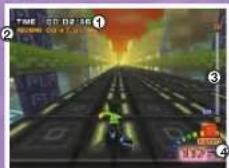
Speed Roller
Speed thorough the course as fast as you can on in-line skates.
• SINGLE PLAYER MODE
• CONTROL METHOD: MAT CONTROLLER / Wii Remote
(1) Time Elapsed (2) Best Time
(3) Shows current progress (4) Speedometer
Use high-speed rails to speed up
TIP: Jumping onto high-speed rails will cause you to increase your speed. You can move from rail to rail by jumping.
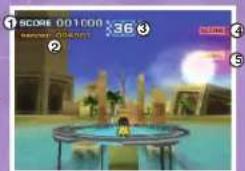
Lake-top Trampoline
Perform amazing tricks in mid-air!
• SINGLE PLAYER MODE
• CONTROL METHOD: MAT CONTROLLER
(1) Score (2) High Score
(3) Time Limit (4) Total Combos
(5) Obtained Score
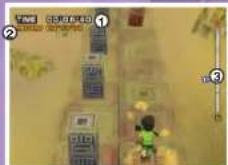
Stone Stepper

Sprint across stone pillars in a race to the finish line!
- SINGLE PLAYER MODE / MULTI-PLAYER MODE (FRIEND BATTLE)
• CONTROL METHOD: MAT CONTROLLER
(1) Time Elapsed (2) Best Time
(3) Shows current position
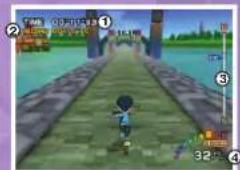
Sprint Challenge
Run as fast as you can through the course to earn the best time!
• SINGLE PLAYER MODE / MULTI-PLAYER MODE (FRIEND BATTLE)
• CONTROL METHOD: MAT CONTROLLER
(1) Time Elapsed (2) Best Time
(3) Shows current position (4) Speedometer
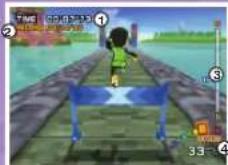
Head-on Hurdler
Race to the goal while clearing hurdles to get the best time!
- SINGLE PLAYER MODE / MULTI-PLAYER MODE (FRIEND BATTLE)
• CONTROL METHOD: MAT CONTROLLER
(1) Time Elapsed (2) Best Time
(3) Shows current position (4) Speedometer
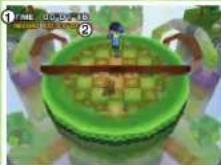
Log Leaper
Jump logs as they come at you from all sides to avoid getting knocked over the edge!
- SINGLE PLAYER MODE / MULTI-PLAYER MODE (FRIEND BATTLE)
• CONTROL METHOD: MAT CONTROLLER
(1) Time Elapsed (2) Best Time
Single Player Mode
RULES: The purpose of the game is to stay on top of the tower for as long as possible. If any of the logs touches you, you'll get knocked down off the tower.
Multi-Player Mode
RULES: Dodge the logs to stay on the tower longer than your opponent to win. When a log hits you, you'll get pushed towards the edge of the tower. Get hit three times and you'll get knocked off of the tower.
Conveyer Runner
See how far you can run without falling off the course!
- SINGLE PLAYER MODE / MULTI-PLAYER MODE (FRIEND BATTLE)
• CONTROL METHOD: MAT CONTROLLER
(1) Time Elapsed (2) Best Time
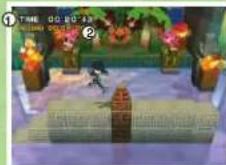
How long can you survive this mad dash?
RULES: Run along a stone conveyor belt as the screen constantly scrolls sideways. Run too quickly or too slowly, and you'll fall off the course! Be on the lookout for stone pillars that will get in your way. Jump over any obstacles that block your way and keep running!
* Single Player Mode: Keep running as long as possible before falling off the course.
* Multi-Player Mode: Stay on the course longer than your opponent to win.
Seesaw Battler
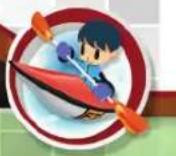
Put your button-pressing skills to the test with this new variation of hot hands!
- SINGLE PLAYER MODE / MULTI-PLAYER MODE (FRIEND BATTLE)
• CONTROL METHOD: MAT CONTROLLER
(1) Number of Wins
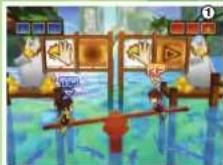
Press the button more quickly than your opponent!
RULES: When a button panel changes to the quick-push icon, press that button before your opponent does!
* Single Player Mode: See how many opponents you can beat in a single match.
* Multi-Player Mode: The first player to get 3 first-hit icons is the winner!
* Note: Do not hit the mat with your fists.
Jump Rope
Play jump rope for as long as you can without tripping.
• SINGLE PLAYER MODE / MULTI-PLAYER MODE (TEAMWORK)
• CONTROL METHOD: MAT CONTROLLER
(1) Number of Jumps
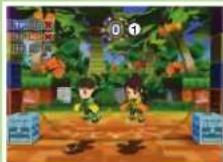
Jump over the rope as many times as possible without making a mistake!
RULES: Jump over the rope without tripping. In Single Player Mode a single mistake will end the game. In Multi-Player Mode, if either you or your opponent trips a combined total of 3 times, it's game over!
Waterfall Climber
Work in synch with a friend to climb a waterfall.
• MULTI-PLAYER MODE [TEAMWORK]
• CONTROL METHOD: MAT CONTROLLER / Wii Remote
PLAYER 1'S JOB
Jumping
Stand with your feet on 📄 or (△ or ▼) and 🔍 or (△ or ▼). Take both feet off of the buttons at the same time to jump. Time your jumps to your partner's action of pulling you up.
Course Movement
To land after jumping, step on ☐ or [△ or ▼] and or [△ or ▼] to land in the center. Step on ◀ and ☐ or [△ or ▼] to move to the left or step on ● [△ or ▼] and ▶ to move to the right.
PLAYER 2'S JOB
Pulling Up Player 1
Player 2 should hold the Wii Remote horizontally and stand to the side of the mat controller. Player Z's job is to pull the Wii Remote upwards in perfect timing with Player 1's jumps to aid Player 1 up the waterfall.
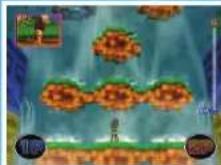
TIPS
If you lose your footing...
Both players must cooperate to help the character climb to safety on the nearest rock.
PLAYER 1 CONTROLS
When hanging by a rope...
Step on and in an alternating pattern.
When hanging onto a rock...
- Left side: and
- Center: and
- Right side: and
Step on the two buttons corresponding to the rock's position in an alternating pattern.
PLAYER 2 CONTROLS
Hold the Wii Remote vertically and shake it quickly.
Finally, work together to climb over the top of the waterfall!
Once you climb up all of the rocks, the final cooperation challenge will begin.
PLAYER 1 CONTROLS
Step on □ and ● in an alternating pattern.
PLAYER 2 CONTROLS
Hold the Wii Remote vertically and shake it quickly.

View/Delete Personal Data
Viewing Personal Data
CHOOSE A CHARACTER!
On the Main Menu, choose "View/Delete Personal Data" and a screen showing a list of all of your registered characters will appear. Point to the character for which you'd like to view data, and press A Button or + Button.
Personal Data Screen
You can view three types of information on the Personal Data Screen. To switch the screen and scroll through information, point to ↑ or ↓ and press A Button or + Button. You can also use the +Control Pad on the Wii Remote or △ △ ▼ ▼ on the Mat Controller.
Character Information Screen Graph Information Screen Results List Screen
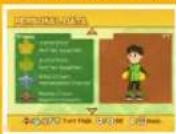
View your character's name, visual appearance, and any rewards earned
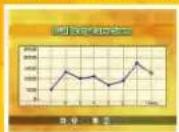
View a graph over time of AP [Active Points] collected daily
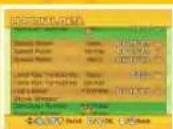
View a list of results [best scores and times] for the various events in Single Player Mode's "Free Play" mode.
Deleting Personal Data
On the Character List Screen, point to "Delete" and press A Button or + Button. Point to the character whose data you'd like to erase, and press A Button or + Button to show the Confirmation Screen. Once you choose "Yes" to confirm the deletion, the character's data will be erased.
View Rankings
Selecting Game and Difficulty
Point to the game for which you'd like to see rankings, and press A Button or + Button. Next, select the difficulty level. The current rankings will be displayed.
Options
Choosing the Options Menu
To set game options, point to the Options Menu and press A Button or + Button.
Save
This will save current game data.
Ghost Display
You can use this to turn display of ghost data ON or OFF.
* A ghost is a way of showing and competing against your previous performance and actions in an event.
Autosave
This lets you switch the auto-save feature ON or OFF.
* If you turn this OFF, auto-saves will no longer be performed.
Staff Credits
This lets you see the credits for the game.
VEUILLEZ LIRE ATTENTIVEMENT L'INTÉGRALITÉ DU MODE D'EMPLOI DE LA Wii AVANT D'UTILISER VOTRE SYSTÈME, VOTRE DISQUE DE JEU, OU VOS ACCESSOIRES Wii. CE MODE D'EMPLOI COMPREND D'IMPORTANTES INFORMATIONS SUR VOTRE SANTÉ ET VOTRE SÉCURITÉ.
INFORMATIONS IMPORTANTES CONCERNANT VOTRE SÉCURITÉ: VEUILLEZ LIRE LES PRÉCAUTIONS SUIVANTES AVANT QUE VOUS OU VOTRE ENFANT NE JOUIEZ À VOS JEUX VIDÉO.
ACTIVE LIFE™: Outdoor Challenge™ 8/2008 NAMCO BANDN: Games Inc. NAMCO BANDN Games logo is a trademark of NAMCO BANDN. The listings icon is a registered trademark of the Entertainment Software Association, A/ other trademarks and trade names are the property of their respective owners. U.S. Patent Nos. 5,269,687; 5,354,202 and 5,577,913 used under license from Microay Games West Inc.
Nintendo, WI and the Official Seal are trademarks of Nintendo. © 2006 Nintendo
ACTIVE LIFE Outdoor Challenge™
Aventures Sportives

Jeu Libre
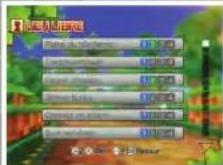
Choisissez un jeu!
Travail d'Équipe
Choisissez un jeu!
| NAMCO BANDAI Games Inc. | NAMCO BANDAI Games America Inc. | QUALITY ASSURANCE |
| Producer Hiroma Mori | PRODUCTION | Senior QA ManagerTad Hirabayashi |
| Chief Producer Yusuke Sasaki | Director of Localization Takahiro Sasanoi | QA SupervisorMike Peterson |
| Product Managers Toshihiro Nada Tomoaki Imanishi Daisuke Uchiyama | Sr. Localization Manager Atsushi Minowa | Project CoordinatorJesse Mejia |
| Localization Manager Nobuaki Taguchi | QA LeadMatt Peterson | |
| Senior Localization Manager Seiko Fujisawa | Associate Localization Producer Masahiro Knittel | Assistant QA LeadStephen Chin |
| Localization Manager Hidehiko Yoshizawa Lindsay Gray | MARKETING & PR | QA Test TeamTaylor Benson Cameo WiningerDavid Jasper Thomson Tan |
| Localization Producer Seiji Sugimoto | Director of Marketing & PR Todd Thorson | Special Thanks:Genichi Ito, Shuji Nakata, Makoto Iwai, Andrew Leichuk, Dennis Lee, Arne Cual-Pedrose, Corey Tran, Charmaine Morena, Moto Aida, Brian Schorr, Martin Nguyen |
| Associate Localization Producers James Vance | Product Marketing Manager Sarah Felbinger | |
| Public Relations Manager Kit Ellis | ||
| Senior Marketing Manager Naruo Uchida | Creative Services Manager Michiko Wang | Packaging DesignTom Usher Designs |
| Marketing Coordinator Ryuichi Enomoto | Sr. Graphic Designer Corey Tran | |
| Legal Counsel Jenna Smith | ||
| OPERATIONS | ||
| Sr. Operations Manager Jennifer Tersigni |
REFRESHINGLY FUN
NO SUGAR NEEDED

3 sugary drinks a week equal 6 pounds of body fat in a year.*
With Aquapod's fun shape, kids will drink more water
and less of those other drinks.
Look for an exclusive ACTIVE LIFE™: Outdoor Challenge™ offer on specially marked packages of Aquapod® Visit www.aquapodmoms.com for details.
Change the Shape of What Kids Drink™
NESTLE WATERS NORTH AMERICA INC. "AQUIAPOO 2008" INSTANT-WIN GAME ABBREVIATED RULES
NO PURCHASE NECESSARY. GAME OPER ONLY TO CURRENT LEGAL RESIDENTS OF THE 50 UNITED STATES AND WASHINGTON D.C., WHO ARE 18 YEARS OF AGE OR OLDER AND HAVE INTERNET ACCESS AS OF 8/14/08. VOID WHERE PROHIBITED. TO PLAY. Purchase any multi-pack of Aquapod water at any participating location between 8/15/08 and 12/30/08, enter the on-pack code online at www.aquapodnorms.com and follow instructions posted on correct, OR visit www.aquapodnorms.com from 12:00:01 p.m. ET an 8/15/08 through 11:59:59 p.m. ET on 12/30/08 ("Promotion Period"), fill out an online registration form and you will receive one (I) free Game Code. Enter your Game Code to add if you are a potential winner. If you are a potential winner of any price (subject to verification) you will be notified by e-mail within 43 hours from time of Game play. Limit one (I) Game play per person, per e-mail address, per day. All Game plays must be completed by 11:59:59 p.m. ET on 12/30/08. Odds of winning depend on the number of eligible entries received. Visit www.aquapodnorms.com for full Official Rules and prize details. SPONSOR: Nestle Waters North America Inc., Greenwich, CT
Covus Nordie Waters North America Inc. NWNA11626
102008 NAMED BANDAI Games America Inc. All Rights Reserved
For a single-surve con of regular (non-diet) soda 140 calories, 39g of sugar
WiN the Robeks.
Get Active!
Sweepstakes
Grand Prize:
Trip For 4 to
Yosemite
National Park!
Includes: Airfare, 4 days/3 nights hotel stay, \$100 voucher per person for activities, ACTIVE LIFE™: Outdoor Challenge™ videogame and a Wii™ console
1st Prize: one of 4 Wii™ consoles
2nd Prize: one of 20 ACTIVE LIFE™: Outdoor Challenge™ videogames
3rd Prize: one-year supply of Robeks VIP Smoothie Cards

Featured in ACTIVE LIFE™: Outdoor Challenge™
NO PURCHASE NECESSORY TO ENTER OR WIN. A purchase will not improve your chances of winning. Robeks "GET ACTIVE" SWEEPSTAKES ("Sweepstakes") starts at 12:01 am (CT) on September 15, 2008 and ends at 11:59 pm (CT) on November 7, 2008. Sweepstakes is open only to legal residents of the 50 United States and the District of Columbia, eighteen (8) years of age or older as of the date of entry. Void in Puerto Rico all U.S. territories and possessions and overseas military installations and where prohibited. Prize won by a minor will be awarded to a parent or legal guardian. HOW TO ENTER: Beginning at 12:01 am (CT) on September 15, 2008 you may enter by logging onto http://www.robeks.com (the "Entry Site") and following the Sweepstakes entry directions You will be asked to provide your name, address, daytime telephone number, age and (if applicable) e-mail address. Upon submitting the completed information, you will receive one (I) entry in the Sweepstakes. ALL ENTRIES ON THE ENTRY SITE MUST BE RECEIVED BY 11:59 PM (CT) ON NOVEMBER 7, 2008. ONLY ONE (I) ENTRY WILL BE ACCEPTED PER PERSON AND/OR E-MAIL ADDRESS. PRIZES: One (II) Grand Prize: Grand Prize consisting of a trip to Yosemite National Park (Yosemite, CA) for Grand Prize winner and three (3) travel companions including: coach-class airfare (via airline carriers) selected by Sponsors or their designee, three (3) consecutive nights hotel accommodations (single room, quadruple occupancy), airport/hotel ground transfers in Yosemite, a \100 voucher per person for e white water rafting adventure activity, one (II) Nintendo Wii gaming system, and one (I) copy of the "Active Life: Outdoor Challenge" videogame (ARV \4,627.99). Four (4) First Prizes: each First Prize consists of one (II) Nintendo Wii gaming system and one (II) copy of the "Active Life: Outdoor Challenge" videogame (ARV \309.99). (20) Second Prizes: Each Second Prize consists of one (II) copy of the "Active Life: Outdoor Challenge" videogame for the Nintendo Wii gaming system (ARV \59.99). Three (3) Third Prizes: each Third Prize consists of one (I) year supply of Robeks 24 oz smoothies (awarded as fifth-two [52] coupons)(ARV \208.00). The total ARV of all prizes to be awarded in this Sweepstakes is \9,691.73. Sweepstakes is subject to the complete Official Rules at http://www.robeks.com. A copy of the Official Rules may also be obtained by sending a written request with a stamped, self-addressed envelope to: Robeks "GET ACTIVE" SWEEPSTAKES PO: Box 5643x, Sherman Coats, CA 91413. Residents of Vermont may omit the return postage on their request. Winners will be selected in a random drawing to be held on/about November 21, 2008. Sponsors' good faith determination of eligibility and any other disputed issue in the Sweepstakes is final and binding. Odds of winning determined by total number of eligible entries received. All Federal, state and local rules and regulations apply.
Sponsored by: NAMCO BANDAI Games America Inc., 4555 Great America Parkway, Suite 201, Santa Clara, CA 95054 and Robeks Corporation, 1230 Rosecrans Ave., Suite 400, Manhattan Beach, CA 70266. ©2008 Robeks Corporation
Ever get stuck and just need that extra edge to beat the level? Having problems getting your game to work properly? Now you can get one-on-one help from NAMCO BANDAI Games America Inc. using your web browser! Simply go to livehelp.namco.com for more details. Live Counselors available from 9am-5pm Monday-Friday Pacific Time.
NAMCO BANDAI Games America Inc. ATTN: Customer Service 4555 Great America Parkway, Suite 201 Santa Clara, CA 95054
Before returning any defective materials to us, please contact us for a Return Merchandise Authorization (RMA) number. You can reach us at the address above, via e-mail at support@Dnamosbandaigames.com or contact us at (408) 235-2222. Please note that any materials sent to us without an RMA number will be refused and returned. We highly recommend that you use a traceable and / or insured method of shipping the materials to us.
NAMCO BANDAI Games America Inc. Online: www.namcobandaigames.com Visit our Website to get information about our new titles. LIMITED WARRANTY: NAMCO BANDAI Games America Inc. warrants to the original purchaser that this NAMCO BANDAI Games America Inc. game pack shall be free from defects in material and workmanship for a period of ninety (50) days from the date of purchase. If a defect covered by this limited warranty occurs during this 50-day limited warranty period, NAMCO BANDAI Games America Inc. will repair or replace the defective game pack or component part, at its option, free of charge. This limited warranty does not apply if the defects have been caused by negligence, accident, unreasonable use, modification, tampering, or any other cause not related to defective material or workmanship.
LIMITATIONS ON WARRANTY: Any applicable implied warranties of merchantability and fitness for a particular purpose, are hereby limited to ninety (90) days from the date of purchase and are subject to the conditions set forth herein. In no event shall NAMCO BANDAI Games America Inc. be liable for consequential or incidental damages resulting from the possession or use of this product. The provisions of the limited warranty are valid in the United States only. Some states do not allow limitations on how long an implied warranty lasts, or exclusion of consequential or incidental damages, so the above limitation or exclusion may not apply to you. This limited warranty provides you with specific legal rights. You may have other rights which vary from state to state.
DES CONSEILS MAINTENANT OFFERTS EN LIGNE!
To register product online go to
WWW.NAMCOREG.COM
- PLEASE CAREFULLY READ THE WII™ OPERATIONS MANUAL COMPLETELY BEFORE USING YOUR WII HARDWARE SYSTEM, GAME DISC OR ACCESSORY. THIS MANUAL CONTAINS IMPORTANT HEALTH AND SAFETY INFORMATION
- IMPORTANT SAFETY INFORMATION: READ THE FOLLOWING WARNINGS BEFORE YOU OR YOUR CHILD PLAY VIDEO GAMES
- WARNING - SEIZURES
- WARNING - REPETITIVE MOTION INJURIES AND EYESTRAIN
- CAUTION - MOTION SICKNESS
- IMPORTANT LEGAL INFORMATION
- CAUTION: WRIST STRAP USE
- SYSTEM MENU UPDATE
- CONNECTING THE MAT CONTROLLER
- MAT CONTROLLER
- IMPORTANT SAFETY INFORMATION
- PRECAUTIONS FOR USE OF THE ACTIVE LIFE™ MAT CONTROLLER
- NOTES
- WII REMOTE™ CONTROLS
- WII REMOTE
- POINTER
- POWER BUTTON
- CONTROL PAD
- A BUTTON
- BUTTON
- SAVING
- LET'S SELECT A MODE
- SINGLE PLAYER MODE
- MULTI-PLAYER MODE
- VIEW/DELETE PERSONAL DATA
- VIEW RANKINGS
- OPTIONS
- LET'S CHOOSE A CHARACTER
- CHARACTER SELECTION SCREEN
- ABOUT MIIS
- CREATING INDIVIDUAL DATA THE FIRST TIME YOU PLAY
- HOW DO I ERASE INDIVIDUAL DATA
- SINGLE PLAYER GAME MODE SELECTION SCREEN
- OUTDOOR ADVENTURE
- EXERCISE TRAINING
- FREE PLAY
- CHOOSE AN OUTDOOR COURSE
- LOOK AT WHAT'S IN EACH OUTDOOR COURSE
- VERIFY THE GOAL OF THE GAME AND START
- AFTER FINISHING THE COURSE, CHECK OUT YOUR RESULTS
- ORIGINAL COURSES
- SET UP GAMES
- SET THE DIFFICULTY LEVEL AND CLEAR CONDITIONS
- SELECT A TYPE OF TRAINING
- VERIFY TRAINING CONTENT AND GOALS, THEN START THE GAME
- CHECK YOUR RESULTS
- GRAPHS AND AP (ACTIVE POINTS)
- CHOOSE A GAME
- CHECK THE CONTROLS, THEN START THE GAME
- ABOUT DIFFICULTY LEVEL
- MULTI-PLAYER GAME MODE SELECTION SCREEN
- FRIEND BATTLE
- TEAMWORK
- GAME CONTROLS
- HOW DO I VIEW AN EXPLANATION OF THE CONTROL SCHEME FOR A GAME
- THE CONTROLS EXPLANATION SCREEN
- TIMBER TRAIL
- MOLE STOMPER
- KAYAK ATTACK
- ESCAPING FROM A WHIRLPOOL
- SPEED UP
- HITTING JUMPS
- PIPE SLIDER
- TIP
- MINE CART ADVENTURE
- MOUNTAIN BOARDER
- GOOFY FOOT" STANCE
- USE OBSTACLES AS JUMPS
- GET PAST OBSTACLES BY GRABBING YOUR BOARD AND CROUCHING
- GRABBING
- BACK SPIN
- MOUNTAIN BOARDER (CONTINUED)
- SIDE SPIN
- SPEED ROLLER
- USE HIGH-SPEED RAILS TO SPEED UP
- LAKE-TOP TRAMPOLINE
- STONE STEPPER
- SPRINT CHALLENGE
- HEAD-ON HURDLER
- LOG LEAPER
- TIME ELAPSED (2) BEST TIME
- CONVEYER RUNNER
- HOW LONG CAN YOU SURVIVE THIS MAD DASH
- SEESAW BATTLER
- NUMBER OF WINS
- PRESS THE BUTTON MORE QUICKLY THAN YOUR OPPONENT
- JUMP ROPE
- NUMBER OF JUMPS
- JUMP OVER THE ROPE AS MANY TIMES AS POSSIBLE WITHOUT MAKING A MISTAKE
- WATERFALL CLIMBER
- PLAYER 1'S JOB
- JUMPING
- COURSE MOVEMENT
- PLAYER 2'S JOB
- PULLING UP PLAYER 1
- TIPS
- IF YOU LOSE YOUR FOOTING
- PLAYER 1 CONTROLS
- WHEN HANGING BY A ROPE
- WHEN HANGING ONTO A ROCK
- PLAYER 2 CONTROLS
- FINALLY, WORK TOGETHER TO CLIMB OVER THE TOP OF THE WATERFALL
- VIEWING PERSONAL DATA
- CHOOSE A CHARACTER
- PERSONAL DATA SCREEN
- DELETING PERSONAL DATA
- SELECTING GAME AND DIFFICULTY
- CHOOSING THE OPTIONS MENU
- SAVE
- GHOST DISPLAY
- AUTOSAVE
- STAFF CREDITS
- VEUILLEZ LIRE ATTENTIVEMENT L'INTÉGRALITÉ DU MODE D'EMPLOI DE LA WII AVANT D'UTILISER VOTRE SYSTÈME, VOTRE DISQUE DE JEU, OU VOS ACCESSOIRES WII. CE MODE D'EMPLOI COMPREND D'IMPORTANTES INFORMATIONS SUR VOTRE SANTÉ ET VOTRE SÉCURITÉ
- INFORMATIONS IMPORTANTES CONCERNANT VOTRE SÉCURITÉ: VEUILLEZ LIRE LES PRÉCAUTIONS SUIVANTES AVANT QUE VOUS OU VOTRE ENFANT NE JOUIEZ À VOS JEUX VIDÉO
- ACTIVE LIFE OUTDOOR CHALLENGE™
- AVENTURES SPORTIVES
- JEU LIBRE
- CHOISISSEZ UN JEU
- TRAVAIL D'ÉQUIPE
- WIN THE ROBEKS
- GET ACTIVE
- GRAND PRIZE
- YOSEMITE
- NATIONAL PARK
- DES CONSEILS MAINTENANT OFFERTS EN LIGNE
Brand : NINTENDO
Model : Active Life Outdoor Challenge (Wii)
Category : Game