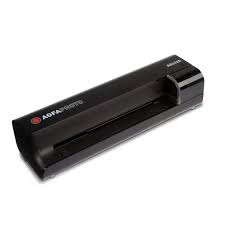
AS1110 - To scan SAGEM - Free user manual and instructions
Find the device manual for free AS1110 SAGEM in PDF.



| Product type | Photo scanner |
| Sensor | Contact Image Sensor (CIS) |
| Dimensions (L x H x D) | 156 x 46 x 38 mm |
| Weight | 0.17 kg |
| Power supply | Input: 100-240 V~, 50-60 Hz; Output: 6 V= / 1.5 A |
| Power consumption | < 9 W |
| Maximum hardware resolution | 1800 x 1200 dpi |
| Output formats | 24-bit Color, 8-bit Grayscale, 1-bit Black & White |
| Supported memory cards | SD, xD, MMC, MS, CompactFlash (Type I) |
| Document formats | Width: 148-297 mm, Min. length: 42 mm, Max. thickness: 1.5 mm (credit card) |
| Supported paper weight | 50-105 g/m² |
| PC connection | USB 2.0 Mini-USB (memory card reader function) |
| Functions without PC | Scan to memory card, direct connection to a compatible digital photo frame |
| Glass cleaning | Cleaning rod provided, insert from the left of the document output |
| Roller cleaning | Cleaning sheet provided, use in cleaning mode (press and hold POWER button for 5 seconds) |
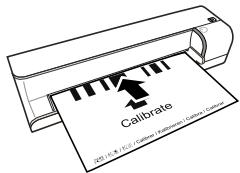
| Calibration | Calibration sheet provided, insert with arrows facing the rollers |
| Operating temperature | 15-35 °C |
| Warranty (France) | 12 months (3 months for accessories) |
| Warranty (Belgium & Luxembourg) | 24 months (3 months for accessories) |
| Warranty (Switzerland) | 12 months (3 months for accessories) |
Frequently Asked Questions - AS1110 SAGEM
User questions about AS1110 SAGEM
0 question about this device. Answer the ones you know or ask your own.
Ask a new question about this device
Download the instructions for your To scan in PDF format for free! Find your manual AS1110 - SAGEM and take your electronic device back in hand. On this page are published all the documents necessary for the use of your device. AS1110 by SAGEM.
USER MANUAL AS1110 SAGEM
Macintosh: Mass Storage Class Mac OS9.x or Mac OSX
Configuration minimum
20-70% (sans condensation)
Scanner
With the purchase of this device, you have chosen a quality AgfaPhoto product brand. Their device fulfils the most varied requirements for private use or in your office and business everyday.
Scan photos or business cards and transfer the data automatically on to memory cards or onto compatible digital picture frames.
In addition, you also use the scanner as a memory card reader in combination with a computer.
We hope you enjoy your device and its many functions!
About this User Manual
With the installation guide on the following pages, you can start using your device quickly and easily. Detailed descriptions can be found in the following sections of this user manual.
Read the entire user manual carefully. Follow all safety instructions in order to ensure proper operation of your device. The manufacturer accepts no liability if these instructions are not followed.
Symbols Used
DANGER!

DANGER!
Warns about dangers for people, damage to the device or other objects as well as possible loss of data. Injuries or damage can result from improper handling.
Notice

Troubleshooting
This symbol designates tips that will help you to use your device more effectively and easily.
1 Introduction
Dear Customer 1
About this User Manual 1
General Safety Information
Device Overview
External View 4
Connections on the Rear Side 4
4 Initial Operation
Packing Contents 5
Connecting power supply 5
Inserting a Memory Card 5
Using the digital photo frame 5
5 Scanning
Loading Photos 6
Cleaning the Scanner Glass 7
Computer Connection 7
Service
Cleaning 8
Power Cycling 9
7 Appendix
Technical Data 11
Guarantee 11
General Safety Information
Read the following information before using the device in order to avoid or minimise any risk of injury or damage.
Setting Up the Device
Protect the device against direct sunlight, heat, large temperature fluctuations and moisture. Do not place the device in the vicinity of heaters or air conditioners. Observe the information on temperature and humidity in the technical data.
In the event that the device becomes too hot, or if you see smoke coming from the device, you must immediately pull the power cable out of the power socket. Have your device examined by trained professionals at a technical service location. To prevent the spread of fire, open flames should be kept away from the device.
Do not plug in the device in moist rooms. Never touch the mains cable or the mains connection with wet hands.
Under the following conditions, a layer of moisture can appear inside the device which can lead to malfunctions:
- if the device is moved from a cold to a warm area;
- after a cold room is heated;
- when this device is placed in a damp room.
Proceed as follows to avoid any moisture build-up:
1 Seal this device in a plastic bag for it to adapt to room conditions.
2 Wait one to two hours before you take the device from the plastic bag.
The device should not be used in a very dusty environment. Dust particles and other foreign objects may damage the unit.
Do not expose the device to extreme vibrations. It may damage the internal components.
Do not allow children to handle the device without supervision. The packing materials should be kept out of the hands of children.
Power Supply
Do use the AC adapter and USB cable provided with the scanner. When using other power supply units and cables, the device may not work.
Turn the device off using the on/off switch before you remove the plug from the socket.
Never touch the power cable if the insulation is damaged. Replace damaged wires immediately. Use suitable cables only; if necessary please contact our technical customer service or your retailer.
Set up your device so that the power socket is easily accessible. In an emergency, disconnect your device from the power supply by pulling the power plug.
Before cleaning the surface of your device, disconnect it from the power network. Use a soft, lint-free cloth. Never use liquid, gaseous or easily flammable cleansers (sprays, abrasives, polishes, alcohol). Do not allow any moisture to reach the interior of the device.
Remove the mains cable if you are not using the device for a long time to avoide the risk of fire.
Do not attempt to take the device apart. There is danger of an electrical shock. Opening the device voids the warranty.
Repairs
Do not make any repairs to the device yourself. Improper maintenance can result in injuries or damage to the device. Only have your device repaired by an authorised service centre.
Do not remove the type label from your device; this would void the warranty.
Device Overview
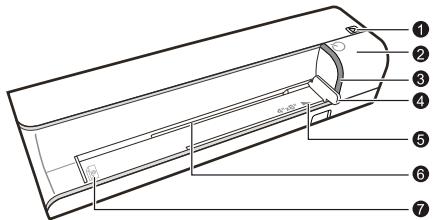
External View
STATUS - status indicator - displays the device status
Lit: Scanner in cleaning mode
Flashing quickly: Document jam
Flashing slowly: Scans the document, saves data, sensor is being cleaned
-
switch the device on/off / press and hold for longer than 5 seconds to clean the feed roller with the cleaning sheet
-
POWER - Operating status indicator - displays the operating status of the device
Lit: Scanner ready, or scanning the document
Flashing quickly: Document jam, memory card error
Flashing slowly: Initialisation, saves data, sensor is being cleaned
4 Document guide - inserting the document/ remove the tape before using it for the first time
Markers for 10× 15cm photos
Document feed slot
Symbol for direction of feed - insert the document into the document feeder with the printed side facing up and the top edge facing the key
Connections on the Rear Side
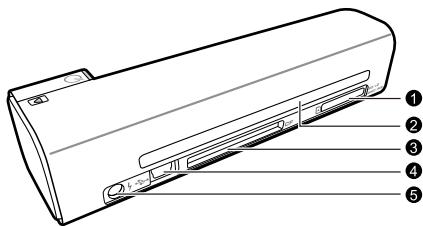
Slot for memory card - only insert the following memory cards here: SD/xD/MMC/MS
2 Document outlet
Slot for Compact Flash memory card Type 1
4 Mini USB connection - for connecting a computer (only as a memory card reader) or a digital photo frame
- Socket - Port for power supply
Initial Operation
Packing Contents
Photo scanner
Calibration sheet
Cleaning sheet for the feed rollers
Cleaning pen for scanner
Power supply
USB cable
User Manual
Notice

Missing Package Contents
If one of the parts is missing or damaged, please contact your retailer or our customer service.
Connecting power supply
CAUTION!

Mains Voltage at the Site of Installation!
Check whether the mains voltage of your device (indicated on the type label) matches the mains voltage available at the setup location.
1 Insert the small plug of the power supply into the socket on the rear side of your device.
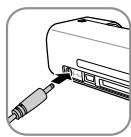
2 Insert the power supply unit into the socket.
Inserting a Memory Card
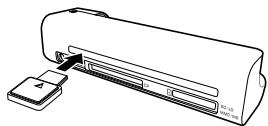
1 Insert a memory card which is not read-only into the appropriate card slot at the rear of the device. Your photo frame supports the following memory cards: SD, xD, MMC, MS, CF.
DANGER!

Inserting a Memory Card!
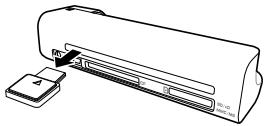
Only use storage media that are compatible with the device. In order to prevent damage to the card or the unit, please turn off the power before removing or inserting the card.
Never pull out the memory card while the device is accessing it. This could cause data to be damaged or lost.
Notice

Inserting a Memory Card
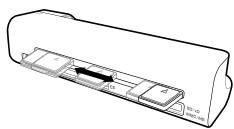
If both slots are occupied, the data is saved in the following sequence: SD (MMC) > CF > xD > MS.
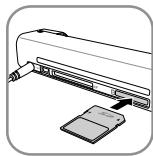
2 Press and hold the key until the control lamp for the device status is constantly on.
Notice

Control Lamp
If this control lamp flashes, this could stem from one of the following causes.
- no memory card inserted
- insufficient memory capacity available on the memory card (less than 1MB)
- The read-only option of the memory card is active
-memory card defective
Please note that the initialisation process of a memory card with a capacity of 2GB or more takes longer.
The control lamp can blink for up to 20 seconds
Using the digital photo frame
Notice

Using the digital photo frame
If the device is connected to a compatible digital photo frame, the scanned photos can be transferred directly to the memory of the digital photo frame.
1 Switch the device off using the on/off switch on the upper side.
2 Connect the digital photo frame to the Mini-USB of the device using a USB cable.
3 Switch the device on using the on/off switch.
Scanning
Loading Photos
You can insert different types of document into your device. Follow the specifications in the technical data.
You can scan documents using the protective cover to avoid the photo or document being damaged by scratches or creases.
Notice

Scanning documents with the protective cover
If smaller documents are scanned using the protective cover, in certain cases, the automatic cutting off function does not function properly. Either important parts of the image are cut off or too much edge remains around the document. In this case, scan the documents without using the protective cover.
CAUTION!

Unsuitable Documents!
No paper clips, staples, fixing pins or similar may be retained on the documents.
1 Open the protective cover and insert the document with the printed side facing up.
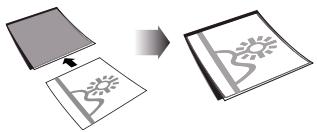
2 Lay the protective cover into the document feeder with the printed side facing upwards, the closed side of the page [black lines] forward and the page header in the direction of the button.
3 Align the protective cover to the left hand edge.
Fix the protective cover in place using the document guide on the right hand side. The document guide should lightly touch the protective cover.
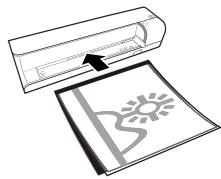
5 Slide the protective cover horizontally as far into the document feeder until it is automatically fed into the scanner and the scanning process is started. Ensure you do not bend the document. The control lamp POWER flashes during the scanning process.
DANGER!

Document Jam!
Do not insert documents into the feeder whilst the device is scanning. This can lead to a paper jam.
6 Wait until the control lamp POWER and the control lamp STATUS are no longer flashing and the control lamp STATUS is continually on. This means that the scanning process is completed and the data was saved onto the memory card.
DANGER!

Document Jam!
Wait until both control lamps are no longer flashing before you insert the next document in order to prevent a document jam.
7 The file name is assigned according to the DCF (Design Rule for Camera File System) standard.
Notice

Scanning documents with the protective cover
Remove the document from the protective cover after the scanning process in order to avoid the document sticking to the protective cover.
Notice

Stand-by Mode
If the scanner has not been used for approx. 15 minutes, it automatically switches off.
Cleaning the Scanner Glass
If lines appear on the scanned image or the image is not sharp, you need to clean the scanner glass.
1 Switch the device off.
2 Insert the cleaning pen into the left hand end of the document ejector.
Notice

Instructions for Cleaning
The cleaning pen must be free of any dust.
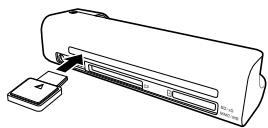
3 Move the cleaning pen carefully two or three times to the other end of the document ejector.
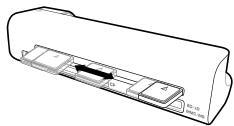
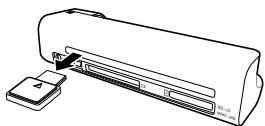
4 Move the cleaning pen to the left hand side of the document ejector again and then remove the cleaning pen.
Computer Connection
You also use the scanner as a memory card reader in combination with a computer.
Requirements
Your computer must meet the following minimum requirements:
Operating System
Windows: Windows 2000 · XP · Vista · or later versions
Macintosh: Mass Storage Class Mac OS9.x or Mac OSX
Connecting to the PC
The device is Hot-Plug-and-Play capable which means you can link your computer to the device, whilst its running. You do not need to close down your computer to link the device to it.
1 Connect the device to your PC by means of the USB cable.
2 If the USB is working correctly, the device is recognised automatically. A drive letter is assigned to each memory card slot.
Notice

Connecting to an USB hub
If you would like to connect the device to a USB hub = (USB distributor), ensure that the USB hub is connected to the computer before you connect the device to the USB hub.
3 You can access the memory card (drive) and edit the saved files.
Service
Cleaning
DANGER!

Switching off the device!
Turn the device off using the on/off switch before you remove the plug from the socket.
DANGER!

Instructions for Cleaning!
Use a soft, lint-free cloth. Never use liquid or easily flammable cleansers (sprays, abrasives, polishes, alcohol, etc.). Do not allow any moisture to reach the interior of the device. Do not spray the device with any cleaning fluids.
Wipe over the surfaces gently. Be careful that you do not scratch the surfaces.
Cleaning the feed rollers
1 Switch the device off.
2 Press and hold the key until the control lamp POWER light up.
3 The scanner is now in cleaning mode.
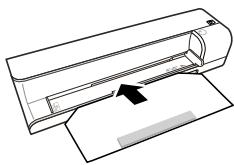
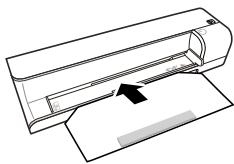
4 Push the cleaning sheet into the document feeder.
Notice

Instructions for Cleaning
Observe the direction of feed. The white sponge must be on the upper side.
Do not use any cleaning agents or cleaning fluids. Doing so can permanently damage the feed rollers.
5 The sheet is automatically fed and the cleaning process started. During cleaning, the control lamps POWER and STATUS flash.
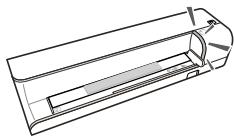
6 After cleaning is complete, the sheet is ejected and the control lamp POWER goes out.
Notice

Cleaning sheet for the feed rollers
Store the cleaning sheet in a dust-free location.
Calibrating the scanner
Calibrate the scanner if colors appear in areas that should be white, or colors of the scanned image and the original vary a lot. This allows you to adjust and compensate for variations that can occur in the optical component over time by its nature.
1 Clean the feed rollers and the scanner glass first before calibrating the scanner.
2 Insert a memory card which is not read-only into the appropriate card slot at the rear of the device.
3 Press and hold the key until the control lamp for the device status is constantly on.
4 Place the calibrating sheet in the document feeder with the arrows facing the feed rollers.
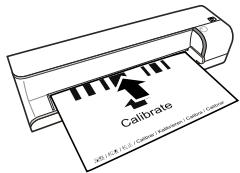
5 The sheet is automatically fed and the calibration process started.
Notice

Calibrating the scanner
Observe the direction of feed. If the calibration sheet is inserted incorrectly, the calibration process cannot be started.
Power Cycling
If a problem occurs that cannot be corrected with the instructions in this user manual (also see the help below), proceed as follows:
1 Disconnect the mains.
2 Wait at least ten seconds, then plug the power plug back into the socket.
3 If the problems repeats, please contact our technical customer service or your retailer.
| Problems | Solutions |
| The device cannot be switched on | Check that power supply is connected to the device properly. |
| The device feels warm | After a certain period of operation, the surface reaches approx. 30°C to 45°C. This is normal. If an unusual smell comes from the device or the surface becomes too hot, disconnect the scanner immediately from the power supply and/or the computer / digital photo frame. |
| Lines are present on the scanned picture or the image is not sharp | Check whether the document is dirty or scratched. Check whether the protective cover used is dirty or scratched. Clean and calibrate the scanner if it has not been used for a longer period. |
| With scanned images, parts of the image are cut off. | The scanner is equipped with a function for automatic cutting off of black edges. With small images, the image is only saved without the edge. When using this function, cutting off of important picture information can occur with images with a black background (e.g. night shot). In this case, rotate the image and scan it again. |
| The document is stuck in the feeder | Switch the device off using the ♂ button. You can now remove the document. |
| The control lamp STATUS flashes quickly, scanning not possible / memory card is not recognised | Check whether you have used a compatible memory card and whether you have inserted the memory card correctly. Remove the memory card and insert it into the slot again Switch any active read-only options on the memory card off. Make sure the memory card is not damaged. Check the available memory space on the memory card. If the available space is less than 1MB, the scanning process cannot take place Check the file format of the memory card Only memory cards with the FAT or FAT32 file format can be used. Check whether the next document was inserted too quickly. When scanning several documents, wait until the data transfer of the first scan has ended (status lamp continuously on) Check the document length (see technical data) |
| Transfer to a digital photo frame is not working | This function is only available with certain photo-to frames. |
| Photos with a grey or black back will not be scanned. | Place a white piece of paper over the back of the photo and put it into the protective cover. Place the protective cover into the document feeder. |
Appendix
Technical Data
Type.........Color Contact Image Sensor (CIS)
Dimensions (× × ) 156×46×38mm
Weight. 0,17 kg
Mains Connection ............Input: 100 - 240V ~ (±10%) / 50 - 60Hz ............Output: 6V--- / 1.5A
Power Consumption
Operation. < 9W
Recommended Ambient. 15-35°C
Relative humidity 20-70% (non-condensing)
Scanner
Input format 48 bit colour
Output format. 24-Bit
Maximum hardware resolution ...1800×1200 Pixel
Document feed slot
Maximum thickness of cheque cards/plastic cards 1.5mm
Paper formats supported
Minimum (B× L) 42x20mm
Maximum [B × L] 105×304.8mm
Paper Weight 50-105 g/m²
Computer connection
Connection Type....Compatible with USB 2.0 High Speed
Technical specifications subject to change without notice.
Guarantee
[Terms and Conditions for United Kingdom only]
In order to supply the guarantee, you should contact your dealer or Sagem Communications Helpdesk. The proof of purchase will be required.
Please make usage of your equipment for the purpose for which it was designed and under normal usage conditions. Sagem Communications do not accept any liability for any usage made out of the frame of its original designed purpose and any consequence that may arise from this usage.
Should any malfunctioning arise, the dealer or Sagem Communications Helpdesk will advise you what to do.
A) General Guarantee Conditions
Sagem Communications undertakes to remedy by repair or exchange at its own convenience, free of charge for labour and replacement parts, any defects in the equipment during the guarantee period of 12 -twelve- months (3 -three- months for accessories), from the date of original invoice of the Equipment, where those defects are a result of faulty workmanship.
Unless the customer has concluded with Sagem Communications a maintenance contract in respect of the equipment which specifically provides for repairs to be carried out at the customer's premises, the repairs will not be carried out on the equipment at the customer premises. The customer must however return the defective equipment at his/her own expense, to the address given by the dealer or Sagem Communications Helpdesk.
In case a product needs to be sent in for a repair, it always has to be accompanied by a proof of purchase (which is not altered, written on or in any way be made illegible) showing that the product is still under warrantee. In case no proof of purchase is enclosed, the Sagem Communications repair center will use the production date as a reference of establishing the warrantee status of the product.
Apart from all legal obligatory rules, Sagem Communications, do not give any Guarantee, either implicit or explicit which is not set force in the present section, and could not be hold responsible for any direct or indirect, material or immaterial damage, in or out of the frame of the present guarantee.
If any provision of this guarantee shall be held to be in whole or in part invalid or illegal due to an ob
ligatory rule applicable to consumers pursuant to their national legislation, such invalidity or illegality shall not impair or affect the remaining provisions or parts of this guarantee.
This guarantee does not affect the Customer statutory rights.
B) Exclusions From Guarantee
Sagem Communications shall have no liability under the guarantee in respect of:
- Damage, defects, breakdown or malfunction due to one or more of the following:
- Failure to properly follow the installation process and instructions for use
- An external cause to the equipment (including but not limited to: lightening, fire, shock, vandalism, inappropriate conditions of electrical network or water damage of any nature)
- Modifications made without the written approval of Sagem Communications
- Unsuitable operating conditions, particularly of temperature and humidity
- Repair or maintenance of the equipment by persons not authorized by Sagem Communications
-] Wear and tear from normal daily use of the equipment and its accessories - Damage due to insufficient or bad packaging of equipment when returned to Sagem Communications
- Usage of new versions of software without previous approval of Sagem Communications
-] Work on any equipment or software modified or added without the prior written consent of Sagem Communications - ] Malfunctions not resulting from the Equipment or from software installed in user workstations for the purpose of use of the equipment.
Communication problems related to an unsuitable environment including: - Problems related to access and/or connection to the Internet such as interruptions by access networks or malfunction of the line used by the subscriber or his correspondent
Transmission faults [for example poor geographical coverage by radio transmitters, interference or poor line quality] - The local network fault [wiring, servers, workstations] or the failure of the transmission network (such as but not limited to interferences, fault or poor quality of the network)
- Modification of the parameters of the cellular network carried out after the sale of the Product
-] The normal servicing (as defined in the user guide supplied with the equipment) as well as malfunctioning due to servicing not being carried out.
Servicing costs are in any event always borne by the customer.
- ] Malfunctions resulting from the usage of products, consumables or accessories not compatibles with the equipment.
C) Out of Guarantee Repairs
In the cases set forth in B) as well as after expiry of the guarantee period, the customer must ask the Authorized Sagem Communications Repair Centre for a cost estimation.
The repair and delivery costs will be invoiced to the customer.
The foregoing shall apply unless otherwise agreed in writing with the customer and only for the United Kingdom.
Helpdesk:0871-0752250
AgfaPhoto is used under license of Agfa-Gevaert NV & Co. KG or Agfa-Gevaert NV. Neither Agfa-Gevaert NV & Co KG nor Agfa-Gevaert NV manufacture this product or provide any product warranty or support.
For service, support and warranty information, contact the distributor or manufacturer.
Contact:AgfaPhoto Holding GmbH, www.agfaphoto.com
Manufacturer: Sagem Communications, www.sagem-communications.com

The CE symbol confirms conformity with the EU directives that apply to the device.
Preservation of the environment as part of a sustainable development logic is an essential concern of AgfaPhoto. The desire of AgfaPhoto is to operate systems observing the environment and consequently it has decided to integrate environmental performances in the life cycle of this products, from manufacturing to commissioning use and elimination.

Packaging: The presence of the logo [green dot] means that a contribution is paid to an approved national organisation to improve package recovery and recycling infrastructures to facilitate. Please respect the sorting rules set up locally for this kind of waste.
Batteries:If your product contains batteries, they must be disposed of at appropriate collection points.

Product: The crossed-out waste bin stuck on the product means that the product belongs to the family of electrical and electronic equipment. In this respect, the European regulations ask you to dispose of it selectively;
- At sales points in the event of the purchase of similar equipment.
- At the collection points made available to you locally[drop-off centre, selective collection, etc.].
In this way you can participate in the re-use and upgrading of Electrical and Electronic Equipment Waste, which can have an effect on the environment and human health.
The paper and cardboard packaging used can be disposed of as recyclable paper. Have the plastic wrapping and Styrofoam packaging recycled or dispose of it in the non-recyclable waste, depending on the requirements in your country.
Trademarks: The references mentioned in this manual are trademarks of the respective companies. The lack of the trademarks and T M does not justify the assumption that these dedicated terminologies are free trademarks. Other product names used herein are for identification purposes only and may be trademarks of their respective owners. AgfaPhoto disclaims any and all rights in those marks.
The reproduction of certain documents (e.g. by scanning, printing, copying) is prohibited in many countries. The list of such documents below is not intended to be complete, it only offers a general overview. In case of doubt, consult your legal advisor.
Passports (personal identification)
- Entrance and exit visa papers (immigration papers)
· Military service documents
Bank notes, travel checks, payment orders
- Postage stamps, tax stamps (stamped or unstamped)
- Loan papers, certificates of deposit, bonds
Documents protected by copyright
Follow the statutory regulations of your country with regard to the legal validity of fax transmissions—particularly in connection with the validity
of signatures, meeting delivery deadlines or disadvantages resulting from the loss of quality in the transmission, etc.
Take care to maintain the statutory regulations of your country regarding telecommunications secrecy and data privacy.
Neither AgfaPhoto nor its affiliates shall be liable to the purchaser of this product or third parties for damages, losses, costs, or expenses incurred by the purchaser or third parties as a result of accident, misuse, or abuse of this product or unauthorized modifications, repairs, or alterations to this product, or failure to strictly comply with AgfaPhoto operating and maintenance instructions.
AgfaPhoto shall not be liable for any damages or problems arising from the use of any options or any consumable materials other than those designated as original AgfaPhoto products or AgfaPhoto approved products.
AgfaPhoto shall not be held liable for any damage resulting from electromagnetic interference that occurs from the use of any interface cables other than those designated as AgfaPhoto products.
All rights reserved. No part of this publication may be reproduced, stored in a retrieval system or transmitted in any form or by any means, electronic, mechanical, photocopying, recording, or otherwise, without the prior written permission of AgfaPhoto. The information contained herein is designed only for use with this product. AgfaPhoto is not responsible, if this information is applied to other devices.
This user manual is a document that does not represent a contract.
Errors, printing errors and changes are reserved.
Copyright © 2009
Introduzione
Stimato cliente,
TipColor Contact Image Sensor (CIS)
Dimensioni (× × ) 156x46x38mm
Peso 0.17kg
Macintosh: Mass Storage Class Mac OS9.x or Mac OSX
Macintosh: Mass Storage Class Mac OS9.x o Mac OSX
TipColor Contact Image Sensor (CIS)
Dimensoes [L × A × P] 156×46×38mm
Gramagem. 0,17kg
Ligaçao à rede
......Entrada: 100 - 240V [± 10% ] / 50 - 60Hz
Saía: 6V---/1.5A
Consumo de energia
Operação. <9W
Vyrobce: Sagem Communications, www.sagem-communications.com

Symbol CE potvrzuje shodu tohoto vyrobku s naizeneni EU.
Producent: Sagem Communications, www.sagem-communications.com
(C)
Macintosh: Mass Storage Class Mac OS9.x or Mac OSX
Conectarea la un calculator
Max. hrubka šekovych/plastovych kariet 1.5mm
Podporované formaty papiera
Minimum (B× L) 42x20mm
Maximum [B × L] 105×304.8mm
Hmotnost' papiera. 50 - 105g / m^2
Macintosh: Mass Storage Class Mac OS9.x veya Mac OSX
Fabrikator: Sagem Communications, www.sagem-communications.com

Macintosh: Mass Storage Class Mac OS9.x n Mac OSX
He nbitaTebc pa3o6paTb yctpoNCTBO. CyueCTbyET ONaCHOCTb npaKeHn 3JNEKTPOTOKOM. OTKpbIBaHne yctpoNCTBa BeTe K notepe rapaHTM.
PemOH
He nbItaIteCb camOCToTeNbHO peMOHTnPOBaTb annapat. HnpeAunBbHbI peMOHT moKet npBeCTN K TpaBmM NOBpeXeDeHNIO annapata. BaW annapat MOxHO peMOHTnPOBaTb ToIbKO B yNoJHOMOueHHOM CepBnCHOM ueHTpe.
He cHmMaTe 3aBODcKo 7nIbNc c annapata, npn 3TOM OTMeHЯIoTc rapaHTnHbIe O63aTeNbCTBa.
063op annapata
Budchapuykni
STATUS - INДИКATOP COCTOЯня - OTOбракаet COCTOЯнfte yctpoiCTBA
TOpNT:ckaHepBpeJMeOChTKn BbICTPO MuraTe:3acTpeBaHne DOKyMeHa T Miraet MeIeHNO: cKaHNpyET DOKyMeHT, coXpaHRe TaHHBe, BbIOJIHReTCa OCHCTKa ceHCopa
2 - 6- BkIIOUHeH/ByIKIOUHeHye cTpoNCTBa / ydepXAHNE B HAXATOM NOIOXeHHN 6oJIe 5 cekyHd - BTYINBAIOxu X BAIIKOB PnI NOMOUI ONUIaOIOE I NCTA
- POWER - INДИКaTOP pa6oуero pexma - OTO6paKaet pa6oyni pexim yctpoiCTBa
Tognt: ckahep roTOB K paOte uIN cKaHnpyeT DOKyMeHT
KaJIIN6pOBoUChbI JInCT
OuHuaUHmJINCTDnBbTaHbAUxPONIKOB
UcTaaun kapaDau dna ckaHepa
3neKtpnueckoe nntaHne
USB-ka6eJb
PykoOCTBOI0b3oBaTeJIa
3aMeuHaHua

HenoJIhBk KOMnJIeKr NoCtABKn
Ecnn OoHH n3 3Tnx npEMeTOB OTcYCTBYeT nnIN NOBPEXJDeH, 6obparntecb K BaWseMy NoCTaBUnKy nN B cny6y noDdepKm.
PoiKJIoueHne cTeBOro aanTepa
OCTOPOXHOCTb!

Hapnxene cetn B mectyctahOBkn!
IpoBepbTe, COOTBeTCTByET Tn Tn3eNkTpOtnTaHn BAuEro annapata[yka3aH Ha uINbDnke] TnPy3eNkTpOtnTaHn B MceTe yCTaHOBKn annapata.
1 BCTaBbTe MaJIeHbKyU BnIky Ka6eIa CeTeBOrO aIaITepa B pa3bEm Ha 3aIHeI CTOpOHe ycTpoIcTBa.
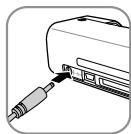
2 Bctabte cetebo aanTp e C cetbyo po3eKy.
YctaHOBka KapTbI namrtn
1 BcTaBbTe KapTy namrTn, He 3aunuHnHyo ot 3anCn, B COOTBeCTBtuOeE rHe3do Ha 3aDnei CTOpOHe yctpoIcTBa. OHO noDdepKInBaHT KaTbI namrTn CNeDuYooNx φopMaTob: SD, xD, MMC, MS, CF.
ONACHOCTb!

YctaHOBtE KapTy nAMrTn!
IcnoB3yTe ToJbKO CoBMeCTMlbE C yctpoiCTBOM HocnteIN INHΦopMaun. Bcerda OTKIOUaTe 3eKtPOnNTAHne yctpoiCTBa npExZe, Yem N3BNeYb N3 HERO KapTy namrTn BO N36exaHnn NOBpExdHn KaPTb namrTn IIn6o yctpoiCTBa.
HnKOrda He BbITackNBAJIte KapTy nAmTn, KOTOPAR INCNOB3yETcB TEkyuyn MOMHT. 3TO MOKET npIeBCTN K NOBpeXdEHNIO IIN K yTpate DaHHbIX.
3aMeuHa

YcTaHOBka KapTbI nAmrTn
Ecnn 3aHraTbI o6a rHe3da, daHHbIe coxPhAnHOtCn B cneDuOcEi nocNepoBaTeJIbHoCTn: SD (MMC) > CF xd >MS.
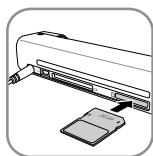
2 YdepknBaTe HaxaToH KhoNkY Do tex np, noka KOHTpOblHbI INDnKaTOp COCToHnY cTPOJCTBa TropNT NOCToRHHO.
3aMeuHua

KoHTpoJIbHbI INHdNkaTOp
Ecnn 3OT KOHTPOBHLbI INHdNkATOp Mnraet, pnpuHbI MOrYt 6bITb cneJyUcMIM:
- He BCTabJIeHa KapTa nAmrTn
HeIOCTaTOUHO MeCTa IJIA COxPAHEnIaHHbIX Ha KapTe NaMAYTN (Mehee 1 M6)
-BKIIIOUHeHa 3aIITa OT 3aINc KApTbI PAMrTa - NOBpeKdHeHa KapTa namrTn
YuHTbIaIe To, QTO dJIa KAP TnAMrTn
EMKocTbIO 6Oee 2 F6 npouecc
HINUANNAZauo 3aHMaet 60JIbe
BVPemEn. KOHTpONbHn HNdkaTop
MOXET MIRATb Do 20 cekyHd.
IcnoJb3OBAHne ZnΦpOBoN
ΦOTOpamKn
3aMeuHaHua

IcnoJIb3OBAHne uΦpOBoΦOTopamKn
Pn npoknoeHm yctpoCTBa K
COBMEcTHMoI zuΦpOBoI φOTopamKe
OTCKAHnpOBaHHbIe φOTorpaDn
peHEOCsTc HENOCPeDCTBeHHO Ha
3aONMOHaOHooee yctpoCTBO zuΦpOBoI
φOTopAMKn.
PekomeHdaun no NcTke
Ha nictaem kapaHdaahe He doJxHo 6bItb NJIIN.
3 AkkypaTHo nepemecHTe YnCTraIiKapaHdaIbIb-TPn pa3a K Dpyromy KpaHO OTBepCTnBbIgpy3Kn DOKyMeHToB.
4 B 3aBepseHne ChOba NpeMeCTnTe UcTrauN KapaHdaaK NLeBOMy KpaIO OTBepCTNa Bblpy3Kn DOKyMeHTOB IN3BNEKeNTe erO.
IopKIIIOUeHHe K KOMMbIoTepy
Takke cKaHep MOxHO NcNoIb3OBaTb I KaCHTbIbAlOuEe yCTpOCTBO JnA KapT PAmrTIN, NOdkJIIOUHb Eero K KomblbOTepy.
Tpe6oBaHnIa
BaW KOMIbIyTeP DoJIxKeH yOBoJIeTBoPraTb CNeDyUoiM MInHMaJIbHbIM Tpe6oBaHnM:
OnepaounHna cnctema
Windows: Windows 2000 · XP · Vista · iPhone no3dHne Bercn
Macintosh: Mass Storage Class Mac OS9.x uM Mac OSX
IopKIIIOUeHHe K KOMMbIoTepy
YcTpoCTBO MOKET aBTOMaTHUeCKN KOHfMnpyPbOaTBcB B «FopraMe» pexJME, T.E., yCToPCTBO MOKHO NpOkJINouTaB K pa6oTaIoueMy KOMbIbTepy. DnI pOkJINoeHnIy YcTpoCTBa HET HeO6XoDMOCtN BblKlNouTaB KOMlbOTep.
1 Плдклочente устороство к komпьотеру пиnomоши USB-kaбеля.
2 Ecnn noKnHouChne no USB pa6oTaet HopMaJIbHo, yCTpoCTBO paCnO3Haetcra abTOMaTHUeCK.CKaKdMbI rHe3dOM dIЯ KapTbI naMTTN COOTHeCEHa 6yKbA DnCKa.
3aMeuHaHua

IopKJIIOUeHne K USB-KoHcEHTpaTopy
Пи подклочени устюctва чered КонцentparToP USB Heo6xodimo Счаяп подклочь КонцentparToP USBКOMMbIoTepy,a3atem -yстюctBOKONцentparToPy USB.
3 Moxho OtkpbBaTb KapTu namrtn [nck] npedaktnpoBaTb coXpaHeHhIe daHhIe.
Texnueckoe obcnykBaHne
OuInCTka
ONACHOCTb!

OTKJIIOHTe annapaT!
BKnOHTyeCTPOIbPi NOMOUI BbIKIOUaTeN, IpexKe Ym 3BNEKaTb CETByO BVNKy n3 pO3eTKn.
ONACHOCTb!

PekomeHdaunn no uctke!
Длго уочтки IncnoьзуITE МяrkуTO cyxHyO 6e3bBOPCBOY TKAH. He npimEnHeTneIg OuchtKJ XnDkNIX, ra3oo6pbzHbIX IN RopUOyO uOChTeITeJIEN [a3pO30nn, a6pa3INbIeI n noInpyuOuIe CpeCTBa, cInrT n.T.n.). He dOnyckaIte nOnaDaHnaI BAnr BHTpy Annapata. He IncnoB3yIte Dln YuchTKn yCTpoiCTBa YcSTTaIe CnpEi. AkkypaTHo npotpaIte NoberXHOCTn cHaJIncIcMn. Co6bIOdaJIte octOpoxHoCTb, YTO6bl He noцapanaTb NOBERXHOCTN.
YnCTka BTAIRNAIOUX BaJIINKOB
1 BbIKHIOHTe ycTPOINCTBO.
2 YeDpKuBaiTe KHOIky B HAnkatoM NOJIOKeHmN Do tex nop, Noka He 3aIoparTcO hTOptbHbN INdikatop POWER.
3 CkaHep HaxOHTcB pexKIMe YIcTKn.
4 BCTaBbTe OuNuaHouN INCT B NOdAHTN K DOKyMeHToB.
3aMeuHua

Pekomehaunn no nctke
Yunbaiye Hapabnene Noa.
Bena ry6ka Donjna HaxoDntcbnHa
BeBXHcn CTOpOHe.
He nCnoJb3yTe DnI yNCTKn paCTBOPHTEN NNI YNCTAUNe K Heo6PThMlb NOBPEXDeHnRA BTRINBAUOxIN BAInKOB.
5 JIcT aBTOMaTuYeCKn BTRAInBaETCn, n 3aYcKaeTc IpoUeDypa YIcTKn. Bo VpeM yIcTKM MIRaHO T KOHTpOJIbHbIe HNdIkaTopbl POWER N STATUS

6 Pocne 3abepeHnna npoceDpybI yNCTK nIcT Bbl6paBbAeTcN, I KOHTpOblbIy INDkaTOp POWER rachET.
3aMeuHaHua

Ounuaouiu nni nct dnn BTRNBAUoox pONIKO
XpaHNT OuIaUoiN INCB MeCT, THe HET NbIIN.
KaII6poBka cKaHepa
KaIb6pOBkA cKaHepa Heo6xOdIma B TOM Cnyuae, ecn b6IbIe NOBepxHOCTN Ha npEdbAPntelbHOM npocmOTpe OkpaunBaHTCnB DpyTne ZcBtA nn OTo6paxaemblc ZbETa CNbHO OTnVauOTCn OT opRnHaJIbHbIX. PnPi NMOOni KaIb6pOBKn MOxHO KOMMeHCnPoBaTb OKIOHeHIn NOrpeuHOCn N3MpeHIn, KOToPbIE BO3HNkaHOT BO BCEX ONTIeCKnx pnp6opax n IOCTeueHn NEKOTOPORo BpeMeH.
1Перед повьеним калбровки ВынлнITE OчNTКВТЯнБаюхи ВалкOBИ CTekЛа Сkahepa.
2 BCTaBbTe KapTy pAmrTn, He 3aUuIeHHyO oT 3aIINc, B COOTBeTCTByIOUeE rHe3Do Ha 3aDHe CTOpOHe yCTpOJCTBa.
3 YndePkXbAte HnKaToH KOniKy Do Tex nop, NOKA KOHTpOblHbN INHdKnATop COCTOHHa YcTPOINCTBa ROpIT NoCTOHHO.
4 BNoJHKe TANINbPOBOUHbI JInCT CTrpENKAMN B HnPaPbAHEnE TBRYNBaHOuX N BAnIKOB NODATyHK DOKUMEMTOB.
5 JIcT BTRnBaETc, n 3aynCkAETc npoueDypa KaII6pOBKn.
3aMeyuaHua

Kanib6poBka cKaHepa
YuHbIbAitne HaprabNHeHne NpdaHc. Ecnn Kani6bpOboHy bIcst BnOxeh HnePabInbNo, Ppoecdypa Kani6bpObK He 6ydet 3anyuSha.
BbiknoueHne u BkNIOUeHne nIITaHnA
Ecnn Bo3nKna npo6nema, KOtopy He ydaetcyaTycpaHITb C NOMOUBIO ONICAHbIX 3Decb Yka3aHHN [CMOTpNTe TAKKe CnpBaOHy TeKT HnKe],TO BbINONHTe CneIyUOpMe DeECTBn.
1 OToCoEiHInTe 5Hyp 3NeKTpOnnTaHnO p03eTKn.
2IPOOKJNTe He MHee DecaTn CekyHd,3aTeM BHOBb NOKIIIOHTe UHyp 3NeKTporNTaHnK cTeEOB pO3eTke.
3 Ecni Oun6ka He ycTpaHe, To oBaIaIteCb BCny6by TeXHnuecko IOndepeKkN INI K BaIeMy nOCTaBUNky.
BbIXoI: noCt. ToK 6B~/1.5Tc
Iotppe6nemam MouHocTb
Bpa6ooyempexime. <9BT
PekomEnyembIe ycnOBnA 3KcnpnyatauN 15- 35^
OTHOCHTeJIbHaB BJIaXHOCTb BO3dYxa 20-70% (6e3 KOHNHeHcaUN)
CkaHep
ΦopMaT BVOda 486nt, CbETHOI
BbIXoHoiΦopMaT 246nt
ΦopMaT BBOda 16 6nt, OTteHKn ceporo
BbXoHNoΦopMaT. 86nt 16nt, YepHo-6eIbI [BeKToPHO n3O6p.]
Maximum hardware resolution .... 1800 x 1200 dpi
AbToIOnaTuaK DOKyMeHTOB
MaKcImaJIbHa TOnIuHa YeKOBbIX/KpeiHTbIX KapT 1,5MM
Poipepkxnbaepepa3mepb6yma
MHHmym [Ux] 42×20MM
MaKcImyM [UxD] 105×304,8MM
ПлOTHOCьБумИ... 50-105r/M2
IopKIIouHeNk KOMnIbIOTepy
TnnpokJIuOeHnBbICOKoCkOpocTHoUSB2.0
Texnueckne xapaKtepcntkMoryt 6bItb N3MeHeHbI 6e3 npedBapntelbHoro yBeDOMJIeHn.
TapaHTnHbIe 6Ba3aTeJIbCTBa
{obcnykubahne uycnoBnue NCKIOUHTeJIbHO dIy UcNoBnA dIpy PocCnn}
IcnoIb3yTe yCTpoICTBO B COOTBeTCTBnC hBa3NaueHneM n B HopMaJIbHbIX kCkPnIyATAuOHHbIX ycIOBnx. Sagem Communications He HeceT HNKAKoI OTBeTCTBeHHOctn 3a IcNoIb3OBAHne He no Ha3NaueHnIO n 3a Bo3NHKaIOUme B pe3yIbTaTakoro IcNoIb3OBAHnN NOcIeDCTBnN.
3a rapaHTnHbIM o6cnyxuBAHNEM obaaayTebc K BaIeMy npOdaBvU. Heo6xoDIMO npEdbyBNtB DOKyMeNT, noDTBePjDaIoUm foKT coBepseHnna NOKyKNK.
PnIJIb6OM c6oe npokOHcyIbTnpyIteCb C BaIIM npOaBc0M.
A)Оьие rapaHTиHbIe yCNoBnA
Sagem Communications He onnauHbAet B TeueHne cpoKa DeIcTBra rapaHTnn C 12 [DbenaDuaTb] MecaueB [12 [DbenaDuaTb] Mecaa DnI npHaadNexHocTe] C DaTb npOdaKn 6e3 KaIbkyIaIcNm I no co6CTBeHNOMy yCMOTpeHIO pAcxOdbI NO pEmOnHy I npNoOpBeTeHIO 3anaChbIx qacte Npnp ObHApUyKeHN B yCTPOJCTBe HEnCnPabHocTe, pMUnHO KOTOpBX AIBnIOTc HennPabOMepHbIe nepedekn.
Kpome Tex cnyuaeB, KOrda KIneHT 3akNIOUaet C
Sagem Communications dorOBop o texHnueckOM
obcnyxmbauHH, corgnacho KOTOPOMy peMOHT
bIbONHReTcHa npeDnprrTHn KIneHTa, pEmoHT
ycTroPCTBa Ha npeDnprrTHn KIneHTa He
npobOnTcR. KIneHT DoJnxEH OTnpabNTb
ycTroPCTBO no aDpccy, KOTOpbl emy coo6uaet
npodabeu.
PnH Heo6xOIMOCtN OTnpaBkyn yCTpoiCTBa dIpyeMOHTA K HEmy Heo6xOIMIO npIIOJXITb DOKyMeHT, NOITBepKdaIoUcIy IqAKT COBepSeHnI NOKyKN [6e3 N3MeHEnI, pIIMeuaHn I NHeuTaemblx MeCT], IO KOTOPOMy MOKHO npOBepNTb, DeIcTBeyET Ln eIe rapaTHn. B cnyae OTCyTCTBn I DOKyMeHTA, NOITBepKdaIoUcIyo IqAKT COBepSeHnI NOKyKN, peMOHTHa MaCTepCKaSagem Communications paccMatpinaBaet B kauCTBe DaIb NaIa IeCTBn rapAHm DaIy BbInycka yCTpoiCTBa.
Hecmoptra Ha npabOBbIe 6o3aTeIbCTBa, Sagem Communications He codepKHT Hkaknx nopa3yMeBaembIX INI RAHbIX rapaHTN, KOtOpBle He pINBeHeBb I DaHOM pa3DeNe, IN He Hecet OTBETcBEHOCb 3a KAKO 6bl To N HIbIO npramoi INI KOCBeHHbI, MaTePnAIBHy INI
HemaTepeNaJIbHbI yUeep6, KpOme TOrO, KOTOpbI OROBOpEH BpaMKaX daHHo rapaHTMn.
Ecnn kakoe-Jn60 noJoxKeHne daHHo rapaHTnN NOHNOCbIO NN YactNUHO HeJeCTBNTeHBO NNN HnpanBOMepHO HA OCHOBAHn HApUSeHHN 063aTeBHorO K INcONHeHHN PpeDnSCAHN No 3aunTe npab NOTpeBnteNe HauNoHaJIbHorO 3aKHOdaTeBCTBa, OCTaJIbIbe ONpeDeEHHN DaHHo rapaHTnN OCTaIOTCB CInne.
OnpeJeHHeBie 3aKOHOM o83aTeJIbCTBa rapaHTnI npOu3BOUInTeJI He OTMeHReT.
Sagem Communications He npedocabnaet HnkaKoro rapaHTnHoro 0cbnykBaHnB CneDyUOxN cnuyax:
] NOBpeKdEHHa, DepeKtbl, POLOMKn INIc6oN IO OHOH INI HeCKOJIbKM IN3 CNeyUOUXnPnUHN:
- Heco6JIIOJeHHe yKa3aHnI IIO MoHTaKy I 3KcIIpyTaIu;
-BHEUSHNE BO3dEiCTBnHa yCTPoIcTBO (BKIIIOUaY, NOMIMO npOHeFo: yDap MOINHn, NOXap, 3EMETPcEHeN, BANdaIIN3M, HEnoDxOJaIe/ PINOxo CeTeBOE PINTaHne IINIIO6e BO3dEiCTBn BODoJI)
- MOniΦnKaZIaYyCTpOuCTB 6e3 NcMbEmHoRopazpeSeHnSagemCommunications;
- HEnoDxOJaIe 3KcNpyTaUHOnHbIe YcNoBn, B OocBeHHocTn Tempepatya N BlaxHoCTb Bo3dyxa;
- pemOHn nn TeXOBcIyKImBaHne yCTPOiCTBa Sagem Communications Jnzamn, He MHeIOUmm COOTBCTByUoIero donycca;
]I3HOC yCTPOINCTB INPnHaJNeXHocTe B XOJe HOpMaJIbHOI NOBCEdHeBHOI 3KcPiYatau;
] NOBpeKdEHHa, npuHnHO KOTopo JbIeTcH NHeOCTaOuHaN nn nloXa ynakobKa OtnpabReMbIX B Sagem Communications yctpoiCTB;
- I nCSNoIbTaOBAHHe NOBbIX BepnI npOrpAMMHoro
obecneuHnE 6e3 npEdbapntelbHoro corlacn
Sagem Communications;
] n3MeHEnn IINI DOJOpJIeHEnK KOHcTpyKcIIN yCtpoiCTB INI IporpAMMHorO oBeCneHEnn 6e3 npEdbapntelbHoro corlacn Sagem Communications;
]fynKIOHOHaIbHbIe c60n, npuHHbI KOtOpbIX He OTHOcTc HN K CAMMIM yCTPOiCTBaM, HN K 3KcPnIyataaun yctAHOBJIeHHORo Ha yCTpoiCTbXn nporpaAMMOrO o6ecneueHenn
Ipo6JIembl CB83n, pIpyHNOK KOtpbIX RAJIeTcH He6JNaorponpnaTHoe OKpyKeHne,BOC6eHHoCTn:
-
npo6JIembl, CB83aHHbIe C doCTynOM n/INn NOkJIIOUHcHMeN K cETn INHTepHET, HapmIeP, c60n DOctyna K cTeN iIN hapuJHcHnpi NOkJIIOUHcHEn aBOEHNTA INI erO coBeCeDHa;
-
npo6nembl nepedaun daHHbIX [HanpIMep, HeoctatoQHoe reorpauehecKoe nokpbTne 30hbl nepedaTHKOM, INTEPpepehenu nn pNOXoe coeDInHeNHe);
-
Owln6Kn MeCTHOI CETn [npoklaJaKa KaBeNei, cepBep, KOMNbHTOpE3nIPoBaHbHe paBOuHcMeCTa] nIn Owln6Kn B CETn Pepeaun [He orpaHnUBaRcb INTpepeHnuei, C6OAMn B pfHyKUnOHPOBaHm nIn pNOxMkCAeCTBOM CETn];
-
n3mehene npametpoB 6ecnpoBODno CETn nocne npno6peTEny yctpoCTBa;
] HENCnpaBHOCTN BCNEcCTBne npOBeHnnaCTaHdTHorO TeKUeero pEmoHTa (kak OINcaHO B pInnaraeMOM pyKOBODCTBE no 3Kcnnyatauun), a TAKKE CbON, pInuHHoN KOtOpbIX YBnEaTcR OTKa3 OT npOBeHnnaKNTaIbHoro pEmoHTa; paCXoDbI NO TEKUeMeMy pEmoHTY B NIObOM cNyae OTHocrTa Ha CCHT KJIHeHTA;
-] c60n, pInuHNoI KOToPbIX YBJIaTeTcNcOJIb3OBAHne HecOBMeCTmMbIX PINOyKTOB,pacXoDhblx MaTePnaIob NIN pInHaJaEJXHOCTeI.
C) Pemont nocne ncteuehencspoka deiCTBnra papaTmN
B Na3BaHbIbX npD nyHKToB B) cnyaXи no nCTeueHmCspOa DeiCTBnra rapaHTn KIneHTy Heo6xOIMO o6paTbCBA B aTOpN3OBaHHb Sagem Communications cepBncHbI cyENTp dNcoCTabNeHn npEdbapntelbHc xEmb paXoDB.
PacxoDbI no pemOnTy n nepecbJIne OTHocTcHa Cuet KJIeHNTA.
BbIeUka3aHHbIe YcNobn DeIcTByIOB T Etx CUYaay, ECNI C KNIeHOTm He 3aKJIuOHeHa INHAR NcBMeHHA DOROBOpEHNOCTb N TOIbKO B DeIcTByOT ToIbKO B PocN.
I3diennoTropBooMapKo AgfaPhoto npon3BODTcNoIiueH3nKOMNaHmAgfa- Gevaert NV & Co.KG nIgAgaert NV. Hn Agfa-Gevaert NV & Co.KG, nIgAga-Gevaert NV He npOn3BOoNT daHHbIe yCTpoJCTBa,a TAKKe He npedocTabraet rapaHTnHbIe ycnyr nn noDpekky.
Ib Bonpocam 6cbnykxBaHnna, noDepKKn nnn rapaHTn 6baaJteCb K NoCTabNky nnn npOn3BODNTeHl.
KontakTha INΦopMaζη: AgfaPhoto Holding GmbH,
www.agfaphoto.com
Поживоюпель: Sagem Communications, www.sagem-communications.com
C E
MapknpoBka CE noTBePxJaet, YTo 3To annapaT COOTBeCTByeT DeIcTByUOuM HOpMaM Ebponeckoro co103a.
OxpaHa OkpykaIoSei cpebl KaK YacTb paOnHaJIbHO pa3pa6oTaHnHO pIaHa YBaJIeTcB baxHoi coCTabJIHOsei pa6oTb AgfaPhoto. AgfaPhoto pa3pa6aTbIbAeT 3KJIOrUHbIe CNTEmbl. IToTOMy AgfaPhoto NHTerPnpyET DeIcTBnNo 3aIHTne OkpykaIoSei cpebl B JxN3HeHHbI UIKI N3DeJIIN,OT IN PNOI3BODCTBA DO BBODa B 3KcIIpyaTuIIO, IcN0JIb3OBaHnI yTNIIN3aIIN.

Ynakobka: HAnuHne DaHnHO nOrOTnna [3eHnHaT OTohka] O3NaHaeT, YTO BHeCeh BKnJaB HnOHaJIbHyO OprAHn3aUmO No yNyuShenIO INHpactpyKtypbl No BTOpnHcMOny IcNoIb3oBaHNIO ynakOBk. IloxanyIcTa, CneJyTe MeCTbMnpabnJam POytnIa3aUmYnakOBkM.
AkkymyIaTOpbl: Ecnn B yctpoNCTBe nCNOJIb3yOTcAkkymyIaTOpbl,TO nOcNe IcTeueHnB cPoka INx 3KcPiNyatauINx Heo6XoDmO cDaBaTb B cPeMaIbHbI pyHKbI pnpEma dJaIbHeNWey TtNiHaZaun.

IpojKT: I3o6paJHHe nepeepKHyToK oP3nHbI dJa MyCOpa O3NaueAet, YTO yCTpOCTBO OTHOCNTCA K kateropnn 3JeKTPnECKTOrO n 3JeKTPoHNHO 06OpyDOBaHn. CornAcho EbponeNcKm HOPmatNBAM yCTpOCTBO Heo6XoDMo yTININ3IPoBAbT CNeDuOuMm O6pa3OM:
B ToproBbIX TOnkax Ppi npio6peTeHH anahorUmHoro 6opdyoBaHH.
B MeCTbIx nyHKtax c6opa [HaNPIMep, ceHTpax npHema Otpa6oTaBwero 6opuyObaHnry, nyHKtax Bbl6OpOyHoro npHema n dp].
IIOObHbIM Oba30M Bbl MoKTe yuAcTBoBaTb I
POrpamme No nepepa60tke N IOBtOPHomY
NCIOJIb3OBAHmIO 3JNeKTpnueckoro N3eKTPOHHORO
O6OpyDObAHn, HanpaBHeHNo HA COxPAHHeHne OKykaHOUe CpeDbI n 3dOpOBBy IHODe.
IcnoIb3yeMyu ynaKOBky n3 bymn n KapToHa MoXHO cDaBaTb Ipa BTOpuHoi nepepa60TK.
Пл actOKOBуо nIeHky uNakOBOUhIe 3IeMeHTbИЗ neHONIOINCTIpOla CneDyET CDabATB ДЯ NoBTOPHOI nepepaOToKn IIn yTNIIN3uPoBaTb B COOTBECTBmC HauNoHaJIbHbIM 3aKOHOdaTeNbCTBOM.
Toprobbie MapK: Pa3JnHbIe Ha3BaHnIy, yONMHaemBle B 3OTM pYKOBOCTBE, YBIAHOTcT TopROBbIMN MapKaMN COBTBeTCTByUOxN KOMNaHNI. OTCyTCTBNE CmMBOIOB R N TM He O3HaayET, YTO daHNbIe 06O3HaueHEn He YBIAHOTc3aERNCtPnpOBaHHbIMN TopROBbIMN MapKaMN. Ha3BaHnIa DpyNIX INdelen yka3aHbI 3Decb TOnbKOc cJeBIO OTOXecTBJIeHnI, IN OH MOyT 6blTbTopROBbIMN MapKaMN COOTBeTCTByUOxN BlaedelbcEvg. AgFaPhoto OTKa3bIbaeTcT o JIo6bIx n BceX npab Ha taKne Toprobbie MapKn.
Bocnpoun3BeDeHne HeKoTObpIx DOKymeTOB (Hapnmpem,nytem cKaHnPOBaHn,NechatN, KOnIpOBaHn) 3aPpeUeHO BO MHOrNX CTrpaHax. PInpBeHeHHb HmKe Cnncok TaKnx DOKymeTOB He ABnEeTcnoHbM, OH ToIbKO daET o6uee OONCAHne TAKnx DOKymeTOB.B Csyueae COMHeHH npOKOHcyNbTupyTeCb C BaIIM UOpICTOM.
- PáncopTa [DOKyMeHTbI IeHTnΦnKaaun IuHocTn]
- Pa3peSeHnHa Bbe3I I BbIe3I (mmrrpaunOHhIe DOKyMeHTbl)
Дokум entbIO BOHнскО сnyж6e
BaanKHOtbl, DOpOxHbIe Yekn, PnlaTeXHbIe npoyeuHn
-Почтовы Марки,наноговы Марки (ногашений ини сеньогашени)
ДOKUMEHTbI O 3aIMax,ДeNo3HTbIce cepTnФКaTbI, DOnIOBbI eOBaTeNbCTBa
Дokум entbI,3aunuueHHbIe ABTOpCKM npabOM
BbIOnHnIe BCE 3aKoHOdaTeIbHbIe Tpe6ObaHnI BaaIe cTpaHbI OTHOCINTeIbHO KOpDInueckOcNbl nepeDaHHbIX NO fAccy DOKyMeHTOB -B YactHOCTn OTHOCINHe DeIeCTBnTeJIbHOCTn NOpDInceI, CObIIODeHn KpaHnIX CpOKOB DoCTabKn IIN NCKaHexm, BO3HnKaIOuXn M3-3a UyxdHenn KaecCTBa npin nepeDaHn I.T.D.
O63aTeIbHO cobJIOdaIte BCE deIcTByUoIne HOpMbI n npAIBNa BAuSe CtpaHbI OTHOCHTeBHO 3aUINbI cpeDCTB TeLeKOMMyHnKaunn N 3auNTbI daHHbIX.
Hn KOMNaHn AgfaPhoto, HN ee OTDeHenHn He Hecyt HnKakOH OTBETCTBEHNCTn nepeD nOKynatelem 3TOTO N3DeHn IIN TpeTbei CTOPHOH 3a Uyep6, NOBpeXJdHne, PACxoDbI INI 3atPaTbI, NOHeCEHHBeI NOkynATelEM INI TpeTbeI CTOPHOH B pe3yJIbTaTe HecCaTHorO CnyuaH, HnPabInbHorO INI HE NaDHexaJero IcNOJIb3OBOAHN 3TOTO IN3DeHn INI BHeCEHnB Hero HecAHKnUHOpOBaHHbIX IN3MeHENH, pEMoHTa
nIINpepeIeN3TOrO nIeIeIeIeIeIeIeIeIeIeIeIeIeIeIeIeIeIeIeIeIeIeIeIeIeIeIeIeIeIeIeIeIeIeIeIeIeIeIeIeIeIeIeIeIeIeIeIeIeIeI eYkaaHAnmKoMaHAn AgfaPhoto no 3ekCpnyatauau nTexhueckOMy 6cbnykXbaHauio.
Kompania AgfaPhoto He Hecet NnkaKoI OTBETCTBEHNOCTN 3a IIO60yUepe6 nII npOBeMbI, BO3NnKAOUcne I3-3a IcNpONb3OBaHnI IO6bIX pInHaJdJIeXHOCTe INI pAcxOHDINb MaTePnAIOB, OITNIuHbYbOTex,KOTOpBle 06O3NaueHbI KAK opINnHaJIbHbIe I3dEINa AgfaPhoto nII nI3dEINa peKomeHDoBaHHbIe KompanHne AgfaPhoto.
Kompania AgfaPhoto He Hecet Nkakoi OTBETCTBEHNOCT3a JIO60yUeep6, BO3NkaOuIINn 13-3a 9NEKTPOMARHTbIX NOMex,C8Ba3AHHbIX CNCIOJIb3OBAHmEIMo6bIX INTEppeChbIX KaBeIe, OTNIUaOUIXcT OTe KOTpbie npedHa3NaHeHbI dny I3denn Kompania AgfaPhoto.
Bce npaba 3aunuHbI. Hnkakyo qacTb 3toi nybHKaunn HeJIb3 BOCnpOn3BOJNTb, XpaHInb T apxNBHO CnCTeMe INI nepeDaBaT B IIO60 fOpMaTe N IIObIMn CpeCTBaMn, B TOM YNCne 3JeKtPOHNbIMn, MEXAHmECKMN, NYTEM fOTOKONIPOBAHN, 3aINCSn N IIObIMn DpyHMn 6e3 npedBapntelbHorO nOlyueHn INcMbENHO p4zpeHEnn OT KOMNaHn AgfaPhoto. Ykazahnag 3deCb IHOFOPMaUN OTHOCITCR TOBko K DaHHOMy 13dENIO. KomnaHn AgfaPhoto He Hecet OTBETCTBEHOctN B CnYae npImeHEnH 3TOI HOFOPMaUN K DpyHMn 13dENIAm.
PykoBOdCTBO NoJIb3OBaTeNЯJIeTcO DOKyMeHToM, KOTOpBn HN KaKoI CTeNEH HeJIb3r paccMAtPnBaTb B KaUcTeBDoJOrOba.
Bo3MOxHn HAIINue Oeayok, TINpOrpaCnx OUI60K IN3MeHeHNI.
Copyright © 2009

- Configuration minimum
- Scanner
- About this User Manual
- Symbols Used
- DANGER!
- Notice
- Troubleshooting
- Introduction
- General Safety Information
- Device Overview
- Initial Operation
- Scanning
- Service
- Appendix
- Setting Up the Device
- Power Supply
- Repairs
- External View
- Connections on the Rear Side
- Initial Operation
- Packing Contents
- Missing Package Contents
- Connecting power supply
- CAUTION!
- Mains Voltage at the Site of Installation!
- Inserting a Memory Card
- Inserting a Memory Card!
- Control Lamp
- Using the digital photo frame
- Scanning
- Loading Photos
- Scanning documents with the protective cover
- Unsuitable Documents!
- Document Jam!
- Stand-by Mode
- Cleaning the Scanner Glass
- Instructions for Cleaning
- Computer Connection
- Requirements
- Operating System
- Connecting to the PC
- Connecting to an USB hub
- Cleaning
- Switching off the device!
- Instructions for Cleaning!
- Cleaning the feed rollers
- Cleaning sheet for the feed rollers
- Calibrating the scanner
- Power Cycling
- Appendix
- Technical Data
- Document feed slot
- Guarantee
- [Terms and Conditions for United Kingdom only]
- A) General Guarantee Conditions
- B) Exclusions From Guarantee
- C) Out of Guarantee Repairs
- Introduzione
- Stimato cliente,
- (C)
- Conectarea la un calculator
- PemOH
- 063op annapata
- Budchapuykni
- 3aMeuHaHua
- HenoJIhBk KOMnJIeKr NoCtABKn
- PoiKJIoueHne cTeBOro aanTepa
- OCTOPOXHOCTb!
- Hapnxene cetn B mectyctahOBkn!
- YctaHOBka KapTbI namrtn
- ONACHOCTb!
- YctaHOBtE KapTy nAMrTn!
- 3aMeuHa
- 3aMeuHua
- KoHTpoJIbHbI INHdNkaTOp
- IcnoJb3OBAHne ZnΦpOBoN
- ΦOTOpamKn
- IcnoJIb3OBAHne uΦpOBoΦOTopamKn
- PekomeHdaun no NcTke
- IopKIIIOUeHHe K KOMMbIoTepy
- Tpe6oBaHnIa
- OnepaounHna cnctema
- IopKJIIOUeHne K USB-KoHcEHTpaTopy
- Texnueckoe obcnykBaHne
- OuInCTka
- OTKJIIOHTe annapaT!
- PekomeHdaunn no uctke!
- YnCTka BTAIRNAIOUX BaJIINKOB
- Pekomehaunn no nctke
- Ounuaouiu nni nct dnn BTRNBAUoox pONIKO
- KaII6poBka cKaHepa
- 3aMeyuaHua
- Kanib6poBka cKaHepa
- BbiknoueHne u BkNIOUeHne nIITaHnA
- CkaHep
- AbToIOnaTuaK DOKyMeHTOB
- IopKIIouHeNk KOMnIbIOTepy
- TapaHTnHbIe 6Ba3aTeJIbCTBa
- {obcnykubahne uycnoBnue NCKIOUHTeJIbHO dIy UcNoBnA dIpy PocCnn}
- A)Оьие rapaHTиHbIe yCNoBnA
- C) Pemont nocne ncteuehencspoka deiCTBnra papaTmN
- C E
Brand : SAGEM
Model : AS1110
Category : To scan