KP-FX53M61 - TV SONY - Free user manual and instructions
Find the device manual for free KP-FX53M61 SONY in PDF.



User questions about KP-FX53M61 SONY
0 question about this device. Answer the ones you know or ask your own.
Ask a new question about this device
Download the instructions for your TV in PDF format for free! Find your manual KP-FX53M61 - SONY and take your electronic device back in hand. On this page are published all the documents necessary for the use of your device. KP-FX53M61 by SONY.
USER MANUAL KP-FX53M61 SONY
Operating Instructions
- Before operating the unit, please read this manual thoroughly and retain it for future reference.
Mode d'emploi
Using Your New Projection TV
Getting Started 5
Step 1 Install the projection TV 5
Step 2 Connect the antenna. 6
Step 3 Insert the batteries into the remote. 7
Step 4 Setting up your projection TV automatically 8
Connecting optional components 10
Watching the TV 15
Advanced Operations
Selecting the picture and sound modes 18
Viewing higher quality pictures .... 19
Watching two programs at the same time 20
Displaying multiple programs 23
Listening with surround sound 25
Enjoying stereo or bilingual programs 26
Viewing Teletext 28
Operating optional components.....30
Adjusting Your Setup (MENU)
Introducing the menu system 33
Changing the "PICTURE" setting...36
Changing the "SOUND" setting ....39
Changing the "MULTI PICTURE" setting 41
Changing the "SETUP" setting... 42
Additional Information
Troubleshooting 49
Self-diagnosis function. 53
Identifying parts and controls 54
Specifications Back cover
The features you will enjoy include:
- "DRC-MF" for viewing higher quality pictures (page 19)
TWIN" for viewing two programs (page 20) - "PROGRAM INDEX" for displaying multiple programs (page 23)
- "PICTURE MODE"/"SOUND MODE"/ "SURROUND" for customizing your projection TV (pages 18 and 25)
- "WIDE MODE" to view 16:9 pictures (page 37)
Your projection TV also offers the following features:
- Initial Setup function for on-screen language selection, automatic channel presetting and automatic convergence adjustment. (page 8)
- Menu language options
- English/Chinese/Arabic (page 42)
- "CHILD LOCK" for locking out specific channels (page 48)
"INTELLIGENT VOL" for automatic volume adjustment (page 39)
-FINE" tuning feature (page 46) - Button Joystick on the remote control for easier operation (page 35)
- "ECO MODE" to save energy (page 43)
"GAME MODE" for video games (page 37)
WARNING
To prevent fire or shock hazard, do not expose the projection TV to rain or moisture. Dangerously high voltages are present inside the projection TV. Do not open the cabinet. Refer servicing to qualified personnel only.
For general safety:
- Do not expose the projection TV to rain or moisture.
- Do not open the rear cover.
For safe installation:
- Do not block the ventilation openings.
- Do not install the projection TV in hot, humid or excessively dusty places.
- Do not install the projection TV where it may be exposed to mechanical vibrations.
- Avoid operating the projection TV at temperatures below 5^ (41^)
- If the projection TV is transported directly from a cold to a warm location, or if the room temperature has changed suddenly, the picture may be blurred or show poor color. This is because moisture has condensed on the mirror or lenses inside. If this happens, let the moisture evaporate before using the projection TV.
- To obtain the best picture, do not expose the screen to direct illumination or direct sunlight. It is recommended to use spot lighting directed down from the ceiling or to cover the windows that face the screen with opaque drapery. It is desirable to install the projection TV in a room where the floor and walls are not of reflecting material. If necessary, cover them with dark carpeting or wall paper.
- Do not install the appliance in a confined space, such as a bookcase or built-in cabinet.
For safe operations:
- Do not operate the projection TV on anything but 110 - 240VAC , 50 / 60Hz .
- Do not operate the projection TV if any liquid or solid object falls in it—have it checked immediately.
- Do not keep the projection TV plugged in if you are not going to use it for several days. Even if your TV is turned off, it is still connected to the AC power source (mains) as long as the power cord is plugged in.
- Do not pull the power cord to disconnect the projection TV. Pull it out by the plug.
- Do not plug in too many appliances to the same power socket. Do not damage the power cord.
- Do not place any object on the projection TV.
- Install the projection TV on a stable projection TV stand and floor which can support the projection TV set weight. Ensure that the projection TV stand surface is flat and its area is larger than the bottom area of the projection TV.
- Do not carry the projection TV holding the screen edges.
Caution
- When using TV games, computers, and similar products with your projection TV, keep the brightness and contrast functions at low settings. If a fixed (non-moving) pattern is left on the screen for long periods of time at a high brightness or contrast setting, the image can be permanently imprinted onto the screen. These types of imprints are not covered by your warranty.
Cleaning the Screen
- To clean the screen with a cloth, please use a soft cloth lightly moistened with a mild detergent solution or water. Do not use any type of abrasive pad, alkaline cleaner, scouring powder or solvent, such as alcohol or benzine. As a safety precaution, unplug the TV before cleaning it.
- Do not rub, touch, or tap the surface of the screen with sharp or abrasive items, like a ball point pen or a screw driver. Otherwise, this type or contact may result in a scratched screen.
Getting Started
Step 1
Install the projection TV
For the best picture quality, install the projection TV within the areas below.
Optimum viewing area (Horizontal)
KP-FX43
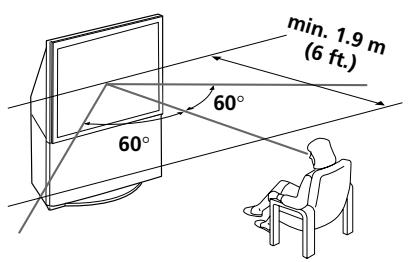
KP-FX53
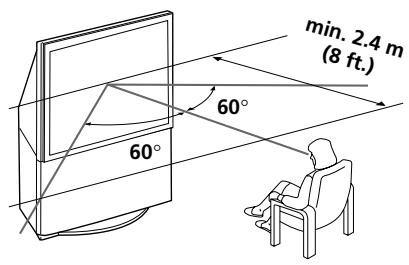
Optimum viewing area (Vertical)
KP-FX43
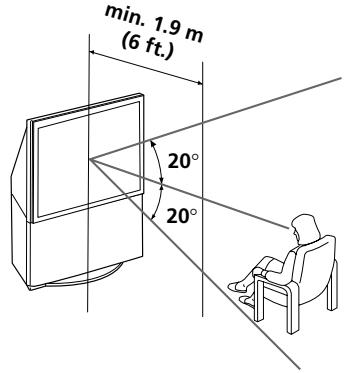
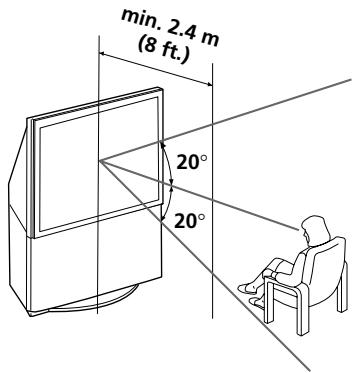
KP-FX53
Step 2
Connect the antenna
If you wish to connect a VCR, see the "Connecting a VCR" diagram on page 7.
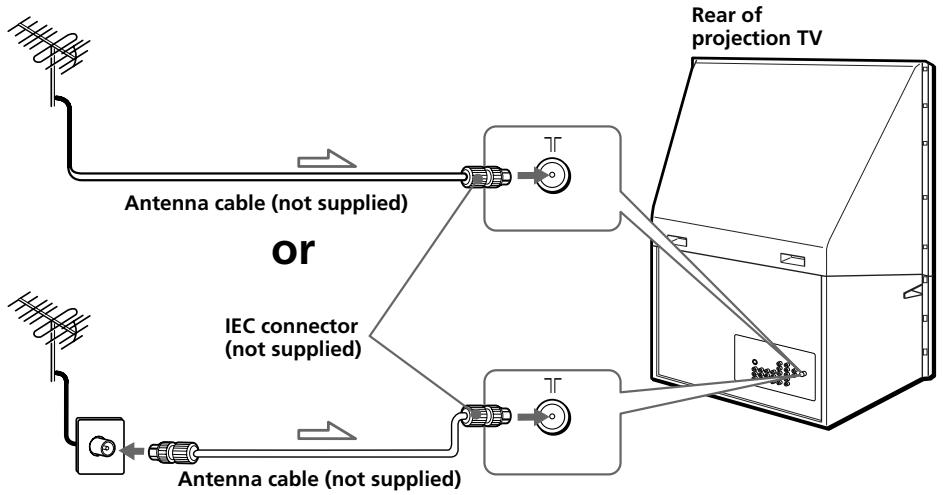

: Signal flow
CAUTION
Do not connect the power cord until all other connections are complete, otherwise, a minimal current leakage through the antenna and/or other terminals to the ground could occur.
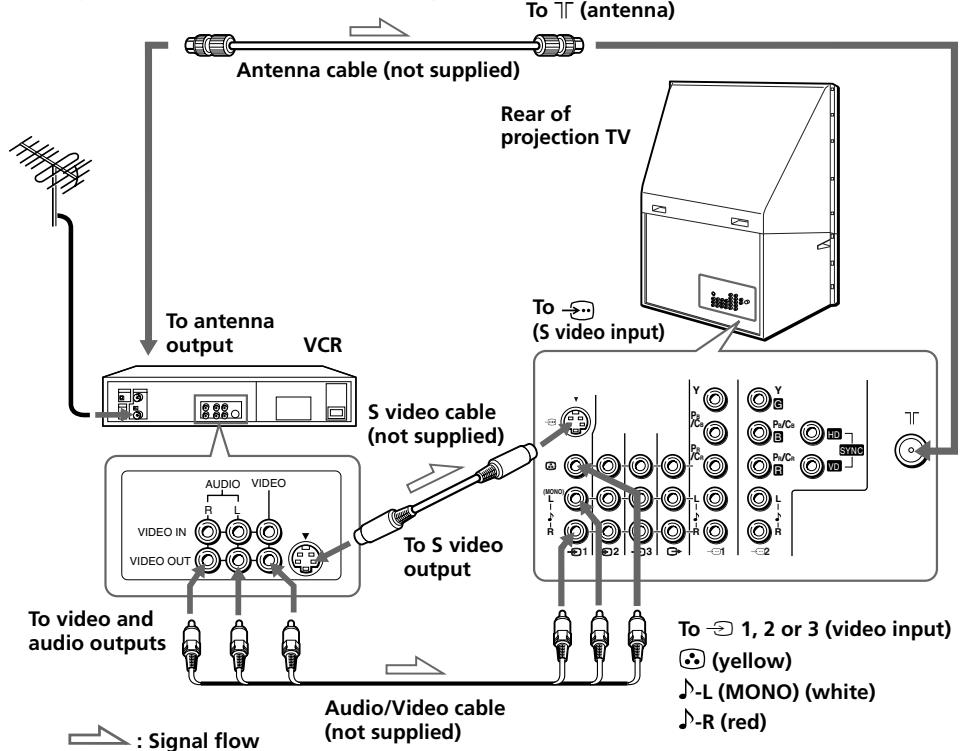
Connecting a VCR
To play a video tape, press (see page 16).
Notes
- If you connect a monaural VCR, connect the yellow plug to (the yellow jack) and the black plug to -L (MONO) (the white jack).
- If you connect a VCR to the (antenna) terminal, preset the signal output from the VCR to the program number 0 on the projection TV.
- When both the (S video input) and 1 (video input) are connected, the (S video input) is automatically selected. To view the video input to 1 (video input), disconnect the S video cable.
Step 3
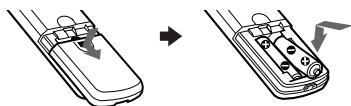
Insert the batteries into the remote
Note
- Do not use old batteries or different types of batteries together.
continued
Getting Started (continued)
Step 4
Setting up your projection TV automatically
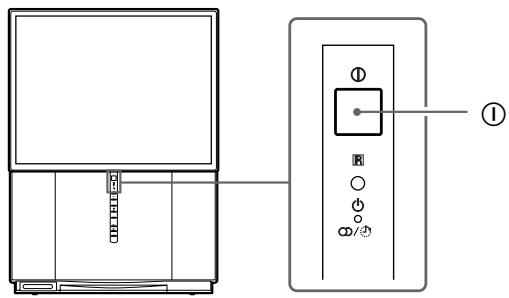
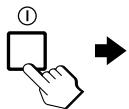
1 Press ① to turn on the projection TV.
The "INITIAL SETUP" menu appears, and you can select the on-screen language.
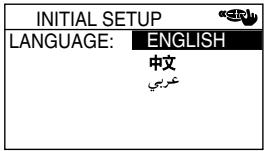
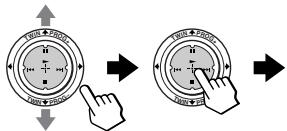
2 Move up or down to select the desired language, then press .
The automatic channel presetting menu appears.
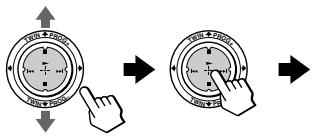
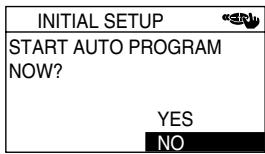
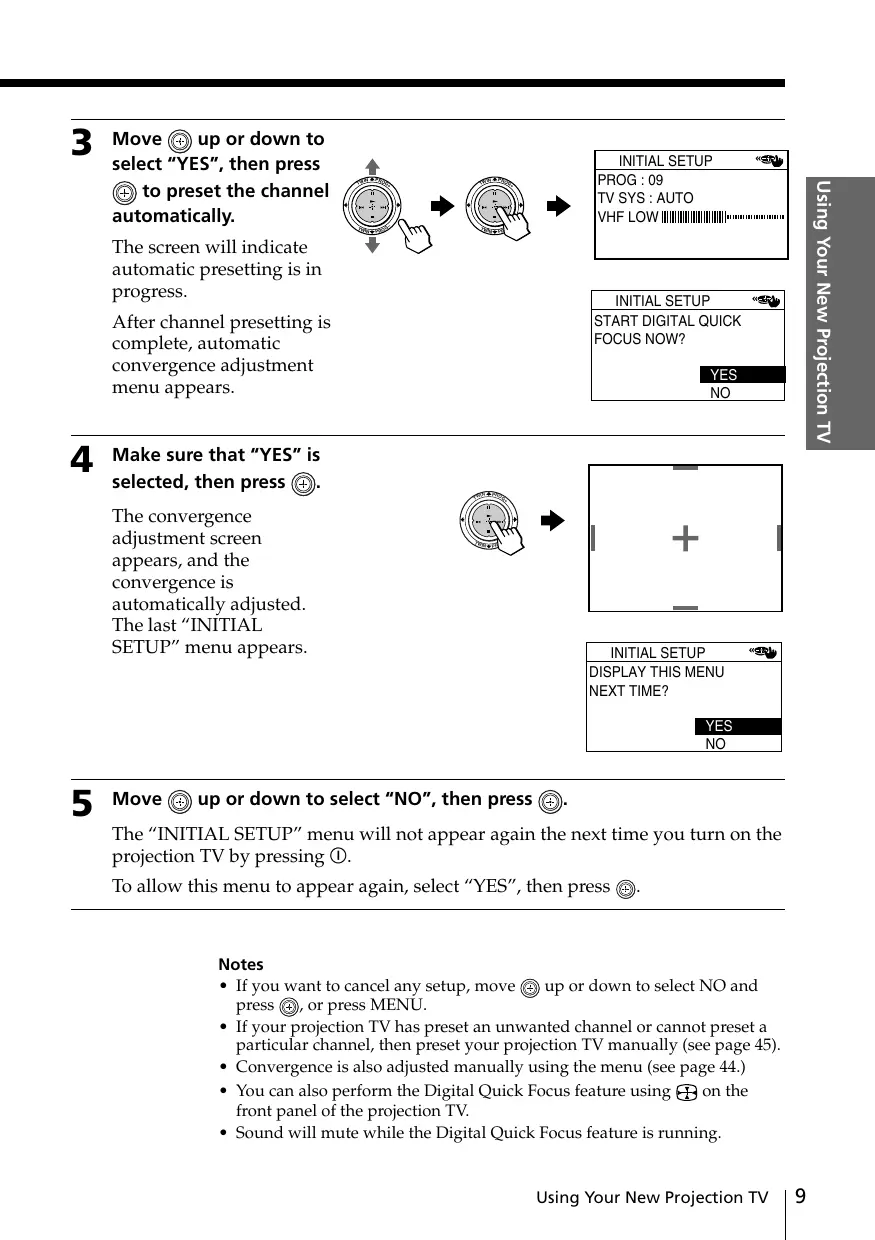
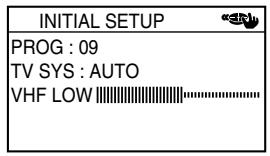
3 Move up or down to select "YES", then press to preset the channel automatically.
The screen will indicate automatic presetting is in progress.
After channel presetting is complete, automatic convergence adjustment menu appears.
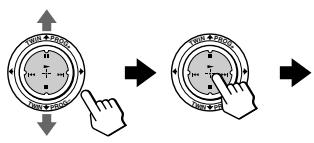
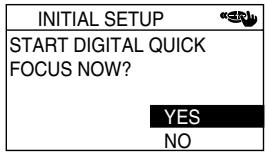
4 Make sure that "YES" is selected, then press () .
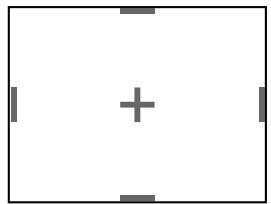
The convergence adjustment screen appears, and the convergence is automatically adjusted. The last "INITIAL SETUP" menu appears.
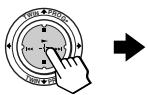
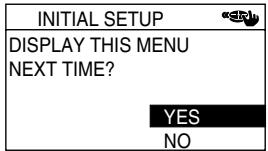
5 Move up or down to select "NO", then press .
The "INITIAL SETUP" menu will not appear again the next time you turn on the projection TV by pressing ①.
To allow this menu to appear again, select "YES", then press .
Notes
- If you want to cancel any setup, move up or down to select NO and press , or press MENU.
- If your projection TV has preset an unwanted channel or cannot preset a particular channel, then preset your projection TV manually (see page 45).
- Convergence is also adjusted manually using the menu (see page 44.)
- You can also perform the Digital Quick Focus feature using + on the front panel of the projection TV.
Sound will mute while the Digital Quick Focus feature is running.
Connecting optional components
You can connect optional audio/video components, such as a VCR, a DTV (Digital Television) Receiver, multi disc player, camcorder, video game, or stereo system. To watch and operate the connected equipment, see pages 16 and 30.
Connecting a camcorder/video game equipment using the (video input) jacks
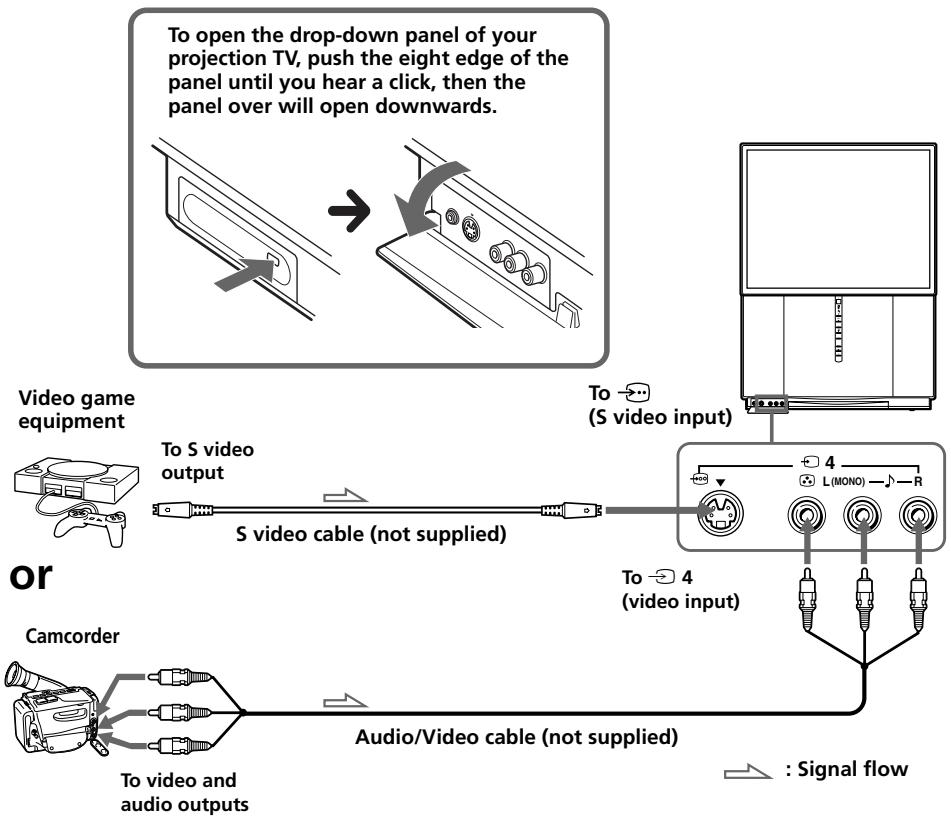
Notes
- When connecting video game equipment, display the "PICTURE" menu and select "ON" for "GAME MODE" to adjust the picture setting that is suitable for video games (see page 37).
- You can also connect video equipment to the 1,2 , or 3 (video input) jacks at the rear of your projection TV.
- When both the (S video input) and 4 (video input) are connected, the (S video input) is automatically selected. To view the video input to 4 (video input), disconnect the S video cable.
Connecting audio/video equipment using the (monitor output) jacks
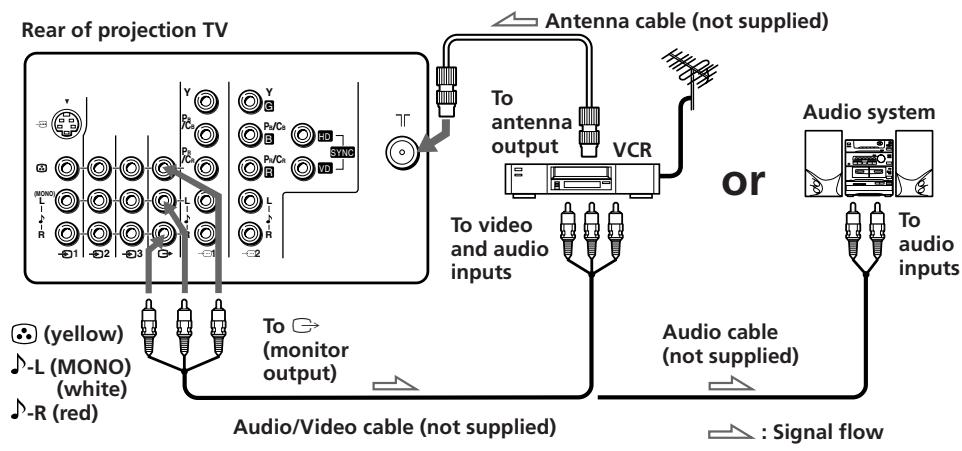
Note
- If you select "HD/DVD 1" or "HD/DVD 2" on your projection TV screen, no sound and no picture will be output from the (monitor output) jacks (see page 16).
Connecting optional components (continued)
Connecting a DVD player to (component video input)
1 Using an audio cable, connect R and L under 1 or 2 (component video input) on your projection TV to the LINE OUT, AUDIO R and L output connectors on your DVD player.
2 Using a component video cable, connect Y, PB/CB, and PR/CR under 1 or 2 (component video input) on your projection TV to the COMPONENT VIDEO OUT Y, CB, and CR output connectors on your DVD player.
3 Press or HD/DVD on the remote or on the projection TV until "HD/DVD 1" appears on the screen if you connect your DVD player to 1, or "HD/DVD 2" for connection to 2.
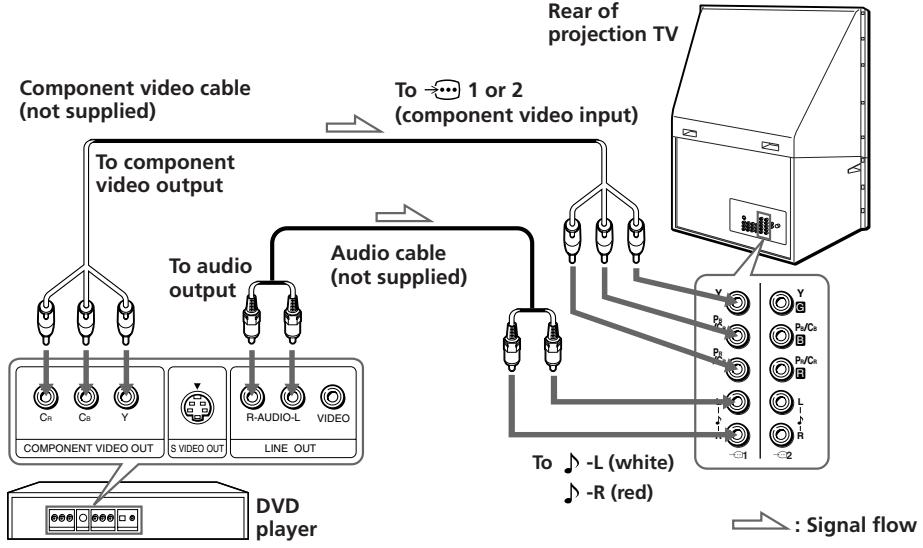
Notes
- Some DVD player terminals may be labeled differently:
| Connect | To (on the DVD player) |
| Y (green) | Y |
| PB/CB (blue) | Cb, B-Y or PB |
| PR/CR (red) | Cr, R-Y or PR |
- Connect nothing to the HD/VD jacks when connecting a DVD player to 1 or 2 (component video input).
- If you select "HD/DVD 1" or "HD/DVD 2" on your projection TV screen, no sound and no picture will be output from the (monitor output) jacks. This does not indicate a malfunction.
- When receiving a progressive signal through (component video input), TWIN pictures and PROGRAM INDEX features are not available, and "DRC-MF" and "GAME MODE" are not selectable.
Connecting a DVD player to (video input)
Connect 1,2, or 3 (video input) / 回 (audio/video) connectors on your projection TV to LINE OUT on your DVD player.
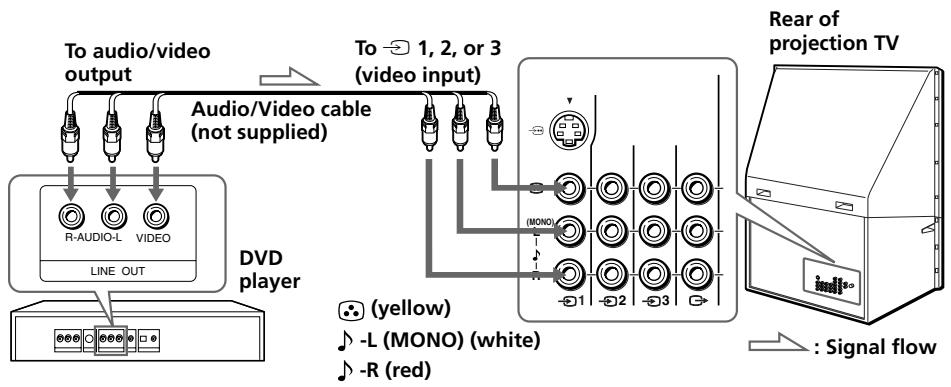
Notes
- Since the high quality pictures on a DVD disc contain a lot of information, picture noise may appear. In this case, adjust the sharpness ("SHARP") under "ADJUST" in the "PICTURE MODE" menu (see page 38).
- You can also connect a DVD player to (S video input) on the projection TV.
Connecting optional components (continued)
Connecting a DTV (digital television) receiver to

1 or 2 (component video input) jacks
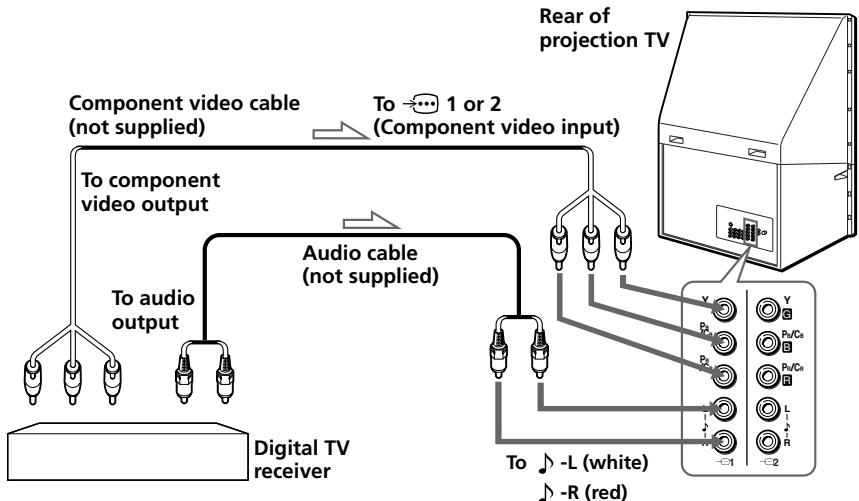

: Signal flow
Notes
- The projection TV is equipped with the G / B / R / HD / VD inputs. If your DTV receiver is not equipped with the Y / P_B / P_R output connectors, use the G / B / R / HD / VD connectors.
- 1 can be used as the Y / P_B / P_R inputs.
- 2 can be used as the Y / P_B / P_R or G/B/R/HD/VD inputs. Connect nothing to the HD/VD connectors when using the Y / P_B / P_R inputs.
Tip
- The projection TV accepts the following signal formats:
| Total scanning line | Effective scanning line | fV (Hz) |
| 1125i | 1080i | 50/60 |
| 750p | 720p | 50/60 |
| 625p | 576p | 50 |
| 625i | 576i | 50 |
| 525p | 480p | 60 |
| 525i | 480i | 60 |
Watching the TV
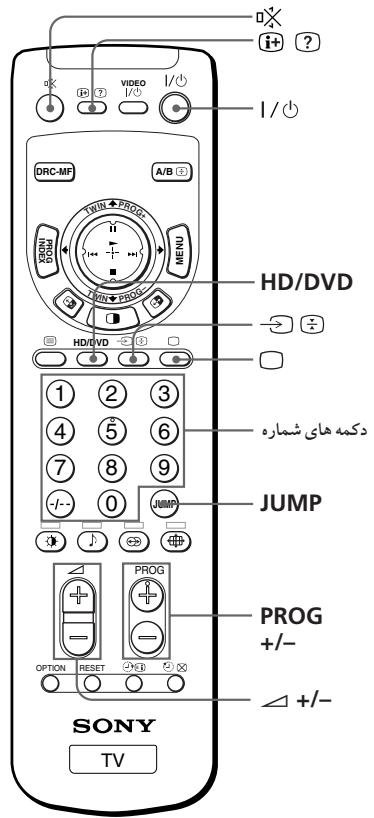
This section explains various functions and operations used while watching the TV. Most operations can be done using the remote.
1 Press ① to turn on the projection TV.
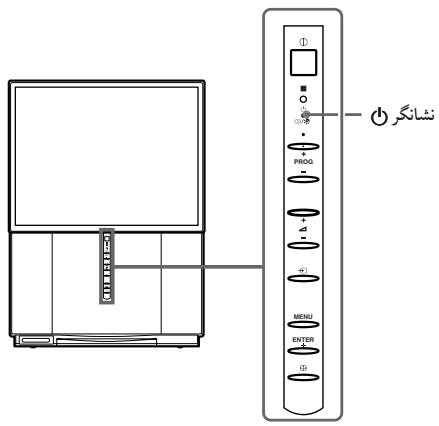
When the projection TV is in standby mode (the indicator on the projection TV is lit red), press I/ on the remote.
2 Press PROG + / - or the number buttons to select the TV channel.
For double digit numbers, press -1 - - , then the number (e.g., for 25, press -1 - - , then 2 and 5).
or
1
(2)
(3)
(4)
5
(6)
⑦
8
9
0

Note
- When you turn on the projection TV, either the program number or video mode is displayed for approximately 40 seconds. The ECO MODE (Eco) icon will also appear if "ECO MODE" in the "SETUP" menu is set "ON" (see page 43).
continued
Watching the TV (continued)
To select a TV program quickly
(1) Press and hold PROG + / -
(2) Release PROG + / - when the desired program number appears.
Note
- When you select a TV program quickly, the picture may be disrupted. This does not indicate a malfunction.
Additional tasks
| To | Press |
| Turn off temporarily | I/0. The indicator on the projection TV lights up red. |
| Turn off completely | ① on the projection TV. |
| Adjust the volume | Δ+/-. |
| Mute the sound | 咪. |
| Watch the video input (VCR, camcorder, etc.) | ( or on the projection TV) to select “VIDEO 1”, “VIDEO 2”, “VIDEO 3”, “VIDEO 4”, “HD/DVD 1” or “HD/DVD 2”. To return to the TV screen, press ☐ (or on the projection TV). |
| Watch the component input (DVD, DTV receiver) | HD/DVD to select “HD/DVD 1” or “HD/DVD 2”. To return to the TV screen, press ☐ (or on the projection TV). |
| Jump back to the previous channel | JUMP. |
| Display the on-screen information* | ⊕. |
- Some picture/sound settings, and either the program number or video mode are displayed. The on-screen display for the picture/sound settings disappears after about 3 seconds.
Setting the Wake Up timer
Press until the desired period of time appears.
The Wake Up timer starts immediately after you have set it.


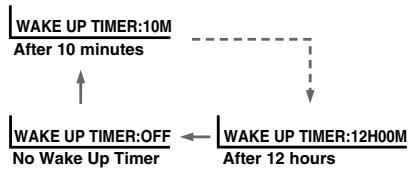
2 Select the TV channel or video mode you want to wake up to.
3 Press I/O, or set the Sleep timer if you want the projection TV to turn off automatically.
The indicator on the projection TV lights up orange.
To cancel the Wake Up timer
Press until "WAKE UP TIMER: OFF" appears, or press ① on the projection TV to turn it off.
Note
- If no buttons or controls are pressed for more than two hours after the projection TV is turned on using the Wake Up timer, the projection TV automatically goes into standby mode. To resume watching the TV, press any button on the projection TV or the remote.
Setting the Sleep timer
Press until the desired period of time appears.
The Sleep timer starts immediately after you have set it.


SLEEP TIMER:30M SLEEP TIMER:60M
After 30 minutes
After 60 minutes
SLEEP TIMER:OFF SLEEP TIMER:90M
No Sleep Timer
After 90 minutes
To cancel the Sleep timer
Press until "SLEEP TIMER: OFF" appears, or turn the projection TV off.
Selecting the picture and sound modes
You can select picture and sound modes and adjust the setting to your preference in the "PERSONAL" option.
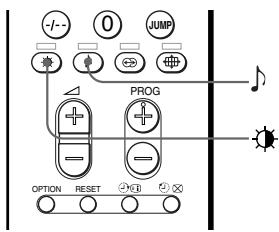
Selecting the picture mode
Press repeatedly until the desired picture mode is selected.
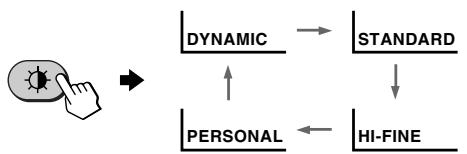
| Select | To |
| "DYNAMIC" | receive high contrast pictures. |
| "STANDARD" | receive normal pictures. |
| "HI-FINE" | receive higher density pictures with mild contrast. |
| "PERSONAL" | receive the last adjusted picture setting from the “ADJUST” option in the “PICTURE” menu (see page 38). |
Selecting the sound mode
Press repeatedly until the desired sound mode is selected.
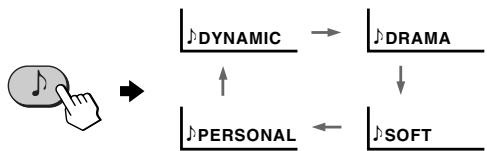
| Select | To |
| "DYNAMIC" | listen to dynamic and clear sound that emphasizes both the low and high tones. |
| "DRAMA" | listen to sound that emphasizes voice and high tones. |
| "SOFT" | receive soft sound. |
| "PERSONAL" | receive the last adjusted sound setting from the "ADJUST" option in the "SOUND" menu (see page 40). |
Tip
- You can also set the picture and sound modes using the menu (see "Changing the "PICTURE" setting" on page 36 and "Changing the "SOUND" setting" on page 39).
Viewing higher quality pictures
—“DRC-MF”
The Digital Reality Creation-Multi Function (DRC-MF) feature allows you to enjoy higher quality pictures on your projection TV. You can select "DRC1250" to watch super real (higher resolution) pictures, or "DRC100" for moving pictures or "PROGRESSIVE" for still pictures to reduce flicker if necessary.
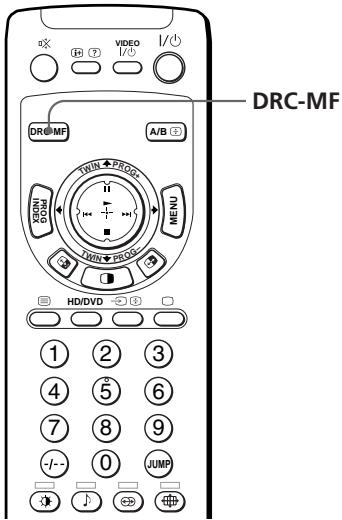
Press DRC-MF repeatedly until you receive the desired picture quality.


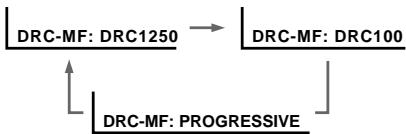
| Select | To |
| “DRC1250” | select higher resolution pictures. |
| “DRC100” | reduce flicker on the screen. |
| “PROGRESSIVE” | reduce jitter of any small areas or scanning lines (e.g., letters or the edge of objects) on the screen. |
Tip
- When the broadcast signal is weak, you may see some dots or noise on the TV screen. To reduce this interference, display the "PICTURE" menu and select "ADJUST" in "PICTURE MODE", then adjust "SHARP" to reduce the sharpness (see page 38).
Note
- The DRC-MF mode is not selectable when using the "PROGRAM INDEX" feature, or when the "GAME MODE" or "TWIN" mode is turned "ON". The mode is not also selectable for HD (high-definition) or progressive signal.
The DRC-MF logo (DRC-MF) and "DRC-MF" are trademarks of Sony Corporation.
Watching two programs at the same time
—“TWIN”
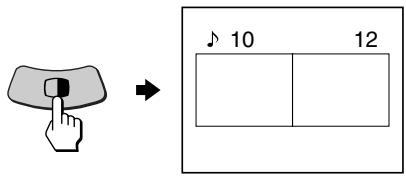
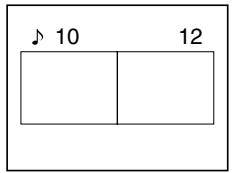
With the TWIN pictures feature, you can display a different TV program beside the main picture.
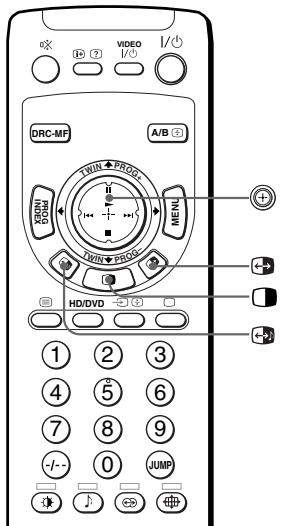
Displaying TWIN pictures
Press 0.
To return to the normal screen
Press 0
The left picture is displayed in full screen.
Tip
- You can also display the TWIN pictures using the menu (see "Changing the MULTI PICTURE setting" on page 41).
- Pressing displays the right picture in full screen (see "Selecting a TV program using TWIN" on page 22).
Additional tasks
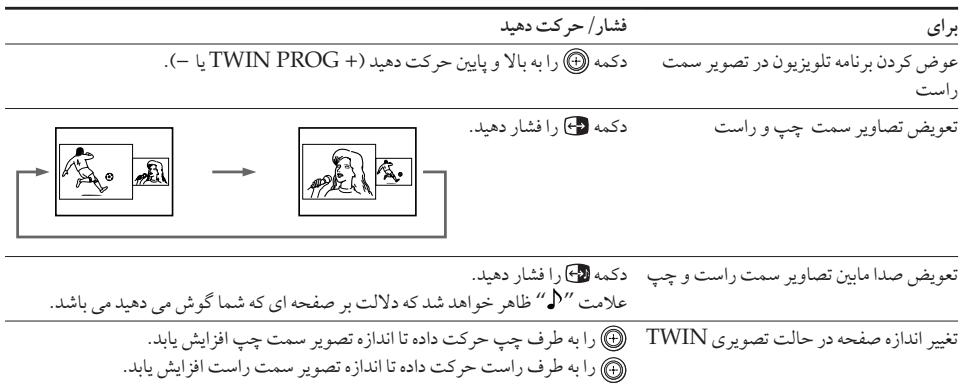
| To | Press/Move |
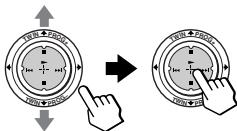
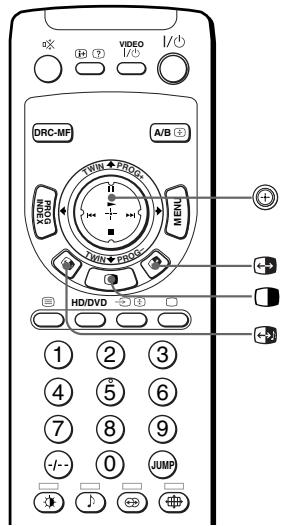
| change a TV program in the right picture | Move ⊙ up or down (TWIN PROG + or -). |
| swap the left and right pictures | Press ⊙. |
| swap sound between the left and right pictures. | Press ⊙. The “√” symbol will appear to indicate which screen you are hearing. |
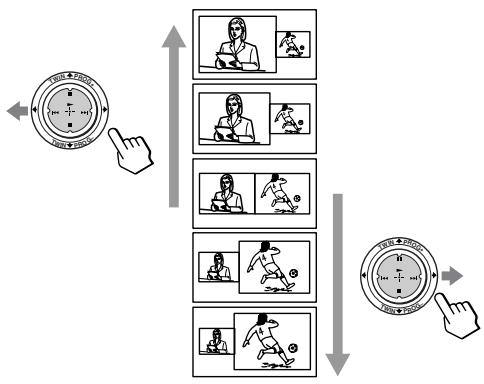
| change the screen size of the TWIN pictures | Move ⊙ left to increase the left screen size. Move ⊙ right to increase the right screen size. |
Notes
- Swapping the pictures is not available for HD or DVD input signals.
- The TWIN pictures feature is not available for HD (high-definition) and progressive signals. If you change the left main picture to an HD or progressive signal, a message appears and the TWIN pictures feature is cancelled. The selected HD or progressive picture will be displayed in full screen.
- You cannot enjoy stereo sound in the right picture.
- You cannot change the picture to a video input in the right picture. You can only display a video input, except for HD and progressive signals, in the right picture by swapping the pictures when a video input is displayed in the left picture.
- When the button is pressed, the TV screen flickers or goes blank for about one second before the TWIN pictures appear. This does not indicate a malfunction of the projection TV.
Watching two programs at the same time (continued)
Selecting a TV program using TWIN
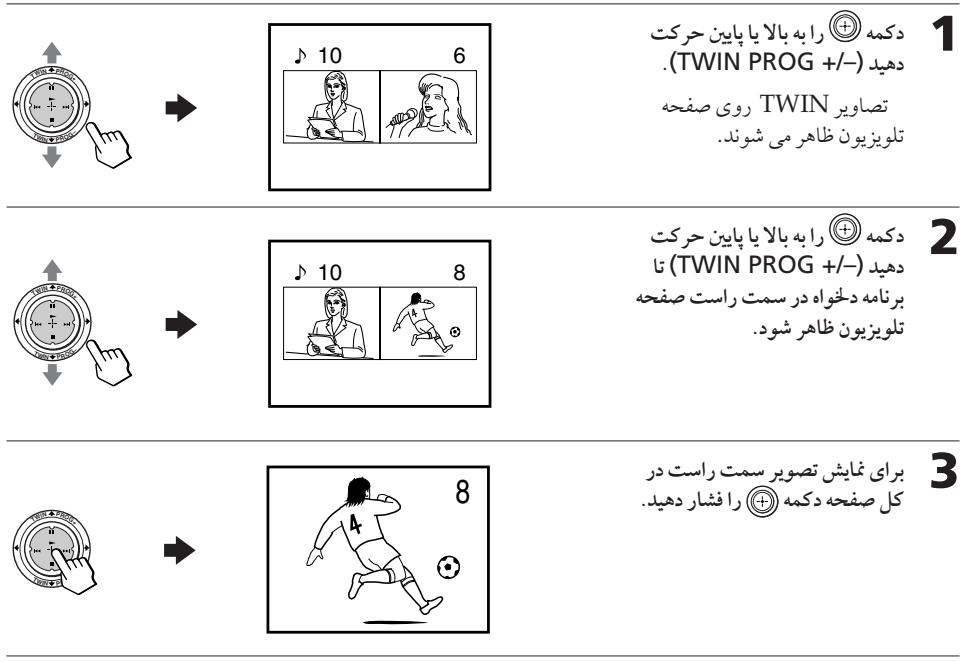
You can select your desired TV program directly from the right picture by using (TWIN PROG +/−).
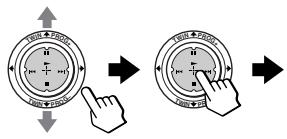
1 Move up or down (TWIN PROG + / -
The TWIN pictures appear on the screen.
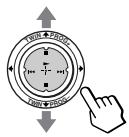

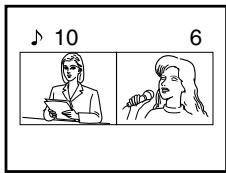
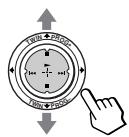
2 Move up or down (TWIN PROG + / - ) until the desired program appears on the right screen.

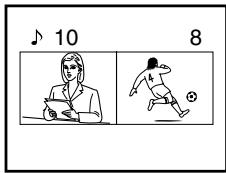
3 Press to display the right picture in full screen.


Displaying multiple programs
—“PROGRAM INDEX”
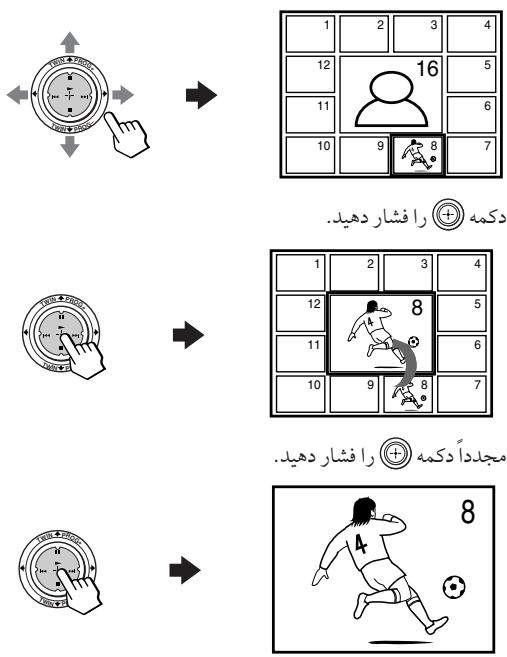
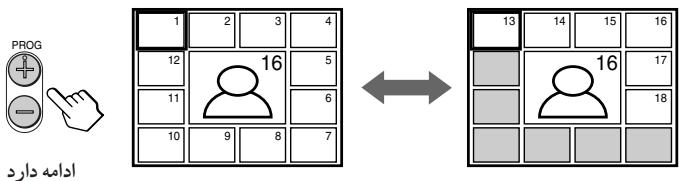
The PROGRAM INDEX feature displays all of the preset TV programs on twelve sub screens for direct selection.
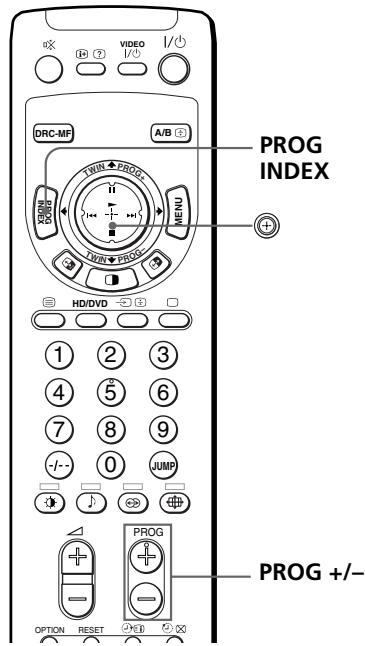
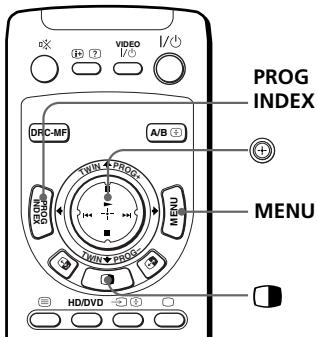
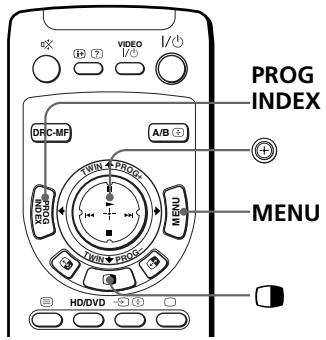
Press PROG INDEX.
The first twelve preset programs appear one by one, clockwise from the upper left corner.

Tip
- When you press the PROG INDEX button in the TWIN pictures mode, the left picture appears as the main screen of the PROGRAM INDEX mode.
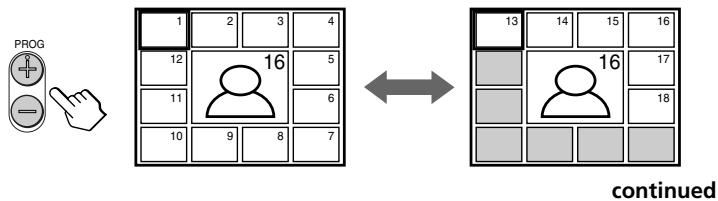
To view the next or the previous twelve preset programs
This works only when the number of the preset TV programs is more than twelve.
Press PROG + / - on the remote or on the projection TV.
Displaying multiple programs (continued)
To select the desired program directly from the sub screens
1 Move up, down, left or right to move the frame to the screen of the program you want to watch.
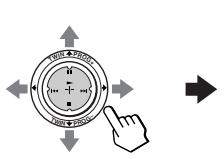
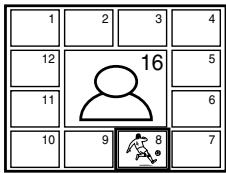
2 Press () .


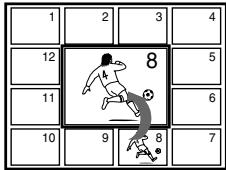
3 Press again.


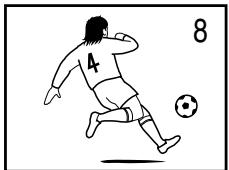
Tip
- Pressing the number buttons directly displays the program.
To return to the normal screen
Press PROG INDEX again, or:
1 Select "PROGRAM INDEX" from the "MULTI PICTURE" menu.
2 Press
Tip
- You can also display multiple programs using the menu (see "Changing the MULTI PICTURE setting" on page 41).
Notes
- When displaying multiple programs, only the sound of the main screen is heard.
- The PROGRAM INDEX feature is not available for HD (high-definition) and progressive signals. The selected HD or progressive picture will be displayed in full screen.
Listening with surround sound
The surround feature enables you to enjoy the sound effects of a concert hall or movie theater.
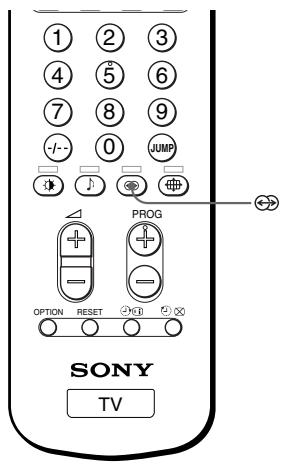
Press repeatedly until you receive the desired surround sound.
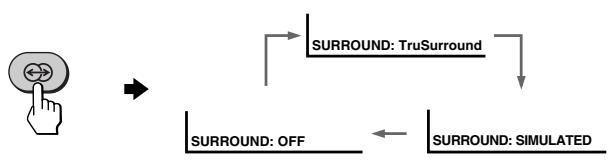
| Select | To |
| "TruSurround"* | listen to the surround sound that spreads out to the rear of a room. |
| "SIMULATED" | listen to monaural sound with a stereo-like effect. |
| "OFF" | turn off the surround sound. |
- TruSurround and the () symbol are trademarks of SRS Labs, Inc. TruSurround technology is incorporated under license from SRS Labs, Inc.
Enjoying stereo or bilingual programs
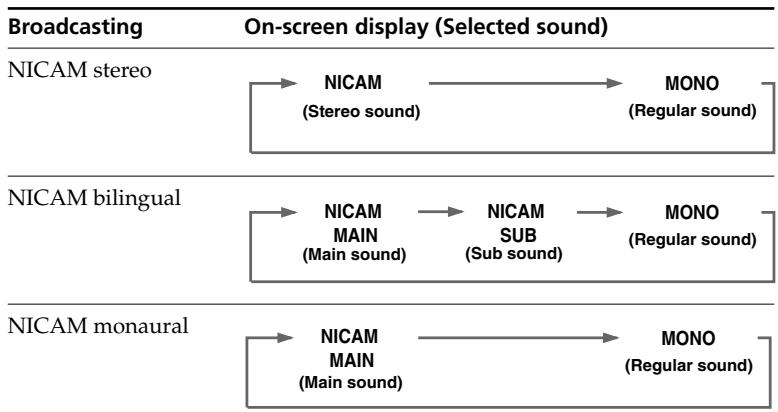
You can enjoy stereo sound or bilingual programs of NICAM and A2 (German) stereo systems.
When you receive the channel with them, the indicator on the front panel of the projection TV lights up red.
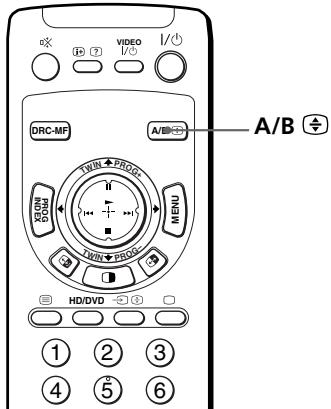
Press A/B repeatedly until you receive the sound you want.
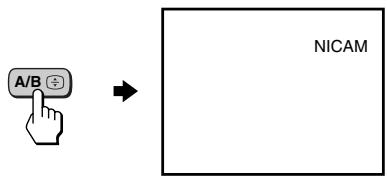
When receiving a NICAM program
When receiving an A2 (German) program
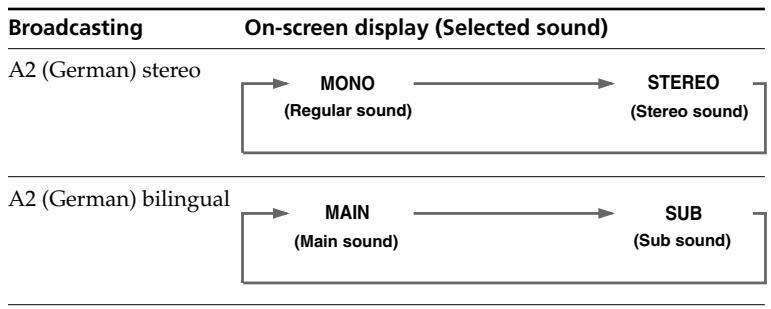
Receiving area for NICAM and A2 (German) programs
| System | Receiving area |
| NICAM | Hong Kong, Singapore, New Zealand, Malaysia, Thailand, etc. |
| A2 (German) | Australia, Malaysia, Thailand, etc. |
Notes
- If the signal is very weak, the sound becomes monaural automatically.
- If the stereo sound is noisy when receiving a NICAM program, select "MONO". The sound becomes monaural, but the noise is reduced.
- Before receiving a NICAM stereo program in China, please check the NICAM broadcast condition at your area. When receiving a NICAM stereo program, the receiving conditions might vary depending on area. In addition, different strength of the NICAM broadcast signal might affect the receiving quality.
If the sound is distorted or noisy when receiving a monaural program through the (antenna) terminal
Press A/B repeatedly until "MONO" appears on the screen.
To cancel the monaural sound setting, press A/B again until "AUTO" appears on the screen.

Notes
- The "MONO" or "AUTO" setting is memorized for each program position.
- You cannot receive a stereo broadcast signal when the projection TV is in the "MONO" setting. Normally, set the projection TV to "AUTO".
Viewing Teletext
Some TV stations broadcast an information service called Teletext which allows you to receive various information, such as stock market reports and news.
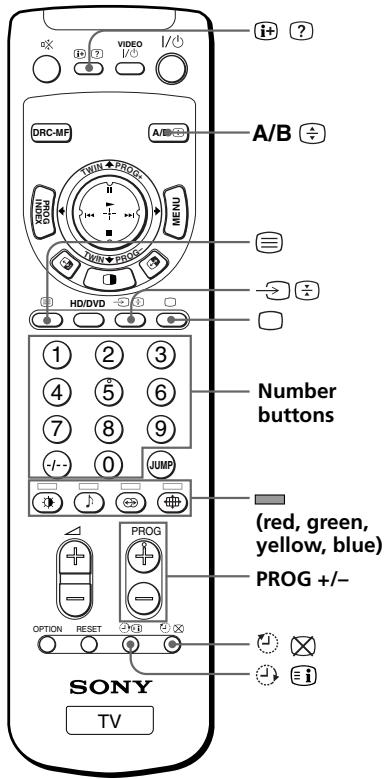
Displaying Teletext
1 Select a TV channel that carries the Teletext broadcast you want to watch.
2 Press to display the text.
A Teletext page (normally the index page) is displayed. If there is no Teletext broadcast, "100?" is displayed at the top left corner of the screen after approximately 10 seconds

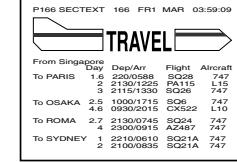
To turn off Teletext
Press
Additional Teletext tasks
| To | Do this |
| display a Teletext page on the TV picture | Press Ⓒ. Each time you press Ⓒ, the screen changes as follows: Teletext → Teletext and TV → TV. |
| check the contents of a Teletext service | Press Ⓒ. An overview of the Teletext contents, including page numbers, appears on the screen. |
| select a Teletext page | Press the number buttons to enter the three-digit page number of the desired Teletext page.* If you make a mistake, reenter the correct page number. To access the next or previous page, press PROG +/-. |
| hold (pause) a Teletext page (stop the page from scrolling) | Press Ⓒ to display the symbol “⓷” at the top left corner of the screen. To resume normal Teletext viewing, press Ⓒ or Ⓒ. |
| reveal concealed information (e.g., an answer to a quiz) | Press Ⓒ. To conceal the information, press the button again. |
| enlarge the Teletext display | Press Ⓒ. Each time you press Ⓒ, the Teletext display changes as follows: Enlarge upper half → Enlarge lower half → Normal size. |
| stand by for a Teletext page while watching a TV program | 1 Enter the Teletext page number that you want to refer to, then press Ⓒ. 2 When the page number is displayed, press Ⓒ to show the text. |
- You can also select a Teletext page of any page number that appears in the colored column at the bottom of the screen using the corresponding color-coded button on the remote.
Using FASTEXT
This feature allows you to quickly access a Teletext page that uses FASTEXT. When a FASTEXT program is broadcast, colored menus appear at the bottom of the screen. The color of each menu corresponds to the color-coded buttons on the remote (red , green , yellow , and blue ).
To access a FASTEXT menu
Press the color-coded button on the remote corresponding to the menu you want. The menu page appears on the screen after a few seconds.
Note
- The FASTEXT feature can be used only when the FASTEXT broadcast is available.
Operating optional components
You can use the supplied remote to operate Sony video equipment such as Beta, 8mm , VHS or DVD.
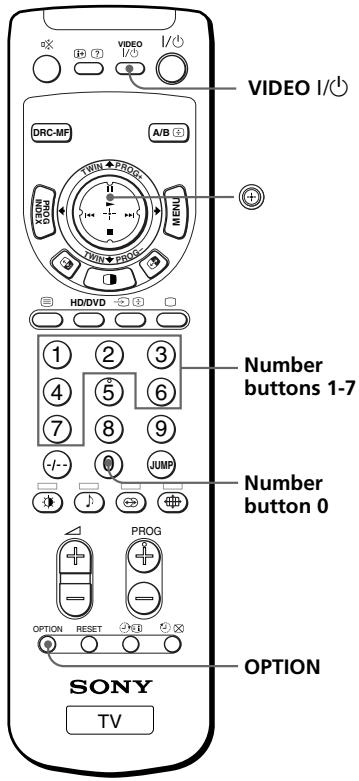
Setting up the remote to work with other connected equipment
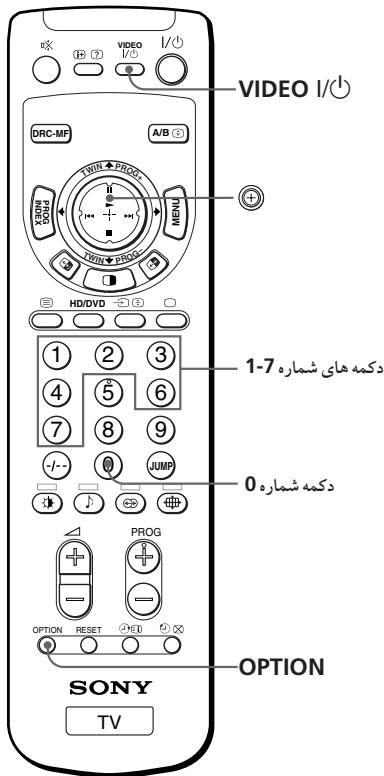
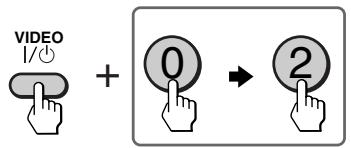
While keepingVIDEOI/1 pressed, press the number button 0, then the corresponding number button for the desired equipment (see the table below).
For example, to operate a Sony 8 mm VCR:
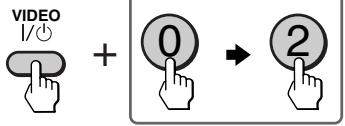
| To control | While holding down | First press the number button | Next press the number button |
| DVD | VIDEOI/◯ | 0 | 0 |
| VTR1 (Beta) | VIDEOI/◯ | 0 | 1 |
| VTR2 (8 mm) | VIDEOI/◯ | 0 | 2 |
| VTR3 (VHS) | VIDEOI/◯ | 0 | 3 |
| MDP | VIDEOI/◯ | 0 | 4 |
| CD | VIDEOI/◯ | 0 | 6 |
| MD | VIDEOI/◯ | 0 | 7 |
Note
- If the equipment does not have a certain function, the corresponding button on the remote will not operate.
Operating video equipment
PressVIDEOI/,or while keeping OPTION pressed,press (包) or move up (II),down(■),left(1<1)or right (包) (see the table below).

Operating a VCR using the remote
| To | Press/Move |
| turn on/off | VIDEO1/0 |
| play | ▶ while keeping OPTION pressed. |
| stop | ■ while keeping OPTION pressed. |
| fast forward (▶) | ▶ while keeping OPTION pressed. |
| rewind the tape (▲) | ▲ while keeping OPTION pressed. |
| pause | ■ while keeping OPTION pressed. Press again to resume normal playback. |
| search the picture forward (▶) or backward (▲) | ▶ or ↓ during playback while keeping OPTION pressed. Release to resume normal playback. |
Operating a DVD player using the remote
| To | Press/Move |
| turn on/off | VIDEO1/0 |
| play | ▶ while keeping OPTION pressed. |
| stop | ■ while keeping OPTION pressed. |
| pause | ■ while keeping OPTION pressed. Press again to resume normal playback. |
| step through different tracks of an audio disc | ▶ to step forward or ← to step backward while keeping OPTION pressed. |
Operating optional components (continued)
Operating an MDP using the remote
| To | Press/Move |
| turn on/off | VIDEO1 /◇ |
| play | ▶ while keeping OPTION pressed. |
| stop | ■ while keeping OPTION pressed. |
| pause | || while keeping OPTION pressed. Press again to resume normal playback. |
| search the picture forward or backward | ▶or◇ during playback while keeping OPTION pressed. Release to resume normal playback. |
Operating a CD or MD player using the remote
| To | Press/Move |
| turn on/off | VIDEO1 /◎ |
| play | ▶ while keeping OPTION pressed. |
| stop | ■ while keeping OPTION pressed. |
| pause | || while keeping OPTION pressed. Press again to resume normal playback. |
| step through different tracks | ▶ to step forward or ←← to step backward while keeping OPTION pressed. |
Introducing the menu system
The MENU button lets you open a menu and change the settings of your projection TV. The following is an overview of the menu system.
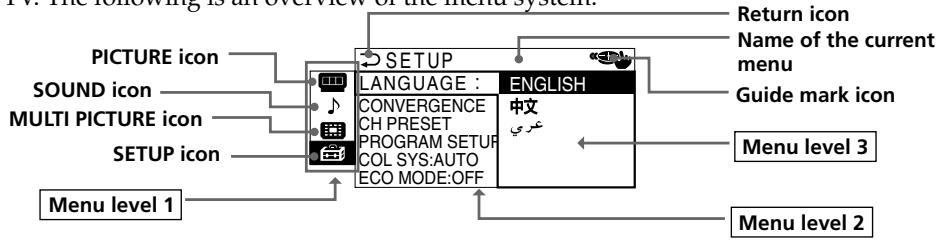
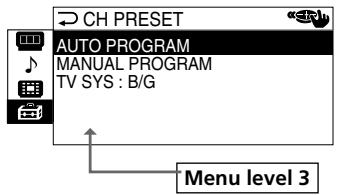
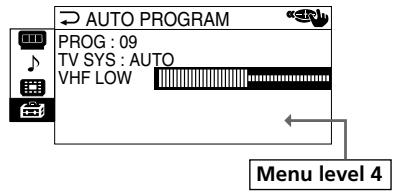
Selecting some items in Menu level 2 of SETUP menu displays another menu (Menu level 3), and selecting some options in this menu also displays the adjustment menu (Menu level 4).
| Level 1 | Level 2/Level 3 | Level 3/Level 4/Function |
| "PICTURE" | "DRC-MF" | Select the "DRC-MF" mode: "DRC1250" → "DRC100" → "PROGRESSIVE" |
| "PICTURE MODE" | Select the picture mode: "DYNAMIC" → "STANDARD" → "HI-FINE" → "PERSONAL" → "ADJUST" | |
| "ADJUST" | Adjust the "PERSONAL" option: "PICTURE" → "COLOR" → "BRIGHT" → "HUE" → "SHARP" | |
| "3D-NR" | Activate or deactivate picture noise reduction mode. | |
| "WIDE MODE" | Activate or deactivate "WIDE MODE" feature. | |
| "GAME MODE" | Activate or deactivate "GAME MODE" feature. | |
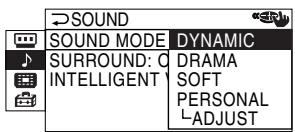
| "SOUND" | "SOUND MODE" | Select the sound mode: "DYNAMIC" → "DRAMA" → "SOFT" → "PERSONAL" → "ADJUST" |
| "ADJUST" | Adjust the "PERSONAL" option: "BASS" → "TREBLE" → "BALANCE" → "BBE"* | |
| "SURROUND" | Select the "SURROUND" mode: "TruSurround" → "SIMULATED" → "OFF" | |
| "INTELLIGENT VOL" | Adjust the volume automatically. |
- The BBE is manufactured by Sony Corporation under license from BBE Sound, Inc. It is covered by U.S. Patent No. 4,638,258 and No. 4,482,866. The word "BBE" and the BBE symbol are the trademarks of BBE Sound, Inc.
Introducing the menu system (continued)
| Level 1 | Level 2/Level 3 | Level 3/Level 4/Function |
| “MULTI PICTURE” | “TWIN” | Display a TV program beside the main screen. |
| “SWAP” | Swap the pictures between the left and right screens. | |
| “PROGRAM INDEX” | Display all the preset TV programs at the same time. | |
| “SETUP” | “LANGUAGE” | Change the menu language:“ENGLISH”→“中文”(Chinese)→“ Arabic” |
| “CONVERGENCE” | Adjust the convergence. | |
| “DIGITAL QUICK FOCUS” | Adjust the convergence automatically. | |
| “MANUAL ADJUST” | The manual adjustment screen appears. Adjust the convergence manually. | |
| “CH PRESET” | Preset channels, or select the TV system. | |
| “AUTO PROGRAM” | The “AUTO PROGRAM” menu is displayed. Preset channels automatically. | |
| “MANUAL PROGRAM” | The “MANUAL PROGRAM” menu is displayed. Preset channels manually. | |
| “TV SYS” | Select the TV system: “B/G”→“T”→“D/K”→“M” | |
| “PROGRAM SETUP” | Skip unwanted program numbers, or block specific channels. | |
| “PROG” | Select a program number you want to skip or block. | |
| “SKIP” | Skip unwanted or unused program numbers. | |
| “CHILD LOCK” | Lock out specific channels. | |
| “COL SYS” | Select the color system:“AUTO”→“PAL”→“SECAM”→“NTSC3.58”→“NTSC4.43” | |
| “ECO MODE” | Activate or deactivate ECO MODE feature. |
To restore the factory settings
Press the RESET button.
The settings other than the following items in the menu can be reset by using the RESET button:
- "LANGUAGE"
- "CONVERGENCE"
- "PROG" in "MANUAL PROGRAM" and "PROGRAM SETUP"
-FINE" in "MANUAL PROGRAM" - "TV SYS"
"SKIP"
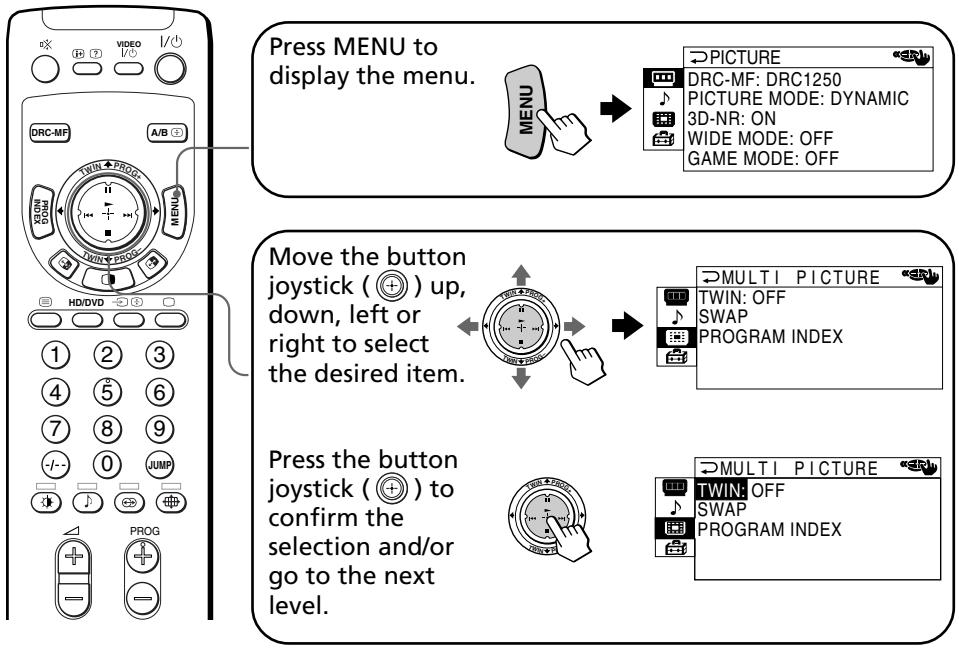
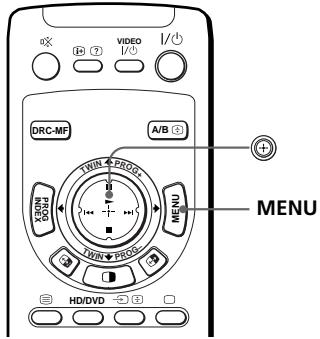
How to use the menu
Other menu operations
| To | Press/Move |
| Adjust the setting value | Move ➀ up, down, left or right. |
| Move to the next/previous menu level | Move ➁ left or right. |
| Cancel the menu | Press MENU. |
Tips
- If you want to exit from Menu level 2 to Menu level 1, move up or down until the return icon () is highlighted, then press .
- The MENU, ENTER, and + / - (up/down) buttons on the projection TV can also be used for the operations above.
Note
- If more than 60 seconds elapse between entries, the menu screen automatically disappears.
Changing the "PICTURE" setting
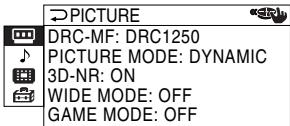
The "PICTURE" menu allows you to adjust the picture setting, view higher quality pictures, reduce picture noise, and adjust the picture setting that is suitable for viewing video games. You can also change the size of the picture on the screen when you receive wide mode (16:9) picture signals.
1 Press MENU.
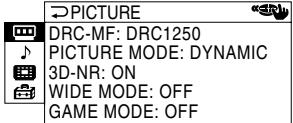
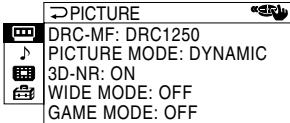
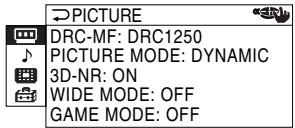
PICTURE

DRC-MF: DRC1250
PICTURE MODE: DYNAMIC
3D-NR: ON
WIDE MODE: OFF
GAME MODE: OFF
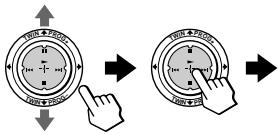
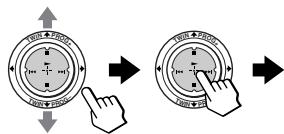
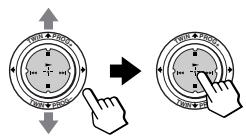
2 Move up or down to select, then press .
PICTURE DRC-MF: DRC1250 PICTURE MODE: DYNAMIC 3D-NR: ON WIDE MODE: OFF GAME MODE: OFF
3 Move up or down to select the desired option (see the table below), then press
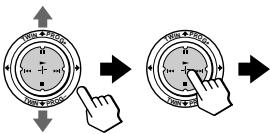
PICTURE DRC-MF: DRC1250 PICTURE MOI DRC100 3D-NR: ON PROGRESSIVE WIDE MODE: GAME MODE
| Select | To |
| “DRC-MF” | activate the Digital Reality Creation-Multi Function feature to display higher quality pictures. Move ⊙ up or down to select “DRC1250”, “DRC100” or “PROGRESSIVE”*, then press ⊙. |
| “PICTURE MODE” | receive suitable picture mode. Move ⊙ up or down to select “DYNAMIC”, “STANDARD”, “HI-FINE”, “PERSONAL”* or “ADJUST”, then press ⊙. |
| “3D-NR” | improve the picture quality of TV or video if a signal received is weak. Move ⊙ up or down to select “ON”, then press ⊙. To cancel, select “OFF”, then press ⊙. |
- When the "PERSONAL" mode is selected, the last adjusted picture setting from the "ADJUST" option is received (see page 38).
| Select | To |
| “WIDE MODE” | change the size of the picture when receiving wide-mode (16:9) picture signal. |
| Move ⊙ up or down to select “ON”, then press ⊙. | |
| You can also change to wide-mode picture size by using the ⊙ button. | |
| To restore the normal picture size, select “OFF” then press ⊙. | |
| “GAME MODE” | adjust the picture setting that is suitable to view video games. |
| Move ⊙ up or down to select “ON”, then press ⊙. | |
| To cancel, select “OFF”, then press ⊙. |
Tips
- For details on the options under the "DRC-MF" and "PICTURE MODE" modes, see pages 19 and 18, respectively.
- "GAME MODE" is available only when receiving signals through the (video input), (S video input), or (component video input) jacks.
- When high-definition (HD) signals are input, "WIDE MODE", "GAME MODE", "3D-NR" and "DRC-MF" do not function. When you receive wide mode picture signal, 16:9 picture with black bands will be displayed.
- When progressive signals are input, "GAME MODE", "3D-NR" and "DRC-MF" do not function.
To return to the normal screen
Press MENU.
Changing the "PICTURE" setting (continued)
Adjusting the "ADJUST" options under "PICTURE MODE"
1 Move up or down to select the desired item (e.g., "COLOR"), then press .
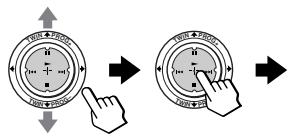
COLOR 80
2 Adjust the value according to the following table, then press () .
| For | Move ⊙ down or left to | Move ⊙ up or right to |
| "PICTURE" | decrease picture contrast | increase picture contrast |
| "COLOR" | decrease color intensity | increase color intensity |
| "BRIGHT" | darken the picture | brighten the picture |
| "HUE"* | increase red picture tones | increase green picture tones |
| "SHARP" | soften the picture | sharpen the picture |
- You can adjust "HUE" for the NTSC color system only.
3 Repeat the above steps to adjust other items.
The adjusted settings will be received when you select "PERSONAL".
Tip
- For details on the menu system and how to use the menu, refer to "Introducing the menu system" on page 33.
Changing the "SOUND" setting
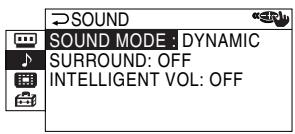
The "SOUND" menu allows you to adjust the sound setting and adjust the volume automatically. You can also listen to the sound with surround effect.
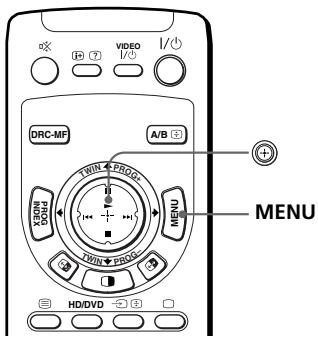
1 Press MENU.


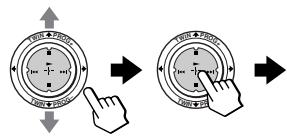
2 Move up or down to select , then press .
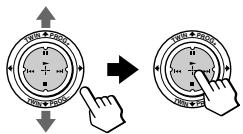
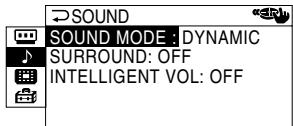
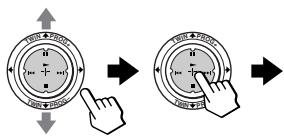
3 Move up or down to select either "SOUND MODE", "SURROUND", or "INTELLIGENT VOL", then press .
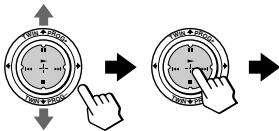
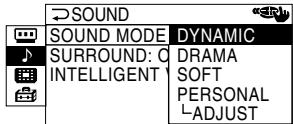
4 Move up or down to select the desired option, then press .
| For | Select |
| “SOUND MODE” | either “DYNAMIC”, “DRAMA”, “SOFT”, “PERSONAL*”, or “ADJUST”. |
| “SURROUND” | either “TruSurround”, “SIMULATED”, or “OFF”. |
| “INTELLIGENT VOL” | “ON” to adjust the volume of all TV programs automatically. To cancel, select “OFF”. |
- When the "PERSONAL" mode is selected, the last adjusted sound setting from the "ADJUST" option is received (see page 40).
Changing the "SOUND" setting (continued)
Tip
- For details on the options under the "SOUND MODE" and "SURROUND" modes, see pages 18 and 25, respectively.
To return to the normal screen
Press MENU.
Adjusting the "ADJUST" options under "SOUND MODE"
1 Move up or down to select the desired item (e.g., "BALANCE"), then press .
BALANCE 00
2 Adjust the value according to the following table, then press
| For | Move |
| "BASS" | down or left to decrease the bass, up or right to increase the bass. |
| "TREBLE" | down or left to decrease the treble, up or right to increase the treble. |
| "BALANCE" | down or left to increase the left speaker's volume, up or right to increase the right speaker's volume. |
| "BBE" | up or down to select "HIGH", "LOW" or "OFF". "BBE" can produce clear sound. |
3 Repeat the above steps to adjust other items.
The adjusted settings will be received when you select "PERSONAL".
Tip
- For details on the menu system and how to use the menu, refer to "Introducing the menu system" on page 33.
Changing the "MULTI PICTURE" setting
The "MULTI PICTURE" menu allows you to use the TWIN pictures, or PROGRAM INDEX feature.
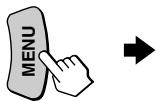
1 Press MENU.
2 Move up or down to select , then press
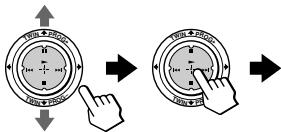
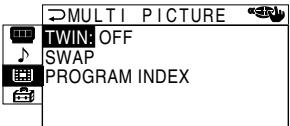
3 Move up or down to select the desired option (see the table below), then press .
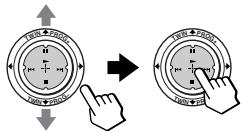
| Select | To |
| “TWIN” | display a different TV program beside the main picture. Move ➀ up or down to select “ON”, then press ➁. To cancel, press ➁ or select “OFF”, then press ➁. |
| “SWAP” | swap the left and right pictures of the TWIN screen. |
| “PROGRAM INDEX” | view multiple programs on the sub-screens. To cancel, press PROG INDEX. |
To return to the normal screen
Press MENU.
Tip
- For details on the menu system and how to use the menu, see "Introducing the menu system" on page 33.
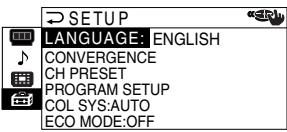
Changing the "SETUP" setting
The "SETUP" menu allows you to adjust the setup of your projection TV. For example, you can change the menu language, adjust the convergence, preset channels, etc.
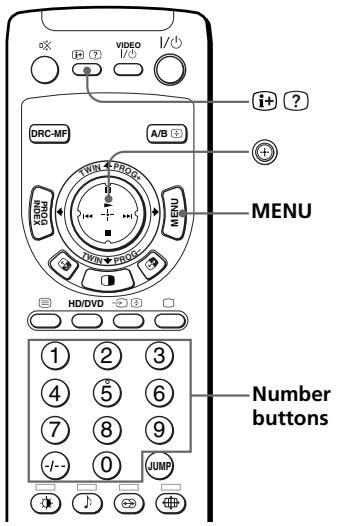
1 Press MENU.
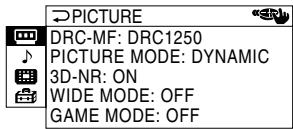
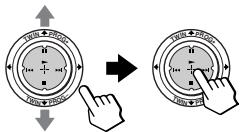
2 Move up or down to select, then press .
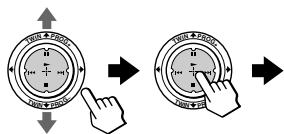
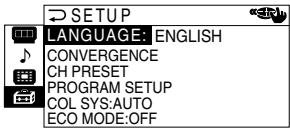
3 Move up or down to select the desired option (see the table below), then press .
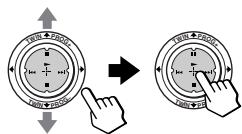
| Select | To |
| “LANGUAGE” | change the menu language. Move ↗ up or down to select “English”, “中文” (Chinese), or “\(OCR\)” (Arabic), then press ↗. |
Select
To
"CONVERGENCE" adjust the convergence.

You can select automatic or manual convergence adjustment. See "Adjusting the convergence manually" on page 44.
"CH PRESET"
preset channels.
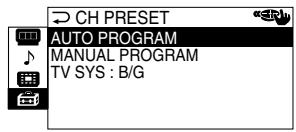
You can select automatic or manual channel presetting. See "Presetting channels manually" on page 45. You can change the TV system by selecting "TV SYS".
"PROGRAM SETUP"
skip unwanted channels, or block channels.
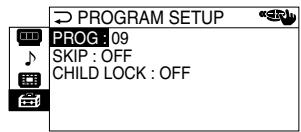
See "Skipping unwanted or unused channels" and "Blocking channels", respectively.
"COL SYS"
select the color system. Normally, set this to "AUTO".
You can select the color system for each channel or each video input.
"ECOMODE"
reduce power consumption of your projection TV to save energy. Move up or down to select "ON", then press .
To cancel, select "OFF", then press
Note
- If "ECO MODE" is on, the ECO MODE (Eco) icon will appear at the bottom right corner of the screen when you turn on the projection TV or when you press 1 + on the remote.
To return to the normal screen
Press MENU.
Changing the "SETUP" setting (continued)
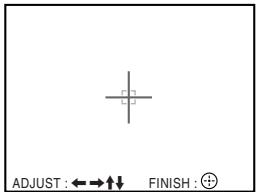
Adjusting the convergence manually
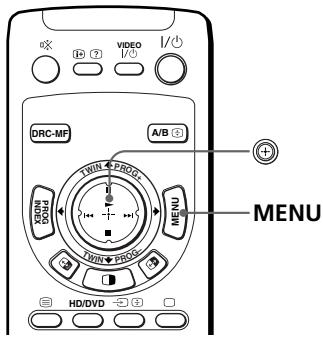
1 After selecting "CONVERGENCE", move up or down to select "MANUAL ADJUST", then press.
The cross pattern appears on the screen.
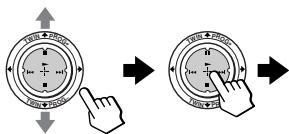
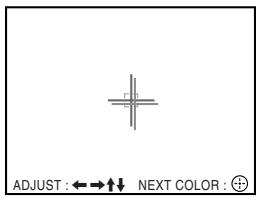
2 Move up, down, left or right to adjust the red lines until they converge with the green lines, then press .
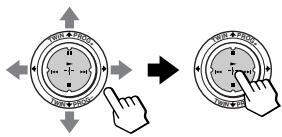
3 Move up, down, left or right to adjust the blue lines until they converge with the center cross pattern, then press .
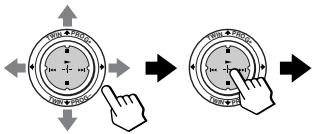
To return to the normal screen
Press MENU.
Tip
- Selecting "DIGITAL QUICK FOCUS" under "CONVERGENCE" allows you to adjust the convergence automatically. When the Digital Quick Focus feature is performed, manual adjustment values are erased.
Notes
- Adjust convergence about 20 - 30 minutes after the projection TV is first turned on.
- You cannot use the + / - buttons on the projection TV for manual convergence adjustment.
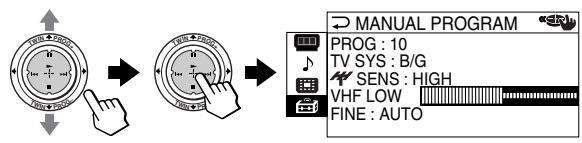
Presetting channels manually
1 After selecting "CH PRESET", move up or down to select "MANUAL PROGRAM", then press .
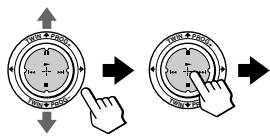
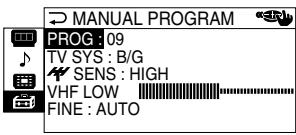
2 Select the program number to which you want to preset a channel.
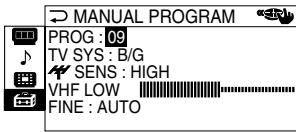
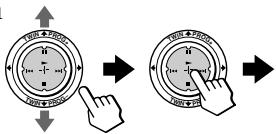
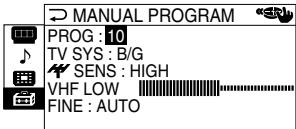
(1) Make sure "PROG" is selected, then press .
(2) Move up or down until the program number you want to preset (e.g., program number "10") appears on the menu, then press .
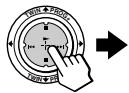
Tip
- You can also select the program number with the PROG + / - or number buttons.
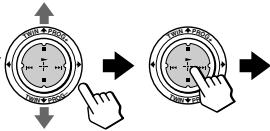
3 Select the desired channel.
(1) Move up or down to select either "VHF LOW" "VHF HIGH", or "UHF", then press .
(2) Move up or down until the desired channel's broadcast appears on the TV screen, then press .
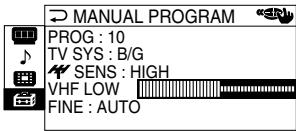
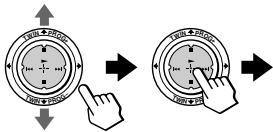
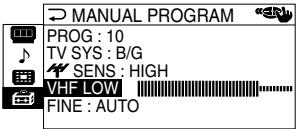
4 If the sound of the desired channel is abnormal, select the appropriate TV system.
(1) Move up or down to select "TV SYS", then press .
(2) Move up or down until the sound becomes normal, then press .
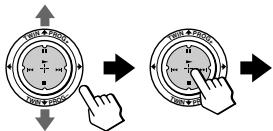
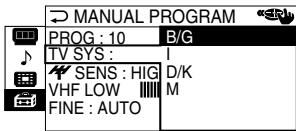
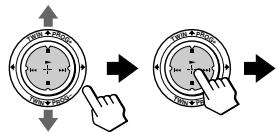
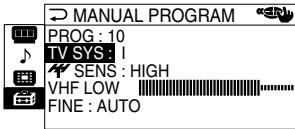
continued
Changing the "SETUP" setting (continued)
5 If you are not satisfied with the picture and sound quality, you may be able to improve them by using the "FINE" tuning feature.
(1) Move up or down to select "FINE", then press .
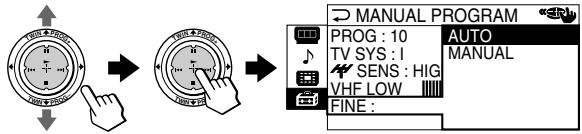
(2) Move up or down to select "MANUAL", then press .
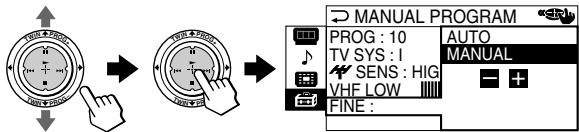
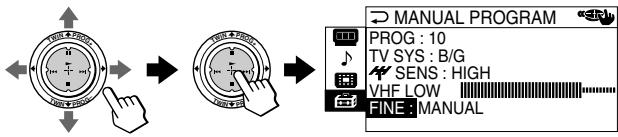
(3) Move either up, down, left or right until the picture and sound quality are optimal, then press . The + or - icon on the menu flashes while tuning.
6 If the TV signal is too strong and the picture is distorted, you can adjust the TV reception sensitivity.
(1) Move () up or down to select "SENS", then press () .
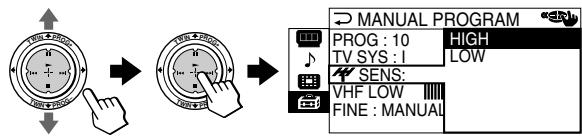
(2) Move up or down to select "LOW", then press .
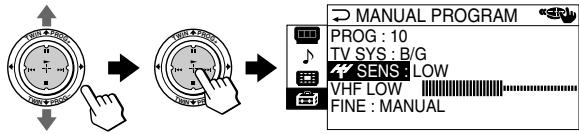
Notes
- The TV system ("TV SYS") and the TV reception sensitivity ("SENS") settings are memorized for each program number.
- If the channel you are presetting is a locked channel (page 48), that channel will be unlocked automatically.
Skipping unwanted or unused channels ("SKIP")
After performing automatic channel presetting, you can erase unwanted or unused channels.
1 After selecting "PROGRAM SETUP", make sure "PROG" is selected, then press .
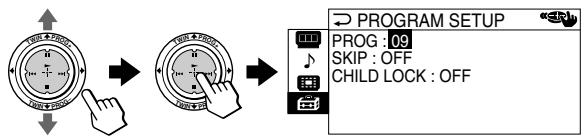
2 Move up or down until the unused or unwanted channel number appears, then press .
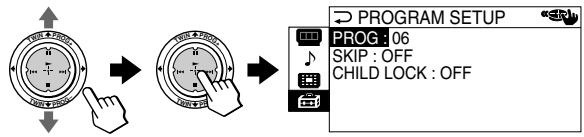
3 Move up or down to select "SKIP", then press .
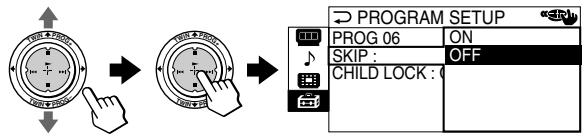
4 Move up or down to select "ON", then press .
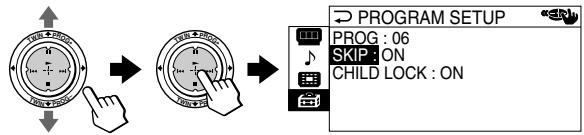
5 To disable other channels, select "PROG", then repeat steps 2 to 4.
To restore the skipped channel
Select "OFF" in step 4.
To return to the normal screen
Press MENU.
Changing the "SETUP" setting (continued)
Blocking channels ("CHILD LOCK")
1 After selecting "PROGRAM SETUP" make sure "PROG" is selected, then press () .
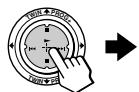

2 Move up or down to select the desired channel (e.g. PR 06), then press .
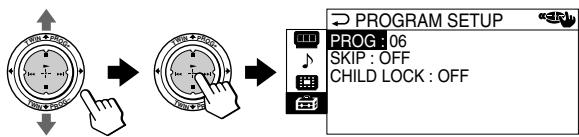
3 Move up or down to select "CHILD LOCK", then press .
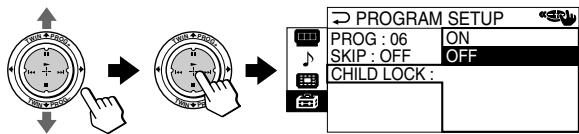
4 Move up or down to select "ON", then press . To unlock the channel, select "OFF".
The lock symbol ( ) appears on the screen when "ON" is selected.
If a locked channel is selected, the lock symbol appears on the screen.
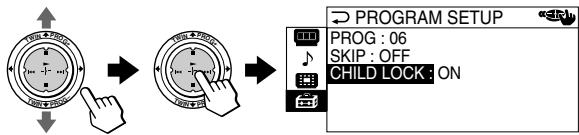
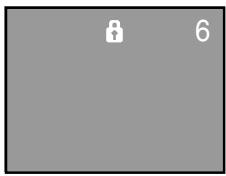
5 To lock other channels, select "PROG", then repeat steps 2 to 4.
To return to the normal screen
Press MENU.
Note
- If you preset a locked channel manually (page 45), that channel will be unlocked automatically.
Troubleshooting
If you have any problem while viewing your projection TV, please check the following troubleshooting guide. If the problem persists, contact your Sony dealer.
| Symptom | Possible cause | Solutions | Page |
| Snowy picture Noisy sound | ·The connection is loose or the cable is damaged. | ·Check the antenna cable and connection on the projection TV, VCR and on the wall. | 6 |
| ·Channel presetting is inappropriate or incomplete. | ·Display the “CH PRESET” menu under the “SETUP” menu and select “MANUAL PROGRAM” to preset the channel again. | 45 | |
| ·The antenna type is inappropriate. | ·Check the antenna type (VHF/UHF). Contact a Sony dealer for advice. | - | |
| ·The antenna direction needs adjustment. | ·Adjust the antenna direction. Contact a Sony dealer for advice. | - | |
| ·Signal transmission is low. | ·Try using a booster. | - | |
| Distorted picture Noisy sound | ·Broadcast signals are too strong. | ·Display the “CH PRESET” menu under the “SETUP” menu and select “MANUAL PROGRAM”. Then, select “SENS: LOW”. ·Turn off or disconnect the booster if it is in use. | 46 - |
| Good picture Noisy sound | ·The TV system setting is inappropriate. | ·If the sound of all the channels are noisy, display the “CH PRESET” menu under the “SETUP” menu and select “AUTO PROGRAM” to preset the channels again. ·If the sound of some channels is noisy, select the channel, then display the “CH PRESET” menu under the “SETUP”/“TV SYS”. | 43 45 |
| ·The sound of the right picture is selected when TWIN pictures are displayed. | ·Press or . | 21 |
Troubleshooting (continued)
| Symptom | Possible cause | Solutions | Page |
| No picture | ·The power cord, antenna or VCR is not connected. | ·Check the power cord, antenna and the VCR connections. | 6 |
| No sound | ·The projection TV is not turned on. | ·Press I/➀ on the remote. ·Press ➁ on the projection TV to turn off the projection TV for about five seconds, then turn it on again. | 15 16 |
| Good picture | ·The volume level is too low. | ·Press + to increase the volume level. | 16 |
| ·The sound is muted. | ·Press to cancel the muting. | 16 | |
| No sound | ·The broadcast signal has a transmission problem. | ·Press A/B until a better sound is heard. | 26 |
| ·The sound of the right picture is selected when TWIN pictures are displayed. | ·Press or . | 21 | |
| Dotted lines or stripes | ·There is local interference from cars, neon signs, hair dryers, power generators, etc. | ·Do not use a hair dryer or other equipment near the projection TV. ·Adjust the antenna direction for minimum interference. Contact a Sony dealer for advice. | - - |
| Double images or "ghosts" | ·Broadcast signals are reflected by nearby mountains or buildings. | ·Use a highly directional antenna. ·Use the fine tuning ("FINE") function. | - 46 |
| ·The antenna direction needs adjustment. | ·Adjust the antenna direction. Contact a Sony dealer for advice. | - | |
| ·Use of a booster is inappropriate. | ·Turn off or disconnect the booster if it is in use. | - | |
| No color | ·The color level setting is too low. | ·Display the "PICTURE" menu and select "ADJUST" of "PICTURE MODE", then adjust the "COLOR" level. | 38 |
| ·The color system setting is inappropriate. | ·Display the "SETUP" menu and check the color system ("COL SYS") setting (usually set this to "AUTO"). | 43 | |
| ·The antenna direction needs adjustment. | ·Adjust the antenna direction. Contact a Sony dealer for advice. | - | |
| Projection TV cannot receive stereo broadcast signal. | • The stereo reception setting is inappropriate. | • Press A/B until “AUTO” appears on the screen. | 27 |
| • The sound of the right picture is selected when TWIN pictures are displayed. | • Press or [ ] . | 21 | |
| Stereo broadcast sound switches on and off or is distorted. | • The connection is loose or the cable is damaged. | • Check the antenna cable and connection on the projection TV, VCR and on the wall. | 6 |
| or The sound switches between stereo and monaural frequently. | • The antenna direction needs adjustment. | • Adjust the antenna direction. Contact a Sony dealer for advice. | - |
| • The broadcast signal has a transmission problem. | • Press A/B until a better sound is heard. | 26 | |
| “100?” appears at the top of the screen after approximately 10 seconds and there is no Teletext display. | • The channel carries no Teletext broadcast. | - | 28 |
| Teletext display is incomplete (snowy picture or double images). | • Connection is loose or the cable is damaged. | • Check the antenna cable and connection on the projection TV, VCR, and at the wall. | 6 |
| • The antenna direction is inappropriate. | • Adjust the antenna direction. Contact a Sony dealer for advice. | - | |
| • Signal transmission is too low. | • Try using a booster. • Use the fine tuning ("FINE") function. | -46 | |
| Lines moving across the TV screen. | • There is interference from external sources, e.g., heavy machineries, nearby broadcast station. | • Use the fine tuning ("FINE") function. | 46 |
| Cannot play shooting games. | • Some shooting games which involve pointing a light beam at the projection TV screen with an electronic gun or rifle cannot be used with your projection TV. For detail, see the instruction manual supplied with the video game software. | - | - |
Troubleshooting (continued)
| Symptom | Possible cause | Solutions | Page |
| Projection TV cabinet creaks. | Changes in room temperature sometimes make the projection TV cabinet expand or contract, causing a noise. This does not indicate a malfunction. | — | — |
| Static discharge is felt when touching the TV cabinet. | This is the same static discharge that is felt when touching metal door handles or car doors especially when the air is dry, for example in winter. This does not indicate a malfunction. | — | — |
Self-diagnosis function
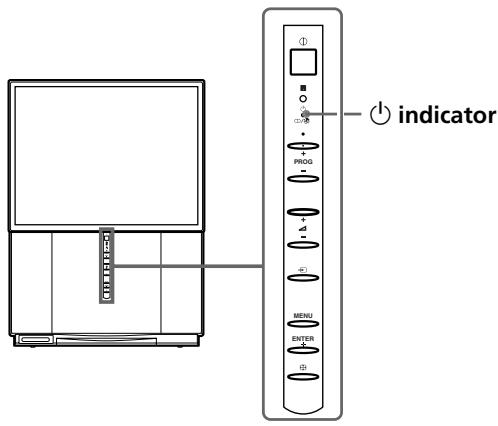
Your projection TV is equipped with a self-diagnosis function. If there is a problem with your projection TV, the (standby) indicator flashes red. The number of times the ( indicator flashes indicates the possible causes.
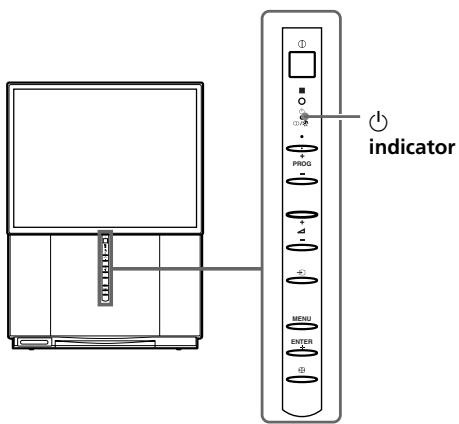
1 Check that the indicator flashes red a number of times between 3-second intervals.
2 Count the number of times the indicator flashes.
3 Press ① (main power) to turn off your projection TV.
4 Inform your nearest Sony service center about the number of times the indicator flashed.
Be sure to note the model name and serial number located on the rear of your projection TV.
Identifying parts and controls
Front and inside the drop-down panel
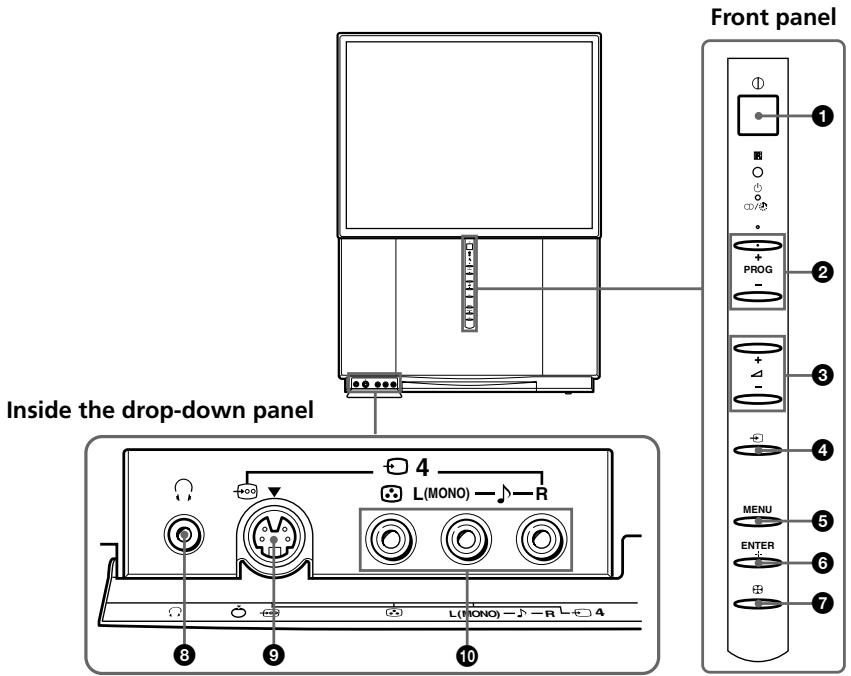
| Button | Function | Page |
| 1 ① | Turn off completely or turn on the projection TV. | 15 |
| 2 PROG +/- | • Select program number. • View next/previous 12 TV programs in PROGRAM INDEX. | 15 15 |
| 3 ↗ +/- | • Adjust volume. • Select items in the menu. | 16 35 |
| 4 ↗ | Select TV or video input. | 16 |
| 5 MENU | Display the menu. | 35 |
| 6 ENTER + | Confirm selected items. | 35 |
| 7 ↗ | Adjust convergence automatically. | 9 |
| 8 ↗ | Headphone jack | - |
| 9 ↗ | Connect to S video output of video equipment. | 10 |
| 10 ↗ 4 | Connect to video/audio outputs of equipment. | 10 |
Rear
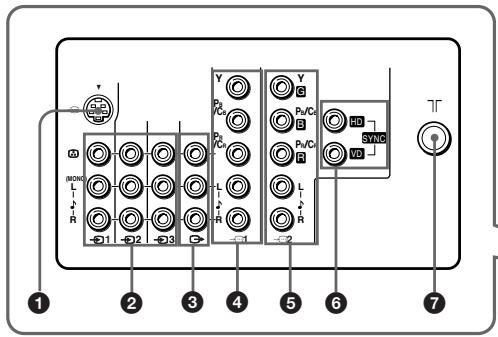
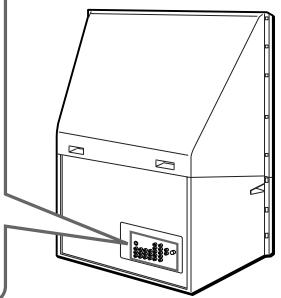
| Button | Function | Page |
| 1 → | Connect to S video output of video equipment. | 7 |
| 2 → 1/2 2/3 | Connect to video.audio outputs of video equipment. | 7 |
| 3 → | Connect to video.audio inputs of audio/video equipment. | 11 |
| 4 → 1 | Connect to component video outputs on a DVD player. | 12, 14 |
| 5 → 2 | Connect to component video outputs on a DVD player. Connect to a digital TV receiver equipped with the G/B/R/HD /VD outputs. | 12, 14 |
| 6 SYNC HD/VD | Connect to HD/VD outputs on a digital TV receiver. | 14 |
| 7 ↑ | Connect the antenna cable. | 6 |
Identifying parts and controls (continued)
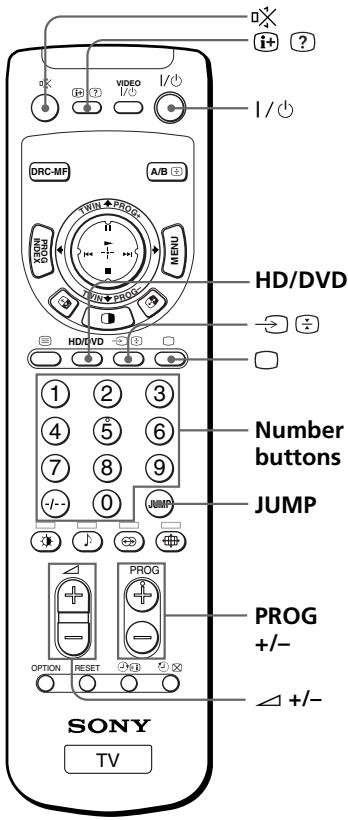
Remote control
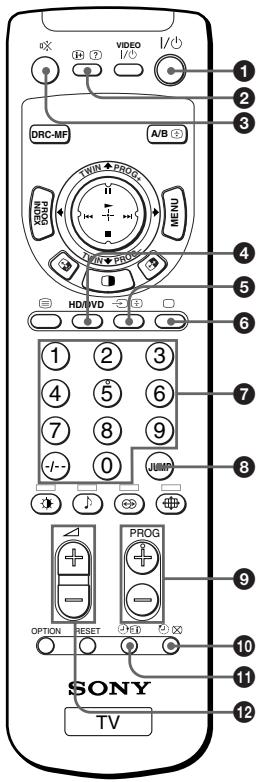
The names/symbols of buttons on the remote are indicated in different colors to represent the available functions.
| Label color | Button function |
| White | For general TV operations |
| Green | For Teletext operations |
| Yellow | For TWIN picture operations |
| Pink | For optional components operations |
| Button | Function | Page |
| 1 I/0 | Turn off temporarily or turn on the projection TV. | 15 |
| 2 1+2 | • Display on-screen information. • Reveal Teletext concealed information. | 16 29 |
| 3 × | Mute the sound. | 16 |
| 4 HD/DVD | Select component input. | 16 |
| 5 → 0 | • Select TV or video input. • Stop Teletext page from scrolling. | 16 29 |
| 6 □ | • Display the TV program. • Turn off Teletext | 16 28 |
| 7 0-9,-/- | Input numbers. | 15 |
| 8 JUMP | Jump to previous channel. | 16 |
| 9 PROG +/- | • Select program number. • View next/previous 12 TV programs in PROGRAM INDEX. | 15 23 |
| 10 1+2 | • Set projection TV to turn off automatically. • Show TV screen while waiting for Teletxt page. | 17 29 |
| 11 1+3 | • Set projection TV to turn on automatically. • Display Teletext service contents. | 17 29 |
| 12 +/− | Adjust volume. | 16 |
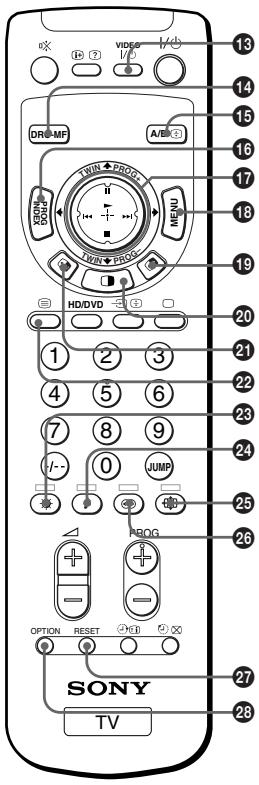
| Button | Function | Page |
| VIDEO I/VIDEOS | •Power. •Use with the number buttons to set up the remote. | 31 30 |
| DRC-MF | Select DRC-MF mode. | 19 |
| A/B | •Select stereo/bilingual mode. •Enlarge the Teletext display. | 26 29 |
| PROG INDEX | Display all preset TV programs. | 23 |
| •Select, adjust and confirm selected items in the menu. •Adjust twin picture size. •Display TWIN pictures. •Select a program of the right picture. •Select desired program in PROGRAM INDEX. •Operate optional components. | 35 21 22 22 24 31 | |
| MENUS | Display the menu. | 35 |
| Swap the left and right pictures. | 21 | |
| Display TWIN pictures. | 20 | |
| Swap sound between the left and right pictures. | 21 | |
| Display a Teletext page. | 28 | |
| •Select picture mode. •Access a FASTEXT menu. | 18 29 | |
| •Select sound mode. •Access a FASTEXT menu. | 18 29 | |
| •Select wide mode. •Access a FASTEXT menu. | 37 29 | |
| •Select surround mode. •Access a FASTEXT menu. | 25 29 | |
| RESET | Reset items in the menu to the factory preset values. | 34 |
| OPTION | Use with to operate optional components. | 31 |
Table des matières
AVERTISSEMENT
lemettrehors tension.
Remarque
Jus Jus Jus Jus Jus Jus Jus Jus Jus Jus Jus Jus Jus Jus Jus
b^2 + 4ac = 8
("SKIP") olaiaa aagaaa aai gaii
(2) 151 LjLjLjLjLjLjLjLjLjLjLjLjLjLjLjLjLjLjLjLjLjLjLjLjLjLjLjLjLjLjLjLjLjLjLjLjLjLjLjLjLjLjLjLjLjLjLjLjLjLjLj
2
PROG+/-lJolaljolalj
S BCD = S COD + S BDO - S BOC
3
(1)
"SETUP" 5
10000000000000000000000000000000000000000000000000000000000000000000000000000


MENU
1
25 14 14
2
10000000000000000000000000000000000000000000000
3
J 15
"Language"
"English" 4
"4
"4
"MULTI PICTURE"
"OFF" 1000000000000000000000000000000000000000000000000000000000000000
"TWIN"
PROG INDEX.
"TWIN"
"SWAP"
"PROGRAM INDEX"
S_ AOB = 12 · AO · OB = 12 × 2t × 5
MENU 405
1
SH
slo 1jL j
MENU 205
"Sound Mode" and "ADJUST"
BALANCE 00
("BALANCE"
452 1
1
1 1
2
| \( {}^{\text{ }} \) | \( {}^{\circledR } \) |
| ... | "BASS" |
| ... | "TREBLE" |
| ... | "BALANCE" |
| ... | "BBE" |
J 1 J 1 J 1 J 1 J 1 J 1 J 1 J 1 J 1 J 1 J 1 J 1 J 1 J 1 J 1 J 1 J 1 J 1 J 1 J 1 J 1 J 1 J 1 J 1 J 1 J 1 J 1 J 1 J 1 J 1 J 1 J 1 J 1 J 1 J
3
"Sound"
"Sound" S
L .S 153 y 1 L u 1 L u 1 L u
,1,MENU
1
S>JyL 1y41 J 0sS
0sS www JyL 1y41 J 0sJ
. JyL 1y41 J 0s
2
"PICTURE MODE" dr "ADJUST"
COLOR 80
= + ^2 1 + ^2
4) 2 | L L| = 12 | L L|
CLOOR
L 1
1
a 52
2
U.S. C BEE Sound BBE
BBE C BBE BBEE"BBE" a5.
Sound
| VIDEO I/O | العربية/العربية |
| .العربيةOption 45 drالع .العربيةOption 45 drالع | بُسَن بُسَن |
| .العربيةOption 45 drالع .العربيةOption 45 drالع | بُسَن بُسَن |
| .العربيةOption 45 drالع .العربيةOption 45 drالع | بُسَن |
| .العربيةOption 45 drالع .العربيةOption 45 drالع | بُسَن |
| .العربيةOption 45 drالع .العربيةOption 45 drالع | بُسَن |
| .العربيةOption 45 drالع .العربيةOption 45 dr | بُسَن |
J 1 J 1 J 1 J MD L CD
| VIDEO I/II | Jousif |
| . . . . . . . . . . . . . . . . . . . . . . . . . . . . . . . . . . . . . . . . . . . . . . . . . . . . . . . . . . . . . . . . . . . . . . . . . . . . . . . . . . . . . . . . . . . . . . . . . . . . . . . . . . . . . . . . . . . . . . . . . . . . . . . . . . . . . . . . . . . . . . . . . . . . . . . . . . . . . . . . . . . . . . . . . . . . . . . . . . . . . . . . . . . . . . . . . . . . . . . . .. . . . . . . . . . . . . . . . . . . . . . . . . . . . . . . . . . . . . . . . . . . . . . . . . . . . . . . . . . . . . . . . . . . . . . . . . . . . . . . . . . . . . . . . . . . . . . . . . . . . . . . . . . . . . . . . . . . . . . . . . . . . . . . . . . . . . . . . . . . . . . . . . . . . . . . . . . . . . . . . . . . . . . . . . . . . . . . . . . . . . . . . . . . . . . . . . . . . . . . . . . . . . . . . . . . . . . . . . . . . . . . . . . . . . . . . . . . . . . . . . . . . . . . . . . . . . . . . . . . . . . . . . . . . . . . . . . . . . . . . . . . . . . . . . . . . . . . . . . . . . . . . . . . . . . . . . . . . . . . . . . . . . . . . . . . . . . . . . . . . . . . . . . . . . . . . . . . . . . . . . . . . . . . . . . . . . . . . . . . . . . . . . . . . . . . . . . . . . . . . . . . . . . . . . . . . . . . . . . . . . . . . . . . . . . . . . . . . . . . . . . . ? . . . . . . . . . . . . . . . . . . . . . . . . . . . . . . . . . . . . . . . . . . . . . . . . . . . . . . . . . . . . . . . . . . . . . . . . . . . . . . . . . . . . . . . . . . . . . . . . . . . ; . . . . . . . . . . . . . . . . . . . . . . . . . . . . . . . . . . . . . . . . . . . . . . . . . . . . . . . . . . . . . . . . . . . . . . . . . . . . . . . . . . . . . . . . . . . . . . . . . . . - - - - - - - - - - - - - - - - - - - - - - - - - - - - - - - - - - - - - - - - - - - - - - - - - - - - - - - - - - - - - - - - - - - - - - - - - - - - - - - - - - - - - - - - - - - - - - - - - - - - - - . . . . . . . . . . . . . . . . . . . . . . . . . . . . . . . . . . . . . . . . . . . . . . . . . . . . . . . . . . . . . . . . . . . . . . . . . . . . . . . . . . . . . . . . . . . . . . . . . . . - . . . . . . . . . . . . . . . . . . . . . . . . . . . . . . . . . . . . . . . . . . . . . . . . . . . . . . . . . . . . . . . . . . . . . . . . . . . . . . . . . . . . . . . . . . . . . . . . . . . > . . . . . . . . . . . . . . . . . . . . . . . . . . . . . . . . . . . . . . . . . . . . . . . . . . . . . . . . . . . . . . . . . . . . . . . . . . . . . . . . . . . . . . . . . . . . . . . . . . . 25 25 25 25 25 25 25 25 25 25 25 25 25 25 25 25 25 25 25 25 25 25 25 25 25 25 25 25 25 25 25 25 25 25 10 10 10 10 10 10 10 10 10 10 10 10 10 10 10 10 10 10 10 10 10 10 10 10 10 10 10 10 10 10 10 10 10 10 |
453
S
J 1 J 1 J 1 J 1 J 1 J 1 J 1 J 1 J 1 J 1 J 1 J 1 J 1 J 1 J 1 J 1 J 1 J 1 J 1 J 1 J 1 J 1 J 1 J 1 J 1 J 1 J 1 J 1
| VIDEO I/① | العربية/العربية |
| . . . . . . . . . . . . . . . . . . . . . . . . . . . . . . . . . . . . . . . . . . . . . . . . . . . . . . . . . . . . . . . . . . . . . . . . . . . . . . . . . . . . . . . . . . . . . . . . . . . . . . . . . . . . . . . . . . . . . . . . . . . . . . . . . . . . . . . . . . . . . . . . . . . . . . . . . . . . . . . . . . . . . . . . . . . . . . . . . . . . . . . . . . . . . . . . . . . . . . . . .. . . . . . . . . . . . . . . . . . . . . . . . . . . . . . . . . . . . . . . . . . . . . . . . . . . . . . . . . . . . . . . . . . . . . . . . . . . . . . . . . . . . . . . . . . . . . . . . . . . . . . . . . . . . . . . . . . . . . . . . . . . . . . . . . . . . . . . . . . . . . . . . . . . . . . . . . . . . . . . . . . . . . . . . . . . . . . . . . . . . . . . . . . . . . . . . . . . . . . . . . . . . . . . . . . . . . . . . . . . . . . . . . . . . . . . . . . . . . . . . . . . . . . . . . . . . . . . . . . . . . . . . . . . . . . . . . . . . . . . . . . . . . . . . . . . . . . . . . . . . . . . . . . . . . . . . . . . . . . . . . . . . . . . . . . . . . . . . . . . . . ? . . . . . . . . . . . . . . . . . . . . . . . . . . . . . . . . . . . . . . . . . . . . . . . . . . . . . . . . . . . . . . . . . . . . . . . . . . . . . . . . . . . . . . . . . . . . . . . . . . . - . . . . . . . . . . . . . . . . . . . . . . . . . . . . . . . . . . . . . . . . . . . . . . . . . . . . . . . . . . . . . . . . . . . . . . . . . . . . . . . . . . . . . . . . . . . . . . . . . . . - - - - - - - - - - - - - - - - - - - - - - - - - - - - - - - - - - - - - - - - - - - - - - - - - - - - - - - - - - - - - - - - - - - - - - - - - - - - - - - - - - - - - - - - - - - - - - - - - - - - - - . . . . . . . . . . . . . . . . . . . . . . . . . . . . . . . . . . . . . . . . . . . . . . . . . . . . . . . . . . . . . . . . . . . . . . . . . . . . . . . . . . . . . . . . . . . . . . . . . . . • - - - - - - - - - - - - - - - - - - - - - - - - - - - - - - - - - - - - - - - - - - - - - - - - - - - - - - - - - - - - - - - - - - - - - - - - - - - - - - - - - - - - - - - - - - - - - - - - - - - . . . . . . . . . . . . . . . . . . . . . . . . . . . . . . . . . . . . . . . . . . . . . . . . . . . . . . . . . . . . . . . . . . . . . . . . . . . . . . . . . . . . . . . . . . . . . . . . . . . ; . . . . . . . . . . . . . . . . . . . . . . . . . . . . . . . . . . . . . . . . . . . . . . . . . . . . . . . . . . . . . . . . . . . . . . . . . . . . . . . . . . . . . . . . . . . . . . . . . . . > . . . . . . . . . . . . . . . . . . . . . . . . . . . . . . . . . . . . . . . . . . . . . . . . . . . . . . . . . . . . . . . . . . . . . . . . . . . . . . . . . . . . . . . . . . . . . . . . . . . 25 25 25 25 25 25 25 25 25 25 25 25 25 25 25 25 25 25 25 25 25 25 25 25 25 25 25 25 25 25 25 25 25 25 10 10 10 10 10 10 10 10 10 10 10 10 10 10 10 10 10 10 10 10 10 10 10 10 10 10 10 10 10 10 10 10 10 10 |
Slaol
sJyRjUJSSOgS JdJyJgS OJ
J
Beta JIe SgSgSgSgSgSgSgSgSgSgSgSgSgSgSgSgSgSgSgSgSgSgSgSgSgSgSgSgSgSgSgSgSgSgSgSgSgSgSgSgSgSgSgSgSgSgSgSgSgSgSg
Joo ool 000000000000000000000000000000000000000
G
VIDEO I(1) 450, j#n mnnn nn nnnn nn nnnn nn nnnn nn nnnn nn nnnn nn nnnn nn nnnn nn nnnn nn nnnn nn nnnn nn nnnn nn nnnn nn nnnn nn nnnn nn nnnn nn nnnn nn nnnn nn nnnn nn nnnn nn nnnn nn nnnn nn nnnn nn nnnn nn nnnn nn nnnn nn
| الإستعمال | |||
| 0 | 0 | VIDEO I/① | DVD |
| 1 | 0 | VIDEO I/① | VTR1 (Beta) |
| 2 | 0 | VIDEO I/① | VTR2 (8mm) |
| 3 | 0 | VIDEO I/① | VTR3 (VHS) |
| 4 | 0 | VIDEO I/① | MDP |
| 6 | 0 | VIDEO I/① | CD |
| 7 | 0 | VIDEO I/① | MD |
FAEXT
SRS Labs TruSurround
(201)
a a
1
2
slooljyOLJ PROGRAMINDEX 1000000000000000000000000000000000000000000000000
TWIN TWIN PROG INDEX 4560000000000000000000000000000000000000000000000000000000000000000
sLJI sLLaololol jJ aolj02Jgslil
.0j 1 1 1 1 1 1 j j j j j j j j j j j
PROG +/ -405
L (TWIN PROG +/−) 4052 jolal
L = 5
DVD HD
50 1234567890123456789012345678901234567890123456789012345678901234567890123456789012345678901234567890123456789
.
L 1
y j 100000000000000000000000000000000000000000000000000000
a
TWIN 1
1
a 1
jlo
"TWIN" —
SdL 10. TWIN
TWIN
100

s#e 1j
405
0000 0000
"SLEEP TIMER: OFF" 0
PROG+/-40s2(1)
PROG + / - 12 052 15 jzj 20400000000000000000000000000000000000000000
4
.
1
S_ OBC = 12 · CO · BC = 12 × CD × 5
| .### | ### |
| .1/1 | ### |
| .1/2 | ### |
| .1/3 | ### |
| .1/4 | ### |
| .1/5 | ### |
| .1/6 | ### |
| .1/7 | ### |
| .1/8 | ### |
| .1/9 | ### |
| .1/10 | ### |
| .1/11 | ### |
| .1/12 | ### |
| .1/13 | ### |
| .1/14 | ### |
| .1/15 | ### |
| .1/16 | ### |
| .1/17 | ### |
| .1/18 | ### |
| .1/19 | ### |
| .1/20 | ### |
| .1/21 | ### |
| .1/22 | ### |
| .1/23 | ### |
| .1/24 | ### |
| .1/25 | ### |
| .1/26 | ### |
| .1/27 | ### |
| .1/28 | ### |
| .1/29 | ### |
| .1/30 | ### |
| .1/31 | ### |
| .1/32 | ### |
| .1/33 | ### |
| .1/34 | ### |
| .1/35 | ### |
| .1/36 | ### |
| .1/37 | ### |
| .1/38 | ### |
| .1/39 | ### |
| .1/40 | ### |
| .1/41 | ### |
| .1/42 | ### |
| .1/43 | ### |
| .1/44 | ### |
| .1/45 | ### |
| .1/46 | ### |
| .1/47 | ### |
| .1/48 | ### |
| .1/49 | ### |
| .1/50 | ### |
| .1/51 | ### |
| .1/52 | ### |
| .1/53 | ### |
| .1/54 | ### |
| .1/55 | ### |
| .1/56 | ### |
| .1/57 | ### |
| .1/58 | ### |
| .1/59 | ### |
| .1/60 | ### |
| .1/61 | ### |
| .1/62 | ### |
| .1/63 | ### |
| .1/64 | ### |
| .1/65 | ### |
| .1/66 | ### |
| .1/67 | ### |
| .1/68 | ### |
| .1/69 | ### |
| .1/70 | ### |
| .1/71 | ### |
| .1/72 | ### |
| .1/73 | ### |
| .1/74 | ### |
| .1/75 | ### |
| .1/76 | ### |
| .1/77 | ### |
| .1/78 | ### |
| .1/79 | ### |
| .1/80 | ### |
| .1/81 | ### |
| .1/82 | ### |
| .1/83 | ### |
| .1/84 | ### |
| .1/85 | ### |
| .1/86 | ### |
| .1/87 | ### |
| .1/88 | ### |
| .1/89 | ### |
| .1/90 | ### |
| .1/91 | ### |
| .1/92 | ### |
| .1/93 | ### |
| .1/94 | ### |
| .1/95 | ### |
| .1/96 | ### |
| .1/97 | ### |
| .1/98 | ### |
| .1/99 | ### |
| .2/0 | ### |
| .2/1 | ### |
| .2/2 | ### |
| .2/3 | ### |
| .2/4 | ### |
| .2/5 | ### |
| .2/6 | ### |
| .2/7 | ### |
| .2/8 | ### |
| .2/9 | ### |
| .2/10 | ### |
| .2/11 | ### |
| .2/12 | ### |
| .2/13 | ### |
| .2/14 | ### |
| .2/15 | ### |
| .2/16 | ### |
| .2/17 | ### |
| .2/18 | ### |
| .2/19 | ### |
| .2/20 | ### |
| .2/21 | ### |
| .2/22 | ### |
| .2/23 | ### |
| .2/24 | ### |
| .2/25 | ### |
| .2/26 | ### |
| .2/27 | ### |
| .2/28 | ### |
| .2/29 | ### |
| .2/30 | ### |
| .2/31 | ### |
| .2/32 | ### |
| .2/33 | ### |
| .2/34 | ### |
| .2/35 | ### |
| .2/36 | ### |
| .2/37 | ### |
| .2/38 | ### |
| .2/39 | ### |
| .2/40 | ### |
| .2/41 | ### |
| .2/42 | ### |
| .2/43 | ### |
| .2/44 | ### |
| .2/45 | ### |
| .2/46 | ### |
| .2/47 | ### |
| .2/48 | ### |
| .2/49 | ### |
| .2/50 | ### |
| .2/51 | ### |
| .2/52 | ### |
| .2/53 | ### |
| .2/54 | ### |
| .2/55 | ### |
| .2/56 | ### |
| .2/57 | ### |
| .2/58 | ### |
| .2/59 | ### |
| .2/60 | ### |
| .2/61 | ### |
| .2/62 | ### |
| .2/63 | ### |
| .2/64 | ### |
| .2/65 | ### |
| .2/66 | ### |
| .2/67 | ### |
| .2/68 | ### |
| .2/69 | ### |
| .2/70 | ### |
| .2/71 | ### |
| .2/72 | ### |
| .2/73 | ### |
| .2/74 | ### |
| .2/75 | ### |
| .2/76 | ### |
| .2/77 | ### |
| .2/78 | ### |
| .2/79 | ### |
| .2/80 | ### |
| .2/81 | ### |
| .2/82 | ### |
| .2/83 | ### |
| .2/84 | ### |
| .2/85 | ### |
| .2/86 | ### |
| .2/87 | ### |
| .2/88 | ### |
| .2/89 | ### |
| .2/90 | ### |
| .2/91 | ### |
| .2/92 | ### |
| .2/93 | ### |
| .2/94 | ### |
| .2/95 | ### |
| .2/96 | ### |
| .2/97 | ### |
| .2/98 | ### |
| .2/99 | ### |
| .3/0 | ### |
| .3/1 | ### |
| .3/2 | ### |
| .3/3 | ### |
| .3/4 | ### |
| .3/5 | ### |
| .3/6 | ### |
| .3/7 | ### |
| .3/8 | ### |
| .3/9 | ### |
| .3/10 | ### |
| .3/11 | ### |
| .3/12 | ### |
| .3/13 | ### |
| .3/14 | ### |
| .3/15 | ### |
| .3/16 | ### |
| .3/17 | ### |
| .3/18 | ### |
| .3/19 | ### |
| .3/20 | ### |
| .3/21 | ### |
| .3/22 | ### |
| .3/23 | ### |
| .3/24 | ### |
| .3/25 | ### |
| .3/26 | ### |
| .3/27 | ### |
| .3/28 | ### |
| .3/29 | ### |
| .3/30 | ### |
| .3/31 | ### |
| .3/32 | ### |
| .3/33 | ### |
| .3/34 | ### |
| .3/35 | ### |
| .3/36 | ### |
| .3/37 | ### |
| .3/38 | ### |
| .3/39 | ### |
| .3/40 | ### |
| .3/41 | ### |
| .3/42 | ### |
| .3/43 | ### |
| .3/44 | ### |
| .3/45 | ### |
| .3/46 | ### |
| .3/47 | ### |
| .3/48 | ### |
| .3/49 | ### |
| .3/50 | ### |
| .3/51 | ### |
| .3/52 | ### |
| .3/53 | ### |
| .3/54 | ### |
| .3/55 | ### |
| .3/56 | ### |
| .3/57 | ### |
| .3/58 | ### |
| .3/59 | ### |
| .3/60 | ### |
| .3/61 | ### |
| .3/62 | ### |
| .3/63 | ### |
| .3/64 | ### |
| .3/65 | ### |
| .3/66 | ### |
| .3/67 | ### |
| .3/68 | ### |
| .3/69 | ### |
| .3/70 | ### |
| .3/71 | ### |
| .3/72 | ### |
| .3/73 | ### |
| .3/74 | ### |
| .3/75 | ### |
| .3/76 | ### |
| .3/77 | ### |
| .3/78 | ### |
| .3/79 | ### |
| .3/80 | ### |
| .3/81 | ### |
| .3/82 | ### |
| .3/83 | ### |
| .3/84 | ### |
| .3/85 | ### |
| .3/86 | ### |
| .3/87 | ### |
| .3/88 | ### |
| .3/89 | ### |
| .3/90 | ### |
| .3/91 | ### |
| .3/92 | ### |
| .3/93 | ### |
| .3/94 | ### |
| .3/95 | ### |
| .3/96 | ### |
| .3/97 | ### |
| .3/98 | ### |
| .3/99 | ### |
| .4/0 | ### |
| .4/1 | ### |
| .4/2 | ### |
| .4/3 | ### |
| .4/4 | ### |
| .4/5 | ### |
| .4/6 | ### |
| .4/7 | ### |
| .4/8 | ### |
| .4/9 | ### |
| .4/10 | ### |
| .4/11 | ### |
| .4/12 | ### |
| .4/13 | ### |
| .4/14 | ### |
| .4/15 | ### |
| .4/16 | ### |
| .4/17 | ### |
| .4/18 | ### |
| .4/19 | ### |
| .4/20 | ### |
| .4/21 | ### |
| .4/22 | ### |
| .4/23 | ### |
| .4/24 | ### |
| .4/25 | ### |
| .4/26 | ### |
| .4/27 | ### |
| .4/28 | ### |
| .4/29 | ### |
| .4/30 | ### |
| .4/31 | ### |
| .4/32 | ### |
| .4/33 | ### |
| .4/34 | ### |
| .4/35 | ### |
| .4/36 | ### |
| .4/37 | ### |
| .4/38 | ### |
| .4/39 | ### |
| .4/40 | ### |
| .4/41 | ### |
| .4/42 | ### |
| .4/43 | ### |
| .4/44 | ### |
| .4/45 | ### |
| .4/46 | ### |
| .4/47 | ### |
| .4/48 | ### |
| .4/49 | ### |
| .4/50 | ### |
| .4/51 | ### |
| .4/52 | ### |
| .4/53 | ### |
| .4/54 | ### |
| .4/55 | ### |
| .4/56 | ### |
| .4/57 | ### |
| .4/58 | ### |
| .4/59 | ### |
| .4/60 | ### |
| .4/61 | ### |
| .4/62 | ### |
| .4/63 | ### |
| .4/64 | ### |
| .4/65 | ### |
| .4/66 | ### |
| .4/67 | ### |
| .4/68 | ### |
| .4/69 | ### |
| .4/70 | ### |
| .4/71 | ### |
| .4/72 | ### |
| .4/73 | ### |
| .4/74 | ### |
| .4/75 | ### |
| .4/76 | ### |
| .4/77 | ### |
| .4/78 | ### |
| .4/79 | ### |
| .4/80 | ### |
| .4/81 | ### |
| .4/82 | ### |
| .4/83 | ### |
| .4/84 | ### |
| .4/85 | ### |
| .4/86 | ### |
| .4/87 | ### |
| .4/88 | ### |
| .4/89 | ### |
| .4/90 | ### |
| .4/91 | ### |
| .4/92 | ### |
| .4/93 | ### |
| .4/94 | ### |
| .4/95 | ### |
| .4/96 | ### |
| .4/97 | ### |
| .4/98 | ### |
| .4/99 | ### |
| .5/0 | ### |
| .5/1 | ### |
| .5/2 | ### |
| .5/3 | ### |
| .5/4 | ### |
| .5/5 | ### |
| .5/6 | ### |
| .5/7 | ### |
| .5/8 | ### |
| .5/9 | ### |
| .5/10 | ### |
j j
jglslil 1 jglio glslae jl jll oolw jololw .
| 1 | 2 | 3 | 4 | 5 | 6 | 7 | 8 | 9 | L | P | Q | R | S | T | U | V | W | X | Y | Z | |||||||
| PROG | J | A | B | C | D | E | F | G | H | I | J | K | L | M | N | O | P | Q | R | S | T | U | V | W | X | Y | Z |
4:59
| (DVD) (b) (c) (d) (e) (f) (g) (h) (i) (j) (k) (l) (m) (n) (o) (p) (q) (r) (s) (t) (u) (v) (w) (x) (y) (z) (aa) (bb) (bc) (cd) (de) (ef) (fg) (gd) (dg) (dg) (dg) (dg) (dg) (dg) (dg) (dg) (dg) (dg) (dg) (dg) (dg) (dg) (dg) (dg) (dg) (dg) (dg) (dg) (dg) (dg) (dg) (dg) (dg) (dg) (dg) (dg) (dg) (dg) (dg) (dg) (dg) (dg) (1) Y (2) PB ∪ B-Y, CB (3) PR ∪ R-Y, Cr (4) Q ∪ Q-Cr (5) P ∪ P-Cr (6) Q ∪ Q-Cr (7) Q ∪ Q-Cr (8) Q ∪ Q-Cr (9) Q ∪ Q-Cr (10) Q ∪ Q-Cr (11) Q ∪ Q-Cr (12) Q ∪ Q-Cr (13) Q ∪ Q-Cr (14) Q ∪ Q-Cr (15) Q ∪ Q-Cr (16) Q ∪ Q-Cr (17) Q ∪ Q-Cr (18) Q ∪ Q-Cr (19) Q ∪ Q-Cr (20) Q ∪ Q-Cr (21) Q ∪ Q-Cr (22) Q ∪ Q-Cr (23) Q ∪ Q-Cr (24) Q ∪ Q-Cr (25) Q ∪ Q-Cr (26) Q ∪ Q-Cr (27) Q ∪ Q-Cr (28) Q ∪ Q-Cr (29) Q ∪ Q-Cr (30) Q ∪ Q-Cr (31) Q ∪ Q-Cr (32) Q ∪ Q-Cr (33) Q ∪ Q-Cr (34) Q ∪ Q-Cr (35) Q ∪ Q-Cr (36) Q ∪ Q-Cr (37) Q ∪ Q-Cr (38) Q ∪ Q-Cr (39) Q ∪ Q-Cr (40) Q ∪ Q-Cr (41) Q ∪ Q-Cr (42) Q ∪ Q-Cr (43) Q ∪ Q-Cr (44) Q ∪ Q-Cr (45) Q ∪ Q-Cr (46) Q ∪ Q-Cr (47) Q ∪ Q-Cr (48) Q ∪ Q-Cr (49) Q ∪ Q-Cr (50) Q ∪ Q-Cr (51) Q ∪ Q-Cr (52) Q ∪ Q-Cr (53) Q ∪ Q-Cr (54) Q ∪ Q-Cr (55) Q ∪ Q-Cr (56) Q ∪ Q-Cr (57) Q ∪ Q-Cr (58) Q ∪ Q-Cr (59) Q ∪ Q-Cr (60) Q ∪ Q-Cr (61) Q ∪ Q-Cr (62) Q ∪ Q-Cr (63) Q ∪ Q-Cr (64) Q ∪ Q-Cr (65) Q ∪ Q-Cr (66) Q ∪ Q-Cr (67) Q ∪ Q-Cr (68) Q ∪ Q-Cr (69) Q ∪ Q-Cr (70) Q ∪ Q-Cr (71) Q ∪ Q-Cr (72) Q ∪ Q-Cr (73) Q ∪ Q-Cr (74) Q ∪ Q-Cr (75) Q ∪ Q-Cr (76) Q ∪ Q-Cr (77) Q ∪ Q-Cr (78) Q ∪ Q-Cr (79) Q ∪ Q-Cr (80) Q ∪ Q-Cr (81) Q ∪ Q-Cr (82) Q ∪ Q-Cr (83) Q ∪ Q-Cr (84) Q ∪ Q-Cr (85) Q ∪ Q-Cr (86) Q ∪ Q-Cr (87) Q ∪ Q-Cr (88) Q ∪ Q-Cr (89) Q ∪ Q-Cr (90) Q ∪ Q-Cr (91) Q ∪ Q-Cr (92) Q ∪ Q-Cr (93) Q ∪ Q-Cr (94) Q ∪ Q-Cr (95) Q ∪ Q-Cr (96) Q ∪ Q-Cr (97) Q ∪ Q-Cr (98) Q ∪ Q-Cr (99) Q ∪ Q-Cr (100) Q ∪ Q-Cr (101) Q ∪ Q-Cr (102) Q ∪ Q-Cr (103) Q ∪ Q-Cr (104) Q ∪ Q-Cr (105) Q ∪ Q-Cr (106) Q ∪ Q-Cr (107) Q ∪ Q-Cr (108) Q ∪ Q-Cr (109) Q ∪ Q-Cr (110) Q ∪ Q-Cr (111) Q ∪ Q-Cr (112) Q ∪ Q-Cr (113) Q ∪ Q-Cr (114) Q ∪ Q-Cr (115) Q ∪ Q-Cr (116) Q ∪ Q-Cr (117) Q ∪ Q-Cr (118) Q ∪ Q-Cr (119) Q ∪ Q-Cr (120) Q ∪ Q-Cr (121) Q ∪ Q-Cr (122) Q ∪ Q-Cr (123) Q ∪ Q-Cr (124) Q ∪ Q-Cr (125) Q ∪ Q-Cr (126) Q ∪ Q-Cr (127) Q ∪ Q-Cr (128) Q ∪ Q-Cr (129) Q ∪ Q-Cr (130) Q ∪ Q-Cr (131) Q ∪ Q-Cr (132) Q ∪ Q-Cr (133) Q ∪ Q-Cr (134) Q ∪ Q-Cr (135) Q ∪ Q-Cr (136) Q ∪ Q-Cr (137) Q ∪ Q-Cr (138) Q ∪ Q-Cr (139) Q ∪ Q-Cr (140) Q ∪ Q-Cr (141) Q ∪ Q-Cr (142) Q ∪ Q-Cr (143) Q ∪ Q-Cr (144) Q ∪ Q-Cr (145) Q ∪ Q-Cr (146) Q ∪ Q-Cr (147) Q ∪ Q-Cr (148) Q ∪ Q-Cr (149) Q ∪ Q-Cr (150) Q ∪ Q-Cr (151) Q ∪ Q-Cr (152) Q ∪ Q-Cr (153) Q ∪ Q-Cr (154) Q ∪ Q-Cr (155) Q ∪ Q-Cr (156) Q ∪ Q-Cr (157) Q ∪ Q-Cr (158) Q ∪ Q-Cr (159) Q ∪ Q-Cr (160) Q ∪ Q-Cr (161) Q ∪ Q-Cr (162) Q ∪ Q-Cr (163) Q ∪ Q-Cr (164) Q ∪ Q-Cr (165) Q ∪ Q-Cr (166) Q ∪ Q-Cr (167) Q ∪ Q-Cr (168) Q ∪ Q-Cr (169) Q ∪ Q-Cr (170) Q ∪ Q-Cr (171) Q ∪ Q-Cr (172) Q ∪ Q-Cr (173) Q ∪ Q-Cr (174) Q ∪ Q-Cr (175) Q ∪ Q-Cr (176) Q ∪ Q-Cr (177) Q ∪ Q-Cr (178) Q ∪ Q-Cr (179) Q ∪ Q-Cr (180) Q ∪ Q-Cr (181) Q ∪ Q-Cr (182) Q ∪ Q-Cr (183) Q ∪ Q-Cr (184) Q ∪ Q-Cr (185) Q ∪ Q-Cr (186) Q ∪ Q-Cr (187) Q ∪ Q-Cr (188) Q ∪ Q-Cr (189) Q ∪ Q-Cr (190) Q ∪ Q-Cr (191) Q ∪ Q-Cr (192) Q ∪ Q-Cr (193) Q ∪ Q-Cr (194) Q ∪ Q-Cr (195) Q ∪ Q-Cr (196) Q ∪ Q-Cr (197) Q ∪ Q-Cr (198) Q ∪ Q-Cr (199) Q ∪ Q-Cr (200) Q ∪ Q-Cr (201) Q ∪ Q-Cr (202) Q ∪ Q-Cr (203) Q ∪ Q-Cr (204) Q ∪ Q-Cr (205) Q ∪ Q-Cr (206) Q ∪ Q-Cr (207) Q ∪ Q-Cr (208) Q ∪ Q-Cr (209) Q ∪ Q-Cr (210) Q ∪ Q-Cr (211) Q ∪ Q-Cr (212) Q ∪ Q-Cr (213) Q ∪ Q-Cr (214) Q ∪ Q-Cr (215) Q ∪ Q-Cr (216) Q ∪ Q-Cr (217) Q ∪ Q-Cr (218) Q ∪ Q-Cr (219) Q ∪ Q-Cr (220) Q ∪ Q-Cr (221) Q ∪ Q-Cr (222) Q ∪ Q-Cr (223) Q ∪ Q-Cr (224) Q ∪ Q-Cr (225) Q ∪ Q-Cr (226) Q ∪ Q-Cr (227) Q ∪ Q-Cr (228) Q ∪ Q-Cr (229) Q ∪ Q-Cr (230) Q ∪ Q-Cr (231) Q ∪ Q-Cr (232) Q ∪ Q-Cr (233) Q ∪ Q-Cr (234) Q ∪ Q-Cr (235) Q ∪ Q-Cr (236) Q ∪ Q-Cr (237) Q ∪ Q-Cr (238) Q ∪ Q-Cr (239) Q ∪ Q-Cr (240) Q ∪ Q-Cr (241) Q ∪ Q-Cr (242) Q ∪ Q-Cr (243) Q ∪ Q-Cr (244) Q ∪ Q-Cr (245) Q ∪ Q-Cr (246) Q ∪ Q-Cr (247) Q ∪ Q-Cr (248) Q ∪ Q-Cr (249) Q ∪ Q-Cr (250) Q ∪ Q-Cr (251) Q ∪ Q-Cr (252) Q ∪ Q-Cr (253) Q ∪ Q-Cr (254) Q ∪ Q-Cr (255) Q ∪ Q-Cr (256) Q ∪ Q-Cr (257) Q ∪ Q-Cr (258) Q ∪ Q-Cr (259) Q ∪ Q-Cr (260) Q ∪ Q-Cr (261) Q ∪ Q-Cr (262) Q ∪ Q-Cr (263) Q ∪ Q-Cr (264) Q ∪ Q-Cr (265) Q ∪ Q-Cr (266) Q ∪ Q-Cr (267) Q ∪ Q-Cr (268) Q ∪ Q-Cr (269) Q ∪ Q-Cr (270) Q ∪ Q-Cr (271) Q ∪ Q-Cr (272) Q ∪ Q-Cr (273) Q ∪ Q-Cr (274) Q ∪ Q-Cr (275) Q ∪ Q-Cr (276) Q ∪ Q-Cr (277) Q ∪ Q-Cr (278) Q ∪ Q-Cr (279) Q ∪ Q-Cr (280) Q ∪ Q-Cr (281) Q ∪ Q-Cr (282) Q ∪ Q-Cr (283) Q ∪ Q-Cr (284) Q ∪ Q-Cr (285) Q ∪ Q-Cr (286) Q ∪ Q-Cr (287) Q ∪ Q-Cr (288) Q ∪ Q-Cr (289) Q ∪ Q-Cr (290) Q ∪ Q-Cr (291) Q ∪ Q-Cr (292) Q ∪ Q-Cr (293) Q ∪ Q-Cr (294) Q ∪ Q-Cr (295) Q ∪ Q-Cr (296) Q ∪ Q-Cr (297) Q ∪ Q-Cr (298) Q ∪ Q-Cr (299) Q ∪ Q-Cr (300) Q ∪ Q-Cr (301) Q ∪ Q-Cr (302) Q ∪ Q-Cr (303) Q ∪ Q-Cr (304) Q ∪ Q-Cr (305) Q ∪ Q-Cr (306) Q ∪ Q-Cr (307) Q ∪ Q-Cr (308) Q ∪ Q-Cr (309) Q ∪ Q-Cr (310) Q ∪ Q-Cr (311) Q ∪ Q-Cr (312) Q ∪ Q-Cr (313) Q ∪ Q-Cr (314) Q ∪ Q-Cr (315) Q ∪ Q-Cr (316) Q ∪ Q-Cr (317) Q ∪ Q-Cr (318) Q ∪ Q-Cr (319) Q ∪ Q-Cr (320) Q ∪ Q-Cr (321) Q ∪ Q-Cr (322) Q ∪ Q-Cr (323) Q ∪ Q-Cr (324) Q ∪ Q-Cr (325) Q ∪ Q-Cr (326) Q ∪ Q-Cr (327) Q ∪ Q-Cr (328) Q ∪ Q-Cr (329) Q ∪ Q-Cr (330) Q ∪ Q-Cr (331) Q ∪ Q-Cr (332) Q ∪ Q-Cr (333) Q ∪ Q-Cr (334) Q ∪ Q-Cr (335) Q ∪ Q-Cr (336) Q ∪ Q-Cr (337) Q ∪ Q-Cr (338) Q ∪ Q-Cr (339) Q ∪ Q-Cr (340) Q ∪ Q-Cr (341) Q ∪ Q-Cr (342) Q ∪ Q-Cr (343) Q ∪ Q-Cr (344) Q ∪ Q-Cr (345) Q ∪ Q-Cr (346) Q ∪ Q-Cr (347) Q ∪ Q-Cr (348) Q ∪ Q-Cr (349) Q ∪ Q-Cr (350) Q ∪ Q-Cr (351) Q ∪ Q-Cr (352) Q ∪ Q-Cr (353) Q ∪ Q-Cr (354) Q ∪ Q-Cr (355) Q ∪ Q-Cr (356) Q ∪ Q-Cr (357) Q ∪ Q-Cr (358) Q ∪ Q-Cr (359) Q ∪ Q-Cr (360) Q ∪ Q-Cr (361) Q ∪ Q-Cr (362) Q ∪ Q-Cr (363) Q ∪ Q-Cr (364) Q ∪ Q-Cr (365) Q ∪ Q-Cr (366) Q ∪ Q-Cr (367) Q ∪ Q-Cr (368) Q ∪ Q-Cr (369) Q ∪ Q-Cr (370) Q ∪ Q-Cr (371) Q ∪ Q-Cr (372) Q ∪ Q-Cr (373) Q ∪ Q-Cr (374) Q ∪ Q-Cr (375) Q ∪ Q-Cr (376) Q ∪ Q-Cr (377) Q ∪ Q-Cr (378) Q ∪ Q-Cr (379) Q ∪ Q-Cr (380) Q ∪ Q-Cr (381) Q ∪ Q-Cr (382) Q ∪ Q-Cr (383) Q ∪ Q-Cr (384) Q ∪ Q-Cr (385) Q ∪ Q-Cr (386) Q ∪ Q-Cr (387) Q ∪ Q-Cr (388) Q ∪ Q-Cr (389) Q ∪ Q-Cr (390) Q ∪ Q-Cr (391) Q ∪ Q-Cr (392) Q ∪ Q-Cr (393) Q ∪ Q-Cr (394) Q ∪ Q-Cr (395) Q ∪ Q-Cr (396) Q ∪ Q-Cr (397) Q ∪ Q-Cr (398) Q ∪ Q-Cr (399) Q ∪ Q-Cr (400) Q ∪ Q-Cr (401) Q ∪ Q-Cr (402) Q ∪ Q-Cr (403) Q ∪ Q-Cr (404) Q ∪ Q-Cr (405) Q ∪ Q-Cr (406) Q ∪ Q-Cr (407) Q ∪ Q-Cr (408) Q ∪ Q-Cr (409) Q ∪ Q-Cr (410) Q ∪ Q-Cr (411) Q ∪ Q-Cr (412) Q ∪ Q-Cr (413) Q ∪ Q-Cr (414) Q ∪ Q-Cr (415) Q ∪ Q-Cr (416) Q ∪ Q-Cr (417) Q ∪ Q-Cr (418) Q ∪ Q-Cr (419) Q ∪ Q-Cr (420) Q ∪ Q-Cr (421) Q ∪ Q-Cr (422) Q ∪ Q-Cr (423) Q ∪ Q-Cr (424) Q ∪ Q-Cr (425) Q ∪ Q-Cr (426) Q ∪ Q-Cr (427) Q ∪ Q-Cr (428) Q ∪ Q-Cr (429) Q ∪ Q-Cr (430) Q ∪ Q-Cr (431) Q ∪ Q-Cr (432) Q ∪ Q-Cr (433) Q ∪ Q-Cr (434) Q ∪ Q-Cr (435) Q ∪ Q-Cr (436) Q ∪ Q-Cr (437) Q ∪ Q-Cr (438) Q ∪ Q-Cr (439) Q ∪ Q-Cr (440) Q ∪ Q-Cr (441) Q ∪ Q-Cr (442) Q ∪ Q-Cr (443) Q ∪ Q-Cr (444) Q ∪ Q-Cr (445) Q ∪ Q-Cr (446) Q ∪ Q-Cr (447) Q ∪ Q-Cr (448) Q ∪ Q-Cr (449) Q ∪ Q-Cr (450) Q ∪ Q-Cr (451) Q ∪ Q-Cr (452) Q ∪ Q-Cr (453) Q ∪ Q-Cr (454) Q ∪ Q-Cr (455) Q ∪ Q-Cr (456) Q ∪ Q-Cr (457) Q ∪ Q-Cr (458) Q ∪ Q-Cr (459) Q ∪ Q-Cr (460) Q ∪ Q-Cr (461) Q ∪ Q-Cr (462) Q ∪ Q-Cr (463) Q ∪ Q-Cr (464) Q ∪ Q-Cr (465) Q ∪ Q-Cr (466) Q ∪ Q-Cr (467) Q ∪ Q-Cr (468) Q ∪ Q-Cr (469) Q ∪ Q-Cr (470) Q ∪ Q-Cr (471) Q ∪ Q-Cr (472) Q ∪ Q-Cr (473) Q ∪ Q-Cr (474) Q ∪ Q-Cr (475) Q ∪ Q-Cr (476) Q ∪ Q-Cr (477) Q ∪ Q-Cr (478) Q ∪ Q-Cr (479) Q ∪ Q-Cr (480) Q ∪ Q-Cr (481) Q ∪ Q-Cr (482) Q ∪ Q-Cr (483) Q ∪ Q-Cr (484) Q ∪ Q-Cr (485) Q ∪ Q-Cr (486) Q ∪ Q-Cr (487) Q ∪ Q-Cr (488) Q ∪ Q-Cr (489) Q ∪ Q-Cr (490)Q ∪Q-Cr (491)Q ∪Q-Cr (492)Q ∪Q-Cr (493)Q ∪Q-Cr (494)Q ∪Q-Cr (495)Q ∪Q-Cr (496)Q ∪Q-Cr (497)Q ∪Q-Cr (498)Q ∪Q-Cr (499)Q ∪Q-Cr (500)Q ∪Q-Cr (501)Q ∪Q-Cr (502)Q ∪Q-Cr (503)Q ∪Q-Cr (504)Q ∪Q-Cr (505)Q ∪Q-Cr (506)Q ∪Q-Cr (507)Q ∪Q-Cr (508)Q ∪Q-Cr (509)Q ∪Q-Cr (510)Q ∪Q-Cr (511)Q ∪Q-Cr (512)Q ∪Q-Cr (513)Q ∪Q-Cr (514)Q ∪Q-Cr (515)Q ∪Q-Cr (516)Q ∪Q-Cr (517)Q ∪Q-Cr (518)Q ∪Q-Cr (519)Q ∪Q-Cr (520)Q ∪Q-Cr (521)Q ∪Q-Cr (522)Q ∪Q-Cr (523)Q ∪Q-Cr (524)Q ∪Q-Cr (525)Q ∪Q-Cr (526)Q ∪Q-Cr (527)Q ∪Q-Cr (528)Q ∪Q-Cr (529)Q ∪Q-Cr (530)Q ∪Q-Cr (531)Q ∪Q-Cr (532)Q ∪Q-Cr (533)Q ∪Q-Cr (534)Q ∪Q-Cr (535)Q ∪Q-Cr (536)Q ∪Q-Cr (537)Q ∪Q-Cr (538)Q ∪Q-Cr (539)Q ∪Q-Cr (540)Q ∪Q-Cr (541)Q ∪Q-Cr (542)Q ∪Q-Cr (543)Q ∪Q-Cr (544)Q ∪Q-Cr (545)Q ∪Q-Cr (546)Q ∪Q-Cr (547)Q ∪Q-Cr (548)Q ∪Q-Cr (549)Q ∪Q-Cr (550)Q ∪Q-Cr (551)Q ∪Q-Cr (552)Q ∪Q-Cr (553)Q ∪Q-Cr (554)Q ∪Q-Cr (555)Q ∪Q-Cr (556)Q ∪Q-Cr (557)Q ∪Q-Cr (558)Q ∪Q-Cr (559)Q ∪Q-Cr (560)Q ∪Q-Cr (561)Q ∪Q-Cr (562)Q ∪Q-Cr (563)Q ∪Q-Cr (564)Q ∪Q-Cr (565)Q ∪Q-Cr (566)Q ∪Q-Cr (567)Q ∪Q-Cr (568)Q ∪Q-Cr (569)Q ∪Q-Cr (570)Q ∪Q-Cr (571)Q ∪Q-Cr (572)Q ∪Q-Cr (573)Q ∪Q-Cr (574)Q ∪Q-Cr (575)Q ∪Q-Cr (576)Q ∪Q-Cr (577)Q ∪Q-Cr (578)Q ∪Q-Cr (579)Q ∪Q-Cr (580)Q ∪Q-Cr (581)Q ∪Q-Cr (582)Q ∪Q-Cr (583)Q ∪Q-Cr (584)Q ∪Q-Cr (585)Q ∪Q-Cr (586)Q ∪Q-Cr (587)Q ∪Q-Cr (588)Q ∪Q-Cr (589)Q ∪Q-Cr (590)Q ∪Q-Cr (591)Q ∪Q-Cr (592)Q ∪Q-Cr (593)Q ∪Q-Cr (594)Q ∪Q-Cr (595)Q ∪Q-Cr (596)Q ∪Q-Cr (597)Q ∪Q-Cr (598)Q ∪Q-Cr (599)Q ∪Q-Cr (600)Q ∪Q-Cr (601)Q ∪Q-Cr (602)Q ∪Q-Cr (603)Q ∪Q-Cr (604)Q ∪Q-Cr (605)Q ∪Q-Cr (606)Q ∪Q-Cr (607)Q ∪Q-Cr (608)Q ∪Q-Cr (609)Q ∪Q-Cr (610)Q ∪Q-Cr (611)Q ∪Q-Cr (612)Q ∪Q-Cr (613)Q ∪Q-Cr (614)Q ∪Q-Cr (615)Q ∪Q-Cr (616)Q ∪Q-Cr (617)Q ∪Q-Cr (618)Q ∪Q-Cr (619)Q ∪Q-Cr (620)Q ∪Q-Cr (621)Q ∪Q-Cr (622)Q ∪Q-Cr (623)Q ∪Q-Cr (624)Q ∪Q-Cr (625)Q ∪Q-Cr (626)Q ∪Q-Cr (627)Q ∪Q-Cr (628)Q ∪Q-Cr (629)Q ∪Q-Cr (630)Q ∪Q-Cr (631)Q ∪Q-Cr (632)Q ∪Q-Cr (633)Q ∪Q-Cr (634)Q ∪Q-Cr (635)Q ∪Q-Cr (636)Q ∪Q-Cr (637)Q ∪Q-Cr (638)Q ∪Q-Cr (639)Q ∪Q-Cr (640)Q ∪Q-Cr (641)Q ∪Q-Cr (642)Q ∪Q-Cr (643)Q ∪Q-Cr (644)Q ∪Q-Cr (645)Q ∪Q-Cr (646)Q ∪Q-Cr (647)Q ∪Q-Cr (648)Q ∪Q-Cr (649)Q ∪Q-Cr (650)Q ∪Q-Cr (651)Q ∪Q-Cr (652)Q ∪Q-Cr (653)Q ∪Q-Cr (654)Q ∪Q-Cr (655)Q ∪Q-Cr (656)Q ∪Q-Cr (657)Q ∪Q-Cr (658)Q ∪Q-Cr (659)Q ∪Q-Cr (660)Q ∪Q-Cr (661)Q ∪Q-Cr (662)Q ∪Q-Cr (663)Q ∪Q-Cr (664)Q ∪Q-Cr (665)Q ∪Q-Cr (666)Q ∪Q-Cr (667)Q ∪Q-Cr (668)Q ∪Q-Cr (669)Q ∪Q-Cr (670)Q ∪Q-Cr (671)Q ∪Q-Cr (672)Q ∪Q-Cr (673)Q ∪Q-Cr (674)Q ∪Q-Cr (675)Q ∪Q-Cr (676)Q ∪Q-Cr (677)Q ∪Q-Cr (678)Q ∪Q-Cr (679)Q ∪Q-Cr (680)Q ∪Q-Cr (681)Q ∪Q-Cr (682)Q ∪Q-Cr (683)Q ∪Q-Cr (684)Q ∪Q-Cr (685)Q ∪Q-Cr (686)Q ∪Q-Cr (687)Q ∪Q-Cr (688)Q ∪Q-Cr (689)Q ∪Q-Cr (690)Q ∪Q-Cr (691)Q ∪Q-Cr (692)Q ∪Q-Cr (693)Q ∪Q-Cr (694)Q ∪Q-Cr (695)Q ∪Q-Cr (696)Q ∪Q-Cr (697)Q ∪Q-Cr (698)Q ∪Q-Cr (699)Q ∪Q-Cr (700)Q ∪Q-Cr (701)Q ∪Q-Cr (702)Q ∪Q-Cr (703)Q ∪Q-Cr (704)Q ∪Q-Cr (705)Q ∪Q-Cr (706)Q ∪Q-Cr (707)Q ∪Q-Cr (708)Q ∪Q-Cr (709)Q ∪Q-Cr (710)Q ∪Q-Cr (711)Q ∪Q-Cr (712)Q ∪Q-Cr (713)Q ∪Q-Cr (714)Q ∪Q-Cr (715)Q ∪Q-Cr (716)Q ∪Q-Cr (717)Q ∪Q-Cr (718)Q ∪Q-Cr (719)Q ∪Q-Cr (720)Q ∪Q-Cr (721)Q ∪Q-Cr (722)Q ∪Q-Cr (723)Q ∪Q-Cr (724)Q ∪Q-Cr (725)Q ∪Q-Cr (726)Q ∪Q-Cr (727)Q ∪Q-Cr (728)Q ∪Q-Cr (729)Q ∪Q-Cr (730)Q ∪Q-Cr (731)Q ∪Q-Cr (732)Q ∪Q-Cr (733)Q ∪Q-Cr (734)Q ∪Q-Cr (735)Q ∪Q-Cr (736)Q ∪Q-Cr (737)Q ∪Q-Cr (738)Q ∪Q-Cr (739)Q ∪Q-Cr (740)Q ∪Q-Cr (741)Q ∪Q-Cr (742)Q ∪Q-Cr (743)Q ∪Q-Cr (744)Q ∪Q-Cr (745)Q ∪Q-Cr (746)Q ∪Q-Cr (747)Q ∪Q-Cr (748)Q ∪Q-Cr (749)Q ∪Q-Cr (750)Q ∪Q-Cr (751)Q ∪Q-Cr (752)Q ∪Q-Cr (753)Q ∪Q-Cr (754)Q ∪Q-Cr (755)Q ∪Q-Cr (756)Q ∪Q-Cr (757)Q ∪Q-Cr (758)Q ∪Q-Cr (759)Q ∪Q-Cr (760)Q ∪Q-Cr (761)Q ∪Q-Cr (762)Q ∪Q-Cr (763)Q ∪Q-Cr (764)Q ∪Q-Cr (765)Q ∪Q-Cr (766)Q ∪Q-Cr (767)Q ∪Q-Cr (768)Q ∪Q-Cr (769)Q ∪Q-Cr (770)Q ∪Q-Cr (771)Q ∪Q-Cr (772)Q ∪Q-Cr (773)Q ∪Q-Cr (774)Q ∪Q-Cr (775)Q ∪Q-Cr (776)Q ∪Q-Cr (777)Q ∪Q-Cr (778)Q ∪Q-Cr (779)Q ∪Q-Cr (780)Q ∪Q-Cr (781)Q ∪Q-Cr (782)Q ∪Q-Cr (783)Q ∪Q-Cr (784)Q ∪Q-Cr (785)Q ∪Q-Cr (786)Q ∪Q-Cr (787)Q ∪Q-Cr (788)Q ∪Q-Cr (789)Q ∪Q-Cr (790)Q ∪Q-Cr (791)Q ∪Q-Cr (792)Q ∪Q-Cr (793)Q ∪Q-Cr (794)Q ∪Q-Cr (795)Q ∪Q-Cr (796)Q ∪Q-Cr (797)Q ∪Q-Cr (798)Q ∪Q-Cr (799)Q ∪Q-Cr (800)Q ∪Q-Cr (801)Q ∪Q-Cr (802)Q ∪Q-Cr (803)Q ∪Q-Cr (804)Q ∪Q-Cr (805)Q ∪Q-Cr (806)Q ∪Q-Cr (807)Q ∪Q-Cr (808)Q ∪Q-Cr (809)Q ∪Q-Cr (810)Q ∪Q-Cr (811)Q ∪Q-Cr (812)Q ∪Q-Cr (813)Q ∪Q-Cr (814)Q ∪Q-Cr (815)Q ∪Q-Cr (816)Q ∪Q-Cr (817)Q ∪Q-Cr (818)Q ∪Q-Cr (819)Q ∪Q-Cr (820)Q ∪Q-Cr (821)Q ∪Q-Cr (822)Q ∪Q-Cr (823)Q ∪Q-Cr (824)Q ∪Q-Cr (825)Q ∪Q-Cr (826)Q ∪Q-Cr (827)Q ∪Q-Cr (828)Q ∪Q-Cr (829)Q ∪Q-Cr (830)Q ∪Q-Cr (831)Q ∪Q-Cr (832)Q ∪Q-Cr (833)Q ∪Q-Cr (834)Q ∪Q-Cr (835)Q ∪Q-Cr (836)Q ∪Q-Cr (837)Q ∪Q-Cr (838)Q ∪Q-Cr (839)Q ∪Q-Cr (840)Q ∪Q-Cr (841)Q ∪Q-Cr (842)Q ∪Q-Cr (843)Q ∪Q-Cr (844)Q ∪Q-Cr (845)Q ∪Q-Cr (846)Q ∪Q-Cr (847)Q ∪Q-Cr (848)Q ∪Q-Cr (849)Q ∪Q-Cr (850)Q ∪Q-Cr (851)Q ∪Q-Cr (852)Q ∪Q-Cr (853)Q ∪Q-Cr (854)Q ∪Q-Cr (855)Q ∪Q-Cr (856)Q ∪Q-Cr (857)Q ∪Q-Cr (858)Q ∪Q-Cr (859)Q ∪Q-Cr (860)Q ∪Q-Cr (861)Q ∪Q-Cr (862)Q ∪Q-Cr (863)Q ∪Q-Cr (864)Q ∪Q-Cr (865)Q ∪Q-Cr (866)Q ∪Q-Cr (867)Q ∪Q-Cr (868)Q ∪Q-Cr (869)Q ∪Q-Cr (870)Q ∪Q-Cr (871)Q ∪Q-Cr (872)Q ∪Q-Cr (873)Q ∪Q-Cr (874)Q ∪Q-Cr (875)Q ∪Q-Cr (876)Q ∪Q-Cr (877)Q ∪Q-Cr (878)Q ∪Q-Cr (879)Q ∪Q-Cr (880)Q ∪Q-Cr (881)Q ∪Q-Cr (882)Q ∪Q-Cr (883)Q ∪Q-Cr (884)Q ∪Q-Cr (885)Q ∪Q-Cr (886)Q ∪Q-Cr (887)Q ∪Q-Cr (888)Q ∪Q-Cr (889)Q ∪Q-Cr (890)Q ∪Q-Cr (891)Q ∪Q-Cr (892)Q ∪Q-Cr (893)Q ∪Q-Cr (894)Q ∪Q-Cr (895)Q ∪Q-Cr (896)Q ∪Q-Cr (897)Q ∪Q-Cr (898)Q ∪Q-Cr (899)Q ∪Q-Cr (900)Q ∪Q-Cr (901)Q ∪Q-Cr (902)Q ∪Q-Cr (903)Q ∪Q-Cr (904)Q ∪Q-Cr (905)Q ∪Q-Cr (906)Q ∪Q-Cr (907)Q ∪Q-Cr (908)Q ∪Q-Cr (909)Q ∪Q-Cr (910)Q ∪Q-Cr (911)Q ∪Q-Cr (912)Q ∪Q-Cr (913)Q ∪Q-Cr (914)Q ∪Q-Cr (915)Q ∪Q-Cr (916)Q ∪Q-Cr (917)Q ∪Q-Cr (918)Q ∪Q-Cr (919)Q ∪Q-Cr (920)Q ∪Q-Cr (921)Q ∪Q-Cr (922)Q ∪Q-Cr (923)Q ∪Q-Cr (924)Q ∪Q-Cr (925)Q ∪Q-Cr (926)Q ∪Q-Cr (927)Q ∪Q-Cr (928)Q ∪Q-Cr (929)Q ∪Q-Cr (930)Q ∪Q-Cr (931)Q ∪Q-Cr (932)Q ∪Q-Cr (933)Q ∪Q-Cr (934)Q ∪Q-Cr (935)Q ∪Q-Cr (936)Q ∪Q-Cr (937)Q ∪Q-Cr (938)Q ∪Q-Cr (939)Q ∪Q-Cr (940)Q ∪Q-Cr (941)Q ∪Q-Cr (942)Q ∪Q-Cr (943)Q ∪Q-Cr (944)Q ∪Q-Cr (945)Q ∪Q-Cr (946)Q ∪Q-Cr (947)Q ∪Q-Cr (948)Q ∪Q-Cr (949)Q ∪Q-Cr (950)Q ∪Q-Cr (951)Q ∪Q-Cr (952)Q ∪Q-Cr (953)Q ∪Q-Cr (954)Q ∪Q-Cr (955)Q ∪Q-Cr (956)Q ∪Q-Cr (957)Q ∪Q-Cr (958)Q ∪Q-Cr (959)Q ∪Q-Cr (960)Q ∪Q-Cr (961)Q ∪Q-Cr (962)Q ∪Q-Cr (963)Q ∪Q-Cr (964)Q ∪Q-Cr (965)Q ∪Q-Cr (966)Q ∪Q-Cr (967)Q ∪Q-Cr (968)Q ∪Q-Cr (969)Q ∪Q-Cr (970)Q ∪Q-Cr (971)Q ∪Q-Cr (972)Q ∪Q-Cr (973)Q ∪Q-Cr (974)Q ∪Q-Cr (975)Q ∪Q-Cr (976)Q ∪Q-Cr (977)Q ∪Q-Cr (978)Q ∪Q-Cr (979)Q ∪Q-Cr (980)Q ∪Q-Cr (981)Q ∪Q-Cr (982)Q ∪Q-Cr (983)Q ∪Q-Cr (984)Q ∪Q-Cr (985)Q ∪Q-Cr (986)Q ∪Q-Cr (987)Q ∪Q-Cr (988)Q ∪Q-Cr (989)Q ∪Q-Cr (990)Q ∪Q-Cr (991)Q ∪Q-Cr (992)Q ∪Q-Cr (993)Q ∪Q-Cr (994)Q ∪Q-Cr (995)Q ∪Q-Cr (996)Q ∪Q-Cr (997)Q ∪Q-Cr (998)Q ∪Q-Cr (999)Q ∪Q-Cr |
(204 1DVDHD/VD
1.2.3.4.5.6.7.8.9.10.11.12.13.14.15.16.17.18.19.20.21.
1dH/HDVD2"“HD/DVD 1
"ON" 品 _ 品 1000000000000000000000000000000000000000000000000000000
4) Game Mode
(.
13 32.1 1
在 Rt ABD 中:
()
1.Sgssu 4s
S OBC = S BOC + S_ BOC
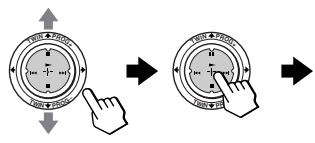
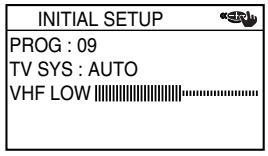
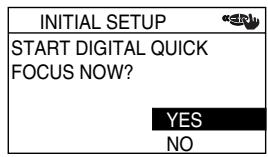
"YES" 1234567890123456789012345678901234567890123456789012345678901234567890123456789012345678901234567890123456789
S_ AOB = 12 · OB · AB = 12 × 10^2 × 5 = 452
p 10000000000000000000000000000000000000000000
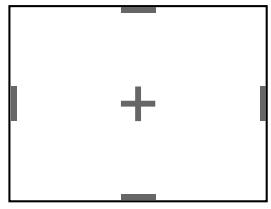
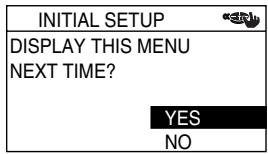
J 15
150 24 150 24
.2 g 12
"INITIAL SETUP" 2g 2g
1 1 1 1 1 1 1 1 1 1 1 1 1 1 1 1 1 1 1 1 1 1 1 1 1 1 1 1 1 1 1 1 1 1 1 1 1 1 1 1 1 1 1
JSSS 1
NO. 1,2,3,4,5,6,7,8,9,10,11,12,13,14,15,16,17,18,19,20,21,22,23,24,25,26,27,28,29,30,31,32,33,34,35,36,37,38,39,40,41
0 0 0 0 0 0 0 0 0 0 0 0 0 0 0 0 0 0 0 0 0 0 0 0 0 0 0 0 0 0 0 0 0 0 0 0
15
(204 1g(S)
1 1S (yss)
1S
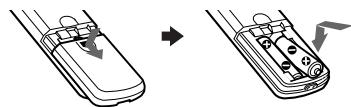
J 1
J
4:5k
23d ②
S OBC = S OBC = S ABC + S AOB
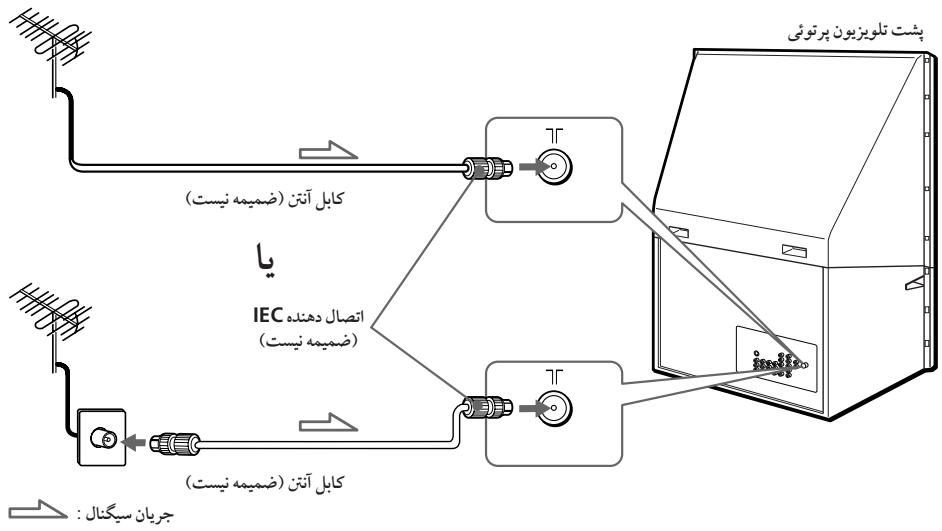
julius
s
L 1
Jg
1
Jyj jn
S 5
( 5 + 2( 0) ) = 1 + 2 + 2 + 2 + 2 + 2 + 2 + 2 + 2 + 2 + 2 + 2 + 2 + 2 + 2 + 2 + 2 + 2 + 2 + 2 + 2 + 2 + 2 + 2 + 2 + 2 + 2 + 2 + 2 + 2 + 2 + 2 + 2 + 2 + 2
KP-FX43
()
KP-FX43
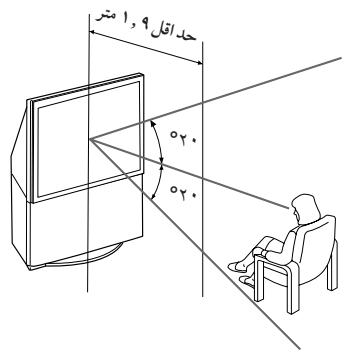
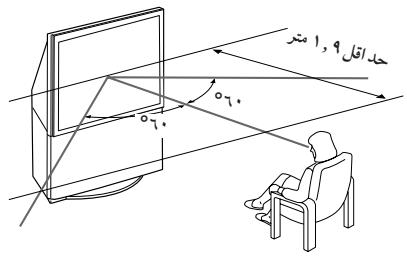
KP-FX53
KP-FX53
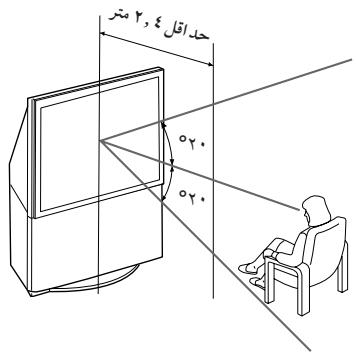
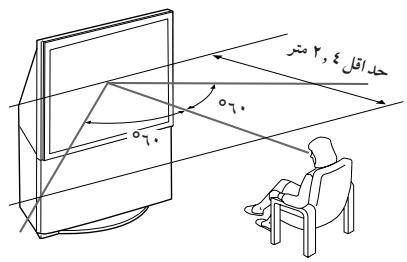
yIgJgJgJgJgJgJgJgJgJgJgJgJgJgJgJgJgJgJgJgJgJgJgJgJgJgJgJgJgJgJgJgJgJgJgJgJgJgJgJgJgJgJgJgJgJgJgJgJgJgJg
:ogos coxw 5
j1j1j1j1j1j1j1j1j1j1j1j
(204) 15
(1)
(T·a)olil
"PROGRAM INDEX"
(14) (2016) 5d.
"PICTURE MODE"/"SOUND MODE"/
"SURROUND"
( 90,1, ,2,0)
(VVdo)17:92slaai sla "WIDE MODE"
- glllusuusuusuusuusuusuusuusuusuusuusuusuusuusuusuusuusuusuusuusuusuusuusuusuusuuusuuusuuusuuuuuuuuuuuuuuuuuuuuuuuuuuuuuuuuuuuuuuuuuuuuuuuuuuuuuuuuuuuuuuuuuuuuuuuuuuuuuuuuuuuuuuuuuuuuuuuuuuuuuuuuuuuuuuuuuuuuuuuuuuuuuuuuuuuuuuuuuuuuuuuuuuuuuuuuuuuuuuuuuuuuuuuuuuuuuuuuuuuuuuuuuuuuuuUU
1
1
(1) 2xy + 5xy - 3xy = 0 4xy + 3xy - 2xy = 0 .
2
blalai jyjzjgjzjL (J) ①
3
1 1
4
| الإستعمال | الترجمة | الترجمة | الإستعمال |
| - | - | الترجمة الحرفية الحرفية الحرفية • محيى بعس الحرفية الحرفية • محيى بعس الحرفية • محيى بعس الحرفية • محيى بعس • محيى بعس الحرفية • محيى بعس • محيى بعس • محيى بعس • محيى بعس • محيى بعس • محيى بعس • محيى بعس • محيى بعس • محيى بعس • محيى بعس • محيى بعس • محيى بعس • محيى بعس • محيى بعس • محيى بعس •محيى بعس • محيى بعس • محيى بعس • محيى بعس • محيى بعس • محيى بعس • محيى بعس • محيى بعس • محيى بعس • محيى بعس • محيى بعس • محيى بعس • محيى بعس • محيى بعس • محيergic محيى بعس • محيergic محيergic محيergic محيergic محيergic محيergic محيergic محيergic محيergic محيergic محيergic محيergic محيergic محيergic محيergic محيergic محيergic محيergic محيergic محيergic محيergic محيergic محيergic محيergic محيergic محيergic محيergic محيergic محيergic محيergic محيergic محيergic محيergic محيergic m灸灸灸灸灸灸灸灸灸灸灸灸灸灸灸灸灸灸灸灸灸灸灸灸灸灸灸灸灸灸灸灸灸灸灸灸灸灸灸灸灸灸灸灸灸灸灸灸灸灸灸灸灸灸灸灸灸灸灸灸灸灸灸灸灸灸灸灸灸灸灸灸灸灸灸灸灸灸灸灸灸灸灸灸灸灸灸灸灸灸灸灸灸灸灸灸灸灸灸灸炙灸灸灸灸灸灸灸灸灸灸灸灸灸灸灸灸灸灸灸灸灸灸灸灸灸灸灸灸灸灸灸灸灸灸灸灸灸灸灸灸灸灸灸灸灸灸灸灸灸灸灸灸灸灸灸灸灸灸灸灸灸灸灸灸灸灸灸灸灸灸灸灸灸灸灸灸灸灸灸灸灸灸灸灸灸灸灸灸灸灸灸灸灸灸灸灸灸灸灸 | |
| سيلة | العربية | الإستعمال | الترجمة |
| \( \gamma v \) | . . . . . . . . . . . . . . . . . . . . . . . . . . . . . . . . . . . . . . . . . . . . . . . . . . . . . . . . . . . . . . . . . . . . . . . . . . . . . . . . . . . . . . . . . . . . . . . . . . . . . | . . . . . . . . . . . . . . . . . . . . . . . . . . . . . . . . . . . . . . . . . . . . . . . . . . . . . . . . . . . . . . . . . . . . . . . . . . . . . . . . . . . . . . . . . . . . . . . . . . | . . . . . . . . . . . . . . . . . . . . . . . . . . . . . . . . . . . . . . . . . . . . . . . . . . . . . . . . . . . . . . . . . . . . . . . . . . . . . . . . . . . . . . . . . . . . . . . . . . . . . 1 . . . . . . . . . . . . . . . . . . . . . . . . . . . . . . . . . . . . . . . . . . . . . . . . . . . . . . . . . . . . . . . . . . . . . . . . . . . . . . . . . . . . . . . . . . . . . . . . . . . . \. . . . . . . . . . . . . . . . . . . . . . . . . . . . . . . . . . . . . . . . . . . . . . . . . . . . . . . . . . . . . . . . . . . . . . . . . . . . . . . . . . . . . . . . . . . . . . . . . . . - |
| الإستعمال | الإستعمال | الإستعمال | الإستعمال |
| 7 | الإستعمال تصيرات الحرفية بعسانيت ·الإستعمال | الإستعمال † محيى بعسانيت الحرفية ·الإستعمال | الإستعمال |
| 10 | . . . . . . . . . . . . . . . . . . . . . . . . . . . . . . . . . . . . . . . . . . . . . . . . . . . . . . . . . . . . . . . . . . . . . . . . . . . . . . . . . . . . . . . . . . . . . . . . . . . . . . 11 | . . . . . . . . . . . . . . . . . . . . . . . . . . . . . . . . . . . . . . . . . . . . . . . . . . . . . . . . . . . . . . . . . . . . . . . . . . . . . . . . . . . . . . . . . . . . . . . . . .. 12 | . . . . . . . . . . . . . . . . . . . . . . . . . . . . . . . . . . . . . . . . . . . . . . . . . . . . . . . . . . . . . . . . . . . . . . . . . . . . . . . . . . . . . . . . . . . . . . . . . . . 13 |
| 17 | . . . . . . . . . . . . . . . . . . . . . . . . . . . . . . . . . . . . . . . . . . . . . . . . . . . . . . . . . . . . . . . . . . . . . . . . . . . . . . . . . . . . . . . . . . . . . . . . . .. . .. 18 | . . . . . . . . . . . . . . . . . . . . . . . . . . . . . . . . . . . . . . . . . . . . . . . . . . . . . . . . . . . . . .. 19 | . . . .. . . . . . 11 |
| - | . . . . . . . . . . . . . . . . . . . . . . . . . . . . . . . . . . . . . . . . . . . . . . .. - | . . . . . . . . . . . . . . . . . . . . . . . . . . . . . .. . . . .. . .. . | . . . . . - |
| - | . . .. . . - | . . . . . . - | . . . . . - |
| - | . . . . - | . . . . . - | . . . . - |
| - | . . . - | . . . - | . . . - |
| - | . . . - | . . . - | . . . - |
| - | . . . - | . . . - | . . . - |
| - | . . . - | . . . - | . . . - |
| - | . . . - | . . . - | . . . - |
| - | . . . - | . . . - | . . . - |
#
.()Sony 1
4.2 2 JJJJJJJJJJJJJJJJJJJJ

a a a a a a a
.MENU
ab = 10
Lstalolulll Llae (20 1y yaaa aai aai Jau Cua
()aaii
a a a a a a a a a a a a a a a a a a a a a a
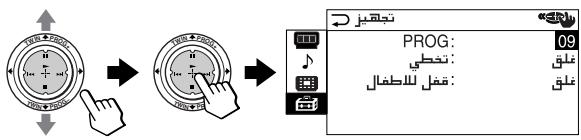
J 100
1
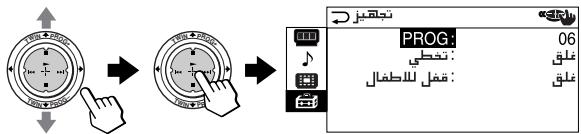
J 1 J 1 J 1 J 1 1 1 1 1 1 1 1 1 1 1 1 1 1 1 1 1 1
2
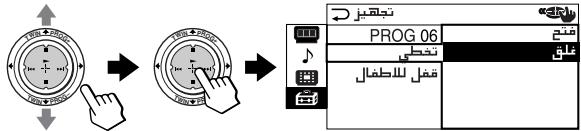
J 1 J 1 J 1 J 1 J 1 J 1 J 1 J 1 J 1 J 1 J 1 J 1 J 1 J 1 J 1 J 1 J 1 J 1 J 1 J 1 J 1 J 1 J 1 J 1 J 1 J 1 J 1 J 1 J 1 J 1 J 1 J 1 J 1 J 1

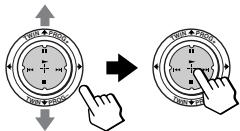
J 1

y = - 12
3
e
4
y (jLxJy) pLai aai Lai y (jLxJy) pLai aai Lai y (jLxJy) pLai aai Lai y
- a_4 = 8
= 2
1
(9.17)
()
1
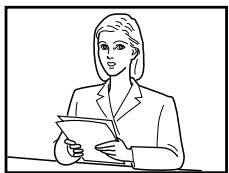

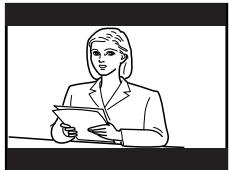
1
ylll wllld lal ylll lal
()
1
1
中
11 11 11 11 11 11 11 11 11 11 11 11 11
j(y)j(y)
()()
a()a()
a
12 b,12 c : 17
10-8 10 10
aal aal al 80
.MENU
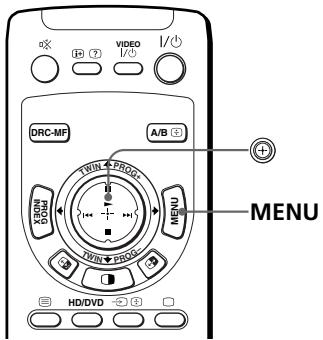
000
000000000000000000000000000000000000000000000000000000000000000
(9.17)


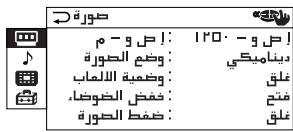
.MENU
1
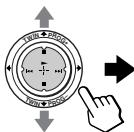


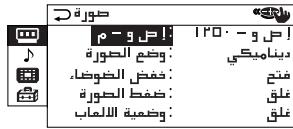
| p s l | J L S L P |
| . . . . . . . . . . . . . . . . . . . . . . . . . . . . . . . . . . . . . . . . . . . . . . . . . . . . . . . . . . . . . . . . . . . . . . . . . . . . . . . . . . . . . . . . . . . . . . . . . . . . .. . J I I I I I I I I I I I I I I I I I I I I I I I I I I I I I I I I I I I I I I I I I I I I I I I I I I I I I I I I I I I I I I I I I I I I I I I I I I I I I I I I I I I I I I I I I I I I I I I I I I I I II J I J J J J J J J J J J J J J J J J J J J J J J J J J J J J J J J J J J J J J J J J J J J J J J J J J J J J J J J J J J J J J J J J J J J J J J J J J J J J J J J J J J J J J J J J J J J J J J J J J J J JJ J J J J J J J J J J J J J J J J J J J J J J J J J J J J J J J J J J J J J J J J J J J J J J J J J J J J J J J J J J J J J J J J J J J J J J J J J J J J J J J J J J J J J J J J J J J J J J J J J J J . . . . . . . . . . . . . . . . . . . . . . . . . . . . . . . . . . . . . . . . . . . . . . . . . . . . . . . . . . . . . . . . . . . . . . . . . . . . . . . . . . . . . . . . . . . . . . . . . . . . . . . . . . . . . . . . . . . . . . . . . . . . . . . . . . . . . . . . . . . . . . . . . . . . . . . . . . . . . . . . . . . . . . . . . . . . . . . . . . . . . . . . . . . . . . . . . . . . . . .. J I I I I I I I I I I I I I I I I I I I I I I I I I I I I I I I I I I I I I I I I I I I I I I I I I I I I I I I I I I I I I I I I I I I I I I I I I I I I I I I I I I I I I I I I I I I I I I I I I I I J I I I I I I I I I I I I I I I I I I I I I I I I I I I I I I I I I I I I I I I I I I I I I I I I I I I I I I I I I I I I I I I I I I I I I I I I I I I I I I I I I I I I I I I I I I I I I I I I I I . . . . . . . . . . . . . . . . . . . . . . . . . . . . . . . . . . . . . . . . . . . . . . . . . . . . . . . . . . . . . . . . . . . . . . . . . . . . . . . . . . . . . . . . . . . . . . . . . .. J J J J J J J J J J J J J J J J J J J J J J J J J J J J J J J J J J J J J J J J J J J J J J J J J J J J J J J J J J J J J J J J J J J J J J J J J J J J J J J J J J J J J J J J J J J J J J J J J J J J J J J J J J J J J J J J J J J J J J J J J J J J J J J J J J J J J J J J J J J J J J J J J J J J J J J J J J J J J J J J J J J J J J J J J J J J J J J J J J J J J J J J J J J J J J J J J J J J J JJ J J J J J J J J J J J J J J J J J J J J J J J J J J J J J J J J J J J J J J J J J J J J J J J J J J J J J J J J J J J J J J J J J J J J J J J J J J J J J J J J J J J J J J J J J J J J J J J J J J J I I I I I I I I I I I I I I I I I I I I I I I I I I I I I I I I I I I I I I I I I I I I I I I I I I I I I I I I I I I I I I I I I I I I I I I I I I I I I I I I I I I I I I I I I I I I I I I I I J. J. J. J. J. J. J. J. J. J. J. J. J. J. J. J. J. J. J. J. J. J. J. J. J. J. J. J. J. J. J. J. J. J. J. J. J. J. J. J. J. J. J. J. J. J. J. J. J. J. J. Ⅱ |
()《gj)
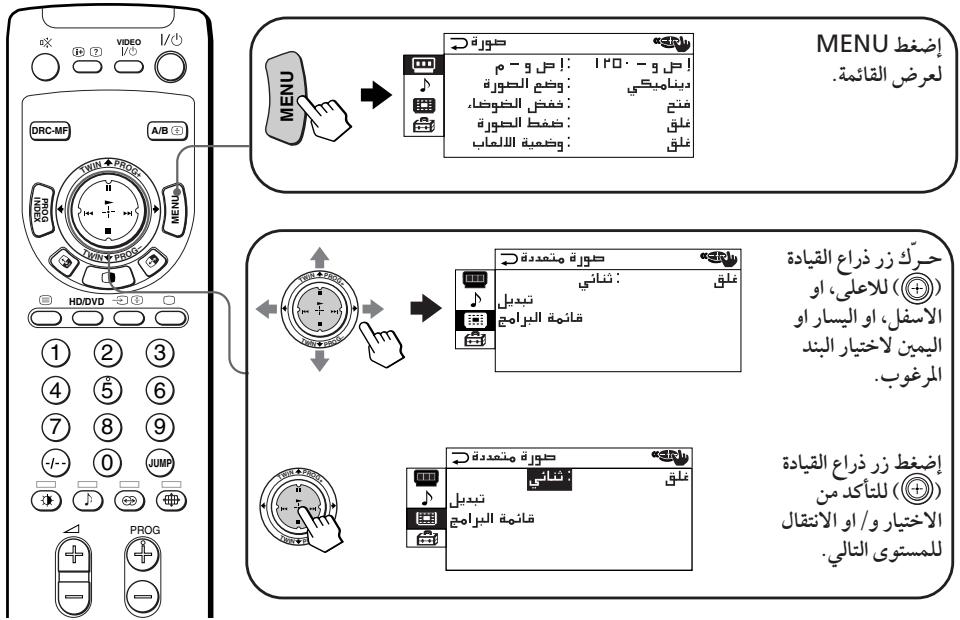
aiau
| ΔJ/ΔxJ | J |
| . J=J+1 | J |
| . J=J+2 | J+1 |
| . J=J+3 | J+3 |
| . J=J+4 | J+4 |
| . J=J+5 | J+5 |
| . J=J+6 | J+6 |
| . J=J+7 | J+7 |
| . J=J+8 | J+8 |
| . J=J+9 | J+9 |
| . J=J+10 | J+10 |
| . J=J+11 | J+11 |
| . J=J+12 | J+12 |
| . J=J+13 | J+13 |
| . J=J+14 | J+14 |
| . J=J+15 | J+15 |
| . J=J+16 | J+16 |
| . J=J+17 | J+17 |
| . J=J+18 | J+18 |
| . J=J+19 | J+19 |
| . J=J+20 | J+20 |
| . J=J+21 | J+21 |
| . J=J+22 | J+22 |
| . J=J+23 | J+23 |
| . J=J+24 | J+24 |
| . J=J+25 | J+25 |
| . J=J+26 | J+26 |
| . J=J+27 | J+27 |
| . J=J+28 | J+28 |
| . J=J+29 | J+29 |
| . J=J+30 | J+30 |
| . J=J+31 | J+31 |
| . J=J+32 | J+32 |
| . J=J+33 | J+33 |
| . J=J+34 | J+34 |
| . J=J+35 | J+35 |
| . J=J+36 | J+36 |
| . J=J+37 | J+37 |
| . J=J+38 | J+38 |
| . J=J+39 | J+39 |
| . J=J+40 | J+40 |
| . J=J+41 | J+41 |
| . J=J+42 | J+42 |
| . J=J+43 | J+43 |
| . J=J+44 | J+44 |
| . J=J+45 | J+45 |
| . J=J+46 | J+46 |
| . J=J+47 | J+47 |
| . J=J+48 | J+48 |
| . J=J+49 | J+49 |
| . J=J+50 | J+50 |
| . J=J+51 | J+51 |
| . J=J+52 | J+52 |
| . J=J+53 | J+53 |
| . J=J+54 | J+54 |
| . J=J+55 | J+55 |
| . J=J+56 | J+56 |
| . J=J+57 | J+57 |
| . J=J+58 | J+58 |
| . J=J+59 | J+59 |
| . J=J+60 | J+60 |
| . J=J+61 | J+61 |
| . J=J+62 | J+62 |
| . J=J+63 | J+63 |
| . J=J+64 | J+64 |
| . J=J+65 | J+65 |
| . J=J+66 | J+66 |
| . J=J+67 | J+67 |
| . J=J+68 | J+68 |
| . J=J+69 | J+69 |
| . J=J+70 | J+70 |
| . J=J+71 | J+71 |
| . J=J+72 | J+72 |
| . J=J+73 | J+73 |
| . J=J+74 | J+74 |
| . J=J+75 | J+75 |
| . J=J+76 | J+76 |
| . J=J+77 | J+77 |
| . J=J+78 | J+78 |
| . J=J+79 | J+79 |
| . J=J+80 | J+80 |
| . J=J+81 | J+81 |
| . J=J+82 | J+82 |
| . J=J+83 | J+83 |
| . J=J+84 | J+84 |
| . J=J+85 | J+85 |
| . J=J+86 | J+86 |
| . J=J+87 | J+87 |
| . J=J+88 | J+88 |
| . J=J+89 | J+89 |
| . J=J+90 | J+90 |
| . J=J+91 | J+91 |
| . J=J+92 | J+92 |
| . J=J+93 | J+93 |
| . J=J+94 | J+94 |
| . J=J+95 | J+95 |
| . J=J+96 | J+96 |
| . J=J+97 | J+97 |
| . J=J+98 | J+98 |
| . J=J+99 | J+99 |
| . J=J+100 | J+100 |
Jbipu 11 JjNl jgN L
( x,y) = ( ab + c,^2 + cd + a^24)
jLJ 1/5U/5U + / - ENTER.MENU JJIJIJIJIJIJIJIJIJIJIJIJIJIJIJIJIJIJIJIJIJIJIJIJI
.0x100
[ \Leftrightarrow \frac{y}{x} = \frac{1}{3}]
.
BBE SOUND, INC. BBE SOUND, INC.
| VIDEO I/O | الإستعمال/الترجمة! |
| .ufflux OPTION بانيت بعس▶ | عربية الحرفية |
| .ufflux OPTION بانيت ↗ | الإستعمال/الترجمة! |
| .ufflux OPTION ↗ | الإستعمال/الترجمة! |
| .ufflux OPTION ↗ ↗ ↗ ↗ ↗ ↗ ↗ ↗ ↗ ↗ ↗ ↗ ↗ ↗ ↗ ↗ ↗ ↗ ↗ ↗ ↗ ↗ ↗ ↗ ↗ ↗ ↗ ↗ ↗ ↗ ↗ ↗ ↗ ↗ ↗ ↗ ↗ ↗ ↗ ↗ ↗ ↗ ↗ ↗ ↗ ↗ ↗ ↗ ↗ ↗ ↞ ↗ ↗ ↗ ↗ ↗ ↗ ↗ ↗ ↗ ↗ ↗ ↗ ↗ ↗ ↗ ↗ ↗ ↗ ↗ ↗ ↗ ↗ ↗ ↗ ↗ ↗ ↗ ↗ ↗ ↗ ↗ ↗ ↗ ↗ ↗ ↗ ↗ ↗ ↗ ↗ ↗ ↗ ↗ ↗ ↗ ↗ ↗ ↗ ↗ ↜ | |
| .ufflux OPTION ↗ ↗ ↗ ↗ ↗ ↗ ↗ ↗ ↗ ↗ ↗ ↗ ↗ ↗ ↗ ↗ ↗ ↗ ↗ ↗ ↗ ↗ ↗ ↗ ↗ ↗ ↗ ↗ ↗ ↗ ↗ ↗ ↗ ↗ ↗ ↗ ↗ ↗ ↗ ↗ ↗ ↗ ↗ ↗ ↗ ↗ ⇟ ↗ ↗ ↗ ↗ ↗ ↗ ↗ ↗ ↗ ↗ ↗ ↗ ↗ ↗ ↗ ↗ ↗ ↗ ↗ ↗ ↗ ↗ ↗ ↗ ↗ ↗ ↗ ↗ ↗ ↗ ↗ ↗ ↗ ↗ ↗ ↗ ↗ ↗ ↗ ↗ ↗ ↗ ↗ ↗ ↗ ↗ ↗ ↗ ↗ ↇ |
Jy jy Sall Jy Jnly MD y CD y
| video / video | |
| VIDEO / | |
| .ubOption | ubOption |
| .ubOption | ubOption |
| .ubOption | ubOption |
| .ubOption | ubOption |
| .ubOption | ubOption |
| .ubOption | ubOption |
[ \Leftrightarrow \;{3}^{x} = - 2 + 2\sqrt{2}]
a a a a a a a a a a a a a a a a a a a a a a
HAD
H
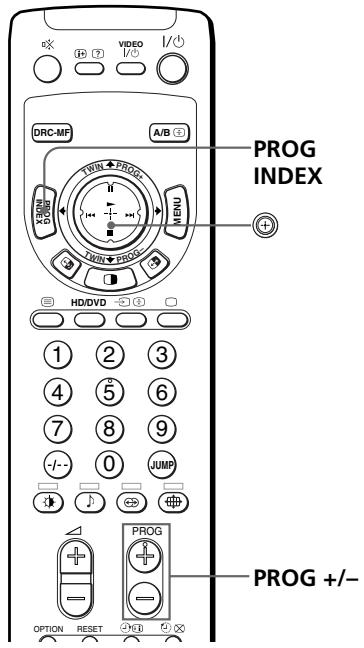
eaae
c
ab gdl l jyjzl 1000000000000000000000000000000000000000000000000000000


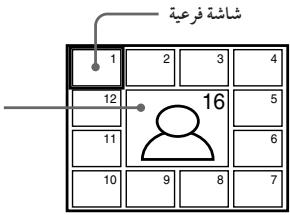
a
.PROGINDEX
LgUg2oLgUgUgUgUgUgUgUgUgUgUgUgUgUgUgUgUgUgUgUgUgUgUgUgUgUgUgUgUgUgUgUgUgUgUgUgUgUgUgUgUgUgUgUgUgUgUgUgUgUgUg
4
PROG INDEX 123456789011234567890123456789012345678901234567890123456789012345678901234567890123456789012345678901234567890123456789
aabaaal aaiiaai aaiiaaii iiaai
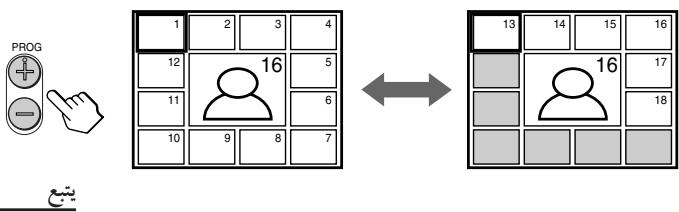
. (TWIN PROG + / - ) 念 Juaa aaiyaae yaae yaae yaae yaae yaae yaae yaae yaae yaae yaae yaae yaae yaae
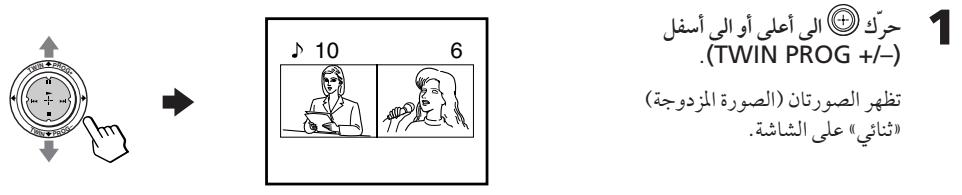
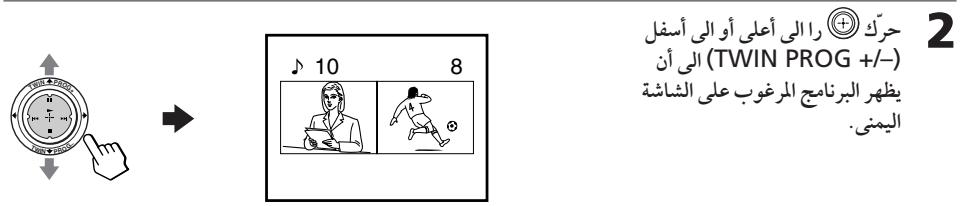

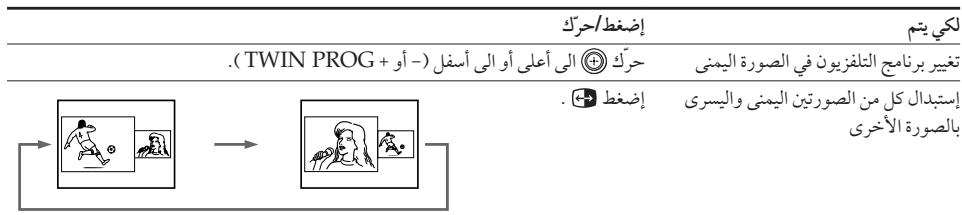

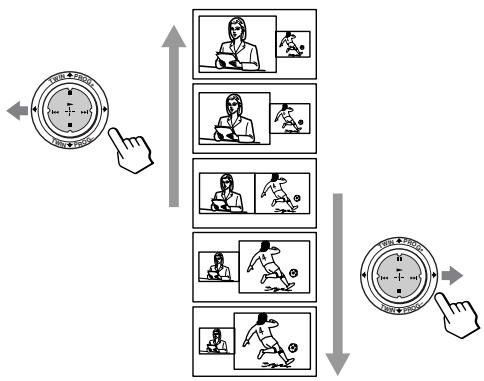
| L_2| > L 。
.DVDHDJL
a a a a a a a a a a a a a a a a a a a a a a a a a a a a
1.
H
Ss
ailll jyj 1 yj 1 1 1 1 1 1 1 1 1 1 1 1 1 1 1 1
N( 2,0) .S = 12ND1D2
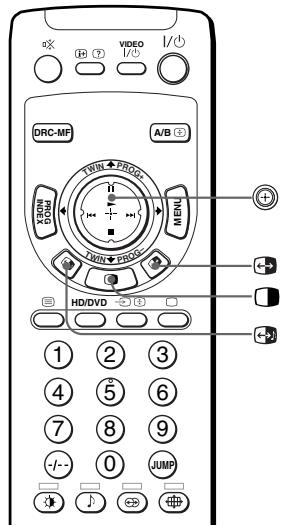
Jn Jn Jn
《一
jss (s) jss
aai jyjai jia jia jia jia jia
a
1

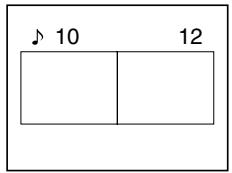
a a a a a a a a
0
LdoS: aaiaiie 1
中
o000000000000000000000000000000000000000
.()
Jauuuiy juyjai yjai jayi! puee e) jayie aaiy dye aaiy oae pey
.(1)

oo o o o o
(-g)
a 1000000000000000000000000000000000000000000000000000000000000000000000000000000

| JY | JY |
| . jy | (170 - w) |
| . iy | (11 - w) |
| . iy | "PROGRESSIVE" |
4.10000000000000000000000000000000000000000000000000000000000000000000000000
Sony 2530"DRC-MF" 三 _ 一 (DRC MF Digital Reidy Creation
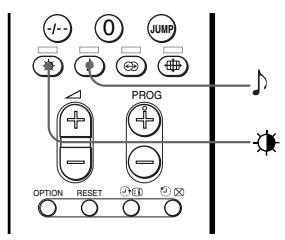
#
g
1
gagaaagag
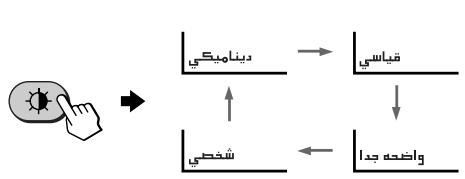
1
= 90^
| 1 | 2 | 3 | 4 | 5 | 6 | 7 | 8 | 9 | 10 | 11 | 12 |
| PROG | +/- | - | J | J | J | J | J | J | J | J | J |
| PROG | +/- | - | J | J | J | J | J | J | J | J | J |
| J | J | J | J | J | J | J | J | J | J | J | J |
| J | J | J | J | J | J | J | J | J | J | J | J |
(2) 2g1 DTV
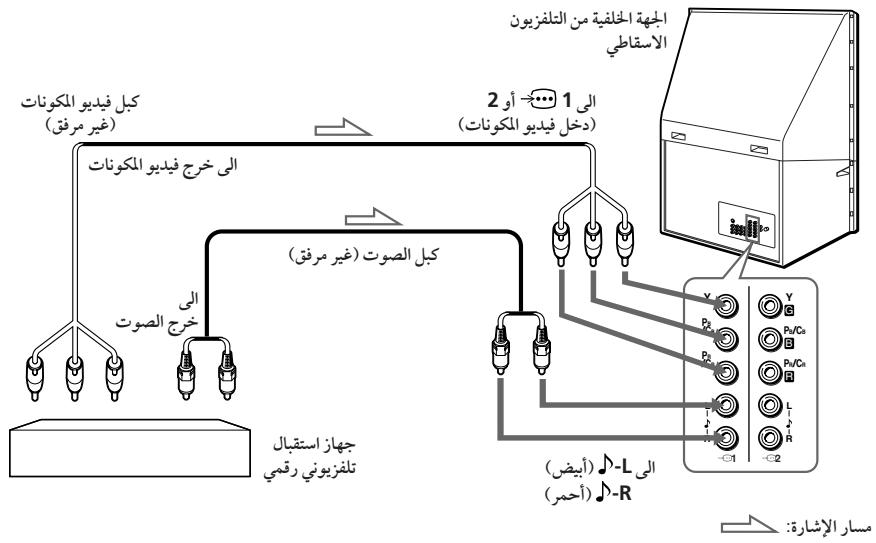
| 2 - x| = 1
y j 1. G/B/R/HD/VD
G/B/R/HD/VD y/Py/Py DTV
Y / P_B / P_R 1J
JG/B/R/HD/Vy/PBPRjLjFj2
Y / P_B / P_R 1 JdJdJdJdJdJd H/D/VD
4
:aiiuiuuiy
| (;} | الإستعمال | الإستعمال | الإستعمال |
| \( \neg \cdot /0 \) | 1080i | 1125i | |
| \( \neg \cdot /0 \) | 720p | 750p | |
| 0 | 576p | 625p | |
| 0 | 576i | 625i | |
| \( \neg \) | 480p | 525p | |
| \( \neg \) | 480i | 525i |
(gd) DVD
1 3 2 1 0
.DVD LINE OUT
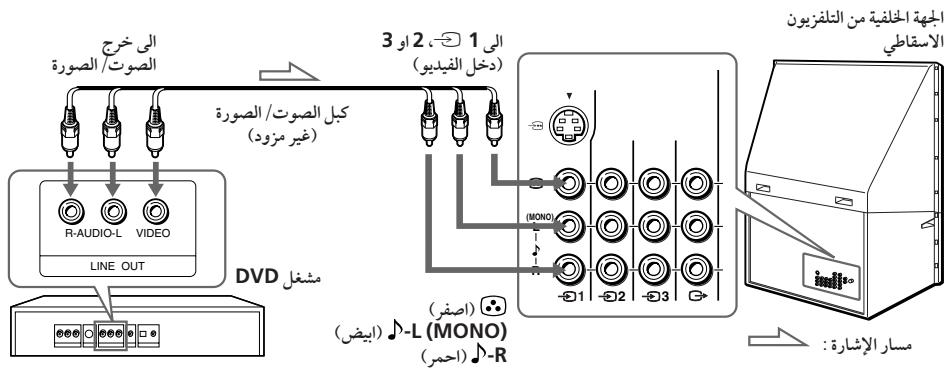
| L_2| > L
000000000000000000000000000000000000000000000000000000
Jdlaaljy jy jldl (Jadll ydl jds) - DdDvDd Jd jd d
()DVD
1
.DVDJL L AUDIO R LINE OUT
1 1 1 1 1 1 1 1 1 1 1 1 1 1 1 1 1 1 1 1 1 1 1 1 1 1 1 1 1 1 1 1
COMPONENTVIDEOOUTCRCBYJ. DVD
"HD/DVD 3
"HD/DVD 2"1 DVD
2
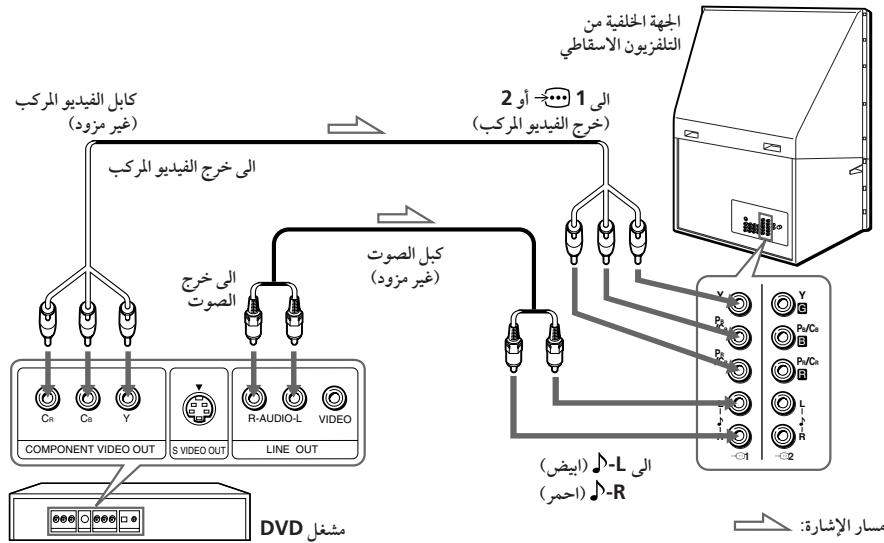
| L2| > L1
:DVD jj j
| (DVDJL) | J |
| Y | (,)Y |
| PBjB-Y,Cb | (,)PB/CB |
| PRjR-Y,Cr | (PR)/CR |
1 1DVDHD/VD
(c)
J 1
- ( x,y) = 2 x + 23y . (k=0,1)
aJyI yIyI yIyI yIyI yIyI yIyI yIyI yIyI yIyI yIyI yIyI yIyI yIyI yIyI yIyI yIyI yIyI yIyI yIyI yIyI yIyI yIyI yIyI yIyI yIyI yIyI y
1
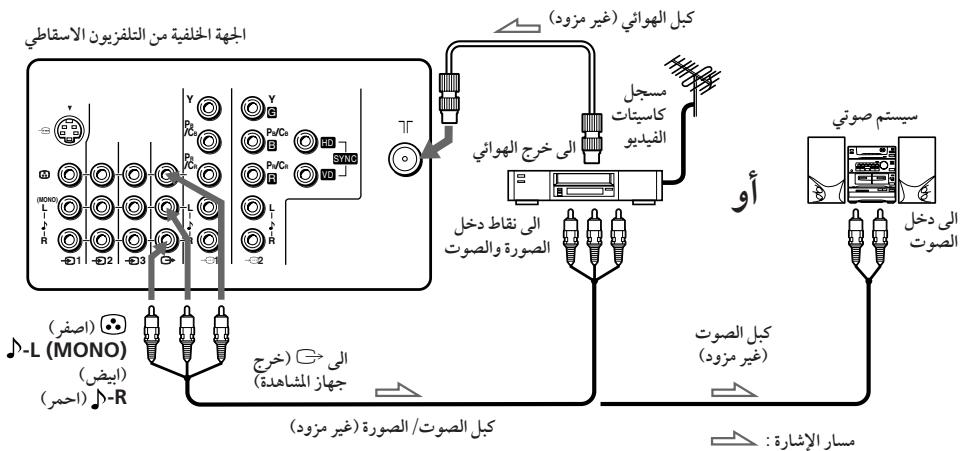
()
10
y
DTV j 111111111111111111111111
(gduallj)-yulaoJuaauiuygduaiuill Jauo/gduai1nuol
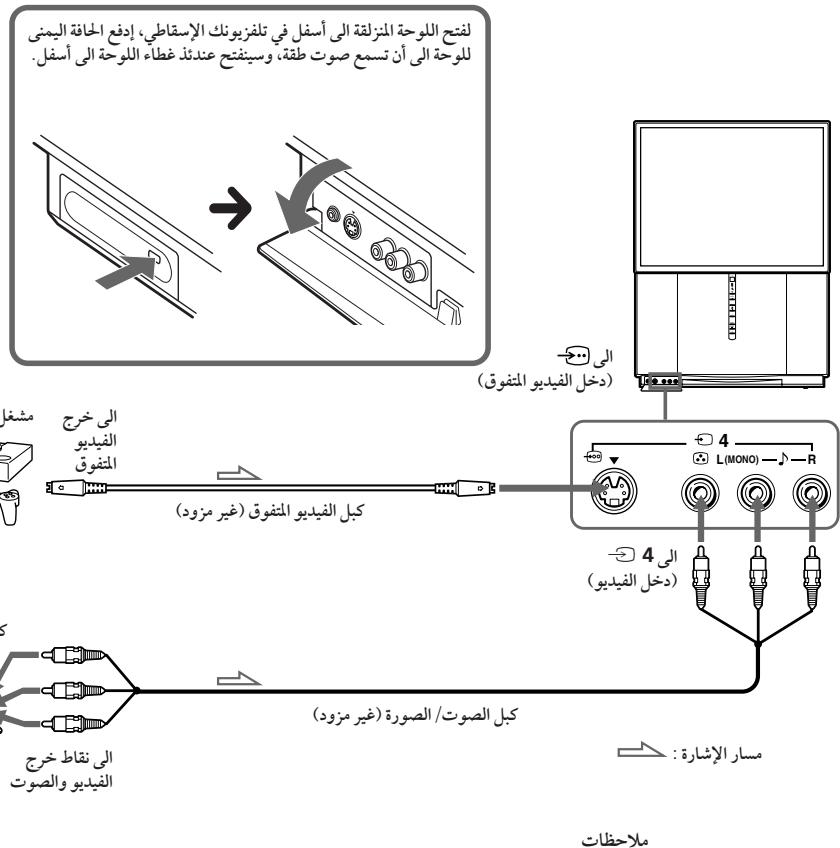
aall 1111111111111111111111
.(rV is a 1)
13 2 1 y
(j)-4(j)
Jaiil jaii (j) 4 Jaii (j)
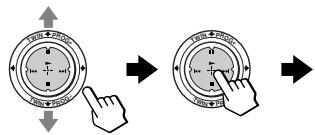
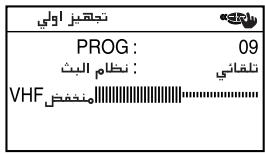
Jzai jyj 10 Jzai jyj
aaii i 1 aaii
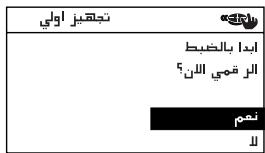
aaii i 10 aiey11 10
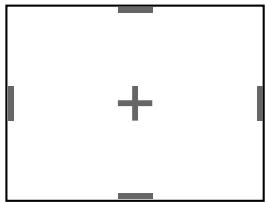
1
:Jolly iob iolo loglo
Jll Jb2yI yblawN u jgjoluiu
1ai,1bi ( 0,1)
1
. 1234567890123456789012345678901234567890123456789012345678901234567890123456789012345678901234567890123456789
: pahwul
1000 1000 1000 1000 1000 1000 1000 1000 1000 1000 1000 1000 1000 1000 1000 1000 1000 1000 1000 1000 1000
d
:ai1j1j1j1j1j1j1j1j1j1j1j1j1j1j1j1j1j1j1j1j1j1j1j1j1j1j1j1j1j1j1j1j1j
ailllglslgall ydlal ydlal
(A).
aaiai
( 4,10,0) ,| s1| = | s2| = | s_3| - 1
(A)
i#
(14)
()()
- a1 + a2 + a3 = a1 + a2 + a3 ④ a1,a2,a_3
( ^1BO : D) JO^2JO^2JO^2BO
()aUbU23N()
(V)
j
(19.2016) · = 14 ( + ) ^2 - ( - ) ^2
(+)j
(Y)
Jdai()/()/()
( r0,1, ,lset ,,l_set )
| KP-FX53M91/KP-FX53M61KP-FX53M31 | KP-FX43M91/KP-FX43M61KP-FX43M31 | ||
| Projection system | 3 picture tubes, 3 lenses, horizontal inline system | ||
| Picture tube | 7 inch high-brightness monochrome tubes, with optical coupling and liquid cooling system | ||
| Projection lenses | High performance, large-diameter highbrid lens F1.0 | ||
| Screen size | 53 inches | 43 inches | |
| Television system | B/G, I, D/K, M | ||
| Color system | PAL, PAL 60, SECAM, NTSC4.43, NTSC3.58 | ||
| Stereo/Bilingual system | NICAM Stereo/Bilingual B/G, I;A2 Stereo/Bilingual (German) B/G | ||
| Channel coverageB/G | VHF : E2 to E12 / UHF : E21 to E69 / CATV : S01 to S03, S1 to S41 | ||
| I | UHF : B21 to B68 / CATV : S01 to S03, S1 to S41 | ||
| D/K | VHF : C1 to C12, R1 to R12 / UHF : C13 to C57, R21 to R60 / CATV : S01 to S03, S1 to S41, Z1 to Z39 | ||
| M | VHF : A2 to A13 / UHF : A14 to A79/ CATV : A-8 to A-2, A to W+4, W+6 to W+84 | ||
| IT(Antenna) | 75-ohm external terminal | ||
| Audio output (Speaker) | 15W + 15W (10% distortion) | ||
| Number of terminal(S)(Video) | Input: 4 Output: 1 Phono jacks; 1 Vp-p, 75 ohms | ||
| (S)(Audio) | Input: 4 Output: 1 Phono jacks; 500 mVrms | ||
| (S)(S Video) | Input: 2 Y: 1 Vp-p, 75 ohms, unbalanced, sync negativeC: 0.286 Vp-p, 75 ohms | ||
| (S)(Component Video) | Input: 2 Phono jacksY: 1 Vp-p, 75 ohms, sync negativePB/CB: 0.7 Vp-p, 75 ohmsPR/CR: 0.7 Vp-p, 75 ohmsAudio: 500 mVrms | ||
| (S)(G/B/R/HD/VD Video) | Input: 1 Phono jacksG: 0.7 Vp-p, 75 ohmsB: 0.7 Vp-p, 75 ohmsR: 0.7 Vp-p, 75 ohmsHD: 0.7 Vp-p, 75 ohmsVD: 0.7 Vp-p, 75 ohms | ||
| (S)(Headphones) | Output: 1 Stereo minijack | ||
| Power requirements | 110-240 V AC, 50/60Hz | ||
| Power consumption (W) | 260 W | ||
| Dimensions (w/h/d, mm) | 1136 × 1438 × 666 | 926 × 1255 × 534 | |
| Mass (kg) | 86 | 65.5 | |
Design and specifications are subject to change without notice.