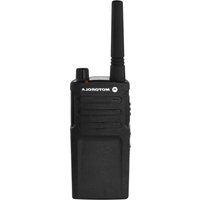
DLR1020 - Talkie Walkie MOTOROLA - Free user manual and instructions
Find the device manual for free DLR1020 MOTOROLA in PDF.


User questions about DLR1020 MOTOROLA
0 question about this device. Answer the ones you know or ask your own.
Ask a new question about this device
Download the instructions for your Talkie Walkie in PDF format for free! Find your manual DLR1020 - MOTOROLA and take your electronic device back in hand. On this page are published all the documents necessary for the use of your device. DLR1020 by MOTOROLA.
USER MANUAL DLR1020 MOTOROLA
DLR1020, DLR1060 models
Open Source Software Legal Notices:
This Motorola product contains Open Source Software. For more information regarding licenses, acknowledgements, required copyright notices and other usage terms, refer to the documentation for this Motorola product at: www.motorolasolutions.com/DLR
CONTENTS
Contents. 1
Product Safety. 3
Acoustic Safety 3
Introduction 4
Package Contents. 4
FCC Licensing Information 6
Batteries and Chargers Safety
Information. 7
Operational Safety Guidelines. 8
Radio Overview 9
Parts Of The Radio 9
Power Button 10
Top Button 10
Volume Control (+ / - ) Button 10
Audio Accessory Connector 10
Microphone 10
Antenna. 10
Tx/Rx Indicator LED 10
Push-to-Talk (PTT) Button 10
Channel / Menu Button 10
The Lithium-Ion (Li-Ion) Battery 11
DLR Series Radio Specifications .11
Battery Features. 12
About the Li-Ion Battery 12
Battery Recycling and Disposal 13
Installing the Lithium-Ion (Li-Ion) Battery 14
Removing the Lithium-Ion (Li-Ion) Battery 15
Holster 16
Power Supply, Adaptor and DLR Single Unit Charger (SUC) Tray 16
Battery Life Information 17
Battery Status Information 17
Estimated Charging Time 19
DLR Series Charger LED Indicators . . . 21
DLR Radios and Charger Compatibility. 23
Getting Started 25
Turning radio ON/OFF 26
Adjusting Volume 26
Checking Battery Status. 27
Transmitting and Receiving 27
Talk Permit Tone (TPT) 27
Talking to a Group in a Channel 28
Browsing/Selecting a Channel 28
Private Reply 28
Top Button Options 28
Talk Range 29
DLR and DTR Radios Compatibility 29
Radio Status 31
Advanced Configuration Mode 33
Entering Advanced Configuration Mode . . . .34
Browsing Advanced Configuration Options. .35
PROFILE ID Number 36
Maximum Channels 40
Top Button 41
MIC Gain. 43
Home Channel 44
Resetting To Factory Defaults. 45
RadioFactoryDefaultSettings.46
Special Radio Call Features 49
Private Reply. 49
How Private Reply Works. 50
Private Reply Status Indicator. .55
Direct Call .56
How Direct Call Works 56
Direct Call Status Indicator .60
Call All Available 64
How Call All Available Works .66
Call All Available Status Indicator . . . . . .72
Page All Available 73
How Page All Available works 75
Page All Available Status Indicator . . . 82
Customer Programming Software
(CPS) 83
CPS Basic Menu Instructions. 84
Cloning 95
Cloning Radios. 95
Cloning Mode. 96
Cloning with a Multi-Unit Charger (MUC) (Optional Accessory) 97
Cloning Radio using the Radio to Radio (R2R) Cloning Cable (Optional Accessory) 98
Wireless PROFILE ID Number Cloning. 100
Cloning Mode Status Indicator 102
Troubleshooting. 103
Use and Care 108
Motorola Limited Warranty for the United States and Canada 109
Accessories 113
Audio Accessories 113
Battery 113
Cables 113
Chargers 113
Carry Accessories 114
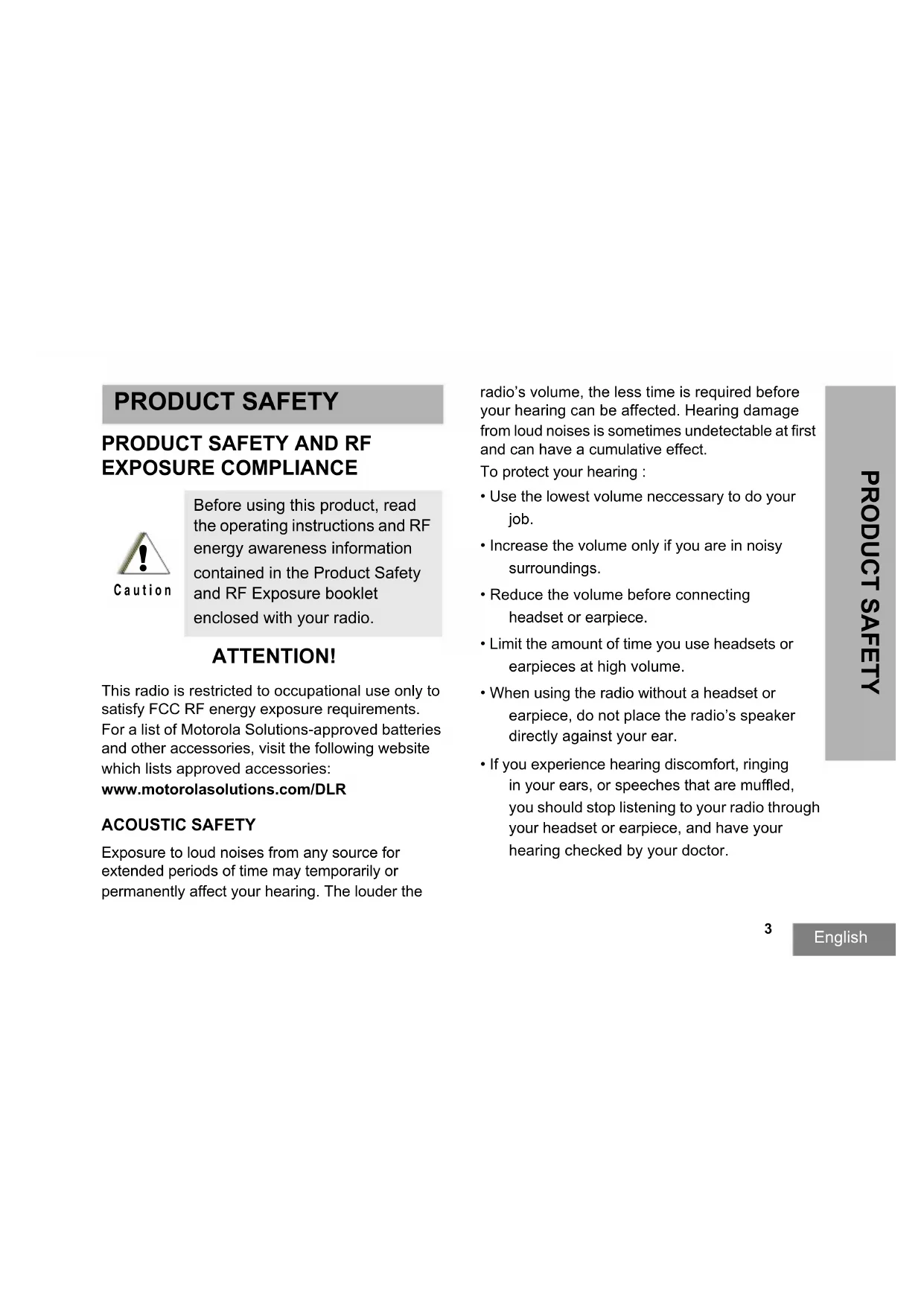
PRODUCT SAFETY
PRODUCT SAFETY AND RF EXPOSURE COMPLIANCE

Before using this product, read the operating instructions and RF energy awareness information contained in the Product Safety and RF Exposure booklet enclosed with your radio.
ATTENTION!
This radio is restricted to occupational use only to satisfy FCC RF energy exposure requirements. For a list of Motorola Solutions-approved batteries and other accessories, visit the following website which lists approved accessories:
www.motorolasolutions.com/DLR
ACOUSTIC SAFETY
Exposure to loud noises from any source for extended periods of time may temporarily or permanently affect your hearing. The louder the
radio's volume, the less time is required before your hearing can be affected. Hearing damage from loud noises is sometimes undetectable at first and can have a cumulative effect.
To protect your hearing :
- Use the lowest volume neccessary to do your job.
- Increase the volume only if you are in noisy surroundings.
- Reduce the volume before connecting headset or earpiece.
- Limit the amount of time you use headsets or earpieces at high volume.
- When using the radio without a headset or earpiece, do not place the radio's speaker directly against your ear.
- If you experience hearing discomfort, ringing in your ears, or speeches that are muffled, you should stop listening to your radio through your headset or earpiece, and have your hearing checked by your doctor.
INTRODUCTION
Thank you for purchasing the Motorola Solutions® DLR Series Radio. This radio is a product of Motorola Solutions' 80 plus years of experience as a world leader in the designing and manufacturing of communications equipment. The DLR Series radios provide cost-effective communications for businesses such as retail stores, restaurants, schools, construction sites, manufacturing, property and hotel management and more. Motorola Solutions professional two-way radios are the perfect communications solution for all of today's fast-paced industries.
Note: Read this user guide carefully to ensure you know how to properly operate the radio before use
Business Radios,
Mailstop 1C15, Motorola
8000 West Sunrise Boulevard
Plantation, Florida 33322
PACKAGE CONTENTS
Radio
- Holster
Lithium-Ion Battery
- Power Supply
- Quick Reference Guide
- Drop-in Tray Charger with Power Adapter
Product Safety & RF Exposure Booklet
For product-related questions, contact:
1-800-448-6686 or visit us at:
www.motorolasolutions.com/DLR
FCC LICENSING INFORMATION
DLR Series business two-way radios operate in the license-free 900 MHz ISM Band (902 - 928 MHz) and are subject to the Rules and Regulations of the Federal Communications Commission (FCC).
This device complies with part 15 of the FCC Rules and RSS210 of the Industry Canada.
Operation is subject to the following two conditions: (1) This device may not cause harmful interference, and (2) this device must accept any interference received, including interference that may cause undesired operation.
Changes or modifications not expressly approved by Motorola Solutions may void the user's authority granted by the FCC/IC to operate this radio and should not be made. To comply with FCC/IC requirements, transmitter adjustments should be made only by or under the supervision of a person certified as technically qualified to perform transmitter maintenance and repairs.
Replacement of any transmitter component (crystal, semiconductor, etc.) not authorized by the
FCC/IC equipment authorization for this radio could violate FCC/IC rules.
Note: Use of this radio outside the country where it was intended to be distributed is subject to government regulations and may be prohibited.
BATTERIES AND CHARGERS SAFETY INFORMATION
This document contains important safety and operating instructions. Read these instructions carefully and save them for future reference. Before using the battery charger, read all the instructions and cautionary markings on
the charger,
the battery, and
- the radio using the battery
- To reduce risk of injury, charge only the rechargeable Motorola Solutions-authorized batteries. Other batteries may explode, causing personal injury and damage.
-
Use of accessories not recommended by Motorola Solutions may result in risk of fire, electric shock, or injury.
-
To reduce risk of damage to the electric plug and cord, pull by the plug rather than the cord when disconnecting the charger.
- An extension cord should not be used unless absolutely necessary. Use of an improper extension cord could result in risk of fire and electric shock. If an extension cord must be used, make sure that the cord size is 18AWG for lengths up to 100 feet (30.48 m), and 16AWG for lengths up to 150 feet (45.72 m).
- To reduce risk of fire, electric shock, or injury, do not operate the charger if it has been broken or damaged in any way. Take it to a qualified Motorola Solutions service representative.
- Do not disassemble the charger; it is not repairable and replacement parts are not available. Disassembly of the charger may result in risk of electrical shock or fire.
- To reduce risk of electric shock, unplug the charger from the AC outlet before attempting any maintenance or cleaning
OPERATIONAL SAFETY GUIDELINES
- Turn the radio OFF when charging battery.
- The charger is not suitable for outdoor use. Use only in dry locations/conditions.
- Connect charger only to an appropriately fused and wired supply of the correct voltage (as specified on the product).
- Disconnect charger from line voltage by removing main plug.
- The outlet to which this equipment is connected should be nearby and easily accessible.
- In equipment using fuses, replacements must comply with the type and rating specified in the equipment instructions.
Maximum ambient temperature around the power supply equipment must not exceed 40^ (104^) - Power output from the power supply unit must not exceed the ratings stated on the product label
located at the bottom of the charger.
- Make sure that the cord is located where it will not be stepped on, tripped over, or subjected to water, damage, or stress.
RADIO OVERVIEW
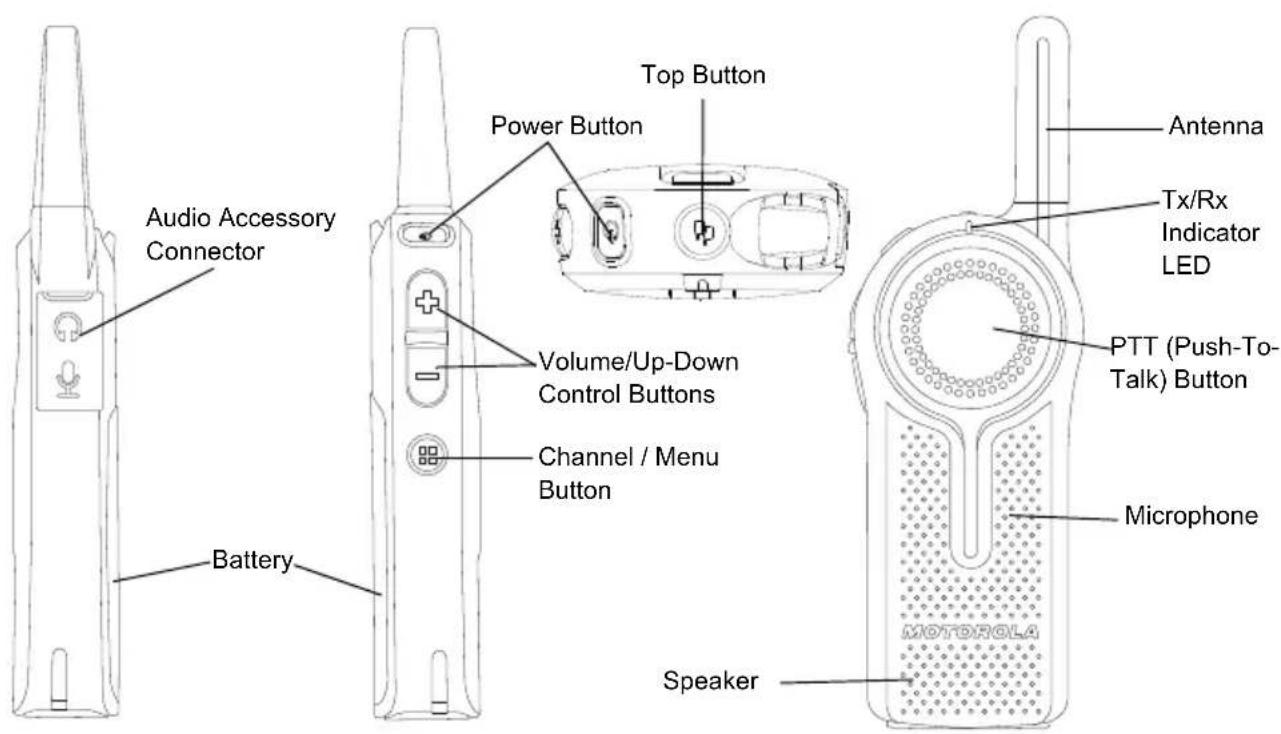
PARTS OF THE RADIO
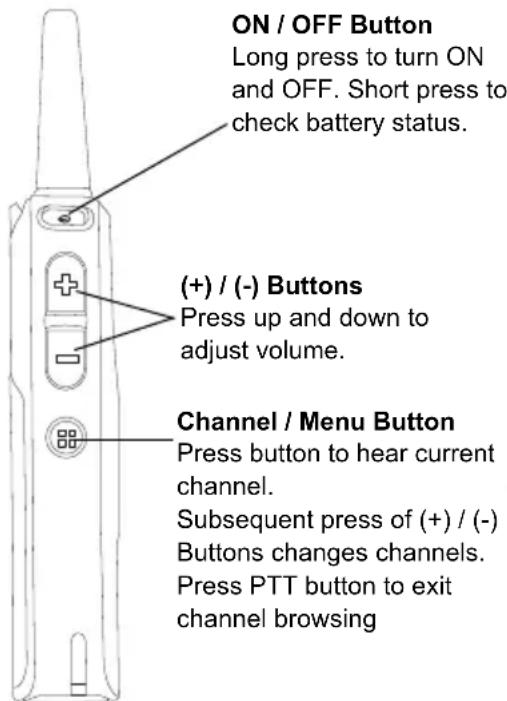
Power Button
Long press to turn the radio ON or OFF. Short press to check battery status.
Top Button
The radio Top Button comes defaulted to "Private Reply" feature.
Note: For more information regarding programming the Top Button to other features, refer to "Special Radio Call Features" on page 49.
Volume Control (+/-) Button
Used to increase (+), decrease (-) or mute the volume.
Audio Accessory Connector
Used to connect compatible audio accessories.
Microphone
Speak clearly into the microphone when sending a message.
Antenna
For models DLR1020 and DLR1060 the antennas are non-removable.
Tx/Rx Indicator LED
Used to indicate whether the radio is on standby, receiving or transmitting.
Push-to-Talk (PTT) Button
To talk, press the PTT (Push to Talk) and WAIT to hear the Talk Permit Tone (a quick double beep) BEFORE you start speaking. Hold the radio vertically 1 to 2 inches (2.5cm to 5cm) from mouth when talking. Release the PTT to listen.
Channel / Menu Button
In standard radio operation mode, the Channel/ Menu button comes defaulted to channel function. To change channel, press the Channel / Menu button and then Press the (+) or (-) button to browse channels. Short press the PTT button to exit.
When in Advanced Configuration Mode, Channel / Menu button gives access and allows navigation to set up special features.
The Lithium-Ion (Li-Ion) Battery
DLR Series comes with a Standard Capacity
Li-ion battery. Other batteries may be available. For more information, see "Battery Features" on page 12.
DLR Series Radio Specifications
The radio's model is shown on the back of the radio and provides the following information:
Table 1: DLR Series Radio Specifications
| Model | Frequency Band | Transmit Power (Watts) | Number of Channels | Antenna |
| DLR1020 ISM | 900 MHz 1 2 Non-removable | |||
| DLR1060 ISM | 900 MHz 1 6 Non-removable | |||
BATTERY FEATURES
DLR Series radios provide standard Lithium- Ion batteries.
Note: Batteries with different capacities and operational life may be available in future.
About the Li-Ion Battery
The DLR Series radio comes equipped with a rechargeable Li-1on battery. This battery should be fully charged before initial use to ensure optimum capacity and performance.
Battery life is determined by several factors. Among the more critical are the regular overcharge of batteries and the average depth of discharge with each cycle. Typically, the greater the overcharge and the deeper the average discharge, the fewer cycles a battery will last. For example, a battery which is overcharged and discharged 100% several times a day, lasts fewer cycles than a battery that receives less of an overcharge and is discharged to 50% per day. Further, a battery
which receives minimal overcharging and averages only 25% discharge, lasts even longer.
Motorola Solutions batteries are designed specifically to be used with a Motorola Solutions charger and vice versa. Charging in non-Motorola Solutions equipment may lead to battery damage and void the battery warranty. The battery should be at about 77^ (25^) (room temperature), whenever possible. Charging a cold battery (below 50^ [10^] ) may result in leakage of electrolyte and ultimately in failure of the battery. Charging a hot battery (above 95^ [35^] ) results in reduced discharge capacity, affecting the performance of the radio. Motorola Solutions rapid-rate battery chargers contain a temperature-sensing circuit to ensure that batteries are charged within the temperature limits stated above.
Battery Recycling and Disposal
Li-Ion rechargeable batteries can be recycled. However, recycling facilities may not be available in all areas. Under various U.S. state laws and the laws of several other countries, batteries must be recycled and cannot be disposed of in landfills or incinerators. Contact your local waste management agency for specific requirements and information in your area. Motorola Solutions fully endorses and encourages the recycling of Li-Ion batteries. In the U.S. and Canada, Motorola Solutions participates in the nationwide Rechargeable Battery Recycling Corporation (RBRC) program for Li-Ion battery collection and recycling.
Many retailers and dealers participate in this program. For the location of the drop-off facility closest to you, access RBRC's Internet web site at:
www.rbrc.com
or call:
1-800-8-BATTERY
This internet site and telephone number also provides other useful information concerning recycling options for consumers, businesses and governmental agencies.
Installing the Lithium-Ion (Li-Ion) Battery
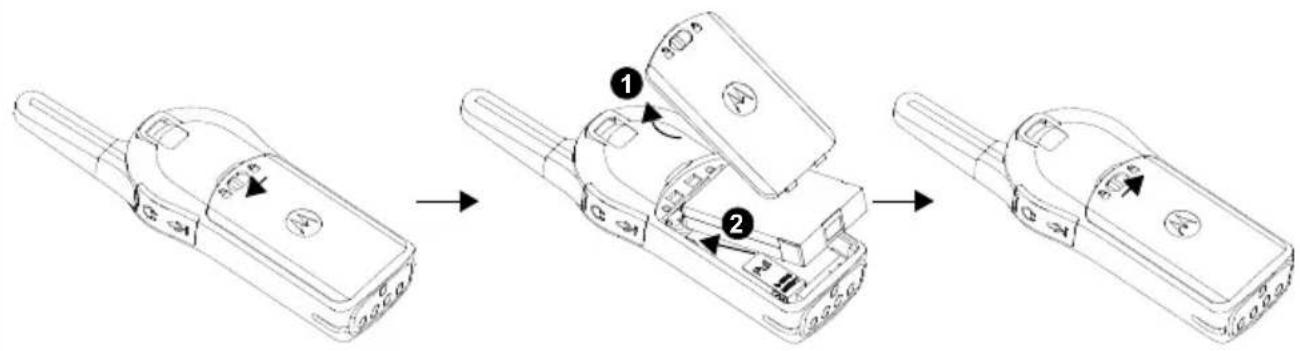
- Slide the latch at the top of the battery door to the unlock position and lift up the battery door at the center recess.
- Align the battery contacts with the tabs in the battery compartment. Insert the contact side of the battery first, then press the battery down to secure in place.
- Put the battery door back on the radio. Slide the latch to the lock position
Removing the Lithium-Ion (Li-Ion) Battery
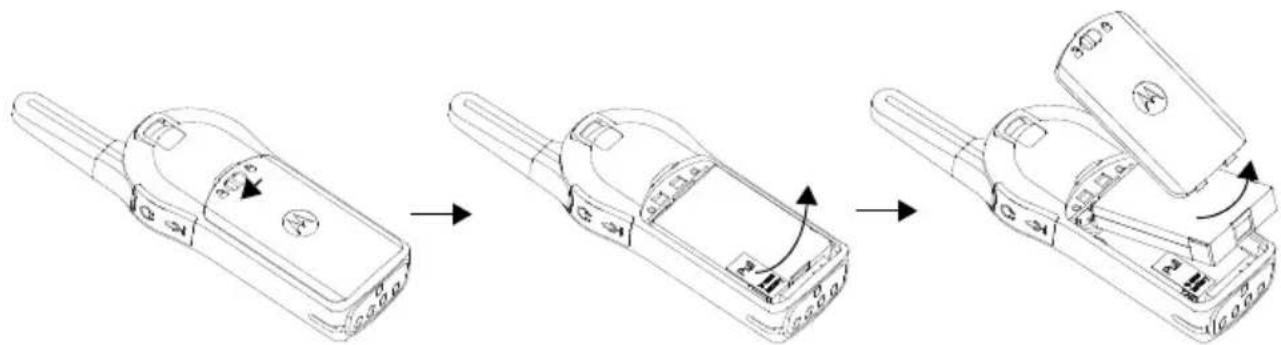
- Turn OFF the radio.
- Slide the latch at the top of battery door to the unlock position and lift up the battery door at the center recess.
- Pull on the battery removal tab until battery is disengaged from battery compartment.
- Pull the battery away from radio.
Holster
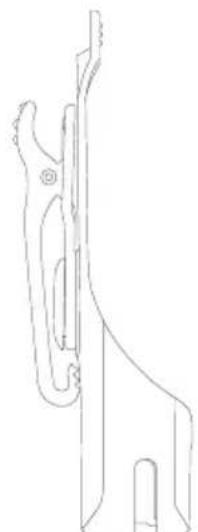
- Insert the radio into the base of the holster at an angle. Press the radio against the back of the holster until the hooks on the holster are inserted in the top recesses of the battery.
- To remove, using the top tab on the holster, detach the hooks of the holster from the top recesses of the battery. Slide the radio at an angle and remove from the holster.
English
Power Supply, Adaptor and DLR Single Unit Charger (SUC) Tray
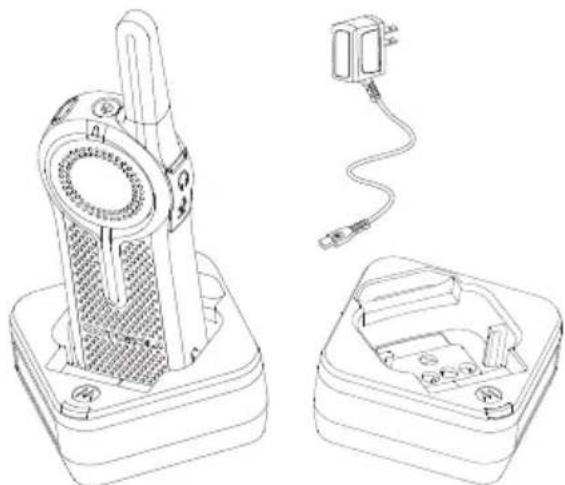
The radio is equipped with one DLR Single Unit Charger (SUC) Tray and one Power Supply with Adaptor. See "Chargers" on page 113 for more information.
Battery Life Information
When the Battery Save feature is set to ON (enabled by default), the battery life lasts longer. The following table summarizes battery life estimations:
Table 2: Li-Ion Battery Life for DLR1020 and DLR1060
| Battery Type Battery Save OFF Battery Save ON | ||
| Standard 10.0 – 12.0 Hours Up to 14 Hours | ||
Note: Battery life is estimated based on 5% transmit / 5% receive / 90% standby standard duty cycle.
Battery Status Information
To check battery status, short press the Power button. DLR radio also announces battery level every time it powers up.
Table 3: Battery Status Information
| Battery Status Battery Level Voice Prompt or Tone | ||
| Battery High 100% – 71% | “Battery level high” | |
| Battery Medium 70% – 41% | “Battery level medium” | |
| Battery Low | 40% – 11% | “Battery level low” |
| Battery Critical | 10% – 0% | “Battery level critical” |
| Battery Shutdown | 0% | Shutdown beeps |
Note: Battery save is ON by default.
ATTENTION!
Always turn off the radios prior to charging. Radios charge the best of room temperature.
Charging with the Drop-in Tray Single Unit Charger (SUC)
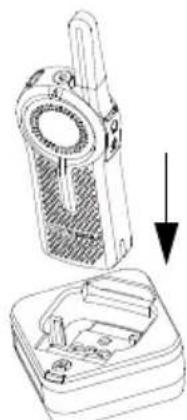
The DLR Series radio comes with a Standard Power Supply and DLR SUC tray.
- Place the DLR SUC tray on a flat surface.
- Insert the connector of the power supply into the port on the side of the DLR SUC tray.
English
- Plug the AC adaptor into a power outlet.
- Turn the radio "OFF".
- Insert the radio into the tray with the front of the radio facing the front of the charger, as shown. Make sure the radio is securely inserted all the way into the charger and the RED LED illuminates to indicate that the battery is charging. See "DLR Series Charger LED Indicators" on page 21 for more information.
Note: When charging a battery attached to the radio, turn the radio OFF to ensure a full charge. See "Operational Safety Guidelines" on page 8 for more information.
Charging A Stand-Alone Battery
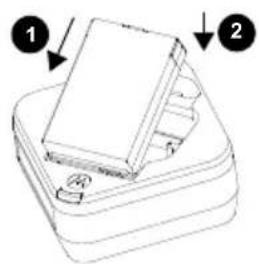
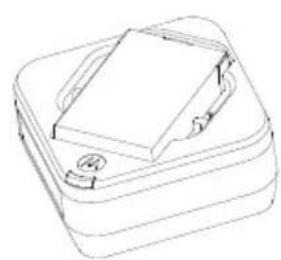
To charge a battery, insert the battery into the charger's pocket by:
- Aligning the raised tab on each side of the battery with the corresponding groove on each side of the charger pocket.
- Pressing the battery toward the rear of the pocket.
- Sliding the battery into the charger pocket, ensuring complete contact between the charger and battery contacts.
- When the battery is properly seated in the pocket, the charger indicates the Battery Level status as shown in Table 6. The RED LED illuminates to indicate that the battery is charging rapidly.
- The LED changes to a STEADY GREEN light to indicate that the battery is nearly or fully charged.
Table 4: Motorola Solutions Authorized Batteries
| Part Number Description | |
| HKNN4013_Li-Ion | Battery 1800mAh |
Estimated Charging Time
The following table provides the estimated charging time of the battery. For more information, see "Battery" on page 113.
Table 5: Battery Estimated Charging Time
| Charging Solutions | Estimated Charging Time |
| Standard Battery | |
| Standard ≤ 3.50 Hours | |
Charging a Radio and Battery using a DLR 12-Pocket Multi Unit-Charger - MUC (Optional Accessory)
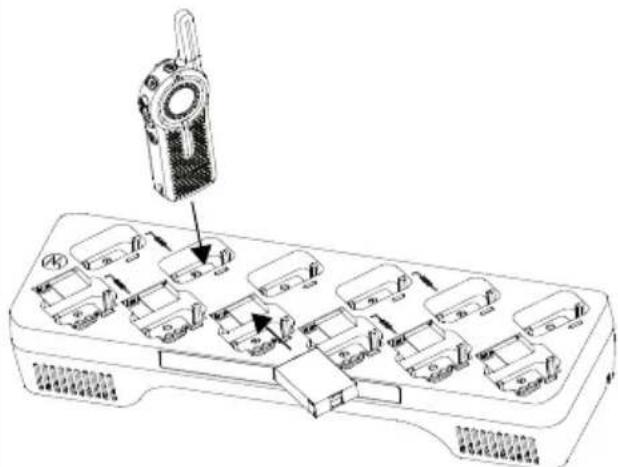
The DLR 12-Pocket Multi-Unit Charger (MUC) allows drop-in charging of up to 12 radios or up to 6 radios and 6 stand-alone batteries. Batteries can be charged with the radios or removed and placed in the MUC separately. Each of the 12 charging pockets can hold a
radio (with or without the Holster) or battery, but not both.
- Place the Multi-Unit Charger on a flat surface.
- Insert the power cord plug into the MUC's dual pin connector at the bottom of the MUC.
- Plug the power cord into an AC outlet.
- Turn the radio OFF.
- Insert the radio or battery into the charging pocket with the radio or battery facing away from the contacts.
Note:
- This Multi-Unit Charger clones up to 2 radios (2 Source radios and 2 Target radios). Refer to "Cloning with a Multi-Unit Charger (MUC) (Optional Accessory)" on page 97 for more information.
- More information on the Multi-Unit Charger operation is available in the Instruction Sheets provided with the MUC. For more information on the parts and their part numbers, refer to Chapter "Accessories" on page 113.
DLR Series Charger LED Indicators
Table 6: Charger LED Indicator
| Status LED Status Comments | ||
| Power On | Green for approx. 1 sec | |
| Charging | Steady red | |
| Charged | Steady green | |
| Error (*) | Red fast flash | |
| Standby (**) | Amber slow flash | |
| Battery Level Status | Flash red 1 time | Battery low |
| Flash amber 2 times | Battery medium | |
| Flash green 3 times | Battery high |
(^) Normally, re-positioning the battery pack will correct this issue.
(^*) Battery temperature is too warm or too cold or wrong power voltage is being used.
English
There is NO LED indication:
- Check that the radio, or stand-alone battery, is inserted correctly.
- Ensure the power supply is plugged into an appropriate AC outlet. (for DLR Single Unit Charger (SUC) Tray only).
- Ensure the cable is plugged securely into the charger socket (for DLR Single Unit Charger (SUC) Tray only).
- Ensure the power cord is plugged securely into the charger socket with an appropriate AC outlet and there is power to the outlet (for DLR 12-Pocket Multi Unit Charger Tray only)
- Confirm that the battery used with the radio is Motorola Solutions authorized batteries listed in Table 4.
DLR Radios and Charger Compatibility
Table 7: DLR and CLS Chargers Compatibility
| Chargering Compatibility | ||||
| Chargers | DLR radio with inserted battery | DLR standalone batteries | CLS radio with inserted battery | CLS standalone batteries |
| DLR SUC | ✓ | ✓ | ✓ | |
| DLR MUC | ✓ | ✓ | ✓ | |
| CLS SUC | ✓ | × | ✓ | |
| CLS MUC | ✓ | × | ✓ | |
Note: Although DLR Series and CLS Series chargers are compatible, DLR and CLS radios operate in different frequency bands and will not communicate with each other.
Notes
English
GETTING STARTED
For the following explanations, refer to "Parts Of The Radio" on page 9.
(*)Ensure microphone is positioned 1 to 2 inches (2.5 to 5cm ) away from mouth
To turn ON the radio, press and hold the Power button until the radio plays the power up tone and the standby light begins to blink.
Note: By default, when radio is turned ON, it announces the current channel name and battery status.
To turn the radio OFF, press and hold the Power button (~3 seconds) until the radio Tx/Rx Indicator LED turns OFF and power down tone is heard.
ADJUSTING VOLUME
Press the (+) button to increase the volume, or the (-) button to decrease the volume.
To mute, press and hold the (-) button (~2 seconds) until you hear the voice announcement "Mute".
Note: Radio mute means setting the volume to the lowest level. (This is to prevent the user from forgetting to unmute the radio.)
To maximize volume, press and hold the (+) button (~2 seconds). The volume will fast scroll
up to maximum volume. You will hear the volume beeps increment as the volume increases.
Notes: Do not hold the radio too close to the ear when the volume is high or when adjusting the volume.
There are 16 increments of volume.
As the (+) /(-) buttons are pressed, you will hear a beep at the current volume level. If device is receiving during volume interaction, received audio will be heard at the new volume instead of beeps.
When using radio with earpiece, make sure to adjust the radio volume to the lowest volume before putting on the earpiece. Refer to "Acoustic Safety" on page 3. Use only Motorola Solutions approved accessories. Refer to "Audio Accessories" on page 113 for more information.
CHECKING BATTERY STATUS
To check the battery status, short press the power button. Refer to "Battery Status Information" on page 17 for more information.
Note: The four levels available for battery status are : High, Medium, Low and Critical.
TRANSMITTING AND RECEIVING
To receive, listen through the speaker.
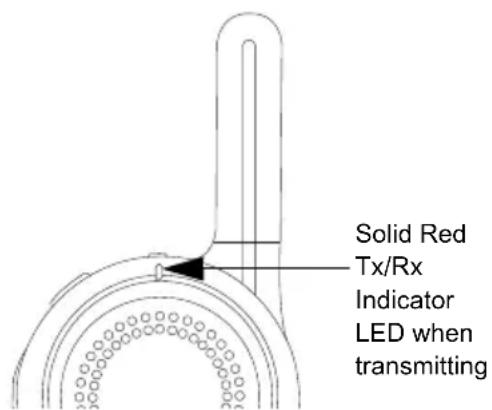
To respond or to talk, press the PTT (Push to Talk) and WAIT to hear the Talk Permit Tone (TPT) BEFORE you start speaking. Hold the radio vertically 1 to 2 inches (2.5cm to 5cm) from mouth when talking. Release the PTT to listen.
- The Tx/Rx Indicator blinks slowly RED when on standby. When the radio is transmitting, the Tx/Rx Indicator is solid RED.
- When the radio is receiving, the Tx/Rx Indicator LED blinks RED quickly.
IMPORTANT: When talking on the radio, make sure not to release the PTT button at any given time. Whether you are transmitting using the PTT button or
using an in-line PTT on the earpiece accessory, always ensure the PTT button is pressed firmly until the transmission is finished. Releasing the PTT button while transmitting and trying to immediately press the PTT button again causes the radio to give a loud denial tone. Wait for 2 seconds and press PTT again to continue speaking. If you press the PTT button to transmit and a busy tone is received instead of a TPT, this means the channel is either not available, busy or there are no users reachable within transmission range.
Talk Permit Tone (TPT)
TPT is a quick distinctive double beep tone that sounds after the user presses the PTT button, indicating the channel is free to talk. TPT is useful in ensuring orderly communications by preventing radios from transmitting over ongoing conversations.
Always wait to hear the TPT before starting to speak to ensure your words are not cut off.
Talking to a Group in a Channel
To transmit, press the PTT (Push to Talk) and WAIT to hear the TPT (Talk Permit Tone) BEFORE you start speaking.
BROWSING / SELECTING A CHANNEL
To select a channel, press the Channel / Menu button until the voice announcement "Channel
Press (+) or (-) buttons to select the desired channel. An audible voice indicates the selected channel.
To exit Channel Change, press the PTT button or wait for the radio Channel / Menu timer to expire.
PRIVATE REPLY
DLR radio comes with the Top Button configured to Private Reply Feature i.e. when you hear someone talking on the radio, push the Top Button to queue for Private Reply function (Top Button LED indicator blinks orange). Once the person finishes talking, press the PTT button to Reply Privately to that person (Top Button LED illuminates solid orange). Voice prompts and tones will guide you on Private call status. For more details on how to use this feature, refer to "Special Radio Call Features" on page 49.
TOP BUTTON OPTIONS
The Top Button comes pre-programmed with the Private Reply Feature. Top Button can be configured also to allow other different call features such as: Page All Available, Call
Available, Direct Call and Mute. It can also be disabled. For more details on how to configure the Top Button refer to "Advanced Configuration Mode" on page 33.
TALK RANGE
| TALK RANGE | ||
| Model | Industrial Multi-Level | |
| Inside steel/concrete Industrial buildings | Inside multi-level buildings | |
| ISM 900 MHz | Up to 300,000 Sq. Ft. | Up to 20 Floors |
For a group of DLR radios to be able to communicate, they need to be on the same channel and have the same radio PROFILE ID number. All radios come by default programmed to PROFILE ID number "0000"
- Channel: Current channel that the radio is using, depending on radio model.
2.PROFILE ID Number:ALL the radios in your fleet (independent of the channels that users are assigned to) should use the SAME PROFILE ID. It is also VERY IMPORTANT TO CUSTOMIZE THE PROFILE ID number in order to avoid interference from other users using the default "0000" number. In order to customize your radio fleet PROFILE ID,choose a 4 digit number and enter it using the radio Advanced Configuration Mode (Turn off the radio, Press the PTT, (+) and Power buttons simultaneously and hold until radio announces "Programming Mode".Follow voice prompts).For more information, refer to the "Advanced Configuration Mode" on page 33.
DLR AND DTR RADIOS COMPATIBILITY
DLR and DTR radios are based on the same digital radio technology and can be used in mixed fleets of DLR and DTR radios. Out of the box, DLR and DTR radios will communicate using the factory default settings.
If you have DTR radios with customized settings and/or private groups, and need to add DLR radios, make sure to use the DLR CPS software(*) in order to create a compatible configuration in the DLR radios. The same applies if DTR radios are to be added to an existing DLR radio fleet. For more details on DTR and DLR compatibility please contact your Motorola Solutions point of sale.
For questions or comments related to this product, please contact Motorola Solutions: 1-800-448-6866
Note: (*) DLR CPS software is available for free download at www.motorolasolutions.com/DLR
RADIO STATUS
| Radio Status Front LED Indicator Top Button LED Indicator | Voice Prompt or Tone | ||
| Power Up Solid Red for 2 seconds OFF | "Battery Level <Level>, Channel <Number>" | ||
| Power Off | Solid Red for 2 seconds | OFF | Power Off chirps |
| Fatal Error at Power up | Double Blink Red | Single Blink Orange | Not Available |
| Channel Busy | Not Available | OFF | Busy tone |
| 'Idle' Mode | Heartbeat Red | OFF | Not Available |
| Transmit (Tx) (standard group call) | Solid Red | OFF Not Available | |
| Receive (RX) (standard group call) | Fast Red Heartbeat | OFF | Not Available |
Notes
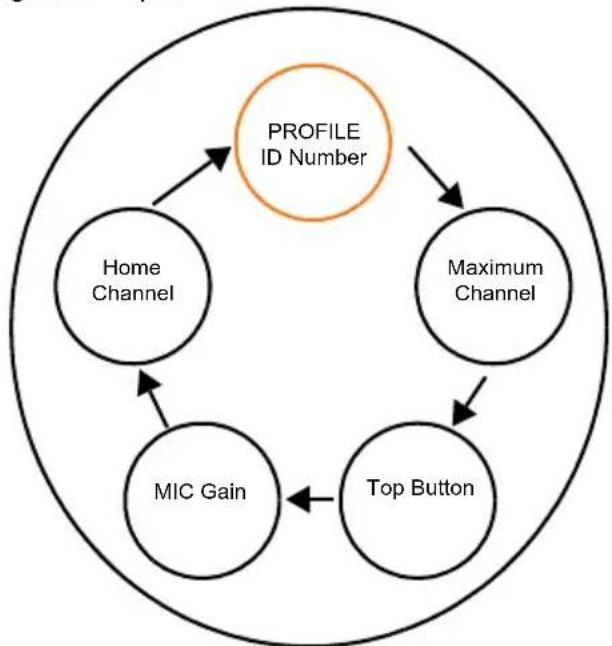
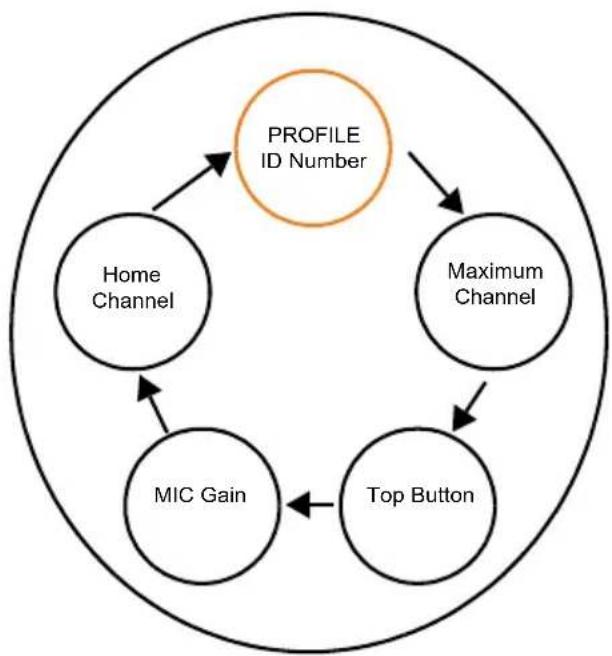
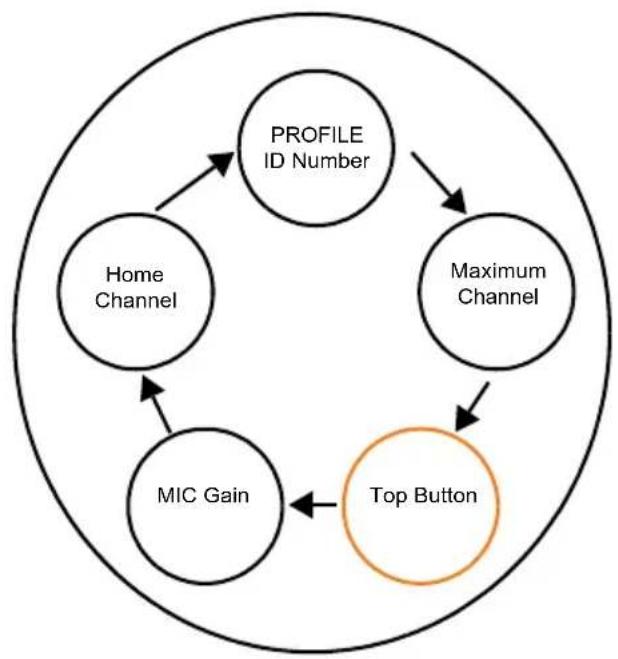
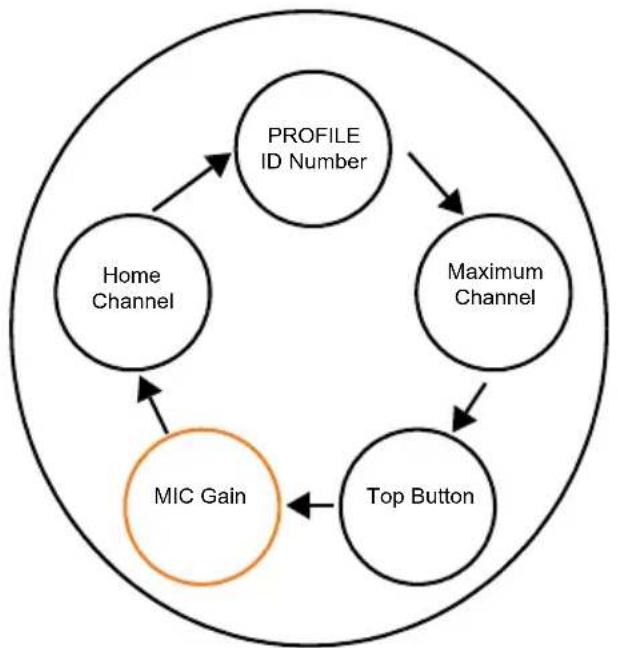
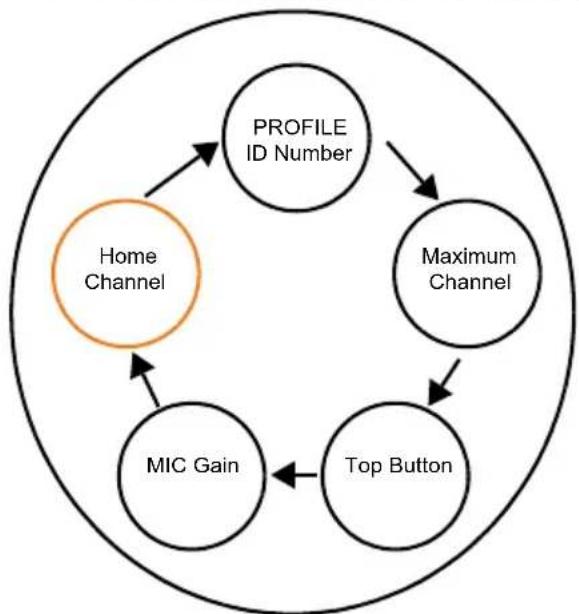
The DLR Advanced Configuration Mode allows you to configure special settings in your radio without the need of programming cables or additional software.
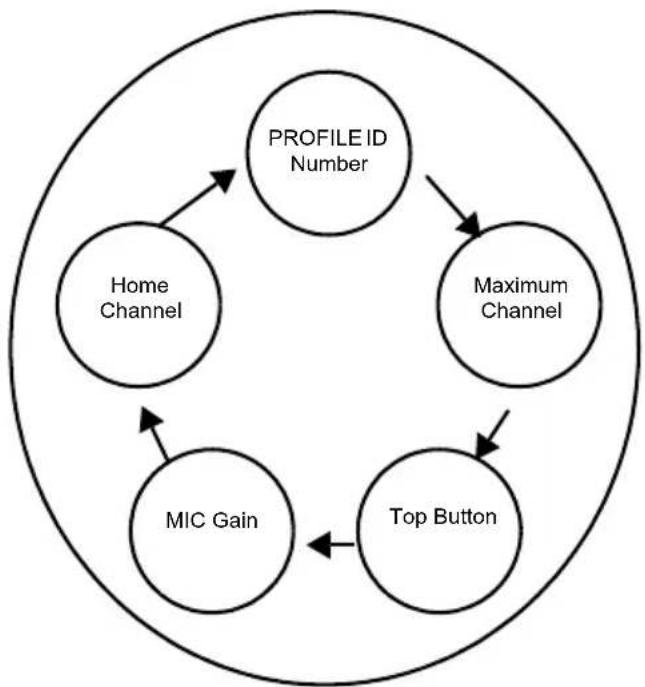
Advanced Configuration Mode gives access to customize the following features:
- PROFILE ID Number,
Maximum Channels, - Top Button,
- Microphone (MIC) Gain, and
Home Channel.
Table 1: Advanced Configuration Mode Features
| Feature Description | |
| PROFILE ID Number | Choose a 4 digit number (0000 - 9999) as your radio PROFILE ID Number. Customize the PROFILE ID Number to ensure interference free / private communications. |
| Maximum Channels | Choose the maximum number of channels you want to allow for your radio. |
| Top Button | Set the Top Button with one of the following feature: Private Reply, Direct Call(*), Call All Available, Page All Available, Mute, Disabled. |
| MIC Gain | Choose between High, Medium or Low MIC Gain to adjust the radio microphone sensitivity level to fit different users or noise environments. |
| Home Channel | Choose the channel you want to designate as your main channel. Everytime you change to a different channel and no activity is detected from the channel, the radio reverts back to your home channel. |
(*) Only if enabled via CPS
ENTERING ADVANCED CONFIGURATION MODE
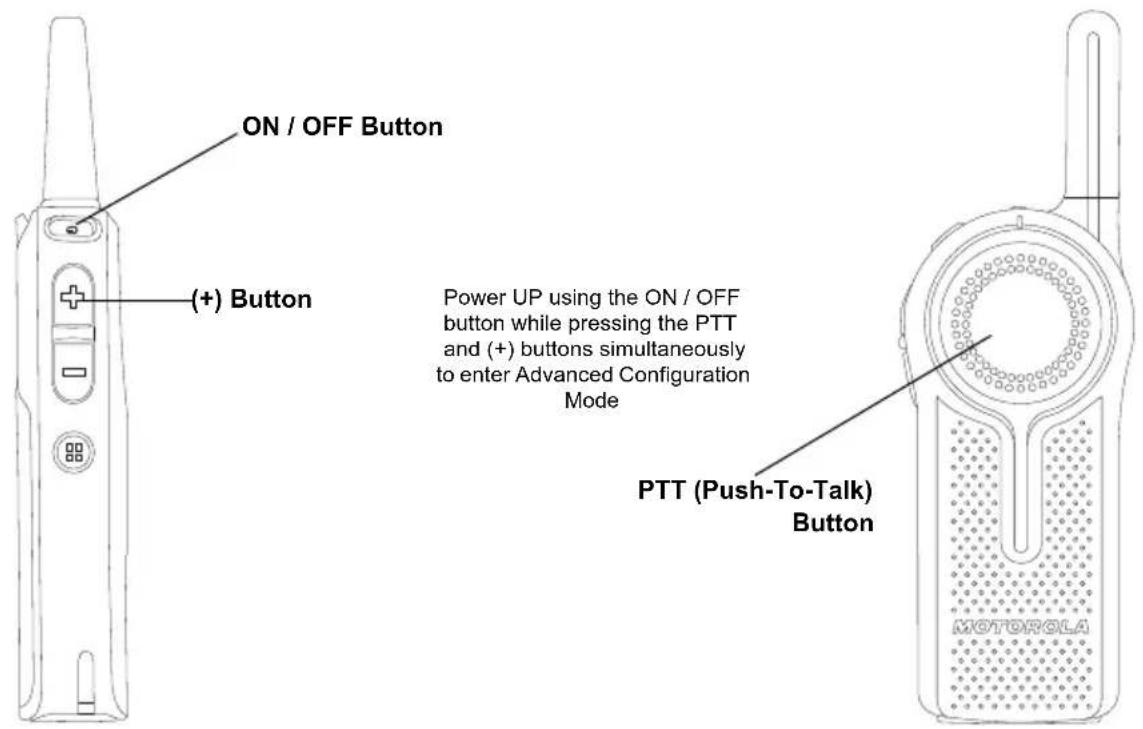
To enter the Advanced Configuration Mode, power UP using the ON / OFF button while pressing the PTT and (+) buttons simultaneously.
English
BROWSING ADVANCED CONFIGURATION OPTIONS
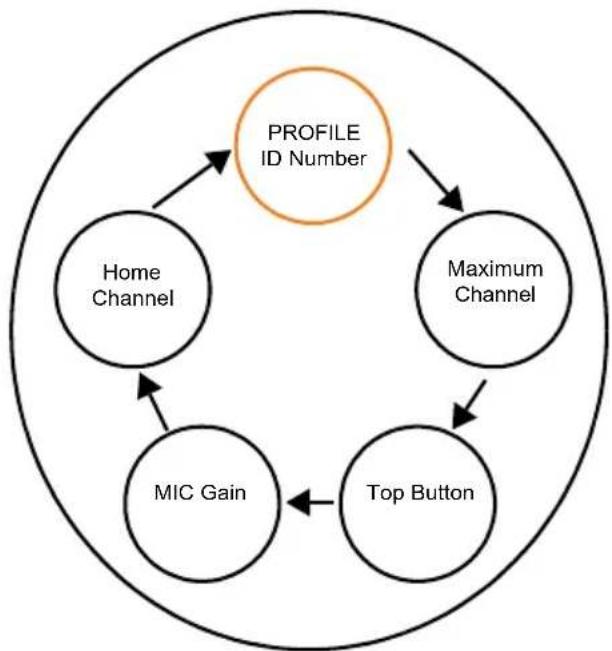
Upon entering Advanced Configuration Mode, radio plays voice prompt "Programming Mode. Press Menu to continue". Press Channel / Menu button to cycle through the Advanced Configuration options.
Note: Long press the PTT button at any time to exit the Advanced Configuration Mode altogether.

"Programming Mode. Press Menu to continue".
Channel / Menu Button Press to cycle through the Advanced Configuration options.
PROFILE ID Number
PROFILE ID Number - Current Value
Once you press the Channel / Menu button, the radio announces the current PROFILE ID Number(*) and prompts you to change it. Press (+) or (-) button to enter the PROFILE ID Number sub-menu. Alternatively, press the Channel / Menu button to continue to the next Advanced Configuration option.
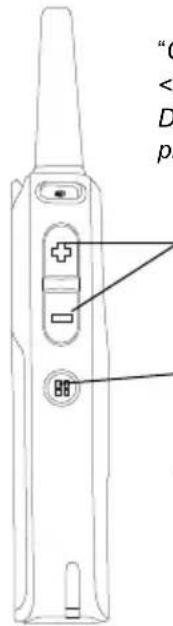
"Current Profile ID
(+) /(-) Buttons Press to enter the PROFILE ID Number sub-menu Channel/Menu Button Press to continue to the next Advanced Configuration option
(*) PROFILE ID Number default is "0000". Change it to avoid interferences and improve privacy.
PROFILE ID Number - Changing values
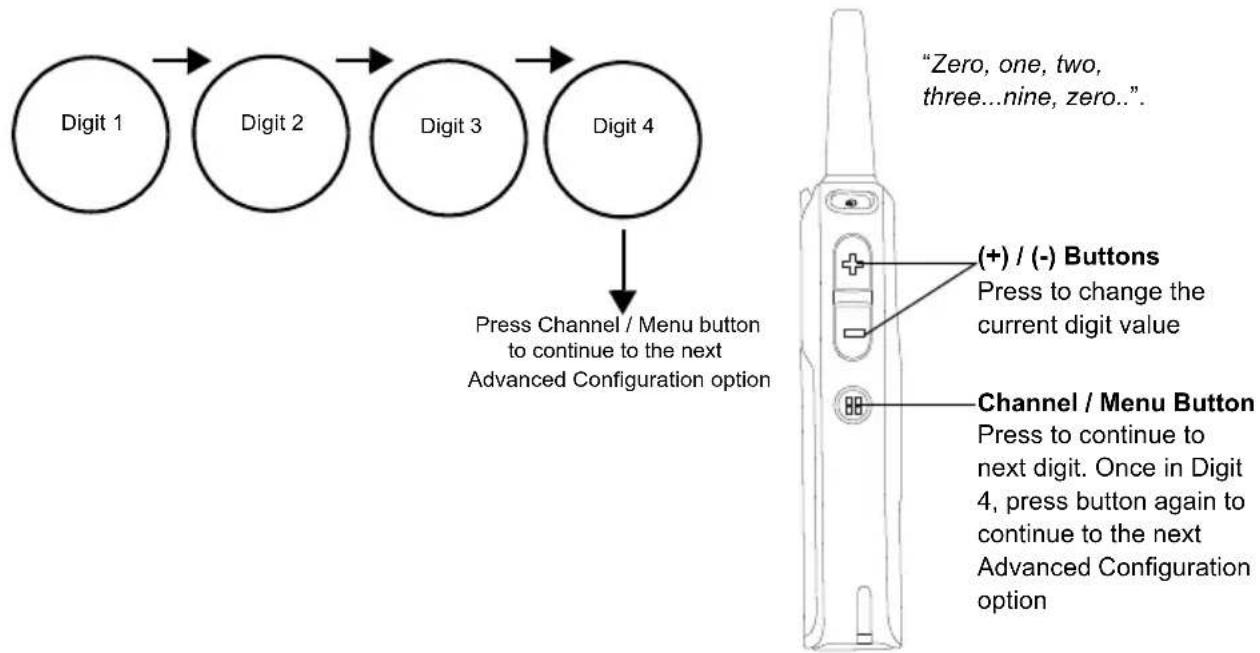
Once you press either the (+) or (-) to enter the PROFILE ID Number sub-menu, the radio announces the first digit number value and prompts you to change it(*). Press (+) or (-) button again to change the first digit number. Press Channel / Menu button to continue to the next digit.
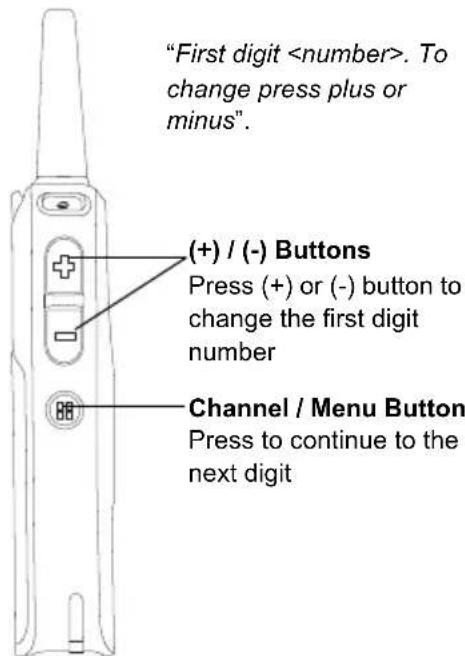
(*) There is 10,000 options of PROFILE ID Number to choose from (0000 - 9999).
PROFILE ID Number - Sub-menu
When you press (+) or (-) button to change the current digit, radio announces the value. Press Channel / Menu to continue to the next digit. Once in Digit 4, press Channel / Menu button again to continue to the next Advanced Configuration option.
Note: DLR radio gives you the option to move forward through the 4 digits with the Channel / Menu button. There is no option to move backward through the 4 digits of PROFILE ID Number.
PROFILE ID Number - Value Modification Confirmation
Once you have set the 4 digit PROFILE ID Number, the radio announces the entire new PROFILE ID Number value. Press Channel / Menu button to continue to the next Advanced Configuration option or hold down the PTT button to exit the Advanced Configuration Mode.
Note: If the 4 digit PROFILE ID number set is not the numbers wanted upon moving to the next Advanced Configuration option, press the Channel / Menu button and cycle through the Advanced Configuration options until you are back at the PROFILE ID Number option to change the value.
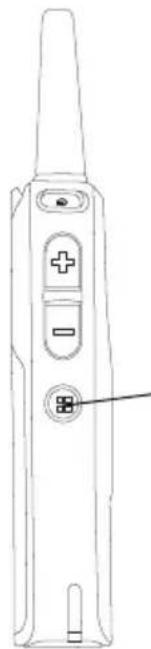
"Profile ID saved as
Channel / Menu Button Press to continue to the next Advanced Configuration option
Maximum Channels
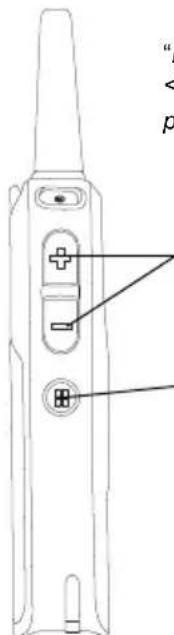
Press the Channel / Menu button until the radio announces the current maximum number of channels and prompts you to change it. Press (+) or (-) button to change the number of channels (^*) . Press Channel / Menu button to continue to the next Advanced Configuration option.
Note: The maximum number of channels you can set up in your radio is limited by the radio model. DLR1060 has maximum 6 channels and DLR1020 has maximum 2 channels.
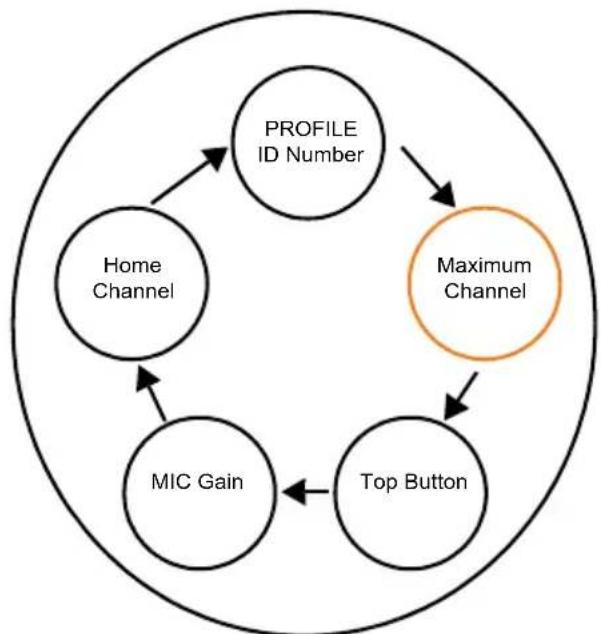
"Maximum channels
(+) /(-) Buttons
Press to change the number of channels
Channel / Menu Button
Press to continue to the next Advanced Configuration option
(*) Maximum number channels allowed by default is the maximum number of channels your radio model has.
Top Button
Top Button - Current Feature
Press the Channel / Menu button until the radio announces the current Top Button feature and prompts you to change. Press (+) or (-) button to enter the Top Button sub-menu. Alternatively, press Channel / Menu button to continue to the next Advanced Configuration option.
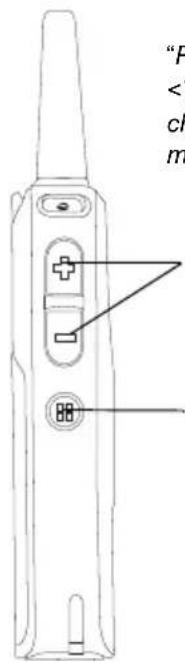
"Programmable Button
(+)/(-) Buttons Press to enter the Top Button sub-menu
Channel / Menu Button Press to continue to the next Advanced Configuration
Top Button - Sub-menu options
Once you press the (+) or (-) button to enter the Top Button sub-menu, you can browse back and forward the different Top Button options using the (+) or (-) button. Radio will guide with voice prompts as you navigate through the features. Press Channel / Menu button to continue to the next Advanced Configuration option.
Note: In order to use the Direct Call option, it must be enabled via CPS beforehand. Otherwise Top Button sounds an error tone even if you choose the option in the this menu.

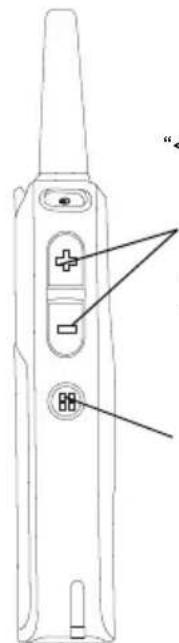
"
(+) /(-) Buttons
Browse back and forward the different Top Button options using the (+) or (-) button
Channel / Menu
Button
Press to continue to the next Advanced Configuration option
(*) Direct Call feature is only available if it has been previously enabled via CPS.
MIC Gain
Press the Channel / Menu button until the radio announces the MIC Gain setting and prompts you to change it. There is three MIC Gain settings to choose from - Low, Medium, High. The default MIC Gain value is "Medium". Press the (+) or (-) button to change MIC Gain settings. Press Channel / Menu button to continue to the next Advanced Configuration option. MIC Gain should only be changed if other users complain that the volume from this radio is too low or too high. The default Medium setting should be appropriate for most users, so it can be left unchanged.
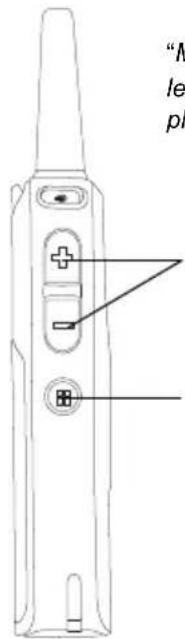
"MIC Gain
(+) /(-) Buttons Press to change MIC Gain settings
Channel / Menu Button Press to continue to the next Advanced Configuration option
Home Channel
Press the Channel / Menu button until the radio announces the Home Channel setting and prompts you to change it. There is two Home Channel settings to choose from - Disabled or Channel number (or channel name if alias was set up via CPS). The default setting of Home Channel is "Disabled". Press Channel / Menu button to cycle back to the first Advanced Configuration option - PROFILE ID Number.
Note: When Home Channel is enabled, if no activity is detected from a channel for 7 seconds (CPS programmable), the radio reverts back to the Home Channel, so this feature may not be appropriate for users who need to frequently change channels throughout the day
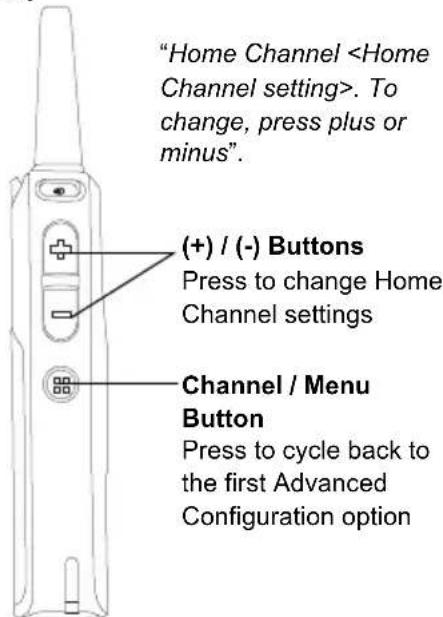
RESETTING TO FACTORY DEFAULTS
In order to reset your radios to the original factory defaults, power UP using the ON / OFF button while pressing PTT, (-) and (+) buttons simultaneously. Radio sounds resetting beeps and the voice prompt announces "Battery Level
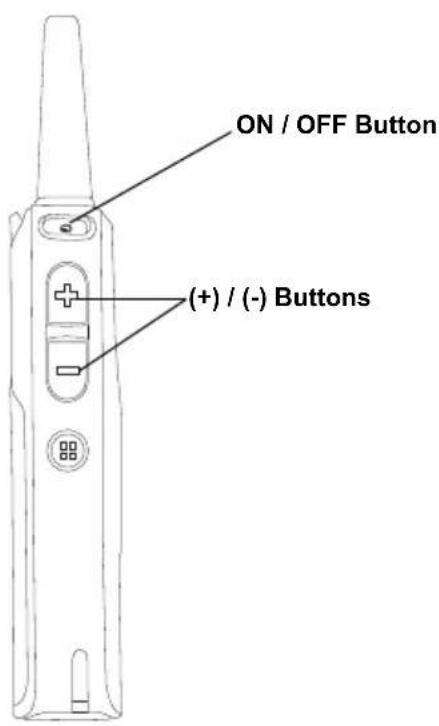
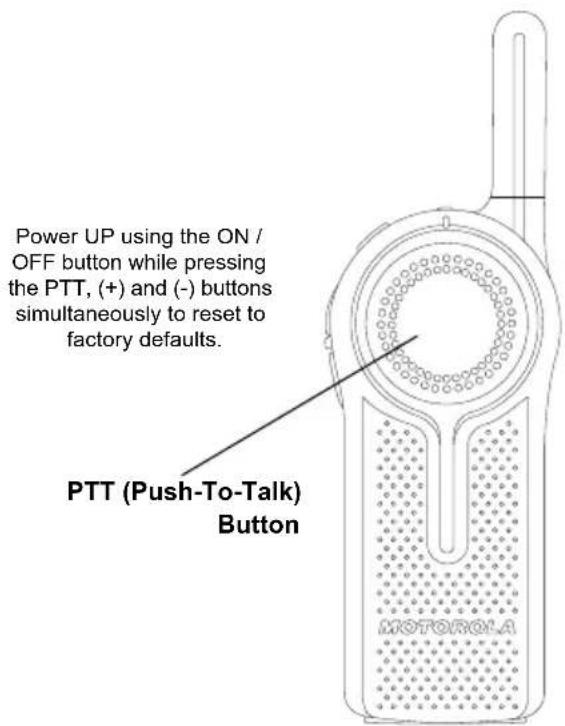
Radio Factory Default Settings
Table 2: Radio Basic Feature Defaults
| Radio Basic Feature | Default |
| Power up announcement | Battery Status and Channel Name |
| Quick press ON / OFF button | Battery Status |
| Number of channels | Set to maximum number of channels supported by the radio model |
| Channel / Menu button | Channel change only |
| Top Button feature Private Reply | |
Table 3: Radio Advanced Configuration Mode Defaults
| Radio Advanced Configuration Mode | Default |
| PROFILE ID Number lock | OFF |
| Radio PROFILE ID Number | 0000 |
| Maximum Channels | Set to maximum number of channels supported by the radio model |
| Direct Call OFF | |
| MIC Gain Medium | |
| Home Channel Disabled |
Table 4: Radio Special Mode Defaults
| Radio Special Mode | Default |
| Enable restore Factory Default reset | ON |
| Enable Advanced Configuration Mode | ON |
| Enable Cloning Mode ON | |
For all other radio defaults, please refer to the CPS.
English
Notes
SPECIAL RADIO CALL FEATURES
PRIVATE REPLY
The DLR radio Top Button is programmed by default as "Private Reply". Push the Top Button to capture the radio ID of the person currently talking to your group and right after the transmission is over, push the PTT button to talk privately to that person.
Private Reply helps users free the radio channel from unnecessary back and forward chatter by allowing two people to instantly connect privately after a group transmission is over.
Application Example
The use of this feature reduces the need for phone extensions or cell phone calls to talk privately. Simply call on the radio the name of the person you want to talk to privately. When he or she responds to you, push the Private Reply button (Top Button) and then press the PTT button to initiate the one to one private conversation.
How Private Reply Works
- User B is talking to a group of radios
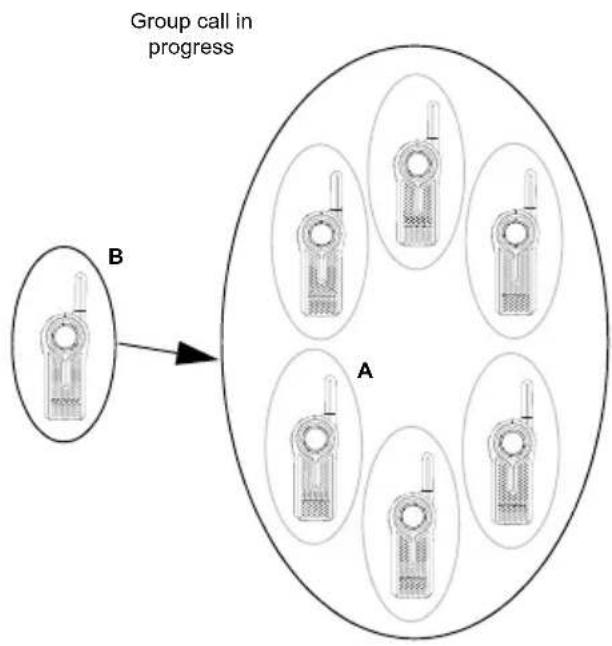
- User A wants to talk to User B privately and presses the Top Button to queue up.
Note: Long pressing the Top Button a second time cancels the Private Reply queue.
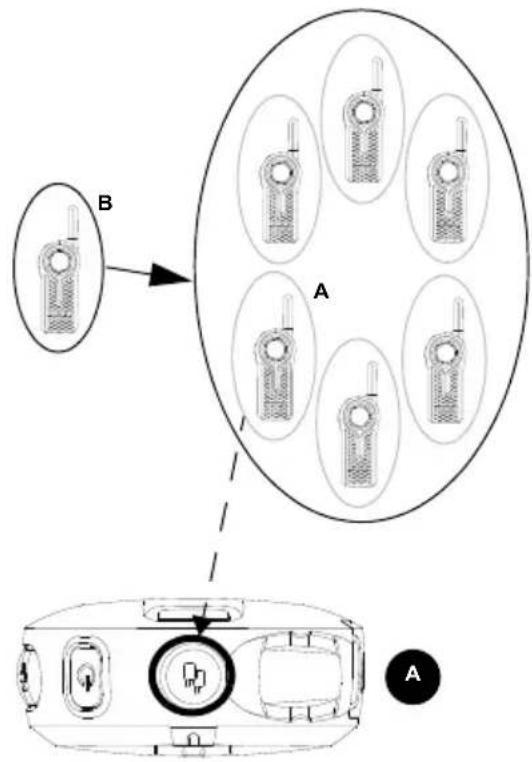
English
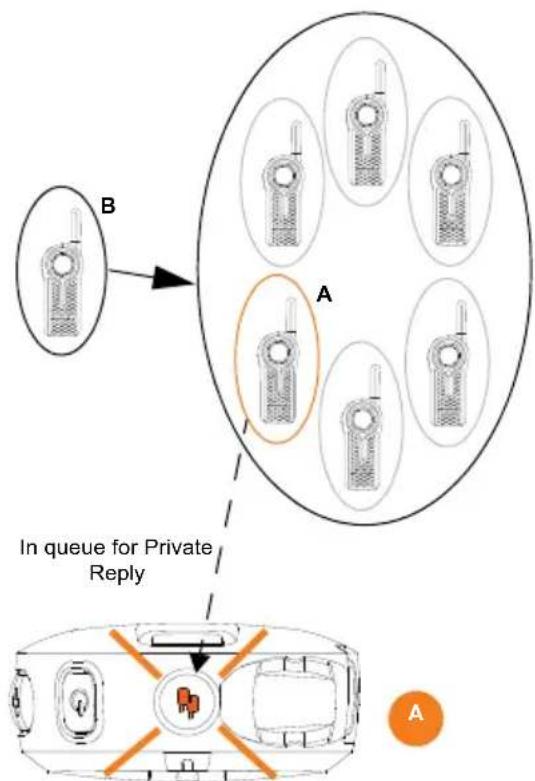
- User A radio plays voice prompt "Private Reply" and the Top Button starts blinking orange, showing user A is in queue waiting to talk privately to User B.
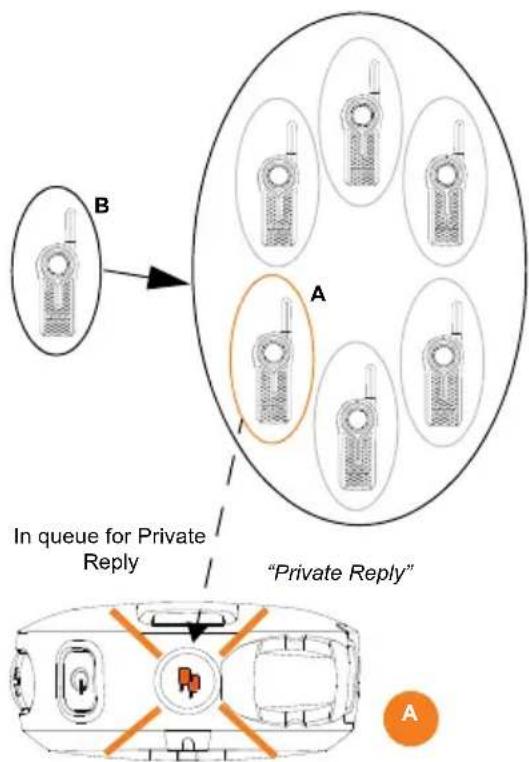
- User B finishes talking to the Group while User A radio is still blinking orange indicating it is in queue for Private Reply call.
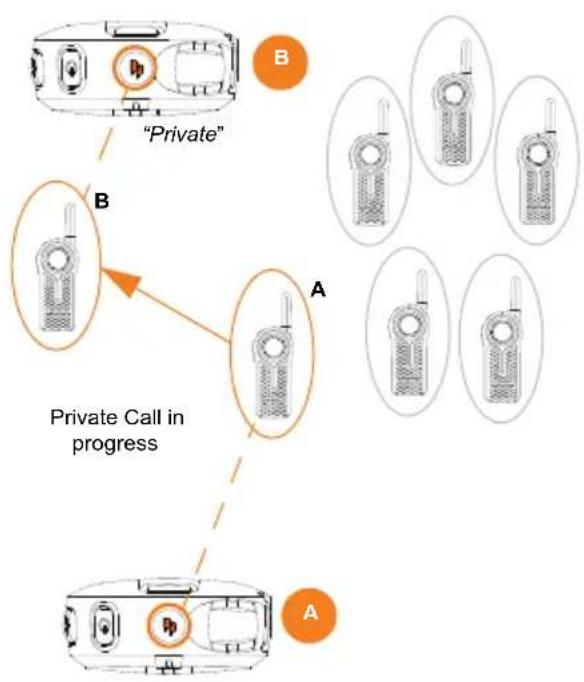
- User A presses PTT button to talk privately to User B. The Top button LED indicator for both radio A and radio B illuminate solid orange. User B hears radio voice prompt "Private" and radio plays a distinctive Private TPT.
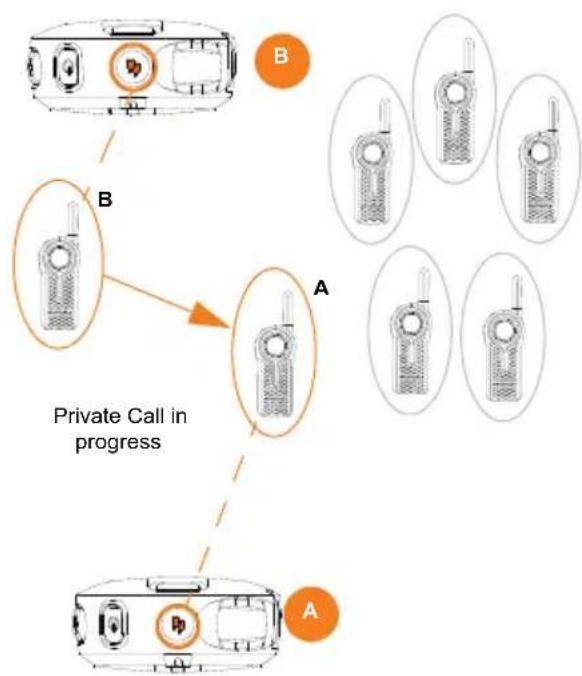
- Whenever user A or B presses the PTT button to reply back, they are talking privately to each other. Nobody else hears them. Radio plays a distinctive Private TPT.
English
7a. If either one of the radio users takes too long to push the PTT button and reply back, (the default "Private Hang Time" is 10 seconds), the radio times out and ends the private communication with voice prompt "Private Over" on both radios A and B. The TOP Button LED indicator goes OFF.
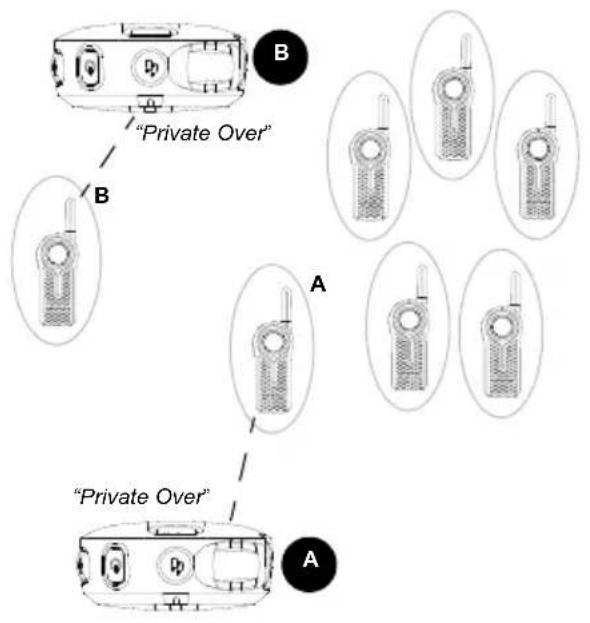
7b. Radio user A (who initiated the Private Call), can also end the call at any time by Long pressing the Top Button. The radio plays voice prompt "Private Over" on both radio A and B to indicate that the private call is over. The TOP button LED indicator turns OFF.
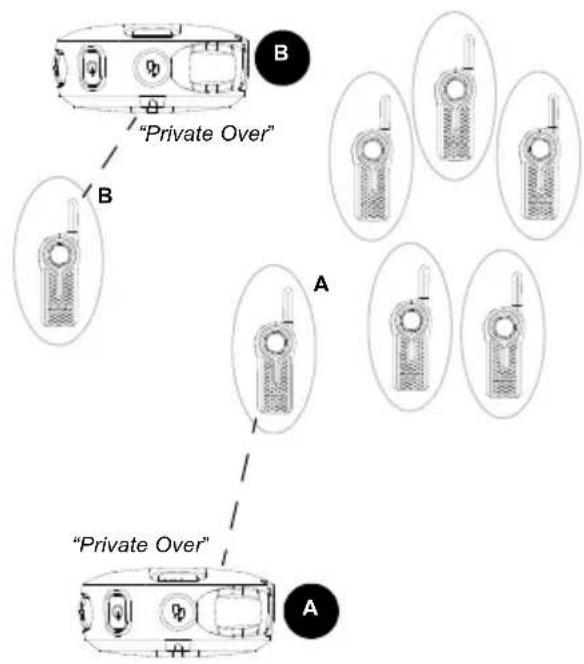
- Radio user A and B join back the group transmission in their channel once the private call ends.
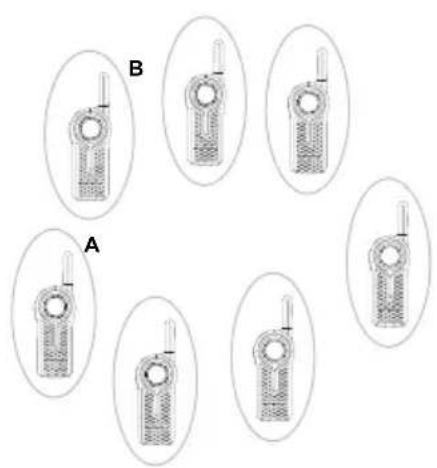
Note: You can set the "Private Hang Time" and "Group Hang Time" to different values using the CPS.
English
Private Reply Status Indicator
Table 1: Private Reply Status Indicator
| Private Reply Status | Top Button LED Indicator | Voice Prompt or Tone |
| Private Reply request in queue (initiated using Top Button press) – Initiator party | Blink Orange “Private Reply” | |
| Private conversation initiated (using the PTT button) – Receiver party | Solid Orange Private TPT | |
| Private Call notification(*) – Receiver party | Solid Orange “Private” | |
| Private conversation in progress – Both parties | Solid Orange Private TPT | |
| End of private conversation – Both parties | Off “Private Over” |
Notes: Private Reply times out after 10 seconds of inactivity (no transmissions detected). Voice prompt "Private Over" will be heard by both users involved in the private call.
(*) This notification occurs only once in the beginning of the call.
DIRECTCALL
The Direct Call Feature allows a user to call another pre-determined user that has been mapped into the radio Top Button one-on-one privately (this feature needs to be pre-programmed via CPS*). Users also have the option to assign the Direct Call feature to any radio channel instead of the Top Button. This allows the radio Top Button to be available for other radio features (e.g.: Private Reply or Mute) and Direct Call to be set up in a special channel. (You can set up different direct calls in different channels).
Note: In order to set up the Direct Call function for the first time in your radio, (either Top Button or to a specific channel) you need to use the CPS (Customer Programming Software) which is available for free download at www.motorolasolutions.com/DLR. Once in the CPS, you must read and upload the radio IDs (identified in CPS as "privates") into the CPS in order to enable Direct Call and assign direct calls to specific radios.
Refer to "Customer Programming Software (CPS)" on page 83 for more information.
Application Example
Set up your employees to be able to contact directly and privately their supervisor, the Manager on Duty or to reach a designated person for special requests by simply pressing the Direct Call button (Top Button) and then pushing the PTT button to talk.
Note: If the Direct Call is set up in a specific channel, change to that channel and press the PTT button to talk privately.
How Direct Call Works
- User A presses the radio Top Button in order to talk directly to User B. User A radio plays voice prompt "Private
" as programmed in CPS (if enabled) and the Top Button LED indicator starts blinking orange, indicating that User A is in queue waiting to talk privately to User B.
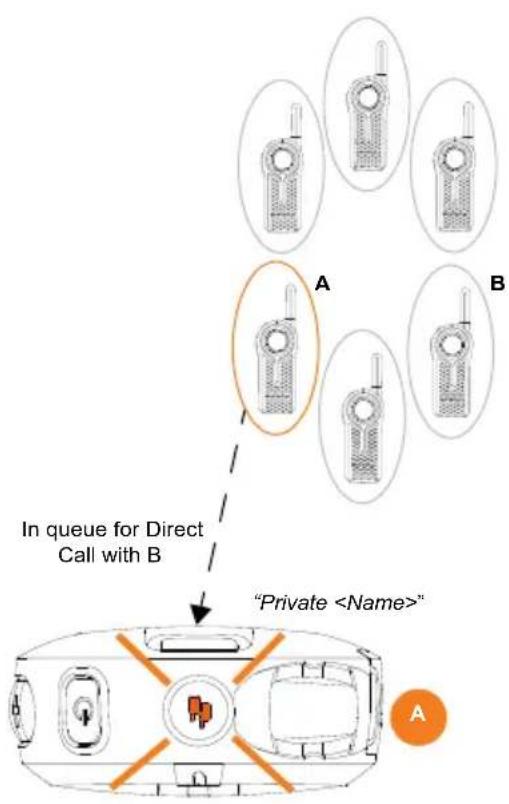
- User A presses the PTT button to talk privately to User B (who is NOT in a radio conversation), the TOP Button LED indicators of both A & B radios will illuminate solid orange. Radio B plays voice prompt "Private" indicating that the incoming call is a Direct Private Call. Radio plays a distinctive Private TPT.
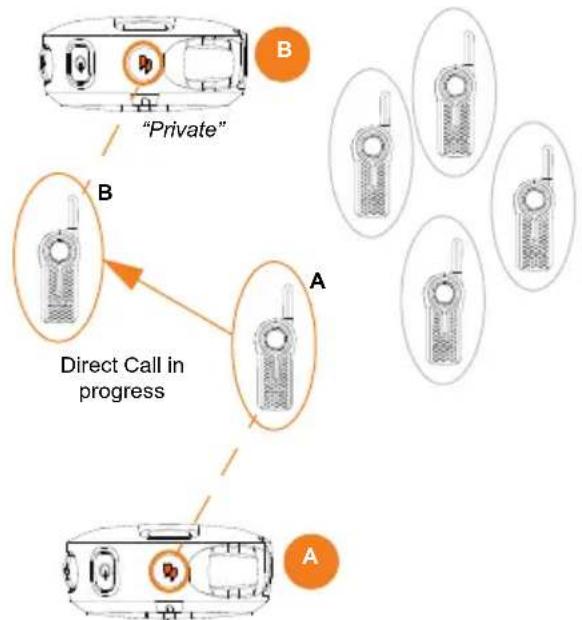
- Whenever either user A or B presses the PTT button to reply back, they are talking privately to each other. (Radio plays a distinctive Private TPT). Nobody else can hear them.
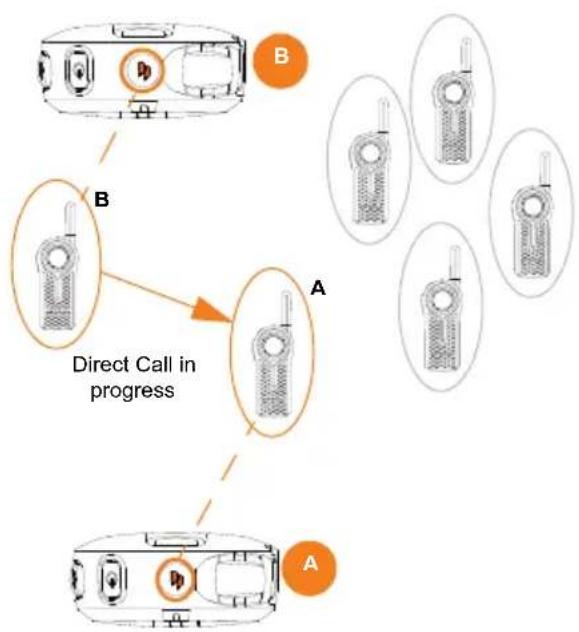
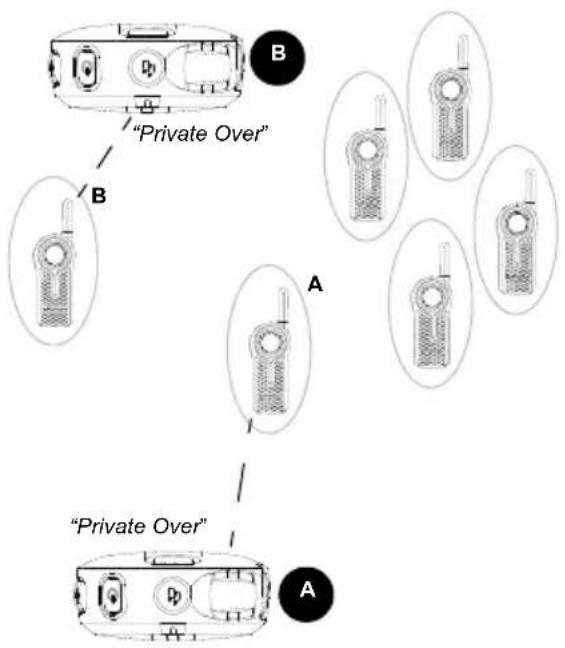
4a. If any of the radio users takes too long to push the PTT button and reply back, (the default "Private Hang Time" is 10 seconds), the radio times out and ends the private communication with voice prompt "Private Over" on both radio A and B. The TOP Button LED indicator goes OFF.
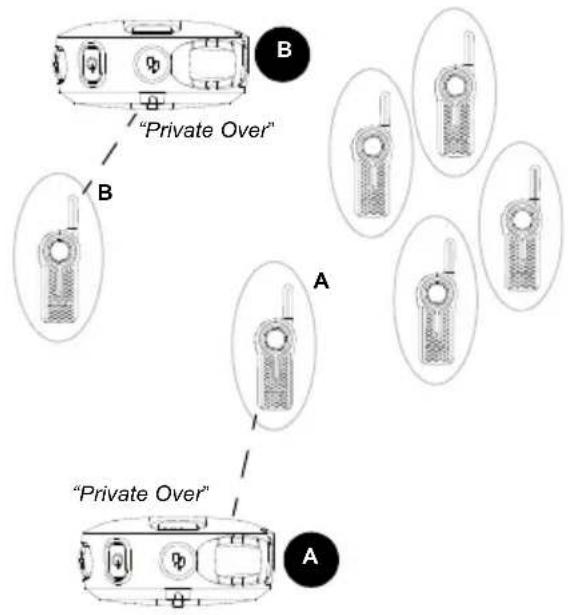
4b. Radio user A (who initiated the Direct Call), can also end the call by Long pressing the Top Button. The radio plays voice prompt "Private Over" on both radio A and B to indicate that the private call is over. The TOP button LED indicator goes OFF.
Direct Call Status Indicator
Note: To initiate Direct Call, press the Top Button followed by the PTT button to talk directly and privately to the pre-set user.
Table 2: Direct Call Status Indicator
| Direct Call Status | Top Button LED Indicator | Voice Prompt or Tone |
| Direct Call initiated (using Top Button press) – Initiator party | Blink Orange “<Name of Direct Call user>”(*) | |
| Private conversation initiated (using the PTT button) – Initiator party | Solid Orange Private TPT | |
| Private Call notification – Receiver party | Solid Orange “Private” | |
| Private conversation in progress – Both parties | Solid Orange Private TPT | |
| End of private conversation – Both parties | Off “Private Over” | |
Notes: Direct Call times out after 10 seconds of inactivity (no transmissions detected). Voice prompt "Private Over" will be heard by both users involved in the private call.
Top Button must be pre-programmed to Direct Call Feature. For Direct Call feature to be enabled in the radio Advanced Configuration, a radio ID must have been uploaded into the radio via CPS. Radio will play voice prompt of Direct Call Name. If no name is programmed, radio announces radio private ID number. Refer to "Customer Programming Software (CPS)" on page 83 for more information.
(*) According to the private user name that has been set up via CPS.
Private Reply and Direct Call Frequently Asked Questions (FAQ)
- If I change my mind and want to exit the request for Private Call (or I pressed the top button by mistake), how do I get out of the "private queue" status (Radio Top Button LED indicator is blinking orange)?
Long press the Top Button. The radio exits the private queue request and the Top Button LED indicator turns off, returning you to radio normal status.
- What happens if two people (for example user A and C) press their Top Button at the same time to Private Reply or Direct Call User B?
Pressing the top button only queues the radio B ID; therefore, there is no issue if two people press the Top Button at the same time. The issue occurs when these two people press the PTT button at the same time to talk privately to B. Then, whoever presses the PTT button
faster gets to talk privately to B. The other user hears a "busy" or rejection tone.
- What happens if a person Private Reply or Direct Call User B, but User B does not want to engage in the Private conversation?
The nature of the radio communication is to allow instant communication without the option to decline radio calls. Therefore, if you are concerned about users disrupting group communications or misusing the Private Reply or Direct Call features, make sure these features are enabled only on authorized radio users.
- I pressed the Private Reply button but nothing happened (e.g. Top Button LED indicator did not start blinking) and instead the radio gives out a busy tone.
It can be due to different causes such as the Top Button is disabled or the radio could not store the radio ID you wanted to reply to (this is
if the Top Button was pressed outside the 4 seconds Group Hang Time).
- What happens if I want to Private Reply to a person that just finished talking?
The radios allows for "Group Hang Time" (around 4 seconds) for you to be able to Private Reply to someone who had just finished talking. Just push the Top Button within the hang time window and the radio Top Button LED indicator starts blinking orange. You can then press the PTT button to talk privately. - How exactly does Private Reply work?
When you press the radio Top button while User B is talking, your radio "captures" the ID of radio B. Once user B finished talking and you press the PTT button, your radio calls radio B privately.
7. What happens if I want to end the call during a Private Call or Direct Call conversation?
If you are the user who initiated the Private Reply or Direct Call, you can end the call by
long pressing the Top Button. However, if you are the call receiver, you will have to wait for the radio to time out (i.e. no communications detected for more than 10 seconds) OR change the channel.
8. I pressed the Top Button to queue to talk privately to the last person transmitting, but when the user finished talking and I push the PTT button to talk, the radio gave me a busy tone or other strange tones and I could not initiate my conversation.
It is very likely there are other users who were waiting as well to talk to the last person transmitting and someone else pressed the PTT button before you, giving you a busy or error tone. Another reason is that the last person transmitting has gone out of transmission range.
-
If I press the Top Button (either for Private Reply or Direct Call) and I forgot that I wanted to talk privately and I did not push the PTT button:
-
Would I be still able hear the group conversations in my channel if I don't press the PTT button?
Yes, you should be able to still hear conversations in your channel.
- How long do I have to talk privately to User B? There is no time restriction on how long you can take to press the PTT button to talk privately to user A, as long as your Top Button LED indicator is blinking.
- Does the radio gives me any alert to know that I am in still in the private queue mode?
Yes. While waiting in queue to talk privately, you will receive a call reminder tone after 1 minute of being in queue, followed by another reminder tone 4 minutes after that. No other reminder will be heard afterwards, but you will remain in queue until Private Reply mode is exited.
- How do I respond to group conversation if I have already pushed the Top Button (for either Private Reply or Direct Call) and my Top button LED indicator is blinking?
Long Press the Top Button to exit the private queue mode (Top Button LED indicator should turn off) and press the PTT button to reply back to the group call.
- What happens if I am in queue to talk privately (LED indicator blinking orange), then the person that was transmitting finished talking and I press the PTT button to talk but the Top Button LED indicator does not change to solid orange?
The radio lets you know you are ready for a private communication by turning the Top Button LED indicator to solid orange and playing the voice prompt "private" in the beginning. During the private conversation it also plays a distinctive Talk Permit Tone. All these different prompts from the radio need to happen to ensure there is a private communication established. If you do not have these prompts, it means you do not have private communication established and you need to try again.
- How do I know when the radio is no longer in Private Mode conversation?
You are no longer in a private conversation if the Top Button LED indicator is not illuminating solid orange and is either blinking or switched off instead. Furthermore, the radio plays the voice prompt: "Private Over".
Note: Remember that the Private Reply and the Direct Call time out after 10 seconds of inactivity in which both users are sent back to the group call mode (Radio plays the voice prompt "Private Over" and the Top Button LED indicator goes off).
CALL ALL AVAILABLE
Note: This feature is useful for users with more than 1 or 2 channels.
Call All Available feature allows the ability to communicate a message to all available radio users at once in a temporary "super channel group", without having to change through each channel individually. Call All Available is a group call to ALL users available in different channels and users who are not currently tied up in an ongoing radio conversation ^(*) .
Any user who wants to respond to a Call All Available transmission can do so the same way they do when talking on a standard group conversation (by pressing the PTT button before talking).
If someone initiates a Call All Available transmission, all users engaged in the Call All Available will have their Top Button disabled (no Private Reply or Direct Call allowed during this period)
The DLR radio times out a Call All Available communication after 4 seconds of inactivity. This is to avoid all users being tied up indefinitely in an unnecessary group conversation.
Call All Available option can be assigned either to the Top Button or to an extra channel(**).
() This feature does NOT interrupt ongoing communications.
(^*) Use CPS to assign Call All Available to a specific channel.
Application Example
An employee in a retail shop uses a DLR1060 (6 channel radio) with the Top Button programmed to Call All Available. This employee is trying to check if anyone took the backroom scanner. The employee presses the Top Button followed by the PTT button and asks "Does anybody know who has the backroom scanner?" Anyone, irrespective of their channel, who is not already part of another conversation, will hear this call and can talk back to the whole group of users (who are tied up in the super channel group call) and provide the needed information.
How Call All Available Works
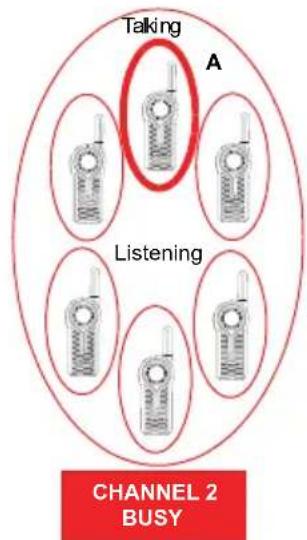
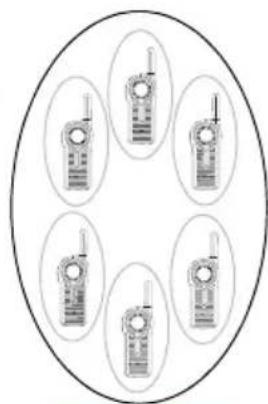
- All users in Channel 3 and 4 are available (nobody is transmitting).
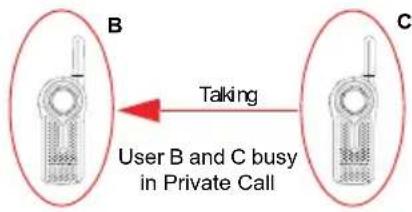
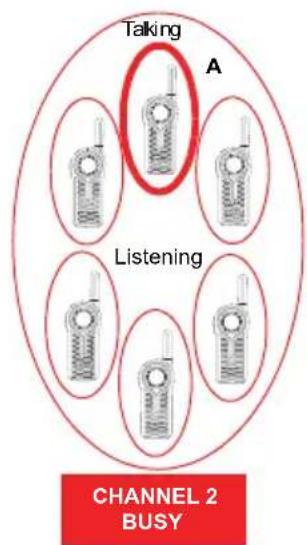
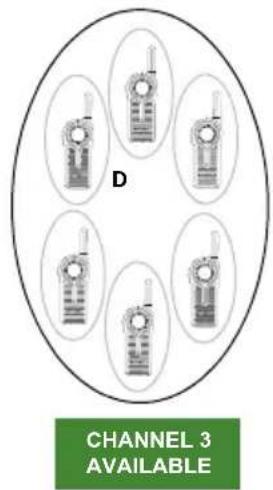
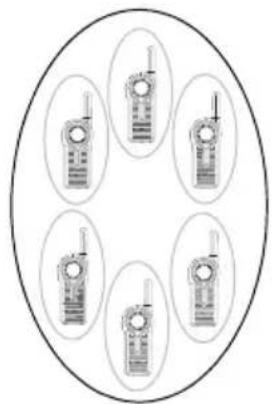
CHANNEL 4 AVAILABLE
English
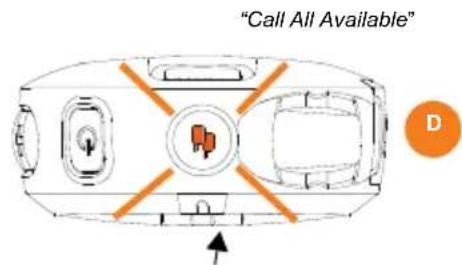
- User D in Channel 3 initiates Call All Available by pressing the radio Top Button(*).
CHANNEL 3 AVAILABLE
CHANNEL 4 AVAILABLE
All users in Channel 3 and 4 are AVAILABLE (Nobody is transmitting).
(*) Top Button must be pre-programmed to Call All Available before using this feature
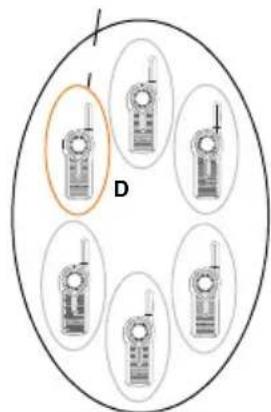
- All users from Channel 3 and 4 are brought into a temporary "super channel" group. User D then presses the PTT button and start talking to all available users in both channels.
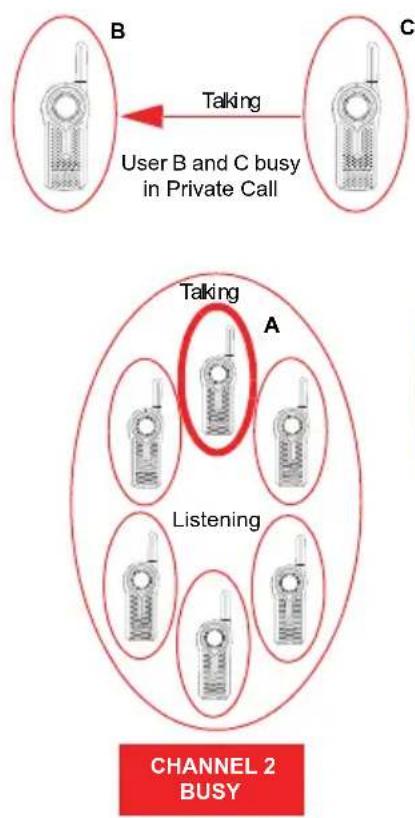
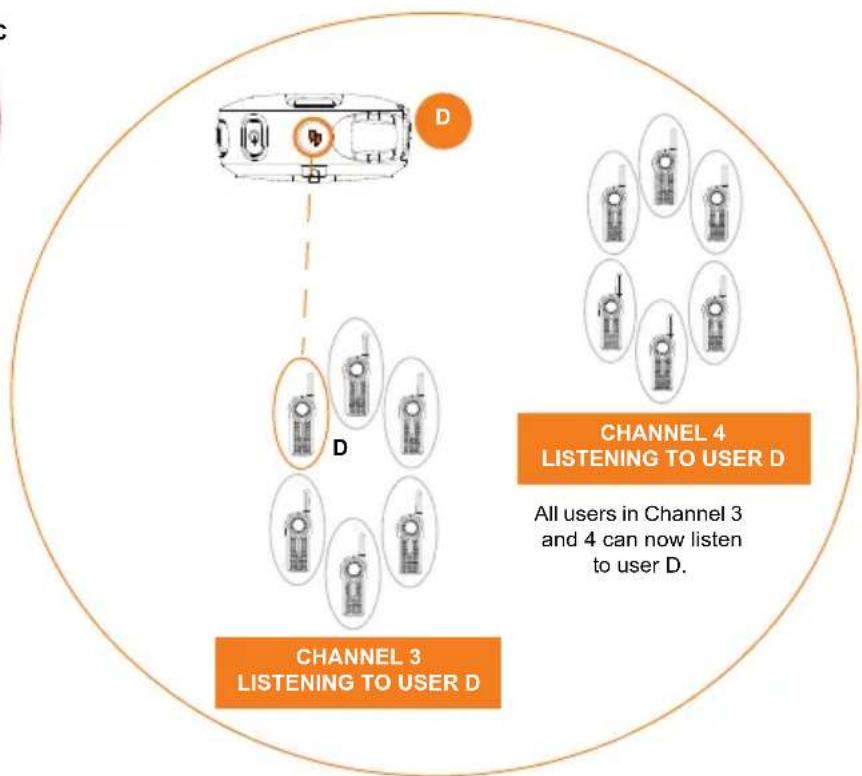
English
- All radios Top Buttons in Channel 3 and 4 are solid orange indicating that Call All Available is in progress.
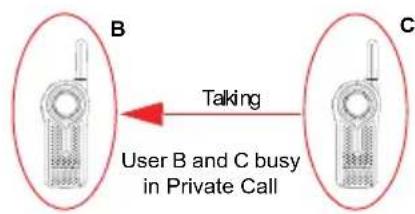
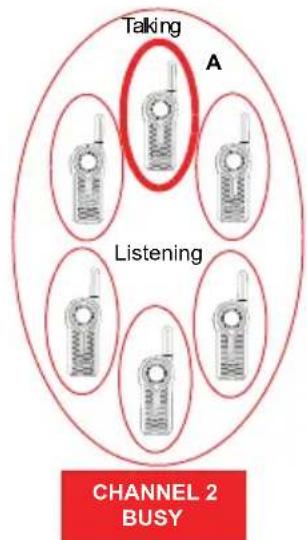

- User D finished talking [Top Button LED indicator still solid orange(*)]. User E presses the PTT button and starts talking to all available users. All users in Channel 3 and 4 now hear User E. All radios Top Buttons are solid orange indicating that Call All Available is in progress.

(*) Users in the Call All Available group must respond back within the 4 second hang time or the Call All Available mode will be terminated.
- Once all users finished communicating (no transmissions for more than 4 seconds), the radios time out and end the Call All Available "super channel" group. All users in channel 3 and 4 return to their original talk channels.
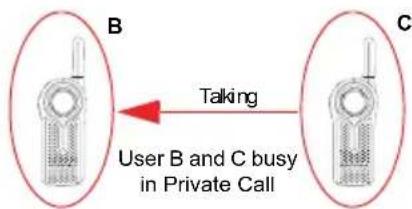
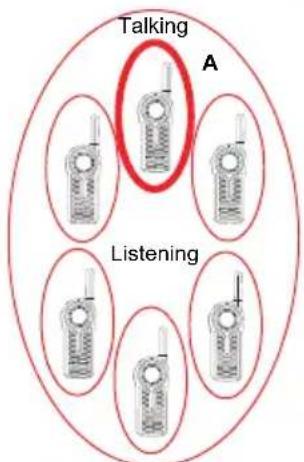
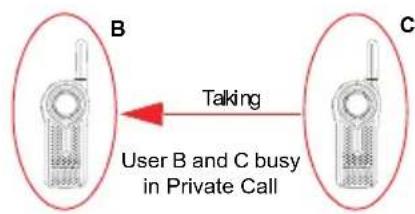
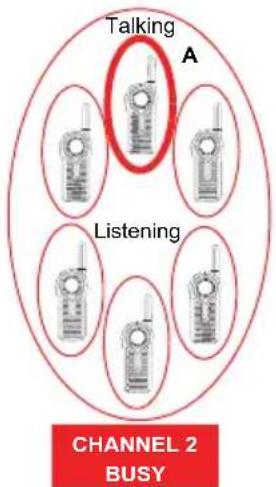
CHANNEL 2 BUSY
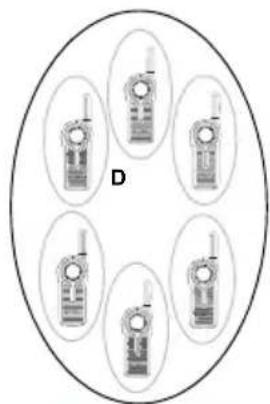
CHANNEL 3 AVAILABLE
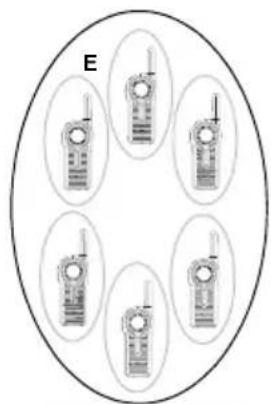
CHANNEL 4 AVAILABLE
Call All Available Status Indicator
Note: To initiate Call All Available, press the Top Button followed by the PTT button to talk to all available users in different channels.
Table 3: Call All Available Status Indicator
| Call All Available Status | Top Button LED Indicator | Voice Prompt or Tone |
| Call All Available initiated (using Top Button press) – Initiator party | Blink Orange “Call All Available” | |
| Call All Available conversation initiated (using the PTT button) – Initiator party | Solid Orange Standard | TPT |
| Call All Available Call notification – Receiver party | Solid Orange Standard | TPT |
| Call All Available conversation in progress – Both parties | Solid Orange Standard | TPT |
| End of Call All Available – Both parties | Off None | |
Note: Top Button must be pre-programmed to Call All Available via Advanced Configuration or CPS. Call All Available times out after 4 seconds of inactivity (no transmission detected). This table applies only to cases in which Call All Available is programmed to the Top Button. Call All Available can also be programmed to a radio channel. Refer to "Customer Programming Software (CPS)" on page 83 for more information.
PAGE ALL AVAILABLE
Note: This feature is useful for users with more than 1 or 2 channels.
Page All Available allows the ability to communicate a message to all available radio users at once without having to change through each channel individually. Page All Available is a one way group voice announcement to all users in different channels who are not currently tied up in an ongoing radio conversation ^(*) .
Any user who wants to respond to a Page All Available transmission can do so by replying privately (by pressing the Top Button before talking). The Page All Available feature is set up this way to avoid all users getting tied up in an unwanted ongoing group conversation.
Once the user transmitting in Page All Available mode stops transmitting by releasing the PTT button, the Page All Available mode is terminated.
Page All Available option can be assigned either to the Top Button or to an extra channel (^**)
() This feature does NOT interrupt ongoing communications.
(^*) Use CPS to assign Page All Available to a specific channel.
Application Example 1
An employee in a retail shop uses a DLR1060 (6 channel radio) with the Top Button programmed to Private Reply and Channel 6 programmed to Page All Available feature. This employee is looking for anyone (in any of the group radio channels) who can come over to help out in the back room. The employee changes to the Page All Available channel before pressing the PTT button and asks "Can someone come over to the back room to help out?". Whoever is available in any of the radio channels can privately reply to the employee to ask for more details or to confirm that they are available to help.
Application Example 2
Anna needs to talk privately to another user (John) and she is not sure in which channel to find him. It is cumbersome to browse all channels to search for John. Anna uses a DLR1060 (6 channel radio) with the Top Button programmed to Private Reply and Channel 6 programmed to Page All Available feature. She switches to Channel 6 and asks "John Smith, are you available?"
If John is available, he can reply privately (by pressing the Top Button). If no response is heard, it means he is busy in another radio call or is not within the communication range.
How Page All Available works
- All users in Channel 3 and 4 are available (nobody is transmitting).
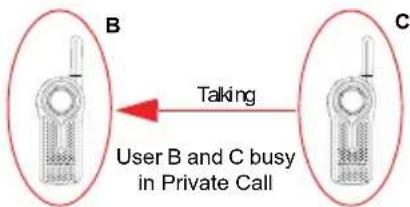
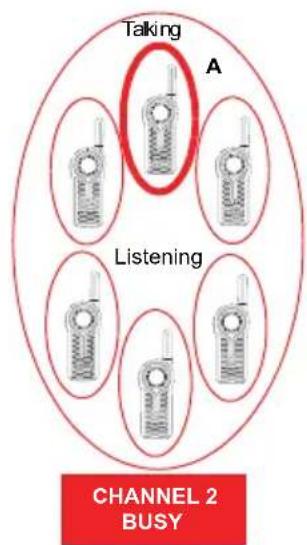

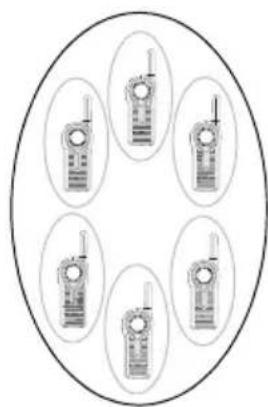
CHANNEL 4 AVAILABLE
- User D in Channel 3 initiates Page All Available by switching to Channel 6(^)
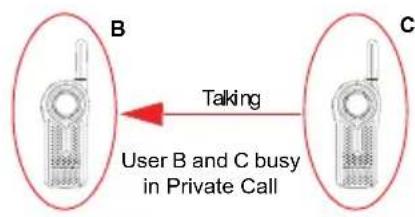
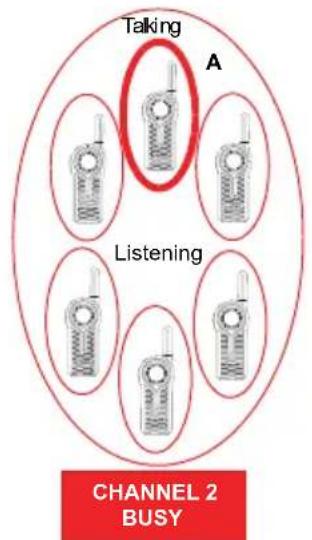
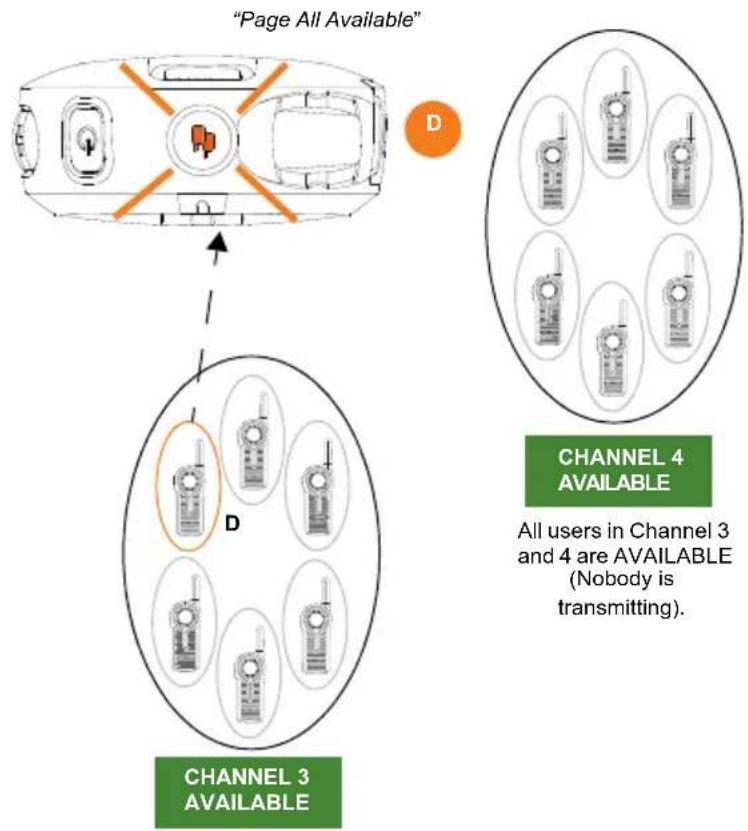
(*) Channel 6 must be pre-programmed to Page All Available before using this feature.
- All users from Channel 3 and 4 are brought into a temporary "super group". User D then presses the PTT button and starts talking to all available users in both channels.
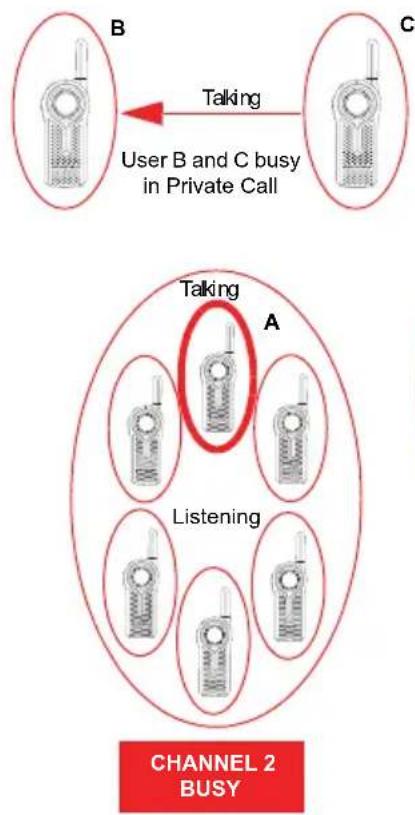
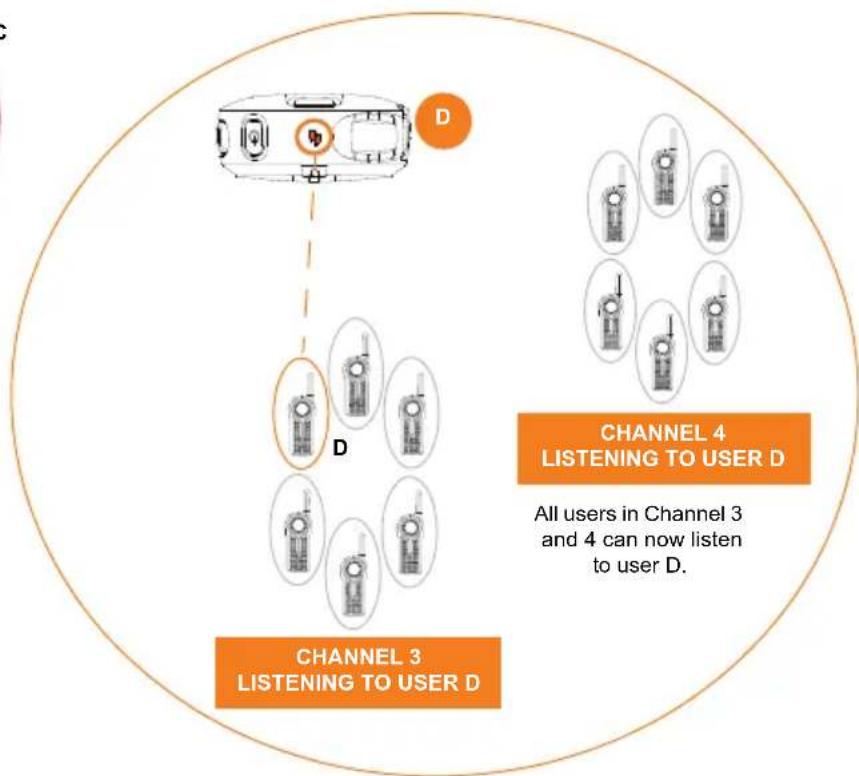
- User D continues talking to all available users. User E wants to reply to user D and presses the Top button(*).User E goes in queue for Private Reply.
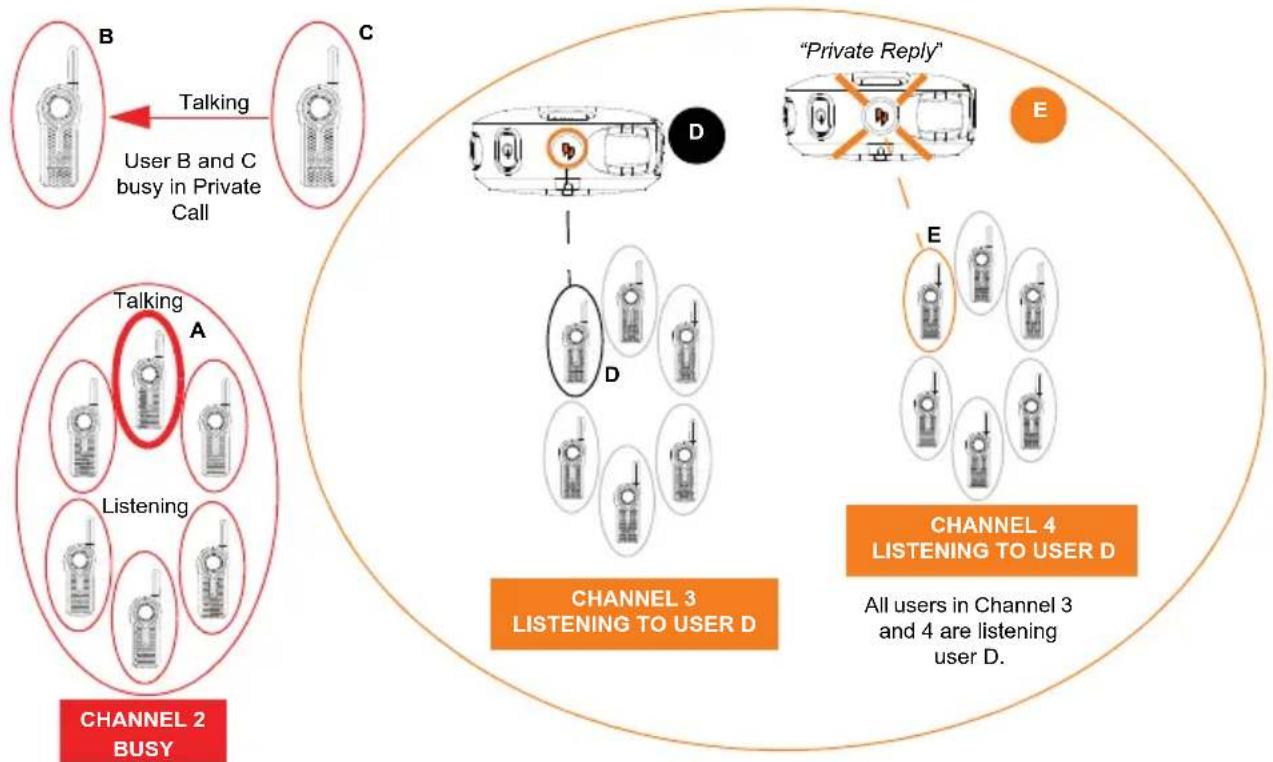
(*) Top Button of Radio E must be pre-programmed to Private Reply feature
- Once user D stops transmitting by releasing the PTT button, the Page All Available is over. All users in Channel 3 and 4 are back to their original channel groups. User E remains in queue for Private Reply.
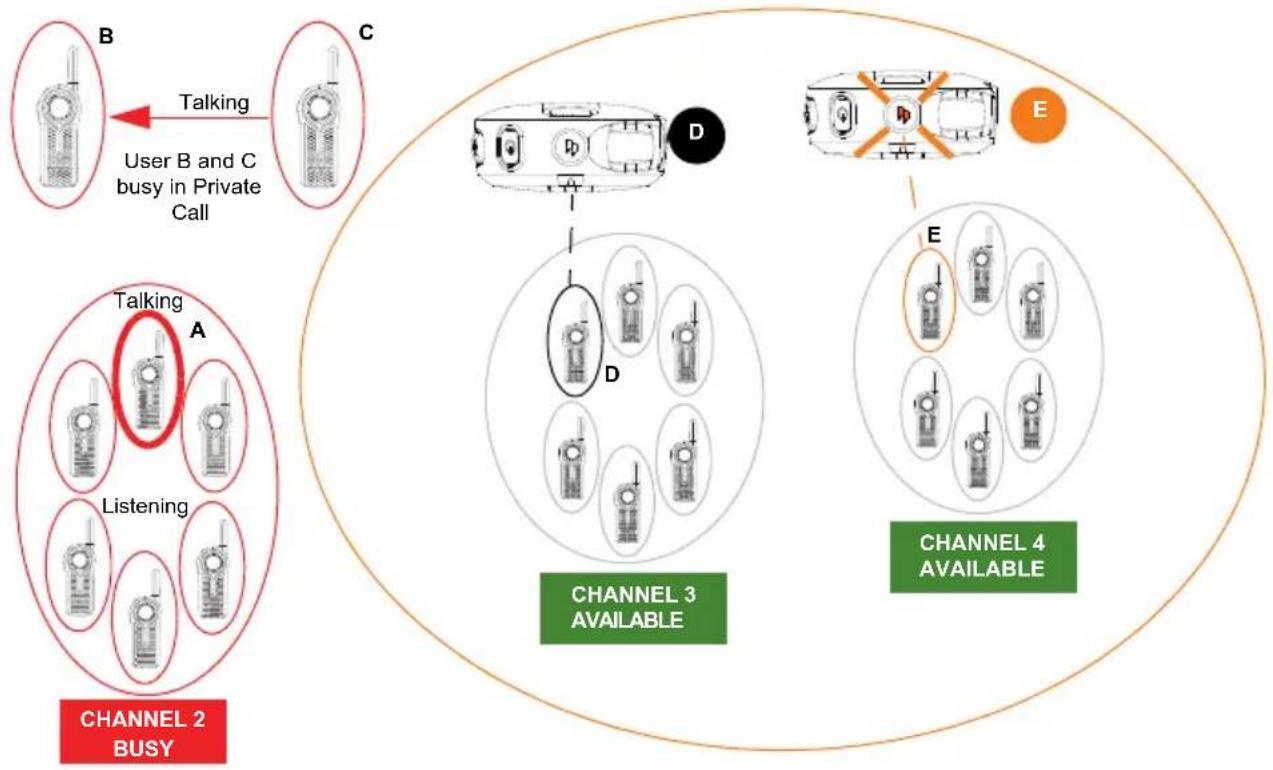
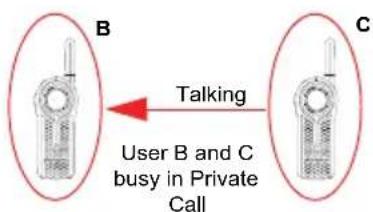
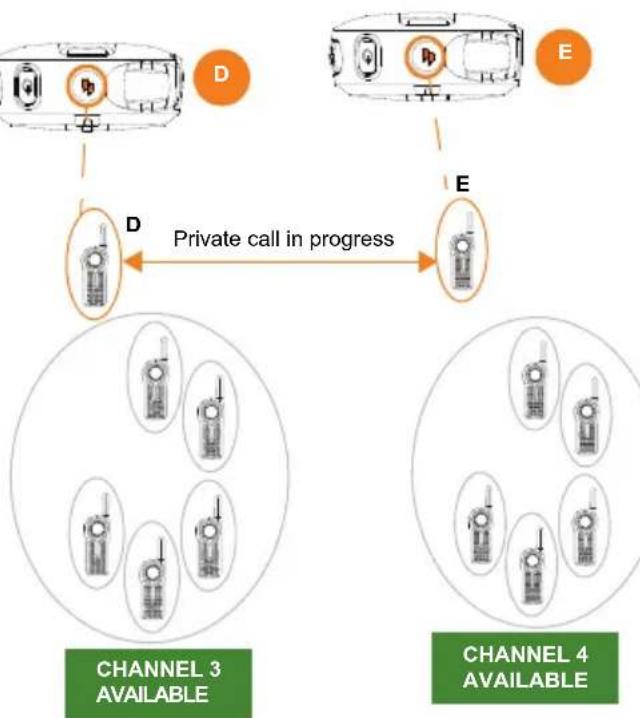
- User E presses PTT to talk to user D. They are now engaged in a Private Conversation. Nobody else can hear them. The Top Button LED indicator for radio D and E illuminates solid orange.
English
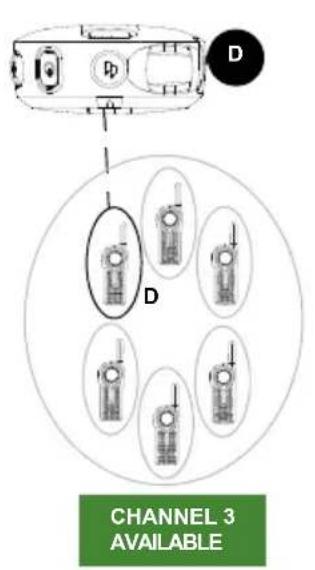
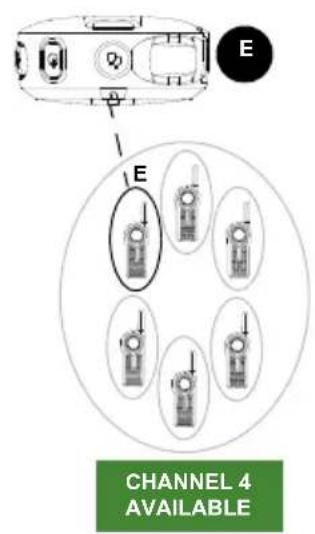
- Once User D and E finish the private conversation, they are returned to their respective group channel. The Top Button LED indicator both radios switched off.

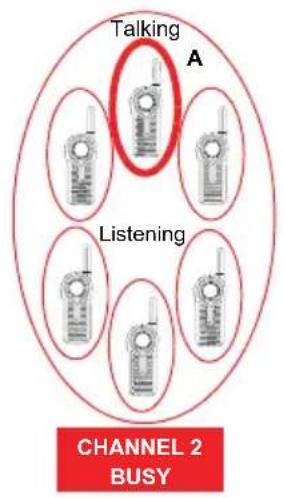
Page All Available Status Indicator
Note: To initiate Page All Available, press the Top Button or change to a channel that is preset to Page All Available followed by the PTT button to talk to all available users in different channels.
Table 4: Page All Available Status Indicator
| Page All Available Status | Top Button LED Indicator | Voice Prompt or Tone |
| Page All Available initiated (using Top Button press) – Initiator party | Blink Orange “Page All Available” | |
| Page All Available conversation initiated (using the PTT button) – Initiator party | Solid Orange Standard | TPT |
| Page All Available Call notification – Receiver party | Solid Orange Standard | TPT |
| Page All Available conversation in progress – Both parties | Solid Orange Standard | TPT |
| End of Page All Available – Both parties | Off None | |
Note: Top Button must be pre-programmed to Page All Available via Advanced Configuration or CPS. The only way to respond to someone doing a Page All Available call is by Private Reply. This table applies only to cases in which Page All Available is programmed to the Top Button. Page All Available can also be programmed to a radio channel. Refer to "Customer Programming Software (CPS)" on page 83 for more information.
CUSTOMER PROGRAMMING SOFTWARE (CPS)
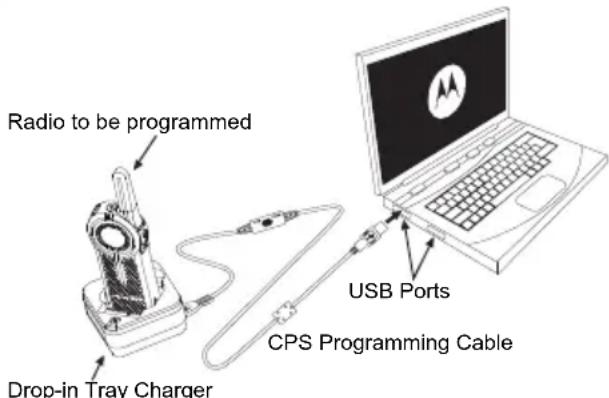
Figure 1: Setting up the radio to the CPS
The easiest way to program or change features in your radio is by using the Customer Programming Software (CPS) and the CPS Programming Cable*. CPS Software is available for free as web based downloadable software at:
www.motorolasolutions.com/DLR
To program, connect the DLR Series radio via the Drop-in Charger Tray and CPS Programming Cable to your computer as shown in the picture above. Prior to programming, verify that the switch in the Programming Cable is in the 'Digital(**)' position.
CPS allows you to easily program features such as Direct Call, Radio Menu Options, Private Groups, Direct Contacts, Channel announcements, etc. It also gives you the flexibility to prevent radio features to be accidentally modified by users, by providing the option to disable functionalities like Factory Reset, Advanced Configuration Mode, etc. It also provides security by giving the option to set up a password for profile radio's management. For more information, refer to Features Summary Chart Section at the end of the User Guide.
Notes: () CPS Programming Cable P/N# is HKKN4027.
(*) If your CPS Programming Cable is showing "CPS / Flash", make sure to position it to "Flash".
CPS BASIC MENU INSTRUCTIONS
- Open the CPS software and click on the "RADIO" top tab.
2a. Click on the "READ" tab to read the radio (^*) ,or
2b. On the drop down menu "Radio Type", select "DLR" if you want to open a new profile or an existing one.
(*) You only need to select the Radio Type, if you want to open a new or pre-determined profile. The CPS is smart enough to determine what model it is reading.
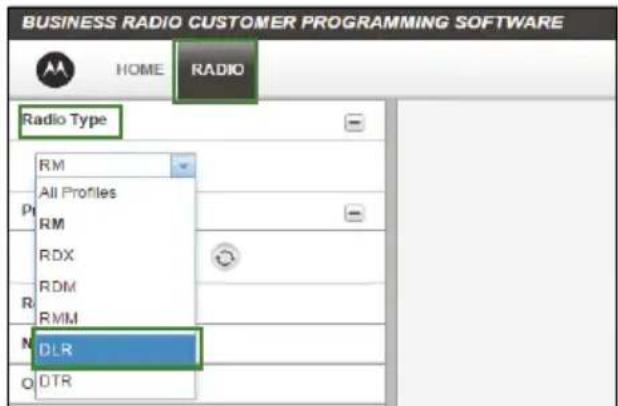
3a. Click "Read Radio". Radio sounds a series of beeps to indicate reading is in progress and will upload your radio profile settings, or
3b. Click "New Profile" to create customized profile based on the default profile.
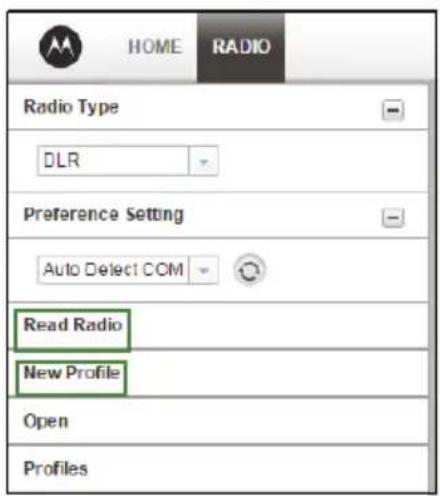
- Scroll down to see more feature options. Customize as necessary.
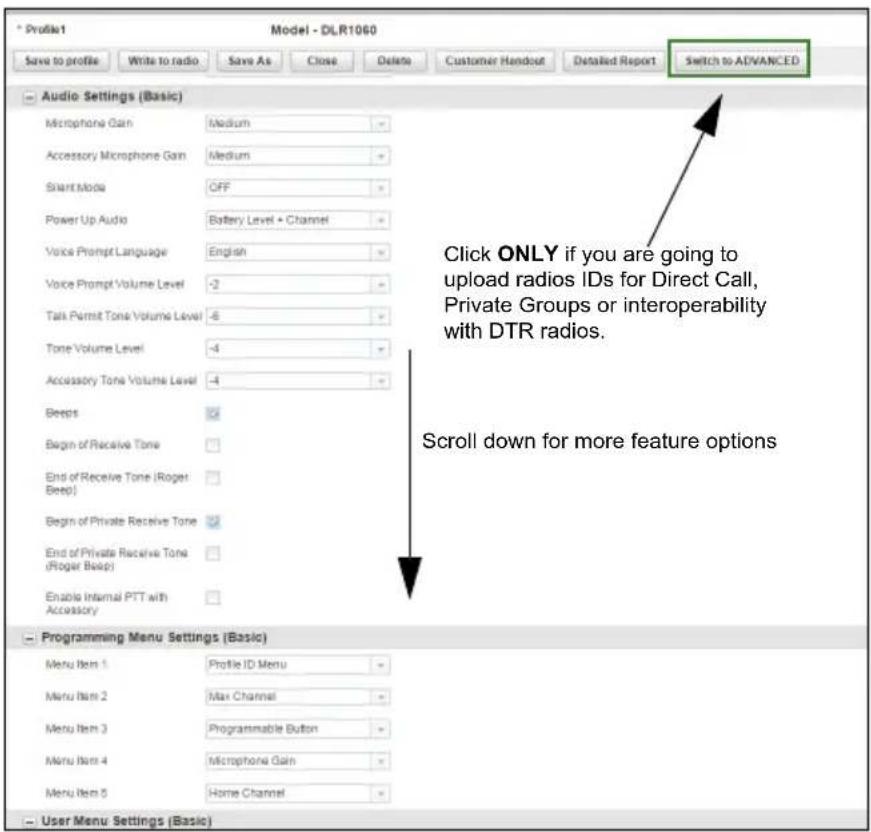
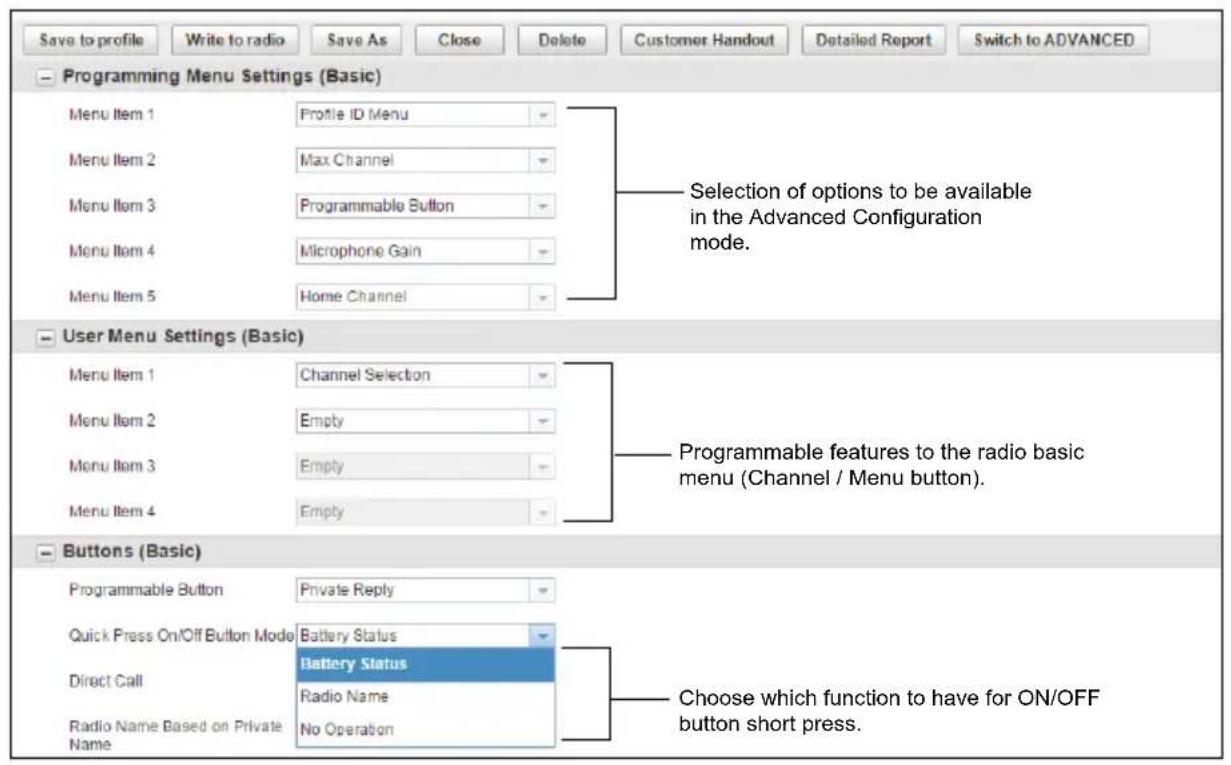
- You can choose which options you want to be available in the Advanced Configuration Mode. You can add any of the features shown to be accessed by the radio Channel / Menu button in the radio basic operation mode. You can also choose which function you want to have for ON / OFF button short press.
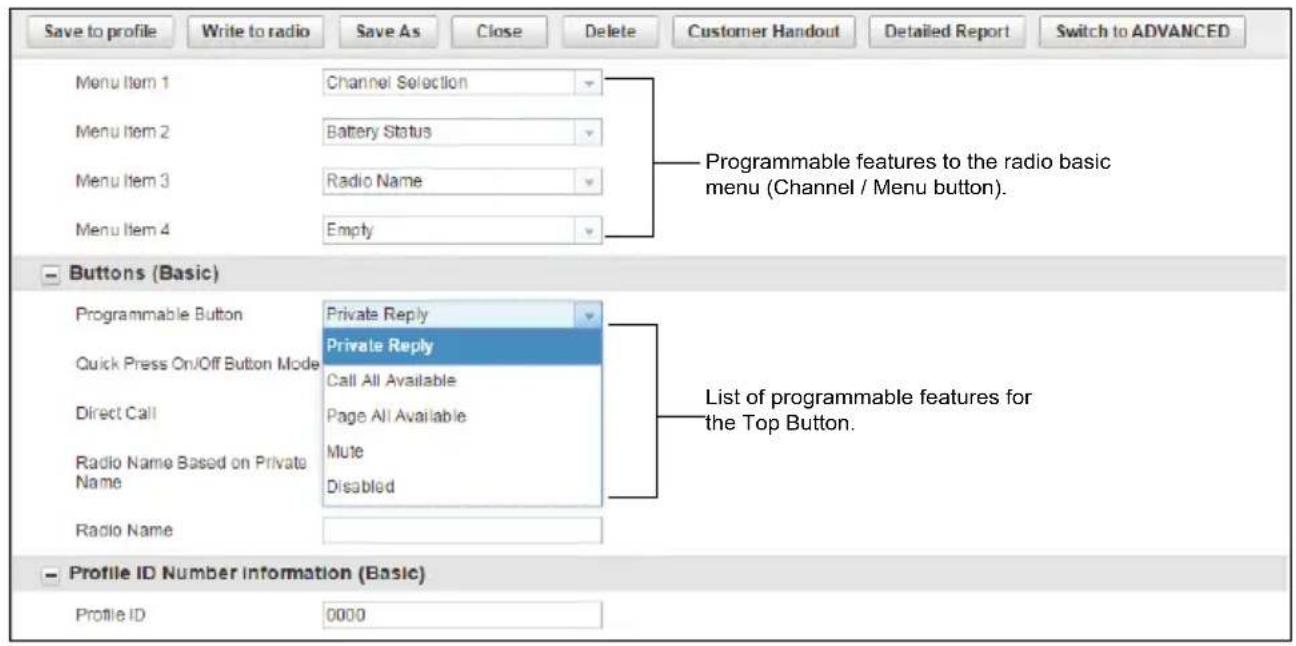
- You can modify the radio Top Button feature by changing the default option.
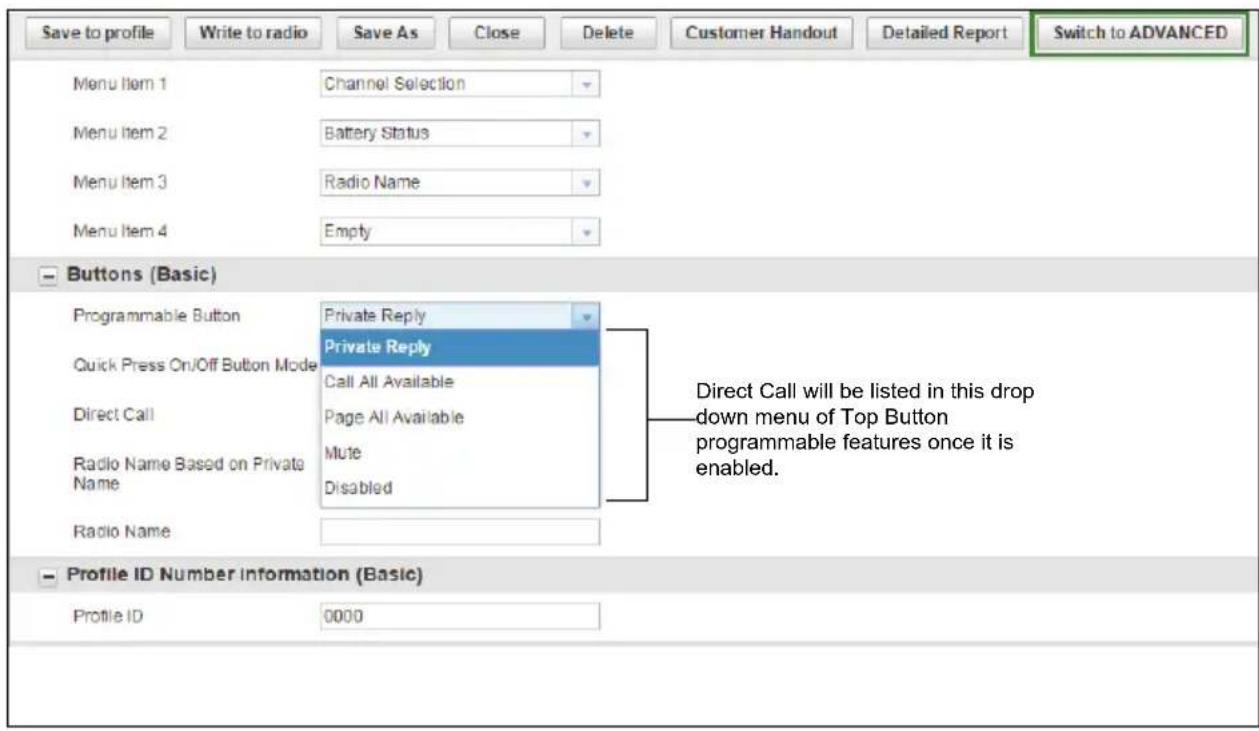
- In order to enable Direct Call feature in your Basic Menu options, you need to first upload the radio(s) unique "private" identification (12 digit) number. Click on the "Switch to ADVANCED" button. Under "Privates (Advanced)" tab, click "Add" for CPS to upload radio ID. You can customize the radio ID name under the Name column. Once a radio ID is uploaded the CPS will give the option to enable Direct Call.
- Customize your PROFILE ID Number for any 4 digit number different from "0000" to differentiate your radios in a radio fleet.

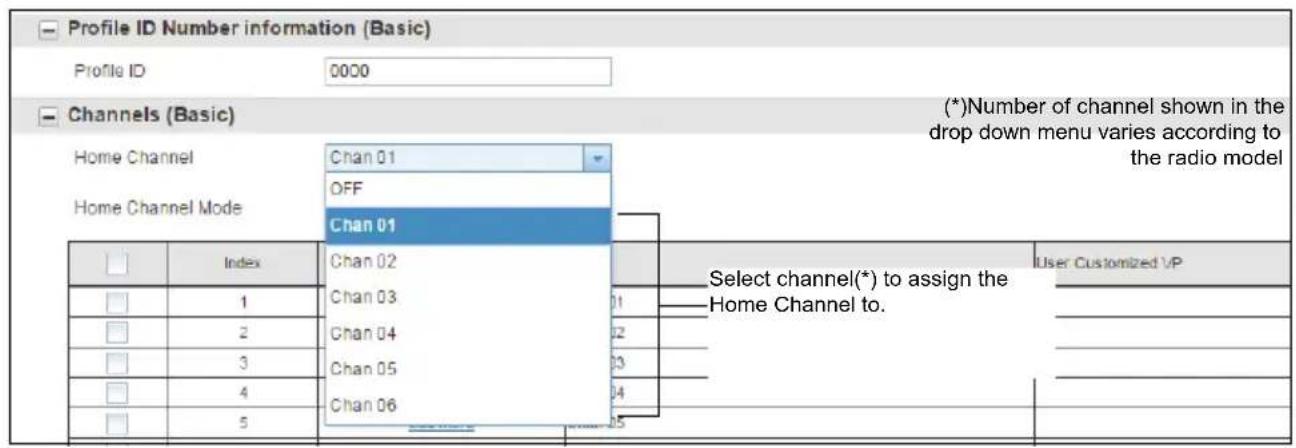
9a. Home Channel is OFF by default. If you want to assign a specific channel as your Home Channel, select the channel using the drop down menu under "Home Channel". CPS will enable the option to choose any channel(*) you want as your designated Home Channel for the radio you are programming.
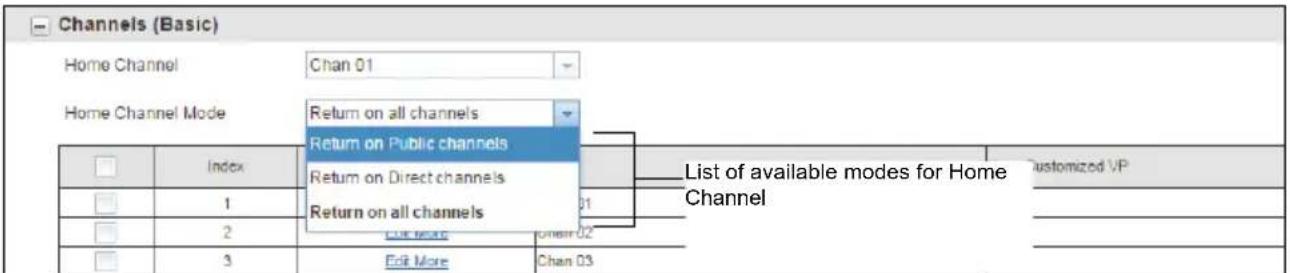
9b. Upon setting your Home Channel, CPS will enable the option to set the Home Channel Mode. Select the mode using the drop down menu under "Home Channel Mode".
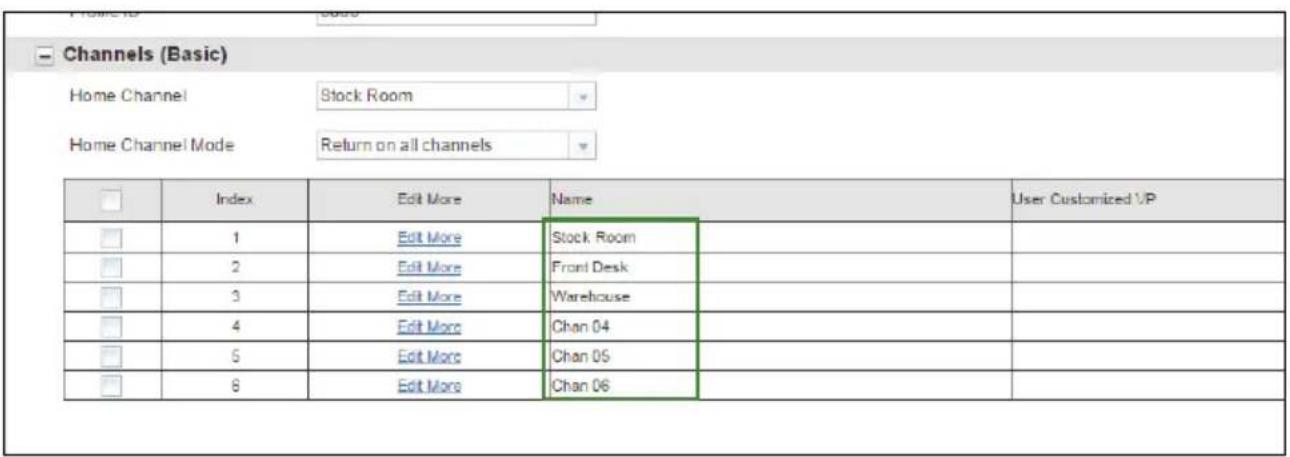
- Customize the name of your channel (alias) by typing in each one of the channel boxes.
11a. You can also set your own customized Channels Voice Prompt (VP) in order to enable your channel name to be announced by the radio. Click on "Edit More" to edit the voice prompt.
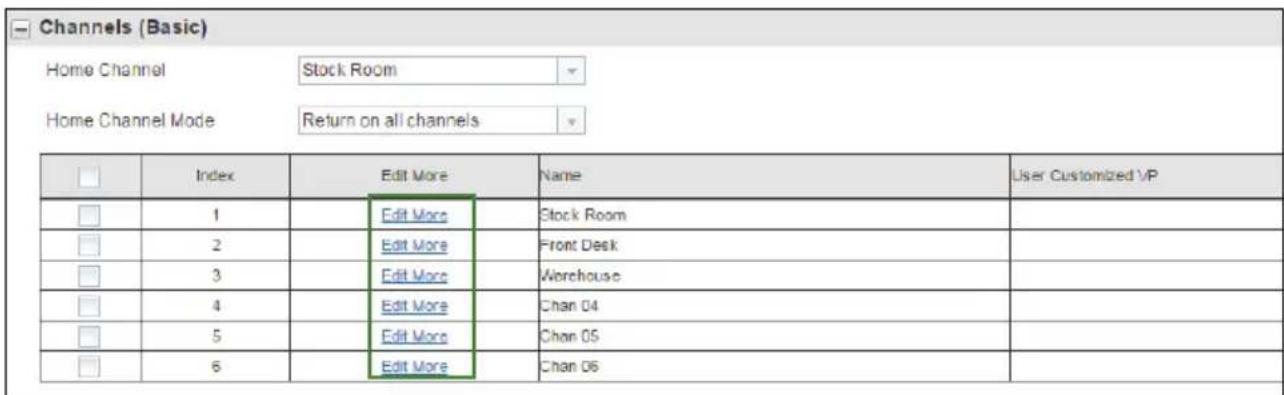
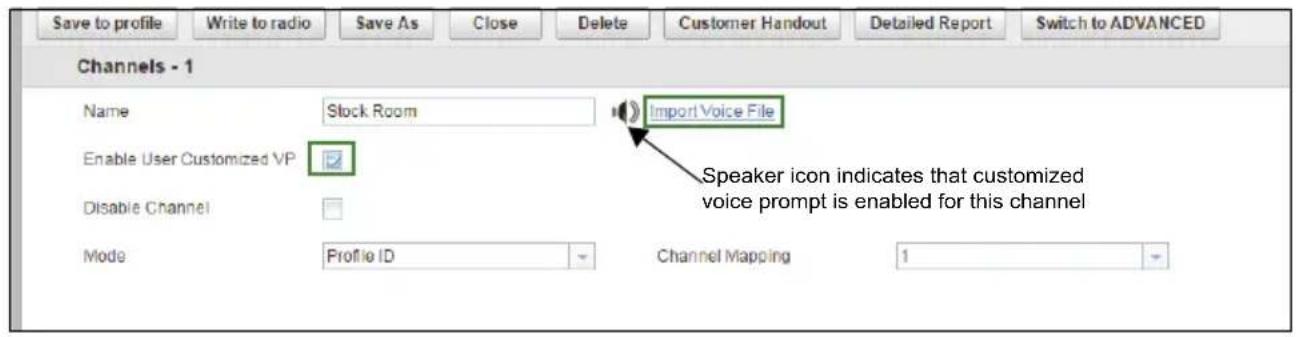
11b. After clicking "Edit More", you will be brought into a different menu to customize your channel name. Select the checkbox "Enable User Customized VP" to enable the standard Voice Prompt. When there is a speaker icon in the menu, then that channel has customized voice prompt enabled. Click on the speaker icon to preview the User Customized VP. If you want to include your own voice recording, click on "Import Voice File" () .
(*) .wav audio files supported
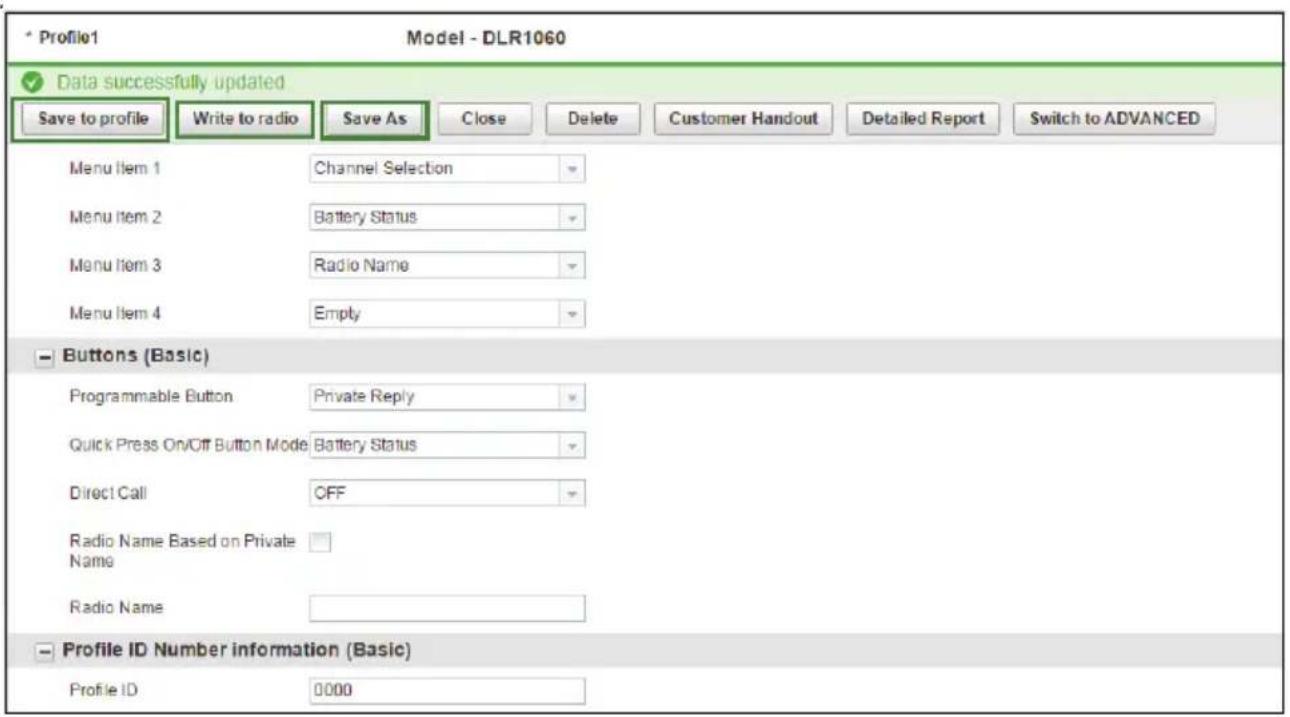
- Once you have changed all the settings, click "Write to radio" in order to program your radio with the new settings. The CPS will display a window confirming the writing (programming of your radio) is successful. You can also save your profile at any time in order to use the same settings when programming other radios by clicking on "Save to profile". This will save the profile to current default path in your computer. To specify a different path to save the profile, click on the "Save As" button.
Notes
CLONING
CLONING RADIOS
You can clone DLR Series radio profiles from one Source radio to a Target radio by using any one of these 4 methods:
- Using a Multi Unit Charger (MUC-optional accessory),
- Using two Single Unit Chargers (SUC) and a Radio-to-Radio cloning cable (optional accessory),
- the CPS (free software download), and
- Wireless PIN cloning.
Cloning Mode
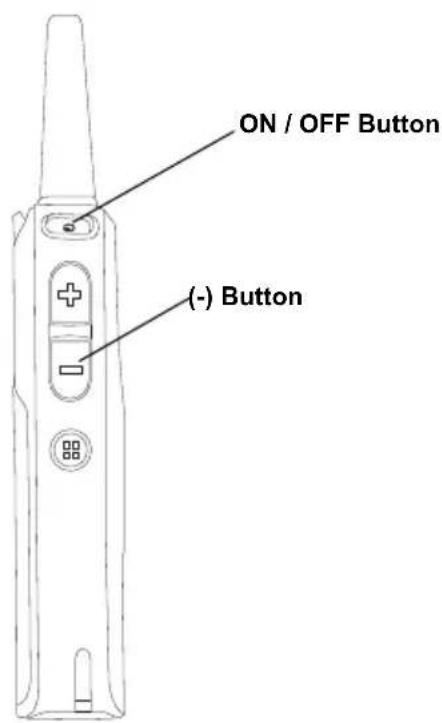
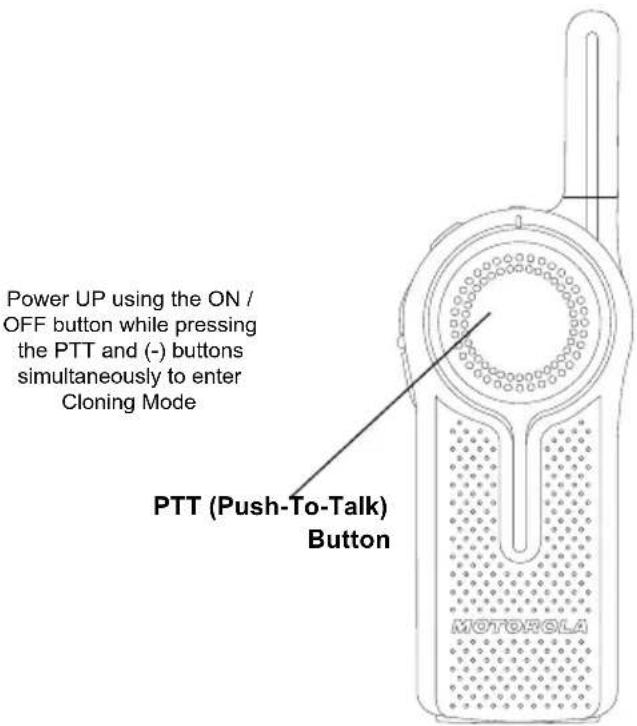
In order to set your radios into Cloning Mode, power UP using the ON / OFF button while pressing the PTT and (-) buttons simultaneously. Radio sounds cloning mode beeps followed by the voice prompt "Cloning Mode, Serial".
Cloning with a Multi-Unit Charger (MUC) (Optional Accessory)
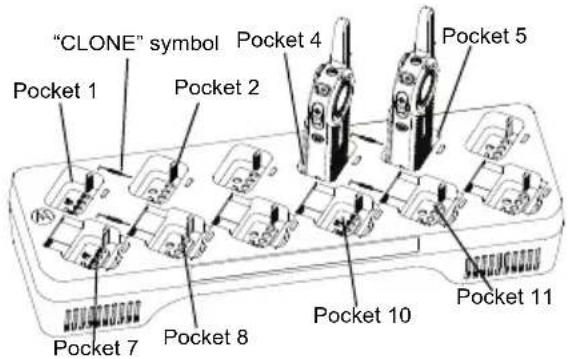
To clone radios using the MUC, there must be at least two radios:
- a Source radio (radio from which the profiles will be cloned or copied) and
- a Target radio (radio to which the profiles will be cloned from the source radio)
The Source radio has to be in Pocket 1, 4, 7 or 10 while the Target radio has to be in Pocket 2, 5, 8 or 11, matching in the MUCs pockets by pairs as follows:
1 and 2,
4 and 5,
- 7 and 8, or
10 and 11.
When cloning, the MUC does not need to be plugged into a power source, but ALL radios require charged batteries.
- Turn ON the Target radio and place it into one of the MUC Target Pockets
-
Power the Source radio following the sequence below:
-
Press the PTT button and the (-) button simultaneously while turning the radio ON.
-
Wait for 3 seconds before releasing the buttons until the audible tone and voice announcement "Clone Mode Serial" are heard.
-
Place the Source radio in the source pocket that pairs with the target pocket you chose in step 1. Press and release the (+) button.
-
After cloning is completed, the Source radio will announce either "pass" (cloning is successful) or "fail" (cloning has failed).
- Once you have completed the cloning process, turn the radios OFF and ON or, long press the PTT button to exit the 'cloning' mode.
When ordering the MUC, refer to P/N#
PMLN7136_.
Notes:
- If cloning fails, refer to "What To Do If Cloning Fails" on page 99.
- Paired Target radios and Source radios must be of the same band type in order for the cloning to run successfully.
- MUC pockets numbers should be read from left to right with the Motorola Solutions logo facing front.
Cloning Radio using the Radio to Radio (R2R) Cloning Cable (Optional Accessory)
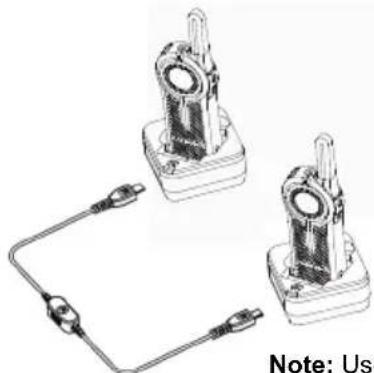
Note: Uses Cloning Cable P/N# HKKN4028_
Operating Instructions
- Before starting the cloning process, make sure you have:
A Cloning Cable (P/N# HKKN4028)
- A fully charged battery in each of the radios.
- Two Single-Unit Chargers (SUC) for cloning DLR Series radios.
- Turn OFF the radios and,
- Unplug any cables (power supply or USB
cables) from the SUCs.
- Plug one side of the cloning cable mini USB connector to the first SUC and the other end to the second SUC.
Note: During the cloning process, no power is being applied to the SUC. The batteries will not be charged. Only data communication is being established between the two radios. - Turn ON the Target Radio and place it into one of the SUCs.
-
For the Source Radio, power ON the radio with the following sequence:
-
Press the PTT button and the (-) button simultaneously while turning the radio ON. Wait 3 seconds before releasing the buttons and you hear a distinctive audible tone saying the word "Clone Mode Serial".
-
Place the Source Radio in its SUC. Press and release the (+) button.
-
When the cloning is completed, the Source Radio audible voice will announce either "pass" (cloning is successful) or "fail" (cloning process has failed).
-
Once the cloning process is completed, turn the Radios OFF and ON or, long press the PTT button to exit the 'cloning' mode
What To Do If Cloning Fails
The radio audible voice will announce "Fail" indicating that the cloning process has failed. In the event that the cloning fails, perform each of the following steps before attempting to start cloning process again:
- Ensure that the batteries on both radios are fully charged.
- Check the cloning cable connection on both SUCs and the cable is switched to "Cloning".
-
Ensure that the battery is engaged properly on the radio.
-
Ensure that there is no debris in the charging tray or on the radio contacts.
- Ensure that the Target radio is turned ON.
- Ensure that the Source radio is in cloning mode.
- Ensure that the two radios are both from the same type (i.e.: DLR series), same region and have the same transmission power.
Note: This cloning cable is designed to operate only with compatible Motorola Solutions SUC PMLN7140.
When ordering Cloning Cable Kit, please refer to P/N# HKKN4028_. For more information about the accessories, refer to "Accessories" on page 113.
Wireless PROFILE ID Number Cloning
The PROFILE ID Number Wireless Cloning feature is useful when you want to clone the PROFILE ID Number for all the radios in your fleet but you do not want to clone particular radio settings that may be unique for each radio (like top button configuration, Microphone Gain, Radio Name etc) across. Wireless PROFILE ID helps to preserve each user radio set up but still make sure all radios are under the same PROFILE ID Number. It is also useful if you do not have a programming Cable, Cloning Cable or PC easily available.
To wirelessly clone the PROFILE ID Number:
-
Power the Source radio following the sequence below:
-
Press the PTT button and the (-) button simultaneously while turning the radio ON.
-
Wait for 3 seconds before releasing the buttons until the audible tone and voice announcement "Clone Mode Serial" are heard.
-
Press and release the (-) button and the Source Radio will announce "Wireless".
-
Power the Target radio following the sequence below:
-
Press the PTT button and the (-) button simultaneously while turning the radio ON.
- Wait for 3 seconds before releasing the buttons until the audible tone and voice announcement "Clone Mode Serial" are heard.
Note: Avoid putting powered ON radios (more than 7 radios) in a container, other than the MUC, bunched together, touching each other.
- On the Source radio, press and release the (+) button to start the wireless PROFILE ID Number cloning. The radio generates an audible tone.
-
After cloning is completed, the Source radio will announce either "pass" (cloning is successful) or "fail" (cloning has failed).
-
On the Target radio, the radio receives the PROFILE ID Number information. The Target radio will announce either "pass" (cloning is successful) or "fail" (cloning has failed).
CLONING MODE STATUS INDICATOR
To enter cloning mode, press and hold both the PTT button and (-) button at the same time, while turning ON the radio.
Table 1: Cloning Mode Status Indicator
| Cloning Mode Status LED Indicator Voice Prompt or Tone | ||
| Cloning Mode (by default is Serial) | Double Blink Red | "Clone Mode, Serial" |
| Switch to Wireless Cloning [initiated by (-) button] | Double Blink Red "Wireless" | |
| Switch to Serial Cloning [initiated by (-) button] | Double Blink Red "Serial" | |
| Clone [initiated by (+) button] – Cloning in progress | Solid Red Cloning beeps | |
| Cloning Successful Not Available | "Pass" | |
| Cloning Fail Not Available | "Fail" | |
TROUBLESHOOTING
| Symptom Try This... | |
| No Power | Recharge or replace the Li-Ion battery. Extreme operating temperatures may affect battery life. Refer to “About the Li-Ion Battery” on page 12 |
| Unable to read the radio (using the CPS) | Make sure that one side of the programming cable is connected to the radio and the other side of the programming cable is connected to the USB port. Verify that the switch on the programming cable is set at “Digital” position (or “Flash” position in older version programming cable). Make sure the radio is positioned correctly inside the SUC (radio making proper contact with the charger). |
| Radio generates continuous tone when PTT is pressed | Radio does not transmit when it is receiving as receive mode has higher priority than transmit mode. Press the PTT button again when receive mode ends. Refer to “Transmitting and Receiving” on page 27. |
| Radio does not transmit when pressing the radio PTT button | The radio does not transmit if there are other users who are using the channel. Try again after making sure nobody else is talking. By default, the PTT button is disabled on the radio whenever there is an earpiece connected to it. Make sure to use the earpiece in-line PTT button to transmit instead. |
| Hearing conversation from other users that are not within your channel | If you hear conversations from other users that don't belong to your radio fleet, it means your radios are set up with the same Profile ID as your neighbors. Very likely both of you have the radios in the default Profile ID Number "0000". Customize your PROFILE ID with a 4 digit number for all your radios. Refer to "PROFILE ID Number" on page 36 for more information. |
| Hearing cracking noises when nobody is talking | Sometimes users inadvertently press the radio PTT button against objects while wearing the radio on their belts or pockets. When they do this, the radio starts transmitting and holding the channel therefore generating strange noises. Using earpieces reduce the likelihood of this happening. Make sure everybody in your team is aware of proper operation of the radios. |
| Audio quality not good enough | Radio settings might not be matching up correctly. Double check to make sure they are identical in all radios. Go into Advanced Configuration Mode and adjust the microphone sensitivity gain (MIC Gain). |
| Audio sounds garbled / robotic | Digital technology gives you the advantage to experience clear audio up to the edge of the range. However, when maximum transmission range has been reached, audio may sound garbled just before the transmission is lost completely. Make sure you are within transmission range to avoid this problem. |
| Transmit audio is low | Hold the radio vertically 1 to 2 inches from mouth when talking. For accessory, hold the accessory microphone 2 to 3 inches from mouth when talking. |
| While talking on the radio, a loud tone interrupted the conversation | When talking on the radio, make sure not to release the PTT button at any moment. Whether you are using the PTT button on the radio or using an in-line PTT in an earpiece accessory, always press the PTT button firmly until the transmission is finished. Releasing the PTT button while transmitting and trying to immediately to press the PTT button again causes the radio to give you a loud denial tone. If you press the PTT button to transmit and a busy tone is received instead of a TPT, this means the channel is either not available, busy or there are no users reachable within transmission range. |
| Limited talk range | Steel and/or concrete structures, heavy foliage, buildings or vehicles decrease range. Check for clear line of sight to improve transmission. Wearing radio close to body such as in a pocket or on a belt decreases range. Change location of radio. To increase range and coverage, you can reduce obstructions. Radios provide greater coverage in industrial and commercial buildings. Refer to "Transmitting and Receiving" on page 27 |
| Radio echo feedback | All radios produce a strong voice / audio feedback if they are too close to each other and their volume is set too high. Lower the volume in your radio. Using earpieces can also help reduce aduio feedback if radios are too close. |
| Message not transmitted or received | Make sure the PTT button is completely pressed when transmitting. Confirm that the radios have the same settings and PROFILE ID. Make sure radios are in the same channel. Make sure you wait to hear for the Talk Permit Tone before talking. Not doing this will cut out the first few words of the transmission. Refer to “Transmitting and Receiving” on page 27 for further information. Recharge, replace and/or reposition batteries. Refer to “About the Li-lon Battery” on page 12. Obstructions and operating indoors, or in vehicles, may interfere. Change location. Refer to “Transmitting and Receiving” on page 27. |
| Heavy static or interference | Radios are too close; they must be at least five feet apart. Radios are too far apart or obstacles are interfering with transmission. Refer to “Transmitting and Receiving” on page 27. |
| Low batteries | Recharge or replace Li-ON battery. Extreme operating temperatures affect battery life. Refer to “About the Li-ON Battery” on page 12. |
| Drop-in Charger LED light does not blink | Check that the radio/battery is properly inserted and check the battery/charger contacts to ensure that they are clean and charging pin is inserted correctly. Refer to “Charging with the Drop-in Tray Single Unit Charger (SUC)” on page 18, “DLR Series Charger LED Indicators” on page 21 and “Installing the Lithium-ON (Li-ON) Battery” on page 14. |
| Low battery indicator is blinking although new batteries are inserted | Refer to “Installing the Lithium-ON (Li-ON) Battery” on page 14, and “About the Li-ON Battery” on page 12. |
| Battery does not charge although it has been placed in the drop-in charger for a while | Check drop-in tray charger is properly connected and correspond to a compatible power supply. Refer to “Charging with the Drop-in Tray Single Unit Charger (SUC)” on page 18 and “Charging A Stand-Alone Battery” on page 18. Check the charger's LEDs indicators to see if the battery has a problem. Refer to “DLR Series Charger LED Indicators” on page 21. |
Note: Whenever a feature in the radio seems to not correspond to the default or preprogrammed values, check to see if the radio has been programmed using the CPS with a customized profile.
For questions or comments related to this product, please contact Motorola Solutions 1-800-448-6866 or visit us at www.motorolasolutions.com/DLR.
USE AND CARE
Do not immerse in water
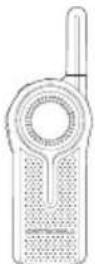
Turn radio OFF and remove batteries
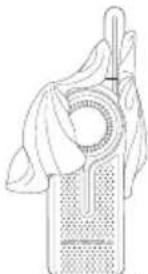
Dry with soft cloth
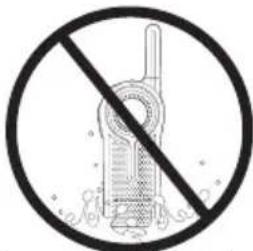
Do not use radio until completely dry

Use a soft damp cloth to clean the exterior

Do not use alcohol or cleaning solutions
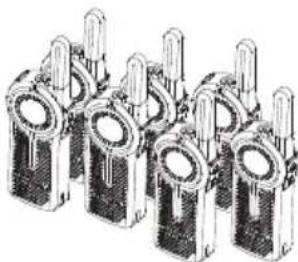
Do not place more than 7 radios turned on, too close to each other in a container
MOTOROLA SOLUTIONS LIMITED WARRANTY FOR THE UNITED STATES AND CANADA
What Does this Warranty Cover?
Subject to the exclusions contained below, Motorola Solutions, Inc. warrants its telephones, pagers, and consumer and business two-way radios (excluding commercial, government or industrial radios) that operate via Family Radio Service or General Mobile Radio Service, Motorola Solutions-branded or certified accessories sold for use with these Products ("Accessories") and Motorola software contained on CD-ROMs or other tangible media and sold for use with these Products ("Software") to be free from defects in materials and workmanship under normal consumer usage for the period(s) outlined below.
This limited warranty is a consumer's exclusive remedy, and applies as follows to new Motorola Products, Accessories and Software purchased by
consumers in the United States, which are accompanied by this written warranty.
Products and Accessories
| Products Covered Length of Coverage | |
| Products and Accessories as defined above, unless otherwise provided for below. | One (1) year from the date of purchase by the first consumer purchaser of the product unless otherwise provided for below. |
| Decorative Accessories and Cases. Decorative covers, bezels, PhoneWrap™ covers and cases. | Limited lifetime warranty for the lifetime of ownership by the first consumer purchaser of the product. |
| Business Two-way Radio Accessories | One (1) year from the date of purchase by the first consumer purchaser of the product. |
| Products and Accessories that are Repaired or Replaced. | The balance of the original warranty or for ninety (90) days from the date returned to the consumer, whichever is longer. |
| Two-way Radio | Two (2) years from the date of purchase by the first consumer purchaser of the product. |
Exclusions
Normal Wear and Tear. Periodic maintenance, repair and replacement of parts due to normal wear and tear are excluded from coverage.
Batteries. Only batteries whose fully charged capacity falls below 80% of their rated capacity and batteries that leak are covered by this limited warranty.
Abuse & Misuse. Defects or damage that result from: (a) improper operation, storage, misuse or abuse, accident or neglect, such as physical damage (cracks, scratches, etc.) to the surface of the product resulting from misuse; (b) contact with liquid, water, rain, extreme humidity or heavy perspiration, sand, dirt or the like, extreme heat, or food; (c) use of the Products or Accessories for commercial purposes or subjecting the Product or Accessory to abnormal usage or conditions; or (d) other acts which are not the fault of Motorola
Solutions, are excluded from coverage.
Use of Non-Motorola Solutions Products and Accessories. Defects or damage that result from the use of Non-Motorola Solutions branded or certified Products, Accessories, Software or other peripheral equipment are excluded from coverage.
Unauthorized Service or Modification. Defects or damages resulting from service, testing, adjustment, installation, maintenance, alteration, or modification in any way by someone other than Motorola Solutions, or its authorized service centers, are excluded from coverage.
Altered Products. Products or Accessories with (a) serial numbers or date tags that have been removed, altered or obliterated; (b) broken seals or that show evidence of tampering; (c) mismatched board serial numbers; or (d) nonconforming or non-Motorola Solutions housings, or parts, are excluded form coverage.
Communication Services. Defects, damages, or the failure of Products, Accessories or Software due to any communication service or signal you may subscribe to or use with the Products Accessories or Software is excluded from coverage.
Software
| Products Covered Length of Coverage | |
| Software. Applies only to physical defects in the media that embodies the copy of the software (e.g. CD-ROM, or floppy disk). | Ninety (90) days from the date of purchase. |
Exclusions
Software Embodied in Physical Media. No warranty is made that the software will meet your requirements or will work in combination with any hardware or software applications provided by third parties, that the operation of the software products will be uninterrupted or error free, or that all defects in the software products will be corrected.
Software NOT Embodied in Physical Media. Software that is not embodied in physical media (e.g. software that is downloaded from the internet), is provided "as is" and without warranty.
WHO IS COVERED?
This warranty extends only to the first consumer purchaser, and is not transferable.
HOW TO OBTAIN WARRANTY SERVICE OR OTHER INFORMATION?
Contact your Motorola Solutions point of purchase.
SOFTWARE COPYRIGHT NOTICE
The Motorola Solutions products described in this manual may include copyrighted Motorola Solutions and third party software stored in semiconductor memories or other media. Laws in the United States and other countries preserve for Motorola Solutions and third party software providers certain exclusive rights for copyrighted software, such as the exclusive rights to distribute or reproduce the copyrighted software. Accordingly, any copyrighted software contained in the Motorola Solutions products may not be modified, reverse-engineered, distributed, or
reproduced in any manner to the extent allowed by law.
Furthermore, the purchase of the Motorola Solutions products shall not be deemed to grant either directly or by implication, estoppel, or otherwise, any license under the copyrights, patents, or patent applications of Motorola Solutions or any third party software provider, except for the normal, non-exclusive, royalty-free license to use that arises by operation of law in the sale of a product.
PATENT NOTICE
This product is covered by one or more of the following United States patents.
5896277 5894292 5864752 5699006 5742484
D408396 D399821 D387758 D389158 5894592
5893027 5789098 5734975 5861850 D395882
D383745 D389827 D389139 5929825 5926514
5953640 6071640 D413022 D416252 D416893
D433001
EXPORT LAW ASSURANCES
This product is controlled under the export regulations of the United States of America. The Governments of the United States of America may restrict the exportation or re-exportation of this product to certain destinations. For further information contact the U.S. Department of Commerce.
For questions or comments related to this product, please contact Motorola Solutions 1-800-448-6866 or visit us at www.motorolasolutions.com/DLR.
ACCESSIONS
AUDIO ACCESSORIES
| Part No. Description | |
| HKLN4599_Earpiece w/PTT, Mic, Slim Plug | |
| HKLN4601_ | Surveillance Earpiece w/PTT, Slim Plug |
| HKLN4604_ | Swivel Earpiece w/PTT, Slim Plug |
| HKLN4606_ | Remote Speaker Mic w/PTT, Slim Plug |
| HKLN4608_ | Transparent Acoustic Tube Replacement Part |
BATTERY
| Part No. Description | |
| HKNN4013_Li-Ion Battery 1800mAh |
CABLES
| Part No. Description | |
| HKKN4027_Business Radio CPS Cable Kit | |
| HKKN4028_ | Business Radio Cloning Cable Kit |
CHARGERS
| Part No. Description | |
| PMLN7140_ | DLR Single-Unit Charger (SUC) Kit |
| PMLN7136_ | DLR 12-Pocket Multi-Unit Charger (MUC) Kit |
English
CARRY ACCESSORIES
Part No. Description
HKLN4615_DLR Swivel Clip Holster Kit
MOTOROLA, MOTO, MOTOROLA
SOLUTIONS and the Stylized M logo are trademarks or registered trademarks of Motorola Trademark Holdings, LLC and are used under license. All other trademarks are the property of their respective owners.
© 2015 and 2018 Motorola Solutions, Inc.
All rights reserved.
Notes
Two-Way Radios
User Guide
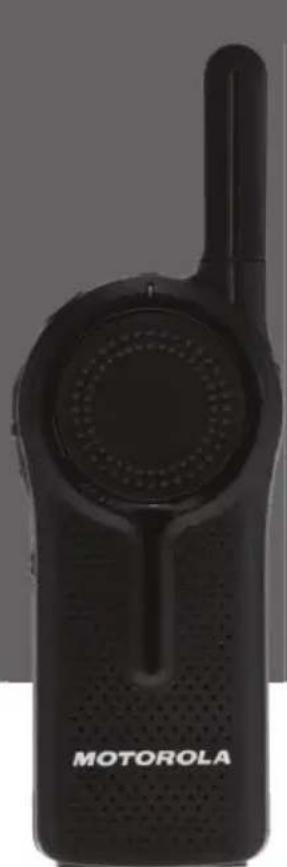

DLR1020, DLR1060 models
Logiciel CPS (programmation client) .89
PRIVATE REPLY (RéPONSE PRIVÉE)
PRIVATE REPLY (RéPONSE PRIVÉE)
LOGICIEL CPS (PROGRAMMATION CLIENT)
AVIS RELATIF AUX BREVETS
ACCESSIONS DE TRANSPORT
Motorola Solutions, Inc.
500 W Monroe Street
Chicago, IL 60661 U.S.A.
http://www.motorolasolutions.com

MN001132A01-AB