
STRAZ3000ES - Home Theater System SONY - Free user manual and instructions
Find the device manual for free STRAZ3000ES SONY in PDF.
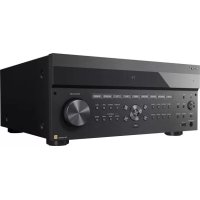


| Product Type | Multichannel AV Receiver (Home Theater System) |
| Brand | Sony |
| Model | STR-AZ3000ES |
| Dimensions (W × H × D) | 430 mm × 194 mm × 440 mm |
| Weight | 19.0 kg |
| Power Supply | 120 V AC, 60 Hz |
| Power Consumption | 440 W |
| Standby Power Consumption | 0.5 W (normal standby mode) |
| Audio Features | Dolby Atmos, DTS:X, 360 Spatial Sound Mapping, LDAC, DSEE Ultimate, Pure Direct |
| Connectivity | HDMI (8K/4K120), Bluetooth, Wi-Fi, Ethernet, USB, Optical, Coaxial |
| Number of Channels | Up to 7.1.4 (depending on configuration) |
| Output Power (RMS, 8 Ω, stereo) | 110 W + 110 W (20 Hz – 20 kHz, THD 0.09%) |
| Supported Audio Formats | Dolby TrueHD, DTS-HD, LPCM, DSD, FLAC, ALAC, MP3, etc. |
| Multiple Zones | Zone 2, Zone 3 (audio and HDMI) |
| Automatic Calibration | Yes, with included microphone |
| Maintenance and Cleaning | Clean with a dry, soft cloth. Do not use alcohol or solvents. |
| Safety | Unplug before cleaning. Do not block ventilation openings. Avoid heat sources and humidity. |
| Spare Parts and Repairability | Contact the nearest Sony dealer or Sony after-sales service. |
| Included Accessories | Remote control, batteries, calibration microphone, stand, power cord, FM antenna, front cover |
Frequently Asked Questions - STRAZ3000ES SONY
User questions about STRAZ3000ES SONY
0 question about this device. Answer the ones you know or ask your own.
Ask a new question about this device
Download the instructions for your Home Theater System in PDF format for free! Find your manual STRAZ3000ES - SONY and take your electronic device back in hand. On this page are published all the documents necessary for the use of your device. STRAZ3000ES by SONY.
USER MANUAL STRAZ3000ES SONY
COMPATIBLE WITH Dolby Vision
ROOM TESTED
Operating Instructions
Mode d'emploi
Record the serial number in the space provided below. Refer to them whenever you call upon your Sony dealer.
Model No. STR-AZ7000ES/STR-AZ5000ES/STR-AZ3000ES
Serial No.
The model and serial numbers are located on the following: The rear of the unit
Do not install the product in a confined space, such as a bookcase or built-in cabinet.
To reduce the risk of fire, do not cover the ventilation opening of the unit with newspapers, tablecloths, curtains, etc. Do not expose the unit to naked flame sources (for example, lighted candles).
To reduce the risk of fire or electric shock, do not expose this product to dripping or splashing, and do not place objects filled with liquids, such as vases, on the product.
The unit is not disconnected from the AC power source (mains) as long as it is connected to the wall outlet, even if the unit itself has been turned off.
As the power cord is used to disconnect the unit from the mains, connect the unit to an easily accessible AC outlet. Should you notice an abnormality in the unit, disconnect the power cord from the AC outlet immediately.
For Remote Commander
CAUTION
Risk of explosion if battery is replaced by an incorrect type. Dispose of used batteries according to the instructions.
Do not expose the batteries (battery pack or batteries installed) to excessive heat, such as sunshine, fire or the like for a long time.

CAUTION
Hot surface Do not touch
For customers in the U.S.A.
NOTE:
This unit has been tested and found to comply with the limits for a Class B digital device, pursuant to Part 15 of the FCC Rules. These limits are designed to provide reasonable protection against harmful interference in a residential installation. This unit generates, uses, and can radiate radio frequency energy and, if not installed and used in accordance with the instructions, may cause harmful interference to radio communications.
However, there is no guarantee that interference will not occur in a particular installation. If this unit does cause harmful interference to radio or television reception, which can be determined by turning the unit off and on, the user is encouraged to try to correct the interference by one or more of the following measures:
- Reorient or relocate the receiving antenna.
- Increase the separation between the unit and receiver.
- Connect the unit into an outlet on a circuit different from that to which the receiver is connected.
- Consult the dealer or an experienced radio/TV technician for help.
Properly shielded and grounded cables and connectors must be used for connection to host computers and/or peripherals in order to meet FCC emission limits.
If you have any questions about this product:
Visit: https://www.sony.com/electronics/support
Contact: Sony Customer Information Service Center at 1-800-222-7669
Write: Sony Customer Information Service Center, 12451 Gateway Blvd., Fort Myers, FL 33913
Supplier's Declaration of Conformity
Trade Name: SONY
Model: STR-AZ7000ES/STR-AZ5000ES/STR-AZ3000ES
Responsible Party: Sony Electronics Inc.
Address: 16535 Via Esprillo, San Diego, CA 92127 U.S.A.
Telephone Number: 858-942-2230
This device complies with Part 15 of the FCC Rules. Operation is subject to the following two conditions:
(1) this device may not cause harmful interference, and (2) this device must accept any interference received, including interference that may cause undesired operation.
You are cautioned that any changes or modifications not expressly approved in this manual could void your authority to operate this unit.
This unit must not be co-located or operated in conjunction with any other antenna or transmitter.
This unit complies with FCC radiation exposure limits set forth for an uncontrolled environment and meets the FCC radio frequency (RF) Exposure Guidelines. This unit should be installed and operated keeping the radiator at least 20 cm or more away from the person's body.
Compliance with FCC requirement 15.407(c)
Data transmission is always initiated by software, which is passed down through the MAC, through the digital and analog baseband, and finally to the RF chip. Several special packets are initiated by the MAC. These are the only ways the digital baseband portion will turn on the RF transmitter, which it then turns off at the end of the packet. Therefore, the transmitter will be on only while one of the aforementioned packets is being transmitted. In other words, this unit shall automatically discontinue transmission in case of either absence of information to transmit or operational failure.
Frequency Tolerance: ±20 ppm
For customers in Canada
This unit contains licence-exempt transmitter(s)/receiver(s) that comply with Innovation, Science and Economic Development Canada's licence-exempt RSS(s). Operation is subject to the following two conditions:
(1) This unit may not cause interference; and (2) This unit must accept any interference, including interference that may cause undesired operation of the unit.
This unit complies with ISED radiation exposure limits set forth for an uncontrolled environment and meets RSS-102 of the ISED radio frequency (RF) Exposure rules. This unit should be installed and operated keeping the radiator at least 20 cm or more away from person's body.
5 150 MHz - 5 350 MHz band is restricted to indoor operations only.
Data transmission is always initiated by software, which is passed down through the MAC, through the digital and analog baseband, and finally to the RF chip. Several special packets are initiated by the MAC. These are the only ways the digital baseband portion will turn on the RF transmitter, which it then turns off at the end of the packet. Therefore, the transmitter will be on only while one of the aforementioned packets is being transmitted. In other words, this unit shall automatically discontinue transmission in case of either absence of information to transmit or operational failure.
About recommended cables
Properly shielded and grounded cables and connectors must be used for connection to host computers and/or peripherals.
Licenses
- Dolby, Dolby Vision, Dolby Atmos, Dolby Audio, and the double-D symbol are trademarks of Dolby Laboratories Licensing Corporation. Manufactured under license from Dolby Laboratories. Confidential unpublished works. Copyright © 1992-2021 Dolby Laboratories. All rights reserved.
For STR-AZ5000ES/STR-AZ3000ES only
Manufactured under license from IMAX Corporation. IMAX® is a registered trademark of IMAX Corporation in the United States and/or other countries. For DTS patents, see http://patents.dts.com. Manufactured under license from DTS, Inc. DTS, DTS:X, Virtual:X, and the DTS:X logo are registered trademarks or trademarks of DTS, Inc. in the United States and other countries. © 2022 DTS, Inc. ALL RIGHTS RESERVED.
For STR-AZ7000ES only
Manufactured under license from IMAX Corporation. IMAX® is a registered trademark of IMAX Corporation in the United States and/or other countries. For DTS patents, see http://patents.dts.com. Manufactured under license from DTS, Inc. DTS, DTS:X Pro, Virtual:X, and the DTS:X logo are registered trademarks or trademarks of DTS, Inc. in the United States and other countries. © 2022 DTS, Inc. ALL RIGHTS RESERVED.
- Use of the Works with Apple badge means that an accessory has been designed to work specifically with the technology identified in the badge and has been certified by the developer to meet Apple performance standards.
- This product is protected by certain intellectual property rights of Microsoft Corporation. Use or distribution of such technology outside of this product is prohibited without a license from Microsoft or an authorized Microsoft subsidiary.
- For details of the GPL, LGPL and other software licenses, please refer to [Software License Information] in [System Settings] of the [Setup] menu on the product.
- The software included in this product contains copyrighted software that is licensed under the GPL/LGPL and other licenses which may require access to source code. You may find a copy of the relevant source code as required under the GPL/LGPL (and other licenses) at the following URL.
You may obtain the source code as required by the GPL/LGPL on a physical medium from us for a period of three years after our last shipment of this product by applying through the form at the following URL.
This offer is valid to anyone in receipt of this information. https://oss.sony.net/Products/Linux/
Please note that Sony cannot answer or respond to any inquiries regarding the content of this source code.
- The Spotify Software is subject to third party licenses found here: https://www.spotify.com/connect/third-party-licenses.
- Use your phone, tablet or computer as a remote control for Spotify. Go to Spotify.com/connect to learn how.
Disclaimer regarding services offered by third parties
Network services, content and the (operating system and) software of this product may be subject to individual terms and conditions and changed, interrupted or discontinued at any time and may require fees, registration and credit card information.
Trademarks
- Windows Media is either a registered trademark or trademark of Microsoft Corporation in the United States and/or other countries. The LDACTM name is a trademark of Sony Group Corporation or its affiliates.
- LDAC is an audio coding technology developed by Sony that enables the transmission of High-Resolution (Hi-Res) Audio content, even over a Bluetooth connection. Unlike other Bluetooth compatible coding technologies such as SBC, it operates without any down-conversion of the Hi-Res Audio content, and allows approximately three times more data * than those other technologies to be transmitted over a Bluetooth wireless network with unprecedented sound quality, by means of efficient coding and optimized packetization.
- excluding DSD format contents **in comparison with SBC (Subband Coding) when the bitrate of 990 kbps (96/48 kHz) or 909 kbps (88.2/44.1 kHz) is selected. The Bluetooth® word mark and logos are registered trademarks owned by Bluetooth SIG, Inc. and any use of such marks by Sony Group Corporation and its subsidiaries is under license.
- The terms HDMI™, HDMI High-Definition Multimedia Interface, and the HDMI Logo are trademarks or registered trademarks of HDMI Licensing Administrator, Inc.
- Google, Google Play, Google Home and Chromecast built-in are trademarks of Google LLC. Google Assistant is not available in certain languages and countries.
- Apple, AirPlay, iPad, iPhone and iPod touch are trademarks of Apple Inc., registered in the U.S. and other countries. "BRAVIA" logo is a trademark of Sony Group Corporation or its affiliates.
- Wi-Fi, Wi-Fi Protected Access and Wi-Fi Alliance are registered trademarks of Wi-Fi Alliance. Wi-Fi CERTIFIED™, WPA™, and WPA2™ are trademarks of Wi-Fi Alliance.
- Being Roon Tested means that Sony and Roon have collaborated to ensure you have the best experience using Roon software and Sony equipment together, so you can just enjoy the music.
- "TRILUMINOS" and "TRILUMINOS" logo are a registered trademark of Sony Group Corporation or its affiliates.
- Spotify and Spotify logos are trademarks of the Spotify Group.*
- Depending on the country and region, this function may not be available.
- All other trademarks and registered trademarks are trademarks or registered trademarks of their respective holders. In this manual, ™ and ® marks are not specified.
Precautions
On safety
Should any solid object or liquid fall into the cabinet, unplug the receiver and have it checked by qualified personnel before operating it any further.
On power sources
- Before operating the receiver, check that the operating voltage is identical with your local power supply. The operating voltage is indicated on the nameplate on the back of the receiver.
- If you are not going to use the receiver for a long time, be sure to disconnect the receiver from the wall outlet. To disconnect the AC power cord (mains lead), grasp the plug itself; never pull the cord.
- One blade of the plug is wider than the other for the purpose of safety and will fit into the wall outlet only one way. If you are unable to insert the plug fully into the outlet, contact your dealer.
- AC power cord (mains lead) must be changed only at a qualified service shop.
- To reduce the risk of electric shock, the speaker cable should be connected to the apparatus and the speakers in accordance with the following instructions. 1) Disconnect the AC power cord from the MAINS. 2) Strip 10 to 15 mm (13/32 to 19/32 in) of the wire insulation of the speaker cable. 3) Connect the speaker cable to the apparatus and the speakers carefully so as not to touch the core of speaker cable by hand. Also disconnect the AC power cord from the MAINS before disconnecting the speaker cable from the apparatus and the speakers.
On heat buildup
Although the receiver heats up during operation, this is not a malfunction. If you continuously use this receiver at a large volume, the cabinet temperature of the top, side and bottom rises considerably*. To avoid burning yourself, do not touch the cabinet.
- The top of the cabinet may become too hot to touch.
On placement
- Do not install the appliance in a confined space, such as a bookcase.
- Sufficient space around the receiver is needed to release heat. When placing the receiver in a rack, leave more than 44.45 mm (1.75 in) space above the receiver, and more than 44.45 mm (1.75 in) space along the sides of the receiver. The rack behind the receiver should be open. If you place the receiver with its back against the wall, leave more than 88.9 mm (3.5 in) space between the receiver and the wall. Make sure to use a "WS-RE2" dedicated rack mount kit for this receiver when mounting the receiver on a rack mount.
- Place the receiver in a location with adequate ventilation to prevent heat buildup and prolong the life of the receiver.
- Do not place the receiver near heat sources, or in a place subject to direct sunlight, excessive dust, or mechanical shock.
- Do not place anything on top of the cabinet that might block the ventilation holes and cause malfunctions.
On operation
Before connecting other devices, be sure to turn off and unplug the receiver.
On cleaning
Clean the cabinet, panel, and controls with a soft dry cloth. Do not use any type of abrasive pad, scouring powder, or solvent, such as alcohol or benzine.
On updating
This receiver allows you to update the software automatically when connected to the Internet via a wired or wireless network. You can add new features and use the receiver with more convenience and safety by updating the receiver.
If you do not want to update automatically, set [Auto Update] to [Off]. However, the receiver may update the software automatically for reasons such as safety, even if this function is disabled. You can also update the software using the settings menu when this function is disabled. For details, refer to the Help Guide. You may not use the receiver while the software is being updated.
On Internet connection
When connecting the receiver to the Internet, use the router (ADSL modem or optical line termination device with the router function supplied with the Internet provider, or Wi-Fi access point). If you connect to the Internet without using the router, a security problem may occur. If you are not sure that the wall outlet for the network line has the router function, ask your manager of the apartment house or Internet provider.
On BLUETOOTH communication
Supported BLUETOOTH version and profiles
Profile refers to a standard set of functions for various BLUETOOTH product features. See "BLUETOOTH section" in "Specifications" (page 39) for the BLUETOOTH version and profiles supported by this receiver.
Effective communication range
BLUETOOTH devices should be used within approximately 30 meters (98.4 feet) (unobstructed distance) of each other. The effective communication range may become shorter under the following conditions.
- When a person, metal object, wall, or other obstruction is between the devices with a BLUETOOTH connection.
- Locations where a wireless LAN is installed.
- Around microwave ovens that are in use.
- Locations where other electromagnetic waves are generated.
Effects of other devices.
BLUETOOTH devices and wireless LAN (IEEE 802.11b/g/n) devices use the same frequency band (2.4 GHz). When using your BLUETOOTH device near a device with wireless LAN capability, electromagnetic interference may occur. This could result in lower data transfer rates, noise, or inability to connect. If this happens, try the following remedies:
- Use this receiver at least 10 meters (33 feet) away from the wireless LAN device.
- Turn off the power to the wireless LAN device when using your BLUETOOTH device within 10 meters (33 feet). Install this receiver and BLUETOOTH device as close to each other as possible.
Effects on other devices.
The radio waves broadcast by this receiver may interfere with the operation of some medical devices. Since this interference may result in malfunction, always turn off the power on this receiver and BLUETOOTH device in the following locations:
In hospitals, on trains, in airplanes, at gas stations, and any place where flammable gasses may be present. Near automatic doors or fire alarms. This receiver supports security functions that comply with the BLUETOOTH specification to ensure secure connection during communication using BLUETOOTH technology. However, this security may be insufficient depending on the setting contents and other factors, so always be careful when performing communication using BLUETOOTH technology.
- Sony shall not be held liable in any way for damages or other loss resulting from information leaks during communication using BLUETOOTH technology.
- BLUETOOTH communication is not necessarily guaranteed with all BLUETOOTH devices that have the same profile as this receiver.
- BLUETOOTH devices connected with this receiver must comply with the BLUETOOTH specification prescribed by the Bluetooth SIG, Inc., and must be certified to comply. However, even when a device complies with the BLUETOOTH specification, there may be cases where the characteristics or specifications of the BLUETOOTH device make it impossible to connect, or may result in different control methods, display, or operation.
- Noise may occur or the audio may cut off depending on the BLUETOOTH device connected with this receiver, the communications environment, or surrounding conditions.
If you have any questions or problems concerning your receiver, please consult your nearest Sony dealer.
Manuals provided for this product
The following manuals are provided for this product.
The information included in each manual is as shown below:
Startup Guide Operating
Instructions
(this booklet)
Help Guide
(online)
| Preparation | |||
| Installation | |||
| Connections | |||
| Initial Setup | |||
| Basic operations | |||
| Listening/Watching | |||
| Advanced operations | |||
| Listening/Watching | |||
| Advanced operations | |||
| BLUETOOTH features | |||
| Network features | |||
| Multi-zone features | |||
| Sound effect features | |||
| Other features | |||
| Adjusting settings | |||
| Troubleshooting | |||
| Precautions/Specifications |
To read the Help Guide, go to the following website:
https://rd1.sony.net/help/ha/straz305070/h_uc/

Table of contents
Manuals provided for this product 8 Main parts and controls. 10 Preparation 1: Preparing the receiver and the remote control. 21 Preparation 2: Performing Easy Setup. 23 Enjoying video/sound from the connected device. 24 Using the menu on the TV screen 25 Changing the settings 27 Selectable sound fields and their effects. 28 Reverting to the factory default settings 30 Troubleshooting 31 Specifications 36
Main parts and controls
Front panel cover
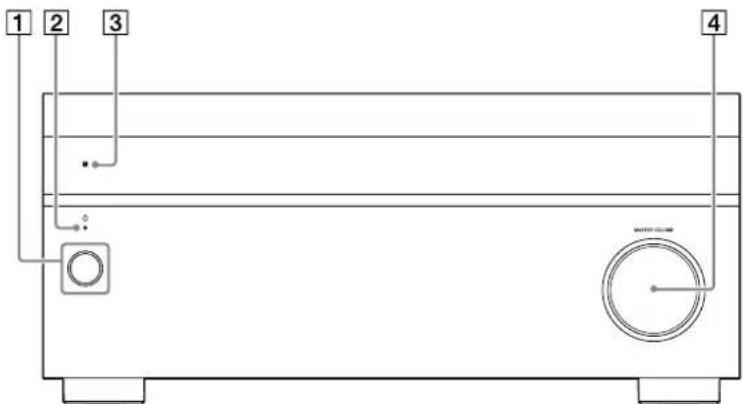
Parts Functions
1 (power) Turns the receiver on or sets it to standby mode (page 22). 2 Power indicator Lights up according to the status of the receiver. Also, the color of the indicator changes depending on the status of the receiver. For details, visit the Help Guide. Remote control sensor Receives signals from the remote control. 4 MASTER VOLUME Turns to adjust the volume level (page 24).
Attaching the front cover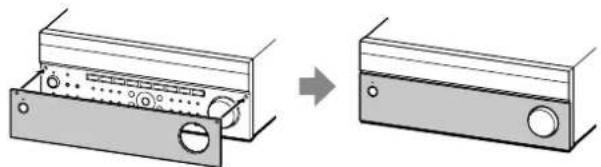
Front panel
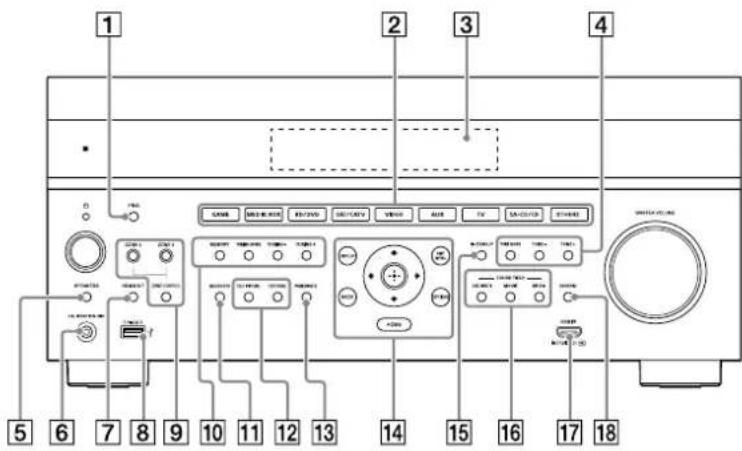
Parts Functions
PING Displays the IP address and MAC address on the display panel. 2 Input buttons Select the device you want to play. When you press any of the input buttons, the receiver turns on. Press OTHERS button repeatedly to select other playback source. 3 Display panel Switches information on the display panel. 4 TONE MODE, TONE+/- Press to adjust the bass/treble level of the speaker. 5 SPEAKERS Switches the front speakers to "OFF", "A", "B" or "A+B."
Parts Functions
6 CALIBRATION MIC jack Connect the supplied calibration microphone for "Auto Calibration" to this jack (page 21). 7 HDMI OUT Switches the output for two monitors connected to the HDMI OUT A and HDMI OUT B (ZONE 2) jacks. When [HDMI OUT B Mode] is set to [Main] in [HDMI Settings], output is toggled between "HDMI A", "HDMI B", "HDMI A+B" and "HDMI OFF" each time the button is pressed. Select "HDMI OFF" to turn off the output for HDMI OUT A and HDMI OUT B (ZONE 2) jacks. When [HDMI OUT B Mode] is set to [Zone2], output is toggled between "HDMI A" and "HDMI OFF" each time the button is pressed.
8 USB port
continued
11FN
| Parts Functions | |
| 9 | ZONE CONTROL (ZONE2, ZONE 3) Selects the location to be controlled. |
| 10 | Tuner control buttons Used for tuner operations. |
| 11 | BLUETOOTH Switches the receiver to the BLUETOOTH® function by pressing the button when [Bluetooth Mode] is set to [Receiver]. When the button is pressed and held for more than 2 seconds, the receiver enters the pairing mode. |
| 12 | TEST PICTURE Displays the Test Picture on the TV screen. |
| TEST TONE Plays back the Test Tone on the speakers. | |
| 13 | PURE DIRECT Turns on the Pure Direct function to enjoy high fidelity sound. |
| 14 | Menu operation buttons Used for menu operations displayed on the TV screen and the display panel of the receiver. HOME: Displays the home menu on the TV screen (page 23, 24, 25, 27, 30). AMP MENU: Displays the menu on the display panel of the receiver to operate the receiver. |
| 15 | IN-CEILING SP Activates the In-Ceiling Speaker Mode. |
| 16 | SOUND FIELD (2CH/MULTI, MOVIE, MUSIC) Selects the sound field you want. For details, see "Selectable sound fields and their effects" (page 28). |
| 17 | HDMI IN 7 (VIDEO) jack (for STR-AZ7000ES/STR-AZ5000ES only) Connect an HDMI device. For supported video signals, see "Video signals supported by HDMI jacks" (page 18). |
| 18 | 360SSM Activates or deactivates the 360 Spatial Sound Mapping function. The 360 Spatial Sound Mapping function allows you to enjoy an amazing 360 Spatial Sound experience that makes the sound feel more spacious and as if there are more speakers in the room. |
Rear panel (STR-AZ7000ES)
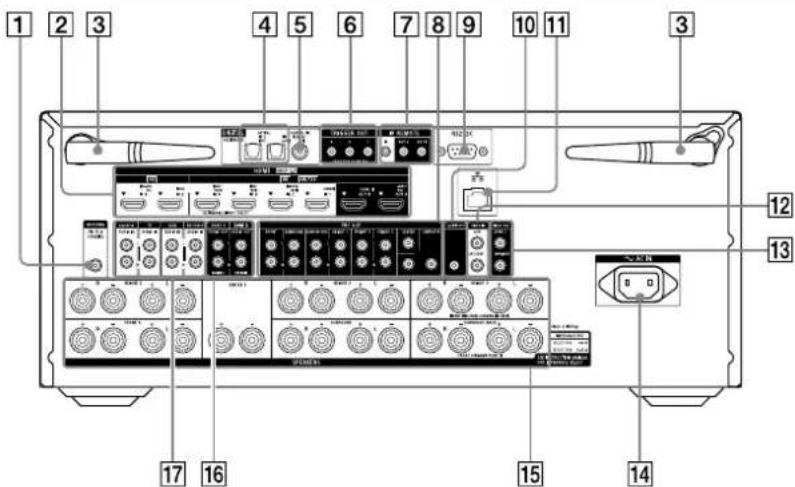
FM ANTENNA terminal [2] HDMI IN/OUT jacks: Connect HDMI devices. For supported video signals, see "Video signals supported by HDMI jacks" (page 18). 3 Wireless LAN antenna 4 DIGITAL OPTICAL IN jacks COAXIAL IN (SA-CD/CD) jack [6] TRIGGER OUT jacks: Connect to interlock on/off of the power supply of other 12V TRIGGER compliant equipment, or the amplifier/receiver of Zone 2 or Zone 3.
7 IR REMOTE IN/OUT jacks
- You can control the receiver from a distance by connecting an IR repeater (not supplied) to the IR REMOTE IN jack.
- You can start or stop playback of devices such as a CD player connected to the receiver by connecting an IR blaster (not supplied) to the IR REMOTE OUT jack.
8 PRE OUT jacks: Connect to an external power amplifier and a subwoofer. RS232C port: This is the control expansion terminal for custom installation.
continued
| 10 | S-CENTER OUT jack When the receiver is connected to the S-CENTER SPEAKER IN jack of your TV, you can output the center part of the receiver sound from the TV speakers. By using this connection, TV audio such as dialogue can be made to sound as if it is coming out of the TV screen. (Acoustic Center Sync function) |
LAN port VIDEO IN jacks [3] VIDEO OUT jacks 14 AC IN terminal: Connect the supplied AC power cord (mains lead). 15 SPEAKERS terminals: Connect to speakers.
By changing the setting, HEIGHT 3 terminals can be used for the front wide, Zone 2 or center 2 speaker connection.
With the center 2 speaker connection, by installing two speakers above and below the TV screen, for example, TV audio such as dialogue can be made to sound as if it is coming out of the TV screen. (Dual Center Speaker function)
16 ZONE 2/ZONE 3 AUDIO OUT (VARIABLE) jacks 17 AUDIO IN jacks
Rear panel (STR-AZ5000ES)
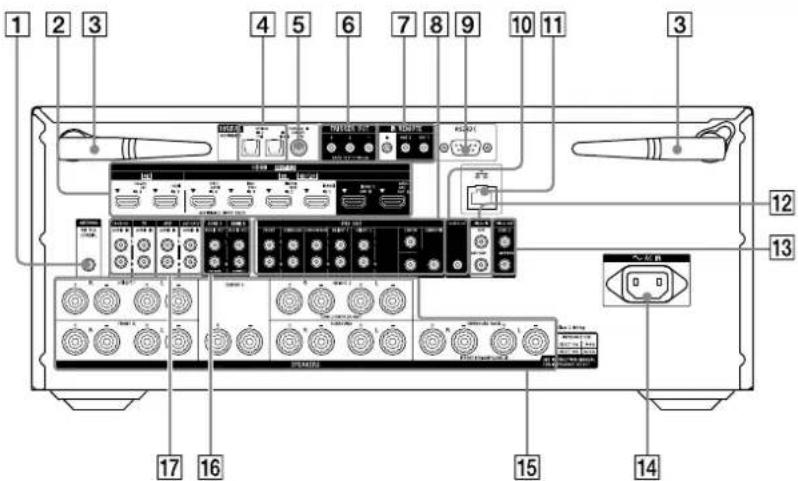
[1] FM ANTENNA terminal 2 HDMI IN/OUT jacks: Connect HDMI devices. For supported video signals, see "Video signals supported by HDMI jacks" (page 18). [3] Wireless LAN antenna 4 DIGITAL OPTICAL IN jacks COAXIAL IN (SA-CD/CD) jack 6 TRIGGER OUT jacks: Connect to interlock on/off of the power supply of other 12V TRIGGER compliant equipment, or the amplifier/receiver of Zone 2 or Zone 3.
7 IR REMOTE IN/OUT jacks
- You can control the receiver from a distance by connecting an IR repeater (not supplied) to the IR REMOTE IN jack.
- You can start or stop playback of devices such as a CD player connected to the receiver by connecting an IR blaster (not supplied) to the IR REMOTE OUT jack.
PRE OUT jacks: Connect to an external power amplifier and a subwoofer. RS232C port: This is the control expansion terminal for custom installation.
continued
| 10 S-CENTER OUT jack When the receiver is connected to the S-CENTER SPEAKER IN jack of your TV, you can output the center part of the receiver sound from the TV speakers. By using this connection, TV audio such as dialogue can be made to sound as if it is coming out of the TV screen. (Acoustic Center Sync function) |
LAN port, VIDEO IN jacks, VIDEO OUT jacks, AC IN terminal: Connect the supplied AC power cord (mains lead). 15 SPEAKERS terminals: Connect to speakers.
By changing the setting, HEIGHT 2 terminals can be used for the Zone 2 or center 2 speaker connection.
With the center 2 speaker connection, by installing two speakers above and below the TV screen, for example, TV audio such as dialogue can be made to sound as if it is coming out of the TV screen. (Dual Center Speaker function)
16 ZONE 2/ZONE 3 AUDIO OUT (VARIABLE) JACKS, 17 AUDIO IN jacks
Rear panel (STR-AZ3000ES)
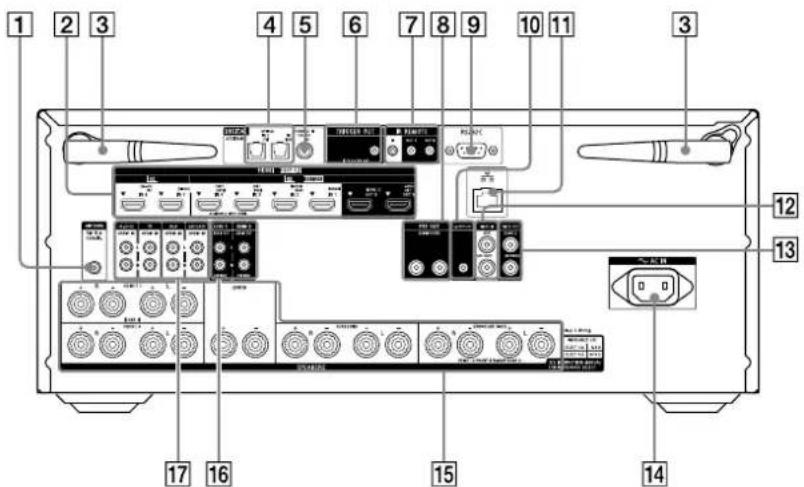
[1] FM ANTENNA terminal, [2] HDMI IN/OUT jacks: Connect HDMI devices. For supported video signals, see "Video signals supported by HDMI jacks" (page 18). [3] Wireless LAN antenna, 4 DIGITAL OPTICAL IN jacks, 5 COAXIAL IN (SA-CD/CD) jack, 6 TRIGGER OUT jack: Connect to interlock on/off of the power supply of other 12V TRIGGER compliant equipment, or the amplifier/receiver of Zone 2 or Zone 3.
7 IR REMOTE IN/OUT jacks
- You can control the receiver from a distance by connecting an IR repeater (not supplied) to the IR REMOTE IN jack. - You can start or stop playback of devices such as a CD player connected to the receiver by connecting an IR blaster (not supplied) to the IR REMOTE OUT jack.
8 PRE OUT jacks: Connect to a subwoofer. RS232C port: This is the control expansion terminal for custom installation.
continued
10 S-CENTER OUT jack: When the receiver is connected to the S-CENTER SPEAKER IN jack of your TV, you can output the center part of the receiver sound from the TV speakers. By using this connection, TV audio such as dialogue can be made to sound as if it is coming out of the TV screen. (Acoustic Center Sync function)
LAN port, VIDEO IN jacks, VIDEO OUT jacks, 14 AC IN terminal: Connect the supplied AC power cord (mains lead). 15 SPEAKERS terminals: Connect to speakers. 16 ZONE 2/ZONE 3 AUDIO OUT (VARIABLE) jacks, 17 AUDIO IN jacks.
Video signals supported by HDMI jacks
| HDMI IN jack Devices to be connected | ||
| IN 1 | 8K | Connect a device that supports video signals of 8K or up to 4K/120p. |
| IN 2 | 4K/120 | |
| IN 3 | ||
| IN 4 | ||
| IN 5* | 4K | Connect a device that supports video signals up to 4K/60p. |
| IN 6* | ||
| IN 7(front panel)*,** | ||
- When you connect your PC to this jack, supported video signals are limited to up to 4K/30p. Even in that case, you can enjoy 4K/60p video content by connecting your PC to HDMI IN 1, HDMI IN 2, HDMI IN 3, or HDMI IN 4 jack. ** For STR-AZ7000ES/STR-AZ5000ES only
Note
There are limits to the video signals that can be played in Zone 2.
For details on signals that can be played in each zone, refer to "Available input sources for each zone" in the Help Guide.
Tip
- The image quality depends on the type of connecting jack. We recommend you connect your devices via an HDMI connection if they have HDMI jacks.
- If you want to watch 8K or 4K/120p video from your device even when the eARC/ARC-compatible HDMI input jack of your TV is incompatible with 8K or 4K/120p video input, visit the Help Guide for how to connect.
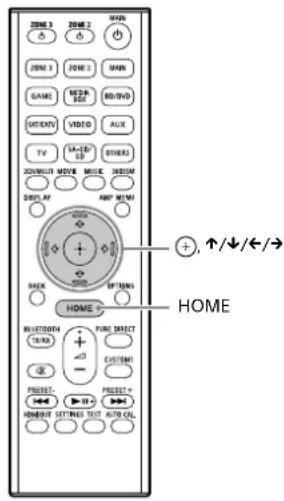
Remote Control

| Parts Functions | |
| 1 | (zone 2, ZONE 3, MAIN) Turns the receiver in the main zone, Zone 2 or Zone 3 on or sets it to standby mode. |
| 2 | ZONE 2, ZONE 3, MAIN Selects the location to be controlled. |
| 3 | Input buttons Select the device you want to play. When you press any of the input buttons, the receiver turns on. Press OTHERS button repeatedly to select other playback source. |
| 4 | 360SSM Activates or deactivates the 360 Spatial Sound Mapping function. The 360 Spatial Sound Mapping function allows you to enjoy an amazing 360 Spatial Sound experience that makes the sound feel more spacious and as if there are more speakers in the room. |
| 5 | AMP MENU Displays the menu on the display panel to operate the receiver. |
| 6 | ↑/↓/←/→, ⊙ Press ↑/↓/←/→ to select the menu items. Then press ⊙ to enter the selection (page 23, 24, 25, 27, 30). |
| 7 | OPTIONS Displays items from the options menus (page 26). The menu is not displayed for the TV input. |
| 8 | HOME Displays the home menu on the TV screen (page 23, 24, 25, 27, 30). |
| 9 | PURE DIRECT Activates or deactivates the Pure Direct function. |
| 10 | ▲ +*/- Adjusts the volume level (page 24). |
| 11 | CUSTOM1 Saves and recalls various settings for the receiver. Press to select the custom preset setting. Press and hold to save the current settings to a preset. |
| 12 | Skip, play, pause operation. PRESET+/− Select preset stations or channels. Press and hold to scan stations automatically. |
continued
| Parts Functions | |
| 13 | AUTO CAL. Press to perform the Auto Calibration. |
| 14 | TEST Displays the [Test Picture]/[Test Tone] selection screen on the TV screen. |
| 15 | SETTINGS Displays the [Setup] menu on the TV screen. |
| 16 | 2CH/MULTI, MOVIE**, MUSIC** Select the sound field you want. For details, see "Selectable sound fields and their effects" (page 28). |
| 17 | DISPLAY Press to view information on the TV screen. |
| 18 | BACK Returns to the previous menu or exits a menu or on-screen guide that is displayed on the TV screen (page 26). |
| 19 | BLUETOOTH TX/RX Switches the BLUETOOTH mode of the receiver.(Disabled while the BLUETOOTH function is activated.)In BLUETOOTH TX mode, the receiver sends audio to BLUETOOTH headphones/speakers.In BLUETOOTH RX mode, the receiver receives and outputs audio from the remote device. |
| 20 | Turns off the sound temporarily. Press the button again to restore the sound. |
| 21 | HDMI OUT Switches the output for two monitors connected to the HDMI OUT A and HDMI OUT B (ZONE 2) jacks. When [HDMI OUT B Mode] is set to [Main] in [HDMI Settings], output is toggled between "HDMI A", "HDMI B", "HDMI A+B" and "HDMI OFF" each time the button is pressed. Select "HDMI OFF" to turn off the output for HDMI OUT A and HDMI OUT B (ZONE 2) jacks. When [HDMI OUT B Mode] is set to [Zone2], output is toggled between "HDMI A" and "HDMI OFF" each time the button is pressed. |
- The ▶ and + buttons have tactile dots. Use the tactile dots as reference when operating the receiver. ** The sound fields for movie and music may not work, depending on the input or the speaker pattern you select, or with audio formats.
Preparation 1: Preparing the receiver and the remote control
Before starting the following steps, connect speakers and AV devices to the receiver referring to the supplied Startup Guide.
1 Insert batteries into the remote control with correct polarity.
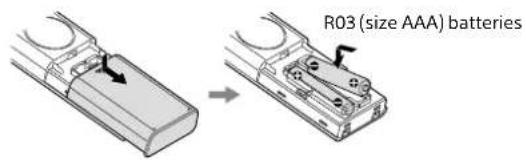
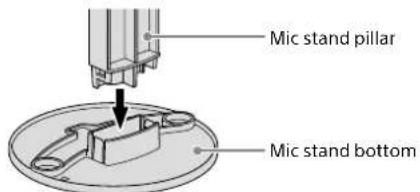
2 Assemble the calibration mic stand.
① Insert the mic stand pillar all the way into the mic stand bottom.
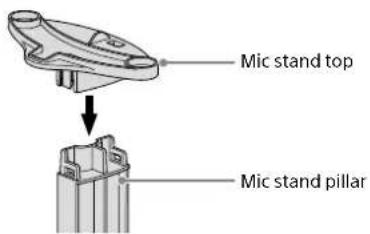
② Insert the mic stand top all the way into the mic stand pillar.
3 Place the mic stand at your listening position and set the calibration microphone on the mic stand.
The calibration microphone is used for setting the speakers (Auto Calibration) in "Preparation 2: Performing Easy Setup" (page 23).
Adjust the position of the mic stand so that the calibration microphone is level with your ears.
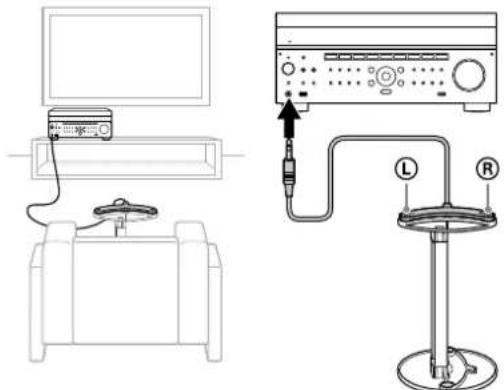
Calibration needs to be performed twice. For the second microphone position, follow the on-screen instructions in Easy Setup.
Notes
- Fully insert the plug of the calibration microphone into the CALIBRATION MIC jack. If the calibration microphone is not firmly connected, it may not be possible to measure correctly. Install the calibration microphone horizontally so that L (left) and R (right) are at the same height.
continued
4 Connect the supplied AC power cord (mains lead) to the AC IN terminal on the receiver firmly.

- Space remains between the plug and the rear panel even when the power cord (mains lead) is inserted firmly. The cord is supposed be connected this way. This is not malfunction.
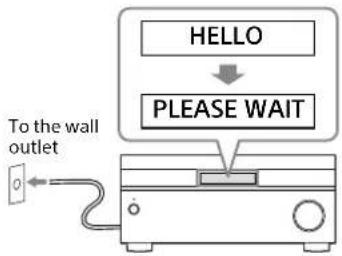
5 Connect the AC power cord (mains lead) to a wall outlet.
Before connecting the AC power cord (mains lead), be sure to make connections for speakers and the other devices.
"HELLO" appears on the display panel and then switches to "PLEASE WAIT."
You cannot turn on the receiver until the "PLEASE WAIT" display disappears.
6 Turn on the TV, and then switch the input of the TV to which the receiver is connected.

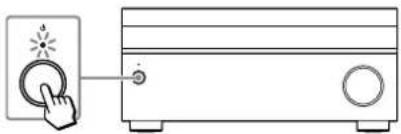
7 Press (power) to turn on the receiver.
Preparation 2: Performing Easy Setup
You can easily set the initial settings of the receiver from the Easy Setup screen.
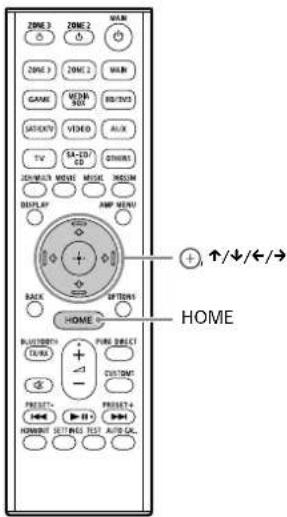
1 Press HOME.
The home menu is displayed on the TV screen.
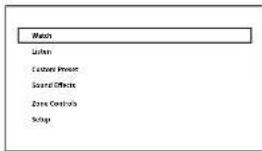
2 Press up/down repeatedly to select [Setup], and then press OK. 3 Press up/down repeatedly to select [Easy Setup], and then press OK. 4 Press up/down to select the language for the messages on the screen, and then press OK. 5 Follow the on-screen instructions to select items using up/down/left/right, and confirm with OK.
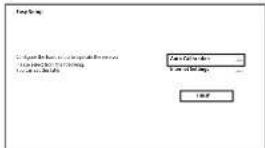
Note
The speakers emit very loud sound during the calibration and the volume cannot be adjusted. Be considerate of your neighbors and any children who are present.
Enjoying video/sound from the connected device
1 Turn on the device you want to play. 2 Turn on the receiver. 3 Turn on the TV, and then switch the input of the TV to which the receiver is connected.
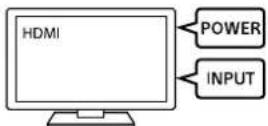
4 Press HOME.
The home menu is displayed on the TV screen.
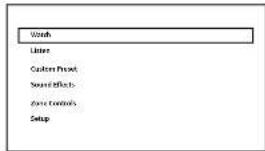
5 Press the up/down arrows repeatedly to select [Watch] or [Listen], and then press.
The menu item list appears on the TV screen.
6 Select the device you want to play and start playback. 7 Press the plus/minus buttons to adjust the volume.
You can also use MASTER VOLUME on the receiver.
Press 2CH/MULTI, MOVIE, or MUSIC to enjoy the surround sound.
You can also use 2CH/MULTI, MOVIE, or MUSIC on the receiver. For details, see "Selectable sound fields and their effects" (page 28).
Using the menu on the TV screen
You can display the menu of the receiver on the TV screen.

1 Turn on the TV, and then switch the input of the TV to which the receiver is connected.
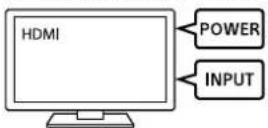
2 Press HOME.
The home menu is displayed on the TV screen.
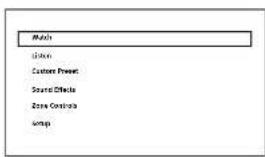
3 Press the up/down arrows repeatedly to select the menu you want to use, and then press to enter the menu.
Home menu items
Watch:
Select to display video from the connected device.
Listen:
Select to listen to sound from the connected device.
Custom Preset:
Select to save various settings for the receiver and recall those settings.
Sound Effects:
Select to enjoy sound effects.
Zone Controls:
Select to use the multi-zone features.
Setup:
Select to adjust the various settings for the receiver.
Software Update*:
Select to update software.
RF Channel **:
Select to optimize the wireless connection of the speakers when the receiver is in standby.
- This item is displayed when updates are available. ** Selectable when sound drop-out occurs while wireless speakers are being used.
Hints
- When [Option] appears in the lower portion of the TV screen, you can display the function list by pressing OPTIONS and selecting a related function. To return to the previous screen, press BACK.
- To exit the menu, press HOME to display the home menu, and then press HOME again.
Changing the settings
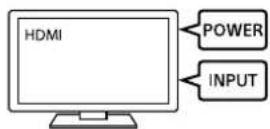
1 Turn on the TV, and then switch the input of the TV to which the receiver is connected.
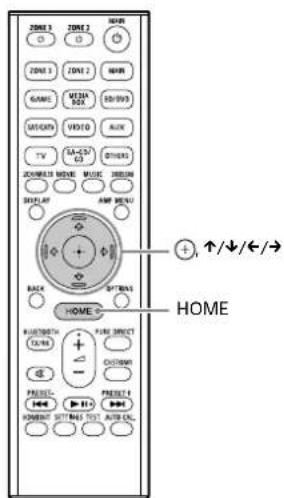
2 Press HOME.
The home menu is displayed on the TV screen.
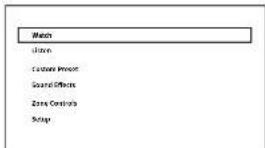
3 Press up/down repeatedly to select [Setup], and then press OK. 4 Select the settings you want to configure.
Example:
To select a sound field
You can select from a variety of sound field according to speaker connections or input sources. Select [Audio Settings] - [Sound Field].
2ch Stereo Direct A.F.D. Multi Stereo A.F.D. Movie Dolby Mode DTS:X Mode Audio Enhancer - Headphone (2ch)*
- Available only when BLUETOOTH headphones/BLUETOOTH speakers are connected to the receiver
For details on each sound field, visit the Help Guide. https://rd1.sony.net/help/ha/straz305070/h_uc/
Selectable sound fields and their effects
| Sound field Display panel Effects of the sound field | |||
| 2CH/MULTI | 2ch Stereo | 2CH STEREO | Plays back 2-channel audio signals without adding any surround effect. Monaural and multi-channel audio signals are output after being converted into a 2-channel signal.This sound field is best suited for playing back audio signals as they are from two front speakers only, without adding any virtual surround effect.The sound is output from the front left/right speakers only. There is no sound from the subwoofer. |
| Multi Stereo MULTI STEREO Outputs sound from all connected speakers. When 2-channel or monaural audio signals are input, the receiver outputs sound from all speakers without adding any surround effect.When multi-channel audio signals are input, sound may not be output from certain speakers depending on the speaker settings or playback content. | |||
| Direct DIRECT Plays back all audio signals without adding any surround effect. | |||
| A.F.D. (Auto Format Decoding) | A.F.D. | Decodes and plays back audio signals using the optimal processing method according to the audio signal input. | |
| MOVIE | A.F.D. Movie | A.F.D. MOVIE | Produces optimized (recommended) sound according to the stream. The sound is upmixed to enjoy surround at the same time. |
| Dolby Mode DOLBY MODE Plays back content using Dolby upmixer or virtual technology according to the set speaker layout. | |||
| DTS:X Mode | DTS:X MODE | Plays back content using DTS upmixer or virtual technology according to the set speaker layout. | |
| MUSIC | Audio Enhancer | AUDIO ENHANCED | Upscales existing sound sources to near high-resolution sound quality with DSEE Ultimate (Digital Sound Enhancement Engine Ultimate). This sound field makes you feel as if you are really at the recording studio or concert. DSEE Ultimate only works on 2-channel sound sources with a sampling frequency of 44.1 kHz or 48 kHz input from the following jacks:- the HDMI IN jacks- the HDMI OUT A jack*- the DIGITAL OPTICAL IN 1 (AUX) jack- the DIGITAL OPTICAL IN 2 (TV) jack- the DIGITAL COAXIAL IN (SA-CD/CD) jack |
| Headphones | Headphone (2ch) | HEADPHONE 2CH | This mode is selected automatically when BLUETOOTH headphones/BLUETOOTH speakers are connected to the receiver. (Other sound fields cannot be selected in this case.)Plays back 2-channel audio signals without adding any surround effect. Sound from monaural and multi-channel audio signals are output after being converted into a 2-channel signal. |
- eARC or ARC signal input
Notes
- Depending on the audio format, if you select [Direct] and play a 5.1-channel source when surround speakers and two surround back speakers are connected, the same audio as that from surround speakers will be output from surround back speakers, similar to that of a 7.1-channel surround system. The sound level of surround and surround back speakers are adjusted automatically for optimum balance.
- Dolby Atmos is decoded as Dolby TrueHD or Dolby Digital Plus when a sound field other than [Multi Stereo], [A.F.D.], [A.F.D. Movie] or [Dolby Mode] is selected.
Reverting to the factory default settings
If the receiver does not operate properly, reset the receiver as follows.
1 Press HOME.
The home menu is displayed on the TV screen.
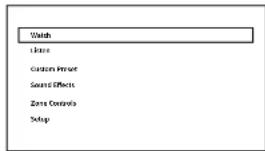
2 Press the up/down arrows repeatedly to select [Setup], and then press Enter. 3 Press the up/down arrows repeatedly to select [Resetting], and then press Enter. 4 Press the up/down arrows repeatedly to select [All Settings], and then press Enter. 5 Press the left/right arrows repeatedly to select [Start], and then press Enter.
To cancel resetting
Select [Cancel] in step 5.
If you cannot perform resetting using the home menu
1 Press and hold the power button on the receiver for more than 10 seconds.
The settings return to their initial status.
Notes
- It takes a few minutes for the memory to be cleared completely. Do not turn the receiver off until "RESET" appears on the display panel.
- By resetting, the link with the wireless subwoofer and rear speakers (not supplied) may be lost.
In this case, reconnect them by referring to their operating instructions.
Troubleshooting
If the receiver does not work properly, handle it in the following order.
1 Search for the cause and solution of the issue by referring to these Operating Instructions or Help Guide. The troubleshooting method is listed in "Troubleshooting." For the functions that are not mentioned in Operating Instructions, visit the Help Guide.
https://rd1.sony.net/help/ha/straz305070/h.uc/


2 Search for the cause and solution of the issue on the Sony support site.
Sony support site provides latest support information and Frequently Asked Questions.
https://www.sony.com/am/support

3 Reset the receiver (page 30).
All the settings of the receiver return to their initial status.

4 Should any problems persist, consult your nearest Sony dealer.
General
The receiver is turned off automatically.
If [Auto Standby] is set to [On], set it to [Off]. "PROTECTOR" or "THERMAL" was activated (page 34).
The indicator on the display panel turns off.
Press AMP MENU to select [Dimmer], and then adjust the brightness of the display panel.
Video
No image appears on the TV screen.
Try pressing the input button to select the input to which you want to watch. Set your TV to the appropriate input mode. Make sure that cables are correctly and securely connected to devices. Disconnect the HDMI cable from the receiver and TV and then reconnect the cable. Change the [HDMI Signal Format] setting of the selected input in the [HDMI Settings] menu. For details, visit the Help Guide. Some playback devices need to be set up. Refer to the operating instructions supplied with each device. Be sure to use a Premium High Speed HDMI Cable with Ethernet, which supports bandwidths up to 18 Gbps. For video signals that require a high bandwidth such as 4K/120p, 8K, etc., be sure to use an Ultra High Speed HDMI Cable that supports bandwidths up to 48 Gbps.
continued
The output of the HDMI video signals of the receiver may be set to "HDMI OFF". In this case, set to "HDMI A", "HDMI B", or "HDMI A+B" by pressing HDMI OUT on the remote control. If you want to play HDCP 2.2 or HDCP 2.3 content, connect the receiver to an HDMI input jack of a TV that is compatible with HDCP 2.2 or HDCP 2.3. Composite video signal input from VIDEO IN jacks cannot be output to HDMI OUT A or HDMI OUT B (ZONE 2) jacks.
4K or 8K content cannot be displayed at the same resolution as the source.
Depending on the TV or the video device, 4K or 8K content may not be displayed. Check the video capability and settings of your TV and video device. Be sure to use a Premium High Speed HDMI Cable with Ethernet, which supports bandwidths up to 18 Gbps. For video signals that require a high bandwidth such as 4K/120p, 8K, etc., be sure to use an Ultra High Speed HDMI Cable that supports bandwidths up to 48 Gbps. If your TV have similar menu for high bandwidth video format, check the setting on the TV menu. For details on the TV menu setting, refer to the operating instructions of the TV. Be sure to connect the receiver to an HDMI input jack of a TV or video device that is supporting 4K or 8K. You have to connect an HDMI cable to an HDMI jack that supports HDCP 2.2 or HDCP 2.3 when you use a playback device for 4K or 8K resolution video content, etc. Disconnect the HDMI cable from the receiver and TV and then reconnect the cable. Supported video signals vary depending on the HDMI IN jack. For details on the supported video signals, see "Video signals supported by HDMI jacks" (page 18).
The home menu does not appear on the TV screen.
The home menu can only be used when you connect the TV to the HDMI OUT jack on the receiver. When you connect the TV to the HDMI OUT B (ZONE 2) jack, be sure to set [HDMI OUT B Mode] to [Main] in the [HDMI Settings] menu. Press HDMI OUT repeatedly on the remote control to select "HDMI B" or "HDMI A+B." Then press HOME to display the home menu.
Check that the TV is connected correctly. Disconnect the HDMI cable from the receiver and TV and then reconnect the cable. The home menu may take some time to appear on the TV screen depending on the TV.
HDR (High Dynamic Range) images cannot be displayed in HDR mode.
Depending on the TV or video equipment, HDR images may not be displayed in HDR mode. Check the video capability and setting of your TV or video equipment. Depending on the receiver setting, some video equipment may not output HDR content in HDR mode due to lack of signal bandwidth, even if both TV and video equipment support HDR. In this case, set [HDMI Signal Format] of the selected input to [Enhanced format] or [Enhanced format (4K120, 8K)] in the [HDMI Settings] menu.
Audio
No sound or only a very low level of sound is heard, no matter which device is selected.
Check that all connecting cables are inserted to their input/output jacks on the receiver, speakers and the devices. Check that the receiver and all devices are turned on. Check that MASTER VOLUME on the receiver is not set to "VOL MIN." Press SPEAKERS on the receiver to select a setting other than "SPK OFF" (page 11). Check that BLUETOOTH headphones are not connected to the receiver.
Press the muting button to cancel the muting function.
Try pressing the input button to select the input to which you want to watch.
When [Control for HDMI] is set to [On] or [Audio Return Channel] is set to either [eARC] or [ARC] in the [HDMI Settings] menu:
- Check that the speaker output setting on the TV is set to "Audio System." If you want to listen to sound from the TV speaker, set it to "TV Speaker."
When [Control for HDMI] is set to [Off] and [Audio Return Channel] is set to [Off] in the [HDMI Settings] menu:
- If you want to listen to sound from the TV speaker, set [Audio Out] to [TV + AMP] in the [HDMI Settings] menu. If you cannot play multi-channel audio source, set [AMP]. However, the sound will not be output through the TV speaker.
Set [Bluetooth Mode] to other than [Transmitter].
Set [DSD Native] in [Audio Settings] to [Off]. If the speaker assigned as a signal source is not installed, playback is not available during DSD Native playback because content will be played on the target speaker. Also, Zone output is not available because downmix process does not work.
No sound is heard from the subwoofer or the center speaker.
Sound may not be output from the target speakers depending on the playback signals or the speaker settings. Be sure to select the optimal sound field for the content. For details on relations between sound fields and speaker outputs, visit the Help Guide.
No sound is heard from the wireless speaker (not supplied).
During DVD-Audio or SA-CD playback, no sound will be output from wireless speakers because of copyright protection restrictions. Switch the speaker configuration to wired connection.
Sound heard from the wireless speaker (not supplied) is unstable.
Do not place metal objects other than a TV near the receiver. The wireless function with the wireless speaker (not supplied) will be affected and the sound will become unstable. Do not put the receiver in a metal rack. The wireless function with the wireless speaker (not supplied) will be affected and the sound will become unstable.
The sound is interrupted.
Sound may be interrupted when the sampling frequency, number of channels or audio format of audio output signals from the playback device is switched.
When a TV is connected to the receiver via an HDMI OUT A jack that supports the eARC or ARC function, sound from the TV is not output from the speakers connected to the receiver.
Set [Audio Return Channel] to [eARC] or [ARC] in the [HDMI Settings] menu. Make sure that your TV is compatible with the eARC or ARC function. Make sure that the HDMI cable is connected to a jack on your TV that is compatible with the eARC or ARC function. If you connect to a TV that is compatible with the ARC function but is not compatible with the eARC function, set [Audio Return Channel] to [ARC] in the [HDMI Settings] menu. If you connect to a TV that is incompatible with both the eARC and ARC functions, set [Audio Return Channel] to [Off] in the [HDMI Settings] menu, and connect the TV to the OPTICAL IN 2 (TV) jack of the receiver with an optical cable.
There is a time gap between the visual display on the TV and the audio output from the speaker connected to the receiver.
Change the [A/V Sync] settings in the [Audio Settings] menu. Adjust the A/V Sync settings on the TV. For details, refer to the operating instructions of the TV. When the sound field is set to [Audio Enhancer], change the sound field to other than [Audio Enhancer]. For details on the sound fields, see "Selectable sound fields and their effects" (page 28).
The surround effect cannot be obtained.
Be sure to select the optimal sound field for the content. For details on the sound fields, see "Selectable sound fields and their effects" (page 28). To activate the virtualizer and obtain the surround effect when the speaker pattern is set to [2.0] or [2.1], set [Sound Field] to [A.F.D.], [A.F.D. Movie], [Dolby Mode] or [DTS:X Mode], set [Upmixer] to [Auto], and set [Virtualizer] to other than [Off].
continued
The center component of the audio is not output from the TV when using the TV as a center speaker by connecting the S-CENTER OUT jack of the receiver to the S-CENTER SPEAKER IN jack of the TV. (The Acoustic Center Sync function is not working)
Check that [Control for HDMI] is [On] in the [HDMI Settings] menu. Press HOME, select [Setup] - [Speaker Settings] [TV/Screen Center Settings] - [TV Center Speaker Mode] and then set to [On]. Select a sound field other than [2ch Stereo]. The sound may not be output through the TV speaker depending on the sound source. When a BLUETOOTH device is connected and [Bluetooth Mode] is set to [Transmitter], the sound will not be output through the TV speaker.
Cannot select the desired input for playback in Zone 2 or Zone 3.
There are limits to the inputs that can be played in Zone 2 and
Zone 3. For details, visit the Help Guide.
Network connection
Cannot connect to the network.
Check that the LAN cable is connected to the receiver when you want to connect the receiver to the network via a wired LAN connection.
Check the network information. If the connection failed, set up the network connection again. If the receiver is connected through a wireless network, move the receiver and the wireless LAN router/access point closer to each other and perform the setup again.
- Make sure that you use a wireless LAN router/access point.
- Make sure that the wireless LAN router/access point is turned on.
- Check the settings of the wireless LAN router/access point and perform the setup again. For details on the settings of devices, refer to the operating instructions of the devices.
- Wireless networks are influenced by electromagnetic radiation emitted by microwave ovens and other devices. Move the receiver away from these devices.
Error messages
"PROTECTOR" or "THERMAL" appears on the display panel.
The receiver will automatically turn off after a few seconds. Check the following:
→ There may be an electrical surge or power failure. Unplug the AC power cord (mains lead) and then plug in the cord again after 30 minutes. → The receiver is covered and the ventilation holes are blocked. Remove the object covering the ventilation holes of the receiver. The impedance of the connected speakers is below the rated impedance range indicated on the back panel of the receiver. → Reduce the volume level. → Unplug the AC power cord (mains lead) and let the receiver cool down for 30 minutes while performing the following troubleshooting:
Disconnect all of the speakers and subwoofer.
- Check that the speaker wires are tightly twisted on both ends.
- Connect the front speaker first, increase the volume level and operate the receiver for at least 30 minutes until it completely warms up. Then, connect each additional speaker one by one and test each additional speaker until you detect which speaker is causing the protection error.
After checking the above items and fixing any problems, plug in the AC power cord (mains lead) and turn on the receiver. If the problem persists, consult your nearest Sony dealer.
[Overload has been detected.] appears on the TV screen.
An over-current from the USB port was detected. Disconnect
the USB device as prompted in the warning message and close the message.
List of messages after Auto Calibration measurements
Display Explanation
Error 31: SPEAKERS (A/B/A+B/OFF) are off. Re-measure with audio coming out of the SPEAKERS (A/B/A+B/OFF).
Error 32: No sound was detected from any channel. Is the
measurement microphone damaged? Is it connected to the CALIBRATION MIC jack on the front of this unit?
| Display Explanation | |
| Error 34 Front speakers are not installed in the correct position. Left/right of the microphone and speakers may be installed in reverse.* The speaker name in this error message depends on the detected symptom. | |
| Error 35 Center speaker pattern settings and measurement results do not match. Check the center speaker pattern and connection.* The speaker name in this error message depends on the detected symptom. | |
| Error 36 3D position could not be measured. Microphone or microphone stand may be misaligned. Return to the correct position and try again. If noisy, measure with as little surrounding noise as possible. | |
| Error 37 | • No sound was detected from either the left or right surround speakers. Is the power for the wireless speakers that are used as the surround speakers turned on? • No sound was detected from either the left or right surround back speakers. Is the power for the wireless speakers that are used as the surr. back speakers turned on? • To output audio from the connected wireless speakers, update software to the latest version. Press [HOME] on the remote for this unit and select "Setup" to update. |
| Error 38 It wasn't possible to measure correctly. Move the speaker or microphone position a little and try again. If noisy, measure with as little surrounding noise as possible. | |
| Warning 40 Measurement complete, but it is noisy. It may be possible to measure again, but it is not possible to measure in all environments. Measure with as little surrounding noise as possible. | |
| Warning 41, Warning 42 | The input from the measurement microphone is excessive. The speaker and microphone may be too close. Place the speaker and microphone away from each other. If using this unit as a preamplifier, this message may be displayed depending on the connected power amplifier, but it can be used as it is. |
| Display Explanation |
| Warning 43 The subwoofer distance and phase could not be measured. Noise may be the cause. Re-measure in a quiet surrounding environment. |
| Warning 44 Measurement finished, but the center speaker positional relationship may be unsuitable. Check the speaker position referring to "Installing speakers" in the Help Guide. *The speaker name in this warning message depends on the detected symptom. |
Specifications
AUDIO POWER SPECIFICATIONS
POWER OUTPUT AND TOTAL HARMONIC DISTORTION (USA Models Only):
STR-AZ7000ES
With 8 Ω loads, both channels driven, from 20 Hz - 20 000 Hz; rated 140 W per channel minimum RMS power in stereo mode, with no more than 0.09% total harmonic distortion from 250 mW to rated output.
STR-AZ5000ES
With 8 Ω loads, both channels driven, from 20 Hz - 20 000 Hz; rated 120 W per channel minimum RMS power in stereo mode, with no more than 0.09% total harmonic distortion from 250 mW to rated output.
STR-AZ3000ES
With 8 Ω loads, both channels driven, from 20 Hz - 20 000 Hz; rated 110 W per channel minimum RMS power in stereo mode, with no more than 0.09% total harmonic distortion from 250 mW to rated output.
Amplifier section [12]
STR-AZ7000ES
Rated Power Output at Stereo Mode (8 ohms, 20 Hz - 20 kHz, THD 0.09%): 140 W + 140 W
Reference Power Output
(8 ohms, 1 kHz, THD 0.9%)
FRONT: 150 W + 150 W
CENTER: 150 W
SURROUND: 150 W + 150 W
SURROUND BACK: 150 W + 150 W
Rated Power Output at Stereo Mode (8 ohms, 20 Hz - 20 kHz, THD 0.09%): 120 W + 120 W
Reference Power Output
(8 ohms, 1 kHz, THD 0.9%)
FRONT: 130 W + 130 W
CENTER: 130 W
SURROUND: 130 W + 130 W
Rated Power Output at Stereo Mode
(8 ohms, 20 Hz - 20 kHz, THD 0.09%): 110 W + 110 W
Reference Power Output
(8 ohms, 1 kHz, THD 0.9%)
FRONT: 120W + 120W
CENTER: 120W
SURROUND: 120W + 120W
Measured under the following conditions:
Power requirements: 120 V AC, 60 Hz
2) Depending on the sound field settings and the source, there may be no sound output.
Frequency response
Analog
10 Hz - 100 kHz, ±3 dB (with sound field, equalizer, and 360SSM
bypassed)
Input
Analog
Sensitivity: 150 mV/50 kilohms
S/N3): 105 dB (A, 500 mV)
Digital (Coaxial)
Impedance: 75 ohms
S/N: 96 dB (A, 20 kHz LPF)
Digital (Optical)
S/N: 96 dB (A, 20 kHz LPF)
Output (Analog)
STR-AZ7000ES
ZONE 2, ZONE 3
Voltage: 2 V/1 kilohm
31 INPUT SHORT (with sound field and equalizer bypassed) Weighted network, input level
FM tuner section
Tuning range
87.5 MHz - 108.0 MHz (100 kHz step)
Antenna (aerial)
FM wire antenna (aerial)
Antenna (aerial) terminals
75 ohms, unbalanced
Video section
Inputs/Outputs
Video: 1Vp-p, 75 ohms
HDMI Video
Resolution
-480p/60 Hz -576p/50 Hz -720p/60 Hz, 50 Hz, 30 Hz, 24 Hz -1080i/60 Hz, 50 Hz -1080p/120 Hz, 100 Hz, 60 Hz, 50 Hz, 30 Hz, 24 Hz -4K/120 Hz, 100 Hz, 60 Hz, 50 Hz, 30 Hz, 25 Hz, 24 Hz - 8K/60 Hz*, 50 Hz*, 30 Hz*, 25 Hz*, 24 Hz* * HDMI IN1, IN2, IN3, IN4 supports
Support
HDCP 2.3, HDR (HDR10, Hybrid Log-Gamma, Dolby Vision), 3D
Deep Color, ITU-R BT.2020, eARC/ARC, VRR, ALLM
For details on supported video formats, visit the Help Guide.
Supported digital audio formats
| Digital audio format | Maximum number of decoding/ rendering channels | Connection with the receiver |
| Dolby Digital [DOLBY AUDIO] 5.1 COAXIAL/OPTICAL, | HDMI, eARC, ARC | |
| Dolby Digital Plus [DOLBY AUDIO]1 | 7.1HDMI, eARC, ARC | |
| Dolby Atmos - Dolby Digital Plus [DOLBY ATMOS]3,2 | STR-AZ7000ES: 7.1.6 / 9.1.4 STR-AZ5000ES: 7.1.4 STR-AZ3000ES: 5.1.4 / 7.1.2 / 7.1.43 | HDMI, eARC, ARC |
| DTS [DTS] 5.1 COAXIAL/OPTICAL, | HDMI, eARC, ARC | |
| DTS 96/24 [DTS] 5.1 COAXIAL/OPTICAL, | HDMI, eARC, ARC | |
| LPCM [LINEAR PCM] 7.1/2.0 COAXIAL/OPTICAL, | HDMI(7.1), eARC(7.1), ARC(2.0) | |
| Dolby TrueHD [DOLBY AUDIO]1 | 7.1HDMI, eARC | |
| Dolby Atmos TrueHD [DOLBY ATMOS]1, 2 | STR-AZ7000ES: 7.1.6 / 9.1.4 STR-AZ5000ES: 7.1.4 STR-AZ3000ES: 5.1.4 / 7.1.2 / 7.1.4 | HDMI, eARC |
| Dolby Atmos [DOLBY ATMOS] STR-AZ7000ES: 7.1.6 / 9.1.4 STR-AZ5000ES: 7.1.4 STR-AZ3000ES: 5.1.4 / 7.1.2 / 7.1.4 | HDMI, eARC | |
| DTS-ES DISCRETE (DTS-ES Discrete 6.1) [DTS] | 6.1 COAXIAL/OPTICAL, HDMI, eARC, ARC | |
| DTS-ES MATRIX (DTS-ES Matrix 6.1) [DTS] | 6.1 COAXIAL/OPTICAL, HDMI, eARC, ARC | |
| DTS-HD High Resolution Audio [DTS-HD]11 | 7.1 HDMI, eARC | |
| DTS-HD Master Audio [DTS-HD]11 | 7.1 HDMI, eARC | |
| DTS Express [DTS-HD] 5.1 HDMI, eARC | ||
| DTS:X Master Audio [DTS:X]1 | STR-AZ7000ES: 7.1.6 / 9.1.4 STR-AZ5000ES: 7.1.4 STR-AZ3000ES: 5.1.4 / 7.1.2 / 7.1.4 | HDMI, eARC |
| DTS:X [DTS:X]1 | STR-AZ7000ES: 7.1.6 / 9.1.4 STR-AZ5000ES: 7.1.4 STR-AZ3000ES: 5.1.4 / 7.1.2 / 7.1.4 | HDMI, eARC |
| DSD [DSD]4, 5 | 5.1 HDMI | |
1) Audio signals are output in another format if the playback device does not correspond to the actual format. For details, refer to the operating instructions of the playback device.
2) Dolby Atmos is decoded as Dolby Digital Plus or Dolby TrueHD if the speaker pattern is set to 2.0, 2.1, 3.0, 3.1, 4.0, 4.1, 5.0 or 5.1, and [Virtualizer] is set to [Off]. 3) Available only when [SpeakerRelocation/PhantomSurroundBack] is in operation. 4) This format is not output to wireless headphones. 5) This format is not output to wireless speakers.
USB section
USB port: Type A (for connecting a USB flash drive)
Maximum current
500 mA
Network section
Ethernet LAN
100BASE-TX
Wireless LAN: Compatible standards: IEEE 802.11 a/b/g/n/ac
Security: WPA/WPA2-PSK
Radio frequency: 2.4 GHz, 5 GHz
Playable types of audio files
Codec Extension
| MP3 (MPEG-1 Audio Layer III).mp3 | |
| MPEG-H .mp4 | |
| AAC/HE-AAC1 | .m4a, .aac2, .mp42, .3gp2 |
| WMA9 Standard1 | .wma |
| LPCM .wav | |
| FLAC1 | .flac |
| DSF1 | .dsf |
| DSDIFF1, 31 | .dff |
| AIFF1 | .aiff, .aif |
| ALAC1 | .m4a |
Codec Extension
Vorbis .ogg
Monkey's Audio .ape
The receiver may not play this file format on a home network server. 2) The receiver does not play this file format on a home network server. 3) The receiver does not play DST encoded files.
Notes
- Some files may not play depending on the file format, the file encoding, the recording condition, or the home network server condition. Some files edited on a PC may not play.
- Fast forward or fast reverse may not be available with some files. The receiver does not play coded files such as DRM. The receiver cannot recognize a file/folder depending on the name/ metadata. Some USB devices may not work with this receiver. The receiver can recognize Mass Storage Class (MSC) devices.
BLUETOOTH section
Communication system
BLUETOOTH Specification version 5.0
Output
BLUETOOTH Specification Power Class 1
Maximum communication range
Line of sight approx. 30 m (98.4 feet)
Maximum number of devices to be registered
10 devices
Frequency band
2.4 GHz band (2.4000 GHz - 2.4835 GHz)
Modulation method
FHSS (Frequency Hopping Spread Spectrum)
Compatible Bluetooth profiles2
A2DP (Advanced Audio Distribution Profile)
AVRCP (Audio Video Remote Control Profile)
Supported codecs3)
SBC4, AAC, LDAC
Transmission range (A2DP)
20 Hz - 40,000 Hz (LDAC sampling frequency 96 kHz with 990 kbps transmission)
20 Hz - 20,000 Hz (Sampling frequency 44.1 kHz)
1 The actual range will vary depending on factors such as obstacles between devices, magnetic fields around a microwave oven, static electricity, cordless phone, reception sensitivity, antenna's performance, operating system, software application, etc. 2 Bluetooth standard profiles indicate the purpose of Bluetooth communication between devices. 3 Codec: Audio signal compression and conversion format 4 Subband Codec
11 The actual range will vary depending on factors such as obstacles between devices, magnetic fields around a microwave oven, static electricity, cordless phone, reception sensitivity, antenna's performance, operating system, software application, etc. 2 BLUETOOTH standard profiles indicate the purpose of BLUETOOTH communication between devices. 31 Codec: Audio signal compression and conversion format 4) Subband Codec
Communication system
Wireless Sound Specification version 4.0
Wireless Sound Specification version 4.0
Frequency band
5GHz
Modulation method
OFDM
General
Power requirements
120 V AC, 60 Hz
Power consumption
STR-AZ7000ES:540W
STR-AZ5000ES:500W
STR-AZ3000ES:440W
Standby mode: 0.5 W
(When [Standby Through], [Network/Bluetooth Standby])
[External Control] and all zone power are set to [Off].)
Network/Bluetooth Standby mode: 3.5 W
(When [Network/Bluetooth Standby] is set to [On], and
[Standby Through] and all zone power are set to [Off].)
continued
39EN
Dimensions (width/height/depth) (Approx.)
430 mm × 194 mm × 440 mm (17 in × 7 3/4 in × 17 3/8 in) including
projecting parts and controls
Mass (Approx.)
STR-AZ7000ES: 21.8 kg (48 lb)
STR-AZ5000ES: 19.2 kg (42 lb 6 oz)
STR-AZ3000ES: 19.0 kg (41 lb 15 oz)
Supplied accessories
Operating Instructions (this manual)
Startup Guide (1)
Calibration microphone (1)
Calibration mic stand (1)
FM wire antenna (aerial) (1)
AC power cord (mains lead) (1)
Remote control (1)
R03 (size AAA) batteries (2)
Front cover (1)
Design and specifications are subject to change without notice.
Owner's manual
See: https://www.sony.com/electronics/support
Responsible party: Sony Electronics Inc.
Effective communication range
https://www.sony.com/am/support

(8 ohms, 1 kHz, THD 0.9%)
FRONT: 150W + 150W
CENTER: 150W
SURROUND: 150 W + 150 W
(8 ohms, 1 kHz, THD 0.9%)
FRONT: 120 W + 120 W
CENTER: 120 W
SURROUND: 120 W + 120 W
-1080p/120 Hz, 100 Hz, 60 Hz, 50 Hz, 30 Hz, 24 Hz
-4K/120 Hz, 100 Hz, 60 Hz, 50 Hz, 30 Hz, 25 Hz, 24 Hz
-8K/60 Hz, 50 Hz, 30 Hz, 25 Hz, 24 Hz*
- Supported on HDMI IN1, IN2, IN3, IN4
Supported
HDCP 2.3, HDR (HDR10, Hybrid Log-Gamma, Dolby Vision), 3D
Deep Color, ITU-R BT.2020, eARC/ARC, VRR, ALLM
Bluetooth specification version 5.0
Output
FHSS (Frequency Hopping Spread Spectrum)
Compatible BLUETOOTH profiles
A2DP (Advanced Audio Distribution Profile) AVRCP (Audio Video Remote Control Profile)
Supported codecs
SBC4), AAC, LDAC
Transmission range (A2DP)
Visit: https://www.sony.com/electronics/support
8 Press 2CH/MULTI, MOVIE, or MUSIC to enjoy surround sound.
https://www.sony.com/am/support
-1080p/120 Hz, 100 Hz, 60 Hz, 50 Hz, 30 Hz, 24 Hz
-4K/120 Hz, 100 Hz, 60 Hz, 50 Hz, 30 Hz, 25 Hz, 24 Hz
-8K/60 Hz, 50 Hz, 30 Hz, 25 Hz, 24 Hz*
Deep Color, ITU-R BT.2020, eARC/ARC, VRR, ALLM
BLUETOOTH specification version 5.0
Output
BLUETOOTH Specification Power Class 1
- FOR REMOTE COMMANDER
- CAUTION
- FOR CUSTOMERS IN THE U.S.A
- FOR CUSTOMERS IN CANADA
- ABOUT RECOMMENDED CABLES
- LICENSES
- FOR STR-AZ5000ES/STR-AZ3000ES ONLY
- FOR STR-AZ7000ES ONLY
- DISCLAIMER REGARDING SERVICES OFFERED BY THIRD PARTIES
- TRADEMARKS
- PRECAUTIONS
- ON SAFETY
- ON POWER SOURCES
- ON HEAT BUILDUP
- ON PLACEMENT
- ON OPERATION
- ON CLEANING
- ON UPDATING
- ON INTERNET CONNECTION
- ON BLUETOOTH COMMUNICATION
- SUPPORTED BLUETOOTH VERSION AND PROFILES
- EFFECTIVE COMMUNICATION RANGE
- EFFECTS OF OTHER DEVICES
- EFFECTS ON OTHER DEVICES
- MANUALS PROVIDED FOR THIS PRODUCT
- TABLE OF CONTENTS
- MAIN PARTS AND CONTROLS
- FRONT PANEL COVER
- PARTS FUNCTIONS
- FRONT PANEL
- REAR PANEL (STR-AZ7000ES)
- REAR PANEL (STR-AZ5000ES)
- REAR PANEL (STR-AZ3000ES)
- NOTE
- TIP
- REMOTE CONTROL
- PREPARATION 1: PREPARING THE RECEIVER AND THE REMOTE CONTROL
- NOTES
- PREPARATION 2: PERFORMING EASY SETUP
- PRESS HOME
- ENJOYING VIDEO/SOUND FROM THE CONNECTED DEVICE
- USING THE MENU ON THE TV SCREEN
- HOME MENU ITEMS
- RF CHANNEL
- HINTS
- CHANGING THE SETTINGS
- EXAMPLE
- TO SELECT A SOUND FIELD
- REVERTING TO THE FACTORY DEFAULT SETTINGS
- TO CANCEL RESETTING
- IF YOU CANNOT PERFORM RESETTING USING THE HOME MENU
- TROUBLESHOOTING
- GENERAL
- VIDEO
- K OR 8K CONTENT CANNOT BE DISPLAYED AT THE SAME RESOLUTION AS THE SOURCE
- THE HOME MENU DOES NOT APPEAR ON THE TV SCREEN
- HDR (HIGH DYNAMIC RANGE) IMAGES CANNOT BE DISPLAYED IN HDR MODE
- AUDIO
- NO SOUND OR ONLY A VERY LOW LEVEL OF SOUND IS HEARD, NO MATTER WHICH DEVICE IS SELECTED
- THE CENTER COMPONENT OF THE AUDIO IS NOT OUTPUT FROM THE TV WHEN USING THE TV AS A CENTER SPEAKER BY CONNECTING THE S-CENTER OUT JACK OF THE RECEIVER TO THE S-CENTER SPEAKER IN JACK OF THE TV. (THE ACOUSTIC CENTER SYNC FUNCTION IS NOT WORKING)
- CANNOT SELECT THE DESIRED INPUT FOR PLAYBACK IN ZONE 2 OR ZONE
- NETWORK CONNECTION
- CANNOT CONNECT TO THE NETWORK
- ERROR MESSAGES
- PROTECTOR" OR "THERMAL" APPEARS ON THE DISPLAY PANEL
- [OVERLOAD HAS BEEN DETECTED.] APPEARS ON THE TV SCREEN
- LIST OF MESSAGES AFTER AUTO CALIBRATION MEASUREMENTS
- DISPLAY EXPLANATION
- SPECIFICATIONS
- AUDIO POWER SPECIFICATIONS
- POWER OUTPUT AND TOTAL HARMONIC DISTORTION (USA MODELS ONLY)
- STR-AZ7000ES
- STR-AZ5000ES
- STR-AZ3000ES
- AMPLIFIER SECTION [12]
- FREQUENCY RESPONSE
- INPUT
- OUTPUT (ANALOG)
- FM TUNER SECTION
- VIDEO SECTION
- HDMI VIDEO
- USB SECTION
- NETWORK SECTION
- PLAYABLE TYPES OF AUDIO FILES
- CODEC EXTENSION
- BLUETOOTH SECTION
- COMMUNICATION SYSTEM
- SUPPLIED ACCESSORIES
- OWNER'S MANUAL
Brand : SONY
Model : STRAZ3000ES
Category : Home Theater System