MHCDP900D - Hi-Fi System SONY - Free user manual and instructions
Find the device manual for free MHCDP900D SONY in PDF.


| Product Type | Hi-Fi System |
| Brand | Sony |
| Model | MHC-DP900D |
| Dimensions (W x H x D) | 280 x 360 x 365 mm |
| Front Speaker Weight | 6.5 kg each |
| Power Supply | 120 V, 220 or 230-240 V AC, 50/60 Hz (adjustable) |
| Power Consumption | 210 W |
| Compatible Disc Types | DVD, Video CD, Audio CD |
| Output Power (DIN) | 130 W + 130 W (6 ohms) |
| Tuner | FM/AM with 20 FM presets and 10 AM |
| Cassette Deck | 4-track, 2-channel stereo |
| Video Outputs | VIDEO OUT (RCA), S-VIDEO OUT |
| Main Features | DVD playback, programming, repeat, search, Dolby Digital, DTS, sound effects, karaoke (except NA/EU models), sleep and daily timer, RDS (EU model) |
| Laser Safety | Class 1 laser product |
| Safety Instructions | Do not expose to moisture, do not obstruct ventilation slots |
| Maintenance | Clean cassette heads with a suitable kit, clean disc with a soft cloth |
| Supplied Accessories | FM/AM antennas, video cable, remote control, AA (R6) batteries x2, speaker pads |
| Repairability | Contact qualified personnel; self-diagnosis with error codes (C13, C31, EXX) |
Frequently Asked Questions - MHCDP900D SONY
User questions about MHCDP900D SONY
0 question about this device. Answer the ones you know or ask your own.
Ask a new question about this device
Download the instructions for your Hi-Fi System in PDF format for free! Find your manual MHCDP900D - SONY and take your electronic device back in hand. On this page are published all the documents necessary for the use of your device. MHCDP900D by SONY.
USER MANUAL MHCDP900D SONY
Mini Hi-Fi Component System
Operating Instructions ____ GB
Mode d'emploi FR
To avoid electrical shock, do not open the cabinet. Refer servicing to qualified personnel only.
Do not install the appliance in a confined space, such as a bookcase or built-in cabinet.
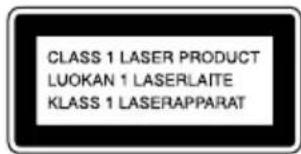
This appliance is classified as a CLASS 1 LASER product. The CLASS 1 LASER PRODUCT MARKING is located on the rear exterior.
U.S.A. model
This label is located on the rear exterior.
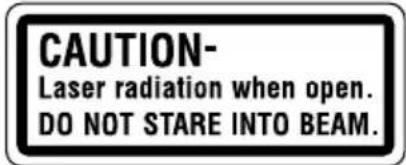
European model
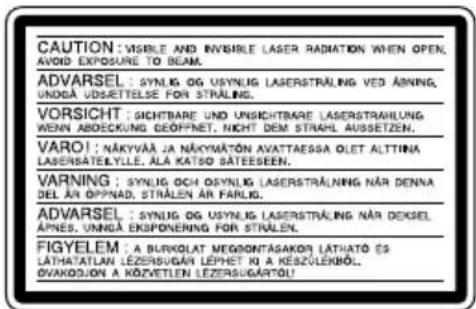
The following caution label is located inside the apparatus.
To prevent fire, do not Cover the ventilation of the apparatus with news papers, table-cloths, curtains, etc. And don't place lighted candles on the apparatus.
To prevent fire or shock hazard, do not place objects filled with liquids, such as vases, on the apparatus.
Don't throw a battery, dispose it as the injurious wastes.
This system incorporates Dolby* Digital, Pro Logic Surround, DTS**, and the DTS Digital Surround System.
* Manufactured under license from Dolby Laboratories.
“Dolby”, “Pro Logic” and the double-D symbol are trademarks of Dolby Laboratories.
Confidential unpublished works. © 1992-1997
Dolby Laboratories. All rights reserved.
**Manufactured under license from Digital Theater Systems, Inc. US Pat. No. 5,451,942, 5,956,674, 5,974,380, 5,978,762 and other world-wide patents issued and pending. "DTS" and "DTS Digital Surround" are registered trademarks of Digital Theater Systems, Inc. © 1996, 2000 Digital Theater Systems, Inc. All rights reserved.
IMPORTANT NOTICE
Caution: This system is capable of holding a still video image or on-screen display image on your television screen indefinitely. If you leave the still video image or on-screen display image displayed on your TV for an extended period of time, you risk permanent damage to your television screen. Projection televisions are especially susceptible to this.
Table of Contents
This system can play the following discs ..... 6
Parts Identification
Main unit 7
Remote control 8
digipad operations 9
Getting Started
Hooking up the system 10
Inserting two size AA (R6) batteries into the remote 12
Setting up your speakers for Dolby Pro Logic* 13
Specifying the speaker parameters ..... 14
Setting the time.... 15
Saving the power in standby mode..... 16
Setting Up for DVD/VIDEO CD/CD
Using the Setup Display 17
Setting the display or sound track language — LANGUAGE SETUP .... 18
Settings for the display — SCREEN SETUP .... 19
Custom settings — CUSTOM SETUP .... 20
Speaker settings — SPEAKER SETUP...... 21
DVD/VIDEO CD/CD
Playing discs:
Loading a disc 23
Playing a disc — Normal Play/Shuffle Play/ Slow-motion Play/Freeze Frame... 23
Playing DVDs using the menu ...... 25
Playing VIDEO CDs with PBC functions (Ver. 2.0) — PBC Play .... 25
Creating your own program — Program Play .... 26
Resuming playback from the point you stopped the disc — Resume Play.... 28
Playing repeatedly — Repeat Play .... 28
Viewing information about the disc:
Checking the playing time and remaining time 29
Checking the playback information — ADVANCED .... 31
Sound adjustments:
Changing the sound 32
Enjoying movies:
Searching for a title/chapter/track/index/scene 34
Changing the angles 35
Displaying the subtitles 35
Using various additional functions:
Locking discs — CUSTOM PARENTAL CONTROL/PARENTAL CONTROL .... 36
Tuner
Presetting radio stations.... 40
Listening to the radio — Preset Tuning .... 40
Using the Radio Data System (RDS)** 41
Tape
Loading a tape 42
Playing a tape 42
Recording to a tape — CD Synchro Recording/ High-Speed Dubbing/Recording Manually/Program Edit .... 43
Timer-recording radio programs ..... 45
Sound Adjustment
To listen to multi channel sound ...... 46
About indicators 46
Adjusting the sound 46
Selecting the preset effect file 47
Adjusting the sound effects 47
Creating a personal audio effect file — Personal file.... 48
Other Features
Changing the spectrum analyzer display 49
To adjust the brightness of the display... 49
Singing along: Karaoke*** 49
Falling asleep to music — Sleep Timer .... 50
Waking up to music — Daily Timer .... 50
Hooking Up the Optional Components
Connecting audio components ..... 52
Additional Information
Precautions 53
Troubleshooting.... 54
Specifications 59
Glossary 62
Language code list 64
Control Menu Item List 65
Setup Display Item List 66
* MHC-DP1000D only.
** European model only.
***Except for North American and European models.
This system can play the following discs
DVD VIDEOs Audio CDs VIDEO CDs
Disc logo



Contents Audio + Audio Audio + Video Video
The “DVD VIDEO” logo is a trademark.
Discs that this system cannot play
• CD-ROMs (PHOTO CDs included)
- All CD-Rs other than music and VCD format CD-Rs
• Data part of CD-Extras
- DVD-ROMs
• DVD Audio discs
• HD layer on SACDs
- 8 cm CDs
Note
Some CD-Rs/CD-RWs or DVD-Rs/DVD-RWs cannot be played on this system depending upon the format or the recording quality or physical condition of the disc, or the characteristics of the recording device.
Furthermore, the disc will not play if it has not been correctly finalized. For more information, see the operating instructions for the recording device.
Region code of DVDs you can play on this system
Your system has a region code printed on the back of the unit and will only play DVDs labeled with identical region code.
DVDs labeled 📄 will also be played on this system.
If you try to play any other DVD, the message “Playback prohibited by area limitations.” will appear on the TV screen.
Depending on the DVD, no region code indication may be labeled even though playing the DVD is prohibited by area restrictions.
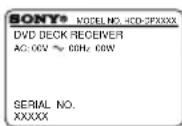
x—Region code
Note on playback operations of DVDs and VIDEO CDs
Some playback operations of DVDs and VIDEO CDs may be intentionally set by software producers. Since this system plays DVDs and VIDEO CDs according to the disc contents the software producers designed, some playback features may not be available. Also, refer to the instructions supplied with the DVDs or VIDEO CDs.
Note on PBC (Playback Control) (VIDEO CDs)
This system conforms to Ver. 1.1 and Ver. 2.0 of VIDEO CD standards. You can enjoy two kinds of playback depending on the disc type.
| Disc type | You can |
| VIDEO CDs without PBC functions (Ver. 1.1 discs) | Enjoy video playback (moving pictures) as well as music. |
| VIDEO CDs with PBC functions (Ver. 2.0 discs) | Play interactive software using menu screens displayed on the TV screen (PBC Playback), in addition to the video playback functions of Ver. 1.1 discs. Moreover, you can play high-resolution still pictures, if they are included on the disc. |
Copyrights
This product incorporates copyright protection technology that is protected by method claims of certain U.S. patents, other intellectual property rights owned by Macrovision Corporation, and other rights owners. Use of this copyright protection technology must be authorized by Macrovision Corporation, and is intended for home and other limited viewing uses only unless otherwise authorized by Macrovision Corporation. Reverse engineering or disassembly is prohibited.
The items are arranged in alphabetical order.
Refer to the pages indicated in parentheses ( ) for details.
Main unit
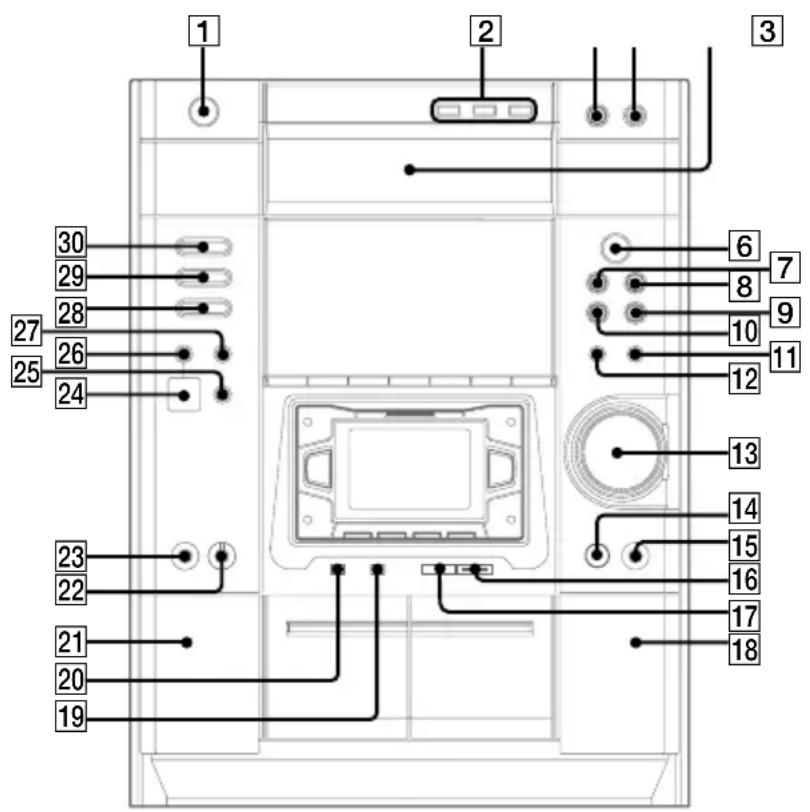
4
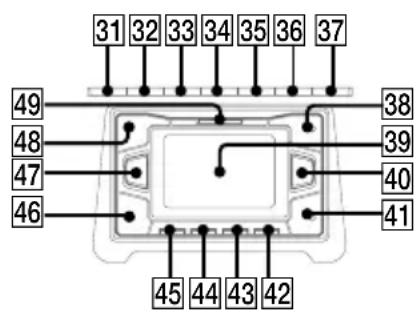
2CH/MULTI 42 (24, 46)
digipad 39 (9, 24, 40, 47)
DIGITAL 26 (52)
DIGITAL IN (OPTICAL) jack 24 (52)
DIRECTION 35 (42–44, 50)
DISC 1-3 2 (23, 24)
DISC SKIP EX-CHANGE 3 (23, 24)
Disc tray 5 (23)
DISPLAY 31 (16, 29, 30)
DOLBY NR 36 (42–44)
DSP EDIT 47 (47)
DVD 30 (12, 25, 26, 34, 43, 44)
DVD DISPLAY 35 (17, 28, 30)
DVD MENU 19 (25)
EFFECT 43 (47)
ENTER 40 (14, 15, 25–27, 31, 32, 34–41, 44, 45, 47, 51)
FM MODE 36 (41)
GAME 25 (52)
GAME MODE 46 (47)
GROOVE 44 (46)
IR receptor 14
KARAOKE PON (Except for North American and European models) 32 (49)
MD (VIDEO) 27 (52)
MIC jack (Except for North American and European models) 23 (49)
MIC LEVEL control (Except for North American and European models) 22 (49)
MOVIE MODE 38 (47)
MULTI CHANNEL DECODING indicator 49 (46)
MUSIC MODE 48 (47)
P FILE 45 (48)
PHONES jack 15
PLAY MODE 37 (23, 26, 27, 44)
PTY (European model only) 35 (41)
REC PAUSE/START 16 (43, 44, 50)
REPEAT 36 (28, 29)
SPECTRUM (North American and European models only) 32 (49)
TAPE A/B 28 (42, 43)
TIMER SELECT 34 (45, 51)
TITLE 20 (25)
TOOL MODE 41 (47)
TUNER/BAND 29 (40)
TUNER MEMORY 37 (40)
VOLUME control 13
BUTTON DESCRIPTIONS
I/⏻ (power) 1
▲ OPEN/CLOSE (disc tray) 4
◀▶ (play) 6
II (pause) 7
■ (stop) 8
◀◀ (go back) 10
▶▶I (go forward) 9
◀◀/− (rewind) 12
▶▶/+ (fast forward) 11
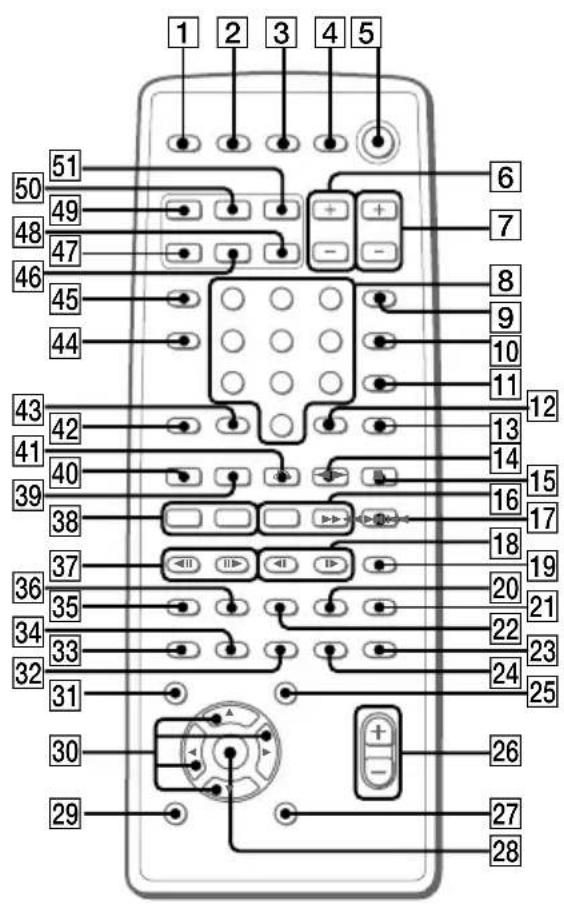
2CH/MULTI 11 (24, 46)
AMP MENU 32 (14, 49)
ANGLE 35 (35)
AUDIO 22 (32)
CLEAR 42 (21, 27, 28, 34)
CLOCK/TIMER SELECT 2 (45, 51)
CLOCK/TIMER SET 3 (15, 45, 51)
D.SKIP 12 (23, 24, 28)
DIGITAL 47 (52)
DISPLAY 45 (16, 29, 30)
DSP EDIT 34 (47)
DVD 49 (12, 16, 25, 26, 34, 43, 44)
DVD DISPLAY 23 (17, 28, 30–32, 34–36)
DVD MENU 21 (25)
DVD SET UP 19 (18, 22, 37)
EFFECT ON/OFF 13 (47)
ENTER 28 (14, 15, 17, 25–27, 31, 32, 34–41, 44, 45, 47, 49, 51)
GAME 46 (52)
GAME MODE 29 (47)
MD (VIDEO) 48 (52)
MOVIE MODE 25 (47)
MUSIC MODE 31 (47)
NEXT 39 (24, 25)
Numeric buttons 8 (26)
P FILE 33 (48)
PREV 40 (24, 25)
REPEAT 10 (28, 29)
RETURN 41 (25, 37, 38)
SLEEP 1 (50)
SLOW ◀/▶ 18 (24)
SPEAKER LEVEL 24 (14)
SPECTRUM 44 (49)
STEP ◀II/III▶ 37 (24)
SUB TITLE 36 (35)
TAPE A/B 51 (42, 43)
TITLE 20 (25)
TOOL MODE 27 (47)
TUNER/BAND 50 (40, 41)
TV I/① 4 (12)
TV CH +/- 7 (12)
TV/VIDEO 9 (12)
TV VOL +/− 6 (12)
VOL+/-26
BUTTON DESCRIPTIONS
I/⏻ (power) 5
◀▶ (play), SELECT 14
II (pause) 15
■ (stop) 17
◀◀/▶▶ (rewind/fast forward), TUNING -/+ 16
◀◀/▶▶ (go back/go forward), PRESET -/+ 38
▲/▼/◄/► 30
10 43
digipad operations
This model is equipped with an unique digipad multi controlling device. You can control various operations with this digipad.
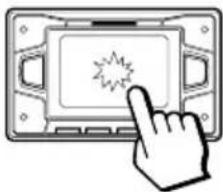
DVD (When OSD does not appear in the screen), TUNER, TAPE A/B functions
natural_image
Hand cursor clicking a button on a device screen (no text or symbols visible)Basic operation DVD, TUNER, TAPE A/B
Tap once ◀▶ (Start playback)*
Tap twice ■ (Stop playback)
* When you tap the digipad while playing a DVD/VIDEO CD/CD, playback pauses. Tap again to resume playback.
natural_image
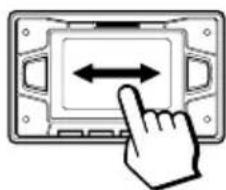
Hand pointing at a device button with bidirectional arrow (no text or symbols)Slide from the left to the right ▶▶▶ (AMS +, preset +)**
Slide from the right to the left ◀◀◀ (AMS −, preset −)**
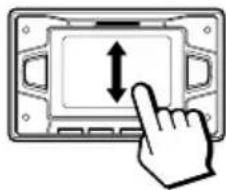
Slide from lower side to upper side ▶▶ (Fast forward, tuning +)**
Slide from upper side to lower side ◀◀ (Rewind, tuning −)**
**If you keep on moving, you can operate as pressing and holding these buttons.
natural_image
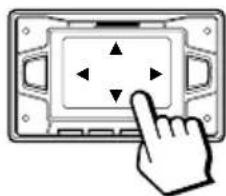
Hand pointing at a device panel with four arrows indicating left and right movement (no text or symbols)DVD function (When OSD appears in the screen)
Basic operation DVD
Slide to the top, bottom, left side, or right side of the digipad remote)
▲/▼/◄/► (same as the cursor buttons on the
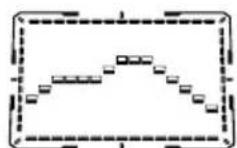
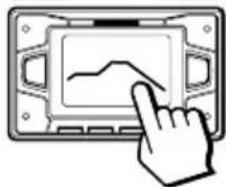
Adjusting the equalizer curve in EQ EDIT operations (page 47)
The curve made by sliding the finger is reflected in the display.
natural_image
Hand cursor pointing at a digital display screen showing a line graph (no text or symbols)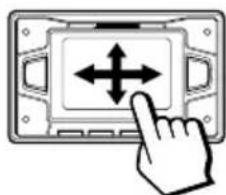
natural_image
Hand pointing at a device control panel with bidirectional arrows (no text or symbols)Selecting parameters in DSP EDIT and other adjustments (page 47)
Slide in the direction until you reach the value you want (refer to each of the operations).
Notes
- Do not use utensil whose end is sharpened.
- When this unit does not respond to the digipad operations, press the digipad a little harder.
Hooking up the system
Do the following procedure 1 to 8 to hook up your system using the supplied cords and accessories.
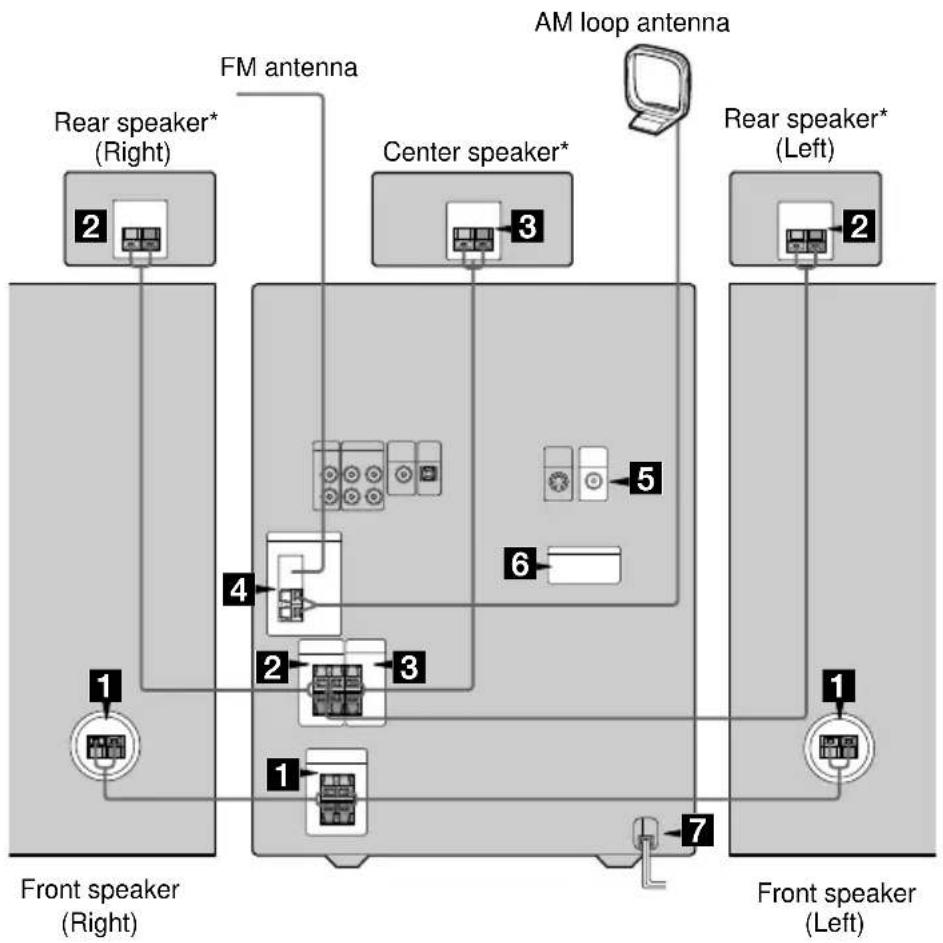
flowchart
graph TD
    A["Front speaker (Right)"] --> B["1"]
    C["Front speaker (Left)"] --> D["1"]
    E["AM loop antenna"] --> F["2"]
    G["FM antenna"] --> H["3"]
    I["Rear speaker* (Right)"] --> J["2"]
    K["Center speaker*"] --> L["3"]
    M["Rear speaker* (Left)"] --> N["2"]
    O["4"] --> P["2"]
    Q["3"] --> R["3"]
    S["5"] --> T["6"]
    U["7"] --> V["Ground"]
* MHC-DP1000D only.
1 Connect the front speakers.
Connect the speaker cords to the FRONT SPEAKER jacks (MHC-DP1000D) or SPEAKER jacks (MHC-DP900D).
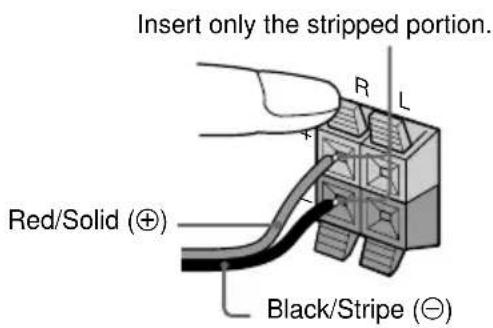
2 Connect the rear speakers. (MHC-DP1000D only)
Connect the speaker cords to the REAR SPEAKER jacks.
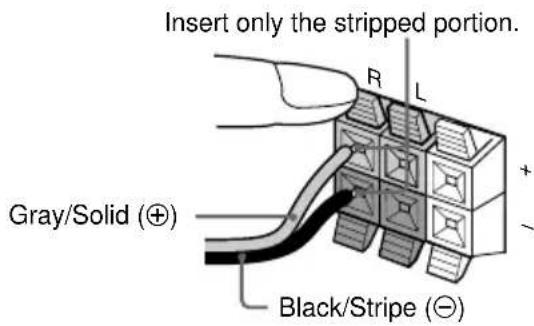
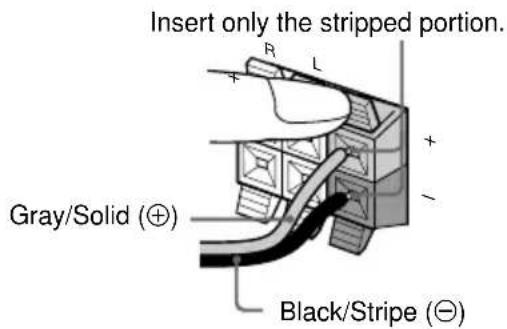
3 Connect the center speaker. (MHC-DP1000D only)
Connect the speaker cords to the CENTER SPEAKER jacks.
4 Connect the FM/AM antennas.
Set up the AM loop antenna, then connect it.
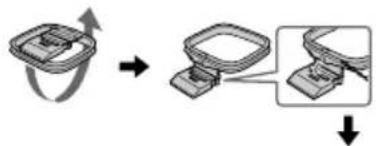
flowchart
graph TD
    A["Start"] --> B["Arrow to Top"]
    B --> C["Arrow to Bottom"]
    C --> D["Zoomed Section"]
    D --> E["Arrow to Bottom"]
Jack type Ⓐ
AM loop antenna
Extend the FM lead antenna horizontally.
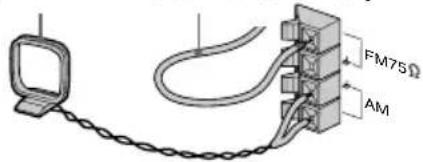
Jack type Ⓑ
Extend the FM lead antenna horizontally.
AM loop antenna
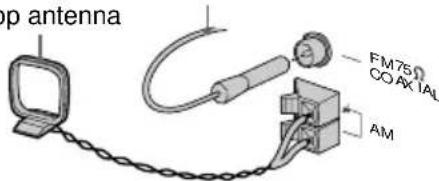
The plug of the FM antenna may vary according to the model you purchased.
5 Connect the video input jack of your TV to the VIDEO OUT jack with the video cable.
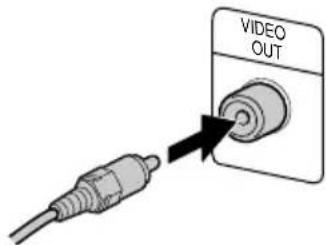
When using a TV
Turn on the TV and select the video input so you can view the pictures from this system.
Tip
For even higher quality video images, you can use an optional S-video cable to connect the S VIDEO input jack on your TV to the S VIDEO OUT jack.
6 For models with a voltage selector, set VOLTAGE SELECTOR to the position of your local power line voltage.
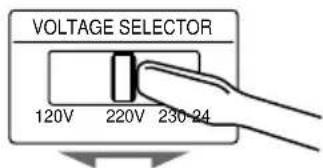
7 Connect the power cord to a wall outlet.
The demonstration appears in the display. When you press I/∅, the system turns on and the demonstration automatically ends. If the supplied adaptor on the plug does not fit your wall outlet, detach it from the plug (only for models equipped with an adaptor).
continued
Hooking up the system (continued)
8(Except for Pan American and European models)
Set the color system according to your TV.
The color system is factory set to NTSC for region code 3 models, and PAL for other region code models. Each time you perform the procedure below, the color system changes as follows:
NTSC ↔ PAL
Use the buttons on the unit.
1 Press I/ to turn on the system.
2 Press DVD.
3 Press ■.
4 Press I/While holding down The system turns off.
5 Press I/⏻ to turn on the system. The system turns on and the color system is changed.
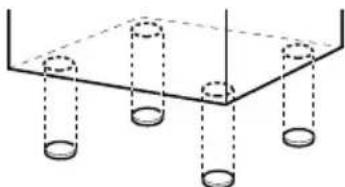
To attach the speaker pads
Attach the supplied speaker pads to the bottom of the speakers to stabilize the speakers and prevent them from slipping.
natural_image
Pure diagram of a 3D structure with vertical cylinders and a horizontal base, no text or symbols presentNotes
- Keep the speaker cords away from the antennas to prevent noise.
- The type of speakers supplied vary according to the model you purchased (see “Specifications” on page 59).
- Do not place the rear speakers on top of a TV. This may cause color distortion in the TV screen.
- For MHC-DP1000D, be sure to connect both left and right rear speakers. Otherwise, the sound will not be heard.
- When you play a VIDEO CD recorded in the different color system from the one you set to the system, the picture image may be distorted.
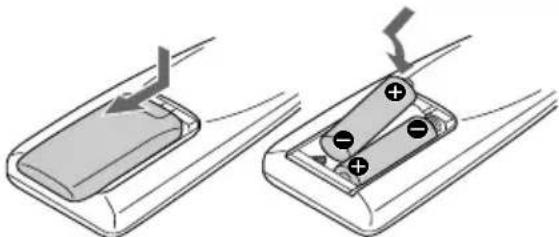
Inserting two size AA (R6) batteries into the remote
natural_image
Diagram showing two mechanical components with arrows indicating movement, no text or symbols presentOperating a Sony TV
You can use the following buttons on the remote to operate a Sony TV.
To Press
Turn the TV on or off TV I/☐.
Switch the TV's video input TV/VIDEO.
Change the TV channels TV CH +/-.
Adjusts the volume of the TV TV VOL +/- speaker(s)
Tip
When the remote no longer operates the system, replace both batteries with new ones.
Note
If you do not use the remote for a long period of time, remove the batteries to avoid possible damage from battery leakage.
Notice for carrying this system
Do the following to protect the DVD mechanism.
1 Turn on the system, then press DVD. Make sure that all discs are removed from the unit.
2 Hold down DVD, then press I/⏻ until "LOCK" appears.
3 Release I/ ^① first, then release DVD.
4 Unplug the AC power cord.
Setting up your speakers for Dolby Pro Logic
(MHC-DP1000D only)
Dolby Pro Logic Surround improves the sound image by using four separate channels. These channels manipulate the sound to be heard and enhance the action on the screen.
Positioning the speakers
For the best possible surround sound, all speakers should be the same distance from the listening position (A). However, this unit lets you to place the center speaker up to 1.5 meters (5 feet) closer (B) and the rear speakers up to 4.5 meters (15 feet) closer (C) to the listening position. The front speakers can be placed from 1.0 to 12.0 meters (3 to 40 feet) from the listening position (A).

Note
Do not place the center speaker farther away from the listening position than the front speakers.
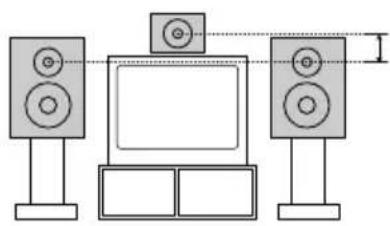
Setting the center speaker
Place the center speaker at about the same height as the front speakers. Align the center speaker with the front speakers or place it slightly behind the front speakers.
natural_image
Diagram of a setup with two speakers, a TV monitor, and a wall-mounted speaker (no text or symbols present)Setting the rear speakers
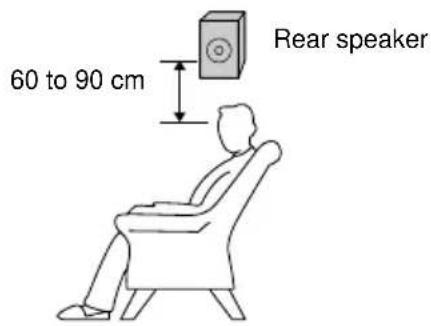
Place the rear speakers facing each other at about 60 to 90 cm above your listening position.
continued
Setting up your speakers for Dolby Pro Logic (continued)
Specifying the distance of the speakers
Use the remote for the operation.
1 Press AMP MENU.
2 From your listening position, press ▲ or ▼ repeatedly to select the parameter. Adjustable parameters are described below.
3 Press ◀ or ▶ repeatedly to select the setting you want.
4 Repeat steps 2 to 3 to set other parameters.
5 Press ENTER.
Tips
- You can use the digipad instead of the cursor buttons (▲/▼/◄/►).
- You can use “SPEAKER SETUP” in the Setup Display to specify the distance of the speakers (page 21).
Note
If each of the front or rear speakers is not placed at an equal distance from your listening position, set the distance of the closest speaker.
Adjustable parameters
The default settings are in the parentheses.
- FRONT: 1.0 meter to 12.0 meters (2.4 meters) (3 feet to 40 feet (8 feet))* Front speakers distance.
- CENTER: FRONT to 1.5 meters (2.4 meters)
(FRONT to 5 feet (8 feet))*
Center speaker distance.
- REAR: FRONT to 4.5 meters (1.5 meters) (FRONT to 15 feet (5 feet))* Rear speakers distance.
* North American model only.
Notes
- To enjoy Dolby Pro Logic surround with 2 channel PCM or analog input sources, select “NORMAL SURR” from the sound effect options (see page 47).
- If you press AMP MENU while adjusting parameters using OSD, the OSD turns off.
Specifying the speaker parameters
Use the remote for the operation.
1 From your listening position, press SPEAKER LEVEL.
Adjustable menus and parameters are described below.
2 Press ▲ or ▼ repeatedly to select the parameter.
3 Press ◀ or ▶ repeatedly to select the setting you want.
4 Repeat steps 2 to 3 to set other parameters.
5 Press ENTER.
Tips
- You can use the digipad instead of the cursor buttons (▲/▼/◄/►).
- You can use “SPEAKER SETUP” in the Setup Display to specify the balance, level, and test tone parameters (page 21).
Adjustable parameters
The default settings are in the parentheses.
BALANCE
- FRNT L__R: (center) Balance between the front left and right speakers.
- (MHC-DP1000D only) REAR L__R: (center) Balance between the rear left and right speakers.
Range: 6 dB (L) to 6 dB (R), 1 dB steps
■ LEVEL (MHC-DP1000D only)
- REAR ** dB: (0 dB) Level of the rear speakers. Range: -6 dB to 6 dB, 1 dB steps
- CTR ** dB: (0 dB) Level of the center speaker. Range: -6 dB to 6 dB, 1 dB steps
- SW ** dB: (10 dB) Level of the sub woofer. Range: -10 dB to 10 dB, 1 dB steps
LFE
Level of the LFE (Low Frequency Effect) channel output. Range: OFF, -20 dB to 0 dB, 1 dB steps “OFF” cuts the sound of the LFE channel. However, the low frequency sound of the speakers are output from the sub woofer. “-20 dB” to “0 dB” settings allow you to attenuate the LFE signal. “0 dB” outputs the full LFE signal at the mix level determined by the recording engineer.
D.COMP.
• D.COMP.: (STD)
Dynamic range compression. Range: OFF, 0.1 to 0.9, STD, MAX “OFF” does not compress the dynamic range. “0.1” to “0.9” settings allow you to compress the dynamic range in small steps. “STD” reproduces the sound track with the dynamic range intended by the recording engineer. “MAX” provides a great compression of the dynamic range.
■ T.TONE (MHC-DP1000D only)
• T.TONE: (OFF)
Test tone output. Range: OFF, ON “ON” outputs the test tone from each speaker in sequence. Adjust the LEVEL and BALANCE parameters so that the volume level of the test tone from each speaker sounds the same using the remote from your listening position. Select “OFF” to turn off the test tone.
Notes
- When you adjust the level of the subwoofer, set T.TONE to "OFF".
- Dynamic range compression is possible with Dolby Digital sources only.
- If you press SPEAKER LEVEL while adjusting parameters using OSD, the OSD turns off.
Setting the time
1 Turn on the system.
2 Press CLOCK/TIMER SET.
When you set the time for the first time, proceed to step 5.
3 Press ◀◀◀ or ▶▶▶I repeatedly to select "CLOCK SET".
4 Press ENTER.
5 Press ◀◀◀ or ▶▶▶I repeatedly to set the hour.
6 Press ENTER.
7 Press ◀◀◀ or ▶▶▶I repeatedly to set the minutes.
8 Press ENTER.
Tip
If you have made a mistake or want to change the time, start over from step 2.
Note
The clock settings are canceled when you disconnect the power cord or if a power failure occurs.
Saving the power in standby mode
Press DISPLAY repeatedly when the power is off.
Each time you press the button, the system switches cyclically as follows:
Demonstration → Clock → Power Saving Mode
To cancel the Power Saving mode
Press DISPLAY once to show the demonstration, twice to show the clock display.
Tips
- I/↓ indicator lights up even in the Power Saving Mode.
- The timer functions during the Power Saving Mode.
Note
During the Power Saving Mode, the following functions do not work:
- Setting the time.
- Changing the AM tuning interval (except for European and Middle Eastern models).
- Pressing a function button to turn the power on.
- Switching the function of MD (VIDEO).
- Switching the color system.
Setting Up for DVD/VIDEO CD/CD
Using the Setup Display
By using the Setup Display, you can make various adjustments to items such as picture and sound. You can also set a language for the subtitles and the Setup Display, among other things. For details on each Setup Display item, see pages 18–22. For an overall list of Setup Display items, see page 66.
The North American model is the model used for OSD (on-screen display) illustration purposes in this section.
Use the remote for the operation.
1 Press DVD.
2 When the playback is stopped, press DVD DISPLAY.
The Control Menu appears.
If you press DVD SET UP, you can go to step 4 directly.
3 Press ▲ or ▼ repeatedly to select "SETUP", then press ENTER.
The options for "SETUP" appear.
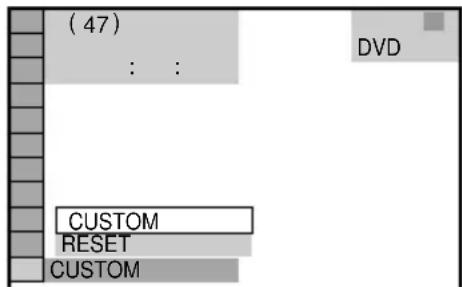
4 Press ▲ or ▼ repeatedly to select "CUSTOM", then press ENTER.
The Setup Display appears.
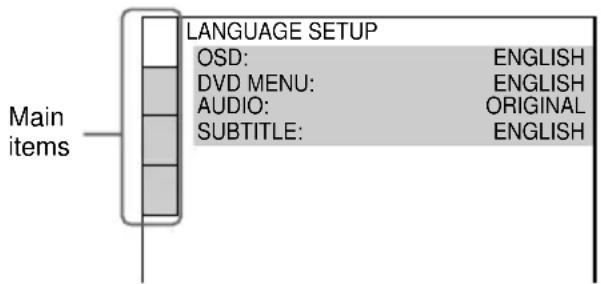
5 Press ▲ or ▼ repeatedly to select the setup item from the displayed list, then press ENTER.
The selected setup item appears.
Example: "SCREEN SETUP"
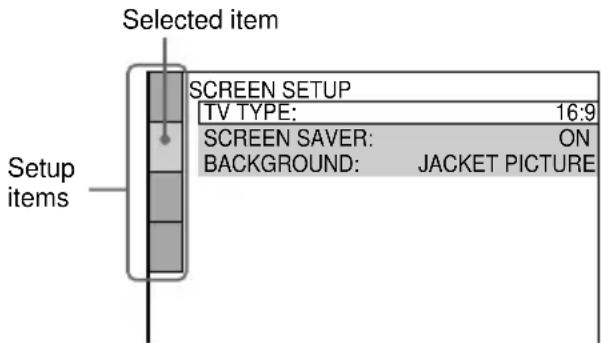
6 Press ▲ or ▼ repeatedly to select an item, then press ENTER.
The options for the selected item appear.
Example: "TV TYPE"
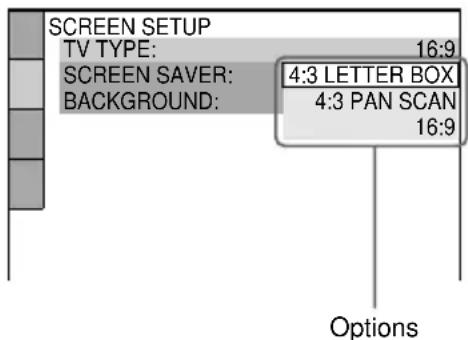
7 Press ▲ or ▼ repeatedly to select a setting, then press ENTER.
The setting is selected and the setup is completed.
Example: "4:3 PAN SCAN"
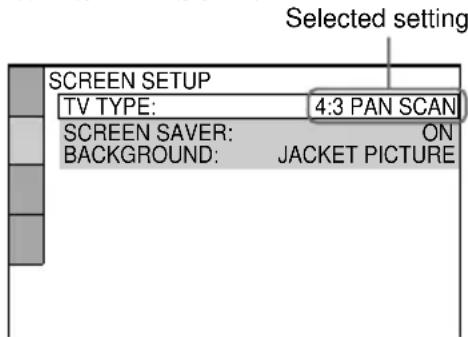
continued
Using the Setup Display (continued)
To turn off the Setup Display
Press DVD SET UP or DVD DISPLAY repeatedly until the Setup Display is turned off.
Tips
- If you select “RESET” in step 4, you can reset all of the “SETUP” settings on pages 18–22 (except for PARENTAL CONTROL) to the default settings. After you select “RESET” and press ENTER, select “YES” to reset the settings (it takes a few seconds to complete), or select “NO” and press ENTER to return to the Control Menu. Do not press I/⏻ when resetting the system.
- You can use the digipad instead of cursor buttons ( /// ) when DVD is selected as the current function and OSD appears on the screen.
Setting the display or sound track language
— LANGUAGE SETUP
“LANGUAGE SETUP” allows you to set various languages for the on-screen display or sound track.
Select "LANGUAGE SETUP" in the Setup Display.
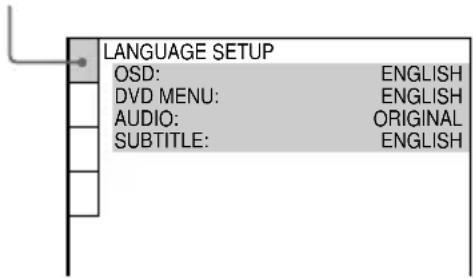
■OSD (on-screen Display)
Switches the display language on the screen. Select the language from the displayed list.
■DVD MENU (DVD only)
Select the language for the DVD menu.*
■AUDIO (DVD only)
Switches the language of the sound track. Select the language from the displayed list.* When you select “ORIGINAL”, the language given priority in the disc is selected.
■SUBTITLE (DVD only)
Switches the language of the subtitle. Select the language from the displayed list.* When you select “AUDIO FOLLOW”, the language for the subtitles changes according to the language you selected for the sound track.
* If you select “OTHERS →” in “DVD MENU”, “AUDIO”, or “SUBTITLE”, select and enter the language code from the list using the numeric buttons (page 64). After you selected, the language code (4 digits) is displayed the next time you select “OTHERS →”.
Note
When you select a language that is not recorded on the DVD, one of the recorded languages will be automatically selected (except for “OSD”).
Settings for the display
— SCREEN SETUP
Select settings according to the connected TV. Select "SCREEN SETUP" in the Setup Display.
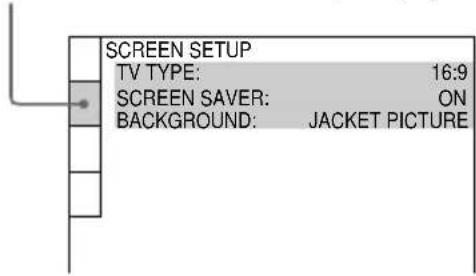
■TV TYPE (DVD only)
Select the aspect ratio of the connected TV.
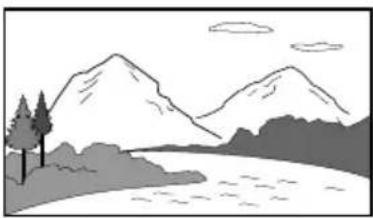
- 16:9: Select this when you connect a wide-screen TV or a TV with a wide mode function.
natural_image
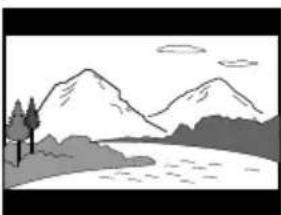
Simple line drawing of a mountain landscape with a river, trees, and sky (no text or symbols)- 4:3 LETTER BOX: Select this when you connect a 4:3 screen TV. This setting displays a wide picture with bands displayed on the upper and lower portions of the screen.
natural_image
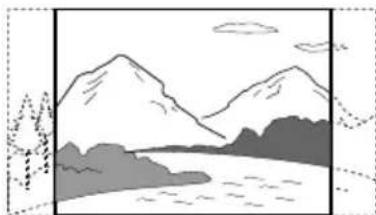
Simple line drawing of a mountain landscape with a river, trees, and sky (no text or symbols)• 4:3 PAN SCAN: Select this when you connect a 4:3 screen TV. This setting displays the wide picture on the entire screen and cuts off the portions that do not fit.
natural_image
Simple line drawing of a mountain landscape with trees and water (no text or symbols)Note
Depending on the DVD, "4:3 LETTER BOX" may be selected automatically instead of "4:3 PAN SCAN" or vice versa.
■SCREEN SAVER
Turn on and off the screen saver. If you turn on the screen saver, the screen saver image appears when you leave the player in pause or stop mode for 15 minutes or when you play a CD for more than 15 minutes. The screen saver will help prevent your display device from becoming damaged (ghosting). Press ◀▶ to turn off the screen saver.
• ON: Turns on the screen saver.
• OFF: Turns off the screen saver.
■BACKGROUND
Select the background color or picture on the TV screen when the playback is stopped or while playing a CD.
- JACKET PICTURE: The jacket picture (still picture) appears in the background, but only when the jacket picture is already recorded on the disc (CD-EXTRA, etc). If the disc does not contain a jacket picture, the “GRAPHICS” picture appears.
• GRAPHICS: The preset picture stored in the system appears in the background. - BLUE: The background color is blue.
- BLACK: The background color is black.
Custom settings
— CUSTOM SETUP
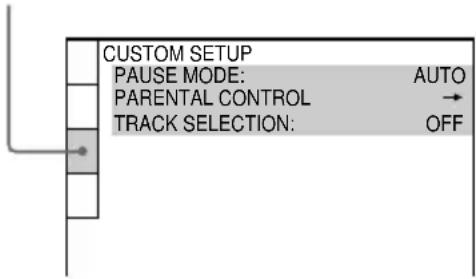
Select "CUSTOM SETUP" in the Setup Display.
■COLOR SYSTEM (Except for Pan American and European models)
Select the color system when you play a VIDEO CD.
- AUTO: Outputs the video signal in the system of the disc, either PAL or NTSC. If your TV uses a DUAL system, select AUTO.
- PAL: Changes the video signal of an NTSC disc and outputs it in the PAL system.
- NTSC: Changes the video signal of a PAL disc and outputs it in the NTSC system.
Notes
- You cannot change the color system of the disc itself.
- Except for Pan American and European models, you can change the color system of this unit according to the connected TV. See page 12.
■PAUSE MODE (DVD only)
Select the picture in pause mode.
- AUTO: A picture including subjects that move dynamically is output with no jitter. Normally select this position.
- FRAME: A picture including subjects that do not move dynamically is output in high resolution.
■PARENTAL CONTROL → (DVD only)
Set a password and playback limitation level for DVDs with playback limitation for children. For details, see “Limiting playback by children (Parental Control)” on page 37.
■TRACK SELECTION (DVD only)
Gives the priority to the sound track which contains the highest number of channels when you play a DVD on which multiple audio formats (PCM, DTS, MPEG audio, or Dolby Digital format) are recorded.
- OFF: No priority given.
- AUTO: Priority given.
Notes
- When you set to “AUTO”, the language setting may change. The “TRACK SELECTION” setting has higher priority than the “AUDIO” setting in “LANGUAGE SETUP” (page 18).
- If PCM, DTS, MPEG audio, and Dolby Digital sound tracks have the same number of channels, the system selects PCM, DTS, MPEG audio, and Dolby Digital sound tracks in this order.
- Depending on the DVD, the audio channel with priority may be predetermined. In this case, you cannot give priority to the DTS, MPEG audio, or Dolby Digital audio format by selecting “AUTO”.
Speaker settings
— SPEAKER SETUP
Set up your speaker system for playback of 5.1CH DVDs.
Select "SPEAKER SETUP" in the Setup Display.
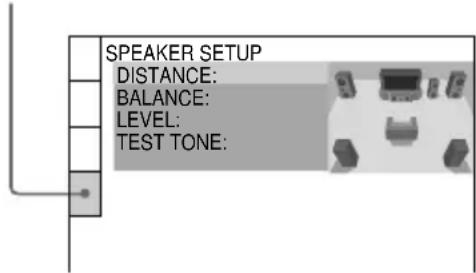
To return to the default setting
Select the item, then press CLEAR.
■DISTANCE (MHC-DP1000D only)
The default distance settings for the speakers in relation to the listening position is shown below.
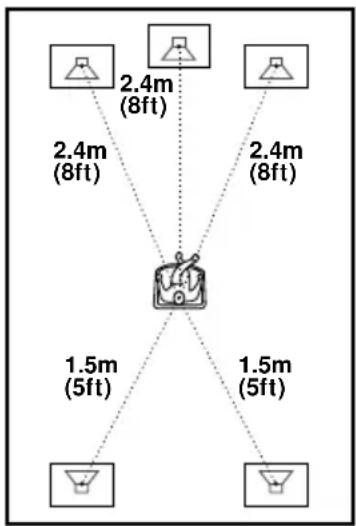
flowchart
graph TD
    A["Device"] -->|2.4m (8ft)| B["Central Device"]
    A -->|2.4m (8ft)| C["Device"]
    A -->|2.4m (8ft)| D["Device"]
    A -->|1.5m (5ft)| E["Device"]
    A -->|1.5m (5ft)| F["Device"]
Be sure to change the value in the Setup Display when you move the speakers.
- FRONT: Front speaker distance from the listening position can be set in 0.1 meter (1 foot) steps from 1.0 to 12.0 meters (3 to 40 feet).
- CENTER: Center speaker distance can be moved up to 1.5 meters (5 feet) closer to the listening position, from the front speakers in 0.1 meter (1 foot) steps.
- REAR: Rear speaker distance can be moved up to 4.5 meters (15 feet) closer to the listening position, from the front speakers in 0.1 meter (1 foot) steps.
Notes
- When you select an item, the sound cuts off for a moment.
- If each of the front or rear speakers is not placed at an equal distance from your listening position, set the distance of the closest speaker.
- Do not place the rear speakers farther away from your listening position than the front speakers.
BALANCE
You can vary the balance of the left and right speakers as follows. Be sure to set “TEST TONE” to “ON” for easy adjustment. The default settings are in parentheses.
- FRONT (0 dB): Adjust the balance between the front left and right speakers (6 dB (L) to 6 dB (R), 1 dB steps).
• (MHC-DP1000D only) REAR (0 dB): Adjust the balance between the rear left and right speakers (6 dB (L) to 6 dB (R), 1 dB steps).
continued
Speaker settings (continued)
■LEVEL (MHC-DP1000D only)
You can vary the level of each speakers as follows. Be sure to set “TEST TONE” to “ON” for easy adjustment.
The default settings are in parentheses.
- CENTER(0 dB): Adjust the level of the center speaker (-6 dB to +6 dB, 1 dB steps).
- REAR (0 dB): Adjust the level of the rear speakers (-6 dB to +6 dB, 1 dB steps).
- SUBWOOFER (10 dB): Adjust the level of the subwoofer (-10 dB to +10 dB, 1 dB steps).
■TEST TONE (MHC-DP1000D only)
The speakers will emit a test tone to adjust “BALANCE” and “LEVEL”.
- OFF: The test tone is not emitted from the speakers.
- ON: The test tone is emitted from each speaker in sequence while adjusting balance or level. When you select one of the “SPEAKER SETUP” items, the test tone is emitted from both left and right speakers simultaneously.
Note
When you adjust the level of the subwoofer, set T.TONE to "OFF".
To adjust the volume of all the speakers at once
Turn VOLUME (or press VOL +/- on the remote).
Adjusting the speaker volume and level
1 When the playback is stopped, press DVD SET UP, then select "SPEAKER SETUP".
2 Select "TEST TONE" and set "TEST TONE" to "ON".
You will hear the test tone from each speaker in sequence.
3 From your listening position, select "BALANCE" or "LEVEL", then press ◀ or ▶ repeatedly to adjust the value of "BALANCE", or press ▲ or ▼ repeatedly to adjust the value of "LEVEL".
The test tone is emitted from both left and right speakers simultaneously.
4 Select "TEST TONE" and set "TEST TONE" to "OFF" to turn off the test tone.
Notes
- When you adjust the speaker settings, the sound cuts off for a moment.
- If you adjust these parameters using OSD while adjusting the speaker parameters using AMP MENU or SPEAKER LEVEL (pages 14–15), the display on the unit turns off.
Playing discs
Loading a disc
1 Press ▲ OPEN/CLOSE.
The disc tray slides out.
2 Place a DVD/VIDEO CD/CD with the label side up on the disc tray.
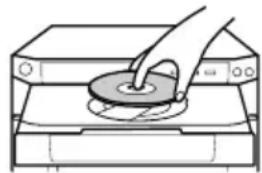
natural_image
Line drawing of a hand pressing down on a circular object on an open base (no text or symbols)To insert additional discs, press DISC SKIP EX-CHANGE (or D.SKIP on the remote) to rotate the disc tray.
3 Press ▲ OPEN/CLOSE to close the disc tray.
Playing a disc
— Normal Play/Shuffle Play/ Slow-motion Play/Freeze Frame
You can play up to three discs (DVD, VIDEO CD, CD) in a row. Depending on the DVD or VIDEO CD, some operations may be different or restricted. Refer to the operating instructions supplied with the disc.
When playing a DVD:
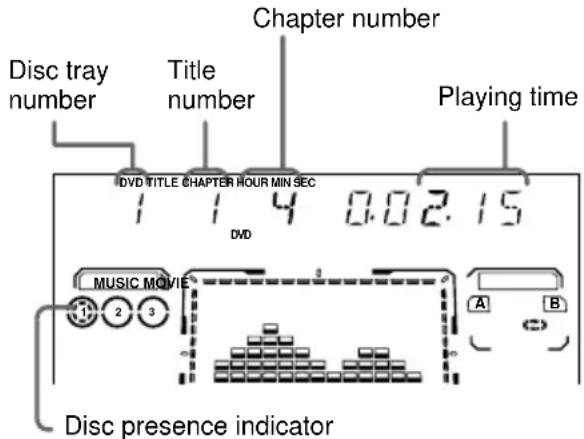
When playing a VIDEO CD or CD:
Disc tray number Track number Playing time
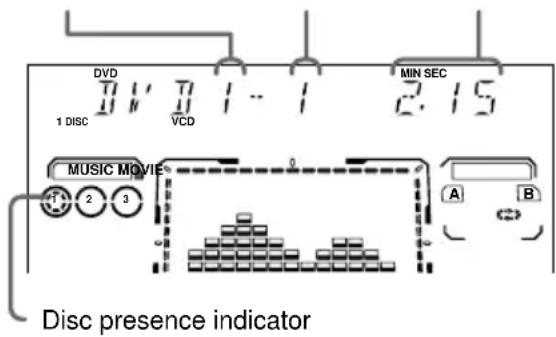
1 Turn on your TV and select the video input.
Refer to the operating instructions supplied with your TV if you need help.
2 Press DVD.
3 When playback is stopped, press PLAY MODE repeatedly until the mode you want appears in the display.
| Select | To play |
| ALL DISCS | All discs in the disc tray continuously. |
| 1 DISC | The disc you have selected in the original order. |
| ALL DISCS SHUFFLE | The tracks on all discs in random order. |
| 1 DISC SHUFFLE | The tracks on the disc you have selected in random order. |
| PROGRAM | The tracks on all discs in the order you want them to be played (see “Creating your own program” on page 26). |
4 Press one of the DISC 1-3 buttons.
If you press ◀▶ when DVD is selected as the function (press DVD) and the disc tray is closed, playback starts from the selected disc.
Tips
- You cannot change the play mode during playback.
- You can change the play mode between 1 DISC and ALL DISCS using the on-screen display as follows:
1 When playback is stopped, press DVD DISPLAY. The Control Menu appears.
2 Press ▲ or ▼ to select “ONE/ALL DISCS”, then press ENTER.
3 Press ▲ or ▼ to select either “ONE DISC” or “ALL DISCS”, then press ENTER.
Playing a disc (continued)
Other operations
| To | Do this |
| Stop playback | Press ■. The playback stops at the point ■ is pressed (Resume Play). Press ■ again to cancel the Resume Play (see page 28). |
| Pause playback | Press ^*1 .Press again to resume playback. |
| Select a track or chapter | During playback or pause, press ▶▶l (or NEXT on the remote) (to go forward) or ◀◀◀ (or PREV on the remote) (to go back). |
| Find a point in a track title or chapter (Lock Search function) | Press ▶▶ or ◀◀ during playback. Each time you press the button, the speed changes as follows:1 (slow) ↔ 2 (faster than 1)Press ◀◀▶ to stop searching at the desired point. |
| Change the playback speed ^*2 (Slow-motion play) | During playback, press SLOW ◀l or ◀▶ ^*3 on the remote. Each time you press the button, the speed switches between two slowed playback speeds. To return to normal playback, press ◀◀▶. |
| Playing the disc frame by frame changing the playback speed ^*2 (Freeze Frame) | During playback, press STEP ◀ll or ◀▶ ^*3 on the remote.Each time you press the button, playback is advanced a single frame in the desired direction. To return to normal playback, press ◀◀▶. |
| Select a disc when playback is stopped | Press one of the DISC 1–3 buttons or DISC SKIP EX-CHANGE (or D.SKIP on the remote). |
| Switch to DVD function from another source | Press one of the DISC 1–3 buttons (Automatic Source Selection). |
| Exchange other discs during playback | Press DISC SKIP EX-CHANGE. |
| Remove the disc | Press ▲ OPEN/CLOSE. |
*1 There may be some disturbance in the video image.
^*2 DVD and VIDEO CD only.
*3 SLOW ◀ and STEP ◀ are not available during playback of VIDEO CDs.
Tips
- You can use the digipad for DVD/VIDEO CD/CD operations.
- You can use the digipad instead of cursor buttons ( /// ) when DVD is selected as the current function and OSD appears on the screen.
Notes
- Depending on the DVD or VIDEO CD, some operations may be prohibited.
• VIDEO CDs cannot be viewed slowly or frame by frame in the reverse direction. -
Under the following circumstances, 2CH/MULTI is automatically set to “2CH”.
-
When recording.
- When TAPE B is in REC PAUSE mode.
- When recording using TAPE B.
- When using headphones, the sound from headphones is 2 channel.
- Switch the channel mode to “2CH” by pressing 2CH/MULTI when making an analog recording using a component connected to the MD OUT jacks on this unit. There is no audio output from the MD OUT jacks in the multi channel mode.
- Depending on the DVD, digital recording may not be done. In this case, perform analog recording. Press 2CH/MULTI to switch the channel mode to "2CH" on this system when making an analog recording.
- Set the sound to “STEREO” using the AUDIO button when you play DTS sound tracks on a CD (page 32).
Playing DVDs using the menu
Some discs have a “title menu” or a “DVD menu”. On some DVDs, this may simply be called a “menu” or “title”.
Using the title menu
A DVD is divided into long sections of a picture or a music feature called “titles”. When you play a DVD which contains several titles, you can select the title you want using the title menu.
1 Press DVD.
2 Press TITLE.
The title menu appears on the TV screen. The contents of the menu vary from disc to disc.
3 Press ▲/▼/◄/► or the numeric buttons to select the title you want to play.
4 Press ENTER.
The playback starts from the selected title.
Using the DVD menu
Some DVDs allow you to select the disc contents using a menu. When you play these DVDs, you can select items such as the language for the subtitles and the language for the sound using the DVD menu.
1 Press DVD.
2 Press DVD MENU.
The DVD menu appears on the TV screen. The contents of the menu vary from disc to disc.
3 Press ▲/▼/◄/► or the numeric buttons to select the item you want to change.
4 To change other items, repeat step 3.
5 Press ENTER.
Tip
You can use the digipad instead of cursor buttons (▲/▼/◄/►) when DVD is selected as the current function and OSD appears on the screen.
Playing VIDEO CDs with PBC functions (Ver. 2.0)
— PBC Play
You can use menus on your TV screen to enjoy the disc's interactive software. The menu format and structure may differ depending on each disc.
1 Press DVD.
2 Press ◀▶ to start playing a VIDEO CD with PBC functions (Ver. 2.0).
The VIDEO CD and PBC indicators light and a PBC menu appears on your TV. The PBC indicator lights during PBC playback of a PBC compatible VIDEO CD (Ver. 2.0).
3 Press ▲ or ▼ repeatedly to select a number from the menu, then press ENTER.
4 Continue playback according to the instructions on the menus to enjoy interactive playback.
| To | Do this |
| Stop playback | Press ■. |
| See the rest of the menu | Press NEXT on the remote. |
| Go back to the top of the menu | Press PREV on the remote. |
| Go back to the previous menu | Press RETURN 🔍 on the remote. |
continued
Playing VIDEO CDs with PBC functions (Ver. 2.0) (continued)
| To | Do this |
| Cancel playback with PBC functions (Ver. 2.0) | When the playback is stopped, press ◀◀◀ or ▶▶▶ repeatedly to select the track you want, then press ENTER (or press the numeric buttons on the remote). The PBC indicator turns off and playback starts from the selected track. Still images, such as the menu screens, will not be shown. |
| Select a menu number using the remote | Press the numeric buttons, then press ENTER. To enter 0, press 10/0. |
Note
Depending on the VIDEO CD, "Press ENTER" in step 3 may appear as "Press SELECT" in the operating instructions supplied with the disc.
Creating your own program
— Program Play
You can make a program of up to 25 steps from all the discs in the order you want them to be played.
1 Press DVD.
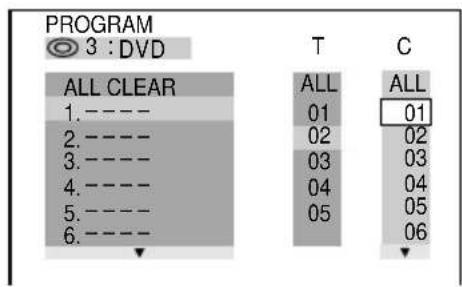
2 When the playback is stopped, press PLAY MODE repeatedly until "PROGRAM" appears in the front panel display.
The Program Display appears on the screen.
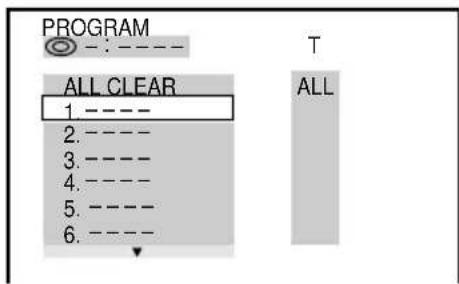
3 Press ENTER, then press ▲ or ▼ repeatedly to select the disc.
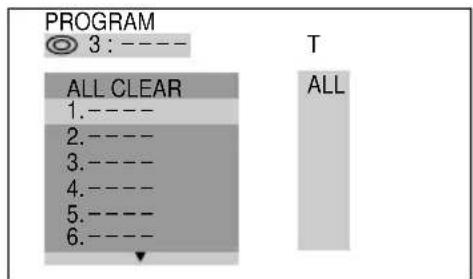
4 Press ▶.
The cursor moves to the title or track (in this case, "01").
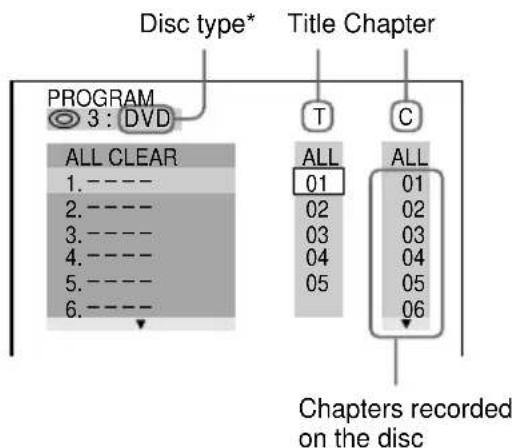
* “?” appears when the system has not loaded the disc information in the memory.
5 Select the title, chapter, or track you want to program.
■ When programming a DVD
For example, select chapter "03" of title "02".
Press ▲/▼ or the numeric buttons to select "02" under "T", then press ENTER.
other
PROGRAM ● 3 : DVD | | ALL | ALL | ALL | |---|---|---|---| | 1. ---- | 01 | 01 | 01 | | 2. ---- | 02 | 02 | 02 | | 3. ---- | 03 | 03 | 03 | | 4. ---- | 04 | 04 | 04 | | 5. ---- | 05 | 05 | 05 | | 6. ---- | 06 | 06 | 06 |Next, press ▲/▼ or the numeric buttons to select "03" under "C", then press ENTER.
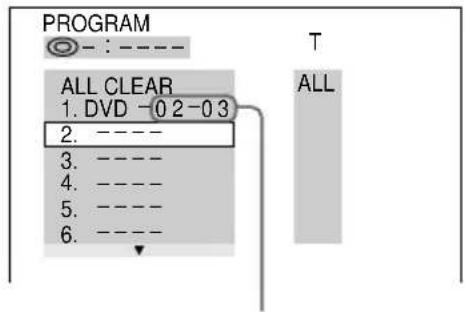
Selected title and chapter
■ When programming a VIDEO CD or CD
For example, select track "02".
Press ▲/▼ or the numeric buttons to select "02" under "T", then press ENTER.
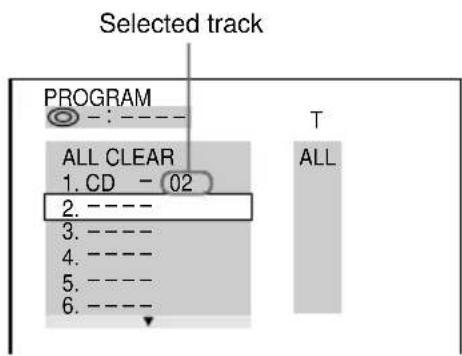
6 To program other discs, titles, chapters, or tracks, repeat steps 3 to 5.
7 Press ◀▶ to start Program Play.
Program Play starts.
| To | Do this |
| Return to normal playback | Press CLEAR during playback. |
| Turn off the Program Display | Press PLAY MODE when the playback is stopped. |
| Change the program | To change the disc, select the program number you want to change using ▲/▼ after step 2 or 5, then press ENTER.To change the title, chapter, or track, select the one you want in step 5. |
| Cancel the programmed order | To cancel all the titles, chapters, or tracks in the programmed order, press ▲, and select “ALL CLEAR” in step 3. To cancel the selected program, select the program using ▲/▼ in step 3, then press CLEAR. |
Tip
The program you made remains in the system's memory even after it has been played back. Press
◀▶ to play the same program again.
Notes
- The program is canceled when you change the function to TUNER or turn the system off.
- You may not be able to do Program Play depending on the DVD.
- You cannot make a program while playing a disc.
- When you switch the play mode to "PROGRAM" while "REPEAT 1" is selected, "REPEAT 1" is automatically canceled.
Resuming playback from the point you stopped the disc
— Resume Play
This system memorizes the point where you stopped the disc so you can resume from that point.
1 While playing a disc, press ■ to stop playback.
“RESUME” appears in the display. If “RESUME” does not appear, Resume Play is not available.
2 Press ◀▶.
The player starts playback from the point you stopped the disc in step 1.
To view from the beginning of the disc
When "RESUME" appears in the display, press
■, then press ◀▶.
Notes
- Depending on where you stopped the disc, the system may resume playback from a different point.
- Resume play is canceled when:
- you press numeric buttons, ■, D.SKIP, or ◀◀◀/▶▶▶.
- you remove the disc.
- you unplug the unit's AC power cord.
- you change the settings of "DVD MENU", "AUDIO", or "SUBTITLE" in "LANGUAGE SETUP" in the setup display.
- you change the settings of "TV TYPE" in "SCREEN SETUP" in the setup display.
- you change the settings of "PARENTAL CONTROL" in "CUSTOM SETUP" in the setup display.
Playing repeatedly
— Repeat Play
You can play all the titles/tracks or a single title/chapter/track on a disc.
In Shuffle or Program Play mode, the system repeats the titles or tracks in the shuffled or programmed order.
1 Press DVD DISPLAY.
The Control Menu appears.
2 Press ▲ or ▼ repeatedly to select "REPEAT", then press ENTER.
If you do not select "OFF," the "REPEAT" indicator lights in green.
3 Select the Repeat Play setting.
■ When playing a DVD and when Program Play is set to OFF
• OFF: does not play repeatedly.
• DISC: repeats all the titles.
- TITLE: repeats the current title on a disc.*
• CHAPTER: repeats the current chapter.
■ When playing a VIDEO CD/CD and when Program Play is set to OFF
• OFF: does not play repeatedly.
• DISC: repeats all the tracks on a disc.
- TRACK: repeats the current track.*
■ When Program Play is set to ON
• OFF: does not play repeatedly.
• ON: repeats Program Play.
* When ALL DISCS SHUFFLE is selected, you can select the Repeat Play of TITLE or TRACK only.
To cancel Repeat Play
Press CLEAR.
Tips
- You can set Repeat Play when the playback is stopped. After selecting the “REPEAT” item, press ◀. The Repeat Play starts.
- You can quickly display the “REPEAT” status. Press REPEAT.
Notes
- You cannot perform Repeat Play during PBC playback of VIDEO CDs (page 25).
- You may not be able to perform Repeat Play depending on the DVD.
- If you select DISC repeat (with or without Program Play), the program is repeated up to 5 times.
Viewing information about the disc
Checking the playing time and remaining time
You can check the remaining time of the current track or that of the disc.
When a DVD/CD TEXT disc is loaded, you can check the information stored on the disc, such as the titles.
When the system detects DVD/CD TEXT discs, the “DVD TEXT” (or “CD TEXT”) indication appears in the display.
Using the front panel display
Press DISPLAY.
Each time you press the button, the display changes cyclically as follows:
During normal playback
When playing a DVD:
Playing time of the current title → Remaining time of the current title → Playing time and the current chapter → Remaining time of the current chapter → Text*1 → Clock display (for 8 seconds) → Effect status
When playing a VIDEO CD (without PBC functions) or CD:
Playing time and current track number → Remaining time of the current track → Playing time of the disc → Remaining time of the disc → Text*1 → Clock display (for 8 seconds) → Effect status
VIDEO CDs with PBC functions (Ver. 2.0):
Playing time of the current scene ^2 → Text ^1 → Clock display (for 8 seconds) → Effect status
continued
Checking the playing time and remaining time (continued)
When the playback is stopped
DVDs:
Total number of titles ^3 → Title name of the disc ^1 → Clock display (for 8 seconds) → Effect status
VIDEO CDs or CDs:
Total number of tracks and the total playing time ^3 → Title name of the disc ^1 → Clock display (for 8 seconds) → Effect status
*1 With DVD/CD TEXT discs only (certain characters cannot be displayed). Depending on the disc, DVD/CD text does not appear and “NO TEXT” appears.
^*2 May not appear with still images, etc.
*3 When the playback is stopped and “RESUME” appears on the front panel display, the point where playback was stopped is displayed.
Using the on-screen display
1 Press DVD DISPLAY during playback.
The Control Menu appears.
2 Press DISPLAY repeatedly to change the time information.
The display and the kinds of time that you can change depend on the disc you are playing.
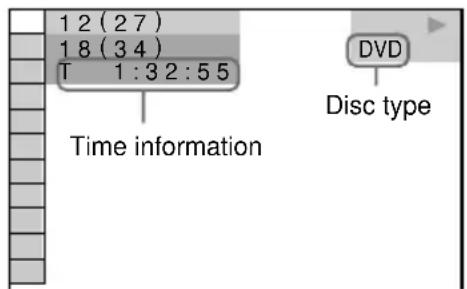
■ When playing a DVD
• T **:**:**
Playing time of the current title
• T- **:**:**
Remaining time of the current title
• C **:**:**
Playing time of the current chapter
• C- **:**:**
Remaining time of the current chapter
■ When playing a VIDEO CD (with PBC functions)
- **:** Playing time of the current scene
■ When playing a VIDEO CD (without PBC functions) or CD
• T **:**
Playing time of the current track
• T- **:**
Remaining time of the current track
• D ***
Playing time of the current disc
• D- ****
Remaining time of the current disc
To turn off the Control Menu
Press DVD DISPLAY repeatedly until the Control Menu is turned off.
Checking the text information of the disc
Press DISPLAY repeatedly while playing a DVD or a TEXT-CD.
The “TIME/TEXT” information is displayed at the top of the screen. When the elapsed time of the chapter, or track is displayed, text information is displayed at the bottom of the screen.
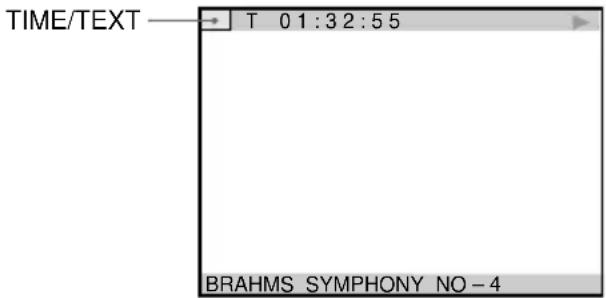
Notes
- Only DVD TEXT in English is displayed.
- When there is no text recorded on the disc, “NO TEXT” is displayed.
- If DISPLAY is not pressed for 2 seconds, the display disappears.
Checking the playback information
— ADVANCED
(DVD only)
You can check information such as the bit rate or the disc layer that is being played.
While playing a disc, an approximate bit rate of the playback picture is always displayed as Mbps (Mega bit per second) and the audio as Kbps (Kilo bit per second).
1 Press DVD DISPLAY during playback.
The Control Menu appears.
2 Press ▲ or ▼ repeatedly to select "ADVANCED", then press ENTER.
The options for “ADVANCED” appear.
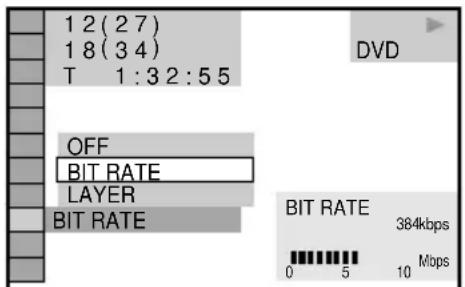
3 Press ▲ or ▼ repeatedly to select the item.
For each item, see “Displays of each item”.
• BIT RATE: Displays the bit rate.
- LAYER: Displays the layer and the pick-up point.
4 Press ENTER.
To close the "ADVANCED" display
Select "OFF" in step 3.
To turn off the Control Menu
Press DVD DISPLAY repeatedly until the Control Menu is turned off.
Displays of each item
By pressing DVD DISPLAY repeatedly, you can display either “BIT RATE” or “LAYER”, whichever was selected in “ADVANCED”.
BIT RATE
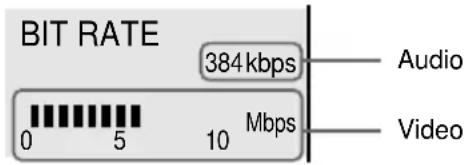
When playing MPEG audio sound tracks:
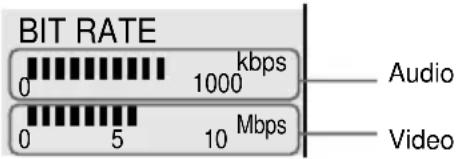
Bit rate refers to the amount of video/audio data per second in a disc. The higher the bit rate, the larger the amount of data. When the bit rate level is high, there is a large amount of data. However, this does not always mean that you can get higher quality pictures or sounds.
LAYER
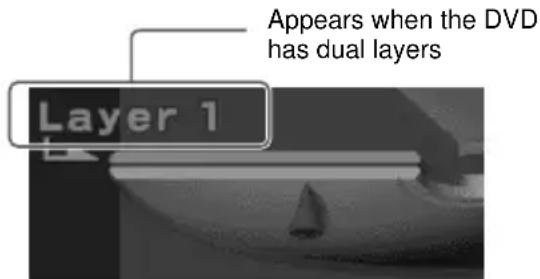
This item indicates the approximate point where the disc is playing. When the DVD has dual layers, the system indicates which layer is being read (“Layer 0” or “Layer 1”). For details on the layers, see page 62 (DVD).
Sound adjustment
Changing the sound
If a DVD is recorded with multilingual tracks, you can select the language you want while playing the DVD. If the DVD is recorded in multiple audio formats (PCM, Dolby Digital, MPEG audio, or DTS), you can select the audio format you want while playing the DVD.
With stereo CDs or VIDEO CDs, you can select the sound from the right or left channel and listen to the sound of the selected channel through both the right and left speakers. (In this case, the sound loses its stereo effect.) For example, when playing a disc containing a song with the vocals on the right channel and the instruments on the left channel, you can select the left channel and hear only the instruments from both speakers.
1 Press DVD DISPLAY during playback.
The Control Menu appears.
2 Press ▲ or ▼ repeatedly to select "AUDIO", then press ENTER.
3 Press ▲ or ▼ repeatedly to select the audio signal you want.
■ When playing a DVD
Depending on the DVD, the choice of the language varies. When 4 digits are displayed, they represent the language code (see the language code list on page 64). When the same language is displayed two or more, the DVD is recorded in multiple audio formats.
■ When playing a VIDEO CD or CD
• STEREO: The standard stereo sound.
- 1/L: The sound of the left channel (monaural).
- 2/R: The sound of the right channel (monaural).
4 Press ENTER.
To turn off the Control Menu
Press DVD DISPLAY repeatedly until the Control Menu is turned off.
Tip
You can select “AUDIO” directly by pressing AUDIO on the remote. Each time you press the button, the item changes.
Notes
- For discs not in multiple audio format, you cannot change the sound.
- During DVD playback, the sound may change automatically.
Displaying the audio information of the disc
(DVD only)
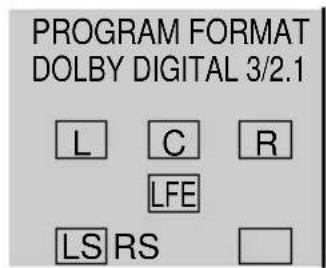
When you select “AUDIO”, the channels being played are displayed on the screen.
For example, in Dolby Digital format, multiple signals ranging from monaural to 5.1 channel signals can be recorded on a DVD. Depending on the DVD, the number of the recorded channels may differ.
Current audio format*
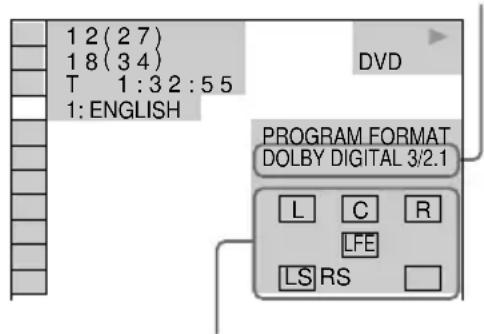
Current playing program format**
* “PCM”, “MPEG”, “DTS”, or “DOLBY DIGITAL” is displayed.
For “DOLBY DIGITAL”, the channels in the playing track are displayed numerically as follows:
For Dolby Digital 5.1 ch:
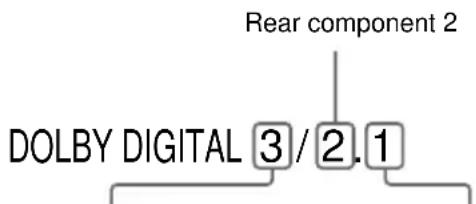
Front component 2 + Center component 1
LFE (Low Frequency Effect) component 1
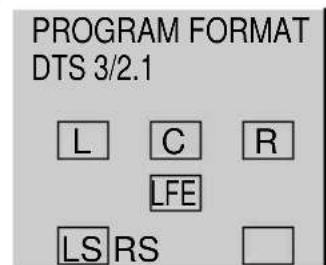
**The letters in the program format display mean the following sound component:
L: Front (left)
R: Front (right)
C: Center
LS: Rear (left)
RS: Rear (right)
S: Rear (monaural): The rear component of the Dolby Surround processed signal or the Dolby Digital signal.
LFE: LFE (Low Frequency Effect)
The display examples are as follows:
- PCM (stereo)

- Dolby Surround
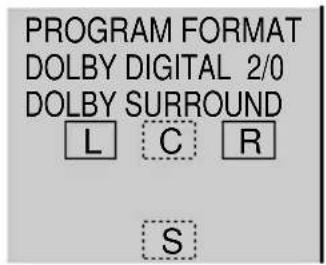
• Dolby Digital 5.1ch
When an LFE signal component is output, "LFE" is enclosed in a solid line. When an LFE signal component is not output, "LFE" is enclosed in a broken line.
• DTS
“LFE” is always enclosed in a solid line regardless of the LFE signal component being output.
Note
When the signal contains rear signal components such as LS, RS, or S, the DSP effect is enhanced (page 48).
Enjoying movies
Searching for a title/chapter/track/index/scene
You can search a DVD disc by title or chapter, and you can search a VIDEO CD or CD by track, index, or scene. As titles and tracks are assigned unique numbers on the disc, you can select the desired one by entering its number. Or, you can search for a scene using the time code (TIME SEARCH).
1 Press DVD.
2 Press DVD DISPLAY.
The Control Menu appears.
3 Press ▲ or ▼ repeatedly to select the search method.
■ When playing a DVD
“TITLE”, “CHAPTER”, or “TIME/TEXT” Select “TIME/TEXT” for TIME SEARCH.
■ When playing a VIDEO CD
"TRACK" or "INDEX"
■ When playing a VIDEO CD with PBC functions
"SCENE"
■ When playing a CD
"TRACK" or "INDEX"
4 Press ENTER.
“** (**)” changes to “-- (**)”.
The number in parentheses indicates the total number of titles, chapters, tracks, indexes, or scenes.
5 Press ▲ or ▼ repeatedly, or press the numeric buttons to select the title, chapter, track, index, or scene number you want to search.
If you make a mistake
Press CLEAR to cancel the number, then select another number.
6 Press ENTER.
The playback starts from the selected number.
To search for a scene using the time code (TIME SEARCH)
(DVD only)
1 In step 3, select "TIME/TEXT".
“T **:**:**” (playing time of the current title) is selected.
2 Press ENTER.
“T **:**:**” changes to “T --:--:--”.
3 Input the time code using the numeric buttons, then press ENTER.
For example, to find the scene at 2 hours, 10 minutes, and 20 seconds after the beginning, just enter “2:10:20”.
To turn off the Control Menu
Press DVD DISPLAY repeatedly until the Control Menu is turned off.
Note
The displayed number of title, chapters, or tracks is the same number of title, chapters, or tracks recorded on the disc.
Changing the angles
(DVD only)
When playing a DVD on which various angles (multi-angles) for a scene are recorded, the “ANGLE” indicator lights in green. This means that you can change the viewing angle. For example, while playing a scene of a train in motion, you can display the view from either the front of the train, the left window of the train or from the right window without having the train’s movement interrupted.
1 Press DVD DISPLAY during playback.
The Control Menu appears.
2 Press ▲ or ▼ repeatedly to select "ANGLE".
The angle number appears. The number in parentheses indicates the total number of angles.
3 Press ENTER.
The angle number changes to “-”.
4 Select the angle you want using the numeric buttons or ▲/▼, then press ENTER.
The angle is changed to the selected angle.
To turn off the Control Menu
Press DVD DISPLAY repeatedly until the Control Menu is turned off.
Tip
You can select the angle by pressing ANGLE on the remote. Each time you press the button, the angle changes.
Note
Depending on the DVD, you may not be able to change the angles even if multi-angles are recorded on the DVD.
Displaying the subtitles
(DVD only)
With DVDs on which multilingual subtitles are recorded, you can change the subtitle language while playing a DVD, or turn the subtitles on or off whenever you want. For example, you can select the language you want to master and turn the subtitles on for better understanding.
1 Press DVD DISPLAY during playback. The Control Menu appears.
2 Press ▲ or ▼ repeatedly to select "SUBTITLE", then press ENTER.
The options for "SUBTITLE" appear.
3 Press ▲ or ▼ repeatedly to select the language you want, then press ENTER.
The subtitles are displayed in the selected language.
To cancel the SUBTITLE setting
Select "OFF" in step 3.
To turn off the Control Menu
Press DVD DISPLAY repeatedly until the Control Menu is turned off.
Tip
You can select the subtitle by pressing SUBTITLE on the remote. Each time you press the button, the language changes.
Notes
- When 4 digits are displayed in step 3, they indicate the language code. Refer to the language code list on page 64 to see the language the code represents.
- Depending on the DVD, you may not be able to change the subtitles even if multilingual subtitles are recorded on the DVD.
Using various additional functions
Locking discs
— CUSTOM PARENTAL CONTROL/PARENTAL CONTROL
You can set two kinds of playback restrictions for the disc.
- Custom Parental Control
You can set the playback restrictions so that the system will not play inappropriate discs. You can set the same Custom Parental Control password for up to 50 discs. When you set the fifty-first disc, the playback restriction for the first disc is canceled.
- Parental Control
You can limit the playback of some DVDs according to a predetermined level such as the age of the users. The limited scene is not played, or replaced by a different scene.
The same password is used for both Custom Parental Control and Parental Control.
Custom Parental Control
1 Insert the disc you want to lock.
If the disc is playing, press ■ to stop playback.
2 When the playback is stopped, press DVD DISPLAY.
The Control Menu appears.
3 Press ▲ or ▼ repeatedly to select "CUSTOM PARENTAL CONTROL", then press ENTER.
The “CUSTOM PARENTAL CONTROL” display appears.
4 Press ▲ or ▼ repeatedly to select "ON →", then press ENTER.
■ If you have not entered a password
The display for registering a new password appears.
CUSTOM PARENTAL CONTROL
Enter a new 4-digit password, then press ENTER.

Enter a 4-digit password using the numeric buttons, then press ENTER.
The display for confirming the password appears.
■ When you have already registered a password
The display for entering the password appears.
CUSTOM PARENTAL CONTROL
Enter password, then press ENTER.

5 Enter or re-enter your 4-digit password using the numeric buttons, then press ENTER.
“Custom parental control is set.” appears and the screen returns to the Control Menu Display.
If you make a mistake entering your password
Press ◀ before you press ENTER and input the correct number.
If you make a mistake
Press RETURN ⬇, then start from step 3 again.
To turn off the Control Menu
Press RETURN ♂, then press DVD DISPLAY repeatedly until the Control Menu is turned off.
To turn off the Custom Parental Control function
1 In step 4, select "OFF →", then press ENTER.
2 Enter your 4-digit password using the numeric buttons, then press ENTER.
To change the password
1 In step 4, Press ▲ or ▼ repeatedly to select "PASSWORD →", then press ENTER. The display for entering the password appears.
2 Enter your 4-digit password using the numeric buttons, then press ENTER.
3 Enter a new 4-digit password using the numeric buttons, then press ENTER.
4 To confirm your password, re-enter it using the numeric buttons, then press ENTER.
Playing the disc for which Custom Parental Control is set
1 Insert the disc for which Custom Parental Control is set.
The “CUSTOM PARENTAL CONTROL” display appears.
2 Enter your 4-digit password using the numeric buttons, then press ENTER.
The system is ready for playback.
Tip
If you forgot your password, enter the 6-digit number "199703" using the numeric buttons when the "CUSTOM PARENTAL CONTROL" display asks you for your password, then press ENTER. The display will ask you to enter a new 4-digit password.
Limiting playback by children (Parental Control)
(DVD only)
1 When the playback is stopped, press DVD SET UP.
The Control Menu appears.
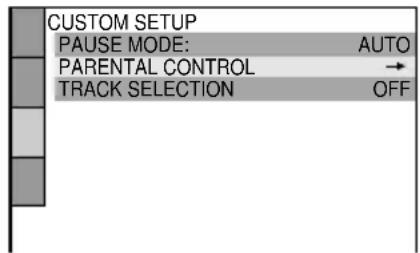
2 Press ▲ or ▼ repeatedly to select "CUSTOM SETUP", then press ENTER.
The "CUSTOM SETUP" display appears.
3 Press ▲ or ▼ repeatedly to select "PARENTAL CONTROL →", then press ENTER.
■ If you have not entered a password
The display for registering a new password appears.
![CUSTOM SETUP PARENTAL CONTROL Enter a new 4-digit password, then press [ENTER].](/content/2026/03/489783/images/60feaaca6deb6cd1d6652423c725740624efbb6c7d7937f39d93508301e81aaf.jpg)
Enter a 4-digit password using the numeric buttons, then press ENTER.
The display for confirming the password appears.
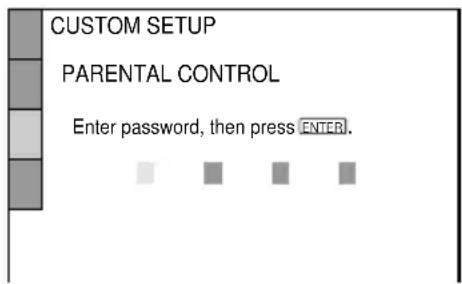
■ When you have already registered a password
The display for entering the password appears.
continued
Locking discs (continued)
4 Enter or re-enter your 4-digit password using the numeric buttons, then press ENTER.
The display for setting the playback limitation level and changing the password appears.
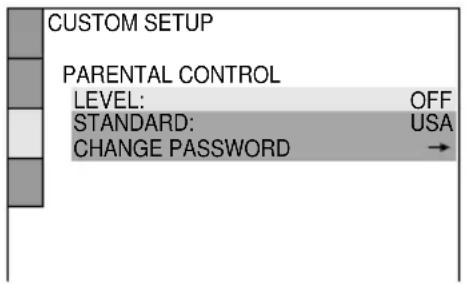
5 Press ▲ or ▼ repeatedly to select "STANDARD", then press ENTER.
The options for “STANDARD” appears.
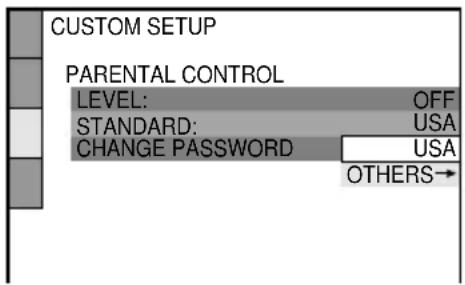
6 Press ▲ or ▼ repeatedly to select a geographic area as the playback limitation level, then press ENTER.
The area is selected.
When you select “OTHERS →”, select and enter the standard code in the table on page 39 using the numeric buttons.
7 Press ENTER.
The options for “LEVEL” appears.
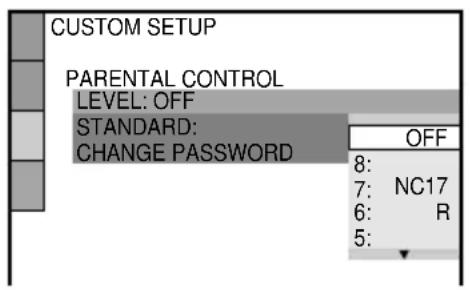
8 Press ▲ or ▼ repeatedly to select the level you want, then press ENTER.
The Parental Control setting is completed.
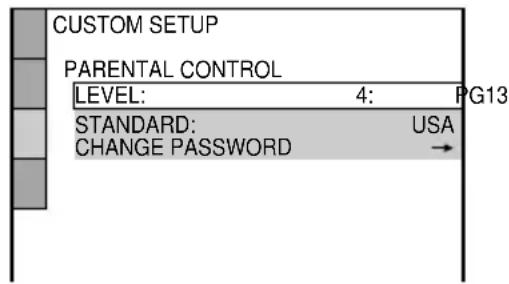
The lower the value, the more strict the limitation.
If you make a mistake
Press RETURN 🔍 to go back to the previous screen.
To turn off the Control Menu
Press DVD DISPLAY repeatedly until the Control Menu is turned off.
To turn off the Parental Control function and play the DVD after entering your password
Set “LEVEL” to “OFF” in step 8.
To change the password
1 In step 5, press ▼ to select "CHANGE PASSWORD →", then press ENTER. The display for entering the password appears.
2 Follow step 3 to enter a new password.
Playing the disc for which Parental Control is set
1 Insert the disc and press ◀▶.
The “PARENTAL CONTROL” display appears.
2 Enter your 4-digit password using the numeric buttons, then press ENTER.
The playback starts.
Tip
If you forgot your password, remove the disc and repeat steps 1 to 5 of “Limiting playback by children”. When you are asked to enter your password, enter “199703” using the numeric buttons, then press ENTER. The display will ask you to enter a new 4-digit password. After you enter a new 4-digit password in step 3, replace the disc in the system and press ◀▶. When the “PARENTAL CONTROL” display appears, enter your new password.
Notes
- When you play DVDs which do not have the Parental Control function, playback cannot be limited on this system.
- Depending on the DVD, you may be asked to change the parental control level while playing the disc. In this case, enter your password, then change the level. If the Resume Play mode is canceled, the level returns to the original level.
Area code
| Standard Codenumber | Standard Codenumber | |
| Argentina 2044 | Korea 2304 | |
| Australia 2047 | Malaysia 2363 | |
| Austria 2046 | Mexico 2362 | |
| Belgium 2057 | Netherlands | 2376 |
| Brazil 2070 | New Zealand | 2390 |
| Canada 2079 | Norway | 2379 |
| Chile 2090 | Pakistan | 2427 |
| China 2092 | Philippines | 2424 |
| Denmark 2115 | Portugal | 2436 |
| Finland 2165 | Russia | 2489 |
| France 2174 | Singapore 2501 | |
| Germany 2109 | Spain | 2149 |
| Hong Kong 2219 | Sweden | 2499 |
| India 2248 | Switzerland | 2086 |
| Indonesia 2238 | Taiwan 2543 | |
| Italy 2254 | Thailand | 2528 |
| Japan 2276 | United Kingdom | 2184 |
Tuner
Presetting radio stations
You can preset 20 stations for FM and 10 stations for AM.
1 Press TUNER/BAND repeatedly to select FM or AM.
2 Press and hold ◀◀ or ▶▶ until the frequency indication starts to change, then release.
Scanning stops when the system tunes in a station. “TUNED” and “STEREO” (for a stereo program) appear.

3 Press TUNER MEMORY.
A preset number appears in the display. The stations are stored from preset number 1.
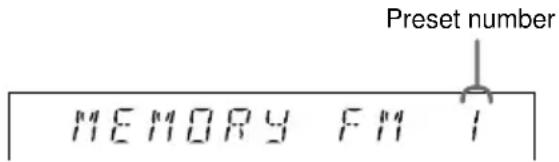
4 Press ENTER.
The station is stored.
5 Repeat steps 1 to 4 to store other stations.
To tune in a station with a weak signal
Press ◀◀ or ▶▶ repeatedly to tune in the station manually.
To set another station to an existing preset number
Start over from step 1. After step 3, press ◀◀◀ or ▶▶▶ repeatedly to select the preset number where you want to store a new station, then proceed to step 4.
Tips
- Pressing TUNER/BAND while the power is off automatically turns the power on.
- You can use the digipad instead of ◀◀/▶◀.
- The preset stations are retained for half a day even if you unplug the power cord or if a power failure occurs.
To change the AM tuning interval (Except for European and Middle Eastern models)
The AM tuning interval is factory set to 9 kHz (10 kHz in some areas). To change the AM tuning interval, tune in any AM station first, then turn off the power. While holding down the ENTER button, turn the power back on. When you change the interval, AM preset stations will be erased. To reset the interval, repeat the same procedure.
Listening to the radio
— Preset Tuning
Preset radio stations in the tuner's memory first (see “Presetting radio stations”).
1 Press TUNER/BAND repeatedly to select FM or AM.
2 Press ◀◀◀ or ▶▶◀I repeatedly to tune in the preset station you want.
Preset number Frequency
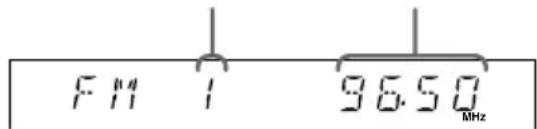
To Do this
Turn off the radio Press I/⏻.
To listen to non-preset radio stations
In step 2, press ◀◀ or ▶▶ repeatedly (Manual Tuning) or press and hold ◀◀ or ▶▶
(Automatic Tuning).
Notes
- When the TUNER function is selected, the OSD does not appear on the screen.
- When DVD is selected as the current function and TUNER/BAND is pressed to select the TUNER function, some time may be necessary before the function can be switched.
- When you change the function from DVD to TUNER, "WAIT" may flash on the front panel display. While this flashes, there is no audio output.
Tips
- Pressing TUNER/BAND while the power is off automatically turns the power on.
- You can use the digipad instead of ◀◀/▶◀.
- When an FM program is noisy, press FM MODE so that “MONO” appears in the display. There will be no stereo effect, but the reception will improve.
- To improve broadcast reception, reorient the antennas.
Using the Radio Data System (RDS)
(European model only)
What is the Radio Data System?
Radio Data System (RDS) is a broadcasting service that allows radio stations to send additional information along with the regular program signal. This tuner offers convenient RDS features like station name display and location of stations by program type. RDS is available only for FM stations.
Note
RDS may not work properly if the station you are tuned to is not transmitting the RDS signal properly or if the signal is weak.
Receiving RDS broadcasts
Simply select a station from the FM band.
When you tune in a station that provides RDS services, the station name appears in the display.
To check the RDS information
Press DISPLAY.
Each time you press the button, the display changes cyclically as follows:
Station name* → Frequency → Program type* → Clock display → Effect status
* If the RDS broadcast is not received, the station name and program type may not appear in the display.
Locating a station by program type (PTY)
You can locate a station you want by selecting a program type. The tuner tunes in the type of programs currently being broadcast from the RDS stations stored in the tuner's preset memory.
The types of programs include NEWS, AFFAIRS (current news), INFO, SPORT, EDUCATE (education programs), DRAMA, CULTURE, SCIENCE, VARIED (interviews, games and comedy), POP M, ROCK M, EASY M, LIGHT M, CLASSICS, OTHER M, WEATHER, FINANCE, CHILDREN, SOCIAL, RELIGION, PHONE IN, TRAVEL, LEISURE, JAZZ, COUNTRY (country music), NATION M (nation's popular music), OLDIES, FOLK M, DOCUMENT (investigative features), TEST (test signal for emergency broadcast), ALARM (emergency broadcast) and NONE (any programs not defined above).
1 Press PTY while listening to the radio.
2 Press ◀◀◀ or ▶▶▶I repeatedly to select the program type you want.
3 Press ENTER.
“PTY SEARCH” and the selected program type appear alternately in the display. When the tuner receives a program, the preset station name flashes.
4 Press I◀◀ or ▶▶▶I repeatedly to continue searching for the station name you want.
5 Press ENTER while the preset station name you want is flashing.
To cancel the PTY search
Press PTY again.
Tip
You can use the digipad instead of ◀◀/▶◀.
Note
“NOT FOUND” appears when the program type you selected is not currently being broadcast.
Tape
Loading a tape
1 Press TAPE A/B repeatedly to select deck A or B.
2 Press DECK A ▲ or DECK B ▲.
3 Insert a tape in deck A or B.
Insert with the side you want to play/record facing forward.
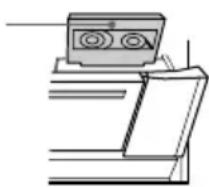
natural_image
Simple line drawing of a vintage typewriter with two buttons and a screen (no text or symbols)Playing a tape
You can use TYPE I (normal) or TYPE II (CrO _2 ) tapes. The deck automatically detects the tape type.
1 Load a tape.
2 Press DIRECTION repeatedly to select to play one side, () to play both sides, or RELAY* (Relay Play) to play both decks in succession.
3 Press ◀▶.
The tape starts playing.
Press ◀▶ again to play the reverse side. When you select (↔) or RELAY, the deck stops automatically after repeating the sequence 5 times.
flowchart
graph TD
    A["TAPE B"] --> B["MUSIC"]
    A --> C["DSP EDIT"]
    A --> D["GAME"]
    A --> E["MOVIE"]
    E --> F["TOOL"]
    F --> G["Tape presence indicator"]
    style A fill:#f9f,stroke:#333
    style B fill:#ccf,stroke:#333
    style C fill:#cfc,stroke:#333
    style D fill:#fcc,stroke:#333
    style E fill:#cff,stroke:#333
    style F fill:#ffc,stroke:#333
    style G fill:#fff,stroke:#333
* Relay Play always follow this cyclic sequence: Deck A (front side) → Deck A (reverse side) → Deck B (front side) → Deck B (reverse side)
| To | Do this |
| Stop playback | Press ■. |
| Pause playback | Press ■.Press again to resume playback. |
| Fast-forward | Press ▶ while playing the front side or press ◀ while playing the reverse side. |
| Rewind | Press ◀ while playing the front side or press ▶ while playing the reverse side. |
Tips
- You can use the digipad for tape operations.
- Pressing TAPE A/B while the power is off automatically turns the power on.
- When you want to reduce the hiss noise in low-level high-frequency signals, press DOLBY NR so that “DOLBY NR” appears in the display.
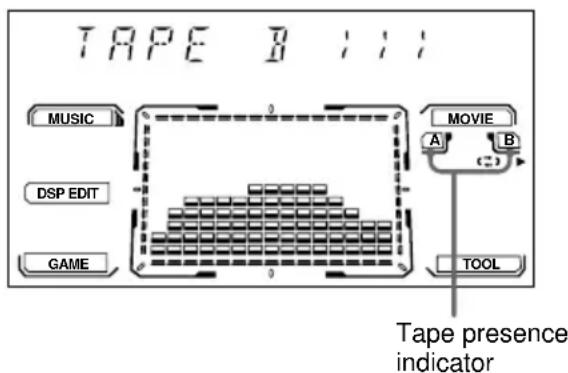
- When a tape is inserted, corresponding presence indicator lights up.
Searching for the beginning of a track (AMS\*)
During playback, press ◀◀◀ or ▶▶▶ repeatedly for the number of songs you want to skip forward (or backward).
The search direction, + (forward) or - (back), and number of songs being skipped (1–9) appear in the display.
Example: searching forward 2 songs

* Automatic Music Sensor
Note
The AMS function may not operate correctly under the following circumstances:
- When the unrecorded space between songs is less than 4 seconds long.
- When the unit is placed near a television.
Recording to a tape
— CD Synchro Recording/High-Speed Dubbing/Recording Manually/Program Edit
You can record from a DVD, VIDEO CD, CD, tape, radio or other connected component. You can use TYPE I (normal) or TYPE II (CrO _2 ) tapes. The recording level is adjusted automatically.
| Steps | Recording from a VIDEO CD/CD (CD Synchro Recording) | Recording from a tape (High-Speed Dubbing) | Recording Manually |
| 1 | Insert a recordable tape into deck B. | ||
| 2 | Press DVD. Press a function | Press TAPE A/B repeatedly to select TAPE A function. | for the recording source. |
| 3 | Insert the disc you want to record. | Insert the tape you want to record into deck A. | Insert the disc, tape, or tune in the station you want to record. |
| 4 | Press CD SYNC HI-DUB. | Press REC PAUSE/START. | |
| Deck B stands by for recording.The REC PAUSE/START button flashes.To reduce the hiss noise in low-level high-frequency signals, press DOLBY NR so that “DOLBY NR” appears in the display (except when recording from a tape). | |||
| 5 | Press DIRECTION repeatedly to select ⇌ to record on one side.Select (or RELAY) to record on both sides. | ||
| 6 | Press REC PAUSE/START.Recording starts. | ||
| 7 | Start playing the recording source. | ||
To Press
| Stop recording | ■. |
| Pause recording* | REC PAUSE/START. |
* Only when recording manually.
Tips
- If you want to record from the reverse side, press TAPE A/B to select deck B and press ◀▶ to start playback of the reverse side after step 1. Press ■ where you want to start recording.
- When you record on both sides, be sure to start from the front side. If you start from the reverse side, recording stops at the end of the reverse side.
- (High-Speed Dubbing only) If you set direction to when the tapes have different lengths, the tapes in each deck reverses independently. If you select RELAY, the tapes in both decks reverse together.
Notes
- You cannot listen to other sources while recording.
- You cannot use the digipad during recording.
- If you change the setting of sound, such as changing the preset effect file, while recording, the recording sound is interrupted at the point.
- If you start recording with the 2CH/MULTI set to "V.SEMI M.D.", "MULTI", or "V.M.DIMENS.", the setting automatically changes to "2CH".
- CD synchro recording is not available with DVDs.
continued
Recording to a tape (continued)
Recording a VIDEO CD/CD by specifying the track order
— Program Edit
When programming, make sure the playing times for each side do not exceed the length of one side of the tape.
1 Insert a recordable tape into deck B, then press DVD.
2 When the playback is stopped, press PLAY MODE repeatedly until "PROGRAM" appears in the front panel display.
The Program Display appears on the screen.
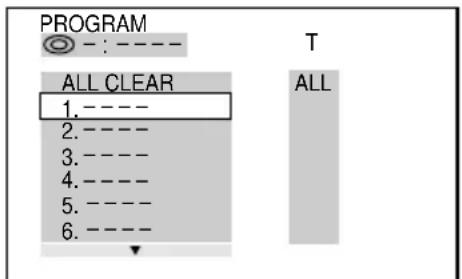
3 Press ENTER, then press ▲ or ▼ repeatedly to select the disc.
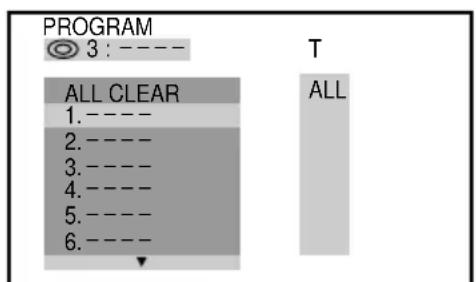
4 Press ▶.
The cursor moves to the track (in this case, "01").
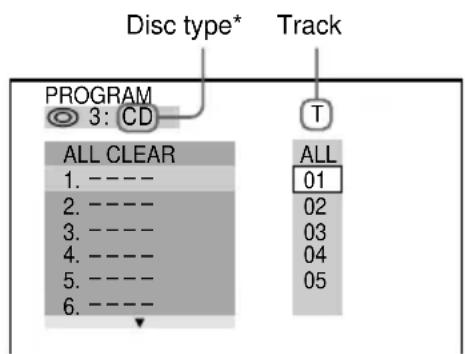
* “?” appears when the system has not loaded the disc information in the memory.
5 Select the track you want to program.
For example, select track “02”. Press ▲/▼ or the numeric buttons to select “02” under “T”, then press ENTER.
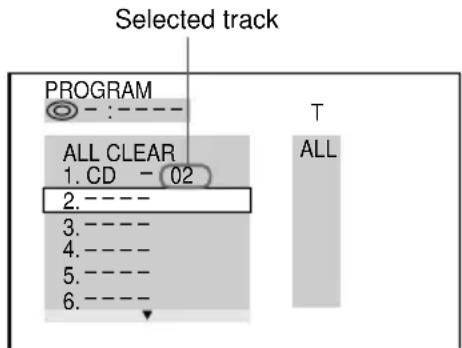
6 To program additional steps, repeat steps 3 to 5.
7 Press CD SYNC HI-DUB.
Deck B stands by for recording. To reduce the hiss noise in low-level high-frequency signals, press DOLBY NR so that “DOLBY NR” appears in the display. The REC PAUSE/START button flashes.
8 Press DIRECTION repeatedly to select to record on one side.
Select ( ) (or RELAY) to record on both sides.
9 Press REC PAUSE/START.
Recording starts.
To cancel Program Edit
Press PLAY MODE repeatedly until “1 DISC” or “ALL DISCS” appears in the display.
Timer-recording radio programs
To timer-record, you must set the clock (see “Setting the time” on page 15) and preset the radio stations (see “Presetting radio stations” on page 40) beforehand.
1 Tune in the preset radio station (see "Listening to the radio" on page 40).
2 Press CLOCK/TIMER SET.
"DAILY1 SET" appears.
3 Press I◀◀ or ▶▶▶I repeatedly to select "REC SET", then press ENTER.
“ON” appears and the hour indication flashes.
4 Set the time to start recording.
Press ◀◀◀ or ▶▶▶I repeatedly to set the hour, then press ENTER.
The minute indication flashes.
Press ◀◀◀ or ▶▶▶I repeatedly to set the minutes, then press ENTER.
The hour indication flashes again.
5 Set the time to stop recording following step 4.
The start time appears, followed by the stop time, the preset radio station to be recorded (e.g., “TUNER FM 5”), then the original display appears.
6 Insert a recordable tape into deck B.
7 Turn off the power.
When the recording starts, the volume level is set to the minimum.
| To | Do this |
| Check the setting | Press TIMER SELECT (or CLOCK/TIMER SELECT on the remote) and press ◀◀◀ or ▶▶▶ repeatedly to select “REC SELECT”, then press ENTER. |
| Change the setting | Start over from step 1. |
| Cancel the Timer-recording | Press TIMER SELECT (or CLOCK/TIMER SELECT on the remote) and press ◀◀◀ or ▶▶▶ repeatedly to select “TIMER OFF”, then press ENTER. |
Notes
- If the power is on at the preset time, the Timer-recording does not work.
- When you use the Sleep Timer, the Timer-recording will not turn on the system until the Sleep Timer turns it off.
- The power turns on 15 seconds before the preset time.
Sound Adjustment
To listen to multi channel sound
Press 2CH/MULTI.
Each time you press the button, the display changes cyclically as follows:
$$ \begin{array}{l}2 \mathrm{CH} \rightarrow \mathrm{V.SEMIM.D.} \rightarrow \mathrm{MULTI} ^ {} \rightarrow\\mathrm{V.M.DIMENS.} ^ {}\end{array} $$
2CH: The sound is output in 2-channel stereo.
V.SEMI M.D. (Virtual Semi Multi
Dimension): Uses 3D sound imaging to create virtual rear speakers from the sound of the front speakers without using actual rear speakers. This mode creates 5 sets of virtual speakers surrounding the listener at a 30^ angle of elevation.
MULTI*: The sound is output in multi channel.
V.M.DIMENS. (Virtual Multi Dimension)\*:
Uses 3D sound imaging to create an array of virtual rear speakers positioned higher than the listener from a single pair of actual rear speakers. This mode creates 5 sets of virtual speakers surrounding the listener at approximately a 30^ angle of elevation.
* MHC-DP1000D only.
Notes
- When using headphones, this setting is fixed to "2CH". You cannot select other settings.
- While decoding DTS signals, you cannot select the sound effect option of MUSIC MODE together with “V.SEMI M.D.” or “V.M.DIMENS.” simultaneously.
About indicators
MULTI CHANNEL DECODING indicator:
Lights up when the unit is decoding signals recorded in a multi channel format.
PRO LOGIC indicator (in the display):
Lights up when the unit applies Dolby Pro Logic processing to 2 channel signals in order to output the center and rear channel signals.
☐ DIGITAL indicator (in the display):
Lights up when the unit is decoding signals recorded in the Dolby Digital format.
dts indicator (in the display): Light up when DTS signals are input.
Adjusting the sound
Press GROOVE.
Each time you press the button, the display changes cyclically as follows:
$$ \begin{array}{l}\text { GROOVE ON } \rightarrow \text { V - GROOVE ON } \rightarrow\\text { GROOVE OFF }\end{array} $$
GROOVE: The volume switches to power mode and the equalizer curve changes.
V-GROOVE: The volume switches to power mode, the lower bass frequencies of the sound you are listening to is powerfully reinforced, and the equalizer curve changes.
Selecting the preset effect file
Press one of the DSP buttons (MUSIC MODE, MOVIE MODE, GAME MODE, or TOOL MODE) repeatedly to select the preset effect you want.
The preset effect name appears in the display.
See “Sound effect options” below.
To cancel
Press EFFECT (or EFFECT ON/OFF on the remote) to select “EFFECT OFF”. All the parameters become flat.
Sound effect options
You can enjoy surround sound simply by selecting one of the preset effect according to the program you want to listen to.
DSP Options MODE
CINEMA STUDIO A: Reproduces the sound characteristics of Sony Pictures Entertainment's classic editing studio.
CINEMA STUDIO B: Reproduces the sound characteristics of Sony Pictures Entertainment's mixing studio which is one of the most up-to-date facilities in Hollywood.
CINEMA STUDIO C: Reproduces the sound characteristics of Sony Pictures Entertainment's BGM recording studio.
Adjusting the sound effects
Before operation, first select the audio effect you want for your basic sound.
1 Press DSP EDIT.
Each time you press the button, the display changes as follows:
DSP EDIT* (to adjust DSP) EQ EDIT (to adjust equalizer)
* This menu does not appear depending on the audio effect.
2 Use the digipad to adjust the parameters.
The parameter is adjusted according to the curve your finger slides on the digipad. Adjustable parameters are described on page 48. After the curve your finger slides is displayed for a while, then the curve automatically adjusted by the unit is displayed. For DSP EDIT, the adjustable parameters vary depending on the preset effect.
3 Press ENTER.
To cancel
Press EFFECT (or EFFECT ON/OFF on the remote) to select “EFFECT OFF”. The adjustment for the selected parameter is canceled.
continued
Adjusting the sound effects (continued)
Adjustable parameters
| Menu Right/Left Up/Down(X) (Y) |
| DSP EDIT (See the chart below) |
| EQ EDIT Frequency Level |
Adjustable DSP parameters
| Sound effect Right/Left Up/Down options (X) (Y) | ||
| LIVE HOUSE Time Wall type | ||
| HALL Time Wall type | ||
| S.ENHANCE Time Level | ||
| RADIO SOUND Time Level | ||
| C.STUDIO A Level — | ||
| C.STUDIO B Level — | ||
| C.STUDIO C Level — | ||
| NORMAL SURR — | — | |
| ARCADE | Time Level | |
| RACING | Shape | — |
| ADVENTURE Frequency Level | ||
| BATTLE | Time Wall type | |
| PAN | Position | Position |
| FLANGER | Frequency Level | |
| KEY CONTROL | Key | Time |
| EXCITER | Frequency Level | |
| COMPRESSOR | Time Level | |
| REVERB | Time Wall type | |
| EARLY RFLC. | Shape | — |
Wall type: This parameter lets you control the level of the high frequencies to alter the sonic character of your listening environment by simulating a softer or harder wall.
The adjustable DSP parameters are shown by the indicator on the upper left corner in the display. You can adjust in the direction the cursor lights. Slide your finger on the digipad to adjust the parameters.
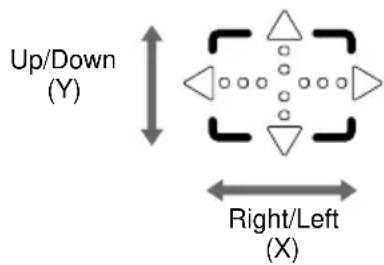
Tips
- You can use the cursor buttons (▲/▼/◄/►) on the remote instead of the digipad. You can press 2 buttons simultaneously to move obliquely.
Example: Press ▲ and ▶ simultaneously to move upper right direction. - You can store the adjusted effect in a personal file (see “Creating a personal audio effect file”).
Creating a personal audio effect file
— Personal file
You can store the adjusted audio effects in the system's memory. You can create up to 5 audio effect files.
1 Obtain the sound effect you want to store to P FILE.
2 Press and hold P FILE.
The personal file number appears in the display.
3 Touch the digipad to select the file number where you want to store the effect.
4 Press ENTER.
To call up a personal file
Press P FILE repeatedly to select the file.
Note
When using personal files, the adjustable DSP EDIT parameters depend on the original preset effect.
Changing the spectrum analyzer display
Press SPECTRUM on the remote.
Each time you press the button, the display changes cyclically as follows:
PATTERN 1 → PATTERN 2 →
PATTERN 3 → PATTERN OFF
To adjust the brightness of the display
Use the remote for the operation.
1 Press AMP MENU.
2 Press ▲ or ▼ repeatedly to select "DIMMER".
3 Press ◀ or ▶ repeatedly to select the setting you want.
DIMMER 1 ↔ DIMMER 2 ↔ DIMMER 3
4 Press ENTER.
Singing along: Karaoke
(Except for North American and European models)
You can sing along with any disc or tape by turning down the singer's voice. You need to connect an optional microphone.
1 Turn MIC LEVEL to MIN to turn down the microphone volume.
2 Connect an optional microphone to MIC jack.
3 Press KARAOKE PON.
Each time you press the button, the display changes cyclically as follows:
KARAOKE PON → MPX R → MPX L → Effect status*
* KARAOKE PON is cancelled.
To sing karaoke by decreasing the vocal level of a disc or a tape, select “KARAOKE PON”. To sing karaoke of multiplex CD, select “MPX R” or “MPX L”.
4 Start playing the music and adjust the volume.
5 Adjust the microphone volume by turning MIC LEVEL.
When you use DVDs or VIDEO CDs
Turn on your TV and select the video input. Refer to the operating instructions supplied with your TV for details.
After you have finished
Turn MIC LEVEL to MIN and disconnect the microphone from MIC jack, then press KARAOKE PON repeatedly until “↘” disappears.
Notes
- With some songs, vocals may not be canceled when you select “KARAOKE PON”.
- If you recall a sound effect, the karaoke mode is canceled.
- During “KARAOKE PON”, “MPX R” or “MPX L”, DSP effect switches to “KEY CONTROL”. When the karaoke effect is canceled, the DSP effect before entering the karaoke effect is applied again.
- The instrumental sound may be reduced as well as the singer's voice when the sound is recorded in monaural.
- The singer's voice may not be reduced when:
— only a few instruments are playing.
— a duet is being played.
— the source has strong echoes or chorus.
— the singer's voice deviates from the center.
— the voice on the source is singing in high soprano or tenor.
continued
Singing along: Karaoke (continued)
Mixing and recording sound
1 Do the procedure for "Singing along" (steps 1 through 5). Then, load a recordable tape in deck B.
2 Press the function button of the source you want to record (e.g. DVD).
When you want to record from TAPE A, press TAPE A/B repeatedly until TAPE A is selected.
3 Press REC PAUSE/START.
Deck B stands by for recording.
4 Press DIRECTION repeatedly to select to record on one side. Select ( ) (or RELAY) to record on both sides.
5 Press REC PAUSE/START.
Recording starts.
6 Press ◀▶ to start playing the source to be recorded.
Start singing along the music.
To stop recording
Press ■.
Tips
- If acoustic feedback (howling) occurs, move the microphone away from the speakers or change the direction of the microphone.
- If you want to record your voice through the microphone only, you can do so by selecting the DVD function and not playing the disc.
- When high level sound signals are input, the unit automatically adjusts the recording level to prevent distortion of the recorded sound signal (Auto Level Control Function).
Falling asleep to music
— Sleep Timer
You can set the system to turn off at a preset time, so you can fall asleep to music.
Press SLEEP on the remote.
Each time you press the button, the minute display (the turn-off time) changes as follows:
$$ \begin{array}{l} \text { AUTO* } \longrightarrow 9 0 \longrightarrow 8 0 \longrightarrow 7 0 \longrightarrow \dots \longrightarrow \ 1 0 \longrightarrow \text { OFF } \end{array} $$
* The power turns off when the current disc or tape finishes playback (for up to 100 minutes).
| To | Press |
| Check the remaining time (Except for AUTO) | SLEEP once. |
| Change the time to turn off | SLEEP repeatedly to select the time you want. |
| Cancel the Sleep Timer | SLEEP repeatedly until “SLEEP OFF” appears. |
Waking up to music
— Daily Timer
You can wake up to music at a preset time every day. Make sure you have set the clock (see “Setting the time” on page 15).
1 Prepare the music source you want to play.
• DVD/VIDEO CD/CD: Load a disc.
- Tape: Load a tape with the side you want to play facing forward.
- Radio: Tune in the preset station you want (see “Listening to the radio” on page 40).
2 Adjust the volume.
3 Press CLOCK/TIMER SET.
"DAILY1 SET" appears.
4 Press I◀◀ or ▶▶I repeatedly to select "DAILY1 SET (or DAILY2 SET)", then press ENTER.
“ON” appears and the hour indication flashes.
5 Set the time to start playback.
Press ◀◀◀ or ▶▶▶I repeatedly to set the hour, then press ENTER.
The minute indication flashes.
Press ◀◀◀ or ▶▶▶I repeatedly to set the minutes, then press ENTER.
The hour indication flashes again.
6 Set the time to stop playback following step 5.
7 Press I◀◀ or ▶▶▶I repeatedly until the music source you want appears.
The indications change as follows:

8 Press ENTER.
The type of timer (“DAILY 1” or “DAILY 2”), followed by the start time, stop time and the music source, appears, then the original display appears.
9 Turn off the power.
| To | Do this |
| Check the setting | Press TIMER SELECT (or CLOCK/TIMER SELECT on the remote) and press ◀◀◀ or ▶▶▶I repeatedly to select the respective mode (“DAILY 1” or “DAILY 2”), then press ENTER. |
| Change the setting | Start over from step 1. |
| Cancel the Daily Timer | Press TIMER SELECT (or CLOCK/TIMER SELECT on the remote) and press ◀◀◀ or ▶▶▶I repeatedly to select “TIMER OFF”, then press ENTER. |
Notes
- If the power is on at the preset time, the Daily Timer does not work.
- When you use the Sleep Timer, the Daily Timer will not turn on the system until the Sleep Timer turns it off.
- The power turns on 15 seconds before the preset time.
- The program is canceled when you change the function to TUNER or turn off the system.
Hooking Up the Optional Components
Connecting audio components
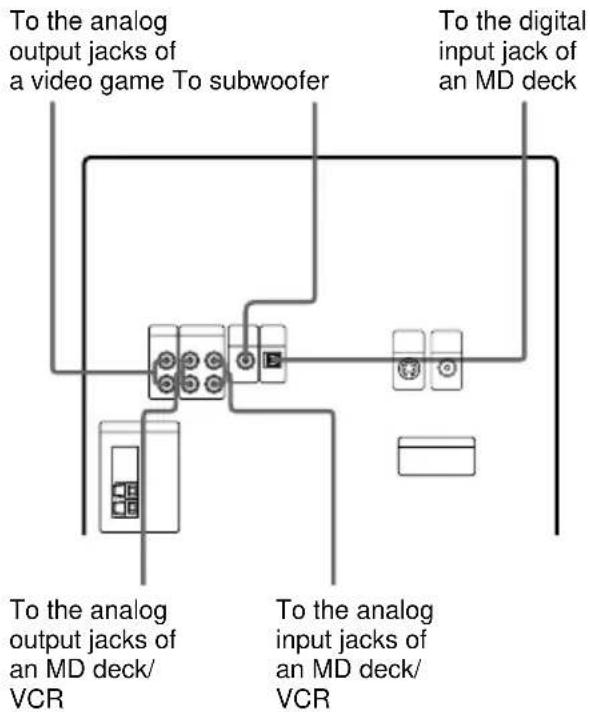
To the digital output jack of an MD deck
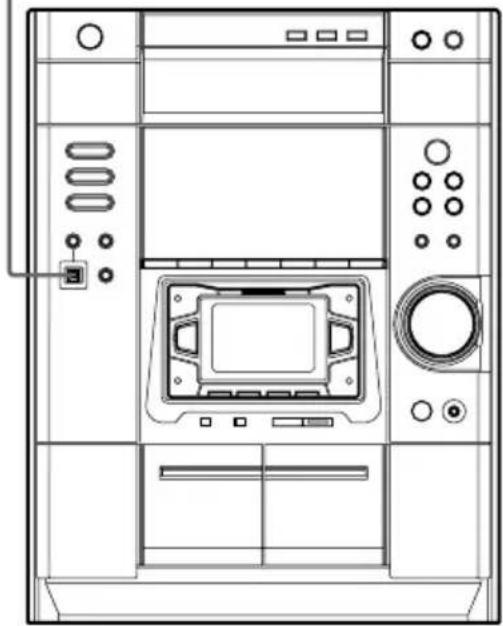
natural_image
Technical line drawing of a cabinet or enclosure with internal components and control panel (no text or symbols)| To | Do This |
| Make a digital recording from DVD/VIDEO CD/CD to MD | Connect an optional optical cable. |
| Listen to the digital sound of a connected MD deck | Press DIGITAL. |
| Listen to the analog sound of a connected MD deck | Press MD (VIDEO). |
| Listen to the analog sound of a connected VCR | Hold down MD (VIDEO) and press I/While the power is on. Release I/First, then release MD (VIDEO). This switches the function from MD to VIDEO. Once you switched to the VIDEO function, just press MD (VIDEO). |
| Listen to the analog sound of a connected video game | Press GAME. |
Tips
- Pressing DIGITAL, MD (VIDEO) or GAME while the power is off automatically turns the power on.
- When you remove the optical cover, keep it for future use.
Notes
• Make sure to match the color of the plugs and the connectors.
- If the sound is distorted or too loud when VIDEO function is selected, or you want to switch back to MD function, repeat the operation described above to switch to MD function.
- Digital signals are output from DIGITAL OUT jack during DVD or DIGITAL function only. Besides, the sound output from the DIGITAL OUT jack is not affected by the sound adjustment.
- This unit is not compatible with 96 kHz sampling frequencies and SACD format.
Precautions
On operating voltage
Before operating the unit, check that the operating voltage of your unit is identical with the voltage of your local power supply.
On safety
- The unit is not disconnected from the AC power source (mains) as long as it is connected to the wall outlet, even if the unit itself has been turned off.
- Unplug the unit from the wall outlet (mains) if it is not to be used for an extended period of time. To disconnect the cord (mains lead), pull it out by the plug. Never pull the cord itself.
- Should any solid object or liquid fall into the component, unplug the unit and have the component checked by qualified personnel before operating it any further.
- The AC power cord must be changed only at a qualified service shop.
On placement
- Do not place the unit in an inclined position.
- Do not place the unit in locations where it is:
— extremely hot or cold.
— dusty or dirty.
— very humid.
— vibrating.
— subject to direct sunlight.
On heat buildup
- Although the unit heats up during operation, this is not a malfunction.
- Place the unit in a location with adequate ventilation to prevent heat build-up in the unit.
If you continuously use this unit at a large volume, the cabinet temperature of the top, side and bottom rises considerably. To avoid burning yourself, do not touch the cabinet.
To prevent a malfunction, do not cover the ventilation hole for the cooling fan.
On operation
- If the unit is brought directly from a cold to a warm location, or is placed in a very damp room, moisture may condense on the lens inside the DVD player. Should this occur, the unit will not operate properly. Remove the disc and leave the unit turned on for about an hour until the moisture evaporates.
- When you move the unit, take out any discs. If you have any questions or problems concerning the unit, please consult your nearest Sony dealer.
Notes on discs
- Before playing, clean the disc with a cleaning cloth. Wipe the disc from the center out.
- Do not use solvents such as benzene, thinner, commercially available cleaners or anti-static spray intended for vinyl LPs.
- Do not expose the disc to direct sunlight or heat sources such as hot air ducts, nor leave it in a car parked in direct sunlight.
- Do not use discs encircled with a protection ring. This may cause a malfunction to the system.
- When using discs that have glue or similar tacky substance on the label side of the disc or that used a special ink when the label was printed, there is a chance that the disc or label may become attached to parts inside this unit. When this occurs, it may not be possible to remove the disc, and may also cause this unit to malfunction. Be sure to check that the label side of the disc is not sticky before using.
The following types of disc should not be used:
— Rental or used discs with attached seals where the glue extends beyond the seal. The perimeter of the seal on the disc is tacky.
— Discs that have labels printed using a special ink that feels tacky when touched.
- Discs with non-standard shapes (e.g., heart, square, star) cannot be played on this unit. Attempting to do so may damage the unit. Do not use such discs.
Note on CD-R/CD-RW playback
Discs recorded on CD-R/CD-RW drives may not be played back because of scratches, dirt, recording condition or the drive's characteristics. Besides, the discs, which are not yet finalized at the end of recording, cannot be played back.
Cleaning the cabinet
Use a soft cloth slightly moistened with mild detergent solution.
continued
Precautions (continued)
To save a tape permanently
To prevent a tape from being accidentally recorded over, break off the cassette tab from side A or B as illustrated.
If you later want to reuse the tape for recording, cover the broken tab with adhesive tape. However, be careful not to cover the detector slots which allow the tape player to automatically detect the type of tape.
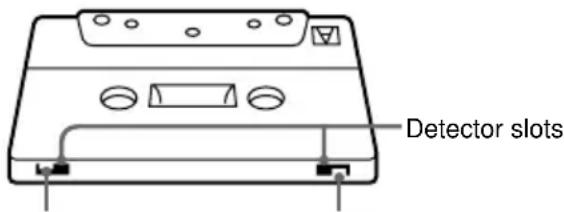
Tab of side B Tab of side A
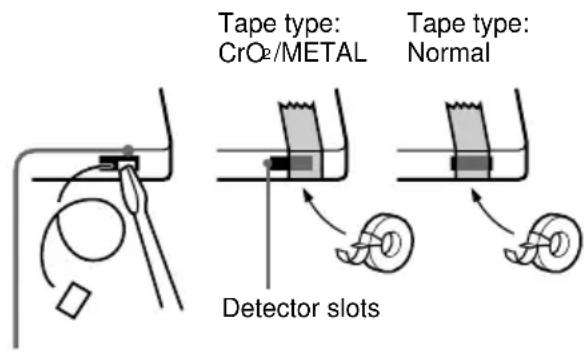
Break off the cassette tab of side A
Before placing a cassette in the tape deck
Take up any slack in the tape. Otherwise the tape may get entangled in the parts of the tape deck and become damaged.
When using a tape longer than 90 minutes
The tape is very elastic. Do not change the tape operations such as play, stop, and fast-winding etc. frequently. The tape may get entangled in the tape deck.
Cleaning the tape heads
Clean the tape heads after every 10 hours of use. Make sure to clean the tape heads before you start an important recording or after playing an old tape. Use a separately sold dry-type or wet-type cleaning cassette. For details, refer to the instructions of the cleaning cassette.
Demagnetizing the tape heads
Demagnetize the tape heads and the metal parts that have contact with the tape every 20 to 30 hours of use with a separately sold demagnetizing cassette. For details, refer to the instructions of the demagnetizing cassette.
In case color irregularity is observed on nearby a TV screen
With the magnetically shielded type of speaker system, the speakers can be installed near a TV set. However, color irregularity may still be observed on the TV screen depending on the type of your TV set.
If color irregularity is observed...
Turn off the TV set once, then turn it on after 15 to 30 minutes.
If color irregularity is observed again...
Place the speakers farther away from the TV set.
Troubleshooting
If you run into any problem using this unit, use the following check list.
First, check that the power cord is connected firmly and the speakers are connected correctly and firmly.
Should any problem persist, consult your nearest Sony dealer.
General
The display starts flashing as soon as you plug in the power cord even though you haven't turned on the power.
- The demonstration mode started. Press I/⏻ (see step 7 on page 11).
The clock setting/timer is canceled.
- The power cord is disconnected or a power failure occurs. Redo “Setting the time” (page 15). If you have set the timer, redo “Waking up to music” (page 50) and/or “Timer-recording radio programs” (page 45).
The radio presetting is canceled.
- The power cord is disconnected or a power failure occurs for longer than half a day. Redo “Presetting radio stations” (page 40).
There is no sound.
- Turn VOLUME clockwise.
• The headphones are connected. - Insert only the stripped portion of the speaker cord into the SPEAKER jack. Inserting the vinyl portion of the speaker cord will obstruct the speaker connections.
- The protective device on the amplifier has been activated because of a short circuit. ("PROTECT" and "PUSH POWER" flash alternately.) Turn off the power, eliminate the short-circuit problem and turn on the power again.
- The system is in pause mode or in Slow-motion Play mode. Press ◀▶ to return to normal play mode.
- There is no audio output during Timer-recording.
The sound loses stereo effect when you play a VIDEO CD, or a CD.
- Set “AUDIO” to “STEREO” in the Control Menu (page 32).
- Make sure you connect the system appropriately.
The surround effect is difficult to hear when you are playing a Dolby Digital or MPEG audio sound track.
- Make sure the DSP effect is on (page 47).
- Check the speaker connections and settings (pages 14, 21).
- Depending on the DVD, the output signal may not be the entire 5.1 channel but monaural or stereo even if the sound track is recorded in Dolby Digital or MPEG audio format.
There is severe hum or noise.
- A TV or VCR is placed too close to the unit. Move the unit away from the TV or VCR.
The sound from the component connected to the MD (VIDEO) jacks is distorted.
- If “VIDEO” appears in the display when you press MD (VIDEO), switch to “MD” function (see “Note: Connecting audio components” on page 52).
“--.-” lights up in the display.
- A power interruption occurred. Set the clock and timer settings again.
The timer does not function.
- Set the clock correctly.
- You cannot activate the Daily timer and the Timer-recording simultaneously.
"DAILY 1", "DAILY 2", or "REC" does not appear when you press TIMER SELECT (or CLOCK/TIMER SELECT on the remote).
- Set the timer correctly.
- Set the clock.
The remote does not function.
- There is an obstacle between the remote and the unit.
- The remote is not pointing in the direction of the unit's sensor.
- The batteries have run down. Replace the batteries.
There is acoustic feedback.
• Decrease the volume level.
- Move the microphone away from the speakers or change the direction of the microphone.
The color irregularity on a TV screen persists.
- Turn off the TV set once, then turn it on after 15 to 30 minutes. If the color irregularity still persists, place the speakers farther away from the TV set.
"PROTECT" and "PUSH POWER" appear alternately.
- A strong signal is input. Turn off the power, leave the system turned off for a while, then turn on the power again. If “PROTECT” and “PUSH POWER” still appear alternately, check the speaker cords.
continued
Troubleshooting (continued)
Speakers
Sound comes from only one channel or unbalanced left and right volume.
- Check the speaker connection and speaker placement.
- The source being played back is monaural.
- Adjust the balance parameters (pages 14, 21).
The sound comes from the center speaker only. (MHC-DP1000D only)
- Depending on the disc, the sound may come from the center speaker only.
There is no sound from the center speaker. (MHC-DP1000D only)
- Set the center speaker level to the appropriate level.
- 2CH/MULTI is set to "2CH".
- Make sure the DSP effect is on (page 47).
There is no sound from the rear speakers. (MHC-DP1000D only)
- Set the rear speakers level to the appropriate level.
- 2CH/MULTI is set to "2CH".
- The software being played back has limited sound effects. Check the volume with the test tone.
No sound or only a very low-level sound is heard from the rear speakers.
- Make sure the DSP effect is on (page 47).
Sound lacks bass.
- Check that the speaker's + and - terminals are connected correctly.
DVD/VIDEO CD/CD Player
The disc tray does not close.
• The disc is not placed properly.
The disc does not play.
- The disc is not lying flat in the disc tray.
• The disc is dirty (see page 53). - The disc is inserted label side down.
- Moisture condensation has built up.
- The system cannot play CD-ROMs, etc. (page 6).
- The region code on the DVD does not match the system.
The disc does not start playback from the beginning.
- Program Play, Shuffle Play, or Repeat Play has been selected (pages 23, 24, 26, 28). Press CLEAR to cancel these functions before playing a disc.
- Resume Play has been selected. When the playback is stopped, press ■, then start DVD playback (page 28).
- The title, DVD or PBC menu automatically appears on the screen.
Playback starts automatically.
- The DVD features an auto playback function.
Playback stops automatically.
- Some discs may contain an auto pause signal. While playing such a disc, the playback stops at the auto pause signal.
You cannot perform some functions such as Stop, Search, Slow-motion Play, Repeat Play, Shuffle Play, or Program Play.
- Depending on the disc, you may not be able to do some of the operations above. Refer to the operating instructions supplied with the disc.
Picture
There is no picture.
- Press DVD.
- Check that the system is connected securely.
- The video cable is damaged. Replace it with a new one.
- Make sure you connect the system to the video input jack of your TV (page 11).
• Make sure you turn on the TV. - Make sure you select the video input on the TV so that you can view the pictures from the system.
The picture noise appears.
- Clean the disc.
- If video from your DVD player has to go through your VCR to get to your TV, the copy-protection applied to some DVD programs could affect picture quality. If you still experience problems after checking your connections, please try connecting your DVD player directly to your TV's S video-input, if your TV is equipped with this input (page 11).
- Except for Pan American and European models, the color system is different. Set the color system to match your TV (pages 12, 20).
The aspect ratio of the screen cannot be changed even though you set "TV TYPE" in "SCREEN SETUP" in the Setup Display when you play a wide picture.
- The aspect ratio is fixed on your DVD.
- If you connect the system with the S-video cable, connect directly to the TV. Otherwise, you may not change the aspect ratio.
- Depending on the TV, you may not change the aspect ratio.
Messages do not appear on the screen in the language you want.
- Select the language you want for the on-screen display in “OSD” under “LANGUAGE SETUP” in the Setup Display (page 18).
The language for the sound track cannot be changed.
- Multilingual tracks are not recorded on the DVD being played.
- The DVD prohibits changing the language for the sound track.
The subtitle language cannot be changed.
- Multilingual subtitles are not recorded on the DVD being played.
• The DVD prohibits changing the subtitles.
The subtitle cannot be turned off.
- The DVD prohibits turning off subtitles.
The angles cannot be changed.
- Multi-angles are not recorded on the DVD being played. The angle can be changed only when the “ANGLE” indicator lights up on the front panel display.
• The DVD prohibits changing the angles.
A 5-character service number is displayed on the screen and on the front panel display.
- The self-diagnosis function is activated. (See the table on page 58.)
The disc tray does not open and "LOCKED" appears on the front panel display.
- Contact your Sony dealer or local authorized Sony service facility.
continued
Troubleshooting (continued)
Tape Deck
The tape does not record.
- The tab has been removed from the cassette (see “To save a tape permanently” on page 54).
• The tape has reeled to the end.
The tape does not record nor play, or there is a decrease in sound level.
- The heads are dirty (see “Cleaning the tape heads” on page 54).
- The record/playback heads are magnetized (see “Demagnetizing the tape heads” on page 54).
The tape does not erase completely.
- The record/playback heads are magnetized (see “Demagnetizing the tape heads” on page 54).
There is excessive wow or flutter, or the sound drops out.
- The capstans or pinch rollers are dirty (see “Cleaning the tape heads” on page 54).
Noise increases, or the high frequencies are erased.
- The record/playback heads are magnetized (see “Demagnetizing the tape heads” on page 54).
After pressing ◀▶ or ▲, there is a mechanical noise, “EJECT” appears in the display, and the unit enters standby mode automatically.
- The cassette tape has not inserted correctly.
Tuner
There is severe hum or noise ("TUNED" or "STEREO" flashes in the display).
- Adjust the antenna.
- The signal is too weak. Connect an external antenna.
A stereo FM program cannot be received in stereo.
- Press FM MODE so that "MONO" disappears.
If other troubles not described above occur, reset the system as follows:
1 Press ■, DISPLAY and DISC 1 at the same time.
2 Unplug the power cord.
3 Plug the power cord back in.
4 Press I/ ^1 to turn on the power.
The system is reset to the factory settings except for DVD settings. All the settings other than DVD settings you made, such as the preset stations, clock, and timer are cleared. You should set them again.
Self-diagnosis function
(When letters/numbers appear in the display)
When the self-diagnosis function is activated to prevent the system from malfunctioning, a five-character service number (e.g., C 13 00) with a combination of a letter and digits appears on the screen. In this case, check the following table.
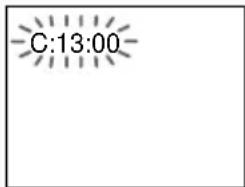
| First three characters of the service number | Cause and/or Corrective Action |
| C 13 | The disc is dirty→Clean the disc with a soft cloth (page 53). |
| C 31 | The disc is not inserted correctly.→Re-insert the disc correctly. |
| E XX (XX is a number) | To prevent a malfunction, the system has performed the self-diagnosis function.→Contact your nearest Sony dealer or local authorized Sony service facility and give the 5-character service number.Example: E 61 10 |
Specifications
AUDIO POWER SPECIFICATIONS: (MHC-DP1000D USA model only)
POWER OUTPUT AND TOTAL HARMONIC DISTORTION
with 8 ohm loads both channels driven, from 120 Hz – 10 kHz; rates 100 watts per channel minimum RMS power, with no more than 10% total harmonic distortion from 250 milliwatts to rated output.
Continuous RMS power output
Center speaker: 30 watts
Rear speakers: 30 + 30 watts
(8 ohms at 1 kHz, 10% THD)
Amplifier section
Canadian model: MHC-DP1000D
Continuous RMS power output (reference)
Front speaker: 100 + 100 watts
Center speaker: 30 watts
Rear speakers: 30 + 30 watts
(8 ohms at 1 kHz, 10% THD)
Total harmonic distortion less than 0.07%
(8 ohms at 1 kHz, 70 W)
European model: MHC-DP1000D
DIN power output (rated) 60 + 60 watts
(8 ohms at 1 kHz, DIN)
Continuous RMS power output (reference)
Front speaker: 80 + 80 watts
Center speaker: 30 watts
Rear speakers: 30 + 30 watts
(8 ohms at 1 kHz, 10% THD)
Music power output (reference)
Front speaker: 150 + 150 watts
Center speaker: 60 watts
Rear speakers: 60 + 60 watts
(8 ohms at 1 kHz, 10% THD)
Other models: MHC-DP900D
The following measured at AC 120, 220, 240 V, 50/60 Hz
DIN power output (rated) 130 + 130 watts (6 ohms at 1 kHz, DIN)
Continuous RMS power output (reference)
180 + 180 watts
(6 ohms at 1 kHz, 10%
THD)
MHC-DP1000D
The following measured at AC 120, 220, 240 V, 50/60 Hz
DIN power output (rated) 90 + 90 watts (8 ohms at 1 kHz, DIN)
Continuous RMS power output (reference)
Front speaker: 120 + 120 watts
Center speaker: 40 watts
Rear speakers: 40 + 40 watts
(8 ohms at 1 kHz, 10% THD)
Inputs
GAME IN: voltage 250 mV,
(phono jacks) impedance 47 kilohms
MD (VIDEO) IN: voltage 450 mV/250 mV,
(phono jacks) impedance 47 kilohms
OPTICAL IN:
(Square optical connector jacks, front panel)
wavelength —
MIC: sensitivity 1 mV,
(Except for North impedance 10 kilohms
American and
European models)
(phone jack)
Outputs
MD (VIDEO) OUT: voltage 250 mV
(phono jacks) impedance 1 kilohms
VIDEO OUT: max. output level
(phono jack) 1 Vp-p, unbalanced, Sync
negative, load impedance 75 ohms
S-VIDEO OUT: Y: 1 Vp-p, unbalanced,
(4-pin/mini-DIN jack) Sync negative,
C: 0.286Vp-p,
load impedance 75 ohms
PHONES:
(stereo mini jack)
SPEAKER:
(MHC-DP900D only)
FRONT SPEAKER :
(MHC-DP1000D only)
REAR SPEAKER:
(MHC-DP1000D only)
CENTER SPEAKER:
(MHC-DP1000D only)
SUB WOOFER:
accepts headphones of 8 ohms or more
accepts impedance of 6 to 16 ohms
accepts impedance of 8 to 16 ohms
accepts impedance of 8 to 16 ohms
accepts impedance of 8 to 16 ohms
Voltage 1 V,
impedance 1 kilohms
continued
Specifications (continued)
DVD player section
Laser Semiconductor laser
(DVD: λ=650 nm,
CD: λ=780 nm)
Emission duration:
continuous
Frequency response DVD (PCM 48 kHz):
2 Hz - 22 kHz = (±1 dB)
CD: 2Hz - 20 kHz =
(±1 dB)
Signal-to-noise ratio More than 90 dB
Dynamic range More than 90 dB
Video color system format
NTSC, PAL
DIGITAL OUT OPTICAL
(Square optical connector jack, rear panel)
Wavelength 660 nm
Tape player section
Recording system 4-track 2-channel stereo
Frequency response 40 - 13,000 Hz (±3 dB),
(DOLBY NR OFF) using Sony TYPE I
cassette,
40 - 14,000 Hz (±3 dB),
using Sony TYPE II
cassette
Wow and flutter ±0.15% W.Peak (IEC)
0.1% W.RMS (NAB)
±0.2% W.Peak (DIN)
Tuner section
FM stereo, FM/AM superheterodyne tuner
FM tuner section
Tuning range 87.5 - 108.0 MHz
Antenna FM lead antenna
Antenna terminals 75 ohm unbalanced
Intermediate frequency 10.7 MHz
AM tuner section
Tuning range
Pan American model: 530 - 1,710 kHz
(with the interval set at 10 kHz)
531-1,710 kHz
(with the interval set at 9 kHz)
European and Middle Eastern models:
531-1,602 kHz
(with the interval set at 9 kHz)
Other models: 531 - 1,602 kHz
(with the interval set at 9 kHz)
530-1,710 kHz
(with the interval set at 10 kHz)
Antenna AM loop antenna
Antenna terminals External antenna terminal
Intermediate frequency 450 kHz
Speaker
Front speaker
SS-DP1000DW for MHC-DP1000D (North American and European models)
Speaker system 2-way, bass-reflex type,
magnetically shielded type
Speaker units
Woofer: 17 cm, cone type
Tweeter:
5 cm, cone type
Nominal impedance
8 ohms
Dimensions (w/h/d)
Approx. 230 x 360 x 260 mm
Mass
Approx. 4.0 kg net per
speaker
SS-DP1000D/DP900D for MHC-DP1000D/DP900D (Other models)
Speaker system 3-way, 3-unit,
bass-reflex type,
magnetically shielded type
Speaker units
Woofer: 15 cm, cone type
Subwoofer:
15 cm, cone type
Tweeter:
5 cm, cone type
Nominal impedance
SS-DP900D
6 ohms
SS-DP1000D
8 ohms
Dimensions (w/h/d)
Approx. 250 x 360 x 335 mm
Mass
Approx. 6.5 kg net per
speaker
Rear speaker SS-RS270 for MHC-DP1000D
Speaker system 1-way, 1-unit,
bass-reflex type
Speaker units
Full-range:
8 cm, cone type
Nominal impedance
8 ohms
Dimensions (w/h/d)
Approx. 180 x 95 x 100 mm
Mass
Approx. 0.65 kg net per
speaker
Center speaker SS-CT270 for MHC-DP1000D
Speaker system 1-way, 2-unit,
bass-reflex type,
magnetically shielded type
Speaker units
Full-range:
8 cm, cone type
Nominal impedance
8 ohms
Dimensions (w/h/d)
Approx. 225 x 95 x 100 mm
Mass
Approx. 1.2 kg net
For the customers in Canada (MHC-DP1000D only)
Use only the supplied SS-RS270 rear speakers for connection to the REAR SPEAKER jacks, and only the supplied SS-CT270 center speaker for connection to the CENTER SPEAKER jacks on the
MHC-DP1000D.
General
Power requirements
North American model: 120 V AC, 60 Hz
European model: 230 V AC, 50/60 Hz
Australian model: 230 – 240 V AC, 50/60 Hz
Mexican model: 120 V AC, 60 Hz
Thailand model: 220 V AC, 50/60 Hz
Indian, Pakistani, Moroccan and Tunisian models: 220 V AC, 50/60 Hz
Other models: 120 V, 220 V or
230-240 V AC.
50/60 Hz
Adjustable with voltage
selector
Power consumption
U.S.A. model:
MHC-DP1000D 205 watts
Canadian model:
MHC-DP1000D 205 watts
European model:
MHC-DP1000D 190 watts
0.5 watts (at the Power
Saving Mode)
Other models:
MHC-DP900D 210 watts
MHC-DP1000D 225 watts
Dimensions (w/h/d)
Approx. 280 x 360 x 365 mm
Mass
North American and European models:
MHC-DP1000D Approx. 11.0 kg
Other models:
MHC-DP900D Approx. 12.5 kg
MHC-DP1000D Approx. 12.0 kg
Supplied accessories: AM loop antenna (1)
FM lead antenna (1)
Remote commander (1)
Batteries (2)
Video cable (1)
Front speaker pads (8)
Center and rear speaker
pads (MHC-DP1000D
only, 12)
Design and specifications are subject to change without notice.
Glossary
Bit Rate
Value indicating the amount of video data compressed in a DVD per second. The unit is Mbps (Mega bit per second). 1 Mbps indicates that the data per second is 1,000,000 bits. The higher the bit rate is, the larger the amount of data. However, this does not always mean that you can get higher quality pictures.
Chapter
Sections of a picture or a music piece on a DVD that are smaller than titles. A title is composed of several chapters. Each chapter is assigned a chapter number enabling you to locate the chapter you want.
Dolby Digital
This sound format for movie theaters is more advanced than Dolby Pro Logic Surround. In this format, the rear speakers output stereo sound with an expanded frequency range and a subwoofer channel for deep bass is independently provided. This format is also called “5.1” because the subwoofer channel is counted as 0.1 channel (since it functions only when a deep bass effect is needed). All six channels in this format are recorded separately to realize superior channel separation. Furthermore, since all the signals are processed digitally, less signal degradation occurs.
Dolby Pro Logic Surround
As one method of decoding Dolby Surround, Dolby Pro Logic Surround produces four channels from two-channel sound. Compared with the former Dolby Surround system, Dolby Pro Logic Surround reproduces left-to-right panning more naturally and localizes sounds more precisely. To take full advantage of Dolby Pro Logic Surround, you should have one pair of rear speakers and a centre speaker. The rear speakers output monaural sound.
DTS
Digital audio compression technology that the Digital Theater Systems, Inc. developed. This technology conforms to 5.1-channel surround. The rear channel is stereo and there is discrete subwoofer channel in this format. DTS provides the same 5.1 discrete channels of high quality digital audio. The good channel separation is realized because the all channel data is recorded discrete and processed in digital.
DVD
A disc that contains up to 8 hours of moving pictures even though its diameter is the same as a CD.
The data capacity of a single-layer and single-sided DVD, at 4.7 GB (Giga Byte), is 7 times that of a CD. Furthermore, the data capacity of a dual-layer and single-sided DVD is 8.5 GB, a single-layer and double-sided DVD 9.4 GB, and a dual-layer and double-sided DVD 17 GB.
The picture data uses the MPEG 2 format, one of the worldwide standards of digital compression technology. The picture data is compressed to about 1/40 of its original size. The DVD also uses the variable rate coding technology that changes the data to be allocated according to the status of the picture.
The audio data is recorded in Dolby Digital as well as in PCM, allowing you to enjoy more real audio presence. Furthermore, various advanced functions such as the multi-angle, multilingual, and Parental Control functions are provided with the DVD.
Index (CD) / Video Index (VIDEO CD)
A number that divides a track into sections to easily locate the point you want on a VIDEO CD or a CD. Depending on the disc, no indexes may be recorded.
Multi-angle function
Various angles, or viewpoints of the video camera, for a scene are recorded on some DVDs.
Multilingual function
Several languages for the sound or subtitles in a picture are recorded on some DVDs.
Parental Control
A function of the DVD to limit playback of the disc by the age of the users according to the limitation level in each country. The limitation varies from disc to disc; when it is activated, playback is completely prohibited, violent scenes are skipped or replaced with other scenes and so on.
Playback Control (PBC)
Signals encoded on VIDEO CDs (Version 2.0) to control playback. By using menu screens recorded on VIDEO CDs with PBC functions, you can enjoy playing simple interactive programs, programs with search functions, and so on.
Region Code
This system is used to protect copyrights. A region number is allocated on each DVD system or DVD disc according to the sales region. Each region code is shown on the system as well as on the disc packaging. The system can play the discs that match its region code. The system can also play discs with the “ALL” mark. Even when the region code is not shown on the DVD, the region limit may still be activated.
Scene
On a VIDEO CD with PBC functions (page 25), the menu screens, moving pictures, and still pictures are divided into sections called “scenes”. Each scene is assigned a scene number enabling you to locate the scene you want.
Title
The longest sections of a picture or a music piece on a DVD; a movie, etc., for a picture piece on video software; or an album, etc., for a music piece on an audio software. Each title is assigned a title number enabling you to locate the title you want.
Track
Sections of a picture or a music piece on a CD or VIDEO CD. Each track is assigned a track number enabling you to locate the track you want.
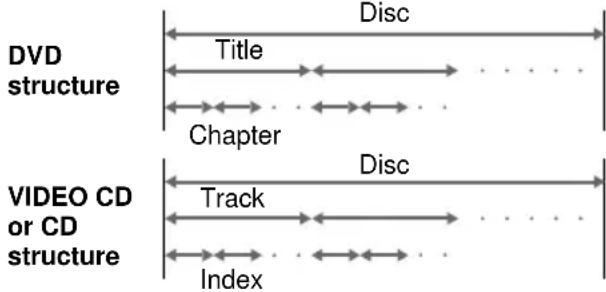
VIDEO CD
A compact disc that contains moving pictures.
The picture data uses the MPEG 1 format, one of the worldwide standards of digital compression technology. The picture data is compressed to about 1/140 of its original size. Consequently, a 12 cm VIDEO CD can contain up to 74 minutes of moving pictures.
VIDEO CDs also contain compact audio data. Sounds outside the range of human hearing are compressed while the sounds we can hear are not compressed. VIDEO CDs can hold 6 times the audio information of conventional audio CDs.
There are 2 versions of VIDEO CDs.
- Version 1.1: You can play only moving pictures and sounds.
- Version 2.0: You can play high-resolution still pictures and enjoy PBC functions.
This system conforms to both versions.
Language code list
For details, see pages 18, 32 and 35.
The language spellings conform to the ISO 639: 1988 (E/F) standard.
| Code Language Code Language Code Language Code Language | |||||||
| 1027 Afar 1186 Scots Gaelic 1350 Malayalam 1513 Siswati | |||||||
| 1028 Abkhazian 1194 Galician 1352 Mongolian 1514 Sesotho | |||||||
| 1032 Afrikaans 1196 Guarani 1353 Moldavian 1515 Sundanese | |||||||
| 1039 Amharic 1203 Gujarati 1356 Marathi 1516 Swedish | |||||||
| 1044 Arabic 1209 Hausa 1357 Malay 1517 Swahili | |||||||
| 1045 Assamese | 1217 Hindi | 1358 Maltese 1521 Tamil | |||||
| 1051 Aymara 1226 Croatian | 1363 Burmese | 1525 Telugu | |||||
| 1052 Azerbaijani | 1229 Hungarian | 1365 Nauru 1527 Tajik | |||||
| 1053 Bashkir | 1233 | Armenian | 1369 | Nepali | 1528 | Thai | |
| 1057 Byelorussian | 1235 Interlingua 1376 Dutch | 1529 Tigrinya | |||||
| 1059 Bulgarian 1239 Interlingue 1379 Norwegian 1531 Turkmen | |||||||
| 1060 Bihari | 1245 | Inupiak | 1393 | Occitan | 1532 | Tagalog | |
| 1061 Bislama 1248 | Indonesian 1403 (Afan) Oromo 1534 Setswana | ||||||
| 1066 Bengali; Bangla | 1253 | Icelandic | 1408 | Oriya | 1535 | Tonga | |
| 1067 Tibetan | 1254 | Italian | 1417 | Punjabi | 1538 | Turkish | |
| 1070 Breton | 1257 | Hebrew | 1428 | Polish | 1539 | Tsonga | |
| 1079 Catalan | 1261 | Japanese | 1435 | Pashto; Pushto | 1540 | Tatar | |
| 1093 Corsican | 1269 Yiddish 1436 Portuguese 1543 | Twi | |||||
| 1097 Czech | 1283 | Javanese | 1463 | Quechua | 1557 | Ukrainian | |
| 1103 Welsh | 1287 | Georgian | 1481 | Rhaeto-Romance | 1564 | Urdu | |
| 1105 Danish | 1297 | Kazakh | 1482 | Kirundi | 1572 | Uzbek | |
| 1109 German | 1298 | Greenlandic | 1483 | Romanian | 1581 | Vietnamese | |
| 1130 Bhutani | 1299 | Cambodian | 1489 | Russian | 1587 | Volapük | |
| 1142 Greek | 1300 | Kannada | 1491 | Kinyarwanda | 1613 | Wolof | |
| 1144 English | 1301 | Korean | 1495 | Sanskrit | 1632 | Xhosa | |
| 1145 Esperanto | 1305 | Kashmiri | 1498 | Sindhi | 1665 | Yoruba | |
| 1149 Spanish 1307 Kurdish 1501 Sangho 1684 Chinese | |||||||
| 1150 Estonian | 1311 | Kirghiz | 1502 | Serbo-Croatian | 1697 | Zulu | |
| 1151 Basque | 1313 | Latin | 1503 | Singhalese | 1703 | Not specified | |
| 1157 Persian | 1326 | Lingala | 1505 | Slovak | |||
| 1165 Finnish | 1327 Laothian | 1506 Slovenian | |||||
| 1166 Fiji | 1332 | Lithuanian | 1507 | Samoan | |||
| 1171 Faroese | 1334 | Latvian; Lettish | 1508 | Shona | |||
| 1174 French | 1345 | Malagasy | 1509 | Somali | |||
| 1181 Frisian | 1347 | Maori | 1511 Albanian | ||||
| 1183 Irish 1349 Macedonian 1512 Serbian | |||||||
Control Menu Item List
| Control Menu Items | Function |
| TITLE (DVD only)SCENE (VIDEO CD in PBC Playback only)TRACK (VIDEO CD only) | Selects the title (DVD), the scene (VIDEO CD in PBC Playback), or the track (VIDEO CD) to be played. |
| CHAPTER (DVD only)INDEX (VIDEO CD only) | Selects the chapter (DVD) or the index (VIDEO CD) to be played. |
| TRACK (CD only) | Selects the track to be played. |
| INDEX (CD only) | Selects the index to be played. |
| TIME/TEXT | Checks the elapsed time and the remaining playback time.Input the time code for picture and music searching.Displays the DVD/CD text. |
| AUDIO | Changes the audio setting. |
| SUBTITLE (DVD only) | Displays the subtitles.Changes the subtitle language. |
| ANGLE (DVD only) | Changes the angle. |
| ONE/ALL DISCS | Plays one disc or all discs in the disc tray. |
| REPEAT | Plays the entire disc (all titles/all tracks) repeatedly or one title/chapter/track repeatedly. |
| ADVANCED (DVD only) | Checks the information (bit rate or layer) on the disc while playing a DVD. |
| CUSTOM PARENTAL CONTROL | Sets the disc to prohibit playback. |
| SETUP | CUSTOM SetupAdjusts the image and sound quality, Parental Control, and other various settings. |
| RESETReturns the settings in “SETUP” to the default setting. |
Tips
• Each time you press DVD DISPLAY, the Control Menu display changes cyclically as follows.
Control Menu display → “ADVANCED” display (Appears if you select any setting other than “OFF”. See page 31.) → Control Menu display off
The Control Menu items differ depending on the disc.
- The Control Menu icon indicator lights in green when you select any item except for “OFF” (“REPEAT” only). The “ANGLE” indicator lights in green only when the angles can be changed.
Setup Display Item List
You can set the following items in the Setup Display.
The order of the displayed items may be different from the actual display.
LANGUAGE
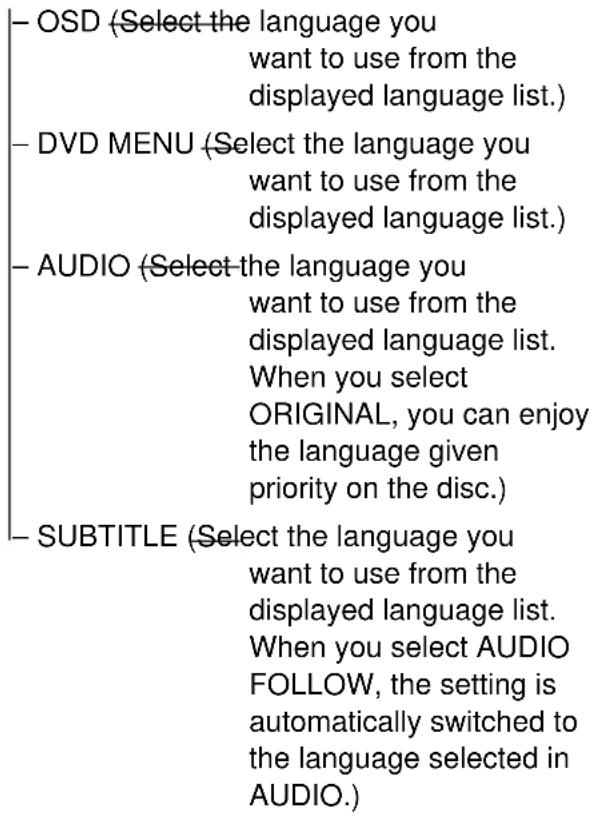
CUSTOM
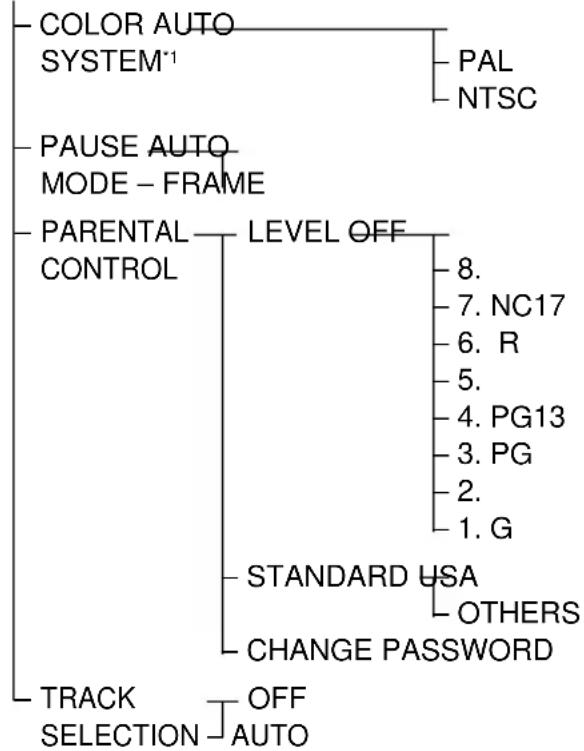
flowchart
graph TD
    A["COLOR AUTO SYSTEM*1"] --> B["PAL"]
    A --> C["NTSC"]
    D["PAUSE AUTO MODE - FRAME"] --> E["LEVEL OFF"]
    F["PARENTAL CONTROL"] --> E
    F --> G["STANDARD USA"]
    G --> H["OTHERS"]
    G --> I["CHANGE PASSWORD"]
    J["TRACK SELECTION"] --> K["OFF AUTO"]
    L["8. NC17"] --> G
    M["6. R"] --> G
    N["5. PG13"] --> G
    O["3. PG"] --> G
    P["2. G"] --> G
SCREEN
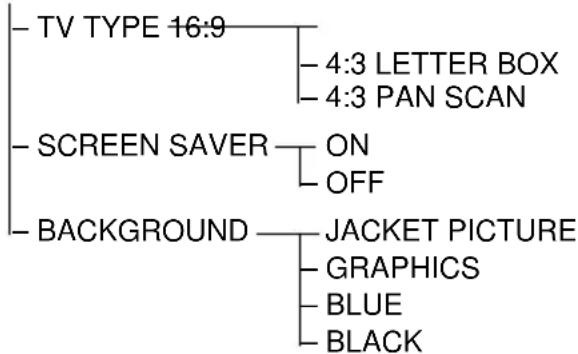
flowchart
graph TD
    A["TV TYPE 16:9"] --> B["4:3 LETTER BOX"]
    A --> C["4:3 PAN SCAN"]
    D["SCREEN SAVER"] --> E["ON"]
    D --> F["OFF"]
    G["BACKGROUND"] --> H["JACKET PICTURE"]
    H --> I["GRAPHICS"]
    H --> J["BLUE"]
    H --> K["BLACK"]
SPEAKER
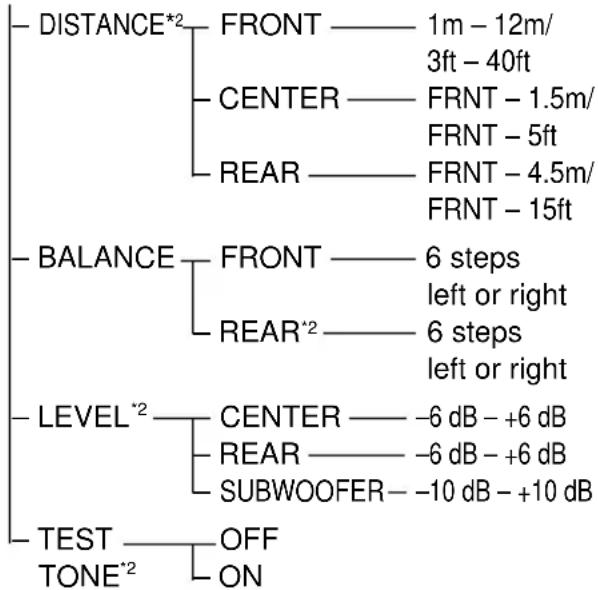
flowchart
graph TD
    A["DISTANCE*2"] --> B["FRONT"]
    A --> C["CENTER"]
    A --> D["REAR"]
    B --> E["1m - 12m/3ft - 40ft"]
    C --> F["FRNT - 1.5m/FRNT - 5ft"]
    D --> G["FRNT - 4.5m/FRNT - 15ft"]
    H["BALANCE"] --> I["FRONT"]
    H --> J["REAR*2"]
    I --> K["6 steps left or right"]
    J --> L["6 steps left or right"]
    M["LEVEL*2"] --> N["CENTER"]
    M --> O["REAR"]
    N --> P["-6 dB - +6 dB"]
    O --> Q["-6 dB - +6 dB"]
    P --> R["SUBWOOFER"]
    Q --> S["-10 dB - +10 dB"]
    T["TEST TONE*2"] --> U["OFF ON"]
^*1 Except for Pan American and European models.
*2 MHC-DP1000D only.
AVERTISSEMENT
Appareil principal 7
Télécommande 8
digipad 39 (9, 24, 40, 47)
DIGITAL 26 (52)
DIRECTION 35 (42–44, 50)
DISC 1-3 2 (23, 24)
DISC SKIP EX-CHANGE 3 (23, 24)
DISPLAY 31 (16, 29, 30)
DOLBY NR 36 (42–44)
DSP EDIT 47 (47)
DVD 30 (12, 25, 26, 34, 43, 44)
DVD DISPLAY 35 (17, 28, 30)
DVD MENU 19 (25)
EFFECT 43 (47)
ENTER 40 (14, 15, 25–27, 31, 32, 34–41, 44, 45, 47, 51)
FM MODE 36 (41)
GAME 25 (52)
GAME MODE 46 (47)
GROOVE 44 (46)
PLAY MODE 37 (23, 26, 27, 44)
Prise DIGITAL IN (OPTICAL) 24 (52)
REC PAUSE/START 16 (43, 44, 50)
REPEAT 36 (28, 29)
SPECTRUM (modèles
CLEAR 42 (21, 27, 28, 34)
CLOCK/TIMER SELECT 2 (45, 51)
CLOCK/TIMER SET 3 (15, 45, 51)
D.SKIP 12 (23, 24, 28)
DIGITAL 47 (52)
DISPLAY 45 (16, 29, 30)
DSP EDIT 34 (47)
DVD 49 (12, 16, 25, 26, 34, 43, 44)
DVD DISPLAY 23 (17, 28, 30–32, 34–36)
DVD MENU 21 (25)
DVD SET UP 19 (18, 22, 37)
EFFECT ON/OFF 13 (47)
ENTER 28 (14, 15, 17, 25–27, 31, 32, 34–41, 44, 45, 47, 49, 51)
GAME 46 (52)
GAME MODE 29 (47)
MD (VIDEO) 48 (52)
MOVIE MODE 25 (47)
MUSIC MODE 31 (47)
NEXT 39 (24, 25)
P FILE 33 (48)
PREV 40 (24, 25)
REPEAT 10 (28, 29)
RETURN 41 (25, 37, 38)
SLEEP 1 (50)
SLOW ◀/▶ 18 (24)
SPEAKER LEVEL 24 (14)
SPECTRUM 44 (49)
STEP ◀II/III▶ 37 (24)
SUB TITLE 36 (35)
TAPE A/B 51 (42, 43)
TITLE 20 (25)
TOOL MODE 27 (47)
(lecture), SELECT 14
II (pause) 15
(arrêt) 17
◀◀/▶▶ (rembobinage/avance), TUNING -/+ 16
natural_image
Hand cursor clicking a button on a device screen (no text or symbols visible)natural_image
Hand pointing at a device button with bidirectional arrow (no text or symbols)natural_image
Hand pointing at a button on a device panel (no text or symbols visible)natural_image
Hand cursor pointing at a digital display screen showing a line graph (no text or symbols)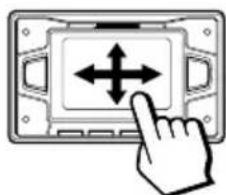
natural_image
Hand pointing at a device control panel with bidirectional arrows (no text or symbols)natural_image
Pure diagram of a 3D structure with vertical cylinders and a horizontal base, no text or symbols presentRemarques
natural_image
Diagram showing two battery components with arrows indicating movement, no text or symbols presentnatural_image
Diagram of a setup with two speakers, a TV screen, and a wall-mounted monitor (no text or symbols present)natural_image
Simple line drawing of a mountain landscape with a river, trees, and sky (no text or symbols)natural_image
Simple line drawing of a mountain landscape with a river, trees, and clouds (no text or symbols)natural_image
Simple line drawing of a mountain landscape with trees and water (no text or symbols)Remarque
natural_image
Illustration of a hand holding a circular object over a device (no text or symbols visible)• DTS
Remarque
La lecture commence.
Conseil
PATTERN 1 → PATTERN 2 →
PATTERN 3 → PATTERN OFF
natural_image
Pure electrical circuit lines without any symbolsnatural_image
Line drawing of a vintage computer case with front panel, control panel, and display unit (no text or symbols)(6 ohms à 1 kHz, 10%
DHT)
MHC-DP1000D
MD (VIDEO) IN: Tension 450 mV/250 mV,
(prises cinch) impédance de 47 kilohms
OPTICAL IN:
MD (VIDEO) OUT: Tension 250 mV,
(prises cinch) impédance de 1 kilohm
SUB WOOFER: Tension 1 V,
impédance de 1 kilohm
voir page suivante
Spécifications (suite)
Section Lecteur DVD
MHC-DP1000D Approx. 11,0 kg
Autres modèles:
MHC-DP900D Approx. 12,5 kg
MHC-DP1000D Approx. 12,0 kg
Accessoires fournis: Antenne cadre AM (1)
Antenne fil FM (1)
Télécommande (1)
Piles (2)
Câble vidéo (1)
Modelo para Europa
digipad 39 (9, 24, 40, 47)
DIGITAL 26 (52)
DIGITAL IN (OPTICAL) jack 24 (52)
DIRECTION 35 (42–44, 50)
DISC 1-3 2 (23, 24)
DISC SKIP EX-CHANGE 3 (23, 24)
DISPLAY 31 (16, 29, 30)
DOLBY NR 36 (42–44)
DSP EDIT 47 (47)
DVD 30 (12, 25, 26, 34, 43, 44)
DVD DISPLAY 35 (17, 28, 30)
DVD MENU 19 (25)
EFFECT 43 (47)
ENTER 40 (14, 15, 25–27, 31, 32, 34–41, 44, 45, 47, 51)
FM MODE 36 (41)
GAME 25 (52)
GAME MODE 46 (47)
GROOVE 44 (46)
PLAY MODE 37 (23, 26, 27, 44)
PTY (Modelo para Europa solamente) 35 (41)
REC PAUSE/START 16 (43, 44, 50)
Receptor de rayos infrarrojos (IR) 14
REPEAT 36 (28, 29)
CLEAR 42 (21, 27, 28, 34)
CLOCK/TIMER SELECT 2 (45, 51)
CLOCK/TIMER SET 3 (15, 45, 51)
D.SKIP 12 (23, 24, 28)
DIGITAL 47 (52)
DISPLAY 45 (16, 29, 30)
DSP EDIT 34 (47)
DVD 49 (12, 16, 25, 26, 34, 43, 44)
DVD DISPLAY 23 (17, 28, 30–32, 34–36)
DVD MENU 21 (25)
DVD SET UP 19 (18, 22, 37)
EFFECT ON/OFF 13 (47)
ENTER 28 (14, 15, 17, 25–27, 31, 32, 34–41, 44, 45, 47, 49, 51)
GAME 46 (52)
GAME MODE 29 (47)
MD (VIDEO) 48 (52)
MOVIE MODE 25 (47)
MUSIC MODE 31 (47)
NEXT 39 (24, 25)
P FILE 33 (48)
PREV 40 (24, 25)
REPEAT 10 (28, 29)
RETURN 41 (25, 37, 38)
SLEEP 1 (50)
SLOW ◀/▶ 18 (24)
SPEAKER LEVEL 24 (14)
SPECTRUM 44 (49)
STEP ◀II/II▶ 37 (24)
SUB TITLE 36 (35)
TAPE A/B 51 (42, 43)
Teclas numéricas 8 (26)
TITLE 20 (25)
TOOL MODE 27 (47)
TUNER/BAND 50 (40, 41)
TV I/① 4 (12)
TV CH +/- 7 (12)
TV/VIDEO 9 (12)
TV VOL +/− 6 (12)
VOL+/-26
natural_image
Illustration of a hand cursor clicking a button on a device screen (no text or symbols visible)natural_image
Hand pointing at a device panel with bidirectional arrow (no text or symbols)natural_image
Hand pointing at a device panel with bidirectional arrow (no text or symbols)natural_image
Hand pointing at a control panel with four arrows on the screen (no text or symbols)natural_image
Hand cursor pointing at a touchscreen display with a waveform graphic (no text or symbols)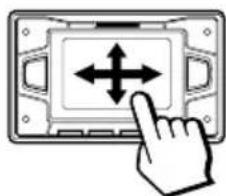
natural_image
Hand pointing at a device panel with bidirectional arrows (no text or symbols)flowchart
graph TD
    A["Top: Rotation Arrow"] --> B["Bottom: Zoomed Section"]
    B --> C["Bottom: Dashed Section"]
Tipo de toma Ⓐ
natural_image
Pure diagram of a rectangular structure with vertical dashed lines and circular holes, no text or symbols present.Notas
natural_image
Diagram showing two states of battery charging mechanism: one with a plug, the other with a battery inside (no text or symbols)natural_image
Diagram of a room setup with two speakers, a TV monitor, and a wall-mounted speaker (no text or symbols)natural_image
Simple line drawing of a mountain landscape with a river, trees, and sky (no text or symbols)natural_image
Simple black-and-white landscape illustration of mountains, a river, and trees under a cloudy sky (no text or symbols)natural_image
Simple line drawing of a mountain landscape with a river and trees (no text or symbols)Nota
natural_image
Line drawing of a hand pressing down on a circular object into a device (no text or symbols)• DTS
Nota
EARLY RFLC. (EARLY REFLECTION)
PATTERN 1 → PATTERN 2 →
PATTERN 3 → PATTERN OFF
natural_image
Technical line drawing of a front view of a computer control panel with buttons and display (no text or symbols)natural_image
Simple line drawing of a mechanical or electrical component with no text, numbers, or symbols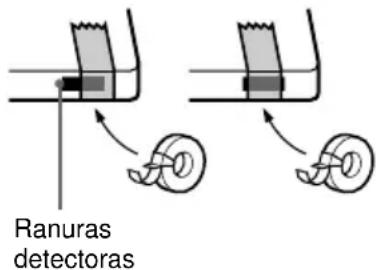
(8 ohm a 1 kHz, 70 W)
Modelo para Europa: MHC-DP1000D
(8 ohm a 1 kHz, DIN)
(8 ohm a 1 kHz, 10% de
(8 ohm a 1 kHz, 10% de
(6 ohm a 1 kHz, DIN)
(6 ohm a 1 kHz, 10% de
(8 ohm a 1 kHz, DIN)
(8 ohm a 1 kHz, 10% de
MHC-DP1000D aprox. 11,0 kg
Otros modelos:
MHC-DP900D aprox. 12,5 kg
MHC-DP1000D aprox. 12,0 kg
traseros (MHC-DP1000D
solamente, 12)