DTCZE700 - Cassette player SONY - Free user manual and instructions
Find the device manual for free DTCZE700 SONY in PDF.



| Product Type | DAT Digital Audio Tape Recorder |
| Brand | Sony |
| Model | DTC-ZE700 |
| Dimensions (approx.) | 430 x 120 x 300 mm |
| Weight (approx.) | 5 kg |
| Power Supply | AC 120 V, 60 Hz (Canada) / AC 230 V, 50/60 Hz (Europe) |
| Power Consumption | Not specified |
| Main Functions | High-density linear converters, SBM (Super Bit Mapping), three sampling frequencies (48/44.1/32 kHz), long-time recording, subcodes (start IDs, program numbers), AMS, direct access, repeat playback, timer programming |
| Maintenance and Cleaning | Clean the head and tape path with Sony DT-10CL cleaning cassette every 10 hours of operation |
| Safety | Do not expose to rain or moisture. Unplug if liquid penetrates. Refer servicing to qualified personnel. |
| Spare Parts and Repairability | DT-10CL cleaning cassette, RM-D757 remote control, AA batteries. Repair by qualified technician only. |
| General Information | Frequency response: standard 2–22,000 Hz (±0.5 dB), long-time 2–14,500 Hz (±0.5 dB). Signal-to-noise ratio: ≥90 dB. Dynamic range: ≥90 dB. Total harmonic distortion: standard ≤0.005% (1 kHz), long-time ≤0.008% (1 kHz). |
| Supplied Accessories | Audio connecting cords (2), RM-D757 remote control, AA batteries (2), instruction manual, warranty card (Canada) |
Frequently Asked Questions - DTCZE700 SONY
User questions about DTCZE700 SONY
0 question about this device. Answer the ones you know or ask your own.
Ask a new question about this device
Download the instructions for your Cassette player in PDF format for free! Find your manual DTCZE700 - SONY and take your electronic device back in hand. On this page are published all the documents necessary for the use of your device. DTCZE700 by SONY.
USER MANUAL DTCZE700 SONY
Digital Audio Tape Deck
Operating Instructions
EN
Mode d'emploi
F
1996 by Sony Corporation
WARNING
To prevent fire or shock hazard, do not expose the unit to rain or moisture.
To avoid electrical shock, do not open the cabinet. Refer servicing to qualified personnel only.
For the customers in the United States

This symbol is intended to alert the user to the presence of uninsulated "dangerous voltage" within the product's enclosure that may be of sufficient magnitude to constitute a risk of electric shock to persons.

This symbol is intended to alert the user to the presence of important operating and maintenance (servicing) instructions in the literature accompanying the appliance.
Owner's Record
The model and serial numbers are located on the rear of the unit. Record the serial number in the space provided below. Refer to them whenever you call upon your Sony dealer regarding this product.
Model No. DTC-ZF700
Serial No.
INFORMATION
This equipment has been tested and found to comply with the limits for a Class B digital device, pursuant to Part 15 of the FCC Rules.
These limits are designed to provide reasonable protection against harmful interference in a residential installation. This equipment generates, uses, and can radiate radio frequency energy and, if not installed and used in accordance with the instructions, may cause harmful interference to radio communications. However, there is no guarantee that interference will not occur in a particular installation. If this equipment does cause harmful interference to radio or television reception, which can be determined by turning the equipment off and on, the user is encouraged to try to correct the interference by one or more of the following measures:
Reorient or relocate the receiving antenna.
Increase the separation between the equipment and receiver.
Connect the equipment into an outlet on a circuit different from that to which the receiver is connected.
Consult the dealer or an experienced radio/TV technician for help.
CAUTION
You are cautioned that any changes or modifications not expressly approved in this manual could void your authority to operate this equipment.
For the customers in Canada
CAUTION
TO PREVENT ELECTRIC SHOCK, DO NOT USE THIS POLARIZED AC PLUG WITH AN EXTENSION CORD, RECEPTACLE OR OTHER OUTLET UNLESS THE BLADES CAN BE FULLY INSERTED TO PREVENT BLADE EXPOSURE.
Welcome!
Thank you for purchasing the Sony Digital Audio Tape Deck. Before operating the unit, please read this manual thoroughly and retain it for future reference.
The DTC-ZE700 has the following features:
High-density linear converters
A pulse A/D converter that produces clear, elegant sound quality and theoretically zero cross distortion, and a pulse D/A converter with a newly developed digital filter and a full feedforward format that reduces quantizing noise in the audible bandwidth, thus expanding the range of spatial expression.
- SBM (Super Bit Mapping) function (see page 21)
The Serial Copy Management System (see page 22)
- Three sampling frequencies (48 kHz, 44.1 kHz, 32 kHz)
- Recording and playback in long-play mode.
- Analog recording at 44.1kHz
- Sub codes
Start IDs, program numbers and other sub codes written to the tape allow you to locate tracks quickly.
- See-through cassette compartment lid
A sec-through cassette compartment lid that allows you to view tape operations during playback and recording.
About This Manual
The instructions in this manual are for DTC-ZE700.
Conventions
Instructions in this manual describe the controls on the deck.
The following icons are used in this manual:

Indicates useful information or tips that make a task easier.

Indicates a task that requires use of the remote.
TABLE OF CONTENTS
Getting Started
Unpacking 4
Hooking Up the System 4
Recording on a DAT 6
Playing a DAT 8
Recording Operations
Things You Should Know Before Recording 9
Adjusting the Recording Level for Analog Recording 10
Locating the End of the Recorded Portion (End Search) 10
Setting the Recording Mode 11
Using the SBM (Super Bit Mapping) Function 11
Inserting a Sound-Muted Section While Recording (Record Muting) 12
Recording Using a Timer (Timer Recording) 12
Playback Operations
About the Display 13
Locating a Track (AMS/Direct Access) 14
Playing Tracks Repeatedly (Repeat Play) 14
Playback Using a Timer (Timer Playing) 15
Writing Sub Codes
About Sub Codes 15
Writing Start IDs During Recording 15
Writing Start IDs During Playback 16
Adjusting the Position of an Existing Start ID 17
Erasing Start IDs 17
Renumbering the Program Numbers Automatically (Renumbering) 18
Additional Information
Precautions 18
Cleaning 19
Display Messages 19
Troubleshooting 20
Specifications 21
SBM (Super Bit Mapping) Function 21
Guide to the Serial Copy Management System 22
Index 24
Unpacking
Check that you have received the following supplied items:
Pin-plug audio connecting cords (2)
- Remote commander (remote) RM-D757 (1)
Size-AA (R6) batteries (2)
- Operating instructions (1)
Warranty card (Canadian model only) (1)
Inserting batteries into the remote
Insert two size-AA(R6) batteries, matching the + and - on the batteries with the markings inside the battery compartment.
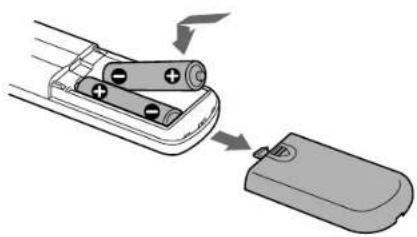

When to replace the batteries
With normal use, batteries should last for about 6 months. When the remote no longer operates the deck, replace both batteries.
Notes
- Do not leave the remote near an extremely hot or humid place.
- Do not drop any foreign matter into the remote casing, particularly when replacing the batteries.
- Do not expose the remote sensor to direct sunlight or illumination as doing so may cause malfunction.
- When not using the remote for an extended period of time, remove the batteries to avoid possible damage from battery leakage and corrosion.
Hooking Up the System
This section describes how to hook up your deck to an amplifier, CD player, MD deck, or other audio components. Be sure to turn off the power to each component before making the connections.
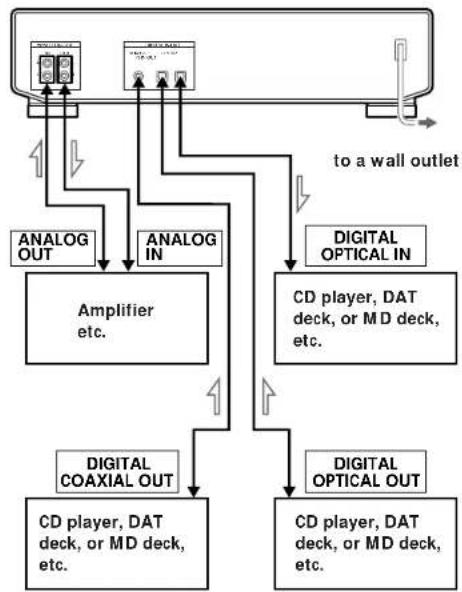

Signal flow
What cords will I need?
- Audio connecting cords (supplied) (2)
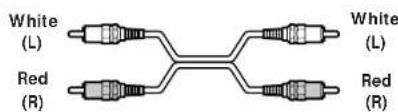
Optical cables (POC-15 etc.) (not supplied) (2)

Coaxial digital connecting cable (VMC-10G etc.) (not supplied) (1)

Hookups
- Connecting the deck to an amplifier
Use the supplied audio connecting cords to connect the deck to an amplifier. Be sure to match each color-coded plug to the appropriate jack: red (right) to red and white (left) to white. To prevent hum and noise, be sure the connections are firmly made.
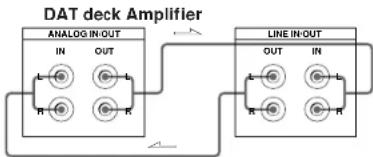

When recording with a microphone
Connecting the analog output jakes on the stereo microphone amplifier to the ANALOG IN jacks of the deck.
Note
If "PROHIBIT" appears in the display, recording through the digital jack is not possible.
In this case, set the INPUT switch to ANALOG and record the program source through the ANALOG IN jacks.
Connecting the AC power cord
Connect the AC power cord to a wall outlet.
Where do I go next?
Now you're ready to use your deck. For basic operations, go to pages 6 to 8; for advanced operations, go to the sections starting from page 9.
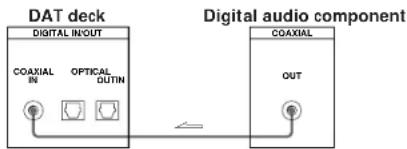
- Connecting the deck to a digital audio component
A digital audio signal from a digital audio component such as a digital amplifier, DAT deck, CD player, MD deck or BS tuner can be recorded on the DAT deck by connecting the digital output connectors on the component to the digital input connectors (DIGITAL OPTICAL IN or DIGITAL COAXIAL IN) on the deck. A digital audio signal from the deck can be recorded by connecting the digital output connector (DIGITAL OPTICAL OUT) on the deck to the digital input connector on a digital audio component such as a digital amplifier, DAT deck or MD deck. Use optical cables (POC-15A or equivalent) (not supplied) or a coaxial digital connecting cable (VMC-10G or equivalent) (not supplied).
- Connection with optical cables
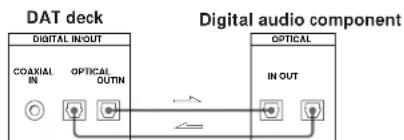
- Connection with coaxial digital connecting cable
Recording on a DAT
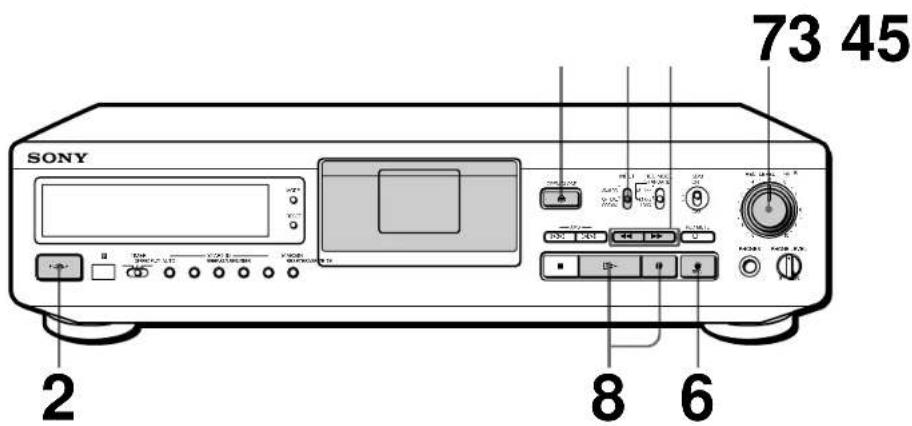
See pages 4 and 5 for hookup information.
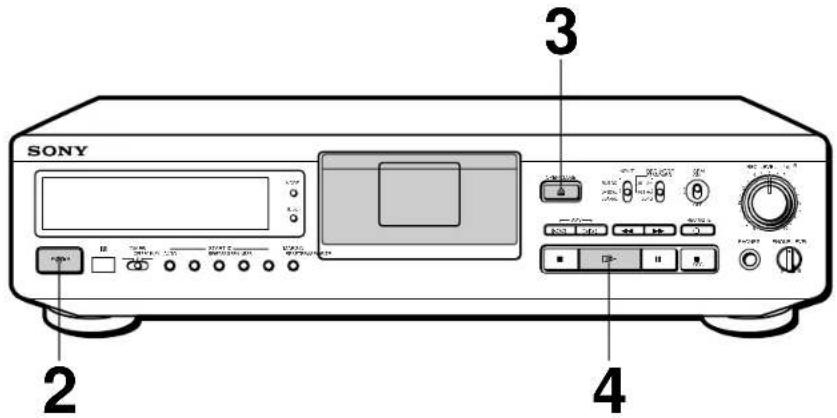
1 Turn on the amplifier and play the program source you want to record.
2 Press POWER.
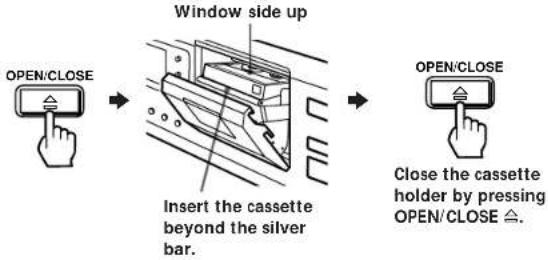
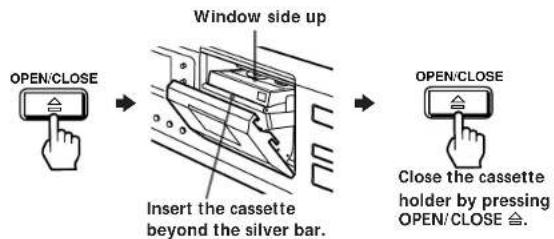
Press OPEN/CLOSE and insert a cassette.
A Set INPUT to the corresponding input connector.
| To record through | Set INPUT to |
| ANALOG IN | ANALOG |
| DIGITAL OPTICAL IN | OPTICAL |
| DIGITAL COAXIAL IN | COAXIAL |
5 Locate the position where you want to start recording.
To record from the beginning of the tape
Press to rewind the tape to its beginning.
To record from the end of the recorded portion
1 Press to rewind the tape to its beginning.
2 Press
The deck locates the end of the recorded portion on the tape and stops automatically.
Press REC.
The deck becomes ready to record.
7 When recording the analog input signal, adjust the recording level with REC LEVEL.
The recommended recording level is 3. For details, refer to "Adjusting the Recording Level for Analog Recording" on page 10.
8 Press or. Recording start
Start playing the program source.
When the tape reaches the end, the deck rewrites it automatically to its beginning and stops (Auto Rewind).
| To | Press |
| Stop recording | ■ |
| Pause recording ▪. Press the button again to resume recording. | |
| Take out the cassette | OPEN/CLOSE ≢ after stopping recording |
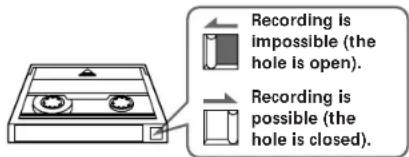
To prevent accidental erasure
Slide the record-protect tab to the left as shown in the illustration below.
Basic Operations
Playing a DAT
See pages 4 and 5 for hookup information.

To use headphones
Connect them to the PHONES jack. Use PHONE LEVEL to adjust the volume.
1 Turn on the amplifier and set the source selector to the position for DAT.
2 Press POWER.
Press OPEN/CLOSE and insert a cassette.
4 Press. The deck starts playing. Adjust the volume on the amplifier.
| To | Press |
| Stop playing | ■ |
| Go to the next track | ▷▷■ |
| Go to the preceding track | ■◁■ |
| Fast-forward or rewind | ▷ or ◆ when the deck is stopped |
| Fast-forward or rewind while monitoring the sound | ▷ or ◆ during playback. Release the button to resume normal playback. |
| Take out the cassette | OPEN/CLOSE ≅ after stopping playing |
For basic recording operations, see pages 6 and 7.
Things You Should Know Before Recording
The difference between a blank section and a sound-muted section
The deck distinguishes between two kinds of silent sections, which are respectively called a "blank section" or "sound-muted section".
Blank section
This is a section on which no signal has ever been recorded.
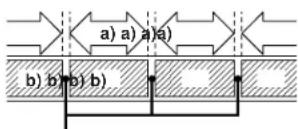
Blank section
This is a section on which a signal has been recorded but at a level that is not audible.
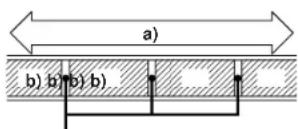
Sound-section
Make sure no blank sections are created while you are recording. The existence of blank sections within recorded material will make search operations using the / buttons impossible or destroy the continuity of the absolute time codes.

If you press the REC button while in a blank section
The deck automatically rewrites the tape to the beginning of the blank section and changes to recording pause (except during Timer Recording).
Absolute time codes
Absolute time codes indicate the elapsed time from the beginning of the tape. These codes are automatically recorded. Note that once recorded, absolute time codes cannot be re-written.
For accurate recording of absolute time codes
- If the tape is blank, make sure to start recording from the beginning of the tape.
- Use Record Muting (see page 12) to insert spaces between tracks. Do not advance the tape with the or button.
To start recording from the middle of a tape, use End Search (see page 10) to locate the end of the recorded portion. This will prevent the creation of blank sections.
If "EMPHASIS" appears in the display
The deck is recording a digital signal with emphasis (in the higher frequencies). The recording will also contain the same emphasis.
If the deck is left in recording pause for more than 10 minutes
Recording pause will be released automatically, the deck will stop and "SOURCE" will appear in the display.
To resume recording, press REC. The deck will change to recording pause.
When using a new tape
Before you record on a new tape, we recommend that you fast forward the whole tape and then rewind to the beginning to make the tape reel smoothly.
Adjusting the Recording Level for Analog Recording
Before you start recording an analog source through ANALOG IN, set INPUT to ANALOG and adjust the recording level.
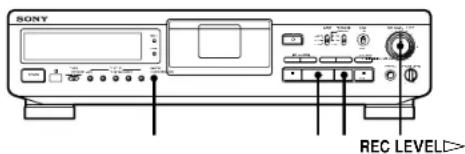
1 Do steps 1 to 6 of "Recording on a DAT" on pages 6 and 7.
2 Play the portion of the program source with the strongest signal level.
3 While monitoring the sound, turn REC LEVEL to adjust the recording level so that the peak level meters are at maximum level without entering the OVER (red) range.
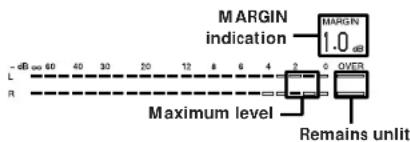
The segments of the peak level meters corresponding to the maximum signal strength remain lit longer than normal. The MARGIN indication shows the margin between maximum signal strength and 0 dB, changing each time a stronger signal.
If the level exceeds 0 dB
The segments under "OVER" light up, and "0.0 dB" flashes in the display. If these segments light steadily, sound distortion may occur. To avoid this, keep the recording level between -12dB and 0dB .
To reset the margin Indication
Press MARGIN RESET. The margin indication changes to -dB .
4 Stop playing the program source.
5 To start recording, press or then start playing the program source.
Locating the End of the Recorded Portion (End Search)
End Search detects a blank section longer than 9 seconds, then automatically rewrites the tape to the end of the recorded portion, then stops.
Use End Search to start recording from the end of the recorded portion without creating a blank section on the tape.
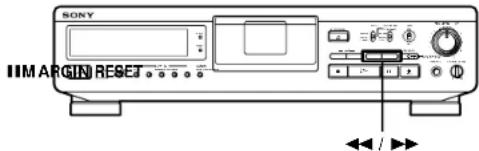
1 With the deck stopped, press to rewind the tape to the beginning.
2 Press
The deck locates the end of the recorded portion, then stops.
The deck stops at the beginning of any blank section that is 9 seconds or longer, or fast-forwards to the end of the tape if the tape is blank.

If you press the REC button while in a blank section
The deck automatically rewinds the tape to the beginning of the blank section and changes to recording pause. "BLANK" and "WAIT" appear in the display while the deck is searching for the beginning of the blank section.
Notes
End Search does not operate if you press the button while in a blank section.
- If the tape is blank, the deck merely fast-forwards to the end of the tape.
Setting the Recording Mode
You can select either of two recording modes standard or long-in the following cases:
- When recording an analog input signal with the INPUT switch set to ANALOG
- When recording a digital input signal with a sampling frequency of 32kHz with the INPUT switch set to OPTICAL or COAXIAL
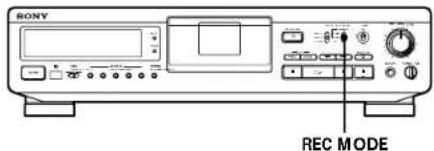
Set REC MODE to select the recording mode.
The following table shows the selectable recording modes and corresponding REC MODE position and sampling frequency for various input signals.
| Input signal REC MODE position | Recording mode | |
| Analog STANDARD(48 kHz) | Standard play(48 kHz) | |
| STANDARD(44.1 kHz) | Standard play(44.1 kHz) | |
| LONG | Long play (32 kHz) | |
| Digital (32 kHz) | STANDARD(48 kHz)STANDARD(44.1 kHz) | Standard play(32 kHz) |
| LONG | Long play (32 kHz) | |
| Digital (44.1 kHz) | STANDARD(48 kHz)STANDARD(44.1 kHz)LONG | Standard play(44.1 kHz)(Standard play only) |
| Digital (48 kHz) | STANDARD(48 kHz)STANDARD(44.1 kHz)LONG | Standard play(48 kHz)(Standard play only) |
The recording time in long-play mode (the REC MODE switch set to LONG) is twice as long as standard-play mode.
The counter in long-play mode
The displayed tape running time, absolute time and remaining time on the tape are for standard-play mode. Double the time to obtain the corresponding times for long-play mode.
Note
Do not change the INPUT or REC MODE setting while recording. This may cause an error in the "PGM TIME" (playing time of the track) display.
Using the SBM (Super Bit Mapping) Function
You can use the SBM function to record on analog input signal only when the INPUT switch is set to ANALOG and the REC MODE switch to STANDARD (either 48kHz or 44.1kHz ). For details on the SBM function, see "SBM (Super Bit Mapping) Function" on page 21.
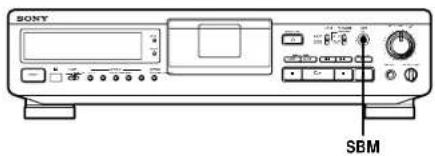
Set SBM to ON.
"SBM" appears in the display during recording using the SBM function.
To turn the SBM function off
Set SBM to OFF.
Inserting a Sound-Muted Section While Recording (Record Muting)
Use Record Muting to insert a space of about 4 seconds between tracks. This is recommended if you plan to copy the DAT tape to an analog audio cassette tape since the spaces will allow you to use automatic search functions to locate the beginning of each track. When you start recording from the beginning of a blank tape and want to insert a space before the first track, be sure to create a sound-muted section using Record Muting only. Do not advance the tape with the or button since this will create a blank section on the tape (see page 9).
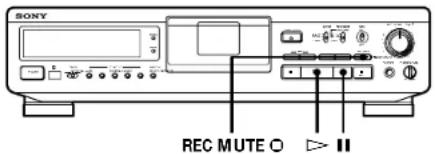
1 Press REC MUTE where you want to insert a space while the deck is recording or in recording pause. The deck creates a sound-muted section as "REC" flashes in the display. After the sound-muted section is completed, "REC" lights up and the deck changes to recording pause.
To insert a blank space longer than 4 seconds
Hold down REC MUTE as long as you want. When you release the button, the sound-muted section ends and the dock changes to recording pause. If you keep the button pressed longer than 4 seconds, "REC" will begin to flash more quickly and the time elapsed after pressing the REC MUTE button is shown in the display.
When you release the REC MUTE button, in the display stays on and the deck changes to recording pause.
2 Press or to resume recording. The deck starts recording again.
Note
If you do not create a sound-muted section at the beginning of a tape, you may not be able to move or erase a start ID (see page 15) that is recorded within 2 seconds from the beginning of the tape.
Recording Using a Timer (Timer Recording)
By connecting a timer (not supplied) to the deck, you can start and stop recording operations at specified times. For further information, refer to the instructions that came with the timer.
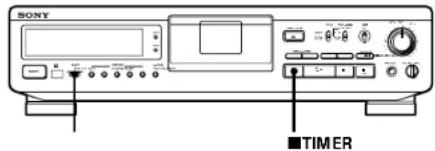
1 Do steps 1 to 7 of "Recording on a DAT" on pages 6 and 7.
2 To specify the time for the start of recording, press.
To specify the time for the end of recording, do steps 8 and 9 of "Recording on a DAT" on page 7.
To specify the time for the start and end of recording, press.
3 Set TIMER on the deck to REC.
4 Set the timer as required.
- When you have set the time for the start of recording, the deck turns off. When the specified time arrives, the deck turns on and after about 10 seconds starts recording.
- When you have set the time for the end of recording, the deck continues recording, then when the specified time arrives, the deck stops recording and turns off.
- When you have set the time for both the start and end of recording, the deck turns off. When the starting time arrives, the deck turns on and after about 10 seconds, recording starts. When the ending time arrives, the deck stops recording and turns off.
5 After using the timer, set TIMER on the deck to OFF.
Notes
- If the TIMER switch is left at the REC position, the deck will automatically start recording when you turn on the deck next time.
- During Timer Recording (i.e., when the TIMER switch is set to the RFC position), Auto Rewind (see page 14) will not function even if the tape ends during recording. This is to prevent previously recorded material from being recorded over.
Playback Operations
For basic playback operations, see page 8.
About the Display
You can use the display to show the following types of time information:
absolute time
- playing time of the track
- remaining time on the tape
- tape running time
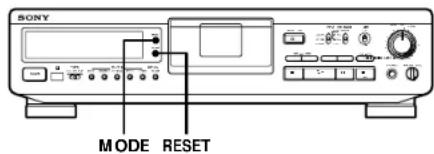
Showing the absolute time, playing time of the track, remaining time on the tape, and tape running time.
Press MODE (or COUNTER MODE on the remote). Each time you press the button, the displayed information changes as follows.
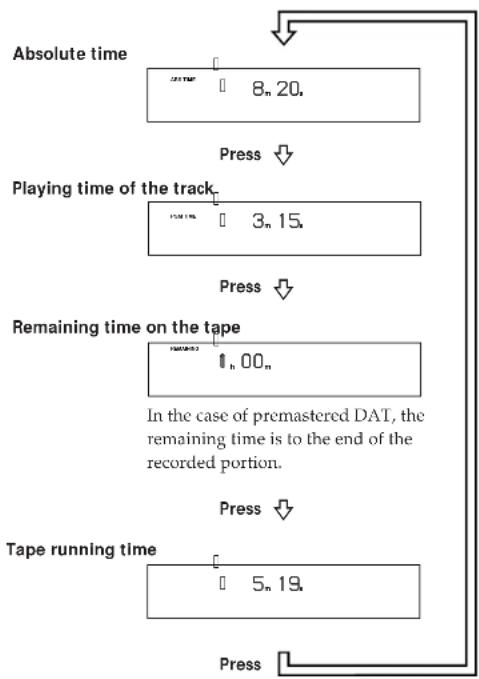
To reset the tape running time
Press RESET (or COUNTER RESET on the remote).
Notes
- When playing certain types of premastered tapes, "BB" may appear momentarily in the display at the beginning of the tape.
The playing time of the track does not appear in the following cases When you start playing from the middle of the track During rewinding - In standard-play mode, the remaining time on the tape appears about 16 seconds after you start playing.
The displayed remaining time may vary somewhat from the actual remaining time, depending on the tape.
If "EMPHASIS" appears in the display
The deck is playing an audio signal recorded with emphasis (in the higher frequencies). The deck, however, plays the signal while automatically deemphasizing it (with attenuation proportional to the degree of emphasis).
Playback Operations
Locating a Track (AMS*/Direct Access)
You can locate the tracks in a number of ways, but only after you have recorded start IDs on the tape (see pages 15 to 18). To use Direct Access, program numbers must be recorded on the tape (see pages 15 and 18).
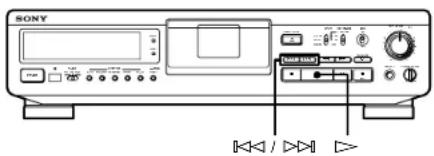
| To locate | Press |
| The beginning of the next or succeeding tracks (AMS) | ▷▷▷ as many times as you want while playing. For example, to locate the second track ahead, press twice. |
| The beginning of the current track(AMS) | ▷◁◁ once while playing |
| The beginning of preceding tracks (AMS) | ▷◁◁ as many times as you want while playing. For example, to locate the second track behind, press three times. |
| By specifying the program number of a track (Direct Access) | 1 Enter the program number of the track with the number buttons. |
| 2 Press ▷ (or ▢ on the deck). |
- AMS = Automatic Music Sensor.

If you enter the wrong program number during Direct Access
If you haven't pressed the (or on the deck) button, press CLEAR on the remote, then enter the correct number. If you have already pressed the (or on the deck) button, pressing the CLEAR button will not erase the wrong program number. Stop the deck and reenter the program number.

If the deck detects a blank section of 9 seconds or more, or the end of the tape
The deck rewinds the tape automatically to its beginning and stops (Auto Rewind).

You can make the deck start playing automatically from the beginning of the tape after rewinding
Press▶ while holding down
Playing Tracks Repeatedly (Repeat Play)
You can play a specific track or all the tracks on the tape repeatedly.
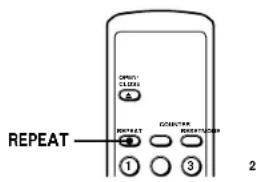
Playing all tracks repeatedly
Press REPEAT repeatedly while playing a track until "REPEAT" appears in the display. The deck will then play back all tracks until it detects the end of the last track, which may be:
a blank section of 9 seconds or more
the end of the tape
When the deck detects either of the above, it rewrites the tape to beginning and plays back all tracks again. The deck repeats this cycle up to 5 times, then automatically stops.
To stop playing all tracks repeatedly
Press REPEAT repeatedly until "REPEAT" disappears.
Note
Repeat Play of all tracks is canceled when you take out the cassette.
Playing a track repeatedly
Press REPEAT repeatedly while playing the track that you want until "REPEAT 1" appears in the display. The deck will then play back the track until its end, which may be:
the next start ID
a blank section of 9 seconds or more the end of the tape
When the deck detects any of the above, it rewrites the tape and starts playing from the start ID of the same track again. The deck repeats this cycle up to 5 times, then automatically stops.
To stop playing a track repeatedly
Press REPEAT repeatedly until "REPEAT 1" disappears.
Note
Repeat Play of a single track is canceled when you take out the cassette.
Playback Using a Timer (Timer Playing)
By connecting a timer (not supplied) to the deck, you can start and stop playback operations at specified times. For further information, refer to the instructions that came with the timer.
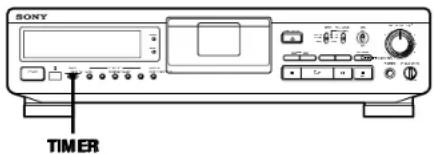
1 To specify the time for the start of playing, do steps 1 to 3 of "Playing a DAT" on page 8.
To specify the time for the end of playing, do steps 1 to 4 of "Playing a DAT" on page 8.
To specify the time for the start and end of playing, do steps 1 to 3 of "Playing a DAT" on page 8.
2 Set TIMER on the deck to PLAY.
3 Set the timer as required.
- When you have set the time for the start of playback, the deck turns off. When the specified time arrives, the deck turns on and after about 10 seconds starts playing.
- When you have set the time for the end of playback, the deck continues playing, then when the specified time arrives, the deck stops playing and turns off.
- When you have set the time for both the start and end of playback, the deck turns on. When the starting time arrives, the deck turns on and after about 10 seconds, playback starts. When the ending time arrives, the deck stops playing and turns off.
4 After using the timer, set TIMER on the deck to OFF.
About Sub Codes
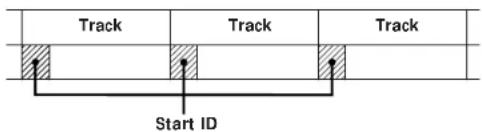
In the DAT format, sub codes (i.e., control codes such as start IDs and program numbers) can be written on the tape along with the audio signal. These sub codes allow you to use AMS (see page 14) or Direct Access (see page 14). Since sub codes are written on the tape separately from the audio signal, they have no effect on the audio signal.
Start IDs
Start IDs indicate the start of a track, and therefore allow you to locate the position of a track precisely. The start IDs are 9 seconds in length (18 seconds in long-play mode) to enable easy detection during fast-forwarding or rewinding.
Program numbers
Program numbers serve as track numbers. Occupying the same position as start IDs, a program numbers allow you to locate specific tracks.
Notes
- The and buttons do not work during the writing of sub codes.
- Writing and crasing of start IDs and renumbering of program numbers are impossible if the record-protect hole on the DAT cassette is open (see page 7).
Writing Start IDs During Recording
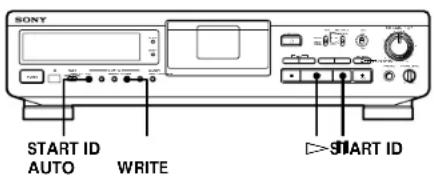
You can write start IDs either manually or automatically anytime during recording.
(Continued)
Writing Sub Codes
Manual Writing of Start IDs During Recording
Press START ID WRITE.
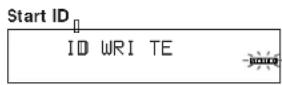
"ID WRITE" appears in the display for a few seconds and the start ID is written on the tape at the selected position. "START ID" flashes in the display during this time.
Note
The interval between start IDs must be more than 18 seconds (36 seconds in long-play mode). If the interval is less than 18 seconds (or 36 seconds), the deck may fail to detect the second start ID during playback.
Writing the Start IDs Automatically During Recording
Do the following procedure to automatically write program numbers along with start IDs at the same position.
- When recording an analog signal with the INPUT switch at ANALOG
A start ID and program number are written whenever the input signal rises above a given level after remaining at a muted or low level for 3 seconds or more.
- When recording a digital signal with the INPUT switch at OPTICAL or COAXIAL
A start ID and program number are written whenever a new track is detected while recording a digital signal through the COAXIAL IN or OPTICAL IN jack from a digital source such as CD player or another DAT deck. Start IDs and program numbers are not written, however, for tracks that are less than 18 seconds in length.
1 Do steps 1 to 7 of "Recording on a DAT" on pages 6 and 7.
The deck changes to recording pause.
2 Press START ID AUTO repeatedly until "AUTO" appears in the display.
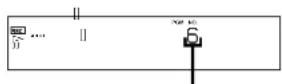
3 If you are recording from the end of the recorded portion, use the number buttons on the remote to specify the program number after the last one recorded.
Example: When program number 5 is the last program number recorded on the tape.
The next program number
If the last program number on the tape appears in the display, you don't have to specify the next program number. If you are recording from the beginning of a blank tape, program number "1" appears in the display. If you forget program numbering at this time, you can add them later (see "Renumbering the Program Numbers Automatically (Renumbering)" on page 18).
4 To start recording, press or then start playing the program source.
Start IDs are written on the tape automatically during recording.
"ID WRITE" appears for a few seconds whenever a sub codes (a start ID and program number) are being written.
During digital recording from a CD player
Start recording on your deck first, then press the PLAY button on the CD player while it is stopped. If you place your deck into recording pause and the CD into play pause before you start recording, the start ID and program number of the first track on the CD may not be correctly written to the tape.
Note
During automatic start ID writing the positioning of some start IDs may be inaccurately or inappropriately positioned away from the beginning of the track. If this happens, you can reposition or erase the start IDs later (see "Accurate Positioning of Start IDs (Rehearsal)" and "Erasing Start IDs" on page 17).
Writing Start IDs During Playback
You can write start IDs during playback.
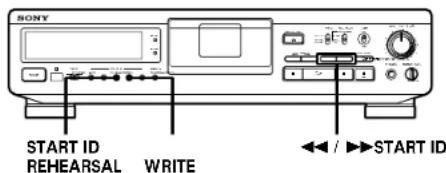
Press START ID WRITE.
"ID WRITE" appears in the display for a few seconds and the start ID is written on the tape at the selected position. "START ID" flashes in the display during this time.
Accurate Positioning of Start IDs (Rehearsal)
1 During playback, press START ID REHEARSAL when you arrive at the proper position. "REHRSL" appears, "START ID" flashes in the display and Rehearsal repeats a 3-second portion starting from the selected position. Note that the repeated portion will play back 8 times, with the remaining number of times appearing to the right of the "REHRSL". After 8 times, the deck automatically stops.
2 Press or to move the beginning of the repeated portion. Each time you press the or button, the beginning of the repeated portion shifts backwards or forwards in 0.3-second increments, up to a maximum extent of about 2 seconds (4 seconds in long-play mode) in either direction.
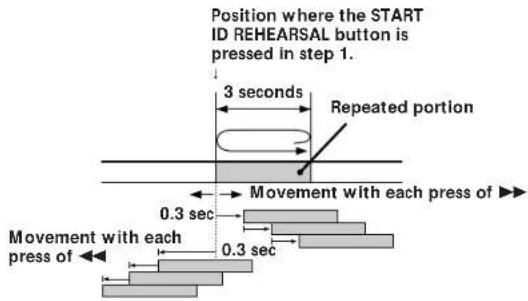
The time in the display shows the shift in position from the time the START ID REHEARSAL button was pressed.
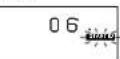
After pressing
twice

After pressing
twice
3 Press START ID WRITE.
"ID WRITE" appears in the display for a few seconds and the start ID is written on the tape at the selected position. "START ID" flashes in the display during this time.
Adjusting the Position of an Existing Start ID
You can adjust the position of previously recorded start IDs.
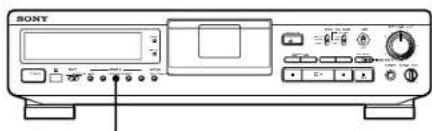
STARTIDREHEARSAL
1 During playback, press START ID REHEARSAL when the existing start ID you want to reposition is displayed. The deck rewins to the beginning of start ID and Rehearsal repeats a 3-second portion is displayed.
2 Do steps 1 to 3 of "Accurate Positioning of Start IDs (Rehearsal)" on this page. You can move the start ID to a maximum extent of about 2 seconds (4 seconds in long-play mode) in either direction from its original position.
Note
Start IDs written within 10 seconds from the end of the tape may be difficult or impossible to move.
Erasing Start IDs
You can erase any start ID.
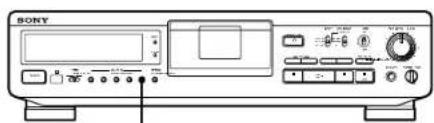
STARTIDERASE
Press START ID ERASE when the start ID you want to erase is displayed.
"ERASE") appears in the display as the deck rewrites to the beginning of the start ID, then "ID ERASE" appears as the deck erases the start ID.
- It takes 9 seconds to erase a start ID.
- Program numbers are erased together with start IDs.
Renumbering the Program Numbers Automatically (Renumbering)
Renumbering searches for each start ID from the beginning of the tape and assigns a new program number to each one starting with 1. Use Renumbering in the following cases:
- When you've added a start ID while playing the tape.
- When a program number is missing due to an erased start ID.
- When you began recording from the middle of the tape and wrote a program number that already exists, or when one of the start IDs has no program number.
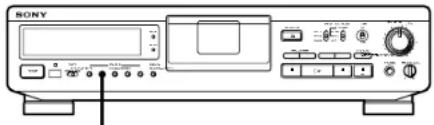
STARTIDRENUMBER
Press START ID RENUMBER while the deck is playing or stopped.
"RENUMBER" flashes in the display and the tape is automatically rewound to its beginning. The deck then starts searching for start IDs from the beginning of the tape and assigns a new consecutive program number to each track. When the deck detects a start ID, the deck plays the track from the start ID for 2 seconds, then writes a new program number on the tape. During this time, "RENUMBER" lights up and "START ID" flashes.
After Renumbering is finished, the deck rewrites the tape automatically to its beginning, then stops.
Note
Renumbering may not function correctly when:
- A blank section exists on the tape.
The interval between two start IDs is less than 18 seconds (36 seconds in long-play mode).
A start ID exists within 10 seconds from the end of the tape.
Precautions
On safety
- Do not disassemble the cabinet as this may result in an electric shock. Refer servicing to qualified personnel only.
- Should any solid object or liquid fall into the cabinet, unplug the AC power cord before operating the unit any further.
On power sources
- Before operating the unit, check that its operating voltage is identical with your local power supply. The operating voltage is indicated on the nameplate at the rear of the unit.
- The unit is not disconnected from the AC power source (mains) as long as it is connected to the wall outlet, even if the unit itself has been turned off.
- If you are not going to use the unit for a long time, be sure to disconnect the AC power cord (mains lead) from the wall outlet. To disconnect the cord, grasp the plug itself; never pull the cord.
- AC power cord must be changed only at the qualified service shop.
On operation
If the unit is brought directly from a cold place to a warm place, or is placed in a very damp room, moisture may condense inside the unit, "CAUTION" may appear in the display, and the unit may not operate. If this happens, remove the cassette and leave the unit turned on for about an hour until the moisture evaporates.
On placement
- Place the unit in a location with adequate ventilation to prevent heat build-up.
- Do not place the unit: on a soft surface such as a rug that might block the ventilation holes on the bottom.
near heat sources.
in direct sunlight.
in an inclined position.
in a place subject to excessive dust or mechanical shock.
On the tapes
After using a tape, put it into its case and keep it where it will not be subject to sunlight, high temperature, moisture or dust.
- The DAT cassette shell is designed to keep out dust. Do not open the case to expose the tape.
The hole at the back of the cassette is the detector slot. Do not cover this slot.
Regarding tapes of over 120 minutes
Do not use thin-tape cassettes (with a playing time of over 120 minutes) to record important material since such cassettes are subject to the following problems:
- Improper threading of the tape after repeated AMS, rewinding, fast-forwarding, or cueing operations.
Incorrect writing and erasing of start IDs.
Sound distortion.
If you have any questions or problems concerning your unit, please consult your nearest Sony dealer.
Cleaning
Cleaning the cabinet, panel and controls
Use a soft cloth slightly moistened with a mild detergent solution. Do not use any type of abrasive pad, scouring powder or solvent such as alcohol or benzine.
Cleaning the head and tape path
- Prolonged operation will cause contamination of the head. To obtain the best possible recording and playback sound, we recommend that you use the Sony DT-10CL cleaning cassette (not supplied) to clean the head after every ten hours or so of operation.
- Clean the head with the cleaning cassette when the deck has not been used for a long period of time. Contamination of the head may cause sound dropout during playback.
Using the cleaning cassette
1 Insert the cleaning cassette as you would a normal DAT cassette.
2 Press . After 10 seconds, press
Do not press the REC or button for cleaning.
3 Remove the cleaning cassette without rewinding it. You should rewind the cleaning cassette only when it has reached the end.
Notes on cleaning
After 10 hours of operation, "CLEANING" appears in the display for about ten seconds when you turn on the deck. It is recommended that you clean the head and tape path periodically, using this message as a guide.
- Due to the shortness of the cleaning cassette, the counter will not show the actual running time and remaining time of the cassette.
Display Messages
The following table explains the various messages that appear in the display.
Message Meaning
| BLANK The deck is searching for the beginning of the blank section on the tape. | |
| CAUTION | A safety mechanism is operating because of condensation or other reasons. |
| CLEANING | Cleaning the head and tape path is recommended. After about 10 hours of deck use, this message appears for about 10 seconds whenever you turn on the deck. |
| (ERASE) | The deck is searching for the beginning of the start ID to be erased. |
| ID ERASE | A start ID is being erased. |
| ID WRITE | A start ID or program number is being written. |
| NO TAPE | A cassette is not inserted into the deck. |
| PROHIBIT | The program source you are about to record cannot be recorded through the digital input jacks or connectors. For more information, see “Guide to the Serial Copy Management System” (see pages 22 and 23). |
| PROTECT | The record-protect hole on the cassette is open and recording on the tape cannot be done. |
| REHRSL | Rehearsal is on. |
| SOURCE | The deck has been in recording pause for about 10 minutes, or you've pressed the ●REC button while no cassette is in the deck or the cassette is record-protected. |
| TAPE END | The tape has come to the end of the recorded portion. |
| TAPE TOP | The tape has reached its beginning. |
| UNLOCK | No digital signal is being input to the jack or connector that you selected with the INPUT switch. |
| WAIT | The deck is searching for the beginning of the blank section on the tape. |
| (WRITE) | This appears when the START ID WRITE button is pressed. |
Additional Information
Troubleshooting
If you've experienced any of the following difficulties while using the deck, use this section as a guide to remedy the problem. Should any problem persist, consult your nearest Sony dealer.
The cassette holder does not close.
Check that the cassette is inserted correctly (see pages 6 and 8).
Insert the cassette beyond the silver bar (see pages 6 and 8).
The function buttons do not work.
The deck has just been turned on and will not operate for about 4 seconds. Wait 4 seconds (10 seconds when "CLEANING" appears) before attempting any operation.
The button is activated. Press to cancel pause.
The tape has reached its end. Press to rewind the tape.
No sound.
Make the proper connections (see pages 4 and 5).
The connected amplifier is not being operated properly. Operate the amplifier as required for the respective deck operation. (Refer to the operating instructions of the amplifier.)
The deck does not record.
The record-protect hole on the cassette is open. Slide the record-protect tab to close the hole (see page 7).
The INPUT switch is incorrectly set. Set INPUT to the correct position.
The REC LEVEL control is set at 0. Turn REC LEVEL clockwise to raise the recording level (only during analog recording).
The signal input to the digital input jack or connector is protected against digital copying (only during digital recording). Input the signal through the analog input jack or connector.
The OPEN/CLOSE button does not work.
- The OPEN/CLOSE button does not function during recording. Press or to stop recording first, then press OPEN/CLOSE.
"CAUTION" appears and the deck cannot be operated.
A safety mechanism is operating because of condensation. Remove the cassette and leave the deck turned on for about an hour. Then turn the deck off, then on again (see page 18).
Sub codes writing is not possible.
The record-protect hole on the cassette is open. Slide the record-protect tab to close the hole (see page 7).
Start ID writing is not possible during recording.
The start ID cannot be written within 9 seconds (18 seconds in long-play mode) after the end of the previous start ID. Make sure at least 9 seconds (18 seconds in the long-play mode) has passed after the last start ID and before writing a new one.
Direct Access does not work.
The specified program number does not exist on the tape. Press START ID RENUMBER to renumber the program numbers.
The program numbers are out of order. Press START ID RENUMBER to renumber the program numbers.
The deck begins rewinding the tape during playback.
Repeat Play is on. Press REPEAT on the remote repeatedly to turn off "REPEAT" or "REPEAT 1" in the display and cancel Repeat Play.
The tape operation buttons do not function while writing or erasing a start ID.
All buttons do not work during the 9 seconds the start ID is being written (18 seconds in long-play mode). Wait until the writing the start ID finishes before operation.
Absolute time codes writing is not possible.
Recording began within a blank section.
Rewind the tape to its beginning, or locate the end of the recorded portion with End Search before starting recording.
Tape transport is excessively loud during fast-forwarding or rewinding.
The noise is caused by the cassette and is not a mechanical problem.
The tape stops suddenly.
The cassette is defective or damaged.
Press OPEN/CLOSE and replace the cassette with a new one.
When pressing / or / , the tape stops momentarily before starting to move.
This is normal and is not a mechanical problem.
The deck cannot be operated with the remote (supplied).
The battery is weak. Change both batteries.
"SBM" does not appear in the display even though SBM is set to ON.
"SBM" appears only during the recording of analog input signals with a sampling frequency of 48kHz or 44.1kHz , not during the recording of a digital input signal, or an analog input signal with a sampling frequency of 32kHz , or during playback.
Specifications
System
Tape Digital audio tape
Recording head Rotary head
Recording time Standard: 120 minutes
(when using DT-120) Long-play: 240 minutes
Tape speed Standard: 8.15 mm/s
Long-play: 4.075mm / s
Drum rotation Standard: 2,000~rpm
Long-play: 1,000 rpm
Track pitch 13.6 m (20.4 μm)
Sampling frequency 48 kHz, 44.1 kHz, 32 kHz
Number of channels 2 channels, stereo
D/A conversion Standard: 16-bit linear
(quantization) Long-play: 12 - bit non-linear
Frequency response* Standard: 2 - 22,000 Hz (±0.5 dB)
Long-play: 2 - 14,500 Iz (±0.5 dB)
Signal-to-noise ratio* 90 dB or more (Standard and long-play
mode)
Dynamic range* 90 dB or more (Standard and long-play
mode)
Total harmonic Standard: 0.005% or less (1 kHz)
dstortion* Long-play: 0.008% or less (1 kHz)
Wow and flutter Below measurable limit (± 0.001%)
W.PEAK)
- During analog input with the SBM function off.
Input connectors
| InformatbalanceJackkey input level | |||
| ANALOG | Phono jacks | 47 kilohms | -4 dBs |
| DIGITAL OPTICAL | Optical connector | — | — |
| DIGITAL COAXIAL | Phono jack | 75 ohms | 0.5 Vp-p |
Output connectors
| Connector | Jack type | Output Impedance | Rated output level | Load Impedance |
| ANALOG | Phono jacks | 470 ohms | -4 dBs | 10 kilohms or more |
| DIGITAL OPTICAL | Optical connector | — | (wavelength 660 nm) | — |
| PHONES | Stereo phone-plug jack | 100 ohms | 1.2 mW | 32 ohms |
General section
Power requirements
| Where purchased | Power requirements |
| Canada | 120 V AC, 60 Hz |
| Europe | 230 V AC, 50/60 ILz |
Power consumption 30 W
Dimensions
Approx 430.106.325 mm (w/h/d)
(17· 4^1 / 4· 12^7 / s inches)
Weight
Approx 5.0kg (11 lb 0.4 oz)
Supplied accessories See page 4.
Design and specifications are subject to change without notice.
SBM (Super Bit Mapping) Function
During analog recording, the SBM function lowers noise within the frequency band to which to the human ear is most receptive to noise, thereby, sharply expanding the auditory dynamic range of the recorded signal.
High-precision pulse A/D converter
The deck uses a pulse AD converter and decimation filter to convert an analog signal into a quantized 24-bit digital signal. The deck, like CD players, uses 16-bit quantization, and thus the 8-bit difference results in more precise quantization, more signal information and less quantizing noise than 16-bit quantization.
During conversion of the 24-bit data to a 16-bit recording signal, the SBM function boosts sound quality by reintegrating 4 bits of signal information that would normally be lost into the 16-bit signal.
Additional Information
Applying the principle of human hearing
The SBM function applies the principle of human hearing in the reintegration of signal information. The auditory range of the human ear is generally considered to be 20Hz to 20kHz ; hearing sensitivity, however, shows greater sensitivity to the range between 3kHz and 4kHz , and lower sensitivity to frequencies above and below this range. This principle applies also to quantizing noise as well. By reducing quantizing noise in this particular range, signals can be recorded to produce more expansive sound than is possible by a uniform reduction of noise over the entire audible range.
Noise-shaping filter
The SBM function uses a noise-shaping filter (see Fig. A) with a frequency response similar to that of the human ear to reduce quantizing noise within the most sensitive frequency range, and to feed back the quantizing error (that is normally lost) back to the input signal, re-integrating the low-end bit information with the high-end bit information.

Fig. B shows the improvement in the quantizing noise level when the SBM switch is on (theoretical values). Given a noise level of 0 dB when the SBM switch is off, the improvement in noise level for sampling frequencies lower than 3kHz exceeds 10 dB when the SBM is activated.
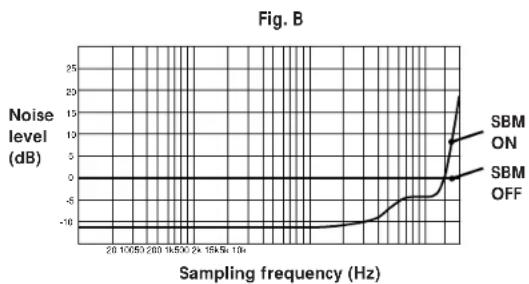
The SBM function operates only during recording. The improved sound produced by the SBM function, however, can be enjoyed during playback, regardless of the SBM switch position or the DAT deck being used.
Guide to the Serial Copy Management System
This deck uses the Serial Copy Management System, which allows only first-generation digital copies to be made of premastered software via the deck's digital input jack. An outline of this system appears below:
1 You can record from digital program sources (CDs, premastered MDs or DATs) onto a DAT or recordable MD via digital input jack on the DAT or MD deck. You cannot, however, record from this recorded DAT or MD onto another DAT or recordable MD via the digital input jack on the DAT or MD deck.
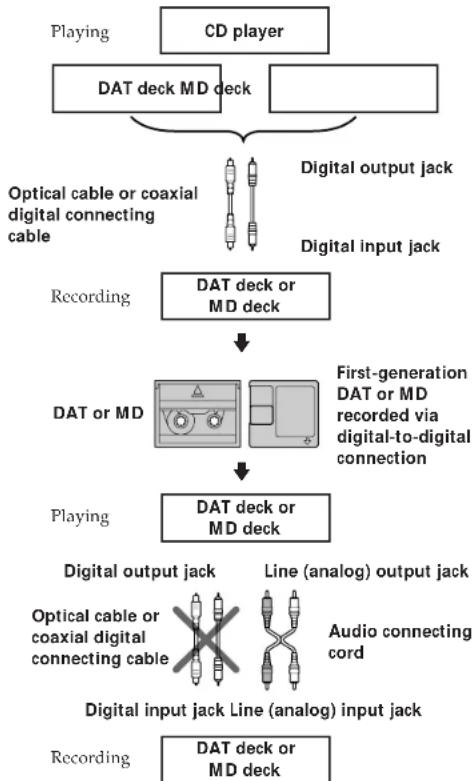
2 You can record the digital input signal of a digital satellite broadcast onto a DAT or recordable MD via the digital input jack on the DAT or MD deck which is capable of handling a sampling frequency of 32kHz or 48kHz . You can then record the contents of this recorded DAT or MD (first-generation) onto another DAT or recordable MD via digital input jack on the DAT or MD deck to create a second-generation digital copy. Subsequent recording from the second-generation copy onto another DAT or recordable MD is possible only through the analog input jack on the DAT or MD deck.
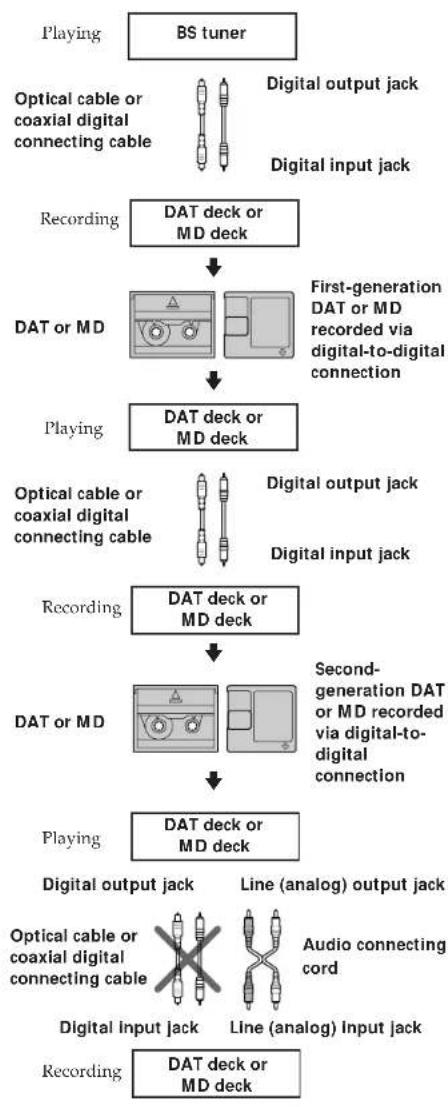
3 You can record a DAT or MD recorded via the DAT or MD deck's analog input jack onto another DAT or MD via the DAT or MD deck's digital output jack. You cannot, however, make a second-generation DAT or MD copy via the DAT or MD deck's digital output jack.

Index
Index
A
Absolute time 13
Absolute time codes 9
Adjusting the recording level 10
AMS (Automatic Music Sensor) 14
B
Batteries 4 Blank section 9,10
C
Cleaning 19
Cleaning the head and tape path 19
D
Direct Access 14 Display messages 19
E,F,G
Emphasis 9,13 End Search 10
H
Hooking up the system 4
I, J, K, L
Inserting batteries into the remote 4
M, N, O
Margin indication 10
P, Q
Playing a DAT 8
Playing time of the track 13
Program numbers 15, 18
B
Recording on a DAT 6
Record Muting 12
Record-protect tab 7
Rehearsal 16
Remaining time on the tape 13
Renumbering 18
Repeat Play
Playing a track repeatedly 14
Playing all tracks repeatedly 14
s
SBM function 11, 12
Serial Copy Management System 22
Setting the recording mode 11
Sound-muted section 9, 12
Start ID
Accurate positioning of start IDs 17
Adjusting the position of an existing start ID 17
Erasing start IDs 17
Manual writing of start IDs during recording 16
Writing the start IDs automatically during recording 16
Sub Codes 15
T,U,V,W,X,Y,Z
Tape running time 13
Timer Playing 15
Timer Recording 12
Names of controls
Buttons
CLEAR 14
COUNTER MODE 13
COUNTER RESET 13
MARGIN RESET 10
MODE 13
OPEN/CLOSE 6-8
REC7 REC MUTE O REPEAT 14 RESET 13
START ID AUTO 15
START ID ERASE 17
START ID REHEARSAL 1
START ID RENUMBER 1
STARTIDWRITE15,16 7,8,12
7,8,10,12,14,15
7,8,10,16 7,10,12,15
8,8,14
Switches
INPUT 6
POWER 6,8
REC MODE 11
SBM 11
TIMER 12,15
Controls
PHONE LEVEL 8
REC LEVEL 10
Jacks
ANALOG IN 4,6
ANALOG OUT 4
DIGITAL COAXIAL IN 4,6
DIGITAL OPTICAL IN 4,6
DIGITAL OPTICAL OUT 4
PHONES 8
AVERTISSEMENT
Cordons de raccordement audio (fournis) (2)
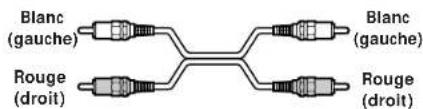
Cables optiques (POC-15, etc.) (non fournis) (2)

Cable de raccordement numérique coaxial (VMC-10G, etc.) (non fourni) (1)

Raccordements
Consummation electrique 30 W
Dimensions Env.430·106·325 mm (17·4/1·12/8 po.) (l/h/p)
Poids Env.5,0 kg (11 li. 0,4 on.)
CLEAR (annulation) 14 COUNTER MODE (mode du
compteur) 13
COUNTER RESET
(lecture) 7,8,10,12,14,15
(1) (rebobinage/avance rapide) 7,8,10,16
I(pause) 7,10,12,15
DIGITAL OPTICAL OUT 4
PHONES 8
ADVERTÉNCIA
DIGITAL OPTICAL OUT dc
sáda digitalóptical 4
PHONES dos auscultadores 8
- Digital Audio Tape Deck
- WARNING
- For the customers in the United States
- Owner's Record
- INFORMATION
- CAUTION
- For the customers in Canada
- Welcome!
- About This Manual
- Conventions
- TABLE OF CONTENTS
- Getting Started
- Recording on a DAT 6
- Playing a DAT 8
- Recording Operations
- Playback Operations
- Writing Sub Codes
- Additional Information
- Unpacking
- Inserting batteries into the remote
- When to replace the batteries
- Notes
- Hooking Up the System
- What cords will I need?
- Hookups
- - Connecting the deck to an amplifier
- When recording with a microphone
- Note
- Connecting the AC power cord
- Where do I go next?
- - Connecting the deck to a digital audio component
- - Connection with optical cables
- - Connection with coaxial digital connecting cable
- Recording on a DAT
- To prevent accidental erasure
- Basic Operations
- Playing a DAT
- To use headphones
- Things You Should Know Before Recording
- The difference between a blank section and a sound-muted section
- Blank section
- If you press the REC button while in a blank section
- Absolute time codes
- For accurate recording of absolute time codes
- If "EMPHASIS" appears in the display
- If the deck is left in recording pause for more than 10 minutes
- When using a new tape
- Adjusting the Recording Level for Analog Recording
- If the level exceeds 0 dB
- To reset the margin Indication
- Locating the End of the Recorded Portion (End Search)
- Setting the Recording Mode
- The counter in long-play mode
- Using the SBM (Super Bit Mapping) Function
- To turn the SBM function off
- Inserting a Sound-Muted Section While Recording (Record Muting)
- To insert a blank space longer than 4 seconds
- Recording Using a Timer (Timer Recording)
- About the Display
- Showing the absolute time, playing time of the track, remaining time on the tape, and tape running time.
- To reset the tape running time
- Locating a Track (AMS*/Direct Access)
- If you enter the wrong program number during Direct Access
- If the deck detects a blank section of 9 seconds or more, or the end of the tape
- You can make the deck start playing automatically from the beginning of the tape after rewinding
- Playing Tracks Repeatedly (Repeat Play)
- Playing all tracks repeatedly
- To stop playing all tracks repeatedly
- Playing a track repeatedly
- To stop playing a track repeatedly
- Playback Using a Timer (Timer Playing)
- About Sub Codes
- Start IDs
- Program numbers
- Writing Start IDs During Recording
- Manual Writing of Start IDs During Recording
- Writing the Start IDs Automatically During Recording
- Writing Start IDs During Playback
- Accurate Positioning of Start IDs (Rehearsal)
- Press START ID WRITE.
- Adjusting the Position of an Existing Start ID
- Erasing Start IDs
- Renumbering the Program Numbers Automatically (Renumbering)
- Precautions
- On safety
- On power sources
- On operation
- On placement
- On the tapes
- Regarding tapes of over 120 minutes
- Cleaning
- Cleaning the cabinet, panel and controls
- Cleaning the head and tape path
- Using the cleaning cassette
- Notes on cleaning
- Display Messages
- Troubleshooting
- The cassette holder does not close.
- The function buttons do not work.
- No sound.
- The deck does not record.
- The OPEN/CLOSE button does not work.
- "CAUTION" appears and the deck cannot be operated.
- Sub codes writing is not possible.
- Start ID writing is not possible during recording.
- Direct Access does not work.
- The deck begins rewinding the tape during playback.
- The tape operation buttons do not function while writing or erasing a start ID.
- Absolute time codes writing is not possible.
- Tape transport is excessively loud during fast-forwarding or rewinding.
- The tape stops suddenly.
- When pressing / or / , the tape stops momentarily before starting to move.
- The deck cannot be operated with the remote (supplied).
- "SBM" does not appear in the display even though SBM is set to ON.
- Specifications
- SBM (Super Bit Mapping) Function
- High-precision pulse A/D converter
- Applying the principle of human hearing
- Noise-shaping filter
- Guide to the Serial Copy Management System
- Index
- A
- B
- C
- D
- E,F,G
- H
- I, J, K, L
- M, N, O
- P, Q
- s
- T,U,V,W,X,Y,Z
- Names of controls
- Buttons
- Switches
- Controls
- Jacks
- AVERTISSEMENT
- Raccordements
- Consummation electrique 30 W
- ADVERTÉNCIA
Brand : SONY
Model : DTCZE700
Category : Cassette player