DSR-45P - Cassette player SONY - Free user manual and instructions
Find the device manual for free DSR-45P SONY in PDF.


| Product Type | DVCAM/DV Digital VTR |
| Brand | Sony |
| Model | DSR-45P |
| Recording Format | DVCAM / DV (SP mode), digital component 4:2:0 (PAL) |
| Dimensions (W × H × D) | Approx. 212 × 98 × 392.8 mm |
| Weight | Approx. 4.6 kg |
| Power Supply | 100 to 240 V AC, 50/60 Hz |
| Power Consumption | Not specified in the manual |
| Operating Temperature | 5 °C to 40 °C |
| Storage Temperature | -20 °C to +60 °C |
| Display | 5.1 cm (type 2) color LCD monitor, 123,200 dots (560×220) |
| Interfaces | i.LINK (DV), RS-422A, RS-232C, LANC, CONTROL S, S-Video, Composite, Component, XLR audio, BNC time code |
| Main Functions | DVCAM/DV (SP) recording and playback, built-in LCD display, internal timecode generator/reader, TBC, high-speed search, audio dubbing, i.LINK copying, non-linear editing |
| Usable Cassettes | Standard and mini DVCAM; standard and mini DV (SP mode) |
| Maximum Recording Time | Standard DVCAM cassette: 184 min (PDV184); mini DVCAM: 40 min (PDVM40) |
| Audio | PCM 2 channels (48 kHz/16 bits) or 4 channels (32 kHz/12 bits) |
| Safety | Do not expose to rain or moisture; refer servicing to qualified personnel; follow electrical safety instructions |
| Maintenance and Cleaning | Clean video heads with a cleaning cassette; avoid condensation; use a dry cloth for the exterior |
| Supplied Accessories | Remote control, power cord, AA batteries (2), cleaning cassette, instruction manual, programmer interface manual |
| Spare Parts and Repairability | Repairs exclusively by Sony qualified personnel; no specific spare parts listed |
Frequently Asked Questions - DSR-45P SONY
User questions about DSR-45P SONY
0 question about this device. Answer the ones you know or ask your own.
Ask a new question about this device
Download the instructions for your Cassette player in PDF format for free! Find your manual DSR-45P - SONY and take your electronic device back in hand. On this page are published all the documents necessary for the use of your device. DSR-45P by SONY.
USER MANUAL DSR-45P SONY
Digital Videocassette Recorder
Operating Instructions GB
Mode d'emploi FR
DVCAM Mini DV Digital Video Cassette C Cassette C Memory
DSR-45/45P
WARNING
To prevent fire or shock hazard, do not expose the unit to rain or moisture.
To avoid electrical shock, do not open the cabinet. Refer servicing to qualified personnel only.
THIS APPARATUS MUST BE EARTHED.
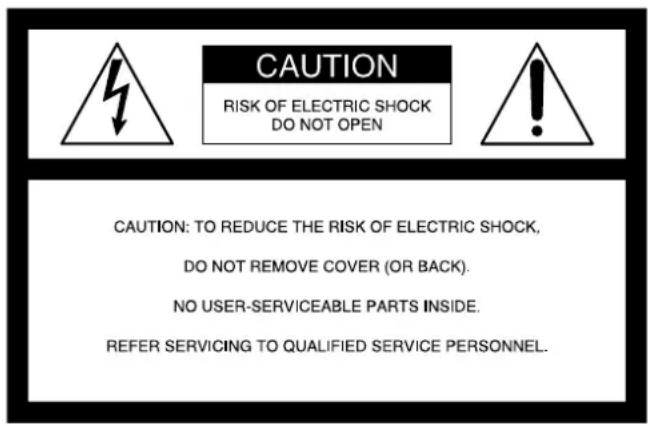

This symbol is intended to alert the user to the presence of uninsulated "dangerous voltage" within the product's enclosure that may be of sufficient magnitude to constitute a risk of electric shock to persons.

This symbol is intended to alert the user to the presence of important operating and maintenance (servicing) instructions in the literature accompanying the appliance.
Owner's record
The model number is located at the front of the unit and the serial number on the left. Record the serial number in the space provided below. Refer to these numbers whenever you call upon your Sony dealer regarding this product.
Model No. DSR-45 Serial No.
Important Safety Instructions
- Read these instructions.
- Keep these instructions.
Heed all warnings. - Follow all instructions.
- Do not use this apparatus near water.
- Clean only with dry cloth.
- Do not block any ventilation openings.
Install in accordance with the manufacturer's instructions.
- Do not install near any heat sources such as radiators, heat registers, stoves, or other apparatus (including amplifiers) that produce heat.
- Do not defeat the safety purpose of the polarized or grounding-type plug. A polarized plug has two blades with one wider than the other. A grounding-type plug has two blades and a third grounding prong. The wide blade or the third prong are provided for your safety. If the provided plug does not fit into your outlet, consult an electrician for replacement of the obsolete outlet.
- Protect the power cord from being walked on or pinched particularly at plugs, convenience receptacles, and the point where they exit from the apparatus.
- Only use attachments/accessories specified by the manufacturer.
- Use only with the cart, stand, tripod, bracket, or table specified by the manufacturer, or sold with the apparatus.
When a cart is used, use caution when moving the cart/apparatus combination to avoid injury from tip-over.

- Unplug this apparatus during lightning storms or when unused for long periods of time.
- Refer all servicing to qualified service personnel. Servicing is required when the apparatus has been damaged in any way, such as power-supply cord or plug is damaged, liquid has been spilled or objects have fallen into the apparatus, the apparatus has been exposed to rain or moisture, does not operate normally, or has been dropped.
Notes on installation
- This unit is not designed as a portable. Make sure to install the unit properly on a flat surface. If you install the unit so that it is inclined 30 degrees or more (i.e., if you stand the unit on its side), malfunctions may occur.
- Do not place materials around the unit that may block the ventilation holes. Otherwise, heat builds up inside the unit and malfunctions may occur.
For customers in the U.S.A.
If you have any questions about this product, you may call: Sony's Business Information Center (BIC) at 1-800-686-SONY (7669)
or Write to: Sony Customer Information Services Center 6900-29 Daniels Parkway, PMB 330 Fort Myers, Florida 33912
Declaration of Conformity
Trade Name:SONY
Model: DSR-45
Responsible Party: Sony Electronics Inc.
Address: 16450 W. Bernardo Dr, San
Diego, CA 92127 U.S.A.
Telephone Number: 858-942-2230
This device complies with Part 15 of the FCC Rules. Operation is subject to the following two conditions:
(1) This device may not cause harmful interference, and
(2) this device must accept any interference received, including interference that may cause undesired operation.
CAUTION
You are cautioned that any changes or modifications not expressly approved in this manual could void your authority to operate this equipment.
Notes
-
This equipment has been tested and found to comply with the limits for a Class B digital device, pursuant to Part 15 of the FCC Rules. These limits are designed to provide reasonable protection against harmful interference in a residential installation. This equipment generates, uses, and can radiate radio frequency energy and, if not installed and used in accordance with the instructions, may cause harmful interference to radio communications. However, there is no guarantee that interference will not occur in a particular installation. If this equipment does cause harmful interference to radio or television reception, which can be determined by turning the equipment off and on, the user is encouraged to try to correct the interference by one or more of the following measures:
-
Reorient or relocate the receiving antenna.
- Increase the separation between the equipment and receiver.
- Connect the equipment into an outlet on a circuit different from that to which the receiver is connected.
- Consult the dealer or an experienced radio/TV technician for help.
- This product contains mercury. Disposal of this product may be regulated if sold in the United States. For disposal or recycling information, please contact your local authorities or the Electronics Industries Alliance (http://www.eiae.org).
Caution
Television programs, films, video tapes and other materials may be copyrighted. Unauthorized recording of such material may be contrary to the provisions of the copyright laws. Also, use of this recorder with cable television transmission may require authorization from the cable television transmission and/or program owner.
For DSR-45P
For customers in Europe
This product with the CE marking complies with both the EMC Directive (89/336/EEC) and the Low Voltage Directive (73/23/EEC) issued by the Commission of the European Community.
Compliance with these directives implies conformity to the following European standards:
EN60065:Product Safety
EN55103-1: Electromagnetic Interference (Emission)
EN55103-2: Electromagnetic Susceptibility (Immunity)
This product is intended for use in the following Electromagnetic Environment(s):
E1 (residential), E2 (commercial and light industrial), E3 (urban outdoors) and E4 (controlled EMC environment, ex. TV studio).
For the customers in the Netherlands Voor de klanten in Nederland
Location and Function of Parts 12 (GB)
Front Panel 12 (GB)
Rear Panel 20 (GB)
Supplied Remote Commander 25 (GB)
Displaying Various Data. 27 (GB)
Chapter 2
Playback and Recording
Notes on Video Cassettes 30 (GB)
Inserting/Ejecting Cassettes 31 (GB)
Notes on Playback/Recording 32 (GB)
Playback 33 (GB)
Connections for Playback. 33 (GB)
Settings for Playback. 35 (GB)
Playback Procedures 35 (GB)
Playback Functions 36 (GB)
Recording 41 (GB)
Connections for Recording. 41 (GB)
Settings for Recording. 43 (GB)
Recording Procedures 44 (GB)
Recording Functions 44 (GB)
Chapter 3
Using the Unit as a
Notes on Usage in the Editing System 46 (GB)
Connections for Digital Non-linear Editing. 48 (GB)
Connections for a Cut Editing System 49 (GB)
Connections for an A/B Roll Editing System .... 51 (GB)
Adjusting Edit Timing 56 (GB)
Chapter 4
Setting the Time Code and
Adjusting the Video Signals
Setting the Time Code and User Bits 58 (GB)
Using the Internal Time Code Generator 58 (GB)
Synchronizing the Time Codes 62 (GB)
Connecting to the Time Code Generator 62 (GB)
Notes on the Time Codes 64 (GB)
Adjusting the Sync and Subcarrier Phases of the Video Signals 66 (GB)
Adjusting the Signals 68 (GB)
Chapter 5
Duplication and Audio Dubbing
Duplication (generating a work tape with the same time code) 69 (GB)
Audio Dubbing 74 (GB)
Chapter 6
Adjusting and Setting Through Menus
Operating the Menu 76 (GB)
Menu Organization. 77 (GB)
Menu Contents 78 (GB)
Chapter 7
Maintenance
Troubleshooting 93 (GB)
Alarm Messages 97 (GB)
Notes on Use 98 (GB)
Notes on the Videocassette Recorder 98 (GB)
Cleaning of the Video Heads 98 (GB)
Notes on the Video Cassettes 99 (GB)
Notes on the LCD Screen 99 (GB)
About Moisture Condensation 99 (GB)
Self-diagnostics Function 100 (GB)
Appendix
Compatibility of DVCAM and DV Format 101 (GB)
Notes on Wide-screen Aspect Ratio Information 103 (GB)
Specifications 104 (GB)
Glossary 106 (GB)
Index 108 (GB)
Submenu Index 109 (GB)
Features
The DSR-45/45P is a digital videocassette recorder using 1 / 4 -inch tape. Offering the DVCAMTM digital recording format, the DSR-45/45P produces stable, superior picture quality by digitally processing and separating image signals into color difference signals and a luminance signal (component video). Equipped with five kinds of remote control connector (RS-422A/ RS-232C/LANC/CONTROL S/i.LINK), the DSR-45/ 45P allows you to configure various connection. The built-in color LCD monitor lets you check images easily.
The main features of the DSR-45/45P are described below.
DVCAM Format
DVCAM is based on the consumer DV format, which uses the 4:1:1 component digital format (DSR-45) or the 4:2:0 format (DSR-45P), and provides a 1/4 -inch digital recording format for professional use.
For details, see "Compatibility of DVCAM and DV Format" on page 101 (GB).
High picture quality, high stability
Video signals are separated into color difference signals and a luminance signal, which are encoded and compressed to one-fifth size before being recorded to ensure stable and superb picture quality.
Because the recording is digital, multi-generation digital dubbing can be performed with virtually no deterioration of quality.
Wide track pitch
The recording track pitch is about 15 m fully 50 percent wider than the DV format's 10 m track pitch. Thanks to this feature, the DVCAM format fully meets the reliability and precision requirements of professional editing.
High-quality PCM digital audio
PCM recording makes for a wide dynamic range and a high signal-to-noise ratio, thereby enhancing sound quality.
There are two recording modes: 2-channel mode (48 kHz sampling and 16 bit linear code), which offers sound quality equivalent to the DAT (Digital Audio Tape) format, or 4-channel mode (32 kHz sampling and 12 bit nonlinear code), which provides four channel simultaneous recording/playback.
DV format compatibility
The unit can perform recording and playback in the DV-format (SP mode only). (Recording/playing an image in LP mode is not available.)
Choice of two cassette sizes
The unit can use both standard-size and mini-size DVCAM/DV cassettes.
- A according to cassette size, the position of the reel drive plates automatically changes.
- The maximum recording/playback times are 184 minutes for standard size cassettes and 40 minutes for mini-size cassettes (DVCAM format).
Remote control
The unit can be operated by remote control from the CONTROL S system Remote Control Unit (DSRM20, not supplied), or an editing controller that has an RS-422A, RS-232C, or LANC jack.
High-speed search function
If you use an editing controller or the Remote Control Unit (DSRM-20, not supplied), the unit has a picture search function that allows you to view color pictures at playback speeds up to 14 times normal speed (DSR-45) or up to 17 times normal speed (DSR-45P) in both forward and reverse directions.
You can also search frame-by-frame in jog mode. While searching for scenes, you can also hear playback audio.
Internal time code generator/reader
The unit contains a time code generator/reader that can generate and read longitudinal time code (LTC) in the SMPTE format (DSR-45) or EBU format (DSR-45P). This unit can output the time code read from tape as an analog (LTC) signal, and receive externally generated time code (LTC).
Digital slow playback
The unit has a frame memory function that allows slow playback without noise. This is available only at +^1 / 3 -time speed and -^1 / 3 -time speed.
TBC (Time Base Corrector)
The unit has a digital TBC that provides jitter-free video output for analog signals. The video output level, chrominance signal output level, and setup level (DSR-45 only) can all be adjusted.
Jog audio function
If you use the Remote Control Unit (DSRM-20, not supplied) or an editing controller, audio can be monitored at various playback speeds when in jog mode.
Various interfaces
The unit provides many types of interface connectors.
- Analog video: component video, composite video, S-video (IN/OUT)
- Analog audio: XLR (3-pin) output connectors provide four channel simultaneous playback, phono jack type input connectors.
- i.LINK (DV) ^1) : i.LINK-compliant DV jack (4-pin) allows input or output of digital video/audio signals in DVCAM/DV format.
- TC (Time code): BNC type input/output connectors allow input/output of the time code between this unit and an external device.
Other Features
Built-in color LCD monitor
The unit has a 2-type color LCD (liquid crystal display) monitor that lets you verify images on the spot. You can see the setup menus, audio levels, and system statuses. Menus and data can be superimposed over the picture being displayed.
Duplicate, including cassette memory data
Using an i.LINK cable, you can duplicate a tape that includes time code and cassette memory data, etc. If the original tape has blank portions, you can duplicate the tape skipping those portions.
Audio dubbing function
The unit allows you to record just the sound onto the recorded tape (audio dubbing). (The tape must be recorded in DVCAM format and the audio mode must be 32kHz .)
Menu system for functionality and operation settings
The unit provides a menu system to make its various functions easier to use and set up.
Superimposition function
Time code, warnings, menus, and other text data can be superimposed on the MONITOR VIDEO output and the LCD monitor.
Easy maintenance functions
- Self-diagnostics/alarm functions: The system automatically detects an invalid operation, an invalid connection or a malfunction, and displays a description, a cause and a recovery method on the LCD monitor and outputs the data from the MONITOR VIDEO connector.
- Digital hours meter: A digital hours meter counts four types of time data—operating time, drum rotation time, tape running time, and tape threading/ unthreading. The digital hours data are indicated on the menu.
DVCAM, DN and DX are trademarks of Sony Corporation.
Front Panel
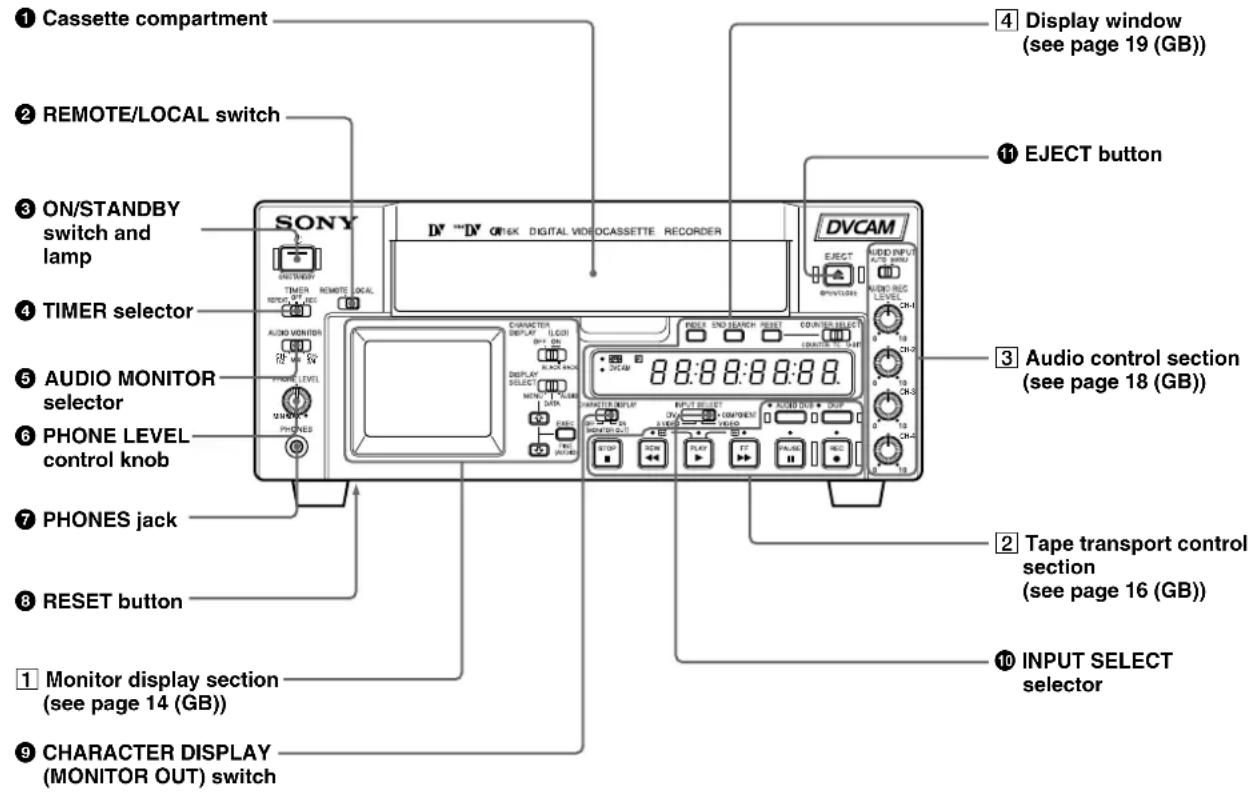
Cassette compartment
Insert a standard-size or mini-size DVCAM cassette. To open or close the compartment, press the EJECT button 1.
For details of cassettes that can be used, see "Notes on Video Cassettes" on page 30 (GB).
Set this switch to REMOTE when controlling the unit from an external device connected to the RS-422A/RS-232C connector on the rear panel.
REMOTE: Enables an external device connected to the RS-422A/RS-232C connector. When setting this switch to REMOTE, you can restrict the tape transport and menu control buttons on the front panel, the Remote Commander, and the optional Remote Control Unit connected to the CONTROL S IN jack using LOCAL ENBL on the REMOTE menu. For details on the REMOTE menu, see "REMOTE menu" on page 80 (GB).
LOCAL: Disables an external device connected to the RS-422A/RS-232C connector.
The switch setting enables/disables external devices as follows.
| REMOTE LOCAL | ||
| RS-422Aa) | Enabled Disabled | |
| RS-232Ca) | Enabled Disabled | |
| LANCa) | Enabled Enabled | |
| CONTROL SINb) | Depending on the Enabling setting of LOCAL ENBL on the REMOTE menu | |
| Remote Commanderb) | Depending on the Enabling setting of LOCAL ENBL on the REMOTE menu | |
| DV (i.LINK) Enabled Enabled | ||
a) You also need to set the remote selector on the rear panel according to the connector to which you connect a device.
b) Depending on the setting of COMMANDER on the OTHERS menu.
Notes
-
An external device connected to the LANC jack can operate the unit regardless the setting of this switch as long as the remote selector is set to LANC.
-
In addition to the Remote Commander supplied with the unit, the unit accepts signals from any Sony Remote Commander whose command mode is set to VTR4. When this switch is set to REMOTE, the Remote Commander functions depending on the setting of LOCAL ENBL on the REMOTE menu. If you want to disable the control from any Remote Commander, set COMMANDER on the OTHERS menu to CONTROL S.
- The TIMER selector 4 setting has a higher priority than this switch setting.
- When this switch is set to REMOTE, the ON/STANDBY switch 3 does not work. To enable the ON/STANDBY switch, set this switch to LOCAL or set LOCAL ENBL on the REMOTE menu to ALL KEYS.
ON/STANDBY switch and lamp
Press this switch to turn the unit on. The ON/STANDBY lamp lights up in green. When you press this switch again, the unit goes into the standby mode and the lamp lights up in red.
Note
When the REMOTE/LOCAL switch is set to REMOTE, this switch does not work. To enable this switch, set the REMOTE/LOCAL switch to LOCAL or set LOCAL ENBL on the REMOTE menu to ALL KEYS.
4 TIMER selector
Use to select Auto Repeat or recording using an external AC timer (not supplied).
REPEAT: Whenever the power is connected to this unit, a tape rewrites to its beginning automatically and playback starts. The unit repeats the playback from the beginning to the first index (if there is no index on the tape, to an unrecorded portion; if there is no unrecorded portion, to the tape end). Auto Repeat also functions if you set this selector to REPEAT during playback or rewinding. For details on Auto Repeat, see "Automatically playing back a tape repeatedly (Auto Repeat)" on page 39 (GB). OFF: Auto Repeat or timer recording is released. REC: Recording begins the moment the power is connected to the unit.
Note
This selector setting has a higher priority than the REMOTE/LOCAL switch 2 setting.
AUDIO MONITOR selector
Use to select the audio track you want to listen to through the PHONES jack or MONITOR AUDIO jack.
CH-1/2: channels 1/2 only
MIX: channels 1/2 and channels 3/4
CH-3/4: channels 3/4 only
PHONE LEVEL control knob
Controls the volume of the headphones connected to the PHONES jack 7.
PHONES jack
Connect stereo headphones for monitoring sounds during recording or playback. The audio signal you want to monitor can be selected with the AUDIO MONITOR selector 5.
RESET button
Press this button to initialize the time set on the internal clock and the time code of the FREE RUN setting. Use the tip of a ball-point pen or similar tool to press this button. (The menu item settings are maintained.)
CHARACTER DISPLAY (MONITOR OUT) (data items superimposed on an external monitor) switch
Set this switch to ON to superimpose data items on the MONITOR VIDEO output. Even if you set it to OFF, the tape label, title and data codes (camera data and date/time recorded by a camera) are superimposed.
Note
To choose whether or not the tape label, title, or data codes are displayed, use the menu items. Also, you can select the data code items to be displayed by pressing the DATA CODE button on the Remote Commander.
INPUT SELECT selector
You can select DV, SVIDEO, VIDEO, or COMPONENT to input signals.
The type of signal selected is displayed on the Data screen on the LCD monitor on the front panel.
Notes
- When you input signals to the DV jack, the following settings are disabled:
- Setting of the audio input level control selector (-10 / - 2 / + 4)
Audio recording level
(Continued)

- Audio recording level adjustment mode (AUTO/MANU)
- Audio mode (32 kHz/48 kHz)
Audio limiter -
Color bars (Cannot be displayed)
-
If you change this selector, the screen may momentarily become bright or noise may appear. This noise will be recorded.
- Do not change this selector setting during recording. Otherwise, the recorded image will be distorted or the signal output from the DV jack will be interrupted. Also, the unit may mistakenly recognize that a copyright protected signal has been input.
EJECT (OPEN/CLOSE) (open/close the cassette compartment) button
Press this button to open or close the cassette compartment. If you press this button while a cassette is inside the unit, the compartment opens and the cassette is ejected.
After removing the cassette, press this button again to close the compartment.
1 Monitor display section
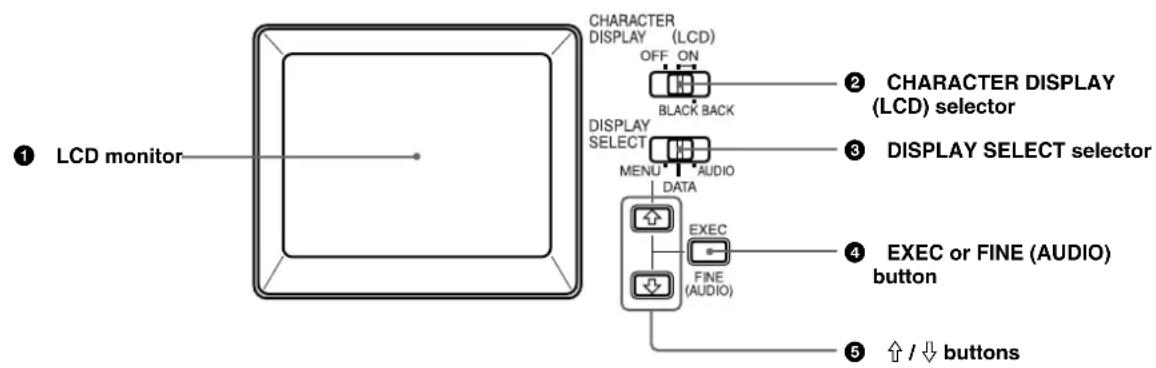
LCD (Liquid Crystal Display) monitor
Displays the playback or EE pictures. Also, superimposed time data, status information, menu, audio levels meters, etc. are displayed.
Notes
- The data items superimposed on the LCD monitor are the same as items superimposed on a monitor connected to the MONITOR VIDEO jack. You cannot make two monitors display different data items individually.
- The backlight used in the built-in LCD monitor deteriorates with prolonged use. If the brightness of the LCD monitor cannot be adjusted, consult your Sony dealer.
For details on the maintenance of the LCD monitor, see page 99 (GB).
CHARACTER DISPLAY (LCD) (data items superimposed on the LCD monitor) selector
Use to superimpose data items on the LCD monitor.
OFF: No data items are superimposed except the tape label, title, data codes (camera data, and date/time recorded by a camera).
ON: Data items are superimposed.
ON (BLACK BACK): Data items are displayed on a black background.
Notes
- To choose whether or not the tape label, title, or data codes are displayed, use the menu items. Also, you can select the data code items to be displayed by pressing the DATA CODE button on the Remote Commander.
- To adjust the menu items, set the LCD monitor or a monitor connected to the MONITOR VIDEO jack to display the menu. When neither of the monitors is set, you cannot adjust the menu items.
DISPLAY SELECT selector
Selects the data items displayed on the LCD monitor or a monitor connected to the MONITOR VIDEO jack.
MENU: displays the menu.
DATA: displays time code, remaining tape time, type of input signal selected, audio mode, presence or absence of cassette memory, tape label, title, etc.
AUDIO: displays audio levels.
Notes
- You can use the Remote Control Unit (DSRM-20, not supplied) or the supplied Remote Commander to search for a scene using search signals on the tape. In this case, you can search for the scene regardless of this selector setting.
To display the - / + ^ " which indicates the direction to search, set this selector to DATA. - If you change the selector setting during a search with the cassette memory, the search aborts.
4 EXEC (execute) or FINE (AUDIO) (fine audio levels) button
When the DISPLAY SELECT selector 3 is set to MENU, the button functions as the EXEC (execute) button. Press this button to change the setting on the menu items.
For details on the menu, see "Operating the Menus" on page 76 (GB).
When the DISPLAY SELECT selector 3 is set to AUDIO, the button functions as the FINE (fine audio levels) button. While you are holding this button down, the enlarged audio levels meters are displayed. You can confirm or adjust audio levels precisely on these enlarged audio levels meters. To select an enlarged portion, use REF LEVEL on the AUDIO SET menu.
For details on fine audio levels screen, see "Fine audio levels screen" on page 29 (GB).
For details on the AUDIO SET menu, see "AUDIO SET menu" on page 88 (GB).
念 / buttons
When the DISPLAY SELECT selector is set to MENU, you can select a menu item by pressing these buttons.
For details on the menu, see "Operating the Menu" on page 76 (GB).
When the DISPLAY SELECT selector is set to DATA, you can adjust the brightness of the LCD monitor by pressing these buttons. During the adjustment, the brightness level is displayed as illustrated below. It disappears one second after you have adjusted the brightness.
BRT

2 Tape transport control section
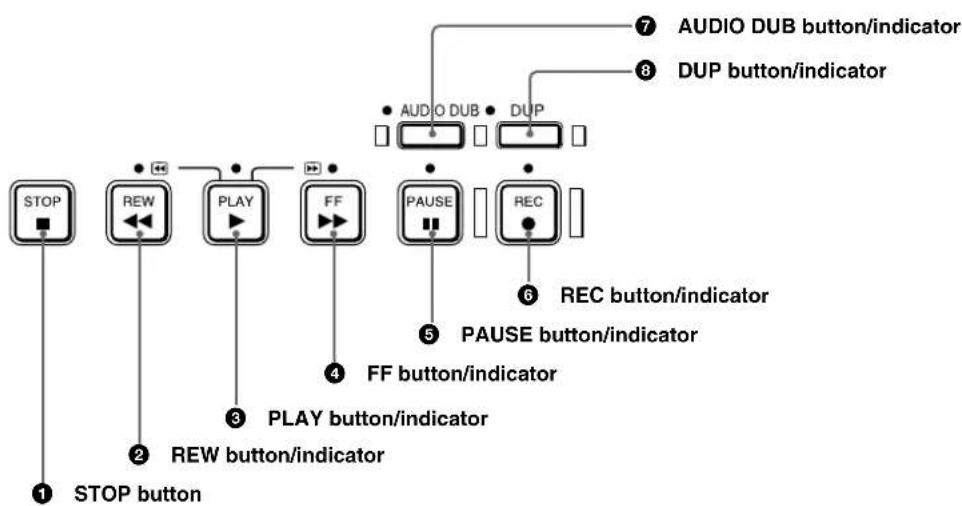
STOP button
Press this button to stop the current tape transport operation.
REW (rewind) button/indicator
When you press this button, the indicator lights and the tape starts rewinding. During rewind, the picture does not appear on the monitor (you can see the picture as it is seen in the EE mode).
To locate a scene while monitoring the picture, hold this button down during rewind, playback or in the playback pause mode.
If you press the PLAY button while holding this button down during stop, the tape is rewound to its beginning and starts playback automatically (during rewind, the REW indicator lights and the PLAY indicator flashes). You can change the tape transport mode in FF/REW SPD on the VTR SET menu.
For details on the VTR SET menu, see "VTR SET menu" on page 90 (GB).
Notes
- If you set EE/PB SEL on the DISPLAY SET menu to PB, the EE pictures or EE sounds are not output while the tape rewinds.
- If you set FF/REW SPD on the VTR SET menu to SHUTTLEMAX, you can display the picture while the tape rewrites.
For details on the tape transport speed of the SHUTTLEMAX setting, see "FF/REW SPD" in the "VTR SET menu" on page 90 (GB).
3 PLAY button/indicator
When you press this button, the indicator lights and playback begins.
Notes
- If the unit is playing a part of the tape where the format has been changed between the DVCAM format and the DV format or where the color system of the recorded signals has been changed between PAL and NTSC, the picture and sound are distorted.
- The unit can play back only tapes recorded in the DVCAM format or in the SP mode of the DV format.
FF (fast forward) button/indicator
When you press this button, the indicator lights and the tape is fast forwarded. During fast forward, the picture does not appear on the monitor (you can see the picture as it is seen in the EE mode).
To locate a scene while monitoring the picture, hold this button down during fast forward, playback or in the playback pause mode.
You can change the tape transport mode in FF/REW SPD on the VTR SET menu.
For details on the VTR SET menu, see "VTR SET menu" on page 90 (GB).
Notes
-
If you set EE/PB SEL on the DISPLAY SET menu to PB, the EE pictures or EE sounds are not output while the tape is fast-forwarded.
-
If you set FF/REW SPD on the VTR SET menu to SHUTTLEMAX, you can display the picture while fast-forwarding the tape.
For details on the tape transport speed of the SHUTTLEMAX setting, see "FF/REW SPD" in the "VTR SET menu" on page 90 (GB).
5 PAUSE button/indicator
When you press this button during recording, playing, or audio dubbing, the current operation goes into the pause mode. Pressing this button again resumes the operation. The indicator lights while the unit is in the pause mode.
REC (record) button/indicator
When you press the PLAY button while holding this button down, the PLAY and REC indicators light and recording starts.
When the unit is in the stop mode, you can check EE signals for an image, sound and time code by pressing this button. During this check, the REC indicator lights. To stop this operation, press the STOP button. For details, see "EE/PB SEL" in the "DISPLAY SET menu" on page 85 (GB). For details on time codes, see "DSR-45/45P time codes" on page 63 (GB).
Note
The unit can record only in the DVCAM format or in the SP mode of the DV format.
7 AUDIO DUB (audio dubbing) button/indicator
Use this button to dub sounds. The indicator lights while sounds are being dubbed.
For details on audio dubbing, see "Audio Dubbing" on page 74 (GB).
When the unit is in the stop mode and the INPUT SELECT selector is set to other than DV, you can listen to the EE sound by pressing this button. During this operation, the indicator lights. To stop the operation, press the STOP button.
For details, see "EE/PB SEL" in the "DISPLAY SET menu" on page 85 (GB).
DUP (duplicate) button/indicator
Use to duplicate a tape, including the time code. During duplication, the indicator lights.
For details on the duplicate function, see "Duplication (generating a work tape with the same time code)" on page 69 (GB).
When the unit is in the stop mode and a DV signal is selected and input, you can check the EE signals for an image, sound and time code by pressing this button. During the check, the indicator lights. To stop this operation, press the STOP button.
For details, see "EE/PB SEL" in the "DISPLAY SET menu" on page 85 (GB). For details on time codes, see "DSR-45/45P time codes" on page 63 (GB).

3 Audio control section
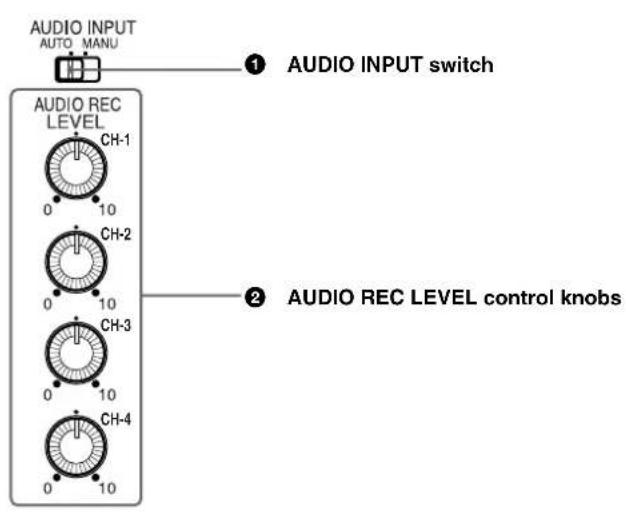
AUDIO INPUT (AUTO/MANU) switch
Switches the audio recording level adjustment mode.
AUTO: Adjusts the recording level automatically. The AUDIO REC LEVEL control knobs (CH-1 to CH-4) 2 are disabled.
To link the AGC (Auto Gain Control) of the audio channels (CH-1/2 or CH-3/4), set AGC CH1,2 (AGC CH3,4) on the AUDIO SET menu to LINKED.
MANU: Enables the AUDIO REC LEVEL control knobs (CH-1 to CH-4) 2 to manually adjust the recording level.
Notes
- When DV signals are input to the unit, the sound recorded retains the signal level input, regardless of the setting of this switch.
- If the sound is louder than the input amplifier's dynamic range, the AUTO setting is ineffective.
- Even if you set this switch to AUTO, unless the setting of the INPUT LEVEL selector on the rear panel is appropriate, there may be clipping and noise.
The audio level is automatically adjusted to an appropriate level when you select AUTO. It takes about 20 seconds for the audio level to be stabilized in the following cases. - immediately after powering on
- immediately after stopping a playback operation
-
immediately after switching the audio mode in AUDIO MODE on the AUDIO SET menu
-
If LIMITER on the AUDIO SET menu has been set to ON while you are manually adjusting the audio level, you can record the sound without clipping even if the audio input level is high as long as the level is within the amplifier's dynamic range. The LIMITER setting is available only when this switch is set to MANU.
2 AUDIO REC LEVEL control knobs (CH-1 to CH-4)
By turning these knobs, you can adjust the analog audio input signal levels for CH-1 to CH-4 respectively. You can adjust the audio signal level only if the AUDIO INPUT (AUTO/MANU) switch 1 has been set to MANU.
To display the audio levels meters on the LCD monitor, set the DISPLAY SELECT selector on the monitor display section to AUDIO (audio screen). While you are holding down the FINE (fine audio levels) button when the audio levels meters are displayed, a part of the audio levels meters will be enlarged (Fine audio levels screen). To select the enlarged portion, use REF LEVEL on the AUDIO SET menu. You can adjust the audio levels precisely on this screen.
For details on the audio screen, see "Audio screen" on page 28 (GB).
Note
You cannot adjust the audio level of the DV signal.
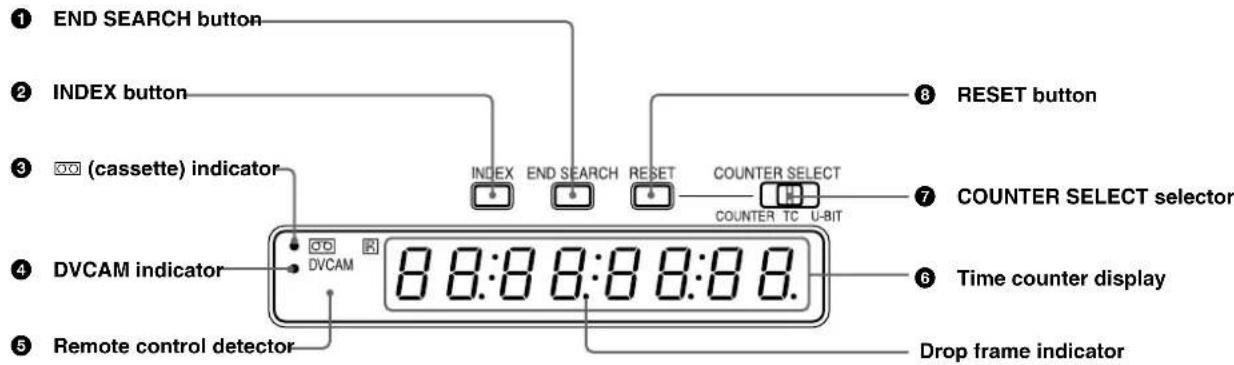
4 Display window

M
END SEARCH button
When you press this button, the unit searches the tape and plays back the last five-second recorded picture. After playback, the unit turns to the stop mode. Use this function to record another image at the end of the last recorded portion or to check the image itself.
Note
If you use a cassette without cassette memory, the end search function does not work once you eject the cassette after you have recorded on the tape. If you use a cassette with cassette memory, the end search function works even if you have ejected the cassette one or more times. If there is a blank portion at the beginning or between recorded portions, the end search function may not work correctly.
INDEX button
Press this button during recording to mark an index. If you mark an index at the scene you want to search for, you can easily find the scene later. For details on index, see "Recording Functions" on page 44 (GB).
(cassette) indicator
Lights when a digital video cassette is loaded. Even if the unit is in the standby mode, the indicator lights as long as a cassette is inside of the unit. While a cassette is being ejected, the indicator flashes.
4 DVCAM indicator
Lights when the unit is playing back a tape recorded in the DVCAM format. When REC MODE on the VTR SET menu is set to DVCAM, this indicator also lights during recording or when the unit is in the EE mode. For details on the VTR SET menu, see "VTR SET menu" on page 90 (GB).
Remote control detector
Time counter display
Displays time data (count value of the counter / time code / user bits), the self-diagnostics code numbers (page 100 (GB)), or the alarm messages ("Err" (page 97 (GB)).
When the count value of the counter is negative, "–" appears as the first digit (leftmost digit). When that value is positive, the first digit is blank.
When the format of the displayed time code is drop frame mode, the drop frame indicator, located between minutes and seconds, lights.
The user bits are displayed with periods (. after each digit.
Notes
- In the playback mode, if the tape has a portion where recorded signals are not continuous;
- The count value of the counter may not advance correctly from that portion.
- The displayed value of the time code or user bits may be temporarily inaccurate.
- When this unit plays back a part of the tape where the recorded color system has been changed between PAL and NTSC, the displayed value may be inaccurate.
- When this unit plays back a part of the tape where the recording format has been changed between DVCAM and DV, the displayed value may be inaccurate.
- The counter operates on a ± 12 -hour cycle. You cannot make the counter operate on a 24-hour cycle.
The count value of the counter consists of seven digits. The leftmost digit is not displayed. (i.e.; If the actual count value is "11:22:11:22," the displayed value will be "1:22:11:22.") However, the unit recognizes that the hours value is 11.
(Continued)
COUNTER SELECT selector
Selects the time data to be indicated on the time counter display. Selected time data is also displayed on the LCD monitor or on the counter display of a monitor connected to the MONITOR VIDEO jack.
COUNTER: Count value of the counter (seven digits). The value is displayed on a ± 12 -hour cycle.
TC: Time code
U-BIT:User bits
Notes
- The count value of the counter of this unit is determined by calculation based on the time code, that is, simple approximation. Therefore, in cases such as the following, the value may be inaccurate.
- There is a portion where the time code is not continuous on the tape you are using.
The time code in both the drop frame mode and the non-drop frame mode are recorded on the tape you are using (For DSR-45 only). - There is a blank portion between recorded portions on the tape you are using.
-
A tape recorded using the PAL color system is being used in the DSR-45.
-
A tape recorded using the NTSC color system is being used in the DSR-45P.
- Y ou are using an external time code.
-
T C RUN on the TC/UB SET menu is set to FREE RUN.
-
If you intend to edit using an RS-422A connection, set the editing mode of the controller to time code (TC), and set the COUNTER SELECT selector of this unit to TC.
RESET (counter reset) button
When the COUNTER SELECT selector 7 is set to COUNTER, pressing this button resets the value indicated on the time counter display to 0:00:00:00 (OH00M00S00F).
Notes
- This button cannot reset the value of the time code or user bits.
To reset the value of the time code or user bits, use TC PRESET or UB PRESET on the TC/UB SET menu.
Rear Panel
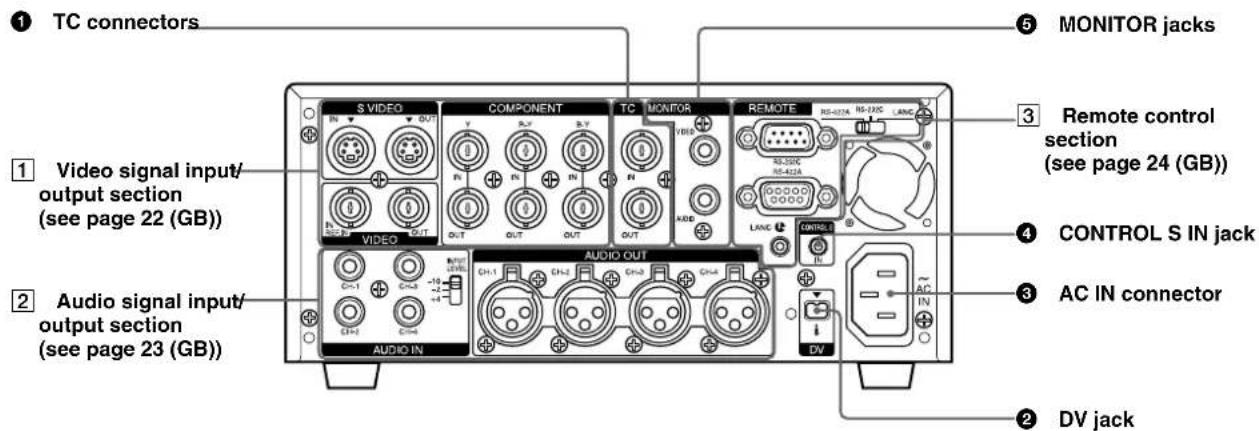
TC (time code) connectors (BNC-type)
Used to input or output time code.
TC IN (time code input) connector: Connects to the time code output connector on external devices such as a time code generator or a VCR. Use this connector to synchronize the internal time code generator of this unit with an external time code.
Note
The unit can read the time code input to this connector only when the time code is output at normal play speed.
TC OUT (time code output) connector: Connects to the time code input connector on external devices such as a time code reader or a VCR. The unit outputs the time code depending on the operating state as follows:
Playing: The time code on the tape is output.
Recording: Either the time code generated by the internal time code generator or the time code input from a device connected to the TC IN connector is output.
For details, see "DSR-45/45P time codes" on page 63 (GB).
Note
If JOG TC OUT on the TC/UB SET menu has been set to ON, the time code is output during search mode, but the output time code is not continuous.
DV jack (4-pin)
Used to input/output the digital signal that complies with the i.LINK standard (Recommended cable: VMC-IL4415 (A), VMC-IL4615 (A)). Use when a device connected to the unit has a DV jack. If you connect the unit and another device using DV jacks, you can minimize deterioration of picture quality during recording, dubbing, or capturing still pictures, all by means of digital signal processing. For details, refer to the instruction manual of the external device.
Notes
- If video signals have been input to the DV jack and you output these video signals to the MONITOR VIDEO,VIDEO OUT, or SVIDEO OUT connectors, the sync and burst of the corresponding EE pictures are not synchronized.
i.LINK and the i.LINK logo "are trademarks and indicate that this product is in agreement with IEEE 1394-1995 specifications and their revisions. - This jack can accept only DV signals.
- If the unit is connected to a device equipped with a 6-pin DV jack, when you intend to disconnect or reconnect the DV cable, turn off the device and pull
out the plug of its power cord from the AC outlet beforehand. If you connect or disconnect the DV cable while the device is connected to the AC outlet, high-voltage current (8 to 40V ) is output from the DV jack of the device to this unit, which may cause a malfunction.
- When connecting a device that has a 6-pin DV jack to this unit, first, connect the plug of the cable to the 6-pin DV jack.
AC IN connector
Connects to an AC outlet using the supplied power cord.
Even if the unit is in the standby mode, it consumes power. To turn the unit off completely, pull the plug out from the AC outlet.
4 CONTROL S IN jack (stereo minijack)
Connects to the Remote Control Unit (DSRM-20, not supplied) for controlling this unit.
Notes
- When using the Remote Control Unit (DSRM-20, not supplied), set COMMANDER on the OTHERS menu to CONTROL S.
- If the REMOTE/LOCAL switch is set to REMOTE, the control of a device connected to the CONTROL S jack is restricted by the setting of LOCAL ENBL on the REMOTE menu.
MONITOR jacks (phono jack)
Output video and audio signals for monitoring.
MONITORVIDEO jack: Outputs composite video signals. Connect the input jack of an external monitor to this jack. When you set the CHARACTER DISPLAY (MONITOR OUT) switch on the front panel to ON, data items such as time data, menus or alarm messages are superimposed on the external monitor.
For details on the superimposed data items, see "Displaying Various Data" on page 27 (GB).
Notes
- When video sync signals of the EE pictures output from the MONITOR VIDEO jack, sync and burst are not synchronized.
- The video signal output from this connector is not synchronized with the video signal output from the line-out connectors (COMPONENT OUT, SVIDEO OUT,VIDEO OUT). When the unit is in the EE mode, the output pictures are delayed by several lines. When played back, the picture is not exactly externally synchronized — only vertically synchronized. You cannot adjust the sync and subcarrier phases.
(Continued)

- If DV input has been selected, color and luminance may be distorted in the EE mode, depending on the monitor.
- The data items superimposed on a monitor connected to this jack are the same as the items superimposed on the LCD monitor.
You cannot make two monitors display different data items individually.
- The adjustment of PB LEVEL on the VIDEO SET menu does not affect the MONITOR VIDEO output.
- While the unit is externally synchronized, the sync signal frequency and the burst signals of the video signals output to the LCD monitor and the MONITOR VIDEO jack are not synchronized.
Therefore, jitter may appear on those output signals.
If the unit is externally synchronized, use the VIDEO OUT connector. If you use the MONITOR VIDEO jack, set EXT SYNC on the VIDEO SET menu to OFF.
MONITOR AUDIO jack: Outputs the audio signals for monitoring. Select the audio channels you want to monitor as follows.
CH-1/2: channels 1/2
MIX: channels 1 to 4
CH-3/4: channels 3/4
1 Video signal input/output section
For details on the input and output of the wide-screen aspect ratio information, see "Notes on Wide-screen Aspect Ratio Information" on page 103 (GB).
Note
The unit can only accept standard video signals. If you input the types of video signals shown below, recorded picture, sound, and the EE picture output via the VIDEO OUT, SVIDEO OUT and COMPONENT OUT connectors may be distorted.
- Signals from some home game machines
- Blue background screen or gray background screen from a consumer VCR
- Pictures played at a speed other than normal by a VCR that does not have the TBC (Time Base Corrector)
Video signals in which the sync signals are distorted - Signals from a defective cassette (tape or recording condition is bad) played by an analog VCR that does not have TBC
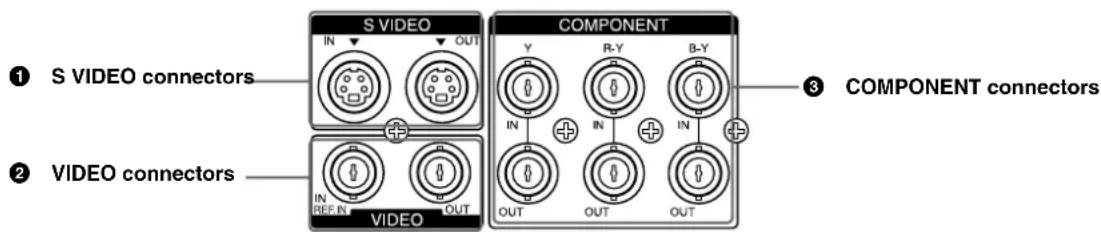
SVIDEO connectors (4-pin)
Inputs/Outputs the S-video signal with Y (luminance) and the C (chroma: 3.58 MHz for DSR-45 and 4.43 MHz for DSR-45P) separated.
2VIDEO connectors (BNC-type)
VIDEO IN REF.IN (reference video / composite video input) connector:
Inputs composite video signals to this unit. When performing a playback synchronized with an external sync signal, this connector inputs a reference video (black burst) signal.
VIDEO OUT (composite video output) connector:
Outputs composite video signals. The data items are not superimposed.
COMPONENT connectors (BNC-type)
Inputs/Outputs component video signals (Y/R-Y/B-Y).
2 Audio signal input/output section

MENANO
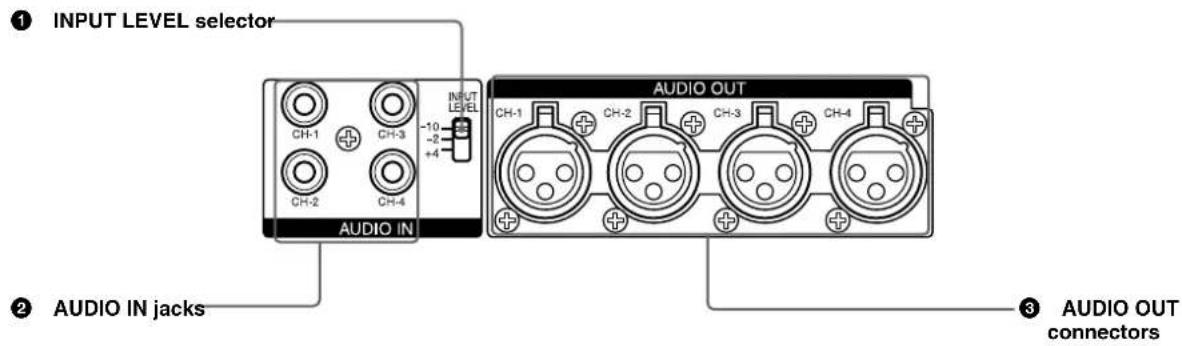
INPUT LEVEL (-10 / - 2 / + 4) selector
Selects one from among -10dB, -2dB or +4dB according to the audio level of the signal input via the AUDIO IN jacks ②.
Note
If this selector setting is not appropriate, clipping distortion or noise may occur even if the AUDIO INPUT switch has been set to AUTO.
For more information on the setting of this selector, see "When you set the INPUT LEVEL selector" on page 96 (GB).
2 AUDIO IN CH-1 to CH-4 jacks (phono jack) Inputs audio signals (CH-1 to CH-4).
Note
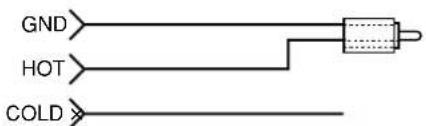
To input balanced audio signals via these jacks, use a conversion cable as shown below. (The COLD side is open.)
For details on conversion cables, refer to the instruction manual of the devices you use.
AUDIO OUT CH-1 to CH-4 connectors (XLR 3-pin, male)
Outputs audio signals (CH-1 to CH-4).
3 Remote control section
Notes
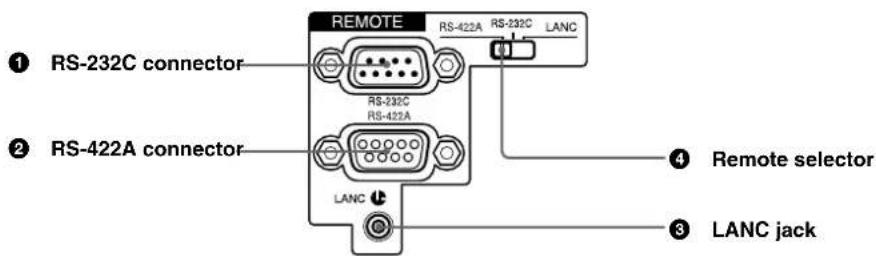
- When controlling the unit using a device connected to the RS-232C connector 1 or the RS-422A connector 2, set the REMOTE/LOCAL switch on the front panel to REMOTE. (Regardless of the setting of the REMOTE/LOCAL switch, you can use a device connected to the LANC jack 3 to control the unit.)
- Even when the DSR-45 plays back a PAL formatted tape (or the DSR-45P plays back an NTSC formatted tape), you can control the basic tape transport functions using a device connected to the RS-232C connector 1 or the RS-422A connector 2. However, editing operations attempted in this case are not guaranteed.
- For editing, if you intend to use this unit as a recorder and to use the FXE-120/120P or the FXE-100/100P upgraded by installing the FXE-KIT1 as an editing controller, you also need to use the IF-FXE2 LANC Interface Box.
RS-232C connector (9-pin)
Use when controlling the unit using an editing controller or a computer that has an RS-232C interface.
Note
For editing, if you intend to use this unit as a player and the FXE-120/120P or FXE-100/100P as an editing controller, set the baud rate of both devices to 19200 bps.
RS-422A connector (9-pin)
Use when controlling the unit using an editing controller that has an RS-422A interface.
LANC jack
Use when controlling the tape transport operation of the unit using a device that has a LANC' jack.
Notes
- Regardless of the setting of the REMOTE/LOCAL switch, you can use a device connected to the LANC jack to control the unit.
- The LANC jack on the unit has only LANC-S functions. The unit has no LANC-M functions. A device that is set to LANC-S mode cannot be connected to this unit. Either this, the unit or the other device may not operate properly.
- If the device that you connect to this unit has a SHUTTLE A/B switching function and a LANC-M function, set the device to the SHUTTLE B mode.
- The LANC connection transmits signals such as control signals, time code, time counter data, and status data.
- Jacks labeled CONTROL L have the same function as LANC jacks.
- When using this unit as a player, set the LANC mode on the recorder to M. A device that does not have an M/S switching function cannot be used to control this unit.
Remote selector
Selects one from among RS-422A, RS-232C, or LANC according to a device connected to the unit.
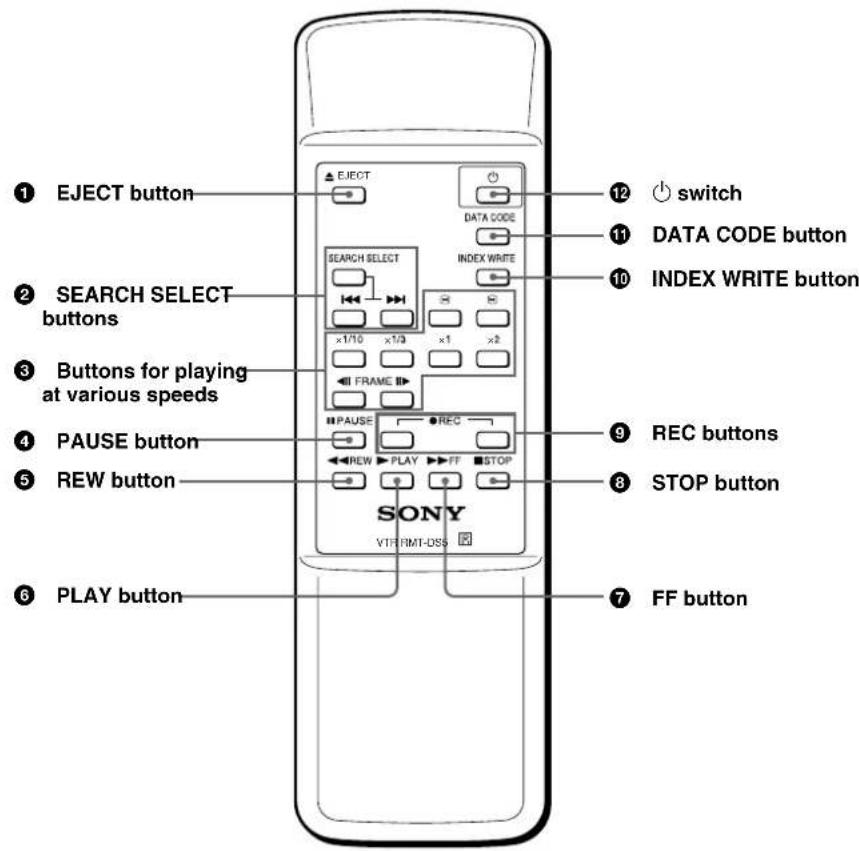
Supplied Remote Commander

MENANO
EJECT button
Note
When there is no cassette inside the unit, you cannot open/close the cassette compartment, even if you press this button.
In this case, press the EJECT button on the front panel of the unit instead.
SEARCH SELECT buttons
Press these buttons to search for scenes using the search function.
For details on the search function, see "Searching using the search function" on page 37 (GB).
Buttons for playing at various speeds
You can play back a tape at normal speed or at a speed other than normal with these buttons.
For details, see "Playing at various speeds" on page 37 (GB).
4 PAUSE button
⑤REW(rewind)button
⑥ PLAY button
FF (fast forward) button
STOP button
REC (record) buttons
When you press both these buttons at the same time, the REC indicator and PLAY indicator on the front panel light and recording begins.
(Continued)
INDEX WRITE button
Press this button during recording to mark an index. For details on an index, see "Marking an index" on page 44 (GB).
DATA CODE button
Press this button to display the data codes (recording date/time, camera data).
For details on data codes, see "Displaying information (data codes) recorded on a tape" on page 36 (GB).
1 (on/standby) switch
Notes
- The command mode of the supplied Remote commander is set to VTR4. You cannot change this setting.
- Set COMMANDER on the OTHERS menu to WIRELESS to enable the Remote Commander to control the unit.
- In addition to the Remote Commander supplied with the unit, the unit accepts signals from any Sony Remote Commander whose command mode is set to VTR4. If you want to disable the control from any Remote Commander, set COMMANDER on the OTHERS menu to CONTROL S.
- If the REMOTE/LOCAL switch is set to REMOTE, the control of the Remote Commander is restricted by the setting of LOCAL ENBL on the REMOTE menu.
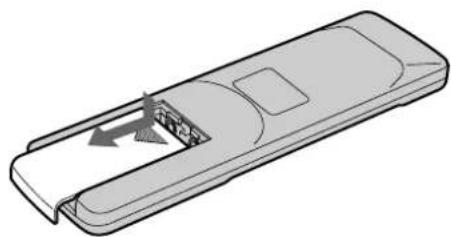
Battery installation
1 Push and slide the lid to open.
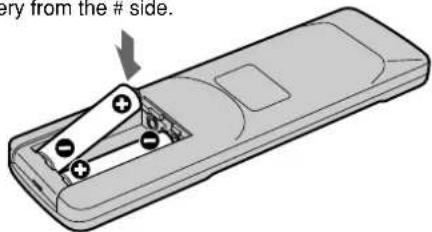
2 Install two size AA (R6) batteries (supplied) with the correct polarity.
Be sure to install the battery from the # side.
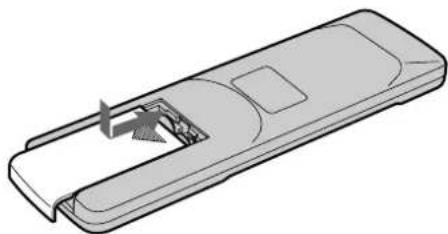
3 Replace the lid.
Notes on batteries
- Make sure that the battery orientation is correct when inserting batteries.
- Do not mix an old battery with a new one, or mix different types of batteries.
- If you do not intend to use the Remote Commander for a long time, remove the batteries to avoid damage from battery leakage. If the batteries have leaked, remove them, wipe the battery compartment dry and replace the batteries with new ones.
To remove the batteries
Remove the lid as step 1 and take out the batteries.
Displaying Various Data
The unit can display various superimposed data items on the built-in LCD monitor or on a monitor connected to the MONITOR VIDEO jack.
To display various data items on the LCD monitor, set the CHARACTER DISPLAY (LCD) selector to ON or ON (BLACK BACK).
To display various data items on an external monitor, set the CHARACTER DISPLAY (MONITOR OUT) switch to ON.
You can select data items to be displayed using the DISPLAY SELECT selector.
Menu screen
To display the menu screen, set the DISPLAY SELECT selector to MENU. You can change or confirm the menu item settings on this screen. For details on the menu, see "Chapter 6 Adjusting and Setting Through Menus" on page 76 (GB).
| TC/UB SET | |
| TC | TC PRESET |
| RMT | UB PRESET |
| CM | TC/UB IN |
| DISP | DV IN TC |
| V | TC MAKE |
| A | TC RUN |
| VTR | TC FORMAT |
| ETC | JOG TC OUT |
Data screen
To display the data screen, set the DISPLAY SELECT selector to DATA. You can confirm important information for recording or playback, such as time code or remaining tape time, on this screen.
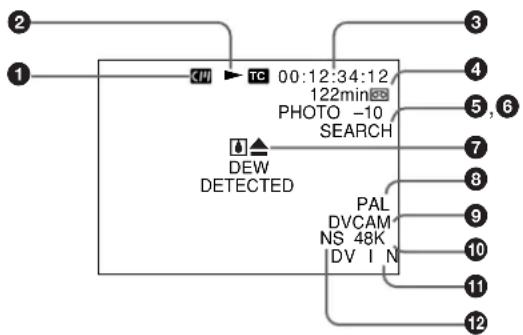
Cassette memory indicator
This item is shown when a cassette with cassette memory has been loaded. If the cassette is ejected while data is being written on the cassette memory, the indicator flashes.
2 Tape transport mode indicator
Displays the tape transport mode.
Time counter (time code/user bits/count value of the counter) indicator
Displays the count value of the counter, time code, or user bits. By setting the COUNTER SELECT selector on the front panel, you can select the item to be displayed.
When the time code is displayed, rc appears to its left. In the drop frame mode, a period is displayed between the minutes and seconds. (Example: 00:12.58:00)
When the user bits are displayed, u appears to their left.
When the count value of the counter is negative, "—" appears as the first digit (leftmost digit). When that value is positive, the first digit is blank.
The count value of the counter consists of seven digits. If the self-diagnostic function is enabled, diagnostics code numbers are displayed.
Notes
- The counter operates on a ± 12 -hour cycle. You cannot make the counter operate on a 24-hour cycle.
- The count value of the counter consists of seven digits. The leftmost digit is not displayed. (i.e.; If the actual count value is "11:22:11:22," the displayed value will be "1:22:11:22.") However, the unit recognizes that the hours value is 11.
Remaining tape time indicator
Displays the remaining tape time.
Note
When you insert a cassette in which the tape has been rewound to the beginning, this indicator will not show the remaining tape time. The remaining tape time is displayed after the tape runs for a while.
Search indicator
Displays the search mode when you search for scenes using the Remote Commander or the DSRM-20 (not supplied).
For details on the search function, see "Searching using the search function" on page 37 (GB).
(Continued)
Index indicator
Displays INDEX MARK when an index has been marked.
Caution indicator
Displays a caution.
For details on cautions, see "Alarm Messages" on page 97 (GB).
PAL (DSR-45)/NTSC (DSR-45P) indicator
DSR-45: Appears for five seconds when you play back a PAL formatted tape.
DSR-45P: Appears for five seconds when you play back an NTSC formatted tape.
DVCAM/DV indicator
In the EE or recording mode, displays the recording format selected in REC MODE on the VTR SET menu. During playback, displays the recording format of the picture.
10 Audio mode indicator
In the EE or recording mode, displays the audio mode selected in AUDIO MODE on the AUDIO SET menu. During playback or audio dubbing, displays the audio mode recorded on the tape. When you input a signal to the DV jack, displays the audio mode of that signal.
Input signal indicator
Displays the INPUT SELECT selector setting.
NS (Non standard) audio mode indicator
This item is shown when a tape recorded in the unlock audio mode is played back or when an unlock mode signal has been input to the DV jack. In EE mode, when REC MODE in the VTR SET menu is set to DV SP, this item is always shown.
For details on the unlock mode, see "Compatibility of DVCAM and DV Format" on page 101 (GB).
Audio screen
To display the audio screen, set the DISPLAY SELECT selector to AUDIO. You can confirm or adjust the audio levels and confirm the audio input signal settings on this screen.
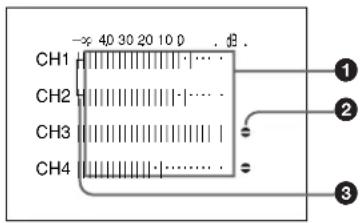
Audio levels
Displays the audio levels for each channel independently. When the audio mode is FS32K, the audio levels of four channels, channel 1 to 4, are displayed. When the audio mode is FS48K, the audio levels of channel 1 and 2 are displayed.
The unit detects the audio mode as follows.
In the playback mode: Detects the audio mode recorded on the tape.
In the recording/EE mode: Detects the selected audio mode in AUDIO MODE on the AUDIO SET menu.
When the INPUT SELECT selector is set to DV and a DV signal is being input: Detects the audio mode of the signals being input. (The setting of AUDIO MODE on the AUDIO SET menu becomes invalid.)
In the EE, recording, or audio dubbing (only the audio dubbing channel) modes, if the input levels exceed 0 dB, the portions of the meters that exceed 0 dB turn to red. During playback, while DV signals are input or the AUDIO INPUT switch is set to AUTO, those portions of the levels meters do not turn to red.
Audio dubbing symbol
This symbol appears associated with a channel on which you can dub sounds.
Appears when:
-
a tape is being transported and pictures are displayed on the LCD monitor or on an external monitor.
-
the unit is in the stop mode, a signal other than DV is selected, and you press the AUDIO DUB button.
Notes
- You can dub sounds only on a tape on which signals are recorded in the 32kHz audio mode (4 channels, 12 bit) and in the DVCAM format.
- You can select a pair of channels to dub sounds using AUDIO DUB on the AUDIO SET menu.
- You cannot perform audio dubbing using a sound signal input via the DV jack. This symbol does not appear when DV signals are input.
Link symbol
If the AGC (Auto Gain Control) of a pair of channels is linked, this symbol is placed between the channels. In the EE mode, if AGC CH1, 2 on the AUDIO SET menu is set to LINKED and the AUDIO INPUT switch is set to AUTO, channels 1 and 2 can be linked for AGC operation and for stereo sound where channel 1 is set for the left sound and channel 2 is set for the right sound.
In the EE mode, if AGC CH3, 4 on the AUDIO SET menu is set to LINKED and the AUDIO INPUT switch is to AUTO, channels 3 and 4 can be linked for AGC operation and for stereo sound where channel 3 is set for the left sound and channel 4 is set for the right sound.
Note
When DV signals are input, the AGC does not function and channels are not linked. This symbol does not appear with a DV connection.
Fine audio levels screen
When the audio screen is displayed, pressing the FINE (AUDIO) button displays the fine audio levels screen. The screen is displayed only while you are pressing the FINE (AUDIO) button. You can adjust the audio recording levels precisely on this screen.
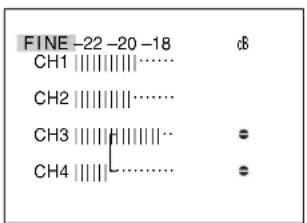
The fine audio levels screen displays narrower audio levels around the audio levels (-12 / - 18 / - 20dB) selected in REF LEVEL on the AUDIO SET menu.
Notes
- Changing REF LEVEL on the AUDIO SET menu does not change the audio gain of the unit. According to the level of sounds you want to record, select an appropriate gain by setting the INPUT LEVEL selector on the rear panel. Then, adjust the audio recording levels using the AUDIO REC LEVEL control knobs.
- The standard output level of the AUDIO OUT connectors of the unit is +4 dBu. This is equivalent to -20 dB level for the full-bit maximum audio level (-18 dB level for the DSR-45P). This value is fixed and is not affected by the setting of REF LEVEL on the AUDIO SET menu.
Playback and Recording
Notes on Video Cassettes
Usable cassettes
Use Standard-DVCAM cassettes or Mini-DVCAM cassettes with this unit. The PDV-184 can record programs for 184 minutes and the PDVM-40 can record for 40 minutes (DVCAM format). You can get the highest quality pictures with this digital videocassette recorder using DVCAM cassettes. Using other cassettes does not ensure sufficient reliability. We recommend using DVCAM cassettes so that you can record your one-time events in the highest quality.
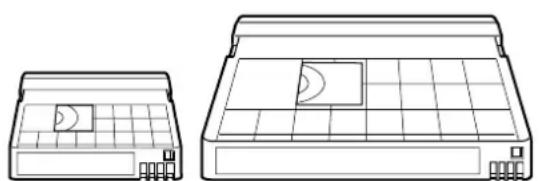
DVCAM cassetteMini DVCAM cassette
Cassette memory
Cassette memory is an optional feature that is mounted on some Standard DVCAM cassettes and Mini DVCAM cassettes. When you record a program, the recording date and time, and the programs' position on the tape are stored in the cassette memory so that you can quickly locate the program later on. 1116K on a cassette indicates that you can use the cassettes to store up to 16 kbits of data. On this unit, you can use cassettes on which up to 16 kbits of data can be stored.
To save a recording
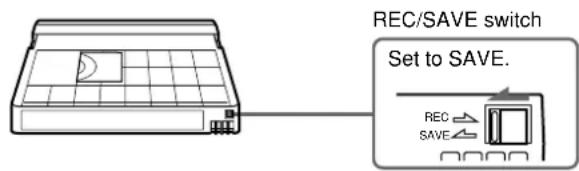
To prevent accidental erasure of a recording, slide in the REC/SAVE switch on the cassette so that the red portion becomes visible. To record on a tape, slide out the switch so that the red portion is hidden.
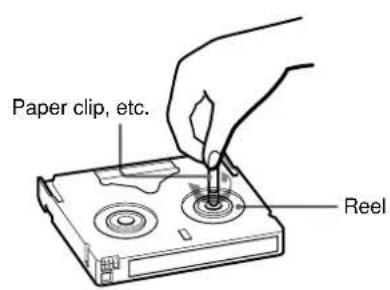
Checking the tape for slack
Using a paper clip or a similar object, turn the reel gently in the direction shown by the arrow. If the reel does not move, there is no slack.
Inserting/Ejecting Cassettes
To insert a cassette
Notes
- Do not insert the cassette forcibly. The unit may be damaged.
- Do not eject/load the cassette in a place subject to light. The internal sensor of the unit may operate incorrectly if too much light falls on the unit.
1 With the unit powered on, press the EJECT button. The cassette compartment opens.
2 After checking the tape for slack, hold the cassette so that the tape window is facing upward, then insert it into the unit.
Notes
- When inserting a cassette, hold the back edge of the cassette in the center and push it until the cassette is inserted deep into the unit. If you hold the ends, the cassette may not be loaded properly.
- If the cassette does not load or is loaded only halfway, eject it once, then insert it again. In such a case, if you insert the cassette forcibly, the cassette may not be loaded properly or malfunctions may occur.
- It takes a few seconds for the unit to recognize the cassette and find the proper location on the tape being loaded.
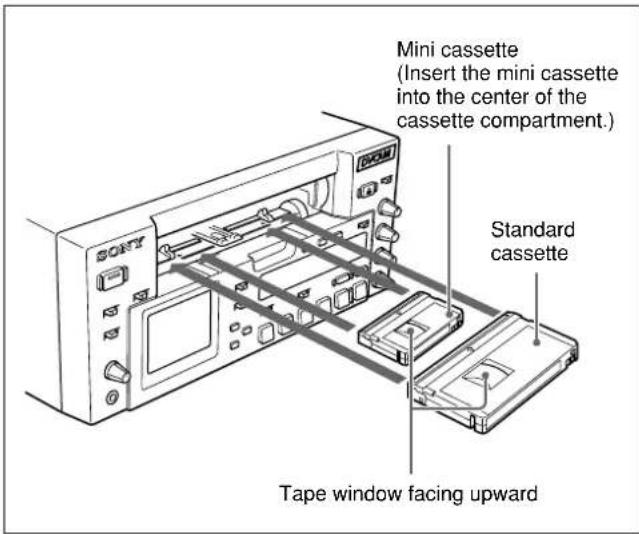
The cassette is automatically loaded into the unit and the cassette compartment closes.
To eject the cassette
1 With the unit powered on, press the EJECT button.
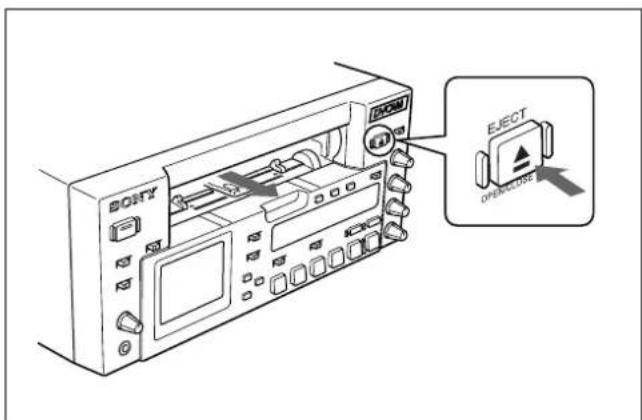
The cassette is unloaded and ejected.
2 Remove the cassette from the unit. Press the EJECT button to close the cassette compartment.
Notes onPlayback/Recording
No compensation for contents of the recording
Contents of the recording cannot be compensated for if recording or playback is not successful due to a malfunction of the unit, video tape, etc.
Copyright precautions
On recording
You cannot record any software having copyright protection signals on this unit. If you start recording protected video and audio signals, a warning appears on the monitor screen and the unit stops recording. During recording, if you change the INPUT SELECT selector setting, the unit may mistakenly recognize that a copyright protected signal has been input.
On playback
When you play back software having copyright protected signals on this unit, you may not be able to copy it onto other equipment.
Limitations caused by differences in format
The unit can record and play back tapes recorded in DVCAM format. It can also record and play back tapes recorded in DV format (SP mode).
However, due to differences in format, you may not be able to play back or edit some tapes affected by recording conditions of the tape (e.g., a tape originally recorded in DV format is dubbed in DVCAM format). For details, see "Compatibility of DVCAM and DV Format" on page 101 (GB).
If a tape has both a portion recorded in the DVCAM format and one recorded in the DV format (SP mode), the following limitations are applied when you play back the tape with this unit:
- The image may be distorted and noise may occur at the point where the recording format changes on the tape.
- The tape transport control buttons may be disabled until the tape speed is stabilized.
Simple playback function for a tape recorded using the PAL system (for the DSR-45) or the NTSC system (for the DSR-45P)
The DSR-45 can play a PAL tape (the DSR-45P can play an NTSC tape) recorded in the DVCAM format or consumer DV format (SP mode only). This function has the following limitations:
- The video signals are output only to the LCD monitor and the MONITOR VIDEO output.
- The color system of the output video signal is that of the signals recorded on the tape played back. You cannot convert the signals into the other color system. If you want to display the MONITOR VIDEO output, you will need a video monitor able to handle the color system recorded on the tape.
- The MONITOR VIDEO output is optimized and adjusted for one color system (DSR-45: NTSC system; DSR-45P: PAL system). If you play back a tape recorded in the other color system, the levels and phases of the video signal may not be correct.
- The outputs from the VIDEO OUT, SVIDEO OUT and COMPONENT OUT connectors are muted.
- When the unit plays a tape recorded in the other color system (i.e., PAL for the DSR-45, or NTSC for the DSR-45P), the image, sound and time code may be distorted for a while at the beginning and the end of playback.
- The TC OUT connector outputs incorrect time code. Do not use this time code.
- The unit cannot play back in synchronization with the external sync signal.
- Noise reduction results for the luminance and chrominance signals may differ between PAL formatted tapes and NTSC formatted tapes.
- Even when the DSR-45 plays back a PAL formatted tape (or the DSR-45P plays back an NTSC formatted tape), you can control the basic tape transport functions using a device connected to the RS-422A or RS-232C connectors. However, any editing operations attempted in this case are not guaranteed.
Limitations regarding the differences in color systems
Except for the simple playback function for a tape recorded in the other color system, this unit is not compatible with any other color systems.
- This unit cannot record video signals of the other color system.
- Inputting the other format video signals does not output the EE pictures correctly. The video output may be muted and some signals may not be displayed.
- You may not be able to dub sound correctly from a tape recorded in the other color system in this unit.
-
If a tape has both NTSC and PAL formatted video signals, the following limitations are applied when you play that tape with this unit:
-
The image may be distorted and noise may occur at the point where the recording format changes on the tape.
- The tape transport control buttons may be disabled until the tape speed is stabilized.
This section describes the connections, settings and operations necessary to perform playback on this unit. The same settings and operations apply whether you are using the unit as part of an editing system, for dubbing, or as a stand-alone videocassette player.
Connections for Playback
To digital video equipment with a DV jack
The video and audio signals are sent with hardly any degradation, enabling high-quality recording. The signal flow is automatically detected so you do not need to make separate connections for input and output.
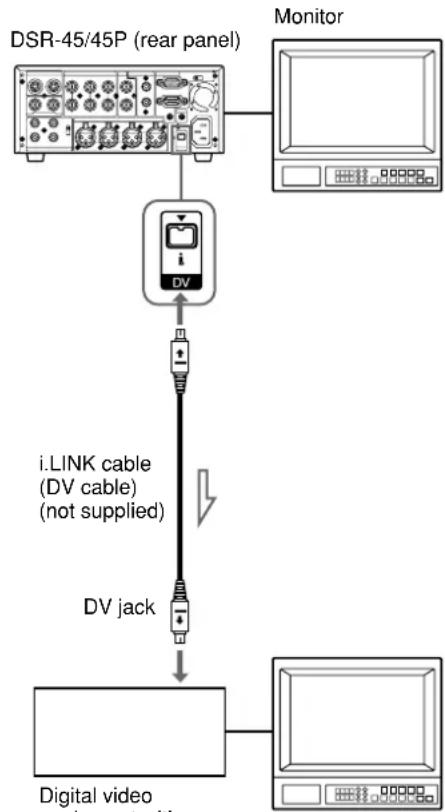
Monitor

Signal flow
Notes
- With the DV connection, data codes (recording date/time, camera data) recorded on the source tape are transmitted to the recorder. As a result, when you play back a recorded tape on this unit and press the DATA CODE button on the Remote Commander, the same data codes as those recorded on the source tape are displayed on the monitor screen.
- The external lock function of this unit only supports the standard sync signals. With the DV connection, set EXT SYNC on the VIDEO SET menu to OFF to prevent malfunction resulting from noise, etc.
For details on theVIDEO SET menu, see "VIDEO SET menu" on page 86 (GB).
- If no picture appears via the DV jack, disconnect the i.LINK cable (DV cable), then reinsert it straight.
- When connecting a device that has a 6-pin DV jack to this unit, first, connect the plug of the cable to the 6-pin DV jack.
- If the unit is connected to a device equipped with a 6-pin DV jack, when you intend to disconnect or reconnect the DV cable, turn off the device and pull out the plug of its power cord from the AC outlet beforehand. If you connect or disconnect the DV cable while the device is connected to the AC outlet, high-voltage current (8 to 40V ) is output from the DV jack of the device to this unit, which may cause a malfunction.
-
If you connect the input connectors of this unit to the output connectors of a recorder or that of a monitor, a humming noise may be generated or the image may be distorted. If these phenomena occur, perform one of the following:
-
Set DV EE OUT on the VTR SET menu to OFF.
- Set the INPUT SELECT selector to a position where a signal is not currently being input.
- D disconnect the cables.
To video equipment without a DV jack
You can connect this unit to video equipment without a DV jack. Use this unit as follows.
The following illustration shows an example of a
configuration for dubbing a tape with its time code in the externally-synchronized playback mode. In this configuration, the recorder is a VCR equipped with XLR input connectors.

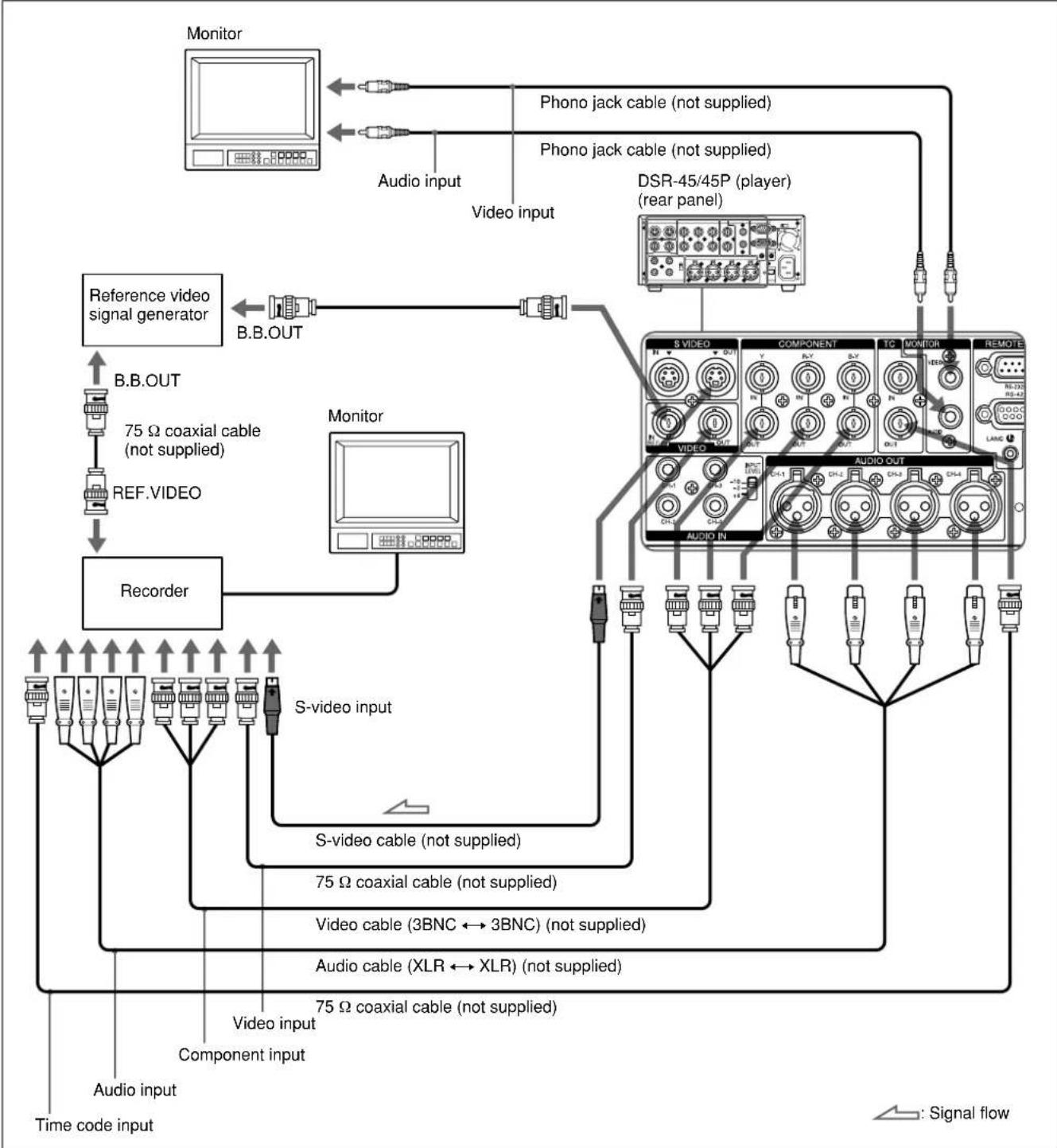
Connect one of the following as a video cable: video cable (3BNC 3BNC), S-video cable, 75 coaxial cable.
Notes
- If you connect the input connectors of this unit to the output connectors of a recorder or that of a monitor, a humming noise may be generated or the image may be distorted. If these phenomena occur, perform one of the following:
- Set EE/PB SEL on the DISPLAY SET menu to PB.
- Set the INPUT SELECT selector to a position where a signal is not currently being input.
- D disconnect the cables.
- Text data (time code, warnings, menus, etc.) are superimposed only on the MONITOR VIDEO output.
- To play back in synchronization with the reference video (black burst) signal, set EXT SYNC on the VIDEO SET menu to ON.
Settings for Playback
Preparation on the player (this unit)
1 Power on the video monitor, then set the monitor's input switch according to the signals input.
2 Set up the recorder. For details, refer to the instruction manual of the recorder.
3 Turn this unit on.
Playback Procedures
This section describes the procedures used to play back a tape and send signals to another VCR. For details on the procedures required when using a computer as a recorder, refer to the instruction manual of your computer or the user's manuals of the software installed on it.
When controlling this unit from an editing controller connected to the RS-232C or RS-422A connectors, see "Chapter 3 Using the Unit as a Player in an Editing System" on page 46 (GB).
For details on the input and output of the wide-screen aspect ratio information, see "Notes on Wide-screen Aspect Ratio Information" on page 103 (GB).
1 After checking the tape for slack and confirming that the indicator is off, hold the cassette so that the tape window is facing upward, then insert it into this unit.
The cassette is automatically loaded into the unit.
For details on checking the tape for slack, see "Notes on Video Cassettes" on page 30 (GB). For details on inserting a cassette, see "To insert a cassette" on page 31 (GB).
Note
Do not insert the cassette forcibly. The unit may be damaged.
2 Press the PLAY button on this unit.
This unit starts playback.
To stop playback
Press the STOP button on this unit.
To pause playback
Press the PAUSE button on this unit.
Notes
- When this unit plays back a part of the tape where the recording format has been changed between the DVCAM format and the DV format, the picture and sound may be distorted.
- The unit can play back only tapes recorded in the DVCAM format or in the SP mode of the DV format.
Playback Functions
Displaying information (data codes) recorded on a tape
If you record on a tape using a Sony digital camcorder (DSR-200/200P, 200A/200AP, PD100/PD100P, PD100A/PD100AP, PD150/PD150P, 250/250P, etc.), data codes can be recorded on the tape.
The data codes consist of recording date/time and camera data (the shutter speed, SteadyShot, iris, white balance, program AE mode, gain, date and time).
You can check these data items during playback on this unit.
First, set the DISPLAY SELECT selector to DATA. If the selector is set to other than DATA, the data codes are not displayed.
Press the DATA CODE button on the Remote Commander during playback.
Each time you press the DATA CODE button, the display changes in sequence as follows: no data code recording date/time camera data no data code ....
Also, using DATA CODE on the DISPLAY SET menu, you can select a data item to be displayed.
For details on the DISPLAY SET menu, see "DISPLAY SET menu" on page 85 (GB).

Notes
- If the data codes were not recorded, "---" appears instead.
- This unit cannot record camera data. Camera data items show the settings of a tape recorded by a digital camcorder (DSR-200/200P, 200A/200AP, PD100/ PD100P, PD100A/PD100AP, PD150/PD150P, 250/ 250P, etc.).
- Some of the camera data items displayed by this unit are different from those shown on the digital camcorder.
Playing at various speeds
You can enjoy playback functions using the Remote Commander.
| Playback options | Operation |
| Play at 1/10 of normal speed | Press × 1/10 button during playback. |
| Play at 1/3 of normal speed | Press × 1/3 button during playback. |
| Play at normal speed | Press × 1 button during playback. |
| Play at twice the normal speed | Press × 2 button during playback. |
| Play frame by frame | Press FRAME←II/II→buttons during pause. If you keep pressing one of these buttons, playback continues, frame by frame. |
| Fast forward the tape while monitoring pictures | Press the → button during normal playback or when playing at various speeds. |
| Rewind the tape while monitoring pictures | Press the → button during normal playback or when playing at various speeds. |
To change playback direction
Press the FRAME II/II buttons during normal playback or when playing at various speeds.
To play back in the forward direction, press the button; in the backward direction, press the button.
To hear the sound while playing at various speeds
If you want to hear the sound when playing at various speeds, set JOG AUDIO on the AUDIO SET menu to ON.
For details on the AUDIO SET menu, see "AUDIO SET menu" on page 88 (GB).
Notes
- When the command mode of a Sony device / remote commander is set to VTR4;
- if you press the × 1 / 3 button on the supplied Remote Commander while pointing it toward a Sony device other than this unit, the playback speed may turn to 1 / 5 of normal speed.
-
if you press the × 1 / 5 button on a remote commander while pointing it toward this unit, the playback speed will turn to 1 / 3 of normal speed.
-
If the unit keeps playing at 1/10 of normal speed in forward or reverse for more than one minute, the unit will begin to play back forward at normal speed.
- Even if you set JOG AUDIO on the AUDIO SET menu to ON, sound may not be output or may be interrupted depending on differences in the recording formats (DVCAM/DV) or the condition of the tape.
Searching using the search function
There are four kinds of search available on this unit:
- Searching for the beginnings of recordings: Index search
- Searching for the boundaries of recorded tape by title: Title search*
- Searching for a point on the tape where the recorded date changes: Date search
- Searching for scenes recorded in the photo mode with a digital camcorder: Photo search
- A function available only on a cassette with cassette memory
To search for scenes, use the supplied Remote Commander or the Remote Control Unit (DSRM-20, not supplied).
To search with the cassette memory
If you set CM SEARCH on the CM SET menu to ON and the cassette has cassette memory, the scenes are listed in the chronological order in which they were made. You can search using this chronological list.
If the cassette does not have cassette memory, you cannot search for scenes in chronological order.
For details on the CM SET menu, see "CM SET menu" on page 81 (GB).
1 Press the SEARCH SELECT button on the Remote Commander or the SEARCH MODE button on the Remote Control Unit (DSRM-20, not supplied) to select the search type: INDEX, TITLE, DATE or PHOTO SEARCH.
(Continued)
A chronological list appears on the monitor screen.
When selecting INDEX SEARCH
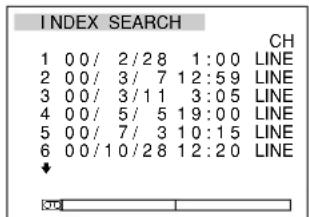
The displayed forms of the date and time can be changed by setting DATE DISP and TIME DISP on the DISPLAY SET menu.
For the DSR-45P, "PROG" is displayed instead of "CH."
For details on the DISPLAY SET menu, see "DISPLAY SET menu" on page 85 (GB).
2 Press the or button to select a scene.
The unit starts searching and when it locates the scene, begins playback. During Photo search, the unit turns to the playback pause mode.
To search without cassette memory
When you use a cassette without cassette memory, the unit searches in the order of the actual positions of the scenes, regardless of the setting of CM SEARCH on the CM SET menu.
On a cassette with cassette memory, when you want to perform searches with this procedure, set CM SEARCH on the CM SET menu to OFF.
For details on the CM SET menu, see "CM SET menu" on page 81 (GB).
Note
Title search is not available when searching a cassette without cassette memory.
1 Press the SEARCH SELECT button on the Remote Commander or the SEARCH MODE button on the Remote Control Unit (DSRM-20, not supplied) to select the search type.
When selecting INDEX SEARCH
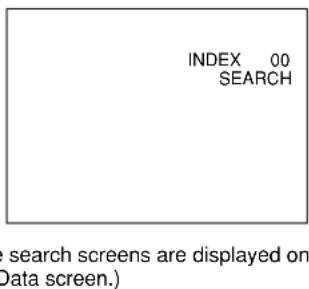
2 Press the 1 or 2 button repeatedly to locate the scene you want.
Each time you press the or button, the unit searches for the previous or next search point. When a search point is located, its number is indicated on the monitor screen.
The unit starts searching backwards or forwards until the number comes to zero, then plays back the scene. During Photo search, the unit turns to the playback pause mode.
How signals are recorded
There are four different signal types, one for each search method; index, title, date and photo signals. They are recorded by the digital camcorder (DSR-200/200P, 200A/200AP, PD100/PD100P, PD100A/PD100AP, PD150/PD150P, 250/250P, etc.). However, the type of signal recorded and where it is recorded (on the tape or in the cassette memory) depend on whether the cassette has cassette memory or which type of video equipment is used for recording. Please note that if the signals for a certain search type are not recorded, you cannot perform that type of search. For details on the signals used for a particular type of search, refer to the instruction manual of the recorder.
Signals that can be recorded on this unit are as follows.
| Signals for In cassette memory On tape | ||
| Index search* Yes Yes | ||
| Title search No No | ||
| Date search No Yes | ||
| Photo search No No | ||
- If AUTO INDEX on the VTR SET menu is set to ON and the unit is in the stop mode, when you start recording, the unit automatically marks a signal for Index search. If AUTO INDEX is set to OFF, the unit does not mark it. During recording, pressing the INDEX button on the unit or the INDEX WRITE button on the Remote Commander marks a signal for Index search regardless of the AUTO INDEX setting.
Notes
- If you record another program over the beginning of the search signals, you will not be able to locate the original program.
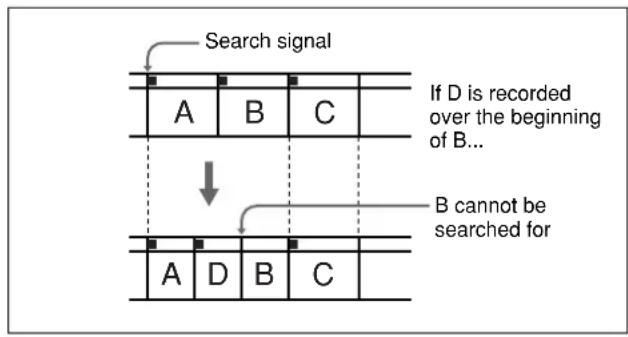
- You cannot add search signals after recording. To add a search signal for Auto Repeat, start recording from the point where you want to add it.
- When recording on this unit, signals for Index search do not have information on the day of the week.
- Searching may not be done correctly if the tapes were not recorded on Sony-brand digital video equipment.
About the cassette memory
-
A tape with the mark has cassette memory. When using the 16 kbit cassette memory, you can store up to 135 search signals. (The number changes depending on the memory capacity of various cassettes. It also changes depending on the data size combination of index, title, date, photo, and tape label data stored on a tape.) This unit is capable of storing and retrieving up to 16 kbits of information in cassette memory.
-
To locate scenes that did not fit in the cassette memory, or to locate scenes in order of their position on the tape, set CM SEARCH on the CM SET menu to OFF. You can use the same procedure to search for a scene on a tape without cassette memory.
For details on the CM SET menu, see "CM SET menu" on page 81 (GB).
Note
The number of search signals that you can record is limited by the cassette memory space available when you start recording. When you use a previously recorded tape for repeated recordings, make more memory space available by erasing unwanted items using ITEM ERASE or ERASE ALL on the CM SET menu before you start recording.
Automatically playing back a tape repeatedly (Auto Repeat)
This unit can repeat the playback of all or a part of the tape.
1 Set the TIMER selector on the front panel of this unit to REPEAT.
2 Press the REW button. (If the tape is already rewound, press the PLAY button.)
The unit rewinds the tape to its beginning, and starts playback automatically. The unit repeats the playback from the beginning to the first index (if there is no signal for Index search on the tape, to the next unrecorded portion; if there is no unrecorded portion, to the end of the tape).
(Continued)
Auto Repeat using an external AC timer
If you connect an external AC timer (not supplied) to this unit, you can repeat playback automatically at a preset time.
1 Connect this unit to an external AC timer (not supplied).
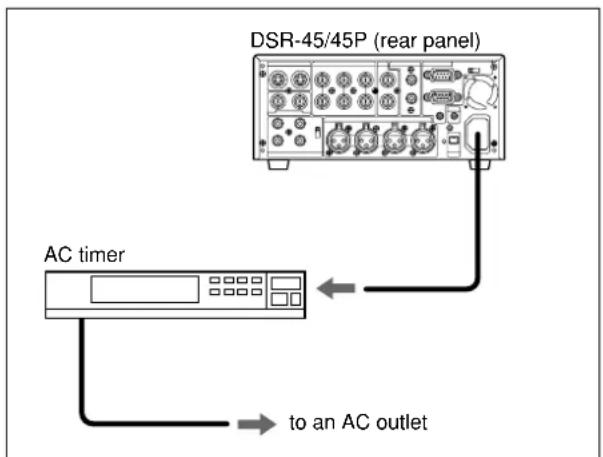
2 Set the TIMER selector on the front panel of this unit to REPEAT.
3 Set the starting time on the external AC timer.
At the preset time, the power of this unit turns on, and after a few seconds (no more than 30), Auto Repeat playback starts automatically. The unit repeats the playback from the beginning to the first index (if there is no signal for Index search on the tape, to the next unrecorded portion; if there is no unrecorded portion, to the end of the tape).
Notes
- The unit cannot detect a signal for Index search or an unrecorded portion within 20 seconds of the beginning of the playback.
- When you intend to turn the unit off, press the STOP button on this unit to stop the tape transport operation beforehand. If you turn the unit off while a tape is running, for example, by using an AC timer, the unit or the tape may be damaged.
- The editing software used on the digital non-linear editing system may mark an index signal on a tape itself. Therefore, if you use a tape on which signals transmitted from a digital non-linear editing controller are recorded or a copy tape made from one, using digital dubbing, Auto Repeat may not be performed correctly.
To stop Auto Repeat
Press the STOP button on this unit.
To release the Auto Repeat mode
Set the TIMER selector on the front panel to OFF.
This section describes the connections, settings and operations necessary to perform recording on this unit. The same settings and operations apply whether you are using the unit for dubbing or as a stand-alone recorder.
Connections for Recording
To digital video equipment with a DV jack
The video and audio signals are sent with hardly any degradation, enabling high-quality recording. The signal flow is automatically detected so you do not need to make separate connections for input and output.
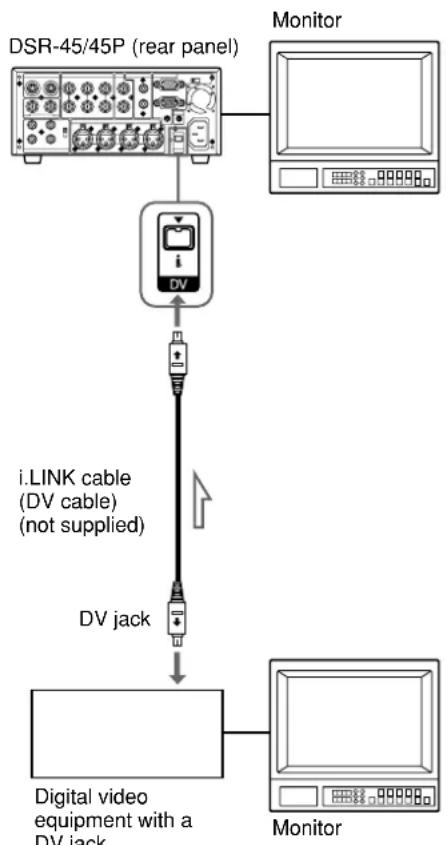

Notes
- With the DV connection, the sound is recorded in the same audio recording mode as that of the source tape. To record in a different audio recording mode from the source tape, use the analog connection instead.
- With the DV connection, data codes (recording date/time, camera data) recorded on the source tape are transmitted to the recorder (this unit). As a result, when you play back a recorded tape on this unit and press the DATA CODE button on the Remote Commander, the same data codes as those recorded on the source tape are displayed on the monitor screen. However, the contents of the cassette memory are not transmitted. If you want to transmit the contents of the cassette memory, use the duplicate function.
- If no picture appears via the DV jack, disconnect the i.LINK cable (DV cable), then reinsert it straight.
- When connecting a device that has a 6-pin DV jack to this unit, first, connect the plug of the cable to the 6-pin DV jack.
- If the unit is connected to a device equipped with a 6-pin DV jack, when you intend to disconnect or reconnect the DV cable, turn off the device and pull out the plug of its power cord from the AC outlet beforehand. If you connect or disconnect the DV cable while the device is connected to the AC outlet, high-voltage current (8 to 40V ) is output from the DV jack of the device to this unit, which may cause a malfunction.
- If DV input has been selected, the video signal output from the unit may be distorted, depending on the digital video equipment connected.
- If you connect the output connectors of this unit to the input connectors of a player or that of a monitor, a humming noise may be generated or the image may be distorted. If these phenomena occur, perform one of the following:
- Set DV EE OUT on the VTR SET menu to OFF.
- Set the INPUT SELECT selector to a position where a signal is not currently being input.
- D disconnect the cables.
To video equipment without a DV jack
You can connect this unit to video equipment without a DV jack. Use this unit as a recorder as follows.

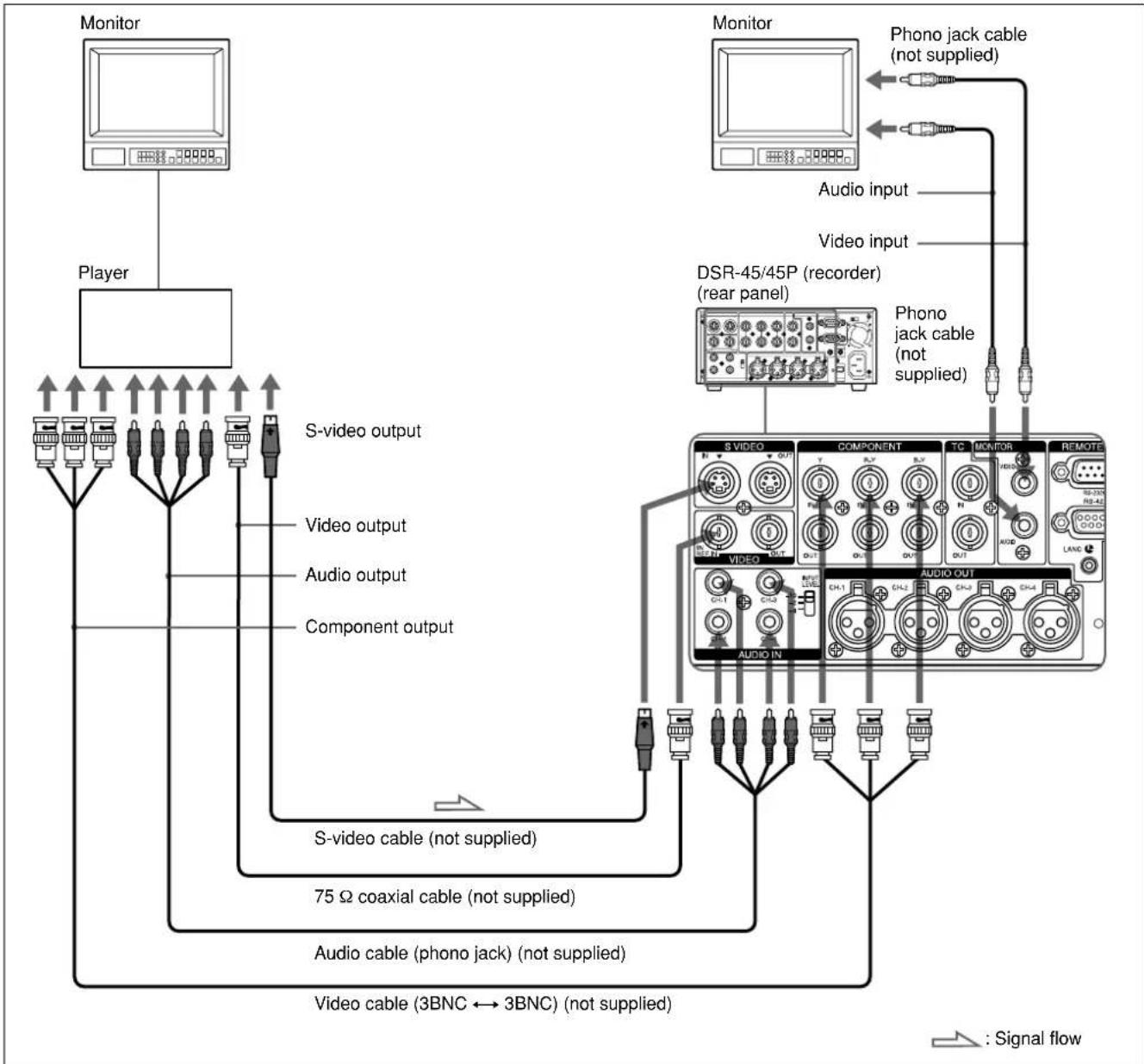
Connect one of the following as a video cable: video cable (3BNC 3BNC), S-video cable, or 75 coaxial cable.
Use a conversion cable for the audio connection, depending on types of audio output connectors on the player (see page on 23 (GB)).
Notes
- During recording, analog input signals can be output simultaneously from the DV jack for backup. Set DV
EE OUT on the VTR SET menu to ON.
For details on the VTR SET menu, see "VTR SET menu" on page 90 (GB).
-
If you connect the output connectors of this unit to the input connectors of the player, a humming noise may be generated or the image may be distorted. If these phenomena occur, set the INPUT SELECT selector to a position where a signal is not currently being input, or disconnect the cables.
-
Distorted signals (e.g., when played back at a speed other than normal) may not be recorded or may be distorted.
Settings for Recording
Preparation on the recorder (this unit)
Notes
- Before recording, set the date and time on the unit so that the recording time can be written into the search signal. You can set the date and time by setting CLOCK SET on the OTHERS menu.
For details on the OTHERS menu, see "OTHERS menu" on page 92 (GB). - Editing may not be possible with a signal that is copyright protected.
1 Power on the video monitor, then set the monitor's input according to the input signals.
2 Set up the player to play back a tape.
For details, refer to the instruction manual of the player.
3 Turn this unit on.
4 Select an input signal by switching the INPUT SELECT selector on this unit.
DV: to record input signals from the DV jack
SVIDEO: to record input signals from the SVIDEO IN connector
VIDEO: to record input signals from the VIDEO IN REF.IN connector
COMPONENT: to record input signals from the COMPONENT IN connector
Note
Do not change the selector setting during recording. Otherwise, noise is output to the picture and sound and that portion will not be recorded properly.
5 Select the audio mode. (With a DV connection, skip this step.)
Select the desired mode by setting AUDIO MODE on the AUDIO SET menu.
| Audio mode Set the menu to |
| 4-channel mode FS32K |
| 2-channel mode FS48K |
For details on the AUDIO SET menu, see "AUDIO SET menu" on page 88 (GB).
6 Set the INPUT LEVEL selector on the rear panel properly according to the audio level of the player.
7 Select the audio recording level adjustment mode using the AUDIO INPUT switch.
Note
You cannot adjust the recording level if you record signals input via the DV jack.
8 If necessary, adjust the audio recording level by turning the AUDIO REC LEVEL control knobs.
You can adjust the recording level with the AUDIO REC LEVEL control knobs if you have selected MANU in step 7. While looking at the audio level meters on the LCD monitor, turn the AUDIO REC LEVEL control knobs to adjust the recording level. Adjust the audio recording level so that it does not exceed 0dB when the audio signal is at its maximum. If the recording level exceeds 0dB , the recorded sound will be distorted.
Notes
- In the DVCAM format, there are two audio modes, with either two channels at FS48K or four channels at FS32K. It is not possible to select other modes (for example with two channels at FS32K).
- During recording, you cannot change the audio mode.
- If you intend to dub a sound on the tape after it has been recorded, set AUDIO MODE on the AUDIO SET menu to FS32K (4-channel mode) before recording.
For details on the AUDIO SET menu, see "AUDIO SET menu" on page 88 (GB).
Recording Procedures
This section describes the procedures used to record signals sent from another VCR to this unit. For details on the procedures required when using a computer as a player, refer to the instruction manual of your computer or the user's manuals of the software installed on it.
For details on the input and output of the wide-screen aspect ratio information, see "Notes on Wide-screen Aspect Ratio Information" on page 103 (GB).
1 After checking that the REC/SAVE switch on the cassette is set to REC, checking the tape for slack and confirming that the indicator is off, hold the cassette so that the tape window is facing upward, then insert it into this unit.
The cassette is automatically loaded into the unit and the tape will be ready to record.
For details on the REC/SAVE switch and checking the tape for slack, see "Notes on Video Cassettes" on page 30 (GB).
For details on inserting a cassette, see "To insert a cassette" on page 31 (GB).
Note
Do not insert the cassette forcibly. The unit may be damaged.
2 Press the playback button on the player.
The player starts playback.
3 On this unit, press the PLAY button while holding the REC button down.
The unit starts recording. If AUTO INDEX on the VTR SET menu is set to ON, the index is marked.
Note
When you do not want to mark an index at the beginning of the recording, set AUTO INDEX on the VTR SET menu to OFF.
For details on the VTR SET menu, see "VTR SET menu" on page 90 (GB).
To stop recording
Press the STOP button on this unit.
To pause recording
Press the PAUSE button on this unit.
To start recording using the Remote Control Unit (DSRM-20, not supplied)
On the Remote Control Unit, press the PLAY button while holding the REC button down.
Recording Functions
Marking an index
By pressing the INDEX button on the unit or the INDEX WRITE button on the Remote Commander during recording, you can mark an index signal at any place on the tape. The index signal is inserted for five seconds. If you mark an index at the scene you want to search for, you can easily find the scene later.
If AUTO INDEX on the VTR SET menu is set to ON, the index signal is marked automatically when the unit in the stop mode starts recording.
While the index is being marked, the "INDEX MARK" indicator appears for about seven seconds on the Data screen (see page 27 (GB)).
If you use a cassette with cassette memory, the index will also be marked in the cassette memory.
Notes
- You cannot mark a new index while the "INDEX MARK" indicator is being displayed.
- If you record on a portion of the tape where an index has been marked, the index will be erased. You cannot delete just an index while keeping the image or sound.
- You cannot mark an index during playback, duplicating or audio dubbing operations. The INDEX button and the INDEX WRITE button are disabled in these operations.
- The cassette memory space available limits the number of indexes that you can mark. When you use a previously recorded tape for repeated recordings, make more memory space available by erasing unwanted items using ITEM ERASE or ERASE ALL on the CM SET menu before you start recording.
To use an index during playback
You will need the Remote Commander or the Remote Control Unit (DSRM-20, not supplied).
For details on the playback functions using the Remote Commander, see "Searching using the search function" in "Playback Functions" on page 37 (GB).
AC timer recording
By connecting this unit to an external AC timer (not supplied), you can start recording at a preset time.
1 Connect this unit to an external AC timer (not supplied).
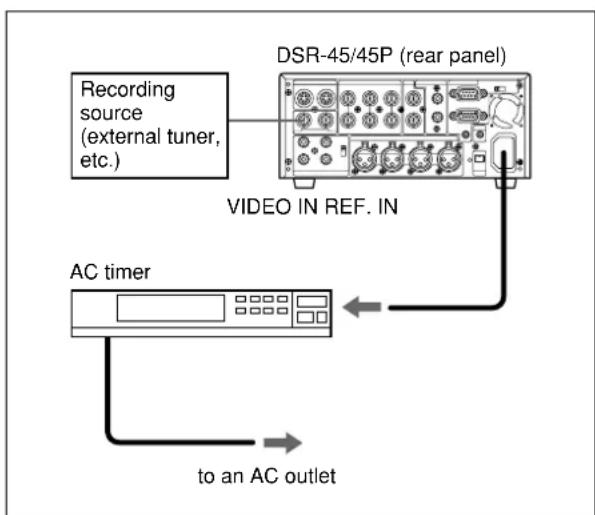
If the tape ends before the recording source stops operation
The tape stops.
To stop recording during timer recording
Press the STOP button on this unit.
To release the AC timer recording mode
Set the TIMER selector on the front panel of this unit to OFF.
2 Insert a tape for recording.
3 Set the INPUT SELECT selector of this unit to select the input signal.
4 Set the TIMER selector on the front panel of this unit to REC.
5 Set the timer-on time on the connected AC timer.
At the preset time, the power of this unit turns on automatically and recording starts after a few seconds (no more than 30). Set the timer allowing a margin for the recording to start. You do not need to press the REC button.
Note
When you intend to turn the unit off, press the STOP button on this unit to stop the tape transport operation beforehand.
If you turn the unit off while a tape is running, for example, by using an AC timer, the unit or the tape may be damaged.
Using the Unit as a Player in an Editing System
Notes on Usage in the Editing System
If you use the unit in an editing system, the following functions are limited.
Notes on general
- When using the RS-422A/232C connectors to connect this unit to other equipment, you cannot place the unit as a recorder.
- This unit is not equipped with a synchronization function. Adjust the edit timing with the editing controller, and set sync grade to Preroll & Play.
- To make the unit comply with a command sent from an editing controller to locate a scene, set FF/REW SPD on the VTR SET menu to SHUTTLEMAX.
Except when editing with the RS-422A connection, if the unit has been in the pause mode for the period specified in the menu, the unit will go into the tape protection mode. -
When you control this unit from an editing controller connected to the RS-422A connector:
-
if the TIMER selector is set to REPEAT, and the tape reaches its end point by fast-forwarding using the FF button, jog dial control via the editing controller is not available.
-
if the tape reaches its beginning or end using the REW or FF button, the unit turns to playback pause mode at a point a few seconds from its beginning or end.
-
The TIMER selector setting has higher priority than the REMOTE/LOCAL switch setting. In an editing system, set the TIMER selector to OFF.
- Even if the REMOTE/LOCAL switch is set to REMOTE, the Remote Commander may function depending on the setting of LOCAL ENBL on the REMOTE menu. If you want to disable the Remote Commander, set COMMANDER on the OTHERS menu to CONTROL S.
Notes on editing
- When you control this unit from an editing controller connected to the RS-422A/232C connector in the editing system, editing via a DV connection is less accurate than editing via an analog connection.
- This unit is not equipped with the first edit function.
-
Since this unit does not support CTL, if the time code recorded on the tape is out of sequence or the tape has a blank portion between recorded portions, you may not be able to use it for editing. In such a case, adjust the editing IN point.
-
When the COUNTER SELECT selector on the front panel of this unit is set to COUNTER, the value determined by calculation based on the time code is displayed. The value is a simple approximation. Therefore, if you intend to use this unit as a player in the editing system, set the COUNTER SELECT selector to TC and also set the edit mode (EDIT REFERENCE) of the editing controller to time code (TC).
Right switch (RM-450CE)
If the edit timing is out of adjustment, change the setting of items 0 to 2 of the right switch.
Settings on editing controller
When connecting an editing controller, make the following settings, according to the model used.
FXE-100/120
Set the VCR device constants as follows:
FXE-100P/120P
| 1 2 3 4 5 6 7 8 9 1 0 1 1 1 2 |
| 80 31 00 96 05 05 0A 8A 0A 08 FE 00 80 5A FF |
Set the VCR device constants as follows:
BVE-600/2000 (NTSC model)
| 1 | 2 | 3 | 4 | 5 | 6 | 7 | 8 | 9 | 1 | 0 | 1 | 1 | 1 | 2 | 1 | 3 | 1 | 4 | 1 | 5 |
| 81 | 31 | 00 | 7D | 05 | 05 | 0A | 8A | 0A | 08 | FE | 00 | 80 | 5A | FF |
Set the VCR device constants as follows:
BVE-600/2000 (PAL model)
| 1 | 2 | 3 | 4 | 5 | 6 | 7 | 8 | 9 | 1 | 0 | 1 | 1 | 1 | 2 | 1 | 3 | 1 | 4 | 1 | 5 |
| 80 | 31 | 00 | 96 | 05 | 05 | 0A | 8A | 0A | 08 | FE | 00 | 80 | 5A | FF |
Set the VCR device constants as follows:
RM-450/450CE
| 1 2 3 4 5 6 7 8 9 1 0 1 1 1 2 |
| 81 31 00 7D 05 05 0A 8A 0A 08 FE 00 80 5A FF |
Set the DIP switches as follows:
Left switch
| 7 | 6 | 5 | 4 | 3 | 2 | 1 | 0 | |
| OFF | -- OFF-- | --- |
Right switch (RM-450)
Connections for Digital Non-linear Editing
The unit can be connected to an editing controller via DV jacks to configure a digital non-linear editing system.
The following figure shows a connection diagram for non-linear editing system in which this unit serves.
For connection of the editing controller and its peripheral devices, refer to the instruction manual of the editing controller and that of the editing software you use.
Edit functions are specified by the editing software. For details on the editing methods used, refer to the instruction manual of the editing software.

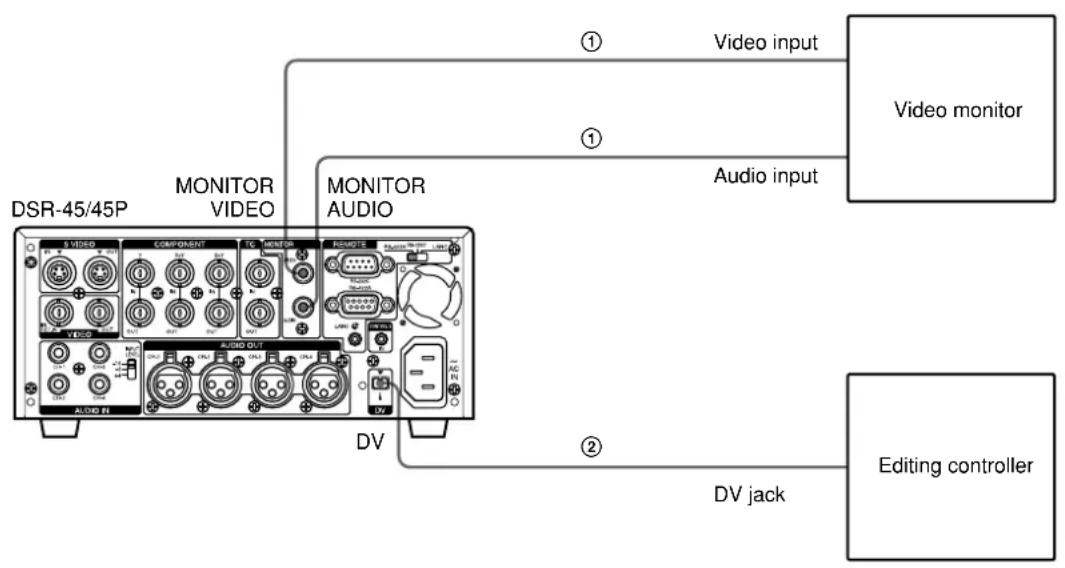
If the editing software used has the capability to output the time code as well as the video or audio signals from the digital non-linear editing controller to this unit, and you intend to record the time code, set DV IN TC on the TC/UB SET menu of this unit to EXTERNAL.
For details on the TC/UB SET menu, see "TC/UB SET menu" on page 78 (GB).
① Phono jack cable (not supplied)

② i.LINK cable (DV cable) (not supplied)
Note
If the unit is connected to a device equipped with a 6-pin DV jack, when you intend to disconnect or reconnect the DV cable, turn off the device and pull out the plug of its power cord from the AC outlet beforehand. If you connect or disconnect the DV cable while the device is connected to the AC outlet, high-voltage current (8 to 40V ) is output from the DV jack of the device to this unit, which may cause a malfunction.
Connections for a Cut Editing System
The following figure shows a cut editing system configuration that uses this unit as the player. For details of connecting devices other than the DSR-45/45P, refer to the instruction manual of each device.
Note
The preroll time of the setting on the editing controller is required to be more than five seconds.
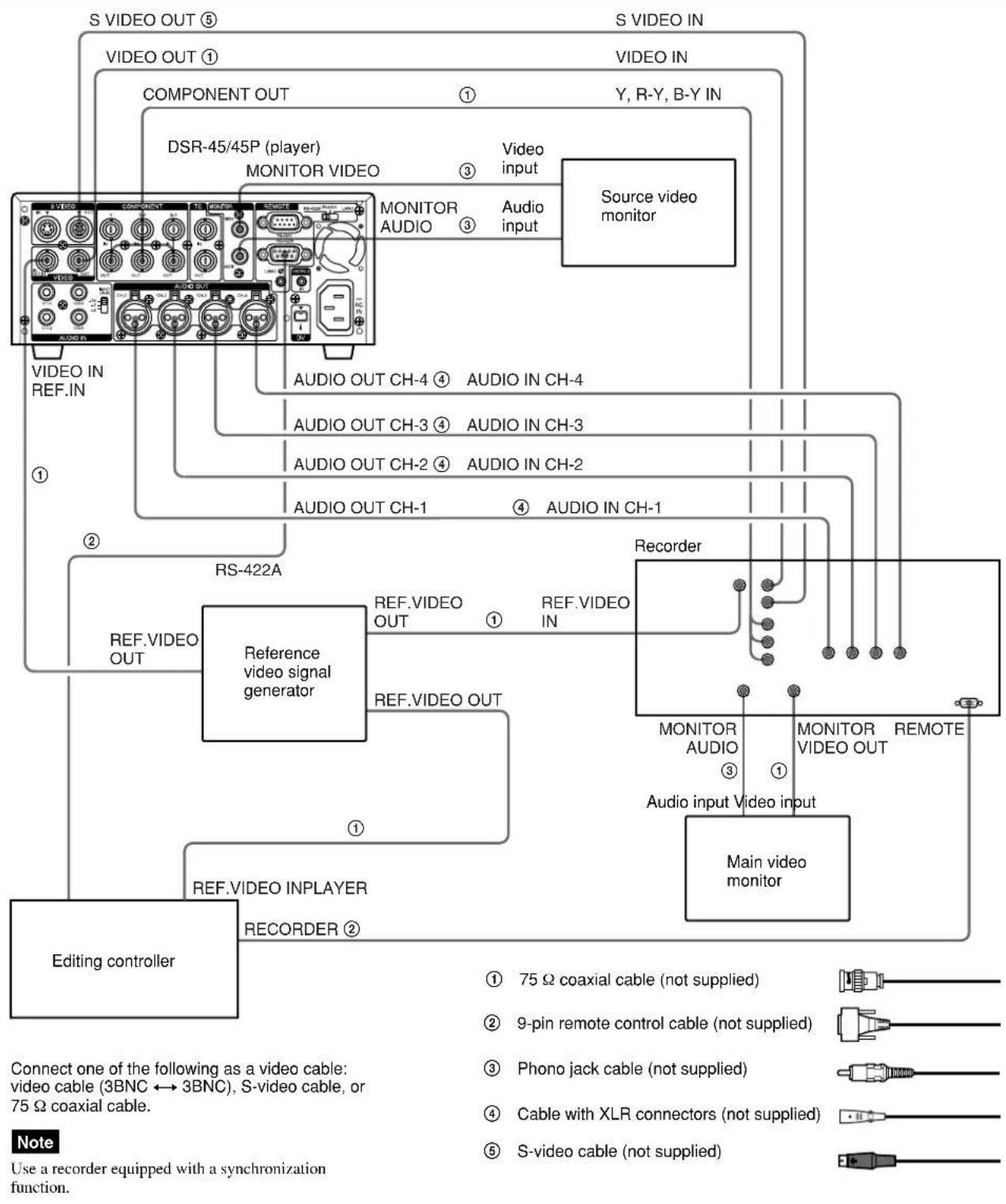

Settings on the Editing Control Unit
For details on the settings of the Editing Control Unit, refer to "Adjusting Edit Timing" on page 56 (GB).
Settings on the DSR-45/45P (player) and a recorder
| Switch DSR-45/45P Recorder | |
| REMOTE/LOCAL REMOTE | |
| REMOTE RS-422A |
For details, refer to the instruction manual of the recorder.
About reference video signals
- In order to provide stable video and audio signals for analog editing, it is necessary for the built-in time base corrector (TBC) to operate correctly. To ensure this, input a reference video signal synchronized with the video signal to the VIDEO IN REF.IN connector.
- Set EXT SYNC on the VIDEO SET menu to ON.
Connections for an A/B Roll Editing System
The following is an example of a configuration of an A/B roll editing system using the DSR-45/45P and a recorder.
The purpose of the following figure is to clearly
indicate the flow of signals among the component devices in this system. The specific connections and the recorder settings for this system are described on the following pages.
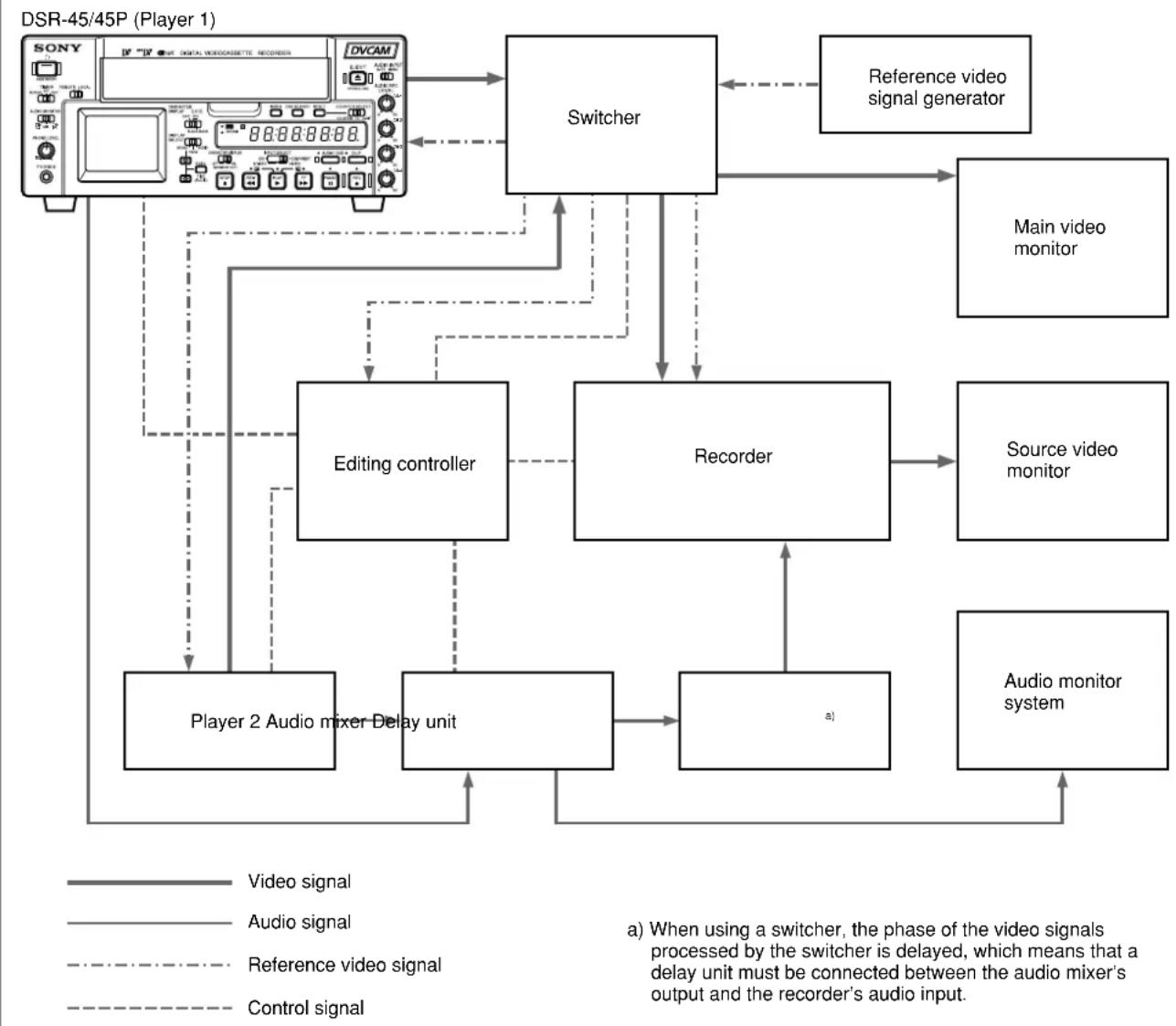

Note
Use a recorder equipped with a synchronization function.
Reference video signal connection
When you perform editing, be sure to use a reference video signal.
For details on reference video signals, see "About reference video signals" on page 50 (GB).
If you intend to make this unit perform playback synchronized with an external reference video signal, set EXT SYNC on the VIDEO SET menu to ON.
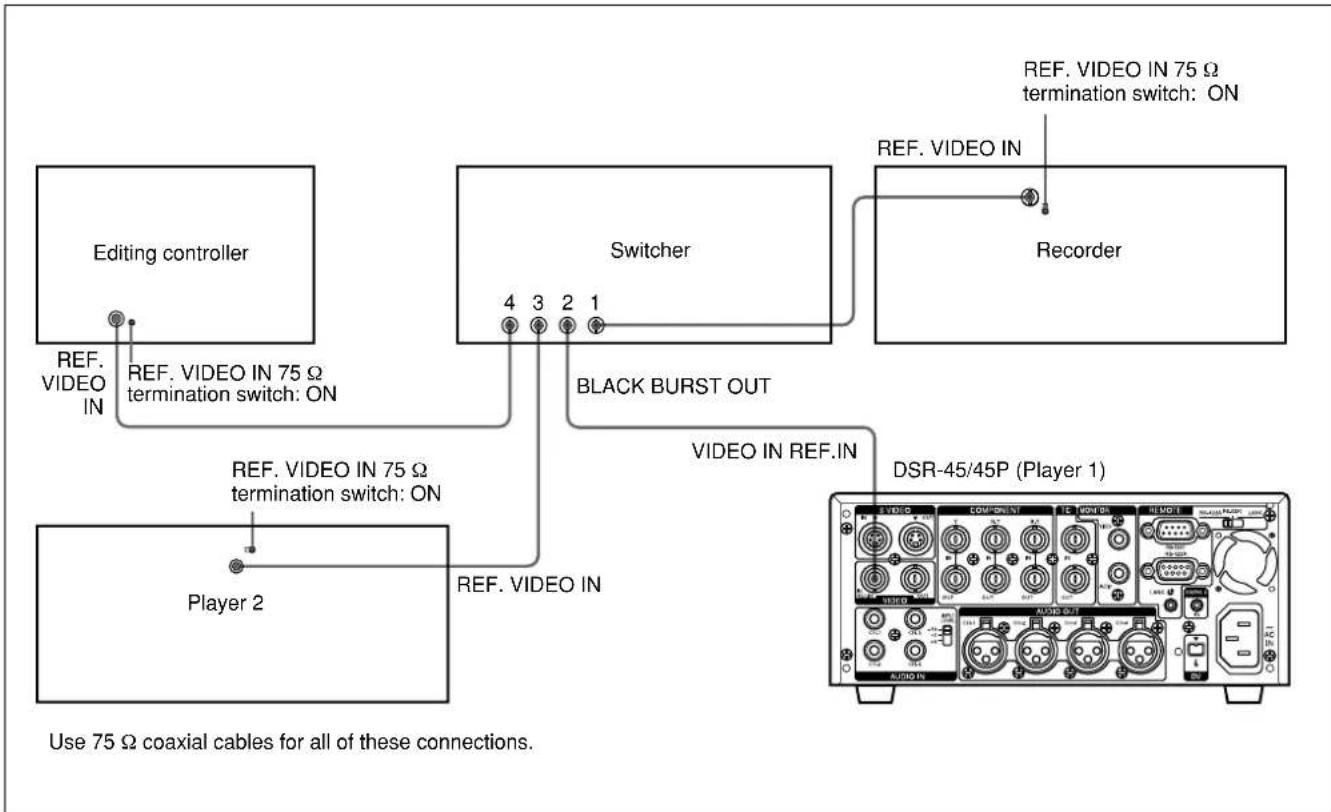
Control signal connections
The following shows an example of the control signal connections needed to enable the editing controller to control all other A/B roll editing system devices.
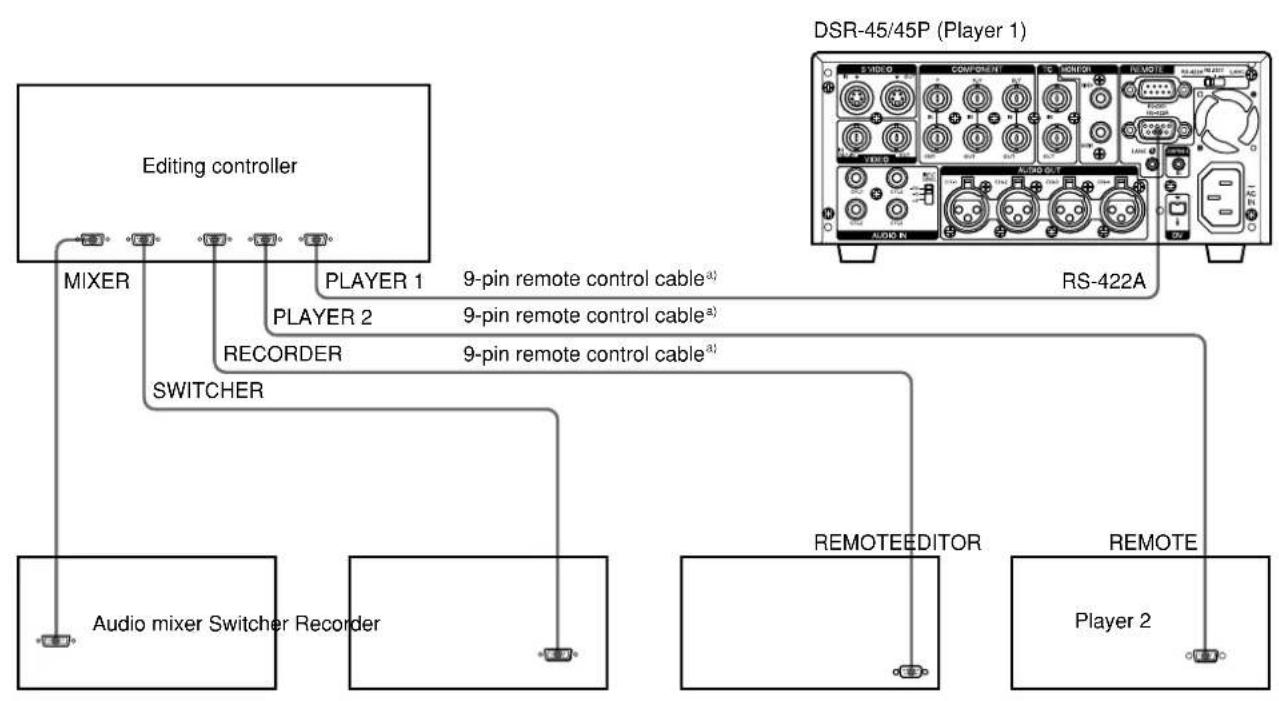
To control the unit from an editing controller, set the REMOTE/LOCAL switch of this unit to REMOTE. Furthermore, if you use an RS-422A connection, set the remote selector of this unit to RS-422A.
a) Use an optional 9-pin remote control cable.

Video/audiosignal connections
The following shows an example of video/audio signal connections in an A/B roll editing system. In this example, analog component signals are used as the video signals and XLR 3-pin connectors are used as audio output connectors.

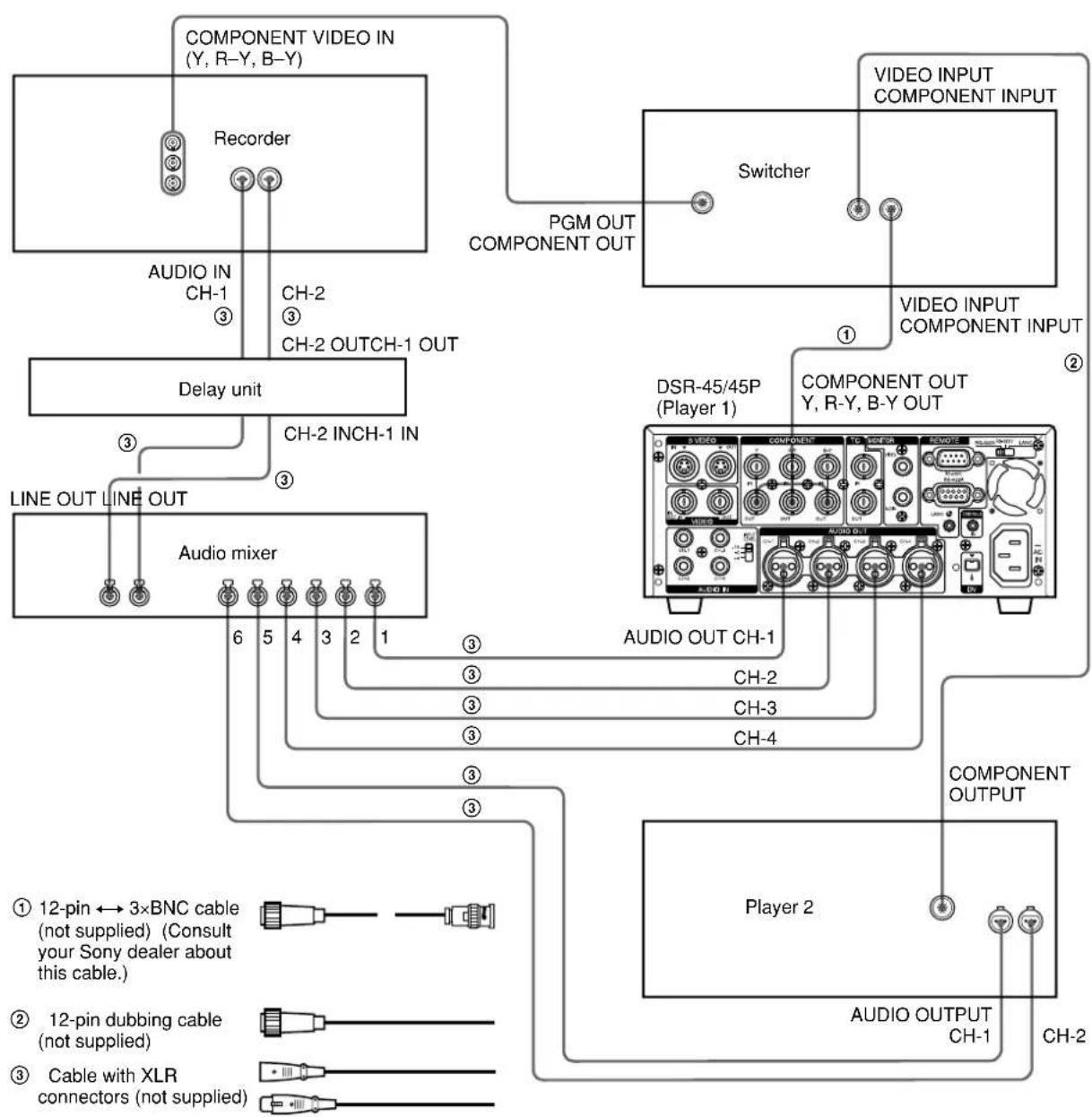
For details of the video/audio input, connecting cables, and audio mode settings, refer to the instruction manuals for the devices used.
Connection of a video monitor
Set up the following connections to enable monitoring of video and audio signals on a video monitor. In addition to video signals, you can check time data, the DSR-45/45P's operation mode, alarm messages, and other information displayed as text on the monitor screen.
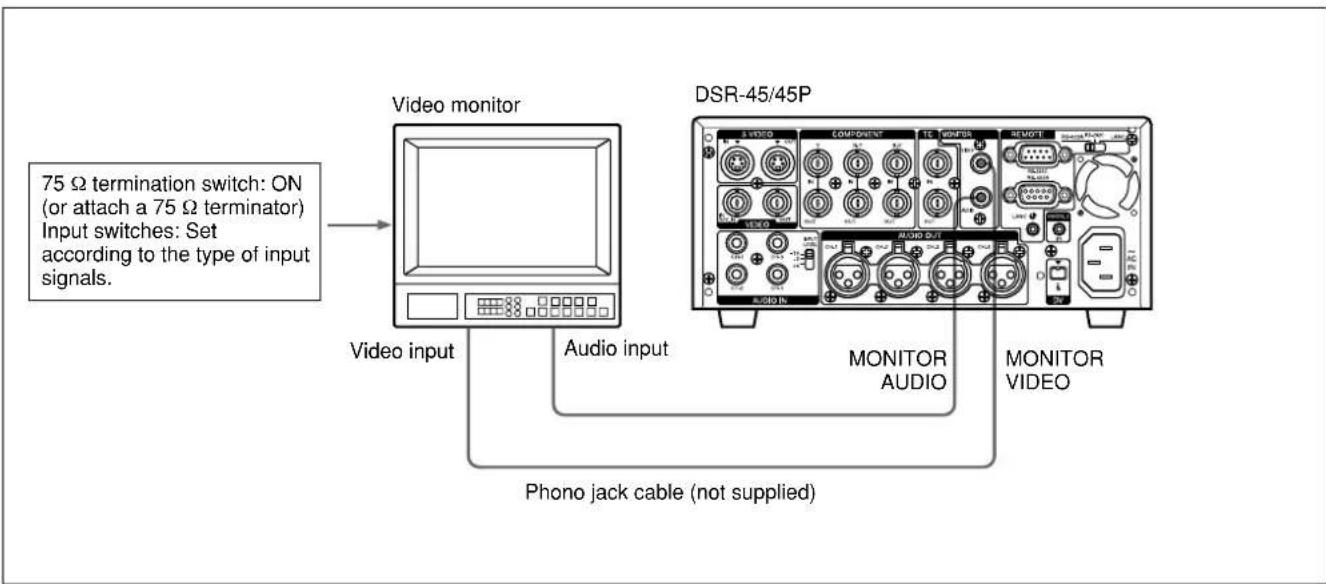
Note
When you want to monitor the edited tape, use the monitor output connector on the recording VCR.
Adjusting Edit Timing
For details, refer to the instruction manuals of the editing controller you use.
Using this unit as a player with the RM450/450CE
1 Set the SYNCHRO selector to ON.
2 Set item number 3 of the SYSTEM PRESET right switch to OFF (it is set to OFF at factory).
Setting this to OFF adjusts the synchronization of the recorder.
3 Execute the LEARN function.
Using this unit as player 1 with the PVE-500
When using this unit as player 2, the relevant menu item is indicated in ( ).
1 Set Sync Edit of SETUP-10 to OFF in the SETUP menu.
2 Set P1 DELAY (P2 DELAY) of SEtUP-13 (SEtUP-14) to LEArm in the SETUP menu.
3 Set rEC Sync of SETUP-15 to On in the SETUP menu.
4 Set P1 Sync (P2 Sync) of SETUP-16 (SEtUP-17) to OFF in the SETUP menu.
5 Execute the LEARN function.
Using this unit as a player 1 with the FXE-120/120P
- When using this unit as player 2, the relevant menu item is indicated in ( ).
- When using an FXE-100/100P that has been upgraded with an FXE-KIT1, the relevant menu item is indicated in [ ]
1 Display item 104 [301] SYNC GRADE in the SETUP menu, and set PLAYER1 (PLAYER2) to PREROLL & PLAY.
2 Display item 301 (302) [401 as player 1, 402 as player 2] DEVICE TYPE PLAYER1 (DEVICE TYPE PLAYER2) in the SETUP menu, and set the VCR device constants.
For details on device constants, see page 47 (GB).
3 Execute the LEARN function.
If the edit timing is out of adjustment, follow the instruction given in "Adjusting the IN point" below.
Adjusting the IN point
If the actual edited point does not accurately coincide with the preset editing point, perform a fine adjustment of the edit timing using the SETUP menu of the editing controller. This improves the editing accuracy.
1 Display item 301 (302) [401 as player 1, 402 as player 2] DEVICE TYPE PLAYER1 (DEVICE TYPE PLAYER2) in the SETUP menu, and change it from DISABLE to ENABLE.
2 Repeat the editing process several times and check the shift of the editing point; that is, count the number of frames to be adjusted.
Note
The editing results may differ between the DISABLE and ENABLE settings of SETUP menu item 301 (302) [401 as player 1, 402 as player 2]. Be sure to check the editing results after changing the setting to ENABLE.
3 Change SETUP menu item 301 (302) [401 as player 1, 402 as player 2] from BYTE 01 to BYTE 10, and calculate the adjustment value.
How to calculate the adjustment value
If the actual IN point shifts forward to the IN point preset on the player;
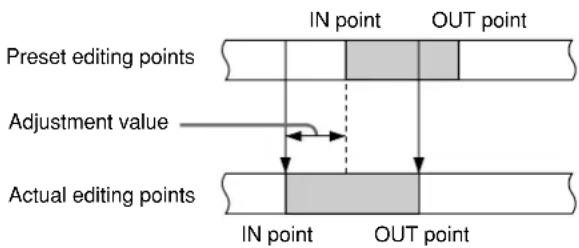
08 (default setting) + number of frames obtained in step 2
Example: To adjust 5 frames
$$ 0 8 + 0 5 = 0 D $$
The adjustment value is calculated in hexadecimal.
If the actual IN point shifts backward to the IN point preset on the player;
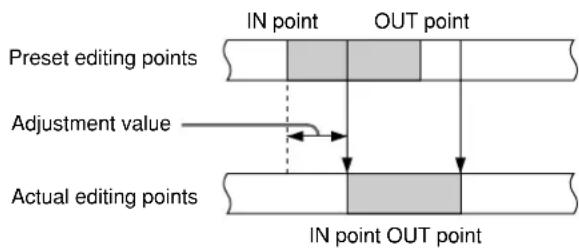
08 (default setting) - number of frames obtained in step 2
Example: To adjust 5 frames
$$ 0 8 - 0 5 = 0 3 $$
4 Perform a trial editing process and confirm the results of the adjustment.
Repeat steps 3 and 4 until the best possible result is obtained.
Using this unit as a player with the BVE-600
1 Set the sync grade (menu 2) to mode number 4, PREROLL & PLAY in auxiliary mode.
2 Set the VCR device constants in the setting mode. For details on device constants, see page 47 (GB).
Notes
- If FF/REW SPD on the VTR SET menu of this unit is set to FF/REW when the unit rewinds or fast-forwards the tape, the time code may not be displayed on the editing controller. In this case, set FF/REW SPD to SHUTTLEMAX.
For details on FF/REW SPD, see page 90 (GB).
- When editing, use a time code.
- Depending on the type of device you are using as a recorder, the actual edited point may not accurately coincide with the preset editing point. In this case, adjust the VCR device constants of the editing controller (CONST8 (Start Delay) in BYTE-2 in BLOCK-2).
Using this unit as a player with the BVE-2000
1 Set SYNC GRADE (synchronous accuracy) in the AUX mode to PREROLL & PLAY.
2 Display VTR CONSTANT or OPTION VTR CONSTANT on the setup menu, and set the VCR device constants.
Notes
- It is advisable to set JOG DIAL RESPONSE in SYSTEM CONFIGURATION on the setup menu to LOW.
- When editing, use a time code.
Setting the Time Code and Adjusting the Video Signals
Setting the Time Code and User Bits
This unit can set, display, record and play back the time code and user bits. The unit can also output the time code read from the tape as an analog (LTC) signal when it is played back at normal speed, and receive an external analog time code (LTC) signal.
Note
The items other than JOG TC OUT on the TC/UB SET menu can be set only when you record in DVCAM format.
Using the Internal Time Code Generator
You can set the initial time code value generated by the internal time code generator. In addition, you can set the user bits to record data such as the date, time, scene number, reel number, or other useful information. The time data settings are set by using the menu.
For details on the menu, see "Chapter 6 Adjusting and Setting Through Menus" on page 76 (GB).
To set the initial time code value
This section describes how to set the time code's initial value.
Notes
- The time code can be set only in a DVCAM format recording. It cannot be set in a DV format recording. Make sure to set REC MODE on the VTR SET menu to DVCAM.
- To set the initial time code value, you need to set TC/UB IN on the TC/UB SET menu to INTERNAL and TC MAKE to PRESET beforehand.
For details on TC/UB IN and TC MAKE, see "TC/UB SET menu" on page 78 (GB).
- While you are setting the initial time code value using a device connected to the RS-422A/232C connector, TC PRESET on the TC/UB SET menu is disabled.
1 Display the menu on the monitor.
For details on displaying the menu, see "Operating the Menus" on page 76 (GB).
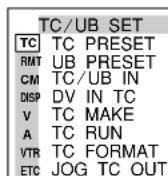
(The TC FORMAT submenu is only available on the DSR-45.)
2 Press the / buttons to select TC/UB SET, then press the EXEC button.
The following menu appears.
| TC/UB SET | |
| TC | TC PRESET 00:00:00:00 |
| RINT | UB PRESET |
| CM | TC/UB IN |
| DISP | DV IN TC |
| V | TC MAKE |
| A | TC RUN |
| VTR | TC FORMAT |
| ETC | JOG TC OUT |
| RETURN | |
3 Press the / buttons to select TC PRESET, then press the EXEC button.
The following menu appears.
| TC/UB SET | |
| TC | TC PRESET 00:00:00:00 |
| RMT | UB PRESET |
| CM | TC/UB IN RESET |
| DISP | DV IN TC PRESET |
| V | TC MAKE RETURN |
| A | TC RUN |
| VTR | TC FORMAT |
| ETC | JOG TC OUT RETURN |
4 Press the 12 buttons to select PRESET, then press the EXEC button.
The following menu appears.
| TC/UB SET | |
| TC | TC PRESET ↑ ↑ ↑ ↑ |
| RMT | UB PRESET 00:00:00 |
| CM | TC/UB IN ↓ ↓ ↓ |
| DISP | DV IN TC SET |
| V | TC MAKE CANCEL |
| A | TC RUN |
| VTR | TC FORMAT |
| ETC | JOG TC OUT |
| RETURN | |
5 Set the first two digits. Press the / buttons to select the number, then press the EXEC button.
6 Repeat step 5 to set the other digits.
7 Press the / buttons to select SET, then press the EXEC button.
The initial time code value is set and the menu display returns to that of step 2.
8 Press the / buttons to select RETURN, then press the EXEC button.
The menu display returns to that of step 1.
To cancel the time code setting
Select CANCEL in step 7, then press the EXEC button.
To reset the time code
Select RESET in step 4, then press the EXEC button.
To set the value of the user bits
You can set the user bits as eight-digit hexadecimal values (base 16) to have the date, time, scene number, and other information inserted into the time code track.
Notes
- The user bits can be set only in a DVCAM format recording. They cannot be set in a DV format recording.
To set the user bits, you need to set TC/UB IN on the TC/UB SET menu to INTERNAL beforehand. For details on TC/UB IN, see "TC/UB SET menu" on page 78 (GB). - While you are setting the user bits using a device connected to the RS-422A/232C connector, UB PRESET on the TC/UB SET menu is disabled.
1 Display the menu on the monitor.
For details on displaying the menu, see "Operating the Menus" on page 76 (GB).
| TC/UB SET | |
| TC | TC PRESET |
| RMT | UB PRESET |
| CM | TC/UB IN |
| DISP | DV IN TC |
| V | TC MAKE |
| A | TC RUN |
| VTR | TC FORMAT |
| ETC | JOG TC OUT |
2 Press the / buttons to select TC/UB SET, then press the EXEC button.
The following menu appears.
| TC/UB SET | |
| TC | TC PRESET 00:00:00:00 |
| RMT | UB PRESET |
| CM | TC/UB IN |
| DSP | DV IN TC |
| V | TC MAKE |
| A | TC RUN |
| VTR | TC FORMAT |
| ETC | JOG TC OUT |
| RETURN | |
(Continued)
3 Press the / buttons to select UB PRESET, then press the EXEC button.
The following menu appears.
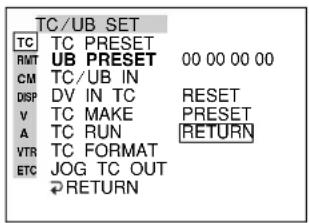
4 Press the / buttons to select PRESET, then press the EXEC button.
The following menu appears.
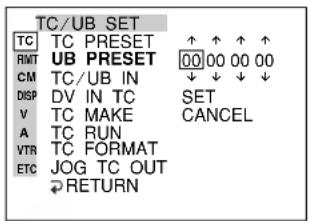
5 Set the first two digits. Press the / buttons to select the number, then press the EXEC button.
6 Repeat step 5 to set the other digits.
7 Press the / buttons to select SET, then press the EXEC button.
The user bits are set and the menu display returns to that of step 2.
8 Press the / buttons to select RETURN, then press the EXEC button.
The menu display returns to that of step 1.
To cancel the user bits setting
Select CANCEL in step 7, then press the EXEC button.
To reset the user bits
Select RESET in step 4, then press the EXEC button.
To select the time code/user bits to be recorded on the tape
You can set the time code and user bits to be recorded on the tape by setting TC/UB IN on the TC/UB SET menu.
INTERNAL: Uses the internal time code/user bits.
TC&UB EXT: Uses the external time code/user bits.
TC EXT: Uses the external time code and internal user bits.
UBEXT:Uses the internal time code and external user bits.
Notes
- This unit has a DV jack. The time code input or output is different when you connect the unit to an external device via this DV jack or via another input/output connector.
For details, see "DSR-45/45P time codes" on page 63 (GB).
- The time code output from this unit has some restrictions.
For details, see "Notes on the Time Codes" on page 64 (GB).
To select the time code to be recorded when DV signals are recorded in DVCAM format
Set DV IN TC on the TC/UB SET menu to select whether to record the internal time code or an external one.
INTERNAL: Records the time code internally generated.
EXTERNAL: Records the time code with video and audio signals input via the DV jack.
Notes
- When this item is set to EXTERNAL, the setting of TC/UB IN on the TC/UB SET menu turns to invalid. The time code input via the DV jack and the user bits set in UB PRESET are recorded.
-
When you set REC MODE on the VTR SET menu to DV SP, this item cannot be used. Even if this item is set to EXTERNAL, when you set REC MODE on the VTR SET menu to DV SP, the setting becomes invalid and the unit records the internal time code.
-
When this item is set to EXTERNAL, the INPUT SELECT selector on the front panel is set to DV, and no signal is input via the DV jack, or the software of the editing controller does not output a time code, if you start recording, bars (- - - - - - - - - - ) are recorded as time code. At the point that the input of a signal begins, the time code of that signal will be recorded.
- When this item is set to EXTERNAL, if you input time code to the DV jack that is not continuous or does not advance correctly, the value of the recorded or displayed time code may not be equal to the actual value of the input one. If you use a tape with this problem, you may not be able to perform search or edit, depending on the devices you use.
To set the time code when the recording starts
Set TC MAKE on the TC/UB SET menu to select the time code to be recorded when recording starts.
REGEN: The time code value is set to continue the time code from the time code already recorded on the tape. If you start recording from a blank portion of the tape, the time code starts from 00:00:00:00.
PRESET: The time code starts from the value set in TC PRESET on the TC/UB SET menu.
To set the advancement mode
Set TC RUN on the TC/UB SET menu to switch the advancement mode (counting up).
REC RUN: Time code advances only while recording.
FREE RUN: Time code advances even when the unit is not recording. This mode is used to set the current time as the initial time code value, or to synchronize the internal time code to an external one.
Notes
-
If you set the advancement mode to FREE RUN, the time code will be updated by the internal clock while the unit's power is off. The time code may have been delayed or advanced somewhat if you turn on the unit power again, play back a tape, or set the INPUT SELECT selector to DV.
-
If the internal backup battery charge is exhausted, the time code of the FREE RUN setting will be initialized. The internal backup battery is fully charged if you connect the power to the unit for about 8 hours. A fully charged internal battery can run for about two weeks.
To set the frame mode (DSR-45 only)
Set TC FORMAT on the TC/UB SET menu to switch the frame mode.
AUTO: Automatically sets the mode in accordance with the loaded tape. If nothing is recorded on the tape, the mode is set to the non-drop frame mode. If the unit cannot read the frame mode correctly from the tape, the unit will use the mode that was set in the last position it was able to read correctly on the tape. If you remove the cassette, the mode of the last position it was able to read correctly is cleared and the mode is set to the non-drop frame mode. If TC MAKE is set to PRESET, the mode is also set to the non-drop frame mode.
DF: Selects the drop frame mode.
NDF: Selects the non-drop frame mode.
Note
In a DV format recording, the drop-frame mode is used automatically.
To switch the time code output when playing at various speeds (JOG)
Set JOG TC OUT on the TC/UB SET menu to control the time code output from the TC OUT connector when the tape is played at various speeds.
OFF: Does not output the time code.
ON: Outputs the time code.
Note
Continuous time code is output only when the tape is played at normal speed. When the unit is in the jog or search mode, discontinuous time code is output.
Synchronizing the Time Codes
You can synchronize the internal time code generator of the unit with an external time code signal (LTC).
Connecting to the Time Code Generator
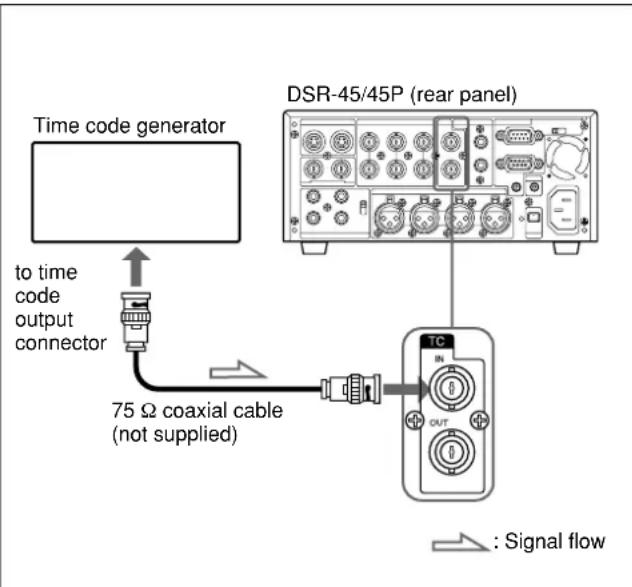
To synchronize the internal time code to an external time code
1 Set the INPUT SELECT selector to other than DV.
2 Input an external time code (LTC) signal to the TC IN connector of the unit.
3 Set TC/UB IN on the TC/UB SET menu to TC&UB EXT or TC EXT.
4 Set TC RUN on the TC/UB SET menu to FREE RUN.
The internal time code generator locks onto the external time code and starts advancing. Once the internal time code generator has become synchronized in this way, you can disconnect the external time code input and this unit will maintain the time code.
Notes
- This unit has a DV jack. The time code input/output with a DV connection is different from that with other analog connections.
For details, see "DSR-45/45P time codes" on page 63 (GB). - The time code output from this unit has some restrictions.
For details, see "Notes on the Time Codes" on page 64 (GB).
To confirm external synchronization
Before you start recording, check that the internal time code is synchronized with the external time code. Press the STOP button to turn the unit to the stop mode, then press the REC button.
Look at the time counter display and check that the time code value displayed there matches the external time code value.
DSR-45/45P time codes
This unit has a DV jack. The time code output and recorded on the tape differs as shown below when the INPUT SELECT selector is set to DV and when it is set to other than DV.
When DV IN TC is set to INTERNAL
| TC/UB IN menu | INPUT SELECT selector | Mode | TC IN | The time code output from the TC OUT connector and the time code/user bits recorded on the tape | |
| Playback | Playback Audio dubbing | Time code/user bits on the tape | |||
| Playback at various speedsa)DUB1b) | JOG TC OUT: ON - Time code/user bits on the tape;JOG TC OUT: OFF - Mute (No output) | ||||
| EE | INTERNAL | DV | Duplicate DUP1b) | Time code/user bits of another device connected to the DV jackc) | |
| Recording Recording Pause REC1b) | Time code/user bits internally generatedc) | ||||
| SVIDEOVIDEO COMPONENT(Except DV) | Recording Recording Pause REC1b) | Time code/user bits internally generatedc) | |||
| TC&UB EXTTC EXTUBEXT | DV | Duplicate DUP1b) | Time code/user bits of another device connected to the DV jackc) | ||
| Recording Recording Pause REC1b) | Time code/user bits internally generatedc) | ||||
| SVIDEOVIDEO COMPONENT(Except DV) | Recording Recording Pause REC1b) | Yes | Time code/user bits connected to TC IN are through-output. | ||
| No | No output from the TC OUT connector (For details, see next page): the time code generated internally is recorded on the taped). |
When DV IN TC is set to EXTERNAL and the INPUT SELECT selector is set to DV
| Mode | The time code output from the TC OUT connector and the time code/user bits recorded on the tape | |
| EE | Duplicate DUP1 b) | Time code/user bits of another device connected to the DV jack c) |
| Recording Recording Pause REC1 b) | Time code input of another device connected to the DV jack and user bits internally generated e) |
a) This includes stop, fast-forward or rewind. If the unit cannot read the time code on the tape correctly, the counter displays “- - - - - - - - ” and the time code is not output from the TC OUT connector.
b) "DUB1", "DUP1" and "REC1" represent the state of the unit when you press each of these buttons (AUDIO DUB, DUP or REC) in the stop mode. If the counter displays "---:---:---:---", the time code is not output from the TC OUT connector when you press the AUDIO DUB button in the stop mode.
c) The time code is also displayed on the time counter display in the display window.
d) When TC/UB IN is set to TC EXT, the user bits set in UB PRESET are recorded. When TC/UB IN is set to UB EXT or TC&UB EXT, "00 00 00 00" is recorded as the user bits.
e) Only when REC MODE on the VTR SET menu is set to DVCAM. When REC MODE is set to DV SP, the internally generated time code is output.
Notes on the Time Codes
Time codes output from the unit have the following restrictions:
- The unit outputs an EE signal when it is in recording or recording pause modes, or when you press the REC button.
While the unit is outputting an EE signal, only the time code from an external device that is connected to the TC IN connector will be through-output from the TC OUT connector when the INPUT SELECT selector is set to other than DV, and TC/UB IN on the TC/UB SET menu has been set to other than INTERNAL. (The time code and user bits that are internally generated are not output from the TC OUT connector.)
In this case, as a result, the time code will not be output from the TC OUT connector when the time code is not input from the external device connected to the TC IN connector.
You need to set TC/UB IN on the TC/UB SET menu to INTERNAL to output a time code from the TC OUT connector even if no time code has been input from an external device connected to the TC IN connector.
To set the unit to inherit a time code from the external device even after you set TC/UB IN to INTERNAL from some other setting, follow the steps below.
1 Match the settings (used when TC/UB IN is set to INTERNAL) of the unit with the external device format. (See the setting example below.)
2 After setting TC/UB IN to other than INTERNAL, connect the external device to the TC IN connector to input the time code.
3 Set TC/UB IN on the TC/UB SET menu to INTERNAL.
4 Disconnect the external device from the TC IN connector.
Setting example
If the time code setting of the external device is TC: Drop frame; UB: 12 34 56 78.
| This unit's menu Setting | |
| TC RUN FREE RUN | |
| TC FORMAT DF | |
| UB PRESET 12 34 | 56 78 |
(The TC FORMAT submenu is only for the DSR-45.)
- The internal time code is output with the phase synchronized to the line-outs (COMPONENT OUT, SVIDEO OUT, VIDEO OUT) when TC/UB IN on the TC/UB SET menu is set to INTERNAL.
(When the EE signal is output, the output signals of the line-outs are delayed for one line from the input video signal when component video or S-video is input, and delayed for two lines from the input video signal when composite video (VIDEO IN REF.IN) is input.)
- When inputting signals from the DV jack, if you set DV IN TC to INTERNAL, the time code and user bits generated internally are recorded under the INTERNAL setting in TC/UB IN on the TC/UB SET menu. If you want to record with the time code input from the DV jack, set DV IN TC to EXTERNAL or use the duplicate function.
- When REC MODE on the VTR SET menu is set to DVCAM, if you set DV IN TC to EXTERNAL, this unit records the time code input via the DV jack and the user bits internally generated, and the TC OUT connector outputs the same time code and user bits.
- During the duplicate operation, this unit records the time code and user bits on the source tape currently being duplicated and the TC OUT connector outputs the same time code and user bits. The time code and user bits are output with the phase synchronized to the line-outs (COMPONENT OUT, SVIDEO OUT, VIDEO OUT) during the duplicate operation.
For details on the duplicate function, see "Duplication (generating a work tape with the same time code)" on page 69 (GB).
- During the audio dubbing operation, the TC OUT connector outputs the time code and user bits on the tape currently being played.
For details on audio dubbing, see "Audio Dubbing" on page 74 (GB).
-
To display and check the time code currently being advanced with the FREE RUN setting, press the REC button when all the conditions below are met.
-
The unit is in the stop mode.
- The COUNTER SELECT selector is set to TC.
- TC RUN on the TC/UB SET menu is set to FREE RUN.
- TC MAKE on the TC/UB SET menu is set to PRESET.
If you press the STOP button, the time code display returns to the last time code value it was able to read on the tape.
- If the external time code input is discontinuous or does not advance correctly, the time code input may be delayed compared to the time code recorded on the tape or the time code shown on the display of this unit. If there is a discontinuous time code on your recorded tape, you may not be able to edit or search correctly, depending on the device connected to this unit.
Adjusting the Sync and Subcarrier Phases of the Video Signals
When you adjust the phases of the video signals, follow the steps below.
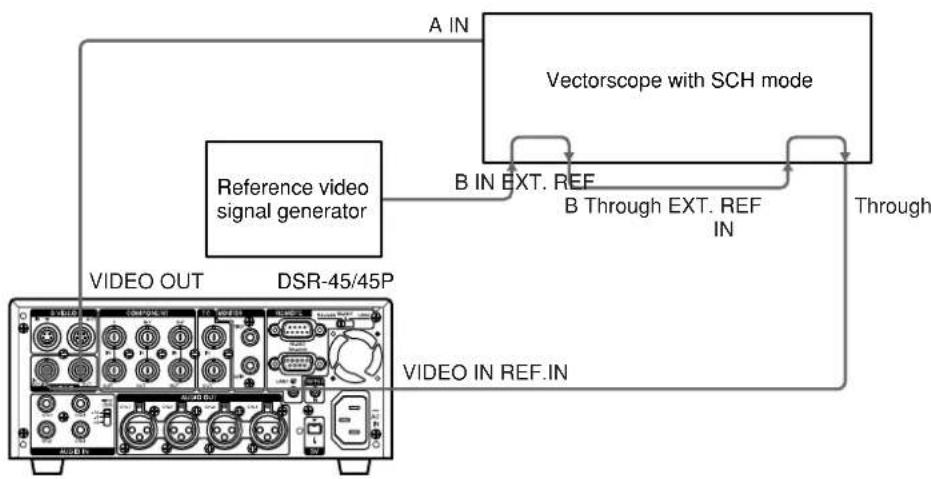
Performing a phase adjustment operation
1 Press the SCH button on the vectorscope.
The vectorscope goes into the "SCH" mode.
2 Press the B channel button on the vectorscope.
The black burst signal from the reference video signal generator is selected.
3 Press the EXT button on the vectorscope.
The vectorscope goes into the external synchronization mode.
4 Adjust the phase synchronization control on the vectorscope so that the sync and subcarrier phases are close to the reference line.
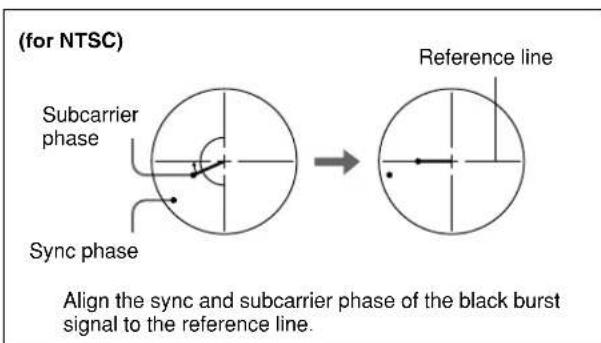
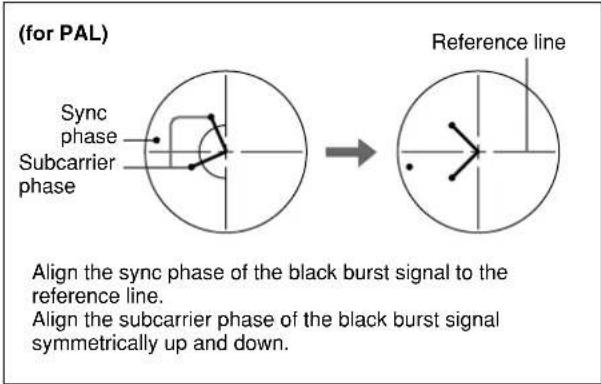
5 Set EXT SYNC on the VIDEO SET menu to ON, then play back a tape on this unit.
6 Press the A channel button on the vectorscope.
The vectorscope displays the sync phase and subcarrier phase (composite signals only) of the signal from this unit.
7 Adjust the SYNC control using H PHASE on the VIDEO SET menu for rough adjustment, then adjust H PHASE F for fine adjustment, so that the output from this unit on channel (A) is in correct phase alignment with the black burst signal on channel (B).
8 Adjust the SC control using SC PHASE on the VIDEO SET menu for rough adjustment, then adjust SC PHASE F for fine adjustment, so that the output from this unit on channel (A) is in correct phase alignment with the black burst signal on channel (B).
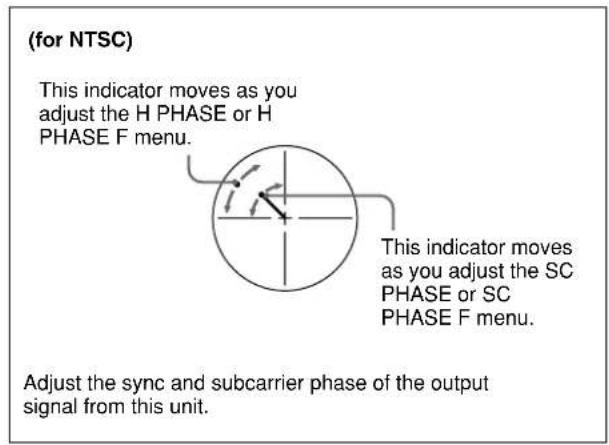
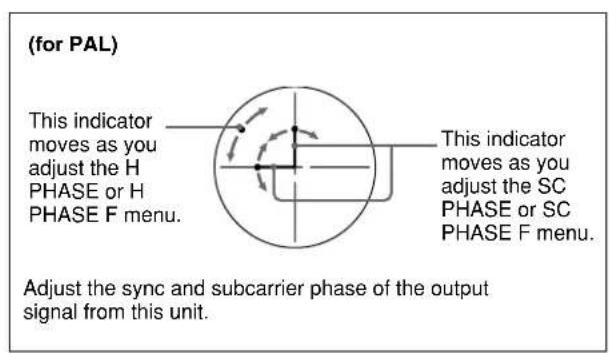
Note
When component signals are used, the subcarrier phase indicator does not appear.
Adjusting the Signals
You can adjust each signal level of the component output signal and the chrominance signal gain level of the composite signal.
Connect the reference video (black burst) signal one-to-one with a device that generates the reference video signal, or make a loop-through connection. If the device has a terminal switch, terminate the connection properly.
You need both a waveform monitor and a vectorscope to display the component signals.
Notes
- You cannot adjust the Y level of the component signal, that of the composite signal and that of the S-video signal independently.
- The chrominance levels of the composite and S-video signals are affected by the adjustment of the R-Y and B-Y levels of the component signal.
- A adjust the output level while playing the tape.
- You cannot adjust the signals output from the DV jack.
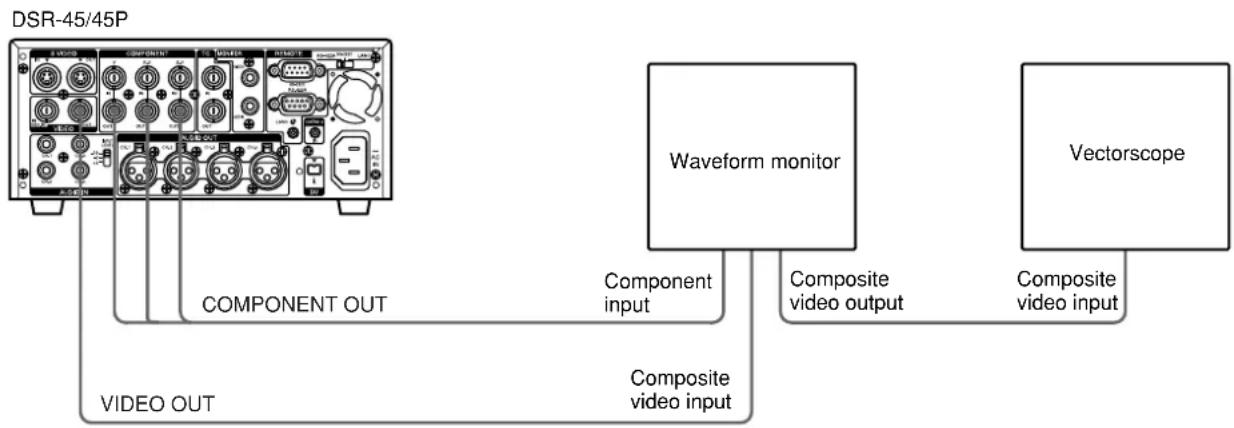
Adjusting the component signal level
1 Play back a tape to output the signals from the Y, R-Y and B-Y connectors of the COMPONENT OUT connectors.
The waveform monitor displays the relevant information.
2 Adjust the Y, R-Y, and B-Y signal levels in PB LEVEL on the VIDEO SET menu.
Y LEVEL: Adjusts the Y signal level.
R-Y LEVEL: Adjusts the R-Y signal level.
B-Y LEVEL: Adjusts the B-Y signal level.
For details on "PB LEVEL," see "VIDEO SET menu" on page 86 (GB).
Adjusting the chrominance signal gain level of the composite signal
1 Play back a tape to output the signals from the VIDEO OUT connector.
The vectorscope displays the relevant information.
2 Adjust the chrominance signal gain level in PB LEVEL on the VIDEO SET menu.
For details on "PB LEVEL," see "VIDEO SET menu" on page 86 (GB).
Duplication and Audio Dubbing
Duplication (generating a work tape with the same time code)
If you copy a source tape using the DUP (duplicate) button on this unit, you can copy the time codes recorded on the source tape as they are. You can easily make a work tape having the same time codes as the source tape.
The duplicate function on this unit works only when using a source tape recorded in DVCAM format and with DV connections.
This unit functions as a recorder. To perform duplication on this unit, make sure to change REC MODE on the VTR SET menu to DVCAM first.
To set the duplicate mode
This unit has three duplicate modes.
Set DUPLICATE on the VTR SET menu to select a duplicate mode as follows.
AUTO (AUTO TAPE COPY WITH
CASSETTE MEMORY COPY): The player and the recorder automatically rewind the tape to the beginning to start duplicating. The cassette memory is also duplicated.
AUTO (AUTO TAPE COPY): The player and the recorder automatically rewind the tape to the beginning to start duplicating. The cassette memory is not duplicated.
MANUAL (MANUAL TAPE COPY): The tape is duplicated from any location. The cassette memory is not duplicated.
Duplicating a tape
The duplicate procedure differs depending on the duplicate mode.
Notes
- If you operate the player while duplicating, the duplicate process may be interrupted and the tape may not be correctly duplicated. Do not operate the player while duplicating.
- You can duplicate a tape regardless of the DISPLAY SELECT selector setting, but the duplication screen will be displayed only when the DISPLAY SELECT selector has been set to DATA.
AUTOor AUTO duplicate mode
1 Connect this unit and the player using an i.LINK cable (DV cable, not supplied). After turning on the power of this unit and the player, set the INPUT SELECT selector on this unit to DV.
2 Press the STOP button on this unit to stop the tape transport operation.
(Continued)
3 While holding the DUP button down, press the PLAY button on this unit.
This unit and the player will automatically rewind the tape to the beginning. This unit enters the duplicate-standby mode. The player enters the playback pause mode. Then the DUP and PLAY indicators on this unit light and the duplication starts.
If you press the PAUSE and PLAY buttons while holding the DUP button down in step 3
This unit and the player will automatically rewind the tape to the beginning. This unit enters the duplicate-standby mode. The player enters the playback pause mode. This unit does not start duplication until you press the PAUSE button.
To stop duplication
Press the STOP button on this unit.
Notes
- You cannot pause during a duplicate process.
- Before you start duplication, make sure that the player has finished loading the cassette.
- The duplication starts after the i.LINK communication is established so that the first part of the source tape is dropped on the copied tape.
- Set auto repeat to OFF when the player has an auto repeat function and set auto rewind to ON when the player has an auto rewind function.
- If the player has a still timer function, set the still timer to the longest time possible to ensure enough time for rewinding the tape to the beginning.
- If you have selected AUTO duplicate mode, the cassette memory will be duplicated after the tape has been duplicated. While the cassette memory is being duplicated, an indicator showing the progress of the duplication appears on the LCD monitor and on the MONITOR VIDEO output. Duplicating the cassette memory takes up to a few minutes depending on the amount of data.
In the following cases, duplication of the cassette memory will be cancelled and the duplicate operation will be completed without duplicating the cassette memory.
If, while the cassette memory is being duplicated;
- you press the STOP button.
- you turn off the power of this unit or of the player.
you eject the cassette.
you disconnect the DV cable.
If the duplication of the cassette memory stops for some reason, the cassette memory on the duplicated tape will be completely erased.
- When both the recorder and the player are DSR-45/ 45Ps, set the REMOTE/LOCAL switch of the player as well as that of the recorder to LOCAL.
- If you operate the player while duplicating and the PLAYER UNCONTROLLABLE warning message appears and duplication is stopped, press the STOP button on this unit, then repeat the procedure from step 3.
- N formally, the player and recorder rewind their tapes automatically after duplication. However, depending on the specifications, some players do not.
MANUAL duplicate mode
1 Connect this unit and the player using an i.LINK cable (DV cable, not supplied). After turning on power of this unit and the player, set the INPUT SELECT selector on this unit to DV.
2 Locate the points where you want to start playback and recording.
3 Press the STOP button on this unit to stop the tape transport operation.
4 While holding the DUP button down, press the PLAY button on this unit.
This unit enters the duplicate-standby mode. The player enters the playback pause mode. Then the DUP and PLAY indicators on this unit light and duplication starts.
To adjust the point where duplication starts
In step 4, while holding the DUP button down, press the PAUSE button and the PLAY button. This unit will not start duplication until you press the PAUSE button again. After confirming that the PLAYER display has changed to READY (flashing) on the LCD monitor, adjust the duplication start point using the player, then press the PAUSE button on this unit to start duplication.
To stop duplication
Press the STOP button on this unit.
Notes
- You cannot pause during a duplicate process.
- Before you start duplication, make sure that the player has finished loading the cassette.
- The duplication starts after the i.LINK communication is established so that the first part of the source tape is dropped on the copied tape. Play back the source tape from the preceding point.
- If the player has an auto repeat function, set the function to off.
- You may not be able to duplicate the first part of the source tape. Locate the recorded portion on the source tape, then start duplicating.
- If there is a blank portion on the tape, the first part of the recorded portion that follows may be dropped on the copied tape.
- If you start duplication at some midpoint in the tape, the search function may not work correctly on the copied tape or problems may occur when editing. It is recommended that you select AUTO or AUTO for the duplicate mode.
Detecting a blank portion during duplication
If the unit detects a blank portion on the source tape during duplication, the skip function will automatically skip the blank portion, reducing the length of the recorded part of the tape. (This function is available only when the duplicate mode is AUTO or AUTO.)
The operations of the player and recorder (this unit) when a blank portion is detected are as follows:
| Detected status on source tape | Player/Recorder (this unit) operation |
| Detects a blank portion | Player: Continues playing the tape. Recorder: Continues recording. |
| 10 seconds after detection of a blank portion | Player: Continues playing the tape another 10 seconds and searches forward. Recorder: Stops. |
| Detects next recorded portion | Player: Rewinds the tape at about -2 times normal speed to the location immediately before the blank portion ends. Recorder: Remains stopped. |
| Returns to the location immediately before the blank portion ends | Player: After entering the playback pause mode, starts playing the tape. Recorder: After entering the recording pause mode, starts recording. |
This unit performs the above operations automatically, reducing the blank portion by 10 or more seconds in duplicating a tape.
Notes
- If the duplicate mode has been set to MANUAL, this unit will not skip a blank portion even if detects one.
- Depending on the specifications, the skip function may not work on some players.
- When this unit resumes duplication, the first part of the recorded portion on the source tape may be dropped on the copied tape.
- A recorded portion of less than one minute between two blank portions may not be duplicated.
Warnings about duplication
If an error occurs during duplication, a STOP/CAUTION number and warning message will be displayed on the LCD monitor and the MONITOR VIDEO output screen. Except for STOP/CAUTION No. 60 (RECORDER: SHORTER TAPE), "Err" is displayed on the display window.
The following table lists these warnings and messages. If a warning message is displayed, check this table and take the appropriate action.
| STOP/CAUTIONNo. | Warning Message | Cause/Remedy |
| 00 | REORDER:[DV IN] NOT SELECTED | The INPUT SELECT selector on the recorder (this unit) is not set to DV. → Set the INPUT SELECT selector to DV. |
| 01 | i.LINK CABLE: DISCONNECTED | The DV cable is not connected correctly. → Connect the DV cable correctly. |
| 02 | i.LINK CABLE: MULTI CONNECTION | There are multiple DV connections or the DV connection is looped. → You cannot connect multiple devices. Connect only one player to this unit. |
| 03 | i.LINK CABLE: BUS RESET | The DV cable has been unplugged and plugged in again. → Check the DV cable connection. Try to duplicate again. |
| 10 | PLAYER: RECORDING | The player is in the recording mode. |
| 11 | PLAYER: NO CASSETTE | There is no cassette in the player. |
| 12 | PLAYER: UNCONTROLLABLE | The player cannot be controlled, or the duplicate mode has been set to MANUAL and the source tape has reached the end of the tape. |
| 13 | PLAYER: UNCONTROLLABLE | The player rejects control. |
| 14 | PLAYER: UNCONTROLLABLE | The player is disabled or is in a different mode than the recorder (this unit) has requested. |
| 15 | PLAYER: NOT DVCAM | The source tape is not recorded in the DVCAM format. → You can only duplicate a tape recorded in the DVCAM format. |
| 16 | PLAYER: UNCONTROLLABLE | The player has been manually operated or the player's protection function cancelled the playback pause mode when the duplicate mode was set to AUTO or AUTO. |
| 18 | PLAYER: TAPE INFO. UNKNOWN | The information on the cassette in the player cannot be read. → If the cassette information is correct, clean the terminal on the cassette and insert the cassette again (see page 99 (GB)). |
| 19a) | PLAYER: CM ERROR | The player could not read the cassette memory during duplication. → If the cassette memory is correct, insert the cassette again. |
| 21 | PLAYER: EMERGENCY STOP | The player has detected self-diagnostics. → Refer to the instruction manual of the player. |
| 22 | PLAYER: DEW STOP | Moisture condensation has occurred in the player. → Refer to the instruction manual of the player. |
| 35 | REORDER: DVCAM NOT SELECTED | REC MODE on the VTR SET menu of the recorder (this unit) is set to DV SP. → Set REC MODE to DVCAM. |
| 37 | REORDER: NO CM | The cassette in the recorder (this unit) does not have cassette memory, but the recorder tried to duplicate the cassette memory. → Insert a cassette with cassette memory. |
| 39 | REORDER: CM ERROR | The cassette memory data cannot be written in the cassette in the recorder (this unit). → Clean the terminals on the cassette (see page 99 (GB)). |
| 40 | REORDER: STOP | The recorder (this unit) stopped while duplicating. |
| STOP/CAUTION No. | Warning Message | Cause/Remedy |
| 41 | ▲ | The recorder (this unit) detected self-diagnostics. → For details on self-diagnostics, see page 100 (GB). |
| 42 | ▲ | Moisture condensation has occurred in the recorder (this unit). → If a cassette is in the unit, remove the cassette and power on and wait more than one hour. |
| 43 | RECORDER:HEAD CLOG | The recorder's (this unit) video heads are clogged. → Clean the video heads with the supplied cleaning cassette (see page 98 (GB)). |
| 44 | PLAYER:COPYRIGHT PROTECTED | A copyright protected signal is recorded on the cassette in the player. → You cannot copy a copyright protected signal. |
| 50 | RECORDER:SMALLER CM SIZE | The cassette memory in the recorder (this unit) is smaller than the cassette memory on the source tape. → Use a cassette that has larger cassette memory than the one on the source tape. (This error is displayed only when the duplicate mode has been set to AUTOCHMI.) |
| 51 b)c | RECORDER:SHORTER TAPE | The player's cassette tape length is longer than that of the recorder's (this unit) cassette and duplication has failed. → Use a cassette with a tape length that is longer than the one in the player. |
| 60 b)c | RECORDER:SHORTER TAPE | The player's cassette tape length is longer than that of the recorder's (this unit) cassette and there is a possibility that the duplication may fail. → Use a cassette with a tape length that is longer than the one in the player. (This message is displayed as a caution for 10 seconds after the start of duplication.) |
a) If the player could not read the cassette memory when duplication started, this unit determines that the player's cassette does not have cassette memory and duplication of the cassette memory will be cancelled. The duplicate operation will be completed without duplicating the cassette memory and this warning message will not be displayed.
b) This unit detects tape length from the cassette memory data. Even if two tapes with the same length in the DVCAM format have been inserted in the player and the recorder (this unit), complete duplication may not be done due to the tape length error and this warning may not be displayed. As a result, if you search the cassette memory in the duplicated tape, the tape may not have a search point even though the cassette memory has the search point data.
c) If the cassette in the player does not have cassette memory, this warning is not displayed.
Note
If any warning message not listed in the table is displayed, consult your Sony dealer.
Audio Dubbing
You can record just sound on a recorded tape. (Audio dubbing)
Note
You can dub the sound onto a DVCAM-formatted tape (recorded) in the 32kHz audio mode (4-channel/ 12 bits). You cannot dub the sound on a tape in the 48 kHz audio mode (2-channel/16 bits). If the audio mode of the recorded tape is 32kHz , you can dub the sound regardless of the AUDIO MODE setting on the AUDIO SET menu.
For details on "AUDIO MODE," see "AUDIO SET menu" on page 88 (GB).
Connection of external devices
The following shows an example of a basic connection for audio dubbing.

Selecting the input channels for audio dubbing
You can dub the sound in the following channel combinations: channels 1/2 or channels 3/4.
Set AUDIO DUB on the AUDIO SET menu to select the input channels for audio dubbing.
CH1,2: Selects the channel 1/2 combination.
CH3,4: Selects the channel 3/4 combination.
OFF: Disables audio dubbing.
Note
You cannot dub sound in the following channel combinations:
- Channels 1 to 4 simultaneously
- Only one channel
- Three channels simultaneously (excluding one channel)
- Channel 1/3, channel 2/4, channel 1/4 and channel 2/3 combinations
Dubbing sound
1 Connect the unit and the sound source using a phono jack cable (not supplied).
2 Set the INPUT SELECT selector to a setting other than DV.
3 Switch the INPUT LEVEL selector to select the audio input signal level (-10, -2 or +4)
4 Play back the tape inserted in this unit.
5 At the point you want to start dubbing, press the PAUSE button to turn the unit to the playback pause mode.
6 While holding the AUDIO DUB button down, press the PLAY button to turn the unit to the audio dubbing pause mode.
The AUDIO DUB indicator on this unit lights.
7 Set the AUDIO INPUT switch to AUTO or MANU.
8 Adjust the recording level by turning the AUDIO REC LEVEL control knobs.
You can adjust the recording level with the AUDIO REC LEVEL control knobs if you have selected MANU in step 7. While looking at the audio level meters on the LCD monitor, turn the AUDIO REC LEVEL control knobs and adjust the recording level. Adjust the audio recording level so that the recording level does not exceed 0dB when the audio signal is at its maximum. If the recording level exceeds 0dB , the sound will be distorted.
9 Press the PAUSE button.
The PAUSE indicator goes off and audio dubbing starts.
To pause audio dubbing
Press the PAUSE button.
Pressing the PAUSE button again resumes audio dubbing.
To stop audio dubbing
Press the STOP button.
To monitor the sound you want
Set the AUDIO MONITOR selector as follows:
CH-1/2: You can listen to sound on channels 1/2 on the tape or the sound to be dubbed.
CH-3/4: You can listen to sound on channels 3/4 on the tape or the sound to be dubbed.
MIX: You can listen to the sound on the tape and the dubbed sound.
Notes
- You can monitor the sound on the tape while dubbing the sound. However, there are some delays between the sound being recorded and the sound being played. When you play back the tape after audio dubbing, you might hear the dubbed sound later than the sound monitored during audio dubbing.
- You cannot dub sounds onto a blank portion of the tape.
Adjusting and Setting Through Menus
Operating the Menu
The unit allows you to set various parameters in the menus. Before you start using the unit, set the internal clock in CLOCK SET on the OTHERS menu. Except for clock setting, you can use all other factory-set default parameters but change them as needed.
Notes
- If the internal backup battery is exhausted, the time set in the internal clock and the time code of the FREE RUN setting will be initialized. The internal backup battery is fully charged if you connect the power to the unit for about 8 hours. A fully charged internal battery can run for about two weeks.
- Do not pull out the plug of the power cord from an AC outlet or the unit while adjusting the menu or the brightness of the LCD monitor. Otherwise, the settings of the menu may be changed accidentally.
Displaying the menu
1 Set the CHARACTER DISPLAY (LCD) selector to ON or ON (BLACK BACK).
2 Set the DISPLAY SELECT selector to MENU.
The menu is superimposed on the LCD monitor.
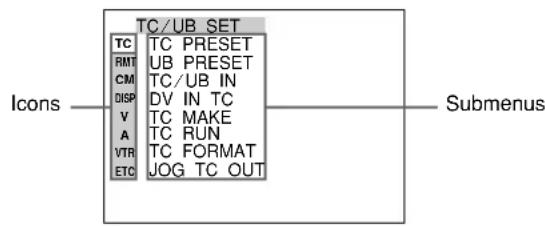
Changing the menu settings
1 Pressing the / buttons, select the menu icon you want to change, then press the EXEC button.
2 Pressing the / buttons, select the submenu you want to change, then press the EXEC button.
3 Pressing the / buttons, change the setting.
4 Press the EXEC button to return to the submenu.
5 Repeat steps 1 to 4, as needed.
To return to step 1
Press the / buttons to select RETURN, then press the EXEC button.
Menu Organization
The menu of this unit consists of the following menus and submenus.
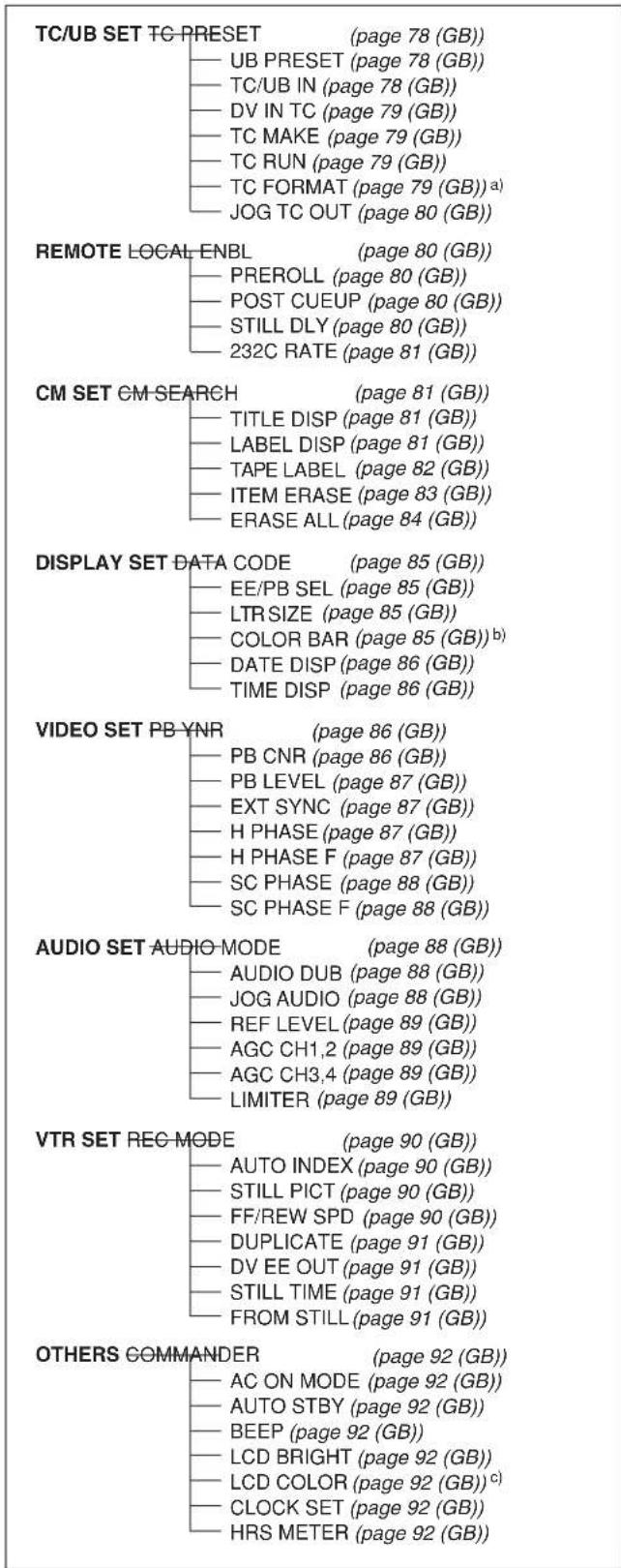
a) DSR-45 only
b) COLOUR BAR for DSR-45P
c) LCD COLOUR for DSR-45P
Menu Contents
Initial settings are indicated with rectangles.
TC/UB SET menu
Note
All items other than JOG TC OUT can be set only when you record in DVCAM format.
| Icon/Menu | Submenu (page) | Setting |
| TC TC/UB SET | TC PRESET (page 58 (GB)) | Reset/Sets the time code value. RESET: Resets the time code value to 00:00:00:00. PRESET: Sets the time code value. RETURN : Returns to the TC/UB SET menu without changing the time code value. Note To set the initial time code value, you need to set TC MAKE to PRESET first. If TC MAKE has been set to REGEN, you cannot change the time code using this item. |
| UB PRESET (page 59 (GB)) | Reset/Sets the user bits value. RESET: Resets the user bits value to 00 00 00 00. PRESET: Sets the user bits value. (You can set the user bits as eight-digit hexadecimal values (0 to 9, A to F) (base 16) to have the date, time, scene number, and other information inserted into the user bits.) RETURN : Returns to the TC/UB SET menu without changing the user bits value. | |
| TC/UB IN (page 60 (GB)) | Selects the time code and user bits to record on the tape. INTERNAL : Uses the internal time code/user bits. TC&UB EXT: Uses external time code/user bits. TC EXT: Uses an external time code and internal user bits. UB EXT: Uses the internal time code and external user bits. Notes The time code output from this unit has some restrictions. For details, see pages 64 (GB), 65 (GB). Press the EXEC button to change the setting of this item. This will also be carried out the moment you switch the position of the DISPLAY SELECT selector to DATA or AUDIO. | |
| TC/TC/UB SET | DV IN TC (page 60 (GB)) | Selects whether to record internal time code or external time code while the unit records the signals input via the DV jack in DVCAM format. INTERNAL: Records the time code generated by the internal time code generator. (The value of the time code or user bits depends on the settings of other menu items, such as TC PRESET, UB PRESET, or TC MAKE.) EXTERNAL: Records the time code with video and audio signals input via the DV jack. Notes ·When you set REC MODE on the VTR SET menu to DV SP, this item cannot be used. Even if this item is set to EXTERNAL, when you set REC MODE on the VTR SET menu to DV SP, the setting becomes invalid and the unit records the internal time code. ·When this item is set to EXTERNAL, the INPUT SELECT selector on the front panel is set to DV, and no signal is input via the DV jack, or the software of the editing controller does not output a time code, if you start recording, bars (----:-:-:-:-) are recorded as time code. At the point that the input of a signal begins, the time code of that signal will be recorded. ·When this item is set to EXTERNAL, if you input time code to the DV jack that is not continuous or does not advance correctly, the value of the recorded or displayed time code may not be equal to the actual value of the input one. If you use a tape with this problem, you may not be able to perform search or edit, depending on the devices you use. |
| TC MAKE (page 61 (GB)) | Selects the time code when you start recording. REGEN: The time code value is set to continuous time code from the one already recorded on the tape. If no time code is recorded on the tape, it starts from 00:00:00:00. PRESET: The time code starts from the value set in TC PRESET on the TC/UB SET menu. | |
| TC RUN (page 61 (GB)) | Selects the advancement mode (counting up). REC RUN: Time code value advances only while recording. FREE RUN: Time code value advances even when the unit is not recording. (This mode is used to set the current time as the initial time code value, or to synchronize the internal time code to an external time code.) Notes ·If you set the advancement mode to FREE RUN, the time code will be updated by the internal clock when the power is off. Therefore, when you turn on the unit again, the time code may have been delayed or advanced somewhat. ·If the internal backup battery is exhausted, the time code of the FREE RUN setting is initialized. | |
| TC FORMAT (page 61 (GB)) | Selects the frame mode. AUTO: Automatically sets the frame mode in accordance with the inserted cassette. (If nothing is recorded on the tape, the mode is set to the non-drop frame mode. If the unit cannot read the frame mode correctly in the tape, the unit will use the frame mode that was set in the last position it was able to read correctly on the tape. If you remove the cassette, the mode of the last position it was able to read correctly is cleared and the mode is set to the non-drop frame mode. If TC MAKE is set to PRESET, the mode is also set to the non-drop frame mode.) DF: Selects the drop frame mode. NDF: Selects the non-drop frame mode. Notes ·This menu is displayed only for the DSR-45. ·Regardless of this item setting, the frame mode is set to drop frame when you record in DV format. | |
| TC TC/UB SET | JOG TC OUT (page 61 (GB)) | Controls the time code output from the TC OUT connector when the tape is played at a speed other than normal. OFF: Does not output the time code. ON: Outputs the time code. Note Continuous time code is output only when the tape is played at a normal speed. When the unit is in the search mode, discontinuous time code is output. |
REMOTE menu
| Icon/Menu | Submenu (page) | Setting |
| RMT REMOTE | LOCAL ENBL (page 12 (GB)) | Restricts the functions of the buttons on the front panel, the Remote Commander, and the Remote Control Unit (not supplied) connected to the CONTROL S IN jack, when the REMOTE/LOCAL switch is set to REMOTE.NO KEY : Disables all buttons on the devices described above.EJECT: Disables all buttons except EJECT on the devices described above.STOP&ELECT: Disables all buttons except EJECT and STOP on the devices described above.ALL KEYS: Enables all buttons on the devices described above.Notes· Even if the REMOTE/LOCAL switch is set to REMOTE, the Remote Commander functions depend on the setting of this item. If you want to disable the Remote Commander, set COMMANDER on the OTHERS menu to CONTROL S.· Press the EXEC button to change the setting of this item. This will also be carried out the moment you switch the position of the DISPLAY SELECT selector to DATA or AUDIO.· While the REMOTE/LOCAL switch is set to REMOTE, if you change this item from ALL KEYS to any other setting, the setting is activated at that instant and the ↑, ↓, and EXEC buttons, which are used to adjust the menus, are disabled. To enable those buttons again, set the REMOTE/LOCAL switch to LOCAL. |
| PREROLL Sets | the duration of the preroll time. (only for an RS-422A connection)3 SEC: Three seconds5 SEC: Five seconds7 SEC: Seven seconds10 SEC: 10 secondsNotes· Depending on the types of editing controller used, the unit may take the preroll time set by the editing controller, ignoring setting of this item.· On the editing controller, set the preroll time to five seconds or longer. | |
| POST CUEUP | Selects the information which the unit sends to an editing controller to let it know the state of the unit when the tape reaches a searched for point. (only for an RS-422A connection)STOP : Informs the editing controller that the unit is in the stop mode.STILL: Informs the editing controller that the unit is in the playback pause mode. | |
| STILL DLY | Playback still delay can be set between 0 and 10 frames by 11 steps. You can set the delay which the unit turns to playback mode from still mode. (only for an RS-422A connection)NoteThe default is 0 frame. | |
| RMT REMOTE | 232C RATE SELECTs the baud rate via the RS-232C connector.9600: 9600 bps19200: 19200 bpsNoteFor editing, if you intend to use this unit as a player and the FXE-120/120P or FXE-100/100P as an editing controller, set the baud rate of both devices to 19200 bps. | |
CM SET menu
| Icon/Menu | Submenu (page) | Setting |
| CM CM SET | CM SEARCH Selects the mode used to search scenes. ON: Searches scenes using the cassette memory. (If the cassette does not have cassette memory, the search for the scenes can be done using the search signals on the tape.) OFF: Always searches scenes using the search signals on the tape. | |
| TITLE DISP Selects whether or not to display the title. ON: Displays the title. OFF: Hides the title. Notes The title input with the camera or external device is displayed. You cannot enter a title using this unit. The unit cannot display a font that the unit does not have. The title is displayed only on the LCD monitor or MONITOR VIDEO output. The title is only displayed if you have set the DISPLAY SELECT selector to DATA. | ||
| LABEL DISP Selects whether or not to display the tape label. ON: Displays the tape label. OFF: Hides the tape label. Notes The tape label is displayed only on the LCD monitor or MONITOR VIDEO output. The tape label is only displayed if you have set the DISPLAY SELECT selector to DATA. If the tape label has been made with another VCR or camcorder, this unit cannot display a tape label that includes a font that the unit does not have. | ||
| CM CM SET | TAPE LABEL | Makes a tape label. (You can enter up to 10 characters on a tape label.)If you select this item, one of the following symbols appears. If no cassette is loaded, nothing is displayed.CMI: Cassette with cassette memoryCMI: Cassette without cassette memoryYou can make a tape label as follows:1 On the TAPE LABEL screen, select a line that has the alphabet character you want by pressing the ↑/↓ buttons and the EXEC button. (The cursor moves to the first character of the line.) |
| TAPE LABEL | TAPE LABEL | |
| AECDE 12345FCHIJ 67890KLMNO PGRST UWXY [SET]Z&?! | ABCDE 12345FGHIJ 67890KLMNO PGRST UWXY [SET]Z&?! | |
| 2 Select a character by pressing the ↑/↓ buttons and the EXEC button. (The selected character is entered. To erase a character, select [←]; the last character is erased.) | ||
| TAPE LABEL | TAPE LABEL | |
| AECDE 12345FCHIJ 67890KLMNO PGRST UWXY [SET]Z&?! | ABCDE 12345FGHIJ 67890KLMNO PGRST UWXY [SET]Z&?! | |
| 3 Repeat steps 1 and 2. After entering all characters for the tape label, select [SET].NoteThe unit cannot display the TAPE LABEL screen in the following cases:The unit does not have a cassette inserted or the tape is being unloaded.The cassette does not have cassette memory.The cassette memory is full of data other than the tape label data.The cassette is write-protected.The tape is being recorded.The tape is being duplicated.The cassette memory is being used. | ||
| Icon/Menu | Submenu (page) | Setting | |
| CM CM SET | ITEM ERASE | Erase a cassette memory item. If you select this item, one of the following symbols appears. If no cassette is loaded, nothing is displayed. CM: Cassette with cassette memory CM: Cassette without cassette memory The available items are as follows: INDEX ALL: Erases the index data. TITLE ALL: Erases the title data. DATE ALL: Erases the date data. PHOTO ALL: Erases the photo data. You can erase an item as follows: 1 Select an item to erase by pressing the ↑/↓ buttons and the EXEC button. 2 To erase the item, select OK, otherwise select RETURN. (If you select OK, the unit will check again to see if you really want to erase the item.) | |
| CM SET TC ITEM ERASE DB INDEX ALL RETURN DB TITLE ALL OK BP DATE ALL V PHOTO ALL A RETURN B DATE A PHOTO ALL A RETURN B DATE A PHOTO ALL A RETURN B DATE A PHOTO ALL A RETURN B DATE A PHOTO ALL A RETURN B DATE A PHOTO ALL A RETURN B DATE A PHOTO ALL A RETURN B DATE A PHOTO ALL A RETURN B DATE A PHOTO ALL A RETURN B DATE A PHOTO ALL A RETURN B DATE A PHOTO ALL A RETURN B DATE B PHOTO B DATE A PHOTO A RETURN B DATE A PHOTO A RETURN B DATE A PHOTO A RETURN B DATE A PHOTO A RETURN B DATE A PHOTO A RETURN B DATE A PHOTO A RETURN B DATE A PHOTO A RETURN B DATE A PHOTO A RETURN B DATE A PHOTO A RETURN B DATE A PHOTO A RETURN B DATE A PHOTO A RETURN B DATE A PHOTO A RETURN | |||
| 3 To erase the item, select EXECUTE, otherwise select RETURN. (If you select EXECUTE, the ERASING message will flash, and the unit will start erasing the item in the cassette memory. While the ERASING message is flashing, you cannot use the ↑/↓ buttons or the EXEC button. After the item has been erased, the COMPLETE message appears. Press the ↑/↓ buttons or the EXEC button to erase the COMPLETE message.) | |||
| CM SET TC ITEM ERASE DB INDEX ALL ERASING DB TITLE ALL OK BP DATE ALL V PHOTO ALL A RETURN B DATE A PHOTO A RETURN B DATE A PHOTO A RETURN B DATE A PHOTO A RETURN B DATE A PHOTO A RETURN B DATE A PHOTO A RETURN B DATE A PHOTO A RETURN B DATE A PHOTO A RETURN B DATE A PHOTO A RETURN B DATE A PHOTO A RETURN B DATE A PHOTO A RETURN B DATE A PHOTO | CM SET TC ITEM ERASE DB INDEX ALL COMPLETE DB TITLE ALL OK BP DATE ALL V PHOTO ALL A RETURN B DATE A PHOTO A RETURN B DATE A PHOTO A RETURN B DATE A PHOTO A RETURN B DATE A PHOTO A RETURN B DATE A PHOTO A RETURN B DATE A PHOTO A RETURN B DATE A PHOTO A RETURN B DATE A PHOTO A RETURN B DATE A PHOTO A RETURN BDATE A PHOTO A RETURN B DATE A PHOTO A RETURN B DATE A PHOTO A RETURN B DATE A PHOTO A RETURN B DATE A PHOTO A RETURN B DATE A PHOTO A RETURN B DATE A PHOTO A RETURN B DATE A PHOTO A RETURN B DATE A PHOTO A RETURN B DATE A PHOTO A RETURN B DATE A PHOTO A RETURN B DATE | ||
| Notes • You cannot make a title, mark the date for date search, or record in the photo mode. • You cannot erase an item in the cassette memory in the following cases: - The unit does not have a cassette inserted or the tape is being unloaded. - The cassette does not have cassette memory. - The cassette is write-protected. - The tape is being recorded. - The tape is being duplicated. |
| Icon/Menu | Submenu (page) | Setting |
| CM CM SET | ERASE ALL | Erases all the items in the cassette memory. If you select this item, one of the following symbols appears. If no cassette is loaded, nothing is displayed. CM: Tape with cassette memory CM: Tape without cassette memory Erase all items in the cassette memory as follows: 1 To erase all items, select OK, otherwise select RETURN. (If you select OK, the unit will check again to see if you really want to erase all items.) |
| CM SET TC CM SEARCH HMI TITLE DISP CM LABEL DISP DEP TAPE LABEL V ITEM ERASE A ERASE ALL RETURN EH RETURN OK ETC | ||
| 2 To erase all items, select EXECUTE, otherwise select RETURN. (If you select EXECUTE, the ERASING message will flash, and the unit starts erasing all items in the cassette memory. While the ERASING message is flashing, you cannot use the ↑/↓ buttons or the EXEC button. After all items have been erased, the COMPLETE message appears. Press the ↑/↓ buttons or the EXEC button to erase the COMPLETE message.) | ||
| CM SET TC CM SEARCH HMI TITLE DISP CM LABEL DISP DEP TAPE LABEL V ITEM ERASE A ERASE ALL RETURN EH RETURN OK ETC | ||
| Note You cannot erase all the items in the cassette memory in the following cases: • The unit does not have a cassette inserted or the tape is being unloaded. • The cassette does not have cassette memory. • The cassette is write-protected. • The tape is being recorded. • The tape is being duplicated. |
DISPLAY SET menu
| Icon/Menu | Submenu (page) | Setting | |||
| DISP DISPLAY SET | DATA CODE (page 36 (GB)) | Selects whether or not to display the data codes on the LCD monitor and the MONITOR VIDEO output. OFF: Does not display the data codes. DATE: Displays the date when recorded. CAMERA: Displays the camera data. | |||
| EE/PB SEL (page 17 (GB)) | Sets the stop, fast-forward and rewind modes. EE: Outputs EE pictures (sound, time code). PB: Mutes the image and sound. Notes·Even if EXT SYNC on the VIDEO SET menu is set to ON, the line-outs (VIDEO OUT, COMPONENT OUT, S VIDEO OUT) in the EE mode are delayed from those of the input signals as follows: -delayed for two lines when signals are input via the VIDEO IN REF.IN connector. -delayed for one line when signals are input via the SVIDEO IN or COMPONENT IN connector. ·If this item is set to PB, the output from the unit will be as follows when you press any of the REC, DUP, or AUDIO DUB buttons separately when the unit is stopped (unless the cassette has been write-protected). | ||||
| Image | Sound | Time code | |||
| REC button | EE picture of the input image | EE sound of the input sound | (See page 63 (GB)) | ||
| DUP button | Image input to the DV jack | Sound input to the DV jack | |||
| AUDIO DUB button | Mute screen (black) | EE sound of the input sound | |||
| No button is pressed | Mute screen (black) | Mute (no sound) | |||
| LTR SIZE | Changes the font size of the menu line at the cursor. NORMAL : Normal size 2x: Double height size | ||||
| COLOR BAR (for DSR-45) / COLOUR BAR (for DSR-45P) | Displays/hides the color bars. OFF: Does not display the color bars. ON: Displays the color bars. Notes·You cannot display the color bars while the unit is playing the tape or when the INPUT SELECT selector is set to DV. ·The color bars are displayed only on the LCD monitor or MONITOR VIDEO output. ·If you record when the color bars are displayed, the color bars will also be recorded on the tape. ·You cannot adjust the MONITOR VIDEO output. Do not use the color bars output from the MONITOR VIDEO jack as a reference signal. ·The reference sound signals are not output even if this item is set to ON. ·This item will be automatically set to OFF if you set the INPUT SELECT selector to DV or you operate the unit to play back a tape. | ||||
| Icon/Menu | Submenu (page) | Setting |
| DISP DISPLAY SET | DATE DISP Selects the form of the date displayed on the search screen or of the data codes and so on. Y/M/D: Displays YY/MM/DD (year/month/day). M/D/Y: Displays MM/DD/YY (month/day/year). D/M/Y: Displays DD/MM/YY (day/month/year). Note The default is M/D/Y for the DSR-45; and D/M/Y for the DSR-45P. | |
| TIME DISP Selects the form of the time displayed on the search screen or of the data codes and so on. 24H: Displays 24-hour time. 12H: Displays 12-hour time. Note The counter of this unit operates only on a 12-hour cycle. Even if you set this item to 24H, the counter value is displayed on a 12-hour cycle. | ||
VIDEO SET menu
Note
To perform the adjustment in H PHASE, H PHASE F, SC PHASE, or SC PHASE F, you must set EXT SYNC to ON and input the reference video signals to the VIDEO IN REF.IN connector.
| Icon/Menu | Submenu (page) | Setting |
| VIDEO SET PB | PB YNR Switches | the noise reduction level for the luminance signals when a tape is played. OFF: No noise reduction LOW: Low noise reduction HIGH: High noise reduction Notes ·When you use noise reduction, there may be an afterimage depending on the condition of the picture. ·The setting of this item does not affect a signal output via the DV jack. |
| PB CNR | Switches the noise reduction level for the chrominance signals when a tape is played. OFF: No noise reduction LOW: Low noise reduction HIGH: High noise reduction Notes ·When you use noise reduction, there may be an afterimage depending on the condition of the picture. ·The setting of this item does not affect a signal output via the DV jack. | |
| VIDEO SET | PB LEVEL (page 68 (GB)) | Adjusts the output video signal levels. (This is available only when the mode is playback, playback pause, slow playback, cue, or review.) SETUP: Switches the luminance signal setup level (0% or 7.5%). (This item is only for the DSR-45. The setup level for the DSR-45P is fixed to 0%). Y LEVEL: Adjusts the Y signal level of the component signals. (If you change this, the Y signal level of the composite video and S VIDEO will also be changed.) R-Y LEVEL: Adjusts the R-Y signal level of the component signals. (If you change this, the chrominance level of the composite video and SVIDEO will also be changed.) B-Y LEVEL: Adjusts the B-Y signal level of the component signals. (If you change this, the chrominance level of the composite video and SVIDEO will also be changed.) CHROMA: Adjusts the chrominance level in the composite signals. Notes • You can adjust the video levels only while playing the tape. • Adjust the video levels by looking at the bars (except SETUP). (The triangles under the bars are displayed in green when the settings are set to the factory preset values.) • The SETUP default is 0%. Other defaults are their center values. • The output video signals can be adjusted only for VIDEO OUT, COMPONENT OUT, or SVIDEO OUT. • Set SETUP to 7.5% only if the tape has been recorded at 0% and you want to play back the tape at 7.5%. If you play back a 7.5% tape at the 7.5% setting, the tape will not be played at the proper brightness. If you set SETUP at 0% and if you play back a 7.5% tape, the tape will be played at 7.5%. (You cannot play the tape at 0%). |
| EXT SYNC Switches the externally synchronized playback setting. OFF: No external synchronization ON: External synchronization Notes • It may take three or more seconds until a stable image is output in the externally-synchronized playback mode. • In the externally-synchronized playback mode, jitter may appear on the MONITOR VIDEO output or on the LCD monitor image. Use the VIDEO OUT connector to output an externally-synchronized image. Set this item to OFF when you use the MONITOR VIDEO output. | ||
| H PHASE (page 66 (GB)) | Roughly adjusts the sync phase in the externally-synchronized playback mode. Press the ⌊/⌋ buttons to move the bar and press the EXEC button to select. (The triangle under the bar is displayed in green when the setting is set to the factory preset value.) Notes • You can adjust this item only in the externally-synchronized playback mode. • If you change this item, the H PHASE F value will be set to the factory preset value. | |
| H PHASE F (page 66 (GB)) | Finely adjusts the sync phase in the externally-synchronized playback mode. Press the ⌊/⌋ buttons to move the bar and press the EXEC button to select. (The triangle under the bar is displayed in green when the setting is set to the factory preset value.) Notes • You can adjust this item only in the externally-synchronized playback mode. • If you change the H PHASE value, this item is set to the factory preset value. | |
(Continued)
| Icon/Menu | Submenu (page) | Setting |
| VIDEO SET | SC PHASE (page 66 (GB)) | Reverses the subcarrier phase in the externally-synchronized playback mode. 0 DEG: The subcarrier phase is not reversed. 180 DEG: The subcarrier phase is reversed. Note You can adjust this item only in the externally-synchronized playback mode. |
| SC PHASE F (page 66 (GB)) | Finely adjusts the subcarrier phase in the externally-synchronized playback mode. Press the ↑/↓ buttons to move the bar and press the EXEC button to select. (The triangle under the bar is displayed in green when the setting is set to the factory preset value.) Note You can adjust this item only in the externally-synchronized playback mode. |
AUDIO SET menu
| Icon/Menu | Submenu (page) | Setting |
| A AUDIO SET | AUDIO MODE (page 74 (GB)) | Selects the audio mode. FS32K: Switches the audio mode to the four channel mode (12-bit mode). FS48K: Switches the audio mode to the two channel stereo mode (16-bit mode). (This setting records the sound in all audio ranges, providing a high-quality sound recording.) Notes · When signals are input via the DV jack, the audio mode of the signals to be recorded is the same as that of the input signals. The setting of this item is ignored. · You cannot change the setting of this item during recording. · Noise may occur at the instant you switch the audio mode. |
| AUDIO DUB (page 74 (GB)) | Selects the input channel for audio dubbing. CH1,2: Selects channels 1 and 2. CH3,4: Selects channels 3 and 4. OFF: Enables audio dubbing. Note You cannot change the setting of this item while dubbing the sound. | |
| JOG AUDIO TURNS sound output on/off when the tape is played at a speed other than normal. OFF: Does not output the sound when playing a tape at a speed other than normal. ON: Outputs the sound when playing a tape at a speed other than normal. Note Even if you have set this item to ON, the sound may not be output or interrupted depending on the tape format (DVCAM/DV) or tape conditions. | ||
| A AUDIO SET | REF LEVEL (page 29 (GB)) | Switches the center levels of the audio level meters displayed on the fine audio levels screen. -12dB: Sets the level to -12 dB. -18dB: Sets the level to -18 dB. -20dB: Sets the level to -20 dB. Notes The default is -20 dB for DSR-45; -18 dB for DSR-45P. The standard output level of the AUDIO OUT connectors is +4 dBu. This is equivalent to -20 dB for the DSR-45, or -18 dB for the DSR-45P from full bit (maximum audio level). This level is fixed and does not change even if you change this item setting. Changing this level does not change the audio gain of this unit. Turn the AUDIO REC LEVEL control knobs to adjust the recording level accordingly. |
| AGC CH1,2 (page 29 (GB)) | Links/separates the AGC (Auto Gain Control) in channels 1 and 2. SEPARATE : AGC is not linked. (Channels 1 and 2 sound gains are separated.) LINKED: AGC is linked. (Channels 1 and 2 sound gains are linked as a pair.) Notes This setting is disabled when inputting signals from the DV jack. The LINKED setting changes to enabled after you set the AUDIO INPUT switch on the front panel to AUTO. | |
| AGC CH3, 4 (page 29 (GB)) | Links/separates the AGC (Auto Gain Control) in channels 3 and 4. SEPARATE : AGC is not linked. (Channels 3 and 4 sound gains are separated.) LINKED: AGC is linked. (Channels 3 and 4 sound gains are linked as a pair.) Notes This setting is disabled when inputting signals from the DV jack. The LINKED setting changes to enabled after you set the AUDIO INPUT switch on the front panel to AUTO. | |
| LIMITER | Turns the limiter on/off. OFF : No limiter ON: Uses the limiter. Notes This setting is disabled when inputting signals from the DV jack. This setting is available only when you have set the AUDIO INPUT switch on the front panel to MANU. Make sure to set the INPUT LEVEL selector on the rear panel correctly. Even if you have set this item to ON, the limiter will not work for a sound that exceeds the dynamic range of the input amplifier. | |
VTR SET menu
| Icon/Menu | Submenu (page) | Setting |
| VTR VTR SET | REC MODE | Switches the recording mode between DVCAM and DV (SP mode only). When you play back a tape, the DVCAM/DV setting will be automatically switched; you do not need to use this item. DVCAM: Records in DVCAM format. DV SP: Records in DV format (SP mode). Notes ·The unit can record only in the DVCAM format or in the SP mode of the DV format. ·You cannot change the setting while recording. ·It is recommended that you record in the DVCAM format. There are some limitations with respect to DV recording depending on machine specifications and the consumer DV format as follows: - The head system is optimized for DVCAM recording. A DV recording overwrites the last track just before the beginning of the recording. As a result, at the border of these two recorded portions, picture and sound may be distorted. - The picture and sound will be recorded unsynchronized. (unlock mode) - The time code is fixed to the drop frame mode. (only for DSR-45) - The DV IN TC setting on the TC/UB SET menu becomes invalid. The unit records internal time code. ·If you dub a consumer DV tape from the DV jack on this unit, keep the following in mind: - Set REC MODE to DV SP. If REC MODE has been set to DVCAM, a tape with an invalid format (recording speed: DVCAM, sound: unsynchronized, unlock mode) will be made. (The unit cannot convert unlock mode sound to lock mode sound.) - If you edit a tape with an invalid format in the DSR-70/70P, DSR-70A/70AP, DSR-80/80P, DSR-85/85P, DSR-1800/1800P, DSR-2000/2000P, etc., there may be some restrictions. For details on DVCAM/DV format compatibility, see “Compatibility of DVCAM and DV Format” on page 101 (GB). |
| AUTO INDEX (page 44 (GB)) | Selects whether or not the unit automatically marks an index signal when the unit in the stop mode starts recording. ON: Marks an index signal at the beginning of the recording. OFF: Does not mark an index signal at the beginning of the recording. | |
| STILL PICT SWITCH | Switches the image displayed in the still mode. AUTO: Displays an optimized image according to the movement in the image. FIELD: Displays a field image. FRAME: Displays a frame image. Note If you select FIELD, the image of field 2 is displayed. | |
| FF/REW SPD | Selects the tape transport mode in fast-forward and rewind. FF/REW: Fast-forwards or rewinds the tape at maximum speed without displaying the picture. SHUTTLEMAX: Fast-forwards or rewinds the tape at maximum speed (DVCAM: about 14 times normal speed for the DSR-45; about 17 times normal speed for the DSR-45P) while displaying the picture. However, if you use a tape recorded in the SP mode of the DV format, the maximum tape speed will be about 24 times normal speed, on both models. Note If you intend to edit using an RS-422A connection, set this item to SHUTTLEMAX. | |
| VTR VTR SET | DUPLICATE (page 69 (GB)) | Switches the duplicate mode. AUTO: Starts duplication after rewinding the tape to the beginning in the player and recorder. (The cassette memory is also duplicated.) AUTO: Starts duplication after rewinding the tape to the beginning in the player and recorder. (The cassette memory is not duplicated.) MANUAL: Duplicates the tape from any point. (The cassette memory is not duplicated.) Note You cannot change the setting of this item during duplication. |
| DV EE OUT (page 42 (GB)) | Selects the output from the DV jack in the EE mode. OFF: Outputs only the playback video and audio signals from the DV jack. ON: Outputs the selected analog input signals from the DV jack. Note When you connect a computer to the DV jack, depending on your computer software, the selected analog input signals may be output to the computer even if this item is set to OFF. | |
| STILL TIME | Selects the length of time that elapses before switching to the tape protection mode from the still mode. 30 SEC: 30 seconds 1 MIN: 1 minute 2 MIN: 2 minutes 3 MIN: 3 minutes 5 MIN: 5 minutes Notes ·If the unit is left in playback pause mode for a long time, the tape or the video heads may be damaged or the video heads may become clogged. Select the shortest time possible —particularly when using a Mini-DV cassette that is longer than 60 minutes, select 30 SEC or 1 MIN. ·If you change the setting of this item while the unit is in the playback pause mode, the first tape protection mode change uses the time setting from before the settings were changed. From the second tape protection mode change, the new time setting is used. | |
| FROM STILL | Selects the tape protection mode to which the unit switches after the still mode continues for the time interval set in STILL TIME. STOP: Stops the tape. STEP FWD: Forwards one frame. |
OTHERS menu
| Icon/Menu | Submenu (page) | Setting |
| ETC OTHERS | COMMANDER (page 26 (GB)) | Selects the control device. WIRELESS: Enables the control of the Remote Commander. CONTROL S: Enables the control of the Remote Control Unit (DSRM-20, not supplied) connected to the CONTROL S IN jack. (The Remote Commander is disabled.) Note The unit accepts signals from any Sony Remote Commander whose command mode is set to VTR4, not only the supplied one. If you want to disable the control from any Remote Commander, set this item to CONTROL S. |
| AC ON MODE | Switches the state into which the unit goes when the unit is connected to an AC outlet. STBY: Makes the unit go into the standby mode. POWER ON: Turns the unit on. | |
| AUTO STBY Selects whether the unit goes into the standby mode or not, if the unit has been in the stop mode and no key operations have been attempted for more than one hour. DISABLE: Leaves the unit in the stop mode. ENABLE: Makes the unit go into the standby mode. | ||
| BEEP | Selects whether or not the unit beeps. ON: Enables the beep. OFF: Disables the beep. | |
| LCD BRIGHT | Adjusts the LCD monitor brightness. Press the ↑/↓ buttons and the EXEC button to adjust and set the brightness. You can also adjust the brightness by pressing the ↑/↓ buttons on the Data screen. (The triangle under the bar is displayed in green when the setting is set to the factory preset value.) | |
| LCD COLOR (for the DSR-45) / LCD COLOUR (for the DSR-45P) | Adjusts the depth of color of the LCD monitor. Press the ↑/↓ buttons and the EXEC button to adjust and set the depth of color. (The triangle under the bar is displayed in green when the setting is set to the factory preset value.) | |
| CLOCK SET | Sets the internal clock of the unit. Pressing the ↑/↓ buttons and the EXEC button, set the time (year, month, day, hour and minute). (When you set the minute, the second count will start from 00.) Notes · Regardless of the DATE DISP setting, the date is displayed in the Y/M/D format while you are setting CLOCK SET. · The internal backup battery will be fully charged in about 8 hours when power is provided to the unit. A fully charged internal backup battery can run the internal clock for about two weeks without the power provided through the AC power cord. · If the unit starts recording while you are setting this item, the value at that time is set in the internal clock. | |
| HRS METER (page 100 (GB)) | Displays the accumulated time counts (by the digital hours meter) in units of 10 hours or 10 counts. OPERATION: Power supplied duration DRUM RUN: Drum rotation duration TAPE RUN: Tape run duration THREADINGING: Tape unthreading count | |
Maintenance
Troubleshooting
Please check the following before contacting your Sony dealer.
| Symptom Cause/Remedy | |
| The power cannot be turned on. | ·The AC power cord is disconnected. → Connect the AC power cord. ·The REMOTE/LOCAL switch is set to REMOTE. → Set the switch to LOCAL. |
| The unit will not operate even if the power has been turned on. | ·The REMOTE/LOCAL switch is set to REMOTE. → Set the switch to LOCAL. ·Moisture condensation has occurred. → Turn off the power, disconnect the AC power cord. Reconnect the AC power cord after about one minute and turn on the power. Then if there is a cassette in the unit, remove the cassette and leave it for more than one hour. ·The cassette is not inserted straight. → Eject and reinsert it straight. |
| The cassette cannot be inserted. | ·There is moisture condensation on the head drum. → With the unit powered on, wait more than one hour. ·The cassette is not inserted straight. → Eject and reinsert it straight. ·Another cassette has been loaded already. → Remove the cassette and insert the one you want to load. ·The cassette compartment is closed. → Press the EJECT button to open the compartment. |
| It takes time to eject the cassette. | This is not a malfunction. → This unit ejects the cassette slowly to protect the tape. While the cassette is being ejected, the (cassette) indicator flashes. |
| No picture. | The video heads are dirty. → Clean the video heads using the supplied cleaning cassette. |
| Noise appears on the screen. | ·A damaged tape is loaded. → Remove the cassette and insert another one. ·The video heads are dirty. → Clean the video heads using the supplied cleaning cassette. ·You have tried to make the unit play back a tape recorded in the LP mode of the DV format. → This unit can play back only tapes recorded in the DVCAM format or in the SP mode of the DV format. A tape recorded in the LP mode of the DV format cannot be played back on this unit. |
| No picture via the DV jack. | ·Reconnect the i.LINK cable (DV cable) (not supplied). ·The INPUT SELECT selector is set to a position other than DV. → Set the selector to DV. |
(Continued)

| Symptom Cause/Remedy | |
| EE pictures and EE sound are not output. | • EE/PB SEL on the DISPLAY SET menu is set to PB. → Set EE/PB SEL to EE. • The setting of the INPUT SELECT selector does not match the signal input. → Set the selector according to the signal input. |
| The audio is noisy. | • A damaged tape is loaded. → Remove the cassette and insert another one. • The video heads are dirty. → Clean the video heads using the supplied cleaning cassette. |
| Duplication does not function. Check the ST | OP/CAUTION No. and the warning messages displayed on the LCD monitor. Take the appropriate action (See page 72 (GB)). |
| Audio dubbing cannot be done. Audio dubbing is interrupted. | You are trying to dub the sound onto a DV-formatted tape. → Sounds can be dubbed only onto a DVCAM-formatted tape (recorded) in the 32 kHz audio mode (4-channel). If the unit detects the following, audio dubbing will automatically abort, an alarm message will be superimposed on the LCD monitor and on an external monitor. • A blank portion • A section recorded in other than 32 kHz audio mode (4-channel) • A portion recorded in other than DVCAM format |
| A menu item is not available. | • The REMOTE/LOCAL switch is set to REMOTE. → First, set the switch to LOCAL, then adjust the menu. • If you have set REC MODE on the VTR SET menu to DV SP, some menu items will be disabled. → Set REC MODE on the VTR SET menu to DVCAM (See page 90 (GB)). • Some menu items are only available in the EE mode or playback mode. → Set the unit to the EE mode or playback mode. • Some items on the TC/UB SET menu are available only if you have set TC MAKE to PRESET. → Set TC MAKE to PRESET (See page 61 (GB)). • Some items on the VIDEO SET menu are available only if EXT SYNC is set to ON and the reference video signals are being input. → For details, see page 86 (GB). • Some menu items are not available when the REC/SAVE switch on the cassette inside the unit has been set to SAVE. → Set the switch to REC. |
| Some menu item settings change accidentally. | You have pulled out the plug of the power cord from an AC outlet or the unit while adjusting the menu or the brightness of the LCD monitor. → Adjust the menu again. To prevent this incident recurring, do not pull out the plug while adjusting the menu or the brightness of the LCD monitor. |
| The unit operates by itself. | COMMANDER on the OTHERS menu is set to WIRELESS and a Sony Remote Commander whose command mode is set to VTR4 is operated near the unit. → Set COMMANDER to CONTROL S. |
| The Remote Commander or the Remote Control Unit does not function. | The setting of COMMANDER on the OTHERS menu is not appropriate. → Change the setting of COMMANDER according to the device used. |
| Even though the settings on this unit are correct, you cannot make the unit record using the Remote Control Unit (DSRM-20, not supplied). | On the Remote Control Unit, press the PLAY button while holding the REC button down. |
| Even though DV IN TC on the TC/UB SET menu is set to EXTERNAL, the time code of the input DV signal is not recorded. | • REC MODE on the VTR SET menu is set to DV SP. → Set REC MODE to DVCAM. • The DV signal output from the digital non-linear editing controller does not include a time code. → Confirm that the editing software you are using is capable of outputting of a time code. • The INPUT SELECT selector is not set to DV. → Set it to DV. |
| The edit timing is not accurate. | You have not adjusted the edit timing yet. → Adjust the edit timing (See page 56 (GB)). |
| The edit timing with the DV connection is not accurate. | Editing accuracy with the DV connection is not guaranteed. |
| After playing at 1/10 of normal speed in forward or reverse for more than one minute, normal playback forward starts. | To protect a tape, the unit is set to start normal playback after playing at 1/10 of normal speed in forward or reverse for more than one minute. Play back the tape at 1/3 of normal speed. |
| Playback pause mode is released and the unit goes into the stop mode. | To protect the tape, the unit is set to go into the stop mode after the playback pause mode continues for a certain period. → Set FROM STILL on the VTR SET menu to STEP FWD. If you do so, the tape will forward by one frame for each time interval set in STILL TIME. |
| Playback pause mode is released and the tape forwards by one frame for each preset time interval. | To protect the tape, the unit is set to forward the tape by one frame after the playback pause mode continues for a certain period. → Set FROM STILL on the VTR SET menu to STOP. If you do so, the unit will go into the stop mode after the playback pause mode continues for the interval set in STILL TIME. |
| After the unit has been left in the stop mode and no key operations have been attempted for more than one hour, the unit goes into the standby mode (the unit's power turns off). | AUTO STBY on the OTHERS menu is set to ENABLE. → Set AUTO STBY to DISABLE. |
| The pause mode of recording, audio dubbing, or duplicating is released automatically. | To protect the tape and the video heads, the unit goes into the stop mode after the pause mode of recording, audio dubbing, or duplicating continues for more than five minutes. |
| When the tape is rewound to its beginning, the playback automatically starts. | • The TIMER selector is set to REPEAT. → Set the TIMER selector to OFF. • You pressed the PLAY button while holding the REW button down. → If you do this, the unit rewrites the tape to its beginning and begins playback (See page 16 (GB)). |
| During playback, the unit starts rewinding suddenly. | The TIMER selector is set to REPEAT. → When the TIMER selector is set to REPEAT, the unit starts rewinding at the moment when a signal for index search or a blank portion is detected. Set the TIMER selector to OFF. |
| When the tape reaches its end, rewinding starts automatically. | The TIMER selector is set to REPEAT. → When the TIMER selector is set to REPEAT, the unit starts rewinding at the moment when the end of the tape is detected. Set the TIMER selector to OFF. |
| Whenever you connect the unit to an AC outlet, the unit automatically starts recording. | The TIMER selector is set to REC. → When the TIMER selector is set to REC, the unit starts recording whenever the power is connected. Set the TIMER selector to OFF. |
| Even though the REMOTE/LOCAL switch is set to REMOTE, the unit starts recording/playback by itself. | • The TIMER selector is set to REPEAT or REC. → The TIMER selector setting has a higher priority than the REMOTE/LOCAL switch setting. Set the TIMER selector to OFF. • When LOCAL ENBL on the REMOTE menu is set to other than NO KEY and COMMANDER on the OTHERS menu is set to WIRELESS, the unit responds to signals from the Remote Commander even though the REMOTE/LOCAL switch is set to REMOTE. → Change the setting of LOCAL ENBL or COMMANDER. |
| The unit automatically goes into the playback pause mode when the tape reaches its beginning or its end. | When the remote selector is set to RS-422A and the REMOTE/LOCAL switch is set to REMOTE, the unit automatically goes into the playback pause mode when the tape reaches its beginning or its end. (This action is required when you control the unit using a device connected to the RS-422A connector.)If you do not intend to control the unit from an external device (i.e., do not intend to use the unit in an editing system), set the remote selector to other than RS-422A. |
| Whenever you connect the unit to an AC outlet, the unit turns on automatically. | • AC ON MODE on the OTHERS menu is set to POWER ON. → set AC ON MODE to STBY. • There is a cassette inside the unit and the TIMER selector is set to REPEAT or REC. → Set the TIMER selector to OFF. |
(Continued)

| Symptom Cause/Remedy | |
| When you set the INPUT LEVEL selector:You do not know how to adjust the input level.The recorded level is too low.The recorded sound is distorted. | Confirm the level of the sound output from the player by referring to the player's instruction manual. According to that output level, set the INPUT LEVEL selector on the rear panel of this unit so as to obtain an optimum level. If you are not clear about the player's output level, try the following procedure.1 Specify the output level by types of audio output connectors available on the player.If the player is equipped with phono jacks: Set the INPUT LEVEL selector to -10.If the player is equipped with XLR connectors: Set the INPUT LEVEL selector to +4 or -2.2 Set the AUDIO INPUT switch on the front panel to MANU and adjust the AUDIO REC LEVEL control knobs to a median value. Then, play back the tape which you intend to use for playback. When the playback audio level is at its maximum, if the audio levels meters exceed 0 dB, set the INPUT LEVEL selector to the lower step (+4 or -2) or turn the AUDIO REC LEVEL control knobs to adjust the recording level. The recorded sound at the portion where the meters exceed 0 dB will be distorted. |
| The unit does not function as part of a digital non-linear editing system. | The INPUT SELECT selector is set to a setting other than DV. → Set it to DV.The editing controller or the editing software is not compatible with this unit. → Refer to the instruction manuals of the controller or the software and consult their manufacturers. |
| An editing point cannot be located using an editing controller connected to the RS-422A connector. | Set FF/REW SPD on the VTR SET menu to SHUTTLEMAX. If this item has been set to FF/REW, some editing controllers that are not compatible with the rewinding / fast-forwarding speeds of this unit may not be able to locate an editing point.If the tape has a portion where the time code is not continuous or is not recorded, an editing point may not be located.This unit only can edit using the time code. If you choose to edit using the CTL signal, it may not be possible to locate an editing point.If you use a PAL formatted tape in the DSR-45 (or use an NTSC formatted tape in the DSR-45P) or a tape with both NTSC and PAL color system recordings, it may not be possible to locate an editing point accurately. |
| The unit cannot be operated using a device connected to one of the connectors in the remote control section. | The setting of the remote selector is not appropriate. → Set the remote selector according to the connector you are using. If the unit cannot be operated even though the remote selector is set appropriately, press the RESET button located on the bottom of the unit. However, if you do this, the time set in the internal clock and the time code of the FREE RUN setting will be initialized. |
| No picture on the LCD monitor. | The CHARACTER DISPLAY (LCD) selector has been set to ON (BLACK BACK). → Set it to ON. |
Alarm Messages
If an error occurs, a warning appears on the LCD monitor and the MONITOR VIDEO output (if the CHARACTER DISPLAY (MONITOR OUT) switch is set to ON). Check them with the following list.
| LCD monitor | Beep Description | Display Window | |
| DEW DETECTED | Beep | Err | Moisture condensation → Remove the cassette, then wait more than one hour with the unit powered on. |
| NO TAPE | Beep | Err | You tried to record without a cassette. → Insert a cassette. |
| No beep | - | The tape is reaching the end during recording. → Provide a new cassette. | |
| TAPE END | Beep | Err | The tape reached the end and still tried to record. → Rewind the tape or replace the cassette with a new one. |
| REC INHIBIT | Beep | Err | The cassette is write-protected. (The REC/SAVE switch is set to SAVE.) → Set the REC/SAVE switch to REC or use another cassette (See page 30 (GB)). |
| REC MODE NOT DVCAM | Beep | Err | You tried to dub the sound onto a tape that is not DVCAM-formatted. → Use a DVCAM-formatted tape on which the sound has been recorded in the 32 kHz audio mode (4-channel/12 bits). |
| 16BIT OR NO REC TAPE | Beep | Err | You tried to dub the sound onto a blank tape or onto a tape on which the sound was not recorded in the 32 kHz audio mode (4-channel/12 bits). → Use a DVCAM-formatted tape on which the sound has been recorded in the 32 kHz audio mode (4-channel/12 bits). |
| DV IN SELECTED | Beep | Err | You tried to dub the sound when the INPUT SELECT selector has been set to DV. → You cannot dub the sound in the DV input mode. Select another input mode. |
| CLOCK SET | No beep | - | You did not set the clock when you turned on the unit. → Set the clock using the menu (See page 92 (GB)). |
| COPYRIGHT PROTECTED | Beep | Err | You tried to record a copyright protected source. → You cannot record a copyright protected source (See page 32 (GB)). |
| HEAD CLOG Displayed alternately | No beep | Err | The video heads are clogged. → Clean the video heads with the supplied cleaning cassette. (The unit can detect if the video heads are clean only before recording. If the video heads get clogged during recording, the unit cannot detect it.) |
| CLEANING CASSETTE | |||
| Beep | —a) | The unit is running the self-diagnostics (See page 100 (GB)). |
a) A self-diagnostics code number (see page 100 (GB)) is displayed on the display window.
Notes on the Videocassette Recorder
Do not use the unit in a place subject to direct sunlight or heat sources
If you do, its cabinet, mechanical parts, etc., may be damaged.
Do not use the unit in an extremely hot place
If the unit is left in a car parked with the windows closed (especially in summer), its cabinet, mechanical parts, etc., may be damaged or it may not work correctly.
If the unit is brought directly from a cold to a warm location
Moisture may condense inside the unit and cause damage to the video heads and tape. If you use the unit in a place subject to direct cold currents from an air conditioner, moisture may also condense inside the unit.
Do not place a heavy object on the unit
The cabinet, mechanical parts, etc., may be damaged, or the unit may not work correctly.
Do not handle the unit roughly
Avoid rough handling or mechanical shock to the unit.
To avoid damaging the cabinet's finish
Plastic is often used for the surface finishing of the unit. Do not spray a volatile solvent such as an insecticide toward the cabinet or place rubber or vinyl products on the cabinet for a long time. If you do, the finish of the cabinet may be damaged or the coating may come off.
Do not clean the cabinet with thinner or benzine
The cabinet may be damaged or its coating may come off. When you use a chemical-impregnated cloth, use it according to its directions.
Clean the cabinet with a soft dry cloth
When the cabinet is very dirty, clean it with a soft dry cloth lightly moistened with a mild detergent solution and finish it with a dry cloth.
Do not put magnetic objects close to the unit
Magnetic fields may damage the recording.
To prevent electromagnetic interference caused by radio communication equipment such as cellular phones, transceivers, etc.
The use of the radio communication equipment such as cellular phones or transceivers near the unit may cause a malfunction and can affect the audio/video signals.
Cellular phones or transceivers near the unit should be switched off.
Do not use the unit in an area exposed to radiation
A malfunction may occur.
Checking the video heads every 1000 hours
A VCR is a high-precision piece of equipment that records and plays back the picture recorded on a magnetic tape. In particular, the video heads and other mechanical parts may become dirty or worn. To maintain a clean picture, we recommend maintenance every 1000 hours, even though the conditions of use may differ depending on temperature, humidity, dust, etc.
When you transport the unit
Be sure to transport the unit carefully. Do not use the supplied carton and packing materials repeatedly. They are made from corrugated cardboard, and are designed to protect the unit only one time, when the unit is purchased and delivered to you.
Cleaning of the Video Heads
With clogged video heads, the unit cannot record properly. Clean the video heads to prevent noise on the recorded picture or audio. For cleaning, use the supplied cleaning cassette.
Before recording an important event
The unit cannot record properly with the clogged video heads. To ensure normal recording and clear pictures and sound, clean the video heads before recording an important event.
Every 50 hours
If you repeat the tape transport operation, the video heads will become dirty and coated with fine dirt or dust. Clean the heads every 50 hours.
After using a tape prone to clog the heads
After using such a tape causes the symptoms illustrated below, clean the heads.
When the symptoms caused by clogged video heads appear
Even if you clean the heads periodically, clogging of the heads may occur anyway. Clean the heads when:
- mosaic-pattern noise appears on the playback picture.
- a part of the playback picture does not move.
- playback pictures do not appear.
- playback audio is interrupted.
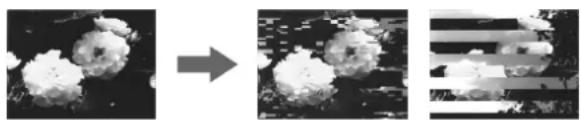
Symptoms caused by contaminated video heads
Normal picture
If these pictures appear on the screen, use the cleaning cassette.
To use the cleaning cassette
Refer to your cleaning cassette's instruction manual.
Cleaning cassettes are replaceable. The number of times you can use the cassette is specified in the cassette's instruction manual. After using the cassette that number of times, buy an optional DVCAM cleaning cassette or a Sony Digital Video Cleaning Cassette.
After prolonged use, the video heads may become worn out. If optimum picture quality is not restored even after you have cleaned the video heads with the cleaning cassette, the video heads may have worn out. In that case, you have to replace the video heads with new ones. Please consult your Sony dealer.
Notes on the Video Cassettes
If the cassette memory function does not work
Reinsert the cassette a few times. The terminal portion of the cassette may be dusty or dirty.
Cleaning the terminal
If the terminal of the cassette gets dirty, or dust sticks to the terminal, the unit may not work correctly.
Clean the terminal with a swab once every ten times you eject a cassette.
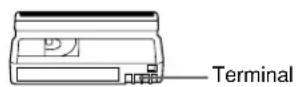
When affixing a label to the cassette
Be sure to affix a label only on the correct location so as not to cause malfunction of the unit.
After using a cassette
After use, please be sure to rewind the tape completely (to prevent picture and sound distortion). Return it to its case and store it in an upright position.
Notes on the LCD Screen
The LCD screen is manufactured using high-precision technology. The ratio of effective pixels is 99.99% or more. However, there may be some tiny black points and/or bright points (red, blue, green or white) that constantly appear on the LCD screen. These points do not affect the recorded picture in any way.
Do not place this unit with the LCD screen pointing toward the sun. Otherwise, the unit may be damaged. The backlight used in the built-in LCD monitor deteriorates with prolonged use. If the brightness of the LCD monitor cannot be adjusted, consult your Sony dealer.
To clean the LCD screen
To remove dirt or to clean fingerprints from the LCD screen, use an LCD cleaning kit (not supplied).
About Moisture Condensation
If the unit or cassette is brought directly from a cold to a warm location, moisture may condense inside or outside the unit or tape. If you use the tape or video heads in this condition, the tape may adhere to the head drum, and the video heads or the tape may be damaged, or a malfunction may occur.
Moisture condensation is likely to occur under the following conditions:
- The unit or cassette is brought from the cold outdoors to a warm indoor location.
- The unit or cassette is brought from the air-conditioned indoors to the hot outdoors.
- The unit is used in a place subject to cold currents from an air conditioner.
When bringing the unit or cassette from a cold place to a warm place or vice versa, put it in a plastic bag and seal the bag tightly. After bringing it into the new place, leave the bag on for more than one hour, and remove the bag when the air temperature inside it has reached the temperature surrounding it.
If moisture condensation occurred
You cannot operate the unit except to press EJECT, and a cassette cannot be inserted. If this occurs, with the unit powered on, remove the cassette, then wait more than one hour for the moisture to evaporate.
Digital Hours Meter
The digital hours meter keeps cumulative counts of the total operation time, the head drum rotation time, the tape running time and the number of unthreading operations. These counts can be displayed on the menu. Use them as guidelines for scheduling maintenance.
In general, consult your Sony dealer about necessary periodic maintenance checks.
The digital hours meter has the following four display modes and you can check them in HRS METER of the OTHERS menu (See page 92 (GB)).
- OPERATION mode
The cumulative total hours of operating time is displayed in 10-hour increments.
- DRUM RUN mode
The cumulative total hours of drum rotation with tape threaded is displayed in 10-hour increments.
- TAPE RUN mode
The cumulative total hours of tape running time is displayed in 10-hour increments.
- THREADING mode
The cumulative number of tape unthreading operations is displayed in 10-operation increments.
Self-diagnostics Function
The unit has a self-diagnostics display function. This function displays the current condition of the unit as a five-digit code (a combination of a letter and numbers), on the LCD monitor, display window, and MONITOR VIDEO output. If a five-digit code is displayed, check the following code chart. The last two digits (indicated by ) will differ depending on the state of your unit.
| Code | Symptom | Remedy |
| C:21:☐☐ | Moisture condensation has occurred. | Remove the cassette, then wait more than one hour with the power on. |
| C:22:☐☐ | The video heads are dirty. | Clean the heads using the cleaning cassette (supplied). |
| C:31:☐☐ | To prevent the unit from malfunctioning, the self-diagnostics function has taken over. | ·Remove the cassette, or change the unit to the standby mode once and then turn the unit on again. ·Disconnect the AC power cord. After reconnecting it, operate the unit. |
| C:32:☐☐ | To prevent the unit from malfunctioning, the self-diagnostics function has taken over. | ·Change the unit to the standby mode once and then turn the unit on again. ·Disconnect the AC power cord. After reconnecting it, operate the unit. |
If you are unable to resolve the problem, or a code other than those in the above chart appears, contact your Sony dealer or local authorized Sony service facility and inform them of the number.
Compatibility of DVCAM and DV Format
The DVCAM format was developed as a more reliable and higher end format than the consumer DV format. Here we explain the DVCAM and DV formats: the differences, compatibility and limitations on editing.
Differences between DVCAM and DV format
| Item | DVCAM | DV |
| Track pitch | 15 μm | 10 μm |
| Audio sampling frequency | 12 bit: 32 kHz16 bit: 48 kHz | 12 bit: 32 kHz16 bit: 32 kHz,44.1 kHz, 48 kHz2) |
| Audio recording mode1) | Lock mode | Unlock mode |
| Time code system | DSR-45: SMPTE time code (DF/NDF, including user bits)DSR-45P: EBU time code(including user bits) | Drop frame mode(DSR-45) without user bits |
1) There are two modes for audio recording; Lock mode and Unlock mode. In Lock mode, the sampling frequencies of audio and video are synchronized. In Unlock mode, which the consumer DV format adopts, the two sampling frequencies are independent. The lock mode maintains high compatibility with the higher formats and is more effective than unlock mode in digital processing and smooth transition during audio editing.
2) This unit cannot record in DV format with 16 bit - 32 kHz or 44.1 kHz.
DVCAM and DV cassettes
Both DVCAM and DV cassettes can be used on DVCAM or DV video equipment. The recording format is defined according to recorder format as described below.
| Recorder format | Cassette type | Recording format |
| DVCAM (If REC MODE on the VTR SET menu of this unit is set to DVCAM.) | DVCAM DV | DVCAM |
| DV (If REC MODE on the VTR SET menu of this unit is set to DV SP.) | DVCAM DV | DV |
- This unit can record in DV format. (SP mode only)
- This digital videocassette recorder complies with the DVCAM format. Though DV cassettes can be used for recording, we recommend that you use DVCAM cassettes. Particularly when you use a Mini-DV cassette that is longer than 60 minutes, do not play back the tape repeatedly (i.e., when editing). Set STILL TIME to 1 MIN or 30 SEC (See page 91 (GB)).
- If you use a DV cassette to record images in the DVCAM format, the recording time will be reduced to 2/3 of the time indicated on the DV cassette.
(Continued)
- If you use a DVCAM cassette to record images in the DV format (SP mode), the recording time will be extended to 1.5 times the time indicated on the DVCAM cassette.
Compatibility on playback
Some tapes cannot be played on DVCAM or DV video equipment.
| Tape | On DV video equipment (Consumer VCR) | On DVCAM video equipment (This unit) |
| DV-formatted | Can be played back. (A tape recorded in the LP mode cannot be played by some equipment.) | Can be played back only when recorded in SP mode. A tape recorded in LP mode can be played by some equipment. (This unit can play back a DV-formatted tape only in the SP mode.) |
| DVCAM-formatted | Some DV video equipment may be able to play back a DVCAM-formatted tape. | Can be played back. |
Compatibility on editing using a DV connection
When this unit is connected to other DVCAM or DV video equipment using DV connectors, the recording format of an edited tape is defined according to the recorder format as described below.
| Source tape | Player format | Recorder format2) | Recorded format |
| DV-formatted1) | DVCAM | DVCAM | DVCAM3) |
| DV | DV | ||
| DV-formatted | DV | DVCAM | DVCAM3) |
| DV | DV | ||
| DVCAM-formatted4) | DVCAM | DVCAM | DVCAM |
| DV | DV6) | ||
| DVCAM-formatted4) | DV5) | DVCAM | DVCAM7) |
| DV | DV6) |
1) On this unit, only DV-formatted tapes recorded in SP mode can be used as source tapes.
2) This unit will be restricted according to the setting of REC MODE on the VTR SET menu.
3) When you copy a DV-formatted tape using this unit with the DVCAM setting as a recorder, the recorded format of the copied tape is the following DVCAM format.
- The audio recording mode of the copied tape is unlock mode.
- The time code of the copied tape is partly inaccurate.
4) If you use a DVCAM-formatted tape as described in 3) above, the audio recording mode of the recorded tape is unlock mode and the time code is partly inaccurate.
5) Some DV video equipment may be able to play back a DVCAM-formatted tape. Even if the tape is played back, the contents of the playback cannot be guaranteed.
6) The audio recording mode of the edited tape is lock mode.
7) Depending on signal conditions of the source tape, you may not be able to edit the tape using the DV connection.
Limitations on editing
You will find the following limitations when editing.
- Due to differences of track pitch, you cannot record or edit DV-formatted tapes using DVCAM video equipment.
- Depending on signal conditions, you may not be able to record or edit DVCAM-formatted tapes. In these cases, copy the tape again using analog audio/video jacks.
Notes on Wide-screen Aspect Ratio Information
If a video signal input to the unit (through the COMPONENT, SVIDEO,VIDEO, or DV jack) or a video signal on the tape being played back contains wide-screen aspect ratio information, the unit records the video signal with the information or adds the information to the output video signal as indicated in the table below.
| Input1) | Played back2) | |
| LCD monitor display ○ | ○ | |
| Recorded tape ○ | ||
| COMPONENT output × | × | |
| S VIDEO output △ | △ | |
| VIDEO output × | × | |
| DV output ○ | ○ | |
| MONITOR output ○ | ○ |
:The wide-screen aspect ratio information is recorded/ added.
: Only the wide-screen aspect ratio information added on the color signal of an S-video signal is recorded/added. (There are two types of wide-screen aspect ratio information. One is inserted in the retrace interval of a video signal and the other is added to the color signal of an S-video signal.)
× : No wide-screen aspect ratio information is recorded/ added.
1) When a video signal containing wide-screen aspect ratio information is input
2) When a tape containing wide-screen aspect ratio information is played back
Notes
- The unit does not convert the aspect ratio of the video signal. The unit simply records/adds the wide-screen aspect ratio information.
- If you use a video signal containing the information described above and a monitor compatible with that wide-screen signal, the video signal is displayed in the wide-screen mode automatically. To see whether or not the monitor is compatible with the wide-screen aspect ratio information contained in the video signal, refer to the instruction manual of the monitor.
Specifications
System
Recording format DVCAM/DV (SP) format, rotating 2-head helical scan, digital component recording
Video signal
DSR-45:
EIA STANDARD, NTSC color system
DSR-45P:
CCIR STANDARD, PAL colour system
Video
Quantization 8-bit
Sampling frequency
DSR-45:
13.5 MHz (4:1:1 Component)
DSR-45P:
13.5 MHz (4:2:0 Component)
Audio
Quantization 12-bit (non-linear) or 16-bit (lincar)
Sampling frequency
32kHz (12-bit recording) or 48kHz (16-bit recording)
Usable cassettes Standard-DVCAM cassettes and Mini-DVCAM cassettes
Recording time Standard cassette
DVCAM:
184 minutes (PDV184)
180 minutes (DV270)
DV: 270 minutes (PDV184/ DV270)
Mini cassette
DVCAM: 40 minutes (PDVM40/DVM60)
DV: 60 minutes (PDVM40/DVM60)
(We recommend that you use DVCAM cassettes.)
Clock
System Quartz locked, digital display
Power back-up Back-up duration: up to two weeks (after an 8-hour charge)
Inputs
VIDEO IN REF.IN
BNC type
1 Vp-p (75 ohms, unbalanced)
SVIDEO IN Mini DIN 4-pin
Luminance signal: 1 Vp-p
(75 ohms, unbalanced)
Chrominance signal:
0.286 Vp-p (DSR-45)
0.3 Vp-p (DSR-45P)
(75 ohms unbalanced)
COMPONENT IN
Y: BNC type
1.0 Vp-p (75 ohms, unbalanced)
R-Y: BNC type
0.7 Vp-p (75 ohms, unbalanced)
(DSR-45: 75% , color bars / DSR-45P: 100% , colour bars)
B-Y: BNC type
0.7 Vp-p (75 ohms, unbalanced)
(DSR-45: 75% , color bars / DSR
45P: 100% , colour bars)
DV IN/OUT 4-pin jack (i.LINK)
AUDIO IN (CH-1 to CH-4)
Phono jack, -10 / - 2 / + 4 dBu, Impedance more than 47 kohms, unbalanced
Maximum input level:
DSR-45:
-10: + 18 dBu (about 6 Vrms)
-2: +24 dBu (about 12.5 Vrms)
+4: +30 dBu (about 25 Vrms)
DSR-45P:
-10: + 16 dBu (about 5 Vrms)
-2: +22 dBu (about 10 Vrms)
+4: +28 dBu (about 20 Vrms)
TC IN BNC type
0.5 to 18Vp - p (time code input)
0.5 to 4 Vp-p (through output)
Outputs
MONITORVIDEO
Phono jack, 1 Vp-p (75 ohms, unbalanced) (superimpose)
VIDEO OUT BNC type, 1 Vp-p (75 ohms, unbalanced)
COMPONENT OUT
Y: BNC type
1.0 Vp-p (75 ohms, unbalanced)
R-Y: BNC type
0.7 Vp-p (75 ohms, unbalanced)
(DSR-45: 75% , color bars / DSR-45P: 100% , colour bars)
B-Y: BNC type
0.7 Vp-p (75 ohms, unbalanced)
(DSR-45: 75% , color bars / DSR
45P: 100% , colour bars)
SVIDEO OUT Mini DIN 4-pin
Luminance signal: 1.0Vp - p
(75 ohms, unbalanced)
Chrominance signal:
0.286 Vp-p (DSR-45)
0.3 Vp-p (DSR-45P)
(75 ohms, unbalanced)
AUDIO OUT (CH-1 to CH-4)
XLR 3-pin, male, +4 dBu, 600
ohms loading, balanced
MONITOR AUDIO
Phono jack
TC OUT BNC type, 2.2 Vp-p, 600 ohms /
1.2 Vp-p, 75 ohms
0.5 to 4Vp - p (through output,
600 ohms)
PHONES Stereo minijack, 8 Ω
Remote control
RS-232C D-sub 9-pin (male)
RS-422A D-sub 9-pin (female)
CONTROL S IN Stereo minijack
LANC Stereo mini-minijack
LCD screen
Picture 5.1 cm (2 type)
Total dot number 123 200 (560× 220)
General
Power requirements
100 to 240 V AC, 50/60 Hz
Power consumption
22 W (during playback)
Operating temperature
5^ to 40^ (41^ to 104^)
Storage temperature
-20°C to +60°C
(-4^ to +140^)
Dimensions
Approx. 212× 98× 392.8mm
(8^3 / 8 × 3^7 / 8 × 15^1 / 2 inches)
(w/h/d, including projecting parts
and controls)
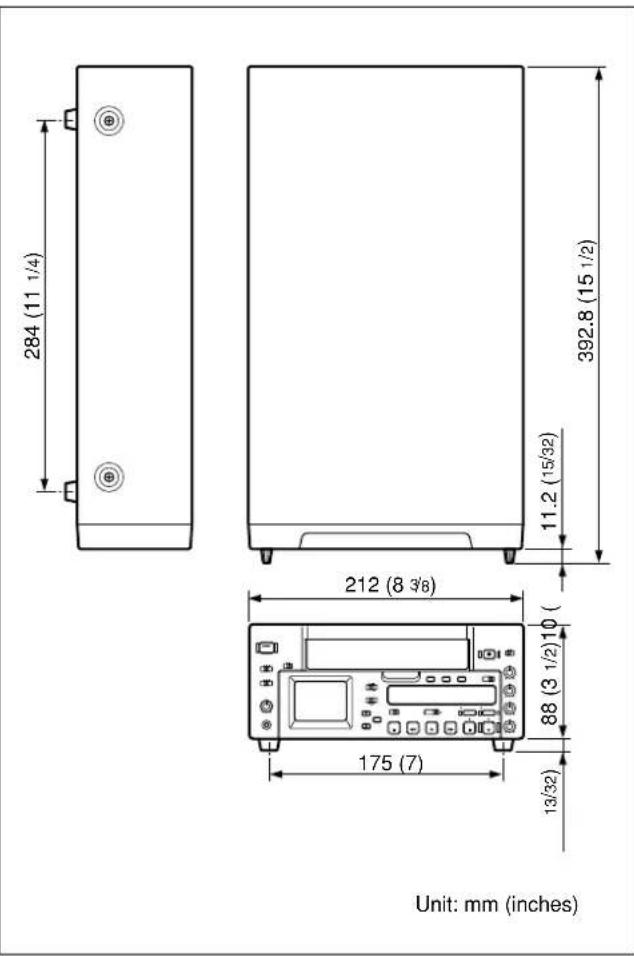
Mass Approx. 4.6kg (10 lb. 2 oz.)
Supplied accessories
Remote Commander (1)
AC power cord (1)
Size AA batteries (2)
Cleaning cassette (1)
Operating instructions
Interface Manual for Programmers (1)
Optional accessories
DSRM-20 Remote Control Unit
VMC-IL4415(A), VMC-
IL4615(A) i.LINK cable
Digital video cassette
Standard size: PDV-34ME/
64ME/94ME/124ME/184ME
Mini size: PDVM-12ME/22ME/
32ME/40ME
Recommended cables
All connecting cables must be three
meters or less in length.
Design and specifications are subject to change
without notice.

Audio recording mode
In the DVCAM format, the sound is recorded in either 16 bit (Fs48k) or 12 bit (Fs32k) mode.
B-Y signal
A chrominance signal determined by subtracting the Y (luminance) signal from the B (blue) signal. One of the component signals.
Chrominance signal
Color signal containing color information such as hue and saturation. Also called C signal.
Clipping
The waveform tops are flattened because the input to the amplifier exceeded the dynamic range.
Component signal
A video signal consisting of a luminance signal (Y) and two chrominance signals (R-Y, B-Y).
Composite signal
A composite video signal containing video, burst and sync signals.
Condensation
Condensation of moisture on the tape transport mechanisms of VCRs including the head drum. If moisture condenses on the head drum, the tape adheres to the drum and causes malfunctions.
Drop frame mode
In NTSC format, the actual number of frames per second is approximately 29.97, while that for the SMPTE time code is specified as 30. Drop frame mode is a mode in which time code is advanced in such a way that the difference in frame value between real time and time code is corrected. In this mode, two frames are skipped at the beginning of each minute, except for every tenth minute, so that the frame value for time code matches that for real time. See also "Non-drop frame mode."
EBU
European Broadcasting Union. Established by broadcasting and related organizations in Europe.
EE (Electric to Electric)
The electric signals of the images or sound input to the VCR recording circuit are output via only the electric circuit by bypassing the magnetic conversion circuit, such as a tape or head. You can check the input signals and adjust the input level in this mode. This is also called the EE mode.
Head drum
A metal cylinder to which a video head is attached. This drum is rotated at high speeds in synchronization with the sync signal during recording and playback.
Loading
When being loaded, the tape is pulled out of the cassette case and threaded along the specified tape path and wrapped round the drum to be ready for recording or playback. Generally, this is done automatically when you place the cassette at the cassette entrance of the VCR. Also called threading.
Luminance signal
The signal that determines the brightness of the picture. Also called Y signal. One of the component signals.
Non-drop frame mode
A mode of advancing time code in such a way that the difference in frame value between real time and time code is neglected. Using this mode produces a difference of approximately 86 seconds per day between real time and time code, which may cause problems when editing programs in units of seconds using the number of frames as a reference.
PCM audio
PCM stands for "pulse code modulation." PCM audio means audio signals that have been processed by pulse code modulation. Each analog audio signal is converted into pulses that are generated in rapid succession, and each pulse is recorded as a digital signal having a value of 0 or 1.
R-Y signal
A chrominance signal determined by subtracting the Y (luminance) signal from the R (red) signal. One of the component signals.
Reference video signal
A video signal consisting of a sync signal or sync and burst signals, used as a reference.
S/N
Abbreviation of Signal-to-Noise (ratio). The higher the S/N value, the less noise and higher the picture quality.
Search mode
A VCR operating mode used when searching for specific scenes, by viewing the video output or time code values while playing back the tape at various speeds in forward or reverse direction.
Servo lock
Synchronizing the drum rotation phase and tape transport phase with a reference signal during playback and recording so that the video heads scan the tape in the same pattern during playback and recording.
SMPTE
Abbreviation of Society of Motion Picture and Television Engineers. Established by broadcasting and related organizations in USA.
Standby Off mode
One of two conditions in the stop mode. The drum does not rotate and tape is slackened. There is no damage to the video heads and the tape, but the VCR is not ready for immediate recording or playback.
Standby On mode
One of two conditions in the stop mode. The drum is rotating and the tape is wrapped round the drum. The VCR is ready for recording or playback, so a still picture can be obtained.
Subcarrier
A sine wave imposed on the luminance portion of a video signal and modulated to carry color information. Its amplitude represents color saturation and its phase, hue.
Superimpose
To put a set of characters onto a picture so that both can be seen at the same time.
Superimposition
Superimposing a signal onto another signal.
S-video
A signal format in which Y (luminance) and C (chrominance) signals are separated to reduce interference between them so that noiseless images are reproduced.
Sync signal
A reference signal consisting of vertical and horizontal sync signals used for synchronizing the scanning patterns of the video camera and the monitor.
TBC
Abbreviation of Time Base Corrector. Electronic circuits to electrically stabilize the playback signals by removing color variation and roll in the playback picture caused by irregularity in drum rotation and tape movement. Time base correction reduces deterioration of picture quality when transmitting or copying playback signals.
Threading
See "Loading."
Time code
Signals recorded on the tape to supply information on tape position such as the hour, minute, second and frame, to assist in setting edit points or searching for particular scenes. This unit can cope with both DF (Drop Frame) and NDF (Non Drop Frame) (DSR-45 only).
Unloading
When being unloaded, the tape is put into the cassette case from the tape path of the VCR. Generally, this is done automatically when you press the EJECT button. Also called unthreading.
Unthreading
See "Unloading."
12 bit (Fs32k) mode
In the DVCAM format, the 12 bit (Fs32k) mode separates the audio area into 2 parts. You can record two kinds of audio, stereo 1 and stereo 2.
16 bit (Fs48k) mode
In the DVCAM format, the 16 bit (Fs48k) mode uses the whole audio area to record one stereo track. You can get higher sound quality.
Index

A,B
A/B roll editing system. 51 (GB)
AC timer 39 (GB), 45 (GB)
AGC. 89 (GB)
Alarm message 97 (GB)
Audio dubbing 74 (GB)
Audio mode 28 (GB)
Audio screen 28 (GB)
Auto Repeat 39 (GB)
C
Camera data 36 (GB)
Cassette 30 (GB)
Cassette memory 30 (GB)
Cleaning cassette 98 (GB)
Clock 92 (GB)
D
Data code 36 (GB)
Data screen 27 (GB)
Date search 37 (GB)
Drop Frame. 101 (GB)
Duplication 69 (GB)
DV
cassette 101 (GB)
format 101 (GB)
DV jack
21 (GB), 33 (GB), 41 (GB)
DVCAM
cassette 30 (GB), 101 (GB)
format 101 (GB)
E,F,G,H
Editing systems
A/B roll editing system 51 (GB)
cut editing system 49 (GB)
digital non-linear editing system 48 (GB)
Edit timing, adjusting 56 (GB)
EE mode 14 (GB)
FS32k. 88 (GB)
FS48k. 88 (GB)
I, J, K
at various speeds 37 (GB)
frame by frame 37 (GB)
R
Recording 41 (GB)
Remaining tape time 27 (GB)
Remote Commander 25 (GB)
S
Search 37 (GB)
Self-diagnostics 100 (GB)
Simple playback function 32 (GB)
Standard DVCAM cassette. 30 (GB)
Subcarrier phase 66 (GB)
Sync phase, adjusting 66 (GB)
T
Time code 58 (GB)
Time counter display 19 (GB)
Title search 37 (GB)
Troubleshooting. 93 (GB)
U
Unlock mode 101 (GB)
Usable cassette. 30 (GB)
User bits 58 (GB)
V,W,X,Y,Z
Vectorscope 66 (GB)
Waveform monitor 68 (GB)
Submenu Index
A,B
AC ON MODE 92 (GB)
AGC CH1,2 89 (GB)
AGC CH3,4 89 (GB)
AUDIO DUB 88 (GB)
AUDIO MODE 88 (GB)
AUTO INDEX. 90 (GB)
AUTO STBY 92 (GB)
BEEP 92 (GB)
C
CLOCK SET 92 (GB)
CM SEARCH 81 (GB)
COLOR BAR (COLOUR BAR) .. 85 (GB)
COMMANDER. 92 (GB)
D
DATA CODE 85 (GB)
DATE DISP 86 (GB)
DUPLICATE 91 (GB)
DV EE OUT 91 (GB)
DV IN TC. 79 (GB)
E
EE/PB SEL 85 (GB)
ERASE ALL. 84 (GB)
EXT SYNC. 87 (GB)
F, G
Specifications 106 (FR)
Glossaire 109 (FR)
Index 111 (FR)
| TC/UB SET | |
| TC | TC PRESET |
| RMT | UB PRESET |
| CM | TC/UB IN |
| DISP | DV IN TC |
| V | TC MAKE |
| A | TC RUN |
| VTR | TC FORMAT |
| ETC | JOG TC OUT |
Ecran de données
Cable i.LINK (cable DV) (non fourni)

Remarque
Quantification 8 bits
Signal de chrominance:
0,286 Vp-p (DSR-45)
0,3 Vp-p (DSR-45P)
Signal de luminance: 1,0 Vp-p
Signal de chrominance:
0,286 Vp-p (DSR-45)
0.3 Vp-p (DSR-45P)
22 W (durant la lecture)
Cable i.LINK VMC-IL4415(A), VMC-IL4615(A)
EE (Electric to Electric)
Signal video constituted a single signal of luminance (Y) and two signaux of chrominance (R-Y, B-Y).
Signal composite
JOG AUDIO .89 (FR)
JOG TC OUT 81 (FR)
L, M, N, O
LABEL DISP 82 (FR)
LCD BRIGHT 93 (FR)
LCD COLOR (LCD COLOUR) ... 93 (FR)
LIMITER 90 (FR)
LOCAL ENBL 81 (FR)
LTR SIZE 86 (FR)
P, Q
PB CNR 87 (FR)
PB LEVEL 88 (FR)
PB YNR 87 (FR)
POST CUEUP 81 (FR)
PREROLL 81 (FR)
R
REC MODE 91 (FR)
REF LEVEL 90 (FR)
s
SC PHASE 89 (FR)
SC PHASE F 89 (FR)
STILL DLY 82 (FR)
STILL PICT 91 (FR)
STILL TIME 92 (FR)
T, U,
TAPE LABEL 83 (FR)
TC FORMAT 80 (FR)
TC MAKE 80 (FR)
TC PRESET 79 (FR)
TC RUN 80 (FR)
TC/UB IN 79 (FR)
TIME DISP. 87 (FR)
TITLE DISP 82 (FR)
232C RATE 82 (FR)
UB PRESET 79 (FR)


- Digital Videocassette Recorder
- WARNING
- Owner's record
- Important Safety Instructions
- Notes on installation
- For customers in the U.S.A.
- Declaration of Conformity
- CAUTION
- Notes
- For DSR-45P
- For customers in Europe
- For the customers in the Netherlands Voor de klanten in Nederland
- Chapter 2
- Playback and Recording
- Chapter 3
- Using the Unit as a
- Chapter 4
- Setting the Time Code and
- Adjusting the Video Signals
- Chapter 5
- Duplication and Audio Dubbing
- Chapter 6
- Adjusting and Setting Through Menus
- Chapter 7
- Maintenance
- Appendix
- Features
- DVCAM Format
- High picture quality, high stability
- Wide track pitch
- High-quality PCM digital audio
- DV format compatibility
- Choice of two cassette sizes
- Remote control
- High-speed search function
- Internal time code generator/reader
- Digital slow playback
- TBC (Time Base Corrector)
- Jog audio function
- Various interfaces
- Other Features
- Built-in color LCD monitor
- Duplicate, including cassette memory data
- Audio dubbing function
- Menu system for functionality and operation settings
- Superimposition function
- Easy maintenance functions
- Front Panel
- Cassette compartment
- ON/STANDBY switch and lamp
- Note
- TIMER selector
- AUDIO MONITOR selector
- PHONE LEVEL control knob
- PHONES jack
- RESET button
- CHARACTER DISPLAY (MONITOR OUT) (data items superimposed on an external monitor) switch
- INPUT SELECT selector
- Monitor display section
- LCD (Liquid Crystal Display) monitor
- DISPLAY SELECT selector
- EXEC (execute) or FINE (AUDIO) (fine audio levels) button
- 念 / buttons
- Tape transport control section
- STOP button
- REW (rewind) button/indicator
- PLAY button/indicator
- FF (fast forward) button/indicator
- PAUSE button/indicator
- REC (record) button/indicator
- AUDIO DUB (audio dubbing) button/indicator
- DUP (duplicate) button/indicator
- Audio control section
- AUDIO INPUT (AUTO/MANU) switch
- AUDIO REC LEVEL control knobs (CH-1 to CH-4)
- Display window
- END SEARCH button
- INDEX button
- (cassette) indicator
- DVCAM indicator
- Remote control detector
- Time counter display
- COUNTER SELECT selector
- RESET (counter reset) button
- Rear Panel
- TC (time code) connectors (BNC-type)
- DV jack (4-pin)
- AC IN connector
- CONTROL S IN jack (stereo minijack)
- MONITOR jacks (phono jack)
- Video signal input/output section
- SVIDEO connectors (4-pin)
- 2VIDEO connectors (BNC-type)
- COMPONENT connectors (BNC-type)
- Audio signal input/output section
- INPUT LEVEL (-10 / - 2 / + 4) selector
- AUDIO IN CH-1 to CH-4 jacks (phono jack) Inputs audio signals (CH-1 to CH-4).
- AUDIO OUT CH-1 to CH-4 connectors (XLR 3-pin, male)
- Remote control section
- RS-232C connector (9-pin)
- RS-422A connector (9-pin)
- LANC jack
- Remote selector
- Supplied Remote Commander
- EJECT button
- SEARCH SELECT buttons
- Buttons for playing at various speeds
- PAUSE button
- ⑤REW(rewind)button
- ⑥ PLAY button
- FF (fast forward) button
- REC (record) buttons
- INDEX WRITE button
- DATA CODE button
- (on/standby) switch
- Battery installation
- Notes on batteries
- To remove the batteries
- Displaying Various Data
- Menu screen
- Data screen
- Audio screen
- Link symbol
- Fine audio levels screen
- Notes on Video Cassettes
- Usable cassettes
- Cassette memory
- To save a recording
- Checking the tape for slack
- Inserting/Ejecting Cassettes
- To insert a cassette
- To eject the cassette
- Notes onPlayback/Recording
- No compensation for contents of the recording
- Copyright precautions
- On recording
- On playback
- Limitations caused by differences in format
- Simple playback function for a tape recorded using the PAL system (for the DSR-45) or the NTSC system (for the DSR-45P)
- Limitations regarding the differences in color systems
- Connections for Playback
- To digital video equipment with a DV jack
- To video equipment without a DV jack
- Settings for Playback
- Preparation on the player (this unit)
- Playback Procedures
- To stop playback
- To pause playback
- Playback Functions
- Displaying information (data codes) recorded on a tape
- Playing at various speeds
- To change playback direction
- To hear the sound while playing at various speeds
- Searching using the search function
- To search with the cassette memory
- When selecting INDEX SEARCH
- Press the or button to select a scene.
- To search without cassette memory
- Press the 1 or 2 button repeatedly to locate the scene you want.
- How signals are recorded
- About the cassette memory
- Automatically playing back a tape repeatedly (Auto Repeat)
- Auto Repeat using an external AC timer
- To stop Auto Repeat
- To release the Auto Repeat mode
- Connections for Recording
- Settings for Recording
- Preparation on the recorder (this unit)
- Recording Procedures
- Recording Functions
- Marking an index
- To use an index during playback
- AC timer recording
- Using the Unit as a Player in an Editing System
- Notes on Usage in the Editing System
- Notes on general
- Notes on editing
- Settings on editing controller
- Connections for Digital Non-linear Editing
- Connections for a Cut Editing System
- Settings on the Editing Control Unit
- Settings on the DSR-45/45P (player) and a recorder
- About reference video signals
- Connections for an A/B Roll Editing System
- Reference video signal connection
- Control signal connections
- Video/audiosignal connections
- Connection of a video monitor
- Adjusting Edit Timing
- Using this unit as a player with the RM450/450CE
- Using this unit as player 1 with the PVE-500
- Using this unit as a player 1 with the FXE-120/120P
- Adjusting the IN point
- How to calculate the adjustment value
- Using this unit as a player with the BVE-600
- Using this unit as a player with the BVE-2000
- Setting the Time Code and Adjusting the Video Signals
- Setting the Time Code and User Bits
- Using the Internal Time Code Generator
- To set the initial time code value
- To cancel the time code setting
- To reset the time code
- To set the value of the user bits
- To cancel the user bits setting
- To reset the user bits
- To select the time code/user bits to be recorded on the tape
- To select the time code to be recorded when DV signals are recorded in DVCAM format
- To set the time code when the recording starts
- To set the advancement mode
- To set the frame mode (DSR-45 only)
- To switch the time code output when playing at various speeds (JOG)
- Synchronizing the Time Codes
- Connecting to the Time Code Generator
- To synchronize the internal time code to an external time code
- To confirm external synchronization
- DSR-45/45P time codes
- Notes on the Time Codes
- Setting example
- Adjusting the Sync and Subcarrier Phases of the Video Signals
- Performing a phase adjustment operation
- Adjusting the Signals
- Adjusting the component signal level
- Adjusting the chrominance signal gain level of the composite signal
- Duplication (generating a work tape with the same time code)
- To set the duplicate mode
- Duplicating a tape
- AUTOor AUTO duplicate mode
- If you press the PAUSE and PLAY buttons while holding the DUP button down in step 3
- To stop duplication
- MANUAL duplicate mode
- To adjust the point where duplication starts
- Detecting a blank portion during duplication
- Warnings about duplication
- Audio Dubbing
- Connection of external devices
- Selecting the input channels for audio dubbing
- Dubbing sound
- To pause audio dubbing
- To stop audio dubbing
- To monitor the sound you want
- Operating the Menu
- Displaying the menu
- Changing the menu settings
- To return to step 1
- Menu Organization
- Menu Contents
- TC/UB SET menu
- REMOTE menu
- VIDEO SET menu
- AUDIO SET menu
- Troubleshooting
- Alarm Messages
- Notes on the Videocassette Recorder
- Do not use the unit in a place subject to direct sunlight or heat sources
- Do not use the unit in an extremely hot place
- If the unit is brought directly from a cold to a warm location
- Do not place a heavy object on the unit
- Do not handle the unit roughly
- To avoid damaging the cabinet's finish
- Do not clean the cabinet with thinner or benzine
- Clean the cabinet with a soft dry cloth
- Do not put magnetic objects close to the unit
- To prevent electromagnetic interference caused by radio communication equipment such as cellular phones, transceivers, etc.
- Do not use the unit in an area exposed to radiation
- Checking the video heads every 1000 hours
- When you transport the unit
- Cleaning of the Video Heads
- Before recording an important event
- Every 50 hours
- After using a tape prone to clog the heads
- When the symptoms caused by clogged video heads appear
- To use the cleaning cassette
- Notes on the Video Cassettes
- If the cassette memory function does not work
- Cleaning the terminal
- When affixing a label to the cassette
- After using a cassette
- Notes on the LCD Screen
- To clean the LCD screen
- About Moisture Condensation
- If moisture condensation occurred
- Digital Hours Meter
- - OPERATION mode
- - DRUM RUN mode
- - TAPE RUN mode
- - THREADING mode
- Self-diagnostics Function
- Compatibility of DVCAM and DV Format
- DVCAM and DV cassettes
- Compatibility on playback
- Compatibility on editing using a DV connection
- Limitations on editing
- Notes on Wide-screen Aspect Ratio Information
- Specifications
- System
- Video
- Audio
- Clock
- Inputs
- COMPONENT IN
- Outputs
- Audio recording mode
- B-Y signal
- Chrominance signal
- Clipping
- Component signal
- Composite signal
- Condensation
- Drop frame mode
- EBU
- EE (Electric to Electric)
- Head drum
- Loading
- Luminance signal
- Non-drop frame mode
- PCM audio
- R-Y signal
- Reference video signal
- S/N
- Search mode
- Servo lock
- SMPTE
- Standby Off mode
- Standby On mode
- Subcarrier
- Superimpose
- Superimposition
- S-video
- Sync signal
- TBC
- Threading
- Time code
- Unloading
- Unthreading
- bit (Fs32k) mode
- bit (Fs48k) mode
- Index
- A,B
- C
- D
- E,F,G,H
- I, J, K
- R
- S
- T
- U
- V,W,X,Y,Z
- Submenu Index
- E
- F, G
- Ecran de données
- Remarque
- Signal composite
- L, M, N, O
- P, Q
- T, U,
Brand : SONY
Model : DSR-45P
Category : Cassette player