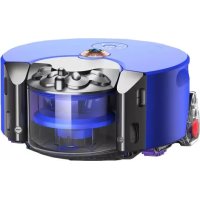
360 Heurist - Robot vacuum DYSON - Free user manual and instructions
Find the device manual for free 360 Heurist DYSON in PDF.


| Product type | Robot vacuum |
| Brand | Dyson |
| Model | 360 Heurist |
| Power supply | Rechargeable battery via docking station |
| Battery life | Approximate duration (not specified) |
| Charging time | Variable (not specified) |
| Navigation technology | 360° vision and infrared sensors |
| Motor | Dyson digital motor with multiple power levels |
| Brush | Full-width brush |
| Connectivity | Wi-Fi, Dyson Link app (iOS/Android) |
| Dustbin capacity | Not specified (estimated 0.4 L) |
| Power levels | 3 (extend battery life, normal suction, reduce noise) |
| Scheduling | Yes, via app |
| Automatic updates | Yes, via Wi-Fi or USB |
| Obstacle detection | Infrared sensors and ring of LED diodes |
| Filters | Washable with water (pre-motor and post-motor) |
| Maintenance | Monthly filter washing, cleaning brush and tracks, emptying dustbin |
| Weight | Approximately 2.4 kg |
| Dimensions | Diameter 230 mm, height 120 mm |
| Customer service | Phone and online support (see manual) |
Frequently Asked Questions - 360 Heurist DYSON
User questions about 360 Heurist DYSON
0 question about this device. Answer the ones you know or ask your own.
Ask a new question about this device
Download the instructions for your Robot vacuum in PDF format for free! Find your manual 360 Heurist - DYSON and take your electronic device back in hand. On this page are published all the documents necessary for the use of your device. 360 Heurist by DYSON.
USER MANUAL 360 Heurist DYSON
natural_image
Top-down architectural line drawing of a circular mechanical or architectural component (no text or symbols)Thank you for choosing to buy a Dyson robot
To read your manual in English go to page 4.
Thank you for choosing to buy a Dyson robot
5
Download the Dyson Link app to get more from your robot
6
How your robot works
8
Starting a clean
12
Maintaining your robot's performance
14
Understanding your robot's lights
Download the Dyson Link app to get more from your robot
Personalise your robot.
Get step-by-step setup and support.
Control when your robot cleans.
Track your robot's cleaning progress.
Extend run time, increase suction or reduce noise by selecting from three different power levels.
Keep your robot up to date with automatic software updates.

Download the latest Dyson Link app from the App Store or Google Play. Open the app and follow the on-screen instructions to connect to your robot.


Apple and the Apple logo are trademarks of Apple Inc., registered in the U.S. and other countries. App Store is a service mark of Apple Inc., registered in the U.S. and other countries. Google Play and the Google Play logo are trademarks of Google Inc. The Bluetooth® word mark and logos are registered trademarks owned by the Bluetooth SIG, Inc. and any use of such marks by Dyson is under license.
For further information and support:
Online
www.dyson.com
On the phone
Call our dedicated Helpline.
How your robot works
How to get the best cleaning performance.
natural_image
Interior view of a room with ceiling lights and ceiling-mounted equipment (no visible text or symbols)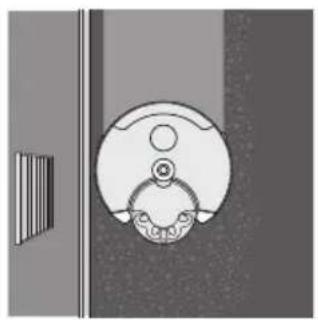
natural_image
Simple line drawing of a door handle with a circular opening and handle, no text or symbols present.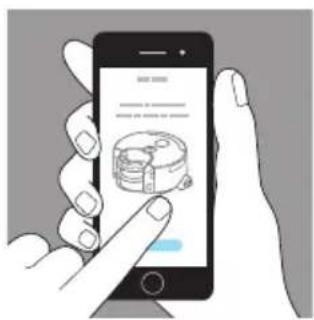
Navigation
A specifically designed vision system that guides your robot around your home.
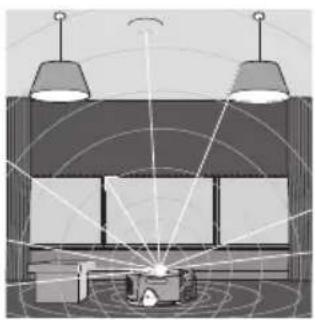
Your robot views 360° around to fix its location in your home.
It also uses infrared sensors to work out the size of your home and avoid obstacles such as furniture.
Cleaning
Your robot uses a combination of patented Dyson technologies to keep your home clean.
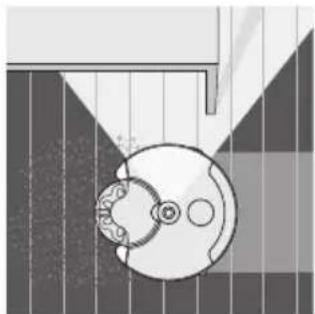
Your robot uses a full width brush bar to clean to the edges of the room and a choice of power levels from the Dyson digital motor to clean all floor types.
Personalisation
Use the Dyson Link app to personalise how and when your robot cleans.
Schedule your robot, telling it when to clean.
Choose between three power modes and adapt your robot to your home.
natural_image
Pure diagram of a mechanical component with no text, numbers, or symbols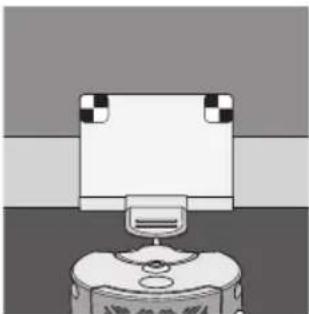
natural_image
Simple line drawing of a mechanical device with a base and top component (no text or symbols)Illumination
LED lights help your robot clean in low light.
Your robot senses low light areas and uses its ring of LED lights to selectively illuminate those areas, helping it to navigate.
Runtime and charging
The run times and charging times of your robot will always be approximate.
You do not have to wait for your robot to be fully charged before starting a clean.
Your robot will automatically recharge if started from the dock. During a clean, your robot will not fully recharge before resuming, to optimise the time spent cleaning.
For further information and support:
Online
www.dyson.com
On the phone
Call our dedicated Helpline.
Starting a clean
1
2
3
Setting up
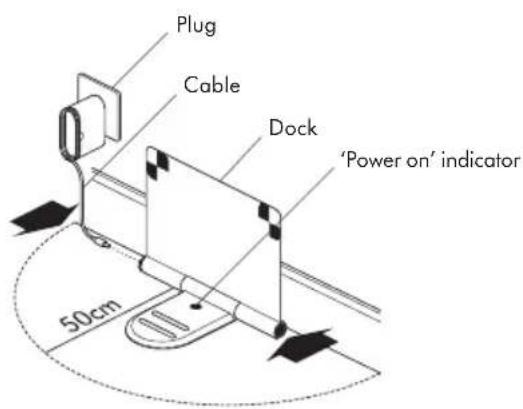
Open the dock fully to 90° and place it against the wall.
Plug the charging cable into either side of the dock.
Ensure that the dock is powered, indicated by a blue light on the dock.
Tidy any surplus cable by wrapping it around the plug.
Ensure that no objects are within approximately a 50cm radius of the dock.
Charging
Place your robot on the dock with the clear bin facing the wall.
The battery light will indicate that your robot is charging.
Preparing the room
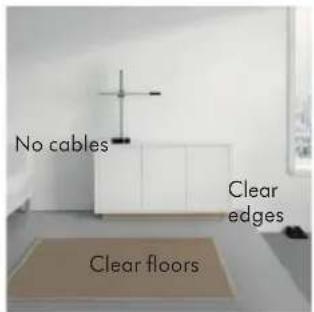
Remove thin rugs or loose items that your robot may suck up.
Tidy obstacles such as shoe laces or thin cables that may become entangled in the brush bar.
Clean any liquid spills or sharp items that may cause damage to your robot.
Ensure that there are no items such as bags or shoes within 10cm of any drops in the room.
natural_image
Illustration of a hand operating a robotic device with a green sensor and a blue panel nearby (no text or symbols)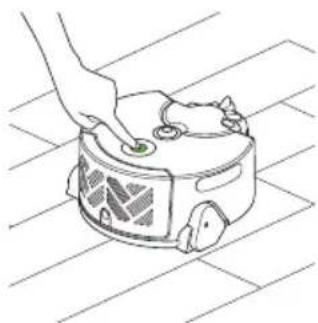
natural_image
Line drawing of a hand pressing down on a small robotic device on a tiled floor (no text or symbols)4
Automatic recharge
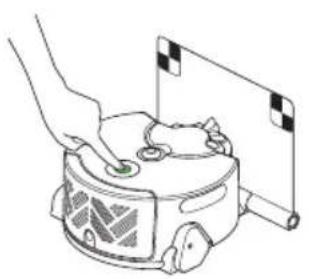
Press the button to clean all accessible areas.
Your robot will return to the dock to recharge when the battery is low.
Once recharged, your robot will automatically continue its clean.
Single charge
To clean a specific area, start your robot away from the dock.
Your robot will clean all the accessible space it can reach on a single charge.
Your robot will not recharge when the battery is low, but return to its starting point and switch 'OFF'.
For further information and support:
Online
www.dyson.com
On the phone
Call our dedicated Helpline.
Maintaining your robot's performance
Follow a few regular, simple maintenance steps.
Washing and drying the filters
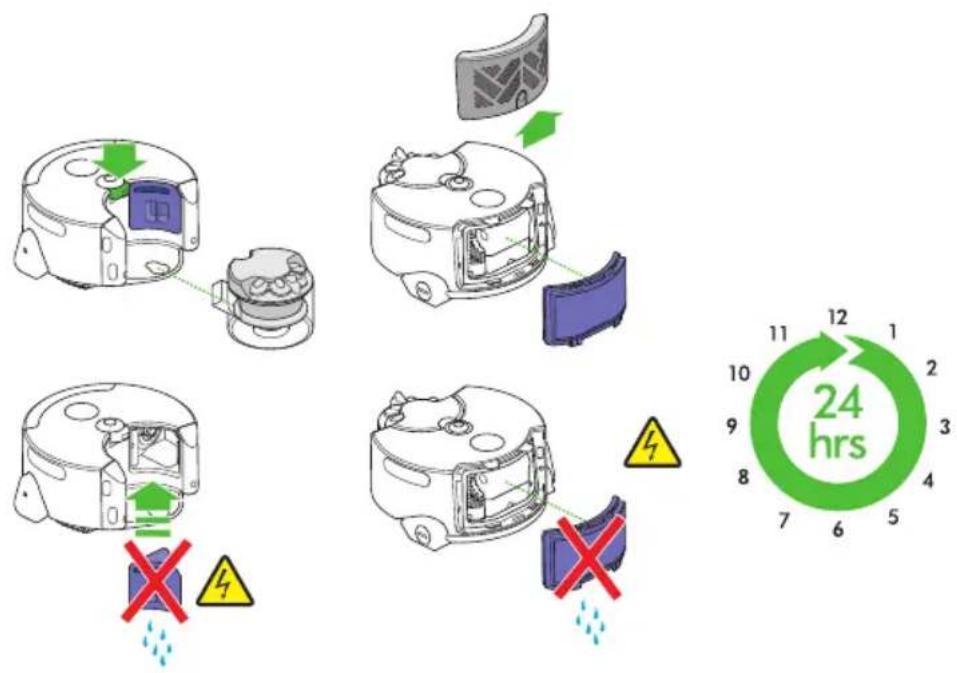
Wash filters with cold water at least once every month.
flowchart
graph TD
    A["Device Placement"] --> B{Check}
    B -->|Yes| C["Discharge"]
    B -->|No| D["Failure"]
    C --> E["Storage System"]
    D --> F["Discharge"]
    E --> G["Product Package"]
    F --> H["Discharge"]
    G --> I["End"]
To remove the pre-motor filter:
Press the bin release button and remove the filter behind the bin. To remove the post-motor filter:
Press the button on the filter cover and remove. Pull the filter from the robot.
Wash the filters with cold water, repeat until the water runs clear.
Tap to remove excess water and leave to dry for at least 24 hours.
Ensure that the filters are completely dry before refitting.
To refit the pre-motor filter:
Push the filter back into position and refit the clear bin. To refit the post-motor filter:
Push the filter back into position and refit the filter cover.
natural_image
Illustration of a hand holding a red string attached to a device, with a green arrow indicating direction (no text or symbols)Brush bar maintenance
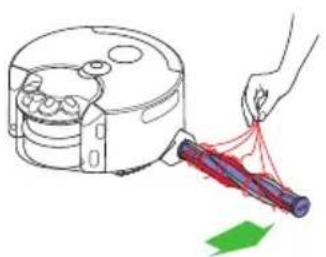
Check your brush bar regularly.
Detach the brush bar using a coin and remove any debris by hand.
natural_image
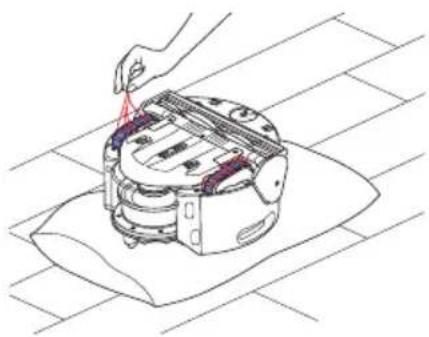
Line drawing of a hand using a tool to adjust or install a mechanical component on a grid-patterned surface (no text or symbols)Track maintenance
Check your tracks regularly.
Place the robot upside down on a soft surface and remove any debris by hand.
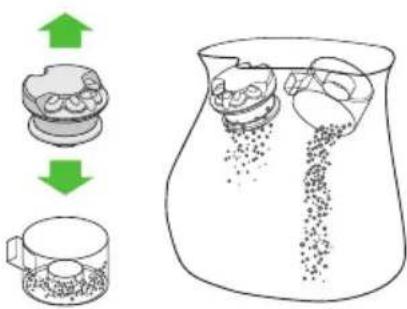
Emptying your clear bin
Before every clean and when the dirt reaches the MAX mark. Press the bin release button. Place the whole bin in a bag, lift the cyclone out of the clear bin and empty the contents into the bag.
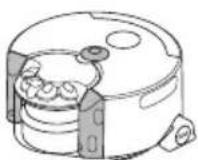
General cleaning
Check your infrared sensors, lens and LED lights regularly.
Use a soft, dry, lint free cloth to wipe all over the robot and especially the infrared sensors, lens and LED lights.
Maintaining your robot's performance
Continued.
Software updates
To get the best out of your robot, update to the latest software.
Automatic updates via the Dyson Link app
By downloading the Dyson Link app you will be registered for automatic updates. When an update becomes available for your robot, it will automatically download and install at the next available opportunity (when the robot is inactive, on the dock and connected to Wi-Fi).
Manually update via USB
Check for software updates on the Dyson website, www.dyson.com and follow the step-by-step instructions.
For further information and support:
Online
www.dyson.com
On the phone
Call our dedicated Helpline.
Understanding your robot's lights
During a clean
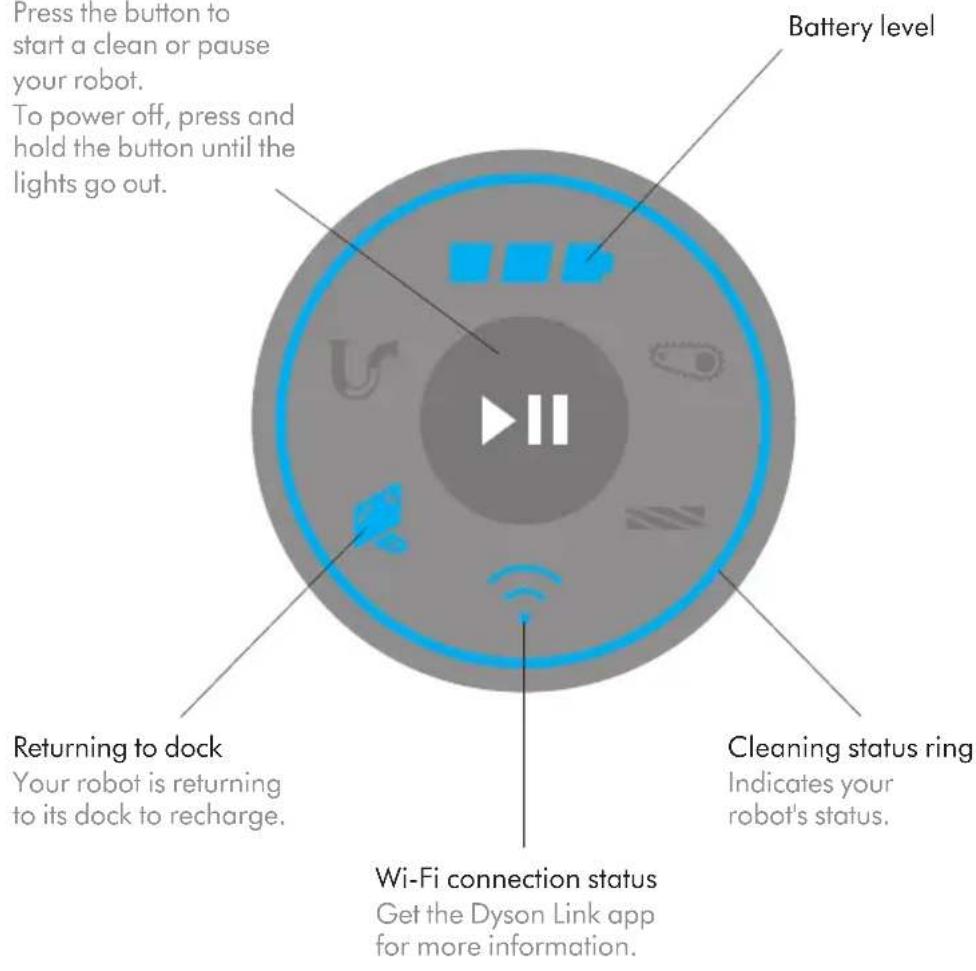
Clean/Pause button
Press the button to start a clean or pause your robot.
To power off, press and hold the button until the lights go out.
Your robot needs your attention
Once you have finished looking after your robot, press the button to resume cleaning. Follow the instructions in 'Maintaining your robot's performance'.
Airways blocked
Check for blockages in your robot's airways. Clean your robot's filters.
Tracks or robot stuck
Check for debris wrapped around your robot's tracks. Recover your robot from any obstacle and place it nearby to resume cleaning.
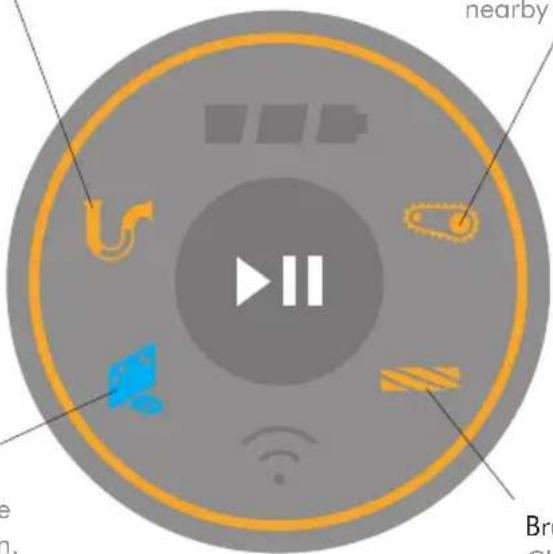
Clean stopped
Your robot is unable to complete its clean. Return your robot to its dock and start the next clean as normal.
Brush bar stuck
Check for debris wrapped around your robot's brush bar.
natural_image
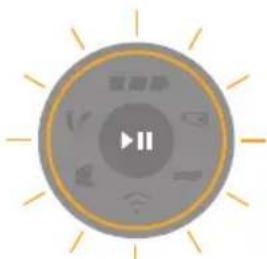
Circular play button icon with playback control buttons and radiating lines (no text or symbols)Call the Dyson
Helpline
Your robot may need help from Dyson.
natural_image
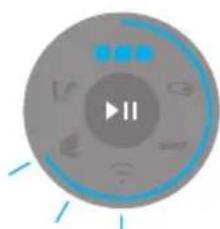
Circular play button icon with musical notes and playback control (no text or symbols)Software update
Your robot is updating its software. Wait until the lights go out and start a clean as normal.
DE/AT/CH
natural_image
Interior view of a room with ceiling lights and a central display area, no visible text or symbols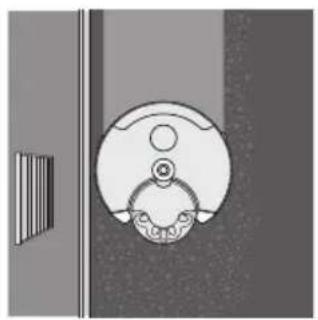
natural_image
Simple line drawing of a door handle with a circular opening and handle, no text or symbols present.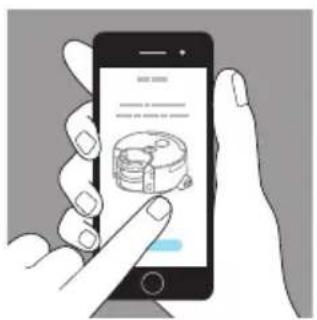
Navigation
natural_image
Pure diagram of a mechanical component with no text, numbers, or symbols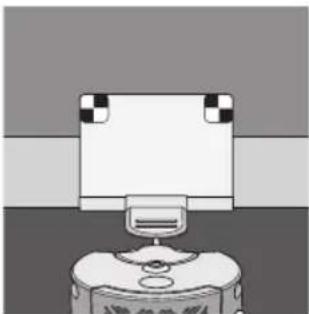
natural_image
Simple line drawing of a mechanical device with a base and top component (no text or symbols)Beleuchtung
natural_image
Line drawing of a hand operating a robotic device with a checkered flag (no text or symbols)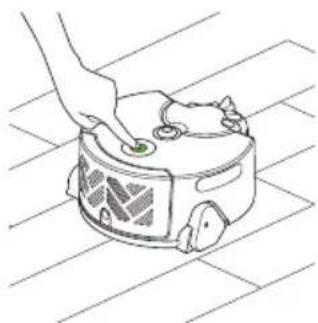
natural_image
Line drawing of a hand pressing down on a small robotic device on a tiled floor (no text or symbols)4
flowchart
graph TD
    A["Device Placement"] --> B["Replacement"]
    B --> C{Condition: Yes/No}
    C -->|Yes| D["Adjustment to Device"]
    C -->|No| E["Failure to Remove Device"]
    D --> F["Ordering to Device"]
    E --> G["Delivery to Device"]
    F --> H["End"]
    G --> I["End"]
    style A fill:#f9f,stroke:#333
    style B fill:#ccf,stroke:#333
    style C fill:#cfc,stroke:#333
    style D fill:#fcc,stroke:#333
    style E fill:#cff,stroke:#333
    style F fill:#ffc,stroke:#333
    style G fill:#cfc,stroke:#333
    style H fill:#fcc,stroke:#333
    style I fill:#ffc,stroke:#333
    note right of H "24 hrs"
    note left of H "NO" (Red X)
    note right of I "NO" (Red X)
natural_image
Illustration of a hand holding a device with red light beams, next to a computer (no text or symbols)natural_image
Line drawing of a robotic device being processed with a tool, placed on a cloth (no text or symbols)Wartung der Ketten
Behälterentleerung
natural_image
Circular icon with play button and radiating lines, no text or symbols presentnatural_image
Circular icon with play button and musical notes, no readable text or symbolsnatural_image
Interior view of a room with ceiling lights and a central display area, no visible text or symbols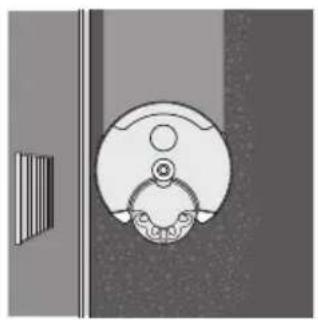
natural_image
Simple line drawing of a door handle with a circular opening and handle, no text or symbols present.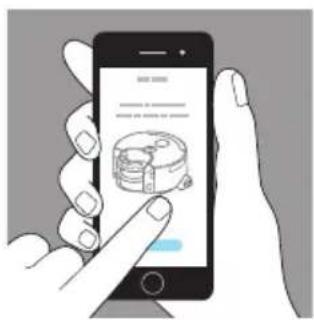
Circulación
natural_image
Pure diagram of a mechanical component with no text, numbers, or symbols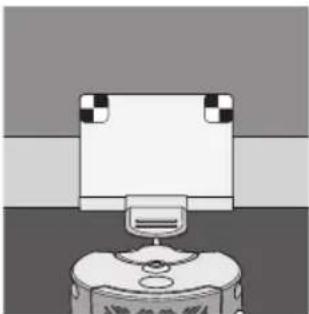
natural_image
Simple line drawing of a mechanical device with a base and top component (no text or symbols)Iluminación
natural_image
Illustration of a hand operating a robotic device with a green sensor and a blue panel nearby (no text or symbols)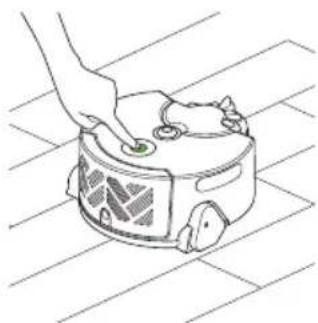
natural_image
Line drawing of a hand pressing down on a small robotic device on a tiled floor (no text or symbols)4
Recarga automática
natural_image
Illustration of a hand holding a red string attached to a device, with a green arrow indicating direction (no text or symbols)natural_image
Line drawing of a hand using a tool to adjust or install a mechanical component on a grid-patterned surface (no text or symbols)natural_image
Circular icon with play button and radiating lines, no text or symbols presentnatural_image
Circular play button icon with blue and gray buttons, no text or symbols visiblenatural_image
Interior view of a room with ceiling lights and ceiling-mounted equipment (no visible text or symbols)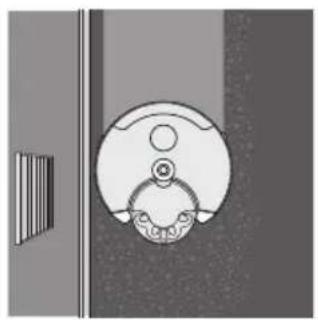
natural_image
Simple line drawing of a door handle with a circular opening and handle, no text or symbols present.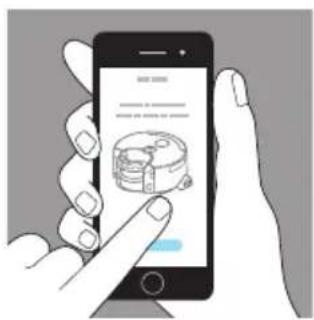
Navigation
natural_image
Pure diagram of a mechanical component with no text, numbers, or symbols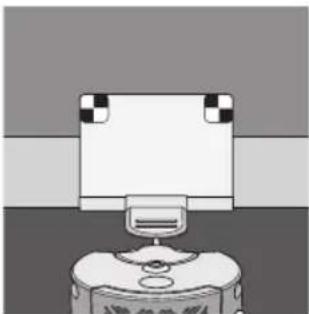
natural_image
Simple line drawing of a mechanical device with a base and top component (no text or symbols)Éclairage
natural_image
Line drawing of a hand operating a robotic device with a checkered flag (no text or symbols)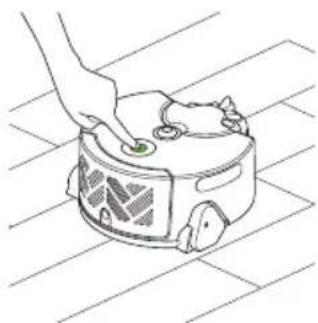
natural_image
Line drawing of a hand pressing down on a small robotic device on a tiled floor (no text or symbols)4
natural_image
Illustration of a hand holding a red string attached to a device, with a green arrow indicating direction (no text or symbols)Entretien de la brosse
natural_image
Line drawing of a hand using a tool to adjust or install a mechanical component on a grid-patterned surface (no text or symbols)natural_image
Circular icon with play button and surrounding icons (no text or symbols)natural_image
Circular icon with play button and radiating lines, no text or symbols presentContactez le Service
Consommateurs Dyson
natural_image
Circular icon with play button and Wi-Fi signal, no text or symbols presentIT: www.dyson.it/support
CH: www.dyson.ch/support
Al telefono
IT: 800 976 024
CH: 0800 740 183
natural_image
Interior view of a room with ceiling lights and ceiling-mounted equipment (no visible text or symbols)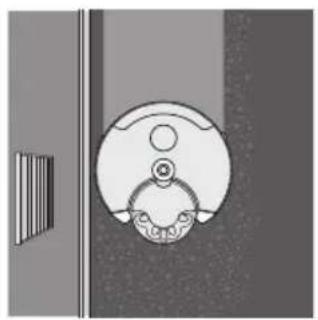
natural_image
Simple line drawing of a door handle with a circular opening and handle, no text or symbols present.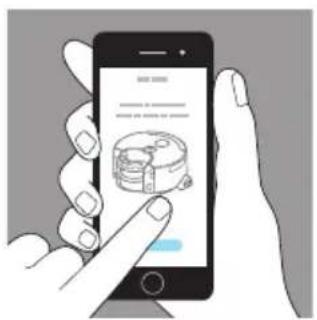
Navigazione
natural_image
Pure diagram of a mechanical component with no text, numbers, or symbols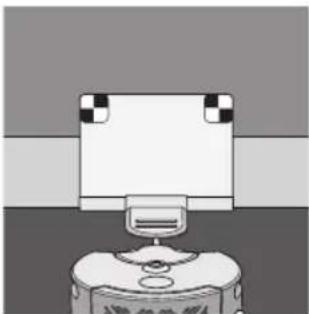
natural_image
Simple line drawing of a mechanical device with a base and top component (no text or symbols)Illuminazione
IT: www.dyson.it/support
CH: www.dyson.ch/support
Al telefono
IT: 800 976 024
CH: 0800 740 183
natural_image
Line drawing of a hand operating a robotic device with a checkered flag (no text or symbols)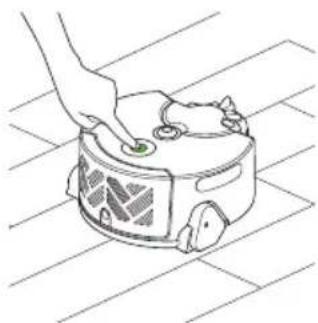
natural_image
Line drawing of a hand pressing down on a small robotic device on a tiled floor (no text or symbols)4
Ricarica automatica
IT: www.dyson.it/support
CH: www.dyson.ch/support
Al telefono
IT: 800 976 024
CH: 0800 740 183
natural_image
Illustration of a hand holding a red string attached to a device, with a green arrow indicating direction (no text or symbols)natural_image
Line drawing of a hand using a tool to adjust or install a mechanical component on a grid-patterned surface (no text or symbols)IT: www.dyson.it/support
CH: www.dyson.ch/support
Al telefono
IT: 800 976 024
CH: 0800 740 183
60
natural_image
Circular play button icon with playback control and radiating lines (no text or symbols)natural_image
Circular play button icon with blue control buttons and a play symbol (no text or numbers)natural_image
Interior view of a room with ceiling lights and a central display area, no visible text or symbols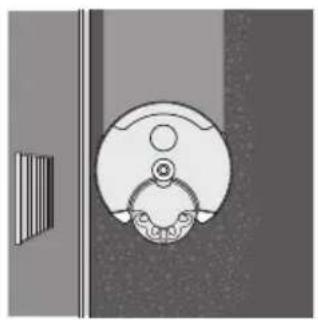
natural_image
Simple line drawing of a door handle with a circular opening and handle, mounted on a vertical panel (no text or symbols)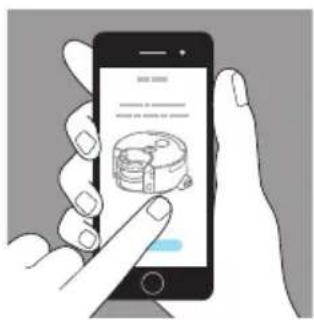
Navigatie
natural_image
Pure diagram of a mechanical component with no text, numbers, or symbols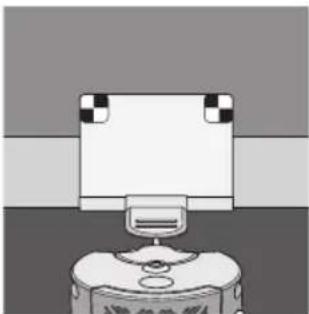
natural_image
Simple line drawing of a mechanical device with a base and top component (no text or symbols)Verlichting
natural_image
Line drawing of a hand operating a robotic device with a checkered flag (no text or symbols)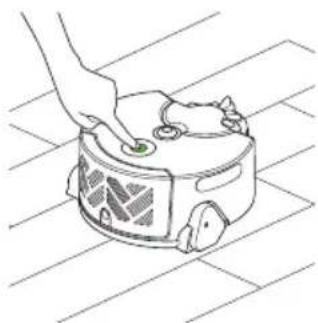
natural_image
Line drawing of a hand pressing down on a small robotic device on a tiled floor (no text or symbols)4
Automatisch opladen
natural_image
Illustration of a hand holding a red string attached to a device, with a green arrow indicating direction (no text or symbols)Borstelonderhoud
Controleer de borstel regelmatig.
natural_image
Line drawing of a hand using a tool to adjust or install a mechanical component on a grid-patterned surface (no text or symbols)natural_image
Circular icon with play button and radiating lines, no text or symbols presentBel de Dyson Helpline
natural_image
Circular icon with play button and musical notes, no readable text or symbolsSoftware-update
natural_image
Blank white image with no visible content, text, or symbols.
natural_image
Blank white image with no visible content, text, or symbols.
natural_image
Blank white image with no visible content, text, or symbols.
natural_image
Completely blank white image with no visible content, text, or symbols.
natural_image
Blank white image with no visible content, text, or symbols.
natural_image
Completely blank white image with no visible content, text, or symbols.
natural_image
Blank white image with no visible content, text, or symbols.
natural_image
Blank white image with no visible content, text, or symbols.
natural_image
Completely blank white image with no visible content, text, or symbols.
natural_image
Blank white image with no visible content, text, or symbols.
natural_image
Blank white image with no visible content, text, or symbols.
natural_image
Completely blank white image with no visible content, text, or symbols.
natural_image
Blank white image with no visible content, text, or symbols.
natural_image
Blank white image with no visible content, text, or symbols.
natural_image
Completely blank white image with no visible content, text, or symbols.
natural_image
Blank white image with no visible content, text, or symbols.
natural_image
Blank white image with no visible content, text, or symbols.
natural_image
Completely blank white image with no visible content, text, or symbols.
natural_image
Blank white image with no visible content, text, or symbols.
natural_image
Blank white image with no visible content, text, or symbols.
natural_image
Completely blank white image with no visible content, text, or symbols.
natural_image
Blank white image with no visible content, text, or symbols.
natural_image
Blank white image with no visible content, text, or symbols.
natural_image
Completely blank white image with no visible content, text, or symbols.
natural_image
Blank white image with no visible content, text, or symbols
natural_image
Blank white image with no visible content, text, or symbols
natural_image
Completely blank white image with no visible content, text, or symbols.
natural_image
Blank white image with no visible content, text, or symbols.
natural_image
Blank white image with no visible content, text, or symbols.
natural_image
Completely blank white image with no visible content, text, or symbols.
natural_image
Blank white image with no visible content, text, or symbols.
natural_image
Blank white image with no visible content, text, or symbols.
natural_image
Blank white image with no visible content, text, or symbols
natural_image
Blank white image with no visible content, text, or symbols.
natural_image
Blank white image with no visible content, text, or symbols.
natural_image
Blank white image with no visible content, text, or symbols
natural_image
Blank white image with no visible content, text, or symbols.
natural_image
Blank white image with no visible content, text, or symbols.
natural_image
Blank white image with no visible content, text, or symbols
natural_image
Blank white image with no visible content, text, or symbols.
natural_image
Blank white image with no visible content, text, or symbols.
natural_image
Blank white image with no visible content, text, or symbols
natural_image
Blank white image with no visible content, text, or symbols.
natural_image
Blank white image with no visible content, text, or symbols.
natural_image
Blank white image with no visible content, text, or symbols
natural_image
Blank white image with no visible content, text, or symbols.
natural_image
Blank white image with no visible content, text, or symbols
natural_image
Blank white image with no visible content, text, or symbols
natural_image
Blank white image with no visible content, text, or symbols.
natural_image
Blank white image with no visible content, text, or symbols.
natural_image
Blank white image with no visible content, text, or symbols
natural_image
Two isolated horizontal lines, one solid and one outlined, on a white background (no text or symbols)| 1 | 2 |

natural_image
Pure vertical line on white background with no text, numbers, or symbols
natural_image
Blank white image with no visible content, text, or symbols.
GB
Dyson customer care
www.dyson.co.u
askdyson@dyson.co.uk
0800 298 0298
Dyson Limited, Tetbury Hill
Malmesbury, Wiltshire, SN16 ORP
1
www.dyson.ie
askdyson@dyson.ie
01 475 7109
Dyson Ireland Limited, Unit 2,
Building 4 Vantage Central, Central
Park, Leopardstown, Dublin 18, Ireland
AT
Dyson Kundendienst
help@dyson.at
0800286745
Dyson Austria GmbH
Engerthstrasse 151, 1020, Vienna,
Austria
RELLIV
Dyson Helpdesk
help@dyson.be
BE:080039208
LU:080062451
Dyson BV, Fred. Roeskestraat 109
1076 EE, Amsterdam, Netherlands
CH
Thetaco Traders Ltd.,
Tapeinoseos 6, Aradhippou Industrial
Estate, Larnaka 7100, Cyprus,
PO Box 41070
CZ
Dyson Denmark ApS, c/o
Mazanti-Andersen Korso Jensen.
Amaliegade 10, 1256 Kobenhavn K,
Denmark
ES
28004, Madrid, Spain
F
75018, Paris, France
GP
ΒΑΣΙΛΗΑΣ Α.Ε.
dyson@vassilias.gr
8001113500
Burotek sarl (Member of Antaki Group)
info@antaki.com.lb
01-252 474
Moutran Bldg., Sin El Fil Boulevard,
P.O.Box: 90-720, Beirut
LT
Dyson servisas
remontas@bcsc.lt
852058833
UAB Baltic Continent, P. Lukšio g. 23,
Vilnius LT-09132, Lietuva
MA
Ideaplus sarl
info@idea-group.ma
0801 001 424
Dyson Norway AS, c/o KPMG Law
Adovkatfirma AS, Sorkedalsveien 6,
0369 Oslo, Norway
PI
CPM International Telebusiness SL.
Dyson Sweden AB, c/o Convendum,
Vasagatan 16, 111 20, Stockholm.
Sweden
SI
Gaber avdio video servis
Peter Kastelic s.p
servis.gaber@gmail.com
386 4 537 66 00
Partizanska cesta 8, SI-1290 Grosuplje,
Slovenija
TR
Tudortech, 4th floor Park On Long,
66 Long Street, Cape Town, 8001.
South Africa