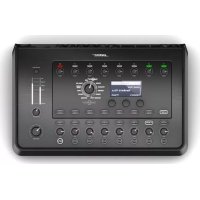
T4S ToneMatch - Mixer BOSE - Free user manual and instructions
Find the device manual for free T4S ToneMatch BOSE in PDF.


| Product Type | 4-channel digital mixer |
| Brand | Bose |
| Model | T4S ToneMatch |
| Dimensions (W x D x H) | 214 x 184 x 83 mm |
| Weight | 1.0 kg |
| Power Supply | Via ToneMatch cable (L1 system) or optional 100-240 V AC power adapter |
| Number of Input Channels | 4 combo inputs (XLR/Jack) with +48V phantom power |
| Auxiliary Inputs | 2 TRS 1/4" jack inputs for stereo line signals |
| Main Outputs | Stereo outputs on TRS 1/4" jack and ToneMatch digital output |
| Headphone Output | 1/4" jack with dedicated volume |
| USB Connectivity | USB type A port (USB key playback) and type B port (PC audio interface) |
| Audio Processing | 48 kHz/24-bit DSP with ToneMatch presets, parametric EQ, compressor, gate, delay, reverb, and modulation |
| Built-in Functions | Chromatic tuner, Tap Tempo, savable scenes (5 Bose presets + 10 user + 1 shared) |
| Display | Backlit LCD screen with rotary controls |
| Protective Cover | Magnetic cover included to protect controls |
| Mounting | 6 mm threaded insert for camera tripod |
| Maintenance and Cleaning | Soft dry cloth only, no solvents or abrasive products |
| Safety | Do not expose to water/humidity, use only provided adapter, do not install on unstable support |
| Warranty | Limited warranty (see www.pro.bose.com) |
| Included Accessories | ToneMatch cable (for connection to L1 system), protective cover |
Frequently Asked Questions - T4S ToneMatch BOSE
User questions about T4S ToneMatch BOSE
0 question about this device. Answer the ones you know or ask your own.
Ask a new question about this device
Download the instructions for your Mixer in PDF format for free! Find your manual T4S ToneMatch - BOSE and take your electronic device back in hand. On this page are published all the documents necessary for the use of your device. T4S ToneMatch by BOSE.
USER MANUAL T4S ToneMatch BOSE
natural_image
Close-up of a black electronic device with control knobs and a display (no visible text or symbols)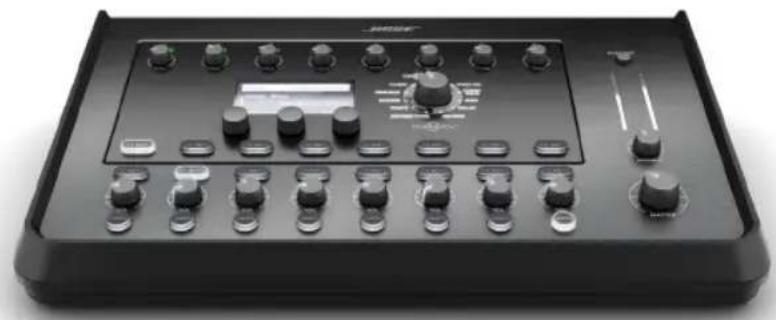
natural_image
Black industrial audio workstation with multiple knobs and control buttons (no visible text or labels)T4S/T8S ToneMatch®
Mixer
Owner's Guide
Please read and keep all safety and use instructions.
- Read these instructions.
- Keep these instructions.
- Heed all warnings.
- Follow all instructions.
- Do not use this apparatus near water.
- Clean only with a dry cloth.
- Do not block any ventilation openings. Install in accordance with the manufacturer's instructions.
- Protect the power cord from being walked on or pinched, particularly at plugs, convenience receptacles, and the point where they exit from the apparatus.
- Only use attachments/accessories specified by the manufacturer.
- Usually with the cart, stand, tripod, bracket, or table specified by the manufacturer or sold with the apparatus. When a cart is used, use caution when moving the cart/apparatus combination to avoid injury from tip-over.
- Unplug this apparatus during lightning storms or when unused for long periods of time.
- Refer all servicing to qualified personnel. Servicing is required when the apparatus has been damaged in any way such as power-supply cord or plug is damaged, liquid has been spilled or objects have fallen into the apparatus, the apparatus has been exposed to rain or moisture, does not operate normally, or has been dropped.
WARNINGS/CAUTIONS:
This product contains magnetic material. Consult your physician on whether this might affect you implantable medical device.
- This product is not intended for installation or use in indoor water facility areas (including, without limitation, indoor pools, indoor water parks, hot tub rooms, saunas, steam rooms and indoor skating rinks).
• To reduce the risk of fire or electrical shock, do NOT expose this product to rain, liquids or moisture. Not applicable for products rated IPX4-9. - Keep the product away from fire and heat sources. Do NOT place naked flame sources, such as lighted candles, on or near the product.
- Do NOT make unauthorized alterations to this product.
- Do NOT use a power inverter with this product.
- Do NOT use in vehicles or boats.
- Use this product only with the power supply provided.
- Do NOT place or install the bracket or product near any heat sources, such as fireplaces, radiators, heat registers or other apparatus (including amplifiers) that produce heat.
- Do not use the ToneMatch® T4S/T8S mixer with a tripod/stand that is unstable. The mixer is only designed for use on a 12 screw (6 mm), and the tripod/stand must be capable of supporting a device with a minimum weight of 1.9 kg (4.1 lbs) and an overall size of 214 x 311 x 83 mm (8.4 x 12.25 x 3.25 inches). Using a tripod/stand that is not designed to support the size and mass of the T4S/T8S mixer may lead to an unstable and hazardous condition that could result in injury.
- Contains small parts which may be a choking hazard. Not suitable for children under age 3.
NOTES:
- The speaker wire and interconnect cables included with this system are not approved for in-wall installation. Please check your local building codes for the correct type of wire and cable required for in-wall installation.
- Where the mains plug or an appliance coupler is used as the disconnect device, the disconnect device shall remain readily operable.
- Due to ventilation requirements, Bose does not recommend placing the product in a confined space such as in a wall cavity or in an enclosed cabinet.
Regulatory Information
This device complies with part 15 of the FCC Rules and with Industry Canada license-exempt RSS standard(s). Operation is subject to the following two conditions: (1) This device may not cause harmful interference, and (2) this device must accept any interference received, including interference that may cause undesired operation.

This product conforms to all applicable EU directive requirements. The complete Declaration of Conformity can be found at www.Bose.com/compliance.
Information About Products That Generate Electrical Noise (FCC Compliance Notice for US)
Note: This equipment has been tested and found to comply with the limits for a Class A digital device, pursuant to part 15 of the FCC Rules. These limits are designed to provide reasonable protection against harmful interference when the equipment is operated in a commercial environment. This equipment generates, uses, and can radiate radio frequency energy and, if not installed and used in accordance with the instruction manual, may cause harmful interference to radio communications. Operation of this equipment in a residential area is likely to cause harmful interference in which case the user will be required to correct the interference at one's own expense.
Changes or modifications not expressly approved by Bose Corporation could void the user's authority to operate this equipment.
Shielded cables are required to maintain regulatory compliance.
This product complies with the Canadian ICES-003 Class A specifications. CAN ICES-3(A)/NMB-3(A)
This product meets all EN55103-2 immunity requirements for E2 electromagnetic environment.
Names and Contents of Toxic or Hazardous Substances and Elements
| Part Name | Toxic or Hazardous Substances and Elements | |||||
| Lead (Pb) | Mercury (Hg) | Cadmium (Cd) | Hexavalent (CR(VI)) | Polybrominated Biphenyl (PBB) | Polybrominated diphenylether (PBDE) | |
| PCBs | X | O | O | O | O | O |
| Metal parts | X | O | O | O | O | O |
| Plastic parts | O | O | O | O | O | O |
| Speakers | X | O | O | O | O | O |
| Cables | X | O | O | O | O | O |
This table is prepared in accordance with the provisions of SJ/T 11364. O: Indicates that said hazardous substance contained in all of the homogenous materials for this part is below the limit requirement of GB/T 26572. X: Indicates that said hazardous substance contained in at least one of the homogenous materials used for this part is above the limit requirement of GB/T 26572.
This symbol means the product must not be discarded as household waste, and should be delivered to an appropriate collection facility for recycling. Proper disposal and recycling helps protect natural resources, human health, and the environment. For more information on disposal and recycling of this product, contact your local municipality, disposal service, or the shop where you bought this product.
For China:

仅适用于海拔 2000m 以下地区安全使用 Only suitable for use at areas with altitude less than 2000 m.
Provided by DCE Safety
Introduction
Product Overview....5
Product Features 5
Unpacking....5
Control and Connection Panels
T4S ToneMatch® Mixer 6
Control Panel 6
Connection Panel 7
T8S ToneMatch® Mixer 8
Control Panel 8
Connection Panel 9
System Setup
Removing/Attaching the Cover 10
Mounting Options....11
Mounting the T4S/T8S on a Camera Tripod Stand....11
Connecting the T4S via Digital Connection 12
Connecting the T4S/T8S via Analog Connection 13
Connecting the ToneMatch® Power Supply....14
Connecting the T4S/T8S to Your Computer....15
Connecting a Flash Drive to the T4S/T8S....15
Operation
Reading the T4S/T8S Display 16
Optimizing Input Gain and Output Volume....17
Using the Master Volume Control 18
Muting a Channel 18
Muting Channel Effects....18
Using the Rotary Selector....19
Editing the Sound of a Channel....20
Using the Pan/Aux Functions....20
Using the Tuner....20
Selecting a ToneMatch® Preset....22
Adjusting zEQ 22
Adjusting Para EQ. 23
Using Compressor/Gate Functions....23
Using Modulation Effects 25
Adding Delays 26
Adding Reverb. 26
Contents
Using Global Functions 27
Selecting a Reverb Type 27
Using the Prefs Utilities 28
Loading and Saving Scenes ....30
Sharing a Scene....33
Bose Scenes 35
Factory Settings 35
Singer/Songwriter....36
DJ/Playback....38
Full Band....40
Factory Settings
Factory Settings 42
Care & Maintenance
Troubleshooting....43
Cleaning 46
Technical Information....46
Additional Resources
Contact Information....47
Importer Information 47
Additional Information....47
Limited Warranty 47
Product Overview
Take control of your music with T4S and T8S ToneMatch ^® mixers, compact 4 and 8 channel interfaces designed for performers. Engineered with powerful DSP engines and intuitive user controls, they offer studio-quality EQ, dynamics and effects processing. Sound great with integrated Bose ^® ToneMatch ^® processing and zEQ, especially when connected to a Bose L1 or F1 system for full end-to-end tonal control. Play confidently on stage with these rugged ToneMatch mixers using tactile controls, easy-to-read LED displays and scene recall. ToneMatch mixers, the ultimate on-stage companions for performing artists.
Product Features
Powerful Audio Processing
- Updated, studio-quality effects with advanced digital audio processing
- Effects include compressor, limiter, de-esser, noise gate, chorus, flanger, phaser, tremolo, delay, and reverb
- Bose® ToneMatch® processing for natural-sounding vocals and instruments
- zEQ focuses the sound of ToneMatch presets for effective adjustments on the fly
- Independent ToneMatch, EQ, dynamics and effects per channel
• Dedicated reverb for Aux sends, and a global shared reverb for use across all channels
• Master output EQ helps compensate for venue acoustics
• Full end-to-end tonal optimization when used with Bose L1 and F1 systems
Seamless Live Control
• Tactile controls and indicators designed for live on-stage use by musicians and DJs
- Fast-learning user interface
• Built-in tap tempo delay, chromatic tuner, and recallable scenes
• LED display and illuminated controls are easy to read and use, even on dimly-lit stages
High-Density Connectivity
• Unprecedented connectivity and control in a small digital stereo mixer
- Four (T4S) or eight (T8S) high-quality audio preamps with XLR-combo jacks for microphones or instruments, and switchable phantom power
- Two Aux inputs for additional sources two (T4S) or four (T8S) Aux sends
• USB-A and -B for USB drive playback or PC/Mac interfacing
- ToneMatch outputs for digital audio and power (T4S only)
- Balanced 14 " TRS and XLR (T8S only) stereo outputs
- Independent headphone output
Convenient Gig-Ready Features
- Rugged enclosure with a protective magnetic cover to protect controls and connectors
- Includes a ToneMatch cable for connecting to a Bose L1 Model II or L1 Model 1S system for digital audio and power (T4S), or includes a universal power supply (T8S)
- Bottom insert allows you to use standard camera mounting accessories to keep your ToneMatch mixer within reach
Unpacking
See the following table for what your mixer carton will include:
| T4S | T4S ToneMatch mixer and cover ToneMatch Cable |
| T8S | ToneMatch power supplyT8S ToneMa |
For a complete list of optional equipment and accessories, please visit www.Bose.com.
T4S ToneMatch® Mixer
Control Panel
Figure 1. T4S Control Panel
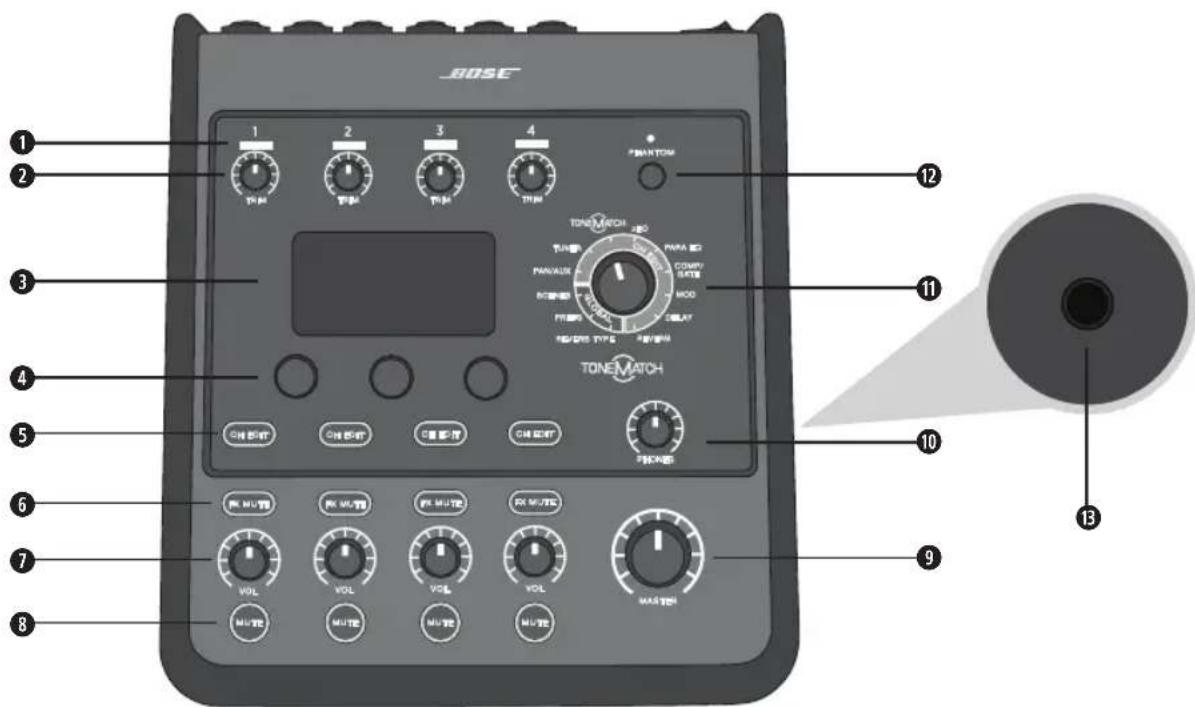
① INPUT SIGNAL/CLIP LEDs (1-4) - Displays the input signal status in color: Green: Indicates the presence of an input signal Red: Indicates input source clipping
② TRIM CONTROLS (1-4) - Adjusts the input sensitivity for the respective channel.
③ DISPLAY - Provides function menus and system information.
④ EDITING CONTROLS - These three rotary/push-button controls allow you to select or adjust items/values appearing on the display.
⑤ CH EDIT BUTTONS (1-4) – Selects the channel you want to modify.
⑥ FX MUTE BUTTONS (1-4) - Bypasses the Mod, Delay, and Reverb effects on the selected channel.
⑦ VOLUME CONTROLS (1-4) - Adjusts the volume level for the respective channel.
⑧ MUTE BUTTONS (1-4) - Silences the audio output for the respective channel.
⑨ MASTER VOLUME CONTROL - Adjusts the overall output level.
⑩ HEADPHONE VOLUME CONTROL - Adjusts the volume level of the headphone output.
⑪ ROTARY SELECTOR - Allows access to both global and channel-related parameters, which are adjusted using the editing controls.
PHANTOM POWER SWITCH - Applies +48V power to input channels 1-4. A red LED indicates that phantom power is on.
⑬ HEADPHONE JACK - For use with headphones only, with a minimum impedance of 24Ω.
Connection Panel
Figure 2. T4S Connection Panel
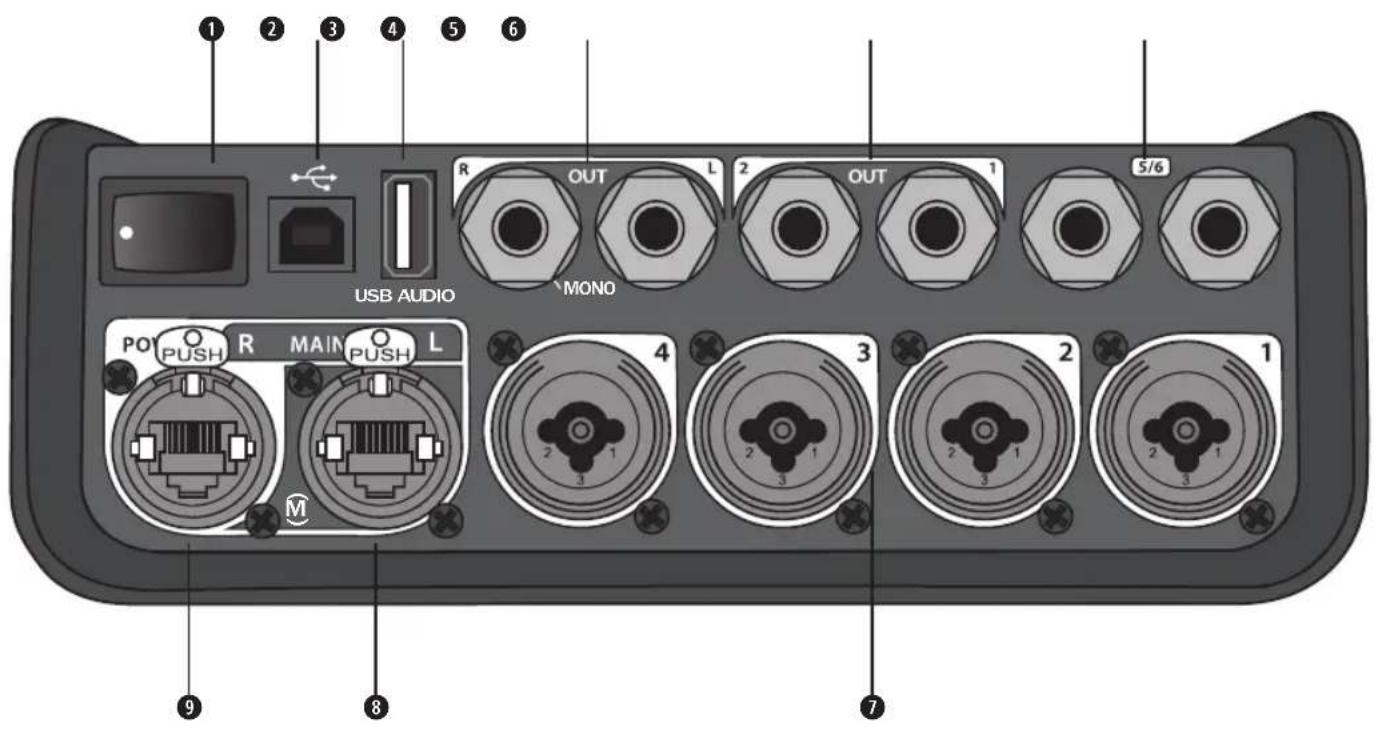
① POWER SWITCH - Turns the mixer on or off.
② USB 2.0 TYPE-B - A USB interface that allows you to connect the mixer to your computer.
③ USB 2.0 TYPE-A - A USB interface that allows you to stream audio from your flash drive.
- ANALOG L/R OUTPUT - Main analog output. Accepts ¼" TRS balanced or TS unbalanced cables.
⑤ AUX OUTPUT - Two user-definable analog outputs. Can be configured for a pre-fader, post-EQ, and effects, or post-fader output. Accepts 14 " TRS balanced cables.
⑥ AUX IN - Analog input channels 5/6. Accepts 14 " TRS balanced or TS unbalanced cables for line-level inputs. Can be used for stereo input signals.
⑦ INPUTS 1-4 - Analog input channels 1-4. Accepts XLR balanced cables for microphones or 14 " TRS balanced or TS unbalanced cables for high-impedance inputs, such as guitars.
⑧ DIGITAL MAIN OUTPUT L - Connect digitally in stereo to two L1® Model 1S/II systems. Note: Only used in stereo with Digital Main Output R.
9 POWER PORT/DIGITAL MAIN OUTPUT R - A digital output used by the L1 Model 1S/II system. Delivers power to the T4S mixer from the L1 Model 1S/II power stand. Can also deliver power from an AC outlet via a ToneMatch power supply (not included with the T4S). Accepts the included ToneMatch® cable.

CAUTION: Although the ToneMatch port accepts a standard RJ-45 connector, do NOT connect the T4S to a computer or phone network.
T8S ToneMatch® Mixer
Control Panel
Figure 3. T8S Control Panel
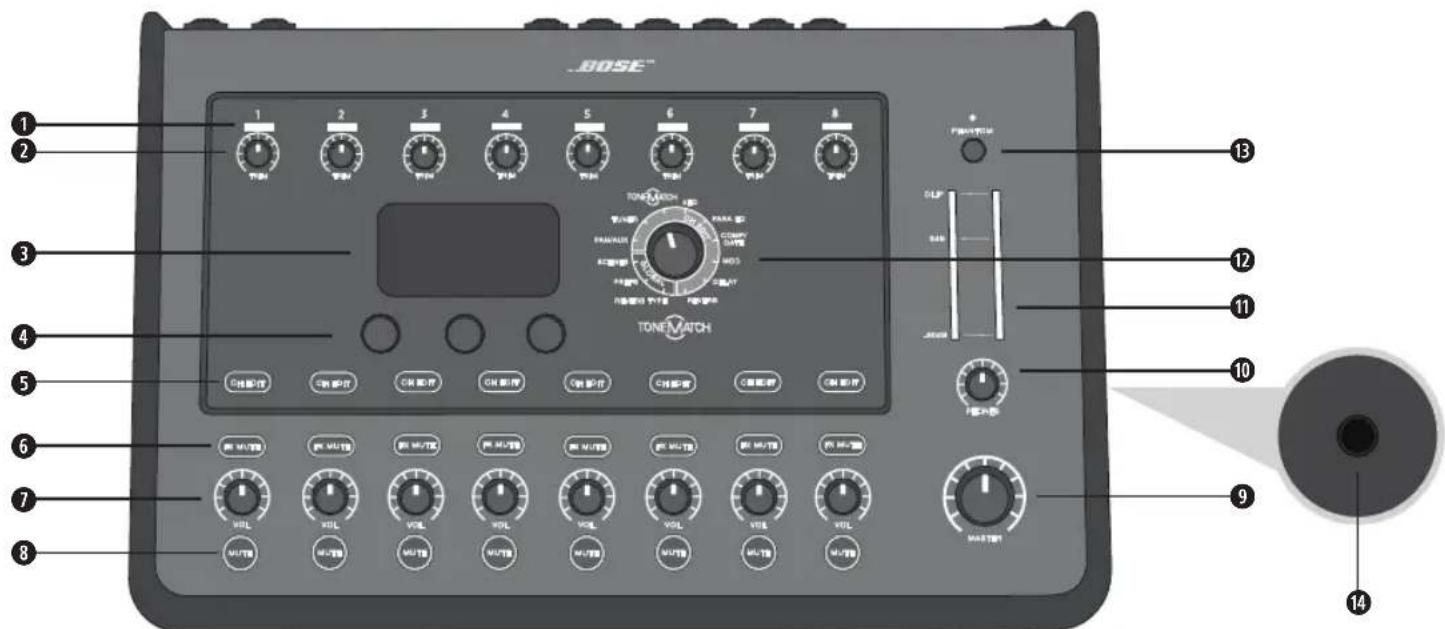
① INPUT SIGNAL/CLIP LEDs (1-8) - Displays the input signal status in color:
Green: Indicates the presence of an input signal
Red: Indicates input source clipping
② TRIM CONTROLS (1-8) - Adjusts the input sensitivity for the respective channel.
③ DISPLAY - Provides function menus and system information.
④ EDITING CONTROLS - These three rotary/push-button controls allow you to select or adjust items/values appearing on the display.
⑤ CH EDIT BUTTONS (1-8) - Selects the channel you want to modify.
⑥ FX MUTE BUTTONS (1-8) - Bypasses the Mod, Delay, and Reverb effects on the selected channel.
⑦ VOLUME CONTROLS (1-8) - Adjusts the volume level for the respective channel.
⑧ MUTE BUTTONS (1-8) - Silences the audio output for the respective channel.
⑨ MASTER VOLUME CONTROL - Adjusts the overall output level.
⑩ HEADPHONE VOLUME CONTROL - Adjust the volume level of the headphone output.
⑪ STEREO OUTPUT METER - Allows you to visually measure your output level.
⑫ ROTARY SELECTOR - Allows access to both global and channel-related parameters, which are adjusted using the editing controls.
⑧ PHANTOM POWER SWITCH - Applies +48V power to input channels 1-8. A red LED indicates that phantom power is on.
⑭ HEADPHONE JACK - For use with headphones only, with a minimum impedance of 24Ω.
Connection Panel
Figure 4. T8S Connection Panel
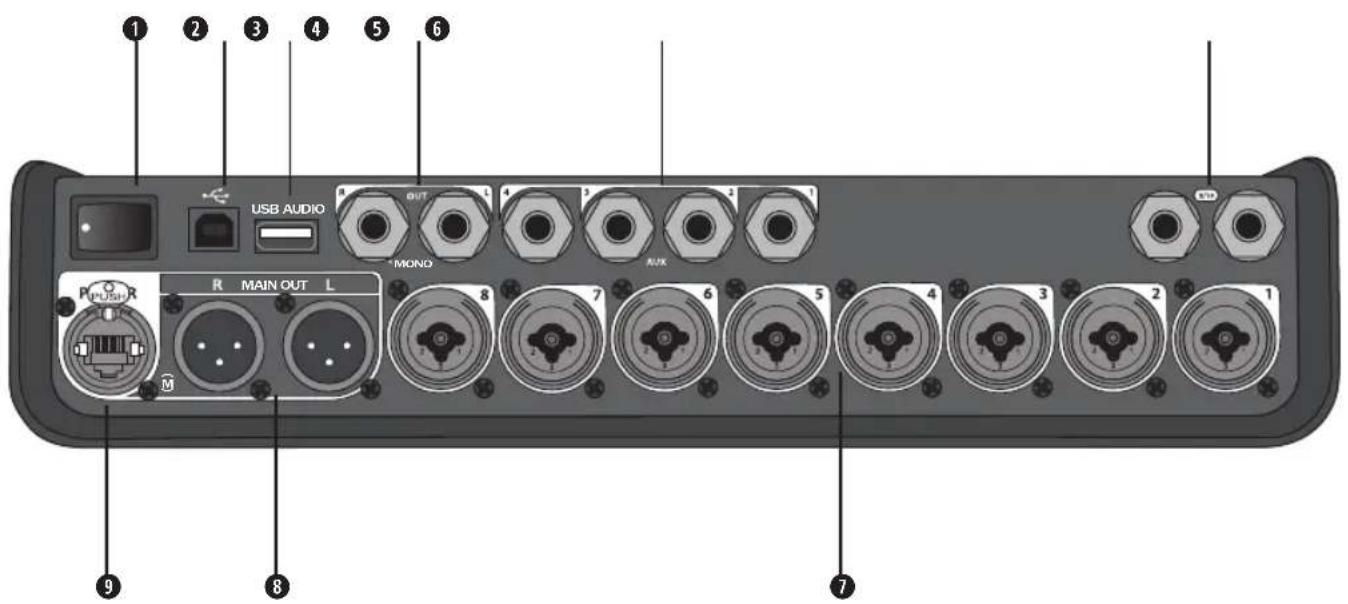
① POWER SWITCH - Turns the mixer on or off.
② USB 2.0 TYPE-B - A USB interface that allows you to connect the mixer to your computer.
③ USB 2.0 TYPE-A - A USB interface that allows you to stream audio from your flash drive.
④ ANALOG L/R OUTPUT - Main analog output. Accepts 14 " TRS balanced and TS unbalanced cables.
⑤ AUX OUTPUT – Four user-definable analog outputs. Can be configured for a pre-fader, post-EQ, and effects, or post-fader output. Accepts 14 " TRS balanced or TS unbalanced cables.
⑥ AUX IN - Analog input channels 9/10. Accepts 14'' TRS balanced or TS unbalanced cables for line-level inputs. Can be used for stereo input signals.
⑦ INPUTS 1-8 - Analog input channels 1-8. Accepts XLR balanced cables for microphones or 14 " TRS balanced or TS unbalanced cables for high-impedance inputs, such as guitars.
⑧ XLR STEREO OUTPUT - Stereo analog output. Accepts XLR balanced cables for stereo output.
⑨ DIGITAL POWER PORT - For use w/ ToneMatch power supply (see "Connecting the ToneMatch® Power Supply" on page 14).
Note: The T8S is NOT designed to connect digitally to the L1® Model 1S/II.

CAUTION: Although the ToneMatch port accepts a standard RJ-45 connector, do NOT connect the T8S to a computer or phone network.
System Setup
Removing/Attaching the Cover
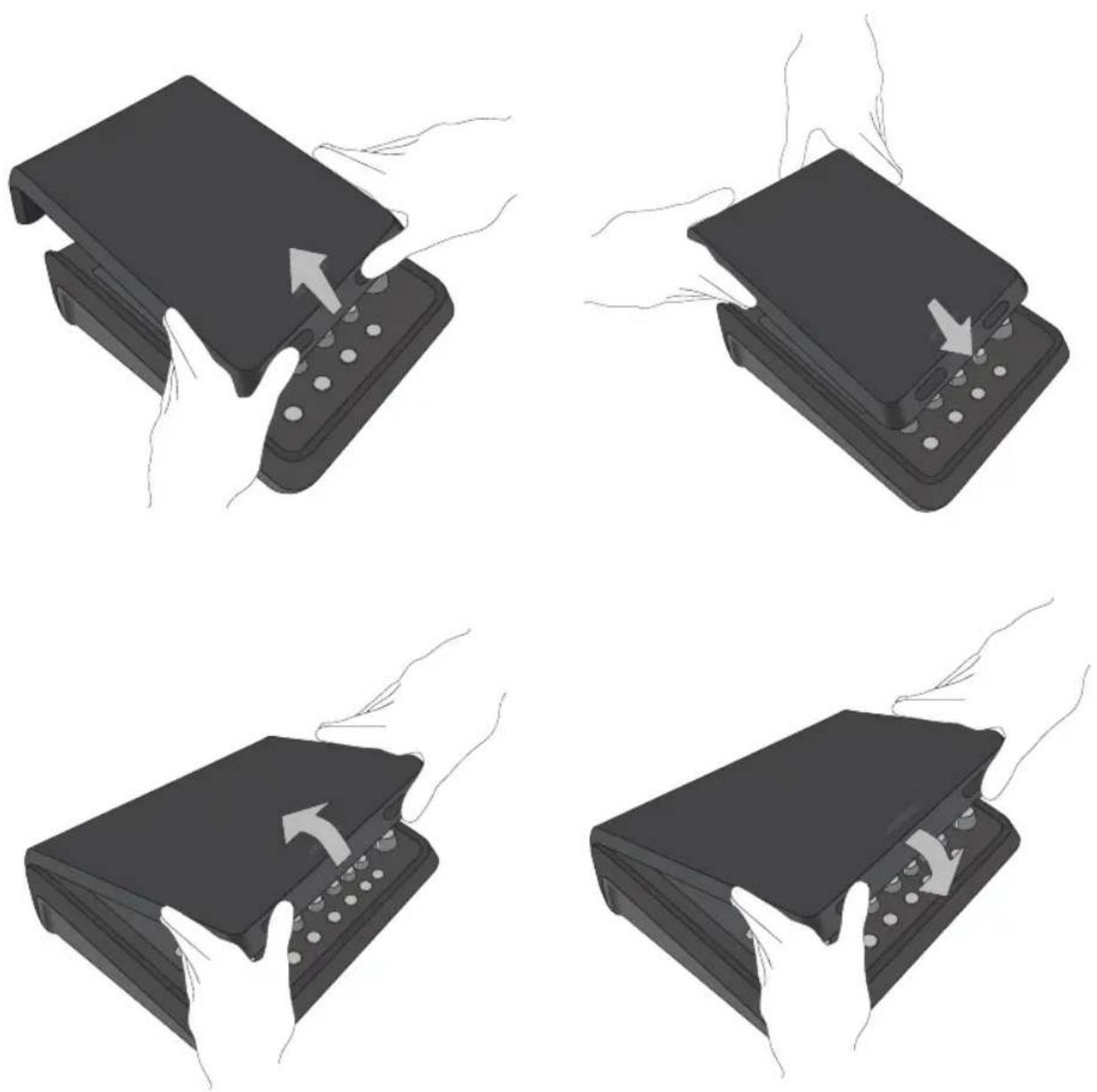
The T4S/T8S ToneMatch ^® mixer comes out of the carton with a cover installed on the top panel. The cover is designed to protect the control panel while transporting or storing the mixer.
To remove the cover:
- Place thumbs on notches on front of cover and slide cover forward.
- Grab cover by the back and lift to remove it.
To attach the cover:
- Slide cover over the mixer, from back to front.
- The magnetized cover will engage on its own and secure itself to the mixer.
Figure 5. Removing and attaching the cover
Mounting Options
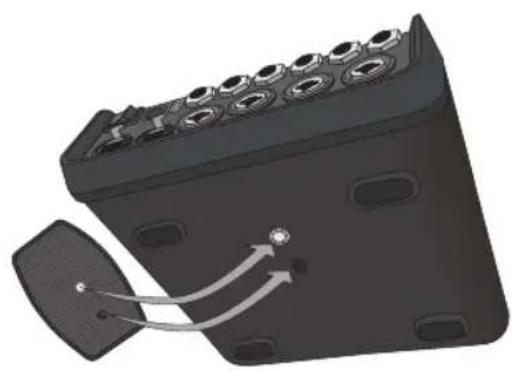
The T4S/T8S comes with a 14 " (6 mm) mounting screw insert. This enables it to be mounted onto a number of available products that include a 14 " (6 mm) mounting screw, including a camera tripod stand.
Mounting the T4S/T8S on a Camera Tripod Stand
- Extend the camera tripod legs and secure at desired height.
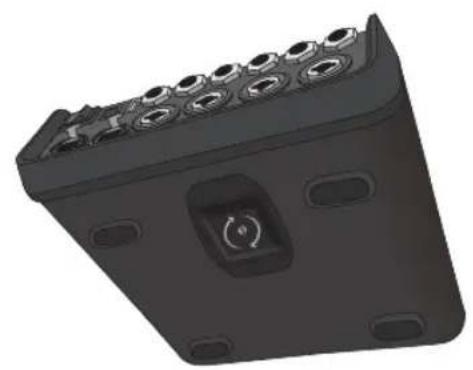
- Remove the bracket from the top of the camera tripod stand and secure the bracket to the bottom of the T4S/T8S with the screw. Make sure the small indentation on the T4S/T8S and the bump on the bracket are aligned. See Figure 6.
- Secure the bracket with the T4S/T8S back onto the camera tripod stand. See Figure 8.
Figure 6. Securing bracket to T4S Figure 8. Mounting T4S to tripod stand using bracket
natural_image
3D rendering of a black mechanical component with multiple circular ports and a curved arrow indicating motion (no text or symbols)Figure 7. Bracket attached to T4S
natural_image
3D rendering of a black electronic device casing with multiple ports and a central button (no text or symbols visible)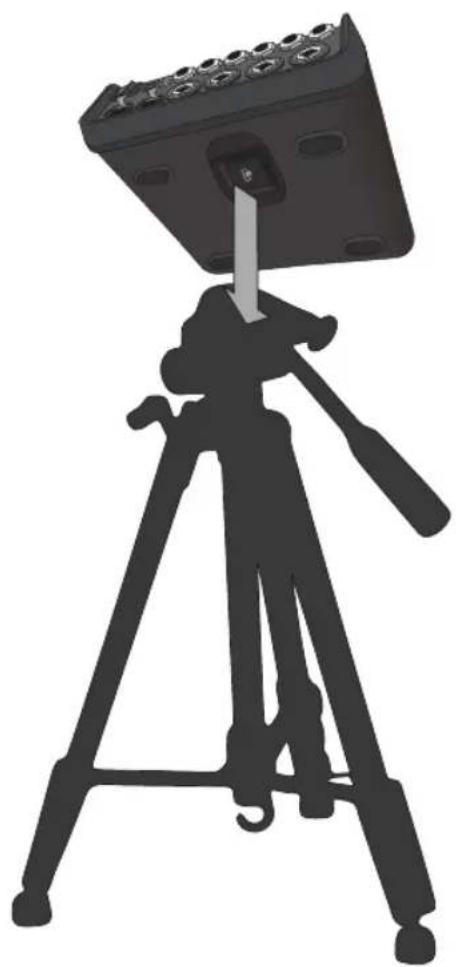
natural_image
Silhouette of a camera on a tripod-mounted device with a screen and lens (no text or symbols visible)
WARNING: Do not use the ToneMatch® T4S/T8S mixer with a tripod/stand that is unstable. The mixer is only designed for use on a 14 " screw (6 mm), and the tripod/stand must be capable of supporting a device with a minimum weight of 1.9 kg (4.1 lbs) and an overall size of 214 x 311 x 83 mm (8.4 x 12.25 x 3.25 inches). Using a tripod/stand that is not designed to support the size and mass of the T4S/T8S mixer may lead to an unstable and hazardous condition that could result in injury.
System Setup
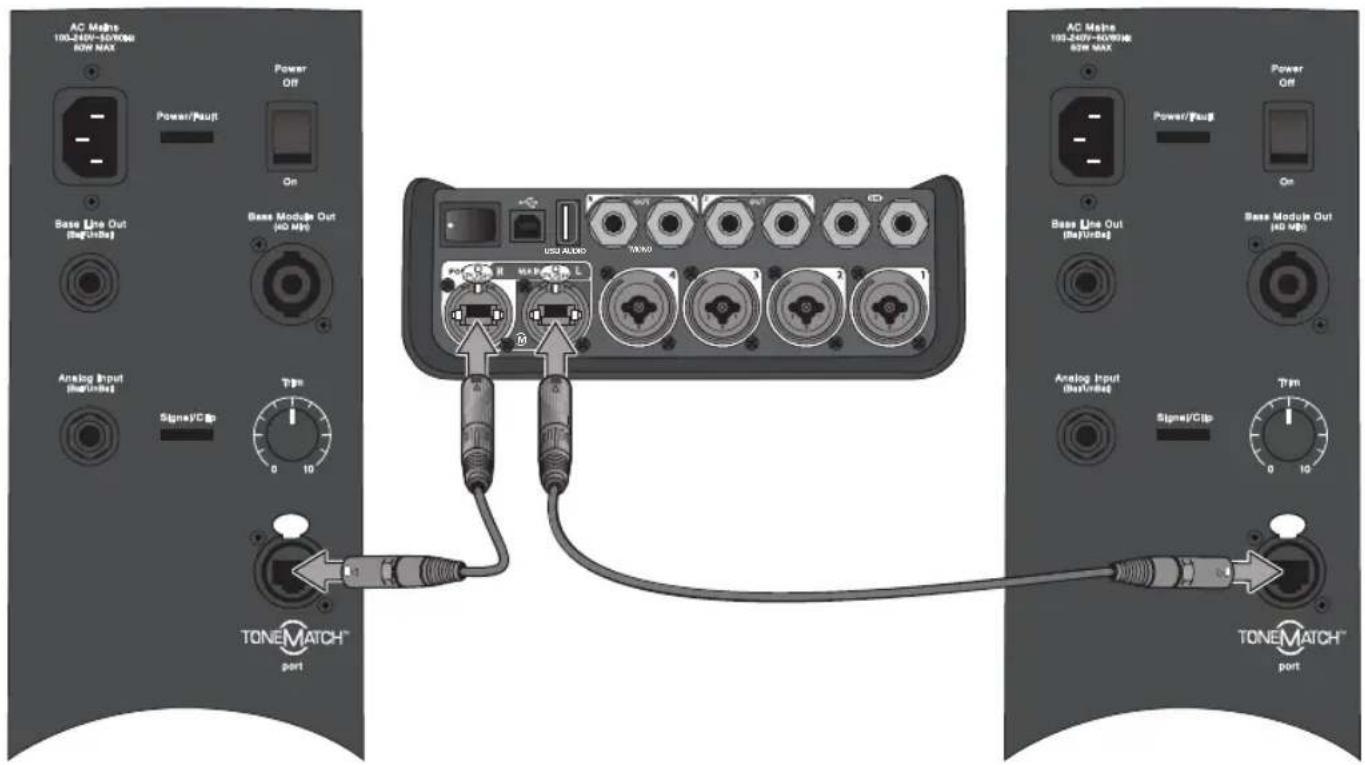
Connecting the T4S via Digital Connection
- Make sure the L1 Model 1S/II and T4S are powered off and the T4S Master volume control is set to minimum.
-
Plug one end of the ToneMatch ^® cable into the Power port/Digital Main Output R on the T4S. Plug the other end of the ToneMatch cable into the ToneMatch port on the power stand.
Note: To connect the T4S to two L1 Model 1S/II power stands, connect a second power stand to the Digital Main Output L port on the T4S using a ToneMatch cable. -
Turn on the mixer and then turn on the L1 Model 1S/II power stand.
-
Connect your instruments and adjust levels. Refer to "Optimizing Input Gain and Output Volume" on page 17.
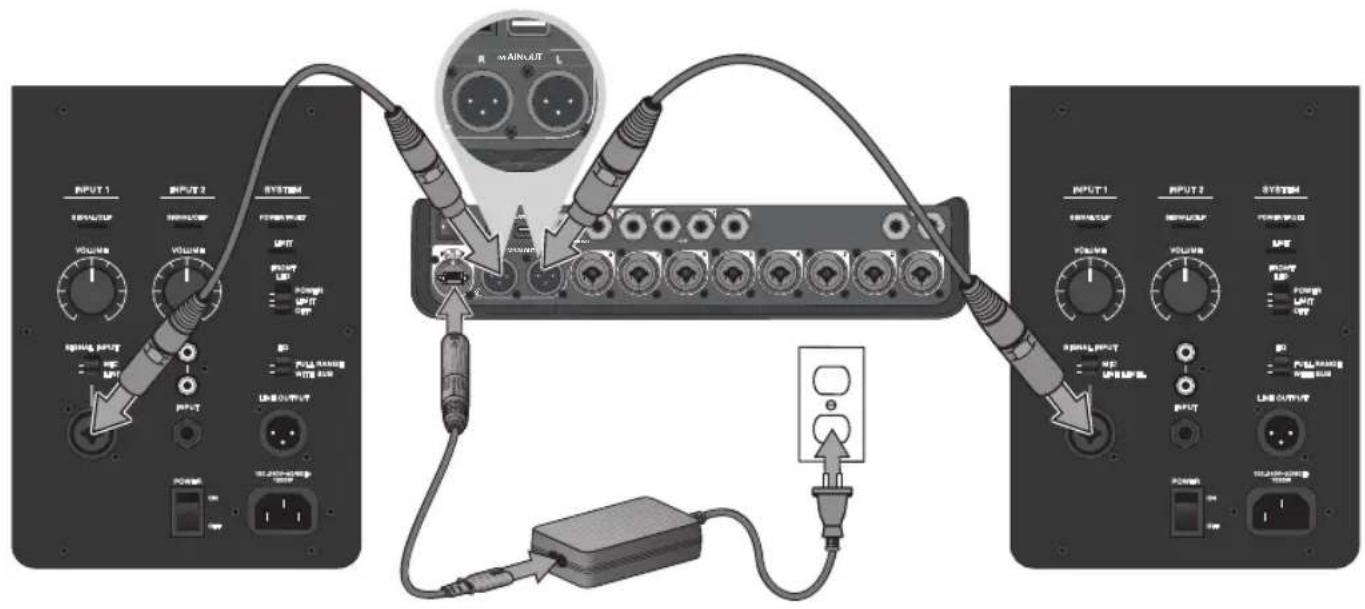
Figure 9. Two L1 model II systems connected to a T4S via digital connection
Note: The T8S cannot be connected digitally and cannot be powered by the L1 Model 1S/II.
Connecting the T4S/T8S via Analog Connection
- Make sure the device you are connecting to and the T4S/T8S are powered off and the T4S/T8S Master volume control is set to minimum.
- Using XLR balanced cables, connect one or two devices to the XLR Stereo Outputs of your T8S (see Figure 10).
Note: The T4S/T8S can be connected to a device via the Analog R Output port using a 14 " TRS cable (sold separately). Plug the other end of the TRS cable into the Analog Input port of the device. To connect the T4S/T8S to two devices, connect a second device to the Analog L Output port on the T4S/T8S using a 14 " TRS cable. - Connect a ToneMatch® power supply to the Power port of the T4S/T8S and plug it into a live AC outlet. Refer to "Connecting the ToneMatch® Power Supply" on page 14.
- Turn on the T4S/T8S mixer and then turn on the device.
- Connect your instruments and adjust levels. Refer to "Optimizing Input Gain and Output Volume" on page 17.
Figure 10. Two F1 systems connected to a T8S via analog connection
System Setup
Connecting the ToneMatch® Power Supply
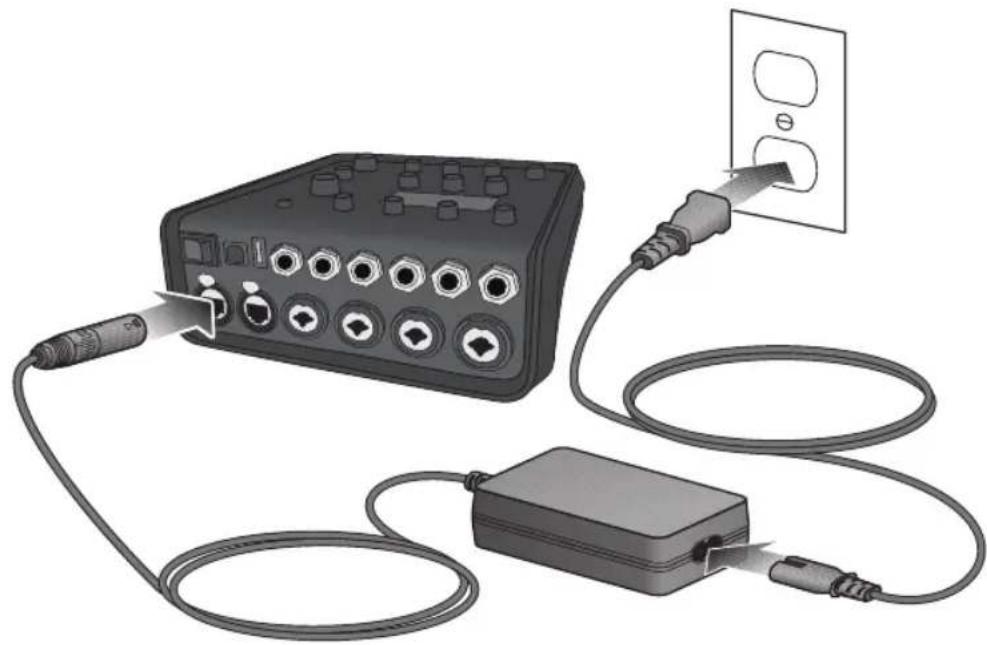
The ToneMatch power supply provides power for the T4S/T8S mixer.
- Plug the power supply cable into the T4S/T8S Power port.
- Plug one end of the AC power cord into the power supply.
- Plug the other end of the power cord into a live AC power outlet.
- Switch the T4S/T8S power switch to the ON position.
Note: Power supply included with T8S is required for operation of the T8S. Power supply is not included with the T4S and is not required for operation of the T4S.
Figure 11. Connecting T4S to power supply
natural_image
Illustration of a portable audio equipment with connected cables and a wall socket (no text or symbols)Connecting the T4S/T8S to Your Computer
The T4S/T8S provides a USB port for connecting it to a computer. This allows you to download performance scenes to a computer or install system updates. Visit www.Bose.com/livesound for details on updating your system.
When connected to a computer, you also can use the T4S/T8S as a general-purpose USB audio device for recording/playback.
Note: The T4S/T8S operates at 48 kHz/24-bit. When using the T4S/T8S with recording software, you may need to configure the software settings for 48 kHz/24-bit operation.
Note: Connecting the T4S/T8S to your computer requires a USB cable (Type A to Type B, not supplied).
- Connect the mixer to a power source (ToneMatch® power supply for T4S/T8S or an L1 Model 1S/II for T4S only).
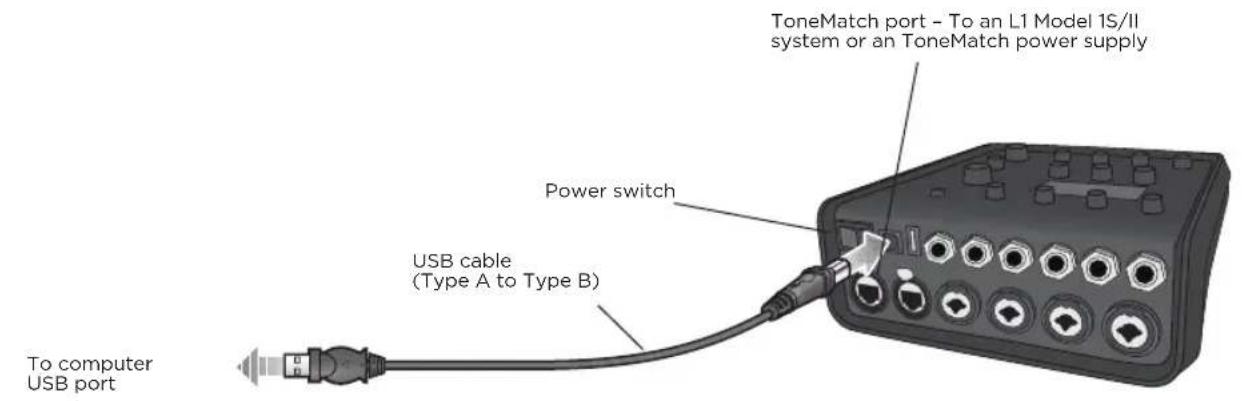
- Plug one end of the USB cable into the mixer's USB 2.0 Type-B port (Figure 12).
- Plug the other end of the USB cable into a USB port on your computer.
- Turn on the mixer.
Figure 12. T4S-to-USB connection
Connecting a Flash Drive to the T4S/T8S
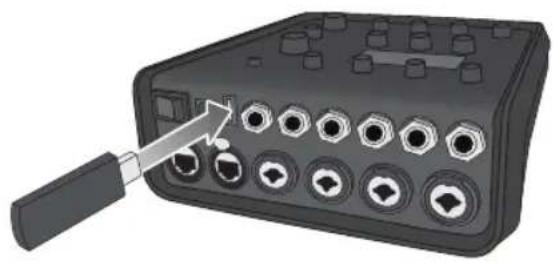
Plug in a USB 2.0/3.0 flash drive loaded with WAV/MP3 files into the USB 2.0 Type-A port to playback audio tracks to your mixer.
Figure 13. Connecting a flash drive to the T4S
natural_image
Illustration of a black electronic device with multiple ports and a cable inserted, showing no text or symbols.Reading the T4S/T8S Display
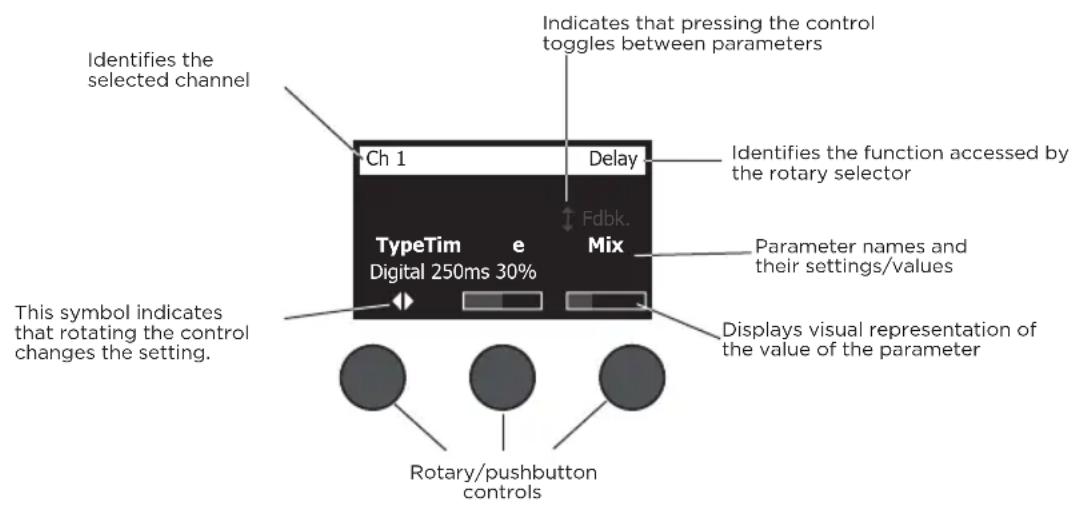
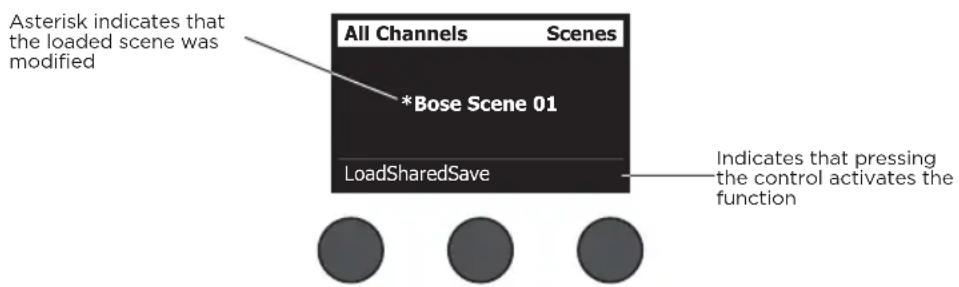
The display provides you with an interface for operating the mixer. Figure 14 shows a sample of display information and the basic operating conventions. The content of the display depends on the rotary selector position.
Figure 14. Sample display and operating conventions
Optimizing Input Gain and Output Volume
Getting a quality volume level from your system relies on the combined adjustments of input channel gain, master volume, and channel volume. Do the following for each channel used.
-
Make sure the Master volume, Trim, and channel volume controls are set to minimum.
-
Adjust input channel Trim.
A. If applicable, adjust the volume of your instrument/source to the desired level.
B. Play your instrument/source at a performance level.
C. Slowly turn the Trim control clockwise until the signal/clip indicator glows green. If the indicator flashes red or glows steady red, turn the Trim control counterclockwise to decrease the level.
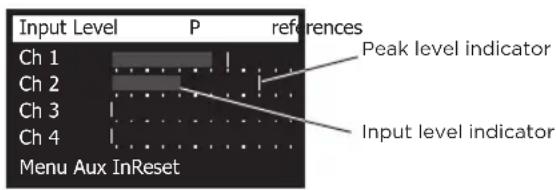
D. Use the input level meters (page 28) in the Prefs menu to check your input levels

CAUTION: If you are using a device that requires phantom power (+48V), such as a condenser microphone, depress the Phantom power switch before adjusting the Trim control.
Note: The input level meter in the Prefs menu can be helpful when adjusting the input Trim level (see page 28).
- Set the Master volume control at the 12 o'clock position.
- Slowly turn the channel volume control clockwise until the volume reaches the desired level.
Operation
Using the Master Volume Control
The Master volume control adjusts the overall output level of the T4S/T8S ToneMatch® output and analog Master output. During normal operation, it is recommended to keep the Master control set at the 12 o'clock position. Once you have set volume levels for all channels, you can adjust the Master volume up or down from this position.
Muting a Channel
The Mute buttons silence the audio for the respective channel.
- To mute a channel, press the Mute button once. The Mute button glows white to indicate that the channel is muted. "CH MUTE" will appear on the display for the respective channel.
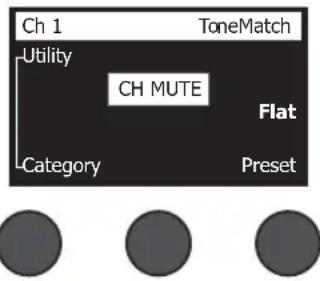
- Press the Mute button again to unmute the channel. The Mute button dims to indicate that the channel is not muted.
Muting Channel Effects
The FX Mute buttons mute only the Mod, Delay, and Reverb effects on the respective channel. Muting effects does not bypass ToneMatch presets, zEQ, Para EQ, and Comp/Gate settings.
- To mute effects on a channel, press the FX Mute button once. The FX Mute button glows white to indicate that the channel effects are muted. "FX MUTE" will appear on the display for the respective channel.
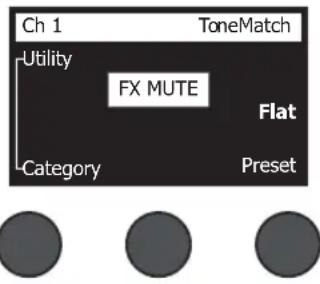
- Press the FX Mute button again to unmute the channel effects. The FX Mute button dims to indicate that the channel effects are not muted.
Using the Rotary Selector
The rotary selector provides access to the functions of the ToneMatch ^® mixer output. Figure 15 provides a summary of the nine channel-related functions and the three global functions. The following pages describe how to adjust each function.
Figure 15. Rotary selector
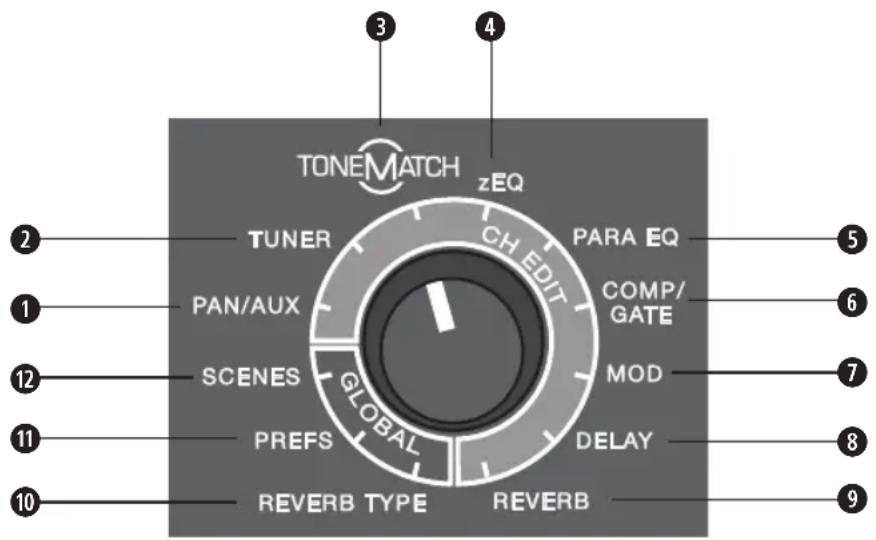
Channel Functions
① Pan/Aux – Provides access to pan, aux ins, and aux outs.
② Tuner – Provides tuning information for an instrument playing into the selected channel.
③ ToneMatch - Provides access to proprietary ToneMatch presets designed for specific instruments and microphones.
④ zEQ - As part of the selected ToneMatch preset, zEQ provides controls to adjust low/mid/high frequencies that are within the range of your instrument or microphone.
⑤ Para EQ - Provides parametric EQ controls per channel.
⑥ Comp/Gate - Provides access gate, compression, limiter, de-esser, and kick drum presets with adjustable parameters.
⑦ Mod - Provides access to several modulation effects such as chorus, flanger, phaser, and tremolo.
8 Delay - Provides access to three types of delays and tap-tempo delay.
⑨ Reverb - Applies reverb to a selected channel and can be sent to mains or aux.
Global Functions
⑩ Reverb Type – Applies a selected type of reverb to all master output channels or aux sends.
⑪ Prefs - Allows access to several system utilities.
⑫ Scenes – Allows you to save and load performance scenes (a snapshot of the complete state of the unit).
Editing the Sound of a Channel
The CH Edit functions allow access to settings that affect selected channels. The CH Edit functions are Pan/Aux, Tuner, ToneMatch ^® , zEQ, Para EQ, Comp/Gate, Mod, Delay, and Reverb.
To edit a channel:
- Press the CH Edit 1, 2, 3, 4, (T4S and T8S) 5, 6, 7, or 8 (T8S only) button. The selected channel will be viewable in the upper-left corner of the display.
- Select one of the CH Edit functions using the rotary selector.
- Adjust the settings for that function using the following instructions.
Note: You can only edit one channel at a time. Pressing a CH Edit button enables editing for the selected channel only.
Using the Pan/Aux Functions
Use the Pan/Aux function to route audio to either the master out L or R, control aux in, or aux send.
Using Pan
Use the Pan control to send each channel to its separate space in a stereo mix.
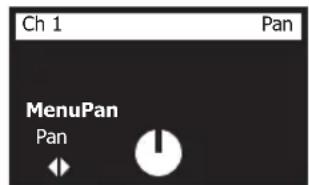


- Press or rotate the left editor control and select Pan from the menu.
- Rotate the Pan control to adjust the line output from L to R.
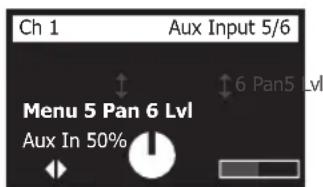
Aux Input 5/6 (9/10)
Use Aux Input 5/6 (9/10) to input a line-level stereo source, such as a mobile device.
- Press or rotate the left control and select Aux In 5/6 from the menu.
- Rotate the 5 Lvl or 6 Lvl control to adjust the signal level of either channel 5 or channel 6.
- Press the 5 Lvl to switch to 5 Pan; press the 6 Lvl control to switch to 6 Pan. Rotate the Pan control to adjust the pan from L to R.


Routing Input Signals to the Aux Outputs
The Aux function allows you to route signals to two Aux outputs (T4S only) or four Aux outputs (T8S only) for various signal processing, recording, and sound reinforcement applications. The signal level is adjustable for each of the available Aux outputs:
Note: To mute the Aux output, press the Level control. Press it again to unmute.
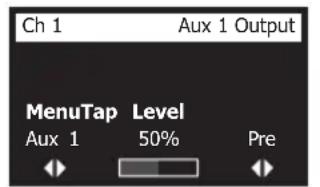


- Press or rotate the Menu control and select an Aux Send.
- Rotate the Level control to adjust the signal level of the selected channel.
- Rotate the Tap control to scroll through the tap menu and highlight the desired tap point.
A. Dry: After Preamp - The completely dry (no processing) signal is routed directly from the preamp stage.
B. Pre: With EQ & Fx - The signal is routed from the preamp stage with applied processing.
C. Post: After Fader – The signal is routed after the Channel volume control with applied processing.
- Press the Select control to select the tap point, or press the Cancel control to exit with no change. The name of the currently selected tap point appears in bold type.
Using the Tuner
An independent tuner is available on each input channel. The display indicates the note being played at the bottom of the screen. As you tune, a pitch indicator appears on the display, showing you whether the note is sharp or flat. Adjust the pitch of your instrument so the cursor aligns itself with the center of the screen.
Note: For silent tuning, press the Mute button for the applicable channel.
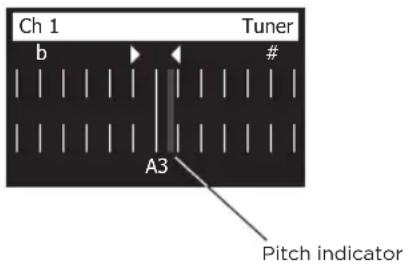
Use the Transpose feature to change the reference pitch up or down by two half steps. Or precisely dial in your tuning using the reference pitch.
Operation
Selecting a ToneMatch® Preset
The ToneMatch function allows you to select a ToneMatch preset for your instrument or microphone. This proprietary technology optimizes system equalization to preserve the natural sound of your specific instrument or microphone. They are organized into categories and independently selected for each channel.
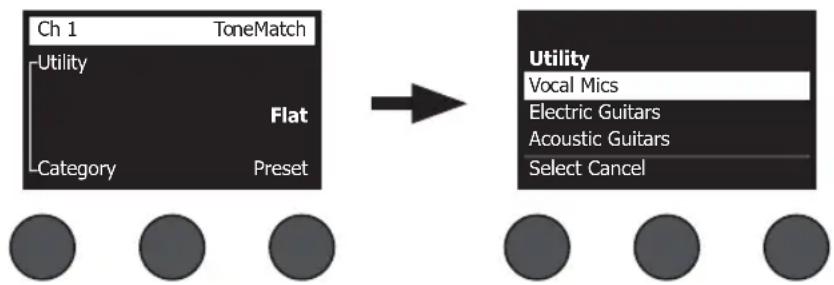
- Rotate the Category control to access the list of categories and highlight your choice.
flowchart
graph LR
    A["Ch 1\nToneMatch\n-Utility\nFlat\n-Category\nPreset"] --> B["Utility\nVocal Mics\nElectric Guitars\nAcoustic Guitars\nSelect Cancel"]
Rotate Press
- Press the Select control to select your choice, or press the Cancel control to exit the list with no change.
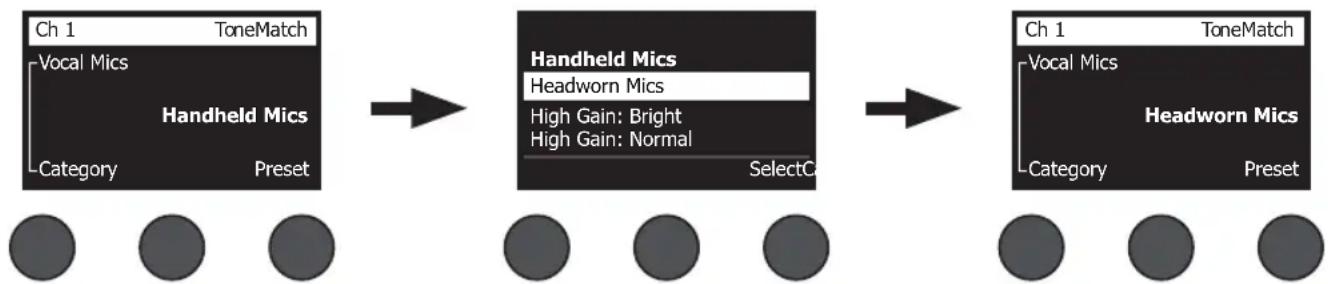
- If you pressed Select, rotate the Preset control to access the list of presets and highlight your choice.
- Press the Select control to select your choice, or press the Cancel control to exit the list with no change.
flowchart
graph LR
    A["Ch 1 ToneMatch\nVocal Mics\nHandheld Mics\nCategory Preset"] --> B["Handheld Mics\nHeadworn Mics\nHigh Gain: Bright\nHigh Gain: Normal\nSelectC"]
    B --> C["Ch 1 ToneMatch\nVocal Mics\nHeadworn Mics\nCategory Preset"]
PressRotate
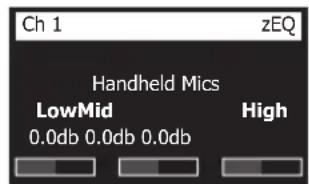
Adjusting zEQ
The zEQ function is part of the ToneMatch preset technology. It allows you to adjust low/mid/high frequencies that are within the range of your instrument or microphone.
To adjust zEQ, rotate the control under the corresponding frequency band.
Note: To bypass an individual frequency band, press the corresponding control. Press it again to activate.


Adjusting Para EQ
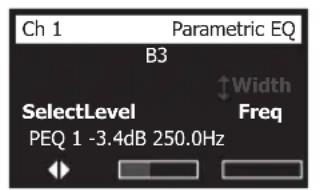
The Para EQ function provides three parametric equalizations centered on a user-specified frequency within the range of 50 Hz to 16 kHz.
Note: To bypass the Para EQ settings, press the Select control. Press it again to activate.
- Press or rotate the Select control and select Para EQ band 1-3.
- Rotate the Level control to adjust the boost/cut level from -15 dB to +15 dB.
- Rotate the Freq control to adjust the center frequency from 50 Hz to 16 kHz.
- Press the Freq control to switch to Width. Rotate the Width control to adjust the width of the bell curve around the center frequency from 0.20 octave to 5.00 octave.


Using Compressor/Gate Functions
The Comp/Gate function provides access to gate, compression, limiter, de-esser and kick drum presets with adjustable parameters.
Note: To bypass the Comp/Gate settings, press the Type control. Press it again to activate.
Note: Only one effect per channel.
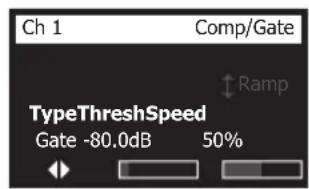


- Rotate the Type control to access the list of Comp/Gate effects and highlight your choice:
A. Compressor 1: Light - Compressor featuring a preset low-compression ratio with variable threshold and gain parameters. Works well as a general-purpose compressor for most instruments and microphones that require minimal level control.
B. Compressor 2: Medium – Compressor featuring a preset moderate compression ratio with variable threshold and gain parameters. Works well with basses, guitars, keyboards, and vocals requiring subtle level control.
C. Compressor 3: Heavy - Compressor featuring a preset high compression ratio with variable threshold and gain parameters. Works well with loud instruments (like horns and drums), as well as strong vocals that require more aggressive level control.
D. Limiter - Hard limiter featuring a preset ratio ( :1 ) with variable threshold and gain parameters. Works well with very loud instruments, such as drums, to prevent signal peaks from overloading the channel.
Operation
E. De-Esser - Side-chained compressor featuring a preset compression ratio with variable threshold and gain parameters. Designed to reduce sibilance on vocals.
F. Noise Gate - Noise gate with a fast preset attack time, variable threshold, and variable speed (release time). Well-suited for eliminating unwanted noise from microphones and instruments.
G. KickGate 1: Regular – Gate featuring a preset attack time, and variable threshold and tightness (release time) parameters. This is a Bose ^® proprietary technology designed specifically for kick drums. This robust gate provides maximum gain before feedback, making your kick drum as loud as possible through an PA system.
H. KickGate 2: Fast - Same as KickGate 1 but adjusted for faster tempos. Select this setting if you are using a double bass drum pedal.
- Press the Select control to select your choice, or press the Cancel control to exit the list with no change.
- Compressor 1-3, Limiter, De-Esser: Rotate the Thresh control to adjust the input threshold (trigger) level from -50 dB to 0 dB. Rotate the Gain control to adjust the gain from 0 dB to 30.0 dB. The gain bar above the control shows the amount of gain reduction. This display helps in setting the threshold.
Noise Gate: Rotate the Thresh control to adjust the input threshold (trigger) level from -90 dB to -30 dB. Rotate the Speed control to set the gate closing speed to any value from 0% (fastest) to 100% (slowest). Rotate the Ramp control to adjust the slope of the gate from 0% (horizontal) to 100% (vertical).
KickGate 1-2: Rotate the Thresh control to adjust the input threshold (trigger) level from -20 dB to 0 dB. Rotate the Tight control to adjust the tightness (how quickly the gate closes) from 0% (slowest) to 100% (fastest).
Using the KickGate
The KickGate is a Bose ^® proprietary technology that allows you to raise the level of a kick drum channel while eliminating the risk of feedback from the microphone. Two KickGate settings are available in the Comp/Gate menu.
- Connect the appropriate type of microphone.
- Select an appropriate ToneMatch ^® preset.
- Adjust the channel input Trim control until the hardest kick drum hits turn the input channel LED red, then continue to adjust the control until the LED turns green. This optimizes your channel input Trim level.
- Select Comp/Gate with the rotary selector.
- Rotate the Type control to scroll down the list, highlight KickGate 1: Regular or KickGate 2: Fast, and press Select. Choose KickGate 2 when using a double bass drum pedal.
- While playing the kick drum, increase the volume to the desired performance level.
- Play the kick drum at the softest level you intend to use in the performance and check that you can hear it.
- While playing softly, increase the Thresh level until some of the kick drum hits get cut off. Then lower the Thresh level by 3 dB.
- While playing the kick drum normally, rotate the Tight control counter-clockwise to reduce the tightness and add more "boom" to the sound. Tightness can be adjusted from 0% (slowest) to 100% (fastest).
Using Modulation Effects
The Mod function allows you to apply modulation effects.
Note: To bypass the Mod settings, press the Type control. Press it again to activate.
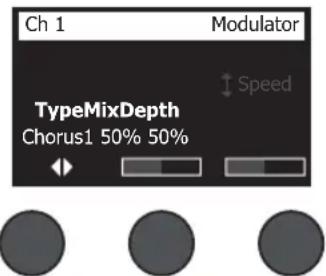
- Rotate the Type control to access the list of modulator types and highlight your choice:
A. Chorus 1: Brite - Wet, shimmering chorus that works well with acoustic instruments. Includes adjustable mix, depth, and speed parameters.
B. Chorus 2: Warm - Similar to Chorus 1, but with a little less high frequencies. Includes adjustable mix, depth, and speed parameters. Works well with electric guitars/basses.
C. Chorus 3: Dark - Similar to Chorus 2, but with less high frequencies for a darker tone. Includes adjustable mix, depth, and speed parameters. Works well with electric guitars/basses.
D. Flanger 1: Tape - Tape-style flanger with no feedback. Includes adjustable mix, depth, and speed parameters. Works well as an effect on electric guitars/basses.
E. Flanger 2: Feedback - Same as Flanger 1, but with preset Feedback effect.
F. Phaser 1: Stomp - Classic "stompbox"-style phaser. Features a preset wide sweep with variable speed and feedback parameters. Works well as an effect on electric guitars/basses and keyboards.
G. Phaser 2: Rack - Classic "rack"-style phaser. Features a positive mix type with variable speed and feedback parameters. Works well as an effect on electric guitars/basses and keyboards.
H. Phaser 3: Warm - Vintage-style phaser. Features a positive mix type with variable speed and feedback parameters. Works well as an effect on electric guitars/basses and keyboards.
I. Phaser 4: Brite - Phaser with no bass. Features a positive mix type with variable speed and feedback parameters. Works well as an effect on electric guitars and keyboards.
J. Tremolo - Vintage-style tremolo effect with variable speed and depth parameters. Works well as an effect on guitars, keyboards, and harmonica.
-
Press the Select control to select your choice, or press the Cancel control to exit the list with no change.
-
Chorus 1-3, Flanger 1-2: Rotate the Mix control to adjust the desired mix of dry signal to wet signal (modulator-processed). Rotate the Depth control to adjust how much the pitch varies from the original input signal. Press the Depth control to access the Speed parameter. Rotate the Speed control to adjust how quickly the pitch modulates.
Phaser 1-4: Rotate the Speed control to adjust how quickly the pitch modulates. Rotate the Fdbk. control to adjust how much the modulation reverberates.
Tremolo: Rotate the Speed control to adjust how quickly the volume modulates. Rotate the Depth control to adjust how much the volume varies from the original input signal.
Adding Delays
The Delay function allows you to apply a digital-, analog-, or tape-style delay.
Note: To bypass the Delay settings, press the Type control. Press it again to activate.
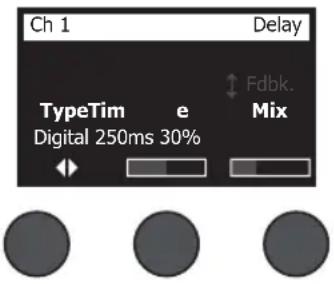
- Rotate the Type control to access the list of Delay types and highlight your choice.
A. Digital Delay - Straight digital delay effect where the repeats remain uncolored. Features adjustable mix, time, and feedback parameters. Works well with guitars, drums, and vocals.
B. Analog Delay - Classic analog delay effect where the repeats continuously deteriorate. Features adjustable mix, time, and feedback parameters. Works well with guitars, drums, and vocals.
C. Tape Delay - Vintage-style tape delay effect where the repeats deteriorate even more than Analog Delay. Well-suited for guitars, horns, harmonica, and vocals.
- Press the Select control to select your choice, or press the Cancel control to exit the list with no change.
- Rotate the Time control to adjust the amount of the delay time in 5 ms increments. Press the Time control to tap your desired delay tempo.
- Rotate the Mix control to set the desired mix of dry signal (0%) to wet signal (100%).
- Press the Mix control to access the Fdbk. setting. Rotate the Fdbk. control to adjust the amount of delay feedback.
Adding Reverb
The Reverb function applies a user-adjustable amount of reverb to the selected channel. To select the type of reverb, see “Selecting a Reverb Type” on page 27.
Note: To mute the Reverb effects, press the Mix control. Press it again to unmute.
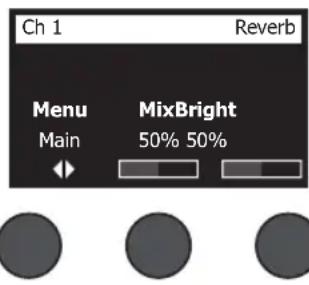
- Press or rotate the Menu control and select which output to send the reverb too.
- Rotate the Mix control to adjust the desired mix of dry signal (0%) to wet signal (100%).
- Rotate the Bright control to equalize the high frequencies of reverb applied to the selected channel.
Using Global Functions
The Global functions allow access to settings that affect the overall operation of the mixer and all of its channels.
Selecting a Reverb Type
The Reverb Type function allows you to select the type of reverb that is applied to all input channels. The decay time (Time) and balance (Bal) are adjustable. Balance controls the ratio of early-to-late reflections.
Note: To mute the Reverb, press the Type control. Press it again to unmute.
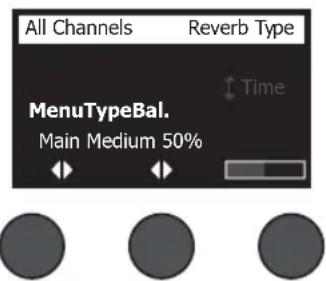
- Select Reverb Type with the rotary selector.
- Press or rotate the Menu control and select which output to send the reverb too. You can send a different reverb type to either the Main or Aux sends.
- Rotate the Type control to display the list of reverbs:
A. Plate - Creates the ambiance of a typical studio plate reverb. Features adjustable time and balance (ratio of early/later reflections) parameters.
B. Small - Creates the ambiance of a small-sized space. Features adjustable time and balance (ratio of early/later reflections) parameters.
C. Medium - Creates the ambiance of a medium-sized space. Features adjustable time and balance (ratio of early/later reflections) parameters.
D. Large - Creates the ambiance of a large-sized space. Features adjustable time and balance (ratio of early/later reflections) parameters.
E. Cavern - Creates the ambiance of an extremely large space. Features adjustable time and balance (ratio of early/later reflections) parameters. A unique and interesting reverb effect.
- Rotate the Type control to scroll through the reverb list and highlight the desired reverb type.
- Press the Type control to select.
- Rotating the Time control controls the decay time of the selected reverb model from its minimum decay time to its maximum decay time. At 0%, the decay time will be at minimum and will simulate the smallest room size available to the currently selected reverb type. At 100%, the decay time will be at maximum and will simulate the largest room size available to the currently selected reverb type. Each reverb type has their own usable range of decay times that work best for the selected model type. The Reverb Decay parameter allows you to adjust the reverb time between the specific ranges that work best for the selected reverb model type.
- Press the Time control to switch to Bal. Rotate the Bal. control to adjust the early-to-late reflection ratio (0% = all early reflections, 100% = all late reflections).
Using the Prefs Utilities
The Prefs function allows access to several system utilities.
-
Select Prefs with the rotary selector.
-
Rotate the Menu control to scroll through the list and highlight the desired utility. Press the Select control to display the utility:
- Status – Displays the effects assigned to input channels (viewable only).
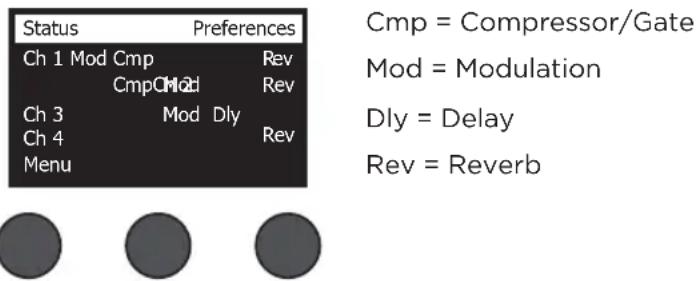
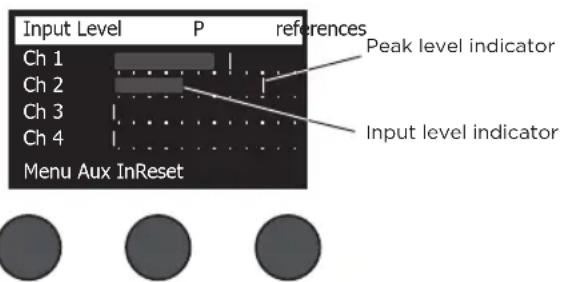
- Input Level – Displays input level meters with peak signal indicators for all input channels. Press the Reset control to reset all peak signal indicators. This display is helpful in setting the channel input trim level (see “Optimizing Input Gain and Output Volume” on page 17). Press the Aux In control to monitor the level of the auxiliary inputs (For the T8S only, press the Ch 5-8 control to monitor the level of Inputs 5-8).
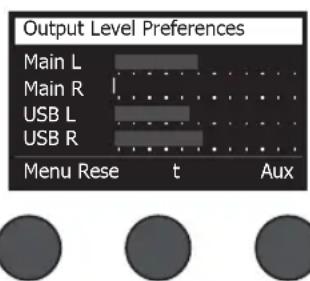
- Output Level - Displays output level meters for all outputs: Main L, Main R, USB L, and USB R. Press the Aux control to monitor the level of the auxiliary outputs.
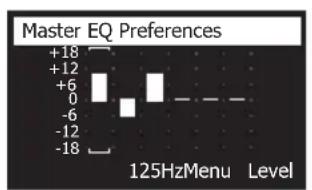
- Master Out EQ - The Master Out EQ is a 6-band graphic equalizer put on the master mix output. With the middle control, select the frequency range you want to boost or attenuate and use the Level control to adjust the level +/-18 dB.
bar
Master EQ Preferences | Level | Value | |---|---| | +18 | +6 | | +12 | +6 | | 0 | -6 | | -6 | -12 | | -12 | -18 | 125HzMenu


- USB B to PC - Allows you to send a selected source to your computer through USB left and right output channels. The source choices are Ch1-4 (Ch5-8 for T8S only), Aux In, Master, or Aux Out 1-2 (Aux Out 3-4 for T8S only).


- Rotate the Left/Right control to highlight a source.
- Press the Select control to select the source, or press the Cancel control to exit with no change.
- Rotate Menu to return to the Prefs menu list.
- USB B from PC - Allows you to send USB left and right channels from your computer to a selected mixer destination (None, Aux In, or Master).
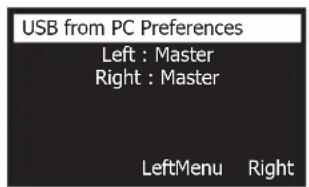


- Rotate the Left/Right control to highlight a destination.
- Press the Select control to select the source, or press the Cancel control to exit with no change.
- Rotate the Menu control to return to the Prefs menu list.
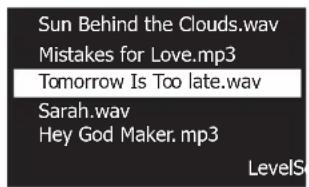
- USB A-Playback – Attach a USB Type-A flash drive to play any WAV/MP3 files stored to the flash drive. Using the menu, select the folder that contains the WAV/MP3 files; select the file you want to play and adjust the level by rotating the Level control.


Operation
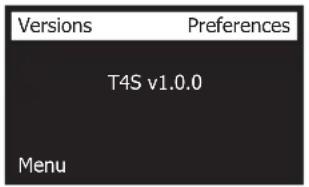
- Versions – Displays revision levels of DSP Firmware.


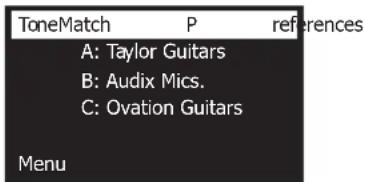
- ToneMatch - Displays the list of ToneMatch preset banks stored in the T4S/T8S. Refer to www.Bose.com/livesound for the latest preset banks.


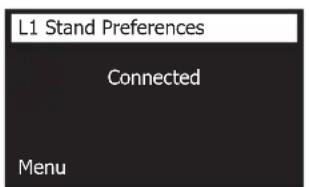
- L1 Power Stand - When connected to an L1® Model 1S/II power stand, Connected appears on the screen.


Loading and Saving Scenes
A scene is a snapshot of the state of the T4S/T8S ToneMatch ^® mixer.
- A scene remembers all ToneMatch mixer settings, and the status of the Mute, FX Mute, and CH Edit buttons.
- A scene does not remember channel trim, channel volume levels, Master volume level, headphone level or the Phantom power switch position.
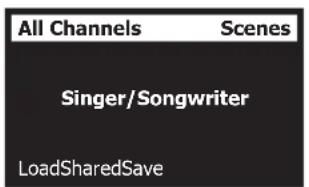


The T4S/T8S includes three types of scenes:
• (5) Bose scenes: Read-only factory-preset scenes. You cannot edit and overwrite them.
• (10) User Scenes: User-definable scenes for saving and recalling all your favorite settings. You can update these scenes by overwriting them as many times as you want.
- (1) Shared Scene: A user-definable scene for saving settings you want to share with other T4S/T8S ToneMatch® mixer users. This scene can be uploaded to a computer using the L1® updater software available at www.Bose.com/livesound.
To load a scene:
- Select Scenes with the rotary selector.
- Rotate the Load control to scroll through the scenes list and highlight the desired scene name. The name of the currently loaded scene appears in bold type.
- Press the Select control to select the scene, or press the Cancel control to exit the list and leave the setting unchanged.
Note: The display returns to the Scenes screen if you do not press the Select or Cancel control within 10 seconds. No change is made and the currently loaded scene appears on the screen.
- If you pressed Select, the question "Are you sure?" is displayed. Press the Yes control to load the scene, or press the No control to exit and leave the scene setting unchanged.
Note: The display returns to the Scenes screen if you do not press the Yes or No control within 10 seconds. No change is made and the currently loaded scene appears on the screen.
To save a scene:
- Select Scenes with the rotary selector. The currently loaded scene is displayed.

- Rotate the Save control to highlight the scene you wish to save. Press Select, or press Cancel to exit the list.
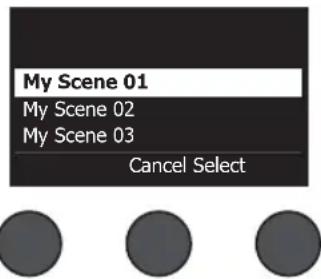
Note: The display returns to the Scenes screen if you do not press the Select or Cancel control within 10 seconds. No change occurs, and the currently loaded scene appears on the screen.
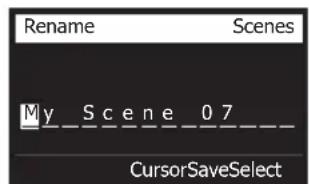
- If you pressed Select, use the Rename screen to edit the scene name, or press Save to use the name as displayed and go to Step 4.
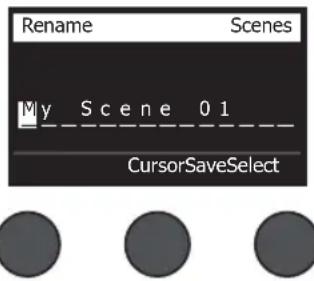
To change the scene name before saving:
You can use the following editing options to change the scene name. After changing the name, press the Save control and go to Step 4.
- Select and change characters: While the Rename screen is displayed, rotate the Cursor control to highlight the character or character position you want to change. Then rotate the Select control to change the character.
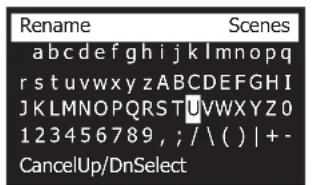
- Use the character map: While the Rename screen is displayed, rotate the Cursor control to highlight the character you want to change. Then press the Select control to view the character map. Rotate the Select control to move the cursor left or right. Rotate the Up/Dn control to move the cursor up or down. When the character you want is highlighted, press Select to write that character in the selected position.


- Use clear, insert, and delete functions: While the Rename screen is displayed, rotate the Cursor control to position the cursor. Then press the Cursor control for a menu of special editing functions. Rotate the Select control to highlight the function you want. Then press the Select control to perform the function.
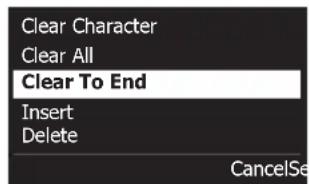


Clear Character - Removes the character highlighted by the cursor and leaves a blank space.
Clear All - Clears the entire line of text.
Clear to End - Clears all text to the right of the cursor including the highlighted character.
Insert - Inserts a blank space to the left of the highlighted character.
Delete - Removes the character and space highlighted by the cursor.
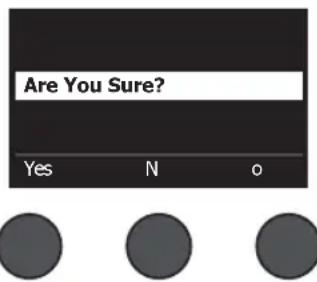
- When the question "Are You Sure?" is displayed, press the Yes control to save the scene, or press the No control to exit without saving the scene.
Sharing a Scene
If you create a scene that you would like to share with another T4S/T8S ToneMatch® mixer user, you can save that scene as a Shared Scene by saving it to the [To Shared Scene] slot. Using the L1® updater, you can upload the Shared Scene to your computer and then transfer the file to the computer of another T4S/T8S user. The other T4S/T8S user can download the scene to their T4S/T8S using the L1 updater. The L1 updater is available at www.Bose.com/livesound.
To save a Shared Scene:
- Load the scene that you want to share (see "To load a scene" on page 31).
- Press the Save control to access the list of scenes.
- Rotate the Select control to scroll through the scene list and highlight [To Shared Scene]. Press Select or press Cancel to exit the list.
![My Scene 09 My Scene 10 [To Shared Scene] Cancel Select](/content/2026/03/485552/images/f037018217f1786f42824d61c82d9ee5a12948e79cff3224ec68e8a2f3475efd.jpg)

Note: The display returns to the Scenes screen if you do not press the Select or Cancel control within 10 seconds. No change occurs, and the currently loaded scene appears on the screen.


- If you pressed Select, use the Rename screen to edit the scene name (see "To change the scene name before saving" on page 32) or go to Step 5 if you want to use the existing name.


Operation
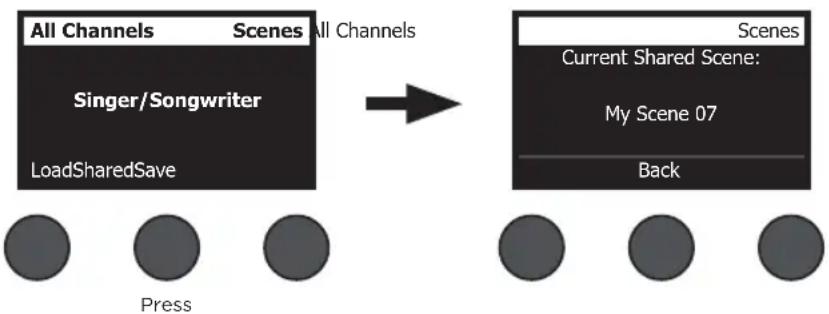
- Press the Save control to store the scene as a Shared Scene.
- When the question "Are you sure?" is displayed, press the Yes control to save the scene, or press the No control to exit without saving the scene as a Shared Scene.
Note: The display returns to the Scenes screen if you do not press the Yes or No control within 10 seconds. No change occurs, and the currently loaded scene appears on the screen.
- Press the Shared control to confirm the scene saved as a Shared Scene.
flowchart
graph LR
    A["All Channels"] --> B["Singer/Songwriter"]
    B --> C["LoadSharedSave"]
    D["Current Shared Scene"] --> E["My Scene 07"]
    E --> F["Back"]
    style A fill:#333,stroke:#fff,color:#fff
    style D fill:#333,stroke:#fff,color:#fff
    style E fill:#333,stroke:#fff,color:#fff
    subgraph "Press"
        A
        B
        C
    end
    subgraph "Back"
        D
        E
        F
    end
Note: The T4S/T8S provides only one storage location for a Shared Scene. Saving a scene as a Shared Scene always overwrites the previously saved Shared Scene.
Please visit www.Bose.com/livesound for details on using the L1 ^® updater application for downloading and uploading scenes to and from your computer.
Bose Scenes
The five Bose scenes are provided as examples for you to use as a starting point. After loading a Bose scene, you can modify the settings and then save the settings as a My Scene or Shared Scene.
Factory Settings
This scene restores the mixer to the settings it had when it left the factory. Loading this scene erases any changes you previously made to the currently loaded scene.
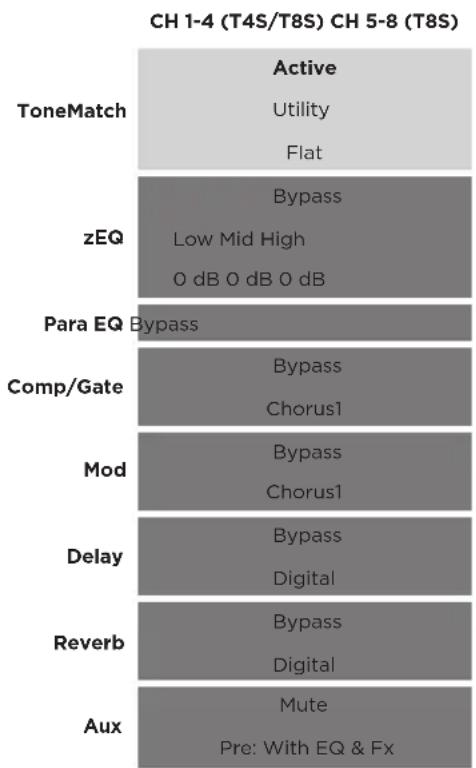
bar_stacked
| Technique | Channel | Value | | :--- | :--- | :--- | | ToneMatch | Active | | | ToneMatch | Utility | | | ToneMatch | Flat | | | zEQ | Bypass | | | zEQ | Low Mid High | | | zEQ | 0 dB 0 dB 0 dB | | | Para EQ | Bypass | | | Comp/Gate | Bypass | | | Comp/Gate | Chorus1 | | | Mod | Bypass | | | Mod | Chorus1 | | | Delay | Bypass | | | Delay | Digital | | | Reverb | Bypass | | | Reverb | Digital | | | Aux | Mute | | | Aux | Pre: With EQ & Fx | || Global Settings | |
| Preferences | |
| Active screen | Status |
| USB to PC | Left/Right:Master |
| USB from PC | Left/Right:Master |
| Master Out | Post Master Volume |
| Reverb Type | |
| Type | Medium |
| Time | 50% |
| Bal | 50% |
Note: For a list of the factory settings for all effects, see "Factory Settings" on page 42.
Operation
Singer/Songwriter
This scene is designed for a singer/songwriter playing keyboard or guitar and sometimes accompanied by an MP3 track.
Figure 16. Example setup for Singer/Songwriter
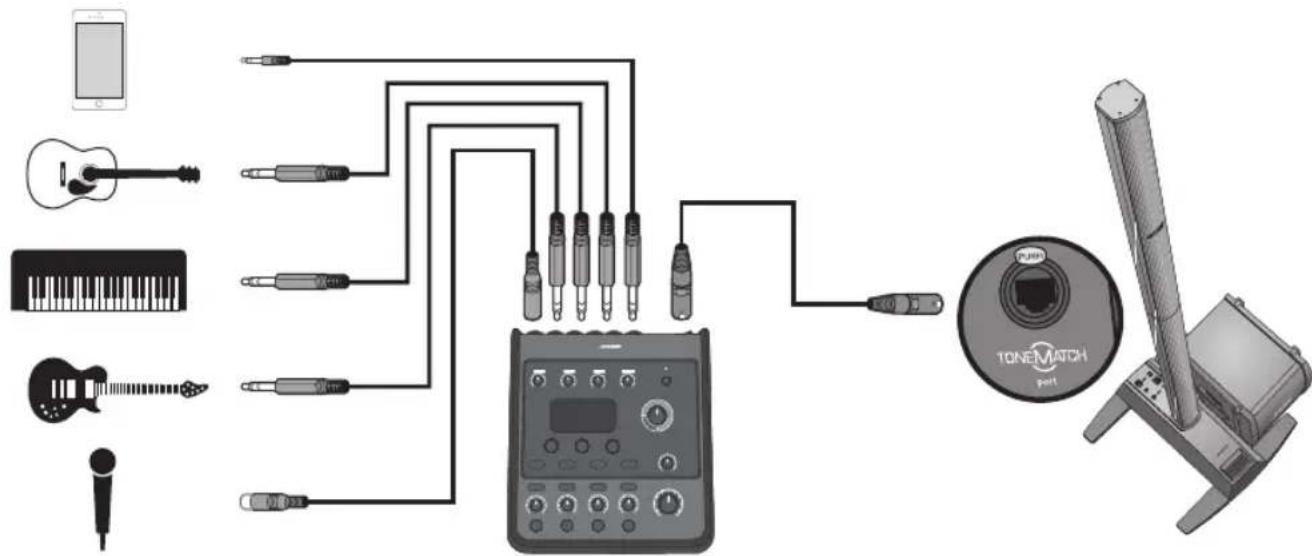
Singer/Songwriter scene channel settings
Microphone Guitar Keyboard Bass Aux In
CH 1 CH 2 CH 3 CH 4 5/6
| ToneMatch | Active Active | Active Active | General Keys | Active Bass 1 | N/A | ||||||||
| Vocal Mics Acoustic Guitar Keyboards BassesHandheld Mics Steel String w/ piezo | |||||||||||||
| Active Active | Active Active | ||||||||||||
| zEQ | Low0 dB | Mid0 dB | High0 dB | Low0 dB | Mid0 dB | High0 dB | Low0 dB | Mid0 dB | High0 dB | Low0 dB | Mid0 dB | High0 dB | N/A |
| Para EQ | Bypass | Bypass | Bypass | Bypass | N/A | ||||||||
| Comp/ Gate | Bypass Bypass Comp2 | Bypass Comp2 | Bypass Comp2 Comp2 | N/A | |||||||||
| Mod | Bypass Chorus1 | Bypass Bypass Chorus1 Chorus3 | Bypass Chorus1 | N/A | |||||||||
| Delay | Bypass Digital Digital Digital Digital | Bypass Bypass Digital Digital | Bypass | N/A | |||||||||
| Reverb | Active Active Medium (Global) | Bypass Medium (Global) | Bypass Medium (Global) | Medium (Global) | N/A | ||||||||
| Pan/Aux | CenterAux 1-2 50%Pre: With EQ & Fx | CenterAux 1-2 50%Pre: With EQ & Fx | CenterAux 1-2 50%Pre: With EQ & Fx | CenterAux 1-2 50%Pre: With EQ & Fx | Aux In5 Lvl 6 Lvl50% 50% | ||||||||
Global Settings
| Preferences | |
| Active screen | Status |
| USB to PC | Left/Right:Master |
| USB from PC | Left/Right:Master |
| Master Out | Post Master Volume |
| Reverb Type | |
| Type | Medium |
| Time | 50% |
| Bal | 50% |
Operation
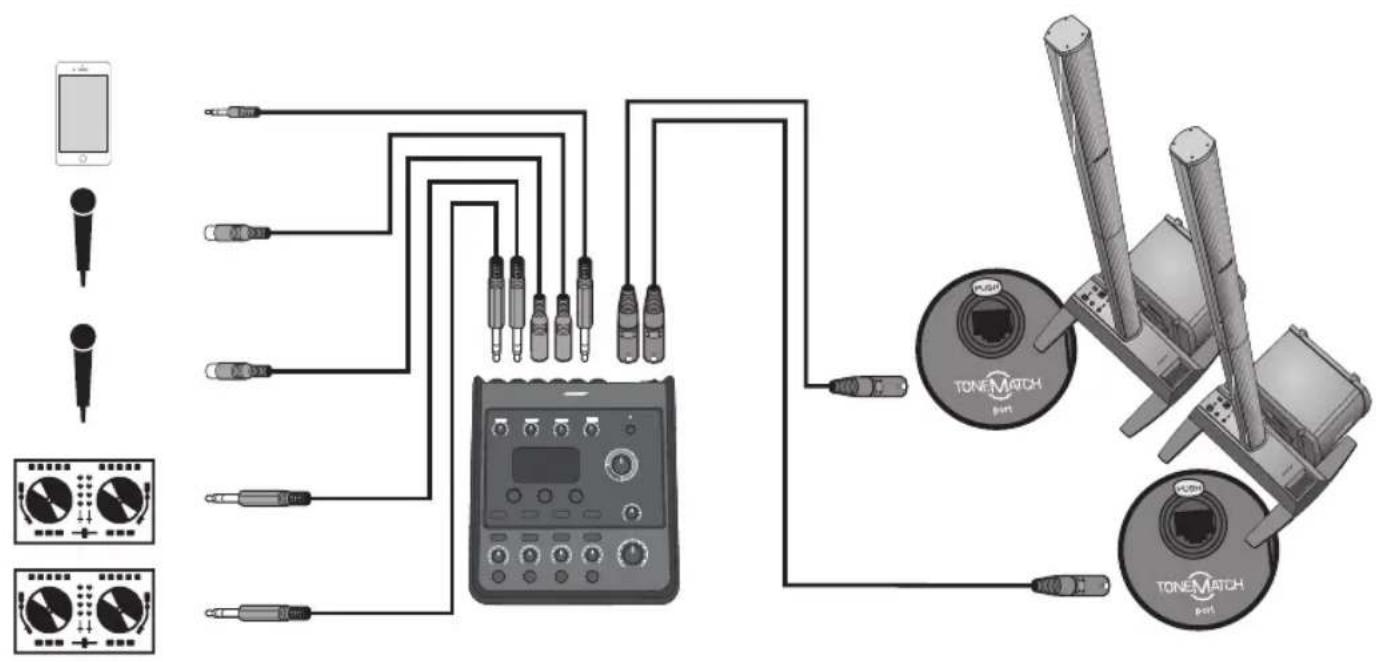
DJ/Playback
The DJ/Playback scene is designed for a DJ event or any audio playback need. This setup uses two microphones and either a mobile device, mixer, or laptop computer.
Figure 17. Example setup for stereo DJ/Playback
DJ/Playback scene channel settings
Source 1 Left Source 1 Right Microphone Microphone Aux In
CH1CH2CH3CH45/6
| ToneMatch | Active Active | Active Active | Vocal Mics | Handheld Mics | N/A | ||||||||
| DJ/Playback DJ/Playback Vocal Mics | Flat, zEQ Controls | Handheld Mics | |||||||||||
| zEQ | Active Active | Active Active | |||||||||||
| Low | Mid | High | Low | Mid | High | Low | Mid | High | Low | Mid | High | ||
| 0 dB | 0 dB | 0 dB | 0 dB | 0 dB | 0 dB | 0 dB | 0 dB | 0 dB | 0 dB | 0 dB | 0 dB | ||
| Para EQ | Bypass | Bypass | Bypass | Bypass | N/A | ||||||||
| Comp/ Gate | Bypass | Bypass | Bypass | Bypass | N/A | ||||||||
| Limit | Limit | Comp2 | Comp2 | ||||||||||
| Mod | Bypass | Bypass | Bypass | Bypass | N/A | ||||||||
| Chorus1 Chorus1 | Chorus3 | Chorus1 | |||||||||||
| Delay | Bypass | Bypass | Bypass | Bypass | N/A | ||||||||
| Digital Digital Digital Digital | |||||||||||||
| Reverb | Bypass | Bypass | Bypass | Bypass | N/A | ||||||||
| Medium (Global) | Medium (Global) | Medium (Global) | Medium (Global) | ||||||||||
| Pan/Aux | Left Right | Center Center | Aux In | ||||||||||
| Aux 1-2 | 50% | Aux 1-2 | 50% | Aux 1-2 | 50% | Aux 1-2 | 50% | 5 Lvl 6 Lvl | |||||
| Pre: With EQ & Fx | Pre: With EQ & Fx | Pre: With EQ & Fx | Pre: With EQ & Fx | 50% 50% | |||||||||
Global Settings
| Preferences | |
| Active screen | Status |
| USB to PC | Left/Right:Master |
| USB from PC | Left/Right:Master |
| Master Out | Post Master Volume |
| Reverb Type | |
| Type | Medium |
| Time | 50% |
| Bal | 50% |
Operation
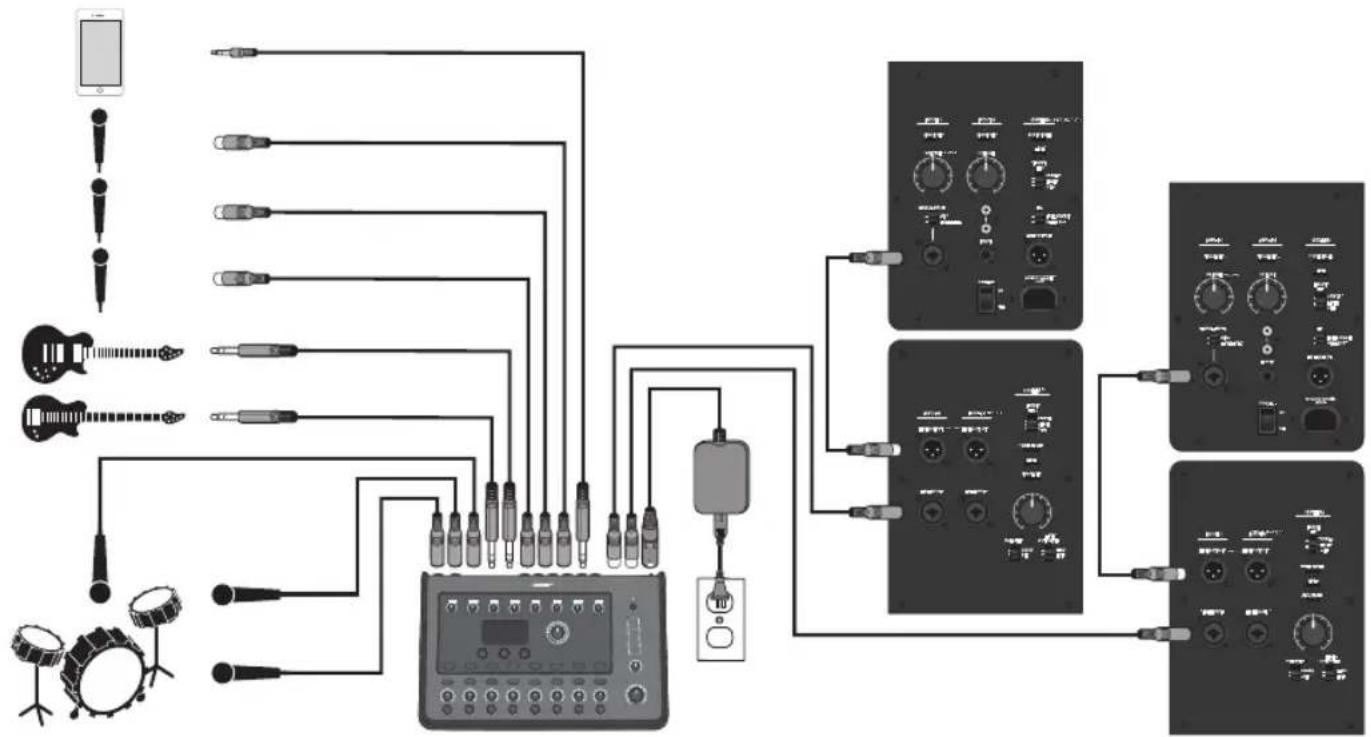
Full Band
This scene is set up for a drum kit, bass guitar, electric guitar, vocals, and MP3 player.
Figure 18. Example setup for Drums and Bass
flowchart
graph TD
    A["Drain"] --> B["Resistors"]
    C["Handheld Piano"] --> B
    D["Guitar"] --> B
    E["Drum"] --> B
    F["Radio Station"] --> B
    G["Audio Analyzer"] --> B
    H["Microcontroller Interface"] --> B
    I["Audio System"] --> B
    J["Audio Equipment"] --> B
    K["Audio Record"] --> B
    L["Audio Display"] --> B
    M["Audio Audio"] --> B
    N["Audio Sound"] --> B
    O["Audio Signal"] --> B
    P["Audio Output"] --> B
    Q["Audio Input"] --> B
    R["Audio Output"] --> B
    S["Audio Output"] --> B
    T["Audio Output"] --> B
    U["Audio Output"] --> B
    V["Audio Output"] --> B
    W["Audio Output"] --> B
    X["Audio Output"] --> B
    Y["Audio Output"] --> B
    Z["Audio Output"] --> B
    AA["Audio Output"] --> B
    AB["Audio Output"] --> B
    AC["Audio Output"] --> B
    AD["Audio Output"] --> B
    AE["Audio Output"] --> B
    AF["Audio Output"] --> B
    AG["Audio Output"] --> B
    AH["Audio Output"] --> B
    AI["Audio Output"] --> B
    AJ["Audio Output"] --> B
    AK["Audio Output"] --> B
    AL["Audio Output"] --> B
    AM["Audio Output"] --> B
    AN["Audio Output"] --> B
    AO["Audio Output"] --> B
    AP["Audio Output"] --> B
    AQ["Audio Output"] --> B
    AR["Audio Output"] --> B
    AS["Audio Output"] --> B
    AT["Audio Output"] --> B
    AU["Audio Output"] --> B
    AV["Audio Output"] --> B
    AW["Audio Output"] --> B
    AX["Audio Output"] --> B
    AY["Handheld Piano"] --> Z
    AZ["Guitar"] --> Z
    BA["Drum"] --> Z
    BB["Radio Station"] --> Z
    BC["Audio Analyzer"] --> Z
    BD["Audio System"] --> Z
    BE["Audio Signal"] --> Z
    BF["Audio Output"] --> Z
Full Band scene channel settings
Kick Drum Overhead Overhead Bass Guitar Microphone Microphone Microphone Aux In
CH1CH2CH3CH4CH5CH6CH7CH89/10
| ToneMatch | Active Active Percussion Kick, General | Active Active Percussion General Overhead | Active Percussion General Overhead | Active Basses Active Bass 1 | Electric Guitars Mic'd Amp w/ SM57 | Vocal Mics Handheld Mics | Vocal Mics Handheld Mics | Vocal Mics Handheld Mics | N/A | ||||||||||||||||
| Active Active | Active Active Active | Active Active | Active | ||||||||||||||||||||||
| zEQ | L | M | H | L | M | H | L | M | H | L | M | H | L | M | H | L | M | H | L | M | H | L | M | H | N/A |
| 0 | 0 | 0 | 0 | 0 | 0 | 0 | 0 | 0 | 0 | 0 | 0 | 0 | 0 | 0 | 0 | 0 | 0 | 0 | 0 | 0 | 0 | 0 | 0 | ||
| dB | dB | dB | dB | dB | dB | dB | dB | dB | dB | dB | dB | dB | dB | dB | dB | dB | dB | dB | dB | dB | dB | dB | dB | ||
| Para EQ | Bypass | Bypass | Bypass | Bypass | Bypass | Bypass | Bypass | Bypass | N/A | ||||||||||||||||
| Comp/Gate | Active | Bypass | Bypass | Active | Bypass | Bypass | Bypass | Bypass | N/A | ||||||||||||||||
| Kick1 | Comp2 | Comp2 | Comp2 | Comp2 | Gate | Gate | Gate | ||||||||||||||||||
| Mod | Bypass | Bypass | Bypass | Bypass | Active | Bypass | Bypass | Bypass | N/A | ||||||||||||||||
| Chorus1 | Chorus1 | Chorus1 | Chorus1 | Chorus1 | Chorus1 | Chorus1 | Chorus1 | ||||||||||||||||||
| Delay | Bypass | Bypass | Bypass | Bypass | Bypass | Bypass | Bypass | Bypass | N/A | ||||||||||||||||
| Digital | Digital | Digital | Digital | Digital | Digital | Digital | Digital | ||||||||||||||||||
| Reverb | Bypass | Bypass | Bypass | Bypass | Bypass | Active | Active | Active | N/A | ||||||||||||||||
| Medium (Global) | Medium (Global) | Medium (Global) | Medium (Global) | Medium (Global) | Medium (Global) | Medium (Global) | Medium (Global) | ||||||||||||||||||
| Pan/Aux | Center | Center | Center | Center | Center | Center | Center | Center | Aux In | ||||||||||||||||
| Aux 1-4 | 50% | Aux 1-4 | 50% | Aux 1-4 | 50% | Aux 1-4 | 50% | Aux 1-4 | 50% | Aux 1-4 | 50% | Aux 1-4 | 50% | Aux 1-4 | 50% | 9 Lvl 10 Lvl | |||||||||
| Dry: After Preamp | Dry: After Preamp | Dry: After Preamp | Dry: After Preamp | Dry: After Preamp | Dry: After Preamp | Dry: After Preamp | Dry: After Preamp | 50% 50% | |||||||||||||||||
Global Settings
| Preferences | |
| Active screen | Status |
| USB to PC | Left/Right:Master |
| USB from PC | Left/Right:Master |
| Master Out | Post Master Volume |
| Reverb Type | |
| Type | Medium |
| Time | 50% |
| Bal | 50% |
Factory Settings
This section describes the settings in the T4S/T8S mixer when it left the factory. To restore your T4S/T8S at any time to these factory settings, load the Bose Factory Settings scene.
Comp/Gate Factory Settings
| Type Thresh Gain | ||
| Compressor 1: Light -16.0 dB | 3.0 dB | |
| Compressor 2: Medium -16.0 dB | 5.0 dB | |
| Compressor 3: Heavy -16.0 dB | 8.0 dB | |
| Limiter -10.0 dB 0 dB | ||
| De-Esser -10.0 dB 0 dB | ||
| Thresh Speed | ||
| Noise Gate -70.0 dB 50% | ||
| Thresh Tight | ||
| KickGate1: Regular -20.0 dB | 100% | |
| KickGate2: Fast -20.0 dB 100% | ||
Delay Factory Settings
| Type | Mix | Time | Feedback | |
| Digital 30% | 150 ms | 30% | ||
| Analog | 30% | 275 ms | 20% | |
| Tape | 30% | 350 ms | 30% | |
Reverb Type Factory Settings
| Type | Bal. | Time | Time Range |
| Plate | 50% | 20% | 0-4.6 s |
| Small | 50% | 15% | 0-0.8 s |
| Medium | 50% | 25% | 0-1.9 s |
| Large | 50% | 50% | 0-3.5 s |
| Cavern | 50% | 100% | 0-7.0 s |
Modulator Factory Settings
| Type Thresh Gain Speed | |||
| Chorus 1: Brite | 50% | 50% 0.50 Hz | |
| Chorus 2: Warm | 70% | 100% | 0.15 Hz |
| Chorus 3: Dark | 25% | 25% | 3.0 Hz |
| Flanger 1: Tape | 50% | 50% | 1.00 Hz |
| Flanger 2: Feedback | 50% | 100% | 2.00 Hz |
| Speed Feedback | |||
| Phaser 1: Stomp | 0.50 Hz 0% | ||
| Phaser 1: Rack | 0.50 Hz -75% | ||
| Phaser 1: Warm | 1.00 Hz | -26% | |
| Phaser 1: Bright | 0.50 Hz | -76% | |
| Speed Depth | |||
| Tremolo | 5.00 Hz 50% | ||
Troubleshooting
If you experience problems while using this product, try the following solutions. If you still cannot solve the problem, seek online help at www.Bose.com/livesound. If you cannot find answers to your questions there, please call the Bose Product and Technical Support Team directly at (877) 335-2673.
| Problem What to do | |
| T4S/T8S is plugged in, power switch is on, but no power. | Make sure you have power at the AC outlet. Try operating a lamp or other equipment from the same AC outlet or test the outlet using an AC outlet tester.If using the T4S with an L1® Model II or 1S system:Make sure the ToneMatch® cable is properly connected to the mixer and the L1 power stand.Verify that the power cord plug is fully inserted into the power stand and the AC (mains) outlet.Make sure the L1 power stand is turned on and the power LED is blue. |
| T4S/T8S is on, but there is no sound. | Make sure the Master volume control is turned up.Verify that the input channel(s) you want to hear is not muted.Check that the Volume control is turned up for the channel you want to hear.Make sure the appropriate input channel Trim control has been turned up enough so that the LED is green (indicating that there is a strong input signal).Check the Prefs (Preference) Input and Output level meters to confirm that there is a signal at both the input and output stages.Make sure volume control is turned up on your input source (instrument).Connect your input source (instrument) to the mixer using a different cable.Plug your input source (instrument) directly into the L1 power stand or a different amplifier to make sure the source is working.Turn the mixer off and wait 30 seconds. Then turn mixer on again.If using the T4S with an L1 Model II or 1S system:Turn off the power stand, re-seat the ToneMatch cable plug in the ToneMatch port, and turn on the power stand again.If available, try a different ToneMatch cable. If another ToneMatch cable is not available, try a standard ethernet cable.Connect the T4S/T8S Master output to the Analog Input on the power stand using a 1⁄4" phone plug cable. Turn up the power stand Trim control, and verify that you hear sound.Make sure power LED on power stand is blue. If LED is red, please call the Bose Product and Technical Support Team directly at (877) 335-2673. |
| Poor quality sound from a microphone or instrument connected to the T4S/T8S. | Make sure there is no unwanted zEQ or Para EQ equalization applied.Verify that you have selected an appropriate ToneMatch® mixer preset for your microphone/instrument. If you do not want to use a ToneMatch mixer preset, make sure ToneMatch is set to Flat.Make sure there are no unwanted effects (Comp/Gate, Mod, Delay, Reverb) on your input channel. Check the Status in the Prefs menu for any currently active effects.Check that the T4S/T8S input Trim is adjusted properly for your microphone/instrument. The signal LED should be green; if the LED is red, lower the Trim level until it is green.Try a different microphone or instrument cable.Check the cable connecting your microphone or instrument to the T4S/T8S mixer. Make sure the cable plug is fully inserted into the microphone/instrument output connector and the T4S/T8S input connector.Check the settings (if any) on your microphone or instrument.Check the batteries (if any) in your instrument or microphone. |
| Not hearing any effects. | Check that you pressed the correct CH Edit button.Make sure the FX Mute button is not pressed for the channel in question. |
| T4S/T8S not responding to control knobs. | Turn off the mixer. Wait 30 seconds and turn mixer on again. |
| Master volume control has no effect. | Verify that the Master output is configured for Post Master Volume operation in the Prefs menu under Master Out. |
| With nothing plugged into the T4S/T8S input connectors, a slight hum or buzz is heard from the L1® system. | Plug the T4S/T8S and the L1 power stand into the same AC (mains) outlet.Using an AC outlet tester, test the AC outlet that the T4S/T8S and/or the L1 power stand is plugged into for reversed or open (hot, neutral, and/or ground) contacts.If using an extension cord, make sure that the cord is also tested as above. |
| Too much (or not enough) bass, mid-range, or high frequencies. | Make sure there is no unwanted zEQ or Para EQ equalization applied.Verify that you have selected an appropriate ToneMatch mixer preset for your microphone/instrument. If you do not want to use a ToneMatch mixer preset, make sure ToneMatch is set to Flat in the Utility category. |
| Poor-sounding playback of a stereo recording using a CD player, MP3 player, or other such device. | Connect the left channel of the device to Aux input 5 and the right channel to Aux input 6 (or 9/10 for T8S). Aux inputs 5/6 (or 9/10) are designed for line-level inputs.Disable any extended bass or EQ features when using CD or mobile device.If you are using recording software on a computer, check the software requirements. You may need to configure the software settings for 48 kHz/24-bit operation. |
| Microphone is encountering feedback. | Orient the microphone so that it is not pointing directly at its respective loudspeaker.Try a different microphone.Try a different position for the L1 system and/or vocalist on stage.Increase the distance from the L1 system to the microphone.Reduce the HIGH frequencies by adjusting the zEQ on the microphone channel.Try notching out a particular frequency that could be causing the feedback by adjusting the Para EQ on the microphone channel.Temporarily bypass any audio effects used (Mod, Delay, Reverb) to see if they might be contributing to the feed-back problem. |
| Aux output does not sound right. | Check if the Aux output is configured for the desired tap point for each input channel. Refer to “Routing Input Signals to the Aux Output” on page 21.Verify that each input assigns the desired signal level to the Aux output. |
| Unable to send T4S/T8S audio to a computer through a USB connection. | Check that the USB cable is properly connected to the mixer and computer.Try a different USB cable.Make sure the mixer is turned on.Verify that the desired mixer input channels are assigned to the left and right USB output channels. See “USB to PC” in the Prefs menu.Make sure that the Trim level of the respective input channel is turned up enough so that the green LED is on, indicating that there is a strong input signal.Check the Input and Output level meters under the Prefs menu to confirm that there is a signal at both the input and output stages.Verify that your computer USB input is working by connecting another USB-compatible audio device.If you are using recording software on a computer, check the software requirements. You may need to configure the software settings for 48 kHz/24-bit operation. |
| T4S/T8S is not responding to flash drive. | To determine if there is an issue with your flash drive, connect a different brand flash drive |
| Unable to send audio from a computer to the T4S/T8S via USB connection. | Check that the USB cable is properly connected to the mixer and computer.Try a different USB cable.Make sure mixer is turned on.Verify the computer is playing and that the audio setting is not disabled in your computer.Check that the USB signal is assigned to the desired mixer inputs. See “PC to USB” in the Prefs menu.Verify that the mixer input channels assigned to the incoming USB signal are not muted and their volume controls are turned up.Make sure that the appropriate input channel Trim control is turned up enough so that the green LED is on (indicating that there is a strong input signal).Check the Input and Output level meters under the Prefs menu to confirm that there is a signal at both the input and output stages.Verify that your computer USB output is working by connecting another USB-compatible audio device.If you are using recording software on a computer, check the software requirements. You may need to configure the software settings for 48 kHz/24-bit operation. |
Cleaning
- You may clean the product enclosure using only a soft dry cloth.
- Do not use any solvents, chemicals, or cleaning solutions containing alcohol, ammonia, or abrasives.
- Do not use any sprays near the product or allow liquids to spill into any openings.
Technical Information
| Mechanical | ||
| T4S T8S | ||
| Dimensions (L x W x H) 8.4" x 7.25" (214 mm x 184 mm x 83 mm) | 8.4" x 12.25" x 3.25"(214 mm x 311 mm x 83 mm) | |
| Weight 2.1 lbs (1.0 kg) 4.1 lbs (1.9 kg) | ||
| Electrical | ||
| A/D and D/A Conversion 24 bits | ||
| Sampling Rate 48 kHz | ||
| USB 2.0 or higher, Type-A to Type-B cable, Type-A port and Type-B port | ||
| PC Requirements Microsoft Windows 7 or higher; Mac OS 10.5 or higher | ||
Contact Information
Visit us on the web at www.Bose.com.
Americas
(USA, Canada, Mexico, Central America, South
America)
Bose Corporation
Framingham, MA 01701 USA
Corporate Center: 508-879-7330
Americas Professional Systems,
Technical Support: 800-994-2673
Australia
Bose Pty Limited
Unit 3/2 Holker Street
Newington NSW Australia
61 2 8737 9999
Belgium
Bose N.V. / S.A
Limesweg 2, 03700
Tongeren, Belgium
012-390800
China
Bose Electronics (Shanghai) Co Ltd
25F, L'Avenue
99 Xianxia Road
Shanghai, P.R.C. 200051 China
86 21 6010 3800
France
Bose S.A.S
26-28 avenue de Winchester
78100 St. Germain en Laye, France
01-30-61-63-63
Germany
Bose GmbH
Max-Planck Strasse 36D 61381
1 Matheson Street, Causeway Bay, Hong Kong
852 2123 9000
India
Bose Corporation India Private Limited
Salcon Aurum, 3rd Floor
Plot No. 4, Jasola District Centre
New Delhi - 110025, India
91 11 43080200
Italy
Bose SpA
Centro Leoni A - Via G. Spadolini
5 20122 Milano, Italy
39-02-36704500
Japan
Bose Kabushiki Kaisha
Sumitomo Fudosan Shibuya Garden Tower 5F
16-17, Nanpeidai-cho
Shibuya-Ku, Tokyo, 150-0036, Japan
TEL 81-3-5489-0955
www.bose.co.jp
The Netherlands
Bose BV
1 Ambley Green, Gillingham Business Park
KENT ME8 ONJ
Gillingham, England
0870-741-4500
Importer Information
European Union
Bose Products B.V., Gorslaan 60, 1441 RG
Purmerend, The Netherlands
China
Bose Electronics (Shanghai) Company
Limited, Part C, Plan 9, No. 353 North Riying
Road, China (Shanghai) Pilot Free Trade Zone
Taiwan
Bose Taiwan Branch, 9F-A1, No. 10, Section 3,
Minsheng East Road, Taipei City 104, Taiwan
See website for other countries
Additional Information
Refer to the owner's guide (online at www.Bose.com) for more information about your product (including accessories and replacement parts). To request a printed copy, use the phone numbers provided.
Limited Warranty
Your product is covered by a limited warranty. Visit www.pro.Bose.com for warranty details.
The warranty information provided with this product does not apply in Australia and New Zealand. See our website at www.bose.com/au/warranty or www.bose.com/nz/warranty for details of the Australian and New Zealand warranty.
Date of Manufacture
The eighth digit in the serial number indicates the year of manufacture; "6" is 2006 or 2016.
Names and Contents of Toxic or Hazardous Substances and Elements
| Part Name | Toxic or Hazardous Substances and Elements | |||||
| Lead (Pb) | Mercury (Hg) | Cadmium (Cd) | Hexavalent (CR(VI)) | Polybrominated Biphenyl (PBB) | Polybrominated diphenylether (PBDE) | |
| PCBs | X | O | O | O | O | O |
| Metal parts | X | O | O | O | O | O |
| Plastic parts | O | O | O | O | O | O |
| Speakers | X | O | O | O | O | O |
| Cables | X | O | O | O | O | O |
This table is prepared in accordance with the provisions of SJ/T 11364. 0. Indicates that said hazardous substance contained in all of the homogenous materials for this part is below the limit requirement of GB/T 26572.
X: Indicates that said hazardous substance contained in at least one of the homogenous materials used for this part is above the limit requirement of GB/T 26572.
natural_image
Four-panel illustration showing hands operating a remote device with arrows indicating motion (no text or symbols)Opciones de montaje
natural_image
3D rendering of a black mechanical component with multiple circular ports and a curved arrow indicating direction (no text or symbols)Figura 7. Soporte fijado al T4S
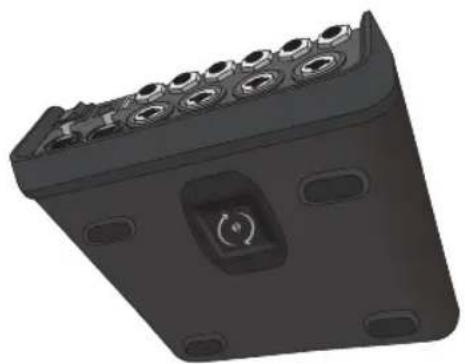
natural_image
3D rendering of a black electronic device casing with multiple ports and a central button (no text or symbols visible)natural_image
Silhouette of a camera setup on a tripod, showing a mounted device with multiple ports and a screen (no text or symbols visible)
natural_image
Illustration of a portable audio equipment setup with connected cables and a wall socket (no text or symbols)natural_image
Illustration of a black electronic device with multiple ports and a cable inserted, showing no text or symbols.Cmp = compresor/compuerta
Mod = modulación
Dly = retardo
Rev = reverberación


Americas Professional Systems
Unit 3/2 Holker Street
Newington NSW, Australia
61 2 8737 9999
Bélgica
Bose N.V. / S.A
Limesweg 2, 03700
Tongeren, Bélgica
012-390800
China
Bose Electronics (Shanghai) Co Ltd
25F, L'Avenue
99 Xianxia Road
Shanghai, P.R.C. 200051, China
86 21 6010 3800
Francia
Bose S.A.S
26-28 Avenue de Winchester
78100 St. Germain en Laye, Francia
01-30-61-63-63
Alemania
Bose GmbH
Max-Planck Strasse 36D 61381
1 Matheson Street, Causeway Bay, Hong Kong
852 2123 9000
India
Bose Corporation India Private Limited
Salcon Aurum, 3rd Floor
Plot No. 4, Jasola District Centre
Nueva Delhi - 110025, India
91 11 43080200
Italia
Bose SpA
Centro Leoni A - Via G. Spadolini
Sumitomo Fudosan Shibuya Garden Tower 5F
16-17. Nanpeidai-cho
1 Ambley Green, Gillingham Business Park
KENT MÉ8 ONJ
Gillingham, Inglaterra
0870-741-4500
Bose Electronics (Shanghai) Company Limited, Part C, Plan 9, N.° 353 North Riying Road, China (Shanghai) Pilot Free Trade Zone
Taiwán
Bose Taiwan Branch, 9F-A1, No.10, Section 3, Minsheng East Road, Taipei City 104, Taiwán Tel.: +886-2-2514 7676
México
Names and Contents of Toxic or Hazardous Substances and Elements
| Part Name | Toxic or Hazardous Substances and Elements | |||||
| Lead (Pb) | Mercury (Hg) | Cadmium (Cd) | Hexavalent (CR(VI)) | Polybrominated Biphenyl (PBB) | Polybrominated diphenylether (PBDE) | |
| PCBs | X | O | O | O | O | O |
| Metal parts | X | O | O | O | O | O |
| Plastic parts | O | O | O | O | O | O |
| Spoakors | X | O | O | O | O | O |
| Cables | X | O | O | O | O | O |
This table is prepared in accordance with the provisions of SJ/T 11364.
0: Indicates that said hazardous substance contained in all of the homogenous materials for this part is below the limit requirement of GB/T 26572.
X: Indicates that said hazardous substance contained in at least one of the homogenous materials used for this part is above the limit requirement of GB/T 26572.
Singer/Songwriter 36
DJ/Playback 38
Full Band 40
natural_image
Four-panel illustration showing hands operating a remote device with arrows indicating motion (no text or symbols)Options de montage
natural_image
3D rendering of a black mechanical component with multiple circular ports and a curved arrow indicating direction (no text or symbols)natural_image
3D rendering of a black electronic device casing with multiple ports and a central button (no text or symbols visible)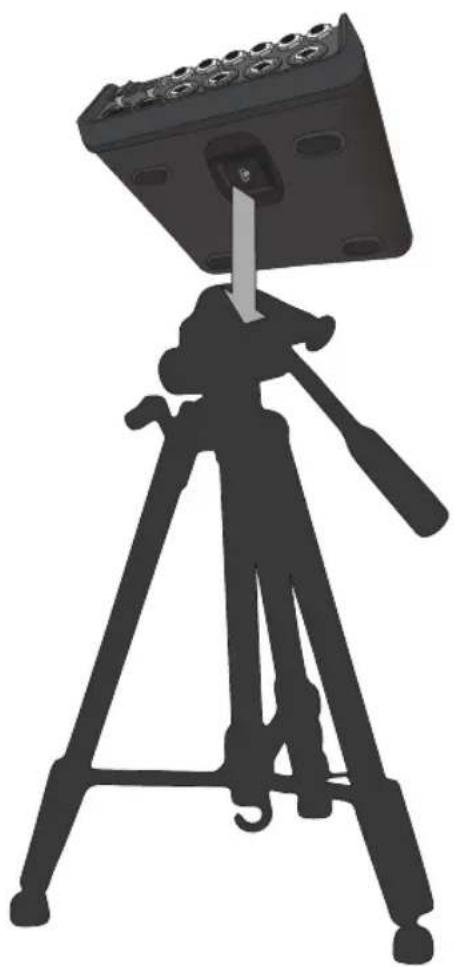
natural_image
Silhouette of a camera setup on a tripod, showing a mounted device with multiple ports (no text or symbols visible)
natural_image
Illustration of a portable audio equipment setup with connected cables and a wall socket (no text or symbols)natural_image
Illustration of a black electronic device with multiple ports and a cable inserted, showing no text or symbols.Cmp = Compressor/Gate
Mod = Modulation
Dly = Delay
Rev = Reverb


bar_stacked
CH 1-4 (T4S/T8S) CH 5-8 (T8S) | ToneMatch | Active Utility (Utilitaires) Flat | Bypass Low Mid High 0 dB 0 dB 0 dB | Bypass Chorus1 | Bypass Chorus1 | Bypass Digital | Bypass Digital | Mute Pre: With EQ & Fx | |---|---|---|---|---|---|---|---| | zEQ | | | | | | | | | Para EQ | | | | | | | | | Comp/Gate | | | | | | | | | Mod | | | | | | | | | Delay (Retard) | | | | | | | | | Reverb | | | | | | | | | Aux | | | | | | | | The chart displays a single horizontal bar for each tone match, indicating that the active tone matches the target tone matches. The values for the Active tone matches are labeled as "Low Mid High" and "0 dB 0 dB 0 dB". The other bars represent the corresponding outputs: "Bypass", "Chorus1", and "Digital". The text below the bars is 'Pre : With EQ & Fx'.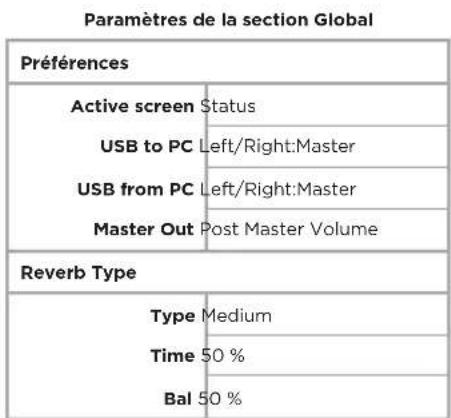
Paramètres des canaux de la configuration DJ/Playback
Source 1 Left Source 1 Right Microphone Microphone Aux In
CH 1 CH 2 CH 3 CH 4 5/6
| ToneMatch | Active Active Active ActiveDJ/Playback DJ/Playback Vocal MicsFlat, zEQ Controls | Vocal MicsHandheld Mics | Handheld Mics | N/A | ||||||
| Active Active Active Active | ||||||||||
| zEQ | Low0 dB | Mid0 dB | High0 dB | Low0 dB | Mid0 dB | High0 dB | Low0 dB | Mid0 dB | High0 dB | N/A |
| Para EQ | Bypass | Bypass | Bypass | N/A | ||||||
| Comp/Gate | BypassLimit | BypassLimit | BypassComp2 | N/A | ||||||
| Mod | BypassChorus1 | BypassChorus1 Chorus3 | BypassChorus1 | N/A | ||||||
| Delay (Retard) | BypassDigital Digital Digital Digital | Bypass | Bypass | N/A | ||||||
| Reverb | BypassMedium (Global) | BypassMedium (Global) | BypassMedium (Global) | N/A | ||||||
| Pan/Aux | Left RightAUX 1-2 50 %Pre: With EQ & Fx | Center CenterAUX 1-2 50 %Pre: With EQ & Fx | Aux InAUX 1-2 50 %Pre: With EQ & Fx | 5 Lvl 6 Lvl50 % 50 % | ||||||
| ToneMatch | Active Active Active Active Active Active Active Active | |||||||||||||||||||||||||||||||||||||||||||||||||||||||||||||||||||||||||||||||||||||||||||||||||||||||||||||||||||||||||||||||||||||||||||||||||||||||||||||||||||||||||||||||||||||||||||||||||||||||||||||||||||||||||||||||||||||||||||||||||||||||||||||||||||||||||||||||||||||||||||||||||||||||||||||||||||||||||||||||||||||||||||||||||||||||||||||||||||||||||||||||||||||||||||||||||||||||||
| Percussion | Percussion | Percussion | Basses | Electric Guitars | Vocal Mics | Vocal Mics | Vocal Mics | Handheld Mics | Handheld Mics | Handheld Mics | Handheld Mics | Handheld Mics | Handheld Mics | Handheld Mics | Handheld Mics | Handheld Mics | Handheld Mics | Handheld Mics | Handheld Mics | Handheld Mics | Handheld Mics | Handheld Mids | Handheld Mics | Handheld Mics | Handheld Mics | Handheld Mics | Handheld Mics | Handheld Mics | Handheld Mics | Handheld Mics | Handheld Mics | Handheld Mics | Handheld Mics | Handheld Mics | Handheld Mics | Handheld Mics | ||||||||||||||||||||||||||||||||||||||||||||||||||||||||||||||||||||||||||||||||||||||||||||||||||||||||||||||||||||||||||||||||||||||||||||||||||||||||||||||||||||||||||||||||||||||||||||||||||||||||||||||||||||||||||||||||||||||||||||||||||||||||||||||||||||||||||||||||||||||||||||||||||||||||||||||||||||||||||||||||||||||||||||||||||||||||||||||||||||||
| Kick, General | General Overhead | General Overhead | Active Bass 1 | Mic'd Amp w/ SM57 | Handheld Mics | Handheld Mics | Handheld Mics | Handheld Mics | Handheld Mics | Handheld Mics | Handheld Mics | Handheld Mics | Handheld Mics | Handheld Mics | Handheld Mics | Handheld Mics | Handheld Mics | Handheld Mics | Handheld Mics | Handheld Mics | Handheld Mics | Handheld Mics | Handheld Mics | Handheld Mics | Handheld Mics | Handheld Mics | Handheld Mics | Handheld Mics | Handheld Mics | Handheld Mics | Handheld Mics | Handheld Mics | ||||||||||||||||||||||||||||||||||||||||||||||||||||||||||||||||||||||||||||||||||||||||||||||||||||||||||||||||||||||||||||||||||||||||||||||||||||||||||||||||||||||||||||||||||||||||||||||||||||||||||||||||||||||||||||||||||||||||||||||||||||||||||||||||||||||||||||||||||||||||||||||||||||||||||||||||||||||||||||||||||||||||||||||||||||||||||||||||||||||||||
| Active Active Active Active Active Active Active Active Active Active Active Active Active Active Active Active Active Active Active Active Active Active Active Active Active Active Active Active Active Active Active Active Active Active Active Active Active Active Active Active Active Active Active Active Active Active Active Active Active Active Active Active Active Active Active Active Active Active Active Active Active Active Active Active Active Active Active Active Active Active Active Active Active Active Active Active Active Active Active Active Active Active Active Active Active Active Active Active Active Active Active Active Active Active Active Active Active Active Active Active Active AUS 1-4 50% DRY: After Preamp | Handheld Mics | Handheld Mics | Handheld Mics | Handheld Mics | Handheld Mics | Handheld Mics | Handheld Mics | Handheld Mics | Handheld Mics | Handheld Mics | Handheld Mics | Handheld Mics | Handheld Mics | Handheld Mics | Handheld Mics | Handheld Mics | Handheld Mics | Handheld Mics | Handheld Mics | Handheld Mics | Handheld Mics | Handheld Mics | Handheld Mics | Handheld Mics | Handheld Mics | Handheld Mics | Handheld Mics | Handheld Mics | Handheld Mics | Handheld Mics | Handheld Mics | Handheld Mics | Handheld Mics | Handheld Mics | Handheld Mics | Handheld Mics | Handheld Mics | Handheld Mics | Handheld Mics | Handheld Mics | Handheld Mics | handheld Mics | handheld Mics | handheld Mics | handheld Mics | handheld Mics | handheld Mics | handheld Mics | handheld Mics | handheld Mics | handheld Mics | handheld Mics | handheld Mics | handheld Mics | handheld Mics | handheld mics | handheld mics | handheld mics | handheld mics | handheld mics | handheld mics | handheld mics | handheld mics | handheld mics | handheld mics | handheld mics | handheld mics | handheld mics | handheld mics | handheld mics (Handheld Mics) | handheld mics | handheld mics | handheld mics | handheld mics | handheld mics | handheld mics | handheld mics | handheld mics | handheld mics | handheld mics | handheld mics | handheld mics | handheld mics | handheld mics | handheld mics | handheld mics | handheld mics | handheld mics | handheld mics | handheld mics | handheld mics | handheld mics | handheld mics | handheld mics | handheld mics | handheld mics | handheld mics | |||||||||||||||||||||||||||||||||||||||||||||||||||||||||||||||||||||||||||||||||||||||||||||||||||||||||||||||||||||||||||||||||||||||||||||||||||||||||||||||||||||||||||||||||||||||||||||||||||||||||||||||||||||||||||||||||||||||||||||||||||||||||||||||||||||||||||||||||||||||||||||||||||||||||
| L | M | H | L | M | H | L | M | H | L | M | H | L | M | H | L | M | H | L | M | H | L | M | H | L | M | H | L | M | H | L | M | H | L | M | H | L | M | H | L | M | H | L | M | H | L | M | H | L | M | H | L | mbs | 0 dB | 0 dB | 0 dB | 0 dB | 0 dB | 0 dB | 0 dB | 0 dB | 0 dB | 0 dB | 0 dB | 0 dB | 0 dB | 0 dB | 0 dB | 0 dB | 0 dB | 0 dB | 0 dB | 0 dB | 0 dB | 0 dB | 0 dB | 0 dB | 0 dB | 0 dB | 0 dB | 0 dB | 0 dB | 0 dB | 0 dB | 0 dB | 0 dB | 0 dB | ||||||||||||||||||||||||||||||||||||||||||||||||||||||||||||||||||||||||||||||||||||||||||||||||||||||||||||||||||||||||||||||||||||||||||||||||||||||||||||||||||||||||||||||||||||||||||||||||||||||||||||||||||||||||||||||||||||||||||||||||||||||||||||||||||||||||||||||||||||||||||||||||||||||||||||||||||||
| 0 dB | 0 dB | 0 dB | 0 dB | 0 dB | 0 dB | 0 dB | 0 dB | 0 dB | 0 dB | 0 dB | 0 dB | 0 dB | 0 dB | 0 dB | 0 dB | 0 dB | 0 dB | 0 dB | 0 dB | 0 dB | 0 dB | 0 dB | 0 dB | 0 dB | 0 dB | 0 dB | 0 dB | 0 dB | 0 dB | 0 dB | 0 dB | 0 dB | ||||||||||||||||||||||||||||||||||||||||||||||||||||||||||||||||||||||||||||||||||||||||||||||||||||||||||||||||||||||||||||||||||||||||||||||||||||||||||||||||||||||||||||||||||||||||||||||||||||||||||||||||||||||||||||||||||||||||||||||||||||||||||||||||||||||||||||||||||||||||||||||||||||||||||||||||||||||||||||||||||||||||||||||||||||||||||||||||||||||||||
| Para EQ | Bypass | Bypass | Bypass | Bypass | Bypass | Bypass | Bypass | Bypass | Bypass | Bypass | Bypass | Bypass | Bypass | Bypass | Bypass | Bypass | Bypass | Bypass | Bypass | Bypass | Bypass | |||||||||||||||||||||||||||||||||||||||||||||||||||||||||||||||||||||||||||||||||||||||||||||||||||||||||||||||||||||||||||||||||||||||||||||||||||||||||||||||||||||||||||||||||||||||||||||||||||||||||||||||||||||||||||||||||||||||||||||||||||||||||||||||||||||||||||||||||||||||||||||||||||||||||||||||||||||||||||||||||||||||||||||||||||||||||||||||||||||||||||||||||||||
| Comp/Gate | Active | Bypass | Bypass | Active Comp2 | Bypass Comp2 | Bypass Comp2 | Bypass Comp2 | Bypass Gate | Bypass Gate | Bypass Gate | Bypass Gate | Bypass Gate | Bypass Gate | Bypass Gate | Bypass Gate | Bypass Gate | Bypass Gate | Bypass Gate | Bypass Gate | Bypass Gate | Bypass Gate | Bypass Gate | Bypass Gate | Bypass Gate | N/A N/A N/A N/A N/A N/A N/A N/A N/A N/A N/A N/A N/A N/A N/A N/A N/A N/A N/A N/A N/A N/A N/A N/A N/A N/A N/A N/A N/A N/A N/A N/A N/A N/A N/A N/A N/A N/A N/A N/A N/A N/A N/A N/A N/A N/A N/A N/A N/A N/A N/A | Bypass | Bypass | Bypass | Bypass | Bypass | Bypass | Bypass | Bypass | Bypass | Bypass | Bypass | Bypass | Bypass | Bypass | Bypass | Bypass | Bypass | Bypass | Bypass | Bypass | Bypass | Bypass | Bypass | Bypass | Bypass | Bypass | Bypass | Bypass | Bypass | Bypass | Bypass | Bypass | Bypass | Bypass Bypass Bypass Bypass Bypass Bypass Bypass Bypass Bypass Bypass Bypass Bypass Bypass Bypass Bypass Bypass Bypass Bypass Bypass Bypass Bypass Bypass Bypass Bypass Bypass Bypass Bypass Bypass Bypass Bypass Bypass Bypass Bypass Bypass Bypass Bypass Bypass Bypass Bypass Bypass Bypass Bypass Bypass Bypass Bypass Bypass Bypass Bypass Bypass Bypass Bypass F1 | Bypass | Bypass | Bypass | Bypass | Bypass | Bypass | Bypass | Bypass | Bypass | Bypass | Bypass | Bypass | Bypass | Bypass | Bypass | Bypass | Bypass | Bypass | Bypass | Bypass | Bypass | Bypass | Bypass | Bypass | Bypass | Bypass Bypass Bypass Bypass Bypass Bypass Bypass Bypass Bypass Bypass Bypass Bayout Bypass Bypass Bypass Bypass Bypass Bypass Bypass Bypass Bypass Bypass Bypass Bypass Bypass Bypass Bypass Bypass Bypass Bypass Bypass Bypass Bypass Bypass Bypass Bypass Bypass Bypass Bypass Bypass Bypass Bypass Bypass Bypass Bypass Bypass Bypass Bypass Bypass Bypass Bypass Bypass Bypass Bypass Bypass Bypass Bypass Bypass Bypass Bypass Bypass BNP Bypass Bypass Bypass Bypass Bypass Bypass Bypass Bypass Bypass Bypass Bypass Bypass Bypass Bypass Bypass Bypass Bypass Bypass Bypass Bypass Bypass Bypass Bypass Bypass Bypass Bypass Bypass Bypass Bypass Bypass Bypass Bypass Bypass Bypass Bypass Bypass Bypass Bypass Bypass Bypass Bypass Bypass Bypass Bypass Bypass Bypass Bypass Bypass Bypass BGP Bypass Bypass Bypass Bypass Bypass Bypass Bypass Bypass Bypass Bypass Bypass Bypass Bypass Bypass Bypass Bypass Bypass Bypass Bypass Bypass Bypass Bypass Bypass Bypass Bypass Bypass Bypass Bypass Bypass Bypass Bypass Bypass Bypass Bypass Bypass Bypass Bypass Bypass Bypass Bypass Bypass Bypass Bypass Bypass Bypass Bypass Bypass Bypass Bypass B NP Bypass Bypass Bypass Bypass Bypass Bypass Bypass Bypass Bypass Bypass Bypass Bypass Bypass Bypass Bypass Bypass Bypass Bypass Bypass Bypass Bypass Bypass Bypass Bypass Bypass Bypass Bypass Bypass Bypass Bypass Bypass Bypass Bypass Bypass Bypass Bypass Bypass Bypass Bypass Bypass Bypass Bypass Bypass Bypass Bypass Bypass Bypass Bypass Bypass BRP Bypass Bypass Bypass Bypass Bypass Bypass Bypass Bypass Bypass Bypass Bypass Bypass Bypass Bypass Bypass Bypass Bypass Bypass Bypass Bypass Bypass Bypass Bypass Bypass Bypass Bypass Bypass Bypass Bypass Bypass Bypass Bypass Bypass Bypass Bypass Bypass Bypass Bypass Bypass Bypass Bypass Bypass Bypass Bypass Bypass Bypass Bypass Bypass Bypass B bypass Bypass Bypass Bypass Bypass Bypass Bypass Bypass Bypass Bypass Bypass Bypass Bypass Bypass Bypass Bypass Bypass Bypass Bypass Bypass Bypass Bypass Bypass Bypass Bypass Bypass Bypass Bypass Bypass Bypass Bypass Bypass Bypass Bypass Bypass Bypass Bypass Bypass Bypass Bypass Bypass Bypass Bypass Bypass Bypass Bypass Bypass Bypass Bypass Bypass Bburst Bypass Bypass Bypass Bypass Bypass Bypass Bypass Bypass Bypass Bypass Bypass Bypass Bypass Bypass Bypass Bypass Bypass Bypass Bypass Bypass Bypass Bypass Bypass Bypass Bypass Bypass Bypass Bypass Bypass Bypass Bypass Bypass Bypass Bypass Bypass Bypass Bypass Bypass Bypass Bypass Bypass Bypass Bypass Bypass Bypass Bypass Bypass Bypass Bypass B NV LVL LVL LVL LVL LVL LVL LVL LVL LVL LVL LVL LVL LVL LVL LVL LVL LVL LVL LVL LVL LVL LVL LVL LVL LVL LVL LVL LVL LVL LVL LVL LVL LVL LVL LVL LVL LVL LVL LVL LVL LVL LVL LVL LVL LVL LVL LVL LVL LVL LVL Lvl Lvl Lvl Lvl Lvl Lvl Lvl Lvl Lvl Lvl Lvl Lvl Lvl Lvl Lvl Lvl Lvl Lvl Lvl Lvl Lvl Lvl Lvl Lvl Lvl Lvl Lvl Lvl Lvl Lvl Lvl Lvl Lvl Lvl Lvl Lvl Lvl Lvl Lvl Lvl Lvl Lvl Lvl Lvl Lvl Lvl Lvl Lvl Lvl Lvl Lvi Lvl Lvl Lvl Lvl Lvl Lvl Lvl Lvl Lvl Lvl Lvl Lvl Lvl Lvl Lvl Lvl Lvl Lvl Lvl Lvl Lvl Lvl Lvl Lvl Lvl Lvl Lvl Lvl Lvl Lvl Lvl Lvl Lvl Lvl Lvl Lvl Lvl Lvl Lvl Lvl Lvl Lvl Lvl Lvl Lvl Lvl Lvl Lvl Lvl Lv Lvl Lvl Lvl Lvl Lvl Lvl Lvl Lvl Lvl Lvl Lvl Lvl Lvl Lvl Lvl Lvl Lvl Lvl Lvl Lvl Lvl Lvl Lvl Lvl Lvl Lvl Lvl Lvl Lvl Lvl Lvl Lvl Lvl Lvl Lvl Lvl Lvl Lvl Lvl Lvl Lvl Lvl Lvl Lvl Lvl Lvl Lvl Lvl Lvl Lwl Lvl Lvl Lvl Lvl Lvl Lvl Lvl Lvl Lvl Lvl Lvl Lvl Lvl Lvl Lvl Lvl Lvl Lvl Lvl Lvl Lvl Lvl Lvl Lvl Lvl Lvl Lvl Lvl Lvl Lvl Lvl Lvl Lvl Lvl Lvl Lvl Lvl Lvl Lvl Lvl Lvl Lvl Lvl Lvl Lvl Lvl Lvl Lvl Lvl Lvil Lvl Lvl Lvl Lvl Lvl Lvl Lvl Lvl Lvl Lvl Lvl Lvl Lvl Lvl Lvl Lvl Lvl Lvl Lvl Lvl Lvl Lvl Lvl Lvl Lvl Lvl Lvl Lvl Lvl Lvl Lvl Lvl Lvl Lvl Lvl Lvl Lvl Lvl Lvl Lvl Lvl Lvl Lvl Lvl Lvl Lvl Lvl Lvl Lvl Lml Lvl Lvl Lvl Lvl Lvl Lvl Lvl Lvl Lvl Lvl Lvl Lvl Lvl Lvl Lvl Lvl Lvl Lvl Lvl Lvl Lvl Lvl Lvl Lvl Lvl Lvl Lvl Lvl Lvl Lvl Lvl Lvl Lvl Lvl Lvl Lvl Lvl Lvl Lvl Lvl Lvl Lvl Lvl Lvl Lvl Lvl Lvl Lvl Lvl Lvr AUX 1-4 50% AUX 1-4 50% AUX 1-4 50% AUX 1-4 50% AUX 1-4 50% AUX 1-4 50% AUX 1-4 50% AUX 1-4 50% AUX 1-4 50% AUX 1-4 50% AUX 1-4 50% AUX 1-4 50% AUX1-4 50% AUX 1-4 50% AUX 1-4 50% AUX 1-4 50% AUX 1-4 50% AUX 1-4 50% AUX 1-4 50% AUX 1-4 50% AUX 1-4 50% AUX 1-4 50% AUX 1-4 50% AUX 2-4 After Preamp Dry: After Preamp Dry: After Preamp Dry: After Preamp Dry: After Preamp Dry: After Preamp Dry: After Preamp Dry: After Preamp Dry: After Preamp Dry: After Preamp Dry: After Preamp Dry: After Preamp Dry: After Preamp Dry: After Preamp Dry: After Preamp Dry: After Preamp Dry: After Preamp Dry: After Preamp Dry: After Preamp Dry: After Preamp Dry: After Preamp Dry : After Preamp Dry : After Preamp Dry : After Preamp Dry : After Preamp Dry : After Preamp Dry : After Preamp Dry : After Preamp Dry : After Preamp Dry : After Preamp Dry : After Preamp Dry : After Preamp Dry : After Preamp Dry : After Preamp Dry : After Preamp Dry : After Preamp Dry : After Preamp Dry : After Preamp Dry : After Preamp Dry : After Preamp Dry : After Preamp Dry: After Preamp Dry : After Preamp Dry : After Preamp Dry : After Preamp Dry : After Preamp Dry : After Preamp Dry : After Preamp Dry : After Preamp Dry : After Preamp Dry : After Preamp Dry : After Preamp Dry : After Preamp Dry : After Preamp Dry : After Preamp Dry : After Preamp Dry : After Preamp Dry : After Preamp Dry : After Preamp Dry : After Preamp Dry: After Preamp Dry: After Preamp Dry: After Preamp Dry: After Preamp Dry: After Preamp Dry: After Preamp Dry: After Preamp Dry: After Preamp Dry: After Preamp Dry: After Preamp Dry: After Preamp Dry: After Preamp Dry: After Preamp Dry: After Preamp Dry: After Preamp Dry: After Preamp Dry: After Preamp Dry: After Preamp Dry: After Preamp Dry:Bypass Bypass Bypass Bypass Bypass Bypass Bypass Bypass Bypass Bypass Bypass Bypass Bypass Bypass Bypass Bypass Bypass Bypass Bypass Bypass Bypass Bypass Bypass Bypass Bypass Bypass Bypass Bypass Bypass Bypass Bypass Bypass Bypass Bypass Bypass Bypass Bypass Bypass Bypass Bypass Bypass Bypass Bypass Bypass Bypass Bypass Bypass Bypass Bypass BypassBypass Bypass Bypass Bypass Bypass Bypass Bypass Bypass Bypass Bypass Bypass Bypass Bypass Bypass Bypass Bypass Bypass Bypass Bypass Bypass Bypass Bypass Bypass Bypass Bypass Bypass Bypass Bypass Bypass Bypass Bypass Bypass Bypass Bypass Bypass Bypass Bypass Bypass Bypass Bypass Bypass Bypass Bypass Bypass Bypass Bypass Bypass Bypass Bypass B NY 1-4 50% AUX 1-4 50% AUX 1-4 50% AUX 1-4 50% AUX 1-4 50% AUX 1-4 50% AUX 1-4 50% AUX 1-4 50% AUX 1-4 50% AUX 1-4 50% AUX 1-4 50% AUX2-4 After Preamp Dry : After Preamp Dry : After Preamp Dry : After Preamp Dry : After Preamp Dry : After Preamp Dry : After Preamp Dry : After Preamp Dry : After Preamp Dry : After Preamp Dry : After Preamp Dry : After Preamp Dry : After Preamp Dry : After Preamp Dry : After Preamp Dry : After Preamp Dry : After Preamp Dry : After Preamp Dry : After Preamp Dry : After Preamp Dry:AUX 1-4 50% AUX 1-4 50% AUX 1-4 50% AUX 1-4 50% AUX 1-4 50% AUX 1-4 50% AUX 1-4 50% AUX 1-4 50% AUX 1-4 50% AUX 1-4 50% AUX 1-4 50% MAX 1-4 50% MAX 1-4 50% MAX 1-4 50% MAX 1-4 50% MAX 1-4 50% MAX 1-4 50% MAX 1-4 50% MAX 1-4 50% MAX 1-4 50% MAX 1-4 50% MAX 1-4 50% MAX1-4 After Preamp Dry : After Preamp Dry : After Preamp Dry : After Preamp Dry : After Preamp Dry : After Preamp Dry : After Preamp Dry : After Preamp Dry : After Preamp Dry : After Preamp Dry : After Preamp Dry : After Preamp Dry : After Preamp Dry : After Preamp Dry : After Preamp Dry : After Preamp Dry : After Preamp Dry : After Preamp Dry : After Preamp Dry : After Pream Dry : After Preamp Dry : After Preamp Dry : After Preamp Dry : After Preamp Dry : After Preamp Dry : After Preamp Dry : After Preamp Dry : After Preamp Dry : After Preamp Dry : After Preamp Dry : After Preamp Dry : After Preamp Dry : After Preamp Dry : After Preamp Dry : After Preamp Dry : After Preamp Dry : After Preamp Dry : After Preamp Dry : After Preamp Dry : After Pream Dry: After Preamp Dry: After Preamp Dry: After Preamp Dry: After Preamp Dry: After Preamp Dry: After Preamp Dry: After Preamp Dry: After Preamp Dry: After Preamp Dry: After Preamp Dry: After Preamp Dry: After Preamp Dry: After Preamp Dry: After Preamp Dry: After Preamp Dry: After Preamp Dry: After Preamp Dry: After Preamp Dry: After Preamp Dry: After Pream Dry: After Preamp Dry: After Preamp Dry: After Preamp Dry: After Preamp Dry: After Preamp Dry: After Preamp Dry: After Preamp Dry: After Preamp Dry: After Preamp Dry: After Preamp Dry: After Preamp Dry: After Preamp Dry: After Preamp Dry: After Preamp Dry: After Preamp Dry: After Preamp Dry: After Preamp Dry: After Preamp Dry: After Preamp Dry : After Pream Dry : After Pream Dry : After Pream Dry : After Pream Dry : After Pream Dry : After Pream Dry : After Pream Dry : After Pream Dry : After Pream Dry : After Pream Dry : After Pream Dry : After Pream Dry : After Pream Dry : After Pream Dry : After Pream Dry : After Pream Dry : After Pream Dry : After Pream Dry : After Pream Dry : After Pream Dry : After Preum Dry : After Preum Dry : After Preum Dry : After Preum Dry : After Preum Dry : After Preum Dry : After Preum Dry : After Preum Dry : After Preum Dry : After Preum Dry : After Preum Dry : After Preum Dry : After Preum Dry : After Preum Dry : After Preum Dry : After Preum Dry : After Preum Dry : After Preum Dry : After Preum Dry : After Preum Dry : After Preun Dry : After Preun Dry : After Preun Dry : After Preun Dry : After Preun Dry : After Preun Dry : After Preun Dry : After Preun Dry : After Preun Dry : After Preun Dry : After Preun Dry : After Preun Dry : After Preun Dry : After Preun Dry : After Preun Dry : After Preun Dry : After Preun Dry : After Preun Dry : After Preun Dry : After Preun Dry : After Preum Dry : After Preum Dry : After Preum Dry : After Preum Dry : After Preum Dry : After Preum Dry : After Preum Dry : After Preum Dry : After Preum Dry : After Preum Dry : After Preum Dry : After Preum Dry : After Preum Dry : After Preum Dry : After Preum Dry : After Preum Dry : After Preum Dry : After Preum Dry : After Preum Dry : After Preu Dry : After Preu Dry : After Preu Dry : After Preu Dry : After Preu Dry : After Preu Dry : After Preu Dry : After Preu Dry : After Preu Dry : After Preu Dry : After Preu Dry : After Preu Dry : After Preu Dry : After Preu Dry : After Preu Dry : After Preu Dry : After Preu Dry : After Preu Dry : After Preu Dry : After Preu Dry : After Preun Dry : After Preun Dry : After Preun Dry : After Preun Dry : After Preun Dry : After Preun Dry : After Preun Dry : After Preun Dry : After Preun Dry : After Preun Dry : After Preun Dry : After Preun Dry : After Preun Dry : After Preun Dry : After Preun Dry : After Preun Dry : After Preun Dry : After Preun Dry : After Preun Dry : After Preul Dry : After Preul Dry : After Preul Dry : After Preul Dry : After Preul Dry : After Preul Dry : After Preul Dry : After Preul Dry : After Preul Dry : After Preul Dry : After Preul Dry : After Preul Dry : After Preul Dry : After Preul Dry : After Preul Dry : After Preul Dry : After Preul Dry : After Preul Dry : After Preul Dry : After Preul Dry : After Preu Dry : After Preu Dry : After Preu Dry : After Preu Dry : After Preu Dry : After Preu Dry : After Preu Dry : After Preu Dry : After Preu Dry : After Preu Dry : After Preu Dry : After Preu Dry : After Preu Dry : After Preu Dry : After Preu Dry : After Preu Dry : After Preu Dry : After Preu Dry : After Preu Dry : After Preul Dry : After Preul Dry : After Preul Dry : After Preul Dry : After Preul Dry : After Preul Dry : After Preul Dry : After Preul Dry : After Preul Dry : After Preul Dry : After Preul Dry : After Preul Dry : After Preul Dry : After Preul Dry : After Preul Dry : After Preul Dry : After Pre | |||||||||||||||||||||||||||||||||||||||||||||||||||||||||||||||||||||||||||||||||||||||||||||||||||||||||||||||||||||||||||||||||||||||||||||||||||||||||||||||||||||||||||||||||||||||||||||||||||||||||||||||||||||||||||||||||||||||||||||||||||||||||||||||||||||||||||||||||||||||||||||||||||||||||||||||||||||
Unit 3/2 Holker Street
Newington NSW Australie
61 2 8737 9999
Belgique
Bose N.V. / S.A
Limesweg 2, 03700
Tongeren, Belgique
012-390800
Chine
Bose Electronics (Shanghai) Co Ltd
25F, L'Avenue
99 Xianxia Road
Shanghai, P.R.C. 200051 Chine
86 21 6010 3800
France
Bose S.A.S
26-28 avenue de Winchester
78100 Saint-Germain-en-Laye, France
01 30 61 63 63
Allemagne
Bose GmbH
Max-Planck Strasse 36D 61381
1 Matheson Street, Causeway Bay, Hong Kong
852 2123 9000
Inde
Bose Corporation India Private Limited
Salcon Aurum, 3rd Floor
Plot No. 4, Jasola District Centre
New Delhi - 110025, Inde
91 11 43080200
Italie
Bose SpA
Centro Leoni A - Via G. Spadolini
5 20122 Milano, Italie
39-02-36704500
Japon
Bose Kabushiki Kaisha
Sumitomo Fudosan Shibuya Garden Tower 5F
16-17, Nanpeidai-cho
Shibuya-Ku, Tokyo, 150-0036, Japon
81-3-5489-0955
www.bose.co.jp
Pays-Bas
Bose BV
1 Ambley Green, Gillingham Business Park
KENT MÉ8 ONJ
Gillingham, Angleterre
0870-741-4500
Bose Electronics (Shanghai) Company Limited, Part C, Plan 9, No. 353 North Riying Road, China (Shanghai) Pilot Free Trade Zone
Taiwan
Bose Taiwan Branch, 9F-A1, No. 10, Section 3, Minsheng East Road, Taipei City 104, Taiwan Tél: +886-2-2514 7676
Mexique
Names and Contents of Toxic or Hazardous Substances and Elements
| Part Name | Toxic or Hazardous Substances and Elements | |||||
| Lead (Pb) | Mercury (Hg) | Cadmium (Cd) | Hexavalent (CR(VI)) | Polybrominated Biphenyl (PBB) | Polybrominated diphenylether (PBDE) | |
| PCBs | X | O | O | O | O | O |
| Metal parts | X | O | O | O | O | O |
| Plastic parts | O | O | O | O | O | O |
| Speakers | X | O | O | O | O | O |
| Cables | X | O | O | O | O | O |
This table is prepared in accordance with the provisions of SJ/T 11364.
0: Indicates that said hazardous substance contained in all of the homogenous materials for this part is below the limit requirement of GB/T 26572.
X: Indicates that said hazardous substance contained in at least one of the homogenous materials used for this part is above the limit requirement of GB/T 26572.

Singer/Songwriter 36
DJ/Playback....38
Full Band 40
Werkseinstellungen
natural_image
Four-panel illustration showing a hand inserting a device into a device, with arrows indicating motion (no text or symbols)natural_image
3D rendering of a black mechanical component with multiple circular ports and a curved arrow indicating motion (no text or symbols)natural_image
3D rendering of a black electronic device casing with multiple ports and a central button (no text or symbols visible)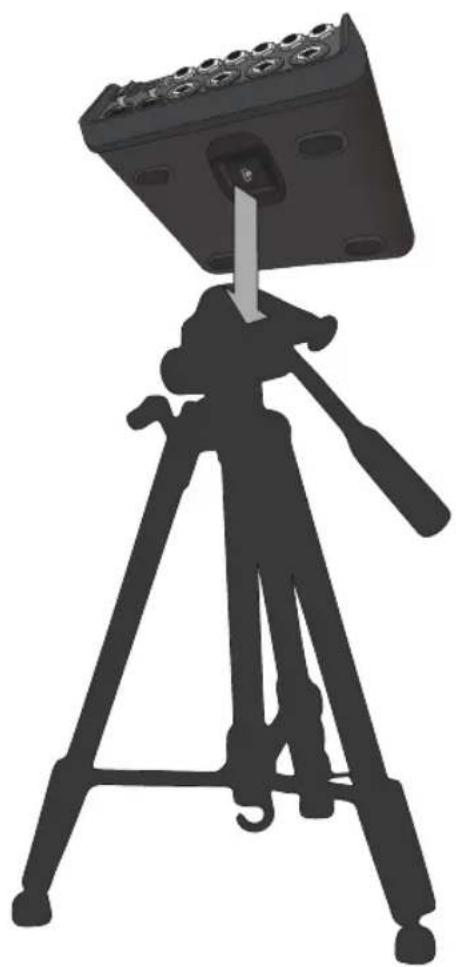
natural_image
Silhouette of a camera on a tripod-mounted device with a screen and lens (no text or symbols visible)
Systemeinrichtung
natural_image
Illustration of a device with attached cable and socket, showing connections to an electrical outlet (no text or symbols present)natural_image
Illustration of a black electronic device with multiple ports and a cable inserted, showing no text or symbols.T4S/T8S Display ablesen


Cmp = Compressor/Gate (Kompressor/Gate)
Mod = Modulation


Eine Szene teilen

CH 1-4 (T4S/T8S), CH 5-8 (T8S)
| ToneMatch | Aktiv |
| Utility | |
| Flat | |
| zEQ | Bypass |
| Niedrig Mittel Hoch | |
| 0 dB 0 dB 0 dB | |
| Para-EQ | Bypass |
| Kompressor/ Gate | Bypass |
| Chorus1 | |
| Mod | Bypass |
| Chorus1 | |
| Delay | Bypass |
| Digital | |
| Hall | Bypass |
| Digital | |
| AUX | Mute |
| Vor: Mit EQ und Effekten |
Americas Professional Systems,
Unit 3/2 Holker Street
Newington NSW Australia
61 2 8737 9999
Belgien
Bose N.V. / S.A
Limesweg 2, 03700
Tongeren, Belgien
012-390800
China
Bose Electronics (Shanghai) Co Ltd
25F. L'Avenue
99 Xianxia Road
Shanghai, P.R.C. 200051 China
86 21 6010 3800
Frankreich
Bose S.A.S
26-28 avenue de Winchester
78100 St. Germain en Lave, France
01-30-61-63-63
Deutschland
Bose GmbH
1 Matheson Street, Causeway Bay, Hong Kong
852 2123 9000
Indien
Bose Corporation India Private Limited
Salcon Aurum, 3rd Floor
Plot No. 4, Jasola District Centre
New Delhi - 110025, India
91 11 43080200
Italien
Bose SpA
Centro Leoni A - Via G. Spadolini
5 20122 Milano, Italy
39-02-36704500
Japan
Bose Kabushiki Kaisha
Sumitomo Fudosan Shibuya Garden Tower 5F
16-17, Nanpeidai-cho
Shibuya-Ku, Tokyo, 150-0036, Japan
TEL 81-3-5489-0955
www.bose.co.jp
Niederlande
Bose BV
1 Ambley Green, Gillingham Business Park
KENT MÉ8 ONJ
Gillingham, England
0870-741-4500
Bose Electronics (Shanghai) Company Limited,
Part C. Plan 9. No. 353 North Riving Road, China
(Shanghai) Pilot Free Trade Zone
Taiwan
Bose Taiwan Branch, 9F-A1, No. 10, Section 3,
Minsheng East Road, Taipei City 104, Taiwan
Names and Contents of Toxic or Hazardous Substances and Elements
| Part Name | Toxic or Hazardous Substances and Elements | |||||
| Lead (Pb) | Mercury (Hg) | Cadmium (Cd) | Hexavalent (CR(VI)) | Polybrominated Biphenyl (PBB) | Polybrominated diphenylether (PBDE) | |
| PCBs | X | O | O | O | O | O |
| Metal parts | X | O | O | O | O | O |
| Plastic parts | O | O | O | O | O | O |
| Speakers | X | O | O | O | O | O |
| Cables | X | O | O | O | O | O |
This table is prepared in accordance with the provisions of SJ/T 11364. O: Indicates that said hazardous substance contained in all of the homogenous materials for this part is below the limit requirement of GB/T 26572. X: Indicates that said hazardous substance contained in at least one of the homogenous materials used for this part is above the limit requirement of GB/T 26572.
Mixer ToneMatch® T4S 6
Singer/Songwriter 36
DJ/Playback 38
Full Band 40
| T4S | Mixer T4S ToneMatch e cover Cavo ToneMatch |
| T8S | Alimentatore ToneMatchMixer T8S Tone |
Mixer T4S ToneMatch®
natural_image
Four-panel illustration showing a hand inserting a device into a device, with arrows indicating motion (no text or symbols)natural_image
3D illustration of a black mechanical component with multiple circular ports and a curved arrow indicating motion (no text or symbols)Figura 7. Staffa fissata al mixer T4S
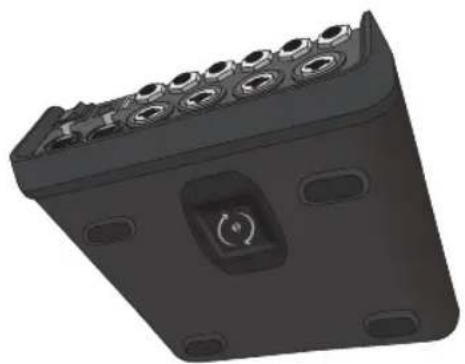
natural_image
3D rendering of a black electronic device casing with multiple ports and a central button (no text or symbols visible)natural_image
Silhouette of a camera setup on a tripod, showing a mounted device with multiple ports (no text or symbols visible)
natural_image
Illustration of a portable audio device connected to a cable via cable routing, with an open electrical outlet visible (no text or symbols)Collegamento del mixer T4S/T8S al computer
natural_image
Illustration of a black electronic device with multiple ports and a cable inserted, showing no text or symbols.Lettura del display del mixer T4S/T8S


bar_stacked
CH 1-4 (T4S/T8S) CH 5-8 (T8S) | ToneMatch | Active | Utility | Flat | |---|---|---|---| | zEQ | Bypass | Low Mid High | 0 dB 0 dB 0 dB | | Para EQ | Bypass | | | | Comp/Gate | Bypass | Chorus1 | | | Mod | Bypass | Chorus1 | | | Delay | Bypass | Digital | | | Reverb | Bypass | Digital | | | Aux | Mute | Pre: With EQ & Fx | |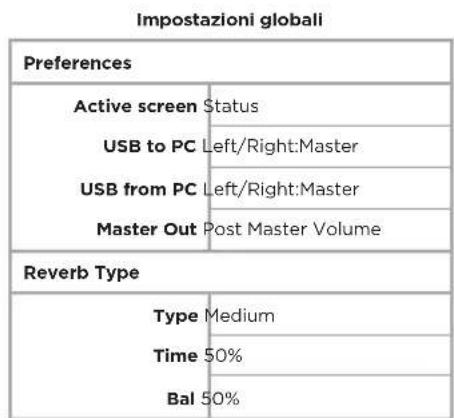
| ToneMatch | Active Active Active Active | ||||||||||||
| Vocal Mics Acoustic Guitar Keyboards Basses | N/A | ||||||||||||
| Handheld Mics Steel String w/ piezo General Keys | Active Bass 1 | ||||||||||||
| Active Active Active Active | |||||||||||||
| zEQ | Low | Mid | High | Low | Mid | High | Low | Mid | High | Low | Mid | High | N/A |
| 0 dB | 0 dB | 0 dB | 0 dB | 0 dB | 0 dB | 0 dB | 0 dB | 0 dB | 0 dB | 0 dB | 0 dB | ||
| Para EQ | Bypass | Bypass | Bypass | Bypass | N/A | ||||||||
| Comp/Gate | Bypass | Bypass | Bypass | Bypass | N/A | ||||||||
| Comp2 | Comp2 | Comp2 | Comp2 | ||||||||||
| Mod | Bypass | Bypass | Bypass | Bypass | N/A | ||||||||
| Chorus1 | Chorus1 Chorus3 | Chorus1 | |||||||||||
| Delay | Bypass | Bypass | Bypass | Bypass | N/A | ||||||||
| Digital Digital Digital Digital | |||||||||||||
| Reverb | Active Active Bypass | Bypass | N/A | ||||||||||
| Medium (Global) Medium (Global) | Medium (Global) | Medium (Global) | |||||||||||
| Pan/Aux | Center Center Center Center | Aux in | |||||||||||
| Aux 1-2 | 50% | Aux 1-2 | 50% | Aux 1-2 | 50% | Aux 1-2 | 50% | 5 Lvl | 6 Lvl | ||||
| Pre: With EQ & Fx | Pre: With EQ & Fx | Pre: With EQ & Fx | Pre: With EQ & Fx | 50% | 50% | ||||||||
| Preferences | |
| Active screen | Status |
| USB to PC | Left/Right:Master |
| USB from PC | Left/Right:Master |
| Master Out | Post Master Volume |
| Reverb Type | |
| Type | Medium |
| Time | 50% |
| Bal | 50% |
Funzionamento
DJ/Playback
| ToneMatch | Active Active Active ActiveDJ/Playback DJ/Playback Vocal Mics Vocal MicsFlat, zEQ Controls Flat, zEQ Controls | N/A | |||||||||||
| Active Active Active Active | |||||||||||||
| zEQ | Low0 dB | Mid0 dB | High0 dB | Low0 dB | Mid0 dB | High0 dB | Low0 dB | Mid0 dB | High0 dB | Low0 dB | Mid0 dB | High0 dB | N/A |
| Para EQ | Bypass | Bypass | Bypass | Bypass | N/A | ||||||||
| Comp/Gate | BypassLimit | BypassLimit | BypassComp2 | BypassComp2 | N/A | ||||||||
| Mod | BypassChorus1 | BypassChorus1 Chorus3 | BypassChorus1 | Bypass | N/A | ||||||||
| Delay | BypassDigital Digital Digital Digital | Bypass | Bypass | Bypass | N/A | ||||||||
| Reverb | BypassMedium (Global) | BypassMedium (Global) | BypassMedium (Global) | BypassMedium (Global) | N/A | ||||||||
| Pan/Aux | Left RightAux 1-2Pre: With EQ & Fx | Center CenterAux 1-2Pre: With EQ & Fx | Aux inAux 1-2Pre: With EQ & Fx | 6 Lvl50%50%50% | |||||||||
| Preferences | |
| Active screen | Status |
| USB to PC | Left/Right:Master |
| USB from PC | Left/Right:Master |
| Master Out | Post Master Volume |
| Reverb Type | |
| Type | Medium |
| Time | 50% |
| Bal | 50% |
Full Band
| ToneMatch | Active Active Active Active Active | Active Active | Active Active | Active Active | Active Active | Active Active | Active Active | Active Active | Active Active | Active Active | Active Active | Active Active | Active Active | Active Active | |||||||||||||||||||||||||||||||||||||||||||||||||||||||||||||||||||||||||||||||||||||||||||||||||||||||||||||||||||||||||||||||||||||||||||||||||||||||||||||||||||||||||||||||||||||||||||||||||||||||||||||||||||||||||||||||||||||||||||||||||||||||||||||||||||||||||||||||||||||||||||||||||||||||||||||||||||||||||||||||||||||||||||||||||||||||||||||||||||||||||||||||||||||||||||||||||
| Percussion | Percussion | Percussion | Basses | Electric Guitars | Vocal Mics | Handheld Mics | Vocal Mics | Handheld Mics | Vocal Mics | Handheld Mics | Vocal Mics | N/A | |||||||||||||||||||||||||||||||||||||||||||||||||||||||||||||||||||||||||||||||||||||||||||||||||||||||||||||||||||||||||||||||||||||||||||||||||||||||||||||||||||||||||||||||||||||||||||||||||||||||||||||||||||||||||||||||||||||||||||||||||||||||||||||||||||||||||||||||||||||||||||||||||||||||||||||||||||||||||||||||||||||||||||||||||||||||||||||||||||||||||||||||||||||||||||||||||||
| Kick, General | General Overhead | General Overhead | Active Bass 1 | Mic'd Amp w/ SM57 | Handheld Mics | Handheld Mics | Handheld Mics | ||||||||||||||||||||||||||||||||||||||||||||||||||||||||||||||||||||||||||||||||||||||||||||||||||||||||||||||||||||||||||||||||||||||||||||||||||||||||||||||||||||||||||||||||||||||||||||||||||||||||||||||||||||||||||||||||||||||||||||||||||||||||||||||||||||||||||||||||||||||||||||||||||||||||||||||||||||||||||||||||||||||||||||||||||||||||||||||||||||||||||||||||||||||||||||||||||||||||
| zEQ | Active Active Active Active Active Active Active Active Active Active Active Active Active Active Active Active Active Active Active Active Active Active Active Active Active Active Active Active Active Active Active Active Active Active Active Active Active Active Active Active Active Active Active Active Active Active Active Active Active Active Active Active Active Active Active Active Active Active Active Active Active Active Active Active Active Active Active Active Active Active Active Active Active Active Active Active Active Active Active Active Active Active Active Active Active Active Active Active Active Active Active Active Active Active Active Active Active Active Active Active Active A | L | M | H | L | M | H | L | M | H | L | M | H | L | M | H | L | M | H | L | M | H | L | M | H | L | M | H | L | M | H | L | M | H | L | M | H | L | M | H | L | M | H | L | M | H | L | M | H | L | M | H | L | 0 | 0 | 0 | 0 | 0 | 0 | 0 | 0 | 0 | 0 | 0 | 0 | 0 | 0 | 0 | 0 | 0 | 0 | 0 | 0 | 0 | 0 | 0 | 0 | 0 | 0 | 0 | 0 | 0 | 0 | 0 | 0 | 0 | 0 | 0 | 0 | 0 | 0 | 0 | 0 | 0 | 0 | 0 | 0 | 0 | 0 | 0 | 0 | 0 | 0 | D8 | dB | dB | dB | dB | dB | dB | dB | dB | dB | dB | dB | dB | dB | dB | dB | dB | dB | dB | dB | dB | dB | dB | dB | dB | dB | dB | dB | dB | dB | dB | dB | dB | dB | dB | dB | dB | dB | dB | dB | dB | dB | dB | dB | dB | dB | dB | dB | dB | dB | dB | D8 | dB | dB | dB | dB | dB | dB | dB | dB | dB | dB | dB | dB | dB | dB | dB | dB | dB | dB | dB | dB | dB | dB | dB | dB | dB | dB | dB | dB | dB | dB | dB | dB | dB | dB | dB | dB | dB | dB | dB | dB | dB | dB | dB | dB | dB | dB | dB | dB | ||||||||||||||||||||||||||||||||||||||||||||||||||||||||||||||||||||||||||||||||||||||||||||||||||||||||||||||||||||||||||||||||||||||||||||||||||||||||||||||||||||||||||||||||||||||||||||||||||||
| L | M | H | L | M | H | L | M | H | L | M | H | L | M | H | L | M | H | L | M | H | L | M | H | L | M | H | L | M | H | L | M | H | L | M | H | L | M | H | L | M | H | L | M | H | L | M | H | L | m | H | L | m | H | L | m | H | L | m | H | L | m | H | L | m | H | L | m | H | L | m | H | L | m | H | L | m | H | L | m | H | L | m | H | L | m | H | L | m | H | L | m | H | L | m | H | L | m | H | n/a | N/A | |||||||||||||||||||||||||||||||||||||||||||||||||||||||||||||||||||||||||||||||||||||||||||||||||||||||||||||||||||||||||||||||||||||||||||||||||||||||||||||||||||||||||||||||||||||||||||||||||||||||||||||||||||||||||||||||||||||||||||||||||||||||||||||||||||||||||||||||||||||||||||||||||||||||||||
| 0 | 0 | 0 dB | 0 dB | 0 dB | 0 dB | 0 dB | 0 dB | 0 dB | 0 dB | 0 dB | 0 dB | 0 dB | 0 dB | 0 dB | 0 dB | 0 dB | 0 dB | 0 dB | 0 dB | 0 dB | 0 dB | 0 dB | 0 dB | 0 dB | 0 dB | 0 dB | 0 dB | 0 dB | 0 dB | 0 dB | 0 dB | 0 dB | 0 dB | 0 dB | 0 dB | ||||||||||||||||||||||||||||||||||||||||||||||||||||||||||||||||||||||||||||||||||||||||||||||||||||||||||||||||||||||||||||||||||||||||||||||||||||||||||||||||||||||||||||||||||||||||||||||||||||||||||||||||||||||||||||||||||||||||||||||||||||||||||||||||||||||||||||||||||||||||||||||||||||||||||||||||||||||||||||||||||||||||||||||||||||||||||||||||||||||||||||
| dB | dB | dB | dB | dB | dB | dB | dB | dB | dB | dB | dB | dB | dB | dB | dB | dB | dB | dB | dB | dB | dB | dB | dB | dB | dB | dB | dB | dB | dB | dB | dB | dB | dB | dB | dB | dB | dB | dB | dB | dB | dB | dB | dB | dB | dB | dB | dB | dB | d8 | dB | dB | dB | dB | dB | dB | dB | dB | dB | dB | dB | dB | dB | dB | dB | dB | dB | dB | dB | dB | dB | dB | dB | dB | dB | dB | dB | dB | dB | dB | dB | dB | dB | dB | dB | dB | dB | dB | dB | dB | dB | dB | dB | dB | dB | dB | dB | dB | dB | |||||||||||||||||||||||||||||||||||||||||||||||||||||||||||||||||||||||||||||||||||||||||||||||||||||||||||||||||||||||||||||||||||||||||||||||||||||||||||||||||||||||||||||||||||||||||||||||||||||||||||||||||||||||||||||||||||||||||||||||||||||||||||||||||||||||||||||||||||||||||||||||||||||||||||||
| Para EQ | Bypass | Bypass | Bypass | Bypass | Bypass | Bypass | Bypass | Bypass | Bypass | Bypass | Bypass | Bypass | Bypass | Bypass | Bypass | Bypass | Bypass | ||||||||||||||||||||||||||||||||||||||||||||||||||||||||||||||||||||||||||||||||||||||||||||||||||||||||||||||||||||||||||||||||||||||||||||||||||||||||||||||||||||||||||||||||||||||||||||||||||||||||||||||||||||||||||||||||||||||||||||||||||||||||||||||||||||||||||||||||||||||||||||||||||||||||||||||||||||||||||||||||||||||||||||||||||||||||||||||||||||||||||||||||||||||||||||||
| Comp/Gate | Active | Bypass | Bypass | Active | Active | Bypass | Bypass | Bypass | Bypass | Bypass | Bypass | Bypass | Bypass | Bypass | Bypass | Bypass | |||||||||||||||||||||||||||||||||||||||||||||||||||||||||||||||||||||||||||||||||||||||||||||||||||||||||||||||||||||||||||||||||||||||||||||||||||||||||||||||||||||||||||||||||||||||||||||||||||||||||||||||||||||||||||||||||||||||||||||||||||||||||||||||||||||||||||||||||||||||||||||||||||||||||||||||||||||||||||||||||||||||||||||||||||||||||||||||||||||||||||||||||||||||||||||||
| Kick 1 | Comp2 | Comp2 | Comp2 | Comp2 | Comp2 | Gate | Gate | Gate | Gate | Gate | Gate | Gate | Gate | Gate | |||||||||||||||||||||||||||||||||||||||||||||||||||||||||||||||||||||||||||||||||||||||||||||||||||||||||||||||||||||||||||||||||||||||||||||||||||||||||||||||||||||||||||||||||||||||||||||||||||||||||||||||||||||||||||||||||||||||||||||||||||||||||||||||||||||||||||||||||||||||||||||||||||||||||||||||||||||||||||||||||||||||||||||||||||||||||||||||||||||||||||||||||||||||||||||||||
| Mod | Bypass | Bypass | Bypass | Bypass | Active | Active | Bypass | Bypass | Bypass | Bypass | Bypass | Bypass | Bypass | Bypass | Bypass | ||||||||||||||||||||||||||||||||||||||||||||||||||||||||||||||||||||||||||||||||||||||||||||||||||||||||||||||||||||||||||||||||||||||||||||||||||||||||||||||||||||||||||||||||||||||||||||||||||||||||||||||||||||||||||||||||||||||||||||||||||||||||||||||||||||||||||||||||||||||||||||||||||||||||||||||||||||||||||||||||||||||||||||||||||||||||||||||||||||||||||||||||||||||||||||||||
| Chorus1 | Chorus1 | Chorus1 | Chorus1 | Chorus1 | Chorus1 | Chorus1 | Chorus1 | Chorus1 | Chorus1 | Chorus1 | Chorus1 | Chorus1 | Chorus1 | ||||||||||||||||||||||||||||||||||||||||||||||||||||||||||||||||||||||||||||||||||||||||||||||||||||||||||||||||||||||||||||||||||||||||||||||||||||||||||||||||||||||||||||||||||||||||||||||||||||||||||||||||||||||||||||||||||||||||||||||||||||||||||||||||||||||||||||||||||||||||||||||||||||||||||||||||||||||||||||||||||||||||||||||||||||||||||||||||||||||||||||||||||||||||||||||||||
| Delay | Bypass | Bypass | Bypass | Bypass | Bypass | Bypass | Bypass | Bypass | Bypass | Bypass | Bypass | Bypass | Bypass | Bypass | |||||||||||||||||||||||||||||||||||||||||||||||||||||||||||||||||||||||||||||||||||||||||||||||||||||||||||||||||||||||||||||||||||||||||||||||||||||||||||||||||||||||||||||||||||||||||||||||||||||||||||||||||||||||||||||||||||||||||||||||||||||||||||||||||||||||||||||||||||||||||||||||||||||||||||||||||||||||||||||||||||||||||||||||||||||||||||||||||||||||||||||||||||||||||||||||||
| Digital | Digital | Digital | Digital | Digital | Digital | Digital | Digital | Digital | Digital | Digital | Digital | Digital | Digital | ||||||||||||||||||||||||||||||||||||||||||||||||||||||||||||||||||||||||||||||||||||||||||||||||||||||||||||||||||||||||||||||||||||||||||||||||||||||||||||||||||||||||||||||||||||||||||||||||||||||||||||||||||||||||||||||||||||||||||||||||||||||||||||||||||||||||||||||||||||||||||||||||||||||||||||||||||||||||||||||||||||||||||||||||||||||||||||||||||||||||||||||||||||||||||||||||||
| Reverb | Bypass | Bypass | Bypass | Bypass | Bypass | Bypass | Active | Active | Active | Active | Active | Active | Active | Active | |||||||||||||||||||||||||||||||||||||||||||||||||||||||||||||||||||||||||||||||||||||||||||||||||||||||||||||||||||||||||||||||||||||||||||||||||||||||||||||||||||||||||||||||||||||||||||||||||||||||||||||||||||||||||||||||||||||||||||||||||||||||||||||||||||||||||||||||||||||||||||||||||||||||||||||||||||||||||||||||||||||||||||||||||||||||||||||||||||||||||||||||||||||||||||||||||
| Medium (Global) | Medium (Global) | Medium (Global) | Medium (Global) | Medium (Global) | Medium (Global) | Medium (Global) | Medium (Global) | Medium (Global) | Medium (Global) | Medium (Global) | Medium (Global) | Medium (Global) | |||||||||||||||||||||||||||||||||||||||||||||||||||||||||||||||||||||||||||||||||||||||||||||||||||||||||||||||||||||||||||||||||||||||||||||||||||||||||||||||||||||||||||||||||||||||||||||||||||||||||||||||||||||||||||||||||||||||||||||||||||||||||||||||||||||||||||||||||||||||||||||||||||||||||||||||||||||||||||||||||||||||||||||||||||||||||||||||||||||||||||||||||||||||||||||||||||
| Center | Center | Center | Center | Center | Center | Center | Center | Center | Center | Center | Center | Center | |||||||||||||||||||||||||||||||||||||||||||||||||||||||||||||||||||||||||||||||||||||||||||||||||||||||||||||||||||||||||||||||||||||||||||||||||||||||||||||||||||||||||||||||||||||||||||||||||||||||||||||||||||||||||||||||||||||||||||||||||||||||||||||||||||||||||||||||||||||||||||||||||||||||||||||||||||||||||||||||||||||||||||||||||||||||||||||||||||||||||||||||||||||||||||||||||||
| Aux 1-4 50% | Aux 1-4 50% | Aux 1-4 50% | Aux 1-4 50% | Aux 1-4 50% | Aux 1-4 50% | Aux 1-4 50% | Aux 1-4 50% | Aux 1-4 50% | Aux 2-4 50% | Aux 2-4 50% | Aux 2-4 50% | Aux 2-4 50% | |||||||||||||||||||||||||||||||||||||||||||||||||||||||||||||||||||||||||||||||||||||||||||||||||||||||||||||||||||||||||||||||||||||||||||||||||||||||||||||||||||||||||||||||||||||||||||||||||||||||||||||||||||||||||||||||||||||||||||||||||||||||||||||||||||||||||||||||||||||||||||||||||||||||||||||||||||||||||||||||||||||||||||||||||||||||||||||||||||||||||||||||||||||||||||||||||||
| Dry: After Preamp | Dry: After Preamp | Dry: After Preamp | Dry: After Preamp | Dry: After Preamp | Dry: After Preamp | Dry: After Preamp | Dry: After Preamp | Dry: After Preamp | Dry: After Preamp | Dry: After Preamp | |||||||||||||||||||||||||||||||||||||||||||||||||||||||||||||||||||||||||||||||||||||||||||||||||||||||||||||||||||||||||||||||||||||||||||||||||||||||||||||||||||||||||||||||||||||||||||||||||||||||||||||||||||||||||||||||||||||||||||||||||||||||||||||||||||||||||||||||||||||||||||||||||||||||||||||||||||||||||||||||||||||||||||||||||||||||||||||||||||||||||||||||||||||||||||||||||||||
| Preferences | |
| Active screen Status | |
| USB to PC Left/Right:Master | |
| USB from PC Left/Right:Master | |
| Master Out Post Master Volume | |
| Reverb Type | |
| Type Medium | |
| Time 50% | |
| Bal 50% |
Americas Professional Systems,
Unit 3/2 Holker Street
Newington NSW Australia
61 2 8737 9999
Belgio
Bose N.V. / S.A
Limesweg 2, 03700
Tongeren, Belgio
012-390800
Cina
Bose Electronics (Shanghai) Co Ltd
25F, L'Avenue
99 Xianxia Road
1 Matheson Street, Causeway Bay, Hong Kong
852 2123 9000
India
Bose Corporation India Private Limited
Salcon Aurum, 3rd Floor
Plot No. 4, Jasola District Centre
New Delhi - 110025, India
91 11 43080200
Italia
Bose SpA
Centro Leoni A - Via G. Spadolini
Sumitomo Fudosan Shibuya Garden Tower 5F
16-17. Nanpeidai-cho
1 Ambley Green, Gillingham Business Park
KENT MÉ8 ONJ
Bose Electronics (Shanghai) Company Limited, Part C, Plan 9, No. 353 North Riying Road, Cina (Shanghai) Pilot Free Trade Zone
Taiwan
Bose Taiwan Branch, 9F-A1, No. 10, Section 3, Minsheng East Road, Taipei City 104, Taiwan Tel: +886-2-2514 7676
Messico
www.bose.com/au/warranty ○ www.bose.com/nz/warranty.
Data di produzione
Names and Contents of Toxic or Hazardous Substances and Elements
| Part Name | Toxic or Hazardous Substances and Elements | |||||
| Lead (Pb) | Mercury (Hg) | Cadmium (Cd) | Hexavalent (CR(VI)) | Polybrominated Biphenyl (PBB) | Polybrominated diphenylether (PBDE) | |
| PCBs | X | O | O | O | O | O |
| Metal parts | X | O | O | O | O | O |
| Plastic parts | O | O | O | O | O | O |
| Spoakors | X | O | O | O | O | O |
| Cables | X | O | O | O | O | O |
This table is prepared in accordance with the provisions of SJ/T 11364.
0: Indicates that said hazardous substance contained in all of the homogenous materials for this part is below the limit requirement of GB/T 26572.
X: Indicates that said hazardous substance contained in at least one of the homogenous materials used for this part is above the limit requirement of GB/T 26572.
T4S ToneMatch® mixer 6
Bedieningspaneel....6
Aansluitpaneel....7
T8S ToneMatch® mixer 8
Bedieningspaneel 8
Aansluitpaneel....9
T4S ToneMatch® mixer
Bedieningspaneel
Figuur 1. T4S bedieningspaneel
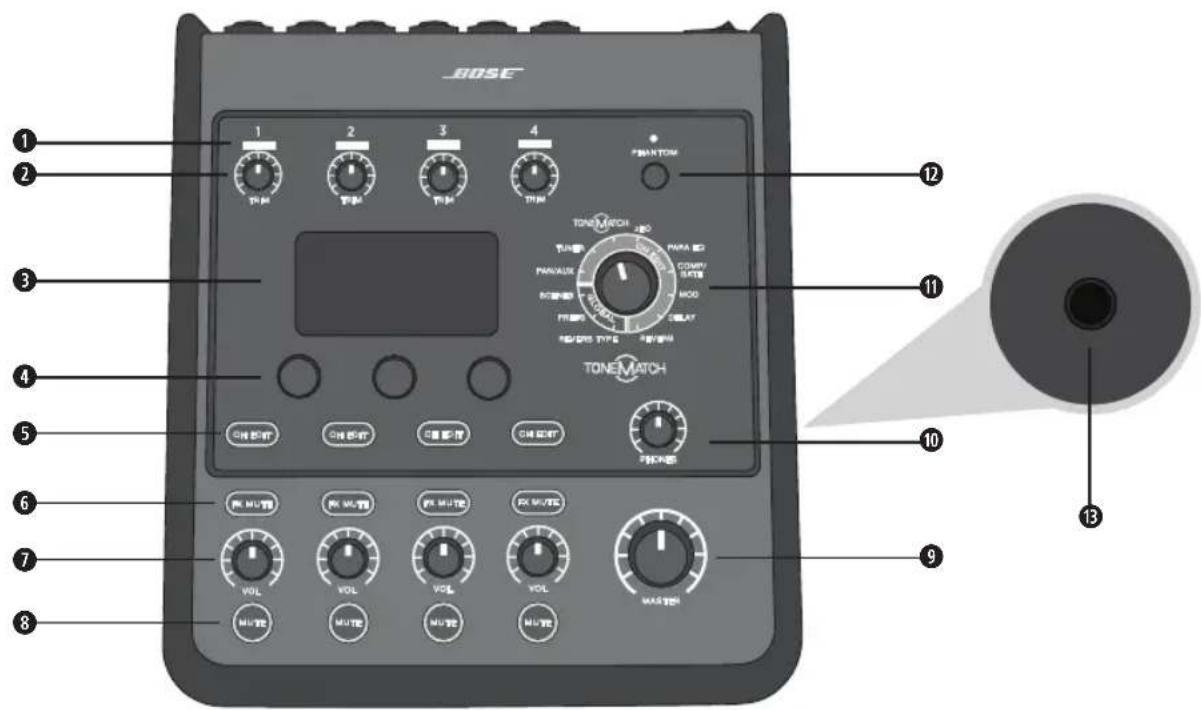
natural_image
Four-panel illustration showing hands operating a remote device with arrows indicating motion (no text or symbols)natural_image
3D rendering of a black mechanical component with multiple circular ports and a curved arrow indicating motion (no text or symbols)natural_image
3D rendering of a black electronic device casing with multiple ports and a central button (no text or symbols visible)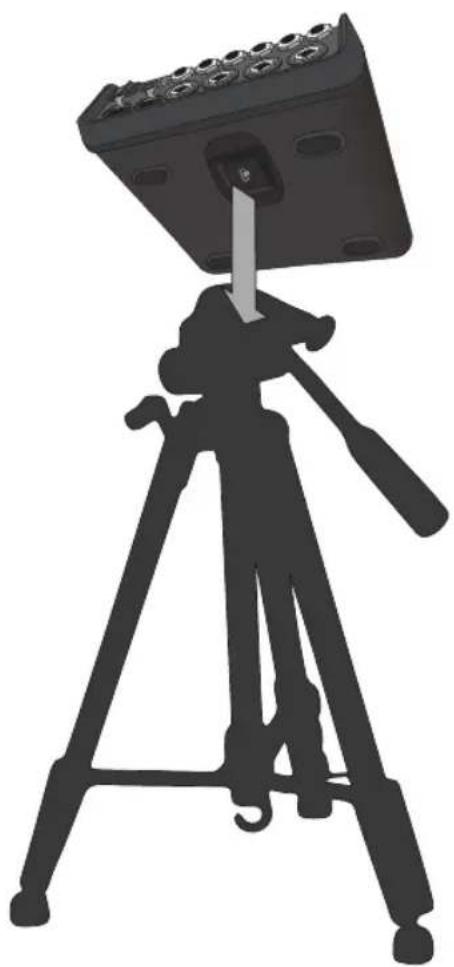
natural_image
Silhouette of a camera setup on a tripod, showing a mounted device with multiple ports (no text or symbols visible)
natural_image
Illustration of a portable audio equipment device connected to a cable via cable routing, with an open electrical outlet visible (no text or symbols)natural_image
Illustration of a black electronic device with multiple ports and a cable inserted, showing no text or symbols.
Cmp = Compressor/Gate
Mod = Modulatie
Dly = Delay
Rev = Reverb


Een scène delen


bar_stacked
CH 1-4 (T4S/T8S) CH 5-8 (T8S) | ToneMatch | Active | Utility | Flat | |---|---|---|---| | zEQ | Bypass | Low Mid High | 0 dB 0 dB 0 dB | | Para EQ | Bypass | | | | Comp/Gate | Bypass | Chorus1 | | | Mod | Bypass | Chorus1 | | | Delay | Bypass | Digital | | | Reverb | Bypass | Digital | | | Aux | Mute | Pre: With EQ & Fx | |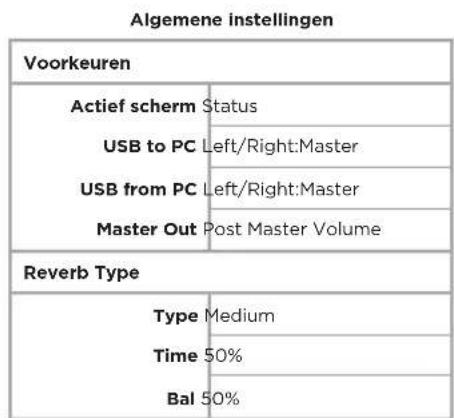
Kanaalinstellingen van de scène Singer/Songwriter
Microfoon Gitaar Keyboard Bas Aux In
CH 1 CH 2 CH 3 CH 4 5/6
| ToneMatch | Active Active Active Active | Nvt. | |||||||||||
| Vocal Mics Acoustic Guitar Keyboards Basses | |||||||||||||
| Handheld Mics Steel String w/ piezo General Keys Active Bass 1 | |||||||||||||
| zEQ | Active Active Active Active | Nvt. | |||||||||||
| Low | Mid | High | Low | Mid | High | Low | Mid | High | Low | Mid | High | ||
| 0 dB | 0 dB | 0 dB | 0 dB | 0 dB | 0 dB | 0 dB | 0 dB | 0 dB | 0 dB | 0 dB | 0 dB | ||
| Para EQ | Bypass | Bypass | Bypass | Bypass | Nvt. | ||||||||
| Comp/Gate | Bypass | Bypass | Bypass | Bypass | Nvt. | ||||||||
| Comp2 | Comp2 | Comp2 | Comp2 | ||||||||||
| Mod | Bypass | Bypass | Bypass | Bypass | Nvt. | ||||||||
| Chorus1 | Chorus1 Chorus3 | Chorus1 | |||||||||||
| Delay | Bypass | Bypass | Bypass | Bypass | Nvt. | ||||||||
| Digital | Digital Digital Digital | ||||||||||||
| Reverb | Active Active | Bypass | Bypass | Nvt. | |||||||||
| Medium (Global) Medium (Global) Medium (Global) Medium (Global) | |||||||||||||
| Pan/Aux | Center | Center | Center | Center | Aux In | ||||||||
| Aux 1-2 | 50% | Aux 1-2 | 50% | Aux 1-2 | 50% | Aux 1-2 | 50% | 5 Lvl 6 Lvl | |||||
| Pre: With EQ & Fx | Pre: With EQ & Fx | Pre: With EQ & Fx | Pre: With EQ & Fx | 50% 50% | |||||||||
Kanaalinstellingen voor de scène DJ/Playback
Bron 1 Links Bron 1 Rechts Microfoon Microfoon Aux In
CH 1 CH 2 CH 3 CH 4 5/6
| ToneMatch | Active Active Active Active | ||||||||||||
| DJ/Playback DJ/Playback Vocal Mics Vocal Mics | Nvt. | ||||||||||||
| Vlakke zEQ-bedieningselementen | Vlakke zEQ-bedieningselementen | Handheld Mics | Handheld Mics | ||||||||||
| Active Active Active Active Active | |||||||||||||
| zEQ | Low | Mid | High | Low | Mid | High | Low | Mid | High | Low | Mid | High | Nvt. |
| 0 dB | 0 dB | 0 dB | 0 dB | 0 dB | 0 dB | 0 dB | 0 dB | 0 dB | 0 dB | 0 dB | 0 dB | ||
| Para EQ | Bypass | Bypass | Bypass | Bypass | Nvt. | ||||||||
| Comp/Gate | Bypass | Bypass | Bypass | Bypass | Nvt. | ||||||||
| Limit | Limit | Comp2 | Comp2 | ||||||||||
| Mod | Bypass | Bypass | Bypass | Bypass | Nvt. | ||||||||
| Chorus1 | Chorus1 Chorus3 | Chorus1 | |||||||||||
| Delay | Bypass | Bypass | Bypass | Bypass | Nvt. | ||||||||
| Digital Digital Digital Digital Digital | |||||||||||||
| Reverb | Bypass | Bypass | Bypass | Bypass | Nvt. | ||||||||
| Medium (Global) | Medium (Global) | Medium (Global) | Medium (Global) | ||||||||||
| Pan/Aux | Links | Rechts | Center | Center | Aux In | ||||||||
| Aux 1-2 | 50% | Aux 1-2 | 50% | Aux 1-2 | 50% | Aux 1-2 | 50% | 5 Lvl 6 Lvl | |||||
| Pre: With EQ & Fx | Pre: With EQ & Fx | Pre: With EQ & Fx | Pre: With EQ & Fx | 50% 50% | |||||||||
Algemene Instellingen
| Voorkeuren | |
| Actief scherm Status | |
| USB to PC Left/Right:Master | |
| USB from PC Left/Right:Master | |
| Master Out Post Master Volume | |
| Reverb Type | |
| Type Medium | |
| Time 50% | |
| Bal 50% |
Gebruik
Volledige band
| ToneMatch | Active Active Active Active Active Active Active | ||||||||||||||||||||||||||||||||||||||||||||||||||||||||||||||||||||||||||||||||||||||||||||||||||||||||||||||||||||||||||||||||||||||||||||||||||||||||||||||||||||||||||||||||||||||||||||||||||||||||||||||||||||||||||||||||||||||||||||||||||||||||||||||||||||||||||||||||||||||||||||||||||||||||||||||||||||||||||||||||||||||||||||||||||||||||||||||||||||||||||||||||||||||||||||||||||||||||||||||||||||||||||||||||||||||||||||||
| Percussion | Percussion | Percussion | Basses | Electric Guitars | Vocal Mics | Vocal Mics | Vocal Mics | Handheld Mics | Handheld Mics | Handheld Mics | Handheld Mics | Handheld Mics | Handheld Mics | Handheld Mics | Handheld Mics | Handheld Mics | Handheld Mics | Handheld Mics | Handheld Mics | Handheld Mics | Handheld Mics | Handheld Mids | Handheld Mics | Handheld Mics | Handheld Mics | Handheld Mics | Handheld Mics | Handheld Mics | Handheld Mics | Handheld Mics | Handheld Mics | Handheld Mics | Handheld Mics | Handheld Mics | Handheld Mics | Handheld Mics | |||||||||||||||||||||||||||||||||||||||||||||||||||||||||||||||||||||||||||||||||||||||||||||||||||||||||||||||||||||||||||||||||||||||||||||||||||||||||||||||||||||||||||||||||||||||||||||||||||||||||||||||||||||||||||||||||||||||||||||||||||||||||||||||||||||||||||||||||||||||||||||||||||||||||||||||||||||||||||||||||||||||||||||||||||||||||||||||||||||||||||||||||||||||||||||||||||||||||||
| Kick, General | General Overhead | General Overhead | Active Bass 1 | Versterker voor microfoon met SM57 | Handheld Mics | Handheld Mics | Handheld Mics | Handheld Mics | Handheld Mics | Handheld Mics | Handheld Mics | Handheld Mics | Handheld Mics | Handheld Mics | Handheld Mics | Handheld Mics | Handheld Mics | Handheld Mics | Handheld Mics | Handheld Mics | Handheld Mics | Handheld Mics | Handheld Mics | Handheld Mics | Handheld Mics | Handheld Mics | Handheld Mics | Handheld Mics | Handheld Mics | Handheld Mics | Handheld Mics | Handheld Mics | |||||||||||||||||||||||||||||||||||||||||||||||||||||||||||||||||||||||||||||||||||||||||||||||||||||||||||||||||||||||||||||||||||||||||||||||||||||||||||||||||||||||||||||||||||||||||||||||||||||||||||||||||||||||||||||||||||||||||||||||||||||||||||||||||||||||||||||||||||||||||||||||||||||||||||||||||||||||||||||||||||||||||||||||||||||||||||||||||||||||||||||||||||||||||||||||||||||||||||||||
| zEQ | Active Active Active Active Active Active Active Active | Handheld Mics | Handheld Mics | Handheld Mics | Handheld Mics | Handheld Mics | Handheld Mics | Handheld Mics | Handheld Mics | Handheld Mics | Handheld Mics | Handheld Mics | Handheld Mics | Handheld Mics | Handheld Mics | Handheld Mics | Handheld Mics | Handheld Mics | Handheld Mics | Handheld Mics | Handheld Mics | Handheld Mics | Handheld Mics | Handheld Mics | Handheld Mics | Handheld Mics | Handheld Mics | Handheld Mics | Handheld Mics | Handheld Mics | Handheld Mics | Handheld Mics | Handheld Mics | Handheld Mics | Handheld Mics | Handheld Mics | Handheld Mics | Handheld Mics | Handheld Mics | Handheld Mics | Handheld Mics | Handheld Mics | handheld Mics | handheld Mics | handheld Mics | handheld Mics | handheld Mics | handheld Mics | handheld Mics | handheld Mics | handheld Mics | handheld Mics | handheld Mics | handheld Mics | handheld Mics | handheld Mics | handheld mics | handheld mics | handheld mics | handheld mics | handheld mics | handheld mics | handheld mics | handheld mics | handheld mics | handheld mics | handheld mics | handheld mics | handheld mics | handheld mics | handheld mics (Handheld Mics) | handheld mics | handheld mics | handheld mics | handheld mics | handheld mics | handheld mics | handheld mics | handheld mics | handheld mics | handheld mics | handheld mics | handheld mics | handheld mics | handheld mics | handheld mics | handheld mics | handheld mics | handheld mics | handheld mics | handheld mics | handheld mics | handheld mics | handheld mics | handheld mics | handheld mics | handheld mics | handheld mics | |||||||||||||||||||||||||||||||||||||||||||||||||||||||||||||||||||||||||||||||||||||||||||||||||||||||||||||||||||||||||||||||||||||||||||||||||||||||||||||||||||||||||||||||||||||||||||||||||||||||||||||||||||||||||||||||||||||||||||||||||||||||||||||||||||||||||||||||||||||||||||||||||||||||||||||||||||||||||||||||||||||||||||||
| L | M | H | L | M | H | L | M | H | L | M | H | L | M | H | L | M | H | L | M | H | L | M | H | L | M | H | L | M | H | L | M | H | L | M | H | L | M | H | L | M | H | L | M | H | L | M | H | L | M | H | Nvt. | Handheld Mics | Handheld Mics | Handheld Mics | Handheld Mics | Handheld Mics | Handheld Mics | Handheld Mics | Handheld Mics | Handheld Mics | Handheld Mics | Handheld Mics | Handheld Mics | Handheld Mics | Handheld Mics | handheld Mics | handheld Mics | handheld Mics | handheld Mics | handheld Mics | handheld Mics | handheld Mics | handheld Mics | handheld Mics | L | M | H | L | M | H | L | M | H | L | M | H | L | M | H | L | M | H | L | M | H | L | M | H | L | M | H | L | M | H | L | M | H | L | M | H | L | M | H | L | M | H | L | M | H | L | M | H | L | mets) (Handheld Mics) (Handheld Mics) (Handheld Mics) (Handheld Mics) (Handheld Mics) (Handheld Mics) (Handheld Mics) (Handheld Mics) (Handheld Mics) (Handheld Mics) (Handheld Mics) (Handheld Mics) (Handheld Mics) (Handheld Mics) (Handheld Mics) (Handheld Mics) (Hand held mics) (hand held mics) (hand held mics) (hand held mics) (hand held mics) (hand held mics) (hand held mics) (hand held mics) (hand held mics) (hand held mics) (hand held mics) (hand held mics) (hand held mics) (hand held mics) (hand held mics) (hand held mics) (hand held mics) (hand held mics)(hand held mics) (hand held mics) (hand held mics) (hand held mics) (hand held mics) (hand held mics) (hand held mics) (hand held mics) (hand held mics) (hand held mics) (hand held mics) (hand held mics) (hand held mics) (hand held mics) (hand held mics) (hand held mics) (hand held mies) (hand held mies) (hand held mies) (hand held mies) (hand held mies) (hand held mies) (hand held mies) (hand held mies) (hand held mies) (hand held mies) (hand held mies) (hand held mies) (hand held mies) (hand held mies) (hand held mies) (hand held mies) (hand had mies) (hand had mies) (hand had mies) (hand had mies) (hand had mies) (hand had mies) (hand had mies) (hand had mies) (hand had mies) (hand had mies) (hand had mies) (hand had mies) (hand had mies) (hand had mies) (hand had mies) (hand had mies) (hand had mies) | L | M | H | L | M | H | L | M | H | L | M | H | L | M | H | L | M | H | L | M | H | L | M | H | L | M | H | L | M | H | L | M | H | L | M | H | L | M | H | L | M | H | L | M | H | L | M | H | |||||||||||||||||||||||||||||||||||||||||||||||||||||||||||||||||||||||||||||||||||||||||||||||||||||||||||||||||||||||||||||||||||||||||||||||||||||||||||||||||||||||||||||||||||||||||||||||||||||||||||||||||||||||||||||||||||||||||||||||||||||||||||||||||||
| 0 dB | 0 dB | 0 dB | 0 dB | 0 dB | 0 dB | 0 dB | 0 dB | 0 dB | 0 dB | 0 dB | 0 dB | 0 dB | 0 dB | 0 dB | 0 dB | 0 dB | 0 dB | 0 dB | 0 dB | 0 dB | 0 dB | 0 dB | 0 dB | 0 dB | 0 dB | 0 dB | 0 dB | 0 dB | 0 dB | 0 dB | 0 dB | 0 dB | 0 dB | ||||||||||||||||||||||||||||||||||||||||||||||||||||||||||||||||||||||||||||||||||||||||||||||||||||||||||||||||||||||||||||||||||||||||||||||||||||||||||||||||||||||||||||||||||||||||||||||||||||||||||||||||||||||||||||||||||||||||||||||||||||||||||||||||||||||||||||||||||||||||||||||||||||||||||||||||||||||||||||||||||||||||||||||||||||||||||||||||||||||||||||||||||||||||||||||||||||||||||||||
| Para EQ | Bypass | Bypass | Bypass | Bypass | Bypass | Bypass | Bypass | Bypass | Bypass | Bypass | Bypass | Bypass | Bypass | Bypass | Bypass | Bypass | Bypass | Bypass | Bypass | Bypass | Bypass | Nvt. Nvt. Nvt. Nvt. Nvt. Nvt. Nvt. Nvt. Nvt. Nvt. Nvt. Nvt. Nvt. Nvt. Nvt. Nvt. Nvt. Nvt. Nvt. Nvt. Nvt. Nvt. Nvt. Nvt. Nvt. Nvt. Nvt. Nvt. Nvt. Nvt. Nvt. Nvt. Nvt. Nvt. Nvnt. Nvt. Nvt. Nvt. Nvt. Nvt. Nvt. Nvt. Nvt. Nvt. Nvt. Nvt. Nvt. Nvt. Nvt. Nvt. Nvt. Nvt. Nvt. Nvt. Nvt. Nvt. Nvt. Nvt. Nvt. Nvt. Nvt. Nvt. Nvt. Nvt. Nvt. Nvt. Nvt. Nvt.(Hand held mies) (hand held mies) (hand held mies) (hand held mies) (hand held mies) (hand held mies) (hand held mies) (hand held mies) (hand held mies) (hand held mies) (hand held mies) (hand held mies) (hand held mies) (hand held mies) (hand held mies) (hand held mies) (hand held mie in the hands of the hands of the hands of the hands of the hands of the hands of the hands of the hands of the hands of the hands of the hands of the hands of the hands of the hands of the hands of the hands of the hands of the hands of the hands of the hands of the hands of the hands of the hands of the hands of the hands of the hands of the hands of the hands of the hands of the hands of the hands of the hands of the hands of the hands of 100% of the hands of the hands of the hands of the hands of the hands of the hands of the hands of the hands of the hands of the hands of the hands of the hands of the hands of the hands of the hands of the hands of the hands of the hands of the hands of the hands of the hands of the hands of the hands of the hands of the hands of the hands of the hands of the hands of the hands of the hands of the hands of the hands of the hands off the hands of the hands of the hands of the hands of the hands of the hands of the hands of the hands of the hands of the hands of the hands of the hands of the hands of the hands of the hands of the hands of the hands of the hands of the hands of the hands of the hands of the hands of the hands of the hands of the hands of the hands of the hands of the hands of the hands of the hands of the hands of the hands of the hands of a hand on the hands of the hands of the hands of the hands of the hands of the hands of the hands of the hands of the hands of the hands of the hands of the hands of the hands of the hands of the hands of the hands of the hands of the hands of the hands of the hands of the hands of the hands of the hands of the hands of the hands of the hands of the hands of the hands of the hands of the hands of the hands of the hands of the hands of they are not at all that is not at all that is not at all that is not at all that is not at all that is not at all that is not at all that is not at all that is not at all that is not at all that is not at all that is not at all that is not at all that is not at all that is not at all that is not at all that is not at all that is not at all that is not at all that is not at all that is not at all thatis not at all that is not at all that is not at all that is not at all that is not at all that is not at all that is not at all that is not at all that is not at all that is not at all that is not at all that is not at all that is not at all that is not at all that is not at all that is not at all that is not at all that is not at all that is not at all that is not at all that i was not at all that is not at all that is not at all that is not at all that is not at all that is not at all that is not at all that is not at all that is not at all that is not at all that is not at all that is not at all that is not at all that is not at all that is not at all that is not at all that is not at all that is not at all that is not at all that is not at all thati was not at all that is not at all that is not at all that is not at all that is not at all that is not at all that is not at all that is not at all that is not at all that is not at all that is not at all that is not at all that is not at all that is not at all that is not at all that is not at all that is not at all that is not at all that is not at all that is not at allthat is not at all that is not at all that is not at all that is not at all that is not at all that is not at all that is not at all that is not at all that is not at all that is not at all that is not at all that is not at all that is not at all that is not at all that is not at all that is not at all that is not at all that is not at all that is not at all that is not at all the hands of the hands of the hands of the hands of the hands of the hands of the hands of the hands of the hands of the hands of the hands of the hands of the hands of the hands of the hands of the hands of the hands of the hands of the hands of the hands of the hands of the hands of the hands of the hands of the hands of the hands of the hands of the hands of the hands of the hands of the hands of the hands of the hands of and the hands of the hands of the hands of the hands of the hands of the hands of the hands of the hands of the hands of the hands of the hands of the hands of the hands of the hands of the hands of the hands of the hands of the hands of the hands of the hands of the hands of the hands of the hands of the hands of the hands of the hands of the hands of the hands of the hands of the hands of the hands of the hands of the hands of or the hands of the hands of the hands of the hands of the hands of the hands of the hands of the hands of the hands of the hands of the hands of the hands of the hands of the hands of the hands of the hands of the hands of the hands of the hands of the hands of the hands of the hands of the hands of the hands of the hands of the hands of the hands of the hands of the hands of the hands of the hands of the hands of the hands of to be in the hands of the hands of the hands of the hands of the hands of the hands of the hands of the hands of the hands of the hands of the hands of the hands of the hands of the hands of the hands of the hands of the hands of the hands of the hands of the hands of the hands of the hands of the hands of the hands of the hands of the hands of the hands of the hands of the hands of the hands of the hands of the hands of the hands off from the hands of the hands of the hands of the hands of the hands of the hands of the hands of the hands of the hands of the hands of the hands of the hands of the hands of the hands of the hands of the hands of the hands of the hands of the hands of the hands of the hands of the hands of the hands of the hands of the hands of the hands of the hands of the hands of the hands of the hands of the hands of the hands of the hands of these hands of the hands of the hands of the hands of the hands of the hands of the hands of the hands | |||||||||||||||||||||||||||||||||||||||||||||||||||||||||||||||||||||||||||||||||||||||||||||||||||||||||||||||||||||||||||||||||||||||||||||||||||||||||||||||||||||||||||||||||||||||||||||||||||||||||||||||||||||||||||||||||||||||||||||||||||||||||||||||||||||||||||||||||||||||||||||||||||||||||||||||||||||||||||||||||||||||||||||||||||||||||||||||||||||||||||||||||||||||||||||||||||||||||||||||||||||||||
| Type Thresh Gain | ||
| Compressor 1: Light -16,0 dB 3,0 dB | ||
| Compressor 2: Medium -16,0 dB 5,0 dB | ||
| Compressor 3: Heavy -16,0 dB 8,0 dB | ||
| Limiter -10,0 dB 0 dB | ||
| De-Esser -10,0 dB 0 dB | ||
| Thresh Speed | ||
| Noise Gate -70,0 dB 50% | ||
| Thresh Tight | ||
| KickGate1: Normaal -20,0 dB 100% | ||
| KickGate2: Fast -20,0 dB 100% | ||
Framingham, MA 01701 VS
Corporate Center: 508-879-7330
Américas Professional Systems,
Technische ondersteuning: +1 800 994 26 73
Australië
Bose Pty Limited
Unit 3/2 Holker Street
1 Matheson Street, Causeway Bay, Hongkong
+852 2123 90 00
India
Bose Corporation India Private Limited
Salcon Aurum, 3rd Floor
Plot No. 4, Jasola District Centre
New Delhi - 110025, India
+91 11 43 08 02 00
Italië
Bose SpA
Centro Leoni A - Via G. Spadolini
Sumitomo Fudosan Shibuya Garden Tower 5F
16-17, Nanpeidai-cho
Shibuya-Ku, Tokio, 150-0036, Japan
+81 3 54 89 09 55
Nederland
Bose Products B.V.
Gorslaan 60 1441 RG
1 Ambley Green, Gillingham Business Park
KENT ME8 ONJ
Gillingham, Engeland
+44 0870 741 45 00
Gegevens importeur
Europese Unie
Bose Products B.V., Gorslaan 60, 1441 RG
Bose Electronics (Shanghai) Company Limited,
Part C. Plan 9. No. 353 North Riving Road, China
(Shanghai) Pilot Free Trade Zone
Taiwan
Bose Taiwan Branch, 9F-A1, No. 10, Section 3,
Minsheng East Road, Taipei City 104, Taiwan
+886 2 25 14 76 76
Mexico
This device complies with part 15 of the FCC Rules and with Industry Canada license-exempt RSS standard(s).Operation is subject to the following two conditions: (1) This device may not cause harmful interference, and (2) this device must accept any interference received, including interference that may cause undesired operation.

This product conforms to all applicable EU directive requirements. The complete Declaration of Conformity can be found at www.Bose.com/compliance.
Information About Products That Generate Electrical Noise (FCC Compliance Notice for US)
Note: This equipment has been tested and found to comply with the limits for a Class A digital device, pursuant to part 15 of the FCC Rules. These limits are designed to provide reasonable protection against harmful interference when the equipment is operated in a commercial environment. This equipment generates, uses, and can radiate radio frequency energy and, if not installed and used in accordance with the instruction manual, may cause harmful interference to radio communications. Operation of this equipment in a residential area is likely to cause harmful interference in which case the user will be required to correct the interference at one's own expense.
Changes or modifications not expressly approved by Bose Corporation could void the user's authority to operate this equipment.
Shielded cables are required to maintain regulatory compliance.
This product complies with the Canadian ICES-003 Class A specifications. CAN ICES-3(A)/NMB-3(A)
This product meets all EN55103-2 immunity requirements for E2 electromagnetic environment.
Names and Contents of Toxic or Hazardous Substances and Elements
| Part Name | Toxic or Hazardous Substances and Elements | |||||
| Lead (Pb) | Mercury (Hg) | Cadmium (Cd) | Hexavalent (CR(VI)) | Polybrominated Biphenyl (PBB) | Polybrominated diphenylether (PBDE) | |
| PCBs | X | O | O | O | O | O |
| Metal parts | X | O | O | O | O | O |
| Plastic parts | O | O | O | O | O | O |
| Speakers | X | O | O | O | O | O |
| Cables | X | O | O | O | O | O |
This table is prepared in accordance with the provisions of SJ/T 11364.
0: Indicates that said hazardous substance contained in all of the homogenous materials for this part is below the limit requirement of GB/T 26572.
X: Indicates that said hazardous substance contained in at least one of the homogenous materials used for this part is above the limit requirement of GB/T 26572.
natural_image
Black electronic device with control panel and buttons (no visible text or symbols)natural_image
Black rectangular electronic component with a small protrusion at the top (no visible text or symbols)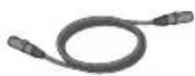
ToneMatchケーブル
T8S
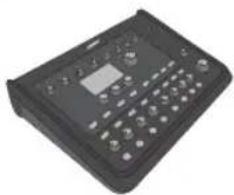
natural_image
Black electronic device with multiple ports and a central display (no visible text or symbols)natural_image
Black plastic object with a flat top and rounded base (no text or symbols visible)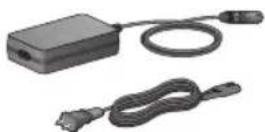
ToneMatchパワーサブライ
T4S ToneMatch® Mixer
コントロールパネル
図1.T4Sコントロールパネル
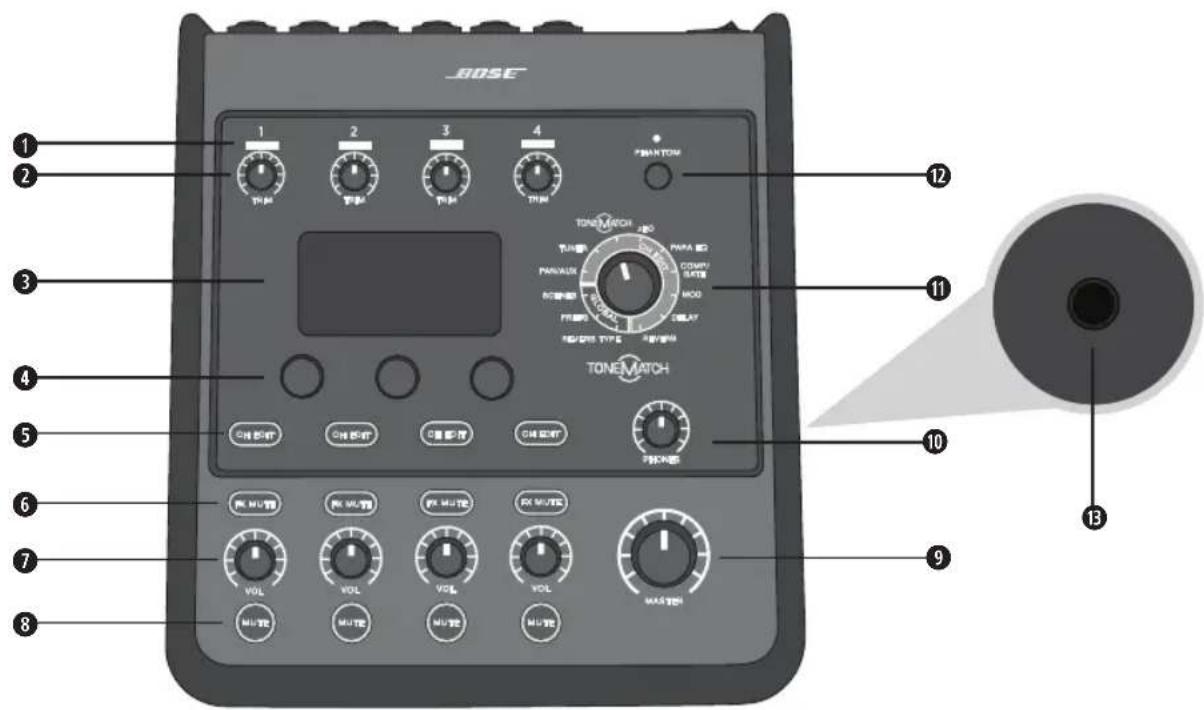
natural_image
3D rendering of a black mechanical component with multiple circular ports and a curved arrow indicating motion (no text or symbols)図7.T4Sに装着されたブラケット
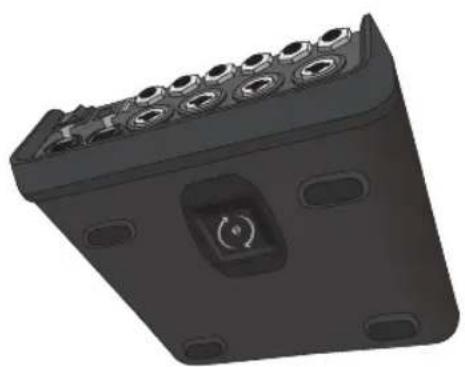
natural_image
3D rendering of a black electronic device casing with multiple ports and a central button (no text or symbols visible)natural_image
Silhouette of a camera setup on a tripod, showing a mounted device with multiple ports (no text or symbols visible)
natural_image
Illustration of a device with connectors and cables, showing connections to an electrical outlet (no text or symbols present)T4S/T8Sとコンピューターの接続
natural_image
Illustration of a black electronic device with multiple ports and a cable inserted, showing no text or symbols.操作
T4S/T8Sのディスプレイ表示


シーンの読み込みと保存を行う


シーンをシェアする


bar_stacked
CH 1~4 (T4S/T8S) CH 5~8 (T8S) | Category | ToneMatch | Active | Utility | Flat | | :--- | :--- | :--- | :--- | :--- | | ToneMatch | zEQ | Bypass | Low Mid High 0 dB 0 dB 0 dB | :--- | | ToneMatch | Para EQ | Bypass | :--- | :--- | | ToneMatch | Comp/Gate | Bypass | Comp1 | :--- | | ToneMatch | Mod | Bypass | Chorus1 | :--- | | ToneMatch | Delay | Bypass | Digital | :--- | | ToneMatch | Reverb | Bypass | Digital | :--- | | ToneMatch | Aux | Mute | Pre: With EQ & Fx | :--- | The chart displays a single bar for each tone match category. The values in parentheses are estimated based on the numerical labels above each bar.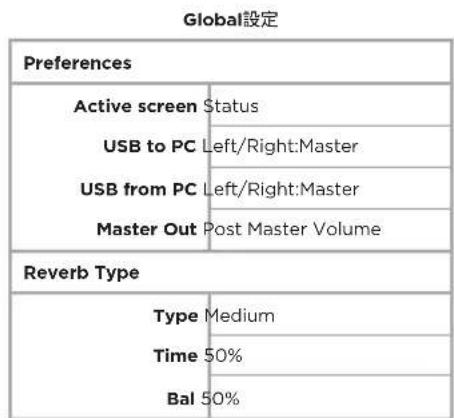
| ToneMatch | Active Active Active Active | N/A | |||||||||||
| Vocal Mics Acoustic Guitar Keyboards Basses | |||||||||||||
| Handheld Mics Steel String w/ piezo General Keys Active Bass 1 | |||||||||||||
| zEQ | Active Active Active Active | N/A | |||||||||||
| Low | Mid | High | Low | Mid | High | Low | Mid | High | Low | Mid | High | ||
| 0 dB | 0 dB | 0 dB | 0 dB | 0 dB | 0 dB | 0 dB | 0 dB | 0 dB | 0 dB | 0 dB | 0 dB | ||
| Para EQ | Bypass | Bypass | Bypass | Bypass | N/A | ||||||||
| Comp/Gate | Bypass | Bypass | Bypass | Bypass | N/A | ||||||||
| Comp2 | Comp2 | Comp2 | Comp2 | ||||||||||
| Mod | Bypass | Bypass | Bypass | Bypass | N/A | ||||||||
| Chorus1 | Chorus1 | Chorus3 | Chorus1 | ||||||||||
| Delay | Bypass | Bypass | Bypass | Bypass | N/A | ||||||||
| Digital Digital Digital Digital | |||||||||||||
| Reverb | Active Active | Bypass | Bypass | N/A | |||||||||
| Medium (Global) Medium (Global) Medium (Global) Medium (Global) | Medium (Global) | ||||||||||||
| Pan/Aux | Center | Center | Center | Center | AUX IN | ||||||||
| AUX 1-2 | 50% | AUX 1-2 | 50% | AUX 1-2 | 50% | AUX 1-2 | 50% | 5 Lvl 6 Lvl | |||||
| Pre: With EQ & Fx | Pre: With EQ & Fx | Pre: With EQ & Fx | Pre: With EQ & Fx | 50% 50% | |||||||||
Global設定
| Preferences | |
| Active screen | Status |
| USB to PC | Left/Right:Master |
| USB from PC | Left/Right:Master |
| Master Out | Post Master Volume |
| Reverb Type | |
| Type | Medium |
| Time | 50% |
| Bal | 50% |
操作
| Preferences | |
| Active screen | Status |
| USB to PC | Left/Right:Master |
| USB from PC | Left/Right:Master |
| Master Out | Post Master Volume |
| Reverb Type | |
| Type | Medium |
| Time | 50% |
| Bal | 50% |
操作
Full Band クルバンド
| Preferences | |
| Active screen Status | |
| USB to PC Left/Right:Master | |
| USB from PC Left/Right:Master | |
| Master Out Post Master Volume | |
| Reverb Type | |
| Type Medium | |
| Time 50% | |
| Bal 50% |
工場出荷時の設定
Americas Professional Systems,
Technical Support: 800-994-2673
オーストラリア
Bose Pty Limited
Unit 3/2 Holker Street
Newington NSW Australia
61 2 8737 9999
ベルギー
Bose N.V./S.A
Limesweg 2.03700
Tongeren, Belgium
012-390800
中国
Bose Electronics (Shanghai) Co Ltd
25F, L'Avenue
99 Xianxia Road
Shanghai, P.R.C.200051 China
86 21 6010 3800
フランス
Bose S.A.S
26-28 avenue de Winchester
78100 St. Germain en Laye, France
01-30-61-63-63
ドイツ
Bose GmbH
Max-Planck Strasse 36D 61381
1 Matheson Street, Causeway Bay, Hong Kong
852 2123 9000
インド
Bose Corporation India Private Limited
Salcon Aurum, 3rd Floor
Plot No. 4, Jasola District Centre
New Delhi - 110025, India
91 11 43080200
イタリア
Bose SpA
Centro Leoni A - Via G. Spadolini
5 20122 Milano, Italy
39-02-36704500
日本
ボーズ合同会社
〒106-0032
東京都港区六本木1-4-5
アークヒルズサウスタワー 13F
www.bose.co.jp
オランダ
Bose BV
1 Ambley Green, Gillingham Business Park
KENT ME8 ONJ
Gillingham, England
0870-741-4500
輸入者情報
EU
Bose Products B.V., Gorslaan 60, 1441 RG
Purmerend, The Netherlands
中国
Bose Electronics (Shanghai) Company Limited,
Part C, Plan 9, No. 353 North Riying Road, China
(Shanghai) Pilot Free Trade Zone
台湾
Bose Taiwan Branch, 9F-A1, No. 10, Section 3,
Minsheng East Road, Taipei City 104, Taiwan
Names and Contents of Toxic or Hazardous Substances and Elements
| Part Name | Toxic or Hazardous Substances and Elements | |||||
| Lead (Pb) | Mercury (Hg) | Cadmium (Cd) | Hexavalent (CR(VI)) | Polybrominated Biphenyl (PBB) | Polybrominated diphenylether (PBDE) | |
| PCBs | X | O | O | O | O | O |
| Metal parts | X | O | O | O | O | O |
| Plastic parts | O | O | O | O | O | O |
| Speakers | X | O | O | O | O | O |
| Cables | X | O | O | O | O | O |
This table is prepared in accordance with the provisions of SJ/T 11364. O: Indicates that said hazardous substance contained in all of the homogenous materials for this part is below the limit requirement of GB/T 26572. X: Indicates that said hazardous substance contained in at least one of the homogenous materials used for this part is above the limit requirement of GB/T 26572.
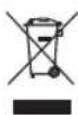
Singer/Songwriter 36
DJ/Playback 38
Full Band 40
出厂设置
出厂设置 42
维护与保养
故障排除 43
清洁 46
技术信息 46
其他资源
联系信息 47
进口商信息 47
其他信息 47
有限保修 47
产品概述
natural_image
3D rendering of a black mechanical component with multiple circular ports and a curved arrow indicating motion (no text or symbols)图 7 将支架连接到 T4S
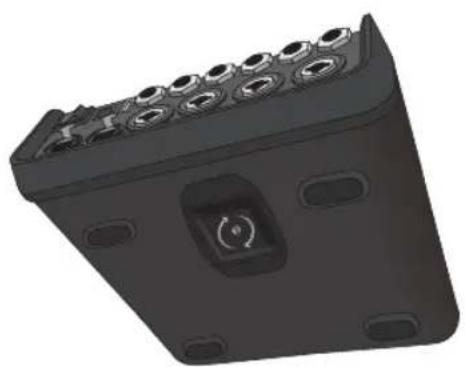
natural_image
3D rendering of a black electronic device casing with multiple ports and a central button (no text or symbols visible)natural_image
Silhouette of a camera on a tripod-mounted device with a top panel (no text or symbols visible)
系统设置
natural_image
Illustration of a device with connectors and cables, showing connections to an electrical outlet (no text or symbols present)连接 T4S/T8S 到电脑
natural_image
Illustration of a black electronic device with multiple ports and a cable inserted, showing no text or symbols.读取 T4S/T8S 显示屏
Cmp = 压缩器/门限
Mod = 音效
Dly = 延时
Rev = 混响


加载和保存场景 Scenes


T4S/T8S 包括三类场景:
共享场景
Singer/Songwriter 场景通道设置
DJ/Playback 场景通道设置
Unit 3/2 Holker Street
Newington NSW Australia
61 2 8737 9999
比利时
Bose N.V./ S.A
Limesweg 2, 03700
Tongeren, Belgium
012-390800
中国
博士视听系统(上海)有限公司
中国上海市
顾戴路2337号
Bose Corporation India Private Limited
Salcon Aurum, 3rd Floor
Plot No. 4, Jasola District Centre
New Delhi - 110025, India
91 11 43080200
意大利
Bose SpA
Centro Leoni A - Via G. Spadolini
5 20122 Milano, Italy
39-02-36704500
日本
Bose Kabushiki Kaisha
Sumitomo Fudosan Shibuya Garden Tower 5F
16-17, Nanpeidai-cho
Shibuya-Ku, Tokyo, 150-0036, Japan
电话 81-3-5489-0955
www.bose.co.jp
荷兰
Bose BV
1 Ambley Green, Gillingham Business Park
KENT ME8 ONJ
Gillingham, England
0870-741-4500
进口商信息
欧盟
Bose Products B.V., Gorslaan 60, 1441 RG
Purmerend, The Netherlands
中国
Names and Contents of Toxic or Hazardous Substances and Elements
| Part Name | Toxic or Hazardous Substances and Elements | |||||
| Lead (Pb) | Mercury (Hg) | Cadmium (Cd) | Hexavalent (CR(VI)) | Polybrominated Biphenyl (PBB) | Polybrominated diphenylether (PBDE) | |
| PCBs | X | O | O | O | O | O |
| Metal parts | X | O | O | O | O | O |
| Plastic parts | O | O | O | O | O | O |
| Speakers | X | O | O | O | O | O |
| Cables | X | O | O | O | O | O |
This table is prepared in accordance with the provisions of SJ/T 11364. O: Indicates that said hazardous substance contained in all of the homogenous materials for this part is below the limit requirement of GB/T 26572. X: Indicates that said hazardous substance contained in at least one of the homogenous materials used for this part is above the limit requirement of GB/T 26572.
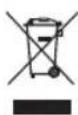
natural_image
3D rendering of a black mechanical component with multiple circular ports and a curved arrow indicating motion (no text or symbols)图7支架已安装至T4S
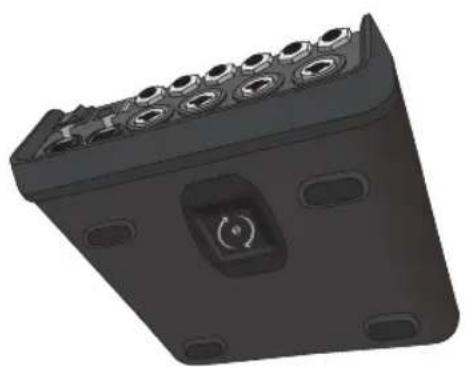
natural_image
3D rendering of a black electronic device casing with multiple ports and a central button (no text or symbols visible)natural_image
Silhouette of a camera on a tripod-mounted device with a top panel (no text or symbols visible)
系統設定
連接 ToneMatch® 電源供應器
natural_image
Illustration of an electronic device with attached cable and power outlet (no text or symbols)將 T4S/T8S 連接至您的電腦
natural_image
Illustration of a black electronic device with multiple ports and a cable inserted, showing no text or symbols.讀取 T4S/T8S 顯示幕
載入與儲存場景
T4S/T8S 包含三種場景類型:
分享場景
創作歌手場景音軌設定
DJ/播放場景音軌設定
Americas Professional Systems
技術支援:800-994-2673
澳大利亞
Bose Pty Limited
Unit 3/2 Holker Street
Newington NSW Australia
61 2 8737 9999
比利時
Bose N.V./ S.A
Limesweg 2, 03700
Tongeren, Belgium
012-390800
中國
Bose Electronics (Shanghai) Co Ltd
25F, L'Avenue
99 Xianxia Road
Bose Corporation India Private Limited
Salcon Aurum, 3rd Floor
Plot No. 4, Jasola District Centre
New Delhi - 110025, India
91 11 43080200
義大利
Bose SpA
Centro Leoni A - Via G. Spadolini
5 20122 Milano, Italy
39-02-36704500
日本
Bose Kabushiki Kaisha
Sumitomo Fudosan Shibuya Garden Tower 5F
16-17, Nanpeidai-cho
Shibuya-Ku, Tokyo, 150-0036, Japan
電話 81-3-5489-0955
www.bose.co.jp
荷蘭
Bose BV
1 Ambley Green, Gillingham Business Park
KENT ME8 ONJ
Gillingham, England
0870-741-4500
進口商資訊
歐盟
Bose Products B.V., Gorslaan 60, 1441 RG
Purmerend, The Netherlands
中國
Names and Contents of Toxic or Hazardous Substances and Elements
| Part Name | Toxic or Hazardous Substances and Elements | |||||
| Lead (Pb) | Mercury (Hg) | Cadmium (Cd) | Hexavalent (CR(VI)) | Polybrominated Biphenyl (PBB) | Polybrominated diphenylether (PBOE) | |
| PCBs | X | O | O | O | O | O |
| Metal parts | X | O | O | O | O | O |
| Plastic parts | O | O | O | O | O | O |
| Speakers | X | O | O | O | O | O |
| Cables | X | O | O | O | O | O |
This table is prepared in accordance with the provisions of SJ/T 11364.
Q: Indicates that said hazardous substance contained in all of the homogenous materials for this part is below the limit requirement of GB/T 26572.
X: Indicates that said hazardous substance contained in at least one of the homogenous materials used for this part is above the limit requirement of GB/T 26572.
.www.Bose.com/compliance

natural_image
Black electronic device with control panel and buttons (no visible text or symbols)natural_image
Black plastic electronic component with a flat top and rounded side (no text or symbols visible)T4S
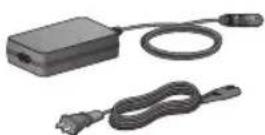
natural_image
Black electronic device with control panel and buttons (no visible text or symbols)natural_image
Black plastic object with a flat base and rounded top, no visible text or symbols.T8S
من Quinn الراسته/العربية/Razakhstan/العربية/Razakhstan/العربية/Razakhstan/العربية/Razakhstan/العربية/Razakhstan/العربية/Razakhstan/العربية/Razakhstan/العربية/Razakhstan/العربية/Razakhstan/العربية/Razakhstan/العربية/Razakhstan/العربية/Razakhstan/العربية/Razakhstan/العربية/Razakhstan/العربية/Razakhstan/AL1S/II LB L1S/L1S/II LB L1S/II LB L1S/II LB L1S/II LB L1S/II LB L1S/II LB L1S/II LB L1S/II LB L1S/II LB L1S/II LB L1S/II LB L1S/II LB L1S/II LB L1S/II LB L1S/II LB L1S/II LB L1S/II LB L1S/III LB L1S/III LB L1S/III LB L1S/III LB L1S/III LB L1S/III LB L1S/III LB L1S/III LB L1S/III LB L1S/III LB L1S/III LB L1S/III LB L1S/III LB L1S/III LB L1S/III LB L1S/III LB L1S/III LB L1s
natural_image
Silhouette of a tripod-mounted device with a mounted screen (no text or symbols visible)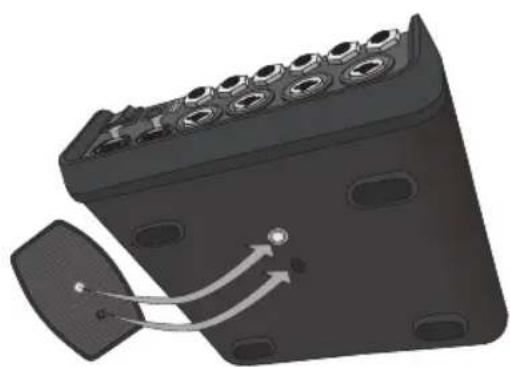
natural_image
3D illustration of a black mechanical component with multiple circular ports and a curved arrow indicating motion (no text or symbols)natural_image
3D rendering of a black electronic device casing with multiple ports and a central button (no text or symbols visible).14 في OfficialTY "ToneMatch®
natural_image
Illustration of a device with connectors and cables, showing connections to an electrical outlet (no text or symbols present)natural_image
Illustration of a black electronic device with multiple ports and a handle, showing no text or symbols.T4S/T8S قراعة شاشة


تحميل مشاهد وhfظها



مشاركة مشهد
| ### | 09% |
| 09% | |
| ### | |
| ### | |
| ### | ### |
| ### | |
| ### | |
| ### | |
| ### | |
-
-
-
-
-
-
-
-
-
-
-
-
-
-
-
-
-
-
-
-
-
-
-
-
-
-
-
-
-
-
-
-
-
-
-
-
-
-
-
-
-
-
-
-
-
-
-
-
-
-
-
-
-
-
-
-
-
-
-
-
-
-
-
-
-
-
-
-
-
-
-
-
-
-
-
-
-
-
-
-
-
-
-
-
-
-
-
-
- 90.
-
-
-
-
-
-
-
-
-
-
-
-
-
-
-
-
-
-
-
-
-
-
-
-
-
-
-
-
-
-
-
-
-
-
-
-
-
-
-
-
-
-
-
-
-
-
-
-
-
-
-
-
-
-
-
-
-
-
-
-
-
-
-
-
-
-
-
-
-
-
-
-
-
-
-
-
-
-
-
-
-
-
-
-
-
-
-
| 6/5 | 4 Saudi | 3 Saudi | 2 Saudi | 1 Saudi | ||||
| 3 Saudi | ||||||||
| 3 Saudi | ||||||||
| 3 Saudi | ||||||||
| 3 Saudi | ||||||||
| 3 Saudi | ||||||||
| 3 Saudi | ||||||||
| 3 Saudi | ||||||||
| 3 Saudi | ||||||||
i
تشغيل/DJ
flowchart
graph TD
    A["Microphone"] --> B["Speaker"]
    C["Handheld Piano"] --> B
    D["Guitar"] --> B
    E["Drum"] --> B
    F["Drain"] --> B
    G["Radio Station"] --> H["Digital Display"]
    I["Radio Station"] --> H
    J["Radio Station"] --> H
    K["Radio Station"] --> H
    L["Radio Station"] --> H
    M["Radio Station"] --> H
    N["Radio Station"] --> H
    O["Radio Station"] --> H
    P["Radio Station"] --> H
    Q["Radio Station"] --> H
    R["Radio Station"] --> H
    S["Radio Station"] --> H
    T["Radio Station"] --> H
    U["Radio Station"] --> H
    V["Radio Station"] --> H
    W["Radio Station"] --> H
    X["Radio Station"] --> H
    Y["Radio Station"] --> H
    Z["Radio Station"] --> H
    AA["Radio Station"] --> H
    AB["Radio Station"] --> H
    AC["Radio Station"] --> H
    AD["Radio Station"] --> H
    AE["Radio Station"] --> H
    AF["Radio Station"] --> H
    AG["Radio Station"] --> H
    AH["Radio Station"] --> H
    AI["Radio Station"] --> H
    AJ["Radio Station"] --> H
    AK["Radio Station"] --> H
    AL["Radio Station"] --> H
    AM["Radio Station"] --> H
    AN["Radio Station"] --> H
    AO["Radio Station"] --> H
    AP["Radio Station"] --> H
    AQ["Radio Station"] --> H
    AR["Radio Station"] --> H
    AS["Radio Station"] --> H
    AT["Radio Station"] --> H
    AU["Radio Station"] --> H
    AV["Radio Station"] --> H
    AW["Radio Station"] --> H
    AX["Radio Station"] --> H
    AY["Handheld Piano"] --> Z
    AZ["Guitar"] --> Z
    BA["Drum"] --> Z
    BB["Drum"] --> Z
    BC["Drain"] --> Z
    BD["Radio Station"] --> BE
    BF["Radio Station"] --> BF
    BG["Radio Station"] --> BH
    BH --> BI["Drum"]
    BJ["Drum"] --> BK
    BK --> BL["Drum"]
    BM["Drum"] --> BN
    BO["Drum"] --> BN
    BP["Drum"] --> BP
    BPD["Drum"] --> BPB["Drum"]
    BPB --> BPC["Drum"]
    BPC --> BPD
    BPD --> BPE["Drum"]
    BPE --> BPF["Drum"]
    BPF --> BPG["Drum"]
    BPG --> BPH["Drum"]
    BPH --> BPI["Drum"]
    BPI --> BPJ["Drum"]
    BPJ --> BPK["Drum"]
    BPK --> BPL["Drum"]
    BPL --> BPM["Drum"]
    BPM --> BPN["Drum"]
    BPN --> BPO["Drum"]
    BPO --> BPP["Drum"]
    BPP --> BPQ["Drum"]
    BPQ --> BPR["Drum"]
    BPR --> BPS["Drum"]
    BPS --> BPT["Drum"]
    BPT --> BPU["Drum"]
    BPU --> BPV["Drum"]
    BPV --> BPW["Drum"]
    BPW --> BPX["Drum"]
    BPX --> BPY["Drum"]
    BPY --> BPZ["Drum"]
    BPZ --> BPW
| 05 % 50 | |
| ### | |
| ### | |
| ### | |
The image contains no legible text or symbols.
| 10/9 | 8 yah | 7 yah | 6 yah | 5 yah | 4 yah | 3 yah | 2 yah | 1 yah |
| ### | ### | ### | ### | ### | ### | ### | ### | |
| ### | ### | ### | ### | ### | ### | ### | ### | |
| ### | ### | ### | ### | ### | ### | ### | ### |
The image contains no legible text or symbols. The characters are in a non-Latin script, and the content is illegible. Therefore, no OCR output can be generated.
Purmerend, The Netherlands
ال الصين
Bose Electronics (Shanghai) Company Limited,
Part C. Plan 9, No. 353 North Riying Road, China
(Shanghai) Pilot Free Trade Zone
تایوان
Bose Taiwan Branch, 9F-A1, No. 10, Section 3,
Minsheng East Road, Taipei City 104, Taiwan
1 Matheson Street, Causeway Bay, Hong Kong
852 2123 9000
الهند
Bose Corporation India Private Limited
Salcon Aurum, 3rd Floor
Plot No. 4, Jasola District Centre
New Delhi - 110025, India
91 11 43080200
إيطاليا
Bose SpA
Centro Leoni A – Via G. Spadolini
5 20122 Milano, Italy
39-02-36704500
اليابان
Bose Kabushiki Kaisha
Sumitomo Fudosan Shibuya Garden Tower 5F
16-17, Nanpeidai-cho
Shibuya-Ku, Tokyo, 150-0036, Japan
81-3-5489-0955
www.bose.co.jp
هولندا
Bose BV
1 Ambley Green, Gillingham Business Park
KENT ME8 0NJ
Gillingham, England
0870-741-4500
الأميركتان
Americas Professional Systems,
Unit 3/2 Holker Street
Newington NSW Australia
61 2 8737 9999
بلحيكا
Bose N.V. / S.A
Limesweg 2, 03700
Tongeren, Belgium
012-390800
الصين
Bose Electronics (Shanghai) Co Ltd
25F, L'Avenue
99 Xianxia Road
Shanghai, P.R.C. 200051 China
86 21 6010 3800
فرنسا
Bose S.A.S
26-28 avenue de Winchester
78100 St. Germain en Laye, France
01-30-61-63-63
اللمانيا
Bose GmbH
Max-Planck Strasse 36D 61381