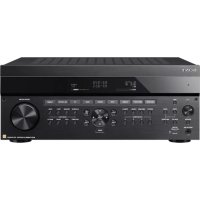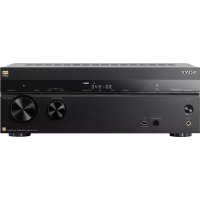
STRZA810ES - AV receiver SONY - Free user manual and instructions
Find the device manual for free STRZA810ES SONY in PDF.


| Product Type | 7.2-channel AV receiver |
| Dimensions (W × H × D) | 430 mm × 156 mm × 331 mm |
| Weight | 9.1 kg |
| Power Supply | 120 V AC, 60 Hz |
| Power Consumption | 240 W (standby 0.5 W) |
| Supported Audio Formats | Dolby Atmos, DTS:X, Dolby TrueHD, DTS-HD Master Audio, LPCM, DSD, AAC, FLAC, WAV, MP3 |
| Output Power | 90 W × 2 (6 ohms, 20 Hz - 20 kHz, THD 0.09%), 140 W per channel (6 ohms, 1 kHz, THD 0.9%) |
| Maximum Video Resolution | 4K (4096 × 2160) at 60 Hz, compatible with HDR10, HLG, Dolby Vision |
| Connectivity | HDMI (6 inputs, 2 outputs with eARC), USB, Bluetooth 4.1, Wi-Fi 802.11 a/b/g/n, Ethernet, optical, coaxial, FM |
| Calibration Functions | Auto Calibration (D.C.A.C. EX) with supplied microphone, Speaker Relocation, Phantom Surround Back |
| Audio Technologies | DSEE HX (upscaling to high resolution), LDAC (high-definition Bluetooth), Sound Optimizer |
| Network Functions | AirPlay, Spotify Connect, built-in Chromecast, Sony | Music Center, wireless multiroom |
| Care and Cleaning | Clean with a soft, dry cloth. Do not use abrasives, alcohol, or benzene. |
| Safety | Automatic shutdown in case of short circuit, surge protection, do not block ventilation openings. |
| Supplied Accessories | Remote control, batteries, calibration microphone, FM antenna, power cord, startup guide |
Frequently Asked Questions - STRZA810ES SONY
User questions about STRZA810ES SONY
0 question about this device. Answer the ones you know or ask your own.
Ask a new question about this device
Download the instructions for your AV receiver in PDF format for free! Find your manual STRZA810ES - SONY and take your electronic device back in hand. On this page are published all the documents necessary for the use of your device. STRZA810ES by SONY.
USER MANUAL STRZA810ES SONY
Operating Instructions
US
Mode d'emploi
FR
natural_image
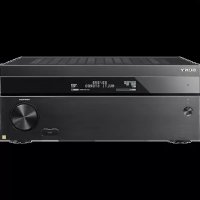
Front view of a black Sony electronic audio amplifier with external knobs and ports (no visible text or labels)STR-ZA810ES
Owner's Record
The model and serial numbers are located on the rear panel of the unit. Record the serial number in the space provided below. Refer to these numbers whenever you call upon your Sony dealer regarding this product.
Model No. STR-ZA810ES
Serial No.
WARNING
To reduce the risk of fire or electric shock, do not expose this apparatus to rain or moisture.
To reduce the risk of fire, do not cover the ventilation opening of the appliance with newspapers, tablecloths, curtains, etc. Do not expose the appliance to naked flame sources (for example, lighted candles).
To reduce the risk of fire or electric shock, do not expose this appliance to dripping or splashing, and do not place objects filled with liquids, such as vases, on the appliance.
As the main plug is used to disconnect the unit from the mains, connect the unit to an easily accessible AC outlet. Should you notice an abnormality in the unit, disconnect the main plug from the AC outlet immediately.
Do not expose batteries or appliances with battery-installed to excessive heat, such as sunshine and fire.
The unit is not disconnected from the mains as long as it is connected to the AC outlet, even if the unit itself has been turned off.

This symbol is intended to alert the user to the presence of the Hot Surface that may be hot if it is touched during the normal operation.
For the customers in the U.S.A.

This symbol is intended to alert the user to the presence of uninsulated "dangerous voltage" within the product's enclosure that may be of sufficient magnitude to constitute a risk of electric shock to persons.

This symbol is intended to alert the user to the presence of important operating and maintenance (servicing) instructions in the literature accompanying the appliance.
Important Safety Instructions
1) Read these instructions.
2) Keep these instructions.
3) Heed all warnings.
4) Follow all instructions.
5) Do not use this apparatus near water.
6) Clean only with dry cloth.
7) Do not block any ventilation openings. Install in accordance with the manufacturer's instructions.
8) Do not install near any heat sources such as radiators, heat registers, stoves, or other apparatus (including amplifiers) that produce heat.
9) Do not defeat the safety purpose of the polarized or grounding-type plug. A polarized plug has two blades with one wider than the other. A grounding type plug has two blades and a third grounding prong. The wide blade or the third prong are provided for your safety. If the provided plug does not fit into your outlet, consult an electrician for replacement of the obsolete outlet.
10) Protect the power cord from being walked on or pinched particularly at plugs, convenience receptacles, and the point where they exit from the apparatus.
11) Only use attachments/accessories specified by the manufacturer.
12) Use only with the cart, stand, tripod, bracket, or table specified by the manufacturer, or sold with the apparatus. When a cart is used, use caution when moving the cart/apparatus combination to avoid injury from tip-over.

13) Unplug this apparatus during lightning storms or when unused for long periods of time.
14) Refer all servicing to qualified service personnel. Servicing is required when the apparatus has been damaged in any way, such as power-supply cord or plug is damaged, liquid has been spilled or objects have fallen into the apparatus, the apparatus has been exposed to rain or moisture, does not operate normally, or has been dropped.
To reduce the risk of electric shock, the speaker cord should be connected to the apparatus and the speakers in accordance with the following instructions.
1) Disconnect the AC power cord from the MAINS.
2) Strip 10 to 15 mm of the wire insulation of the speaker cord.
3) Connect the speaker cord to the apparatus and the speakers carefully so as not to touch the core of speaker cord by hand. Also disconnect the AC power cord from the MAINS before disconnecting the speaker cord from the apparatus and the speakers.
NOTE:
This equipment has been tested and found to comply with the limits for a Class B digital device, pursuant to Part 15 of the FCC Rules. These limits are designed to provide reasonable protection against harmful interference in a residential installation. This equipment generates, uses and can radiate radio frequency energy and, if not installed and used in accordance with the instructions, may cause harmful interference to radio communications.
However, there is no guarantee that interference will not occur in a particular installation. If this equipment does cause harmful interference to radio or television reception, which can be determined by turning the equipment off and on, the user is encouraged to try to correct the interference by one or more of the following measures:
- Reorient or relocate the receiving antenna.
– Increase the separation between the equipment and receiver. - Connect the equipment into an outlet on a circuit different from that to which the receiver is connected.
- Consult the dealer or an experienced radio/TV technician for help.
CAUTION
You are cautioned that any changes or modifications not expressly approved in this manual could void your authority to operate this equipment.
Properly shielded and grounded cables and connectors must be used for connection to host computers and/or peripherals in order to meet FCC emission limits.
This equipment must not be co-located or operated in conjunction with any other antenna or transmitter.
This equipment complies with FCC radiation exposure limits set forth for an uncontrolled environment and meets the FCC radio frequency (RF) Exposure Guidelines. This equipment should be installed and operated keeping the radiator at least 20 cm or more away from person's body (excluding extremities: hands, wrists, feet and ankles).
5.47 GHz - 5.725 GHz band is restricted to indoor operations only.
Compliance with FCC requirement 15.407(c)
Data transmission is always initiated by software, which is the passed down through the MAC, through the digital and analog baseband, and finally to the RF chip. Several special packets are initiated by the MAC. These are the only ways the digital baseband portion will turn on the RF transmitter, which it then turns off at the end of the packet. Therefore, the transmitter will be on only while one of the aforementioned packets is being transmitted. In other words, this device automatically discontinue transmission in case of either absence of information to transmit or operational failure.
Frequency Tolerance: ±20 ppm
For the customers in Canada
Properly shielded and grounded cables and connectors must be used for connection to host computers and/or peripherals.
This device complies with Industry Canada's license-exempt RSSs. Operation is subject to the following two conditions:
(1) This device may not cause interference; and
(2) This device must accept any interference, including interference that may cause undesired operation of the device.
This equipment complies with IC radiation exposure limits set forth for an uncontrolled environment and meets RSS-102 of the IC radio frequency (RF) Exposure rules. This equipment should be installed and operated keeping the radiator at least 20 cm or more away from person's body (excluding extremities: hands, wrists, feet and ankles).
5.15 - 5.25 GHz band is restricted to indoor operations only.
continued
High-power radars are allocated as primary users (i.e. priority users) of the bands 5250-5350 MHz and 5650-5850 MHz and that these radars could cause interference and/or damage to LE-LAN devices.
Copyrights
This receiver incorporates Dolby ^1) Digital Surround and the DTS ^2) Digital Surround System.
^1) Manufactured under license from Dolby Laboratories. Dolby, Dolby Atmos, Dolby Vision, and the double-D symbol are trademarks of Dolby Laboratories.
2) For DTS patents, see http://patents.dts.com. Manufactured under license from DTS, Inc. DTS, the Symbol, DTS in combination with the Symbol, DTS:X, and the DTS:X logo are registered trademarks or trademarks of DTS, Inc. in the United States and/or other countries. © DTS, Inc. All Rights Reserved.
This receiver incorporates High-Definition Multimedia Interface (HDMI™) technology.
The terms HDMI and HDMI High-Definition Multimedia Interface, and the HDMI Logo are trademarks or registered trademarks of HDMI Licensing Administrator, Inc. in the United States and other countries.
Apple, AirPlay, iPad, iPad Air, iPad Pro, iPhone, iPod, iPod touch, macOS, iTunes, Mac and OS X are trademarks of Apple Inc., registered in the U.S. and other countries.
iPad mini is a trademark of Apple Inc. App Store is a service mark of Apple Inc., registered in the U.S. and other countries.
Use of the Made for Apple and Works with Apple badges means that an accessory has been designed to connect specifically to the Apple product(s) identified in the Made for Apple badge, and to work specifically with the technology identified in the Works with Apple badge, and has been certified by the developer to meet Apple performance standards. Apple is not responsible for the operation of this device or its compliance with safety and regulatory standards.
Windows Media is either a registered trademark or trademark of Microsoft Corporation in the United States and/or other countries.
This product is protected by certain intellectual property rights of Microsoft Corporation. Use or distribution of such technology outside of this product is prohibited without a license from Microsoft or an authorized Microsoft subsidiary.
LDAC ^™ and LDAC logo are trademarks of Sony Corporation.
MPEG Layer-3 audio coding technology and patents licensed from Fraunhofer IIS and Thomson.
"BRAVIA" is a trademark of Sony Corporation.
"PlayStation" is a registered trademark of Sony Computer Entertainment Inc.
"WALKMAN" and "WALKMAN" logo are registered trademarks of Sony Corporation.
MICROVAULT is a trademark of Sony Corporation.
Wi-Fi ^® and Wi-Fi Alliance ^® are registered trademarks of Wi-Fi Alliance ^® .
WPA ^™ , WPA2 ^™ and Wi-Fi Protected Setup ^™ are trademarks of Wi-Fi Alliance ^® .
DLNA™, the DLNA Logo and DLNA CERTIFIED™ are trademarks, service marks, or certification marks of the Digital Living Network Alliance.
The BLUETOOTH ^® word mark and logos are registered trademarks owned by Bluetooth SIG, Inc. and any use of such marks by Sony Corporation is under license. Other trademarks and trade names are those of their respective owners.
The N-Mark is a trademark or registered trademark of NFC Forum, Inc. in the United States and in other countries.
Android, Google, Google Play, Chromecast built-in and other related marks and logos are trademarks of Google LLC.
This product incorporates Spotify software which is subject to 3rd party licenses found here ^3) :
https://developer.spotify.com/third-party-licenses/ Spotify and Spotify logos are trademarks of the Spotify Group ^3) . ^3) This function may not be available in some countries/regions.
All other trademarks and registered trademarks are of their respective holders. In this manual, ^™ and ^® marks are not specified. For details of the EULA for network services, please refer to [License agreement] in options menu on each network service icon.
For details of the GPL, LGPL and other software licenses, please refer to [Software License Information] in [System Settings] of the [Setup] menu on the product.
This product contains software that is subject to the GNU General Public License ("GPL") or GNU Lesser General Public License ("LGPL"). These establish that customers have the right to acquire, modify, and redistribute the source code of said software in accordance with the terms of the GPL or the LGPL.
The source code for the software used in this product is subject to the GPL and LGPL, and is available on the Web. To download, please access the following: URL: http://oss.sony.net/Products/Linux/ Please note that Sony cannot answer or respond to any inquiries regarding the content of this source code.
Precautions
On safety
Should any solid object or liquid fall into the cabinet, unplug the receiver and have it checked by qualified personnel before operating it any further.
On power sources
- Before operating the receiver, check that the operating voltage is identical with your local power supply.
The operating voltage is indicated on the nameplate on the back of the receiver. - If you are not going to use the receiver for a long time, be sure to disconnect the receiver from the wall outlet. To disconnect the AC power cord (mains lead), grasp the plug itself; never pull the cord.
- One blade of the plug is wider than the other for the purpose of safety and will fit into the wall outlet only one way. If you are unable to insert the plug fully into the outlet, contact your dealer.
- AC power cord (mains lead) must be changed only at a qualified service shop.
On heat buildup
Although the receiver heats up during operation, this is not a malfunction. If you continuously use this receiver at a large volume, the cabinet temperature of the top, side and bottom rises considerably*. To avoid burning yourself, do not touch the cabinet.
* The top of the cabinet may become too hot to touch.
On placement
- Do not install the appliance in a confined space, such as a bookcase.
- Place the receiver in a location with adequate ventilation to prevent heat buildup and prolong the life of the receiver.
- Do not place the receiver near heat sources, or in a place subject to direct sunlight, excessive dust, or mechanical shock.
- Do not place anything on top of the cabinet that might block the ventilation holes and cause malfunctions.
continued
On operation
Before connecting other device, be sure to turn off and unplug the receiver.
On cleaning
Clean the cabinet, panel, and controls with soft dry cloth. Do not use any type of abrasive pad, scouring powder, or solvent, such as alcohol or benzine.
On BLUETOOTH communication
Supported BLUETOOTH version and profiles
Profile refers to a standard set of functions for various BLUETOOTH product features. See "BLUETOOTH section" in "Specifications" (page 23) for the BLUETOOTH version and profiles supported by this receiver.
Effective communication range
BLUETOOTH devices should be used within approximately 10 meters (33 feet) (unobstructed distance) of each other. The effective communication range may become shorter under the following conditions.
- When a person, metal object, wall or other obstruction is between the devices with a BLUETOOTH connection
- Locations where a wireless LAN is installed
•Around microwave ovens that are in use - Locations where other electromagnetic waves are generated
Effects of other devices
BLUETOOTH devices and wireless LAN (IEEE 802.11b/g/n) device use the same frequency band (2.4 GHz). When using your BLUETOOTH device near a device with wireless LAN capability, electromagnetic interference may occur. This could result in lower data transfer rates, noise, or inability to connect. If this happens, try the following remedies:
- Use this receiver at least 10 meters (33 feet) away from the wireless LAN device.
- Turn off the power to the wireless LAN device when using your BLUETOOTH device within 10 meters (33 feet).
- Install this receiver and BLUETOOTH device as closer to each other as possible.
Effects on other devices
The radio waves broadcast by this receiver may interfere with the operation of some medical devices. Since this interference may result in malfunction, always turn off the power on this receiver and BLUETOOTH device in the following locations:
• In hospitals, on trains, in airplanes, at gas stations, and any place where flammable gasses may be present
•Near automatic doors or fire alarms
- This receiver supports security functions that comply with the BLUETOOTH specification to ensure secure connection during communication using BLUETOOTH technology. However, this security may be insufficient depending on the setting contents and other factors, so always be careful when performing communication using BLUETOOTH technology.
- Sony shall not be held liable in any way for damages or other loss resulting from information leaks during communication using BLUETOOTH technology.
- BLUETOOTH communication is not necessarily guaranteed with all BLUETOOTH devices that have the same profile as this receiver.
- BLUETOOTH devices connected with this receiver must comply with the BLUETOOTH specification prescribed by the Bluetooth SIG, Inc., and must be certified to comply. However, even when a device complies with the BLUETOOTH specification, there may be cases where the characteristics or specifications of the BLUETOOTH device make it impossible to connect, or may result in different control methods, display or operation.
- Noise may occur or the audio may cut off depending on the BLUETOOTH device connected with this receiver, the communications environment, or surrounding conditions.
If you have any questions or problems concerning your receiver, please consult your nearest Sony dealer.
Main features of the receiver
Refer to the Help Guide for details of each function.
http://rd1.sony.net/help/ha/strza81/h_uc2/
Compatible with a variety of connections and high-quality audio/video formats
Feature Description
| Compatible with wired/wireless network, BLUETOOTH, and USB connections* | Connect a Walkman, iPod/iPhone (AirPlay), computer, NAS or USB device to the receiver to play content on those devices or transmit music to BLUETOOTH headphones/speakers.Music services such as Spotify and Chromecast built-in are supported. |
| Compatible with the latest object-based audio formats | Dolby Atmos and DTS:X are supported (page 24). |
| Compatible with high-definition playback of High-Resolution Audio | During network audio playback or content playback on a USB device, the receiver supports High-Resolution Audio content at up to 5.6 MHz in the DSD format and at up to 192 kHz/24 bits in the WAV, FLAC, and AIFF formats.Native playback of DSD files is also supported. |
| Compatible with high-definition 4K video formats** | The receiver supports 4K HDR and HDCP 2.2, letting you enjoy high-definition video images (page 24). |
* For details, see the Help Guide.
** You need to change the setting of [HDMI Signal Format] depending on the input video signal.
Functions for an optimum surround environment
| Feature Description | |
| Automatically calibrating your viewing and listening environment to create an ideal surround space using Auto Calibration (D.C.A.C. EX*) | D.C.A.C. EX measures and calibrates the distance, angle, level, and frequency characteristics of the speakers using the supplied stereo calibration microphone (page 15).The optimum sound is then produced by simulating ideal speaker positions and angles (Speaker Relocation**). |
| Calibration functions for sound fields corresponding to various speaker installation conditions | Phantom Surround Back**: Allows you to enjoy a surround-sound effect acoustically equivalent to that of a 7-channel speaker system, using only a 5-channel speaker system, and when using a 5.1.2-channel speaker system, it allows you to enjoy a surround-sound effect acoustically equivalent to that of a 7.1.2-channel speaker system.Front SurroundAllows you to enjoy virtual surround-sound with only two front speakers (page 19).In-Ceiling Speaker Mode**: Reproduces more natural sound by lowering the position of audio output from speakers installed in the ceiling.Center Speaker Lift Up**: Reproduces natural sound that feels more authentic by lifting the sound from the center speaker up to the height of the screen. |
* Digital Cinema Auto Calibration EX
** For details, see the Help Guide.
Audio technologies for high-definition music playback
| Feature Description | |
| Sound fields selectable by preference | You can select from a variety of sound fields according to speaker connections or input sources (2ch Stereo, Direct, Auto Format Decoding, etc.) (page 19). |
| Upscaling of existing sound sources into higher resolutions with the same quantity of information as High-Resolution Audio using DSEE HX*, ** | The receiver restores signals in the micro region of compressed sound sources by up-sampling the sampling frequency and expanding the bit depth to the equivalent of a maximum of 192 kHz/24 bits, letting you enjoy CDs and lossy compressed sound sources such as MP3 files in expressive sound quality closer to the original. |
continued
| Feature Description | |
| High-definition BLUETOOTH music playback (LDAC)** | LDAC allows approximately three times more data to be transmitted than with the previous BLUETOOTH A2DP-SBC (328 kbps, 44.1 kHz). The receiver supports wireless playback (transmission/reception) of high-quality sound when speakers, headphones, a Walkman, or a smartphone that supports LDAC are connected to the receiver via a BLUETOOTH connection. |
| Reproduction of authentic impact and realistic sense of immersion in movies (Sound Optimizer)** | Sound Optimizer calibrates the disparity in acoustic frequency characteristic between movie production and playback caused by different volume levels, reproducing the impact and immersive surround effect that the movie's sound engineers intended even when it is played back at low volume levels in a home. |
* Digital Sound Enhancement Engine HX
** For details, see the Help Guide.
Other useful functions
| Feature Description | |
| Compatible with "SongPal"1) and "SongPal Link"2) | SongPal is a dedicated app for operating SongPal-compatible audio devices manufactured by Sony from a smartphone or tablet device. It lets you operate the receiver from the smartphone or tablet device and use the SongPal Link function. |
| Equipped with an eARC/ARC-compatible HDMI jack2) | TV sound can be output from the receiver using only one HDMI cable.The receiver is compatible with eARC (Enhanced Audio Return Channel) as well as ARC (Audio Return Channel).eARC is a new feature of HDMI Specification 2.1. When you connect an eARC-compatible TV to the receiver, in addition to the audio formats already supported by conventional ARC, you can also enjoy object-based audio formats such as Dolby Atmos - Dolby TrueHD and DTS:X as well as Multi Channel Linear PCM, which cannot be transmitted by ARC. |
| Feature Description | |
| Supports bi-amping of front speakers^2) | You can enhance the sound quality of the front speakers by connecting different amplifiers to the tweeter and woofer using a bi-amplifier connection. |
| Support for music and video playback in different rooms^2) | The Wireless Multi-Room function^1 lets you listen to the same music in different rooms.The multi-zone features let you output audio and video signals to another room. |
1) "SongPal" was redesigned as "Sony | Music Center." You can use "Sony | Music Center" on the receiver.
2) For details, see the Help Guide.
3) You can enjoy the sound of the device that is connected to the receiver. The sound is delayed behind the picture.
Table of contents
Manuals provided for this product....10
Main parts and controls ....11
Preparation 1: Preparing the receiver and the remote control....14
Preparation 2: Performing Easy Setup.... 15
Enjoying video/sound from the connected device......16
Using the menu on the TV screen 17
Changing the settings 18
Selectable sound fields and their effects ....19
Troubleshooting.... 20
Specifications 23
Manuals provided for this product
The following manuals are provided for this product.
The information included in each manual is as shown below:
Startup Guide Operating
Instructions (this booklet)
Help Guide (online)
Preparation
Installation
Connections
Initial Setup
Basic operations
Listening/Watching
Advanced operations
Listening/Watching
Advanced operations
Multi-zone features
BLUETOOTH function
Network features
Other features
Adjusting Settings
Troubleshooting
Precautions/Specifications
To read the Help Guide, go to the following website:
http://rd1.sony.net/help/ha/strza81/h_uc2/

Main parts and controls
Front panel
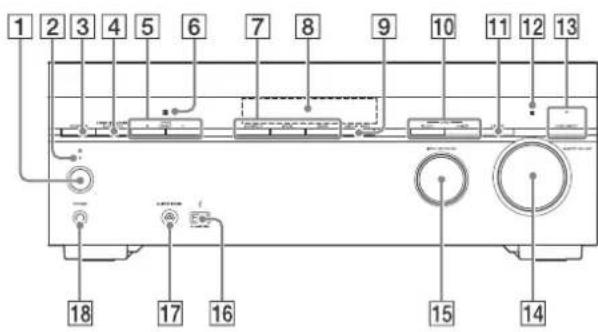
Parts Functions
| 1 | (power) Turns the receiver on or sets it to standby mode (page 14). |
| 2 | Power indicator Lights up according to the status of the receiver. Also, the color of the indicator changes depending on the status of the receiver. For details, see the Help Guide. |
| 3 | SPEAKERS Switches the front speakers to OFF, A, B or A+B. |
| 4 | CONNECTION● PAIRING operates the BLUETOOTH function. BLUETOOTH |
| 5 | TUNER PRESET+/- Selects preset FM stations or channels. |
| 6 | NFC sensor Communicates with NFC-compatible devices by one touch. |
Parts Functions
| 7 | 2CH/MULTI, MOVIE,MUSIC | Selects the sound field you want. For details,see "Selectable sound fields and their effects"(page 19). |
| 8 | Display panel Displays information on the status of thereceiver. | |
| 9 | DISPLAY MODE Displays information on the display panel. | |
| 10 | ZONE SELECT Selects Zone 2, HDMI Zone or both.ZONE POWER Turns on the power of the zone you selectedusing ZONE SELECT. | |
| 11 | DIMMER | Adjusts the brightness of the display panel. |
| 12 | Remote control sensor | Receives signals from the remote control. |
| 13 | PURE DIRECT | Turns on the pure direct function to enjoyhigh fidelity sound. The indicator above thebutton lights up when the Pure Directfunction is activated. |
| 14 | MASTER VOLUME | Turns to adjust the volume level (page 16). |
| 15 | INPUT SELECTOR | Turns to select the input you want watch/listen. |
| 16 | (USB) port | Connect a USB device here. |
| 17 | CALIBRATION MIC jack | Connect the supplied calibration microphonefor "Auto Calibration" to this jack (page 14). |
| 18 | PHONES jack | Connect headphones here. |
Remote Control
![12 HOMI OUT 1 [3D/DVD] SAT/ GAME GA-CD/ CD USB TV WATCH LISTEN FM 13 14 15 16 17 DISPLAY AMP MENU 6 7 8 18 BACK OPTIONS 9 HOME * PRESU: PRESU+ 10 - 19 - 11](/content/2026/03/484527/images/e9708e5ba75475d77cb6e2b1a02441b75a248b4a637fb0405268e40bc8488e32.jpg)
Parts Functions
| 1 | (power) Turns the receiver on or sets it to standby mode (page 14). | |
| 2 | Input buttons Select the device you want to play.When you press any of the input buttons, the receiver turns on. | |
| 3 | BLUETOOTH RX/TX Switches the BLUETOOTH mode of the receiver. (Disabled while the BLUETOOTH function is activated.)In BLUETOOTH RX mode, the receiver receives and outputs audio from the remote device.In BLUETOOTH TX mode, the receiver sends audio to BLUETOOTH headphones/speakers. | |
| 4 | FRONT SURROUND Activates the Front Surround mode, which allows you to enjoy virtual surround sound with only two speakers. | |
| 5 | DSD NATIVE Activates the DSD Native function. You can turn on or off this function only when playback on the source device is stopped. | |
| 6 | AMP MENU Displays the menu on the display panel to operate the receiver. | |
| 7 | ↑/↓/←/→, + | Press ↑/↓/←/→ to select the menu items.Then press to enter the selection(page 15). |
| 8 | OPTIONS Displays items from the options menus(page 17).The menu is not displayed for the TV input. | |
| 9 | HOME Displays the home menu on the TV screen(page 16). | |
| 10 | |◀◀ /▶▶|, ▶-■ Skip, play, pause, stop operation.PRESET+/- | Select preset stations or channels. Press and hold to scan stations automatically. |
| 11 | △ ¤- | Adjusts the volume level (page 16). |
Parts Functions
| 12 | HDMI OUT Switches the output for two monitors connected to the HDMI OUT A (TV) and HDMI OUT B/HDMI ZONE jacks. When [HDMI Out B Mode] is set to [Main] in [HDMI Settings], output is toggled between [HDMI A], [HDMI B], [HDMI A+B] and [HDMI OFF] each time the button is pressed. When [HDMI Out B Mode] is set to [Zone], output is toggled between [HDMI A] and [HDMI OFF] each time the button is pressed. Select [HDMI OFF] to turn off the output for HDMI OUT A (TV) and HDMI OUT B/HDMI ZONE jacks. |
| 13 | WATCH, LISTEN Selects [Watch] or [Listen] on the home menu directly. When pressing these buttons on the Watch or Listen screen, you can move the focus to select the desired input (page 16). |
| 14 | MUSIC SERVICE When you have played the music of Spotify ^213 on the receiver, the music that was played with Spotify ^213 is resumed by pressing MUSIC SERVICE.For detailed operations, see the Help Guide. |
| 15 | CUSTOM PRESET 1 Saves and recalls various settings for the receiver. Press to select the custom preset setting. Press and hold to save the current settings to a preset. |
| 16 | 2CH/MULTI, MOVIE, MUSIC Selects the sound field you want. For details, see "Selectable sound fields and their effects" (page 19). |
| 17 | DISPLAY Press to view information on the TV screen. |
| 18 | BACK Returns to the previous menu or exits a menu or on-screen guide that is displayed on the TV screen (page 17). |
| 19 | Turns off the sound temporarily. Press the button again to restore the sound. |
1) The ▶II and △+ buttons have tactile dots. Use the tactile dots as reference when operating the receiver.
2) Available services may vary depending on your location.
3) Spotify playback using the receiver is limited to Spotify Premium accountholders.
Preparation 1: Preparing the receiver and the remote control
Before starting the following steps, connect speakers and AV devices to the receiver referring to the supplied Startup Guide.
1 Insert batteries into the remote control with correct polarity.
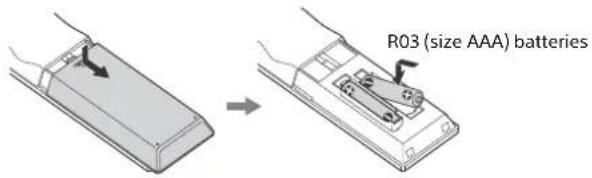
2 Connect the supplied AC power cord (mains lead) to the AC IN terminal on the receiver firmly, then connect the AC power cord (mains lead) to a wall outlet.
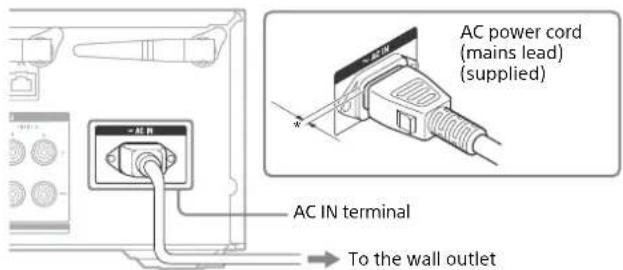
* Space remains between the plug and the rear panel even when the power cord (mains lead) is inserted firmly. The cord is supposed be connected this way. This is not malfunction.
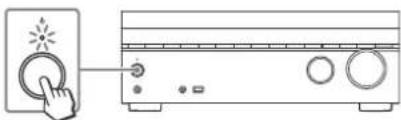
3 Press ⏻ to turn the AV receiver on.
natural_image
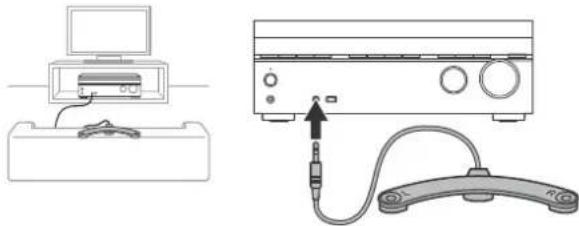
Line drawing of a hand pressing a button on a front panel (no text or symbols)4 Place the calibration microphone at your listening position and set it at the same height as your ears.
The calibration microphone is used for setting the speakers (Auto Calibration) in Preparation 2 (Easy Setup).
natural_image
Diagram showing two connected devices: one with a monitor and cable, the other with a portable device connected via a cable (no text or symbols visible)Note
Fully insert the plug of the calibration microphone into the CALIBRATION MIC jack.
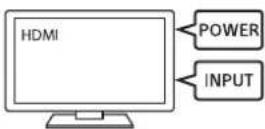
5 Turn the TV on, and then switch the input of the TV to which the receiver is connected.
Preparation 2: Performing Easy Setup
The Easy Setup screen appears on the TV screen when you turn on the receiver for the first time or after the receiver is initialized.
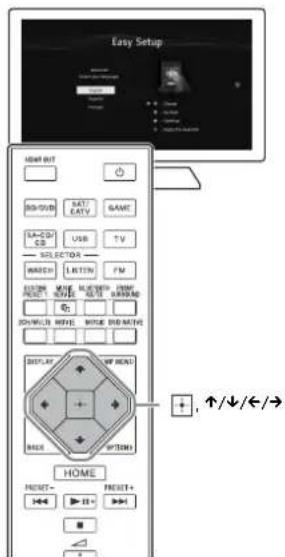
1 Press ↑/↓ to select the language for the messages on the screen, and then press ☐
2 Set up the receiver in accordance with the instructions on the Easy Setup screen.
Notes
- If the Easy Setup screen does not appear or you want to display the Easy Setup screen manually, you can display it by selecting [Setup] - [Easy Setup] from the home menu.
- The speakers emit very loud sound during the calibration and the volume cannot be adjusted. Be considerate of your neighbors and any children who are present.
Enjoying video/sound from the connected device
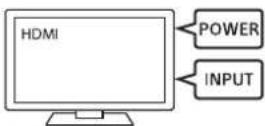
1 Turn on the device you want to play.
2 Turn the receiver on.
3 Turn the TV on, and then switch the input of the TV to which the receiver is connected.
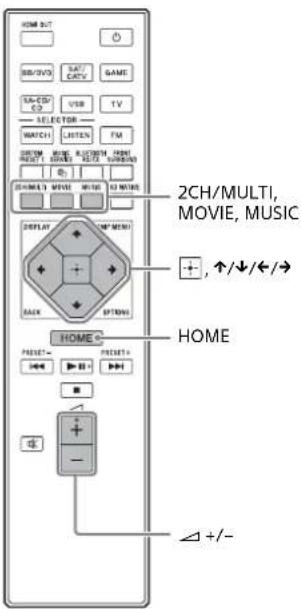
4 Press HOME.
The home menu is displayed on the TV screen.
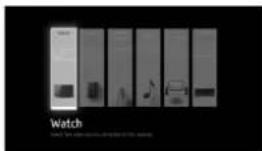
5 Press repeatedly to select [Watch] or [Listen], and then press + .
The menu item list appears on the TV screen.
6 Select the device you want to play and start playback.
7 Press + / - to adjust the volume.
You can also use MASTER VOLUME on the receiver.
8 Press 2CH/MULTI, MOVIE or MUSIC to enjoy the surround sound.
You can also use 2CH/MULTI, MOVIE or MUSIC on the receiver. For details on sound fields, see "Selectable sound fields and their effects" (page 19).
Using the menu on the TV screen
You can display the menu of the receiver on the TV screen.
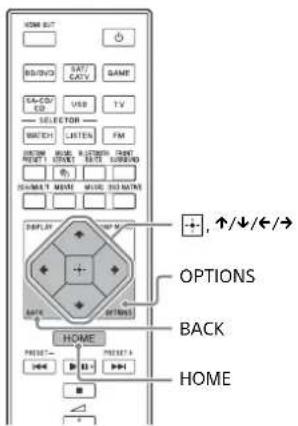
1 Turn the TV on, and then switch the input of the TV to which the receiver is connected.
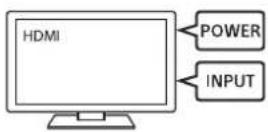
2 Press HOME.
The home menu is displayed on the TV screen.
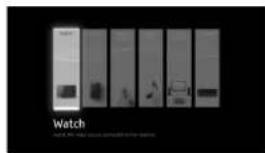
3 Press repeatedly to select the menu you want to use, and then press to enter the menu.
Home menu items
Watch:
Select to display video from the connected device.
Listen:
Select to listen to sound from the connected device.
Custom Preset:
Select to save various settings for the receiver and recall those settings.
Sound Effects:
Select to enjoy sound effects.
Zone Controls\*:
Select to use the multi-zone features.
Setup:
Select to adjust the various settings for the receiver.
* This item is not displayed if [Zone Controls] is set to [Hide] in the [Zone Settings].
Hints
- When [OPTIONS] appears in the lower portion of the TV screen, you can display the function list by pressing OPTIONS and selecting a related function.
• To return to the previous screen, press BACK. - To exit the menu, press HOME to display the home menu, and then press HOME again.
Changing the settings
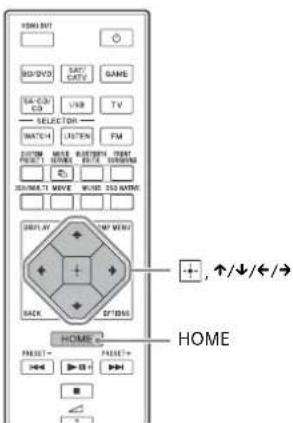
1 Turn the TV on, and then switch the input of the TV to which the receiver is connected.
2 Press HOME.
The home menu is displayed on the TV screen.
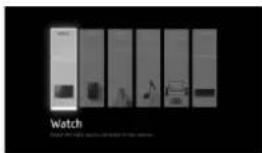
3 Press / repeatedly to select [Setup], and then press □.
4 Select the settings you want to configure.
Example:
To select a sound field
You can select from a variety of sound fields according to speaker connections or input sources. Select [Audio Settings] - [Sound Field].
- 2ch Stereo
- Multi Ch Stereo
- Direct
• Auto Format Decoding - Dolby Surround
- Neural:X
- Front Surround
• Audio Enhancer - Headphone(2ch)*
* available only when headphones are connected to the receiver
For Details on each sound field, visit the Help Guide.
http://rd1.sony.net/help/ha/strza81/h_uc2/
Selectable sound fields and their effects
| Sound field Display panel Effects of the sound field | |||
| 2CH/MULTI | 2ch Stereo | 2CH STEREO | Plays back 2-channel audio signals without adding any surround effect. Monaural and multi-channel audio signals are output after being converted into a 2-channel signal.This sound field is best suited for playing back audio signals as they are from two front speakers only, without adding any virtual surround effect.The sound is output from the front left/right speakers only. There is no sound from the subwoofer. |
| Multi Ch Stereo | MULTI ST. | Outputs sound from all connected speakers. When 2-channel or monaural audio signals are input, the receiver outputs sound from all speakers without adding any surround effect.When multi-channel audio signals are input, sound may not be output from certain speakers depending on the speaker settings or playback content. | |
| Direct DIRECT Plays back all audio signals without adding any surround effect. | |||
| A.F.D. (Auto Format Decoding) | A.F.D. Decodes and plays back audio signals using the optimal processing method according to the audio signal input. | ||
| MOVIE | Dolby Surround | DOLBY SURR | Dolby Surround upmixer expands traditional audio content for playback through any multi-channel speaker configuration, including height speakers.This upmixer is a new and enhanced replacement for the popular Dolby Pro Logic II technology. |
| Neural:X | NEURAL:X | Neural:X remaps stereo, 5.1, and 7.1 movies and music to match your speaker layout. | |
| Front Surround | FRONT SUR. | Reproduces full surround effects with only two front speakers using Sony's virtual signal processing technology. | |
| MUSIC | Audio Enhancer | A. ENHANCER | Upscales existing sound sources to near high-resolution sound quality with DSEE HX (Digital Sound Enhancement Engine HX). This sound field makes you feel as if you are really at the recording studio or concert. DSEE HX only works on 2-channel sound sources with a sampling frequency of 44.1 kHz or 48 kHz input from the following way:USBHome NetworkMusic Service ListBluetoothHowever, it does not work during wireless multiroom playback. |
| Headphones | Headphone(2ch) | HP 2CH | This mode is selected automatically if you use headphones (Other sound fields cannot be selected). Plays back 2-channel audio signals without adding any surround effect. Sound from monaural and multi-channel audio signals are output after being converted into a 2-channel signal. |
Notes
- Depending on the audio format, if you select [Direct] and play a 5.1ch source when surround speakers and two surround back speakers are connected, the same audio as that from surround speakers will be output from surround back speakers, similar to that of a 7.1ch surround system. The sound level of surround and surround back speakers are adjusted automatically for optimum balance.
• Dolby Atmos is decoded as Dolby TrueHD or Dolby Digital Plus when a sound field other than [Multi Ch Stereo], [A.F.D.] or [Dolby Surround] is selected.
Troubleshooting
The following troubleshooting page covers frequently asked questions.
Visit the Help Guide for detailed examples.
http://rd1.sony.net/help/ha/strza81/h_uc2/
You can search by a keyword using the online troubleshooting guide.
If you still cannot find a solution, consult your nearest Sony dealer.
General
The top of the receiver is hot.
→ Phenomenon is specific to this amplifier. This is not a malfunction. If [Control for HDMI] or [Network Standby] is set to [On], or [Standby Through] is set to [On] or [Auto], the power for zone 2 is turned on, the top of the receiver may become hot even while the receiver is in standby mode. This condition occurs because current is flowing in the internal circuits of the receiver, and this is normal.
Video
There is no picture or an unclear picture appears on the TV screen or monitor, regardless of type of picture.
→ Select the appropriate input on the receiver (pages 11, 12).
→ Set your TV to the appropriate input mode.
→ Make sure that cables are correctly and securely connected to equipment.
→ Depending on the playback equipment, equipment may need to be set up. Refer to the operating instructions supplied with the equipment.
→ Set [HDMI Signal Format] of the selected HDMI IN jack to [Standard format] in the [HDMI Settings] menu.
Specific type of image is not output or corrupted.
HDMI output
→ The output of the HDMI video signals of the receiver may be set to [OFF]. In this case, select [HDMI OUT A] or [HDMI OUT B] using the HDMI OUT button on the remote control (page 13).
→ Sony recommends that you use an HDMI authorized cable or HDMI cable made by Sony. Be sure to use High Speed HDMI cables with Ethernet. Premium High Speed HDMI cable with Ethernet, which can support bandwidths of up to 18 Gbps is required for 4K/60p 4:4:4 8 bit and 4K/60p 4:2:0 10 bit, etc.
4K image
→ Depending on the TV or video equipment, 4K images may not be displayed. Check the video capability and setting of your TV or video device. Also, make sure to connect to the receiver to an HDMI input jack of a TV or video equipment supporting 4K. You have to connect an HDMI cable to an HDMI jack that supports HDCP 2.2 when you use a playback device for 4K resolution video content, etc.
HDR
→ HDR images may not be displayed in HDR mode when using certain TVs or video equipment. Check the video capabilities and settings of your TV and video equipment.
→ Some video equipment may not output HDR content in HDR mode if [HDMI Signal Format] is set to [Standard format], even when both the TV and video equipment support HDR and bandwidths of up to 18 Gbps. In this case, set [HDMI Signal Format] for the selected HDMI IN jack to [Enhanced format]. When [Enhanced format] is set as the signal format, use Premium High Speed HDMI Cables with Ethernet, which can support bandwidths of up to 18 Gbps.
Audio
There is no sound, no matter which equipment is selected, or only a very low-level sound is heard.
→ Check that the speakers and equipment are connected correctly.
→ Check that both the receiver and all equipment are turned on.
→ Check that MASTER VOLUME control is not set to [VOL MIN].
→ Check that SPEAKERS is not set to [SPK OFF] (page 11).
→ Try pressing the input button on the remote control to select the equipment of your choice.
The sound lags behind the picture.
→ When you listen to sound from one of the following sources and watch video using the Wireless Multi-Room function, the sound is delayed in order to synchronize it with the sound output from the speakers in another location.
A Devices connected to the HDMI IN, OPTICAL IN, COAXIAL IN, or AUDIO IN jacks
B TVs compatible with the eARC or ARC function and connected to the HDMI OUT A (TV) jack
If the sound lag bothers you, deactivate the synchronization with speakers in another location* by the following procedure.
* If you deactivate the synchronization with other speakers, the sound and video output from the receiver will be synchronized, but the sound output from speakers in another location will be delayed.
If sound is input from Ⓐ:
1 Press OPTIONS.
The options menu appears.
2 Select [Multi-room Sync] - [Off].
If sound is input from Ⓑ:
1 Press AMP MENU.
The menu is displayed on the display panel of the receiver.
2 Press ↑/↓ and + to select [
HDMI input
→ Depending on the playback equipment, equipment may need to be set up. Refer to the operating instructions supplied with the equipment.
Error messages
You can check the status of the receiver by the message. See the following to solve the problem. If any problem persists, consult your nearest Sony dealer.
PROTECTOR
→ The receiver is covered and ventilation holes are blocked. The receiver will automatically turn off after a few seconds. Remove the object covering the upper panel of the receiver and turn on the power again.
→ Irregular current is output to the speakers due to a short circuit on the speaker terminals. The receiver will automatically turn off after a few seconds. If the protective device on the receiver is activated due to a short-circuit problem, turn off the receiver.
Check the connection of the speakers and turn on the power again.
UPDATE FAILED
→ Insert a USB flash drive on which the package file for updating the receiver is saved, and then turn the receiver off and turn it on again.
List of messages after Auto Calibration measurements
Display Explanation
| Code 30 Headphones are connected. Please disconnect the headphones and retry calibration. |
| Code 31 The front speakers are not selected correctly. Select the correct front speaker configuration using SPEAKERS on the front panel of the receiver. Make sure that the receiver outputs sound and then try calibrating again. |
continued
Display Explanation
| Code 32, Code 33 • Sound is not detected from speakers. - Sound is not detected from one or both of the front speakers. Ensure the calibration microphone is not damaged, and is connected to the CALIBRATION MIC jack on the front panel of the receiver, and that all speakers are properly connected. - Sound is not detected from either the left or right surround speakers. Ensure both the surround speakers are connected to the SURROUND terminals. - A surround back speaker is connected only to the SURROUND BACK/HEIGHT R terminals. If connecting only one surround back speaker, connect it to the SURROUND BACK/HEIGHT L terminals. - Sound is not detected from either the left or right height speakers. Ensure both the height speakers are connected to the SURROUND BACK/HEIGHT terminals. • Sound is not detected from any speakers. Please ensure the calibration microphone is not damaged and is connected to the CALIBRATION MIC jack on the front panel of the receiver. | |
| Code 34 The speakers are not placed in the proper positions. The left and right speakers or the left and right sides of the calibration microphone may be switched. | |
| Code 35 The speaker pattern configuration does not match calibration result. Please check the speaker pattern and connection. | |
| Warning 40 The measurement has been completed, but the noise level is high. For best results, calibrate in as quiet a place as possible. | |
| Warning 41, Warning 42 | The input signal from the calibration microphone is too large. The microphone may be too close to the speakers. Please place the calibration microphone at your desired listening position. Please note, when using the receiver as a pre-amplifier, this message may appear by mistake. Please disregard. |
| Warning 43 The distance and phase of the subwoofer cannot be detected. Please check the subwoofer and re-calibrate in a quiet environment. | |
| Warning 44 The measurement has been completed, but the speaker may need to be re-positioned. Please see “Installing speakers” in the Help Guide. | |
Specifications
AUDIO POWER SPECIFICATIONS
POWER OUTPUT AND TOTAL HARMONIC DISTORTION:
With 6 ohm loads, both channels driven, from 20 Hz – 20,000 Hz; rated 90 watts per channel minimum RMS power, with no more than 0.09% total harmonic distortion from 250 milliwatts to rated output.
Amplifier section ^1) 2)
Rated Power Output at Stereo Mode (6 ohms, 20 Hz - 20 kHz, THD 0.09%): 90W + 90 W
Reference Power Output at Stereo Mode (8 ohms, 20 Hz - 20 kHz, THD 0.09%): 70W + 70 W
Reference Power Output (6 ohms, 1 kHz, THD 0.9%) FRONT: 110 W + 110 W CENTER: 110 W SURROUND: 110 W + 110 W SURROUND BACK: 110 W +
Reference Power Output (8 ohms, 1 kHz, THD 0.9%) FRONT: 100 W + 100 W CENTER: 100 W SURROUND: 100 W + 100 W SURROUND BACK: 100 W +
Reference Power Output at Surround Mode ^3) (6 ohms, 1 kHz, THD 0.9%): 140 W per channel
1) Measured under the following conditions: Power requirements: 120 V AC, 60 Hz
2) Depending on the sound field settings and the source, there may be no sound output.
3) Reference power output for front, center, surround, surround back speakers.
Frequency response
Analog 10 Hz – 100 kHz, ±3dB (When [Direct] is being used and an analog input is selected.)
Input
Analog Sensitivity: 500 mV/50 kilohms S/N ^4) : 105 dB (A, 500 mV ^5) )
Digital (Coaxial) Impedance: 75 ohms S/N: 100 dB (A, 20 kHz LPF)
Digital (Optical) S/N: 100 dB (A, 20 kHz LPF)
Output (Analog)
ZONE 2 Voltage: 2 V/1 kilohm
SUBWOOFER Voltage: 2 V/1 kilohm
Equalizer
Gain levels ±10 dB, 1 dB step
4) INPUT SHORT (with sound field and equalizer bypassed)
5) Weighted network, input level
FM tuner section
Tuning range 87.5 MHz – 108.0 MHz (100 kHz step) Antenna (aerial) FM wire antenna (aerial) Antenna (aerial) terminals 75 ohms, unbalanced
Video section
Inputs/Outputs Video: 1 Vp-p, 75 ohms
continued
HDMI Input/Output (HDMI Repeater block)
- The HDMI OUT and HDMI IN jacks (except the HDMI IN VIDEO 1 jack) support bandwidth up to 18 Gbps. The HDMI IN VIDEO 1 jack supports bandwidth up to 9 Gbps.
- All HDMI jacks on the receiver support 4K, HDCP 2.2, ITU-R BT.2020 wide color spaces, 3D, Deep Color (Deep Colour), and HDR (High Dynamic Range) contents pass-through.
• The HDMI OUT A (TV) jack supports eARC and ARC. - HDCP 2.2 is newly enhanced copyright protection technology that is used to protect content such as 4K movies.
- BT.2020 color space is new wider color standard that is defined for ultra-high definition television systems.
- HDR is an emerging video format that can display a wider range of brightness levels. This receiver supports HDR10, HLG (Hybrid Log-Gamma), and Dolby Vision.
Supported video formats
| Format 2D | 3D | |||
| Frame packing | Side-by-Side (Half) | Over-Under (Top-and-Bottom) | ||
| 4096 × 2160p @ 59.94/60 Hz | ○* | - | - | - |
| 4096 × 2160p @ 50 Hz | ○* | - | - | - |
| 4096 × 2160p @ 29.97/30 Hz | ○** | - | - | - |
| 4096 × 2160p @ 25 Hz | ○** | - | - | - |
| 4096 × 2160p @ 23.98/24 Hz | ○** | - | - | - |
| 3840 × 2160p @ 59.94/60 Hz | ○* | - | - | - |
| 3840 × 2160p @ 50 Hz | ○* | - | - | - |
| 3840 × 2160p @ 29.97/30 Hz | ○** | - | - | - |
| 3840 × 2160p @ 25 Hz | ○** | - | - | - |
| 3840 × 2160p @ 23.98/24 Hz | ○** | - | - | - |
| 1920 × 1080p @ 59.94/60 Hz | ○ | - | ○ | ○ |
| 1920 × 1080p @ 50 Hz | ○ | - | ○ | ○ |
| 1920 × 1080p @ 29.97/30 Hz | ○ | ○ | ○ | ○ |
| 1920 × 1080p @ 25 Hz | ○ | ○ | ○ | ○ |
| Format 2D | 3D | |||
| Frame packing | Side-by-Side (Half) | Over-Under (Top-and-Bottom) | ||
| 1920 × 1080p @ 23.98/24 Hz | ○ | ○ | ○ | ○ |
| 1920 × 1080i @ 59.94/60 Hz | ○ | ○ | ○ | ○ |
| 1920 × 1080i @ 50 Hz | ○ | ○ | ○ | ○ |
| 1280 × 720p @ 59.94/60 Hz | ○ | ○ | ○ | ○ |
| 1280 × 720p @ 50 Hz | ○ | ○ | ○ | ○ |
| 1280 × 720p @ 29.97/30 Hz | ○ | ○ | ○ | ○ |
| 1280 × 720p @ 23.98/24 Hz | ○ | ○ | ○ | ○ |
| 720 × 480p @ 59.94/60 Hz | ○ | - | - | - |
| 720 × 576p @ 50 Hz | ○ | - | - | - |
| 640 × 480p @ 59.94/60 Hz | ○ | - | - | - |
* If you use YCbCr 4:4:4/YCbCr 4:2:2/RGB 4:4:4 or YCbCr 4:2:0 deep color (10 bit or 12 bit) of these video formats, be sure to use HDMI IN jacks except the HDMI IN VIDEO 1 jack, and Premium High Speed HDMI Cables with Ethernet, which can support bandwidth up to 18 Gbps. For details, see the Help Guide.
** If you use deep color (10 bit or 12 bit) of these video formats, be sure to use HDMI IN jacks except the HDMI IN VIDEO 1 jack, and Premium High Speed HDMI Cables with Ethernet, which can support bandwidth up to 18 Gbps. For details, see the Help Guide.
Supported digital audio formats
| Digital audio format | Maximum number of decoded channels | Connection with the receiver |
| Dolby Digital [DOLBY D] | 5.1 | COAXIAL/OPTICAL, HDMI, eARC, ARC |
| Dolby Digital Plus [DOLBY D +]1 | 7.1 | HDMI, eARC, ARC |
| Dolby TrueHD [DOLBY HD]1 | 7.1 | HDMI, eARC |
| Dolby Atmos - Dolby Digital Plus [DAtmos]1, 2 | 5.1.2, 7.1 or 7.1.23 | HDMI, eARC, ARC |
| Dolby Atmos - Dolby TrueHD [DAtmos]1, 2 | 5.1.2, 7.1 or 7.1.23 | HDMI, eARC |
| DTS [DTS] 5.1 COAXIAL/OPTICAL, | HDMI, eARC, ARC | |
| DTS-ES Discrete [DTS-ES Dsc] 6.1 COAXIAL/OPTICAL, | HDMI, eARC, ARC | |
| DTS-ES Matrix [DTS-ES Mtx] 6.1 COAXIAL/OPTICAL, | HDMI, eARC, ARC | |
| DTS 96/24 [DTS 96/24] 5.1 COAXIAL/OPTICAL, | HDMI, eARC, ARC | |
| DTS-HD High Resolution Audio [DTS-HD HR] ^1) | 7.1 HDMI, eARC | |
| DTS-HD Master Audio [DTS-HD MA] ^1) | 7.1 HDMI, eARC | |
| DTS:X [DTS:X] ^1) | 5.1.2, 7.1 or 7.1.2 ^3) | HDMI, eARC |
| DTS:X Master Audio [DTS:X MA] ^1) | 5.1.2, 7.1 or 7.1.2 ^3) | HDMI, eARC |
| DSD [DSD] ^1),4) | 5.1 HDMI | |
| Multi Channel Linear PCM [PCM] ^1) | 7.1 HDMI, eARC |
1) Audio signals are output in another format if the playback device does not correspond to the actual format. For details, refer to the operating instructions of the playback device.
2) Dolby Atmos is decoded as Dolby Digital Plus or Dolby TrueHD if the speaker pattern is set to 2.0, 2.1, 3.0, 3.1, 4.0, 4.1, 5.0 or 5.1.
3) Available only when [SpeakerRelocation/PhantomSurroundBack] is set to [Type A] or [Type B].
4) This format is not output to wireless headphones.
iPhone/iPad/iPod section
BLUETOOTH technology works with iPhone 7, iPhone 7 Plus, iPhone SE, iPhone 6s, iPhone 6s Plus, iPhone 6, iPhone 6 Plus, iPhone 5s, iPhone 5c, iPhone 5, iPhone 4s, and iPod touch (5th and 6th generation).
AirPlay works with iPhone, iPad, and iPod touch with iOS 4.3.3 or later, Mac with OS X Mountain Lion or later, and PC with iTunes 10.2.2 or later.
You can use "SongPal" app with this receiver via BLUETOOTH or network connection.
iPhone/iPad/iPod playback via ♂ (USB) port is not possible.
USB section
(USB) port: Type A (For connecting USB flash drive)
Maximum current 1 A
Network section
Ethernet LAN 100BASE-TX*
Wireless LAN Compatible standards: IEEE 802.11 a/b/g/n Security: WPA/WPA2-PSK, WEP Radio frequency: 2.4 GHz, 5 GHz
* We recommend using a Category 7 cable.
playable types of audio files
Codec Extension
| MP3 (MPEG-1 Audio Layer III) ^1 | .mp3 |
| AAC/HE-AAC ^1,2 | .m4a, .aac ^3 , .mp4 ^3 , .3gp ^3 |
| WMA9 Standard ^2 | .wma |
| WMA10 Pro ^3,4 | .wma |
| LPCM ^1 | .wav |
| FLAC ^2 | .flac, .fla |
| Dolby Digital ^1,3 | .ac3 |
| DSF ^2 | .dsf |
| DSDIFF ^2,5 | .dff |
| AIFF ^2 | .aiff, .aif |
| ALAC ^2 | .m4a |
| Vorbis .ogg | |
| Monkey's Audio .ape |
1) The receiver can play ".mka" files. These files cannot be played on a home network server.
2) The receiver may not play this file format on a home network server.
3) The receiver does not play this file format on a home network server.
4) The receiver does not play Lossless coded files.
5) The receiver does not play DST encoded files.
continued
Notes
- Some files may not play depending on the file format, the file encoding, the recording condition, or the home network server condition.
- Some files edited on a PC may not play.
- Fast forward or fast reverse may not be available with some files.
•The receiver does not play coded files such as DRM.
- The receiver can recognize the following files or folders in USB devices: - up to folders in the 9th layer (including the root folder)
- up to 500 files/folders in a single layer
•The receiver can recognize the following files or folders stored in the home network server:
- up to folders in the 19th layer - up to 999 files/folders in a single layer
- Some USB devices may not work with this receiver.
- The receiver can recognize Mass Storage Class (MSC) devices (such as flash drive or an HDD) and 101-key keyboards.
BLUETOOTH section
Communication system BLUETOOTH Specification version 4.1
Output BLUETOOTH Specification Power Class 1
Maximum communication range Line of sight approx. 30 m (98.4 feet) ^1)
Frequency band 2.4 GHz band (2.4000 GHz - 2.4835 GHz)
Modulation method FHSS (Freq Hopping Spread Spectrum)
Compatible BLUETOOTH profiles ^2 : A2DP 1.2 (Advanced Audio Distribution Profile) AVRCP 1.5 (Audio Video Remote Control Profile)
Supported Codecs ^3) SBC ^4) , AAC, LDAC
Transmission range (A2DP) 20 Hz – 40,000 Hz (LDAC sampling frequency 96 kHz with 990 kbps transmission) 20 Hz – 20,000 Hz (Sampling frequency 44.1 kHz)
1) The actual range will vary depending on factors such as obstacles between devices, magnetic fields around a microwave oven, static electricity, cordless phone, reception sensitivity, antenna's performance, operating system, software application, etc.
2) BLUETOOTH standard profiles indicate the purpose of BLUETOOTH communication between devices.
3) Codec: Audio signal compression and conversion format
4) Subband Codec
General
Power requirements 120 V AC, 60 Hz
Power consumption 240 W
Standby mode: 0.5 W
(When [Control for HDMI], [Standby Through], [Remote Start], [Bluetooth Standby], [Network Standby] and all zone power are set to [Off].)
Bluetooth Standby mode: 2.5 W
(When [Bluetooth Standby] is set to [On], and [Control for HDMI], [Standby Through], [Remote Start], [Network Standby] and all zone power are set to [Off].)
Dimensions (Approx.) 430 mm × 156 mm × 331 mm (17 in × 6 14 in × 13 18 in) (width/height/depth) including projecting parts and controls
Mass (Approx.) 9.1 kg (20 lb 1 oz)
Supplied accessories
Operating Instructions (this manual)
Startup Guide (1)
Calibration microphone (1)
FM wire antenna (aerial) (1)
AC power cord (mains lead) (1)
Remote control (1)
R03 (size AAA) batteries (2)
Design and specifications are subject to change without notice.
Communication BLUETOOTH
Plage de communication effective
natural_image
Diagram showing a hand pressing a button next to a front panel with buttons and indicator lights (no text or symbols)natural_image
Diagram showing a computer setup with an attached device and a connected audio device (no text or symbols present)Remarque
Section iPhone/iPad/iPod
FHSS (Freq Hopping Spread Spectrum)
Profils BLUETOOTH compatibles ^2)
A2DP 1.2 (Advanced Audio Distribution Profile)
AVRCP 1.5 (Audio Video Remote Control Profile)
Codecs pris en charge ^3)
SBC ^4) , AAC, LDAC
Plage de transmission (A2DP)
(Lorsque [Control for HDMI], [Standby Through], [Remote Start],
natural_image
Line drawing of a toaster front panel with a hand pressing the button (no text or symbols)continuación
natural_image
Diagram showing a computer setup with an attached device and a connected audio device (no text or symbols present)Nota
- 2ch Stereo
- Multi Ch Stereo
- Direct
• Auto Format Decoding - Dolby Surround
- Neural:X
- Front Surround
- Audio Enhancer
- Headphone(2ch)*
(Cuando [Control for HDMI], [Standby Through], [Remote Start],