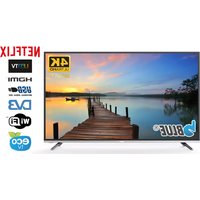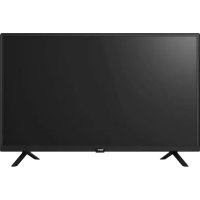
BL40G6FHDT2 - TV Blue - Free user manual and instructions
Find the device manual for free BL40G6FHDT2 Blue in PDF.


| Product type | LED TV |
| Brand | Blue |
| Model | BL40G6FHDT2 |
| Screen size (diagonal) | 40 inches (102 cm) |
| Resolution | Full HD (1920 x 1080 pixels) |
| Net weight | 5.7 kg |
| Power supply | 100-240 V~, 50/60 Hz |
| Connectors | 3x HDMI (1 with ARC), 2x USB (5V=500mA), 1x AV, 1x antenna (ANT1), 1x satellite (ANT2), 1x CI, 1x optical digital audio output |
| TV reception | DVB-T, DVB-C, DVB-S/S2 |
| Main functions | Media player (photo, music, video, text), teletext, EPG, parental control, sleep timer, hotel mode |
| Maintenance and cleaning | Turn off and unplug before cleaning; screen: soft cloth slightly damp (warm water + fabric softener); cabinet: soft dry cloth |
| Safety | System lock with password (default 0000), parental control, automatic shutdown if no signal |
| Spare parts and repairability | Use only parts specified by the manufacturer; entrust repairs to a qualified technician |
| General information | Compliant with CE standards; operating temperature: 5°C to 35°C; humidity ≤80%; storage: -15°C to 45°C, humidity ≤90% |
| Supplied accessories | Remote control (AAA batteries included), power cable, stand (base) not mentioned but probable |
| Energy consumption | Not specified in the manual; estimated ≤ 75 W in operation, < 0.5 W in standby |
Frequently Asked Questions - BL40G6FHDT2 Blue
User questions about BL40G6FHDT2 Blue
0 question about this device. Answer the ones you know or ask your own.
Ask a new question about this device
Download the instructions for your TV in PDF format for free! Find your manual BL40G6FHDT2 - Blue and take your electronic device back in hand. On this page are published all the documents necessary for the use of your device. BL40G6FHDT2 by Blue.
USER MANUAL BL40G6FHDT2 Blue
Please read this manual carefully before operation.
Warning
DEAR CUSTOMER:
Before operating, please read all these safety and operating instructions completely and then retain this manual for future reference.
Always comply with the following precautions to avoid dangerous situations and ensure peak performance of your product.

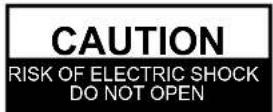

WARNING:
TO REDUCE THE RISK OF ELECTRIC SHOCK DO NOT REMOVE COVER (OR BACK). NO USER SERVICEABLE PARTS INSIDE. REFER TO QUALIFIED SERVICE PERSONNEL.

The lightning flash with arrowhead symbol, within an equilateral triangle is intended to alert the user to the presence of uninsulated “dangerous voltage” within the products enclosure that may be of sufficient magnitude to constitute a risk of electric shock.

The exclamation point within an equilateral triangle is intended to alert the user to the presence of important operating and maintenance (servicing) instructions in the literature accompanying the appliance.
REGULATORY INFORMATION
This equipment generates uses and can radiate radio frequency energy and, if not installed and used in accordance with the instructions, may cause harmful interference to radio communication. However, there is no guarantee that interference will not occur in a particular installation. If this equipment does cause harmful interference to radio or television reception, which can be determined by turning the equipment off and on, the user is encouraged to try to correct the interference by one or more of the following measures:
a. Relocate the receiving antenna.
b. Increase the separation between the equipment and receiver.
c. Connect the equipment into an outlet on a circuit different from that to which the receiver is connected.
d. Consult the dealer or experienced radio/TV technician for help.
CAUTION
※ Do not attempt to modify this product in any way without written authorization from supplier. Unauthorized modification could void the user's authority to operate this product.
※ Figures and illustrations in this User Manual are provided for reference only and may differ from actual product appearance. Product design and specifications may be changed without notice.
IMPORTANT WARNINGS AND CAUTIONS!
Electrical energy can perform many useful functions, but it can also cause personal injuries and property damage if improperly handled. This product has been engineered and manufactured with the highest priority on safety. BUT IMPROPER USE CAN RESULT IN POTENTIAL ELECTRICAL SHOCK OR FIRE HAZARD. In order to prevent potential danger, please observe the following instructions when installing, operating and cleaning the product.
- Attachments---Only use attachments/accessories specified by the manufacturer. Do not use attachments not recommended by the manufacturer. Use of improper attachments can result in accidents.
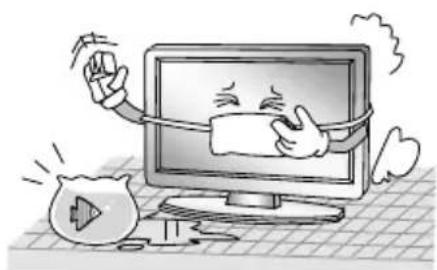
- Water--- To reduce the risk of fire or electric shock, do not expose this apparatus to rain or moisture. The apparatus shall not be exposed to dripping or splashing and that objects filled with liquids, such as vases, shall not be placed on apparatus.
- Fire or explosion---Do not use or store flammable or combustible materials near the unit. Doing so may result in fire or explosion. Do not place any naked flame sources, such as lit candles, cigarettes or incense sticks on top of the TV set. Warning: To prevent the spread of fire, keep candles or other open flames away from this product at all times.
- Ventilation---When you install your TV, maintain a distance of at least 4 inches between the TV and other objects (walls, cabinet sides, etc.) to ensure proper ventilation. Failing to maintain proper ventilation may result in a fire or a problem with the product caused by an increase in its internal temperature.
- Power source ---This product is intended to be supplied by a listed power supply indicated on the marking label. If you are not sure of the type of power supply to your home, consult your product dealer or local power company.
- Overloading ---Do not overload wall outlets, extension cables, or convenience receptacles on other equipment as this can result in a risk of fire or electric shock.
- Voltage---Before installing this TV set, make sure your outlet voltage corresponds to the voltage stated on the appliance rating label.
- Power plug --- Do not defeat the safety purpose of the polarized or grounding-type plug. Most appliances recommend they be placed upon a dedicated circuit; that is, a single outlet circuit which powers only that appliance and has no additional outlets or branch circuits.
Warning
- The MAINS plug of the apparatus is used as the disconnect device, the disconnect device shall remain readily operable.
- Wall mounting---When mounting the product on a wall, be sure to install the product according to the method recommended by the manufacturer. This is a safety feature.
- Stand--- Do not place the product on an unstable trolley, stand, tripod or table. Placing the product on an unstable base can cause the product to fall, resulting in serious personal injuries as well as damage to the product.
Always place the TV on furniture that can safely support the TV. Make sure the ends of the TV do not overhang the edge of the supporting furniture.
- Entering of objects and liquids---Never insert an object into the product through vents or openings. High voltage flows in the product, and inserting an object can cause electric shock and/or short internal parts. For the same reason, do not spill water or liquid on the product.
- Damage requiring service--- This unit should only be serviced by an authorized and properly trained technician. Opening the cover or other attempts by the user to service this unit may result in serious injury or death from electrical shock, and may increase the risk of fire.
- Replacement parts---In case the product needs replacement parts, make sure that the service person uses replacement parts specified by the manufacturer, or those with the same characteristics and performance as the original parts. Use of unauthorized parts can result in fire, electric shock and/or other danger.
- Safety checks---Upon completion of service or repair work, request the service technician to perform safety checks to ensure that the product is in proper operating condition.
- Children ---Do not allow young children to play with the plastic bag that came with the television when you unpacked it. Failure to do so can result in suffocation, causing injury.
- Batteries---The batteries (battery pack or batteries installed) shall not be exposed to excessive heat such as sunshine, fire or the like.
- Antenna ---Install the antenna away from high-voltage power lines and communication cables and make sure it is installed securely. If the antenna touches a power line, contact with the antenna could result in fire, electric shock or serious injury.
- Panel protection- The panel used in this product is made of glass. Therefore, it can break when the product is dropped or impacted upon by other objects. Be careful not to be injured by broken glass pieces in case the panel breaks.
- Operating Temperature: 5°C to 35°C Operating Humidity: ≤80%
Storage Temperature: -15°C to 45°C Storage Humidity: ≤90%
Safety Instructions
IMPORTANT SAFETY INSTRUCTIONS
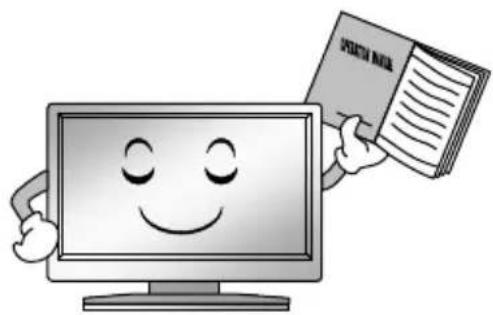
- Read these instructions.
- Keep these instructions.
- Heed all warnings.
- Follow all instructions.
natural_image
Cartoon illustration of a smiling computer monitor holding a book titled 'STOCK MEA' (no text on screen or background)-
Do not use this apparatus near water.
-
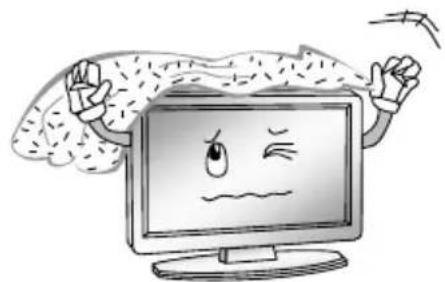
Do not block any ventilation openings. Ventilation should not be impeded by covering the ventilation openings with items such as newspapers, table-cloths, curtains etc.
natural_image
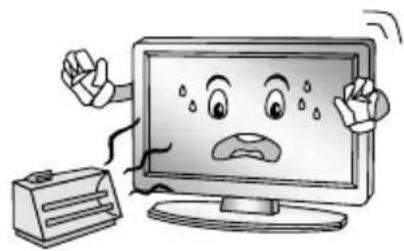
Cartoon illustration of a computer monitor with a sad face and raised arms, surrounded by abstract brain-like shapes (no text or symbols)- Do not install near any heat source such as radiators, heat registers, stoves, or other apparatus (including amplifiers) that produce heat.
natural_image
Cartoon illustration of a computer monitor with hands holding a document, surrounded by a money bag and a coffee bean (no text or symbols)- Clean only with a dry cloth. Unplug this product from the wall outlet before cleaning. Do not use liquid cleaners or aerosol cleaners.
natural_image
Cartoon illustration of a computer monitor with a sad face and two hands, one holding a megaphone and the other gesturing with steam (no text or symbols)- Do not defeat the safety purpose of the polarized or grounding type plug. A polarized plug has two blades with one wider than other. A grounding type plug has two blades and a third grounding prong. The wide blade or the third prong is provided for your safety. When the provided plug does not fit into your outlet, consult an electrician for replacement of the obsolete outlet.

natural_image
Illustration of a smiling man presenting to a computer monitor with an electrical plug (no text or symbols)Safety Instructions
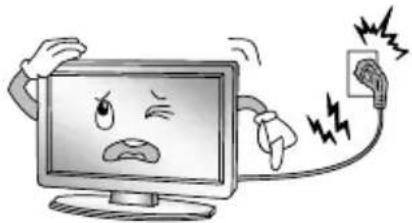
- Protect the power cord from being walked on or pinched particularly at plugs, convenience receptacles, and the point where they exit from the apparatus.
natural_image
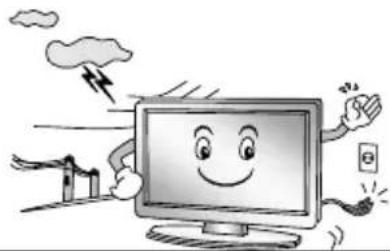
Cartoon illustration of a computer monitor with an angry face and power plug, showing stress or shock (no text or symbols)- For added protection for this product during a lightning storm, or when it is left unattended and unused for long periods of time, unplug it from the wall outlet and disconnect the cable system.
natural_image
Cartoon illustration of a smiling computer monitor with hands and a lightning bolt, surrounded by wind turbines and clouds (no text or symbols)-
Educate children about the dangers of climbing on furniture to reach TV controls.
-
When a cart is used, use caution when moving the cart/apparatus combination to avoid injury from tip-over. Sudden stops, excessive force and uneven floor surfaces can cause the product to fall from the trolley.

natural_image
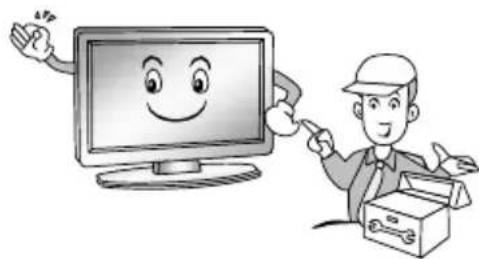
Symbolic icon of a person climbing a ladder inside a circle with a diagonal line (no text or symbols)- Refer all servicing to qualified service personnel. Servicing is required when the apparatus has been damaged in any way, such as power supply cord or plug is damaged, liquid has been spilled or objects have fallen into the apparatus, the apparatus has been exposed to rain or moisture, does not operate normally, or has been dropped.
natural_image
Illustration of a smiling computer monitor and a worker pointing at a box (no text or symbols)NOTE:
※ Disposal of this product must be carried out in accordance to the regulations of your local authority. Do not dispose of this product with general household waste disposal.
※ Occasionally, a few non-active pixels may appear on the screen as a fixed point of blue, green or red. Please note that this does not affect the performance of your product.
※ Avoid touching the screen or holding your finger(s) against it for long periods of time. Doing so may produce some temporary distortion effect on the screen.
※ It is not recommended to keep a certain still image displayed on the screen for a long time as well as displaying extremely bright images on screen, reduce the ‘brightness’ and ‘contrast’ when displaying still images.
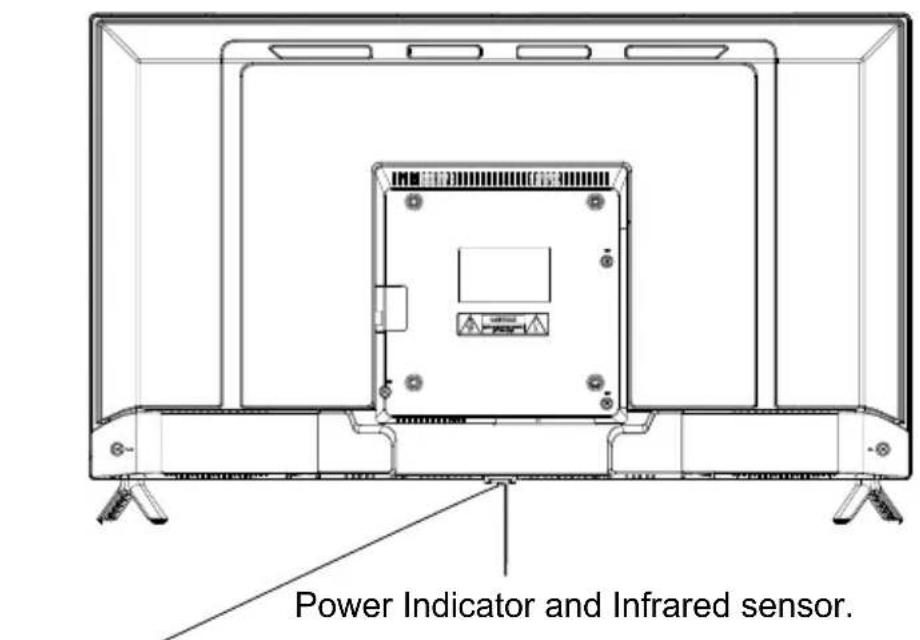
text_image
Power Indicator and Infrared sensor.Short press to turn on the TV, then short press to open WKH□6 RXUFH□0 HQX□Long press to turn off the TV.
text_image
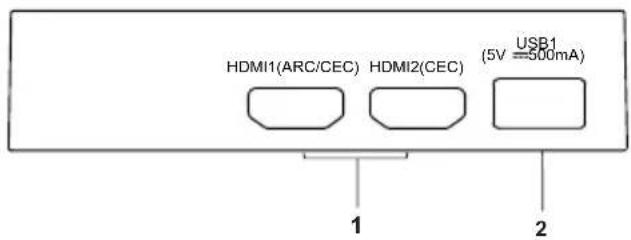
HDMI1(ARC/CEC) HDMI2(CEC) USB1 (5V=500mA) 1 2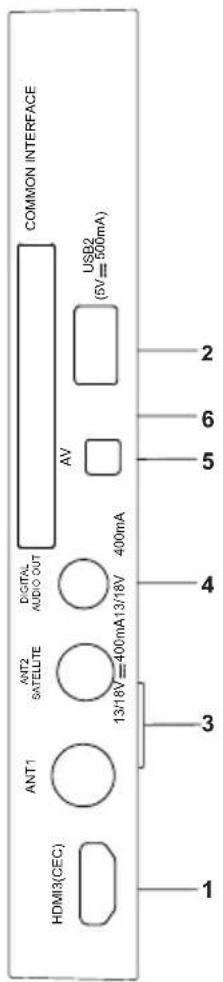
text_image
COMMON INTERFACE DIGITAL AUDIO OUT AV USB2 (5V=500mA) ANT2 SATELLTE 400mA 13/18V=400mA13/18V ANT1 HDMI3(CEC) 1 2 6 5 4 3 1- HDMI port (HDMI1 supports ARC function).
- USB port
- Antenna input
- Digital audio out
- AV input
- COMMON INTERFACE slot
NOTE: Input / Output connectivity options may change from model to model.
Connection and setup
Connection Installation
Before the installation and use, please read carefully the relevant content in "Warning and Safety instructions".
HDMI: Support AV devices with an HDMI connector (such as set top box, DVD player, digital TV set, etc.). HDMI is also called as high definition multimedia interface, and it can transmit digital audio and video signal with one cable.
NOTE:
◆ HDMI 1 (supports ARC function)
ARC: (Audio Return Channel) Adopted in TV output of digital audio, can be connected to the device supporting ARC, transmit the TV sound to the device.
ANT: Used to connect the antenna and receive signals of the external antenna.
COMMON INTERFACE: Please insert CI card into the COMMON INTERFACE slot according to the arrow on the CI card.
DIGITAL AUDIO OUT: Sending the TV's digital audio signal to external audio equipment via the Digital Audio Output port.
USB: Connect a USB Storage device and multimedia file playback.
AV IN: The output AV terminal of DVD can be connected with the AV input port of the TV through AV cable.
NOTE:
- If AV works as mini terminal, please choose to use a one-to-three audio & video cable.
NOTE:
※ The range of power input for the TV is 100-240V\~50/60Hz; Do not connect the TV power input port with the power cable out of the above range.
※ Before connecting to an external device, please firstly make sure that the TV set and the external device have been turned off. When connecting, please make reference to the interface name and the interface color to connect the signal cable.
※ Please hold the insulated part of the plug when you are unplugging the power cable, do not touch directly the metallic part of the cable.
Getting Started
Using the Remote Control
When using the remote control, aim it at remote sensor on the television. If there is an object between the remote control and the remote sensor on the unit, the unit may not operate.
◆ Point the remote control at the REMOTE SENSOR located on the television.
- When using this television in a very brightly lit area, the infrared REMOTE CONTROL SENSOR may not work properly.
◆ The recommended effective distance for using the remote control is about 7 meters.
Installing Batteries in the Remote Control
-
Open the cover at the back of the remote control.
-
Install two AAA size batteries. Make sure to match the “+” and “-” ends of the batteries with the diagram inside the compartment.
-
Replace the cover.
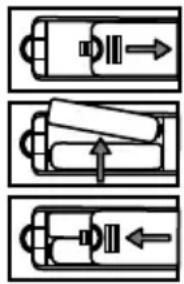
natural_image
Three schematic diagrams of a battery-like device with internal components and directional arrows (no text or labels)Battery Replacement
You will need to install the batteries into the remote control to make it operate following the instruction below.
When the batteries become weak, the operating distance of the remote control will be greatly reduced and you will need to replace the batteries.
Notes on Using Batteries:
The use of the wrong type of batteries may cause chemical leakage and/or explosion.
Please note the following:
◆ Always ensure that the batteries are inserted with the + and - terminals in the correct direction as shown in the battery compartment.
- Different types of batteries have different characteristics. Do not mix different types.
- Do not mix old and new batteries. Mixing old and new batteries will shorten battery life and/or cause chemical leakage.
◆ Replace batteries as soon as they do not work.
- Chemicals which leak from batteries may cause skin irritation. If any chemical matter seeps out of the batteries, wipe it up immediately with a dry cloth.
- The batteries may have a shorter life expectancy due to storage conditions. Remove the batteries whenever you anticipate that the remote control will not be used for an extended period.
- The batteries (battery pack or batteries installed) shall not be exposed to excessive heat such as sunshine, fire or the like.
CAUTION:
- It may result in an explosion if batteries are replaced incorrectly.
- Only replace batteries with the same or equivalent type.
Remote Control
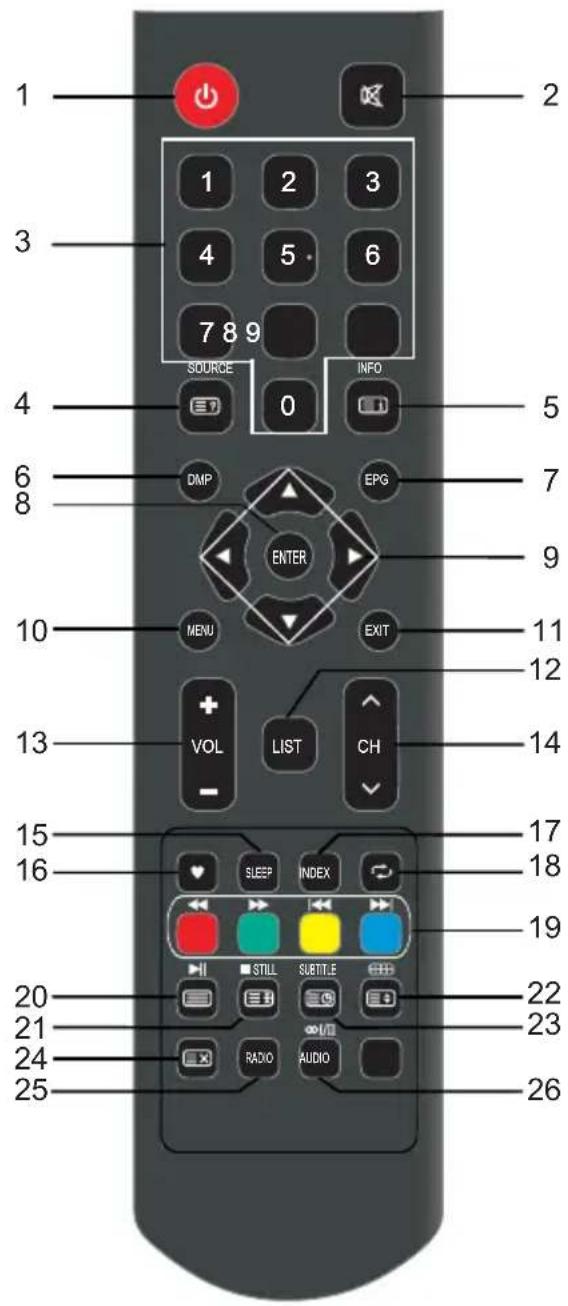
The buttons of the original remote control are as following:
text_image
1 2 3 4 5 6 7 8 9 SOURCE INFO 0 4 5 6 DMP EPG ENTER 8 9 10 MENU EXIT 11 12 13 VOL LIST CH - 14 15 16 SLEEP INDEX 17 18 19 20 STILL SUBTITLE 21 22 23 24 RADIO AUDIO 25 26Definition of the buttons on remote control:
-
: Power, Press to enter or exit the standby mode.
-
☒: Mute or restore sound.
-
NUMBER BUTTONS Choose channels or password importation.
-
SOURCE: Press to select signal source. ☐?: Reveal the hidden information of some teletext pages.
-
INFO: display the current program information on the screen: Go to the index page.
-
DMP: Press to switch to the Media source.
-
EPG: Electronic Program Guide, using the DTV mode.
-
ENTERSelect or confirm menu item.
-
▲/▼/◄/►: Press the direction buttons to select menu options or settings.
-
MENSUPress to display/disappear the on screen menus or to quit some operations.
11 EXIT: Quit the current interface.
-
LIST: Press to call up the channel lis Press again to exit it.
-
☐VOL+/VOL-: Press to adjust the vone level up or down.
-
CHN/CHN: Press to select channels in ascending or descending order.
-
SLEEP: Press to set the sleep timer. When the preset length of time has passed, the TV set enters standby.
-
♥: Switch on/off the favorite programs list.
-
INDEX: Change the list by TIMER or CHANNEL. (In PROGRAMME GUIDE menu)
-
⇧: Return to last viewed program.
Remote Control
text_image
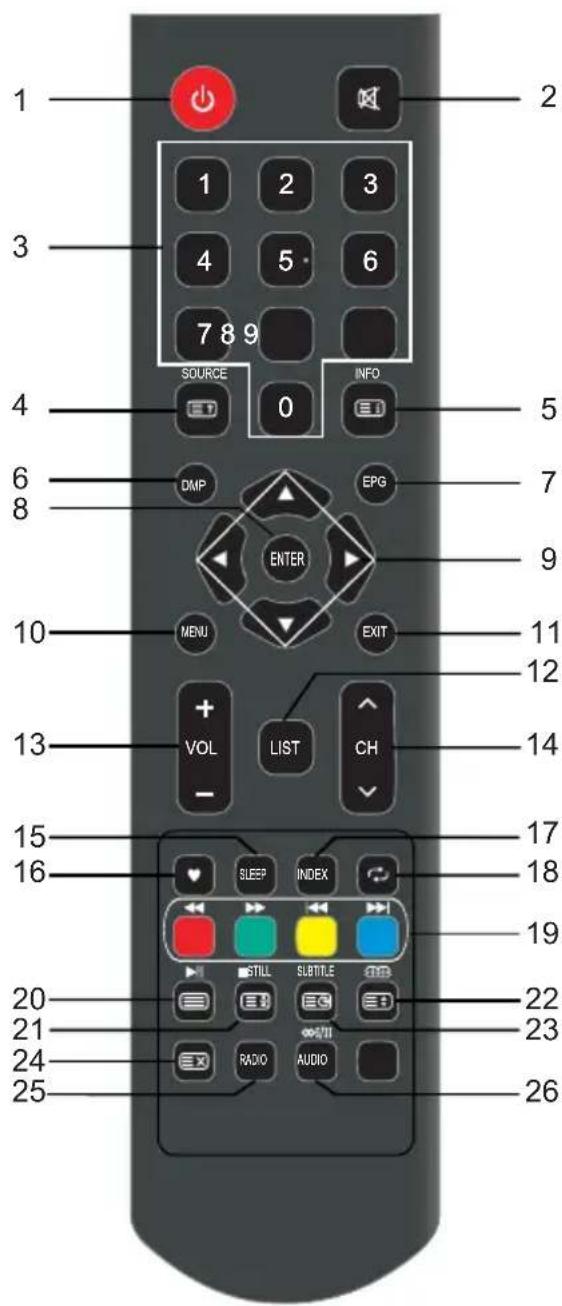
1 2 3 4 5 6 7 8 9 SOURCE INFO 0 4 5 6 DMP EPG ENTER 8 9 10 MENU EXIT 11 12 13 + VOL LIST CH - 14 15 16 SLEEP INDEX 17 18 19 20 STILL SUBTITLE 21 22 23 24 RADIO AUDIO 25 26- COLOR BUTTONS: Red/green/yellow/blue key navigation link.
◀: Fast reverse (in Media mode)
▶: Fast forward (in Media mode)
◀: Previous (in Media mode)
▶: Next (in Media mode)
- ☐: Enter the Teletext, press again for MIX mode, press this button again to exit.
▶ Play / Pause (in Media mode).
- STILL: Press to hold the picture.
■: Stop (in Media mode).
Hold the teletext page on display, press again to release.
- 📄: Press to select different images sizes.
☐: Change size of teletext screen in display mode.
- SUBTITLE: Enter the subtitle menu.
☐: Enter subtitle mode or subpage. - Cancel the teletext but not to exit teletext, press again show teletext.
- RADIO: Press to interchange Radio and DTV program when there is Radio program (in DTV mode).
26.☐☐☐☐AUDIO(∞I/II):Press to select the NICAM modes in Analog TV mode. Press to select desired audio language in Digital TV Mode.
NOTE:
※ The buttons not mentioned here are not used.
※ All pictures in this manual are examples, only for reference, actual product may differ from the pictures.
Basic Operation
Turning on and off the TV
- Turn on the TV
Connect the TV to your mains socket.
If TV has a power switch, turn it on firstly. In standby mode, press ⏻ Power button on the remote to turn on the TV.
- Turn off the TV
Press the ⏻ button on the remote control to enter standby mode.
Do not leave your TV in standby mode for long periods of time. It is best to unplug the power cord.
NOTE:
If there is an accident power off, the TV will be in standby mode automatically after re-supply the power. To ensure the normal use of the TV, the frequent turning on and off is forbidden, when there is an accident power off, it is recommended to unplug the power cable from the power socket.
First Time Setup
If this is the first time you run the TV, the Initial Setup Menu will appear in the picture, and the items of this menu also exist in other menus, so you are able to change the values after you set them up.
Tips: Make sure that the antenna connection is made.
■ Set you desired language
Press ▲/▼ buttons to select the language to be used for menus and message.
■ Select your country
Press the ▲/▼ buttons to select the country you are living in, and then press the ▶ button.
■ Select your time zone.
Press the ▲/▼ buttons to select a time zone, and then press the ▶ button.
■ Select your TV environment.
Press the ▲/▼ buttons to select the Home Mode or Store Mode and then press the ▶ button.
- Home is the recommended setting to produce the best energy efficiency. If you want to set Store Mode, a message appears asking you to confirm your choice.
■ Select the antenna type (Air, Cable and Satellite).
Press the ▲/▼ buttons to select the tuning modes and then press the ▶ button. (For more detailed information, please refer to Channel menu → Auto Tuning)
■ Select your operator
Press the ▲/▼ buttons to select the other or upc and then press the ▶button.
■ Auto Tuning
Press the ▶ button to start the auto searching.
First tuning DTV, press Menu and left arrow button to skip DTV tuning,
Second tuning ATV, press Menu and left arrow button to skip ATV tuning.
NOTE:
- If the TV doesn't receive any channels, please check your aerial connection or the country you selected, and then try an auto search again.
- If the TV just receives some of the channels, it means the aerial's reception isn't good enough and an antenna service is recommended
Basic Operation
Choosing a TV channel
- Using the CH₃/CH₃ on the remote control.
Press CH^to increase channel number.
Press CH _v to decrease channel number.
• Using 0-9 digital buttons.
You can select the channel number by pressing 0 to 9.
Additionally, when TV is in some mode, the TV will work in TV mode and play the corresponding channel if any number button is pressed.
- Example
To select - channel (e.g. Channel 5): Press 5.
To select -- channel (e.g. Channel 20): Press 2 and 0 in a short time.
Volume Adjustment
- Press the VOL+/- on the remote control to adjust the volume.
- If you want to switch the sound OFF, press the ⚙.
- You can release mute by pressing the ⚙ or increase the volume.
Changing the Input Source
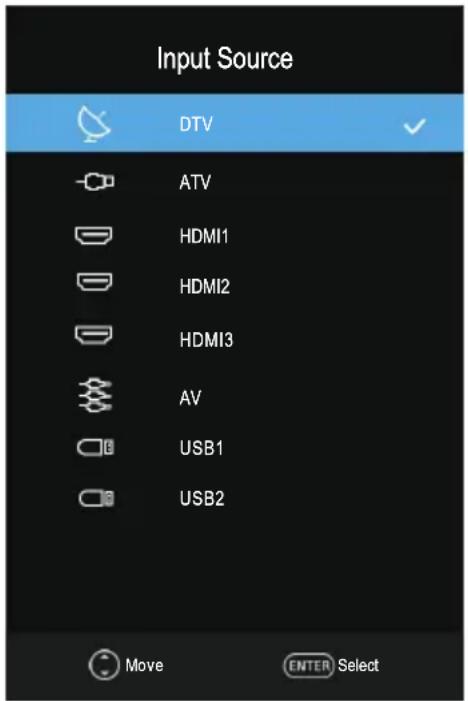
You can select the input source by pressing the SOURCE button on the remote control.
Press the ▲/▼ buttons to cycle through the input source, and press the ENTER button to confirm your choice.
text_image
Input Source DTV ATV HDMI1 HDMI2 HDMI3 AV USB1 USB2 Move ENTER SelectMenu Operation
How to Navigate Menus
Before using the TV follow the steps below to learn how to navigate the menu in order to select and adjust different functions. The access step may differ depending on the selected menu.
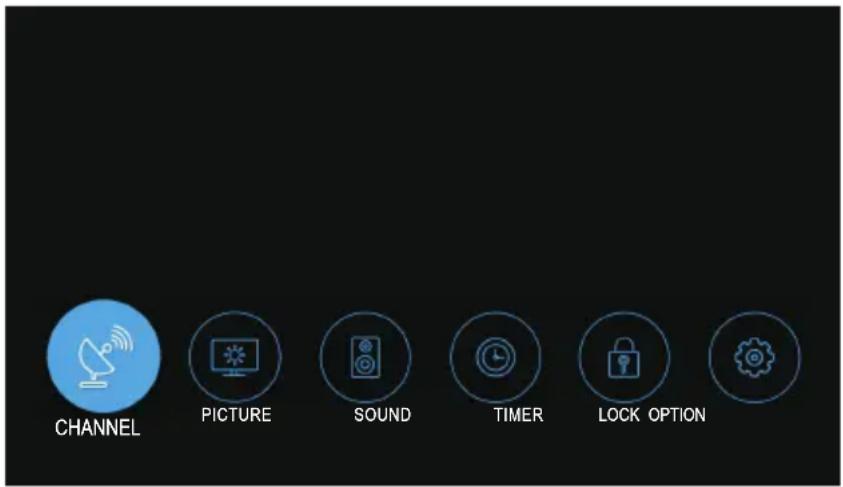
- Press the MENU button to display the main menu.
text_image
CHANNEL PICTURE SOUND TIMER LOCK OPTION- Press the ◀/▶ buttons to cycle through the main menu. You can choose between Channel, Picture, Sound, Timer, Lock and Option.
- Press the ENTER button to access the submenu page.
- Press the ▲/▼ buttons to select the preferred option.
- Press the ◀/▶ buttons to adjust the value.
- Press the MENU button to return to the previous menu.
- Press the EXIT button to exit the entire menu.
NOTE:
When an item in MENU is displayed gray, it means that the item is not available or cannot be adjusted.
- Some items in the menus may be hidden depending on modes or signal sources used.
- Buttons on the TV have the same function as corresponding buttons on the remote control. If your remote control is lost or couldn't work, you may use the buttons on the TV to select menus. This manual focuses on operation of the remote control.
Channel Menu
text_image
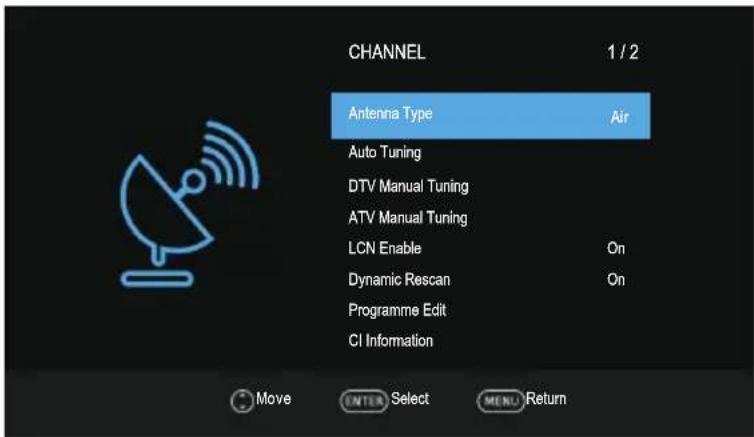
CHANNEL 1 / 2 Antenna Type Air Auto Tuning DTV Manual Tuning ATV Manual Tuning LCN Enable On Dynamic Rescan On Programme Edit CI Information Move ENTER Select MENU Return■ Antenna Type: Press the ▲/▼ buttons to select the antenna type.
※ When TV signals is Air.
■ Auto tuning: Select the ENTER button to start Auto Tuning.
- Select the country and tune type for channels.
- The TV will begin memorizing all of the available channels.
Once the progress bar is full, the found channels will be stored and the unit will proceed to the search for TV, DTV and Radio.
If you press the MENU button in TV searching, the Channel Tuning will skip to DTV searching as the suggestive picture shows.
■ DTV Manual Tuning: Press the ENTER button.
Press the ◀/▶ button to select channel, then press the ENTER button to search.
When a channel is found, the searching process will stop, the channel will be saved with current channel number.
If the program is not your expected one, please press the ◀/▶ button to continue the searching. Press the EXIT button to exit.
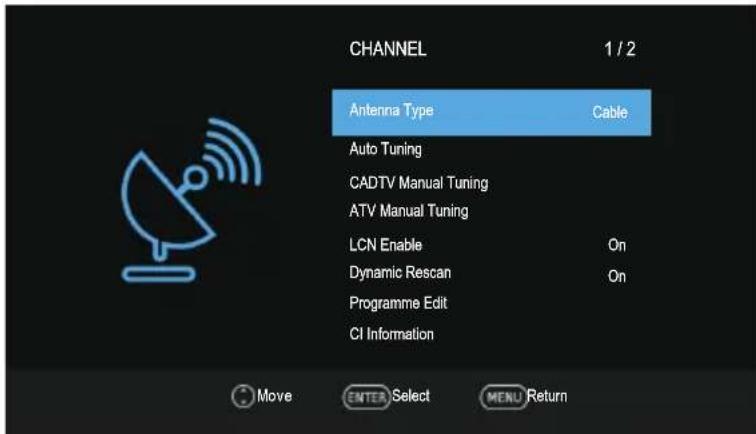
※ When TV signals is Cable.
text_image
CHANNEL 1 / 2 Antenna Type Cable Auto Tuning CADTV Manual Tuning ATV Manual Tuning LCN Enable On Dynamic Rescan On Programme Edit CI Information Move ENTER Select MENU Return■ Auto Tuning: Select the ENTER button to start Auto Tuning.
- Select the county and tune type for channels.
- Adjust the Cable Scan Menu.
-Scan Type: Scans for all active broadcast station channels and stores them in the TV.
Menu Operation
If you select Network Search, you can set up the frequency, Network ID and symbol manually by pressing the button on the remote control. Quick Scan only search DVBC digital programmes, can not search for ATV programmes.
If you select Full Scan, the Auto Tuning will search through all or appointed frequencies to find available channels.
– Frequency: Enter a user-defined frequency. (Differs in each country)
- Network ID: Select the Network ID setting Mode among Auto or manual. When Network is Manual, you can set up Network ID using the numeric buttons.
When you are satisfied with your setting, press ENTER button.
- Symbol: Selects the Symbol setting mode among Auto or Manual. When Symbol is Manual, you can set up Symbol using the numeric buttons.
- The TV will begin memorizing all of the available channels.
■ CADTV Manual Tuning
Frequency, Symbol and Modulation are needed in order to add a programme correctly in DVB cable mode. Please inquire of the cable service provider about the correct values.
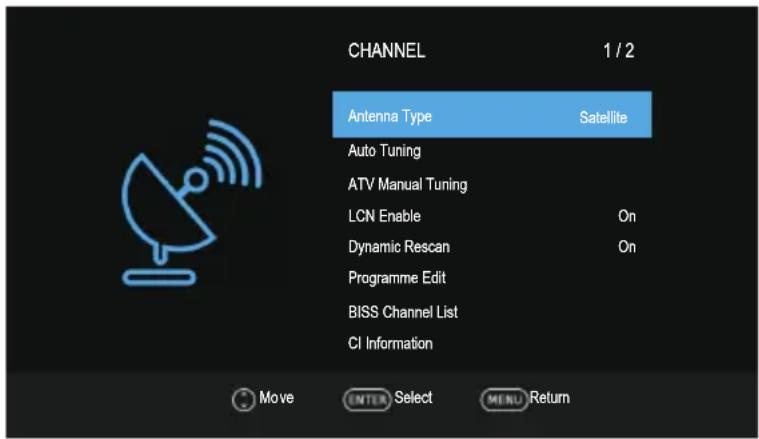
※ When TV signals is Satellite.
text_image
CHANNEL 1 / 2 Antenna Type Satellite Auto Tuning ATV Manual Tuning LCN Enable On Dynamic Rescan On Programme Edit BISS Channel List CI Information Move ENTER Select MENU Return■ Auto Tuning: Select the ENTER button to start Auto Tuning.
Satellite Setup
■ Satellite/ Transponder: Press the INDEX button to switch between the satellite list and the corresponding transponder list.
Press the ▲/▼ button to select the satellite/transponder from the list.
■ CH+/CH-: Press the CH+/- button to page up or down the satellite/transponder list.
Delete: Press the red button to delete the current satellite.
Edit: Press the green button to edit the current satellite.
Add: Press the yellow button to add a new satellite.
Scan: Press the blue button to enter sub-menu.
- Scan mode: Press the ◀/▶ buttons to select Scan Mode: Default, Blind Scan.
- Encrypted: Scan either free or all channels.
Service Type: Select the service type to scan.
Menu Operation
- LNB Type: Select the LNB type.
_ LNB Power: Select the power supply type for the LNB. - 22kHz: Select the 22KHz depending on the LNB type.
- Toneburst: You can choose one of two satellites. Used to choose proper device.
- DiSEqC1.0: You can choose one of four satellites. Used to choose proper device.
- DiSEqC1.1: You can choose one of sixteen satellites. Used to choose proper device.
- Motor: Sets the positioned type between DiSEqC1.2 and USALS.
When motor is set to DiSEqC1.2 or USALS:
Set Limit: Press the red button to set Limits to the scope of satellite Antenna rotation.
Move Continue: Rotates the antenna until the rotation has been completed or Stopped manually.
Move Step: Rotates the antenna in accordance with the step value. Enables the antenna make a fine adjustment.
Set West Limit: Set the west limit value.
Set East Limit: Set the East limit value.
Goto Reference: Drive antenna to zero position.
Disable Limit: Delete Limit settings. Allows the antenna to rotate over the full arc.
Cancel east limit and west limit.
Set position: Press the GREEN button to set position.
Move Auto: Rotates the antenna automatically.
Move Continue: Rotates the antenna until the rotation has been completed or stopped manually.
Move Step: Rotates the antenna in accordance with the step value. Enables the antenna make a finer adjustment.
Goto Position: Rotates the antenna to the stored satellite position.
Goto Reference: Drive antenna to zero position.
GotoX: Moves the antenna to the location specified by the Set Location.
When Motor is set to USALS:
Set Location: Press the yellow button to set Location.
Location: Longitude Direction, Longitude Angle, Latitude Direction, Latitude Angle can be adjusted When the Location is set to Manual.
Longitude Direction: Sets the Longitude direction for the location.
Longitude Angle: Sets the Longitude angle for the location.
Latitude Direction: Sets the Latitude direction for the location.
Latitude Angle: Sets the Latitude angle for the location.
- Reset All: Satellite list, transponder list and some setting will be reset to the default values. After reset all, you can re-set the county while Auto Tuning.
Menu Operation
■ ATV Manual Tuning: Manual store for ATV channels.
Storage To 1: Store the searched channel to 1 (you can adjust the channel number by ◀/▶).
Sound Standard: Select the sound Standard.
Video Standard: Select the Video Standard.
Current CH 1: Select the current channel.
Search: Press the ◀ button to search down from the current frequency, and press the ▶ button to search up.
Fine-Tune: Adjust the frequency of the channel finely.
Press the red button to save it. Press the EXIT to exit.
■ LCN Enable
Press the ENTER button to select On or Off.
When in searching with LCN On, the TV sorts programmes in the order of LCN.
In this case, the programmes can be swapped or sorted only with the Numeric buttons. When in searching with LCN Off, the TV sorts programmes by default.
In this case, you may press the ▲/▼ buttons to shift programmes, or use the Numeric
buttons to swap or sort programmes.
■ Dynamic Rescan (In DTV mode)
Switch the Dynamic Rescan function On or Off.
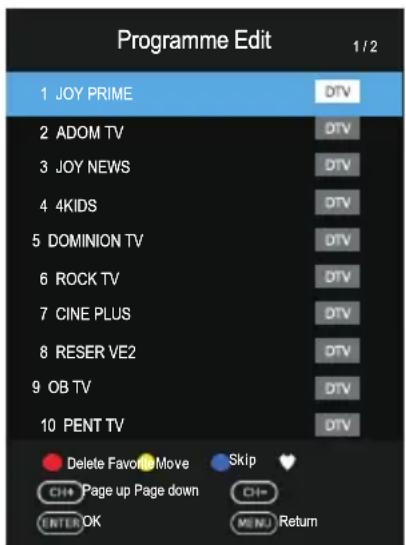
Programme Edit
Press the ▲/▼ buttons select the Programme Edit, then press the ENTER button to enter sub-menu.
First press the ▲/▼ buttons to highlight the channel you want to delete, skip, or Move(Sawp), then:
Delete: Press the RED button to delete the channel.
Move:
Press the YELLOW button to move the channel to another channel location, and then press the number buttons 0-9 to enter the new channel number. Your
text_image
Programme Edit 1/2 1 JOY PRIME DTV 2 ADOM TV DTV 3 JOY NEWS DTV 4 4KIDS DTV 5 DOMINION TV DTV 6 ROCK TV DTV 7 CINE PLUS DTV 8 RESER VE2 DTV 9 OB TV DTV 10 PENT TV DTV Delete Favorite Move Skip CH+ Page up Page down CH- ENTER OK MENU Returnentry is shown in red numbers to the right of the station name.
If you press the ▲ / ▼ buttons, the channel will be shifted up or down by one channel.
ATTENTION: The channel number will not be re-assigned with this method, as long as the LCN function is activated (see menu item "PROGRAM")
Skip: Press the BLUE button to skip the channel.
(Your TV set will skip the channel automatically when using CH+/- to view the channels.)
Favorite: Press the ♥ button to set the favorite
channel. (One or more groups can be select.)
■ BISS Channel List (In Satellite mode)
Press the ▲/▼ buttons select the BISS Channel List, then press the ENTER button to enter sub-menu.
Press the RED button to delete the BISS programme.
Press the GREEN button to edit the BISS programme.
Menu Operation
■ CI Information (In DTV mode)
This function enables you to watch some encrypted services (pay services). Please insert CI card into the PCMCIA slot according to the arrow on the CI card.
NOTE:
◆ The function can only be gotten when CI slot is available.
- It is possible for you to change CI (Common Interface) menu screen and service by consulting your dealer.
◆ Please do not insert or pull out the CI card when power on.
- Do not insert or pull out the CI card frequently so as to avoid any damages of the TV and the CI card.
◆ During initialization of the CI card, please don't operate the TV.
■ Signal Information(Only available when there is signal under DTV)
Press the ▲/▼ buttons to select the Signal Information, then press the ENTER button to see the detail information.
Picture Menu
text_image
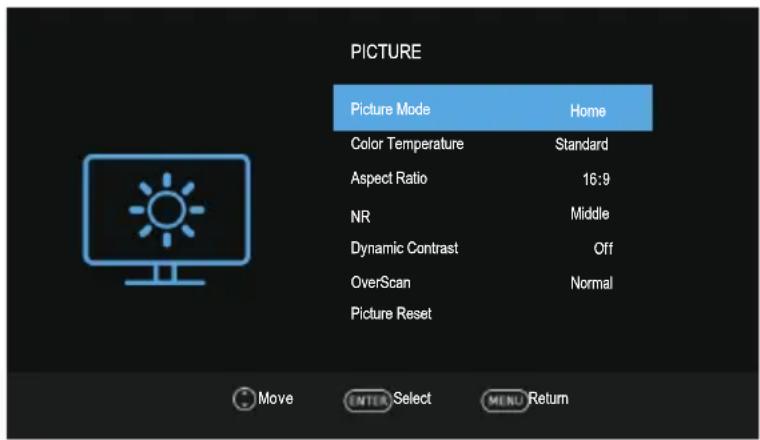
PICTURE Picture Mode Home Color Temperature Standard Aspect Ratio 16:9 NR Middle Dynamic Contrast Off OverScan Normal Picture Reset Move ENTER Select MENU Return■ Picture Mode: You can select the type of picture which best corresponds to your viewing requirements. Contrast, Brightness, Color, Sharpness, and Tint (NTSC) can be adjusted when the picture mode is set to User.
- Contrast: Adjust the white level of the picture.
- Brightness: Adjust darkness of black sections in the picture.
- Color: Adjust the color intensity of the picture.
- Sharpness: Object edges are enhanced for picture detail.
- Tint: Adjust the hue of the picture. (valid only for NTSC signals).
■ Color Temperature: Select the color temperature that you feel comfortable.
■ Aspect Ratio: You can select the picture size which best corresponds to your viewing requirements.
■ NR: Reduces screen noise without compromising video quality.
■ Dynamic Contrast: Adjusts the contrast to the optimal level according to the image's brightness.
■ OverScan (In DTV mode): The picture reproduction rate is adjusted.
■ PC Mode (In HDMI mode): Switch PC Mode function On or Off.
■ Game Mode (In HDMI mode): Switch Game Mode function On or Off.
■ Picture Reset: Reset all picture settings to the factory defaults
Sound Menu
text_image
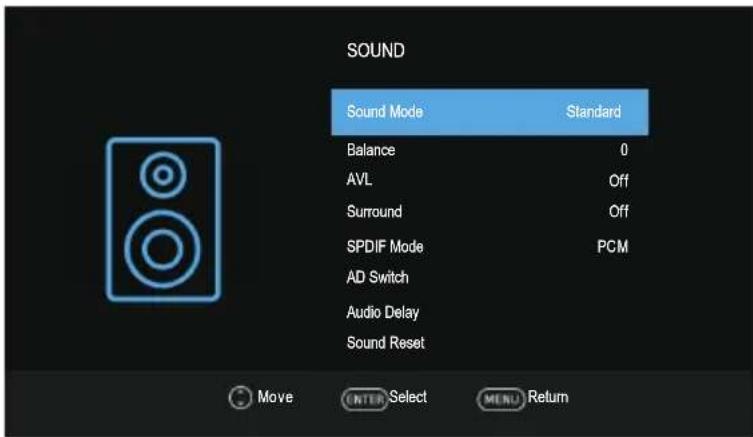
SOUND Sound Mode Standard Balance 0 AVL Off Surround Off SPDIF Mode PCM AD Switch Audio Delay Sound Reset Move Enter Select MENU Return■ Sound Mode: You can select a sound mode to suit your personal preferences. Treble and Bass can be adjusted when the sound mode is set to User.
- Treble: Adjust the high frequency sounds.
- Bass: Adjust the low frequency sounds.
■ Balance: Adjust the level of sound coming from the left and right speakers.
■ AVL(Auto Volume Level): Auto Volume automatically remains on the same level of volume if you change programmes. Because each broadcasting station has its own signal conditions, volume adjustment may be needed every time when the channel is changed. This feature allows users to enjoy stable volume levels by making automatic adjustments for each program.
■ Surround: The surround sound can be enabled or disabled according to the needs to experience unique audio effects.
■ SPDIF Mode: You can select a desired SPDIF Output mode.
■ AD Switch (In DTV mode): * this is only available in some countries, mainly in North America and Europe. This is an auxiliary audio function that provides an additional audio track for visually challenged persons. This function handles the Audio Stream for the AD (Audio Description), when it is sent along with the Main audio from the broadcaster.
■ Audio Delay: Correct audio-video sync problems, when watching TV and when listening to audio output using an external device such as an audio receiver (0ms\~250ms).
■ Sound Reset: Reset all sound settings to the factory defaults.
Menu Operation
Timer Menu
text_image
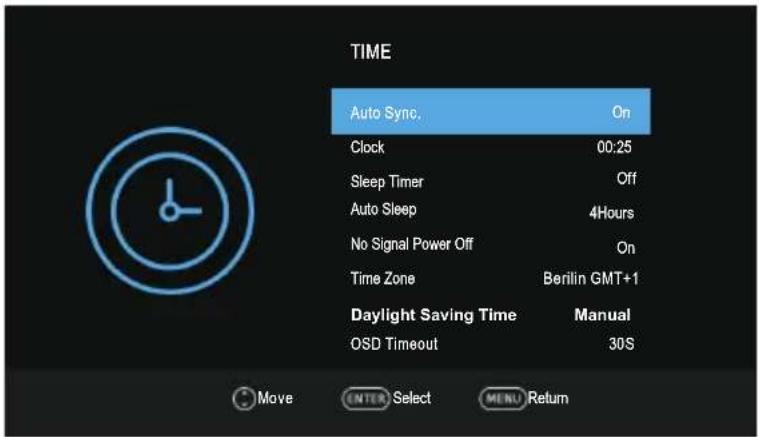
TIME Auto Sync. On Clock 00:25 Sleep Timer Off Auto Sleep 4Hours No Signal Power Off On Time Zone Berlin GMT+1 Daylight Saving Time Manual OSD Timeout 30S Move ENTER Select MENU Return■ Auto Sync.: If set it to ON, the TV will sync the local clock according to the DTV broadcasting time automatically.
■ Clock: Display either the DTV signal stream time or set the time manually.
Sleep Timer: Sleep Timer switches the TV to standby after a defined period of time. To cancel the Sleep Timer, set to "Off".
■ Auto Sleep: Select the Auto Sleep time you want. The TV will enter into standby mode automatically when there is no any operation in set time.
■ No Signal Power Off: Switch No Signal Power Off function On or Off.
■ Time Zone: Select your time zone (When the Auto Sync is set On, the Time Zone can be adjusted).
■ Daylight Saving Time: Select whether to apply Daylight Saving Time to the TV.
■ OSD Timeout: Select the time in seconds (15s, 30s, 60s, off) that you want the On-Screen Menu remains display after your last operation.
Lock Menu
text_image
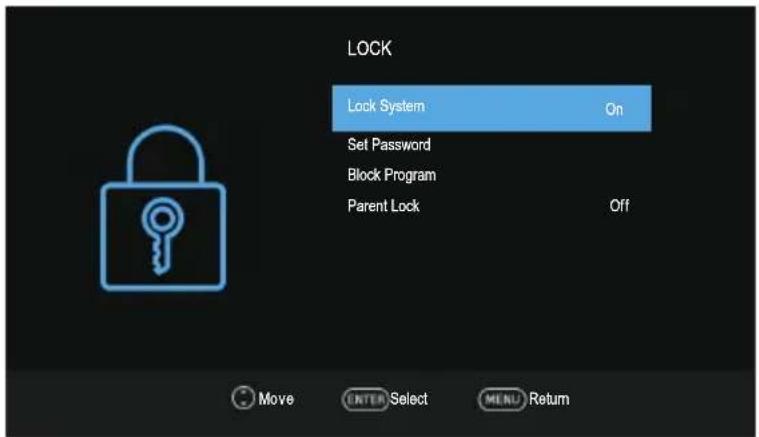
LOCK Lock System On Set Password Block Program Parent Lock Off Move ENTER Select MENU Return■ Lock System: The feature can prevent unauthorized operating the TV set, unless entering 4-digit password.
The default password is 0000.
NOTE:
If you forget your password, the super password of 1225 still is valid.
Menu Operation
■ Set Password: Press the ENTER button to access the submenu.
You can set your private password. Press the number buttons on the remote control to set the new password. When the new password has been input twice, the setting is finished successfully.
■ Block Program (In ATV/DTV mode): Press the YELLOW button to lock the available channel you want. Press the YELLOW button again to unlock it. To watch a locked channel, enter your 4 digit password number when input screen displays.
Parent Lock (In DTV mode): This feature can prevent children watching adult's TV programmes, according to the rating limit set. This function appears according to information from broadcasting station. Therefore if the signal has incorrect information, this function does not operate.
Option Menu
text_image
OPTION 1 / 2 Language English Audio Languages English Subtitle Off Subtitle Languages English Hearing Impaired Off Country Germany Environment Select Home Energy Saving Off Move ENTER Select MENU Return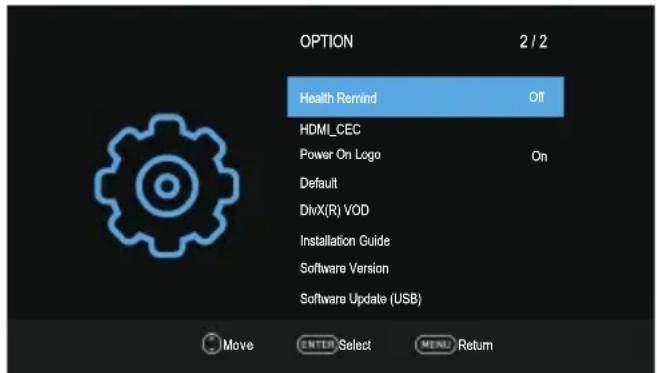
text_image
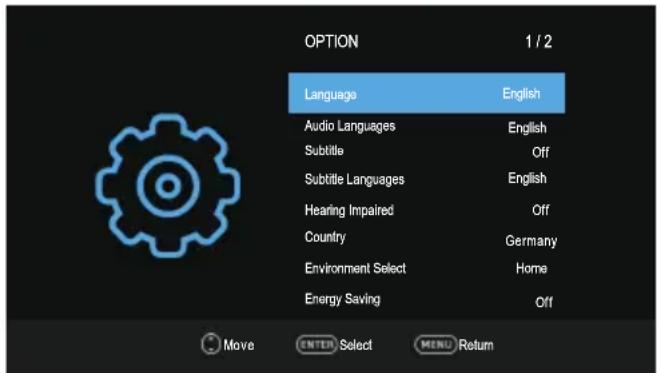
OPTION 2 / 2 Health Remind Off HDMI_CEC Power On Logo On Default DivX(R) VOD Installation Guide Software Version Software Update (USB) Move ENTER Select MENU Return■ Language: Select your preferred On Screen Display language.
■ Audio Languages: Select you're preferred audio language. (Available for digital channels if multiple audio languages are broadcasted.)
■ Subtitle: Switch the Subtitle function On or Off.
■ Subtitle Languages: Select your preferred subtitle Language. (Available for digital channels if multiple subtitle languages are broadcasted.)
■ Hearing Impaired: When hearing Impaired is ON, the TV screen will give some information to the people whose hearing are impaired when Hearing Impaired is Off, the information will be hidden.
■ Country: Display the current country.
■ Environment Select: Select the Environment Select Home or Store. Store mode is the optimal setting for store environment.
■ Energy Saving: When the Environment Select is set Home, the Energy Saving can be adjusted. Switch the Energy Saving function On or Off.
■ Health Remind: Switch the Health Remind function On or Off.
■ HDMI_CEC : Press ▲/▼ buttons to select HDMI CEC, press ENTER to enter sub-menu.
- HDMI_CEC: Press ENTER buttons to switch the HDMI CEC on or off.
- ARC: To enable the audio through an AV receiver using HDMI (ARC). Press ENTER buttons to switch the HDMI ARC function on or off.
- Auto Standby: When the user turns off the TV, all active CEC enabled devices on the HDMI input will go to standby. Press ENTER buttons to switch the auto standby function on or off.
Menu Operation
- Auto Power On: Pushing the "Play" button on the CEC enabled device will command the device to play, turn the TV on, and the HDMI input, that the device is connected to, will become the active input device for the TV.
– Device List: Display devices that are connected to TV.
■ Power On Logo: Switch the Power On Logo function On or Off.
■ Default: Restore the system settings to the factory default. When the restore is complete, the TV will enter standby mode.
DivX(R) VOD: When entering this option, you can view the registration code relevant information about the DivX ®.
■ Installation Guide: This is an installation guide to help you to setup the TV.
■ Software Version: Display current software version information.
■ Software Update (USB): Update the software using the USB memory device. Please be careful not to disconnect the power or remove the USB drive until updates are complete.
Hotel Mode
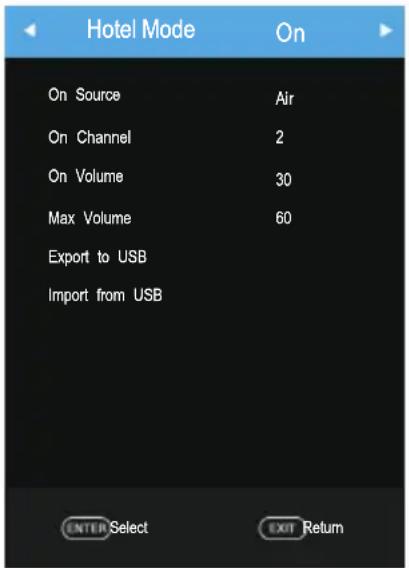
Press the SOURCE button to display the Source Menu, then press ⏻2⋯0⋯1⋯2 to enter into the Hotel Mode to adjust the relative settings.
- Hotel Mode
Press the ▲/▼ buttons to select Hotel Mode, and then press ◀/▶ button to set On or Off.
NOTE:
◆ The following settings work only when Hotel Mode is set to be On.
- On Source
Set the default signal source by pressing the ◀/▶ buttons. (The default signal source will be displayed when the TV is turned on.)
- On Channel
Set the default channel by pressing the ◀/▶ buttons. (The default channel will be displayed when the TV is turned on.).
text_image
Hotel Mode On On Source Air On Channel 2 On Volume 30 Max Volume 60 Export to USB Import from USB ENTER Select EXIT Return- On Volume
Set the default volume by pressing the ◀/▶ buttons. (The default volume is the volume when the TV is turned on. Remember the default volume should be less than the maximum volume).
- Max Volume
Set max volume by pressing the ◀/▶ buttons. When the max volume is lower than the default volume, the max volume is the priority.
- Export to USB
You can export all current channel information (including channel number, channel name, frequency, etc.) into the U disk, as the channel information backup for this unit.
- Import from USB
If you cannot restore the initial channel information after sort, move, skip, lock etc. operations, you can import the channel information from the USB.
Menu Operation
USB Operation
- First, insert a USB memory device into the USB port.
- Press the SOURCE button to call up the signal source selection menu. Use the ▲/▼ to highlight USB, and the press ENTER button to access the USB mode. (Alternatively, Press the DMP button on the remote control to enter the USB mode)
- You may also use the signal source selection menu to exit from the USB mode.
NOTE:
◆ Special USB device may be not or well supported.
◆ USB max. Load: DC5V 500mA.
• The formats supported
| Media | File Ext. | Codec | Remark | |
| Video Audio | ||||
| Movie | .mpeg, .mpg | MPEG1/2,MPEG4,VC1 | MPEG1/2Layer1,MPEG1/2Layer2,MPEG1/2Layer3,AAC,AC3,EAC3,HEAAC | 1.Max resolution 1080P 30fps2.MPEG-4 V2 not support |
| .vob, .dat | MPEG1/2 | |||
| .ts, .tp, .trp | MPEG1/2,H.264,MVC,VC1,HEVC | |||
| .avi | MPEG1/2,MPEG4,H.263,H.264,VC1,XviD | MPEG1/2Layer1,MPEG1/2Layer2,MPEG1/2Layer3,WMA,AAC,AC3,HEAAC | ||
| .mp4 , .mov | MPEG1/2,MPEG4,D,H.263,H.264HEVC | MPEG1/2Layer3,AAC,AC3,EAC3,HEAAC | ||
| .mkv | MPEG1/2,MPEG4,H.263,H.264,VC1,HEVC, | MPEG1/2Layer1,MPEG1/2Layer2,MPEG1/2Layer3,AAC,WMA,AC3,HEAAC | ||
| .flv H.264 | VC1 | MPEG1/2Layer3,AAC,HEAAC | ||
| .asf | MPEG1/2,MPEG4,H.264,VC1, | MPEG1/2Layer1,MPEG1/2Layer2,MPEG1/2Layer3,WMA | ||
Menu Operation
| Music | .mp3 -- | MPEG1/2 Layer1MPEG1/2 Layer2MPEG1/2 Layer3 | Max Bit Rate 384Kbps | |
| .m4a -- | MPEG1/2 Layer3AAC | |||
| .wav -- | MPEG1/2 Layer1MPEG1/2 Layer2MPEG1/2 Layer3IMA-ADPCM | |||
| .aac -- AAC | ||||
| Photo | .jpg,jpeg | Progressive JPEG | Max Resolution: 1024×768 | |
| Baseline JPEG | Max Resolution:15360×8640(1920x8 x 1080x8) | |||
| .bmp | -- | Max Resolution: 9600×6400 | ||
| .png | Non-Interlaced | Max Resolution: 9600×6400 | ||
| Interlaced | Max Resolution:1200×800 | |||
| Text .txt | TM Player | File Size: Max 1MB | ||
| NOTE:◆ Special algorithm documents may not be or well be supported by the Media.◆ The Media supports the format mentioned above, if the file format is not supported, change it to the given format. | ||||
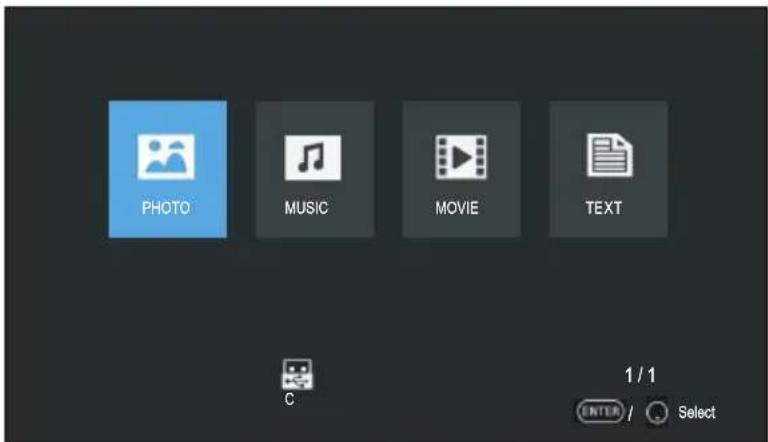
- Main Operating Interface
text_image
PHOTO MUSIC MOVIE TEXT C 1 / 1 ENTER / Select- Basic operation
- Use the ◀/▶ buttons to select PHOTO, MUSIC, MOVIE or TEXT. Press ENTER button enter into sub-menu.
- Use the arrow buttons and ENTER button to enter the desired disk. Press ENTER to open the folder.
- Use the arrow buttons to highlight the file. Use the ENTER button to mark or unmark a file. Press ▶|| button to play the selected files. If no file is marked, all the files in the folder will be played in sequence after you press ▶|| button.
- Press the ■ to stop the playing files.
- Press EXIT button to return to the previous menu and exit menu to quit.
Menu Operation
When playing Photo files:
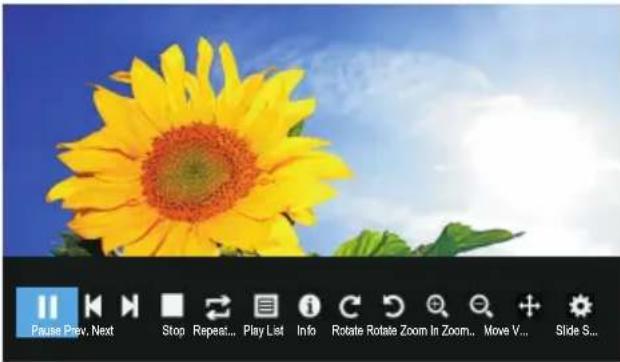
text_image
Pause Prev, Next Stop Repeat... Play List Info Rotate Rotate Zoom In Zoom.. Move V... Slide S...Press the INFO/ENTER button on the remote control to display the on-screen toolbar.
* Use the ◀/▶ buttons, then press ENTER to select a function such as Previous, Next, Rotate, Enlarge from the on-screen toolbar.
*Press ■ or EXIT buttons to exit playback & go back to file list page.
When playing Music files:
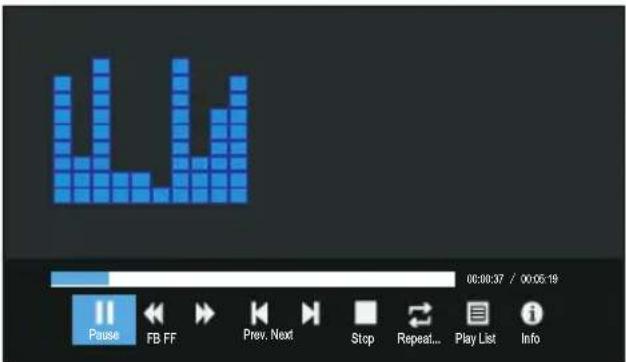
text_image
00:00:37 / 00:05:18 Pause FB FF Prev. Next Stop Repeat... Play List Info* Use the ◀/▶ buttons, then press ENTER to select a function such as Previous, Next, play, pause the on-screen toolbar.
* Press ■ or EXIT buttons to exit playback & go back to file list page.
When playing Movie files:
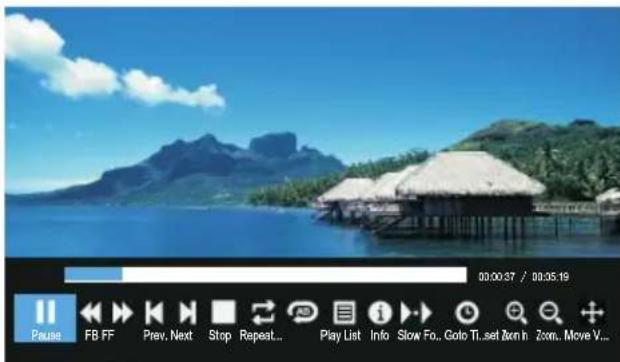
text_image
00:00:37 / 00:05:19 Pause FB FF Prev. Next Stop Repeat... Play List Info Slow Fo.. Goto Ti.set Zorn in Zoom. Move V...Press the INFO/ENTER button on the remote control to display the on-screen toolbar.
* Use the ◀/▶ buttons, then press ENTER to select a function such as play, pause, previous file, next file, from the on-screen toolbar.
*Press ■ or EXIT buttons to exit playback & go back to file list page.
Menu Operation
When playing Text files:
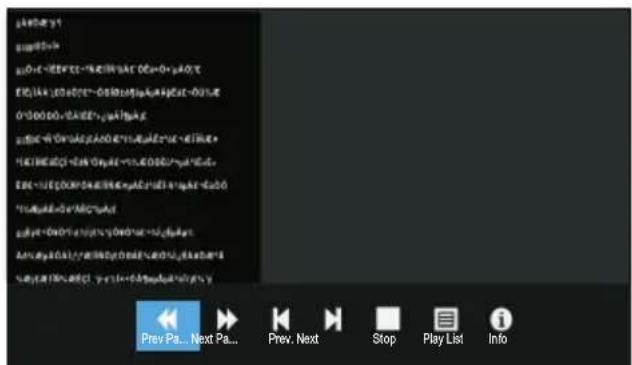
Press the INFO/ENTER button on the remote control to display the on-screen toolbar.
* Use the ◀/▶ buttons, then press ENTER to select a function such as play, pause, previous file, next file, from the on-screen toolbar.
* Press ■ or EXIT buttons to exit playback & go back to file list page.
NOTE:
◆ To play your multimedia files, make sure you have selected the correct icon in the main media playback menu.
Important Unique Buttons
PROGRAMME GUIDE (In DTV mode)
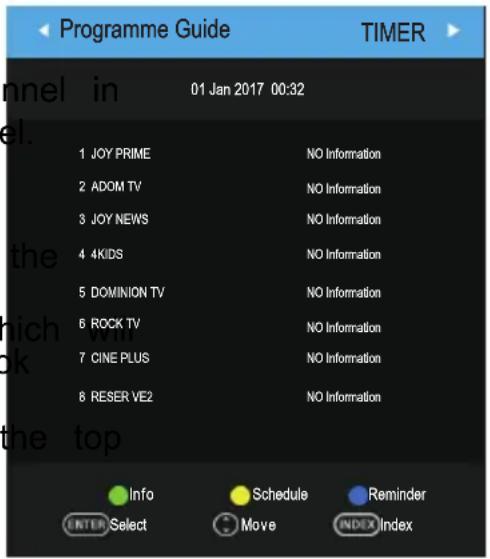
Press EPG button to display the Programme Guide menu. This function let you k the detailed information of the channel, indicating the time of the program playing the Programme Guide it is possible to check the program information for the nex
days (If the information is available from the broadcaster).
- Press the ▲/▼ buttons to select a different chart the list and press ENTER to active the channel
- Info: Press green button to see the detailed information of the current channel.
- Schedule: Press the yellow button to display Schedule list.
- Reminder: If you find the desired program who be shown in the future. Press the button to book program.
- Timer/Channel: Press Index button to select of items, and press the button to change the list by Time or Channel.
- Press the EPG or EXIT button to exit.
text_image
Programme Guide TIMER 01 Jan 2017 00:32 Channel in el. 1 JOY PRIME NO Information 2 ADOM TV NO Information 3 JOY NEWS NO Information 4 4KIDS NO Information 5 DOMINION TV NO Information 6 ROCK TV NO Information 7 CINE PLUS NO Information 8 RESER VE2 NO Information the top Info Schedule Reminder ENTER Select Move INDEX IndexChannel List
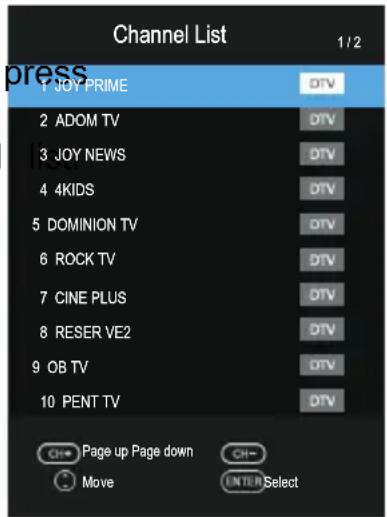
Press LIST button to display the Channel List.
Press the ▲/▼ buttons to select the channel and ENTER to watch it.
Press CH+/-button to page up or down the Channel
Press the GREEN button to sort the channel. (Satellite signals only).
Press the RED button to search the programmes.
Press EXIT button to exit the channel list.
text_image
Channel List 1/2 JOY PRIME 2 ADOM TV 3 JOY NEWS 4 4KIDS 5 DOMINION TV 6 ROCK TV 7 CINE PLUS 8 RESER VE2 9 OB TV 10 PENT TV Page up Page down Move ENTER SelectFavorite List
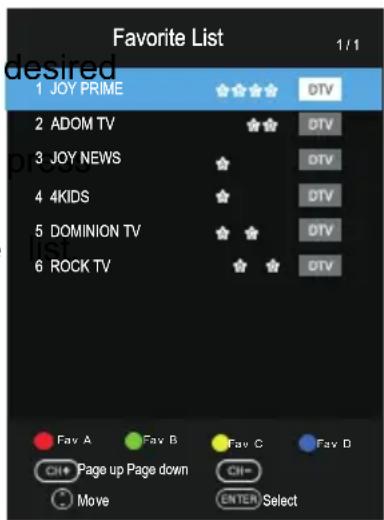
Press ♥ button to display the Favorite List.
Press red, green, yellow, blue button to select the favorite group.
Press the ▲/▼ buttons to select the channel and ENTER to watch it.
Press CH+/-button to page up or down the Favorite
Press EXIT button to exit the Favorite List.
text_image
Favorite List 1 JOY PRIME 2 ADOM TV 3 JOY NEWS 4 4KIDS 5 DOMINION TV 6 ROCK TV 1/1 OTV OTV OTV OTV OTV OTV Fav A Fav B Fav C Fav D Page up Page down Move ENTER SelectUsing the teletext feature
- Display teletext
- Select a TV station with a teletext signal.
- Press the 📄 button to enter teletext mode.
- Press the ☐ button 2nd to enter Mix mode, this function enables you to superimpose the teletext page over the TV program.
- Press the ☐ button 3rd return or exit to the normal TV/DTV mode.
- Page selection
- Enter the page number (three digits) using the number buttons. If you press a wrong number during input, you must complete the three digit number and then reenter the correct page number.
- The CH^/CH▼ button can be used to select the preceding or following page.
- Hold
You can press the ☐ button to hold a page, and press it again to release the page.
- Index
Press the ☐ button to enter the main index page directly.
- Enlarging Text
When a page is displayed, you can double the size of the text to make it easier to read.
- Press the ⏻ button to enlarge the top half of the page.
- Press the ⏻ button again to enlarge the bottom half of the page.
- Press the 📄 button once more to return to the normal display.
- Reveal mode
You can display concealed teletext information (e.g. Answer to puzzles or riddles etc.) by pressing ☐ button. Press ☐ button again to remove the information from the display.
- Subpage
Some teletext may contain several sub-pages which are automatically paged in a certain cycle by the TV station.
- Yon can enter into a certain sub page by pressing the ☐ button directly and select the page number with number buttons. Enter the sub page number (e.g. 0003) for the third sub page.
- Press the button again to exit the sub page mode.
• Color buttons (Red, Green, Yellow and blue)
Press these buttons to access directly to the corresponding color pages displayed at the lower part of the teletext screen.
Troubleshooting Guide
Troubleshooting
When you meet the following common problems, you might diagnose and get the solutions without contacting with the technicians.
| Symptoms | Possible Reason | Solutions |
| No picture, no sound, and no indicator light on | 1.The power cord is not plugged in2.The power is off | 1.Plug the power cord in2.Turn the power on |
| Picture and sound with abnormality | 1.Contrast, sharpness, and color are set improperly2.Color system is set improperly3.Sound system is set improperly | 1.Adjust the value of Contrast, sharpness, and colour2.Set the Color system to the country broadcasting standard3.Set the Sound system to the country broadcasting standard |
| Picture is spotted or with snow | Signal source is low-grade or the signal cord is in a lower quality | Use the qualified signal cord |
| No picture, no sound and indicator light is green/blue | Volume is in the minimum value or TV is in mute mode. | Adjust the value of volume |
| The signal cable is not correctly connected. | Connect the signal cable correctly | |
| Blue screen, AV is displayed | There is no signal input or the video cable is not connected or incorrectly connected | Connect the video cable correctly |
| No sound | There is no audio signal input or audio cable is not connected correctly | Connect the audio cable correctly |
| HDMI source, with snow pixel of full screen | The source generate is not standard | Plug the HDMI cable again |
| The remote control does not work | Batteries are improperly installed or exhausted | 1.Make sure the positive and the negative polarities are correct.2.Check if there is a loose contact between the batteries and the springs3.Replace the batteries |
Troubleshooting Guide
Maintenance
Early malfunctions can be prevented. Careful and regular cleaning can extend the life of your new TV. Be sure to turn the power off and unplug the power cord before you begin any cleaning.
Cleaning the screen
- Here's a great way to keep the dust off your screen for a while. Wet a soft cloth in a mixture of lukewarm water and a little fabric softener or dish washing detergent. Wring the cloth until it's almost dry, and then used it to wipe the screen.
- Make sure the excess water is off the screen, and then let it air-dry before you turn on your TV.
Cleaning the cabinet
To remove dirt or dust, wipe the cabinet with a soft, dry, lint-free cloth. Please be sure not to use a wet cloth.
Extended Absence

If you expect to leave your TV dormant for a long time (such as a vacation), it's a good idea to unplug the power cord to protect against possible damage from lightning or power surges.
Disposal of old electrical appliances
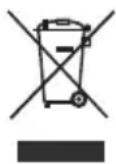 | The European directive 2012/19/EU on Waste Electrical and Electronic Equipment (WEEE), requires that old household electrical appliances must not be disposed of in the normal unsorted municipal waste stream. Old appliances must be collected separately in order to optimize the recovery and recycling of the materials they contain, and reduce the impact on human health and the environment.The crossed out “wheeled bin” symbol on the product reminds you of your obligation, that when you dispose of the appliance, it must be separately collected.Consumers should contact their local authority or retailer for information concerning the correct disposal of their old appliance. |
 | AC voltage |
 | DC voltage |
 | Class II equipment |
This product complies with EU directive requirements on electromagnetic compatibility and electrical safety.

Net weight: 5.7 kg
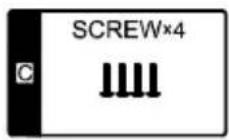
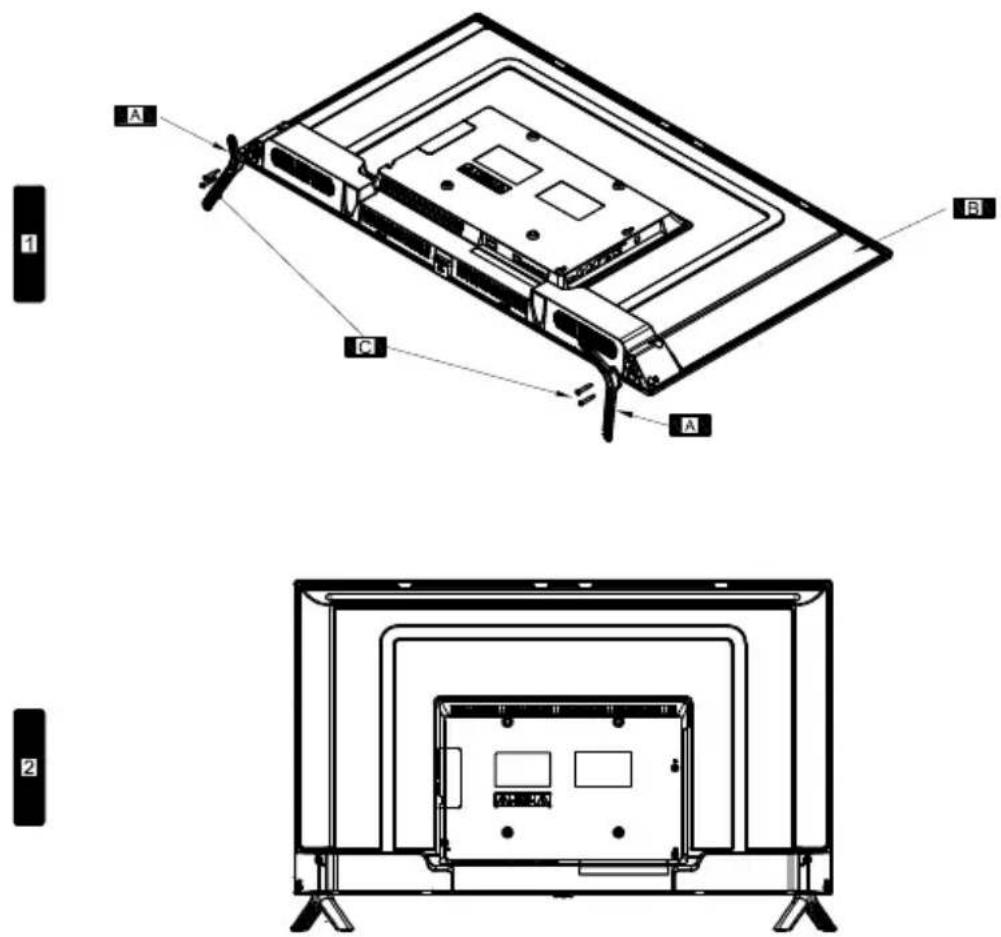
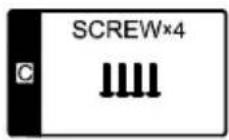
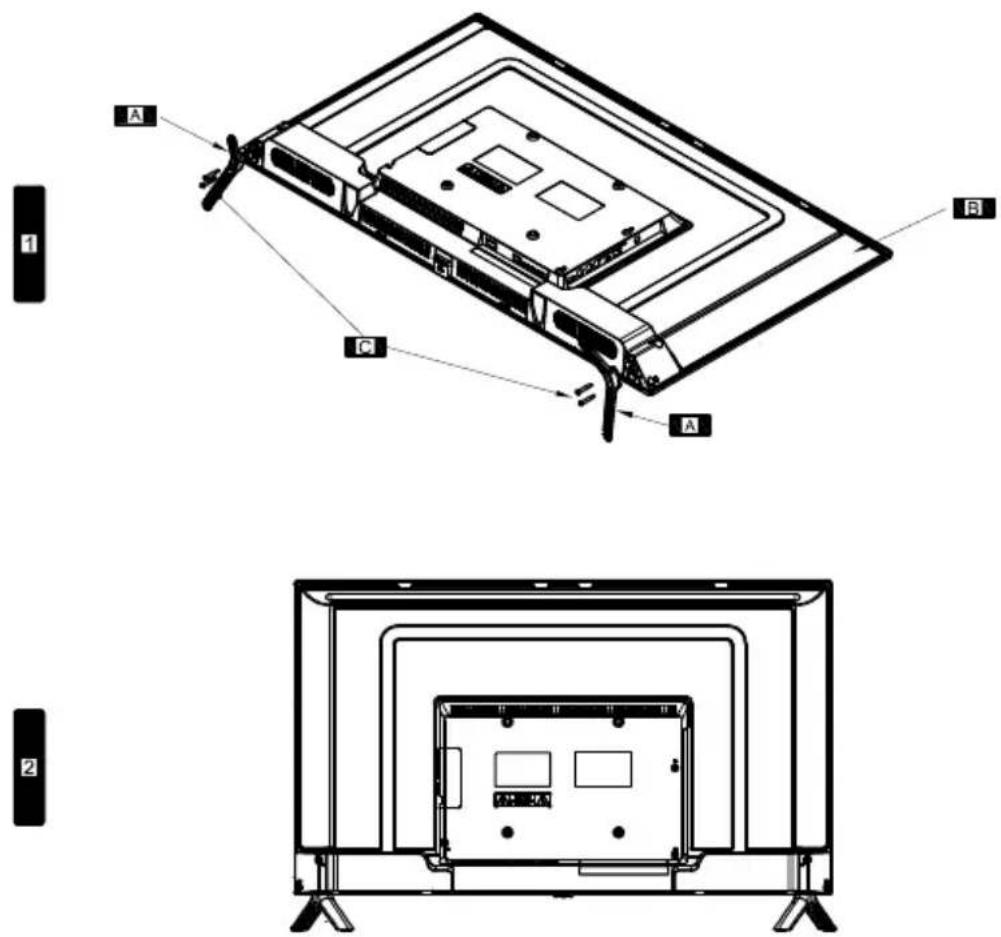
Stand Installation
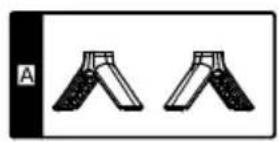
natural_image
Two identical hand gripping parts, labeled 'A' in the top-left corner (no other text or symbols)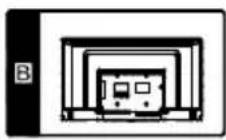
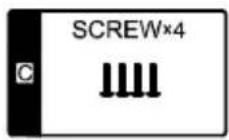
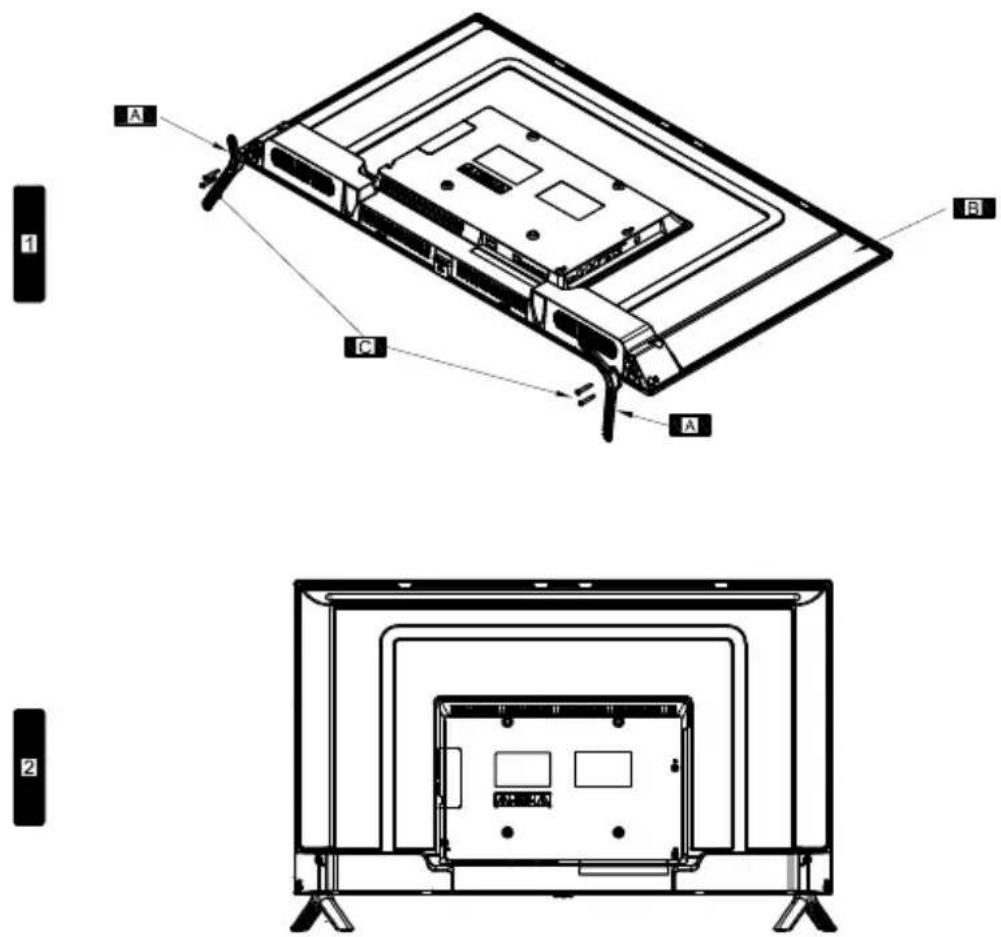
text_image
Technical diagram showing two views of a flat-screen TV unit with labeled components A, B, and C.DE
natural_image
Cartoon illustration of a smiling computer monitor holding an open book (no text or symbols present)natural_image
Cartoon illustration of a computer monitor with a sad face and raised arms, surrounded by abstract brain-like shapes (no text or symbols)natural_image
Cartoon illustration of a computer monitor with a bandaged face and a broken door, symbolizing online or video content (no text present)natural_image
Cartoon illustration of a computer monitor with a sad face and Chinese characters, accompanied by a printer (no text or symbols present)natural_image
Illustration of a smiling man presenting to a computer monitor with an electrical plug (no text or symbols)natural_image
Cartoon illustration of a computer monitor with a sad face and electrical plugging (no text or symbols)natural_image
Cartoon illustration of a smiling computer character with arms and speech bubbles, surrounded by lightning, clouds, and industrial equipment (no text or symbols)natural_image
Illustration of a smiling computer monitor and a worker in a toolbox (no text or symbols)HINWEIS:
natural_image
Three schematic diagrams of a battery with internal components and directional arrows indicating flow or movement (no text or labels)Batterieersatz
natural_image
Cartoon illustration of a smiling computer monitor holding an open book (no text or symbols)natural_image
Cartoon illustration of a computer monitor with a sad face and raised arms, surrounded by clouds and flying birds (no text or symbols)natural_image
Cartoon illustration of a computer monitor with a bandaged face and a smiling face, surrounded by a broken bag and a megaphone (no text or symbols)natural_image
Illustration of a smiling computer monitor with a power cord and plug, accompanied by a person standing beside it (no text or symbols present)
natural_image
Cartoon illustration of a computer monitor with a sad face and a ringing phone, showing a ringing press (no text or symbols present)natural_image
Cartoon illustration of a computer monitor with an angry face and lightning bolts, showing stress or shock (no text or symbols)natural_image
Cartoon illustration of a smiling computer monitor with arms and legs, surrounded by clouds and a battery (no text or symbols)natural_image
Cartoon illustration of a delivery worker pointing at a smiling computer monitor (no text or symbols present)REMARQUE :
natural_image
Three schematic diagrams of a battery with internal components and directional arrows indicating flow or movement (no text or labels)natural_image
Cartoon illustration of a smiling computer monitor holding an open book (no text or symbols present)natural_image
Cartoon illustration of a computer monitor with a sad face and raised arms, surrounded by clouds (no text or symbols)natural_image
Cartoon illustration of a computer monitor with a smiling face and a money bag, symbolizing online shopping or digital commerce (no text present)natural_image
Cartoon illustration of a computer monitor with a sad face and two characters reacting to its shock (no text or symbols present)natural_image
Illustration of a smiling man presenting to a computer monitor with an electrical outlet nearby (no text or symbols)natural_image
Cartoon illustration of a smiling computer monitor with hands and speech bubbles (no text or symbols)natural_image
Three schematic diagrams of a battery with internal components and directional arrows indicating flow or movement (no text or labels)text_image
00:00:37 / 00:05:19 Pause PreoPSLEE Stop Ripeli Imp A Vara Mioi Sposta Zoom In Zoom...natural_image
Two identical handshoe designs with black and white tips, labeled 'A' in the top-left corner (no text or symbols on the designs themselves)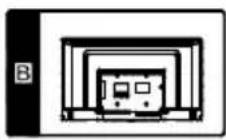
ES
ESTIMADO CLIENTE:
natural_image
Cartoon illustration of a smiling computer monitor holding a book titled 'POSTER EMAIL' (no text on screen or background)natural_image
Cartoon illustration of a computer monitor with a sad face and raised arms, surrounded by abstract brain-like shapes (no text or symbols)natural_image
Cartoon illustration of a computer monitor with a smiling face and wings, surrounded by flying money and a speech bubble (no text or symbols)natural_image
Cartoon illustration of a computer monitor with a sad face and a fist, accompanied by a printer (no text or symbols present)natural_image
Illustration of a smiling man holding a computer monitor with an electric plug, no text or symbols presentnatural_image
Cartoon illustration of a computer monitor with an angry face and power plug, showing electrical connections (no text or symbols)natural_image
Cartoon illustration of a smiling computer character with arms and legs, surrounded by clouds and industrial equipment (no text or symbols)natural_image
Symbolic icon of a person climbing a ladder inside a circle with a diagonal line (no text or symbols)natural_image
Cartoon illustration of a smiling computer monitor and a worker holding a toolbox (no text or symbols)NOTA:
natural_image
Three schematic diagrams of a battery with internal components and directional arrows indicating flow (no text or labels)| Symptoms | Possible Reason | Solutions |
| No picture, no sound, and no indicator light | 1.The power cord is not plugged on2.The power is off | inPlug the power cord in 2.Turn the power on |
| Picture and sound with abnormality | 1.Contrast, sharpness, and color are set improperly2.Color system is set improperly3.Sound system is set improperly | 1.Adjust the value of Contrast, sharpness, and colour2.Set the Color system to the country broadcasting standard3.Set the Sound system to the country broadcasting standard |
| Picture is spotted or with snow | Signal source is low-grade or the signal cord is in a lower quality | Use the qualified signal cord |
| No picture, no sound and indicator light is green/blue | Volume is in the minimum value TV is in mute mode. | orAdjust the value of volume |
| The signal cable is not correctly connected. | Connect the signal cable correctly | |
| Blue screen, AV is displayed | There is no signal input or the cable is not connected or incorrectly connected | videoConnect the video cable correctly |
| No sound | There is no audio signal input or audio cable is not connected correctly | orConnect the audio cable correctly |
| HDMI source, with snow pixel of full screen | The source generate is not standard | Plug the HDMI cable again |
| The remote control does not work | Batteries are improperly installed exhausted | 1.Make sure the positive and the negative polarities are correct.2.Check if there is a loose contact between the batteries and the springs3.Replace the batteries |
natural_image
Two identical hand gripping parts, labeled 'A' in the top-left corner (no other text or symbols)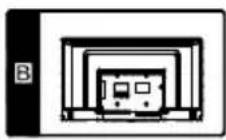
text_image
Technical diagram showing two views of a flat-screen TV unit with labeled components A, B, and C.Specifications
| Model | %/ [1]* [1)+' [7] |
| Display size | [1]" |
| LED panel resolution | [1][X 1][1] |
| Speaker output power | 2X8W |
| Power supply | 100-240V~, 50/60Hz |
| Power consumption | [1] W |
| Receiving Range | [1][45MHz ~ 867MHz |
| VHF (177.5MHz ~ 226.5MHz) | |
| UHF (474MHz ~ 858MHz) | |
| Input Impedance | [1][Ω |
NOTES:
- Design and specifications are subject to change without notice.
| ENG | We | CHANGHONG Europe Electric s.r.o. | declare that: |
| DEU | Hiermit erklärt die | dass: | |
| CES | My, | prohlašujeme, že: | |
| SLO | My, | prehlasujeme, že: | |
| ITA | I Noi, | dichiariamo che: | |
| FRA | Nous | déclarons que : |
| ENG | Apparatus type: | LED TV | Brand name: | BLUE |
| DEU | Apparatetyp: | Marke: | ||
| CES | Typ zařízení: | Název značky: | ||
| SLO | Typ prístroja: | Názov značky: | ||
| ITA | Tipo di apparecchio: | Nome del Marchio: | ||
| FRA | Appareil de type: | Dénomination commerciale: | ||
| ENG | Model: | BL40G6FHD-T2 | Power Supply: | 100-240V~ 50/60Hz |
| DEU | Modell: | Stromversorgung: | ||
| CES | Model: | Napájení proudem: | ||
| SLO | Model: | Napájanie: | ||
| ITA | Modello: | Alimentazione: | ||
| FRA | Modèle: | Source de courant: |
| ENG | Batch Number(s): | |
| DEU | Batchnummer(n): | |
| CES | Šarž(e): | |
| SLO | Šarž(a): | |
| ITA | Numeri di serie: | |
| FRA | Numéros de série: |