Butler 1800T - Desk Phone TOPCOM - Free user manual and instructions
Find the device manual for free Butler 1800T TOPCOM in PDF.



User questions about Butler 1800T TOPCOM
0 question about this device. Answer the ones you know or ask your own.
Ask a new question about this device
Download the instructions for your Desk Phone in PDF format for free! Find your manual Butler 1800T - TOPCOM and take your electronic device back in hand. On this page are published all the documents necessary for the use of your device. Butler 1800T by TOPCOM.
USER MANUAL Butler 1800T TOPCOM
3 Registering the Butler 1800T to a DECT Base set 4
3.1 Registering to a Standard GAP-Supported DECT Base Set 4
3.2 Registering to a Topcom Freeport Base Set 5
3.3 Registering to a Topcom Butler 565 6
3.4 Registering to a Topcom Butler 575 6
3.5 Registering to a Detewe Eurix 240 6
3.6 Registering to a Tiptel Decline C 6
3.7 Registering to a Philips Xalio 6
3.8 Registering to an Ascom Avenida 6
3.9 Registering to a Siemens Gigaset 6
4 Using the Butler 1800T 7
4.1 Switching the Butler 1800T on and off 7
4.2 Receiving Calls 7
4.3 Making External calls 7
4.4 Making Internal Calls 7
4.5 Handsfree Mode / Group Listening 8
4.6 Adjusting the Speaker Volume 8
4.7 Redialling the 10 Last-Called Numbers 8
4.8 Mute Function (Deactivating the Microphone Temporarily) 8
4.9 Calling Time Counter 8
4.10 Call Transfer 9
4.11 Using the Alphanumeric Keypad 9
4.12 Phone Book 9
4.13 Caller Identification 11
4.14 List of Missed Calls 11
4.15 Settings 11
5 Specifications 15
6 Guarantee 15
1 INSTALLATION
1.1 Package Contents
Butler 1800T
Batteries
Power supply
User Guide
1.2 Installation
- Open the battery cover at the bottom of the phone and insert the batteries in the battery compartment. Close the battery compartment with the screw.
- Insert the power supply in the power outlet and its cord in the jack at the bottom of the phone. The red LED with symbol lights up.
- Charge the batteries for at least 12 hours before removing the power supply from the phone.
- You can now continue to register the phone to your DECT base set.
2 CHANGING THE MENU LANGUAGE
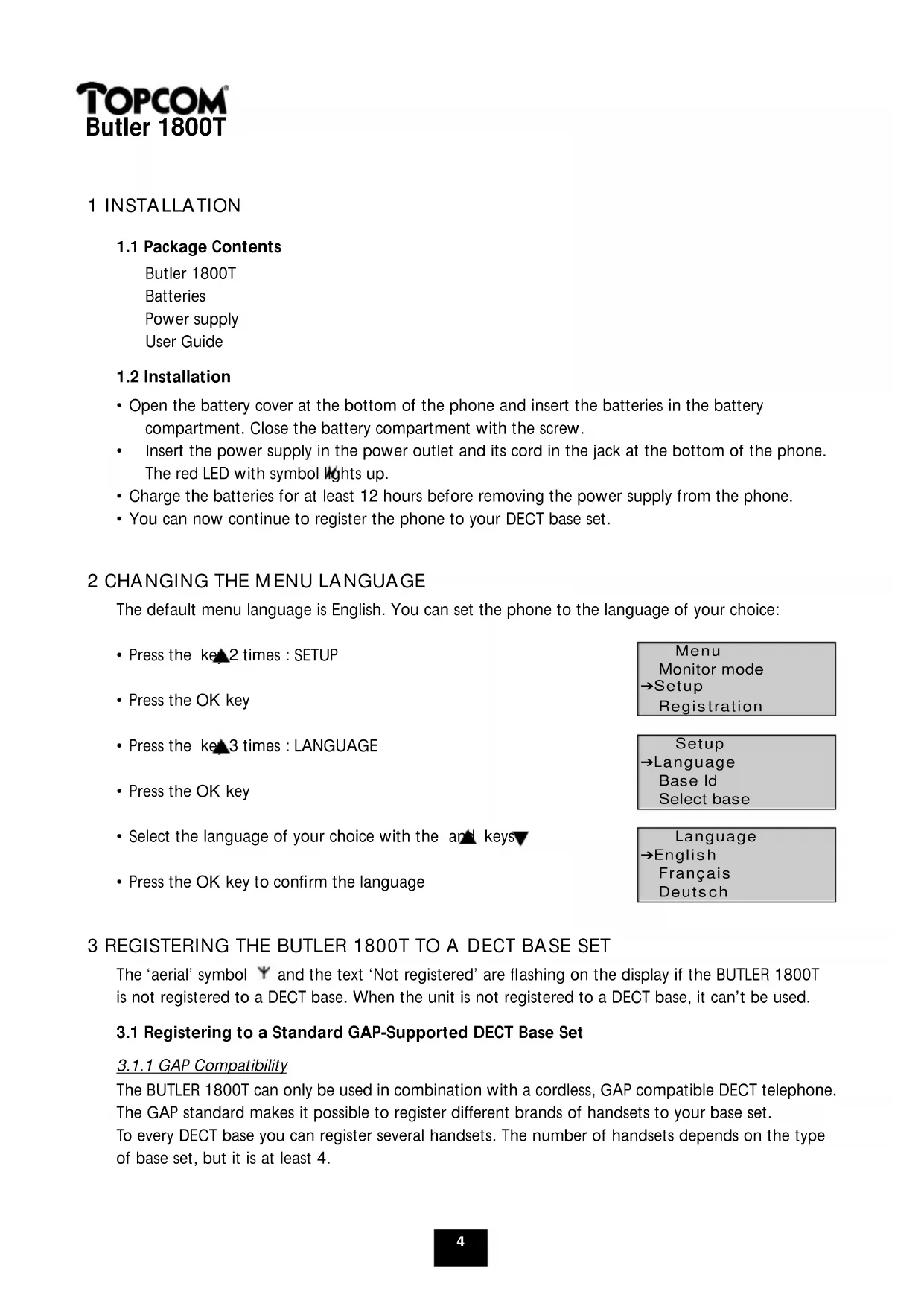
The default menu language is English. You can set the phone to the language of your choice:
- Press the key2 times: SETUP
- Press the OK key
- Press the key 3 times : LANGUAGE
- Press the OK key
- Select the language of your choice with the and keys
- Press the OK key to confirm the language
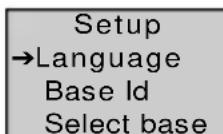

3 REGISTERING THE BUTLER 1800T TO A DECT BASE SET
The 'aerial' symbol and the text 'Not registered' are flashing on the display if the BUTLER 1800T is not registered to a DECT base. When the unit is not registered to a DECT base, it can't be used.
3.1 Registering to a Standard GAP-Supported DECT Base Set
3.1.1 GAP Compatibility
The BUTLER 1800T can only be used in combination with a cordless, GAP compatible DECT telephone. The GAP standard makes it possible to register different brands of handsets to your base set.
To every DECT base you can register several handsets. The number of handsets depends on the type of base set, but it is at least 4.
GAP compatibility does not imply that you can use all base set functions. For example, the base set might not offer the CLIP (number) display function or it may support another protocol, or it may not have a compatible callers list (saving incoming calls in memory).
Read carefully the registration procedure of the DECT telephone you already have and follow the recommended registration procedure to register the BUTLER 1800T to a base set.
3.1.2 Standard Registration Procedure
-
Set the base set in registration mode (see your DECT base set manual). This is usually done by pressing and holding the paging key on the base set until you hear an acoustic signal.
-
Press the key 1 time.
- Press the OK key.
- Press the OK key.
- Enter the pin code of your base set (refer to your DECT base set manual). This code is usually: 0000.
- Press the OK key. The BUTLER 1800T immediately starts searching for your DECT base set. As soon as it is found, the display reads the base set identification code.
- Press the OK key to confirm or press the ESC key to cancel your registration.
- If the phone cannot find the base set, it returns to the initial display. Repeat the registration procedure.
- If the BUTLER 1800T is registered to a base set, the 'aerial' symbol appears in the upper right corner of the display. The internal number of your BUTLER 1800T then appears in the lower right corner (depends on your DECT base set).
Note:
The BUTLER 1800T phone can be registered to 4 different base sets. The base sets to which the BUTLER 1800T is registered, are indicated with a symbol.
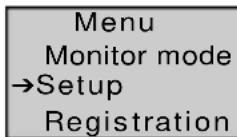
Menu
Monitor mode
Setup
Registration
Registration
→Base 1
Base 2
Base 3
Pin code?
SEARCHBASE1

BUTLER2

Registration
→Base 1
Base 2
Base 3
3.2 Registering to a Topcom Freeport Base Set
- Start the Freeport registration mode. To do this, remove your Freeport power supply and connect it again.
The aerial LED on your Freeport starts flashing. Now you have 5 minutes to register your handset. - Follow the procedure mentioned above and enter PIN code: 1111.
- If the BUTLER 1800T does not find the base set after a few seconds, it returns to the previous configuration. Try again and check whether your reception zone is interference-free.
Note: The Freeport does not support the unanswered calls list for missed calls.
3.3 Registering to a Topcom Butler 565
- Set the base set in registration mode by pressing and holding the paging key until you hear the registration tone. Now you have 30 seconds to follow the standard registration procedure.
- The Butler 565 default PIN code is '0000'.
Note: This base set does not support the unanswered call list for missed calls.
3.4 Registering to a Topcom Butler 575
- Set the base set in registration mode by pressing and holding the paging key for 20 seconds. Now you hear a beep tone and you can follow the standard registration instructions.
- The Butler 575 default PIN code is '1590'.
3.5 Registering to a Detewe Eurix 240
- Set the base set in registration mode by interrupting the power supply for 20 seconds. From now on, you can follow the standard registration procedure.
The default PIN code of the Eurix 240 are the last 4 digits of the serial number.
Note: This base set does not support the unanswered call list for missed calls.
3.6 Registering to a Tiptel Decline C
- Set the base set in registration mode by pressing the paging key for 10 seconds. Now the base set LED starts flashing and you have 1 minute to follow the standard registration procedure.
- The Tiptel Decline C default pin code is '0000'.
Note: No number display function on incoming calls on the BUTLER 1800T when registered to Tiptel and no unanswered call list function
3.7 Registering to a Philips Xalio
- Set the base set in registering mode by pressing the paging key for 10 seconds. Now you hear a beep tone and you can follow the standard registering instructions.
- The Philips Xalio default pin code is '1590'.
Note: This base set does not support the unanswered call list for missed calls.
3.8 Registering to an Ascom Avenida
- Set the base set in registration mode by pressing the following keys on your Ascom handset: "P P 903 (new handset number) (PIN code) P" Now the base set LED starts flashing and you have 1 minute to follow the standard registration procedure.
- The Ascom Avena default pin code is '0000'.
Note: This base set does not support the unanswered call list for missed calls.
3.9 Registering to a Siemens Gigaset
- Set the base set in registration mode by pressing the paging key for 10 seconds. Now you hear a beep tone and you have 1 minute to follow the standard registration procedure.
- The Siemens Gigaset default code is '0000'.
Note: No number display function on incoming calls on the BUTLER 1800T when registered to Siemens Gigaset and no unanswered call list function.
4 USING THE BUTLER 1800T
Note:
The use of the handset depends on the base set to which the handset was registered. Some functions do not function as described below if the DECT base set does not support these functions. Especially the functions ' caller identification' and ' unanswered call list' depend on the base set type.
4.1 Switching the Butler 1800T on and off
You can switch off the BUTLER 1800T to save batteries by pressing and holding the OK key for 3 seconds. Repeat this procedure to switch the phone on again.
4.2 Receiving Calls
4.2.1 Internal Call
- If you call your BUTLER 1800T from another handset, the internal calling number appears on the display.
- Pick up the handset and you are connected to the caller.
4.2.2 External Call
- On an external call the external calling number appears on the display if your DECT base supports this function.
- Pick up the handset and you are connected to the caller.
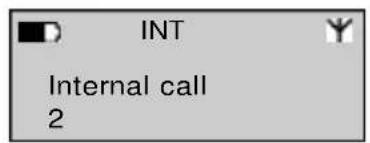
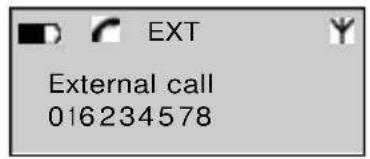
4.3 Making External calls
4.3.1 Normal Procedure :
Pick up the handset.
- Dial the phone number of your choice.
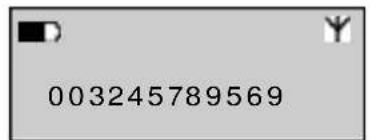
4.3.2 Block Dialling :
- Dial the number of your choice.
You can delete an entry by pressing the ESC key
Pick up the handset. - The phone number will be dialled, wait for a connection to be established.
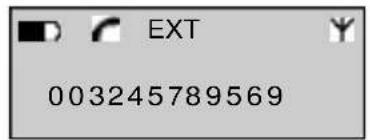
4.4 Making Internal Calls
- Press the INT key.
- Enter the number of the internal handset you want to call.
- Wait for a connection to be established.
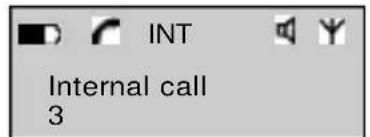
Note : When pressing the INT key, you will not hear a dial tone.
4.5 Handsfree Mode / Group Listening
4.5.1 In Standby Mode
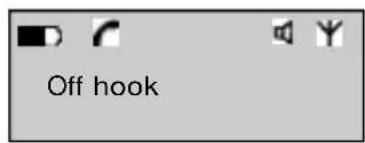
- Press the key.
- Now you can talk to your calling partner without picking up the handset through the integrated speaker and microphone.
4.5.2 During a Call
- You are holding a conversation using the handset.
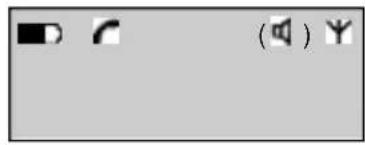
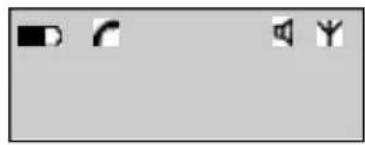
- Press the key to activate group listening. Now everyone can listen to your conversation through the integrated speaker. Group listening is indicated by the ( ) symbol.
- Press the key again to activate the handsfree function.
- Now you can hang up and continue your conversation through the integrated microphone and speaker.
- Press the key to end the communication.
4.6 Adjusting the Speaker Volume
During a conversation you can adjust the volume of the handset and that of the handsfree speaker by pressing the + and - keys.
4.7 Redialling the 10 Last-Called Numbers
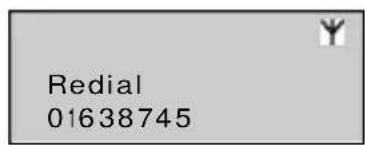
The Butler 1800T stores a list of the 10 last-called numbers in the memory.
If you want to refer to this list, proceed as follows:
- Press the key.
- Use the or key browse through the 10 last calls.
- Pick up the handset or press the key to dial the selected number.
4.8 Mute Function (Deactivating the Microphone Temporarily)
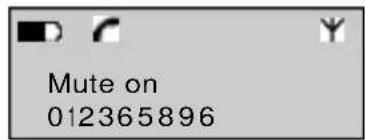
It is possible to deactivate the microphone during a conversation.
- Press the key during the conversation.
- The microphone is deactivated. Now you can talk freely without the caller hearing you.
- Press the key again to resume your conversation.
4.9 Calling Time Counter
After 15 seconds the calling time appears on the display. Form: minutes - seconds: "00:20". If you press one of the numeric keys (0-9) during the conversation, the calling time is reset and reappears after 20 seconds. At the end of every conversation, the calling time remains visible on the display for 5 seconds.
4.10 Call Transfer
If you want to transfer an external call to another internal handset, proceed as follows:
- Press the INT key during your conversation.
Dial the number of the internal handset to which you want to transfer the call. The external caller is on hold.
- If the internal calling partner answers the phone, you can make an internal phone call.
- If you hang up the phone, the conversation is transferred.
If the internal calling partner does not answer the phone, press the INT key again. You are now back in communication with the external caller.
4.11 Using the Alphanumeric Keypad
You can also insert text by pressing the keys of the alphanumeric keypad. You need this function to insert a name in the telephone book. To select a letter, press the corresponding key repeatedly.
For example, press key 2 once to select A and press it twice to select B. If you want to select A and B one after the other, first select A, wait until the cursor moves up and then select B.
Press key 1 to insert a space or a blank character.
While inserting the letters, the different letters available under that key appear in the upper part of the display.
4.12 Phone Book
In the phone book you can save the names and numbers of up to 60 persons. The names can be 8 characters long and the phone numbers can have max. 20 digits.
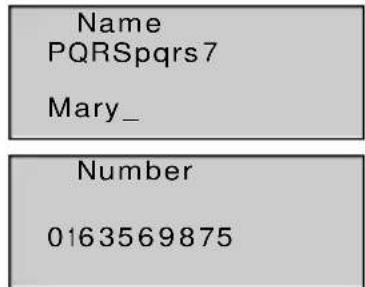
4.12.1 Inserting a New Name in the Phone Book
-
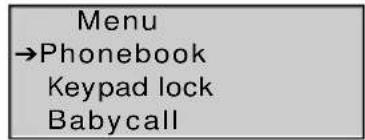
Press the key to open the menu.
Press the OK key to open the 'Phonebook' menu. -
Select 'Add' by pressing the OK key.
-
Enter the new name using the keypad.
-
Press the OK key.
-
Enter the phone number.
- Press the OK key to confirm.
4.12.2 Changing Names and Numbers in the Phone Book
- Press the key to open the menu.
- Select 'Phonebook'.
- Press the OK key.
Menu
→Phonebook
Keypad lock
Babycall
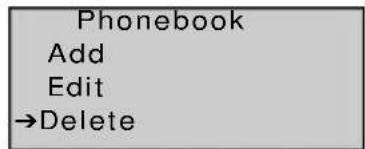
Phonebook
→Add
Edit
Delete
Name
PQRSpqrs7
Top_
Number
0163569875
Menu Phonebook Keypad lock Babycall
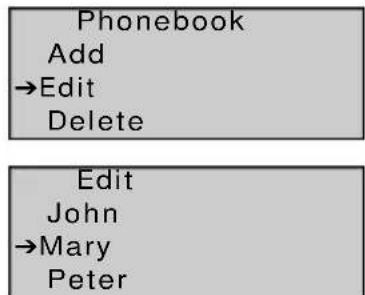
- Select 'Edit'
-
Press the OK key.
-
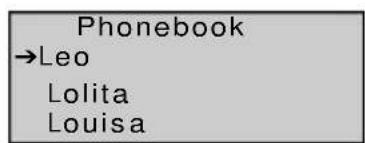
Use the and keys to browse through the list. The names are listed in alphabetical order.
- Press the OK key if you have found the name that needs changing.
- Press the ESC key to delete the characters.
- Enter the new name or changes using the keypad.
- Press the OK key to confirm.
- Enter the new phone number.
- Press the OK key to confirm.
4.12.3 Removing Numbers from the Phone Book
- Press the key to open the menu.
- Select 'Phonebook'.
-
Press the OK key.
-
Select 'Delete'.
-
Press the OK key.
-
Use the and keys to browse through the list of names. The names are listed in alphabetical order.
-
Press the OK key if you have found the name that needs to be deleted.
-
The number appears on the display.
- Press the OK key to confirm.
4.12.4 Dialling Numbers from the Phone Book
- Press the key to open the phone book.
- Enter the first letter of the name, e.g. 'J'.
The first name starting with this letter appears on the display.
-
Use the and keys to browse through the list.
Press the OK key to check the number on the display. -
Pick up the handset or press the key to dial the number.



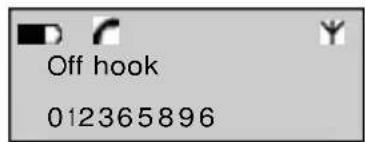
4.13 Caller Identification
This service is only available if you have the number display (CLIP) service on your trunk line and if your base set supports this number display function. Your telephone company has to activate this function. If you receive an external call, the phone number of the caller appears on the display. If the name of the caller was entered in the phone book of your BUTLER 1800T, instead of the number, the caller's name will appear on the display. The caller can decide not to send his number (private number). In that case his number will not be visible. During a call, after 20 seconds the phone number or name of the caller will be replaced by the calling time counter.
Note: Number display transfer from the DECT base set to the handsets is optional in the DECT GAP standard. This is why the BUTLER 1800T on your DECT base set might not have the number display function, although this function is available on your other handsets.
4.14 List of Missed Calls
While you are absent, your DECT base set keeps a list of calls which remained unanswered. This is the list of unanswered calls. The number of new messages appears on the display. At the same time the green LED with the symbol lights up.
To check the missed calls, proceed as follows:
- Press the key. The last call appears on the display.
- Use the and keys to browse through the callers list (phone numbers).
The phone numbers and the number of times these numbers called, appear on the display. - Press the OK key again to delete or save this number in the phone book.
- If you want to add the number to the phone book, you are asked to enter a name.
Note: If the phone number was already entered, you can only delete this call from the unanswered call list and not add it to the phone book.
- Press the OK key to confirm or press the ESC key to go back to the previous menu.
If you want to call back a number from the list, pick up the handset or press the key when the phone number or name is on the display.
4.15 Settings
4.15.1 Menu
A user-friendly menu makes all functions easily accessible.
- To go to the menu, press the key.
- Use the and keys to browse through the menu. Confirm your choice by pressing the OK key.
- Press the ESC key to return to the previous menu.
4.15.2 Keypad Lock
This function prevents you from dialling a number unintentionally. If the keypad is locked, you can
only press the and keys. All the other keys are locked.
- Press the key to open the menu.
- Select 'Keypad lock.
- Press the OK key.
- Select 'On' and press the OK key.
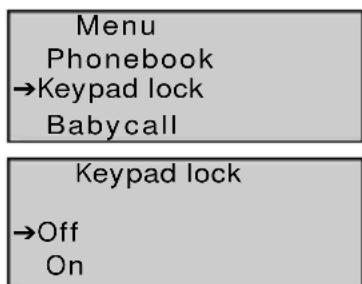
- The 'key' symbol appears on the display.
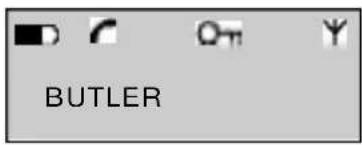
All keys are now locked.
To deactivate this function, press the key followed by the OK key.
- Select 'Off' and press the OK key to confirm.
4.15.3 Baby Call
This function allows you to program a number which will be dialled automatically by pressing any key.
1) Programming the baby call
- Press the key to open the menu.
-
Select 'Babycall' and press the OK key.
-
Select 'Number' and press the OK key.
- Enter the baby call number.
- Press the OK key to confirm.
2) Activating the baby call
- Press the key to open the menu.
-
Select 'Babycall' and press the OK key.
-
Select 'On'.
- Press the OK key to confirm.
As soon as this function is activated, 'Babycall' appears on the display.
As soon as you press any key, the baby call number will be dialled automatically.
Menu
Phonebook
Keypad lock
Babycall
babycall
Off
On
→Number
Menu
Phonebook
Keypad lock
Babycall
Babycall
Off
0n
Number
3) Deactivating the baby call
- Press the or key open the menu.
- Press the OK key and select 'Off'.
- Press the OK key to confirm.
4.15.4 Room Monitoring
The BUTLER 1800T has a monitor function. If this function is activated, you can monitor the room where the BUTLER 1800T is located with another handset. If you make an internal call to the BUTLER 1800T, it will automatically answer the call allowing you to hear what is happening in that room through the handsfree microphone.
- Press the key to open the menu.
-
Select 'Monitor mode' and press the OK key.
-
Select 'On' or 'Off'.
- Press the OK key to confirm.
Menu
Keypad lock
Babycall
Monitor mode
Monitor mode
Off
0n
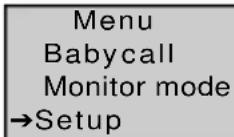
As soon as this function is activated, 'Monitor mode' appears on the display. You can still make normal phone calls with your phone. Only if you receive an internal call, it will automatically answer the call without ringing. External calls will ring normally on a phone in room monitoring mode.
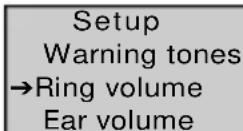
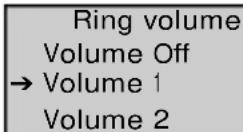
4.15.5 Adjusting the Ringing Volume
- Press the key to open the menu.
- Select 'Setup' and press the OK key.
- Select 'Ring volume' and press the OK key.
- Select the desired volume (volume off or 1-5).
- Press the OK key.
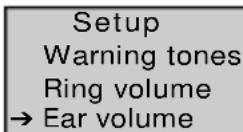
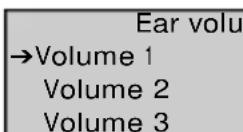
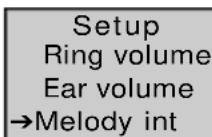
4.15.6 Adjusting the Speaker Volume
The standard value of the speaker volume can be fixed. You can always adjust the speaker volume during a conversation by pressing the + and - keys.
- Select 'Setup' in the menu and press the OK key.
- Select 'Ear volume'.
-
Press the OK key.
-
Select the desired volume (1-5).
- Press the OK key.
4.15.7 Internal Call Ring Melody
- Select 'Setup' in the menu and press the OK key.
- Select 'Melody int.'
- Press the OK key.
- Select the desired melody (1-5).
- Press the OK key.
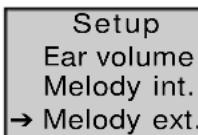
4.15.8 External Call Ring Melody
- Select 'Setup' in the menu and press the OK key.
- Select 'Melody ext.'
- Press the OK key.
- Select the desired melody (1-5).
- Press the OK key.

Monitor mode
4.15.9 Switching Off and On Warning Tones
You can choose whether your Butler 1800T emits a beep tone or not when pressing the keys (keypad tones), when the battery is almost empty or when the handset gets out of reach of the base set.
-
Select 'Setup' in the menu and press the OK key.
-
Select 'Warning tones'.
-
Press the OK key.
-
Select the sound you want to activate or deactivate.
-
'Key tone' = you hear a tone when pressing any key.
- 'Low battery' = warning that your battery is almost empty.
-
'Out of range' = warning that the handset is too far away from the base set.
-
Press the OK key.
- Select 'On' to activate and 'Off' to deactivate the signal.
- Press the OK key.
Setup
→Warning tones
Ring volume
Ear volume
Warning tones
→key tone
Low battery
Out of range
Key tone
→Off
On
4.15.10 Entering a Name for the unit
This function allows you to give your phone a name. This name appears on the display when the phone is in standby mode. The standard name is 'Butler'.
- Select 'Setup' in the menu and press the OK key.
- Select 'Name' and press the OK key.
Setup
Melody int.
Melody ext.
Name
Name
BUTLER_
- Enter the name using the alphanumeric keypad.
- Press the OK key to confirm.
When entering the name, you can press the ESC key to correct possible mistakes.
If you keep pressing the ESC key, you leave the menu without making any adjustments.
4.15.11 Selecting the Base Set
If your handset is registered to several DECT base sets, you can select the base set you want to use. You can also program automatic base set selection. Then the handset automatically chooses the base
set offering the best reception.
- Select 'Setup' in the menu and press the OK key.
- Select 'Select base' and press the OK key.
Setup
Language
Base ID
→Select base
Select base
Automatic
Basis 1
Basis 2
4.15.12 Base Set ID
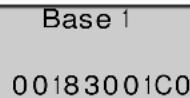
Every DECT base set has a unique identification code. You can read this code on your BUTLER 1800T.
- Select 'Setup' in the menu and press the OK key.
- Select 'Base Id' and press the OK key.
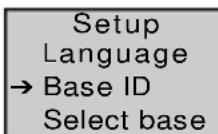
- The ID code immediately appears on the display.
- Press the ESC key to return.
5 SPECIFICATIONS
The BUTLER 1800T complies with the following European directives:
73/23/EEG : low voltage or LVD directive
89/336/EEG:EMC directive
TBR6
TBR 10
TBR 22
The BUTLER 1800T is a handset and therefore it is not connected directly to the telephone network.
As a result, it can be used on every telephone network provided that the DECT base set is fit to be used on this network.
6 GUARANTEE
Guarantee: 1 year. Contact your dealer.
Note: Do not forget to add your receipt if you have to return your phone.
Touches →Désactiver Activer
89/336/CEE : directive CEM
TBR6
TBR 10
TBR 22
it's nice talking to you
www.topcom.be