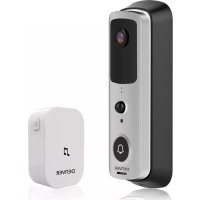
SHV120 - Doorbells DENVER - Free user manual and instructions
Find the device manual for free SHV120 DENVER in PDF.



User questions about SHV120 DENVER
0 question about this device. Answer the ones you know or ask your own.
Ask a new question about this device
Download the instructions for your Doorbells in PDF format for free! Find your manual SHV120 - DENVER and take your electronic device back in hand. On this page are published all the documents necessary for the use of your device. SHV120 by DENVER.
USER MANUAL SHV120 DENVER
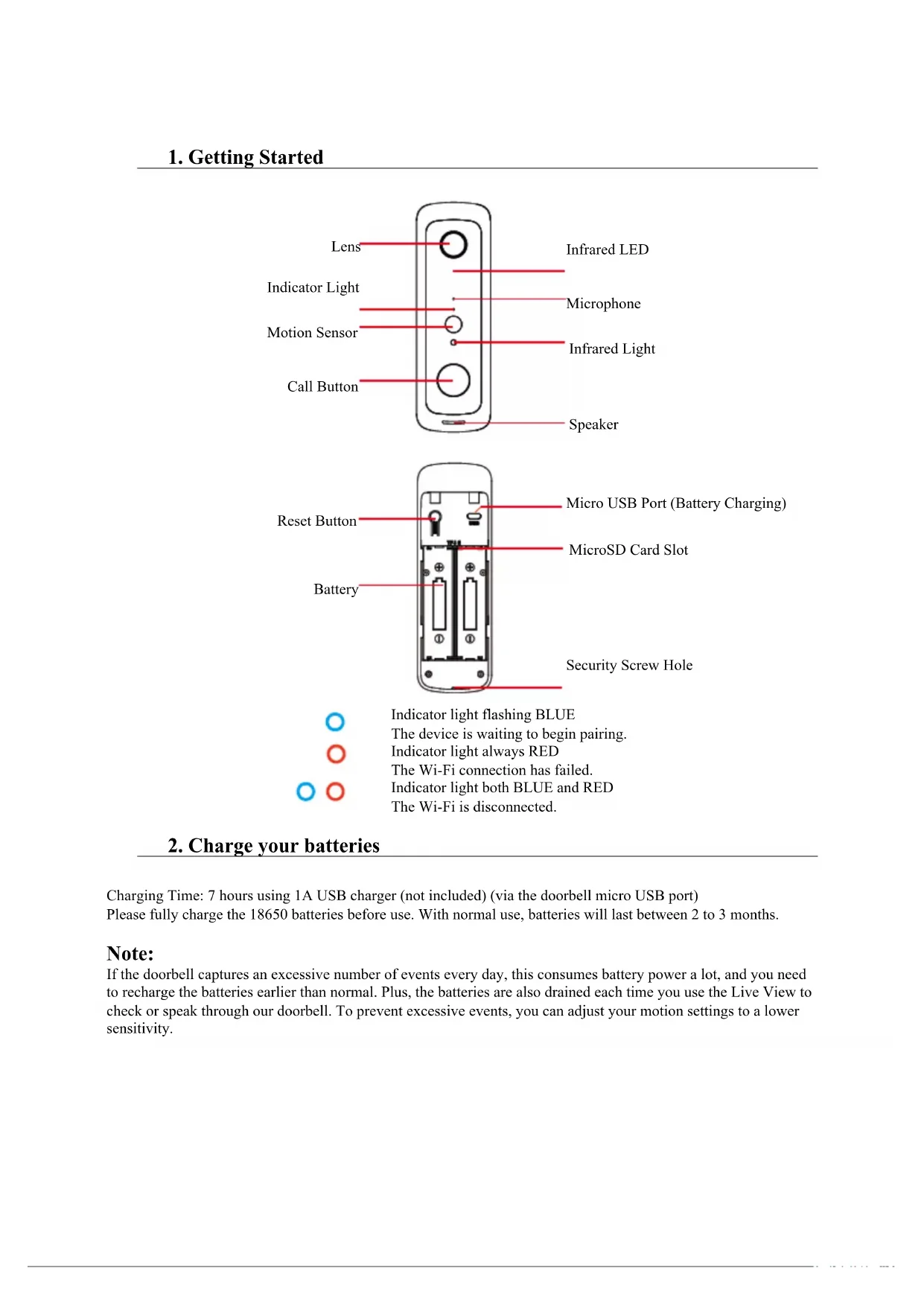
2. Charge your batteries
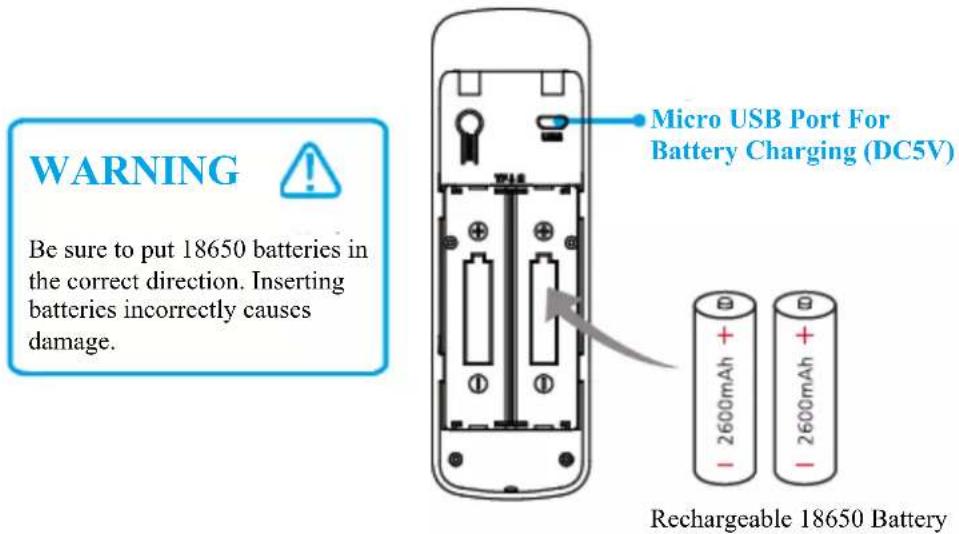
Charging Time: 7 hours using 1A USB charger (not included) (via the doorbell micro USB port) Please fully charge the 18650 batteries before use. With normal use, batteries will last between 2 to 3 months.
Note:
If the doorbell captures an excessive number of events every day, this consumes battery power a lot, and you need to recharge the batteries earlier than normal. Plus, the batteries are also drained each time you use the Live View to check or speak through our doorbell. To prevent excessive events, you can adjust your motion settings to a lower sensitivity.
3. Set up your video doorbell in the ENVER SMART HOME APP
Step 1
Download the Denver Smart Home app. Scan QR code below, or search for "Denver smart Home" on the Apple app store or Google Play.



Denver Smart Home iOS Android
Step 2
Open the Denver Smart Home app, Register your email or phone number and Log in to our account.
Step 3
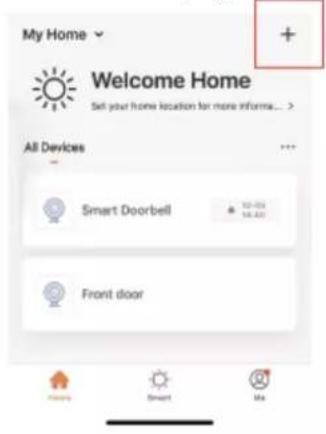
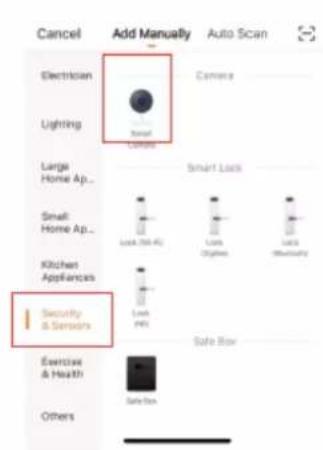
To add your doorbell, select the ^+ at top right of home page. Tap Security & Sensors, then select Smart Camera.
Step 4
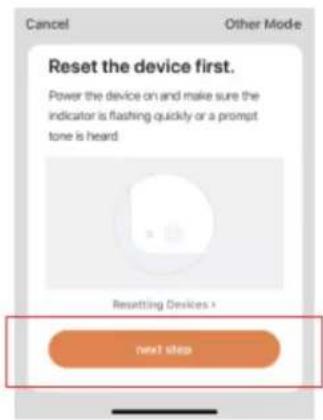
Open the battery cover and remove the insulation tabs. When you hear The camera is now ready to begin pairing and the LED light is flashing blue quickly, tap Next step.
Step 5
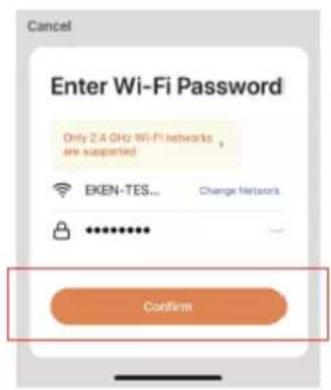
Find the name of your Wi-Fi network. Enter your Wi-Fi password, then tap Confirm.
Step 6
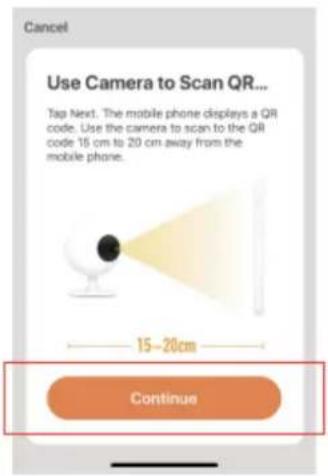
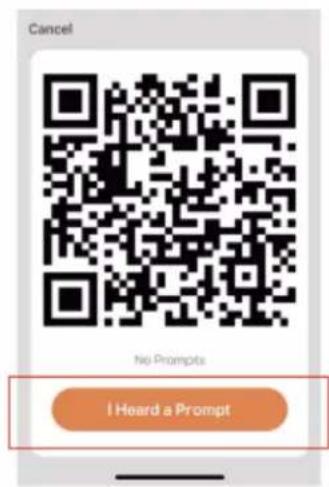
Tap Continue, then use the doorbell to scan the QR code on your mobile phone. After you hear a prompt, tap I Heard a Prompt.
Step 7
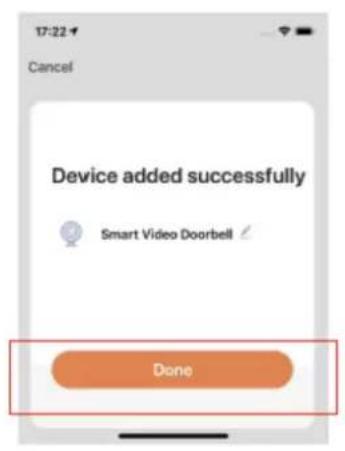
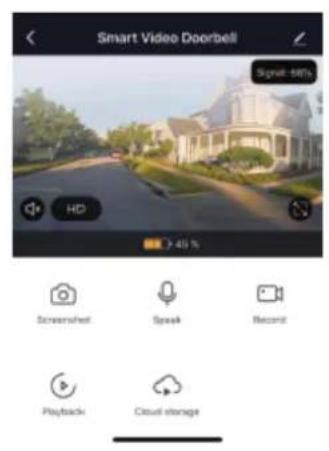
Once the doorbell has connected to your Wi-Fi, tap Done. Setup is complete. Give it a try and go see the Live preview.
NOTICE:
Be sure to turn on push notifications on your phone.
- Navigate to Settings -> Notifications -> ON
- A list of apps that support push notifications will appear.
- Tap the Denver Smart Home app and enable the notification.
4. Set up your Wireless Chime
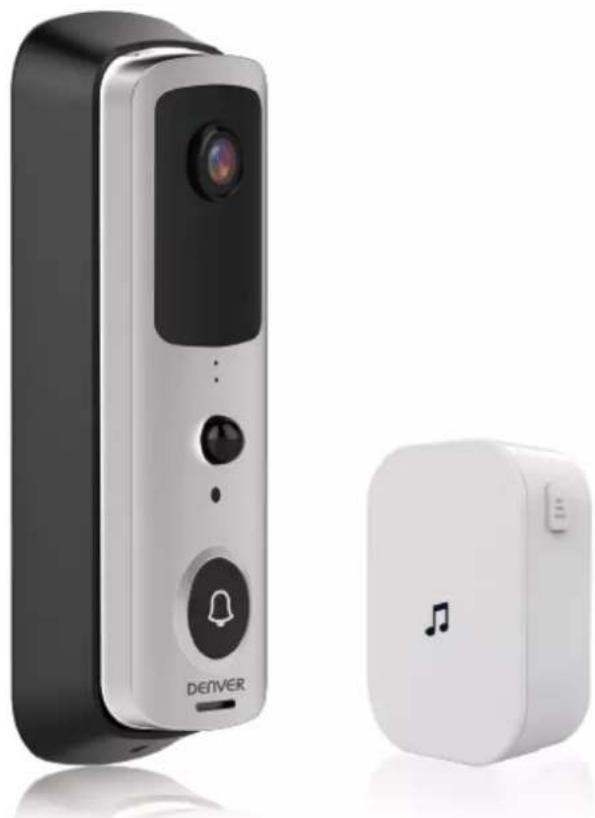
Connect the video doorbell to the doorbell chime, and get instant alert in your home when someone rings the doorbell. Hear the doorbell chime when you are home, without checking your video doorbell app! The chime plugs into any wall outlet, you can place it anywhere in the home.
NOTICE:
The video doorbell is only compatible with our wireless chime, and not compatible with any other traditional doorbell chimes. The wireless chime is optional. If the wireless chime is not installed, doorbell notifications will go directly to the Denver Smart Home app.
Overview of the wireless chime
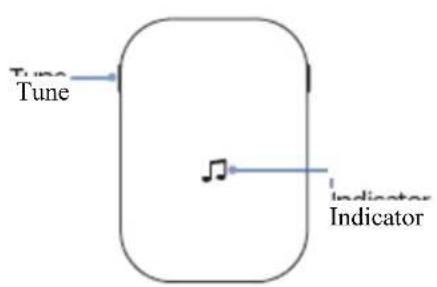
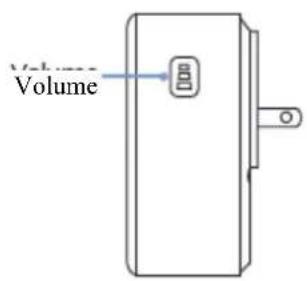
Getting Started
Set up your chime with the video doorbell
Step 1
Before the setup process, be sure your video doorbell has connected to your phone and plug in your chime.
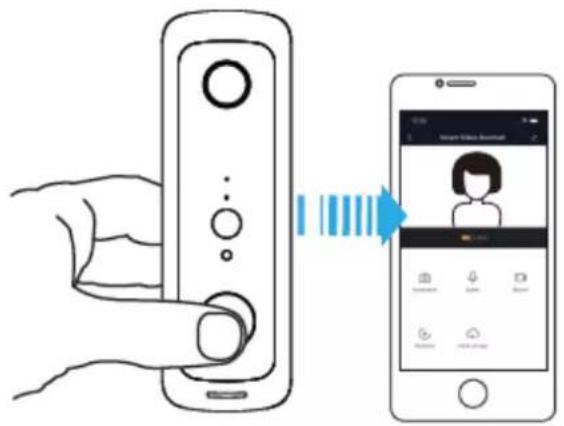
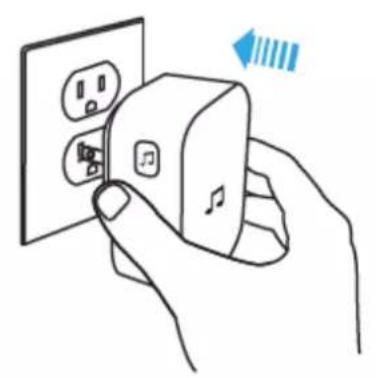
Step 2 Step 3
Press the Tune Button to cycle through 52 different tunes and select a tune.
Press and hold the Volume Button for 5 seconds until the blue indicator is ON.
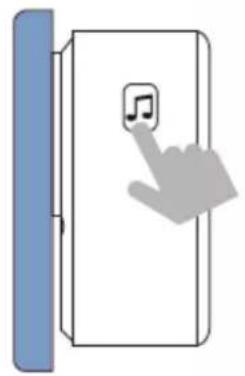
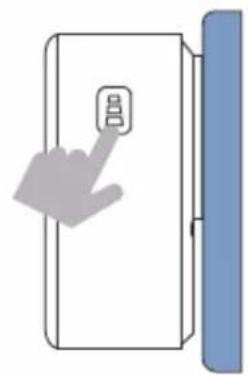
Step 4
Press the Call Button.
Step 5
Press the Call Button again, the chime will automatically play the tune you selected.
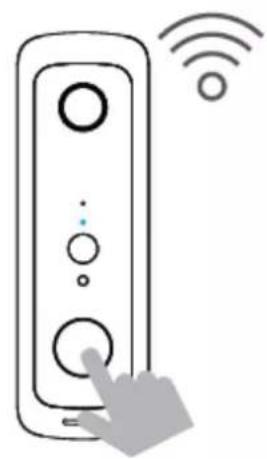
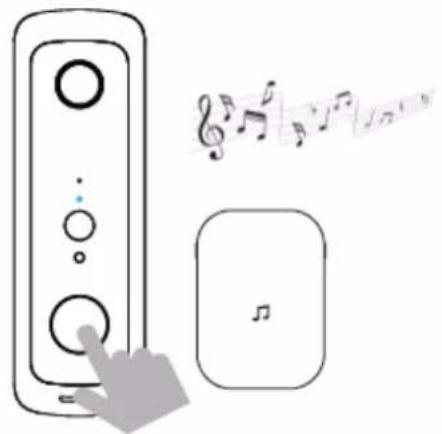
5. Install Your Video Doorbell On The Wall
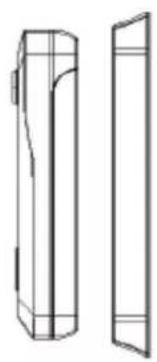
Step 1: Remove the back bracket.
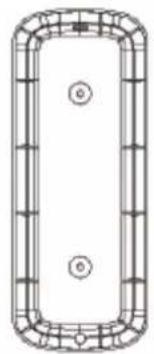
Step 2: Use 2 mounting screws to fix the back bracket onto your door or wall. You can also use double-sided tape to fix the back bracket.

Step 3: Fit the doorbell into the back bracket. Use the provided security screw to secure the doorbell, so the doorbell cannot be removed easily.
Notice
Please check live preview to find the best height to install your doorbell. We recommend not below shoulder height.
6. FAQ
Q: How do I reset the doorbell?
A: Press and hold the RESET Button for 6 seconds.
Q: How do I share the video doorbell with my family?
A: 1.From the home page, tap the doorbell to live view.
- Tap the "settings" icon in the top right corner.
- Select "Share Device"
- "Add sharing" and enter the account name you want share to. Or you can follow the in-app instructions to do family settings.
Q: How do I adjust PIR motion detection sensitivity?
A: 1.From the home page, tap the doorbell to live view.
- Tap the settings icon in the top right corner.
- Select PIR
Options for PIR Motion Sensitivity
High: Records and notifies you about every motion. Shortest battery life.
Medium: Records and notifies you about motion less often. Standard battery life.
Low: Records and notifies you about motion even less often. Standard Maximum battery life.
Q: How many users can view the video at the same time?
A: Up to 4 users may view the video feed. Both iOS and Android are compatible.
Q: Is 5GHz WiFi supported?
A: No. Only 2.4GHz WiFi is supported.
Q: My signal is poor on my doorbell.
A: Your doorbell may be too far away from your wireless router or you may have some obstructions in between that reduce signal strength. You might try repositioning your router or getting a signal extender/repeater for your wireless router.
Q: Is this device only battery powered?
A: Yes, it's only battery powered. No wires needed.
Q: Can I use Tuya Smart Life app for the doorbell?
A: Yes, you can use both Tuya Smart Life and Denver Smart Home.
ALL RIGHTS RESERVED, COPYRIGHT DENVER ELECTRONICS A/S
Please notice-All products are subject to change without any notice.
We take reservations for errors and omissions in the manual.
DENVER
www.denver-electronics.com

Electric and electronic equipment and included batteries contains materials, components and substances that can be hazardous to your health and the environment, if the waste material (discarded electric and electronic equipment and batteries) is not handled correctly.
Electric and electronic equipment and batteries is marked with the crossed out trash can symbol, seen below. This symbol signifies that electric and electronic equipment and batteries should not be disposed of with other household waste, but should be disposed of separately.
As the end user it is important that you submit your used batteries to the appropriate and designated facility. In this manner you make sure that the batteries are recycled in accordance with legislature and will not harm the environment.
All cities have established collection points, where electric and electronic equipment and batteries can either be submitted free of charge at recycling stations and other collection sites, or be collected from the households. Additional information is available at the technical department of your city.
Hereby, Inter Sales A/S declares that the radio equipment type SHV-120 is in compliance with Directive 2014/53/EU. The full text of the EU declaration of conformity is available at the following internet address: Please enter: www.denver-electronics.com and click the search ICON on topline of website. Write model number: SHV-120. Now enter product page, and red directive is found under downloads/other downloads. Operating Frequency Range: 2400 2500MHz Max Output Power: 1 0dbm
DENVER ELECTRONICS A/S
Omega 5A, Socften
DK-8382 Hinnerup
Denmark
www.facebook.com/denverelectronics
DENVER
DENVER SMART HOME SHV-120
Guide d'utilisation

Facebook.com/denverelectronics
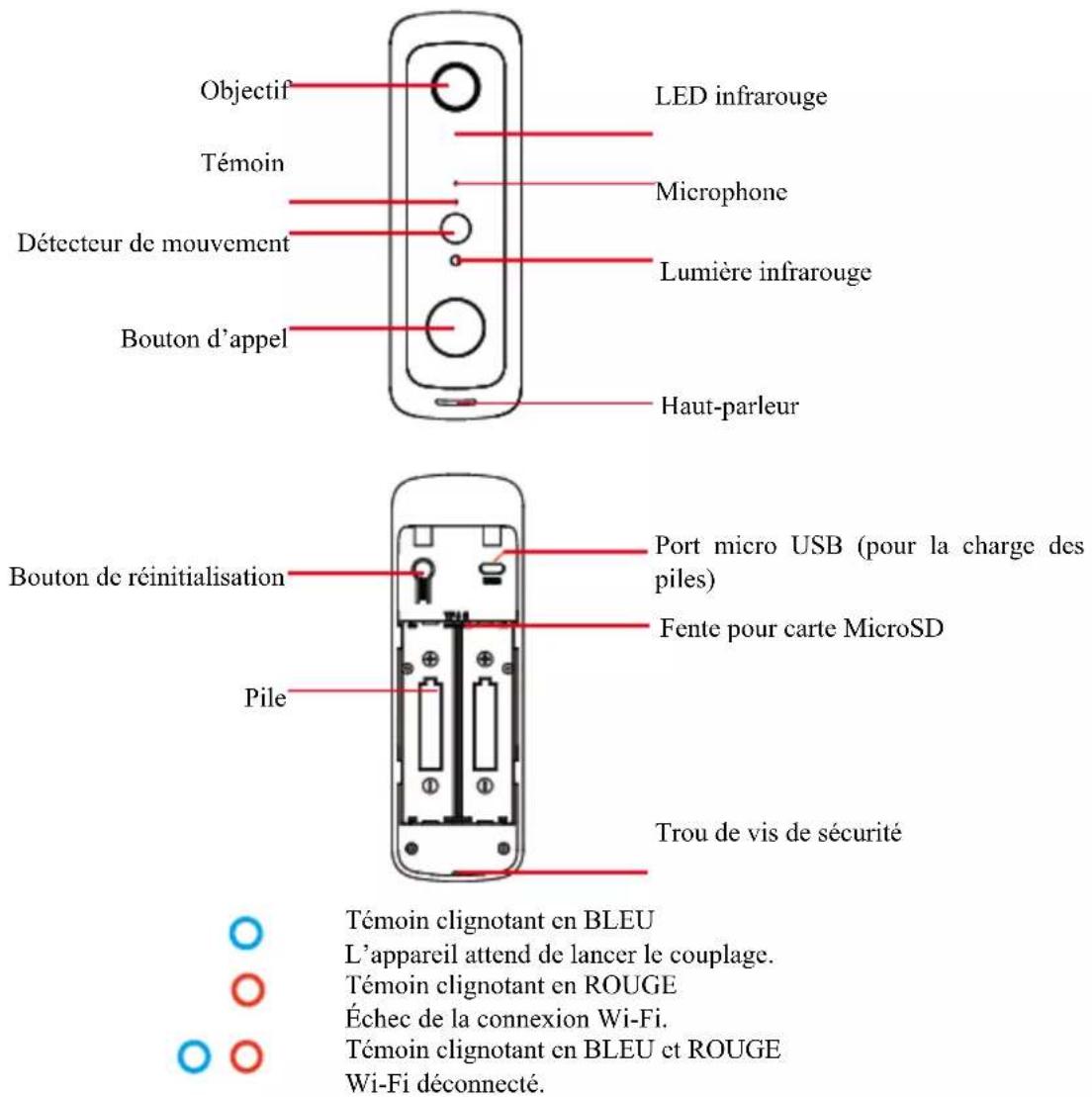
1. Mise en route