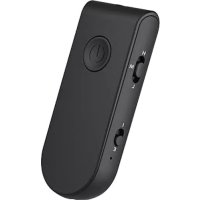
MightyMic Pro - Microphone AmpRidge - Free user manual and instructions
Find the device manual for free MightyMic Pro AmpRidge in PDF.


| Product Type | Wireless Bluetooth Microphone |
| Brand | AmpRidge |
| Model | MightyMic Pro |
| Connectivity | Bluetooth (version unspecified) |
| Range | Approximately 10 meters (estimated) |
| Power Supply | Rechargeable lithium-ion battery via USB-C port |
| Main Functions | Music control (pause, volume, tracks), call management, voice assistant, audio and video recording |
| Microphone Sensitivity | Switchable: High (0 dB), Medium (-3 dB), Low (-6 dB) |
| External Microphone Input | 3.5 mm 4-pole jack (I/E switch) |
| Headphone Output | 3.5 mm jack (for monitoring) |
| LED Indicators | Blue and red: connection status, low battery, charging |
| Compatibility | iOS and Android |
| Included Accessories | USB-A to USB-C charging cable |
| Power On | Multifunction button (MF) held down |
| Volume Control | + and - buttons (hold for volume, press for track) |
| Call Management | Answer, reject, end call, double call via MF button |
| Voice Assistant | Hold MF for 1 second for Siri |
| Reset | Device off, hold MF for 8 seconds |
| Use While Charging | Possible, can operate on mains or external battery |
| Cleaning | Soft dry cloth, avoid liquids |
| Usage Precautions | Use in open space, airplane mode recommended for recording |
Frequently Asked Questions - MightyMic Pro AmpRidge
User questions about MightyMic Pro AmpRidge
0 question about this device. Answer the ones you know or ask your own.
Ask a new question about this device
Download the instructions for your Microphone in PDF format for free! Find your manual MightyMic Pro - AmpRidge and take your electronic device back in hand. On this page are published all the documents necessary for the use of your device. MightyMic Pro by AmpRidge.
USER MANUAL MightyMic Pro AmpRidge
Multi-Function Smartphone Wireless Microphone
User Manual
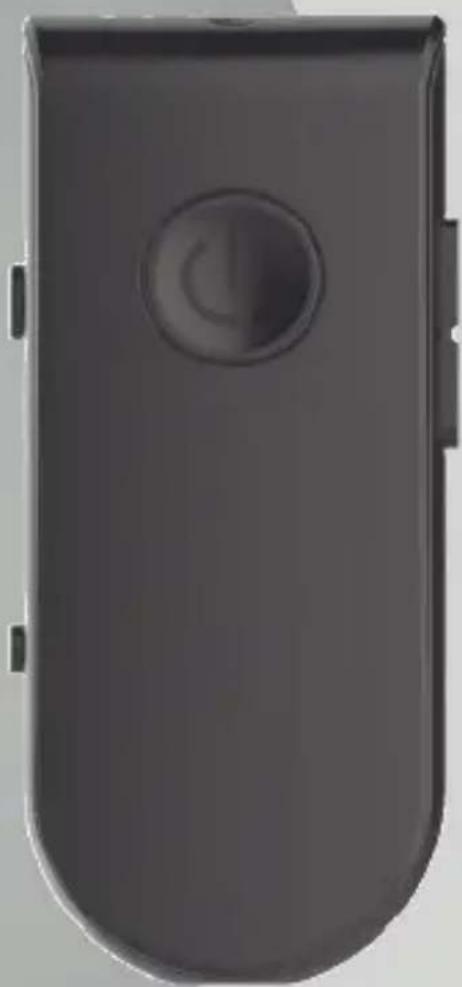
natural_image
Exterior view of a modern office building (no signage)MightyMic Pro User Manual
Introduction
Thank you for choosing the MightyMic Pro Bluetooth microphone. In order to use the mic as a wireless microphone you will need to use a compatible App such as MoviePro or FilmicPro for video recording or MightyMic Pro Recorder for audio recording. Please check our website for the latest info on Apps and features
Safety Rules
- To ensure your safety before using the MightyMic Pro please carefully read through this user manual
- Be wary of any sharp edges, uneven surfaces, metal parts, accessories and their packaging so as to prevent any possible injuries to you or to the microphone
- Do not modify, repair, or dismantle the microphone. Do so may result in fire, electric shocks, complete failure of this device, etc. All of which are not covered on the warranty
- Do not use any solvents or volatile liquids to clean the MightyMic Pro
- Do not use the MightyMic Pro in a hazardous location
- The package contains small parts. Please keep away from children
- You must select a qualified charger from a reliable manufacturer
- Do not use the USB charging cable on any other device because of possible damage
This unit contains Li-ion polymer batteries. Li-ion Polymer batteries are volatile. Failure to read and follow the safety instructions may result in fire, personal injury and damage to property if charged or used improperly. By purchasing and using this unit the buyer assumes all risks associated with Li-ion batteries. Please dispose of properly
Key Features
- Bluetooth 5.0 Profile
- Up to 30 feet working range
• High quality internal microphone
• USB-C charging port with external battery support
• Supports external 3.5mm Smartphone microphones - Internal/External microphone switch
• 3 Position Auto-Gain microphone sensitivity switch - Up to 9 hour rechargeable internal battery
• Auto-Shutoff if unpaired for 5 minutes
• Music Player/Telephone functions built-in
• Dual Cell-Phone pairing option - Integrated clip for shirt, tie or belt mounting
Description
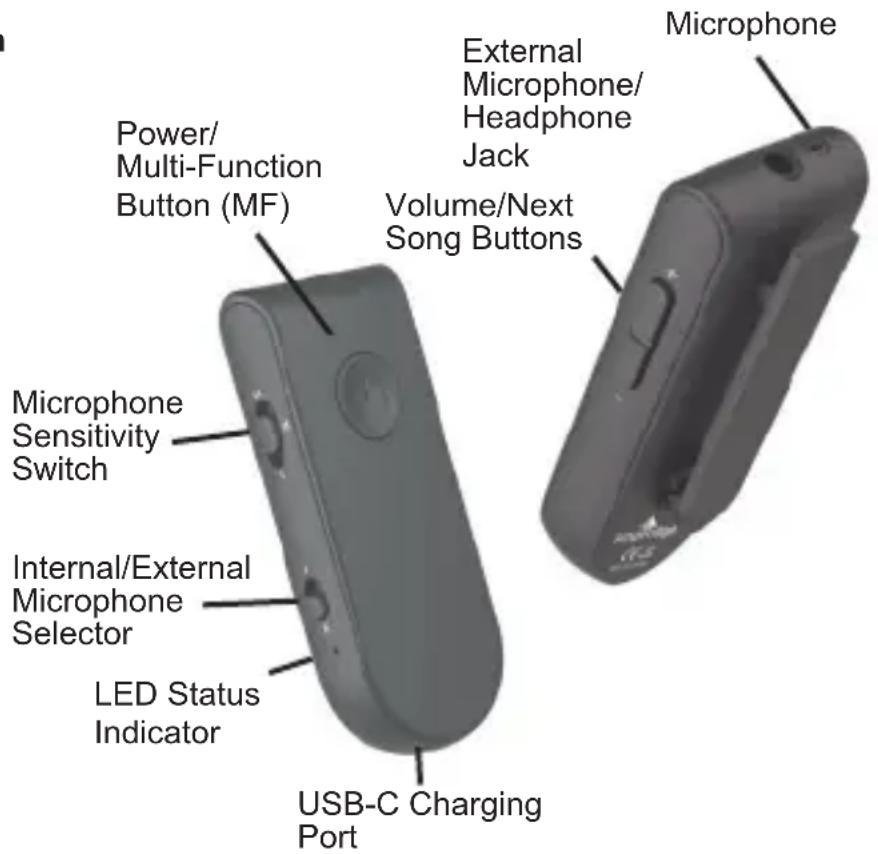
General Functions
| Function Required Action | |
| Turn On Press and hold the | “MF” button until the LED begins to flash. It will normally auto-connect if previously paired |
| Pairing Mode When the device | is OFF hold the “MF” button until the blue/red LED’s begins to flash. Pair the microphone to your device. The microphone will turn off if not paired for 5 minutes |
| LED Indicator Light Flashing | Blue-Power On and PairedFlashing Blue/Red-Pairing modeQuick flashing Red 3 times-Low Power warning |
| Turn Off | Hold the “MF” button until the blue LED turns off to conserve battery usage. The microphone will not automatically shut off if not in use but will shut off if not paired for 5 minutes |
| Multi-Function (MF) Button | Press the “MF” button for power ON/Off, to pause/play music or for telephone functions |
| Delete Pairing | When powering on hold the “MF” button for about 8 seconds until it powers on then turns off. |
| Battery Power Status Battery status will be shown on the top right corner of the phone screen after paired. (Only on IOS devices) | |
| Phone Calls See Phone Function Section | |
Pairing to an IOS or Android device
To use your Bluetooth Microphone, you must first pair it with a device. Once your Bluetooth Microphone is paired to a specific device, they will remain paired while they are within range.
Pairing Instructions:
- Turn on your Phone or device and insure the Bluetooth function is activated
- Hold the "MF" button on the front of the microphone until the blue/red LED's begins to flash
- In the Settings App on the device select the Bluetooth option. Look for a Bluetooth device listed as "MightyMic Pro" to pair it to the Microphone
- The display should change from “Not Paired” to “Connected. If not, tap the device listed to pair
- If you have paired before you may just need to touch the "MightyMic Pro" device to reconnect or it may connect Automatically
Using the MightyMic Pro Microphone
For best results use in an open space without any barriers between the microphone and the phone. People especially can cause interference.
We highly recommend you set your phone to airplane mode with Bluetooth enabled otherwise you may have recordings interrupted by unwanted calls
To hear playback audio while the Bluetooth microphone is paired connect headphones to the microphone or turn off Bluetooth to listen through the phone. For IOS devices, open the Control Center and select the airplay button to manually choose the desired playback option.
Using the Monitor Function
Many Apps support audio monitoring while recording. Connect headphones to the 3.5mm jack on the MightyMic Pro or into the monitor jack on the microphone to hear sounds returned from the App. Due to transmission functions there will be some delay of the monitor signal. This delay will not occur on the recording.
Music Functions
| Pause Press the “MF” button to pause the music |
| Volume Up Hold down the “+” button to increase the volume |
| Volume Down Hold down the “-” button to decrease the volume |
| Next Track Quickly press the “+” button to move to the next track |
| Previous Track Quickly press the “-” button to move to the previous track |
MightyMic Pro User Manual
Using the MightyMic Pro for audio recording
The MightyMic Pro will support audio App's designed to work with external Bluetooth devices.
An audio App is needed such as the MightyMic Pro Recording App (IOS) to do Bluetooth audio recording. Please check our website for updates regarding this or other supported Apps.
Using the MightyMic Pro for video recording
1) Connect the Bluetooth microphone before the app starts. You may need to select the Bluetooth mic as an option in the settings of the App
2) With some Apps, if the Bluetooth microphone is connected after the app starts, the Bluetooth microphone will start automatically and the microphone symbol may turn blue to indicate a Bluetooth Microphone is active
3) If the Bluetooth Microphone is disconnected while the app is active, the app switches back to the built-in microphone.
4) To confirm the microphone is connected do a test recording or go into the Settings section. Upon leaving the Settings section the Bluetooth microphone normally will become active again.
5) A video App is needed such as FilmicPro or MoviePro (IOS) or Cinema FV-5 (Android) to do Bluetooth video recording. Please check our website for updates regarding this or other supported Apps.
6) You may hear an audio delay while monitoring the recording. This is normal. This delay will not occur on the recording
LED Indicators
| LED Status LED Indication | |
| Power On The Blue LED will flash twice when connected | |
| Power Off The Blue LED will flash once then the Red LED will flash once | |
| Pairing The Red and Blue LED’s will flash alternately | |
| Unconnected The Blue LED will flash once every second | |
| Standby Mode The Blue LED will flash twice every 3 seconds | |
| Connected Standby Mode The Blue LED will stay ON continuously | |
| Connected Working Mode The Blue LED will flash once every 5 seconds | |
| Multi Point Connection The Blue LED will stay ON continuously . The LED may flash differently depending on the type of phone | |
| Low Battery Power The Red LED will flash 3 times quickly | |
| Charging The Red LED will stay ON continuously | |
| Fully Charged The Red LED will turn OFF | |
MightyMic Pro User Manual
Charging the Device
Make sure that your device is fully charged before the initial use.
The MightyMic Pro includes a USB-A to USB-C charging cable. This allows you to use any standard phone charger (not included) to charge the Bluetooth device.
The USB-C connector is a much higher quality than other micro-USB charging ports and can pass more power for faster charging
Insert the USB terminal of your charging cable into a USB-A Type phone charger and connect the other terminal to the USB-C jack on the microphone. While charging, the red LED on the front will remain on. When charging is completed, the LED will turn off
The MightyMic Pro can operate while charging or while being powered by an external battery source
Note: The USB-C charging port does not support data transfer. It is for charging only.
Reset the Device
Press the “MF” button for about 8 seconds with the power off. The red and blue LED’s will flash once then the unit will enter into the pairing mode. Remove previous pairings from the device and re-pair
Pairing two Bluetooth devices to one Phone
Depending on the phone and App you may be able to pair the MightyMic Pro microphone and another type of Bluetooth device at the same time. Such as a Bluetooth gimbal device and Bluetooth microphone. If the combination does not work correctly you may need to change the pairing order to get satisfactory results.
Phone Functions
| Function Required Action | |
| Answer a Call Quickly press the “MF” button to answer the call | |
| Rejecting a Call Press the “MF” button for about 1 second to reject a call | |
| Select Audio Output After receiving a call, Press the “MF” button for about 1 second to hear the call through the phone or Bluetooth unit | |
| Ending the Call | Quickly press the “MF” button to end the call or end the call on your phone |
| Redial the Last Number | Quickly press the “MF” button twice to redial the last phone number |
| Answer two calls at the same time | Hold the “MF” button for about 1 second to answer the second call. Hold the “MF” button again for 1 sec to switch |
| Answer two calls one by one | Quickly press the “MF” button to end the first call. You can then quickly press the “MF” button again to answer the second call or hold for 1 second to reject the call |
| Voice Assistant (Siri) | Hold the “MF” button for about 1 second to start the voice assistant for your phone |
Microphone Sensitivity Adjustment
The microphone has auto gain adjustment. This feature sets the ideal sensitivity while listening to the speaking volume. Speak for about 5 seconds near the microphone to set the ideal volume before recording.
Best performance is normally achieved using an external microphone with the sensitivity set to High (H)
The default sensitivity is set to High when the device is shipped. The options are as follows:
- High (H): 0 dB (Typical for most microphones and situations)
- Medium (M): - 3 dB (Typical for some external microphones)
- Low (L): - 6 dB (Typical for high volume external microphones)
To change the sensitivity move the sensitivity switch on the side of the device. You may hear increased noise in the M and L positions.
Note: You may hear some popping when changing sensitivity or microphone input options. This is normal and not recommended to change while recording.
External Microphones
The MightyMic Pro supports connecting external microphones designed for Smartphone headphone jacks such as the MightyMic series of microphones. The microphone must have 4 pins on the plug in order to work correctly. Earbuds with switches (Like EarPods) and 3-pin microphones made for camera's will not work with this device.
Simply insert the microphone into the headphone jack and move the switch from the internal microphone setting (I) to the external microphone setting (E). To switch back to the internal microphone you must move the switch back to the internal microphone setting (I) on the side of the device.
Pair with two Phones
Use this function to receive phone calls from two different phones
- Pair the microphone to the first phone
- Press the “MF” button twice quickly to turn it into the pairing mode. The red and blue LED’s will begin to flash to indicate the pairing mode.
- Pair the microphone to the second phone
- The two phones are now paired with the microphone
Note: The microphone will pair with the last paired phone automatically when powered on again. Please make sure to enable the Bluetooth function when powering on again.
Note: You can only play music or record from one phone with 2 connections
If you wish to disconnect the paired phone and connect another phone you can press and hold the "MF" button for about 5 seconds. The microphone will turn into the pairing mode again and the blue and red LED's will begin flashing again.
Technical Specifications
| Model MightyMic Pro | |
| Bluetooth Version Bluetooth 5.0 + EDR, Class 2 | |
| Operating Frequency 2.402GHz-2.480GHz | |
| Working Time Up to 9 hours | |
| Maximum RF Range Approximately 30 ft (10m) | |
| Charging Time About 2 hours with USB-A to USB-C Charging Cable | |
| S/N Ratio ≥ 85 dB Playback, (Recording dependent on App) | |
| Frequency Response 20 to 20KHz Playback, (Recording dependent on App) | |
| Pairing Name MightyMic Pro | |
| Pairing Password (If Needed) | 0000 (Four Zero's) |
| Power Supply 5V DC, 140ma while charging (Typical Phone Charger) | |
| Operating Temperature 32--113 Degrees F, 0--45 Degrees C | |
| Dimensions 59.9 x 25 x 16.3 mm | |
| Weight About 15 grams | |
Warranty/Product Information
All Ampridge products come with a limited warranty that in normal use the product will be free of any defects in materials or workmanship as follows:
Microphones and accessories are covered for a period of one year. Warranty does not cover damage due to misuse, abuse, incorrect charging and other inappropriate uses of this product and are not covered under the warranty. If a product is defective, simply return it to an authorized dealer for replacement. If this is not possible, please send an e-mail to info@ampridge.com to arrange for return authorization.
Retailer and manufacturer shall not be liable for damages based on inconvenience, loss of use of the cable, loss of time, interrupted operation, or commercial loss or any other incidental or consequential damages. The sole obligation shall be to repair or replace the original product or refund the purchase price if the product is no longer available and under warranty.
This guarantee gives you specific legal rights: you may have other legal rights which vary from state to state.
Ampridge and MightyMic are Registered Trademarks of Ampridge Mktg, LLC
iPhone ^® and iPad ^® are registered trademarks of Apple Inc. The Bluetooth word mark and logos are registered trademarks owned by Bluetooth SIG, Inc
Download updated PDF manual at ampridge.com