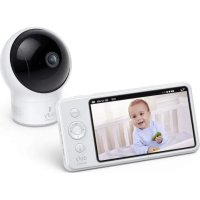
SpaceView - Baby monitors eufy - Free user manual and instructions
Find the device manual for free SpaceView eufy in PDF.


| Product type | Baby video monitor |
| Brand | Eufy |
| Model | SpaceView |
| Category | Baby monitors |
| Screen | Yes, with brightness adjustment |
| Night vision | Automatic, switches based on brightness |
| Zoom | Adjustable via menu |
| Lullaby | Multiple built-in melodies |
| Sound alert | Noise detection, 30-second interval |
| Maximum number of cameras | 4 |
| Standard lens | 60° viewing angle |
| Wide-angle lens | 110° viewing angle (included) |
| Wall mounting | Possible (screws and anchors provided) |
| Monitor power supply | 5V 2A adapter, rechargeable battery |
| Camera power supply | 5V 2A adapter |
| Two-way communication | Yes, talk button |
| Menu languages | Multilingual (French included) |
| Temperature display | Yes, adjustable unit (°C/°F) |
| Sleep mode | Automatic, adjustable (1/3/5 minutes) |
| Compliance | CNR Industry Canada, CE, Class B |
| Cleaning | Soft dry cloth; avoid liquids |
| RF safety | Keep 20 cm away from body |
Frequently Asked Questions - SpaceView eufy
User questions about SpaceView eufy
0 question about this device. Answer the ones you know or ask your own.
Ask a new question about this device
Download the instructions for your Baby monitors in PDF format for free! Find your manual SpaceView - eufy and take your electronic device back in hand. On this page are published all the documents necessary for the use of your device. SpaceView by eufy.
USER MANUAL SpaceView eufy
Anker Innovations Limited. All rights reserved. eufy Security and eufy Security Logo are
trademarks of Anker Innovations Limited, registered in the United States and other
countries. All other trademarks are the property of their respective owners.
51005002016V03
Table of Contents
What's in the Box 01
Feature Introduction 02
Setting Up the Camera and Monitor 04
Adding a Camera to the Baby Monitor 05
Placing the Camera (Wall Mount & Corner Mount) 06
Monitor Menu Settings 07
Replacing the Camera Lens 12
Notice 13
WHAT'S IN THE BOX
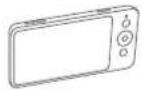
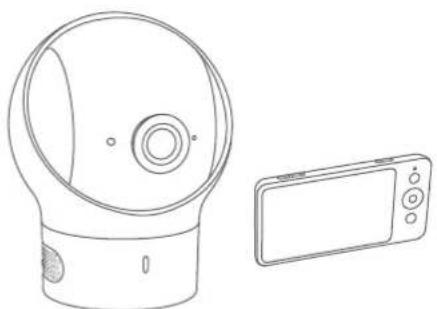
Baby Monitor (T8300-M)
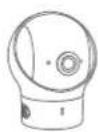
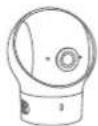
Baby Camera (T8301-C)
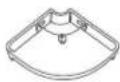
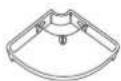
Wall Mount

Monitor Micro-USB Power Cable (1.5m)

Camera Micro-USB Power Cable (3m)

Camera Adapter (5V 2A)

Monitor Adapter (5V 2A)

Mounting Screws

DocumentsWide-Angle Lens

Power adapter varies by region.
FEATURE INTRODUCTION
Monitor Features:
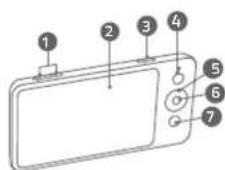
Volume controls
2 Screen
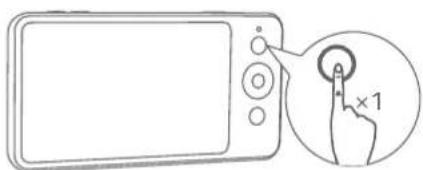
3 Power button
- Press to switch on / off the monitor screen
- Press and hold for 2 seconds to power on / off
4 Menu button
5 Navigation buttons
OK button
- Press to confirm the selection
- Press to switch camera display if more than 2 cameras added
7 Return to previous level of menu / Talk button
- Press and hold to speak to the camera
- When menu is opened, press to return to the previous level of menu
01 English English 02
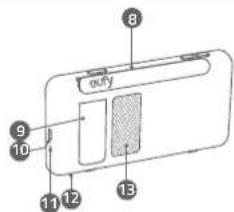
8 Monitor Antenna
9 Support stand
10 Micro USB charging port
11 LEDindicator
Red: charging
White: Fully charged
12 Microphone
13 Speaker
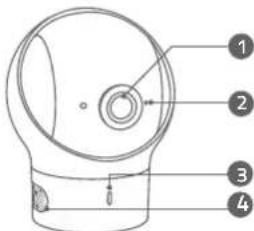
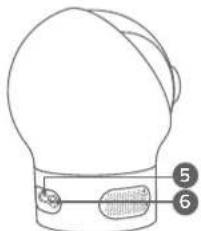
Camera Features:
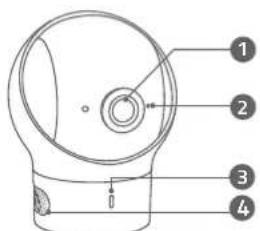
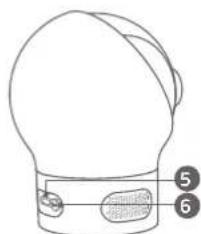
1 Standard camera lens
2 Microphone
3 Power LED Status indicator
4 Speaker
Micro USB port
6 Pairing button
SETTING UP THE CAMERA AND MONITOR
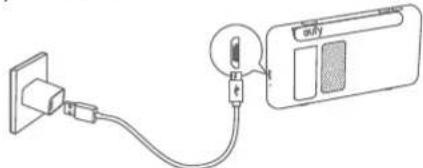
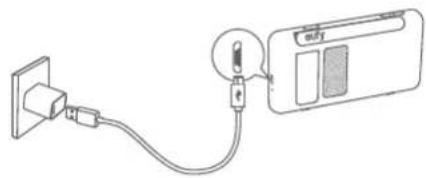
Charge the Monitor
Fully charge the monitor before use. To charge:
- Connect one end of the micro USB cable to the baby monitor, and the other end to the power adapter.
2 Plug the adapter into a power outlet. - Press and hold the power button for 2 seconds to turn the baby monitor on.
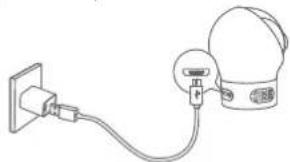
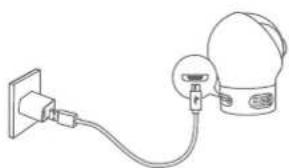
Charge the Camera
I. Connect one end of the micro USB cable to the baby camera, and the other end to the power adapter (5V 2A)
2. Plug the adapter into a power outlet.
03 English English 04

The new baby monitor and camera will set up automatically. You are all set to use the products after monitor and camera are charged.
ADDING A CAMERA TO THE BABY MONITOR

The baby camera and baby monitor are paired out of the box. Refer to the following steps when adding extra baby cameras or after resetting a baby camera. Make sure the baby monitor's version is the same as the baby camera's.
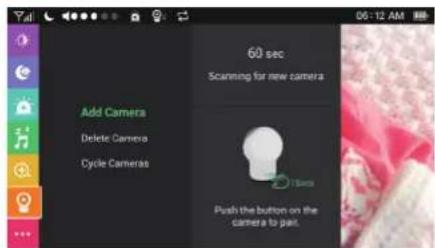
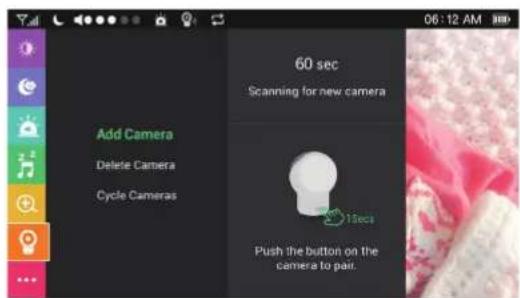
I. Enter menu settings, go to Camera Add Camera, then follow onscreen instructions to start the pairing.
2. Press and hold the pairing button on the rear of the camera for 1 second until a notification prompt is heard.
When more than 2 cameras are added, you can manually switch among cameras.
Press the OK button, the screen will be switched to the next camera's screen. The icon of the camera you select will appear. You can also select the "Cycle Camera" option. The screen cycles through the list of connected baby cameras according to preset intervals.

When the volume is set to high, monitor will emit a loud noise if placed close to the camera. This is a normal phenomenon and can be resolved when camera is moved away from the monitor.
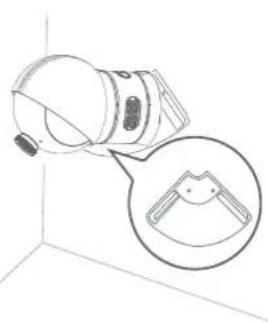
PLACING THE CAMERA (WALL MOUNT & CORNER MOUNT)
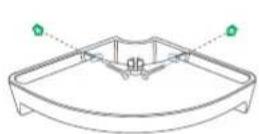
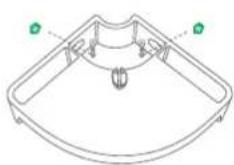
I. Use the monitor to test the viewing angle from your desired mounting spot.
2. Mark the screw holes with a pencil.
3. Drill 1/5 holes into the wall and then insert the anchors into the holes.
4. Insert the screws through the mounting holes of the wall mount and screw into the anchors.
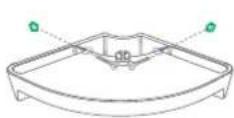
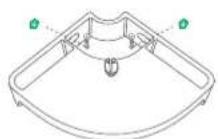
05 English English 06
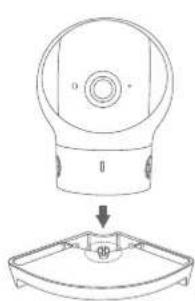
- Place the camera on the wall mount.
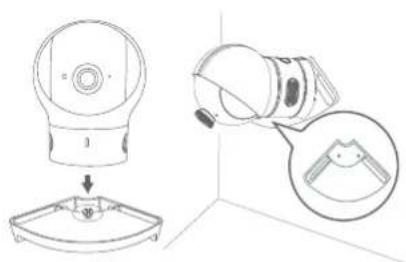
You can select the way you like to install the camera.
MONITOR MENU SETTINGS
Press and hold the power button to power on the monitor. Press the menu button to open Menu Settings.
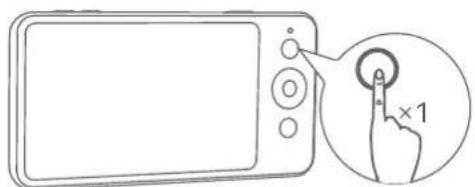
| Menu Options | Description |
| Brightness | Set the brightness of the screen. |
| Sleep Mode | Enable to automatically turn off the screen after 1 min, 3 min, 5 min or Off. |
| Sound Alert | You can set the baby monitor to alert you when a specific noise level is detected. Note: Surrounding noise might set off false alarm. |
| Alarm Volume | |
| VOX | You can set the baby monitor to alert you when the screen is lit on. Note: Surrounding noise might set off false alarm. |
| Alert duration | |
| Time | Set the time on the monitor. |
| Lullaby | Select your desired lullaby song. You can adjust the volume by selecting the volume button. Note: Sound Alert is automatically disabled when Lullaby function is enabled. Warning: Your baby's cry might be obscured by the sound of a lullaby. |
| Zoom | Set the zoom level. |
07 English English 08
| Menu Options | Description |
| Camera | Add Camera Note: You can add up to 4 cameras per baby monitor. |
| Delete Camera | |
| Cycle Cameras Note: Cycles through the list of connected baby cameras according to preset intervals. | |
| Time | Set the time on the monitor. |
| Night Vision Mode | When enabled, the camera will change the screen color according to the light conditions in the room. When disabled, the camera will stick to daylight screen color and will not change when the surrounding environment is getting dark. Note: We recommend setting this function to On for most of the situations. |
| Anti-Screen Flicker | To solve flickering, change the refresh rate of the screen. |
| Language | Sets the on-screen display menu language. |
| Default Settings | Reset all options to their default setting. |
| Temperature Unit | Select your desired temperature measure unit. |
| Menu Options | Description |
| About | Displays the current hardware version, software version, and product number. |
| Connect with Us | Contact details. |

The interval duration between each sound alert is 30 seconds. It will not alert during this interval even if there is alert trigger condition.

Menu option is subject to change without notice.

On-screen Menu Icons
Icon Icon Description
Y川
Wireless signal strength
Night Vision Mode is enabled
01
Shows the camera that is currently presenting on the baby monitor screen
←
Note: This icon will not appear on the screen when there is only one camera connected to monitor.
Cycle Cameras enabled
Sound level of the room the camera is in
08:30AM
Current time
Current battery level of the baby monitor
REPLACING THE CAMERA LENS
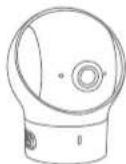
Lens type Usage Lens
Standard camera
lens (default lens)
This lens is
recommended for general viewing; infants are clearly seen within a 2 3m range.
The lens angle of view for standard camera lens is 60^ .
Wide-angle lens This lens provides a wide-angle view the room. The angle of view for wide-angle lens 110^
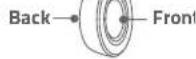
The standard camera lens is not removable. When you want to use the wide-angle lens, simply place it over the standard camera lens and fasten.
NOTICE
Warning
Strangulation Hazard: Children have STRANGLED in cords. Keep this cord out of the reach of children (more than 1m (3ft) away). Never use extension cords with AC Adapters. Only use the AC Adapters provided.

This product complies with the radio interference requirements of the European Community.
Declaration of Conformity
Hereby, Anker Innovations Limited declares that this device is in compliance with the essential requirements and other relevant provisions of Directive 2014/53/EU. For the declaration of conformity, visit the Web site https://www.eufylife.com/.
This product can be used across EU member states.
Due to the used enclosure material, the product shall only be connected to a USB Interface of version 2.0 or higher. The connection to so called power USB is prohibited.
A statement regarding the AC/DC adapter as disconnect device is missing in the user manual.
The statement shall require a socket outlet that is installed near equipment and that shall be easily accessible.
The adapter shall be installed near the equipment and shall be easily accessible. Do not use the Device in the environment at too high or too low temperature, never expose the Device under strong sunshine or too wet environment.
The suitable temperature for T8300-M and accessories is -20^ - 45^ The suitable temperature for T8301-C and accessories is -20^ - 40^
When charging, please place the device in an environment that has a normal room temperature and good ventilation.
It is recommended to charge the device in an environment with a temperature that ranges from 5^ 25^ .
Please ensure to use only the charger offered by the manufacturer. Using unauthorized charger may cause danger and violate the authorization of the projector and the guarantee article.
The charger output voltage/current is 5Vdc/2A. The plug considered as disconnect device of adapter.
If you use a third-party charger, the recommended output voltage/current of the adaptor is 5Vdc/2A, and the adapter shall be CE approval type.
CAUTION RISK OF EXPLOSION IF BATTERY IS REPLACED BY AN INCORRECT TYPE. DISPOSE OF USED BATTERIES ACCORDING TO THE INSTRUCTIONS
RF exposure information: The Maximum Permissible Exposure (MPE) level has been calculated based on a distance of d = 20cm between the device and the human body. To maintain compliance with RF exposure requirement, use product that maintain a 20cm distance between the device and human body. Operating Frequency Range: 2410-2477MHz
The T8301-C Max Output Power: 18.04 dBm, The T8300-M Max Output Power: 14.89 dBm
This T8300-M was tested for typical body-worn operations with the back of the handset kept 0mm from the body. The SAR limit of Europe is 4.0W / kg . Device types T8300-M has also been tested against this SAR limit. The highest SAR value reported under this standard during product certification for use at the limb is 1.707 W/kg. This device was tested for typical hand held operations with the back of the device kept 0mm from the Limb.
The T8301-C device has been evaluated to meet general RF exposure requirements and can be used in fixed exposure condition. RF exposure information: The Maximum Permissible Exposure (MPE) level has been calculated based on a distance of d = 20cm between the device and the human body. To maintain compliance with RF exposure requirement, use product that maintain a 20cm distance between the device and human body.
The following importer is the responsible party (contact for EU matters only)
Importer:Anker Technology (UK) Ltd
Importer Address: Suite B, Fairgate House, 205 Kings Road, Tyseley, Birmingham, United Kingdom B1 2AA

product is designed and manufactured with high quality materials and components, which can be recycled and reused.

This symbol means the product must not be discarded as household waste, and should be delivered to an appropriate collection facility for recycling. Proper disposal and recycling helps protect natural resources, human health and the environment. For more information on disposal and recycling of this product, contact your local municipality, disposal service, or the shop where you bought this product.
FCC Statement
This device complies with Part 15 of the FCC Rules. Operation is subject to the following two conditions: (1) this device may not cause harmful interference, and (2) this device must accept any interference received, including interference that may cause undesired operation.
Warning: Changes or modifications not expressly approved by the party responsible for compliance could void the user's authority to operate the equipment.
Note: This equipment has been tested and found to comply with the limits for a Class B digital device, pursuant to Part 15 of the FCC Rules. These limits are designed to provide reasonable protection against harmful interference in a residential installation.
This equipment generates uses and can radiate radio frequency energy and, if not installed and used in accordance with the instructions, may cause harmful interference to radio communications. However, there is no guarantee that interference will not occur in a particular installation. If this equipment does cause harmful interference to radio or television reception, which can be determined by turning the equipment off and on, the user is encouraged to try to correct the interference by one or more of the following measures: (1) Reorient or relocate the receiving antenna. (2) Increase the separation between the equipment and receiver. (3) Connect the equipment into an outlet on a circuit different from that to which the receiver is connected. (4) Consult the dealer or an experienced radio/TV technician for help.
FCC Radio Frequency Exposure Statement
The T8301-C device has been evaluated to meet general RF exposure requirements. The T8301-C can be used in fixed exposure condition. The min separation distance is 20cm
This T8300-M was tested for typical body-worn operations with the back of the handset kept 0mm from the body.
RF Exposure Information(SAR)
The Extremity SAR limit of FCC for Hand held is 4.0W / kg
Device is recommended to use in hand held only and SAR when hand held is 1.804W/kg
Worn on body will have unexpected RF exposure RISK.
Notice: Shielded cables
All connections to other computing devices must be made using shielded cables to maintain compliance with FCC regulations.
FCC ID (for T8301-C): 2AOKB-T8300C
FCC ID (for T8300-M): 2AOKB-T8300M
The following importer is the responsible party.
Company Name:
POWER MOBILE LIFE, LLC
Address: 400 108th Ave., NE Suite 400, Bellevue, WA 98004-5541
Telephone: 1-800-988-7973
IC Statement
This device complies with Industry Canada licence-exempt RSS standard(s). Operation is subject to the following two conditions:
(1) this device may not cause interference, and
(2) this device must accept any interference, including interference that may cause undesired operation of the device."
This Class B digital apparatus complies with Canadian ICES-003.
Anker Innovations Limited
Room 1318-19, Hollywood Plaza, 610 Nathan Road, Mongkok, Kowloon, Hong Kong
Inhalt
Im Lieferumfang 19
Camera Support mural
Adaptateur camera (5V2A)
Recyclage approprines aient to proteger the resources naturelles In conti tumine ationnment. Roun also d information
aalalalalalalalalalalalalalalalal
gaiy jaiyai 2 2

m microSD jsiil
y

y_ = 1
4
y
1
SsEg USB
5
2
j
6
LED
3
[{\left( \frac{1}{2}\right) }^{n + 1} = {\left( \frac{1}{2}\right) }^{n} \cdot {\left( \frac{1}{2}\right) }^{n + 1}]
a
:
Jus 1200000000000000000000000000000000000000000000000000000000000000000000000000
1 , 2 , 3\
25 1 1 1 1 1 1 1 1 1 1 1 1 1 1 1 1 1 1 1 1 1 1 1 1 1 1 1 1 1 1 1 1 1
aai jai aai i 1jai
a 1y

1
y 1 y

(bai)
a
Juaa Juaa aea 2
1/5 3
yauuul 1
1
aai
C
a a a a a a a a a a a a a a a a a a a

sie! sai 6aiy iiai 100000000000000000000000000000000000000000000000000

aaii aie iie gaii ie ai jai jai jai jai jai jai jai jai jai jai jai jai jai jai jai jai jai jai jai jai jai jai jai jai jai jai jai jai jai jai jai jai jai jai jai jai jai jai jai jai jai jai jai jai jai jai jai jai jai jai jali jali jali jali jali jali jali jali jali jali jali jali jali jali jali jali jali jali jali jali jali jali jali jali

CUSTOMER SERVICE
Kundenservice | Servicio de atencion al cliente | Service client | eShell is
Warranty
12-month limited warranty
United States +1 (800) 988 7973 Mon-Fri 9AM-5PM (PT)
United Kingdom +44 (0) 1604 936 200 Mon-Fri 6AM-11AM (GMT)
Germany +49 (0) 69 9579 7960 Mon-Fri 6:00-11:00
- Email Us
Customer Support: support@eufylife.com

@EufyOfficial

@EufyOfficial

eufyofficial