WX850BT - Car stereo SONY - Free user manual and instructions
Find the device manual for free WX850BT SONY in PDF.


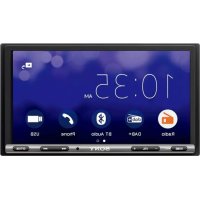
| Technical features | Bluetooth car radio with 6.2-inch LCD screen, compatible with Android Auto and Apple CarPlay. |
|---|---|
| Connectivity | Bluetooth, USB, auxiliary input, smartphone compatibility. |
| Output power | 4 x 55 W (maximum output power). |
| Supported audio formats | MP3, WMA, AAC, WAV. |
| Usage | Ease of use thanks to an intuitive interface and voice commands. |
| Maintenance | Regular cleaning of the screen and connections, firmware update via USB. |
| Security | Security lock function, theft protection. |
| General information | Dimensions: 178 x 100 x 160 mm, weight: 1.2 kg. |
Frequently Asked Questions - WX850BT SONY
User questions about WX850BT SONY
0 question about this device. Answer the ones you know or ask your own.
Ask a new question about this device
Download the instructions for your Car stereo in PDF format for free! Find your manual WX850BT - SONY and take your electronic device back in hand. On this page are published all the documents necessary for the use of your device. WX850BT by SONY.
USER MANUAL WX850BT SONY
Bluetooth® Audio System
Operating Instructions
GB
Mode d'emploi
FR
The model and serial numbers are located on the bottom of the unit.
Record the serial number in the space provided below.
Refer to these numbers whenever you call upon your Sony dealer regarding this product.
Model No. WX-850BT
Serial No.
To cancel the demonstration (DEMO) display, see page 17.
For the connection/installation, see page 29.
For safety, be sure to install this unit in the dashboard of the car as the rear side of the unit becomes hot during use. For details, see "Connection/Installation" (page 29).
The nameplate indicating operating voltage, etc., is located on the bottom of the chassis.
Warning
FOR THE CUSTOMERS IN THE USA. NOT APPLICABLE IN CANADA, INCLUDING IN THE PROVINCE OF QUEBEC.
POUR LES CLIENTS AUX ETATS-UNIS. NON APPLICABLE AU CANADA, Y COMPRIS LA PROVINCE DE QUEBEC.
This equipment has been tested and found to comply with the limits for a Class B digital device, pursuant to Part 15 of the FCC Rules. These limits are designed to provide reasonable protection against harmful interference in a residential installation. This equipment generates, uses, and can radiate radio frequency energy and, if not installed and used in accordance with the instructions, may cause harmful interference to radio communications. However, there is no guarantee that interference will not occur in a particular installation. If this equipment does cause harmful interference to radio or television reception, which can be determined by turning the equipment off and on, the user is encouraged to try to correct the interference by one or more of the following measures:
Reorient or relocate the receiving antenna.
- Increase the separation between the equipment and receiver.
- Connect the equipment into an outlet on a circuit different from that to which the receiver is connected.
- Consult the dealer or an experienced radio/TV technician for help.
You are cautioned that any changes or modifications not expressly approved in this manual could void your authority to operate this equipment.
This device complies with Part 15 of the FCC Rules and Industry Canada's licence-exempt RSSs. Operation is subject to the following two conditions:
(1) This device may not cause interference; and
(2) This device must accept any interference,
including interference that may cause undesired operation of the device.
This transmitter must not be co-located or operated in conjunction with any other antenna or transmitter.
Under Industry Canada regulations, this radio transmitter may only operate using an antenna of a type and maximum (or lesser) gain approved for the transmitter by Industry Canada. To reduce potential radio interference to other users, the antenna type and its gain should be so chosen that the equivalent isotropically radiated power (e.i.r.p.) is not more than that necessary for successful communication.
This equipment complies with FCC/IC radiation exposure limits set forth for an uncontrolled environment and meets the FCC radio frequency (RF) Exposure Guidelines and RSS-102 of the IC radio frequency (RF) Exposure rules. This equipment has very low levels of RF energy that is deemed to comply without maximum permissive exposure evaluation (MPE). But it is desirable that it should be installed and operated keeping the radiator at least 20~cm or more away from person's body.
CAUTION
The use of optical instruments with this product will increase eye hazard.
For the State of California, USA only
Perchlorate Material - special handling may apply, See
www.dtsc.ca.gov/hazardouswaste/perchlorate

WARNING: Do not ingest battery, Chemical Burn Hazard.
The remote commander contains a coin/ button cell battery. If the coin/button cell battery is swallowed, it can cause severe internal burns in just 2 hours and can lead to death.
Keep new and used batteries away from children. If the battery compartment does not close securely, stop using the product and keep it away from children.
If you think batteries might have been swallowed or placed inside any part of the body, seek immediate medical attention.
Note on the lithium battery
Do not expose the battery to excessive heat such as direct sunlight, fire or the like.
Warning if your car's ignition has no ACC position
Be sure to set the AUTO OFF function (page 18). The unit will shut off completely and automatically in the set time after the unit is turned off, which prevents battery drain. If you do not set the AUTO OFF function, press and hold OFF until the display disappears each time you turn the ignition off.
Disclaimer regarding services offered by third parties
Services offered by third parties may be changed, suspended, or terminated without prior notice. Sony does not bear any responsibility in these sorts of situations.
Important notice
Caution
IN NO EVENT SHALL SONY BE LIABLE FOR ANY INCIDENTAL, INDIRECT OR CONSEQUENTIAL DAMAGES OR OTHER DAMAGES INCLUDING, WITHOUT LIMITATION, LOSS OF PROFITS, LOSS OF REVENUE, LOSS OF DATA, LOSS OF USE OF THE PRODUCT OR ANY ASSOCIATED EQUIPMENT, DOWNTIME, AND PURCHASER'S TIME RELATED TO OR ARISING OUT OF THE USE OF THIS PRODUCT, ITS HARDWARE AND/OR ITS SOFTWARE.
Dear customer, this product includes a radio transmitter.
Please check your vehicle operation manual or contact the manufacturer of your vehicle or your vehicle dealer, before you install this product into your vehicle.
Emergency calls
This BLUETOOTH car handsfree and the electronic device connected to the handsfree operate using radio signals, cellular, and landline networks as well as user-programmed function, which cannot guarantee connection under all conditions. Therefore do not rely solely upon any electronic device for essential communications (such as medical emergencies).
On BLUETOOTH communication
- Microwaves emitting from a BLUETOOTH device may affect the operation of electronic medical devices. Turn off this unit and other BLUETOOTH devices in the following locations, as it may cause an accident.
where inflammable gas is present, in a hospital, train, airplane, or petrol station near automatic doors or a fire alarm
- This unit supports security capabilities that comply with the BLUETOOTH standard to provide a secure connection when the BLUETOOTH wireless technology is used, but security may not be enough depending on the setting. Be careful when communicating using BLUETOOTH wireless technology.
- We do not take any responsibility for the leakage of information during BLUETOOTH communication.
If you have any questions or problems concerning your unit that are not covered in this manual, consult your nearest Sony dealer.
Table of Contents
Warning 2
Guide to Parts and Controls 5
Getting Started
Resetting the unit 7
Setting the Clock. 7
Preparing a BLUETOOTH Device. 7
Connecting a USB Device 9
Connecting Other Portable Audio Device 9
Listening to the Radio
Listening to the Radio. 10
Using Radio Data System (RDS) 10
Playback
Playing a Disc 11
Playing a USB Device 11
Playing a BLUETOOTH Device. 11
Searching and Playing Tracks. 12
Listening to Pandora®
Setting up Pandora 13
Streaming Pandora 13
Available Operations in Pandora 13
Handsfree Calling (via BLUETOOTH only)
Receiving a Call 14
Making a Call 14
Available Operations during Call 15
Useful Functions
SongPal with iPhone/Android smartphone . 15
Using Siri Eyes Free 17
Settings
Canceling the DEMO Mode 17
Basic Setting Operation 17
General Setup (GENERAL). 17
Sound Setup (SOUND) 18
Display Setup (DISPLAY) 20
BLUETOOTH Setup (BT) 20
SongPal Setup (SONGPAL) 20
Additional Information
Updating the Firmware 21
Precautions 21
Maintenance 22
Specifications 22
Troubleshooting 24
Connection/Installation
Cautions 29
Parts List for Installation 29
Connection 30
Installation 32
Guide to Parts and Controls
Main unit
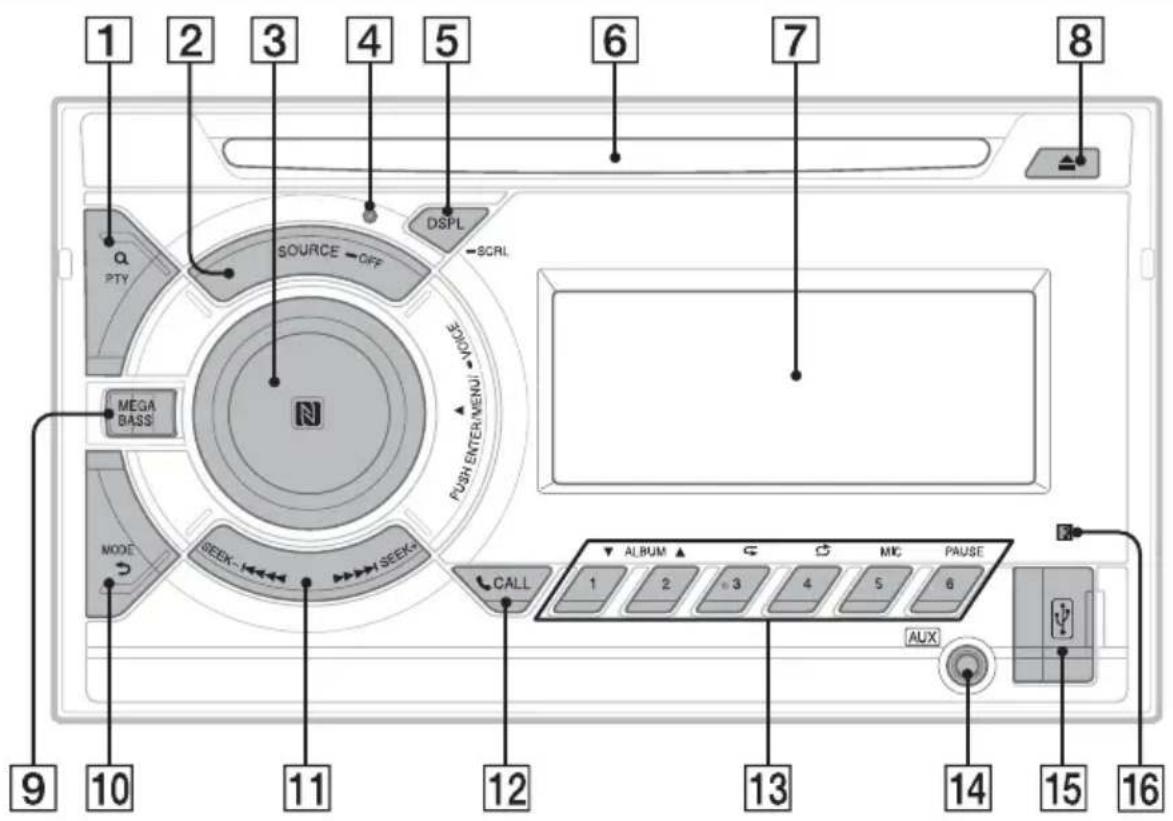
1 (browse)(page 12, 13)
Enter the browse mode during playback.
PTY (program type)
Select PTY in RDS.
2 SOURCE
Turn on the power.
Change the source.
OFF
Press and hold for 1 second to turn the source off and display the clock.
Press and hold for more than 2 seconds to turn off the power and the display.
If the unit is turned off and the display disappears, operation by the remote commander is not available.
3 Control dial
Rotate to adjust the volume.
PUSH ENTER
Enter the selected item.
Press SOURCE, rotate then press to change the source.
MENU*
Open the setup menu.
- Not available when the BT phone is selected.
VOICE (page 15, 16, 17)
Press and hold for more than 2 seconds to activate voice dial, voice recognition when the "SongPal" function is on (Android™ smartphone only), or the Siri function (iPhone only).
N-Mark
Touch the control dial with Android smartphone to make BLUETOOTH connection.
4 Reset button (page 7)
DSPL(display)
Press to change display items.
SCRL (scroll)
Press and hold to scroll a display item.
6 Disc slot
7 Display window
8 (disc eject)
9 MEGA BASS
Reinforces bass sound in synchronization with the volume level. Press to change the MEGA BASS setting: [1], [2], [OFF].
Automatically sets to [OFF] when [C.AUDIO+] is set to [ON].
10 MODE (page 10, 11, 13, 15)
back)
Return to the previous display.
SEEK+/-
Tune in radio stations automatically. Press and hold to tune manually.
14/1prev/next)
( fast-reverse/fast-forward)
12CALL
Enter the call menu. Receive/end a call.
Press and hold for more than 2 seconds to switch the BLUETOOTH signal.
13 Number buttons (1 to 6)
Receive stored radio stations. Press and hold to store stations.
Call a stored phone number. Press and hold to store a phone number.
ALBUM▼/▲
Skip an album for audio device. Press and hold to skip albums continuously.
Press to thumbs up, or to thumbs down in Pandora (page 13).
(repeat)
(shuffle)
MIC (page 15)
PAUSE
14 AUX input jack
15 USB port
16 Receptor for the remote commander
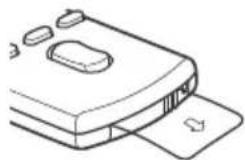
RM-X231 Remote commander

The VOL (volume) + button has a tactile dot.
17
CALL
Enter the call menu. Receive/end a call.
18
SOUND*
Open the SOUND menu directly.
-MENU*
Press and hold to open the setup menu.
- Not available when the BT phone is selected.
19
←/↑/↓/→
Select a setup item, etc.
ENTER
Enter the selected item.
Press and hold for more than 2 seconds to
establish or terminate the "SongPal" function.
1/(prev/next)
+/- (album +/-)
20
VOL (volume) +/-
Remove the insulation film before use.
Getting Started
Resetting the unit
Before operating the unit for the first time, after replacing the car battery, or changing the connections, you must reset the unit. Press the reset button with a ball-point pen, etc.
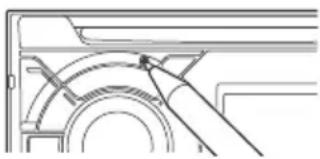
Note
Pressing the reset button will erase the clock setting and some stored contents.
Setting the Clock
1 Press MENU, rotate the control dial to select [SET GENERAL], then press it.
2 Rotate the control dial to select [SET CLOCK-ADJ], then press it. The hour indication flashes.
3 Rotate the control dial to set the hour and minute. To move the digital indication, press SEEK + / -
4 After setting the minute, press MENU. The setup is complete and the clock starts.
To display the clock Press DSPL.
Preparing a BLUETOOTH Device
You can enjoy music, or perform handsfree calling depending on the BLUETOOTH compatible device such as a smartphone, cellular phone and audio device (hereafter "BLUETOOTH device" if not otherwise specified). For details on connecting, refer to the operating instructions supplied with the device.
Before connecting the device, turn down the volume of this unit; otherwise, loud sound may result.
Connecting with a Smartphone by One touch (NFC)
By touching the control dial on the unit with an NFC compatible smartphone, the unit is paired and connected with the smartphone automatically.
- NFC (Near Field Communication) is a technology enabling short-range wireless communication between various devices, such as mobile phones and IC tags. Thanks to the NFC function, data communication can be achieved easily just by touching the relevant symbol or designated location on NFC compatible devices.
For a smartphone with Android OS 4.0 or lower installed, downloading the app "NFC Easy Connect" available at Google PlayTM is required. The app may not be downloadable in some countries/regions.
1 Activate the NFC function on the smartphone.
For details, refer to the operating instructions supplied with the smartphone.
2 Touch the N-Mark part of the unit with the N-Mark part of the smartphone.
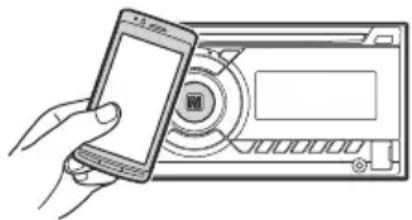
Make sure that rights up on the display of the unit.
To disconnect by One touch
Touch the N-Mark part of the unit with the N-Mark part of the smartphone again.
Notes
- When making the connection, handle the smartphone carefully to prevent scratches.
- One touch connection is not possible when the unit is already connected to another NFC compatible device. In this case, disconnect the other device, and make connection with the smartphone again.
Pairing and connecting with a BLUETOOTH device
When connecting a BLUETOOTH device for the first time, mutual registration (called "pairing") is required. Pairing enables this unit and other devices to recognize each other.
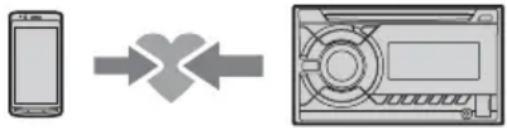
1 Place the BLUETOOTH device within 1 m (3 ft) of this unit.
2 Press CALL, rotate the control dial to select [SET PAIRING], then press it.
flashes while the unit is in pairing standby mode.
3 Perform pairing on the BLUETOOTH device so it detects this unit.
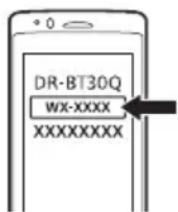
4 Select [WX-XXXX] (your model name) shown in the display of the BLUETOOTH device.
If your model name does not appear, repeat from step 2.
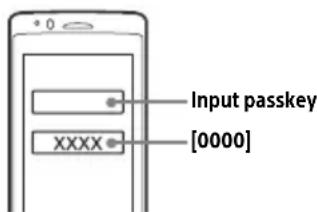
5 If passkey* input is required on the BLUETOOTH device, input [0000].
- Passkey may be called "Passcode," "PIN code," "PIN number" or "Password," etc., depending on the device.
When pairing is made, stays lit.
6 Select this unit on the BLUETOOTH device to establish the BLUETOOTH connection.
or rights up when the connection is made.
Note
While connecting to a BLUETOOTH device, this unit cannot be detected from another device. To enable detection, enter the pairing mode and search for this unit from another device.
To start playback
For details, see "Playing a BLUETOOTH Device" (page 11).
To cancel pairing
Perform step 2 to cancel the pairing mode after this unit and the BLUETOOTH device are paired.
Connecting with a paired BLUETOOTH device
To use a paired device, connection with this unit is required. Some paired devices will connect automatically.
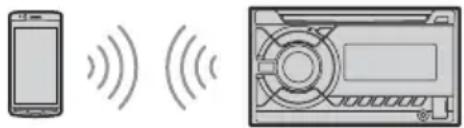
1 Press CALL, rotate the control dial to select [SET BT SIGNAL], then press it. Make sure that lights up.
2 Activate the BLUETOOTH function on the BLUETOOTH device.
3 Operate the BLUETOOTH device to connect to this unit. or rights up.
Icons in the display:
| Lights up when handsfree calling is available by enabling the HFP (Handsfree Profile). | |
| Lights up when the audio device is playable by enabling the A2DP (Advanced Audio Distribution Profile). |
To connect the last-connected device from this unit
Activate the BLUETOOTH function on the BLUETOOTH device.
Press SOURCE, then select [BT PHONE] or [BT AUDIO].
Press ENTER to connect with the cellular phone, or PAUSE to connect with the audio device.
Note
While streaming BLUETOOTH audio, you cannot connect from this unit to the cellular phone. Connect from the cellular phone to this unit instead.
Tip
With BLUETOOTH signal on: when the ignition is turned to on, this unit reconnects automatically to the last-connected cellular phone.
To install the microphone
For details, see "Installing the microphone" (page 31).
Connecting with an iPhone/iPod (BLUETOOTH Auto Pairing)
When an iPhone/iPod with iOS5 or later installed is connected to the USB port, the unit is paired and connected with the iPhone/iPod automatically. To enable BLUETOOTH Auto Pairing, make sure [AUTOPAIR] in [BT] is set to [ON] (page 20).
1 Activate the BLUETOOTH function on the iPhone/iPod.
2 Connect an iPhone/iPod to the USB port.
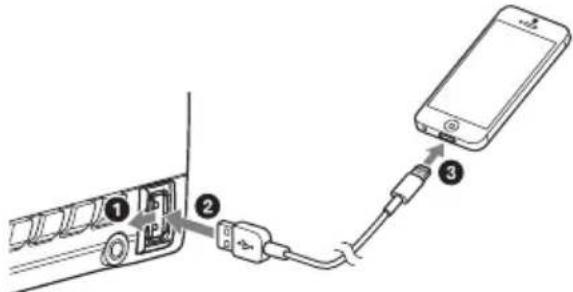
Make sure that rights up on the display of the unit.
Notes
- BLUETOOTH Auto Pairing is not possible if the unit is already connected to another BLUETOOTH device. In this case, disconnect the other device, then connect the iPhone/iPod again.
- If BLUETOOTH Auto Pairing is not established, see "Preparing a BLUETOOTH Device" for details (page 7).
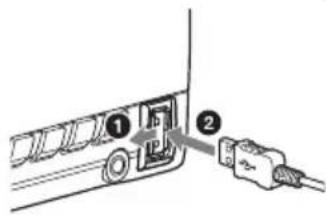
Connecting a USB Device
1 Turn down the volume on the unit.
2 Connect the USB device to the unit. To connect an iPod/iPhone, use the USB connection cable for iPod (not supplied).
Connecting Other Portable Audio Device
1 Turn off the portable audio device.
2 Turn down the volume on the unit.
3 Connect the portable audio device to the AUX input jack (stereo mini jack) on the unit with a connecting cord (not supplied)*.
- Be sure to use a straight type plug.
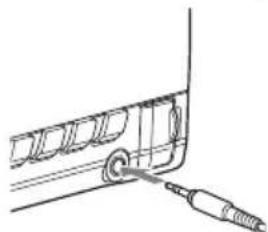
4 Press SOURCE to select [AUX].
To match the volume level of the connected device to other sources
Start playback of the portable audio device at a moderate volume, and set your usual listening volume on the unit. Press MENU, then select [SET SOUND] [SET AUX VOL] (page 19).
Listening to the Radio
Listening to the Radio
To listen to the radio, press SOURCE to select [TUNER].
Storing automatically (BTM)
1 Press MODE to change the band (FM1, FM2, FM3, AM1 or AM2).
2 Press MENU, rotate the control dial to select [SET GENERAL], then press it.
3 Rotate the control dial to select [SET BTM], then press it.
The unit stores stations in order of frequency on the number buttons.
Tuning
1 Press MODE to change the band (FM1, FM2, FM3, AM1 or AM2).
2 Perform tuning.
To tune manually
Press and hold SEEK + / - to locate the approximate frequency, then press SEEK + / - repeatedly to fine adjust to the desired frequency.
To tune automatically
Press SEEK + / -
Scanning stops when the unit receives a station.
Storing manually
1 While receiving the station that you want to store, press and hold a number button (1 to 6) until [MEM] appears.
Receiving the stored stations
1 Select the band, then press a number button (1 to 6).
Using Radio Data System (RDS)
Selecting program types (PTY)
1 Press PTY during FM reception.
2 Rotate the control dial until the desired program type appears, then press it.
The unit starts to search for a station broadcasting the selected program type.
Type of programs
NEWS (News), INFORM (Information), SPORTS (Sports), TALK (Talk), ROCK (Rock), CLS ROCK (Classic Rock), ADLT HIT (Adult Hits), SOFT RCK (Soft Rock), TOP 40 (Top 40), COUNTRY (Country), OLDIES (Oldies), SOFT (Soft), NOSTALGA (Nostalgia), JAZZ (Jazz), CLASSIC (Classical), R & B (Rhythm and Blues), SOFT R&B (Soft Rhythm and Blues), LANGUAGE (Foreign Language), REL MUSC (Religious Music), REL TALK (Religious Talk), PERSNLY (Personality), PUBLIC (Public), COLLEGE (College), HABL ESP (Spanish Talk), MUSC ESP (Spanish Music), HIP HOP (Hip-Hop), WEATHER (Weather)
Setting clock time (CT)
The CT data from the RDS transmission sets the clock.
1 Set [SET CT-ON] in [SET GENERAL] (page 18).
Playback
Playing a Disc
1 Insert the disc (label side up).
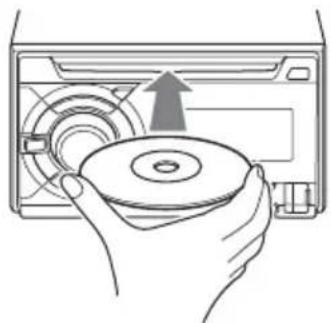
Playback starts automatically.
Playing a USB Device
In these Operating Instructions, "iPod" is used as a general reference for the iPod functions on an iPod and iPhone, unless otherwise specified by the text or illustrations.
For details on the compatibility of your iPod, see "About iPod" (page 21) or visit the support site on the back cover.
MSC (Mass Storage Class) and MTP (Media Transfer Protocol) type USB devices (such as a USB flash drive, digital media player, Android smartphone) compliant with the USB standard can be used. Depending on the digital media player or Android smartphone, setting the USB connection mode to MTP is required.
Notes
- For details on the compatibility of your USB device, visit the support site on the back cover.
- Playback of the following files is not supported. MP3/WMA/AAC/FLAC:
copyright-protected files
DRM (Digital Rights Management) files
Multi-channel audio files MP3/WMA/AAC:
- lossless compression files WAV:
Multi-channel audio files
1 Connect a USB device to the USB port (page 9).
Playback starts. If a device is already connected, to start playback, press SOURCE to select [USB] ([IPD] appears in the display when the iPod is recognized).
2 Adjust the volume on this unit.
To stop playback
Press and hold OFF for 1 second.
To remove the device
Stop playback, then remove the device.
Caution for iPhone
When you connect an iPhone via USB, phone call volume is controlled by the iPhone, not the unit. Do not inadvertently increase the volume on the unit during a call, as a sudden loud sound may result when the call ends.
Operating an iPod directly (Passenger control)
1 During playback, press and hold MODE until [MODE IPOD] appears.
Operations of the iPod become available. Note that the volume can be adjusted only by the unit.
To exit passenger control
Press and hold MODE until [MODE AUDIO] appears.
Playing a BLUETOOTH Device
You can play contents on a connected device that supports BLUETOOTH A2DP (Advanced Audio Distribution Profile).
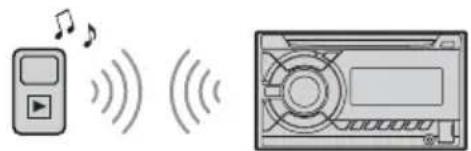
1 Make BLUETOOTH connection with the audio device (page 8).
2 Press SOURCE to select [BT AUDIO].
3 Operate the audio device to start playback.
4 Adjust the volume on this unit.
Notes
- Depending on the audio device, information such as title, track number/time and playback status may not be displayed on this unit.
Even if the source is changed on this unit, playback of the audio device does not stop. - [BT AUDIO] does not appear in the display while running the "SongPal" application via the BLUETOOTH function.
To match the volume level of the BLUETOOTH device to other sources
Start playback of the BLUETOOTH audio device at a moderate volume, and set your usual listening volume on the unit. Press MENU, then select [SET SOUND] [SET BTA VOL] (page 20).
Searching and Playing Tracks
Repeat play and shuffle play
1 During playback, press (repeat) or (shuffle) repeatedly to select the desired play mode.
Playback in the selected play mode may take time to start.
Available play modes differ depending on the selected sound source.
Searching a track by name (QuickBrowZerTM)
1 During CD, USB or BT AUDIO* 1 playback, press Q (browse) to display the list of search categories.
When the track list appears, press back) repeatedly to display the desired search category.
1 Available only for audio devices supporting AVRCP (Audio Video Remote Control Profile) 1.4 or above.
2 During USB playback, press (Browse) for more than 2 seconds to directly return to the beginning of the category list.
2 Rotate the control dial to select the desired search category, then press it to confirm.
3 Repeat step 2 to search the desired track. Playback starts.
To exit the Quick-BrowZer mode
Press Q (browse).
Searching by skipping items (Jump mode)
1 Press (browse).
2 Press SEEK+.
3 Rotate the control dial to select the item. The list is jumped in steps of 10% of the total number of items.
4 Press ENTER to return to the QuickBrowZer mode.
The selected item appears.
5 Rotate the control dial to select the desired item, then press it.
Playback starts.
Listening to Pandora®
Pandora® is available to stream music through your iPhone and Android smartphone. You can control Pandora® on a BLUETOOTH connected iPhone/Android smartphone from this unit.
Pandora® is only available in certain countries.
Please visit
http://www.pandora.com/legal
for more information.
Setting up Pandora®
1 Check the compatibility of your mobile device by visiting the support site on the back cover.
2 Download the latest version of the Pandora® application from your smartphone's app store. A list of compatible devices can be found at www.pandora.com/everywhere/mobile
Streaming Pandora®
1 Connect the mobile device with this unit (page 7).
2 Press SOURCE to select [PANDORA].
3 Launch Pandora® application on your mobile device.
4 Press PAUSE to start playback.
If the device number appears
Make sure that the same numbers are displayed (e.g., 123456) in this unit and the mobile device, then press ENTER on this unit and select [Yes] on the mobile device.
When activating the BLUETOOTH function
You can adjust the volume level. Press MENU, then select [SET SOUND] [SET BTA VOL] (page 20).
Available Operations in Pandora®
"Thumbs" feedback
"Thumbs Up" or "Thumbs Down" feedback allows you to personalize stations.
1 During playback, press (Thumbs Up) or (Thumbs Down).
Using the station list
The station list allows you to easily select a desired station.
1 During playback, press (browse).
2 Press SEEK + to select the sorting order [BY DATE] or [A TO Z].
3 Rotate the control dial to select the desired station, then press it. Playback starts.
Bookmarking
The track currently being played can be bookmarked and stored in your Pandora® account.
1 During playback, press MODE.
Handsfree Calling (via BLUETOOTH only)
To use a cellular phone, connect it with this unit. For details, see "Preparing a BLUETOOTH Device" (page 7).
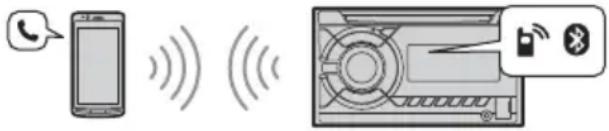
Receiving a Call
1 Press CALL when a call is received with a ringtone.
The phone call starts.
Note
The ringtone and talker's voice are output only from the front speakers.
To reject the call
Press and hold OFF for 1 second.
To end the call
PressCALLagain.
Making a Call
You can make a call from the phonebook or call history when a cellular phone supporting PBAP (Phone Book Access Profile) is connected.
From the phonebook
1 Press CALL, rotate the control dial to select [PHONE BOOK], then press it.
2 Rotate the control dial to select an initial from the initial list, then press it.
3 Rotate the control dial to select a name from the name list, then press it.
4 Rotate the control dial to select a number from the number list, then press it.
The phone call starts.
From the call history
1 Press CALL, rotate the control dial to select [RECENT CALL], then press it.
A list of the call history appears.
2 Rotate the control dial to select a name or phone number from the call history, then press it.
The phone call starts.
By phone number input
1 Press CALL, rotate the control dial to select [DIAL NUMBER], then press it.
2 Rotate the control dial to enter the phone number, and lastly select [ ] (space), then press ENTER*.
The phone call starts.
- To move the digital indication, press SEEK +/-.
Note
[ ] appears instead of [#] on the display.
By redial
1 Press CALL, rotate the control dial to select [REDIAL], then press it.
The phone call starts.
By preset number
1 Press SOURCE, rotate the control dial to select [BT PHONE], then press it.
2 Press a number button (1 to 6) to select the contact you want to call.
3 Press ENTER.
The phone call starts.
Presetting phone numbers
You can store up to 6 contacts in the preset dial.
1 Select a phone number that you want to store in the preset dial, from the phonebook, call history or by inputting the phone number directly.
The phone number appears in the display of this unit.
2 Press and hold a number button (1 to 6) until [MEM] appears.
The contact is stored in the selected preset number.
By voice tags
You can make a call by saying the voice tag stored in a connected cellular phone that has a voice dialing function.
1 Press CALL, rotate the control dial to select [VOICE DIAL], then press it.
Alternatively, press and hold VOICE while the "SongPal" function is off.
2 Say the voice tag stored on the cellular phone.
Your voice is recognized, and the call is made.
To cancel voice dialing
Press VOICE.
Available Operations during Call
To adjust the ringtone volume
Rotate the control dial while receiving a call.
To adjust the talker's voice volume
Rotate the control dial during a call.
To adjust the volume for the other party (Mic gain adjustment)
Press MIC.
Adjustable volume levels: [MIC-LOW], [MIC-MID], [MIC-HI].
To reduce echo and noise (Echo Canceler/ Noise Canceler Mode)
Press and hold MIC.
Settable mode: [EC/NC-1], [EC/NC-2].
To switch between handsfree mode and handheld mode
During a call, press MODE to switch the phone call audio between the unit and cellular phone.
Note
Depending on the cellular phone, this operation may not be available.
Useful Functions
SongPal with iPhone/Android smartphone
Downloading the latest version of "SongPal" application is required from the App Store for iPhone or from Google Play for Android smartphone.


Notes
- For your safety, follow your local traffic laws and regulations, and do not operate the application while driving.
- "SongPal" is an app for controlling Sony audio devices which are compatible with "SongPal", by your iPhone/Android smartphone.
- What you can control with "SongPal" varies depending on the connected device.
- To make use of "SongPal" features, see the details on your iPhone/Android smartphone.
- For further details on "SongPal," visit the following URL: http://rd1.sony.net/help/speaker/songpal/
- Visit the website below and check the compatible iPhone/Android smartphone models. For iPhone: visit the App Store For Android smartphone: visit Google Play
Establishing the SongPal connection
1 Make the BLUETOOTH connection with iPhone/Android smartphone (page 7).
2 Launch the "SongPal" application.
3 Press MENU, rotate the control dial to select [SET SONGPAL], then press it. Connection to iPhone/Android smartphone starts.
For details on the operations on iPhone/Android smartphone, see the help of the application.
If the device number appears
Make sure that the number is displayed (e.g., 123456), then select [Yes] on the iPhone/Android smartphone.
To terminate connection
Press MENU, rotate the control dial to select [SET SONGPAL], then press it.
Selecting the source or application
You can operate to select the desired source or application on iPhone/Android smartphone.
To select the source
Press SOURCE repeatedly. Alternatively, press SOURCE, rotate the control dial to select the desired source, then press ENTER.
To display the source list Press SOURCE.
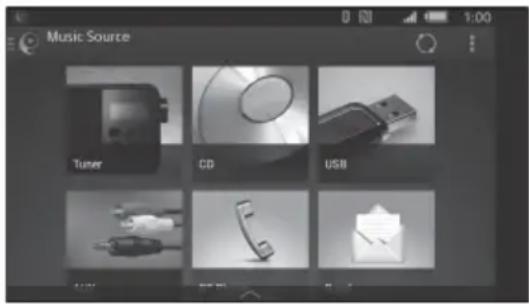
Announcement of various information by voice guide (Android smartphone only)
When SMS, Twitter/Facebook/Calendar notifications, etc., are received, they are automatically announced through the unit speakers.
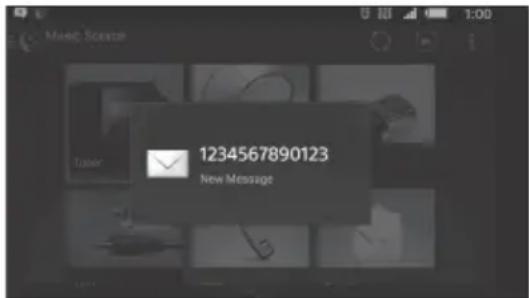
For details on settings, refer to the help of the application.
Activating voice recognition (Android smartphone only)
By registering applications, you can control an application by voice command. For details, refer to the help of the application.
To activate voice recognition
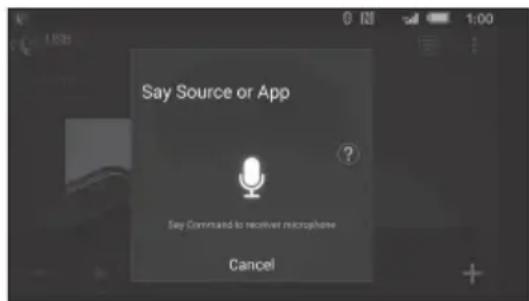
1 Press and hold VOICE to activate voice recognition.
2 Say the desired voice command into the microphone when [Say Source or App] appears on the Android smartphone.
Notes
Voice recognition may not be available in some cases.
- Voice recognition may not work properly depending on the performance of the connected Android smartphone.
- Operate under conditions where noise such as engine sound is minimized during voice recognition.
Replying a message of SMS (Android smartphone only)
You can reply a message by voice recognition.
1 Activate voice recognition, then input "Reply." The message input display appears on the "SongPal" application.
2 Input a reply message by voice recognition. The list of message candidates appears on the "SongPal" application.
3 Rotate the control dial to select the desired message, then press it. The message is sent out.
Making sound and display settings
You can adjust the settings relating to sound and display via iPhone/Android smartphone.
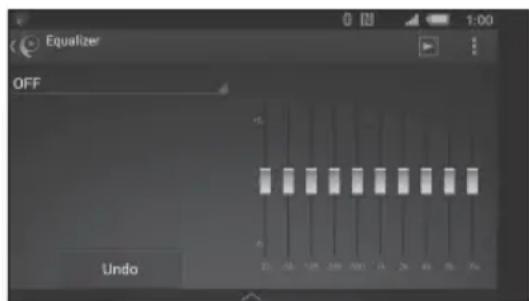
For details on settings, refer to the help of the application.
Using Siri Eyes Free
Siri Eyes Free allows you to use an iPhone handsfree by simply speaking into the microphone. This function requires you to connect an iPhone to the unit via BLUETOOTH. Availability is limited iPhone 4s or later. Make sure that your iPhone is running the latest iOS version. You must complete BLUETOOTH registration and connection configurations for the iPhone with the unit in advance. For details, see "Preparing a BLUETOOTH Device" (page 7).
1 Activate the Siri function on the iPhone. For details, refer to the operating instructions supplied with the iPhone.
2 Press and hold VOICE. The voice command display appears.
3 After the iPhone beeps, speak into the microphone. The iPhone beeps again, then Siri starts responding.
To deactivate Siri Eyes Free
Press VOICE.
Notes
- The iPhone may not recognize your voice depending on usage conditions. (For example, if you are in a moving car.)
- Siri Eyes Free may not function properly, or the response time may lag in locations where iPhone signals are difficult to receive.
Depending on the iPhone's operating condition, Siri Eyes Free may not function properly, or may quit. - If you play a track with an iPhone using the BLUETOOTH audio connection, when the track starts playback via BLUETOOTH, Siri Eyes Free automatically quits and the unit switches to the BLUETOOTH audio source.
- When Siri Eyes Free is activated during audio playback, the unit may switch to the BLUETOOTH audio source even if you do not specify a track to play.
- When connecting the iPhone to the USB port, Siri Eyes Free may not function properly, or may quit.
- When connecting the iPhone to the unit, do not activate Siri with the iPhone. Siri Eyes Free may not function properly, or may quit.
- There is no audio sound while Siri Eyes Free is activated.
Settings
Canceling the DEMO Mode
You can cancel the demonstration display which appears when the source is off and the clock is displayed.
1 Press MENU, rotate the control dial to select [SET GENERAL], then press it.
2 Rotate the control dial to select [SET DEMO], then press it.
3 Rotate the control dial to select [SET DEMO-OFF], then press it. The setting is complete.
4 Press (back) twice.
The display returns to normal reception/play mode.
Basic Setting Operation
You can set items in the following setup categories: General setup (GENERAL), Sound setup (SOUND), Display setup (DISPLAY), BLUETOOTH setup (BT), SongPal setup (SONGPAL) (Not available when the BT phone is selected.)
1 Press MENU.
2 Rotate the control dial to select the setup category, then press it. The items that can be set differ depending on the source and settings.
3 Rotate the control dial to select the options, then press it.
To return to the previous display
Press (back).
General Setup (GENERAL)
DEMO (demonstration)
Activates the demonstration: [ON], [OFF].
CLOCK-ADJ (clock adjust) (page 7)
BEEP
Activates the beep sound: [ON], [OFF].
AUTO OFF
Shuts off automatically after a desired time when the unit is turned off: [ON] (30 minutes), [OFF].
STEERING
Registers/rewets the setting of the steering wheel remote control.
(Available when connected with the connection cable (not supplied).) (Available only while the source is off and the clock is displayed.)
STR CONTROL (steering control)
Selects the input mode of the connected remote control. To prevent a malfunction, be sure to match the input mode with the connected remote control before use.
CUSTOM
Input mode for the steering wheel remote control (automatically selected when [EDIT CUSTOM] is complete or [RESET CUSTOM] is performed)
PRESET
Input mode for the wired remote control excluding the steering wheel remote control
EDIT CUSTOM
Registers the functions (SOURCE, ATT, VOL +/-, SEEK +/-, VOICE, ON HOOK, OFF HOOK) to the steering wheel remote control:
Rotate the control dial to select the function you want to assign to the steering wheel remote control, then press it.
2 While [REGISTER] is blinking, press and hold the button on the steering wheel remote control you want to assign the function to. When registration is complete, [REGISTERED] is displayed.
3 To register other functions, repeat steps 1 and 2.
(Available only when [STR CONTROL] is set to [CUSTOM].)
RESET CUSTOM
Reset the setting of the steering wheel remote control: [YES], [NO]. (Available only when [STR CONTROL] is set to [CUSTOM].)
Notes
- While making settings, only button operation on the unit is available. For safety, park your car before making this setting.
If an error occurs while registering, all the previously-registered information remains. Restart registration from the function where the error occurred. - This function may not be available on some vehicles. For details on the compatibility of your vehicle, visit the support site on the back cover.
CT (clock time)
Activates the CT function: [ON], [OFF].
BTM (best tuning memory) (page 10)
(Available only when the tuner is selected.)
FIRMWARE
Checks/updates the firmware version. For details, visit the following support site:
FW VERSION (firmware version)
Displays current firmware version.
FW UPDATE (firmware update)
Enters firmware update process: [YES], [NO].
(Available only while the source is off and the clock is displayed.)
Sound Setup (SOUND)
This setup menu is available when any source except for the BT phone is selected.
C.AUDIO+ (ClearAudio+)
Reproduces sound by optimizing the digital signal with the Sony recommended sound settings: [ON], [OFF]. (Automatically sets to [OFF] when [EQ10 PRESET] is changed and/or [MEGABASS] is set to [1] or [2] and/or [DSO] is set to [LOW], [MID] or [HIGH].)
EQ10 PRESET
Selects an equalizer curve from 10 equalizer curves or off:
[OFF], [R&B], [ROCK], [POP], [DANCE], [HIP-HOP], [ELECTRONICA], [JAZZ], [SOUL], [COUNTRY], [CUSTOM].
The equalizer curve setting can be memorized for each source.
EQ10 CUSTOM
Sets [CUSTOM] of EQ10.
Setting the equalizer curve: [BAND1] 32 Hz, [BAND2] 63 Hz, [BAND3] 125 Hz, [BAND4] 250 Hz, [BAND5] 500 Hz, [BAND6] 1 kHz, [BAND7] 2 kHz, [BAND8] 4 kHz, [BAND9] 8 kHz, [BAND10] 16 kHz.
The volume level is adjustable in 1 dB steps, from -6 dB to +6 dB.
POSITION (listening position)
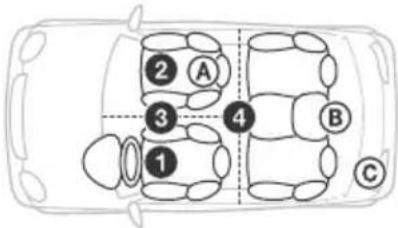
F/R POS (front/rear position)
Simulates a natural sound field by delaying the sound output from speakers to suit your position:
[FRONT L] (front left),
2 [FRONT R] (front right),
[FRONT] (center front),
4 [ALL] (center of your car),
[OFF] (no position set)
ADJ POSITION (adjust position)
Fine-tunes the listening position setting: [+3] [CENTER] - [-3].
(Available only when [F/R POS] is not set to [OFF] or [CUSTOM].)
DSO (dynamic stage organizer)
Creates a more ambient sound as if there were speakers in the dashboard: [OFF], [LOW], [MID], [HIGH].
BALANCE
Adjusts the sound balance: [RIGHT-15] - [CENTER] - [LEFT-15].
FADER
Adjusts the relative level: [FRONT-15] - [CENTER] - [REAR-15].
DSEE (digital sound enhancement engine)
Improves digitally compressed sound by restoring high frequencies lost in the compression process.
This setting can be memorized for each source other than the tuner.
Selects the DSEE mode: [ON], [OFF].
AAV (advanced auto volume)
Adjusts the playback volume level of all playback sources to the optimum level: [ON], [OFF].
RB ENH (rear bass enhancer)
Rear Bass Enhancer enhances the bass sound by applying a low pass filter setting to the rear speakers. This function allows the rear speakers to work as a subwoofer if one is not connected. (Available only when [SW DIREC] is set to [OFF].)
RBE MODE (rear bass enhancer mode)
Selects the rear bass enhancer mode: [1], [2], [3], [OFF].
LPF FREQ (low pass filter frequency)
Selects the subwoofer cut-off frequency: [50Hz], [60Hz], [80Hz], [100Hz], [120Hz].
LPF SLOP (low pass filter slope)
Selects the LPF slope: [1], [2], [3].
SW DIREC (subwoofer direct connection)
You can use the subwoofer without a power amplifier when it is connected to the rear speaker lead.
(Available only when [RBE MODE] is set to [OFF].)
Be sure to connect a 4-8 ohm subwoofer to either of the rear speaker leads. Do not connect a speaker to the other rear speaker lead.
Selects the subwoofer mode: [1], [2], [3], [OFF].
Selects the subwoofer phase: [NORM], [REV].
Selects the subwoofer position: [NEAR],
[NORMAL], [FAR].
LPF FREQ (low pass filter frequency)
Selects the subwoofer cut-off frequency: [50Hz],
[60Hz], [80Hz], [100Hz], [120Hz].
LPF SLOP (low pass filter slope)
Selects the LPF slope: [1], [2], [3].
([ATT] is displayed at the lowest setting.)
Selects the subwoofer phase: [NORM], [REV].
LPF FREQ (low pass filter frequency)
Selects the subwoofer cut-off frequency: [50Hz], [60Hz], [80Hz], [100Hz], [120Hz].
LPF SLOP (low pass filter slope)
Selects the LPF slope: [1], [2], [3].
HPF (high pass filter)
HPF FREQ (high pass filter frequency)
Selects the front/rear speaker cut-off frequency: [OFF], [50Hz], [60Hz], [80Hz], [100Hz], [120Hz].
HPF SLOP (high pass filter slope)
Selects the HPF slope (effective only when [HPF
FREQ] is set to other than [OFF]): [1], [2], [3].
AUX VOL (AUX volume level)
Adjusts the volume level for each connected auxiliary device: [+18dB] - [0dB] - [-8dB]
This setting negates the need to adjust the volume level between sources.
BTA VOL (BLUETOOTH audio volume level)
Adjusts the volume level for each connected
BLUETOOTH device: [+6dB] - [0dB] -[-6 dB].
This setting negates the need to adjust the volume level between sources.
- Does not appear when [F/R POS] is set to [OFF].
Display Setup (DISPLAY)
DIMMER
Dims the display: [ON], [OFF], [AT] (auto)
([AT] is available only when the illumination
control lead is connected, and turn on the head light).
BUTTON-C (button color)
Sets a preset color or customized color for the
buttons.
COLOR
Selects from 15 preset colors, 1 customized color.
CUSTOM-C (custom color)
Registers a customized color for the buttons.
RGB RED, RGB GRN, RGB BLUE
Adjustable color range: [0] - [32] ([0] cannot
be set for all color ranges).
DSPL-C (display color)
Sets a preset color or customized color for the display.
COLOR
Selects from 15 preset colors, 1 customized color.
CUSTOM-C (custom color)
Registers a customized color for the display.
RGB RED, RGB GRN, RGB BLUE
Adjustable color range: [0] - [32] ([0] cannot
be set for all color ranges).
ALL-C (all color)
Sets a preset color or customized color for the display and buttons.
COLOR
Selects from 15 preset colors, 1 customized color.
CUSTOM-C (custom color)
Registers a customized color for the display and buttons.
RGB RED, RGB GRN, RGB BLUE
Adjustable color range: [0] - [32] ([0] cannot
be set for all color ranges).
SND SYNC (sound synchronization)
Activates the synchronization of the illumination
with the sound: [ON], [OFF].
M. DISPLAY (motion display)
Shows moving patterns: [LM], [ON], [OFF].
AUTO SCR (auto scroll)
Scrolls long items automatically: [ON], [OFF].
(Not available when the AUX or tuner is selected.)
BLUETOOTH Setup (BT)
PAIRING (page 8)
PHONE BOOK (page 14)
REDIAL (page 14)
RECENTCALL page 14
VOICE DIAL (page 15)
DIAL NUMBER (page 14)
RINGTONE
Selects whether this unit or the connected cellular phone outputs the ringtone: [1] (this unit), [2] (cellular phone).
AUTOANS (auto answer)
Sets this unit to answer an incoming call automatically: [OFF], [1] (about 3 seconds), [2] (about 10 seconds).
AUTOPAIR (auto pairing)
Start BLUETOOTH pairing automatically when iOS device version 5.0 or later is connected via USB: [ON], [OFF].
BT SIGNL (BLUETOOTH signal) (page 8)
Activates/deactivates the BLUETOOTH function.
BT INIT (BLUETOOTH initialize)
Initializes all the BLUETOOTH related settings (pairing information, preset number, device information, etc.): [YES], [NO].
When disposing the unit, initialize all the settings.
(Available only while the source is off and the clock is displayed.)
SongPal Setup (SONGPAL)
Establish and terminate "SongPal" function (connection).
Additional Information
Updating the Firmware
You can update the firmware of this unit from the following support site:
To update the firmware, visit the support site, then follow the online instructions.
Precautions
Cool off the unit beforehand if your car has been parked in direct sunlight.
- Do not leave the front panel or audio devices brought in inside the car, or it may cause malfunction due to high temperature in direct sunlight.
Power antenna (aerial) extends automatically.
Moisture condensation
Should moisture condensation occur inside the unit, remove the disc and wait for about an hour for it to dry out; otherwise the unit will not operate properly.
To maintain high sound quality
Do not splash liquid onto the unit or discs.
Notes on discs
- Do not expose discs to direct sunlight or heat sources such as hot air ducts, nor leave it in a car parked in direct sunlight.
- Before playing, wipe the discs with a cleaning cloth from the center out. Do not use solvents such as benzine, thinner, commercially available cleaners.
This unit is designed to play discs that conform to the Compact Disc (CD) standard. DualDiscs and some of the music discs encoded with copyright protection technologies do not conform to the Compact Disc (CD) standard, therefore, these discs may not be playable by this unit.
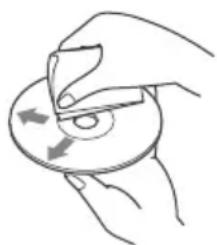
-
Discs that this unit CANNOT play
-
Discs with labels, stickers, or sticky tape or paper attached. Doing so may cause a malfunction, or may ruin the disc.
Discs with non-standard shapes (e.g., heart, square, star). Attempting to do so may damage the unit. - 8 cm (3/4 in) discs.
Notes on CD-R/CD-RW discs
- If the multi-session disc begins with a CD-DA session, it is recognized as a CD-DA disc, and other sessions are not played.
Discs that this unit CANNOT play
CD-R/CD-RW of poor recording quality.
- CD-R/CD-RW recorded with an incompatible recording device.
CD-R/CD-RW which is finalized incorrectly.
- CD-R/CD-RW other than those recorded in music CD format or MP3 format conforming to ISO9660 Level 1/Level 2, Joliet/Romeo or multi-session.
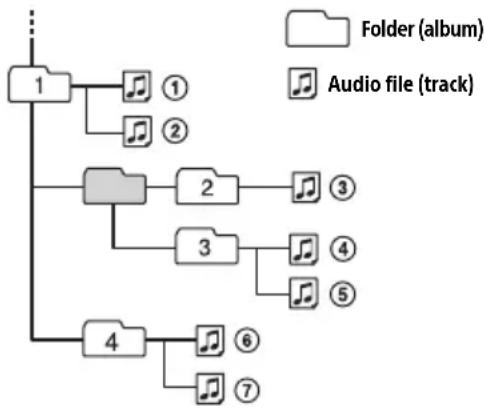
Playback order of audio files
About iPod
- You can connect to the following iPod models. Update your iPod devices to the latest software before use.
Compatible iPhone/iPod models
| Compatible Model B | Bluetooth® USB | |
| iPhone 6 Plus O | O | |
| iPhone 6 O | O | |
| iPhone 5s O | O | |
| iPhone 5c O | O | |
| iPhone 5 O | O | |
| iPhone 4s O | O | |
| iPhone 4 O | O | |
| iPhone 3GS O | O | |
| iPhone 3G O | ||
| Compatible Model | Bluetooth® USB | |
| iPod touch (5th generation) | ○ | ○ |
| iPod touch (4th generation) | ○ | ○ |
| iPod touch (3rd generation) | ○ | |
| iPod touch (2nd generation) | ○ | |
| iPod classic ○ | ||
| iPod nano (7th generation) | ○ | |
| iPod nano (6th generation) | ○ | |
| iPod nano (5th generation) | ○ | |
| iPod nano (4th generation) | ○ | |
| iPod nano (3rd generation) | ○ |
- "Made for iPod," and "Made for iPhone," mean that an electronic accessory has been designed to connect specifically to iPod or iPhone, respectively, and has been certified by the developer to meet Apple performance standards. Apple is not responsible for the operation of this device or its compliance with safety and regulatory standards. Please note that the use of this accessory with iPod or iPhone may affect wireless performance.
If you have any questions or problems concerning your unit that are not covered in this manual, consult your nearest Sony dealer.
Maintenance
Replacing the lithium battery of the remote commander
Under normal conditions, the battery will last approximately 1 year. (The service life may be shorter, depending on the conditions of use.) When the battery becomes weak, the range of the remote commander becomes shorter.
CAUTION
Danger of explosion if battery is incorrectly replaced. Replaced only with the same or equivalent type.
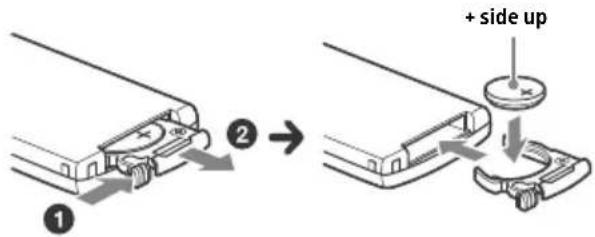
Notes on the lithium battery
- Keep the lithium battery out of the reach of children. Should the battery be swallowed, immediately consult a doctor.
- Wipe the battery with a dry cloth to ensure a good contact.
- Be sure to observe the correct polarity when installing the battery.
- Do not hold the battery with metallic tweezers, otherwise a short-circuit may occur.
Specifications
FOR THE CUSTOMERS IN THE USA. NOT APPLICABLE IN CANADA, INCLUDING IN THE PROVINCE OF QUEBEC.
POUR LES CLIENTS AUX ETATS-UNIS. NON APPLICABLE AU CANADA, Y COMPRIS LA PROVINCE DE QUEBEC.
AUDIO POWER SPECIFICATIONS

CEA2006 Standard
Power Output: 17 Watts RMS × 4 at 4
Ohms < 1% THD+N
SN Ratio: 80 dBA
(reference: 1 Watt into 4 Ohms)
Tuner section
FM
Tuning range: 87.5 - 107.9 MHz
Antenna (aerial) terminal:
External antenna (aerial) connector
Intermediate frequency:
FM CCIR: -1,956.5 to -487.3 kHz and
+500.0 to +2,095.4 kHz
Usable sensitivity: 8 dBf
Selectivity: 75 dB at 400 kHz
Signal-to-noise ratio: 73 dB
Separation: 50 dB at 1 kHz
Frequency response: 20 - 15,000 Hz
AM
Tuning range: 530 - 1,710 kHz
Antenna (aerial) terminal:
External antenna (aerial) connector
Sensitivity: 26 V
CD Player section
Signal-to-noise ratio: 120 dB
Frequency response: 10 - 20,000 Hz
Wow and flutter: Below measurable limit
The maximum number of: (CD-R/CD-RW only)
-
folders (albums): 150 (including root folder)
-
files (tracks) and folders: 300 (may less than 300 if folder/file names contain many characters)
displayable characters for a folder/file name: 32 (Joliet)/64 (Romeo)
Corresponding codec: MP3 (.mp3), WMA (.wma) and AAC (.m4a)
USB Player section
Interface: USB (High-speed)
Maximum current: 1 A
The maximum number of recognizable tracks: 10,000
Corresponding codec:
MP3 (.mp3)
Bit rate: 8 - 320 kbps (Supports VBR
(Variable Bit Rate))
Sampling rate: 16 - 48 kHz
WMA (.wma)
Bit rate: 32 - 192 kbps (Supports VBR
(Variable Bit Rate))
Sampling rate: 32kHz 44.1 kHz, 48 kHz
AAC (.m4a, .mp4)
Bit rate: 8 - 320 kbps
Sampling rate: 11.025 - 48 kHz
WAV (.wav)
Bit depth: 16 bit
Sampling rate: 44.1 kHz, 48 kHz
FLAC(.flac)
Bit depth: 16 bit, 24 bit
Sampling rate: 44.1 kHz, 48 kHz
Wireless Communication
Communication System:
BLUETOOTH Standard version 3.0
Output:
BLUETOOTH Standard Power Class 2 (Max. +4 dBm)
Maximum communication range:
Line of sight approx. 10m (33 ft)*1
Frequency band:
2.4 GHz band (2.4000 - 2.4835 GHz)
Modulation method: FHSS
Compatible BLUETOOTH Profiles:
A2DP (Advanced Audio Distribution Profile) 1.3
AVRCP (Audio Video Remote Control Profile) 1.5
HFP (Handsfree Profile) 1.6
PBAP (Phone Book Access Profile)
SPP (Serial Port Profile)
MAP (Message Access Profile)
HID (Human Interface Device Profile)
Corresponding codec:
SBC (.sbc) and AAC (.m4a)
*1 The actual range will vary depending on factors such as obstacles between devices, magnetic fields around a microwave oven, static electricity, reception sensitivity, antenna (aerial)'s performance, operating system, software application, etc.
*2 BLUETOOTH standard profiles indicate the purpose of BLUETOOTH communication between devices.
Power amplifier section
Output: Speaker outputs
Speaker impedance: 4 - 8 ohms
Maximum power output: 55W× 4 (at 4 ohms)
General
Outputs:
Audio outputs terminal: front, rear, sub
Power antenna (aerial)/Power amplifier control terminal (REM OUT)
Inputs:
Remote controller input terminal
Antenna (aerial) input terminal
MIC input terminal
Power requirements: 12 V DC car battery (negative ground (earth))
Rated current consumption: 10 A
Dimensions:
Approx. 178mm× 100mm× 178mm
(7 1/8 in × 4 in × 7 1/8 in) (w/h/d)
Mounting dimensions:
Approx. 182mm× 111mm× 159mm
(71 / 4in× 4^3 / 8in× 6^3 / 8in)(w / h / d)
Mass: Approx. 1.4kg (3 lb 2 oz)
Package contents:
Main unit (1)
Remote commander (1): RM-X231
Microphone (1)
Parts for installation and connections (1 set)
Optional accessories/equipment:
Cable for steering wheel remote input: RC-SR1
Your dealer may not handle some of the above listed accessories. Please ask the dealer for detailed information.
Design and specifications are subject to change without notice.
Copyrights
The Bluetooth® word mark and logos are registered trademarks owned by Bluetooth SIG, Inc. and any use of such marks by Sony Corporation is under license. Other trademarks and trade names are those of their respective owners.
The N-Mark is a trademark or registered trademark of NFC Forum, Inc. in the United States and in other countries.
Windows Media is either a registered trademark or trademark of Microsoft Corporation in the United States and/or other countries.
This product is protected by certain intellectual property rights of Microsoft Corporation. Use or distribution of such technology outside of this
product is prohibited without a license from Microsoft or an authorized Microsoft subsidiary.
iPhone, iPod, iPod classic, iPod nano, iPod touch, and Siri are trademarks of Apple Inc., registered in the U.S. and other countries. App Store is a service mark of Apple Inc.
MPEG Layer-3 audio coding technology and patents licensed from Fraunhofer IIS and Thomson.
Pandora®, the Pandora® logo, and the Pandora® trade dress are trademarks or registered trademarks of Pandora Media, Inc., used with permission.
Google, Google Play and Android are trademarks of Google Inc.
libFLAC
Copyright (C) 2000-2009 Josh Coalson
Copyright (C) 2011-2013 Xiph.Org Foundation
Redistribution and use in source and binary forms, with or without modification, are permitted provided that the following conditions are met:
- Redistributions of source code must retain the above copyright notice, this list of conditions and the following disclaimer.
- Redistributions in binary form must reproduce the above copyright notice, this list of conditions and the following disclaimer in the documentation and/or other materials provided with the distribution.
- Neither the name of the Xiph.org Foundation nor the names of its contributors may be used to endorse or promote products derived from this software without specific prior written permission.
THIS SOFTWARE IS PROVIDED BY THE COPYRIGHT HOLDERS AND COLNTRIBUTORS "AS IS" AND ANY EXPRESS OR IMPLIED WARRANTY, INCLUDING, BUT NOT LIMITED TO, THE IMPLIED WARRANTY OF MERCHANTABILITY AND FITNESS FOR A PARTICULAR PURPOSE ARE DISCLAIMED. IN NO EVENT SHALL THE FOUNDATION OR COLNTRIBUTORS BE LIABLE FOR ANY DIRECT, INDIRECT, INCIDENTAL, SPECIAL, EXEMPLARY, OR CONSEQUENTIAL DAMAGES (INCLUDING, BUT NOT LIMITED TO, PROCUREMENT OF SUBSTITUTE GOODS OR SERVICES; LOSS OF USE, DATA, OR PROFITS; OR BUSINESS INTERRUPTION) HOWEVER CAUSED AND ON ANY THEORY OF LIABILITY, WHETHER IN CONTRACT, STRICT LIABILITY, OR TORT (INCLUDING NEGLIGENCE OR OTHERWISE) ARISING IN ANY WAY OUT OF THE USE OF THIS SOFTWARE, EVEN IF ADVISED OF THE POSSIBILITY OF SUCH DAMAGE.
Troubleshooting
The following checklist will help you remedy problems you may encounter with your unit.
Before going through the checklist below, check the connection and operating procedures.
For details on using the fuse and removing the unit from the dashboard, see "Connection/Installation" (page 29).
If the problem is not solved, visit the support site on the back cover.
General
No power is being supplied to the unit.
If the unit is turned off and the display disappears, the unit cannot be operated with the remote commander.
Turn on the unit.
No sound or the sound is very low.
The position of the fader control [FADER] is not set for a 2-speaker system.
The volume of the unit and/or connected device is very low.
- Increase the volume of the unit and connected device.
No beep sound.
An optional power amplifier is connected and you are not using the built-in amplifier.
The contents of the memory have been erased.
The reset button has been pressed.
- Store again into the memory.
The power supply lead or battery has been disconnected or not connected properly.
Stored stations and correct time are erased. The fuse has blown.
Makes a noise when the position of the ignition is switched.
The leads are not matched correctly with the car's accessory power connector.
During playback or reception, the demonstration mode starts.
If no operation is performed for 5 minutes with [DEMO-ON] set, the demonstration mode starts.
- Set [DEMO-OFF] (page 17).
The display disappears from/does not appear in the display window.
The dimmer is set to [DIM-ON] (page 20).
The display disappears if you press and hold OFF.
- Press OFF on the unit until the display appears.
The display/illumination flashes.
The power supply is not sufficient.
- Check that the car battery supplies enough power to the unit. (The power requirement is 12 V DC.)
The operation buttons do not function. The disc will not eject.
The connection is not correct.
- Check the connection of the unit.
If the situation does not improve, press the reset button (page 7).
The contents stored in memory are erased.
For your safety, do not reset the unit while you are driving.
Radio reception
Stations cannot be received.
The sound is hampered by noises.
The connection is not correct.
If your car has built-in radio antenna (aerial) in the rear/side glass, connect an REM OUT lead (blue/white striped) or accessory power supply lead (red) to the power supply lead of a car's antenna (aerial) booster.
- Check the connection of the car antenna (aerial).
If the auto antenna (aerial) will not extend, check the connection of the power antenna (aerial) control lead.
Preset tuning is not possible.
The broadcast signal is too weak.
RDS
PTY displays - - - -
The current station is not an RDS station.
RDS data has not been received.
The station does not specify the program type.
CD playback
The disc does not play.
Defective or dirty disc.
The CD-R/CD-RW is not for audio use (page 21).
MP3/WMA/AAC files cannot be played.
The disc is incompatible with the MP3/WMA/AAC format and version. For details on playable discs and formats, visit the support site on the back cover.
MP3/WMA/AAC files take longer to play than others.
The following discs take a longer time to start playback.
A disc recorded with a complicated tree structure.
A disc recorded in Multi Session.
A disc to which data can be added.
The sound skips.
Defective or dirty disc.
USB device playback
You cannot play items via a USB hub.
This unit cannot recognize USB devices via a USB hub.
A USB device takes longer to play.
The USB device contains files with a complicated tree structure.
The sound is intermittent.
The sound may be intermittent at a high-bit-rate.
DRM (Digital Rights Management) files may not be playable in some cases.
Audio file cannot be played.
USB device formatted with file systems other than FAT16 or FAT32 are unsupported.*
* This unit supports FAT16 and FAT32, but some USB device may not support all of these FAT. For details, refer to the operating instruction of each USB device or contact the manufacturer.
NFC function
One touch connection (NFC) is not possible.
If the smartphone does not respond to the touching.
- Check that the NFC function of the smartphone is turned on.
Move the N-Mark part of the smartphone closer to the N-Mark part on this unit.
If the smartphone is in a case, remove it.
NFC receiving sensitivity depends on the device. If One touch connection with the smartphone fails several times, make BLUETOOTH connection manually.
BLUETOOTH function
The connecting device cannot detect this unit.
Before the pairing is made, set this unit to pairing standby mode.
While connected to a BLUETOOTH device, this unit cannot be detected from another device.
- Disconnect the current connection and search for this unit from another device.
When the device pairing is made, set the BLUETOOTH signal output to on (page 8).
Connection is not possible.
The connection is controlled from one side (this unit or BLUETOOTH device), but not both.
- Connect to this unit from a BLUETOOTH device or vice versa.
The name of the detected device does not appear.
Depending on the status of the other device, it may not be possible to obtain the name.
No ringtone.
Adjust the volume by rotating the control dial while receiving a call.
Depending on the connecting device, the ringtone may not be sent properly. Set [RINGTONE] to [1] (page 20).
The front speakers are not connected to the unit. Connect the front speakers to the unit. The ringtone is output only from the front speakers.
The talker's voice cannot be heard.
The front speakers are not connected to the unit. Connect the front speakers to the unit. The talker's voice is output only from the front speakers.
A call partner says that the volume is too low or high.
Adjust the volume accordingly using mic gain adjustment (page 15).
Echo or noise occurs in phone call conversations.
Lower the volume.
Set EC/NC Mode to [EC/NC-1] or [EC/NC-2] (page 15).
If the ambient noise other than the phone call sound is loud, try reducing this noise.
E.g.: If a window is open and road noise, etc., is loud, shut the window. If an air conditioner is loud, lower the air conditioner.
The phone is not connected.
When BLUETOOTH audio is played, the phone is not connected even if you press CALL.
- Connect from the phone.
The phone sound quality is poor.
Phone sound quality depends on reception conditions of cellular phone.
- Move your car to a place where you can enhance the cellular phone's signal if the reception is poor.
The volume of the connected audio device is low (high).
Volume level will differ depending on the audio device.
- Adjust the volume of the connected audio device or this unit.
The sound skips during playback of a BLUETOOTH audio device.
Reduce the distance between the unit and the BLUETOOTH audio device.
If the BLUETOOTH audio device is stored in a case which interrupts the signal, remove the audio device from the case during use.
Several BLUETOOTH devices or other devices which emit radio waves are in use nearby.
Turn off the other devices.
Increase the distance from the other devices.
The playback sound stops momentarily when the connection between this unit and the cellular phone is being made. This is not a malfunction.
The connected BLUETOOTH audio device cannot be controlled.
Check that the connected BLUETOOTH audio device supports AVRCP.
Some functions do not work.
Check if the connecting device supports the functions in question.
A call is answered unintentionally.
The connecting phone is set to answer a call automatically.
Pairing failed due to a timeout.
Depending on the connecting device, the time limit for pairing may be short.
Try completing the pairing within the time.
BLUETOOTH function cannot operate.
Turn off the unit by pressing OFF for more than 2 seconds, then turn the unit on again.
No sound is output from the car speakers during handsfree call.
If the sound is output from the cellular phone, set the cellular phone to output the sound from the car speakers.
Siri Eyes Free is not activated.
Perform the handsfree registration for an iPhone that supports Siri Eyes Free.
Set the Siri function on the iPhone to on.
Cancel the BLUETOOTH connection with the iPhone and the unit, and reconnect.
SongPal operation
Application name is mismatched with the actual application in "SongPal".
Launch the application again from the "SongPal" application.
While running the "SongPal" application via BLUETOOTH, the display automatically switches to [BT AUDIO].
The "SongPal" application or BLUETOOTH function has failed.
Run the application again.
The "SongPal" application is automatically disconnected when the display switches to [IPD].
The "SongPal" application on iPhone/iPod does not support iPod playback.
- Change the source of the unit to other than [IPD], then establish the "SongPal" connection (page 15).
Pandora® operation
Pandora® connection is not possible.
Shut down the Pandora® application on the mobile device, and then launch it again.
Error displays/Messages
CD ERROR: The disc cannot be played. The disc will be ejected automatically.
Clean or insert the disc correctly, or make sure the disc is not blank or defective.
CD NO MUSIC: There is no playable file. The disc will be ejected automatically.
Insert a disc containing playable files (page 22).
CD PUSH EJT: The disc could not be ejected properly.
Press (eject).
HUB NO SUPRT: USB hubs are not supported.
IPD STOP: iPod playback has finished.
OperateryouriPod/iPhone to start playback.
OVERLOAD: The USB device is overloaded.
Disconnect the USB device, then press SOURCE to select another source.
The USB device has a fault, or an unsupported device is connected.
READ: Now reading information.
Wait until reading is complete and playback starts automatically. This may take some time depending on the file organization.
USB ERROR: The USB device cannot be played.
Connect the USB device again.
USB NO DEV: A USB device is not connected or recognized.
Make sure the USB device or USB cable is securely connected.
USB NO MUSIC: There is no playable file.
Connect a USB device containing playable files (page 23).
USB NO SUPRT: The USB device is not supported.
For details on the compatibility of your USB device, visit the support site on the back cover.
L L L L or :The beginning or the end of the disc has been reached.
:: The character cannot be displayed.
For BLUETOOTH function:
BT BUSY: The BLUETOOTH device is busy.
Wait for a while, then try again.
ERROR: The selected operation could not be performed.
Wait for a while, then try again.
NO DEV: The BLUETOOTH device is not connected or recognized.
Make sure the BLUETOOTH device is securely connected, or the BLUETOOTH connection is established with the BLUETOOTH device.
P EMPTY: No phone numbers are stored.
UNKNOWN: A name or phone number cannot be displayed.
WITHHIELD: The phone number is hidden by the caller.
For SongPal operation:
APP : A connection with the application is not established.
Make the "SongPal" connection again (page 15).
APP DISCNCT: The application is disconnected.
Make the "SongPal" connection (page 15).
APP DISPLAY: A screen setting display of the application is open.
Exit the screen setting display of the application to enable button operation.
APP LIST: The contents list of the CD/USB/iPod is open.
Exit the list of the application to enable button operation.
APP MENU: A setting display of the application is open.
Exit the setting display of the application to enable button operation.
APP NO DEV: The device with the application installed is not connected or recognized.
Make the BLUETOOTH connection and establish the "SongPal" connection again (page 15).
APP SOUND: A sound setting display of the application is open.
Exit the sound setting display of the application to enable button operation.
OPEN APP: The "SongPal" application is not running.
Launch the application.
For Pandora® operation:
CANNOT SKIP: Skipping tracks is not allowed.
Wait until the commercial ends, next track begins, or select another station on the list. Pandora® limits the number of skips allowed on their service.
NO NETWORK: The network connection is unstable or lost.
Make the network connection again on the device, or wait until the network connection is established.
NO STATION - PLEASE - CREATE - STATION - IN - PANDORA APP: No stations on your account.
Create the station on the mobile device.
NOT ALLOWED: The selected operation is not allowed.
"Thumbs" feedback is not allowed.
Wait until the commercial ends.
Some functions, such as Shared Station, do not permit feedback. Wait until the next track begins, or select another station on the list.
**Bookmark is not allowed.
Wait until the commercial ends.
- Select another track or station, then try it again.
PAN ERROR: The selected operation could not be performed.
Wait for a while, then try again.
PAN MAINT: The Pandora® server is under maintenance.
Wait for a while, then try again.
PAN OPEN APP - PRESS PAUSE: Pandora® is not running.
Launch the Pandora® application on the mobile device, then press PAUSE.
PAN RESTRICT: Pandora® is not available outside your country.
PLEASE LOGIN - PANDORA APP: You are not logged into your Pandora® account.
Disconnect the device, log into your Pandora® account, then connect the device again.
UPDATE PAN: An old version of Pandora® is connected.
Update the Pandora® application to the latest version.
For steering wheel remote control operation:
ERROR: An error occurred during the function registration.
Register again from the function where the error occurred (page 18).
TIMEOUT: The function registration failed due to a timeout.
Try completing the registration while [REGISTER] is blinking (about 6 seconds) (page 18).
If these solutions do not help improve the situation, consult your nearest Sony dealer.
If you take the unit to be repaired because of CD playback trouble, bring the disc that was used at the time the problem began.
Connection/Installation
Cautions
- Run all ground (earth) leads to a common ground (earth) point.
- Do not get the leads trapped under a screw, or caught in moving parts (e.g., seat railing).
- Before making connections, turn the car ignition off to avoid short circuits.
- Connect the yellow and red power supply leads only after all other leads have been connected.
- Be sure to insulate any loose unconnected leads with electrical tape for safety.
Precautions
- Choose the installation location carefully so that the unit will not interfere with normal driving operations.
- Avoid installing the unit in areas subject to dust, dirt, excessive vibration, or high temperature, such as in direct sunlight or near heater ducts.
- Use only the supplied mounting hardware for a safe and secure installation.
Note on the power supply lead (yellow)
When connecting this unit in combination with other stereo components, the amperage rating of the car circuit to which the unit is connected must be higher than the sum of each component's fuse amperage rating.
Mounting angle adjustment
Adjust the mounting angle to less than 45^ .
Parts List for Installation
①
5 × . 8 ~mm (7 / 32 × . 5 / 16 in)

②
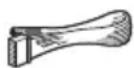
③
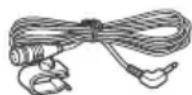
(4)

This parts list does not include all the package contents.
Connection
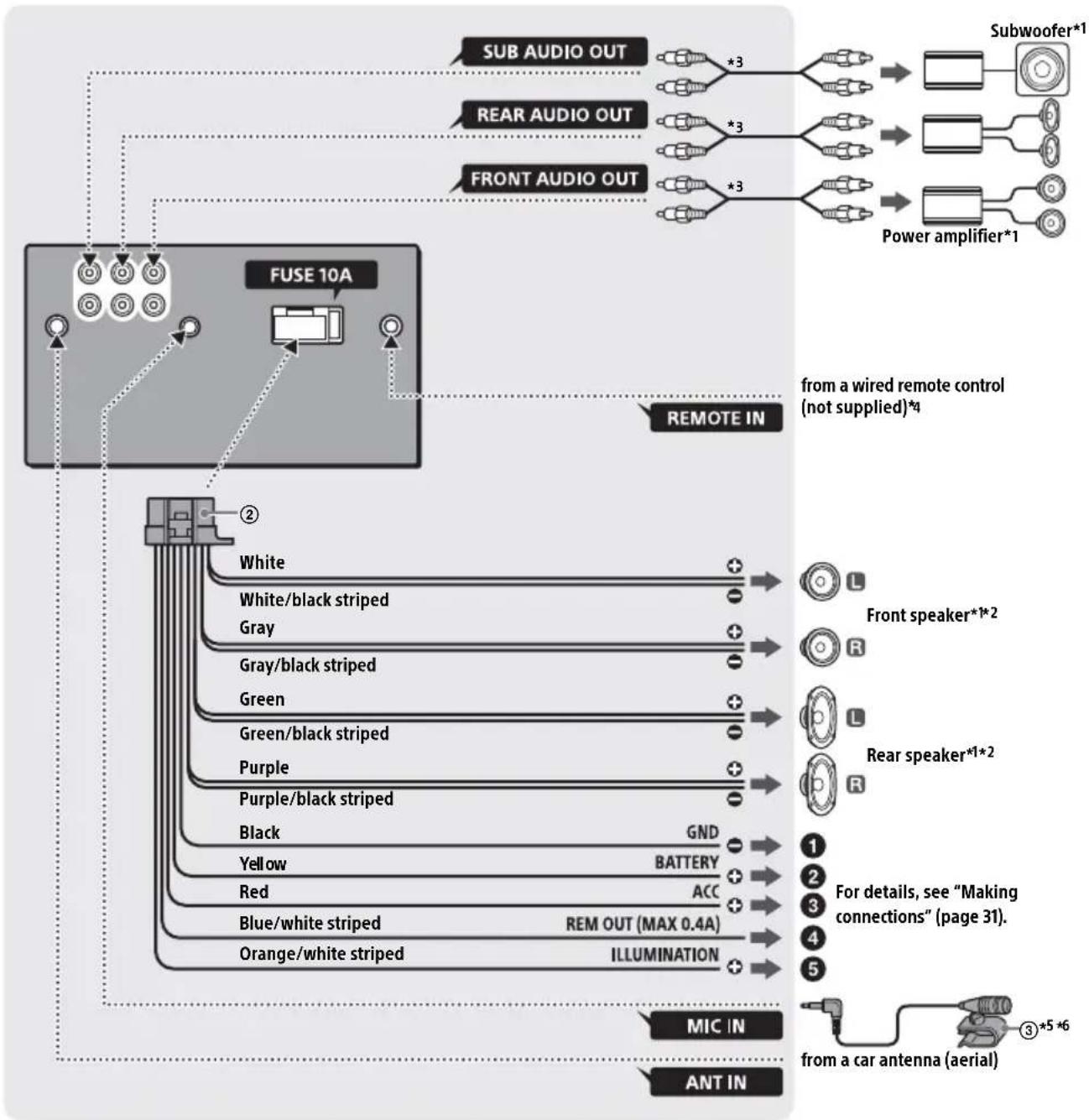
1 Not supplied
2 Speaker impedance: 4 - 8 Ω × 4
3 RCA pin cord (not supplied)
4 Depending on the type of car, use an adaptor for a wired remote control (not supplied).
5 Whether in use or not, route the microphone input cord such that it does not interfere with driving operations. Secure the cord with a clamp, etc., if it is installed around your feet.
6 For details on installing the microphone, see "Installing the microphone" (page 31).
Making connections
To a common ground (earth) point
First connect the black ground (earth) lead, then connect the yellow and red power supply leads.
To the +12V power terminal which is energized at all times
Be sure to first connect the black ground (earth) lead to a common ground (earth) point.
To the +12V power terminal which is energized when the ignition switch is set to the accessory position
If there is no accessory position, connect to the +12V power (battery) terminal which is energized at all times.
Be sure to first connect the black ground (earth) lead to a common ground (earth) point.
To the power antenna (aerial) control lead or the power supply lead of the antenna (aerial) booster
It is not necessary to connect this lead if there is no power antenna (aerial) or antenna (aerial) booster, or with a manually-operated telescopic antenna (aerial).
To AMP REMOTE IN of an optional power amplifier
This connection is only for amplifiers and a power antenna (aerial). Connecting any other system may damage the unit.
To a car's illumination signal
Be sure to first connect the black ground (earth) lead to a common ground (earth) point.
Subwoofer Easy Connection
You can use a subwoofer without a power amplifier when it is connected to a rear speaker cord.
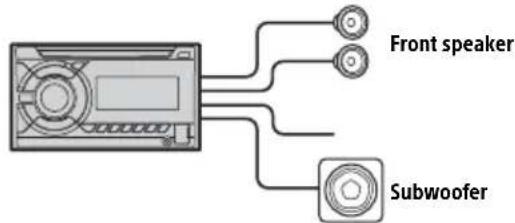
Note
Use a subwoofer with an impedance of 4 to 8 ohms, and with adequate power handling capacities to avoid damage.
Memory hold connection
When the yellow power supply lead is connected, power will always be supplied to the memory circuit even when the ignition switch is turned off.
Speaker connection
Before connecting the speakers, turn the unit off.
- Use speakers with an impedance of 4 to 8 ohms, and with adequate power handling capacities to avoid damage.
Installing the microphone
To capture your voice during handsfree calling, you need to install the microphone ③.
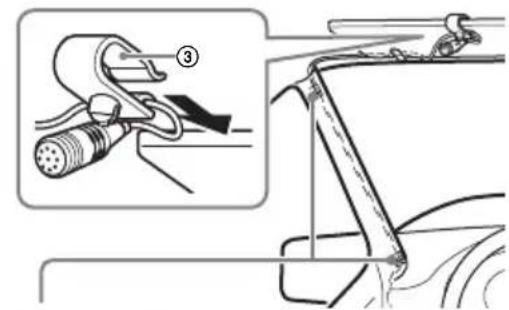
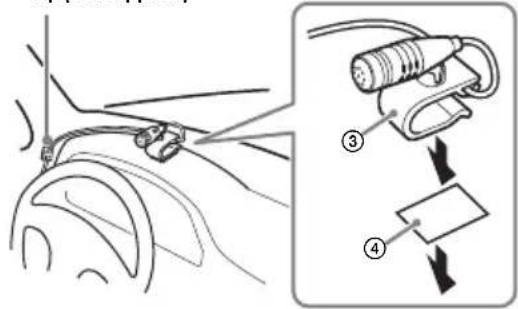
Clip (not supplied)
Cautions
- It is extremely dangerous if the cord becomes wound around the steering column or gearstick. Be sure to keep it and other parts from interfering with your driving operations.
If airbags or any other shock-absorbing equipment is in your car, contact the store where you purchased this unit, or the car dealer, before installation.
Note
Before attaching the double-sided tape ④ clean the surface of the dashboard with a dry cloth.
Using the wired remote control
When using the steering wheel remote control
Installation of the connection cable RC-SR1 (not supplied) is required before use.
1 To enable the steering wheel remote control, select [SET STEERING] [EDIT CUSTOM] to make the registration (page 18).
When the registration completes, the steering wheel remote control becomes available.
Notes on installing the connection cable RC-SR1 (not supplied)
Refer to the support sites on the back cover for details, then connect each lead properly to the appropriate leads. Making an improper connection may damage the unit.
Depending on the type of car, be sure to insulate the unused leads with electrical tape for safety.
- Do not connect this cable when the steering wheel remote control is not used.
- Consulting the dealer or an experienced technician for help is recommended.
When using the wired remote control
1 To enable the wired remote control, set [STR CONTROL] in [SET STEERING] to [PRESET] (page 18).
Installation
Before installing this unit, remove the screw and box on the back of the unit. Do not use the previous parts you removed when installing the unit.
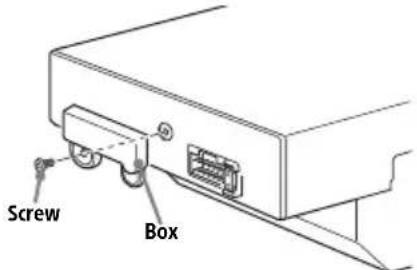
Mounting the unit in the dashboard
When mounting in a Japanese car, see "Mounting the unit in a Japanese car" (page 32).
Mounting the unit with an installation kit (not supplied)
You can use a commercially available double DIN installation kit. Choose an installation kit with the following panel frame size.
Larger than 172× 97mm (67 / 8× 37 / 8 in (W / h) with an inner corner radius of less than 0.5mm (1 / 32 in).
Note
Be sure to use the supplied screws ①.
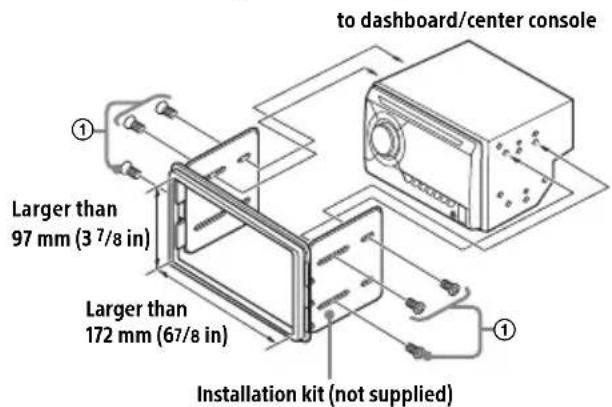
Mounting the unit in a Japanese car
You may not be able to install this unit in some makes of Japanese cars. In such a case, consult your Sony dealer.
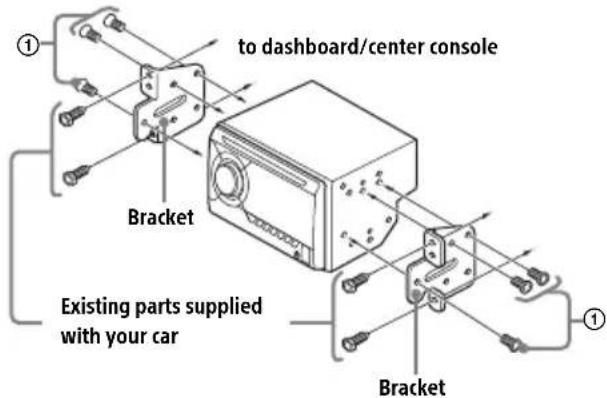
When mounting this unit to the preinstalled brackets of your car, use the supplied screws 1 in the appropriate screw holes, based on your car: T for TOYOTA, M for MITSUBISHI and N for NISSAN.
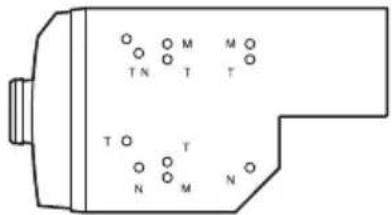
Note
To prevent malfunction, install only with the supplied screws ①.
Resetting the unit
For details, see "Resetting the unit" (page 7).
Fuse replacement
When replacing the fuse, be sure to use one matching the amperage rating stated on the original fuse. If the fuse blows, check the power connection and replace the fuse. If the fuse blows again after replacement, there may be an internal malfunction. In consult your nearest Sony dealer.
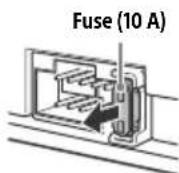
Communication BLUETOOTH
Raccordement/Installation
Mises en garde 32
ListedespiecesnecessairesaI'st installation. 32
Raccordement. 33
Installation 35
10 MODE (pages 10, 12, 14, 16)
3 (retour)
La lecture commence.
La lecture commence.
Modes dispensibles: [EC/NC-1], [EC/NC-2].
DEMO (demonstration)
C.AUDIO+ (AudioClair+)
Interface:USB (haute vitesse)
Norme BLUETOOTH version 3.0
Sortie:
Norme BLUETOOTH Power Class 2 (Max. +4 dBm)
A2DP (Advanced Audio Distribution Profile) 1.3
AVRCP (Audio Video Remote Control Profile) 1.5
HFP (Handsfree Profile) 1.6
PBAP (Phone Book Access Profile)
SPP (Serial Port Profile)
MAP (Message Access Profile)
HID (Human Interface Device Profile)
Codecsscorrespondants:
Appareil principal (1)
Copyright (C) 2000-2009 Josh Coalson
Copyright (C) 2011-2013 Fondation Xiph.Org
Raccordement/Installation
Mises en garde
5×max.8mm (7/32×ma×5/16po)

②
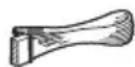
(3)
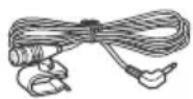
(4)

Para desconectariate One touch
Toque-Newamente la partemarcaNde la unidad conla partemarcaN delsmartphone.
Notas
Comentarios "Thumbs"
Para detalles sobre la configuracion, refiere a la。,a。,a。,a,a,a,a,a,a,a,a,a,a,a,a,a,a,a,a,a,a,a,a,a,a,a,a,a,a,a,a,a,a,a,a,a,a,a,a,a,a,a,a,a,a,a,a,a,a,a,a,a,a,a
Utilizar Siri Eyes Free
[BAND1] 32 Hz, [BAND2] 63 Hz, [BAND3] 125 Hz, [BAND4] 250 Hz, [BAND5] 500 Hz, [BAND6] 1 kHz, [BAND7] 2 kHz, [BAND8] 4 kHz, [BAND9] 8 kHz, [BAND10] 16 kHz.
Para la operation SongPal:
If you have any questions or for the latest support information on this product, please visit the web site below:
Site d'assistance
If you have any questions/problems regarding this product, try the following:
1 Read Troubleshooting in these Operating Instructions.
2 Please contact (U.S.A. only);
Call 1-800-222-7669
URL http://www.SONY.com

Made for

iPod

iPhone
WORKS WITH PANDORA


Bluetooth