
LMV505N - Cellphone LG - Free user manual and instructions
Find the device manual for free LMV505N LG in PDF.
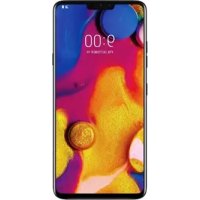


| Product Type | Dual Screen Accessory for LG V50 ThinQ |
| Model | LMV505N |
| Brand | LG |
| Weight (estimated) | 130 g |
| Dimensions (estimated) | 159 x 71 x 9 mm |
| Power supply | Powered by the connected phone's battery |
| Material | Tempered glass and plastic |
| Main features | Dual Screen, Dual View, Reflector Mode, Triple Preview, Mirror Mode, Dual Keyboard, Instant Capture, LG Command Box |
| Compatibility | LG V50 ThinQ (LM-V500EM) |
| Usage | Requires inserting the phone into the product |
| Screen | Additional screen of the product, works independently |
| Connectors | Communication/power terminal |
| Special features | Folding angle 0° to 360° |
| Care and cleaning | Dry cloth, avoid solvents, do not expose to liquids |
| Safety | Do not use if wet, do not disassemble, keep out of reach of children |
| Spare parts and repairability | Contact an authorized LG service center |
| Warranty | Limited warranty, void if damaged by liquid |
| General information | Manufactured by LG Electronics, compliant with EU regulations |
Frequently Asked Questions - LMV505N LG
User questions about LMV505N LG
0 question about this device. Answer the ones you know or ask your own.
Ask a new question about this device
Download the instructions for your Cellphone in PDF format for free! Find your manual LMV505N - LG and take your electronic device back in hand. On this page are published all the documents necessary for the use of your device. LMV505N by LG.
USER MANUAL LMV505N LG
About this user guide
Thank you for choosing this LG product. Please carefully read this user guide before using the device for the first time to ensure safe and proper use.
• Always use genuine LG accessories. The supplied items are designed only for this device and may not be compatible with other devices.
• Descriptions are based on the device default settings.
- Default apps on the device are subject to updates, and support for these apps may be withdrawn without prior notice. If you have any questions about an app provided with the device, please contact an LG Service Centre. For user-installed apps, please contact the relevant service provider.
- Modifying the device's operating system or installing software from unofficial sources may damage the device and lead to data corruption or data loss. Such actions will violate your LG licence agreement and void your warranty.
- Some content and illustrations may differ from your device, depending on the area, service provider, software version, or OS version, and are subject to change without prior notice.
- Software, audio, wallpaper, images, and other media supplied with your device are licenced for limited use. If you extract and use these materials for commercial or other purposes, you may be infringing copyright laws. As a user, you are fully responsible for the illegal use of media.
• Additional charges may incur for data services, such as messaging, uploading, downloading, auto-syncing and location services. To avoid additional charges, select a data plan suitable to your needs. Contact your service provider to obtain additional details.
• This user guide is written in major languages for each country. Depending on the language used, content may partly differ.
- This manual is designed for users who connect LG V50 ThinQ to LG Dual Screen. For more information on how to use LG Dual Screen (hereinafter "product").
• Some content and illustrations may differ from the V50 ThinQ connected to the product.
- Some content and illustrations may differ from the V50 ThinQ, depending on the area, service provider, software version, or OS version, and are subject to change without prior notice.
- Please visit www.lg.com and download the detailed user manual for the product and the connected device.
- Visit the website while connecting a mobile phone, tablet or computer to a network.
Instructional notices

WARNING: Situations that could cause injury to the user and third parties.

CAUTION: Situations that may cause minor injury or damage to the device.

NOTE: Notices or additional information.
Before use
Guide on product use
- This product can be used with LG V50 ThinQ (LM-V500EM, hereinafter "mobile phone"), a dedicated mobile device, by engaging the phone with the product.
- Depending on the performance of the V50 ThinQ, some features of Dual Screen may be limited. • The product may not support other mobile devices. • This product cannot be used alone.
- Do not use or charge the product when there is moisture in the communication and power terminal of the product.
- This may cause fire, electric shock, injury, or device malfunction.
- If there is moisture, stop using the device immediately and remove the moisture completely.
- Please note that, if you attach a protective film or protective glass on the product or the screen of the mobile phone, the product may not fold completely.
- If you attached a protective film or thick sticker on the surface of the product or the back of the mobile phone, the product may not function properly due to the contact failure of the communication/power terminal.
- If you use the product connected to your mobile phone, the wireless charging function or the NFC function may not work properly.
- Your device has a dedicated receiver (57~66GHz) built-in for the V50 ThinQ.

- This product is not water resistant. Do not expose the device to liquid or moisture.
- If the device is wet, the LDI located inside the device changes in colour. In this case, the device is ineligible for any free-of-charge repair services provided under the device's limited warranty.
Table of contents
5 Guidelines for safe and efficient use
01
Basic Functions
11 Product components and accessories
12 Parts overview
13 Inserting the mobile phone to the product
15 Removing the mobile phone from the product
17 Using the Product
18 Turning on/off the Screen
22 Home screen
30 Capture+
02
Specialised Functions
32 Dual Screen Tool
34 Dual View
35 Reflector Mode
36 Triple Preview 37 Mirror Mode 38 Dual Screen App 39 Dual Keyboard 40 Instant Capture 41 Moving App Screens 43 LG Game Pad
03
Appendix
46 Trademarks 46 DECLARATION OF CONFORMITY 46 Contact office for compliance of this product 47 More information
Guidelines for safe and efficient use
Please read these simple guidelines. Not following these guidelines may be dangerous or illegal.
Should a fault occur, a software tool is built into your device that will gather a fault log. This tool gathers only data specific to the fault, such as signal strength, cell ID position in sudden call drop and applications loaded. The log is used only to help determine the cause of the fault. These logs are encrypted and can only be accessed by an authorised LG Repair centre should you need to return your device for repair.
Exposure to radio frequency energy
Radio wave exposure and Specific Absorption Rate (SAR) information.
This device has been designed to comply with applicable safety requirements for exposure to radio waves. These requirements are based on scientific guidelines that include safety margins designed to assure the safety of all persons, regardless of age and health.
- The radio wave exposure guidelines employ a unit of measurement known as the Specific Absorption Rate, or SAR. Tests for SAR are conducted using standardized methods with the device transmitting at its highest certified power level in all used frequency bands.
- While there may be differences between the SAR levels of various LG device models, they are all designed to meet the relevant guidelines for exposure to radio waves.
- The SAR limit recommended by the International Commission on Non-Ionizing Radiation Protection (ICNIRP) is 2 W/kg averaged over 10 g of tissue.
- This device meets RF exposure guidelines when used either in the normal use position against the ear or when positioned at least 5 mm away from the body. When a carry case, belt clip or holder is used for body-worn operation, it should not contain metal and should position the product at least 5 mm away from your body. In order to transmit data files or messages, this device requires a quality connection to the network. In some cases, transmission of data files or messages may be delayed until such a connection is available. Ensure the above separation distance instructions are followed until the transmission is completed.
Product care and maintenance
- Use only in-box accessories which are authorized by LG. LG does not guarantee any damage or failure which is caused by third party accessories.
- Some contents and illustrations may differ from your device without prior notice.
- Do not disassemble this unit. Take it to a qualified service technician when repair work is required.
- Repairs under warranty, at LG's discretion, may include replacement parts or boards that are either new or reconditioned, provided that they have functionality equal to that of the parts being replaced.
- Keep away from electrical appliances such as TVs, radios and personal computers. • The unit should be kept away from heat sources such as radiators or cookers.
- Do not drop. • Do not subject this unit to mechanical vibration or shock.
- Switch off the device in any area where you are required to by special regulations. For example, do not use your device in hospitals as it may affect sensitive medical equipment.
- Do not handle the device with wet hands while it is being charged. It may cause an electric shock and can seriously damage your device.
- Use a dry cloth to clean the exterior of the unit (do not use solvents such as benzene, thinner or alcohol). • Do not subject this unit to excessive smoke or dust.
- Do not keep the device next to credit cards or transport tickets; it can affect the information on the magnetic strips.
- Do not tap the screen with a sharp object as it may damage the device. Do not expose the device to liquid or moisture.
- Use accessories like earphones cautiously. Do not touch the antenna unnecessarily.
- Do not use, touch or attempt to remove or fix broken, chipped or cracked glass. Damage to the glass display due to abuse or misuse is not covered under the warranty.
- Your device is an electronic device that generates heat during normal operation. Extremely prolonged, direct skin contact in the absence of adequate ventilation may result in discomfort or minor burns. Therefore, use care when handling your device during or immediately after operation.
- If your device gets wet, immediately unplug it to dry off completely. Do not attempt to accelerate the drying process with an external heating source, such as an oven, microwave or hair dryer.
- The liquid in your wet device changes the colour of the product label inside your device. Damage to your device as a result of exposure to liquid is not covered under your warranty.
- A product requires proper air circulation in order to dissipate heat. Direct skin contact and inadequate circulation of air flow to the device may cause the device to overheat. The device must be at least 1.0cm from the user's body.
- Please ensure that the product does not get in contact with liquid. Do not use or recharge the product if it is wet. Once the product becomes wet, the liquid damage indicator changes color. Please note that this will limit you from receiving any free-of-charge repair services provided under warranty.
Efficient device operation
Electronics devices
All devices may receive interference, which could affect performance.
- Do not use your device near medical equipment without requesting permission. Please consult your doctor to determine if operation of your device may interfere with the operation of your medical device.
- Pacemaker manufacturers recommend that you leave at least 15 cm of space between other devices and a pacemaker to avoid potential interference with the pacemaker. • This device may produce a bright or flashing light. • Some hearing aids might be disturbed by devices. • Minor interference may affect TVs, radios, PCs etc.
- Use your device in temperatures between 0 °C and 40 °C, if possible. Exposing your device to extremely low or high temperatures may result in damage, malfunction, or even explosion.
Road safety
Check the laws and regulations on the use of devices in the area when you drive.
• Do not use a hand-held device while driving. • Give full attention to driving. - Pull off the road and park before making or answering a call if driving conditions so require. • RF energy may affect some electronic systems in your vehicle such as car stereos and safety equipment. - When your vehicle is equipped with an air bag, do not obstruct with installed or portable wireless equipment. It can cause the air bag to fail or cause serious injury due to improper performance. - If you are listening to music whilst out and about, please ensure that the volume is at a reasonable level so that you are aware of your surroundings. This is of particular importance when near roads.
Glass Parts
Some parts of your device are made of glass. This glass could break if your device is dropped on a hard surface or receives a substantial impact. If the glass breaks, do not touch or attempt to remove it. Stop using your device until the glass is replaced by an authorised service provider.
Blasting area
Do not use the device where blasting is in progress. Observe restrictions and follow any regulations or rules.
Potentially explosive atmospheres
• Do not use your device at a refueling point. • Do not use near fuel or chemicals. - Do not transport or store flammable gas, liquid or explosives in the same compartment of your vehicle as your device or accessories.
In aircraft
Wireless devices can cause interference in aircraft.
• Turn your device off before boarding any aircraft. • Do not use it on the ground without permission from the crew.
Children
Keep the device in a safe place out of the reach of small children. It includes small parts which may cause a choking hazard if detached.
Basic Functions
Product components and accessories
Product components and accessories The following items are included with your product.
• Product • Quick Start Guide

• Some of the product parts are made of tempered glass. If you drop your product on a hard surface or subject it to severe impact, the tempered glass may be damaged. If this happens, stop using your product immediately and contact an LG Customer Service Centre.

- The appearance and specifications of your product are subject to change without notice.
Parts overview
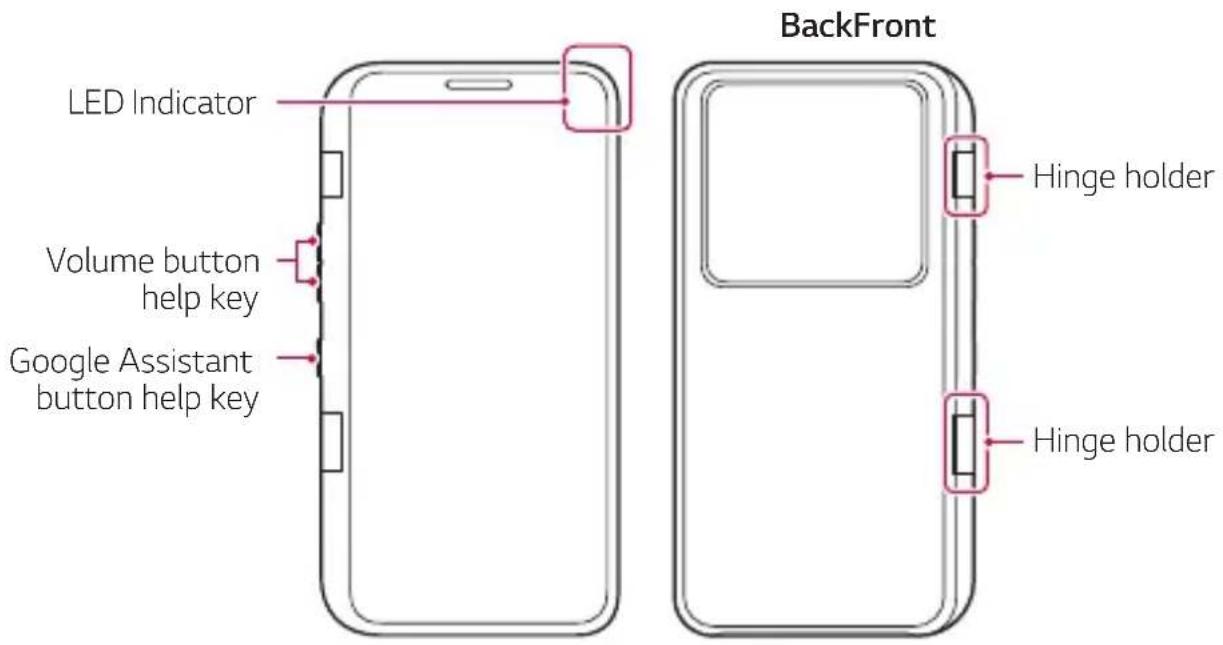
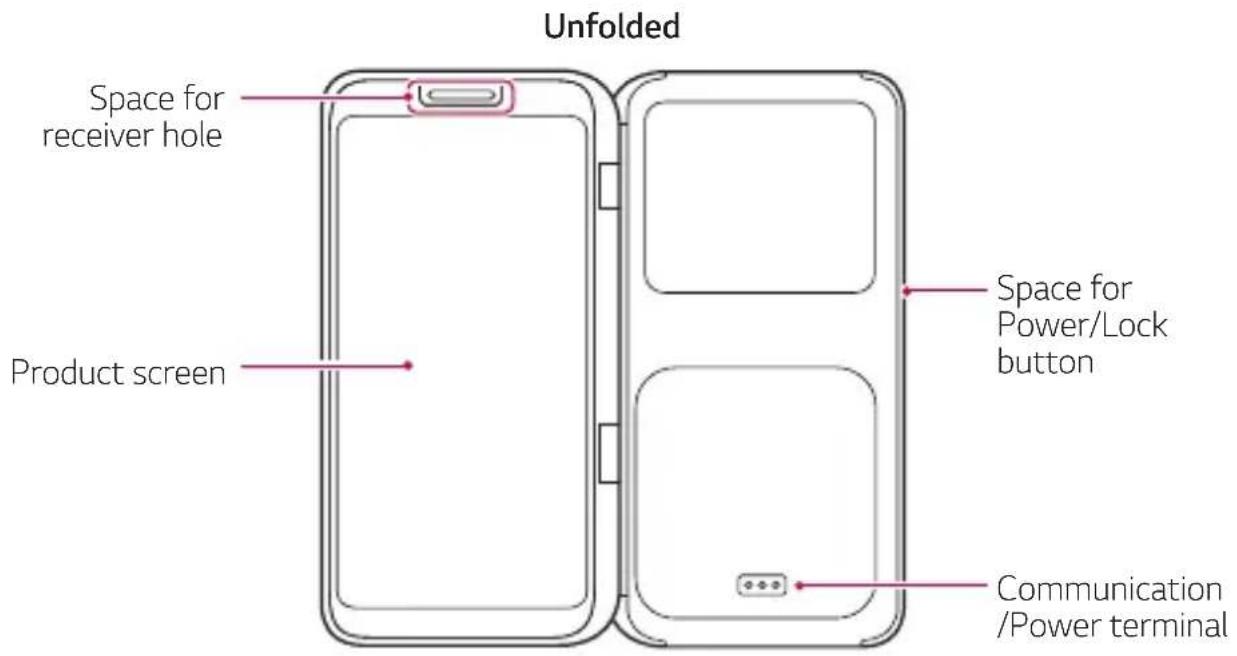

- Do not subject the product to strong impact such as dropping, pressing or bending it. Pressing the product with excessive force may damage the product.

- The assistant keys and spaces in this product do not work independently. Be sure to connect the product with V50 ThinQ.
Inserting the mobile phone to the product
1 Unfold the product completely.
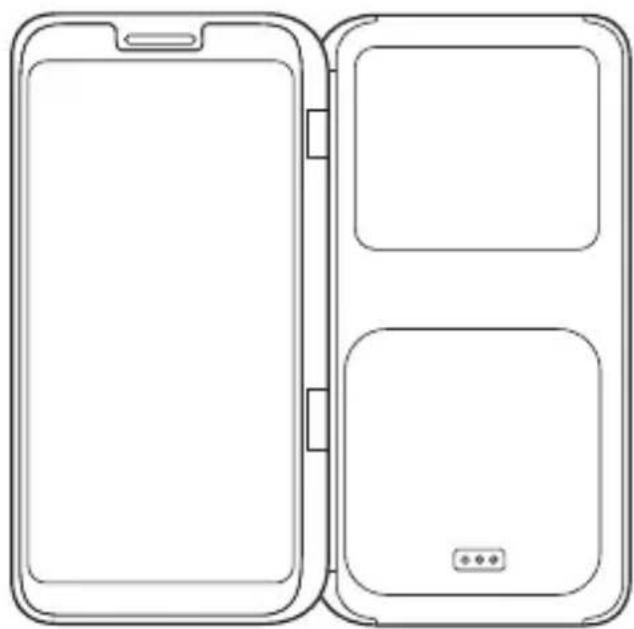
2 Make sure the screen of the mobile phone face upwards and insert part 1 of the phone into the product as shown in the figure. At this time, make sure that the communication/power terminal of the product faces the same direction as that of the terminal of the mobile phone.
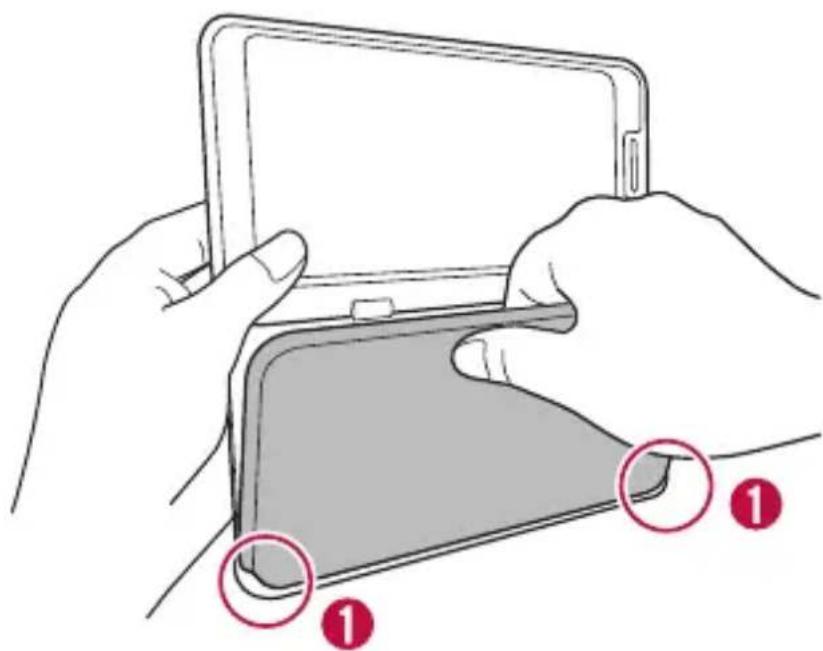
3 Press part 2 of the mobile phone with your fingertip until the phone clicks into place.
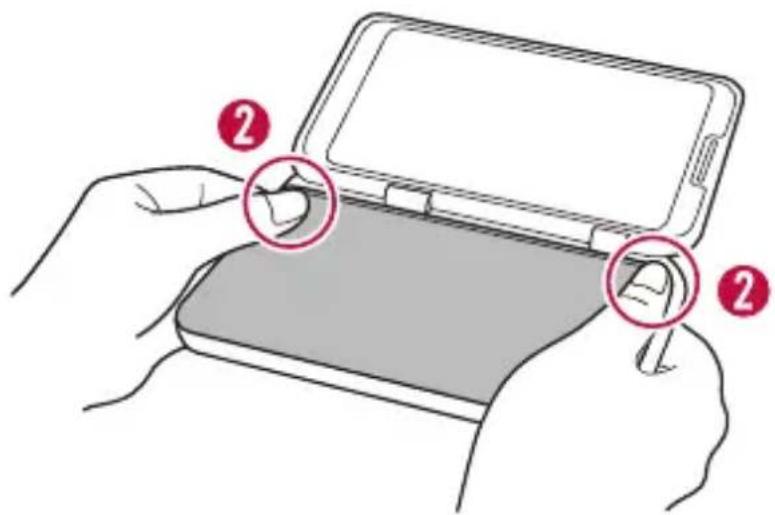

- Be careful not to drop the product or the mobile phone while inserting or removing the phone.
- Be careful not to damage the product by pressing the phone too hard when inserting or removing the phone from the product.
- Please make sure your phone is fully inserted into the product before use.
Removing the mobile phone from the product
1. Unfold the product completely and hold it firmly with both hands as shown in the figure.
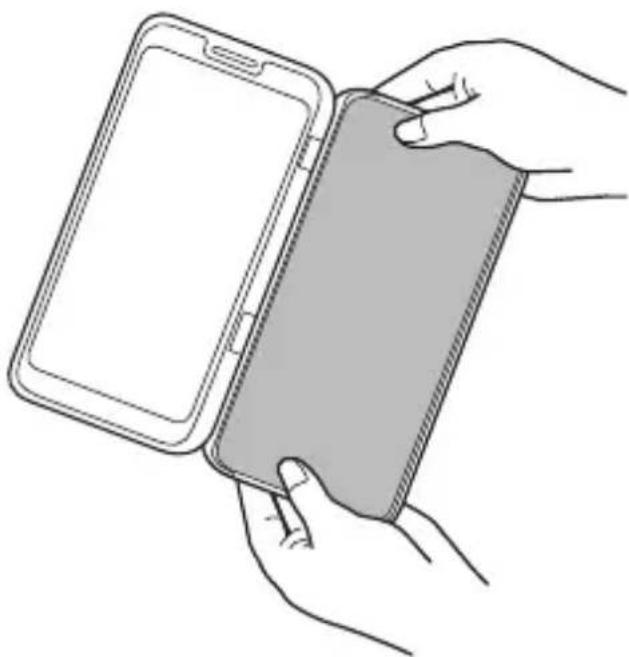
2. Press part 1 of the product with your finger and at the same time press the back of the mobile phone with another finger to remove the phone from the product.
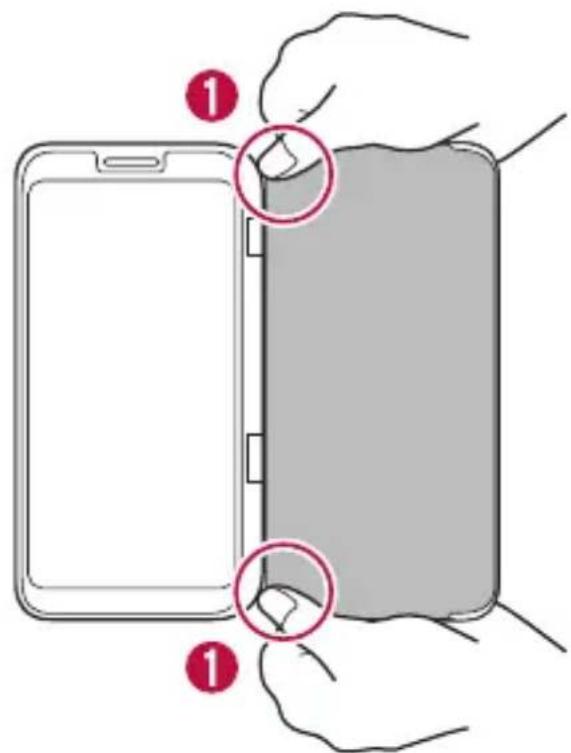

- Part of the product is made of tempered glass. Dropping the product on a hard surface or subjecting it to a strong impact may cause the tempered glass to break or become worn, damaging the product or causing injury.
- If this happens, stop using the product immediately and visit your nearest LG Customer Service Center for repair.
- Do not use or charge the product when there is moisture in the communication and power terminal of the product. This may cause fire, electric shock, injury, or product malfunction. If there is moisture, stop using the product immediately and remove the moisture completely.
Using the Product
When making a phone call
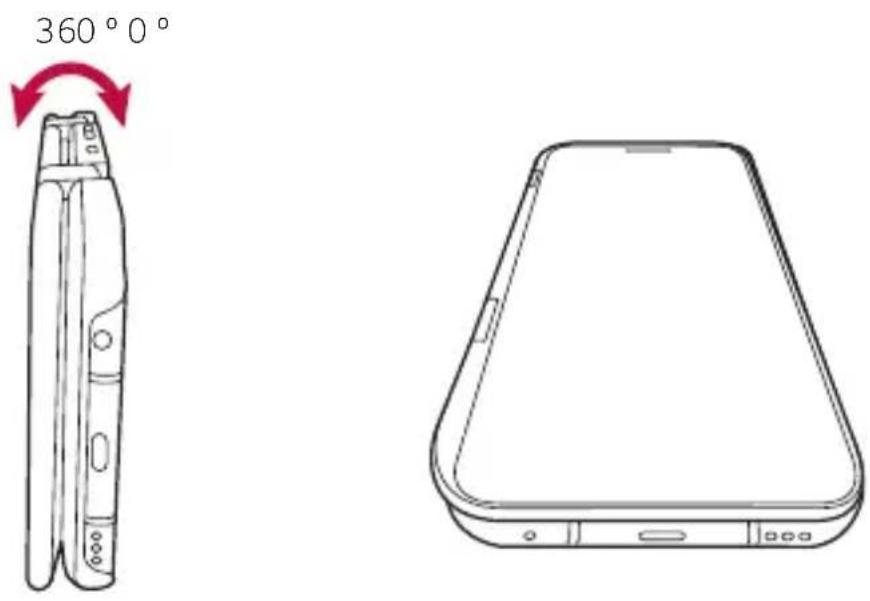
When making a phone call, you can fold the product outward to 360° or fold it inward to 0°.
- If you are using the product by folding it 360°, make sure that the front and back of the product are in full contact. In this case, the screen of the product automatically turns off to save power.
When you use an app on two screens
Unfold the product to use them.
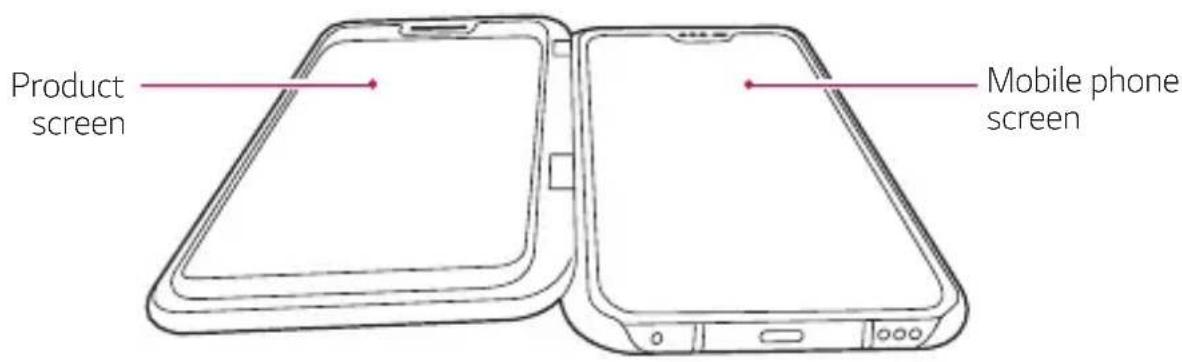

• The screens can be used in multiple positions depending on preference.
Turning on/off the Screen
Turning on the screen
To operate the product, first mount the V50 ThinQ in the product. See Inserting the mobile phone to the product for details.
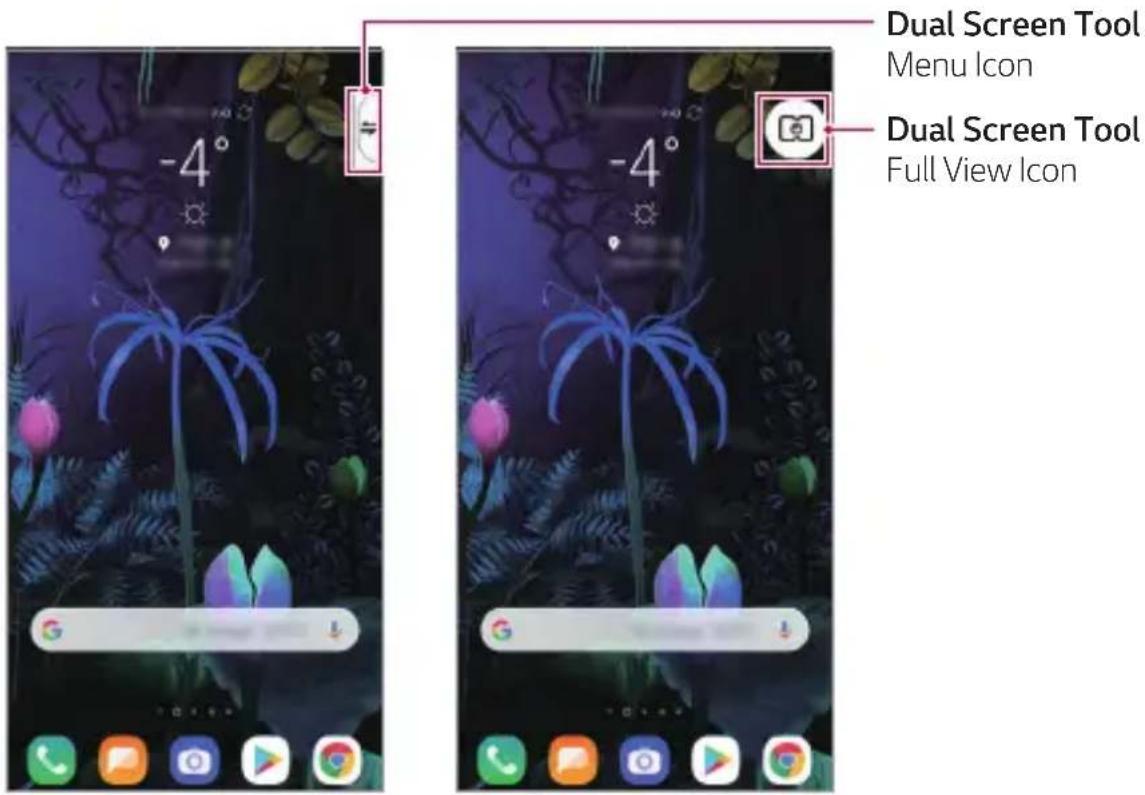
- When you mount the V50 ThinQ on the product, Dual Screen Tool appears on the V50 ThinQ screen and you can turn on the dual screen.
- When you turn on the dual screen, the Dual Screen Tool icon changes to a Dual Screen Menu icon and appears on one side of the screen.
- Tap the Dual Screen Tool icon on the V50 ThinQ screen.
- You can turn on/off the dual screen, and switch or move between the screens.
- Or you can pull down the status bar of V50 ThinQ and tap 📋Dual Screen to turn on the product screen.
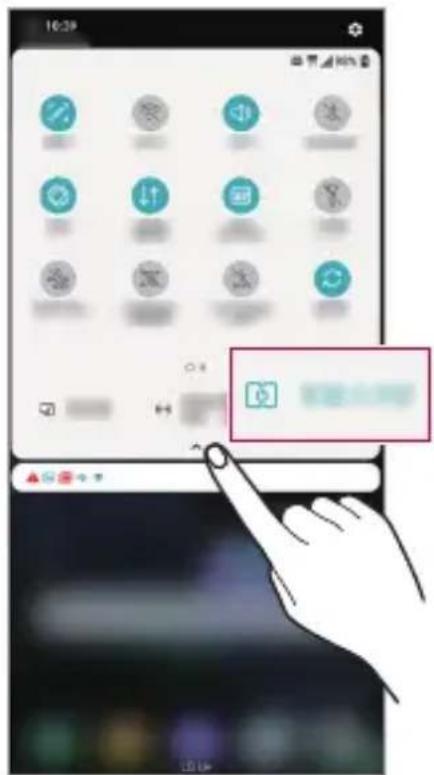
- If the Dual Screen Tool does not appear or the Dual Screen option does not appear on the status bar, take out the V50 ThinQ from the product, check the connectors are clean and clear of debris, then re-insert it.
- Or you can tap ○>Settings >Display >Dual Screen in V50 ThinQ and activate Use Dual Screen to turn on the product screen.
Turning off the screen
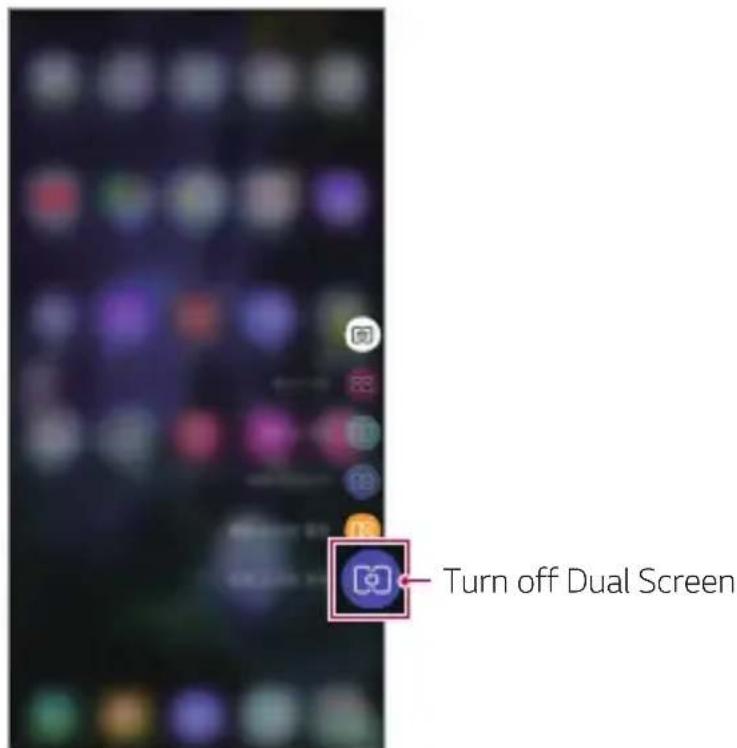
- On the screen of the phone engaged with the product, tap Dual Screen Tool > Turn off Dual Screen to turn off the product screen.
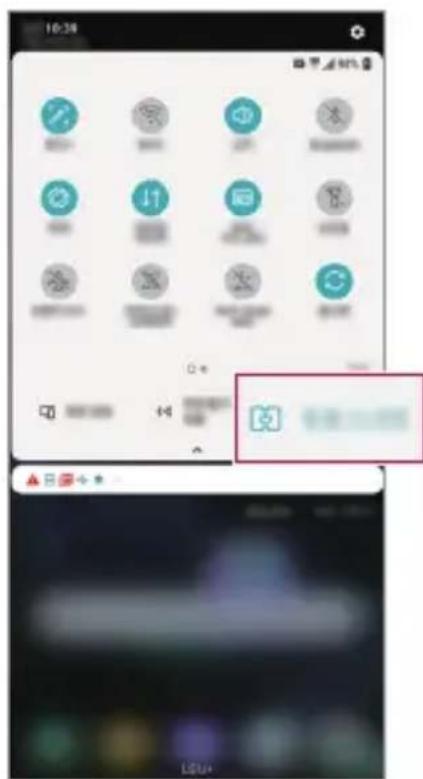
- Or you can pull down the status bar of V50 ThinQ and tap 📋Dual Screen to turn off the product screen.
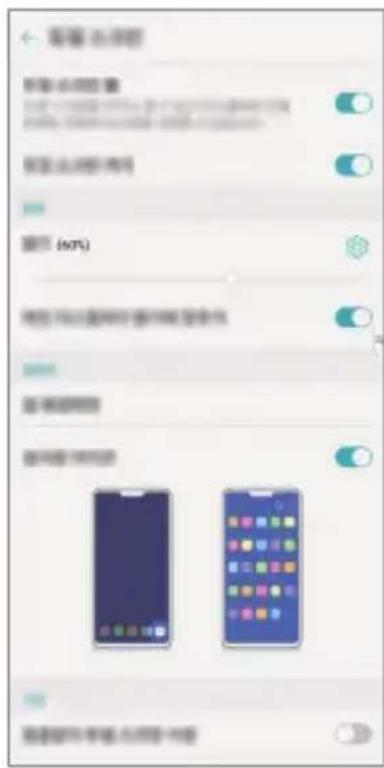
- Or you can tap ○>Settings >Display >Dual Screen in V50 ThinQ and drag Use Dual Screen 🔒 to turn off the product screen.
- You cannot turn on/off the product itself. Be sure to connect V50 ThinQ to the product to turn on/off the product.
Home screen
Home screen overview
The home screen of the product can operate independently of the V50 ThinQ screen.
- The product provides a Quick access area icon and Home touch buttons, both of which can operate without V50 ThinQ. • You can change the wallpaper of the product or create widgets.
- You can move apps from the app drawer on the product home screen or create or delete folders.

• To operate the product, first connect the V50 ThinQ with the product and turn on the product screen. See Turning on the screen for details.
Home screen layout
You can perform various functions with icons that make up the home screen.
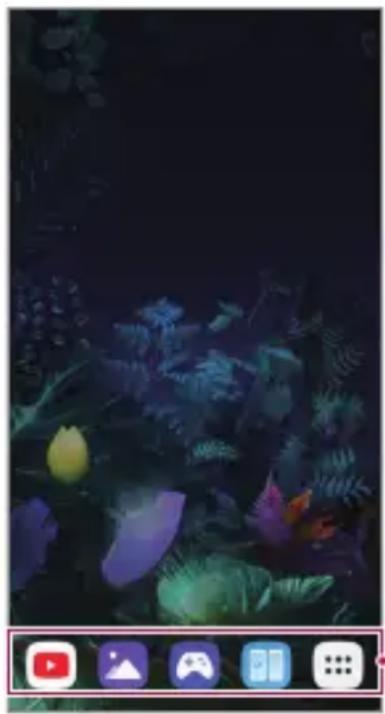
Quick access area

- The Home screen may differ depending on the manufacturer policy, user settings, software version or service provider.
- Quick access area: Fix main apps at the bottom of the screen so that they can be accessed from any Home screen canvas.
- Home touch buttons: You can swipe the bottom of the Home screen upwards to see the hidden Home Touch buttons.
- ◀: Return to the previous screen. Close the keypad or pop-up windows.
- ○: Tap to go to the Home screen. To launch Google Assistant, touch and hold.
- ☐: Tap to view a list of recently used apps or run an app from the list. To delete all the recently used apps, tap CLEAR ALL.
Using the Dual Screen Panel
You can open the Dual Screen Panel by dragging down the top of the screen.
- You can adjust the screen brightness on the Dual Screen Panel.
- Select Sync to synchronise the screen brightness of the product with that of the V50 ThinQ.
- You can tap Capture+ to capture the product screen.
- You can save the captured image using QuickMemo+ or save it in the Gallery.
- You can turn off the product screen by tapping Dual Screen.
- This disconnects the V50 ThinQ from the product.
• You can tap to enter the settings menu of the dual screen.
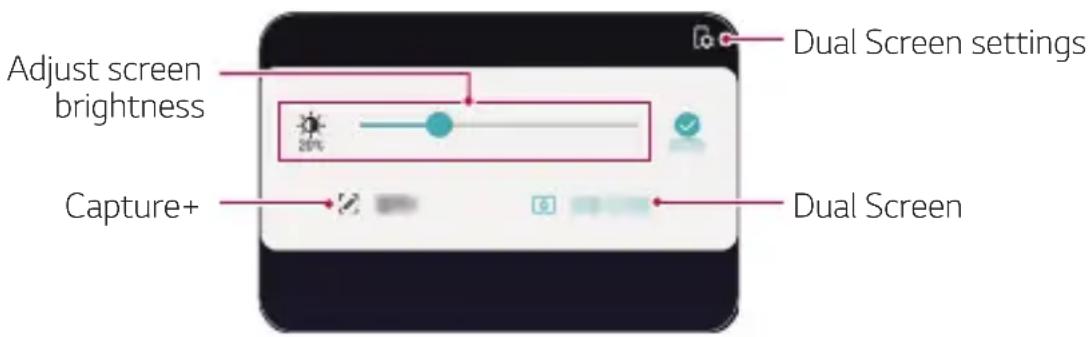

- If you are using the product in the landscape mode, you will see the Rotate180 icon. You can rotate the screen by tapping 🔒
Editing the Home screen
On the Home screen, touch and hold on an empty space, then select the desired action from below.
- To add a widget to the Home screen, touch and hold on a blank area of the Home screen, then select Widgets. • To change wallpapers, themes, and icons, touch and hold on a blank area of the Home screen, then select Wallpaper.
- To change the default screen, touch and hold on a blank area of the Home screen, move to the desired screen, tap the lock icon, then tap the screen once more.

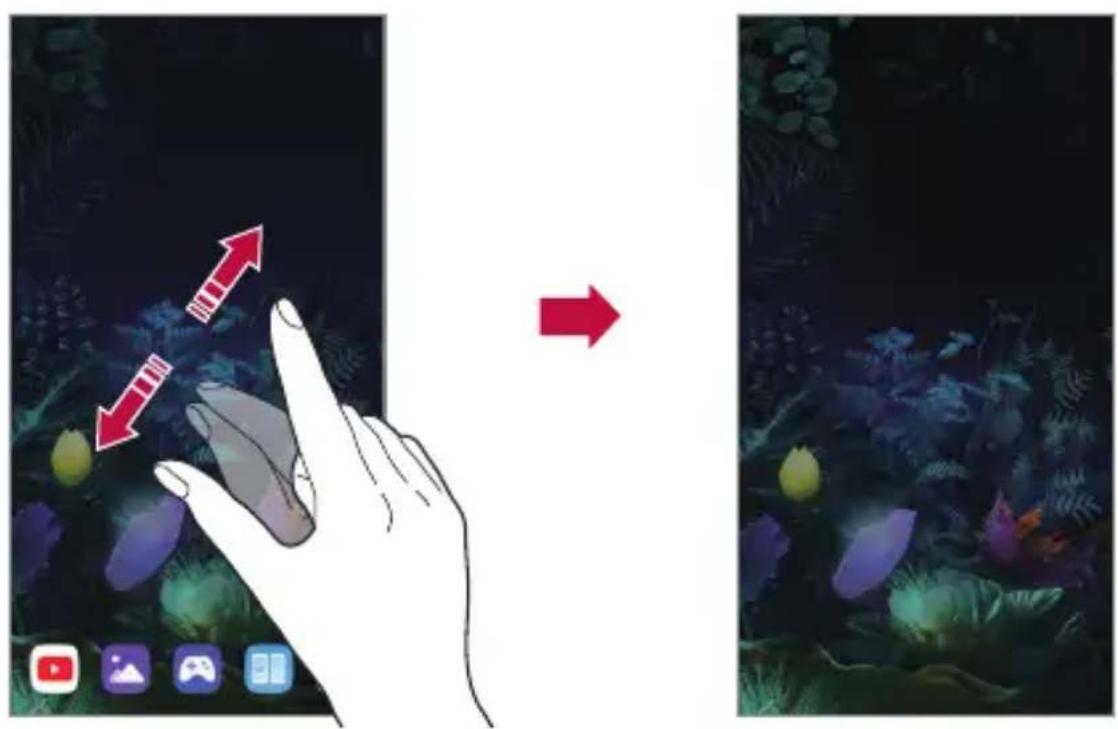
Viewing the background theme
You can view only the background image by hiding the apps and widgets on the Home screen.
Spread two fingers apart on the Home screen.
- To return to the original screen, which displays apps and widgets, pinch your fingers on the Home screen or tap the back arrow.
Configuring the product screen settings
You can configure the settings of the product screen on the V50 ThinQ connected to the product.
1 Select Settings > Display > Dual Screen in V50 ThinQ.
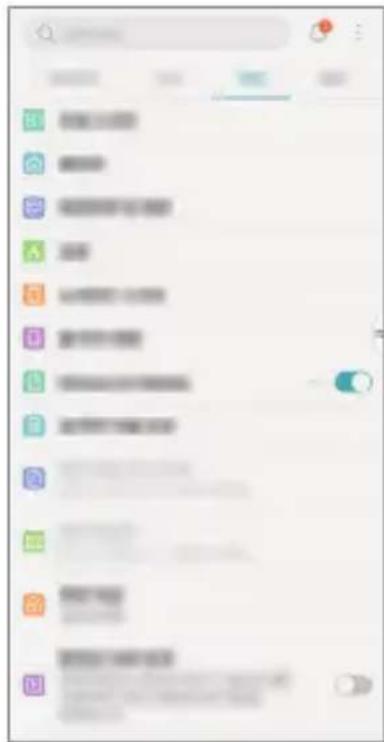

- You must connect V50 ThinQ to the product to see the Dual Screen menu option.
2 Select and set the desired functions.
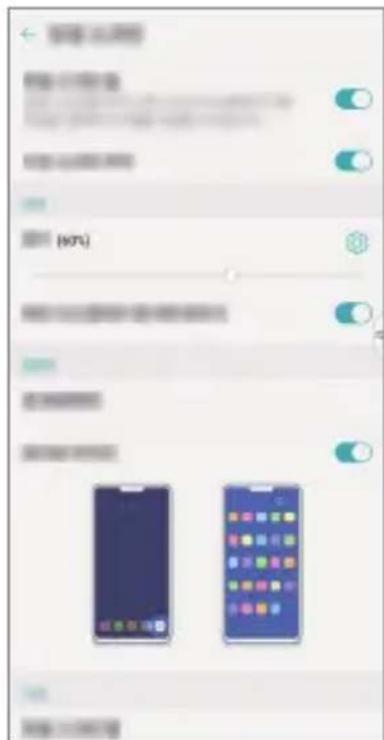
- Dual Screen Tool: Connect the V50 ThinQ to the product to display the Dual Screen Tool on the screen.
• Use Dual Screen: You can turn on/off the dual screen.
- Brightness: You can adjust the screen brightness by moving the control bar to the left or right.
- Keep the same as main screen: You can synchronise the product brightness with that of the connected V50 ThinQ.
- Wallpaper: You can select the wallpaper for the Home screen.
- App drawer Icon: You can show or hide the App drawer on your product.
- Dual Screen App: Each time you turn on the dual screen, the preset dual screen apps run automatically.
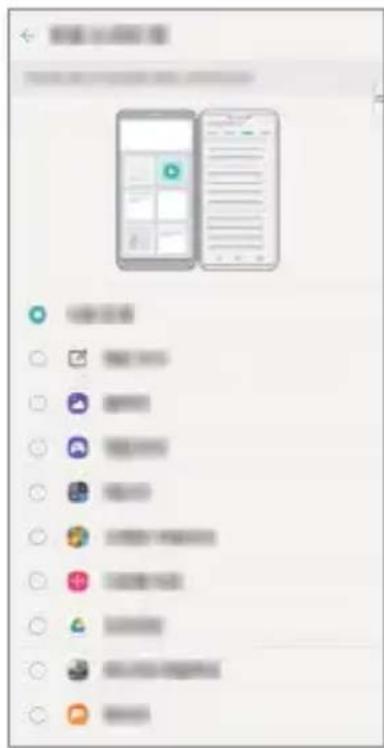

- The list of apps that appear on the screen may differ depending on the installed apps.
Capture+
Capturing a screen with Capture+
Pull down the status bar on the screen that you want to capture, and press 🔒 Capture+.
• To save the captured image, tap √ and save it to the desired location. - You can save the captured image using QuickMemo+ or save it in the Gallery. - To always save images to the same location, check Use as default app and select the app you want.
Taking notes on the screen with Capture+
1 Pull down the status bar on the screen that you want, and tap Capture+.
- The captured image appears as the memo desktop, and the memo tool appears at the top of the screen.
2 Take notes freely on the captured image.
- Tap to make a note on the screen with handwriting.
- Tap to enter text at the bottom of the screen.
3 To save the memo, tap and save it to the desired location.
- You can save the memo using QuickMemo+ or save it in the Gallery.
- To always save memos to the same location, check Use as default app and select the app you want.
Specialised Functions
Dual Screen Tool
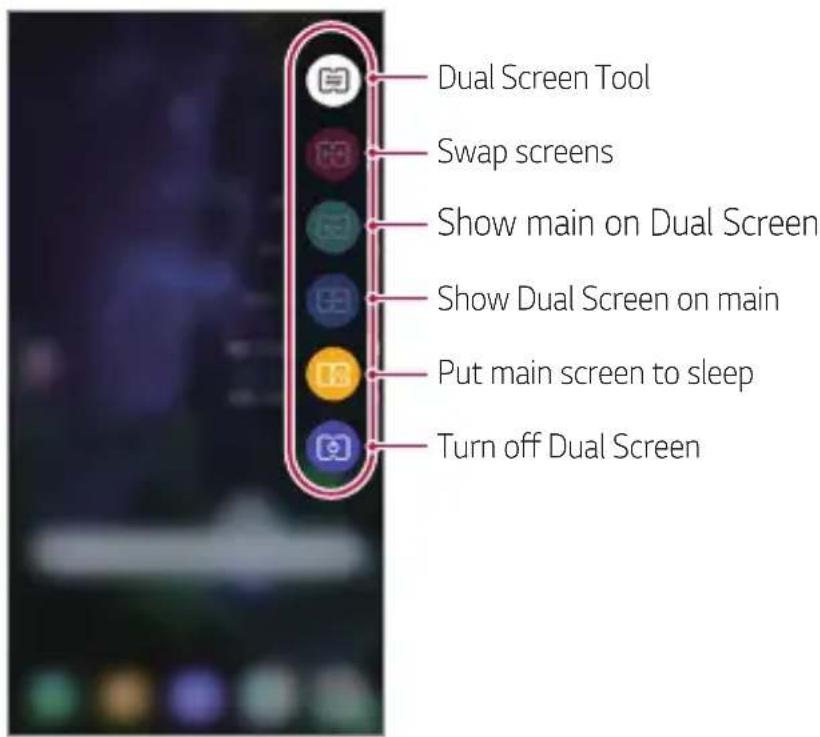
When you mount V50 ThinQ on the product and turn on the dual screen, the Dual Screen Tool appears on the V50 ThinQ screen. Tap lightly to turn on the dual screen.
When you turn on the dual screen, you can see the Dual Screen Tool as shown below.
| You can tap it lightly to show or hide the Dual Screen Tool. | |
| You can switch between the product screen and the V50 ThinQ screen. | |
| You can send the V50 ThinQ screen to the product screen. | |
| You can also fetch the product screen to the V50 ThinQ screen. | |
| You can adjust the brightness of the main screen to see only the dual screen. To exit, swipe the main screen. | |
| You can disconnect the product from the V50 ThinQ to turn off the product screen. |

- If you turn off the V50 ThinQ, the product will also turn off. However, turning off the product does not affect V50 ThinQ.
- This feature is not available on the lock screen and is activated when you unlock the screen.
Dual View
You can take pictures with V50 ThinQ and instantly see them on the dual screen.
1 Tap > Camera, activate the Auto mode, and take a picture with the rear camera.
2 Select the Preview icon after taking a picture.
• You can check the pictures directly on the dual screen.
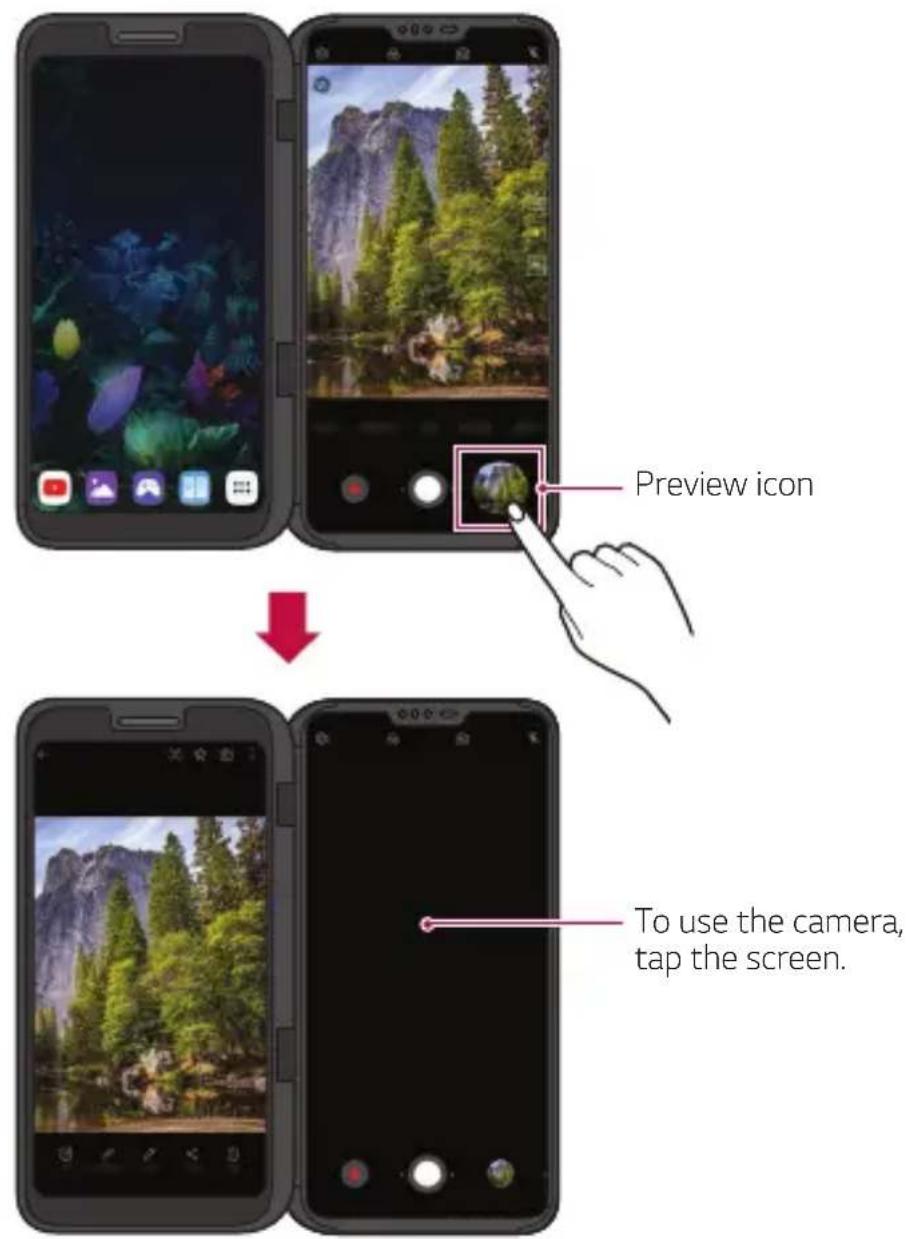

- Once you do this, you can take a picture and view the picture in the Dual View mode.
Reflector Mode
When shooting a selfie, you can use the dual screen as a reflector.
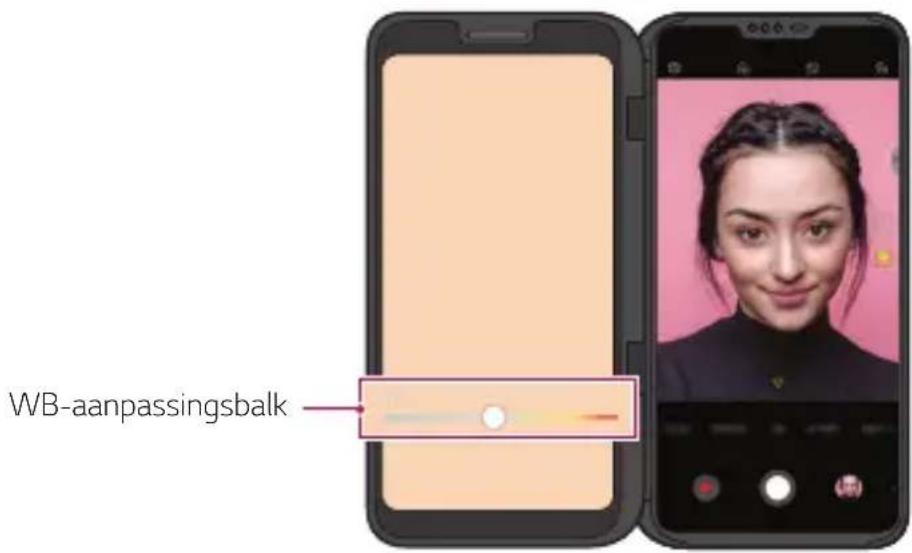
1 Tap ○ > Camera, and take a picture with the front camera. 2 Tap the Flash button at the upper right corner twice to select. • The dual screen illuminates the object brightly just like a reflector.
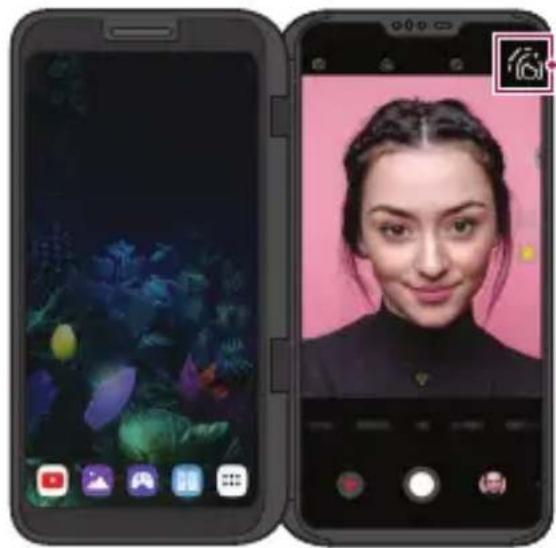
Reflector mode icon

WB adjustment bar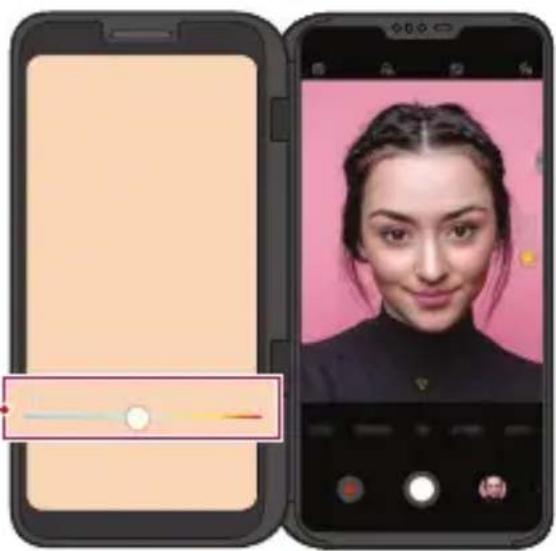

- Move the WB adjustment bar to adjust the colour of the reflector.
Triple Preview
You can simultaneously view three previews of the rear camera on the dual screen.
1 Tap ○ > Camera, and take a picture with the rear camera.
2 Touch and hold the screen button on the preview screen.
• The Triple Previews appear on the dual screen.
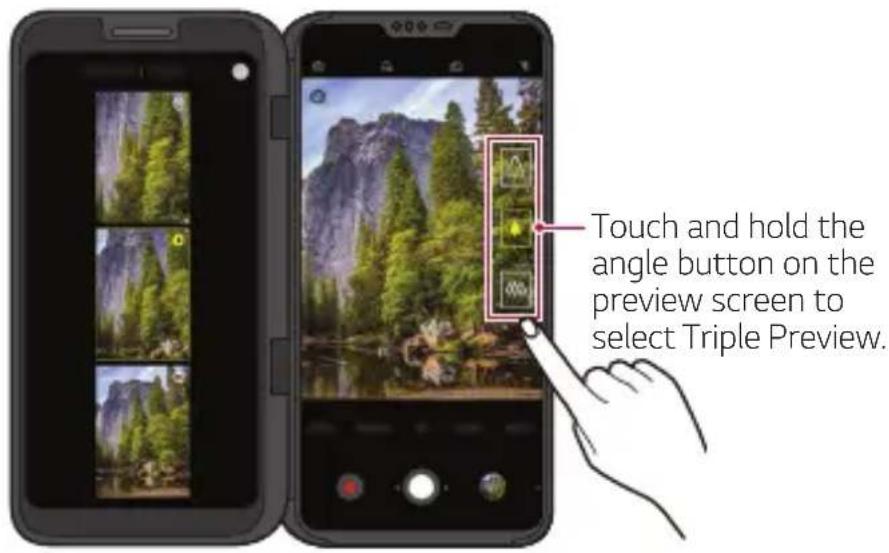

- When you select the desired image from the Triple Preview screen, you can see it on the main screen.
Mirror Mode
When taking photos using the camera, you can preview the photos on the dual screen.
1 Tap ○ > Camera, select the rear camera in the Auto mode.
2 Touch and hold the angle button on the preview screen.
• The Triple Previews appear on the dual screen.
3 Select the Mirror Mode on the dual screen.
• The Mirror Mode appears on the dual screen.
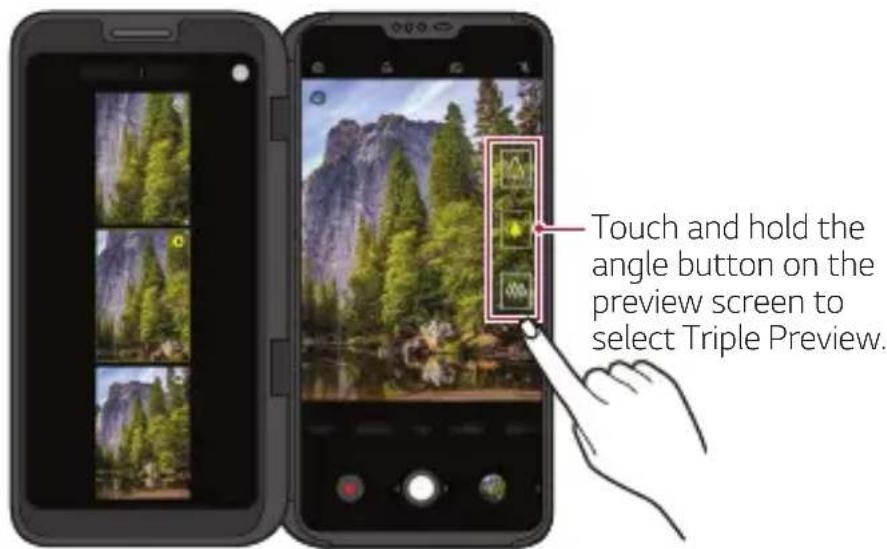
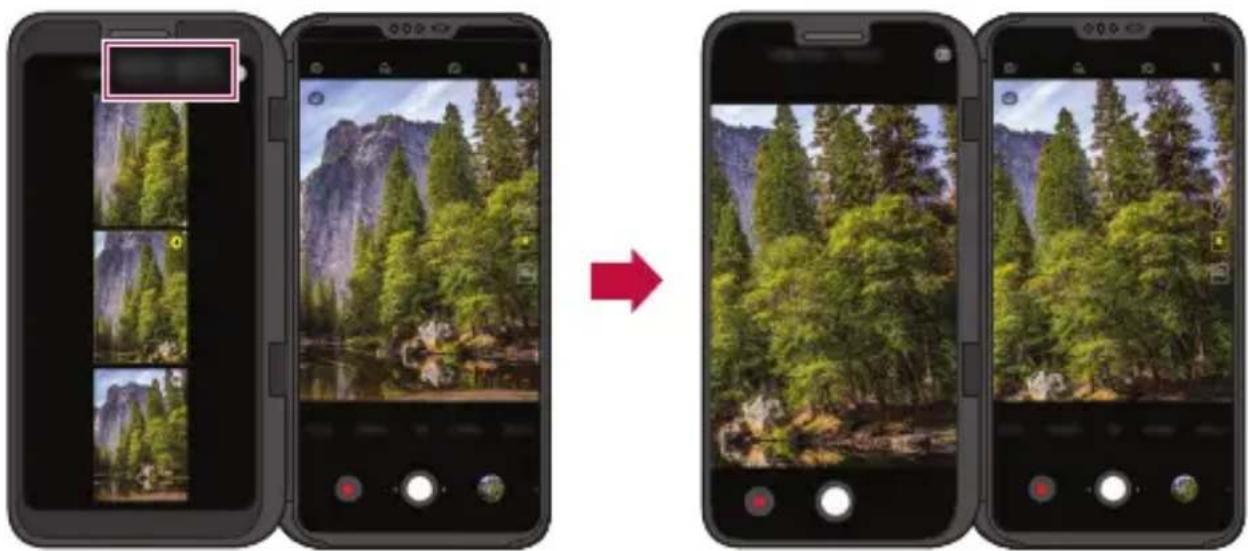

• You can also take pictures or movies directly from the dual screen.
Dual Screen App
Each time you turn on the dual screen, the preset dual screen apps run automatically.
1 Select Settings > Display > Dual Screen > Use Dual Screen. 2 Select the apps that will run automatically each time you turn on the product screen.
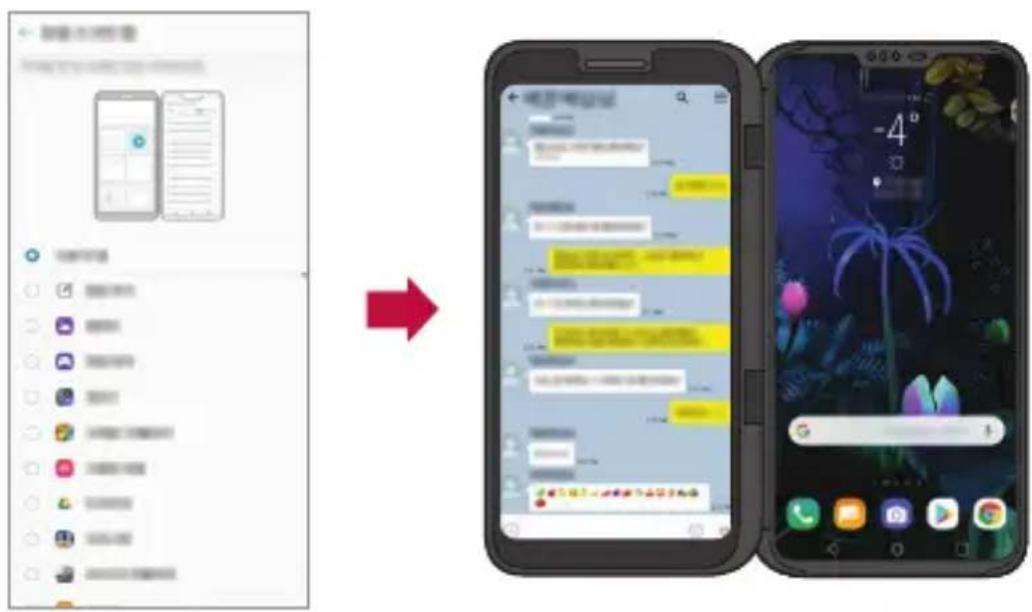

• Some apps cannot be run as dual screen apps. - The list of apps that appear on the screen may differ depending on the installed apps.
Dual Keyboard
In landscape mode, you can press the dual keyboard button to send the keyboard to the opposite screen at the bottom.
You can expand the keyboard up and down to use the top screen as an app screen and the bottom screen as a keyboard screen.
1 Switch the dual screen to landscape mode on the keyboard input screen. 2 To move the app screen to the top screen, touch the screen with three fingers at the same time and move it up. 3 Tap in the keyboard input window of the dual screen. 4 You can check the keyboard input data on the dual screen and use the input window on the product.
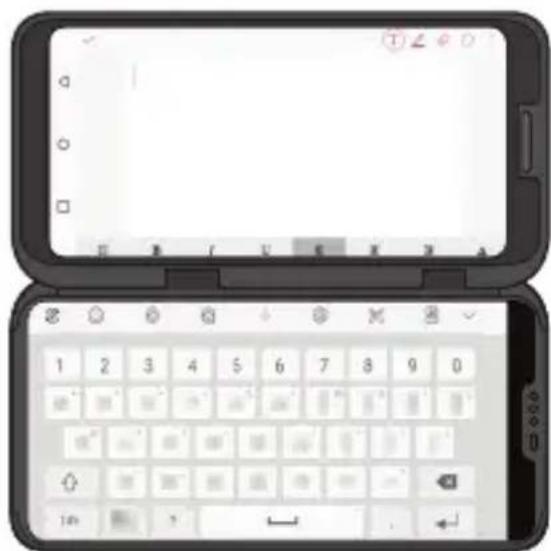
Tap the down arrow in the expanded state to return the bottom keyboard to its original position.

- To move the app screen up or down, touch the screen with three fingers at the same time to move it up or down. See Moving App Screens for details. • This is available with the LG keyboard.
Instant Capture
When the V50 ThinQ is connected to the product, an Instant Capture [RE] function is provided in the LG Keyboard. You can use the keyboard on the main screen, capture the screen on the dual screen, and insert it directly into the keyboard input window.
1 Connect V50 ThinQ to the product. 2 Tap on the LG Keyboard input screen.
- The screen on the dual screen is captured and automatically attached to the keyboard input window.
You can capture and attach the screenshot without switching or moving between the screens.
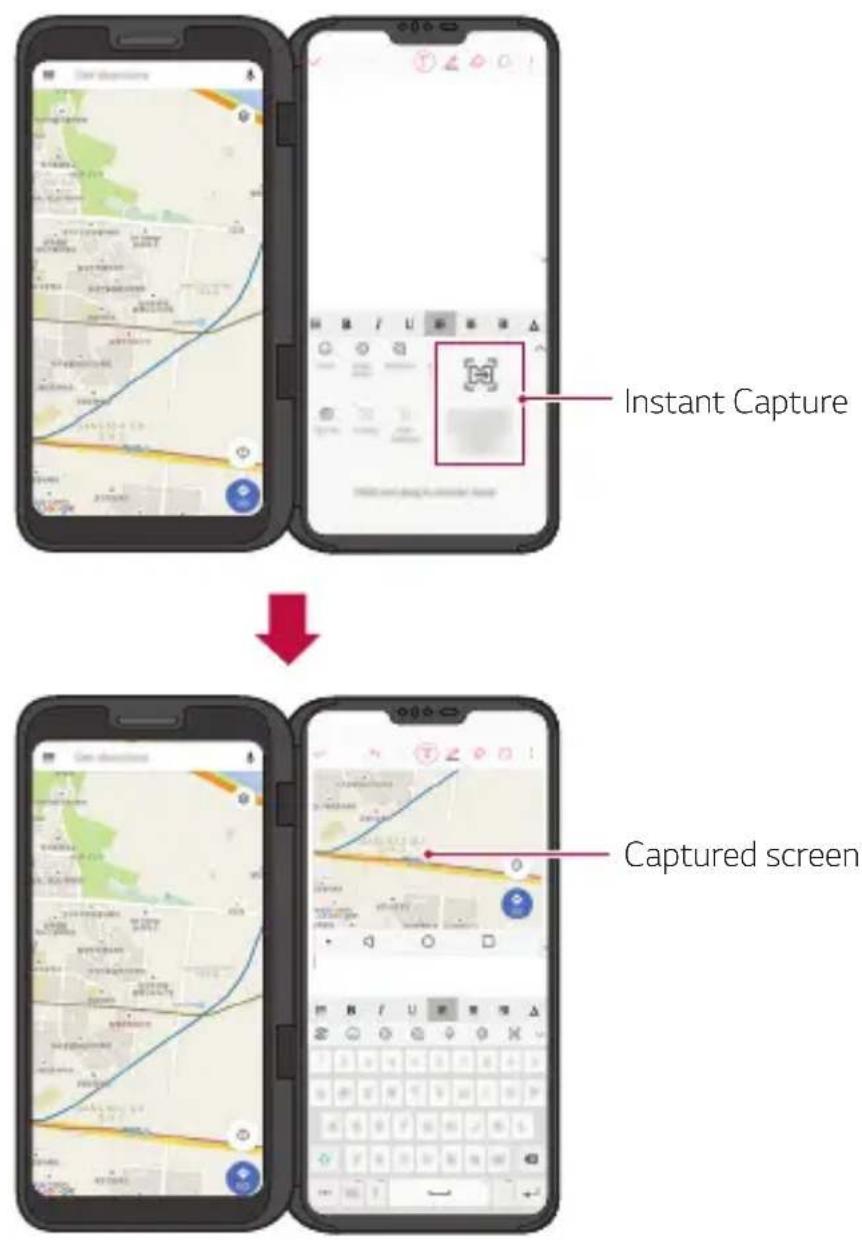

- You cannot use both screens as the keyboard input screen at the same time.
Moving App Screens
You can swipe the screen with three fingers to move an app screen between the product screen and the V50 ThinQ screen.
- Swipe the app screen left or right with three fingers to move freely between the main screen and the dual screen.
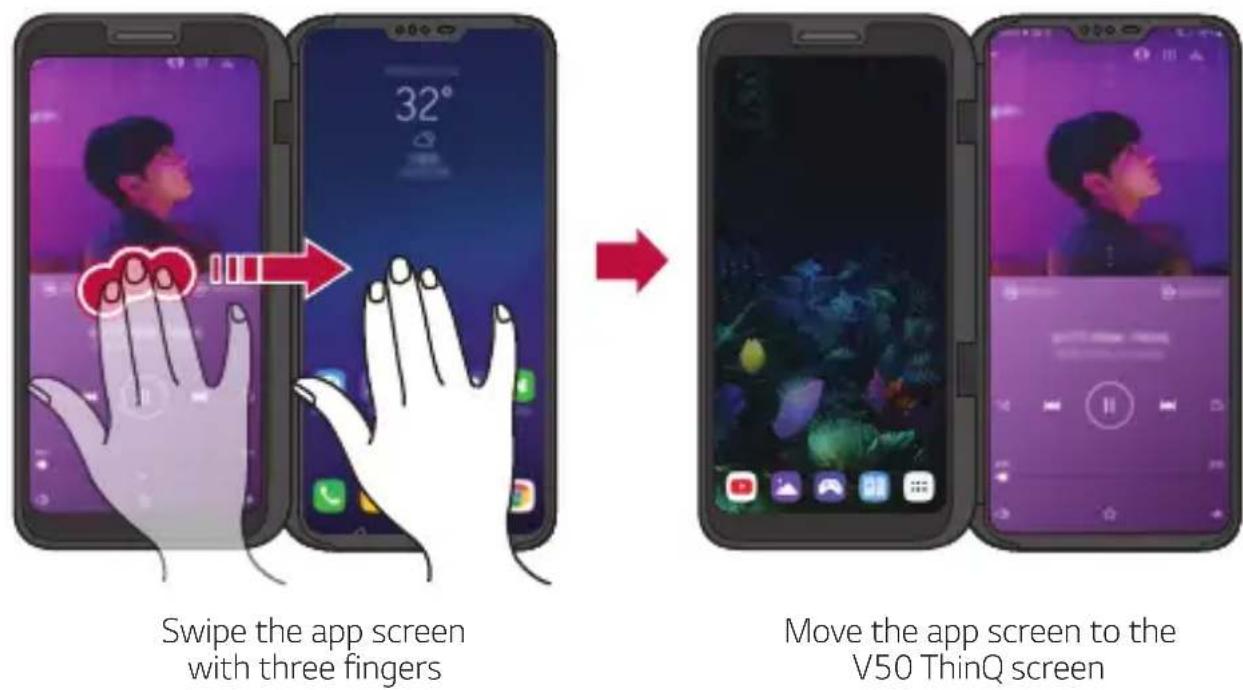

• To use this feature, three fingers must touch the screen at the same time.
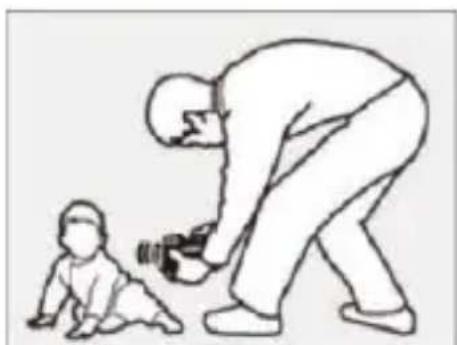
Use the dual screen to adjust the angle for various situations as listed below.
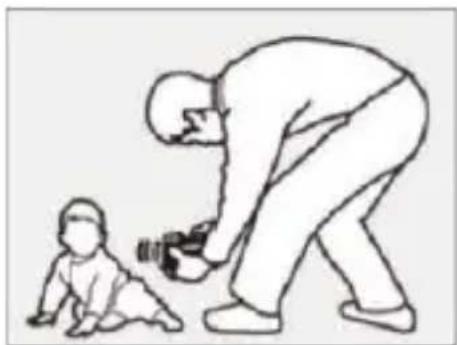
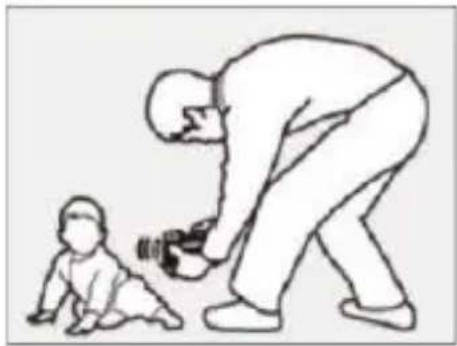
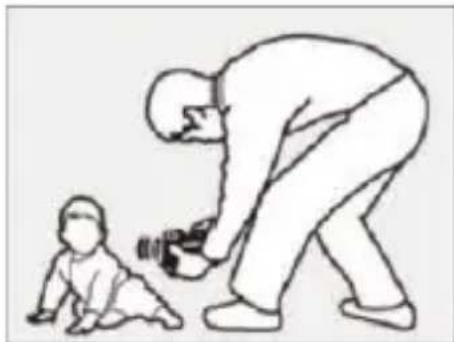
- High angle image capturing: It is used when capturing an image of a lot of people at a concert or festival or when capturing an image of a large space.
- Low angle image capturing: It is used when capturing an image of your child at the child's eye level or when capturing an image of high buildings, etc.
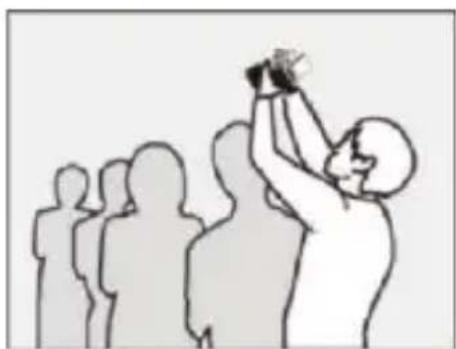
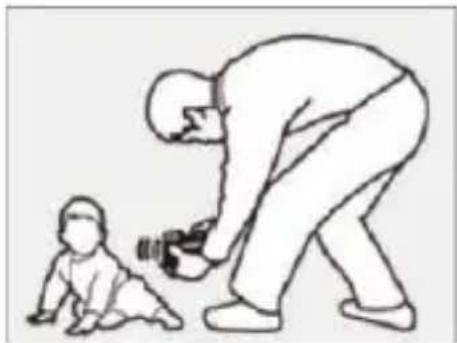
High angle shooting Low angle shooting
LG Game Pad
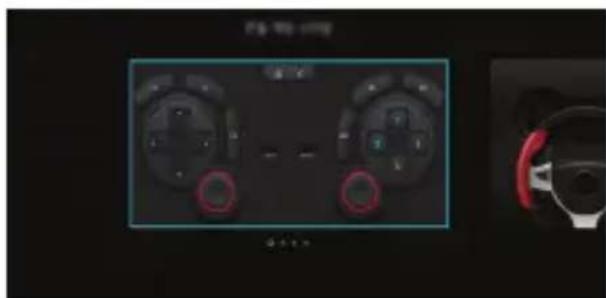
You can use virtual controllers on the product screen to play games on the V50 ThinQ. When playing the game, separate the main screen and the dual screen so that the controller does not block the game screen.
1 Tap > Game Launcher and select LG Game Pad
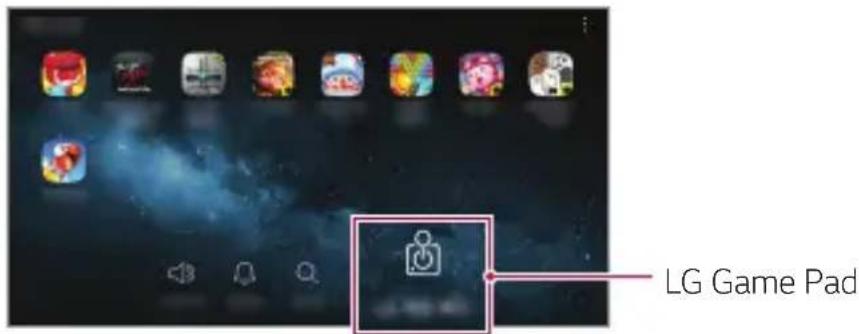
• LG Game Pad appears on the product screen.
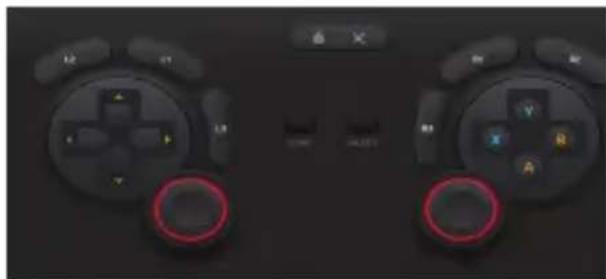
2 Tap and then swipe it left and right to select your preferred style of LG Game Pad.
You can play the game by holding the product as shown below.
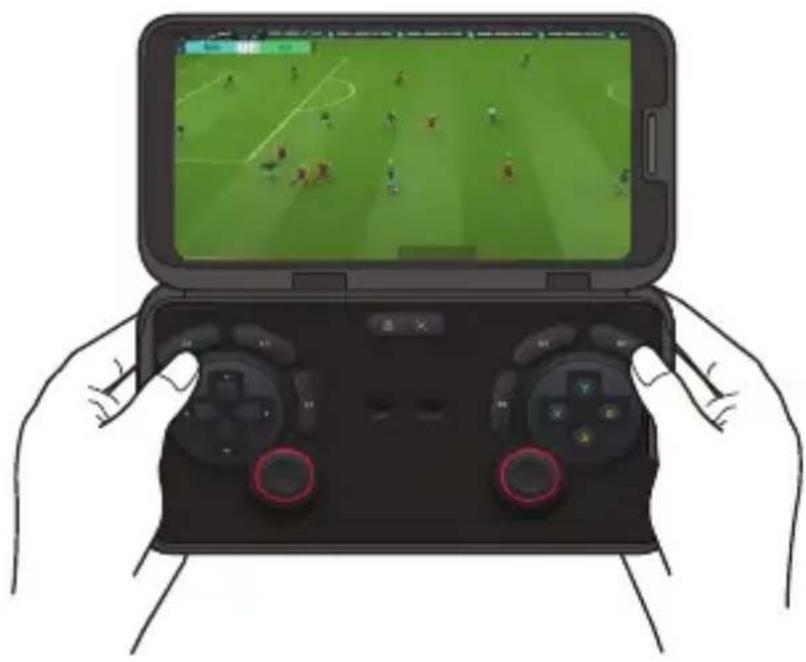

- The LG Game Pad is only available for games that support hardware game pads.
- Depending on the game, some apps or buttons may not support the LG Game Pad.
Appendix
Trademarks
• Copyright ©2019 LG Electronics, Inc. All rights reserved. LG and the LG logo are registered trademarks of LG Group and its related entities. - Google, Google Maps, Gmail, YouTube, Google Duo, Google Play, Android, Chrome, Google Photos, Google Play Protect, Google Calendar, Google Docs, Google Drive, Google Sheets and other related marks and logos are trademarks of Google LLC. - All other trademarks and copyrights are the property of their respective owners.
DECLARATION OF CONFORMITY
Hereby, LG Electronics declares that this LM-V505N product is in compliance with the essential requirements and other relevant provisions of Directive 2014/53/EU.
A copy of the Declaration of Conformity can be found at http://www.lg.com/global/declaration
Contact office for compliance of this product
LG Electronics European Shared Service Center B.V.
Krijgsman 1, 1186 DM Amstelveen, The Netherlands
 | AT | BE | BG | CH | CY | CZ | DE | D | K | EE | EL | ES | F | FR | |||
| HR | HU | IE | IS | IT | IT | LI | LT | LU | LV | MT | NL | NO | PL | ||||
| PT | RO | SE | SI | SK | UK | AL | ME | RS | MK | TR | BA | XK |
More information
Precautions on product handling
- You can connect the LG dual screen (LM-V505N, hereinafter "product") to LG V50 ThinQ (LM-V500EM, hereinafter "mobile phone"), a dedicated mobile device, to use the product.
- Depending on the performance of the V50 ThinQ, some features of Dual Screen may be limited. Also, the product may not support other mobile devices. • This product cannot be used alone.
- Please note that, if you attach a protective film or protective glass on the product or the screen of the mobile phone, the product may not fold completely.
- If you attached a protective film or thick sticker on the surface of the product or the back of the mobile phone, the product may not function properly due to the contact failure of the communication/power terminal.
- If you use the product connected to your mobile phone, the wireless charging function or the NFC function may not work properly.
- Do not use or charge the product when there is moisture in the communication and power terminal of the product.
- This may cause fire, electric shock, injury, or device malfunction.
- If there is moisture, stop using the device immediately and remove the moisture completely.
- The liquid in your wet device, changes the colour of the product label inside your device. Damage to your device as a result of exposure to liquid is not covered under your warranty.
Using the battery
• This product does not use its own battery. - If the product is mounted with a mobile phone, it uses the battery of the mobile phone.
Disposal of your old appliance
- This crossed-out wheeled bin symbol indicates that waste electrical and electronic products (WEEE) should be disposed of separately from the municipal waste stream.
- Old electrical products can contain hazardous substances so correct disposal of your old appliance will help prevent potential negative consequences for the environment and human health. Your old appliance may contain reusable parts that could be used to repair other products, and other valuable materials that can be recycled to conserve limited resources.
- You can take your appliance either to the shop where you purchased the product, or contact your local government waste office for details of your nearest authorised WEEE collection point. For the most up to date information for your country please see www.lg.com/global/recycling


Quick access zone


Dual Screen application


DECLARATION OF CONFORMITY
LG Electronics European Shared Service Center B.V.
Krijgsman 1, 1186 DM Amstelveen, The Netherlands

AT BE BG CH CY CZ DE DK EE EL ES F FR
HR | HU IE IS IT LI LT | LU LV MT NL NO PL
PT RO SE SI SK UK AL ME RS MK TR BA XK
Learn more


Symbol Reflector mode

WB adjustment bar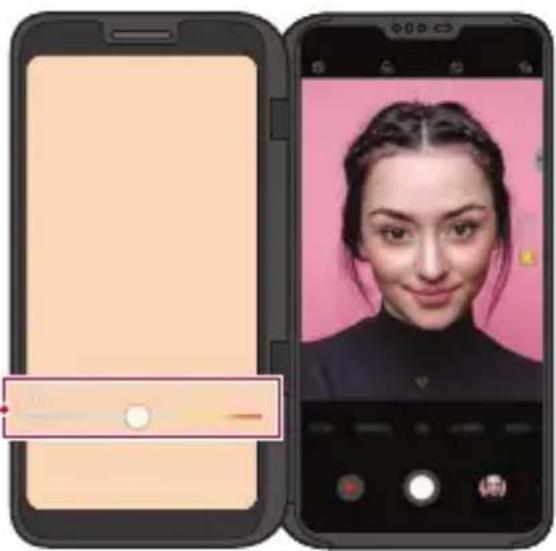



LG Electronics European Shared Service Center B.V.
Krijgsman 1, 1186 DM Amstelveen, The Netherlands
 | AT | BE | BG | CH | CY | CZ | DE | DK | EE | EL | ES | F | FR | |||
| HR | HU | IE | IS | IT | LI | LT | LU | LV | MT | NL | NO | PL | ||||
| PT | RO | SE | SI | SK | UK | AL | ME | RS | MK | TR | BA | XK |



LG Electronics European Shared Service Center B.V.
Krijgsman 1, 1186 DM Amstelveen, The Netherlands
 | AT | BE | BG | CH | CY | CZ | DE | D | K | EE | EL | ES | F | FR | |||
| HR | HU | IE | IS | IT | LI | LT | LU | LV | MT | NL | NO | PL | |||||
| PT | RO | SE | SI | SK | UK | AL | ME | RS | MK | TR | BA | XK |


- Or you can tap on ○>Options >Display in the V50 ThinQ
Configure the product screen settings


Dual Screen utility
Reflector mode icon






- ABOUT THIS USER GUIDE
- INSTRUCTIONAL NOTICES
- BEFORE USE
- GUIDE ON PRODUCT USE
- TABLE OF CONTENTS
- BASIC FUNCTIONS
- SPECIALISED FUNCTIONS
- APPENDIX
- GUIDELINES FOR SAFE AND EFFICIENT USE
- EXPOSURE TO RADIO FREQUENCY ENERGY
- PRODUCT CARE AND MAINTENANCE
- EFFICIENT DEVICE OPERATION
- ELECTRONICS DEVICES
- ROAD SAFETY
- GLASS PARTS
- BLASTING AREA
- POTENTIALLY EXPLOSIVE ATMOSPHERES
- IN AIRCRAFT
- CHILDREN
- PRODUCT COMPONENTS AND ACCESSORIES
- PARTS OVERVIEW
- INSERTING THE MOBILE PHONE TO THE PRODUCT
- REMOVING THE MOBILE PHONE FROM THE PRODUCT
- USING THE PRODUCT
- WHEN MAKING A PHONE CALL
- WHEN YOU USE AN APP ON TWO SCREENS
- TURNING ON/OFF THE SCREEN
- TURNING ON THE SCREEN
- TURNING OFF THE SCREEN
- HOME SCREEN
- HOME SCREEN OVERVIEW
- HOME SCREEN LAYOUT
- USING THE DUAL SCREEN PANEL
- EDITING THE HOME SCREEN
- VIEWING THE BACKGROUND THEME
- CONFIGURING THE PRODUCT SCREEN SETTINGS
- SELECT AND SET THE DESIRED FUNCTIONS
- CAPTURE
- CAPTURING A SCREEN WITH CAPTURE
- TAKING NOTES ON THE SCREEN WITH CAPTURE
- DUAL SCREEN TOOL
- DUAL VIEW
- REFLECTOR MODE
- TRIPLE PREVIEW
- MIRROR MODE
- DUAL SCREEN APP
- DUAL KEYBOARD
- INSTANT CAPTURE
- MOVING APP SCREENS
- LG GAME PAD
- TAP > GAME LAUNCHER AND SELECT LG GAME PAD
- TRADEMARKS
- DECLARATION OF CONFORMITY
- CONTACT OFFICE FOR COMPLIANCE OF THIS PRODUCT
- MORE INFORMATION
- PRECAUTIONS ON PRODUCT HANDLING
- USING THE BATTERY
- DISPOSAL OF YOUR OLD APPLIANCE
- DUAL SCREEN APPLICATION
- LEARN MORE
- CONFIGURE THE PRODUCT SCREEN SETTINGS
- DUAL SCREEN UTILITY
Brand : LG
Model : LMV505N
Category : Cellphone