 ManualGo.com
Big Brain Academy Wii Degree (Wii) - Game NINTENDO - Free user manual and instructions
Find the device manual for free Big Brain Academy Wii Degree (Wii) NINTENDO in PDF.



Download the instructions for your Game in PDF format for free! Find your manual Big Brain Academy Wii Degree (Wii) - NINTENDO and take your electronic device back in hand. On this page are published all the documents necessary for the use of your device. Big Brain Academy Wii Degree (Wii) by NINTENDO.
USER MANUAL Big Brain Academy Wii Degree (Wii) NINTENDO
NEED HELP WITH INSTALLATION, MAINTENANCE OR SERVICE? Nintendo Customer Service
or call 1-800-255-3700 NEED HELP PLAYING A GAME? Nintendo’s game pages, at www.nintendo.com/games, feature walkthroughs, frequently-asked questions, and codes for many of our games. If your answer isn’t there, check out our forums where you can exchange tips with other gamers online. For more information about our forums, visit www.nintendo.com/community. If you don’t have access to the web-site, recorded tips for many titles are available on Nintendo’s Power Line at (425) 885-7529. This may be a long-distance call, so please ask permission from whoever pays the phone bill.
P.O. BOX 957, REDMOND, WA
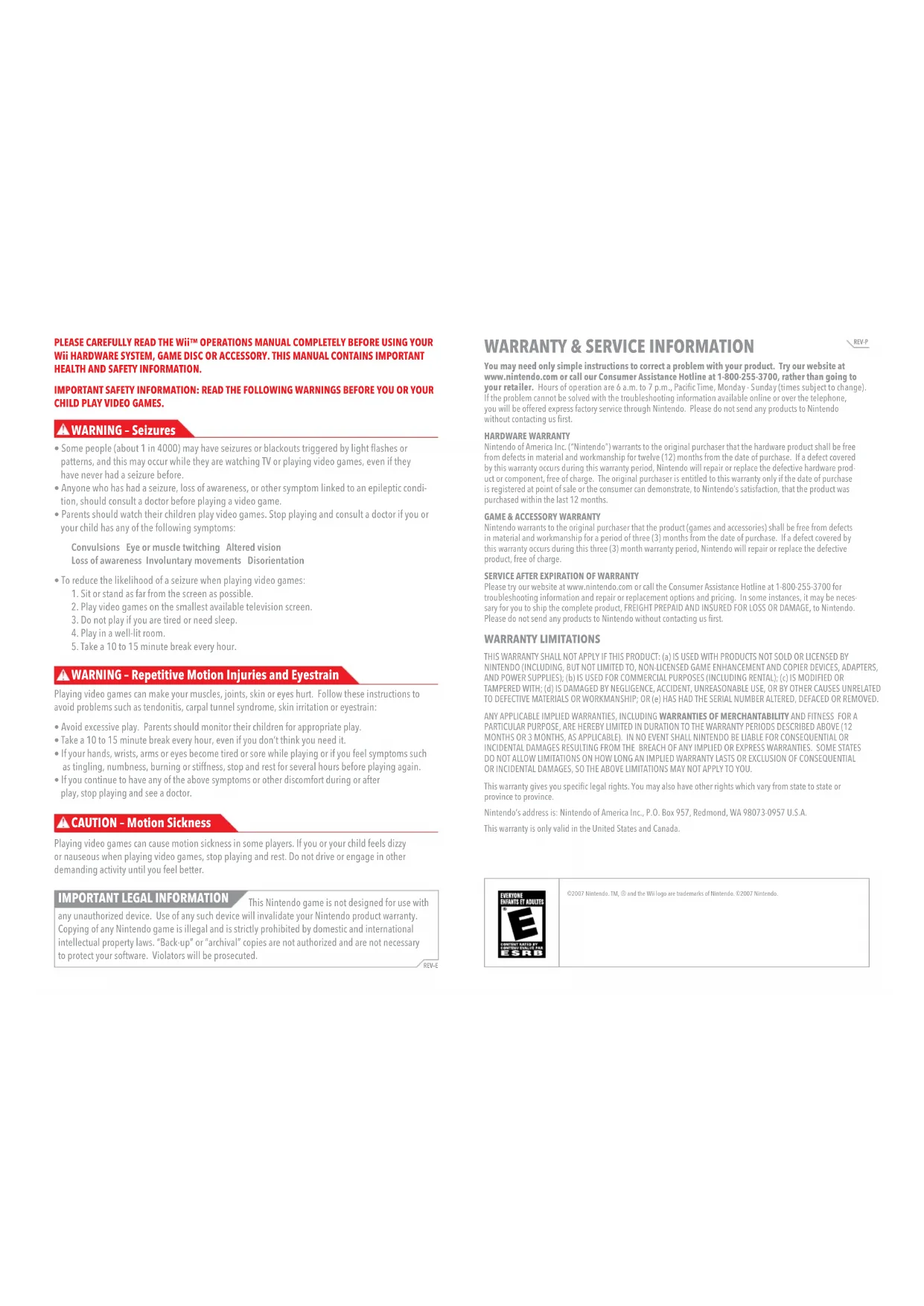
You may need only simple instructions to correct a problem with your product. Try our website at www.nintendo.com or call our Consumer Assistance Hotline at 1-800-255-3700, rather than going to your retailer. Hours of operation are 6 a.m. to 7 p.m., Pacific Time, Monday - Sunday (times subject to change). If the problem cannot be solved with the troubleshooting information available online or over the telephone, you will be offered express factory service through Nintendo. Please do not send any products to Nintendo without contacting us first. HARDWARE WARRANTY Nintendo of America Inc. (“Nintendo”) warrants to the original purchaser that the hardware product shall be free from defects in material and workmanship for twelve (12) months from the date of purchase. If a defect covered by this warranty occurs during this warranty period, Nintendo will repair or replace the defective hardware prod- uct or component, free of charge. The original purchaser is entitled to this warranty only if the date of purchase is registered at point of sale or the consumer can demonstrate, to Nintendo’s satisfaction, that the product was purchased within the last 12 months.
GAME & ACCESSORY WARRANTY
Nintendo warrants to the original purchaser that the product (games and accessories) shall be free from defects in material and workmanship for a period of three (3) months from the date of purchase. If a defect covered by this warranty occurs during this three (3) month warranty period, Nintendo will repair or replace the defective product, free of charge.
SERVICE AFTER EXPIRATION OF WARRANTY
Please try our website at www.nintendo.com or call the Consumer Assistance Hotline at 1-800-255-3700 for troubleshooting information and repair or replacement options and pricing. In some instances, it may be neces- sary for you to ship the complete product, FREIGHT PREPAID AND INSURED FOR LOSS OR DAMAGE, to Nintendo. Please do not send any products to Nintendo without contacting us first. WARRANTY LIMITATIONS THIS WARRANTY SHALL NOT APPLY IF THIS PRODUCT: (a) IS USED WITH PRODUCTS NOT SOLD OR LICENSED BY NINTENDO (INCLUDING, BUT NOT LIMITED TO, NON-LICENSED GAME ENHANCEMENT AND COPIER DEVICES, ADAPTERS, AND POWER SUPPLIES); (b) IS USED FOR COMMERCIAL PURPOSES (INCLUDING RENTAL); (c) IS MODIFIED OR TAMPERED WITH; (d) IS DAMAGED BY NEGLIGENCE, ACCIDENT, UNREASONABLE USE, OR BY OTHER CAUSES UNRELATED TO DEFECTIVE MATERIALS OR WORKMANSHIP; OR (e) HAS HAD THE SERIAL NUMBER ALTERED, DEFACED OR REMOVED. ANY APPLICABLE IMPLIED WARRANTIES, INCLUDING WARRANTIES OF MERCHANTABILITY AND FITNESS FOR A PARTICULAR PURPOSE, ARE HEREBY LIMITED IN DURATION TO THE WARRANTY PERIODS DESCRIBED ABOVE (12 MONTHS OR 3 MONTHS, AS APPLICABLE). IN NO EVENT SHALL NINTENDO BE LIABLE FOR CONSEQUENTIAL OR INCIDENTAL DAMAGES RESULTING FROM THE BREACH OF ANY IMPLIED OR EXPRESS WARRANTIES. SOME STATES DO NOT ALLOW LIMITATIONS ON HOW LONG AN IMPLIED WARRANTY LASTS OR EXCLUSION OF CONSEQUENTIAL OR INCIDENTAL DAMAGES, SO THE ABOVE LIMITATIONS MAY NOT APPLY TO YOU. This warranty gives you specific legal rights. You may also have other rights which vary from state to state or province to province. Nintendo’s address is: Nintendo of America Inc., P.O. Box 957, Redmond, WA 98073-0957 U.S.A. This warranty is only valid in the United States and Canada. ©2007 Nintendo. TM, ® and the Wii logo are trademarks of Nintendo. ©2007 Nintendo. PLEASE CAREFULLY READ THE Wii™ OPERATIONS MANUAL COMPLETELY BEFORE USING YOUR Wii HARDWARE SYSTEM, GAME DISC OR ACCESSORY. THIS MANUAL CONTAINS IMPORTANT HEALTH AND SAFETY INFORMATION. IMPORTANT SAFETY INFORMATION: READ THE FOLLOWING WARNINGS BEFORE YOU OR YOUR CHILD PLAY VIDEO GAMES.
- Some people (about 1 in 4000) may have seizures or blackouts triggered by light flashes or patterns, and this may occur while they are watching TV or playing video games, even if they have never had a seizure before.
- Anyone who has had a seizure, loss of awareness, or other symptom linked to an epileptic condi- tion, should consult a doctor before playing a video game.
- Parents should watch their children play video games. Stop playing and consult a doctor if you or your child has any of the following symptoms: Convulsions Eye or muscle twitching Altered vision Loss of awareness Involuntary movements Disorientation
- To reduce the likelihood of a seizure when playing video games:
1. Sit or stand as far from the screen as possible.
2. Play video games on the smallest available television screen.
3. Do not play if you are tired or need sleep.
4. Play in a well-lit room.
5. Take a 10 to 15 minute break every hour.
Playing video games can make your muscles, joints, skin or eyes hurt. Follow these instructions to avoid problems such as tendonitis, carpal tunnel syndrome, skin irritation or eyestrain:
- Avoid excessive play. Parents should monitor their children for appropriate play.
- Take a 10 to 15 minute break every hour, even if you don’t think you need it.
- If your hands, wrists, arms or eyes become tired or sore while playing or if you feel symptoms such as tingling, numbness, burning or stiffness, stop and rest for several hours before playing again.
- If you continue to have any of the above symptoms or other discomfort during or after play, stop playing and see a doctor. Playing video games can cause motion sickness in some players. If you or your child feels dizzy or nauseous when playing video games, stop playing and rest. Do not drive or engage in other demanding activity until you feel better. This Nintendo game is not designed for use with any unauthorized device. Use of any such device will invalidate your Nintendo product warranty. Copying of any Nintendo game is illegal and is strictly prohibited by domestic and international intellectual property laws. “Back-up” or “archival” copies are not authorized and are not necessary to protect your software. Violators will be prosecuted. REV–E
All basic control in Big Brain Academy™: Wii Degree is done by selecting items, objects, and menu options. To “select” something, point at it, then press
To cancel a menu selection, point to a Back or Return button, then select it. Power Button Turn the power ON/OFF A Button Conrm your selection HOME Button Display the HOME Menu Pointer + Button Display the submenu while playing an activity Select the Hallway option to return to the academy’s hallway. Note: Game play will continue while you have the submenu open.
CAUTION: WRIST STRAP USE
Please use the wrist strap to help prevent injury to other people or damage to surrounding objects or the Wii Remote in case you accidentally let go of the Wii Remote during game play. Also remember the following: • Make sure all players put on the wrist strap properly when it is their turn. • Do not let go of the Wii Remote during game play. • Dry your hands if they become moist. • Allow adequate room around you during game play and make sure that all areas you might move into are clear of other people and objects. • Stay at least three feet from the television.
Please note that when rst loading the Game Disc into the Wii console, the Wii will check if you have the latest system menu, and if necessary a Wii system update screen will appear. Press OK to proceed.6
Getting Started Insert the Big Brain Academy: Wii Degree Game Disc in the Game Disc slot of the Wii console. The power on the Wii console will turn ON. You should then see the screen shown to the right. After you read it carefully, press to continue.*The screen will display even if you insert the Game Disc after turning the power ON.Select the Disc Channel from the Wii Menu.When you see the Channel Preview Screen, select Start to make the game start.You will then see the Wrist Strap Reminder Screen. Also, the rst time you play the game, you’ll be asked whether you want to create a save le for your game progress. If you want to, select OK. *When creating a save le, you will need 3 blocks of empty memory on your Wii console.*For more information on deleting save les or transferring les to an SD Card, check the Wii Settings and Data Management section of the Wii Operations Manual: Channels and Settings.Once the title screen appears, select Start to begin game play. If this is your rst time playing, you’ll go automatically to the Enroll screen to enroll your rst student, who will be recorded in your save le. If you already have save data, you’ll instead go directly to the Academy Hallway [p. 7].*Notice messages will occasionally pop up before you enter the Academy Hallway, primarily when Wii Friends send you their student records [p. 10].When you rst play the game, you must enroll in the academy, selecting one of your Miis as a student-record “photo” and creating a student name. You will then be registered as a student and be given your own student record book [p. 10] where grades and other measurements of your progress will be recorded.*You can change your student name and your Mii photo in the Ofce [p. 9].*You can enroll up to 8 students, and each one will get his or her own student record book.
PickYourStudentPhoto(Mii) First select your student photo by picking a Mii. Big Brain Academy includes 6 premade academy Miis that you can use. You can also select Miis that are stored in the Mii Channel of your Wii console.*To learn how to add Miis to the Mii Channel on your Wii, consult the Mii Channel section of the Wii Operations Manual: Channels and Settings. CreateYourStudentName When you choose a Mii from your Mii Channel, you may use your Mii’s name for your student name, or you may give it a separate student name. If you select a premade academy Mii, you will need to create a name. Select the student name eld, then create a name, selecting one character at a time on the keyboard. Select OK to conrm. SavingYourGame If you create a save le, the game will automatically save your progress to your student record book every time you complete a session in one of the solo or group classrooms. The icon will appear whenever the game is automatically saving, so when you see this, do not turn the power OFF or press RESET. HowtoEnroll
Test[p.13] In this solo mode, take a ve-part test to see how big your brain is. The bigger your brain, the better! Academy Hallway You can enter one of six rooms from the Academy Hallway. Simply select the door you want. You can also read the Student Scores board from the hallway. Uses 1 Wii Remote. Uses 2 Wii Remotes.Select the directional signs to make the screen scroll in the direction shown. Practice[p.14] In this solo mode, train in any of the 15 activities that show up in Test sessions. If you do well enough, you can earn a practice medal. Ofce[p.9] Check student records, enroll, and drop out here. You can also exchange student record books here over WiiConnect24. Student Scores Select the Student Scores board to compare the Test results of students enrolled in your academy and those in student records sent to you from Wii Friends [p. 10].Bar GraphThe colors on the bar graph represent the Test results in each of the ve mental categories.MentalMarathon[p.16]Maintain a perfect winning streak as long as possible in a limited amount of time! 1 to 8 players share 1 Wii Remote.BrainQuiz[p.17]Take turns selecting mental-activity panels on a party board to win points. Up to 8 players can play, divided among up to four teams. All players share 1 Wii Remote.MindSprint[p.15]Race to complete a set number of questions. Each team can have up to 4 players who share a Wii Remote. If you play with only one team, select a student record to compete against. Ofce OfceGroupSolo Student ScoresStudents & Friend RecordsSelect students and Wii Friend student record books to reveal record details. Ofce Brain Quiz Test Practice Mind Sprint MentalMarathonOffice
OfficeMenu You can select one of four modes in the Ofce: Enroll, Leave, View Records, or Send Student Record. EnrollTo register a new student, select a Mii for a student photo, then create a student name [p. 6]. You can enroll up to 8 students. If the academy is at maximum enrollment, a student will have to leave the academy before you can enroll another one. LeaveTo erase a student from the save le (and have the student leave the academy permanently), select the student record, then press to conrm your selection. Once the student’s data has been erased, the record cannot be restored.*If you erase a student record, that student’s grades and records will be deleted. *You cannot use the Leave option to erase your Wii Friends’ student records that have been sent to you. ViewRecordsStudent records track student progress, including brain weight, grade, and practice medals earned [p. 14]. In the graph, the blue shape shows your recent performance in all activities. Select a student record to read it. You can also change a student photo or student name at any time by selecting it in the student record.*Creating or changing a student name will not change the Mii as named in the Mii Channel.*You can race against student records in Mind Sprint [p. 15].*A student record sent to you by a Wii Friend will be marked with . You cannot change its student photo or student name.Select the right and left arrows to turn the pages of a student record. BeforeYouCanSendRecords: Step1:TurnonWiiConnect24If you want to send or receive a student record, you must be connected to the Internet (see page 11) and turn your WiiConnect24 settings ON. For more information, check the Wii Settings and Data Management section of the Wii Operations Manual: Channels and Settings. Step2:RegisterWiiFriendsIn order to send a student record to a friend, you and your friend must rst exchange Wii Numbers and become Wii Friends. For more information, check the Wii Message Board section of the Wii Operations Manual: Channels and Settings.Once you have both registered the other as a Wii Friend, the color of your nicknames will change in the Address Book of the Wii Message Board. Step3:ChangeYourAutocheckSettingTo send student records and receive them from your Wii Friends, you must set the Autocheck feature to ON the rst time you attempt to send a student record.When playing Big Brain Academy: Wii Degree, turning the Autocheck feature ON lets your Wii Friends who are playing the game know that you also have the game. If each of you has your Autocheck features turned ON, a Lobe Mark [p. 11] will automatically appear for Wii Friends in the Ofce’s Send Student Record section. You can turn the Autocheck feature off at any time by setting the Autocheck feature to OFF.NoteabouttheWiiMessageBoardWhen Autocheck nds one of your Wii Friends who owns Big Brain Academy: Wii Degree or when a student record has arrived from a Wii Friend, a message will appear in your Wii Message Board.Setting the Autocheck FeatureSelect Autocheck, then the setting.SendingStudentRecords First, select the student record that you want to send. You can send your student records up to ten times a day.SendStudentRecordYou can share your student record with people you have exchanged Wii Numbers with (“Wii Friends”) who are also playing Big Brain Academy: Wii Degree. You can view any student records sent to you by your Wii Friends in the View Records option in the Ofce. You can then compare your student record against your Wii Friends’ records in Student Scores [p. 8] and compete against their student records in Mind Sprint [p. 15].1211 Next, select the Wii Friend recipient, then select OK. You can send your student record to up to eight Wii Friends at a time. Lobe Mark These will appear beside the names of Wii Friends who own Big Brain Academy: Wii Degree. *Even if the Autocheck feature is turned OFF, the Lobe Mark will appear for Wii Friends from whom you have received student records in the past. Select Send on the conrmation screen to send the student record. *If you have 24 student records sent from Wii Friends saved and you then save another one, the student record against which you compete the least in Mind Sprint [p. 15] will be automatically erased.*If you delete a Wii Friend from your Wii console’s Address Book, that Wii Friend’s student record in Big Brain Academy: Wii Degree will also be erased. ConnectingtotheInternet In order to send or receive a student record book, you must connect your Wii console to the Internet, then turn on the WiiConnect24 functionality (see page 10). Please check the following guidelines to complete your connection:
- Consult the Wii Settings and Data Management section of the Wii Operations Manual: Channels and Settings for instructions on what equipment you must have and what settings you’ll need to connect your Wii console to the Internet.
- Consult www.nintendo.com for detailed information on WiiConnect24-compatible equipment.
- If you are unable to complete a connection to the Internet, note any error codes and error messages that appear on the screen, then check the Troubleshooting section of the Wii Operations Manual: Channels and Settings.
- The Wii Friends system has been created to ensure the safest experience possible through connecting people who know each other. If you exchange Wii Numbers over Internet boards or with strangers, you risk having unwanted data or offensive language sent to you. For that reason, we suggest that you avoid sending your Wii Number to people you don’t know.
This game’s 15 main activities are divided into ve categories. You can read the rules for each activity by selecting Rules. IdentifyVisualizeComputeMemorizeAnalyzeIdentifyMemorizeAnalyzeComputeVisualizeSolve these quick-thinking problems as fast as you can!Use your memory to help you with these brainy challenges! Absorb the details you see, then make a thoughtful selection!Use your number-crunching skills to answer correctly!Study what you see, then visualize the answer! Whack Match Fast Focus Species Spotlight Covered Cages Face Case Reverse Retention Match Blast Speed Sorting Block Spot Balloon Burst Mallet Math Color Count Art Parts Train Turn Odd One Out ActivitiesPractice
Test 1 Player The Test checks how big your brain is by measuring you in 15 activities that span ve mental categories. You’ll not only see your brain size, but you’ll also receive a grade based on your performance and see what kind of mind you might have based on your test results! TakingtheTest Select a student to take the test and choose OK. Then select Start Test on the Brain Graph screen. Select OK on the next screen to begin! Every time you take the test, the order of mental categories may change. Grade The grading system spans a wide range of achievement. Try for the ultimate A++! Highest Brain Weight To-Date Brain Prole Brain Graph Your results in each of the ve mental categories form the precise pentagon that reects your overall score. Your best test results to-date will be shown. ViewingResults Once you have answered all the problems in the ve mental categories, you’ll learn how big your brain is. Press to read through all the results. Then you’ll learn your overall test grade. After you’ve seen all the results, select Hallway to return to the Academy Hallway, or select Play Again to retake the test. 1 Player Practice sessions are a great way to improve your skills in specic mental categories or with specic activities. You can earn a bronze, silver, and gold medal in each of the 15 activities’ difculty levels. Try to earn all the medals! EnteringPractice Select a student to enter a practice session. Select the mental category, then the specic activity, and then the difculty level. Select OK on the conrmation screen to start the practice session. Practice Medals The medals earned in each difculty level are shown. Highest Activity Brain Weight ViewingResults Your brain weight for the specic activity will be revealed once you have answered 10 practice problems. Press to read through all the practice session results. If you perform well enough, you’ll earn a Practice Medal. If your results rank among the 10 best results to-date, your score and your student name will be added to the rankings.1615 Mind Sprint 1 to 4 Players 2 to 8 Players In Mind Sprint, two teams race to answer a set number of problems rst. Using 1 Wii Remote, one relay team (up to 4 players) can compete against a student record book. And using 2 Wii Remotes, two teams (up to 4 players each) can compete to reach the nish rst. StartingaSprint Select either Race Against Records or Race Against Players, then select the students who will participate in the race. When racing against a student record, rst select the players who will race, then select the student record they’ll compete against. To select Race Against Students, rst ensure that 2 Wii Remotes are active, then select the option, then the members for the two teams. Finally, select the activity, difculty level, and number of problems for the Mind Sprint. For each kind of race, students must then select OK to start the race. Note: The difculty option Auto automatically assigns a level of difculty that is appropriate for each team, based on their individual members’ student records. ViewingResults Once one team nishes, the winner of the race will be announced. Press
to read through all the results messages. Then you’ll learn if the winning team ranked in the overall standings. If your team’s results rank in the top 10, the students on your team and the team score will be added to the rankings. Race Progress Each correct answer brings you one step closer to the nish. The Hand-Off Screen When playing with two or more players on one team, the Hand-Off screen will appear every now and then, and the active player must hand the Wii Remote to the teammate shown on the screen. In order to continue racing, the shown player must select OK once he has the Wii Remote in hand. Note: Take care not to drop or throw the Wii Remote when handing it off to another player. 1 to 8 Players Mental Marathon In Mental Marathon, a solo player or a team of up to 8 players strive to keep a perfect winning streak going as long as possible during a limited amount of time. Once time runs out or your team gets its rst problem wrong, your marathon ends. Only 1 Wii Remote is required in Mental Marathon. When more than one player is in the game, the Hand-Off screen will appear, instructing you to relay the Wii Remote to the next player. Note: Take care not to drop or throw the Wii Remote when handing it off to another player. Remaining Time StartingaMarathon First, select which students will be in the marathon. Next, select the mental category and the difculty level, then select OK to start the game. Note: The difculty option Auto automatically assigns a level of difculty that is appropriate for each team, based on their individual members’ student records. ViewingResults At the end of your Mental Marathon, you’ll learn the nal results. Press to read through all the messages and conrm your team’s results.1817 All Rights, including the copyrights of Game, Scenario, Music and Program, reserved by NINTENDO. Brain Quiz The Brain Quiz is a party-style game that spans the ve mental categories and several difculty levels, and adds ve extra activities to make for a total of 20 activities. Up to 8 players can separate into up to four teams. One player at a time selects one of the panels on the quiz, learns what the surprise difculty level will be, then selects Start to begin the challenge. The active player must solely earn as many points as possible for his or her team by completing problems until he or she gets one wrong or until time runs out. Then the player must relay the 1 Wii Remote to the next player shown on the screen using the Hand-Off screen. After players have selected all of the board panels, the team with the most points overall wins the game. Note: Take care not to drop or throw the Wii Remote when handing it off to another player. StartingaQuiz First select the students who will compete. When two or more students are playing, select the number of teams competing. Players will then be automatically separated into teams. If you want to change who’s on which team, simply select the number of teams again. ViewingResults After players have played all the panels, each team’s results will be revealed and the winner will be announced. If there is only one player, the player’s nal results will be shown. Select the panel for the mental category or specic activity you want to attempt. You won’t know what difculty level you’ll face until the selected panel ips over. There may even be special panels that appear from time to time… Staff Credits ProducerHiroyuki KimuraDirectorTomoaki YoshinobuSub-directorsHideki FujiiShigefumi HinoAssistant DirectorsYusuke AmanoShigeo KimuraShigeyuki AsukeProgramming DirectorYuzi KandoProgrammingToshikazu KiuchiYuzuru OgawaKen WatanabeNaoki MasudaKensuke MurakiShigetoshi KitayamaKeiichi MinatoDesign DirectorsAkiko HironoMasanao ArimotoJunji MoriiDesignJun TakamuraTomomi IwasakiRyo TanakaMichiko IwasawaKosono OkinaTsubasa SakaguchiUI DesignTakako IshiiEffects DesignHaruyasu ItoSound DirectorHajime WakaiMusicRyo NagamatsuSound Effects/ProgrammingMasato MizutaToru AsakawaProgress ManagementKeizo KatoTechnical SupportHironobu KakuiToru InageArtworkKeisuke KadotaYuka KotakiNorth American Localization ManagementJeff MillerLeslie SwanNorth American LocalizationRaúl ArolJulian ChunovicTakashi EbiikeSteven GrimmHervé LefrancBill TrinenVoiceElizabeth BockSabra ChoiSteven GrimmHeidi GrubenMonia KimJeff MinnerlyBill TrinenNintendo Product Testing DepartmentSean EganMichael LeslieZac EvansMakiko SzolasNOE Validation and Testing TeamSpecial ThanksFumiyoshi SuetakeTakahiro HamaguchiKeijiro InoueYoko FukudaSayaka YanoKenta NagataSanae SusakiTakaya ImamuraSatomi AsakawaMasaho NomuraNintendo EADGeneral ProducerTakashi TezukaExecutive ProducerSatoru Iwata1 to 8 PlayersREV-P RENSEIGNEMENTS SUR L’ENTRETIEN ET LA GARANTIE Vous pourriez n’avoir besoin que de simples instructions pour corriger un problème. Vous pouvez visiter notre site Web à www.nintendo.com ou appeler notre Ligne sans frais d’assistance aux consommateurs, au 1 (800) 255-3700, plutôt que de retourner chez votre détaillant. Nos heures d’ouverture sont de 6 h 00 à 19 h 00, heure du Pacifique, du lundi au dimanche (heures sujettes à changement). Si le problème ne peut pas être résolu en consultant les renseignements sur les problèmes et leurs solutions en ligne, ni au téléphone, on vous offrira un service usine exprès chez Nintendo. Veuillez n’expédier aucun produit sans avoir appelé Nintendo au préalable.