MVHS030BT - Car stereo PIONEER - Free user manual and instructions

Find the device manual for free MVHS030BT PIONEER in PDF.

📄 289 pages PDF ⬇️ English EN 💬 AI Question 🖨️ Print
Notice PIONEER MVHS030BT - page 5
Manual assistant
Powered by ChatGPT
Waiting for your message
Product information

Brand : PIONEER

Model : MVHS030BT

Category : Car stereo

Download the instructions for your Car stereo in PDF format for free! Find your manual MVHS030BT - PIONEER and take your electronic device back in hand. On this page are published all the documents necessary for the use of your device. MVHS030BT by PIONEER.
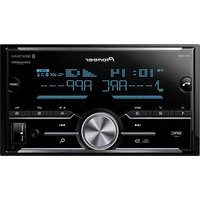
USER MANUAL MVHS030BT PIONEER

  • In the following instructions, a USB memory or USB audio player are referred to as “USB device”.
  • When an iPhone is connected to the unit, the source name on the unit appears as [iPod]. Please note that this unit supports only iPhones (iPhone 5 or later) regardless of the source name (for details, refer to page 43). Table of Contents- 3 - English Declaration of Conformity with regard to the Radio Equipment Directive 2014/53/EU

[*] MVH-S300BT, MVH-S030BT

  • Do not attempt to install or service this product by yourself. Installation or servicing of this product by persons without training and experience in electronic equipment and automotive accessories may be dangerous and could expose you to the risk of electric shock, injury or other hazards.
  • Do not attempt to operate the unit while driving. Make sure to pull off the road and park your vehicle in a safe location before attempting to use the controls on the device. CAUTION
  • Do not allow this unit to come into contact with moisture and/or liquids. Electrical shock could result. Also, damage to this unit, smoke, and overheating could result from contact with liquids.
  • Always keep the volume low enough to hear outside sounds.
  • The Pioneer CarStereo-Pass is for use only in Germany.
  • This product is evaluated in moderate and tropical climate condition under the Audio, video and similar electronic apparatus - Safety requirements, IEC 60065. If you experience problems Should this unit fail to work properly, please contact your dealer or nearest authorized PIONEER Service Station. Before You Start If you want to dispose this product, do not mix it with general household waste. There is a separate collection system for used electronic products in accordance with legislation that requires proper treatment, recovery and recycling.- 6 - English

Frequently used operations Getting Started Basic operation Purpose Operation Turn on the power* Press SRC/OFF to turn on the power. Press and hold SRC/OFF to turn off the power. Adjust the volume Turn the M.C. dial. Press MUTE to mute the unit. Press MUTE again or turn the M.C. dial to unmute. Select a source Press SRC/OFF repeatedly. Change the display information Press DISP repeatedly. Return to the previous display/list Press BAND/. Return to the normal display from the menu Press and hold BAND/. Change the display brightness Press and hold BAND/. Answering/ending a call Press . Detach button Display window M.C. (multi-control) dial BAND/ DISP (display) SRC (source)/OFF USB port MUTE AUX input jack (3.5 mm stereo jack)- 7 -- 7 - English

  • When this unit’s blue/white lead is connected to the vehicle’s auto-antenna relay control terminal, the vehicle’s antenna extends when this unit’s source is turned on. To retract the antenna, turn the source off. Display indication Detach the front panel to prevent theft. Remove any cables and devices attached to the front panel and turn off the unit before detaching it. Important
  • Avoid subjecting the front panel to excessive shock.• Keep the front panel out of direct sunlight and high temperatures.• Always store the detached front panel in a protective case or bag. The microprocessor must be reset in the following situations: – Before using this unit for the first time after installation Indication Description Appears when a lower tier of the menu or folder exists. Appears when the button is pressed. Appears when a traffic program is received. Appears when the TA (traffic announcements) function is set (page 26). BASS Appears when [HI]/[LOW] is selected in [D.BASS] (page 29). Appears when random/shuffle play is set (except when BT AUDIO is selected as the source). Appears when repeat play is set (except when BT AUDIO is selected as the source). Appears when a Bluetooth connection is made (page 13). Detaching the front panel Resetting the microprocessor Detach Attach- 8 - English – If the unit fails to operate properly – When strange or incorrect messages appear on the display 1 Remove the front panel (page 7). 2 Press the RESET button with a pointed instrument longer than 8 mm. When you turn the ignition switch to ON after installation, the setup menu appears in the display. 1 Turn the M.C. dial to select the options, then press to confirm. To proceed to the next menu option, you need to confirm your selection. 2 [QUIT :YES] appears when all the settings have been made. To return to the first item of the setup menu, turn the M.C. dial to select [QUIT :NO], then press to confirm. 3 Press the M.C. dial to confirm the settings. Setup menu Menu Item DescriptionLANGUAGE Select the language to display the text information from a compressed audio file.[ENG](English), [РУС](Russian), [TUR](Turkish), [FRA](French)CLOCK SET Set the clock. 1 Turn the M.C. dial to adjust the hour, then press to confirm. The indicator moves to the minute setting automatically. 2 Turn the M.C. dial to adjust the minute, then press to confirm. FM STEP Select the FM tuning step from 100 kHz or 50 kHz.[100], [50] RESET button- 9 -- 9 - English NOTE These settings can be made at any time from the SYSTEM settings (page 30) and INITIAL settings (page 9). 1 Press the M.C. dial to display the main menu. 2 Turn the M.C. dial to select [SYSTEM], then press to confirm. 3 Turn the M.C. dial to select [DEMO OFF], then press to confirm. 4 Turn the M.C. dial to select [YES], then press to confirm. 1 Press and hold SRC/OFF until the unit turns off. 2 Press and hold SRC/OFF to display the main menu. 3 Turn the M.C. dial to select [INITIAL], then press to confirm. 4 Turn the M.C. dial to select an option, then press to confirm. Canceling the demonstration display (DEMO OFF) INITIAL settings Menu Item Description FM STEP Select the FM tuning step from 100 kHz or 50 kHz. [100], [50] SP-P/O MODE Select when there is a full-range speaker connected to the rear speaker output leads and there is a subwoofer connected to the RCA output.

[SUB.W/SUB.W] Select when there is a passive subwoofer connected directly to the rear speaker output leads and there is a subwoofer connected to the RCA output. [REAR/REAR] Select when there are full-range speakers connected to the rear speaker output leads and RCA output. If there is a full-range speaker connected to the rear speaker output leads, and the RCA output is not used, you may select either [REAR/SUB.W] or [REAR/REAR]. SYSTEM UPDATE Select [SYSTEM INFO] to confirm the latest system information on the unit. Select [S/W UPDATE] to update the unit to the latest software and initialize the unit settings. For details on the latest software and updating, visit our website.

English The tuner frequencies on this unit are allocated for use in Western Europe, Asia, the Middle East, Africa and Oceania. Use in other areas may result in poor reception. The RDS (radio data system) function only works in areas that broadcast RDS signals for FM stations. 1 Press SRC/OFF to select [RADIO]. 2 Press BAND/ to select the band from [FM1], [FM2], [FM3], [MW] or [LW]. 3 Press a number button (1/ to 6/). NOTE You can select a preset channel by pressing and turning the M.C. dial. TIP The / buttons can be also used to select a preset station when [SEEK] is set to [PCH] in the FUNCTION settings (page 27). The six strongest stations are stored on the number buttons (1/ to 6/). 1 After selecting the band, press the M.C. dial to display the main menu. 2 Turn the M.C. dial to select [FUNCTION], then press to confirm. 3 Turn the M.C. dial to select [BSM], then press to confirm. To seek a station manually

After selecting the band, press / to select a station. Press and hold / then release to seek an available station. Scanning stops when the unit receives a station. To cancel seek tuning, press / . SYSTEM RESET Select [YES] to initialize the unit settings. The unit will be restarted automatically.[YES], [NO] Radio Receiving preset stations Best stations memory (BSM) Menu Item Description- 11 -- 11 - English NOTE [SEEK] needs to be set to [MAN] in the FUNCTION settings (page 27). To store stations manually

While receiving the station you want to store, press and hold one of the number buttons (1/ to 6/ ) until it stops flashing. NOTE You can select a preset channel by pressing and turning the M.C. dial. After selecting a channel, press and hold the M.C. dial to store a station. The unit searches for a station by PTY (program type) information. 1 Press and hold during FM reception. 2 Turn the M.C. dial to select a program type from [NEWS/INFO], [POPULAR], [CLASSICS] or [OTHERS]. 3 Press the M.C. dial. The unit begins to search for a station. When it is found, its program service name is displayed. NOTES

  • To cancel the search, press the M.C. dial.
  • The program of some stations may differ from that indicated by the transmitted PTY.
  • If no station is broadcasting the type of program you searched for, [NOT FOUND] is displayed for about two seconds and then the tuner returns to the original station. Disconnect headphones from the device before connecting it to the unit. USB devices (including Android™)/iPhone

Open the USB port cover. 2 Plug in the USB device/iPhone using an appropriate cable. Using PTY functions USB/iPhone/AUX Playing back- 12 - English NOTE To automatically switch to [USB] source when a USB device/iPhone is connected to the unit, set [USB AUTO] to [ON] in the SYSTEM settings (page 31). CAUTION Use an optional Pioneer USB cable (CD-U50E) to connect the USB device as any device connected directly to the unit will protrude out from the unit, which could be dangerous. Before removing the device, stop playback. AOA connections For details on AOA connection, see page 22. MTP connection A device installed with Android OS 4.0 or later can be connected to the unit via MTP, using the cable supplied with the device. However, depending on the connected device and the numbers of the files in the device, audio files/songs may not be able to be played back via MTP. Note that MTP connection is not compatible with WAV and FLAC file formats. NOTE If you use an MTP connection, [PHONE CONNECT] needs to be set to [USB MTP] in the SYSTEM settings (page 31). AUX

Insert the stereo mini plug into the AUX input jack. 2 Press SRC/OFF to select [AUX] as the source. NOTE If [AUX] is set to [OFF] in the SYSTEM settings, [AUX] cannot be selected as a source (page 30). You can make various adjustments in the FUNCTION settings (page 26). Note that the following operations do not work for an AUX device. To operate an AUX device, use the device itself. Operations Purpose Operation Select a folder*1 Press 1/ or 2/. Select a track/song (chapter) Press or . Fast forward or reverse*2 Press and hold or .- 13 -- 13 - English *1 Compressed audio files only*2 When you use the fast forward or reverse function while playing a VBR file, the playback time may be not correct. Important If ten or more Bluetooth devices (e.g. a phone and separate audio player) are connected, they may not work properly. 1 Turn on the Bluetooth function of the device. If you make a Bluetooth connection from the device, proceed to step 6. 2 Press to display the phone menu. 3 Turn the M.C. dial to select [BT SETTING], then press to confirm. 4 Turn the M.C. dial to select [ADD DEVICE], then press to confirm. The unit starts to search for available devices, then displays them in the device list. Search for a file from a list (USB only) 1 Press to display the list. 2 Turn the M.C. dial to select the desired file (folder) name or category, then press to confirm. 3 Turn the M.C. dial to select the desired file, then press to confirm.Playback starts.View a list of the files in the selected folder/category*1Press the M.C. dial when a folder/category is selected.Play a song in the selected folder/category*1Press and hold the M.C. dial when a folder/category is selected.Repeat play Press 6/.Random/shuffle play Press 5/. Pause/resume playback Press 4/PAUSE. Sound retriever*1 Press 3/S.Rtrv. [1]: Effective for low compression rates[2]: Effective for high compression ratesReturn to root folder (USB only)*1 Press and hold 1/. Bluetooth Bluetooth connection Purpose Operation- 14 - English

  • To cancel searching, press the M.C. dial.
  • If the desired device is not in the list, select [RE-SEARCH].
  • If there is no device available, [NOT FOUND] appears in the display. 5 Turn the M.C. dial to select a device from the device list, then press to confirm. Press and hold the M.C. dial to switch the displayed device information between the Bluetooth device address and device name. If you make a Bluetooth connection from the unit, proceed to step 7. 6 Select [Pioneer BT Unit] shown in the device display. 7 Make sure the same 6-digit number appears on this unit and the device, then select “Yes” on the device. NOTES
  • [DEVICE FULL] appears if the unit has already been paired with ten other devices. In this case, delete one of the paired devices. See [DEL DEVICE] in the Bluetooth settings (page 14).
  • Depending on the device, the PIN code is required in step 7. In this case, input [0000]. TIP The Bluetooth connection can be also made by detecting the unit from the Bluetooth device. To do so, [VISIBLE] in the Bluetooth settings needs to be set to [ON]. For details on Bluetooth device operations, refer to the operating instructions supplied with the Bluetooth device. Bluetooth settings Menu Item Description DEVICELIST Display the list of paired Bluetooth devices. “*” appears on the device name when the Bluetooth connection is established. When no device is selected in the device list, this function is not available. DEL DEVICE Delete the device information. [DELETE YES], [DELETE NO] ADD DEVICE Register a new device. If ten devices are already paired, this function is not available. You can check the number of paired devices on the [DEVICELIST] setting. A.CONN Select [ON] to connect to a Bluetooth device automatically. [ON], [OFF] VISIBLE Select [ON] so that a Bluetooth device can detect the unit when the unit is connected via Bluetooth to another device.

[ON], [OFF]- 15 -- 15 -

English First, make a Bluetooth connection with the Bluetooth telephone (page 13). Up to two Bluetooth telephones can be connected simultaneously. Important

  • Leaving the unit on standby to connect to your phone via Bluetooth while the engine is not running can drain the vehicle’s battery.
  • Be sure to park your vehicle in a safe place and apply the parking brake before operation. To make a phone call

Press to display the phone menu. When two phones are connected, a phone name appears first then a phone menu will display. To switch to another phone, press again. 2 Turn the M.C. dial to select [RECENTS] or [PHONE BOOK], then press to confirm. If you select [PHONE BOOK], proceed to step 4. PIN CODE Change the PIN code. 1 Press the M.C. dial to display the setting mode. 2 Turn the M.C. dial to select a number. 3 Press the M.C. dial to move the cursor to the next position. 4 After inputting the PIN code, press and hold the M.C. dial. After inputting the PIN code, pressing the M.C. dial returns you to the PIN code input display, and you can change the PIN code. DEV. INFO Switch the device information on the display between the device name and Bluetooth device address. A.PAIRING Select [ON] to pair the unit and iPhone or Android device automatically when an iPhone or Android device is connected to the unit via USB. (This function may not be available depending on the version of iOS you are using.)

  • When you are using an Android device, this function is available in the following situations: – Your device has Android OS 4.4 or later installed. – Be sure to turn on the Bluetooth function of the device and confirm that the device is not connected to the unit via Bluetooth. – [P.APP AUTO ON] needs to be set to [ON] (page 31). – Pioneer ARC APP needs to be installed on your Android device and [PHONE CONNECT] needs to be set to [APP CONTROL] (page 22). – A confirmation button should be pressed on the caution window displayed on Pioneer ARC APP after a connection with the Pioneer ARC APP is made. [ON], [OFF] Bluetooth telephone Menu Item Description- 16 - English 3 Turn the M.C. dial to select [MISSED], [DIALLED] or [RECEIVED], then press to confirm. 4 Turn the M.C. dial to select a name or phone number, then press to confirm. The phone call starts. To answer an incoming call

Press when a call is received. TIP When two phones are connected to the unit via Bluetooth and there is an incoming call while one phone is being used for a call, a message will appear in the display. To answer that incoming call, you need to end the existing call. Basic operations To preset phone numbers

Select a phone number from a phone book or call history. 2 Press and hold one of the number buttons (1/ to 6/). The contact is stored in the selected preset number. To make a call using a preset number, press one of the number buttons (1/ to 6/), then press the M.C. dial. Voice recognition (Only for iPhone) This function is only available when an iPhone equipped with voice recognition is connected to the unit via Bluetooth. 1 Press and hold to activate the voice recognition mode. 2 Press the M.C. dial and then talk into the microphone to input voice commands. Purpose Operation End a call Press . Reject an incoming call Press and hold when a call is received. Switch between the current caller and a caller on hold Press the M.C. dial. Cancel a caller on hold Press and hold . Adjust the volume of the caller’s voice (When private mode is on, this function is not available.) Turn the M.C. dial during the call. Turn the private mode on or off Press BAND/ during the call.- 17 -- 17 - English To exit the voice recognition mode, press BAND/. NOTE For details on the voice recognition features, refer to the manual supplied with your iPhone. Phone menu

  • If two phones are connected, this function does not work on incoming calls that are received while one of the phones is being used for a call. Important
  • Depending on the Bluetooth audio player connected to this unit, the available operations will be limited to the following two levels: – A2DP (Advanced Audio Distribution Profile) can only play back songs on your audio player. – AVRCP (Audio/Video Remote Control Profile) can perform functions such as playback, pause, select song, etc.
  • The sound of the Bluetooth audio player will be muted when the phone is in use.
  • When the Bluetooth audio player is in use, you cannot connect to a Bluetooth telephone automatically.
  • Depending on the type of Bluetooth audio player you have connected to this unit, operation and information displayed may vary based on availability and functionality. Menu Item Description RECENTS Display the missed call history. [MISSED] [DIALLED] Display the dialed call history. [RECEIVED] Display the received call history. PHONE BOOK Display the contacts in your phone. Set [VISIBLE] in the Bluetooth settings to [ON] to browse the contacts via this unit. PRESET 1-6 Recall the preset phone numbers. You can also recall the preset phone numbers by pressing one of the number buttons (1/ to 6/). A.ANSR* Select [ON] to answer an incoming call automatically. [ON], [OFF] R.TONE Select [ON] if the ring tone does not come out from the car speakers. Depending on the connected phone, this function may not work. [ON], [OFF] PB INVT Invert the order of names in the phone book (name view). BT SETTING You can adjust various settings for Bluetooth connections. For details on Bluetooth settings, see page 14. Bluetooth audio- 18 - English 1 Make a Bluetooth connection with the Bluetooth audio player. 2 Press SRC/OFF to select [BT AUDIO] as the source. 3 Press BAND/ to start playback. Basic operations You can make various adjustments in the FUNCTION settings (page 26).
  • Depending on the connected device, these operations may not be available. You can enjoy listening to an application on an iPhone/Android device via the unit. In some cases, you can control an application by using the unit. For details on compatible devices, visit our website. Important Use of third party apps may involve or require the provision of personally identifiable information, whether through the creation of a user account or otherwise, and for certain applications, the provision of geolocation data.ALL THIRD PARTY APPS ARE THE SOLE RESPONSIBILITY OF THE PROVIDERS, INCLUDING WITHOUT LIMITATION COLLECTION AND SECURITY OF USER DATA AND PRIVACY PRACTICES. BY ACCESSING THIRD PARTY APPS, YOU AGREE TO REVIEW THE TERMS OF SERVICE AND PRIVACY POLICIES OF THE PROVIDERS. IF YOU DO NOT AGREE WITH THE TERMS OR POLICIES OF ANY PROVIDER OR DO NOT Purpose Operation Fast forward or reverse Press and hold or . Select a track Press or . Repeat play* Press 6/. Random play* Press 5/. Pause/resume playback Press 4/PAUSE. Search for a file from a list 1 Press to display a list. 2 Turn the M.C. dial to select the desired folder name, then press to confirm. 3 Turn the M.C. dial to select the desired file, then press to confirm. Playback starts. Switch the Bluetooth device name in the device list according to the connection order Press 1/ or 2/. App Mode- 19 -- 19 - English CONSENT TO THE USE OF GEOLOCATION DATA WHERE APPLICABLE, DO NOT USE THAT THIRD PARTY APP. For iPhone users This function is compatible with iPhones installed with iOS 6.0 or later. For Android device users This function is compatible with devices that have Android OS 2.3 or later installed. NOTE PIONEER IS NOT LIABLE FOR ANY THIRD PARTY APPS OR CONTENT, INCLUDING WITHOUT LIMITATION THEIR ACCURACY OR COMPLETENESS. THE CONTENT AND FUNCTIONALITY OF SUCH APPS ARE THE SOLE RESPONSIBILITY OF THE APP PROVIDER. 1 Connect this unit with the mobile device.
  • iPhone via USB (page 11)
  • iPhone/Android device via Bluetooth (page 13) 2 Press the M.C. dial to display the main menu. 3 Turn the M.C. dial to select [SYSTEM], then press to confirm. 4 Turn the M.C. dial to select [PHONE CONNECT], then press to confirm. 5 Turn the M.C. dial to select one of the below, then press to confirm.
  • Select [IPHONE] for iPhone.
  • Select [ANDROID] for Android device. 6 Turn the M.C. dial to select one of the below.
  • Select [WIRED] for the USB connection.
  • Select [BLUETOOTH] for the Bluetooth connection. NOTE When the connection setting is changed, a message that lets you know that the connection setting had been changed will appear in the display. Press the M.C. dial and turn the M.C. dial to select [SRC OFF :YES], then press to confirm. The unit turns off automatically and the setting is executed. 7 Press SRC/OFF to select [APP]. 8 Operate the mobile device to start up the application. NOTE When you connect a mobile device other than iPhone/Android device, select [OTHERS] in the [PHONE CONNECT] menu and select [WIRED] (for the USB connection) or [BLUETOOTH] (for the Bluetooth connection). Depending on your mobile device, it may not operate correctly. Playback of an application via the unit- 20 - English Basic operations You can make various adjustments in the FUNCTION settings (page 26). Spotify is a music streaming distribution service not affiliated with Pioneer. More information is available at http://www.spotify.com. The Spotify application is available for compatible smartphones, please visit https:// support.spotify.com/ for the latest compatibility information. To enjoy Spotify as you drive, first download the Spotify app to your iPhone or Android device. You can download it on the iTunes App Store or Google Play™. Choose a free account or a paid Premium account, either in the app or at spotify.com. A Premium account gives you more features, like offline listening. Important
  • This product incorporates Spotify software which is subject to 3rd party licenses found here: www.spotify.com/connect/third-party-licenses.
  • For information on the countries and regions where Spotify can be used, take a look at https:// www.spotify.com/us/select-your-country/. Update the firmware of the Spotify application to the latest version before use. 1 Connect this unit with the mobile device.
  • iPhone via USB (page 11)
  • iPhone/Android device via Bluetooth (page 13) If you choose a USB connection, proceed to step 6. 2 Press SRC/OFF to select [SPOTIFY]. 3 Press and hold 1/ to display [PHONE CONNECT]. 4 Turn the M.C. dial to select one of the below, then press to confirm.
  • Select [IPHONE] for iPhone.
  • Select [ANDROID] for Android device. Purpose OperationSelect a track Press or .Fast forward or reverse Press and hold or .Pause/resume playback Press BAND/. Spotify® Listening to Spotify- 21 -- 21 - English 5 Turn the M.C. dial to select [BLUETOOTH] for iPhone/Android device via Bluetooth. NOTE When the connection setting is changed, a message that lets you know that the connection setting had been changed will appear in the display. Press the M.C. dial and turn the M.C. dial to select [SRC OFF :YES], then press to confirm. The unit turns off automatically and the setting is executed. 6 Press SRC/OFF to select [SPOTIFY]. 7 Launch the Spotify application on the mobile device and start playback. NOTE When you connect a mobile device other than iPhone/Android device, select [OTHERS] in the [PHONE CONNECT] menu and select [WIRED] (for the USB connection) or [BLUETOOTH] (for the Bluetooth connection). Depending on your mobile device, it may not operate correctly. Basic operations You can make various adjustments in the FUNCTION settings (page 26). NOTE The available operations may vary according to the type of contents (track/album/artist/playlist/radio) you want to play. Purpose Operation Skip a track Press or . Search for a track from a list 1 Press (list) to display the list. 2 Turn the M.C. dial to select the desired category, then press to confirm. 3 Turn the M.C. dial to select the desired file, then press to confirm. Playback starts. Pause/resume playback Press 4/PAUSE. Thumbs Up (Only for radio) Press 1/. Thumbs Down (Only for radio) Press 2/. Random play (Only for track/album/artist/ playlist) Press 5/. Repeat play (Only for track/album/artist/ playlist) Press 6/. Start a radio channel based on the song currently being played. 1 Press and hold 5/ to start a radio. 2 Press the M.C. dial.
  • This function may not be available depending on the selected song.- 22 - English NOTE Some functions of Spotify may not be operated from the unit.You can operate the unit from Pioneer ARC APP installed on an iPhone/Android device. In some cases, you can control aspects of the application, such as source selection, pause, etc., by using the unit.For details on what operations are available on the application, see the application’s help section. WARNING Do not attempt to operate the application while driving. Make sure to pull off the road and park your vehicle in a safe location before attempting to use the controls on the application.For iPhone usersThis function is compatible with iPhones (iPhone 5 or later) installed with iOS 8.0 or later.You can download Pioneer ARC APP on iTunes App Store.For Android device usersThis function is compatible with devices that have Android OS 4.1 or later installed and also support AOA (Android Open Accessory) 2.0.You can download Pioneer ARC APP on Google Play. NOTE Some Android devices connected via AOA 2.0 may not work properly or emit sounds due to their own software design, regardless of the OS version. 1 Connect this unit with the mobile device.
  • iPhone/Android device via USB (page 11)• iPhone/Android device via Bluetooth (page 13) 2 Press the M.C. dial to display the main menu. 3 Turn the M.C. dial to select [SYSTEM], then press to confirm. 4 Turn the M.C. dial to select [PHONE CONNECT], then press to confirm. 5 Turn the M.C. dial to select one of the below, then press to confirm.
  • Select [IPHONE] for iPhone.• Select [ANDROID] for Android device. Using Pioneer ARC APP Making a connection with Pioneer ARC APP- 23 -- 23 - English NOTE When the connection setting is changed, a message that lets you know that the connection setting had been changed will appear in the display. Press the M.C. dial and turn the M.C. dial to select [SRC OFF :YES], then press to confirm. The unit turns off automatically and the setting is executed. 6 Turn the M.C. dial to select one of the below. When [IPHONE] is selected in step 5
  • Select [WIRED] for the USB connection.
  • Select [BLUETOOTH] for the Bluetooth connection. When [ANDROID] is selected in step 5
  • Select [APP CONTROL] for the USB connection.
  • Select [BLUETOOTH] for the Bluetooth connection. When you select the USB connection, Pioneer ARC APP on the Android device starts automatically if [ON] is selected in [P.APP AUTO ON] (page 31). NOTE If Pioneer ARC APP has not been installed on your Android device yet, a message that prompts you to install the application will appear on your Android device. Select [OFF] in [P.APP AUTO ON] to clear the message (page 31). 7 Press SRC/OFF to select any source. 8 Launch Pioneer ARC APP on the mobile device via USB connection. Press and hold M.C. dial via Bluetooth connection. NOTE When you connect a mobile device other than iPhone/Android device, select [OTHERS] in the [PHONE CONNECT] menu and select [WIRED] (for the USB connection) or [BLUETOOTH] (for the Bluetooth connection). Depending on your mobile device, it may not operate correctly. 1 Press SRC/OFF to select [ANDROID]. Basic operations Listening to music on Android Purpose Operation Select a track Press or . Fast forward or reverse Press and hold or . Pause/resume playback Press 4/PAUSE.- 24 - English WARNING
  • A driver should never sing with a microphone while driving. Doing so may result in an accident.
  • Do not carelessly leave a microphone for preventing an accident. CAUTION It is extremely dangerous to allow the microphone lead to become wound around the steering column, brake pedal or shift lever, which may cause an accident. Be sure to install the microphone in such a way that it will not obstruct driving. NOTES
  • Use a commercially available dynamic mic and not the supplied microphone.• This function is not available when the selected source is the following.–RADIO –AUX 1 Insert the stereo mini plug of your microphone into the AUX input jack. 2 Press and hold to activate the karaoke mode. When the karaoke mode is activated, the volume on the unit is muted. Adjust the microphone volume on the [MIC VOL] setting. NOTE You can also activate the karaoke mode in the MICROPHONE settings (page 25). To adjust the microphone volume

Press and hold to display [MIC VOL]. 2 Turn the M.C. dial to adjust the volume level. NOTES

  • You can also adjust the microphone volume in the MICROPHONE settings (page 25).
  • If howling occurs when using the microphone, keep the microphone away from the speaker or lower the microphone volume. Sound retriever Press 3/S.Rtrv. [1]: Effective for low compression rates[2]: Effective for high compression rates Using the Karaoke Function Purpose Operation- 25 -- 25 - English You can also make various adjustments in the AUDIO settings (page 28). You can adjust the cut-off frequency value and the slope value of each speaker. The following speakers can be adjusted.

[FRONT], [REAR], [SUBWOOFER]

NOTE [SUBWOOFER] can only be selected when [ON] is selected in [SUBWOOFER] (page 28). 1 Press the M.C. dial to display the main menu. 2 Turn the M.C. dial to select [AUDIO], then press to confirm. 3 Turn the M.C. dial to select [CROSSOVER], then press to confirm. 4 Turn the M.C. dial to select the speaker unit (filter) to be adjusted, then press to confirm. 5 Turn the M.C. dial to select [HPF] or [LPF] according to the speaker unit (filter), then press to confirm. 6 Turn the M.C. dial to select an appropriate cut-off frequency for the speaker unit (filter) selected in step 4, then press to confirm. [25HZ] to [250HZ] 7 Turn the M.C. dial to select an appropriate slope for the speaker unit (filter) selected in step 4. [–6] to [–24] (if you choose [FRONT] or [REAR]) [–6] to [–36] (if you choose [SUBWOOFER]) You can adjust various settings in the main menu. 1 Press the M.C. dial to display the main menu. 2 Turn the M.C. dial to select one of the categories below, then press to confirm. Audio Adjustments Adjusting the cut-off frequency value and the slope value Settings- 26 - English

  • MICROPHONE settings (page 33) 3 Turn the M.C. dial to select the options, then press to confirm. The menu items vary according to the source. FUNCTION settings Menu Item Description FM SETTING [TALK], [STANDARD], [MUSIC] Match the sound quality level with the broadcast signal conditions of the FM band signal. (Available only when FM band is selected.) BSM Store the six strongest stations on the number buttons (1/ to 6/ ) automatically. REGIONAL [ON], [OFF] Limit the reception to the specific regional programs when AF (alternative frequencies search) is selected. (Available only when FM band is selected.) LOCAL

Restrict the tuning station according to the signal strength.

[ON], [OFF] Receive current traffic information if available. (Available only when FM band is selected.)

[ON], [OFF] Allow the unit to retune to a different frequency providing the same station. (Available only when FM band is selected.) NEWS [ON], [OFF] Interrupt the currently selected source with news programs. (Available only when FM band is selected.)- 27 -- 27 - English SEEK [MAN], [PCH] Assign or buttons to seek the stations one by one (manual tuning) or select a station from the preset channels. SAVE Store the information about the song currently being played to your music list on Spotify. UNSAVE Remove the song information stored in [SAVE]. SEL DEVICE Connect a Bluetooth device in the list. S.RTRV [1] (effective for low compression rates), [2] (effective for high compression rates), [OFF] Enhance compressed audio and restore rich sound. PAUSE Pause or resume playback. PLAY Start playback. STOP Stop playback. Menu Item Description iPod USB iPod AUX- 28 - English AUDIO settings Menu Item Description EQ SETTING [SUPER BASS], [POWERFUL], [NATURAL], [VOCAL], [CUSTOM1], [CUSTOM2], [FLAT] Select an equalizer band and level for further customising. Equalizer band: [50HZ] to [12.5kHZ] Equalizer level: [–6] to [+6] Select or customise the equalizer curve.

  • When you select a setting other than [CUSTOM1] and [CUSTOM2], you can also customise the equalizer curve by pressing and holding the M.C. dial, then store the customised equalizer curve in [CUSTOM1]. FADER*1 Adjust the front and rear speaker balance. BALANCE Adjust the left and right speaker balance. SUBWOOFER [ON], [OFF] Set to [ON] when using a subwoofer speaker. SUBWOOFER*2 [NOR], [REV] Select the subwoofer phase. SPEAKER LEVEL Types of speaker: [FRONT L], [FRONT R], [REAR L], [REAR R], [SUBWOOFER] Output level: [–24] to [10] Select a speaker unit (filter) and adjust the output level.
  • Each value you have adjusted changes when you change the [POSITION] setting (page 28). CROSSOVER Select a speaker unit (filter) to adjust the HPF or LPF cut-off frequency and the slope for each speaker unit. For details on the [CROSSOVER] setting, see page 25. POSITION [OFF], [FRONT LEFT] (front seat left), [FRONT RIGHT] (front seat right), [FRONT] (front seats), [ALL] Select a listening position to adjust the speakers' output levels automatically and add a delay time that corresponds to the number and locations of occupied seats.- 29 -- 29 - English *1 Not available when [SUB.W/SUB.W] is selected in [SP-P/O MODE] in the INITIAL settings (page 9). *2 Not available when [REAR/REAR] is selected in [SP-P/O MODE] in the INITIAL settings (page 9). TIME ALGNMNT

[INITIAL], [OFF], [CUSTOM]

Select a type of speaker and adjust the speaker distance for further customising in [CUSTOM]. Types of speaker: [FRONT L], [FRONT R], [REAR L], [REAR R], [SUBWOOFER] Speaker distance (cm): [350] to [0.0] Select or customise the time alignment settings to reflect the distance between the listener’s position and each speaker.

  • Select [INITIAL] to initialize the setting value.
  • Select [OFF] to reset all setting values to 0.
  • The [CUSTOM] setting is available when [FRONT LEFT] or [FRONT RIGHT] is selected in [POSITION] (page 28).
  • The [CUSTOM] setting is not available when [OFF] is selected in [SUBWOOFER] (page 28). SAVE SETTINGS [YES], [NO] Save to later recall the following sound settings at their current values: [CROSSOVER], [SPEAKER

LEVEL], [EQ SETTING], [POSITION], [TIME

ALGNMNT], [D.BASS], [SUBWOOFER]. LOAD SETTINGS Load the sound settings, when you have already performed [SAVE SETTINGS]. D.BASS [OFF], [LOW], [HI] Boost the bass level dynamically to offer an effect as if a subwoofer was added to the system. LOUDNESS [OFF], [LOW], [MID], [HI] Compensate for clear sound at low volume. SLA [+4] to [–4] Adjust the volume level for each source except FM. Each of the below combinations are set to the same setting automatically.

  • When making a USB connection, set USB, iPod, ANDROID, SPOTIFY, and APP.
  • When making a Bluetooth connection, set BT AUDIO, iPod, ANDROID, SPOTIFY, and APP. Menu Item Description- 30 - English You can also access to these menus when the unit is turned off. SYSTEM settings Menu Item Description LANGUAGE [ENG](English), [РУС](Russian), [TUR](Turkish), [FRA](French) Select the language to display the text information from a compressed audio file. CLOCK SET Set the clock (page 8). 12H/24H [12H], [24H] Select the time notation. BEEP TONE [ON], [OFF] A beep can be heard when any button is pushed. Select [OFF] to disable this function. INFO DISPLAY
  • When [SOURCE/SPEANA] or [CLOCK/SPEANA] is selected, display the antenna instead of the speana on the radio source. AUTO PI [ON], [OFF] Search for a different station with the same programming, even if using a preset station. AUX [ON], [OFF] Set to [ON] when using an auxiliary device connected to the unit. BT AUDIO [ON], [OFF] Set the Bluetooth signal on/off. SPOTIFY [ON], [OFF] Set to [ON] when using the Spotify function. PW SAVE* [ON], [OFF] Reduce the battery power consumption. Turning on the source is the only operation allowed when this function is on.- 31 -- 31 - English
  • [PW SAVE] is canceled if the vehicle battery is disconnected and will need to be turned back on once the battery is reconnected. When [PW SAVE] is off, depending on connection methods, the unit may continue to draw power from the battery if your vehicle’s ignition does not have an ACC (accessory) position. Information on the connections for each device The available sources differ depending on the setting value. Please set [PHONE CONNECT] according to the table for the source you want to use. For details on Pioneer ARC APP connection, see page 22.

[YES], [NO] Clear the Bluetooth device data (device list, PIN code, call history, phone book, preset phone numbers) stored in the unit. [CLEARED] appears when data is successfully deleted. PHONE CONNECT [IPHONE], [ANDROID], [OTHERS] Select the type of device and the appropriate connection method according to your device. See page 31 for details on the connections for each device.

  • Select [OTHERS] when you connect a mobile device other than iPhone/Android. P. AP P AU T O O N [ON], [OFF] Select [ON] to automatically launch Pioneer ARC APP when an Android device is connected to the unit via AOA. (Only available when [APP CONTROL] is selected in [PHONE CONNECT].) USB AUTO [ON], [OFF] Select [ON] to automatically switch to [USB] source when a USB device/iPhone is connected to the unit. Select [OFF] when a USB device/iPhone is being connected to the unit just for charging. Menu Item Description- 32 - English When Pioneer ARC APP connection is NOT performed When Pioneer ARC APP connection is performed Setting Value Device Connection method Available source(s) [WIRED] (When [IPHONE] or [OTHERS] is selected) iOS USB iPod, APP, SPOTIFY Bluetooth - Android USB ANDROID (AOA) Bluetooth - [USB MTP](MTP) (When [ANDROID] is selected) iOS USB iPod, APP, SPOTIFY Bluetooth - Android USB USB MTP Bluetooth - [APP CONTROL](AOA) (When [ANDROID] is selected) iOS USB iPod, APP, SPOTIFY Bluetooth - Android USB ANDROID (AOA) Bluetooth - [BLUETOOTH] iOS USB - Bluetooth iPod, APP, SPOTIFY Android USB USB MTP Bluetooth APP, SPOTIFY Setting Value Device Connection method Available source(s) [WIRED] (When [IPHONE] or [OTHERS] is selected) iOS USB iPod, SPOTIFY Bluetooth - Android USB ANDROID (Android Music) Bluetooth - [USB MTP](MTP) (When [ANDROID] is selected) iOS USB iPod, SPOTIFY Bluetooth - Android USB USB MTP Bluetooth - [APP CONTROL](AOA) (When [ANDROID] is selected) iOS USB iPod, SPOTIFY Bluetooth - Android USB ANDROID (Android Music) Bluetooth -- 33 -- 33 - English [BLUETOOTH] iOS USB - Bluetooth iPod, SPOTIFY Android USB USB MTP Bluetooth ANDROID (Android Music), SPOTIFY ILLUMINATION settings Menu Item Description DIM SETTING [SYNC CLOCK], [MANUAL] Change the display brightness. BRIGHTNESS [1] to [10] Change the display brightness. The available setting ranges differ depending on [DIM SETTING]. MICROPHONE settings Menu Item Description MICROPHONE [ON], [OFF] Set to [ON] when using the karaoke function. MIC VOL Adjust the microphone volume. Setting Value Device Connection method Available source(s)- 34 - English Important
  • When installing this unit in a vehicle without an ACC (accessory) position on the ignition switch, failure to connect the red cable to the terminal that detects operation of the ignition key may result in battery drain.
  • Use of this unit in conditions other than the following could result in fire or malfunction. – Vehicles with a 12-volt battery and negative grounding. – When speaker output is used by 4 channels, use speakers over 50 W (maximum input power) and between 4 Ω to 8 Ω (impedance value). Do not use 1 Ω to 3 Ω speakers for this unit. – When rear speaker output is used by 2 Ω of subwoofer, use speakers over 70 W (maximum input power).
  • Please refer to connections for a connection method.
  • To prevent a short-circuit, overheating or malfunction, be sure to follow the directions below. – Disconnect the negative terminal of the battery before installation. – Secure the wiring with cable clamps or adhesive tape. Wrap adhesive tape around wiring that comes into contact with metal parts to protect the wiring. – Place all cables away from moving parts, such as the shift lever and seat rails. – Place all cables away from hot places, such as near the heater outlet. – Do not connect the yellow cable to the battery by passing it through the hole to the engine compartment. – Cover any disconnected cable connectors with insulating tape. –Do not shorten any cables. – Never cut the insulation of the power cable of this unit in order to share the power with other devices. The current capacity of the cable is limited. – Use a fuse of the rating prescribed. – Never wire the negative speaker cable directly to ground. –Never band together negative cables of multiple speakers.
  • When this unit is on, control signals are sent through the blue/white cable. Connect this cable to the system remote control of an external power amp or the vehicle’s auto-antenna relay control terminal (max. 300 mA 12 V DC). If the vehicle is equipped with a glass antenna, connect it to the antenna booster power supply terminal.
  • Never connect the blue/white cable to the power terminal of an external power amp. Also, never connect it to the power terminal of the auto antenna. Doing so may result in battery drain or a malfunction.
  • The black cable is ground. Ground cables for this unit and other equipment (especially, high-current products such as power amps) must be wired separately. If they are not, an accidental detachment may result in a fire or malfunction.
  • The graphical symbol placed on the product means direct current. Connections/Installation Connections ACC position No ACC position- 35 - English This unit Power cord input Microphone input Microphone (3 m) Rear output or subwoofer output Front output Antenna input Fuse (10 A) Wired remote input Hard-wired remote control adapter can be connected (sold separately). Power cord To power cord input Depending on the kind of vehicle, the function of and may be different. In this case, be sure to connect to and to . Yel low Back-up (or accessory) Yel low Connect to the constant 12 V supply terminal. Red Accessory (or back-up) Red Connect to terminal controlled by the ignition switch (12 V DC). Connect leads of the same colour to each other. Black (chassis ground) Blue/white The pin position of the ISO connector will differ depending on the type of vehicle. Connect and when Pin 5 is an antenna control type. In another type of vehicle, never connect and

Blue/white Connect to the system control terminal of the power amp (max. 300 mA 12 V DC). Blue/white Connect to the auto-antenna relay control terminal (max. 300 mA 12 V DC). Speaker leads White: Front left White/black: Front left Gray: Front right Gray/black: Front right Green: Rear left or subwoofer Green/black: Rear left or subwoofer Violet: Rear right or subwoofer Violet/black: Rear right or subwoofer ISO connector In some vehicles, the ISO connector may be divided into two. In this case, be sure to connect to both connectors. NOTES

  • Change the initial menu of this unit. Refer to [SP-P/O MODE] (page 9). The- 36 - English subwoofer output of this unit is monaural.
  • When using a subwoofer of 2 Ω, be sure to connect the subwoofer to the violet and violet/black leads of this unit. Do not connect anything to the green and green/black leads. Power amp (sold separately) Perform these connections when using the optional amplifier. System remote control Connect to blue/white cable. Power amp (sold separately) Connect with RCA cables (sold separately) To front output Front speaker To rear output or subwoofer output Rear speaker or subwoofer Important
  • Check all connections and systems before final installation.
  • Do not use unauthorized parts as this may cause malfunctions.
  • Consult your dealer if installation requires drilling of holes or other modifications to the vehicle.
  • Do not install this unit where: – it may interfere with operation of the vehicle. – it may cause injury to a passenger as a result of a sudden stop.
  • Install this unit away from hot places such as near the heater outlet.
  • Optimum performance is obtained when the unit is installed at an angle of less than 60°.
  • When installing, to ensure proper heat dispersal when using this unit, make sure you leave ample space behind the rear panel and wrap any loose cables so they are not blocking the vents. DIN mount installation 1 Insert the supplied mounting sleeve into the dashboard. 2 Secure the mounting sleeve by using a screwdriver to bend the metal tabs (90°) into place. Dashboard Mounting sleeve
  • Make sure that the unit is installed securely in place. An unstable installation may cause skipping or other malfunctions. Installation Leave ample space 5 cm 5 cm- 37 - English When not using the supplied mounting sleeve 1 Line up the holes on the mounting bracket with the holes on the sides of the unit to attach the bracket. 2 Screw in one screw on each side to hold the unit in place. Tapping screw (5 mm × 9 mm, not supplied with product) Mounting bracket Dashboard or console Using the included bracket Check to make sure that the included bracket matches your particular model of vehicle and then attach it to the unit as shown below. Removing the unit (installed with the supplied mounting sleeve) 1 Remove the trim ring. Trim ring Notched tab
  • Releasing the front panel allows easier access to the trim ring.
  • When reattaching the trim ring, point the side with the notched tab down. 2 Insert the supplied extraction keys into both sides of the unit until they click into place. 3 Pull the unit out of the dashboard. The microphone should be placed directly in front of the driver at a suitable distance to pick up their voice clearly. Installing the microphone Screw Bracket- 38 - English CAUTION It is extremely dangerous to allow the microphone lead to become wound around the steering column or shift lever. Be sure to install the microphone in such a way that it will not obstruct driving. It is recommended to use the clamps (sold separately) to arrange the lead. NOTE Depending on the vehicle model, the microphone cable length may be too short when you mount the microphone on the sun visor. In such cases, install the microphone on the steering column. To install on the sun visor 1 Fit the microphone lead into the groove. 2 Install the microphone clip on the sun visor. Lowering the sun visor reduces the voice recognition rate. To install on the steering column 1 Slide the microphone base to detach it from the microphone clip. Microphone Microphone clip Microphone base 2 Install the microphone on the rear side of the steering column. Microphone lead Groove Microphone clip Double-sided tape- 39 - English The display automatically returns to the normal display.
  • No operations have been made for about 30 seconds. –Perform an operation. The repeat play range changes unexpectedly.
  • Depending on the repeat play range, the selected range may change when another folder or track is being selected or during fast forwarding/reversing. –Select the repeat play range again. A subfolder is not played back.
  • Subfolders cannot be played when [FLD] (folder repeat) is selected. –Select another repeat play range. The sound is intermittent.
  • You are using a device, such as a cellular phone, that may cause audible interference. –Move electrical devices that may be causing the interference away from the unit. The sound from the Bluetooth audio source is not played back.
  • There is a call in progress on a Bluetooth-connected cellular phone. –The sound will be played back when the call is terminated.
  • A Bluetooth-connected cellular phone is currently being operated. –Stop using the cellular phone.
  • The connection between the unit and the cellular phone is not established correctly after a call made by a Bluetooth-connected cellular phone. –Make a Bluetooth connection between the unit and the cellular phone again. Common AMP ERROR
  • This unit fails to operate or the speaker connection is incorrect.
  • The protective circuit is activated. –Check the speaker connection. –Turn the ignition switch OFF and back to ON again. If the message remains, contact your dealer or an authorized Pioneer Service Station for assistance. NO XXXX (NO TITLE, for example)
  • There is no embedded text information. – Switch the display or play another track/file. USB device/iPhone FORMAT READ
  • Sometimes there is a delay between the start of playback and when you start to hear any sound. –Wait until the message disappears and you hear sound. NO AUDIO
  • There are no songs. –Transfer the audio files to the USB device and connect.
  • The connected USB device has security enabled. –Follow the USB device instructions to disable the security. Additional Information Troubleshooting Error messages- 40 - English SKIPPED
  • The connected USB device contains DRM protected files. –The protected files are skipped. PROTECT
  • All the files on the connected USB device are embedded with DRM. –Replace the USB device.
  • The connected USB device is not supported by this unit. –Disconnect your device and replace it with a compatible USB device. HUB ERROR
  • The USB device connected via a USB hub is not supported by this unit. – Connect the USB device directly to this unit using a USB cable. CHECK USB
  • The USB connector or USB cable has short-circuited. –Check that the USB connector or USB cable is not caught in something or damaged.
  • The connected USB device consumes more than maximum allowable current. – Disconnect the USB device and do not use it. Turn the ignition switch OFF and back to ACC or ON. Connect only compliant USB devices.
  • The iPhone operates correctly but does not charge. –Make sure the connection cable for the iPhone has not shorted out (e.g., not caught in metal objects). After checking, turn the ignition switch OFF and back to ON, or disconnect the iPhone and reconnect. ERROR-19
  • Communication failed. –Perform one of the following operations, then return to the USB source.
  • Turn the ignition switch OFF and back to ON.
  • Disconnect the USB device.
  • Change to a different source.
  • iPhone failure. –Disconnect the cable from the iPhone. Once the iPhone’s main menu is displayed, reconnect the iPhone and reset it. ERROR-23
  • USB device was not formatted properly. –Format the USB device with FAT12, FAT16 or FAT32. ERROR-16
  • The iPhone firmware version is old. –Update the iPhone version.
  • iPhone failure. –Disconnect the cable from the iPhone. Once the iPhone’s main menu is displayed, reconnect the iPhone and reset it. STOP
  • There are no songs in the current list. –Select a list that contains songs. NO BT DEVICE GO TO BT MENU TO REGISTER
  • No Bluetooth device found. –Connect the unit and iPhone via Bluetooth (page 13).
  • Bluetooth connection with iPhone failed. –Press BAND/ to make a connection again.
  • Bluetooth connection with iPhone failed.- 41 - English –Press BAND/ to make a connection again. Bluetooth device ERROR-10
  • The power failed for the Bluetooth module of the unit. –Turn the ignition switch OFF and back to ACC or ON. APP NO BT DEVICE GO TO BT MENU TO REGISTER
  • No Bluetooth device found. –Connect the unit and the device via Bluetooth (page 13).
  • Bluetooth connection failed. –Press BAND/ to make a connection again.
  • Bluetooth connection failed. –Press BAND/ to make a connection again. CHECK APP
  • Connection to the application failed. –Follow the instructions that appear on the screen. NOT FOUND
  • The application has not started running yet. –Operate the mobile device to start up the application. Spotify NO BT DEVICE GO TO BT MENU TO REGISTER
  • No Bluetooth device found. –Connect the unit and the device via Bluetooth (page 13).
  • Bluetooth connection failed. –Press BAND/ to make a connection again. CHECK APP PRESS BAND KEY TO RETRY
  • Connection to the Spotify application failed. –Press BAND/ to make a connection again.
  • Bluetooth connection lost. –Press BAND/ to make a connection again. CHECK APP
  • Connection to the Spotify application failed. –Follow the instructions that appear on the screen. USB storage device
  • Connections via USB hubs are not supported.
  • Firmly secure the USB storage device before driving. Do not let the USB storage device fall onto the floor, where it may become jammed under the brake or accelerator pedal.
  • Depending on the USB storage device, the following problems may occur. –Operations may vary. –The storage device may not be recognized. – Files may not be played back properly. – The device may cause audible interference when you are listening to the radio. Handling guidelines- 42 - English iPhone
  • Do not leave the iPhone in places with high temperatures.
  • Firmly secure the iPhone when driving. Do not let the iPhone fall onto the floor, where it may become jammed under the brake or accelerator pedal.
  • Incompatible text saved on the iPhone will not be displayed by the unit.
  • Only the first 32 characters can be displayed as a file name (including the file extension) or a folder name.
  • The unit may not work properly depending on the application used to encode WMA files.
  • There may be a slight delay at the start of the playback of audio files embedded with image data, or audio files stored on a USB device with numerous folder hierarchies.
  • Russian text to be displayed on this unit should be encoded in one of the following character sets: – Unicode (UTF-8, UTF-16) – A character set other than Unicode that is used in a Windows environment and is set to Russian in the multi-language setting CAUTION
  • Pioneer cannot guarantee compatibility with all USB mass storage devices, and assumes no responsibility for any loss of data on media players, smartphones, or other devices while using this product.
  • Do not leave a USB device in any place that is subject to high temperatures. WMA files MP3 files WAV files
  • WAV file formats cannot be connected via MTP. AAC files Compressed audio compatibility File extension .wmaBit rate 48 kbps to 320 kbps (CBR), 48 kbps to 384 kbps (VBR)Sampling frequency 32 kHz, 44.1 kHz, 48 kHz Windows Media™ Audio Professional, Lossless, Voice/DRM Stream/Stream with videoNot compatibleFile extension .mp3Bit rate 8 kbps to 320 kbps (CBR), VBRSampling frequency 8 kHz to 48 kHz (32 kHz, 44.1 kHz, 48 kHz for emphasis)Compatible ID3 tag version1.0, 1.1, 2.2, 2.3, 2.4 (ID3 tag Version 2.x is given priority over Version 1.x.)M3u playlist Not compatibleMP3i (MP3 interactive), mp3 PRONot compatibleFile extension .wavQuantization bits 8 and 16 (LPCM), 4 (MSADPCM)Sampling frequency 16 kHz to 48 kHz (LPCM), 22.05 kHz and 44.1 kHz (MS ADPCM)Compatible format AAC encoded by iTunesFile extension .m4aSampling frequency 11.025 kHz to 48 kHzTransmission rate 16 kbps to 320 kbps, VBR- 43 - English FLAC files
  • FLAC file formats cannot be connected via MTP.• FLAC files may not be playable, depending on the encoder. USB device
  • There may be a slight delay when starting playback of audio files on a USB storage device with numerous folder hierarchies.This unit supports only the following iPhone models. Supported iPhone software versions are shown below. Older versions may not be supported.Made for–iPhone 7–iPhone 7 Plus–iPhone SE–iPhone 6s–iPhone 6s Plus–iPhone 6–iPhone 6 Plus–iPhone 5s–iPhone 5c–iPhone 5• Operations may vary depending on the generation and/or software version of the iPhone.• Users of iPhone with the Lightning Connector should use the Lightning to USB Cable (supplied with iPhone).• Refer to the iPhone manuals for information about the file/format compatibility.• Audiobook, Podcast: Compatible CAUTION Pioneer accepts no responsibility for data lost on the iPhone, even if that data is lost while this unit is used.The user cannot assign folder numbers and specify playback sequences with this unit. Sequence of audio file depends on the connected device.Note that the hidden files in a USB device cannot be played back. Example of a hierarchy Apple Lossless Not compatibleAAC file bought from the iTunes Store (.m4p file extension)Not compatibleFile extension .flacSampling frequency 8/11.025/12/16/22.05/24/32/44.1/48/96 kHzQuantization bit rate 16/24 bitChannel mode 1/2 chPlayable folder hierarchyUp to eight tiers (A practical hierarchy is less than two tiers.)Playable folders Up to 1 500Playable files Up to 15 000Playback of copyright-protected filesNot compatiblePartitioned USB deviceOnly the first partition can be played. iPhone compatibility Sequence of audio files FolderCompressed audio file to : Playback sequence01 to 05: Folder number- 44 - English Bluetooth The Bluetooth® word mark and logos are registered trademarks owned by Bluetooth SIG, Inc. and any use of such marks by PIONEER CORPORATION is under license. Other trademarks and trade names are those of their respective owners. iTunes Apple and iTunes are trademarks of Apple Inc., registered in the U.S. and other countries. WMA Windows Media is either a registered trademark or trademark of Microsoft Corporation in the United States and/or other countries. This product includes technology owned by Microsoft Corporation and cannot be used or distributed without a license from Microsoft Licensing, Inc. FLAC Copyright © 2000-2009 Josh Coalson Copyright © 2011-2014 Xiph.Org Foundation Redistribution and use in source and binary forms, with or without modification, are permitted provided that the following conditions are met: –Redistributions of source code must retain the above copyright notice, this list of conditions and the following disclaimer. –Redistributions in binary form must reproduce the above copyright notice, this list of conditions and the following disclaimer in the documentation and/or other materials provided with the distribution. –Neither the name of the Xiph.org Foundation nor the names of its contributors may be used to endorse or promote products derived from this software without specific prior written permission.

OR IMPLIED WARRANTIES, INCLUDING, BUT

CONSEQUENTIAL DAMAGES (INCLUDING,

Russian character chart Copyright and trademark D: Display C: Character- 45 - English (INCLUDING NEGLIGENCE OR OTHERWISE) ARISING IN ANY WAY OUT OF THE USE OF THIS SOFTWARE, EVEN IF ADVISED OF THE POSSIBILITY OF SUCH DAMAGE. iPhone and Lightning Use of the Made for Apple badge means that an accessory has been designed to connect specifically to the Apple product(s) identified in the badge, and has been certified by the developer to meet Apple performance standards. Apple is not responsible for the operation of this device or its compliance with safety and regulatory standards. Please note that the use of this accessory with an Apple product may affect wireless performance. iPhone and Lightning are trademarks of Apple Inc., registered in the U.S. and other countries. Siri® Works with Siri through the microphone. Android & Google Play Android, Google Play, and the Google Play logo are trademarks of Google Inc. Spotify® SPOTIFY and the Spotify logo are among the registered trademarks of Spotify AB. Compatible mobile digital devices and premium subscription required, where available, see https://www.spotify.com. T-Kernel 2.0 This product uses the source code of T- Kernel 2.0 under T-License 2.0 granted by T-Engine Forum (www.tron.org). MP3 Copyright (C) 1998-2009 PacketVideo Licensed under the Apache License, Version 2.0 (the "License"); you may not use this file except in compliance with the License. You may obtain a copy of the License at http://www.apache.org/licenses/LICENSE-

Unless required by applicable law or agreed to in writing, software distributed under the License is distributed on an "AS

IS" BASIS, WITHOUT WARRANTIES OR

CONDITIONS OF ANY KIND, either express or implied. See the License for the specific language governing permissions and limitations under the License. General Power source: 14.4 V DC (10.8 V to 15.1 V allowable) Grounding system: Negative type Maximum current consumption: 10.0 A Dimensions (W × H × D): DIN Chassis: 178 mm × 50 mm × 97 mm Nose: 188 mm × 58 mm × 17 mm