
OAP 30408 - Mp3 player OK - Free user manual and instructions
Find the device manual for free OAP 30408 OK in PDF.



| Product type | MP3 player with color screen |
| Brand | OK |
| Model | OAP 30408 |
| Screen | TFT 1.8 inches, 128x160 pixel resolution |
| Supported audio formats | MP3, WMA, WAV |
| Supported video formats | AVI (128x160), AMV |
| Supported image formats | JPEG |
| E-book format | TXT |
| Internal storage | Not specified (capacity varies by version) |
| Storage expansion | Micro SD card up to 16 GB |
| Battery | Built-in lithium polymer 350 mAh, USB charging |
| Estimated battery life | Approximately 6 to 8 hours of audio playback |
| FM radio | Built-in, bands 87.5-108 MHz (normal) and 76.5-90 MHz (Japan) |
| Voice recorder | Yes, bit rates 32/64/128/256 kbps |
| Equalizer | NATURAL, ROCK, POP, CLASSICAL, SOFT, JAZZ, DBB |
| Interface languages | Multilingual (French, English, etc.) |
| Connectivity | USB 2.0 for data transfer and charging |
| Additional functions | Shuffle play, A-B repeat, lyrics display (LRC) |
| Included accessories | Earphones, USB cable, video conversion tool |
| Maintenance | Clean with a soft, dry cloth, avoid moisture |
| Safety | Do not disassemble, avoid extreme temperatures, keep out of reach of young children |
| Repairability | Spare parts not provided, repair not specified |
Frequently Asked Questions - OAP 30408 OK
User questions about OAP 30408 OK
0 question about this device. Answer the ones you know or ask your own.
Ask a new question about this device
Download the instructions for your Mp3 player in PDF format for free! Find your manual OAP 30408 - OK and take your electronic device back in hand. On this page are published all the documents necessary for the use of your device. OAP 30408 by OK.
USER MANUAL OAP 30408 OK
DRAWINGS AND SPECIFICATIONS ARE SUBJECT TO CHANGE WITHOUT NOTICE
Table of Contents
Features 3
Precautions 3
Warning 3
4
Main menu 5
Music 6
Movie 8
Record Mode 9
Voice 10
FM mode. 11
Picture 12
SYS Setup 13
TEXT 14
Video Conversion Tool 14
Video Conversion Steps 14
Troubleshooting 16
Features
1.8-inch TFT display
128x160 pixel display resolution
- Earphones included
- Plays AVI (128x160) and AMV video file format
- Plays MP3, WMA and WAV audio file formats
- Picture browsing of JPEG file format
Built-in Micro-SD card slot, supports up to 16GB
Built-in 350mAh Li-poly battery
Built-in FM radio
Supports TXT e-book format
Multi-language support
Available in a wide range of attractive colours
Precautions
Please follow these tips to preserve the operational lifespan of your Digital Media Player:
It is recommended that you allow the battery to charge fully before using the device for the first time. Do not recharge unattended for longer than 4 hours.
- Do not hang the player by its earphones or cables
- Never force any cable connectors into the ports of your Digital Media Player or computer. Always make sure that your cable connectors are identical in shape and size before attempting to connect.
- When disconnecting your digital media player from a computer, use the Safely Remove Device function on your computer. Do not disconnect your digital media player whilst transmitting data.
Warning
- Do not use this player in extreme temperatures. Keep away from extremely hot, cold, dry or damp areas. Also keep away from water, fire and radiation.
- Do not dismantle your digital media player.
- Do not allow young children to use your player unsupervised.
- Do not install unknown/foreign software onto your digital media player.
Buttons & Controls
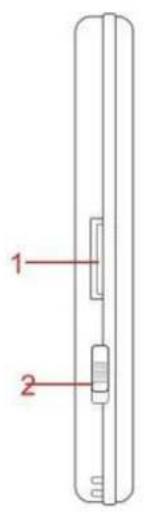
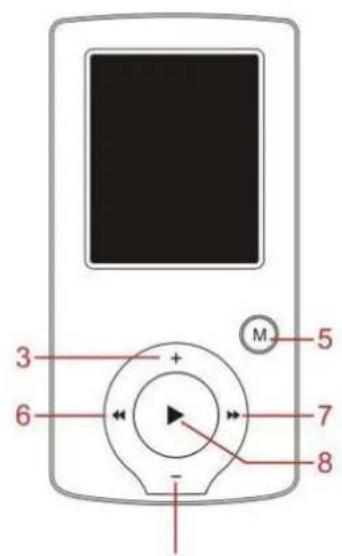
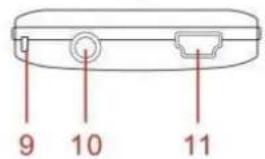
- Micro SD Card slot
- ON/OFF power switch
- VOL+
- VOL-
- Enter menu and exit sub-menu, confirm selection (under any status, hold [MENU] and you will enter main menu)
- Previous/ Back
- Next/Forward
- Play/Pause, Power ON/ OFF
- Hand strap hole (hand strap not included)
- Earphone socket
- USB socket
Basic Operation
Power on & Power off:
Power on: Hold the (play/stop) button for 3 seconds to switch the player on.
Power off: Hold the (play/stop) button for 3 seconds to turn the player off.
Please note: when the battery power is low, the device will power off automatically.
Adjust volume: With MP3 mode, AMV/AVI mode or Voice mode, press [VOL-] or [VOL+] to decrease/increase the volume in one step, or hold the [VOL-] or [VOL+] button to decrease/increase continuously.
Expansion Card:
Insert the TF card into the Micro SD card slot. The Card folder can be viewed in the menu. If not with the TF card, no card folder is available in the menu.
Charge/Connect/Disconnect from PC
Connect the device to your PC by USB Cable to use it as a Removable Disk.
To charge the device or disconnect the device, press "Menu button" under USB connected.
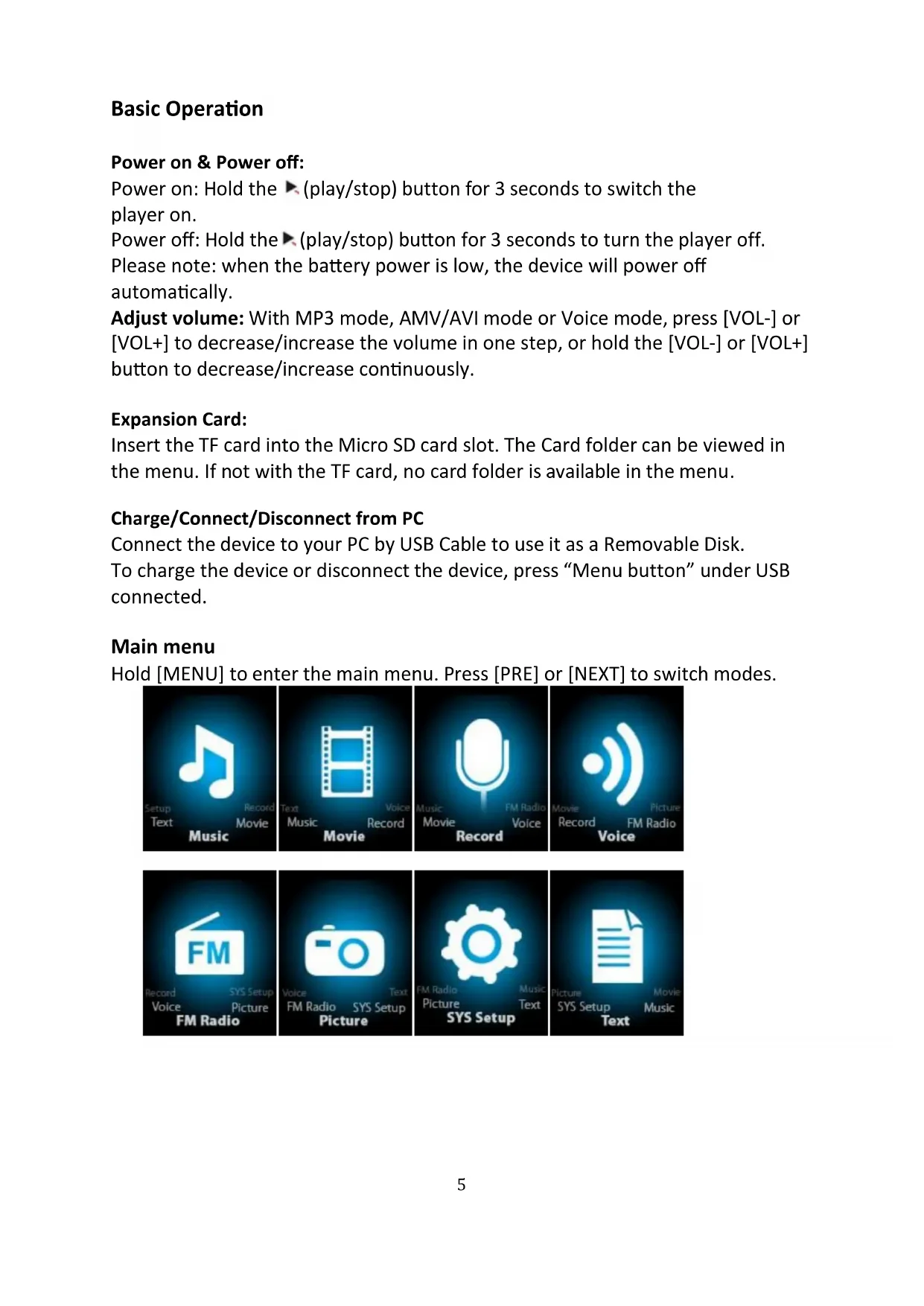
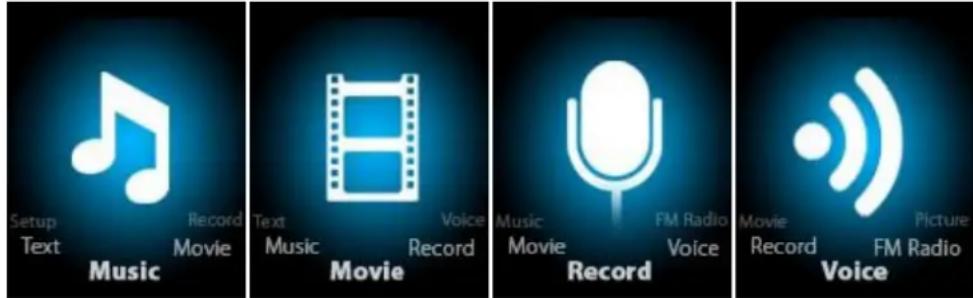
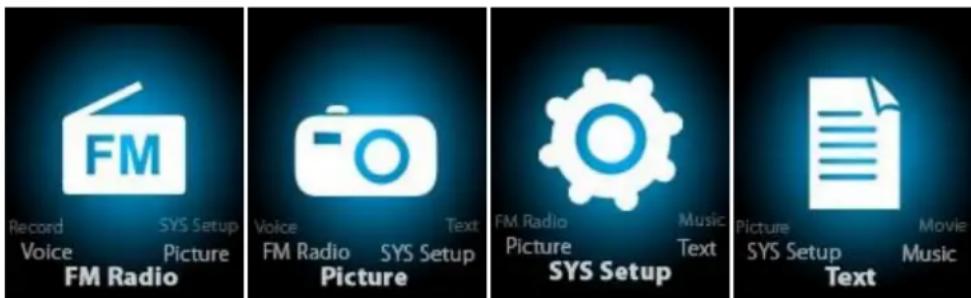
Main menu
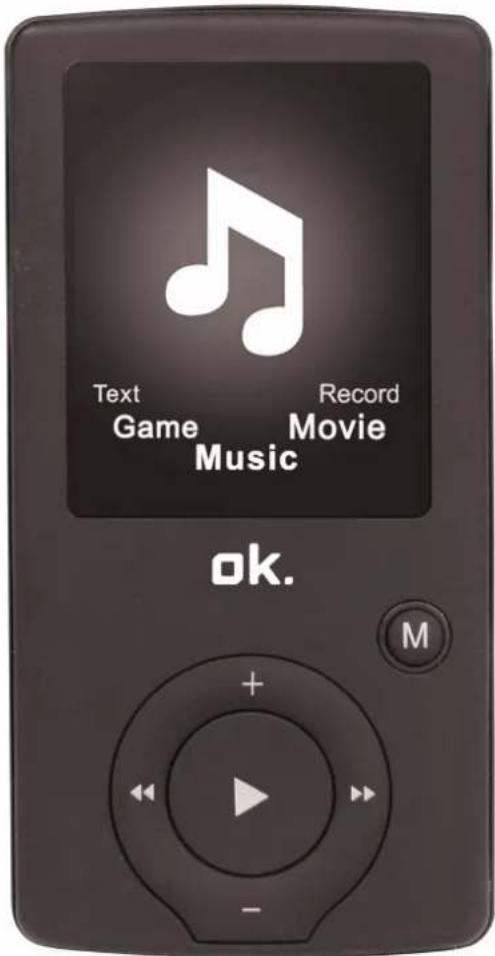
Hold [MENU] to enter the main menu. Press [PRE] or [NEXT] to switch modes.
Music
Select "Music" in the main menu
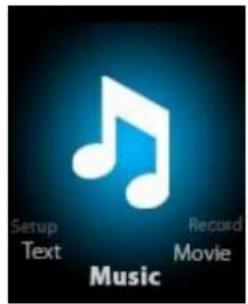
Press [MENU] to confirm your selection then press the PLAY/STOP [>II] button to play the song. Whilst the music is playing, press the [MENU] button to enter the sub-menu:
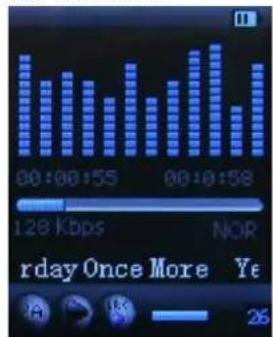
Select the MUSIC mode in the main menu, press [MENU] to confirm your selection and then press the PLAY/STOP [>II] button to play the song. Whilst music is playing, press the [MENU] button to enter the sub-menu:
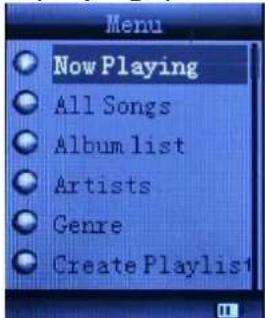
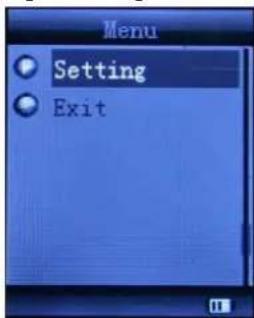
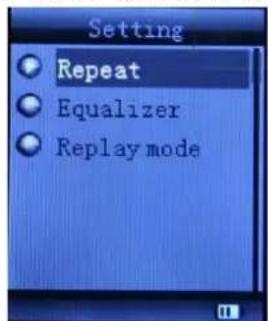
| All Songs | Display all the songs | ||
| Album list | Display the album | ||
| Artists | Display the singer of the song | ||
| Genre | Display the genre of the song | ||
| Create Playlist | Create a playlist | ||
| Setting | Repeat | Normal; Repeat one; Folder; Repeat Folder; Repeat All; Random; Intro. | |
| Equalizer | NATURAL, ROCK, POP, CLASSIC, SOFT, JAZZ, DBB | ||
| Replay mode | Replay | A-B repeat, when “A” in the icon blinks, press [NEXT] to confirm starting point, press [NEXT] to confirm “B” point. The player will replay from A to B according to the setting in the replay times. (Return | |
| to A-B replay mode by pressing the [PRE] button to such a status) | |||
| Replay times | Set how many times the A-B point should replay. The maximum is 10 times (1-10) | ||
| Replay gap | Set the replay time gap between each replay | ||
| Exit | Exit sub-menu | ||
This device supports the Lyrics display. To fully display the contents of the song, you must make sure that the name of the song under the music folder is exactly the same as the one under the LRC file. For example, if you put a "song.mp3" in the music folder; the same name "song.Irc" should be placed under the LRC file.
| Local folder | Indicate the folder of the file currently playing |
| Delete file | Delete the song currently playing |
| Delete All | Delete all songs |
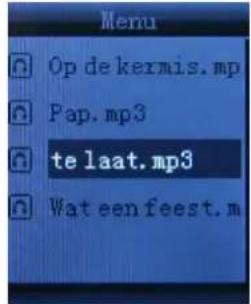
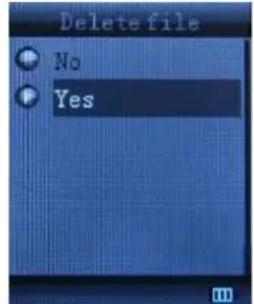
If you want to delete a song whilst it is playing, press [>ll] to stop playing, then press the Mode button). Select "Delete file", choose the file you want to delete, confirm "Delete", then the screen below will appear:
Movie
Select "Movie" in the main menu

Press [MENU] to confirm selection and then press the PLAY/STOP [>II] button to play the video. Whilst playing the video, Press the [MENU] button to enter the sub-menu.
This works the same as for Music.
Record Mode
Press the [MENU] button to select Record mode in the main menu, then press [MENU] again to enter into the recording sub-menu.
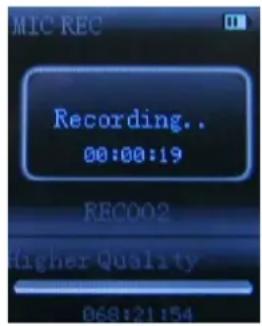
| Local folder | Indicate the folder of the file currently recording |
| REC type: | 32K BPS、64K BPS、128K BPS、256K BPS |
| Exit | Exit sub-menu |
After setting, press [>ll] to start recording. Only [>ll] (play/stop) and [MENU] can be used during recording. To start a new file recording, please press the [>ll] (play/stop) button briefly to save the file currently recording.
Please note that this device supports the storage of 99 voice recording files in each directory. If the screen displays "out of space", which indicates that the current directory has already saved 99 voice recording files, the user must switch to a new directory.
Voice
Press [PRE] or [NEXT] to select the Voice mode, then press [MENU] to confirm the selection and press [>II] to play the recording file.
Press the [>II] button to pause playback, then press the [PRE] or [NEXT] button to select recording files.
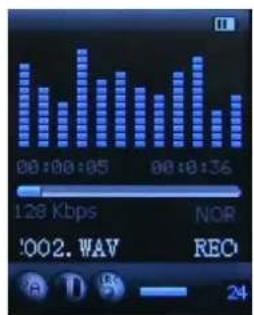
Sub-menu whilst device is playing:
| Repeat | Refers to “repeat” in music mode |
| Replay mode | Refers to “replay” in music mode |
| Exit | Exit sub-menu |
Sub-menu whilst device is stopped:
| Local folder | Indicate the folder of file currently recording |
| Delete | Delete recording song |
| Delete All | Delete all recording files |
| Exit | Exit sub-menu |
FM mode
Select the [PRE] or [NEXT] button to choose FM mode and press [MENU] to confirm.
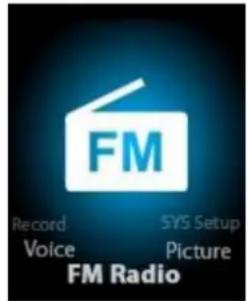
Press [>II] (play/stop) to save the channel. If no channel has been saved, you can search for channels by auto or manual searching. Press [MENU] again to bring up the sub-menu below:
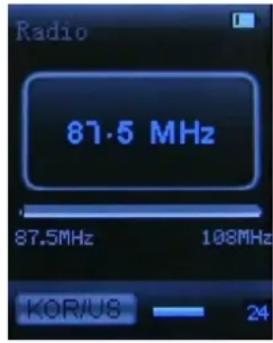
| Save | Save currently tuned frequency |
| Record | Record current pre-set channel |
| Delete | Delete current pre-set channel |
| Delete All | Delete all saved channels |
| Auto Search | Auto search FM channel |
| Normal Band | Frequencies from 87.5MHz-108MHz |
| Japanese Band | Frequencies from 76.5MHz-90MHz |
| Exit | Exit FM sub-menu |
Auto search: Holding the [PRE] button or [NEXT] button for two seconds will tune the frequency upward or downward until a radio station has been located. It will then stop automatically.
Manual search: press the [PRE] or [NEXT] button to search one channel upward or downward. Please note: Normal band and Japanese band can store 20 pre-set channels respectively.
Picture
Select the [PRE] or [NEXT] button to select Picture mode, then press [MENU] to confirm.
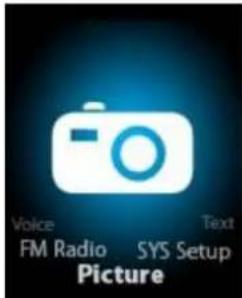
Press the [MENU] button again to enter the sub-menu:
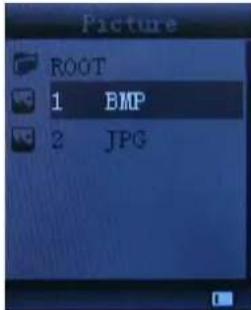
| Local folder | Select the folder where the picture is saved |
| Playback set | Manual play or auto play (there is a time gap for auto play from 1-10 seconds) |
| Delete file | Delete picture |
| Delete All | Delete all pictures |
| Exit | Exit sub-menu |
Press the [>II] (play/stop) button to display the picture automatically or manually according to previous play setting.
SYS Setup
Press the [PRE] or [NEXT] button to select SYS Setup, then press [MENU] to confirm.
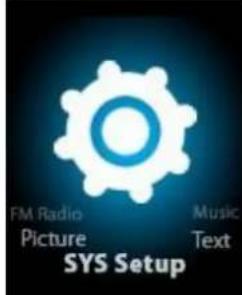
Press the [MENU] button again to enter the sub-menu:
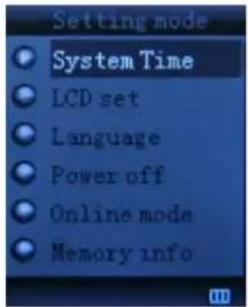
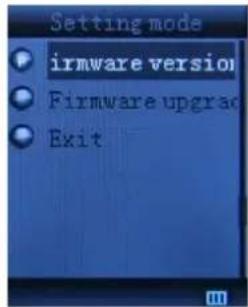
| Record time | Press [MENU] to edit the recording time. Press the [NEXT] button to increase the digit of the year; press the [VOL+] button to edit the next digit, press the [PRE] or [NEXT] button to adjust the digit. Press [MENU] to confirm the setting. |
| LCD set | Always lit 10 seconds 20 seconds 30 seconds |
| Language | Simple Chinese, English, Traditional Chinese, Japanese, French, German, Italian, Dutch, Portuguese, Spanish, Swedish, Czech, Danish, Polish etc. |
| Power off | Off time: set self-power off time when the player has stopped and no button is pressed. The time unit is seconds. 0 means the function is switched off. Sleep time: set self-power off time once the last key has been pressed, regardless of whether the player is active or has stopped. The time unit is minutes. |
| Online mode | Multi Drive; Normal only; Encrypted only |
| Memory info. | Check the memory size and the remaining memory |
| Firmware version | Display the player's version of firmware |
| Firmware upgrade | Firmware can be upgraded by connecting to PC |
| Exit | Exit sub-menu |
TEXT
Press the [PRE] or [NEXT] button to select Text, then press [MENU] to confirm.
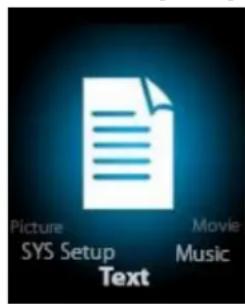
Enter TEXT mode by pressing the Mode button. The item can then be read and edited in the device. The device can only recognise the article in "txt." format. Press the [MENU] button again to enter the sub-menu:
| Local folder | Select the folder where the picture is saved |
| Playback set | Manual play or auto play (there is a time gap for auto play from 1-10 seconds) |
| Delete file | Delete picture |
| Delete all | Delete all pictures |
| Exit | Exit sub-menu |
Video Conversion Tool
Please follow the steps below to install the video conversion tool.
Unzip the "Video Conversion Tool .rar" which is stored in the device's internal memory. Click on Run Setup.exe to start the installation process. If you find a tool named "AMV/AVI convert tool", click and open it. A window will then appear. Choose the file you want to convert, then choose the folder you want to put the new converted file in. It is then OK to click "start converting".
Video Conversion Steps
1) Unzip the file, double click the Setup.exe and install it.
2) Double click the Amvtransform.exe.
folder: Program Files\Media Player Utilities 4.41\AMVConverter)
3) The following should then appear:
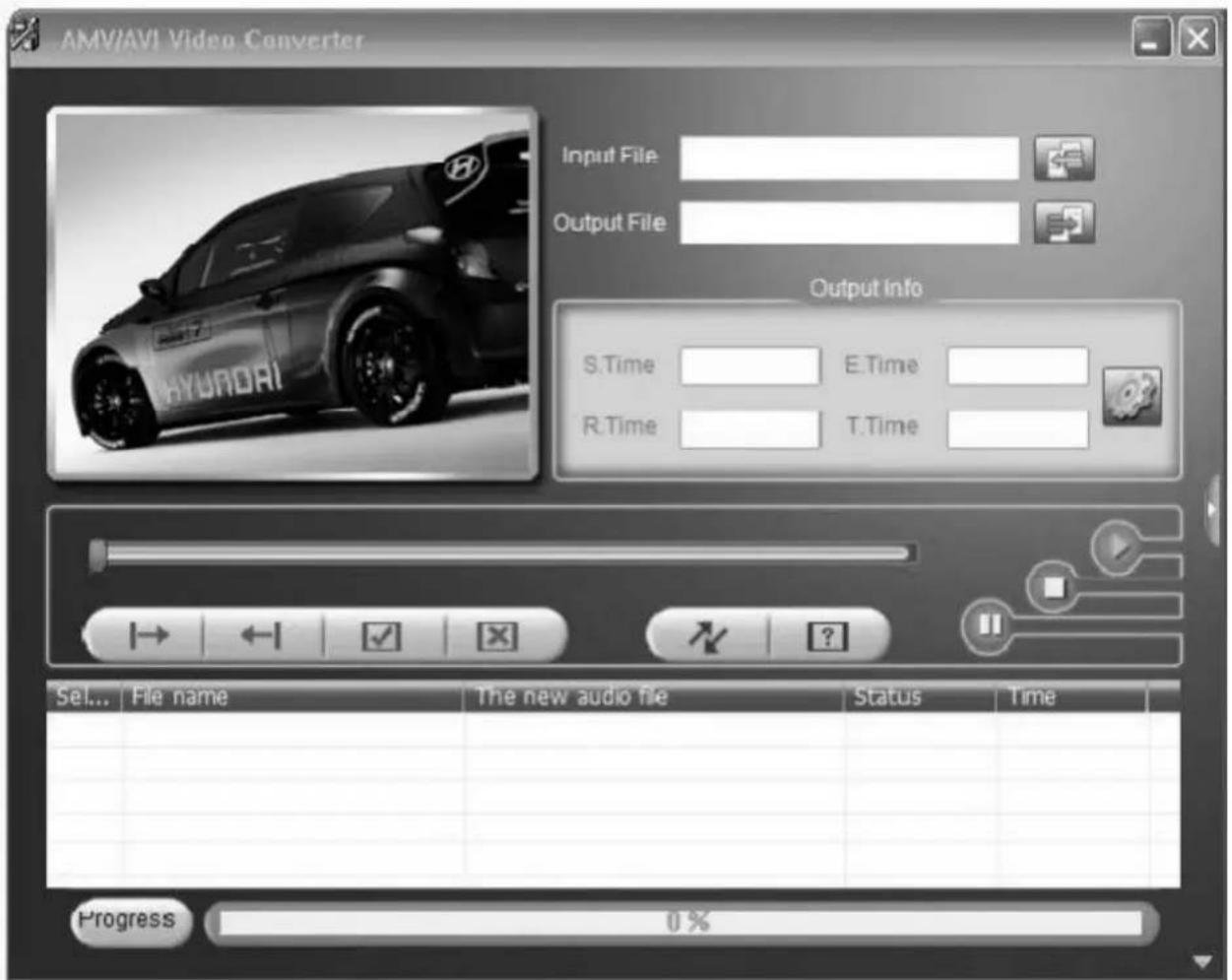
4) Click on the Input file and select the video which you need to convert.

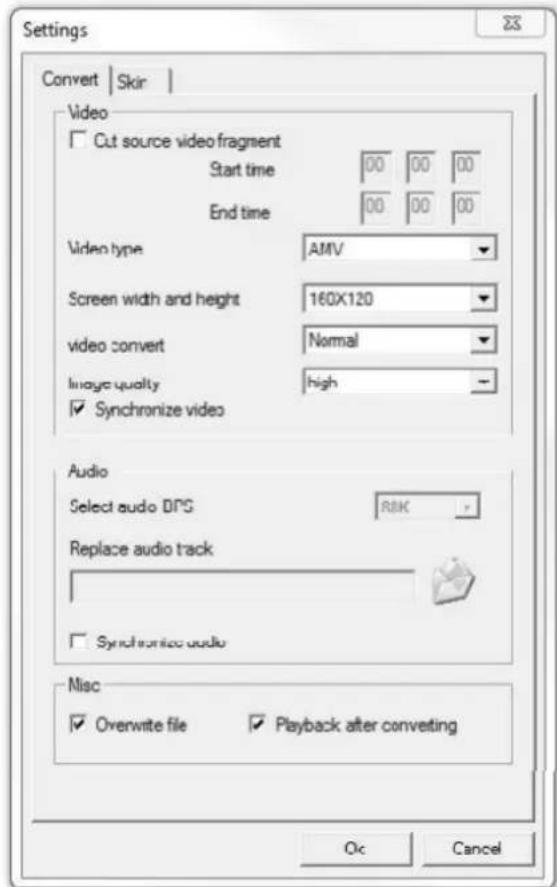
5) Click for settings. Select the AMV and the resolution 160x120.
6) Click for conversion.
Troubleshooting
| No power | Check battery level. |
| Recharge as per instructions in User Manual. | |
| Unable to locate or play files | Check that the file is in a compatible format. |
| Check to see whether the file is stored in a different directory. | |
| No music is heard in the earphones | Check the volume level. |
| Check the connection (earphone to the microphone jack). | |
| Check whether your music file is compatible with your MP3 player. | |
| Not charging | Check to make sure that your Digital Media Player is connected to a USB port on your computer. |
| Unable to download music | Check whether you have enough space on your Digital Media Player to download the music file. |
| Check to make sure that the USB cable is connected to the PC and to the Digital Media Player. | |
| Computer not recognising Digital Media Player | Check that the USB cable is connected to your computer properly. |
| Try plugging the USB cable into one of the back ports on your computer. |

OK OAP 3040-8
MANUEL D'INSTRUCTIONS
OK OAP 3040-8
LES DESSINS ET SPECIFICATIONS SONT SUJETTES À CHANGEMENT SANS
PREAVIS
Table des matieres
Charger/Connector/Déconnecter du PC
(dossier - Program Files\Media Player Utilities
4.41\AMVConverter)