
OAP 20404 - Mp3 player OK - Free user manual and instructions
Find the device manual for free OAP 20404 OK in PDF.



| Product type | MP3 Player |
| Brand | OK |
| Model | OAP 20404 |
| Dimensions | 83 x 28 x 12 mm |
| Power supply | Built-in 3.7V Li-polymer battery |
| Battery capacity | Not specified, charging time 4 h (10 h first 2 times) |
| Screen | Color LCD 128 x 64 pixels |
| Internal memory | 4 GB |
| Expandable memory | Micro-SD card up to 16 GB |
| Supported audio formats | MP3, WMA, WAV |
| Supported text formats | Text (ebook) and LRC lyrics |
| Main functions | Music playback, voice recording, FM radio (87.5-108 MHz), text reader, USB disk function |
| Equalizer | Jazz, Classic, Rock, Pop, Normal, Soft, DBB |
| FM radio | Normal band (87.5-108 MHz) and Japan band (76-90 MHz), up to 20 presets |
| Interface | USB 2.0 |
| Audio output | 3.5mm headphone jack, max output 10 mW + 10 mW (32 ohms) |
| Operating temperature | -5°C to 40°C |
| Available languages | Chinese, English, French, German, Italian, Dutch, Portuguese, Spanish, Swedish, etc. |
| Included accessories | User manual, earphones |
| Safety | Do not expose to more than 40°C, avoid humidity, do not disassemble, use moderate volume |
Frequently Asked Questions - OAP 20404 OK
User questions about OAP 20404 OK
0 question about this device. Answer the ones you know or ask your own.
Ask a new question about this device
Download the instructions for your Mp3 player in PDF format for free! Find your manual OAP 20404 - OK and take your electronic device back in hand. On this page are published all the documents necessary for the use of your device. OAP 20404 by OK.
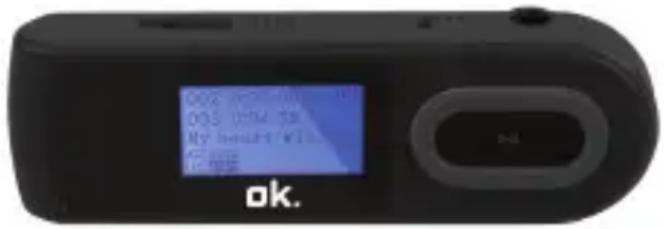
USER MANUAL OAP 20404 OK
DRAWINGS AND SPECIFICATIONS ARE SUBJECT TO CHANGE WITHOUT NOTICE.
Contents
Important safety instructions .... 3
Functionoverview....4
Buttons: 5
Basic operation....6
About battery....8
Main menu....9
Music mode....9
Record mode....11
FM mode....12
System mode (setting).... 14
TEXT mode 15
USB disk function....16
Troubleshooting....18
Specification....19
Support for Micro-SD card function 20
Important safety instructions
The manual contains important safety instructions and information on using the device properly. Make sure that you read all the instructions carefully and understand them in order to avoid accidents.
- Please do not expose the device to extreme temperatures (above 40^ C), especially in cars with closed windows during the summer.
- Please do not store in humid or dirty areas.
- Please take all necessary measures to prevent the device from falling and bumping.
- Please do not turn up the volume of the earphones too high whilst using the device. If you feel ringing in your ears, stop using the device or turn the volume down.
- Please do not dismantle the device by yourself and do not wipe the surface of the device using alcohol, benzene or thinners.
- Please do not use the device in areas where electronic devices are prohibited. It is recommended that you do not use the device when you are driving or walking in the street.
Function overview
- LCD-Display
- Integrated Micro SD card, support capacity up to 16GB
- Plays MP3 and WMA music format files
- Built-in Li-polymer battery
- Built-in digital voice recording function
- Product dimensions: 83 x 28 x 12 mm
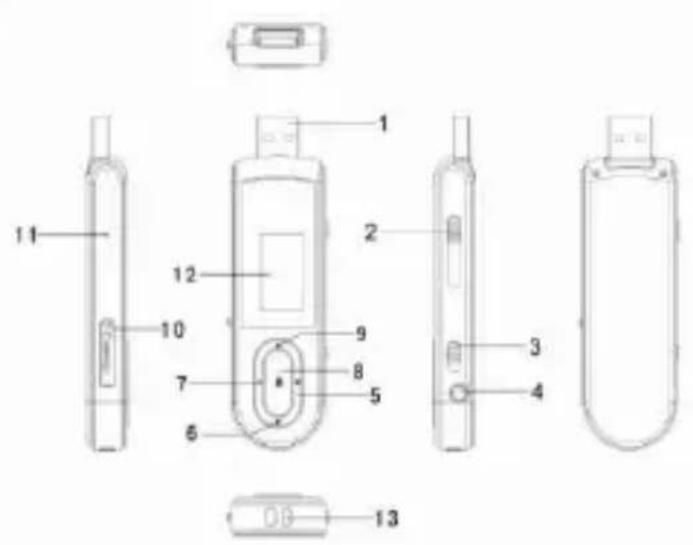
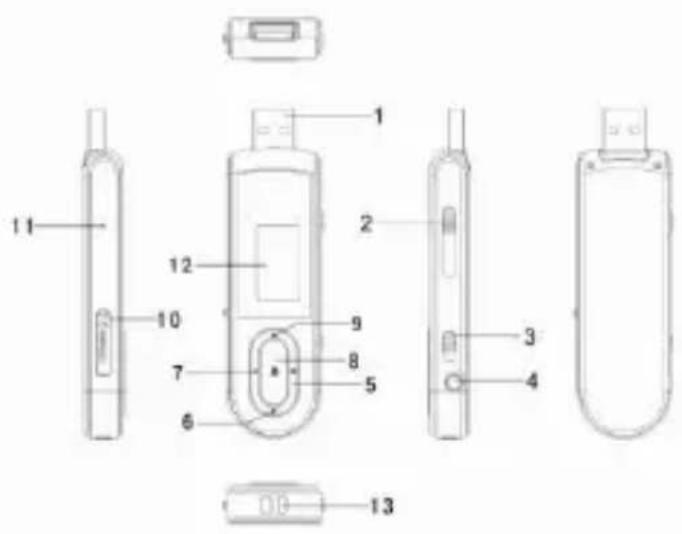
Buttons:
1: USB
2: USB push knob
3: Power ON/OFF
4: Earphone jack
5: Mode
6: Next
7: Volume
8: Play/Pause
9: Back
10: Micro SD card slot
11: MIC
12: LCD display
13: Strap hole
Basic operation
Power on:
Push the button to "ON" position to turn on the device. Press and hold the [▶] (play/stop) button for three seconds to turn off the device, then push the Power ON/OFF button to the "OFF" position.
Remarks: the "ON/OFF" position is for powering the battery completely on/off.
Power off:
a. In music mode: press the [▶II] (play/stop) button for one second, and the music will stop. Press and hold the [▶III] (play/stop) button for three seconds, and the player will be turned off.
b. In other modes: press and hold the [▶] (play/stop) button for three seconds, and the player will be turned off.
c. When the battery power is low, the system will power off automatically.
Adjusting volume:
To adjust the volume in music mode and voice mode, press the [] button to enter the volume adjustment interface.
Pressing the [▶] button or the [◀] button will increase/decrease the volume in a single step. Press and hold the [▶] button or the [[]] button will increase/decrease continuously.
Please note: do not turn the volume up too high when putting on the earphones, as this will impair your hearing.
About battery
The player has a large-capacity built-in Li-polymer battery.
If the battery power is low, the screen will display "low power", then will power off automatically. Recharge your battery by connecting to your PC via the USB port.
The screen will display the battery icon which pulsates when the battery is recharging. The icon will indicate full when completely recharged.
The battery will be full when charged continuously for 4 hours (the first two times will take 10 hrs.).
The running time of the battery depends on high or low volume, the format of the files playing, button operation etc.
The user can set [power-off setting] to save power.
Main menu
Press the [ ] button to enter into a subsidiary menu: press the [ ] button or the [ ] button to make your selection. Save setting: hold the [] button to save and exit from menu.
Music mode
Play/Stop Play: In music mode, connect the earphone to the player, then press the PLAY/STOP [▶] button to play or stop.
Select music: Pressing the [▶] button briefly will move to the next songs. Pressing the [◀] button briefly will move to the previous songs.
Music mode menu: In music play mode, pressing the [ ] button will enter the sub-menu. Press the [ ] button or the [ ] button to select the mode, then press the [ ] button to confirm your selection: Repeat, Equalizer, Replay, Replay times, Replay gap, Exit
Repeat mode: press the [ ] button and the [ ] button to select repeat mode. Normal, Repeat One, Folder, Repeat Folder, Repeat All, Random, Intro.
♦ Equalizer mode: JAZZ, CLASSIC, ROCK, POP, NORMAL, SOFT, DBB
Tempo rate: press the [▶] button and the [◀] button to select the tempo rate. Moving to a positive direction will speed up the tempo rate and moving to a negative direction will slow down the tempo rate. The digit "0" means normal tempo rate.
✿ Replay: A-B repeat, when "A" in the icon blinks, press [] to confirm the start point, then press [] as the "B" point. The player will replay from A to B according to the setting in the replay times.
Replay times: In the music play menu, press the [◀] button or the [▶] button to select the replay time. Then press the [■] button to confirm. Set how many times the A-B point should replay. The maximum is 10 times (1-10).
✨ Replay gap: Set replay time gap between each replay.
Lyric display: The user can download lyrics from the website and save them in the player with the same name of music.
Please note: The player displays the same lyric name as the MP3 file name. For example, if the music file name is "song.mp3", the LRC file name must be "song.lrc", and they should be in the same folder.
Record mode
In the player's main menu, press the [] button to confirm selecting record mode. Press the front [] Button to start/stop recording. Press the M button to save and exit.
Please note:
1) For fine recording, please record with a quiet background.
2) Please do not talk before recording and start recording in 5-6 seconds.
3) Make sure that the battery power and memory are sufficient.
4) The player supports storage for 99 voice recording files in each directory. If the screen displays “out of space”, which indicates that the current directory has already saved 99 voice recording files, the user must switch to a new directory.
5) During recording, only the front [▶] Button and the [M] button can be used.
FM mode
Under main menu, press the [] or the [] button to select FM mode and press [] to confirm. Press [] (play/stop) to save channel. If no channel is saved, you can search for channels by auto or manual searching. Press [ ] again to bring up a sub-menu as below:
| Save | Save currently tuned frequency |
| Record | Record current preset channel |
| Delete | Delete current preset channel |
| Delete All | Delete all saved channels |
| Auto Search | Auto search FM channel |
| Normal Band | Frequencies from 87.5MHz108MHz |
| Japanese Band | Frequencies from76MHz-90MHz |
| Exit | Exit from FM sub-menu |
Auto search: Holding the [] button or the [] button for two seconds will tune the frequency upward or downward until a radio station is located, then it will stop automatically.
Manual search: Press the [] or the [] button to search for channels one step upwards or downwards Please note: The Normal band and the Japanese band can each store 20 preset channels.
System mode (setting)
Press the [◀] button or the [▶] button to select [system], then press the [M] button briefly to edit.
| System Time | Press [] to edit the recording time. Press the [] button and the year digit will increase; press the [] button to edit the next digit; press the [] or the [] button to adjust the digit. Press [] to confirm the setting |
| LCD set | Always light, 10 sec, 20 sec, 30 sec |
| Language | Simple Chinese, English, Traditional Chinese, Japanese, French, German, Italian, Dutch, Portuguese, Spanish, Swedish, Czech, Danish, Polish etc. |
| Power off | Off time: set self-power off time when the player is stopped and no buttons are being pressed. The time unit is seconds. 0 means set the function off.Sleep time: set self-power off time after the last key has been pressed, regardless of whether the player is active or has been stopped. The time unit is minutes. |
| Memory info. | Check the memory size and the remaining memory |
| Firmware version | Display the player's version of firmware |
| Firmware upgrade | Firmware can be upgraded by connecting to a PC |
| Exit | Exit from the sub-menu |
TEXT mode
Press []to enter into TEXT menu. It will show as per Picture 1 on the screen. To read the e-book, press [] ▶▶▶▶▶▶▶▶▶▶▶▶▶▶▶▶▶▶▶▶▶▶▶▶▶▶▶▶▶▶▶▶▶▶▶▶▶▶▶▶▶▶▶▶▶▶▶▶▶▶▶▶▶▶▶▶▶▶▶▶▶▶▶▶▶▶▶▶▶▶▶▶▶▶▶▶▶▶▶▶▶▶▶▶▶▶▶▶▶▶▶▶▶▶▶▶▶▶▶▶▶>
1

natural_image
Blue gradient background with no visible text, symbols, or identifiable objects2

natural_image
Solid blue gradient background with no text, symbols, or discernible objects3

natural_image
Solid blue gradient background with no visible text, symbols, or objects4
USB disk function
1) The player can be also used as a mobile storage device; simply plug and play into your computer. Supports 1GB – 8GB memory. The player also supports charging via USB when connecting to a PC.
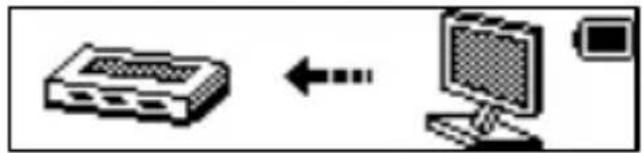
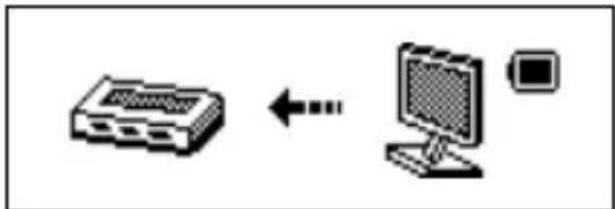
2) When connected to a computer, the screen will indicate three different modes whilst in operation:
suspending mode
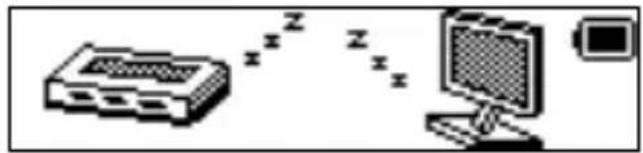
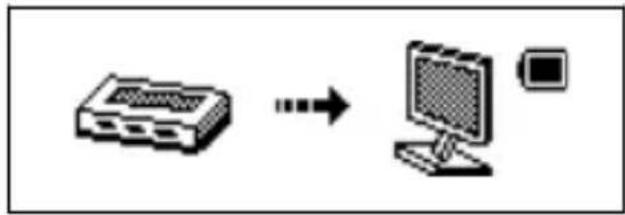
data downloading
If the player is unable to play properly, please use this troubleshooting guide to help you.
Q: The player cannot work
A: 1. Please check the voltage of the battery
-
Make sure that the power button is on
-
Please check whether the volume is set to "0" or not and make sure that the earphones are connected properly.
-
Damaged music data will make noise to some extent; make sure there are files in the player.
-
Choose the right FAT file system in consultation when formatting the disk.
Q: The player cannot upload/download files; no disk icon in computer
A: Please check that the USB cable is connected correctly.
Please re-install the CD driver properly if under Win 98
Q: The player cannot record
A: Please check whether memory is sufficient. Please check the battery voltage.
Q: Strange characters are displayed
A: Please check whether the correct language is selected.
Q: FM radio signal is not clear
A: Readjust the position between the player and the earphone; the earphone can be used as an antenna for receiving the signal
Specification
Dual colour LCD screen: 128x64 pixels
Operating language: Simplified Chinese, English, Traditional Chinese, Japanese, French, German, Italian, Dutch, Portuguese and Spanish etc.
USB Interface: USB2.0
File formats supported: Music: MP3, WMA, WAV; Record: WAV
FM frequency: 87.5MHz—108MHz
Maximum output power: (L) 10mW + (R) 10mW (320hm)
Built-in memory: 4GB
Power: 3.7 V Li-polymer battery
Operating temperature: -5^ 40^
Operating System: WINSE/ME/2K/XP, Mac OS 10, Linux2.4.2
Accessories: User Manual, Earphones
Support for Micro-SD card function
Plug and pull the Micro-SD Card:
Plug: Connect the Micro-SD Card to the device by inserting the card at its observing side to the device's socket. The MP4 player can play the files in the Micro-SD Card.
Pull: Push the Micro-SD Card to make the Micro-SD Card rebound a little. You will then be able to take it out.

REPRODUCTOR OK OAP 2040-4
Operaciones básicas
Encendido
MANUEL D'INSTRUCTIONS
LES DESSINS ET SPÉCIFICATIONS SONT SUJETTES À CHANGEMENT SANS PRÉAVIS.
Contenu
1: USB
2: USB push knob
3: Power ON/OFF
4: Earphone jack
5: Mode
6: Next
7: Volume
8: Play/Pause
9: Back
10: Micro SD card slot
11: MIC
12: LCD display
13: Strap hole
Algemene functies
Power on
1

2

3

4
USB disk functie
data downloading
flowchart
graph LR
    A["Input Device"] <--> B["Computer"]
data uploading
flowchart
graph LR
    A["Device"] --> B["Computer"]
Probleemoplossen
USB Interface: USB2.0