ICFSW07 - Radio SONY - Free user manual and instructions
Find the device manual for free ICFSW07 SONY in PDF.



| Product type | Radio |
| Brand | Sony |
| Model | ICF-SW07 |
| FM frequency range | 76 - 108 MHz |
| AM frequency range (SW/MW/LW) | SW: 1621-29999 kHz, MW: 530-1620 kHz, LW: 150-529 kHz |
| Tuning type | Quartz-locked PLL synthesizer |
| Tuning methods | Direct, manual, scan, preset, SW STATION CALL, MY memory |
| Preset memory | 20 stations (10 FM, 10 AM) + 100 frequencies in MY memory |
| Clock functions | World time clock with time zones, daylight saving time |
| Timer | Standby (2 memories) and sleep (60 min) |
| Power supply | 2 R6 (AA) batteries or AC adapter (supplied) or car battery (option) |
| Dimensions (W/H/D) | 135 x 32.5 x 91 mm |
| Weight | 220 g (without batteries), 257 g (with batteries) |
| Speaker | 40 mm diameter, 8 ohms |
| Max. output power | 200 mW |
| External antenna supplied | Active antenna AN-LP2 (shortwave) |
| Supplied accessories | Stereo headphones, earphones, AC adapter, plug adapter, AN-LP2 antenna, cases, wave guide |
| Maintenance | Clean with a soft dry cloth; avoid solvents; do not expose to rain or moisture |
| Safety | Do not open the case; refer servicing to qualified personnel; disconnect if an external antenna is used during a thunderstorm |
| Operating temperature | 0 °C to 40 °C |
| Repair / Spare parts | Consult a Sony dealer; SW STATION CALL ROM memory replaceable |
Frequently Asked Questions - ICFSW07 SONY
User questions about ICFSW07 SONY
0 question about this device. Answer the ones you know or ask your own.
Ask a new question about this device
Download the instructions for your Radio in PDF format for free! Find your manual ICFSW07 - SONY and take your electronic device back in hand. On this page are published all the documents necessary for the use of your device. ICFSW07 by SONY.
USER MANUAL ICFSW07 SONY
FM Stereo/SW/MW/LW PLL Synthesized Receiver
Operating Instructions
Mode d'emploi
The model and serial numbers are located at the bottom of the unit. Record the serial number in the space provided below. Refer to them whenever you call your Sony dealer regarding this product.
Model No. ICF-SW07
Serial No.
Warning
To prevent fire or shock hazard, do not expose the unit to rain or moisture.
To avoid electrical shock, do not open the cabinet.
Refer servicing to qualified personnel only.
For the customers in the U.S.A.
You are cautioned that any changes or modifications not expressly approved in this manual could void your authority to operate this equipment.
INFORMATION
This equipment has been tested and found to comply with the limits for a Class B digital device, pursuant to Part 15 of the FCC Rules. These limits are designed to provide reasonable protection against harmful interference in a residential installation. This equipment generates, uses, and can radiate radio frequency energy and, if not installed and used in accordance with the instructions, may cause harmful interference to radio communications. However, there is no guarantee that interference will not occur in a particular installation. If this equipment does cause harmful interference to radio or television reception, which can be determined by turning the equipment off and on, the user is encouraged to try to correct the interference by one or more of the following measures:
— Reorient or relocate the receiving antenna.
— Increase the separation between the equipment and receiver.
— Connect the equipment into an outlet on a circuit different from that to which the receiver is connected.
— Consult the dealer or an experienced radio/TV technician for help.
Features
• World clock feature
Find out the time for any place in the world by selecting a city name.
• Worldwide coverage with FM stereo/SW/MW/LW reception
Simple and precise tuning with the quartz controlled PLL (Phase Locked Loop) synthesizer system.
FM: 76–108 MHz
SW: 1621–29999 kHz
MW: 530–1620 kHz
LW: 150–529 kHz
Refer to the supplied "Wave Handbook" for more information.
• SW STATION CALL tuning
Tune in to major short wave stations just by pressing the station buttons. The radio automatically chooses the frequencies used in your time zone from the ROM data and scans for them.
- MY-Memory tuning
Memorizes and scans up to 100 frequencies of your choice.
- Four other tuning methods to suit your needs
- Direct tuning: tune in by inputting the frequency digits directly.
- Manual tuning: tune in by manually changing the frequency step by step.
- Scan tuning: scans automatically through the band and stops at reception.
– Preset tuning: tune in by recalling a preset broadcast station with the single press of a button.
- Label editing
Label preset frequencies, time zones, etc., with a station name, city name, etc., or any combination of up to 6 alphanumeric letters.
• Built-in timer operation
Turns on the radio automatically at any preset time to a station of your choice. Preset two individual standby-times and frequencies under STANDBY MEMORY a and b.
- Sleep timer
Set the sleep timer and fall asleep to the radio. The timer turns off the radio automatically after approximately 60 minutes.
- Stereo FM reception
Use the supplied stereo headphones to enjoy stereo FM.
Table of contents
Preparation
Location of parts and controls 4
Power sources 9
Operating on batteries 9
Operating on house current......11
Operating on car battery .....11
Setting the clock....12
Setting the Local Time ....12
Finding out the time in other areas of the world ....14
Listening to the radio
Various ways of reception ....16
Direct tuning ....16
Manual tuning ....18
Scan tuning 20
Preset tuning 22
SW STATION CALL tuning ....24
MY-Memory tuning 27
Receiving SSB and CW Transmissions......30
Adjusting for optimum AM reception
—Synchronous detection ....31
Other operations
Using the supplied external antenna....32
Recording broadcasts....35
Editing labels....36
Using the timer 38
Waking up to the radio or buzzer — Standby function ....38
Falling asleep listening to the radio — Sleep timer....41
Using the hold function....42
Turning off the beep 43
Additional information
Precautions and maintenance......44
Troubleshooting 47
Specifications 49
Tips on radio waves 50
Location of parts and controls
Refer to the pages in the parentheses for details.
Front
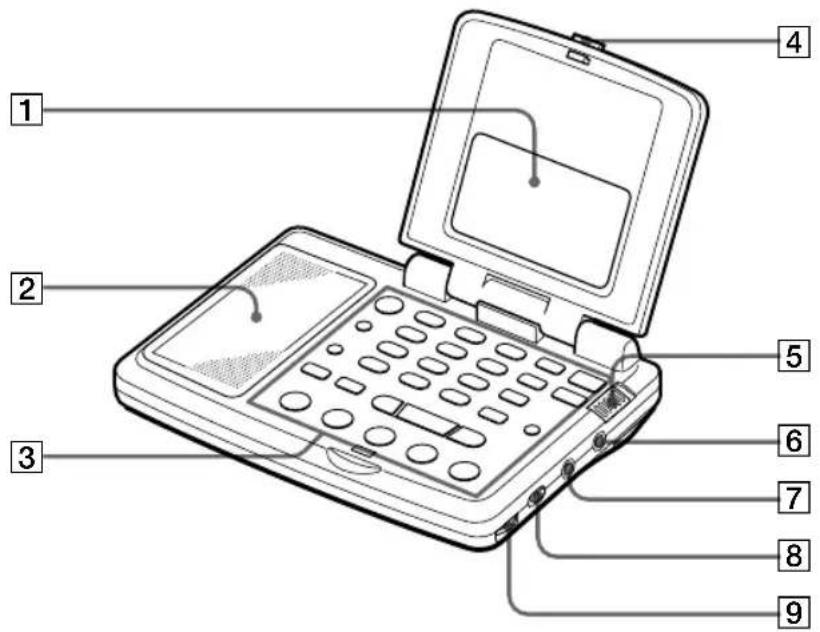
1 Display (7)
2 Speaker
3 Controls (6)
4 OPEN button (4)
5 HOLD switch (42)
6 Ⓞ (headphones) jack
7 LINE OUT (recording output) jack (35)
8 TONE/ST•MONO (stereo•monaural) selector (17)
9 VOL (volume) control (17)
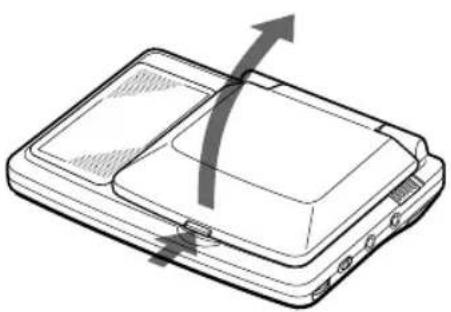
Opening the cover
Push the OPEN button to open the cover. Adjust the angle to your choice.
natural_image
Diagram of a device with an arrow indicating direction, showing internal components and a scroll (no text or symbols)Rear
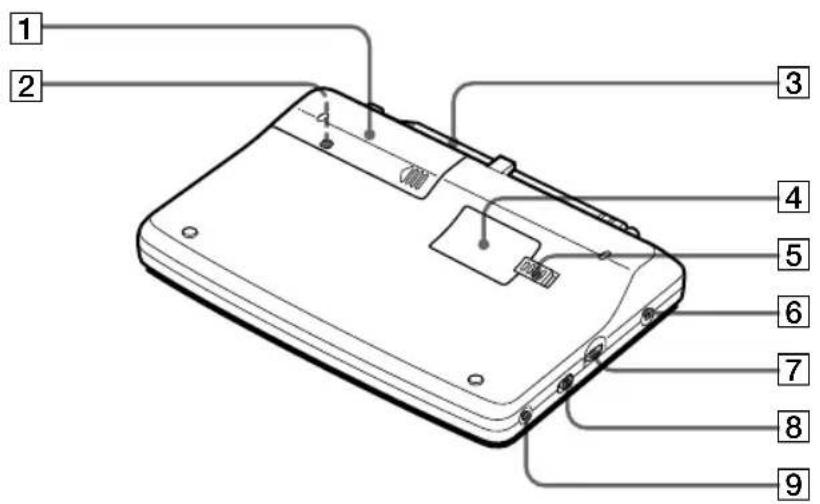
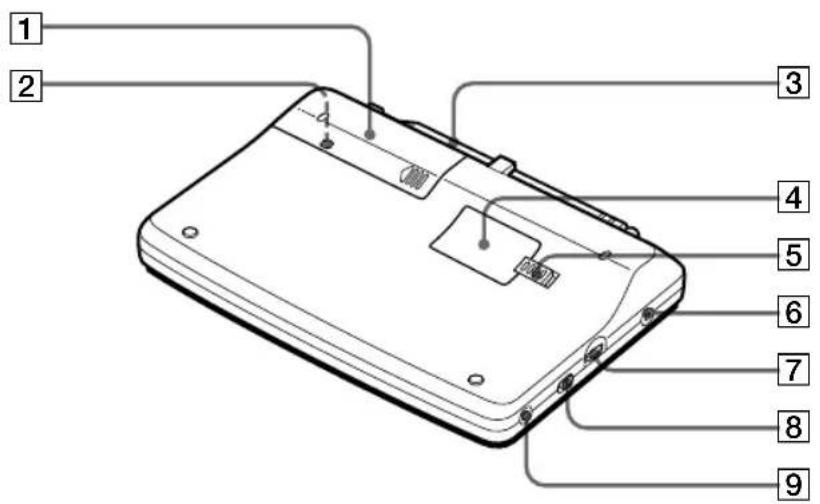
① Battery compartment (9)
② RESET button
Press this button in the battery compartment with a pointed object when the radio fails to function properly. The clock settings, etc., will revert to the factory preset. The frequencies you have preset in the memory are retained.
3 Telescopic antenna (17)
4 ROM compartment lid (46)
5 RELEASE (ROM compartment lid slide open) switch (46)
6 DC IN 3V ◇◎(external power input) jack (11)
7 ATT (attenuator) control (21)
8 ATT ON•OFF
(attenuator on•off)
selector (21)
9 AM EXT ANT (external antenna) jack (33)
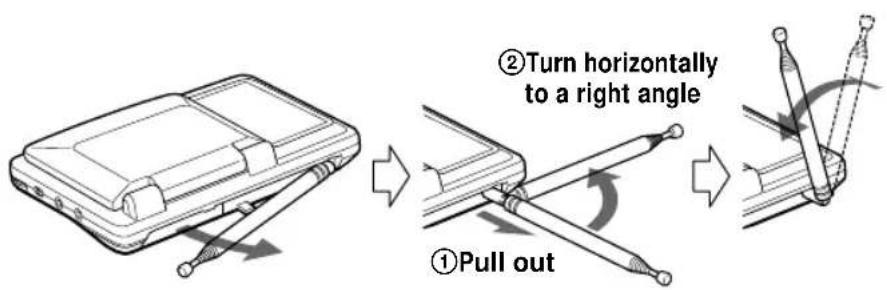
Extending the antenna
Gently pull out the base of the antenna before rotating it, as shown below.
Controls
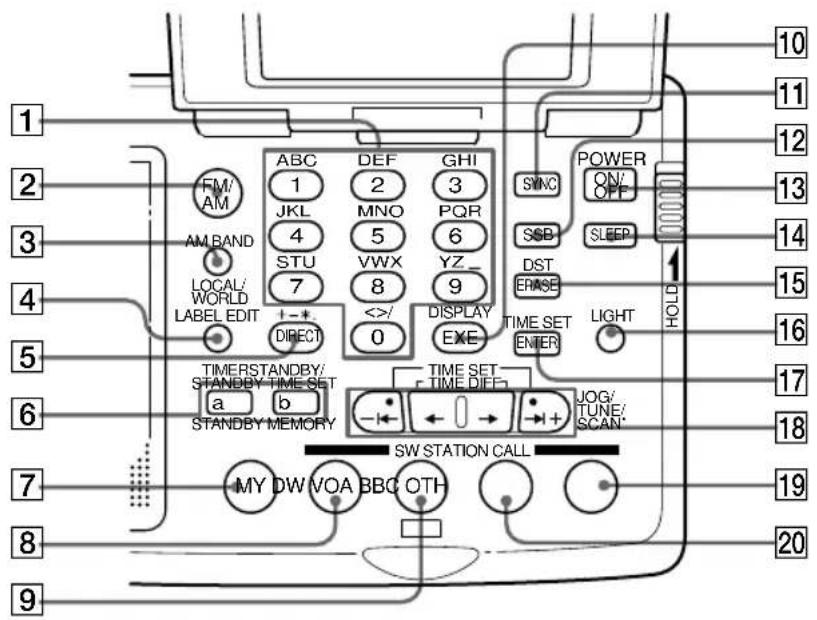
1 Number buttons (16, 22, 36)
2 FM/AM button (16, 43)
3 AM BAND•LOCAL/WORLD (local time/world time) button (14, 18)
4 LABEL EDIT button (36)
5 DIRECT button (16)
6 STANDBY
MEMORY•TIMER
STANDBY/STANDBY
TIMESET button (38)
7 MY button (27)
8 DW button (24)
9 VOA button (24)
10 EXE•DISPLAY button (13, 16, 36)
Press to switch to clock display while operating the radio. Press again to return to the previous display. If you do not press the button, the display will return to the previous condition in about 10 seconds.
11 SYNC (Synchronous detection) button (31)
12 SSB (Single Side Band) button (30)
13 POWER ON/OFF button (16)
14 SLEEP button (41)
15 ERASE•DST (Daylight Saving Time) button (12, 23, 29 40)
16 LIGHT button
Press this button to
illuminate the display for
approximately 30
seconds.
17 ENTER•TIME SET button (12, 22, 27, 38)
18 JOG/TUNE/
SCAN•TIME DIFF/TIME
SET buttons (12, 18, 20)
19 OTH (others) button (25)
20 BBC button (24)
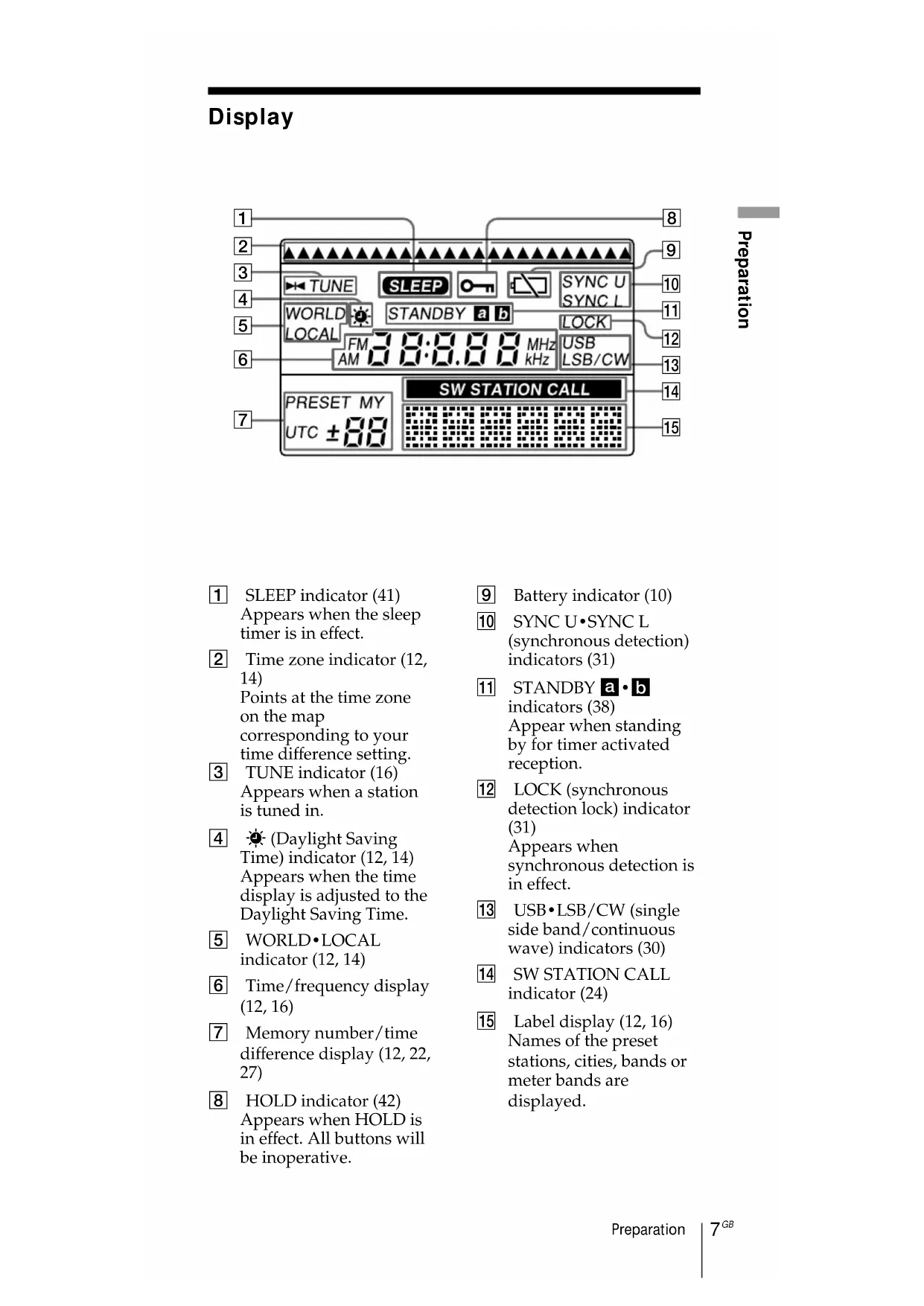
Display
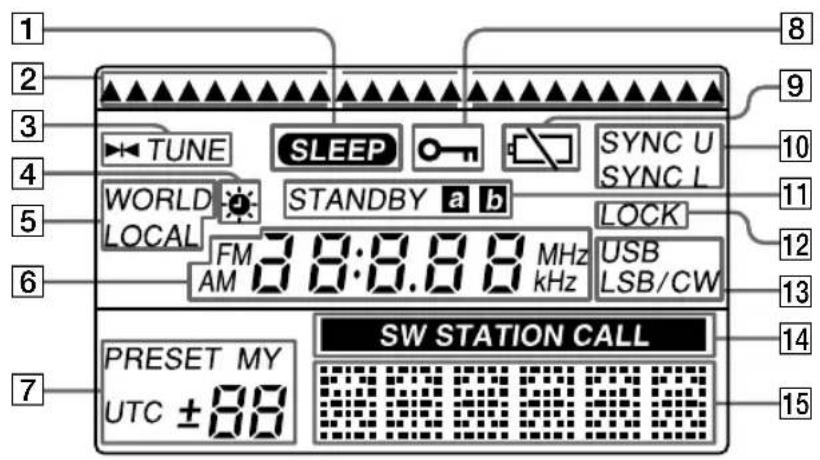
1 SLEEP indicator (41) Appears when the sleep timer is in effect.
② Time zone indicator (12, 14)
Points at the time zone on the map
corresponding to your time difference setting.
3 TUNE indicator (16) Appears when a station is tuned in.
4 (Daylight Saving Time) indicator (12, 14) Appears when the time display is adjusted to the Daylight Saving Time.
5 WORLD•LOCAL indicator (12, 14)
6 Time/frequency display (12, 16)
7 Memory number/time difference display (12, 22, 27)
8 HOLD indicator (42) Appears when HOLD is in effect. All buttons will be inoperative.
9 Battery indicator (10)
10 SYNC U·SYNC L (synchronous detection) indicators (31)
11 STANDBY a·b indicators (38)
Appear when standing by for timer activated reception.
12 LOCK (synchronous detection lock) indicator (31)
Appears when synchronous detection is in effect.
13 USB•LSB/CW (single side band/continuous wave) indicators (30)
14 SW STATION CALL indicator (24)
15 Label display (12, 16) Names of the preset stations, cities, bands or meter bands are displayed.
Short wave active antenna AN-LP2
Refer to page 32 on how to use the active antenna.
Antenna controller
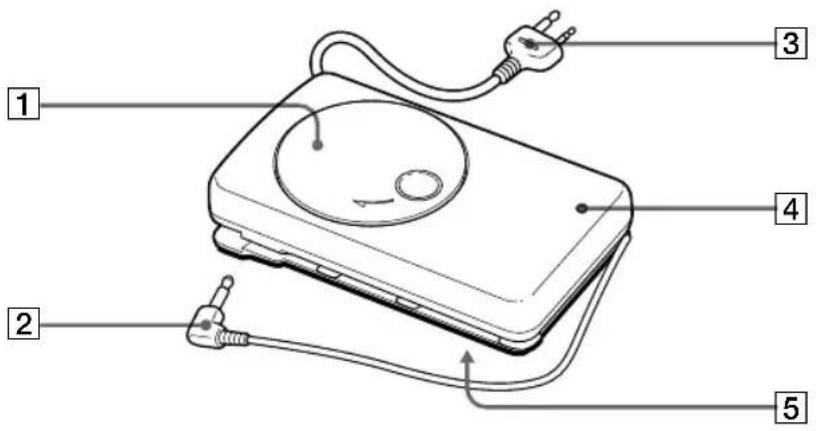
1 Cord winder
2 Short cord
3 Long cord
4 Power lamp
5 Battery compartment
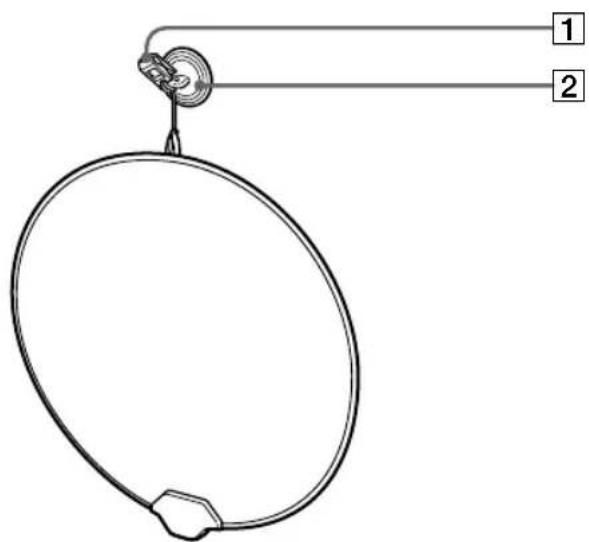
Antenna module
natural_image
Simple line drawing of a circular object with two labeled parts (1 and 2), no text or symbols present.1 Clip
2 Suction cup
Power sources
Operating on batteries
To operate the unit on house current, see "Operating on house current", page 11.
To operate the unit on a car battery, see "Operating on car battery", page 11.
1 Slide and open the battery compartment lid.
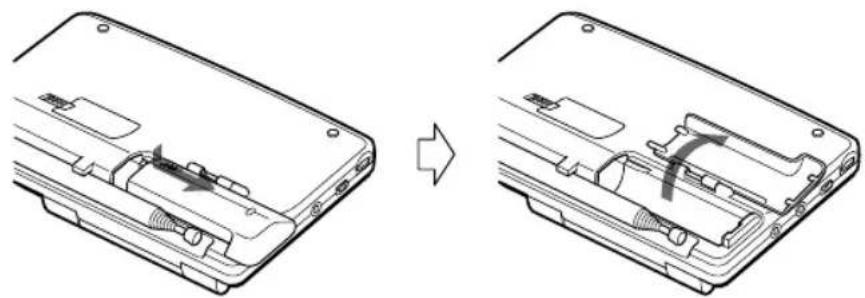
natural_image
Diagram showing the internal structure of a device before and after assembly, with no visible text or symbols.2 Insert two R6 (size AA) batteries in the battery compartment.
Insert with correct polarity as shown.
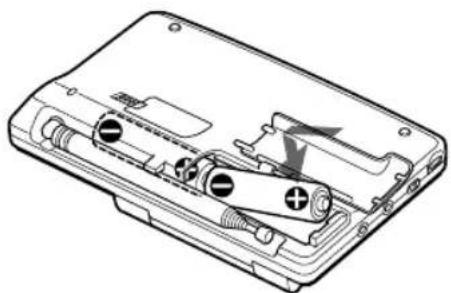
natural_image
Technical line drawing of a battery pack with internal components and a lightning bolt indicating a lightning (no text or symbols present)3 Close the battery compartment lid.
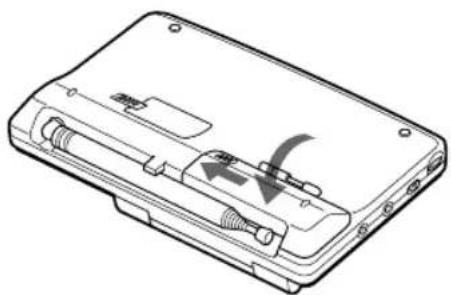
natural_image
Technical line drawing of a device casing with internal components and mounting holes (no text or symbols)Replacing the batteries
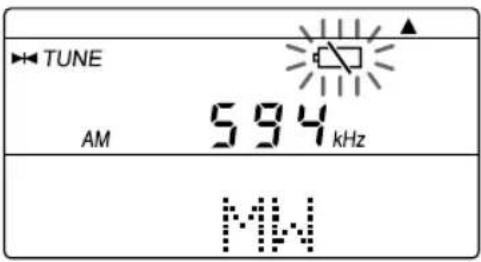
The sound will be distorted and “☐” will flash in the display when the batteries become weak. Replace both batteries with new ones.
Battery Life
| Sony LR6 alkaline (size AA) Sony R6 (size AA) |
| FM approx. 32 hours approx. 10 hours |
| AM approx. 23 hours approx. 8 hours |
Tips
- Replace the batteries within 3 minutes. Otherwise, the clock setting will be erased. Frequencies preset in the memory are not erased.
- When the batteries are completely exhausted, the power turns off, and "◀" stops flashing and lights up in the display. All buttons except the LIGHT button will become inoperable.
The buttons will not become operable again until you replace the batteries and press POWER ON/OFF to turn on the power and clear the “☐” indication.
Notes on dry batteries
- Insert the batteries with the correct polarity.
- Do not mix new and used batteries. Do not mix different types of batteries.
- Do not try to charge dry batteries, as they cannot be charged.
- Remove the batteries when the unit is not to be used for a long time.
- Should any battery leakage occur, wipe the battery compartment thoroughly before installing new batteries.
Operating on house current
To operate the unit on house current, connect the supplied AC power adaptor to the DC IN 3V jack of the unit.
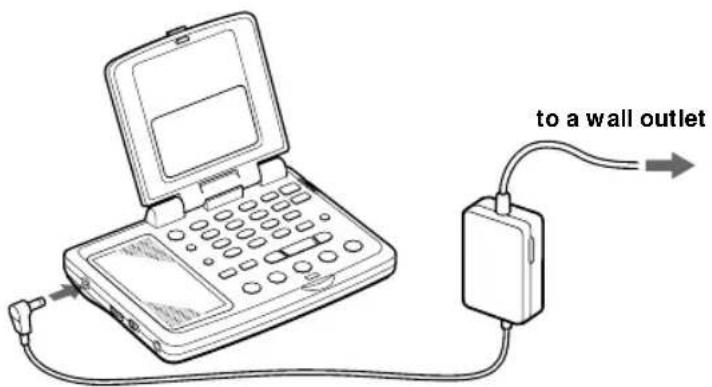
to the DC IN 3V jack
Notes on the AC power adaptor
- Do not bend or twist the power cord forcibly. Do not place heavy objects on the power cord.
- When disconnecting the AC power adaptor from the wall outlet, pull out by the plug. Do not pull the cord itself.
- Disconnect the AC power adaptor from the wall outlet and the radio when the unit is not to be used for a long period of time.
- Do not use the supplied AC power adaptor outside the AC 120V region (USA model only).
Tip
When the AC power adaptor or the car battery cord is plugged into the DC IN 3V jack, the batteries are disconnected, and the unit automatically switches to external power source.
Operating on car battery
To operate the unit on car batteries, connect a recommended Sony car battery cord to the DC IN 3V jack of the unit. Refer to its Operating Instructions for details.
Notes on external power sources
- Keep the batteries installed even when operating on external power, as they supply power for the unit's memory backup. Replace the batteries once a year.
- Turn off the unit when connecting or disconnecting external power sources. Otherwise, the power may go off and “☐” may appear. In this case, turn on the power again to clear the “☐” indication.
- When operating the unit on batteries, first disconnect the AC power adaptor or the car battery cord from the wall outlet or car battery, then disconnect the AC power adaptor or the car battery cord from the DC IN 3V jack of the unit. The unit will not run on batteries as long as the DC IN 3V jack is plugged in.
- Use only the recommended AC power adaptor or car battery cord manufactured by Sony. Using AC power adaptors or car battery cords with different specifications (polarity of the plug, etc.) will result in malfunction and damage to the unit.
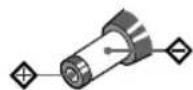
Polarity of the plug
- Use the supplied AC plug adaptor* if the AC power adaptor plug does not match your wall outlet.
* Not supplied for models for certain countries. See "Specifications".
Setting the clock
Setting the Local Time
Set the clock if "0:00" flashes in the display (i.e., when you installed the batteries for the first time or after you reset the clock). Set the clock with the radio turned off.
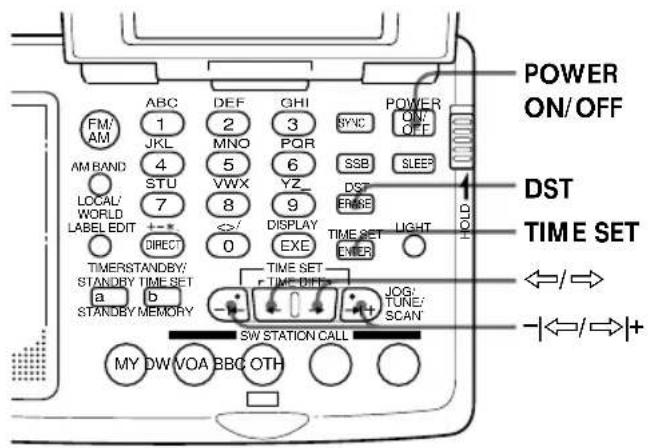
LOCAL time signifies the time for your time zone, while WORLD time is the time for any other time zone in the world.
Clock adjustment is done in LOCAL time. Before setting the clock, refer to the table on page 15 and check the time difference between your area and the UTC (Coordinated Universal Time). Names of major cities and their time differences from the UTC are preset in the unit's memory.
1 If the radio is turned on, press POWER ON/OFF to turn it off.
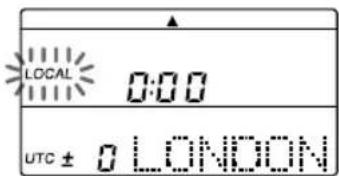
2 Hold down TIME SET and press ⇔ or ⇒ to choose a city or the time difference between your local time and the UTC.
When TIME SET is pressed, the clock display will automatically switch to LOCAL time if WORLD time had been displayed.
The LOCAL indication flashes. Each time you press or , the time zone indicator will move to the right or left.
When you release TIME SET, LOCAL indication will stop flashing and light up. Your local time zone has been sele
3 Press DST if your area is now under daylight saving time.
appears in the display.
If daylight saving time is not used in your area, or if ⚙ is already displayed, skip this step.
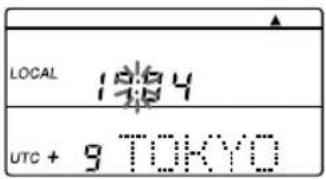
4 Hold down TIME SET and press I or I+ to set the local time.
Each time you press I or I^+ , the current time will decrease or increase by a minute.
To change the digits rapidly, hold down-1 ⇔ or ⇌ 1+.
5 Release TIME SET.
“:” starts flashing and the clock starts running.
To switch to clock display while the radio is turned on
Press EXE. The current time appears for about 10 seconds and then returns to the previous display. Press EXE again to return to the previous display manually.
The display will not switch to the clock while the radio is running scan.
For areas adopting daylight saving time (summer time)
Press DST to light up the ⚙ indication if you are now in the summer time period (step 3 in the previous page). If you are now in the standard time period, press DST at the beginning of the daylight saving time period. Press again at the end of the daylight saving time period to clear the indication. The time display will be adjusted accordingly.
Note
You cannot set the clock while listening to the radio. If the radio is on, press POWER ON/OFF first to turn off the radio.
Tips
• The clock is displayed in the 24 hour system.
- Press TIME SET to stop the flashing of "0:00".
- To adjust the time to the second, release TIME SET at the time of the tone.
Setting the clock (continued)
Finding out the time in other areas of the world
Besides your local time, you can display the time for any other area in the world (WORLD time). Turn off the radio to display the WORLD time.

1 If the radio is turned on, press POWER ON/OFF to turn it off.
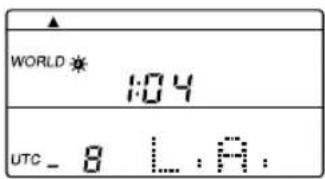
2 If the LOCAL indication is displayed, press LOCAL/WORLD to switch the indication to WORLD.
3 Press ⇔ or ⇒ to choose a city or the time difference with the UTC.
4 Press DST to light up the ⚙ indication if the specified area is now under daylight saving time.
If daylight saving time is not used in the desired area, or if ⚙ is already displayed, skip this step.
The current time for the area you have specified will appear in the display.
To switch back to the LOCAL time display
Press LOCAL/WORLD again.
If the desired city name or area name is not preset
Select the area by selecting the time difference with the UTC.
To edit the label (i.e., name of the city) for the time zone, see "Editing labels", page 36.
Time difference between local time and UTC
The table shows the time difference of each time zone with the UTC, which could be formulated as follows:
$$ \text { Time difference } = \text { Local time } ^ {*} - \text { UTC } $$
The number of hours marked with a plus sign (+) indicate the hours ahead of the UTC, while those marked with a minus sign (−) indicate the hours behind the UTC.
| Time difference | Label ** | City or area | Other cities in the area | Scan step |
| ± 0 LONDON London | 9 kHz | |||
| + 1 C.EURO Central | Europe Amsterdam, Berlin, Brussels,Lisbon, Madrid, Paris, Rome,Stockholm, Vienna, Zurich | |||
| + 2 CAIRO Cairo Athens, Istanbul | ||||
| + 3 JED DAH Jeddah | Nairobi, Riyadh, Moscow | |||
| + 4 DUBAI Dubai | ||||
| + 5 KARACH Karachi | ||||
| + 6 DHAKA Dhaka(Dacca) | ||||
| + 7 BNGKOK Bangkok Jakarta | ||||
| + 8 S.PORE Singapore Beijing, Hongkong | ||||
| + 9 TOKYO Tokyo Seoul | ||||
| + 10 SYDNEY Sydney Guam | ||||
| + 11 SOLMON Solomon Noumea | ||||
| + 12 AUKLND Auckland Fiji | ||||
| - 11 | SAMOA Samoa | |||
| - 10 | HAWAII Hawaii Honolulu, Tahiti | 10 kHz | ||
| - 9 | ANCHRG Anchorage | |||
| - 8 | L.A. Los Angeles San Francisco, Vancouver | |||
| - 7 | DENVER Denver Calgary | |||
| - 6 | CHICAG Chicago Dallas, Mexico City | |||
| - 5 | N.Y. New York Lima, Panama, Toronto | |||
| - 4 | CARACS Caracas Santiago | |||
| - 3 | RIO Rio de Janeiro Buenos Aires, San Paulo | |||
| - 2 | FN.ISL Fernando island | 9 kHz | ||
| - 1 | AZORES Azores Island | |||
* Local time prior to DST (daylight saving time) adjustment. The DST setting does not affect the time difference indication.
** Default labels. To change the labels, see "Editing labels", page 36.
Automatic adjustment of the MW channel step
A channel step is the basic interval unit in a frequency allocation system. The MW channel step differs from country to country (10 kHz for North and South American countries, and 9 kHz for Japan, Europe and other countries). Normally, the scanning or tuning steps needs to be adjusted to match the system for the area to scan or manually tune MW frequencies. This unit, however, determines your local area from your time zone setting (the time difference from the UTC) and automatically chooses the appropriate channel step.
Various ways of reception Direct tuning
If you know the frequency of the station you want to listen to, enter the frequency digits with the number buttons directly.
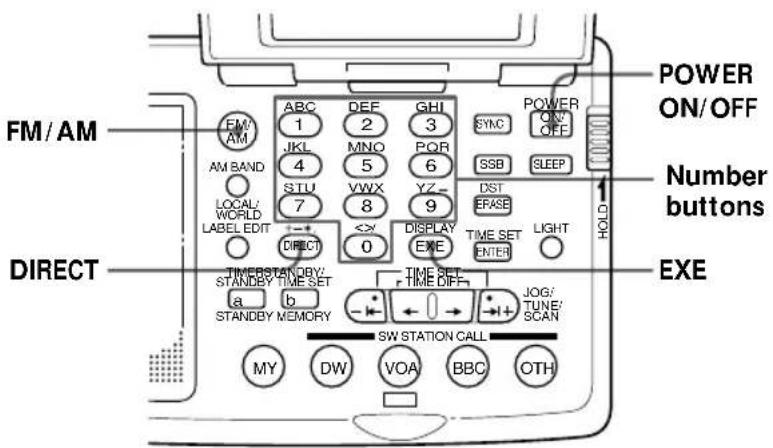
1 Press POWER ON/OFF to turn on the radio.
2 Press FM/AM to select either band.
To listen to SW (short wave), MW (medium wave) or LW (long wave) broadcasts, select AM.
3 Press DIRECT.
The frequency disappears and "DIRECT" appears in the display.
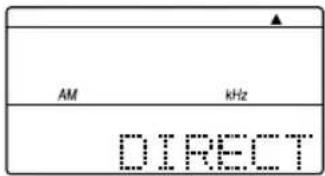
4 Press the number buttons and input the frequency of the desired station.
FM band: You can ignore the decimal point.
To enter 84.7 MHz, for example, press 8, 4 and 7.
AM band: You can ignore the last 3 digits if they are all zero.
To enter 10,000 kHz, for example, press 1 and 0.
Complete each button operation within 10 seconds.
The minimum frequency step for direct input is 0.05 MHz (50 kHz) for FM, and 1 kHz for AM.
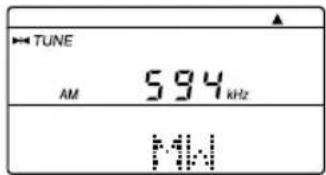
5 Press EXE to enter.
"▶◀ TUNE " appears in the display when the station is tuned in.
To correct input
Press DIRECT and repeat from step 3.
If "TRY" "AGAIN" appears in the display
When you enter an invalid frequency (i.e., a figure that is not within the frequency range of the band you chose), you will hear a beep and "TRY" "AGAIN" appears in the display.
Check the frequency and repeat from step 3.
Notes
- Complete each operation from step 3 to 5 within 10 seconds. If the display returns to the previously tuned frequency, repeat from step 3.
- The unit will not beep if the beep is set to BEEP OFF (see "Turning off the beep", page 43).
Other operations
| To Press or adjust | |
| Fine tune the reception | I , , , I+ |
| Adjust the volume VOL | |
| Turn off the radio* POWER ON/OFF | |
*The radio tunes to the previously tuned frequency when you turn on the radio.
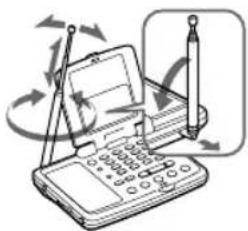
To improve reception
FM reception
Gently pull out the telescopic antenna and adjust the length, angle and direction (see "Extending the antenna", page 5).
MW/LW reception
Retract the telescopic antenna and rotate the unit to reorient the built-in ferrite bar antenna.
SW reception
Gently pull out the telescopic antenna vertically to its full length.
For SW reception, you can enjoy even better reception by using the supplied external antenna (see "Using the supplied external antenna", page 32).
natural_image
Illustration of a handheld device with rotating arrows and a pen, no text or symbols present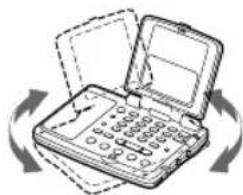
natural_image
Illustration of a closed electrical switch with internal components and rotating arrows indicating rotation (no text or symbols)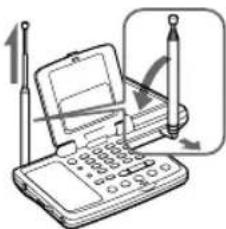
Tips
- Plug in the supplied stereo headphones to enjoy FM stereo reception. Set ST • MONO to ST or MONO to select stereo or monaural reception. Select MONO when reception is noisy or unclear.
- When listening to news programs, etc., set TONE to NEWS. Speaking voices will be heard clearer. When listening to music programs, set TONE to MUSIC.
- Reception of frequencies around 3.0MHz and 3.64 MHz may be difficult due to internal spurious signals generated by the built-in oscillators.
Various ways of reception (continued)
Manual tuning
Use I , I+ or , to change the frequency manually step by step. The outer buttons ( I and I+ ) change the frequency in large frequency steps, and the inner buttons ( and ) in small frequency steps.
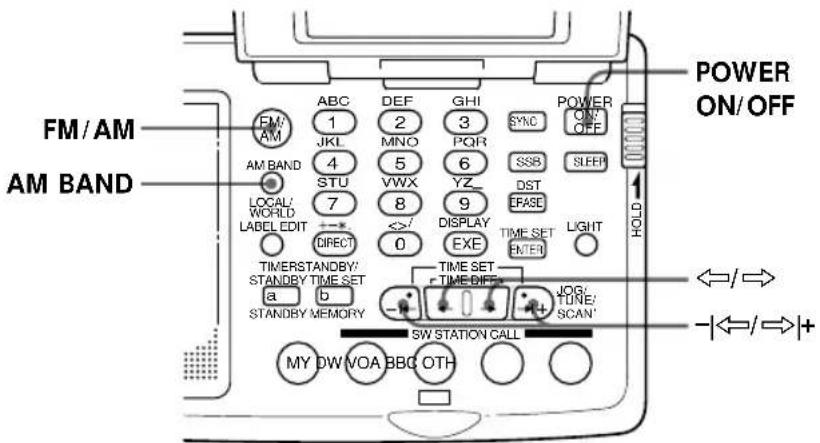
1 Press POWER ON/OFF to turn on the radio.
2 Press FM/AM to select either band.
To listen to SW, MW or LW broadcasts, select AM.
3 For the AM bands, hold down AM BAND and press -I ⇔ or I+ to select MW (medium wave), LW (long wave) or a meter band (short wave).
The name of the band or the meter band and its lowest frequency appears in the display.
For FM, skip this step.
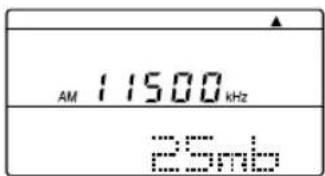
4 Press I, I+ or , repeatedly to tune in to the desired broadcast station.
With each press, the frequency changes in the channel steps shown below. (The figures in the parentheses indicate the steps in the SSB mode).
| Band | -|↔ or ⇌|+ | ↔ or ⇒ |
| FM 0.05 MHz 0.05 MHz | ||
| SW 5 kHz (1 kHz) 1 kHz (0.1 kHz**) | ||
| MW 9 or 10 kHz* (1 kHz) 1 kHz (0.1 kHz**) | ||
| LW 9 kHz (1 kHz) 1 kHz (0.1 kHz**) | ||
* The frequency step is adjusted automatically to your time zone according to your local time zone setting (see "Automatic adjustment of the MW channel step", page 15).
** Units of 0.1 kHz are not indicated in the display.
Tips
- The unit starts scan tuning when I or I+ is held down (see "Scan tuning", page 20).
- The frequency changes rapidly when or is held down, and stops when released. In the AM bands (MW, SW, and LW), the unit scans continuously in the range of 150 to 29,999kHz .
Frequency range of the bands/meter bands
The short wave range is divided into 14 bands that are generally referred to as “meter bands”.
(kHz for AM / MHz for FM)
| Band | Frequency Range can Frequency Range | Meter band | |
| AM | LW | 150–529 153–522 — | |
| MW | 530–1620 | 530–1620 *^{1}531–1620 *^{2}$ — | |
| SW | 1621–29999 | 2250–2550 120 meter band | |
| 3150–3450 90 meter band | |||
| 3850–4050 75 meter band | |||
| 4700–5100 60 meter band | |||
| 5900–6250 49 meter band | |||
| 7100–7400 41 meter band | |||
| 9400–10000 31 meter band | |||
| 11500–12150 25 meter band | |||
| 13500–13900 22 meter band | |||
| 15000–15700 19 meter band | |||
| 17450–18000 16 meter band | |||
| 18850–19100 15 meter band | |||
| 21450–21950 13 meter band | |||
| 25600–26100 11 meter band | |||
| FM | 76.00–108.00 76.00–108.00 — | ||
*1 10 kHz channel step (see page 15).
*2 9 kHz channel step (see page 15).
Note
The actual frequency range of short wave broadcasts and the range of the meter bands for this unit may differ. Refer to the supplied “Wave Handbook” for more information.
Various ways of reception (continued) Scan tuning
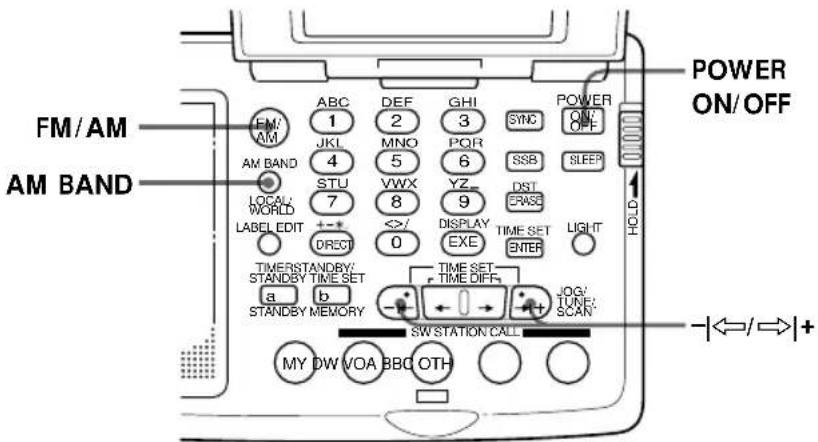
1 Press POWER ON/OFF to turn on the radio.
2 Press FM/AM to select either band.
To listen to SW, MW or LW broadcasts, select AM.
3 For AM bands, hold down AM BAND and press I or I+ to select MW (medium wave), LW (long wave) or a meter band (short wave).
The name of the band or the meter band and its lowest frequency appear in the display.
For FM, skip this step.
4 Hold down scanning. -I ⇔ or I+. Release when the unit starts
"SCAN" is displayed. The unit stops at each reception and resumes scanning after about 3 seconds.
The unit scans within the frequency range of the chosen band or meter band (see "Frequency range of the bands/meter bands", page 19). In the SSB reception mode, the unit scans the whole 150 to 29999 kHz frequency range.
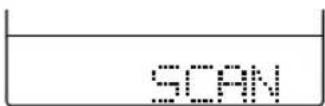
5 Press I or I+ to stop scanning and listen to the desired broadcast.
"SCAN" disappears and the name of the band appears in the display.
Tips
- The unit scans the frequencies in descending order when holding down I , and in ascending order when holding down I+ .
- To change the scanning direction, hold down either I or I+ opposite to the current direction. This is convenient when, for example, you want to return to the previous reception after the unit has resumed scanning.
- When scanning for MW broadcasts at night when reception is intense, or when scanning under prevalent interference, the unit may stop scanning to null broadcasts frequently. Switch ATT to ON and adjust sensitivity with the ATT Control (see "Controlling scan stops", below). Under normal conditions, set ATT to OFF.
Controlling scan stops — using the ATT switch and the ATT Control
Use the ATT (attenuator) switch and the ATT Control to control reception sensitivity when the unit stops scanning to null broadcasts frequently or when scanning under prevalent interference. Under normal conditions, use the radio with ATT set to OFF (i.e., with maximum sensitivity).
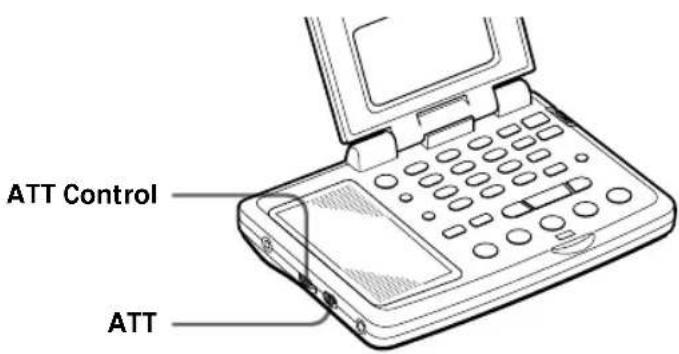
The ATT Control is activated when ATT is switched ON. Turn the ATT Control toward MAX to reduce sensitivity. The radio will skip weaker signals and stop at only stronger ones.
Note
If the ATT Control is turned too much toward MAX, the radio will not stop on any weaker signals at all. Switch ATT to OFF if you do not need to use the attenuator.
Various ways of reception (continued)
Preset tuning
You can preset a total of 20 stations of your choice to the number buttons (10 for FM and 10 for AM).
Presetting stations
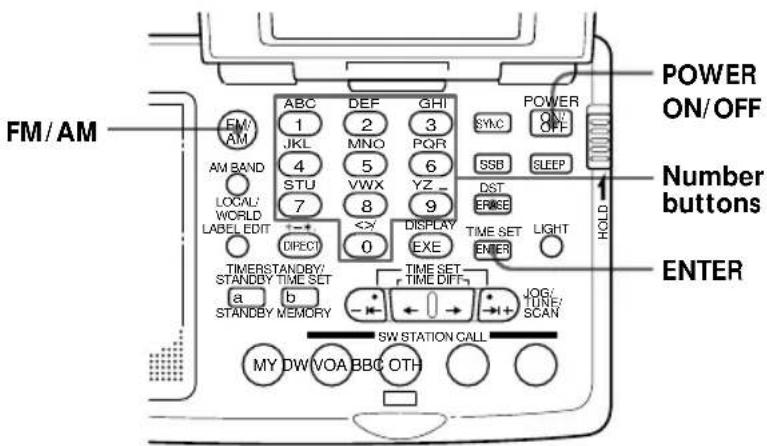
1 Press POWER ON/OFF to turn on the radio.
2 Tune in to the station you want to preset.
3 Hold down ENTER and press a number button (0–9) of your choice.
When ENTER is held down, "PRESET MY" will flash in the display.
A beep sounds when a number button is pressed. The station is stored to the selected button. The preset number and the preset label are displayed.
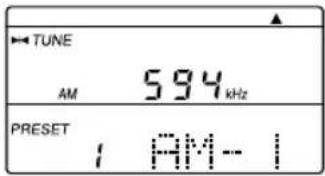
Note
If a station is already stored to the button you chose, it will be overwritten by the new preset. If the preset label had been edited, it will return to the default setting.
Default preset labels
Each time a station is preset, the preset key is assigned the default preset label as shown.
To change labels, see "Editing labels", page 36.
| Button AM FM |
| 1 AM-1 FM-1 |
| 2 AM-2 FM-2 |
| 3 AM-3 FM-3 |
| 4 AM-4 FM-4 |
| 5 AM-5 FM-5 |
| 6 AM-6 FM-6 |
| 7 AM-7 FM-7 |
| 8 AM-8 FM-8 |
| 9 AM-9 FM-9 |
| 0 AM-0 FM-0 |
Tuning in to a preset station
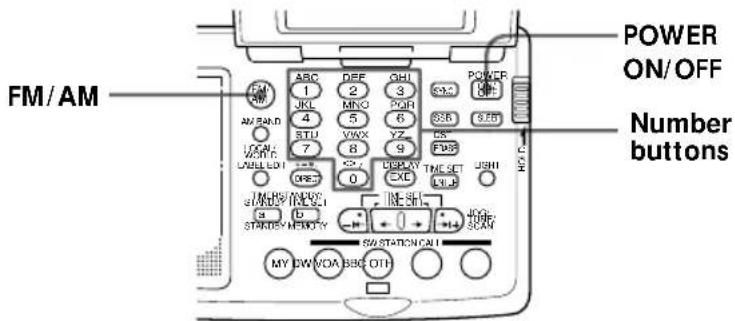
1 Press POWER ON/OFF to turn on the radio.
2 Press FM/AM to select either band.
3 Press a number button (0–9) of your choice. The radio receives the station assigned to the button.
If no station is preset
A beep sounds and "MEMORY" "EMPTY" appears in the display. Then the display will return to the previous condition.
Notes
- The radio may have frequencies stored in the preset memory at factory shipment.
- The unit will not beep if the beep is set to BEEP OFF (see "Turning off the beep", page 43).
Erasing a preset station
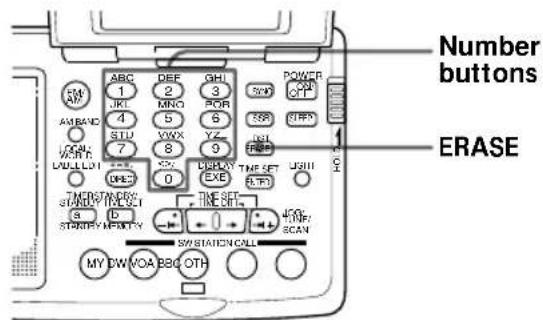
1 Press a number button (0–9) for the preset station you want to erase.
2 Hold down ERASE. The preset number flashes in the display while ERASE is held down. A beep sounds after 3 seconds and the station assigned to the button you chose is erased. The preset number and the preset label disappear.
Note
When a preset station is erased, any changes to its default label is erased as well.
Various ways of reception (continued)
SW STATION CALL tuning
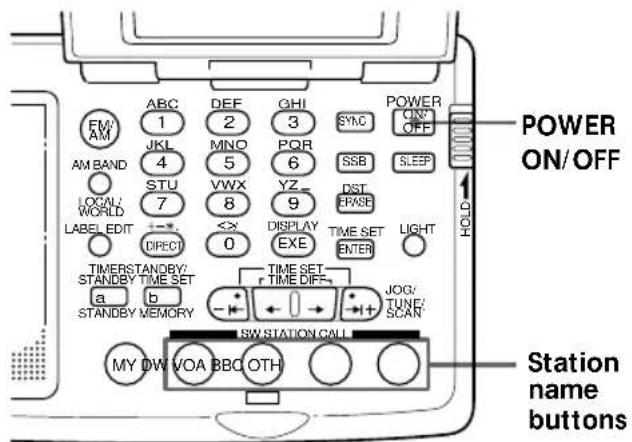
Tune in to major short wave stations by just pressing the station buttons: DW, VOA, BBC and OTH (others). The radio automatically chooses the frequencies used in your time zone from the SW STATION CALL ROM* encased at the bottom of the unit, scans for them, and stops scan at reception.
*ROM = Read Only Memory
1 Set the time zone to your area.
For LOCAL time, see "Setting the Local Time", page 12.
For WORLD time, see "Finding out the time in other areas of the world", page 14.
SW STATION CALL automatically selects only the frequencies that are receivable in the area corresponding to your time zone setting, regardless of LOCAL or WORLD time. Thus, it is crucial that you set the time zone properly to match your current location before using SW STATION CALL.
2 Press POWER ON/OFF to turn on the radio.
3 Press the station button of your choice.
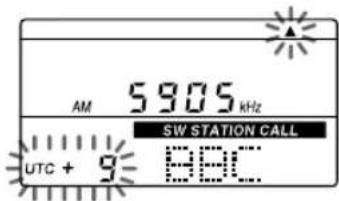
"SW STATION CALL", the station name and a frequency is displayed. The time difference from the UTC and the time zone indicator flash for about 3 seconds, and then light up. Confirm your time zone setting. The frequency actually displayed may be different from the illustration.
4 Press the same station button again.
The radio scans the frequencies for your area in ascending order, and stops at reception.
Press the button again to resume scanning.
To stop scanning
Press the same station button during scan.
To manually recall the selected frequencies one by one
Hold down the station button and press ⇔, ⇒ or ¬ ⇔, ⇒ |+.
The frequency changes quickly when -I or I^+ is held down, and stops when released.
Tip
When scanning at night when reception is intense, or when scanning under prevalent interference, the unit may stop scanning to null broadcasts frequently. Switch ATT to ON and adjust sensitivity with the ATT Control (see “Controlling scan stops”, page 21). Under normal conditions, set ATT to OFF.
Stations recalled by the SW STATION CALL station buttons
| Button Station and program |
| DW English and German programs of Deutsche Welle |
| VOA English programs of Voice of America |
| BBC English programs of British Broadcasting Corporation |
| OTH Choose one of the following*;R.NED – English and Dutch programs of Radio NederlandRFI – English and French programs of Radio France InternationalR.JPN – English and Japanese programs of Radio JapanREE – English and Spanish programs of Radio Exterior de EspañaCRI – English and Chinese programs of China Radio International |
* Selecting the station for the OTH button
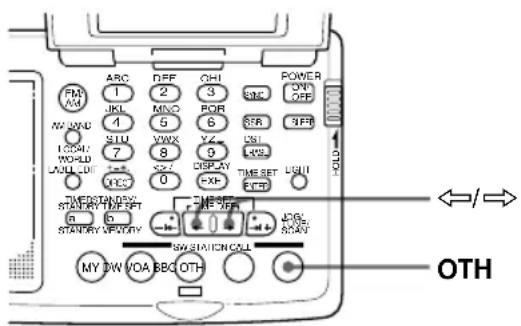
Turn off the radio if it is turned on.
Hold down OTH and press ⇔ or ⇒. Release OTH when the station of your choice appears in the display.
Steps for reception is the same as the other SW STATION CALL buttons.
When there is no reception
If the radio was not able to receive any of the frequencies for the time zone stored in the ROM, scanning stops with a beep when the radio returns to the frequency where it started scanning.

flowchart
graph LR
    A["Lowest frequency"] --> B["Scan start frequency"]
    B --> C["Highest frequency"]
    C --> A
Short wave reception may be difficult at times due to various factors, such as sunspot activity and atmospheric conditions. Furthermore, the major broadcast stations whose data are stored in the ROM may change the broadcast time and/or frequencies at the change of season, etc. In such cases, the radio may not be able to receive the frequencies stored in the SW STATION CALL ROM.
Updating the SW STATION CALL ROM
To conform with possible changes in frequencies, the SW STATION CALL ROM is designed to be replaceable by the user to an updated version of the ROM. The newest SW STATION CALL ROM is sold by F Corporation. The ROM is to be updated in around October every year. We recommend the ROM to be replaced at least once in 2 to 3 years.
To purchase the newest ROM, refer to "Purchasing the latest SW STATION CALL ROM" and contact F Corporation.
To exchange the ROM, see “Exchanging the SW STATION CALL ROM”, page 46.
Notes
- Many of the worldwide broadcast programs of the major broadcast stations stored in the ROM are broadcast only at certain times of the day. If the station is not broadcasting on the scanned frequency at the time, the radio will not receive any broadcast or receive broadcast by some other station, such as a local station, broadcasting on the same frequency.
- If the frequency is changed by manual tuning, etc., when "SW STATION CALL" indication is lit in the display, the radio will exit SW STATION CALL and the indication will disappear.
- If there is no frequency for the station corresponding to the time zone stored in the ROM, a beep sounds, "MEMORY" "EMPTY" appears in the display, and the radio returns to the previous condition.
- If you press a station button without the ROM in the ROM compartment of the radio, a beep sounds, "NO" "ROM" appears in the display, and the radio returns to the previous condition. If the ROM is displaced when "SW STATION CALL" indication is lit in the display, a beep sounds, "NO" "ROM" appears in the display, and the radio changes to manual tuning.
- If "NO" "ROM" is displayed with the SW STATION CALL ROM inserted in the ROM compartment, the contact surface of the ROM may be dirty. See "Cleaning the SW STATION CALL ROM contact surface", page 46, and clean the contact surface with a cotton swab. Do not clean the contact springs of the main unit, as they may deform and cause a malfunction.
Various ways of reception (continued)
MY-Memory tuning
Preset up to 100 frequencies of any band (FM, SW, MW or LW) to the MY button. You can scan these stations or tune in one by one.
Presetting stations to MY-Memory
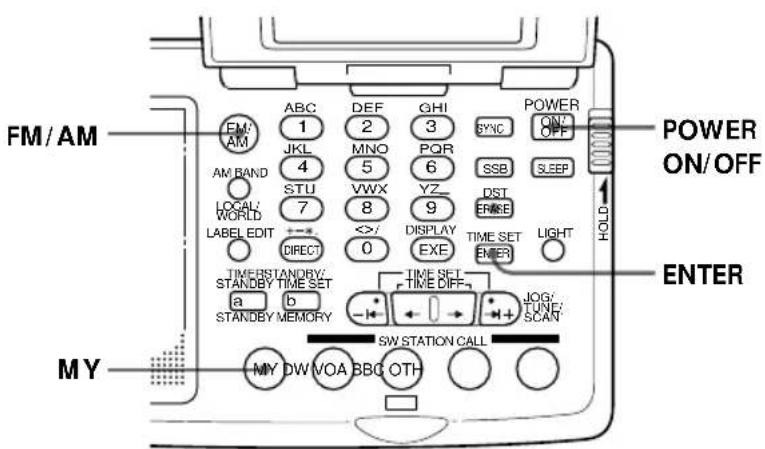
1 Press POWER ON/OFF to turn on the radio.
2 Tune in to the station you want to preset.
3 Hold down ENTER and press MY. When ENTER is held down, "PRESET MY" will flash in the display.
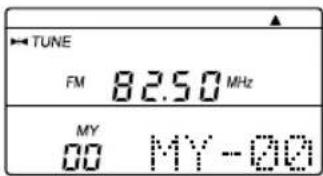
A beep sounds when MY is pressed. The station is stored to the lowest available MY-Memory number (00 to 99). The MY-Memory number and the MY-Memory label are displayed.
Default MY-Memory labels
Each time a station is stored to MY-Memory, it is assigned the default MY-Memory label "MY-xx" (with the memory number in place of "xx").
To change labels, see "Editing labels", page 36.
Note
The radio may have frequencies stored in MY-Memory at factory shipment. In this case, erase them before presetting stations to MY-Memory (see "Erasing a MY-Memory preset", page 29).
Tips
- If you press MY with all the MY-Memory numbers (00 to 99) assigned a station, a beep sounds, "MEMORY" "FULL" appears in the display, and the radio returns to the previous condition.
- MY-Memory tuning is not affected by the time zone setting.
Tuning in to a MY-Memory station
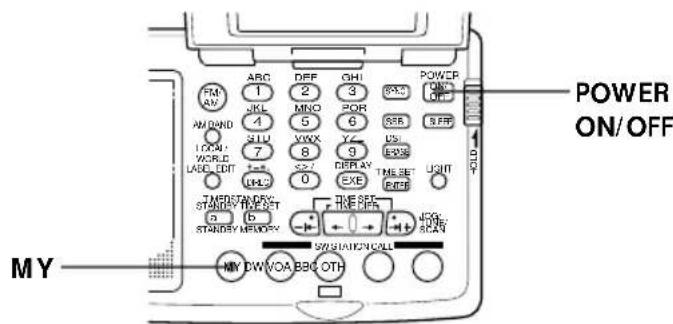
1 Press POWER ON/OFF to turn on the radio.
2 Press MY.
The radio enters the MY-Memory tuning mode.
3 Press MY again.
The radio scans the frequencies stored in MY-Memory and stops at reception.
Press the button again to resume scanning.
To stop scanning
Press MY during scan.
To manually recall the MY-Memory frequencies one by one
Hold down MY and press ⇔, ⇔ or -|←, ⇔|+.
The frequency changes quickly when I or I+ is held down and stops when released.
Tips
- MY-Memory scans only the stored memory numbers and skips the empty ones.
- MY-Memory scans fastest if the frequencies are stored in ascending or descending order.
- If MY is pressed with no frequency stored in MY-Memory, a beep sounds and "MEMORY" "EMPTY" appears in the display. Then the display returns to the previous condition.
- When scanning at night when reception is intense, or when scanning under prevalent interference, the unit may stop scanning to null broadcasts frequently. Switch ATT to ON and adjust sensitivity with the ATT Control (see "Controlling scan stops", page 21). Under normal conditions, set ATT to OFF.
When there is no reception
If any of the frequencies stored in MY-Memory was not received, scanning stops with a beep when the radio returns to the frequency where it started scanning.

flowchart
graph LR
    A["Lowest stored MY-Memory number"] --> B["Scan start MY-Memory number"]
    B --> C["Highest stored MY-Memory number"]
Erasing a MY-Memory preset
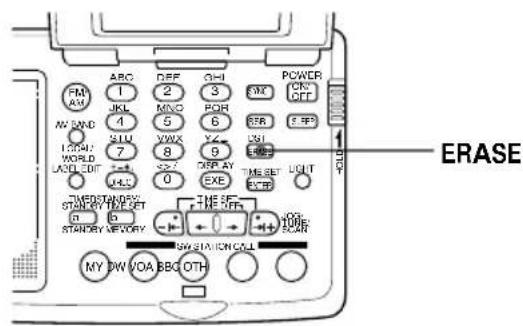
1 Recall the MY-Memory number you want to erase.
2 Hold down ERASE.
The MY-Memory number flashes in the display while ERASE is held down.
A beep sounds after 3 seconds and the station assigned to the MY-Memory number is erased. The MY-Memory number and the MY-Memory label disappear.
Note
When a MY-Memory station is erased, any changes to its default label is erased as well.
To change the station stored in MY-Memory
You cannot overwrite a frequency stored in MY-Memory with a new one. Erase the particular MY-Memory number first, then store a new frequency.
Note
MY-Memory stores stations to the lowest available MY-Memory number. Note, thus, that if a MY-Memory number lower than the one you erased is available, the new frequency will be stored to that number.
Receiving SSB and CW Transmissions
You can receive SSB (Single Side Band) and CW (Continuous Wave) transmissions with the built-in BFO circuit.
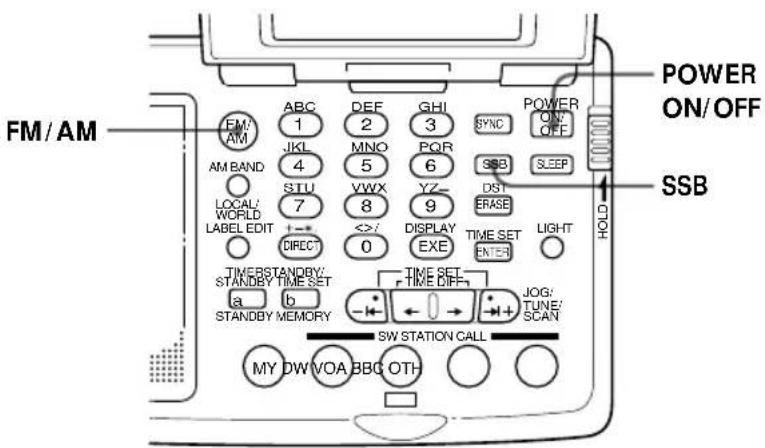
1 Press POWER ON/OFF to turn on the radio.
2 Press FM/AM and select AM.
3 Press SSB to select USB or LSB/CW.
Each time SSB is pressed, the display changes as follows:
(Normal mode) USB LSB/CW
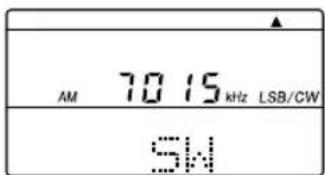
4 Tune in to the desired station.
For tuning methods, see "Various ways of reception", pages 16 to 29.
Tip
For more on SSB and CW, refer to "Tips on radio waves", page 50.
Notes
- The USB or the LSB/CW mode cannot be preset to memory. You can tune in to stations in 0.1 kHz steps in the USB or the LSB/CW mode, but the frequency digit below the decimal point is ignored when memorized.
- If a preset AM frequency is recalled during the USB or the LSB/CW mode, the mode setting remains active and the frequency is received in the respective mode.
Adjusting for optimum AM reception —Synchronous detection
Adjust AM reception (especially SW reception) to optimum condition with synchronous detection.
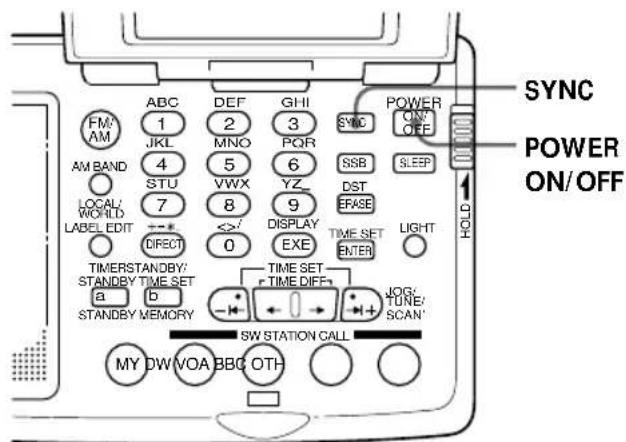
1 Press POWER ON/OFF to turn on the radio.
2 Tune in to the desired station.
For tuning methods, see "Various ways of reception", pages 16 to 29.
3 Press SYNC repeatedly to select the synchronous detection mode with better reception (SYNC U or SYNC L).
Each time SYNC is pressed, the display changes as follows:

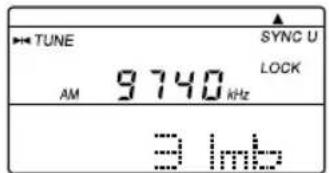
"LOCK" appears in the display when synchronous detection is in effect.
Tip
For more on synchronous detection, see "Tips on radio waves", page 50.
Notes
- Synchronous detection may be cancelled when the batteries become weak.
- Even when you have chosen either of the synchronous detection modes and SYNC U or SYNC L is lit in the display, synchronous detection may not take effect if reception is weak. In this case, "LOCK" will not light up.
- Synchronous detection setting cannot be preset to memory.
- If a preset AM frequency is recalled when either synchronous detection mode is in effect, the mode setting remains active and the frequency is received in the respective mode.
Using the supplied external antenna
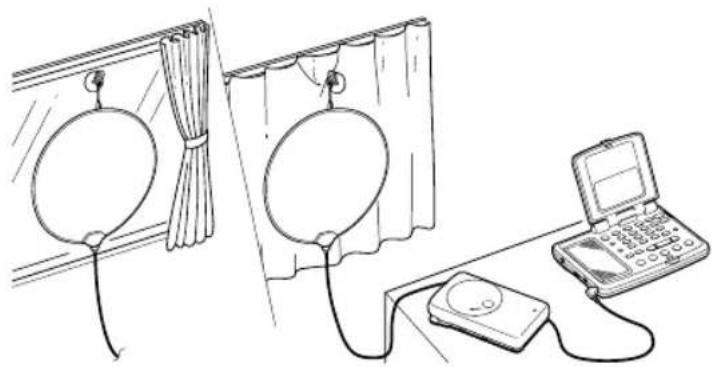
Use the supplied Short Wave Active Antenna AN-LP2 for better short wave reception. The antenna gives you stable indoor reception with the built-in amplifier.
This antenna can be used only to receive the short wave meter bands from the 120 meter band to the 11 meter band as seen in "Frequency range of the bands/meter bands", page 19. Be sure to disconnect it for FM, MW or LW reception.
natural_image
Line drawing of a room setup with curtains, a mobile phone, and a handheld device (no text or symbols)Inserting the Batteries
natural_image
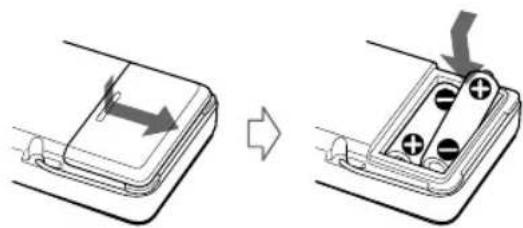
Diagram showing two states of battery charging process: one with upward arrow indicating direction, the other with plus signs and circles inside (no text or symbols)1 Open the battery compartment lid of the antenna controller.
2 Insert two R6 (size AA) batteries with correct polarity.
3 Close the lid.
Battery life of the active antenna
Using Sony R6 (size AA) dry batteries: approx. 40 hours
When to replace the batteries
When the batteries become weak, the POWER lamp of the antenna controller dims. Replace both batteries with new ones.
Setting Up
1 Unfold the antenna module slowly.
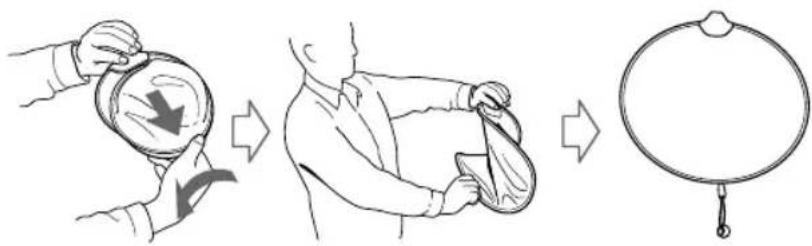
Be careful not to hit anyone or anything when unfolding the antenna module.
2 Pull out the long cord with the double pin plug from the antenna controller until it stops, and connect it to the antenna module.
3 Attach the antenna module to the window glass or the curtain.
Fix the antenna with the supplied clip or the suction cup, as seen in the illustration on the previous page.
4 Connect the short cord with a single pin plug to the AM EXT ANT (AM external antenna) jack of the radio.
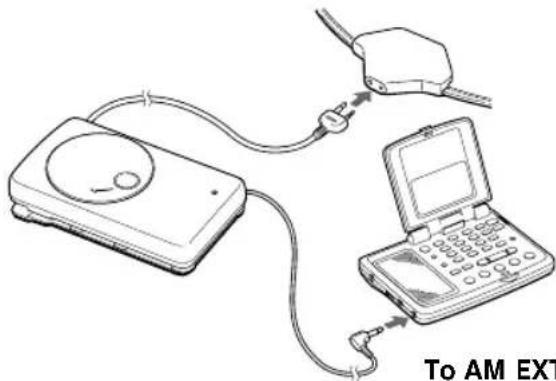
The power supply of the antenna controller is linked to the power supply of the radio. The POWER lamp lights up on the controller. Switch ATT to OFF on the radio.
On setup
- Place the antenna module where reception is well, such as by the window.
- Reception may become poorer if the long cord of the antenna controller is kept near the radio. Keep it as far away from the radio as possible.
- Keep the radio and the antenna away from fluorescent lamps, television sets, telephones, personal computers, etc., as they may generate noise interference.
- Set up the antenna as far away from the street as possible.
- Do not use the antenna outdoors.
- When using the external antenna, be sure to retract the telescopic antenna on the main unit.
After use
1 Disconnect the antenna module, antenna controller and radio.
2 Reel up the long cord.
3 Wrap the short cord to the antenna controller and set it in place.
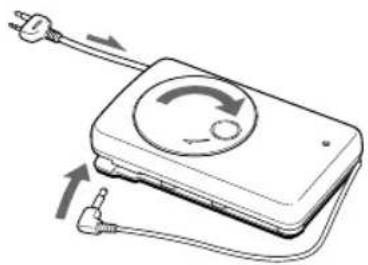
natural_image
Illustration of a handheld electronic device with a circular dial and two leads, showing electrical connections (no text or symbols)4 Twist and fold the antenna module, set it in place, and put it in the carrying case.
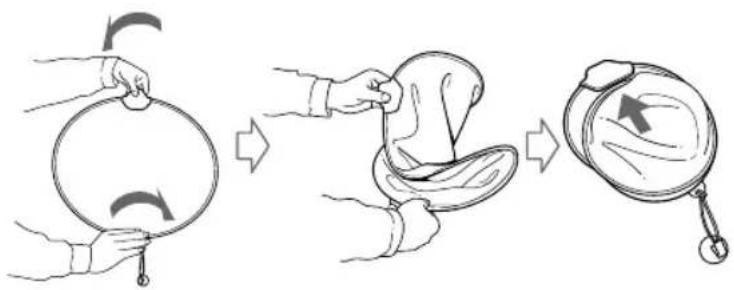
natural_image
Illustration showing three steps of a person's hat bending technique: opening, adjusting the seat, and lifting a magnifying glass (no text or symbols)Note
- When receiving FM, MW or LW broadcasts, be sure to disconnect the active antenna. The radio cannot receive these bands with the external antenna plugged in, as the telescopic antenna and the built-in ferrite bar antenna will be disconnected.
- The supplied external antenna is to be used only with this unit. It cannot be used on other radios.
- Do not connect any other antennas other than the recommended active antennas to the AM EXT ANT jack of the unit, as the jack supplies DC voltage to power the recommended active antennas.
Recording broadcasts
Connect the radio to a cassette recorder with connecting cables to record radio broadcasts.
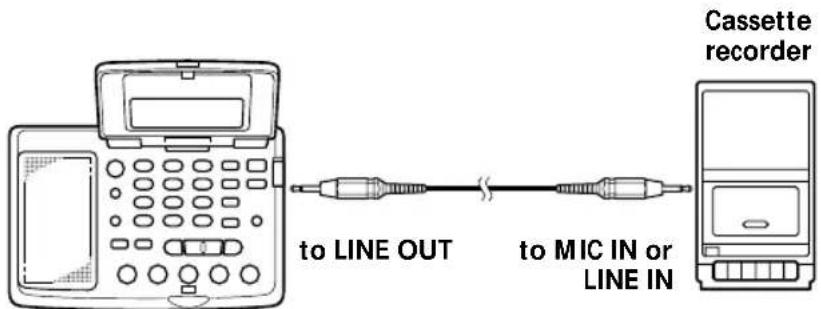
1 Connect the radio to a cassette recorder with connecting cords (not supplied).
Use the appropriate cord for the type of cassette corder.
| Cassette recorder | Connecting cord | |
| Type Jack | ||
| Monaural MIC | IN (minijack) RK-G135 | |
| Stereo | MIC IN (minijack) RK-G134 | |
| LINE IN (minijack) RK-G136 | ||
| LINE IN (pinjack) RK-G129 | ||
2 Tune in to the station you want to record.
3 Record on the cassette recorder.
If you record with a stereo recorder
FM stereo programs are recorded in stereo. AM programs are recorded monaurally to both channels.
Tip
Adjusting VOL on the radio has no effect on the recording.
Editing labels
You can change the default label for a station preset, time zone, etc., to any combination of up to 6 alphanumeric letters.
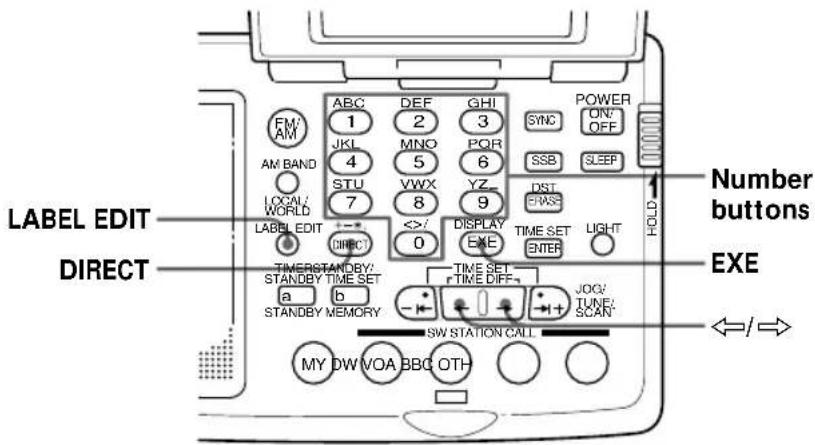
1 Display the label you want to edit by preset tuning (page 22), MY-Memory tuning (page 27), WORLD time display (page 14) or the Standby function (page 38).
2 Press LABEL EDIT. The first letter of the label flashes.
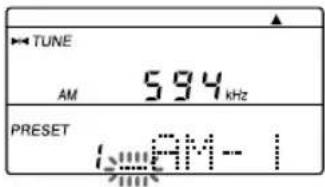
3 Press ⇔ or ⇒ to move the cursor to the letter you want to change.
4 Press one of the number buttons (0 to 9) or DIRECT to enter the letter of your choice.
The first letter written above the number button is entered when the button is pressed. Every press of the button changes the letter as follows.
Ex. Pressing number button ①: A → B → C → 1
| 1 2 ABC1DEF2GHI3 | 3 | |
| 4 5 JKL4MNO5PQR6 | 6 | |
| 7 8 STU7VWX8YZ | 9 | |
| DIRECT + - * . < > / 0 | 0 | - |
^* _indicates a blank space.
5 Repeat steps 3 and 4 to change other letters. Complete each button operation within 20 seconds.
6 Press EXE. A beep sounds and the displayed letters are stored as the label.
If the flashing of the character stops
You took more than 20 seconds to complete a button operation.
If the display returns to the original label, press LABEL EDIT again and start over.
To cancel editing
Press LABEL EDIT before pressing EXE.
Notes
- The SW STATION CALL labels cannot be edited.
- The unit does not beep if the beep is set to BEEP OFF (see "Turning off the beep", page 43).
- An edited preset label returns to the default setting if a station is overwritten to the preset button (see "Default preset labels", page 22).
Using the timer
Waking up to the radio or buzzer
— Standby function
You can wake up to your favorite radio program using the Standby function. You can preset different frequencies and standby times to STANDBY MEMORY a and b.
To wake up to the buzzer, see "To wake up to the buzzer", page 40.
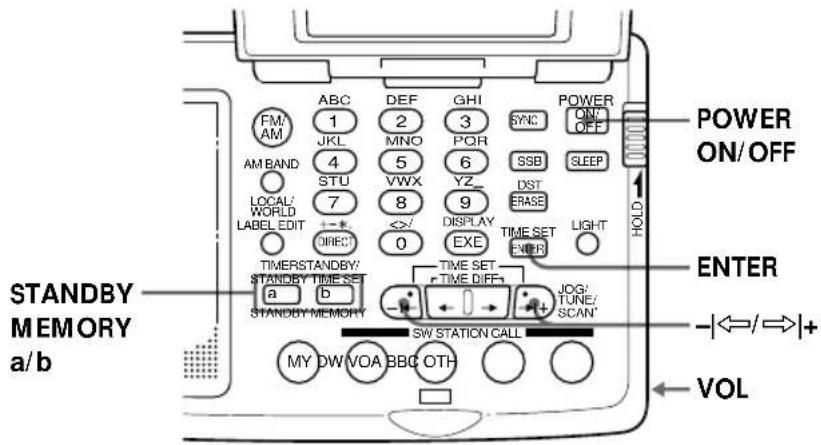
Make sure the clock is set correctly before using the Standby function (page 12).
1 Tune in to the station you want to preset.
2 Adjust VOL to your choice.
3 Hold down ENTER and press STANDBY MEMORY a or b.
When ENTER is held down, "PRESET MY" will flash in the display. A beep sounds when STANDBY MEMORY a or b is pressed. The station is stored to the selected button. The STANDBY MEMORY number (a or b) and the STANDBY MEMORY label are displayed.
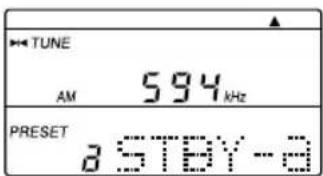
4 Press POWER ON/OFF to turn off the radio.
5 Hold down the STANDBY MEMORY button you pressed in step 3 and press -I ⇔ or ⇒ I+ repeatedly to set the standby time (i.e., the time the radio is to turn on).
"STANDBY" and "a" or "b" flash while the STANDBY MEMORY button is held down.
6 Release the STANDBY MEMORY button.
"STANDBY" and "a" or "b" light up and the standby setting is complete. The clock indication returns to the current time. The radio turns on at the standby time to receive the preset broadcast station.
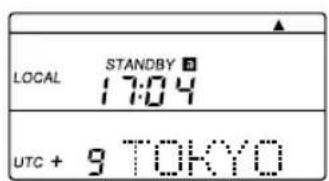
To check the standby time
Hold down STANDBY MEMORY a or b with the radio turned off. The preset standby time is displayed while the button is pressed.
To change the standby time
Repeat steps 4 to 6 and preset a new standby time.
To cancel the standby function
Press STANDBY MEMORY a or b with the radio turned off so that "STANDBY" "a" or "b" is cleared from the display.
Make sure to release the button within a second. If the button is pressed for longer than a second, the radio goes to step 5.
At the standby time
The radio turns on, "SLEEP" lights up, and the preset broadcast station is tuned in. The radio turns off after about 60 minutes.
Notes
- The Standby function is activated when the currently displayed time, whether in LOCAL or WORLD display mode, reaches the standby time. Make sure, therefore, that the time display is in the mode of your choice. - If a station was already stored to the STANDBY MEMORY button, the previous preset station is overwritten by the new preset. If the preset label had been edited, it will return to the following default;
$$
\begin{array}{l} \mathbf {a} = \text {STBY - a''} \\ \mathbf {b} = \text {STBY - b''} \end{array}
$$
To change labels, see "Editing labels", page 36.
- Make sure that the radio is turned off before setting the standby time. You cannot set the standby time with the radio turned on.
Tips
- To temporarily cancel the Standby function, turn off the radio and slide HOLD in the direction of the arrow so that “○—” is displayed. The standby timer goes back to effect when HOLD is turned off (“○—” is cleared from the display). See “Using the hold function”, page 42.
- Once the standby presets are set, the radio turns on at the preset time everyday unless the standby status is canceled (see “To cancel the standby function”, above). Canceling the standby status does not erase the standby setting itself. The setting can be put back to the standby status by pressing STANDBY MEMORY a or b with the radio turned off so that “STANDBY” “a” or “b” is lit in the display.
- If the standby memory is in standby status, it takes effect even when you are listening to the radio. The radio switches to the preset standby frequency at the standby time.
- You can set both STANDBY memories to the standby status at the same time (i.e., both the a and b indicators are lit in the display). The radio turns on at the first standby time to receive the first standby frequency, then switches to the second standby frequency at the second standby time.
- If both STANDBY memories are set to the same standby time, STANDBY a takes precedence.
To wake up to the buzzer
If a STANDBY MEMORY without a frequency preset is activated, the buzzer sounds at the standby time. Erase if a frequency is preset.
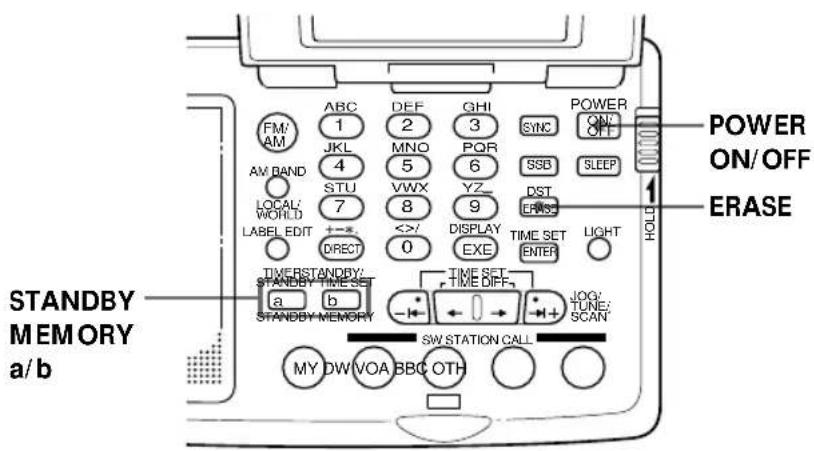
1 Press POWER ON/OFF to turn on the radio.
2 Press STANDBY MEMORY a or b.
The preset frequency is recalled.
If no frequency is stored, a beep sounds and "MEMORY"
"EMPTY" appears in the display. Go to step 4.
3 Hold down ERASE.
The Standby Memory number flashes in the display while ERASE is held down.
A beep sounds after 3 seconds and the station assigned to the STANDBY MEMORY button is erased. The Standby Memory number and the Standby Memory label disappear.
4 Follow steps 4 to 6 of "Waking up to the radio or buzzer", page 38 to set the standby time (i.e., the time the buzzer is to sound).
The buzzer sounds at the standby time.
To stop the buzzer
Press any button except LIGHT.
The buzzer stops after about 60 minutes if it is left on.
Notes
- The buzzer volume cannot be adjusted with VOL.
- The Standby Memory buzzer sounds regardless of the BEEP OFF setting.
- When a Standby Memory preset is erased, any changes to its default label is erased as well.
Falling asleep listening to the radio — Sleep timer
You can turn off the radio automatically after about 60 minutes using the sleep timer.
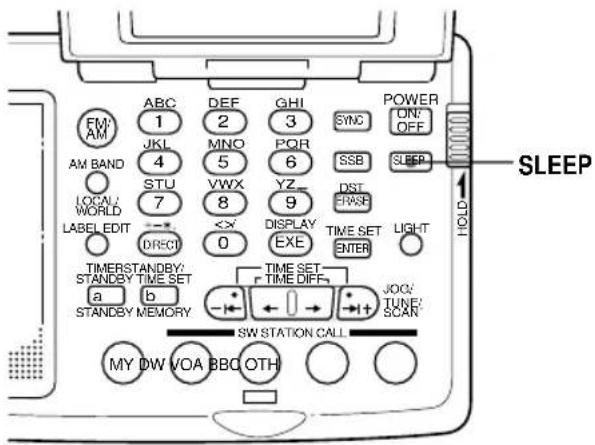
1 Press SLEEP.
If the radio was off, the radio turns on. "SLEEP" lights up.
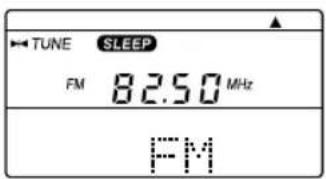
2 Tune in to the station of your choice.
The radio turns off automatically after about 60 minutes.
To turn off the radio before the 60 minute duration
Press POWER ON/OFF.
Tips
- If SLEEP is pressed with the radio turned on, "SLEEP" lights up and the radio turns off after about 60 minutes.
- If you press SLEEP to turn on the radio, the radio tunes to the previously tuned frequency.
- If SLEEP is pressed when "SLEEP" is already lit, the sleep countdown is reset and the radio turns off after about 60 minutes from this point.
Using the hold function
When the hold function is activated, all buttons become inoperative, preventing accidental operation when the radio is being carried or used. The hold function can also be used to temporarily cancel the standby timer function.
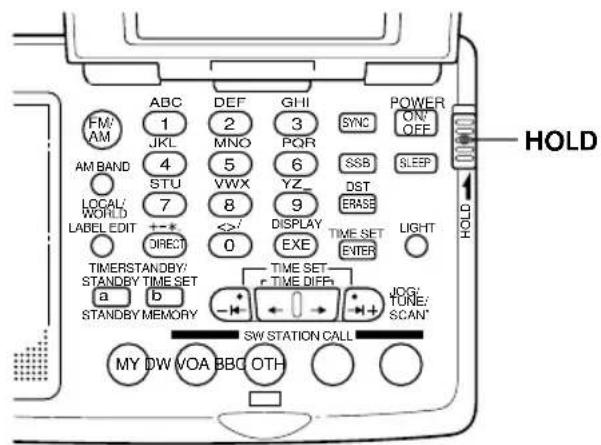
1 Slide HOLD in the direction of the arrow.
"○—" lights up and all buttons become inoperative.
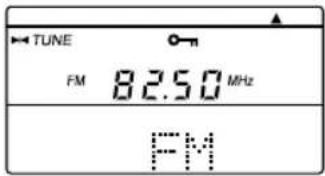
To cancel the hold function
Slide HOLD in the direction opposite to the arrow so that "○—n" disappears in the display.
To temporarily cancel the Standby timer
When the hold function is activated, the Standby timer function is temporarily canceled (see "Waking up to the radio or buzzer — Standby function", page 38).
Temporary cancellation of the Standby timer by the hold function is effective only when the power is turned off.
Turning off the beep
The confirmation beep can be turned off. Do so with the power turned off.
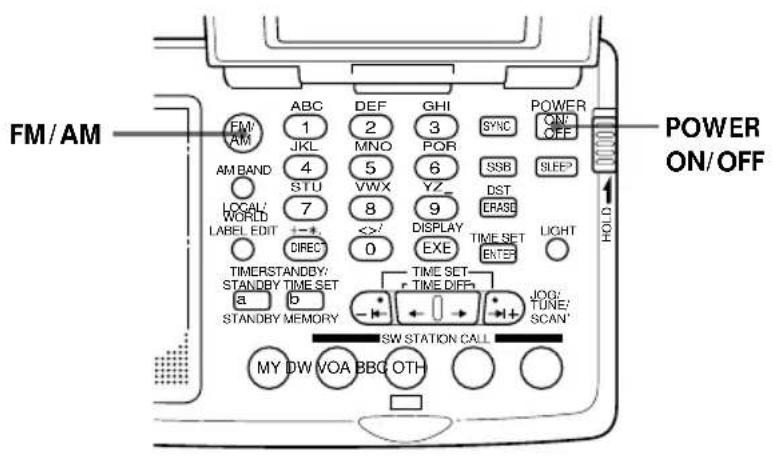
1 If the radio is turned on, press POWER ON/OFF to turn it off.
2 Hold down FM/AM for longer than 2 seconds. A beep sounds and "BEEP" "OFF" appears in the display. The beep has been turned off. To turn the beep back on, hold down FM/AM for longer than 2 seconds again. "BEEP" "ON" appears in the display and the beep turns on.
Tip The beep setting does not affect the buzzer sound for the Standby timer function (see "To wake up to the buzzer", page 40).
Precautions and maintenance
On placement
- Do not leave the unit near heat sources, such as radiators or air ducts, or in a place subject to direct sunlight, excessive dust, humidity, rain, mechanical vibration or shock.
- Use the unit within a temperature range of 0^ to 40^ (32°F to 104°F). If it is used in temperatures outside this range, an irregular display (i.e., 88.88) may appear. If it is used in temperatures below this range, the display may change very slowly. The unit will return to its normal condition when the unit is used in its recommended temperature range once again.
- Reception may be difficult or noisy in vehicles or buildings. Try listening near a window.
On safety
- Operate the unit only on 3 V DC with two R6 (size AA) batteries.
For AC operation, use the supplied AC power adaptor. Do not use any other type of AC power adaptor.
For car battery operation, use the car battery cord recommended for this unit. Do not use any other type of car battery cord.
- The unit is not disconnected from the AC power source (mains) as long as it is connected to the wall outlet, even if the unit itself has been turned off.
- Disconnect the AC power adaptor from the wall outlet when the unit is not to be used for a long period of time.
- The name plate indicating operating voltage, etc., is located at the bottom of the unit.
- Should any solid object or liquid fall into the unit, unplug the unit, and have it checked by qualified personnel before operating it any further. Make sure that no liquid or foreign material enters the DC IN 3V jack of the unit. This may lead to malfunction of the unit.
- When the casing becomes soiled, clean it with a soft dry cloth dampened with mild detergent solution. Never use abrasive cleansers or chemical solvents, as they may mar the casing.
- Since a strong magnet is used for the speaker, keep personal credit cards using magnetic coding or spring-wound watches away from the unit to prevent them from possible damage caused by the magnet.
- If there is lightning and when using the external antenna, disconnect the AC power adaptor immediately from the wall outlet, if connected. Never touch the antenna wire when there is a lightning storm.
- Never connect a ground wire to a gas pipe.
On the active antenna AN-LP2
- Do not wash the antenna module.
- Be careful not to break the antenna module when folding it.
- Keep the antenna in its case when it is not to be used for a period of time.
Service and repair
When taking your unit for service or repair, take note of important preset settings. They may be deleted depending on the type of necessary repair.
If you have any questions or problems concerning your unit, please consult your nearest Sony dealer.
Exchanging the SW STATION CALL ROM
To purchase the newest ROM, refer to "Purchasing the latest SW STATION CALL ROM" and contact F Corporation.
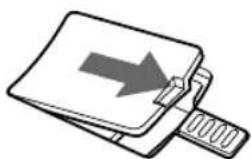
1 Hold down the ROM compartment lid at the bottom of the unit and slide RELEASE in the direction of the arrow. Then, release your finger slowly from the lid.

natural_image
Technical line drawing of a mechanical component with a highlighted section (no text or symbols)2 Remove the ROM compartment lid and the ROM in the compartment. Be careful not to touch the contact surfaces (metallic parts).
natural_image
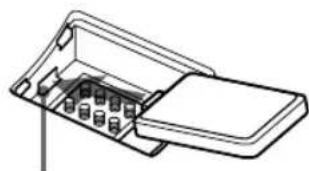
Simple line drawing of a document with an arrow pointing right (no text or symbols)3 Insert the projection of the ROM in the compartment cavity and place the replacement ROM in the ROM compartment with the contact surface facing down. Be careful not to touch the contact surfaces.
natural_image
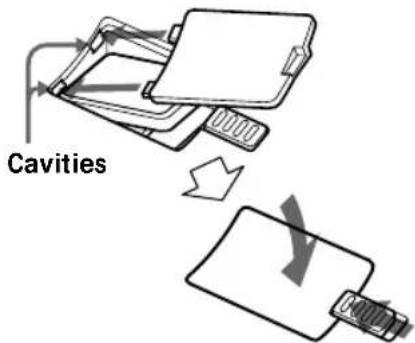
Technical line drawing of a mechanical component with internal parts (no text or symbols)Cavity
4 Insert the projections of the ROM compartment lid in the compartment cavities and lock the cover by sliding RELEASE opposite the direction of the arrow while holding down the lid.
Note
Do not touch the contact surfaces on the ROM or the radio, as this may cause a malfunction.
Cleaning the SW STATION CALL ROM contact surface
If "NO" "ROM" is displayed with the SW STATION CALL ROM inserted in the ROM compartment, the contact surface of the ROM may be dirty.
Remove the ROM following the steps above and clean the contact surface with a cotton swab.
Note
Do not clean the contact springs of the main unit, as they may deform and cause a malfunction.
Troubleshooting
If you have any trouble with the unit, check the following before consulting your nearest Sony dealer.
| Symptom | Cause | Remedy |
| The radio does not accept button input. | ·The HOLD function is activated. | ·Slide HOLD in the opposite direction of the arrow so that “○-n” disappears in the display (page 42). |
| The power does not turn on when POWER ON/OFF is pressed. | ·Improper installation of batteries.·Weak batteries (“▽” flashes in the display).·The AC power adaptor or car battery cord is disconnected. | ·Insert the batteries with correct polarity.·Replace with new batteries.·Check and make sure that the AC power adaptor or car battery cord is connected properly. |
| The display is not operating. | ·Improper installation of batteries. | ·Insert the batteries with correct polarity. |
| The display is dim. | ·Weak batteries (“▽” flashes in the display). | ·Replace with new batteries. |
| The display is slow. | ·The unit is being used in extremely low temperatures or in extreme humidity. | ·Avoid subjecting the unit to extremely low temperatures or extreme humidity. |
| There is no sound output. | ·The unit is being used in extremely low temperatures.·VOL is turned down completely.·The stereo headphones are plugged in.·Improper installation of batteries. | ·Avoid subjecting the unit to extremely low temperatures.·Adjust VOL to the desired setting.·Unplug the stereo headphones for speaker output.·Insert the batteries with correct polarity. |
| Poor reception. | ·Weak batteries (“▽” flashes in the display).·Improper tuning or antenna adjustment.·Weak radio signal.·ATT is set to ON. | ·Replace with new batteries.·Adjust tuning and antenna properly.·Listen to the radio near a window when in a vehicle or building.·Set ATT to OFF (page 21). |
| Cannot complete direct tuning. | ·You took more than 10 seconds for a button operation. | ·Complete each button operation within 10 seconds. |
Troubleshooting (continued)
| Symptom | Cause | Remedy |
| Cannot preset a station. | Incorrect procedure. | Hold down ENTER and press a number button (0-9) (page 22). |
| Cannot recall a preset station. | You pressed an incorrect number button for the desired station.The preset setting was accidentally erased. | Press the correct number button for the desired preset.Preset the station again (page 22). |
| The radio does not turn on at the standby time. | You forgot to press STANDBY a or b.The HOLD function is activated.The standby time setting was erased because you took more than 3 minutes to replace the batteries.VOL is turned down completely.No frequencies are stored in the STANDBY MEMORY (the buzzer sounds at the preset time). | Press STANDBY a or b (page 38).Slide HOLD in the direction opposite to the arrow so that “ O —” disappears in the display (page 42).Preset the standby time again.Adjust VOL.Store a frequency in the STANDBY MEMORY (page 38). |
| SW STATION CALL does not operate. | The ROM compartment is empty.Bad connection of the ROM. | Insert the ROM (page 46).Clean the ROM contact surface (page 46). |
| Cannot preset a station in MY-Memory. | MY-Memory is full (00 to 99). | Erase a memory preset and preset the station (page 29). |
Specifications
ICF-SW07
Circuit system
FM: Super heterodyne
AM: Dual conversion super heterodyne
Frequency range
FM: 76–108 MHz
SW: 1,621–29,999 kHz
MW: 530–1,620 kHz
LW: 150–529 kHz
Intermediate frequency
FM: 10.7 MHz
SW/MW/LW: 55.845 MHz (1st), 455 kHz (2nd)
Output
LINE OUT jack (stereo minijack) approx. 245 mV, less than 10 kilohms
∩ (headphones) jack (stereo minijack) 16 ohms
Speaker
Approx. 40 mm ( 1^5/_8 inches) diameter, 8 ohms
Maximum output
200 mW (at 10 % harmonic distortion)
Power requirements
DC 3 V, two R6 (size AA) batteries
External power source
DC IN 3V jack accepts: supplied AC power adaptor
Dimensions
Approx. 135 × 32.5 × 91 ~mm (w/h/d)(5^3/8 × 1^5/16 × 3^5/_8 inches) not incl.
projecting parts
Mass
Approx. 220 g (7.8 oz)
Approx. 257 g (9.1 oz) incl. batteries
AN-LP2
Power requirements
DC 3 V, two R6 (size AA) batteries
Dimensions (w/h/d)
Antenna Module
In use: Approx. 490 x 480 x 17.8 mm (19 ^3 / 8 x 19 x ^23 / 32 in.)
Folded: Approx. 205 x 180 x 17.8 mm (8 ^1 / 8 x 7 ^1 / 8 x ^23 / _32 in.)
Antenna Controller
Approx. 120 × 29.5 × 72 ~mm ( 4^3/4 × 1^3/16 × 2^7/_8 in.)
Mass
Antenna Module: approx. 92 g (3.3 oz.)
Antenna Controller: approx. 144 g (5.1 oz.) incl. batteries
Supplied accessories
Stereo headphones (1)
Ear pads (2)
AC power adaptor (1)
AC plug adaptor (1) (Not supplied with the USA model)
Active antenna AN-LP2 (1)
Carrying case for ICF-SW07 (1)
Carrying case for AN-LP2 (1)
Wave Handbook (1)
Optional accessories
LW/MW/SW wide range antenna AN-1, AN-102
Connecting cord
RK-G135 (stereo miniplug ↔ miniplug)
RK-G134 (stereo miniplug ↔ stereo miniplug)
RK-G136 (stereo miniplug ↔ stereo miniplug)
RK-G129 (stereo miniplug ↔ two pinplugs)
Your dealer may not handle some of the above listed optional accessories.
Please ask your dealer for detailed information on the optional accessories available in your country.
Design and specifications are subject to change without notice.
Tips on radio waves
What is SSB (Single Side Band)?
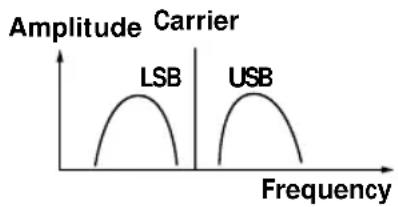
SSB is very popular among ham and business radio transmissions, and is commonly used in many amateur bands because of its superiority in signal intelligibility. Its impressive signal intelligibility is achieved with minimum interferences when compared to DSB (Double Side Band) owing to its half bandwidth structure.
In general, SSB transmissions employ the USB (Upper Side Band) modulation, while amateur band transmissions below 10 MHz employ the LSB (Lower Side Band) modulation.
Conventional radios without a BFO (Beat Frequency Oscillator) circuit cannot receive SSB transmissions successfully. This unit can receive SSB transmissions successfully with the built-in BFO (Beat Frequency Oscillator) circuit.
line
| Carrier | Frequency | | ------- | --------- | | LSB | 0 | | USB | 0 |What is CW (Continuous Wave)?
CW is also popular among ham and business radio transmissions. Unlike other signals, the amplitude of a carrier is not modulated for CW transmissions. CW transmissions convey information by interrupting the carrier and use Morse code as a means of communication.
This unit can receive CW transmissions successfully with the built-in BFO (Beat Frequency Oscillator) circuit as beat sound only. To fully comprehend the information transmitted by CW transmissions, an understanding of the Morse code is prerequisite.
What is synchronous detection?
There are two underlying obstacles in optimum AM reception: distortions due to fading and interferences from adjacent broadcast stations.
Synchronous detection is effective in solving these obstacles.
Distortions due to fading are generally caused by over-modulation which occurs when a carrier component of the received signal is attenuated along the way. The synchronous detection circuit of this unit generates a pure carrier frequency with no level variation which is ideally synchronized with the original carrier to compensate for the attenuated carrier component, thus dramatically reducing distortion.
Likewise, AM (LW, MW, and SW) broadcast generally employs DSB (Double Side Band) signals for transmissions in which the modulated signals are transmitted using both the upper and lower side bands (USB and LSB). In most cases, one of the side bands is affected by interferences from adjacent broadcast stations (i.e., beats). The synchronous detection circuit of this unit extracts one of the two
sides (USB or LSB) of the DSB
(Double Side Band) signal which is free from interferences. This allows clear reception without the interferences from adjacent broadcast stations.
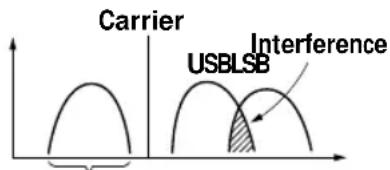
Only this side is received.
Avertissement
natural_image
Diagram of a device with an arrow indicating upward motion, showing internal components and a scroll (no text or symbols)Arrière
natural_image
Simple line drawing of a circular object with two labeled parts (1 and 2), no text or symbols present.1 Agrafe
2 Ventouse
natural_image
Diagram showing the internal structure of a device before and after assembly, with no visible text or symbols.natural_image
Technical line drawing of a device casing with internal components and mounting holes (no text or symbols)natural_image
Technical line drawing of a device casing with internal components and mounting holes (no text or symbols)Autonomie des piles
| Piles alcalines Sony LR6 (AA) Piles Sony R6 (AA) |
| FM approx. 32 heures approx. 10 heures |
| AM approx. 23 heures approx. 8 heures |
Conseils
natural_image
Illustration of a vintage telephone receiver with control panel and antenna (no text or symbols)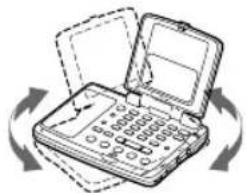
natural_image
Illustration of an open handheld device with circular buttons and a grid, surrounded by directional arrows (no text or symbols)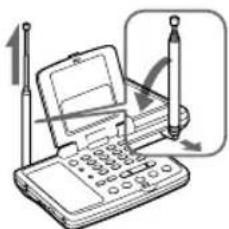
Conseils
- FM Stereo/SW/MW/LW PLL Synthesized Receiver
- Warning
- INFORMATION
- Features
- Table of contents
- Preparation
- Listening to the radio
- Other operations
- Additional information
- Location of parts and controls
- Front
- Opening the cover
- Rear
- Extending the antenna
- Controls
- Display
- Short wave active antenna AN-LP2
- Antenna controller
- Antenna module
- Power sources
- Operating on batteries
- Replacing the batteries
- Battery Life
- Tips
- Notes on dry batteries
- Operating on house current
- Notes on the AC power adaptor
- Tip
- Operating on car battery
- Notes on external power sources
- Setting the clock
- Setting the Local Time
- To switch to clock display while the radio is turned on
- For areas adopting daylight saving time (summer time)
- Note
- Setting the clock (continued)
- Finding out the time in other areas of the world
- To switch back to the LOCAL time display
- If the desired city name or area name is not preset
- Time difference between local time and UTC
- Automatic adjustment of the MW channel step
- Various ways of reception Direct tuning
- To correct input
- If "TRY" "AGAIN" appears in the display
- Notes
- To improve reception
- FM reception
- MW/LW reception
- SW reception
- Various ways of reception (continued)
- Manual tuning
- Frequency range of the bands/meter bands
- Various ways of reception (continued) Scan tuning
- Controlling scan stops — using the ATT switch and the ATT Control
- Preset tuning
- Default preset labels
- Tuning in to a preset station
- If no station is preset
- Erasing a preset station
- SW STATION CALL tuning
- To stop scanning
- To manually recall the selected frequencies one by one
- When there is no reception
- Updating the SW STATION CALL ROM
- MY-Memory tuning
- Presetting stations to MY-Memory
- Default MY-Memory labels
- Tuning in to a MY-Memory station
- To manually recall the MY-Memory frequencies one by one
- Erasing a MY-Memory preset
- To change the station stored in MY-Memory
- Receiving SSB and CW Transmissions
- Adjusting for optimum AM reception —Synchronous detection
- Using the supplied external antenna
- Battery life of the active antenna
- When to replace the batteries
- Setting Up
- On setup
- After use
- Recording broadcasts
- If you record with a stereo recorder
- Editing labels
- If the flashing of the character stops
- To cancel editing
- Using the timer
- Waking up to the radio or buzzer
- — Standby function
- To check the standby time
- To change the standby time
- To cancel the standby function
- At the standby time
- To wake up to the buzzer
- To stop the buzzer
- Falling asleep listening to the radio — Sleep timer
- Press SLEEP.
- Tune in to the station of your choice.
- To turn off the radio before the 60 minute duration
- Using the hold function
- To cancel the hold function
- To temporarily cancel the Standby timer
- Turning off the beep
- Precautions and maintenance
- On placement
- On safety
- On the active antenna AN-LP2
- Service and repair
- Exchanging the SW STATION CALL ROM
- Cleaning the SW STATION CALL ROM contact surface
- Troubleshooting
- Troubleshooting (continued)
- Specifications
- ICF-SW07
- AN-LP2
- Supplied accessories
- Optional accessories
- Tips on radio waves
- What is SSB (Single Side Band)?
- What is CW (Continuous Wave)?
- What is synchronous detection?
- Avertissement
- Arrière
- Autonomie des piles
- Conseils
Brand : SONY
Model : ICFSW07
Category : Radio