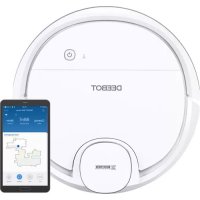
Deebot OZMO 905 - Robot vacuum ECOVACS - Free user manual and instructions
Find the device manual for free Deebot OZMO 905 ECOVACS in PDF.



| Brand | ECOVACS |
| Model | Deebot OZMO 905 |
| Product type | Robot vacuum and mop |
| Power supply | Rechargeable battery, docking station CH1630A |
| Rated voltage | 20 V DC, 0.8 A |
| Station input voltage | 100-240 V AC, 50-60 Hz |
| Station power | 25 W |
| Cleaning modes | Automatic, scheduling via app |
| Mopping system | OZMO: water tank and microfiber cloth |
| Suction options | Main brush (deep) or direct suction (hair) |
| Connectivity | Wi-Fi 2.4 GHz, ECOVACS app |
| Sensors | Anti-fall, stair detection |
| Package contents | Robot, docking station, 4 side brushes, 2 microfiber cloths, main brush, direct suction option, sponge and high-efficiency filter, water tank, cleaning tool, manual |
| Maintenance | Regular cleaning of tank, filters and brushes |
| Replacement frequency | Side brush: 3-6 months, main brush: 6-12 months, filter: 3-6 months, cloth: every 50 washes |
| Safety | Indoor use only, avoid wet surfaces, supervise children |
| Customer service | www.ecovacs.com |
Frequently Asked Questions - Deebot OZMO 905 ECOVACS
User questions about Deebot OZMO 905 ECOVACS
0 question about this device. Answer the ones you know or ask your own.
Ask a new question about this device
Download the instructions for your Robot vacuum in PDF format for free! Find your manual Deebot OZMO 905 - ECOVACS and take your electronic device back in hand. On this page are published all the documents necessary for the use of your device. Deebot OZMO 905 by ECOVACS.
USER MANUAL Deebot OZMO 905 ECOVACS
Congratulations on the purchase of your ECOVACS ROBOTICS DEEBOT! We hope it brings you many years of satisfaction. We believe that your new robot will help keep your home clean and give you more quality time to do other things.
Live Smart. Enjoy Life.
Should you encounter situations that have not been properly addressed in this Instruction Manual, please contact our Customer Service Center where a technician will be able to help you with your specific problem or question.
For more information, please visit the ECOVACS ROBOTICS official website: www.ecovacs.com
The company reserves the right to make technological and/or design changes to this product for continuous improvement.
Thank you for choosing DEEBOT!
Contents
- Important Safety Instructions 4
- Package Contents 8
- Operating and Programming 11
4.Maintenance. 20 - Troubleshooting 25
- Technical Specifications 28
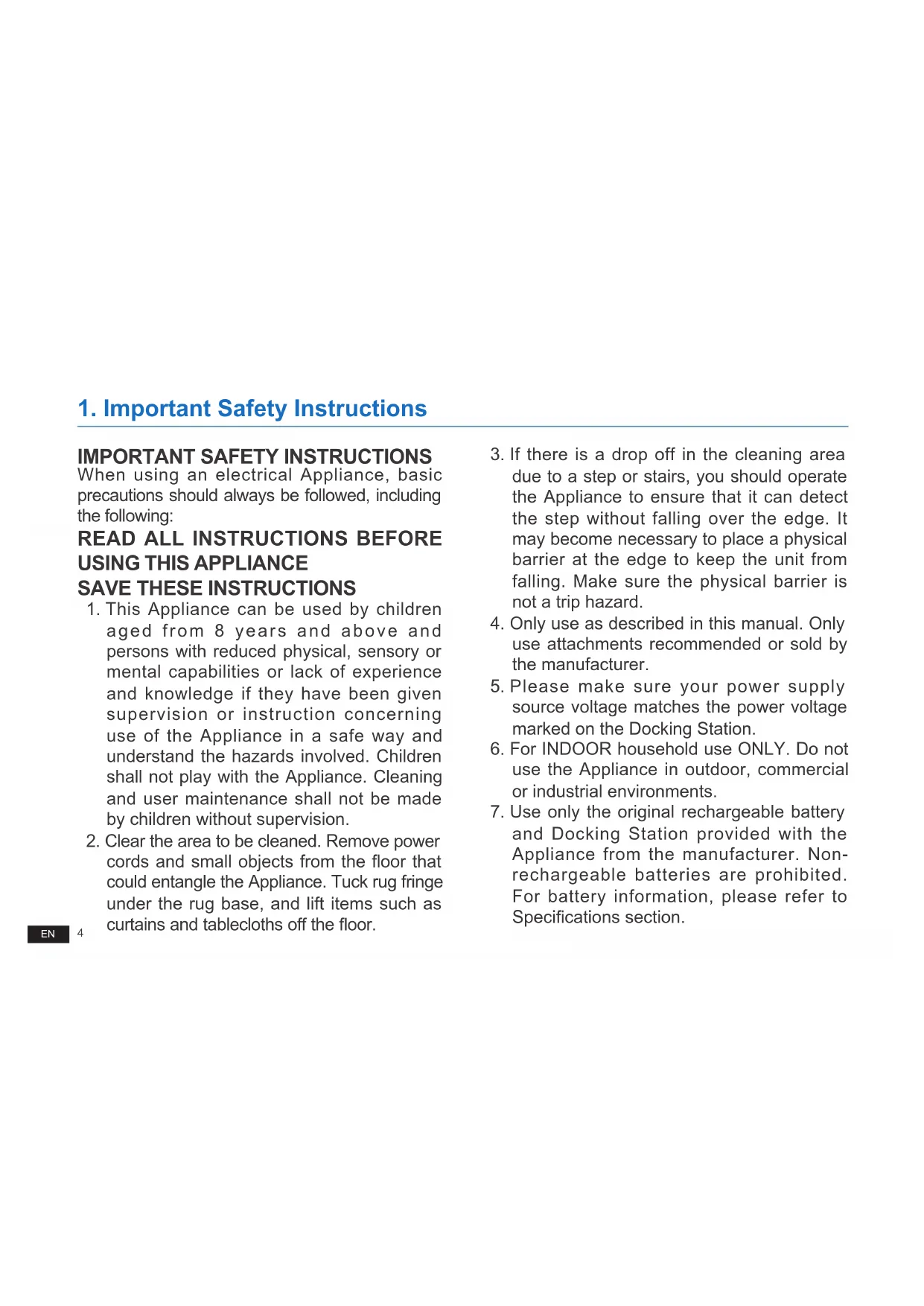
1. Important Safety Instructions
IMPORTANT SAFETY INSTRUCTIONS
When using an electrical Appliance, basic precautions should always be followed, including the following:
READ ALL INSTRUCTIONS BEFORE USING THIS APPLIANCE
SAVE THESE INSTRUCTIONS
- This Appliance can be used by children aged from 8 years and above and persons with reduced physical, sensory or mental capabilities or lack of experience and knowledge if they have been given supervision or instruction concerning use of the Appliance in a safe way and understand the hazards involved. Children shall not play with the Appliance. Cleaning and user maintenance shall not be made by children without supervision.
-
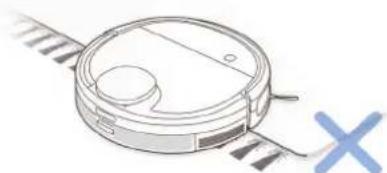
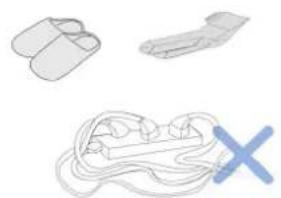
Clear the area to be cleaned. Remove power cords and small objects from the floor that could entangle the Appliance. Tuck rug fringe under the rug base, and lift items such as curtains and tablecloths off the floor.
-
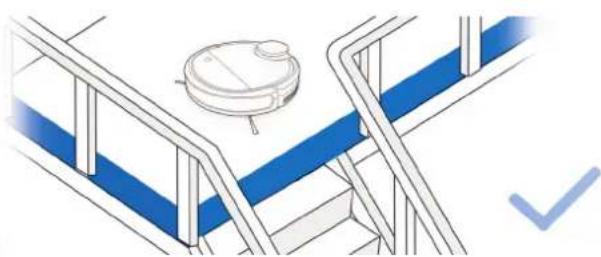
If there is a drop off in the cleaning area due to a step or stairs, you should operate the Appliance to ensure that it can detect the step without falling over the edge. It may become necessary to place a physical barrier at the edge to keep the unit from falling. Make sure the physical barrier is not a trip hazard.
- Only use as described in this manual. Only use attachments recommended or sold by the manufacturer.
- Please make sure your power supply source voltage matches the power voltage marked on the Docking Station.
- For INDOOR household use ONLY. Do not use the Appliance in outdoor, commercial or industrial environments.
- Use only the original rechargeable battery and Docking Station provided with the Appliance from the manufacturer. Nonrechargeable batteries are prohibited. For battery information, please refer to Specifications section.
1. Important Safety Instructions
- Do not use without dust bin and/or filters in place.
- Do not operate the Appliance in an area where there are lit candles or fragile objects.
- Do not use in extremely hot or cold environments (below -5^ / 23^ or above 40^ / 104^ ).
- Keep hair, loose clothing, fingers, and all parts of body away from any openings and moving parts.
- Do not operate the Appliance in a room where an infant or child is sleeping.
- Do not use Appliance on wet surfaces or surfaces with standing water.
- Do not allow the Appliance to pick up large objects like stones, large pieces of paper or any item that may clog the Appliance.
-
Do not use Appliance to pick up flammable or combustible materials such as gasoline, printer or copier toner, or use in areas where they may be present.
-
Do not use Appliance to pick up anything that is burning or smoking, such as cigarettes, matches, hot ashes, or anything that could cause a fire.
- Do not put objects into the suction intake. Do not use if the suction intake is blocked. Keep the intake clear of dust, lint, hair, or anything that may reduce air flow.
- Take care not to damage the power cord. Do not pull on or carry the Appliance or Docking Station by the power cord, use the power cord as a handle, close a door on the power cord, or pull power cord around sharp edges or corners. Do not run Appliance over the power cord. Keep power cord away from hot surfaces.
- If the power cord is damaged, it must be replaced by the manufacturer or its service agent in order to avoid a hazard.
- Do not use the Docking Station if it is damaged. The power supply is not to be repaired and not to be used any longer if it is damaged or defective.
1. Important Safety Instructions
- Do not use with a damaged power cord or receptacle. Do not use the Appliance or Docking Station if it is not working properly, has been dropped, damaged, left outdoors, or come in contact with water. It must be repaired by the manufacturer or its service agent in order to avoid a hazard.
- Turn OFF the power switch before cleaning or maintaining the Appliance.
- The plug must be removed from the receptacle before cleaning or maintaining the Docking Station.
- Remove the Appliance from the Docking Station, and turn OFF the power switch to the Appliance before removing the battery for disposal of the Appliance.
- The battery must be removed and discarded according to local laws and regulations before disposal of the Appliance.
-
Please dispose of used batteries according to local laws and regulations.
-
Do not incinerate the Appliance even if it is severely damaged. The batteries can explode in a fire.
- When not using the Docking Station for a long period of time, please unplug it.
- The Appliance must be used in accordance with the directions in this Instruction Manual. ECOVACS ROBOTICS cannot be held liable or responsible for any damages or injuries caused by improper use.
- The robot contains batteries that are only replaceable by skilled persons. To replace the robot's battery, please contact Customer Service.
- If the robot will not be used for a long time, power OFF the robot for storage and unplug the Docking Station.
- WARNING: For the purposes of recharging the battery, only use the detachable supply unit CH1630A provided with the Appliance.
1. Important Safety Instructions
To satisfy RF exposure requirements, a separation distance of 20~cm or more should be maintained between this device and persons during device operation.
To ensure compliance, operations at closer than this distance is not recommended. The antenna used for this transmitter must not be co-located in conjunction with any other antenna or transmitter.
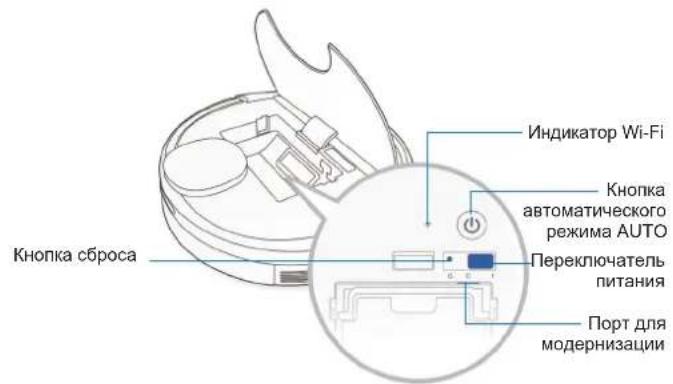
To disable Wi-Fi module on DEEBOT, power the robot ON.
Place the robot on the Docking Station making sure the Charging Contacts on DEEBOT and the Docking Station Pins make a connection.
Press and hold the AUTO Mode Button on the robot for 20 seconds until DEEBOT emits 3 beeps. To enable Wi-Fi module on DEEBOT, power the robot OFF and then power ON. The Wi-Fi module is turned on when DEEBOT is restarted.
| Class II |
| Short-circuit-proof safety isolating transformer |
| Switch mode power supply |
| For indoor use only |
For EU Countries
For EU Declaration of Conformity information, visit https://www.ecovacs.com/global/compliance

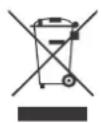
Correct Disposal of this Product
This marking indicates that this product should not be disposed of with other household waste throughout the EU. To prevent possible harm to the environment or human health from uncontrolled waste disposal, recycle it responsibly to promote the sustainable reuse of material resources. To recycle your used device, please use the return and collection systems or contact the retailer where the product was purchased. They can safely recycle this product.
2. Package Contents
2.1 Package Contents
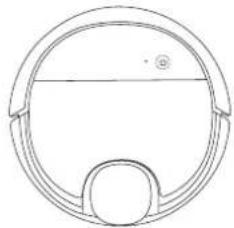
Robot
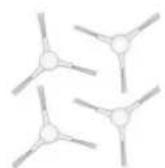
(4) Side Brushes
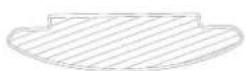
(2) Washable/Reusable Microfiber Cleaning Cloth
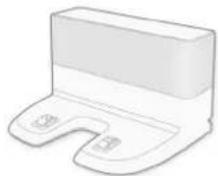
Docking Station
Main Brush Option (Pre-installed)
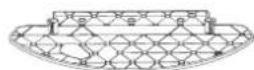
Cleaning Cloth Plate

Instruction Manual
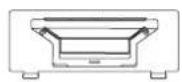
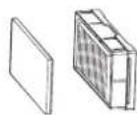
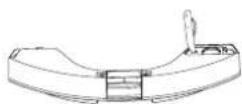
Direct Suction Option
Sponge Filter and High Efficiency Filter

Quick Start Guide
Reservoir

Multi-function Cleaning Tool
Note: Figures and illustrations are reference only and may differ from actual product appearance. Product design and specifications are subject to changes without notice.
2. Package Contents
2.2 Product Diagram Robot
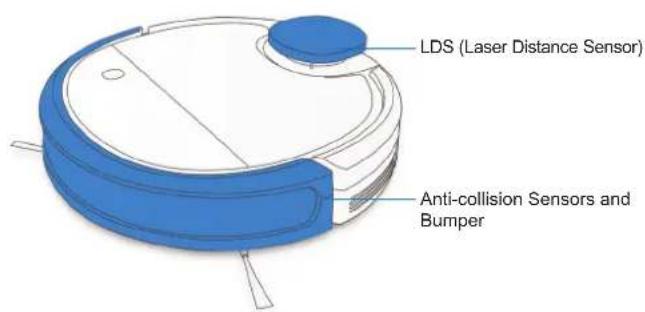
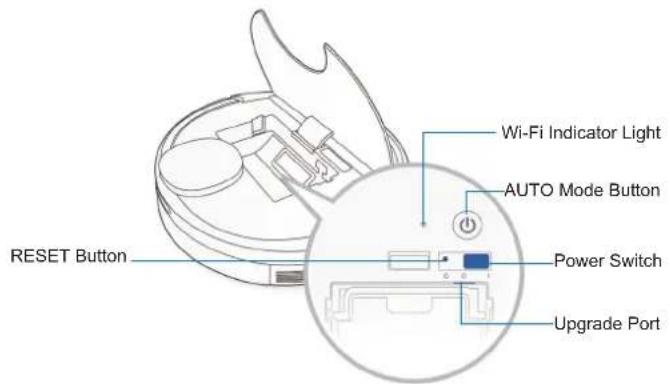
2. Package Contents
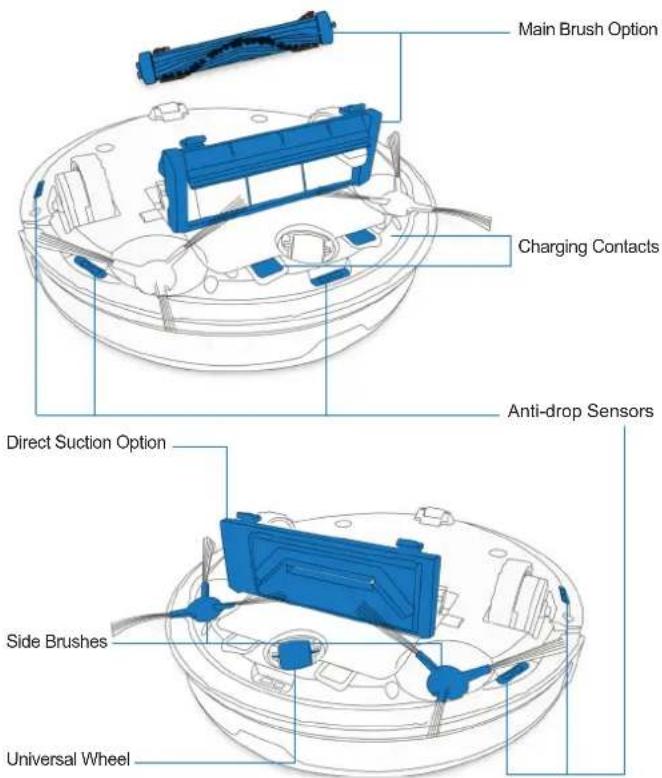
Bottom View
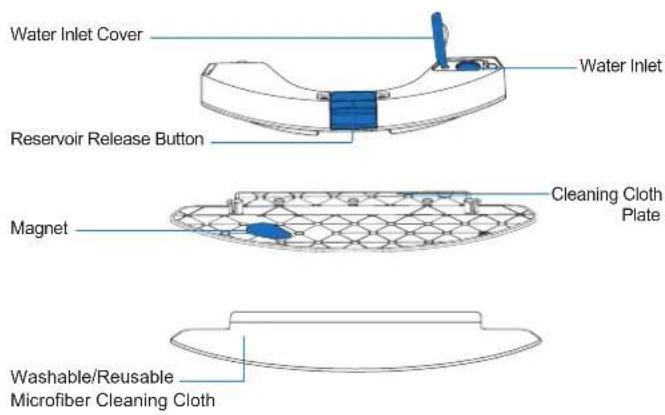
Reservoir
3. Operating and Programming
3.1 Notes Before Cleaning
WARNING: Do not use DEEBOT on wet surfaces or surfaces with standing water.
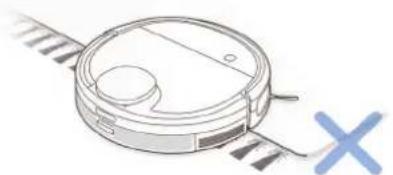
Before using the product on a rug with tasseled edges, please fold the rug edges under.
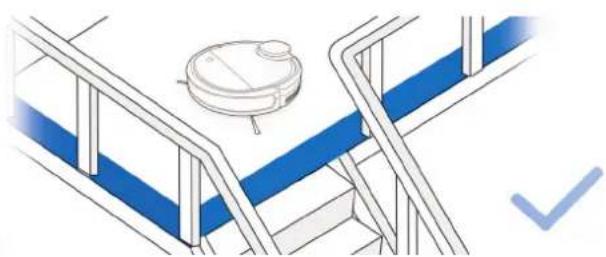
It may be necessary to place a physical barrier at the edge of a drop to stop the unit from falling over the edge.
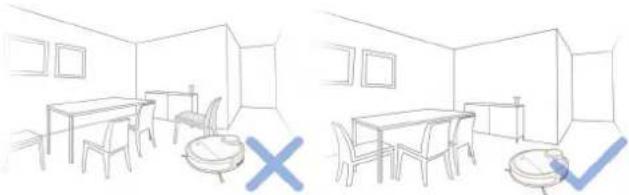
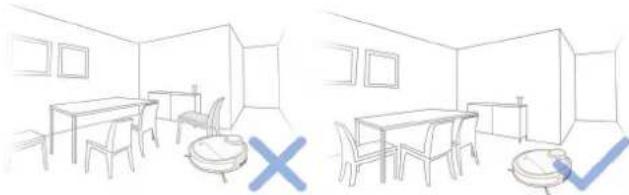
Tidy up the area to be cleaned by putting furniture, such as chairs, in their proper place.
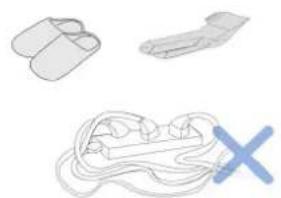
Remove power cords and small objects from the floor that the robot could be obstructed by.
3. Operating and Programming
3.2 Quick Start
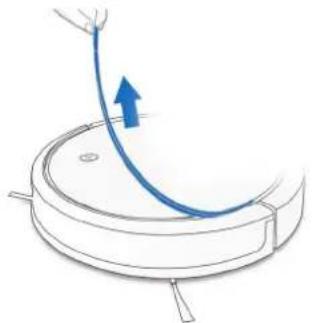
1 Remove Protective Strip
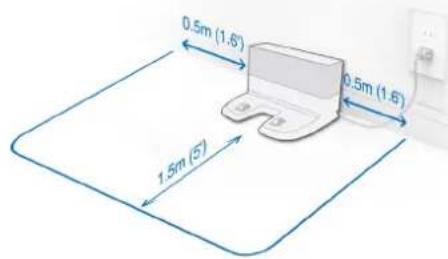
2 Docking Station Placement
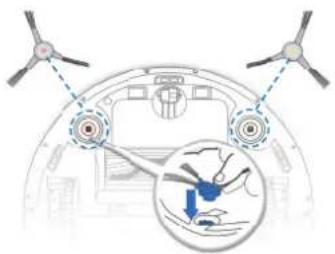
Install Side Brushes
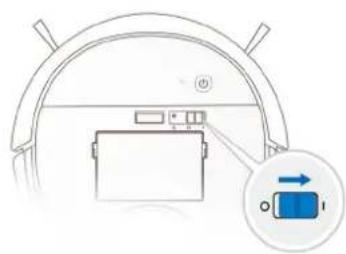
4 Power ON
3. Operating and Programming
5 Charge DEEBOT
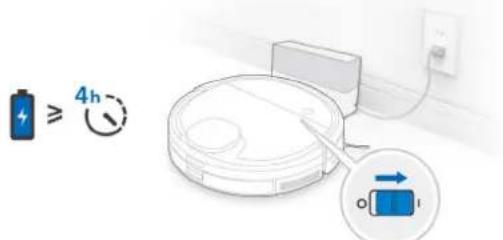
Note: When DEEBOT completes the cleaning cycle or when the battery gets low, DEEBOT automatically returns to the Docking Station to recharge itself. DEEBOT can also be sent back to the Docking Station at any time by using the ECOVACS App or by pressing the AUTO Button on the robot for 3 seconds.
6 Start
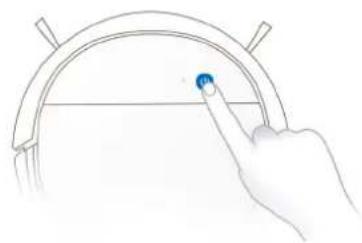
7 Pause
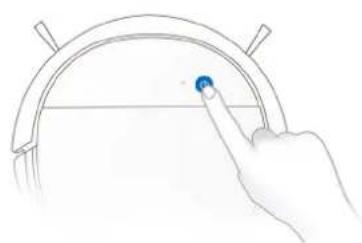
Note: The robot's Control Panel stops glowing after the robot is paused for a few minutes. Press the AUTO Mode Button on DEEBOT to wake up the robot.
8 Power OFF
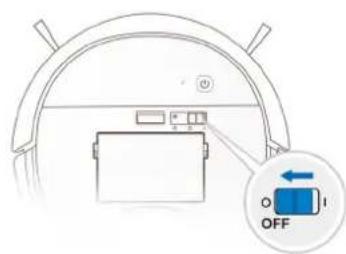
Note: When DEEBOT is not working, it is recommended to keep it switched ON and charging.
3. Operating and Programming
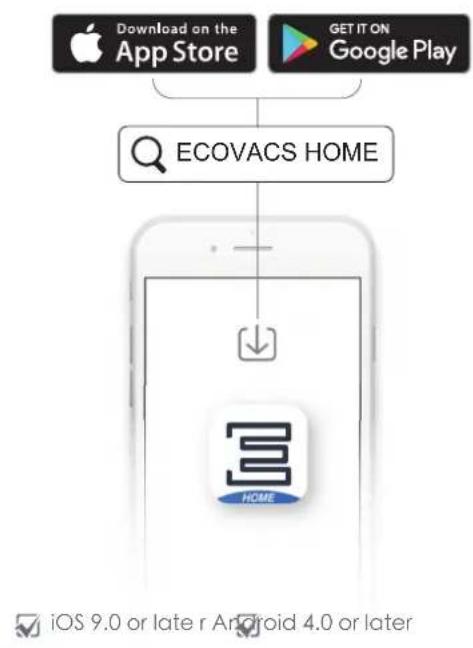
Note: For models with App-connectivity, various functions can be performed using the ECOVACS App.
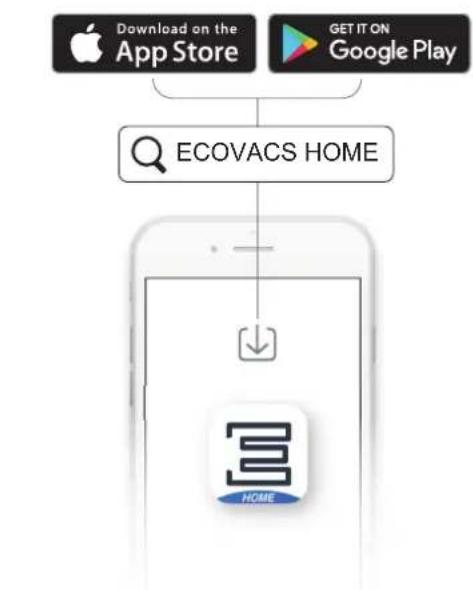

iOS 9.0 or later Android 4.0 or later
EN
14
3. Operating and Programming
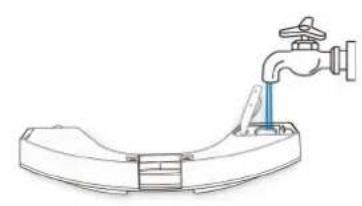
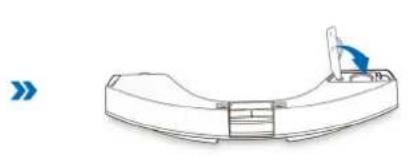
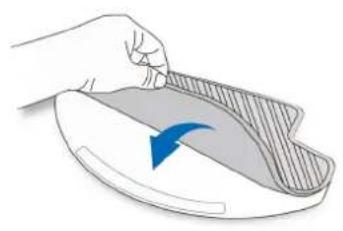
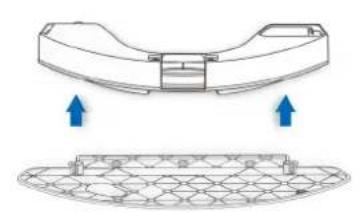
3.3 OZMO Mopping System
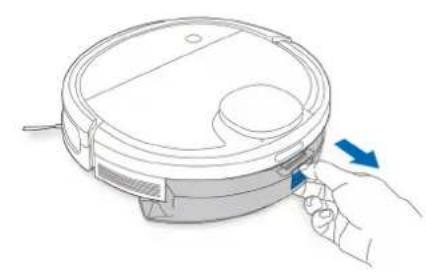
1
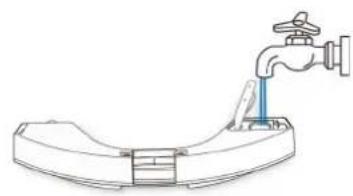
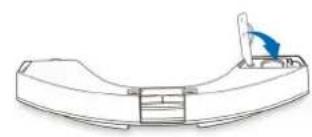
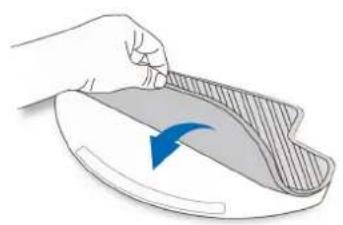
2
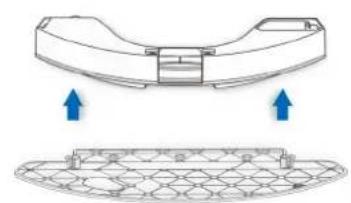
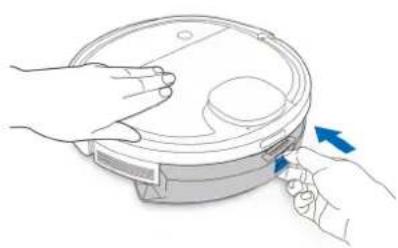
3. Operating and Programming

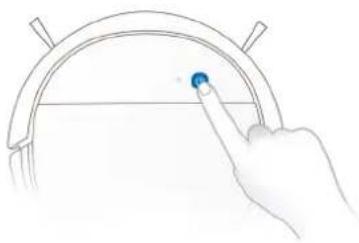
Note: Always keep the Reservoir installed when the robot is cleaning or charging.
3. Operating and Programming
3.4 Floor Cleaner Recommendation
Try BotClean, a high-performance floor cleaner recommended by Ecovacs. Experience a premium cleaning performance, shine and unique scent.
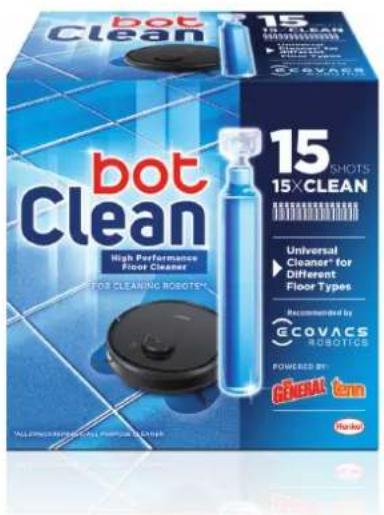
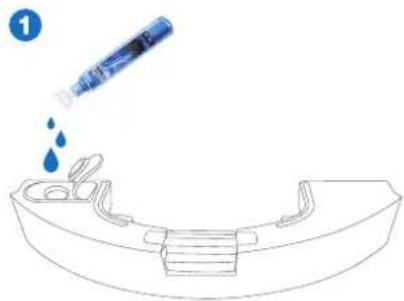
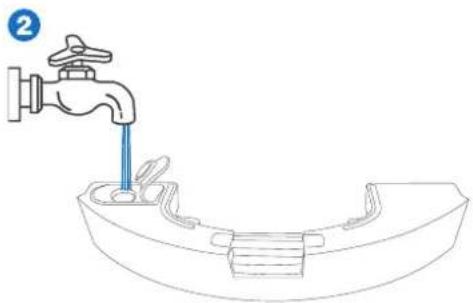
Note*:
- For optimal cleanliness, first pour the entire liquid into the empty water tank.
-
Then fill the tank with water.
-
The product is available on German and Spanish market
3. Operating and Programming
3.5 Choosing a Suction Option
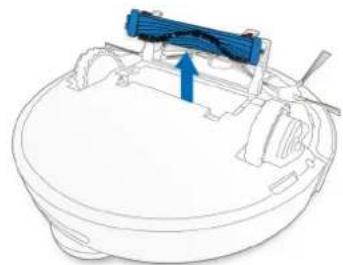
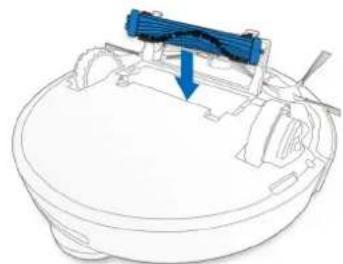
Main Brush Option: The best choice for deep cleaning, with a combination of the Main Brush and strong suction.
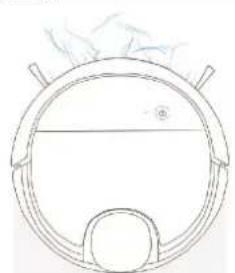
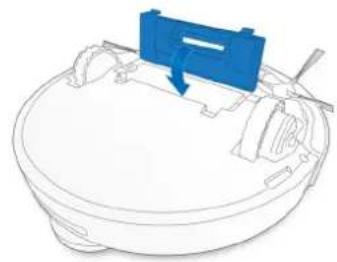
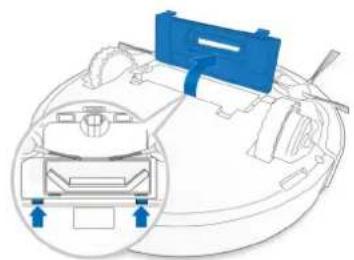
Direct Suction Option: The best choice for daily cleaning. This Suction Option is specifically designed to pick up hair without getting clogged by it, and is ideal for pet owners.
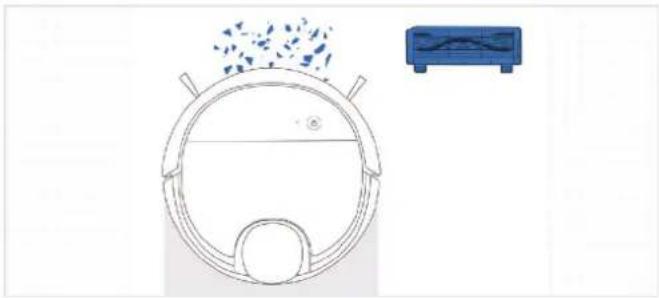
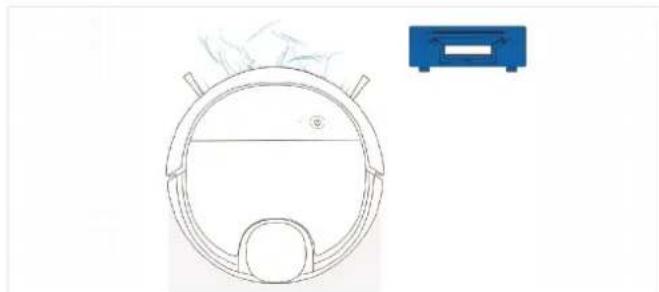
3. Operating and Programming
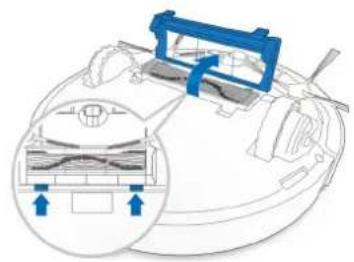
Install the Direct Suction Option
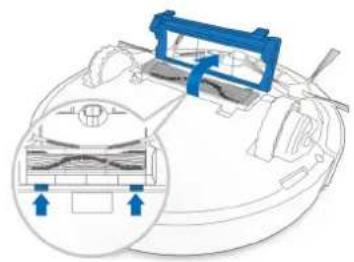
1
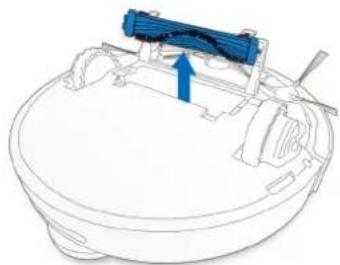
2
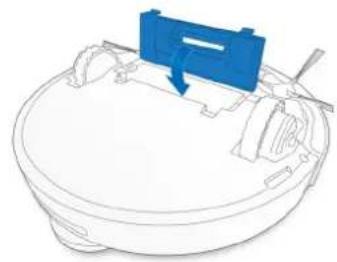
3
Install the Main Brush Option
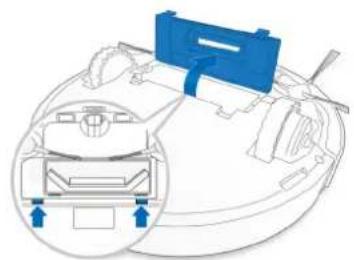
1
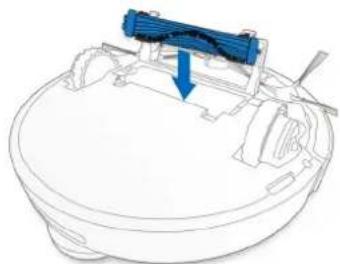
2
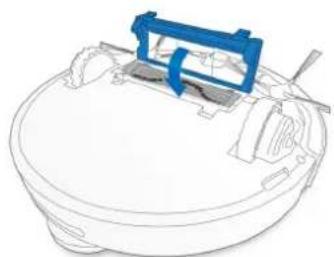
3
4. Maintenance
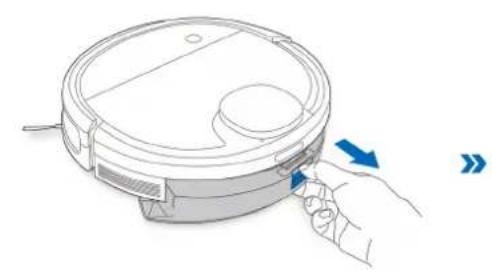
Before performing cleaning and maintenance tasks on DEEBOT, turn the robot OFF and unplug the Docking Station.
4.1 OZMO Mopping System
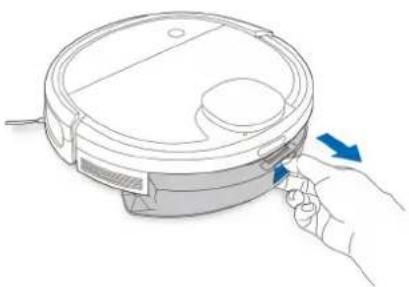
1
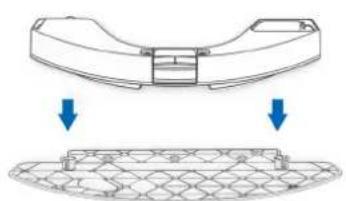
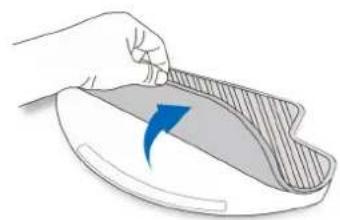
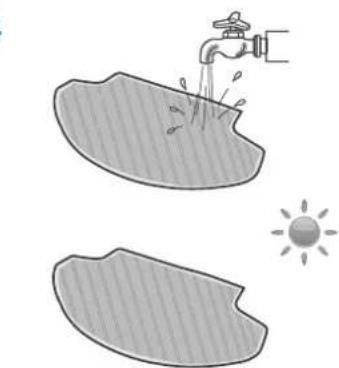
4
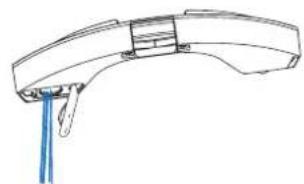
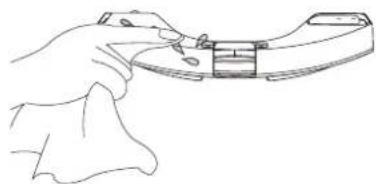
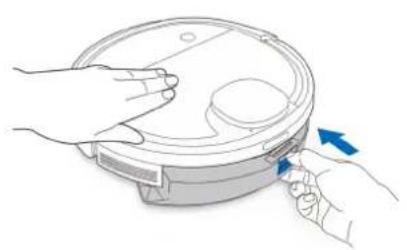
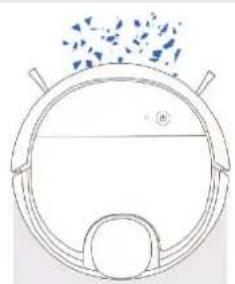
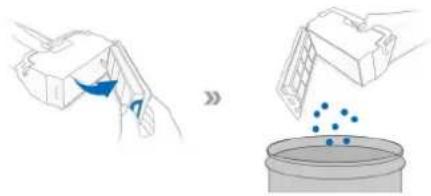
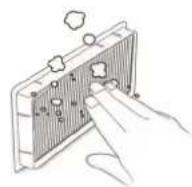
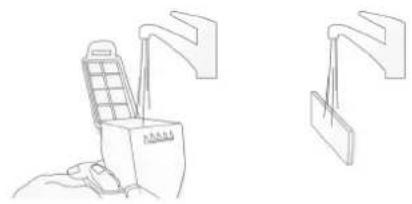
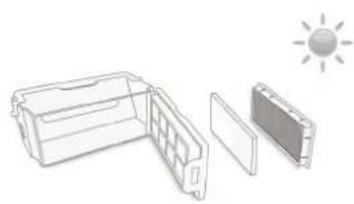
4.2 Dust Bin and Filters
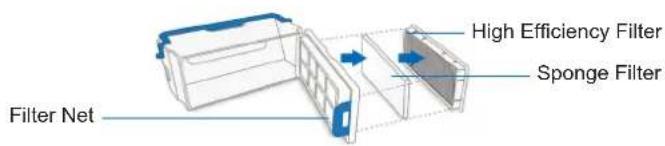
Dust Bin
1
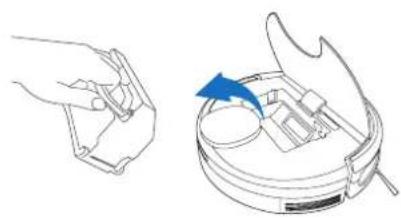
2
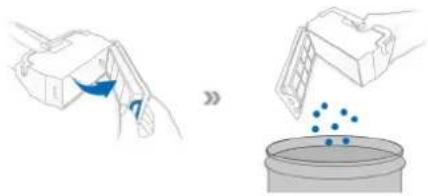
3
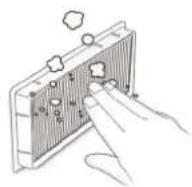
4
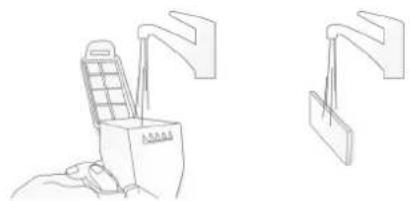
5
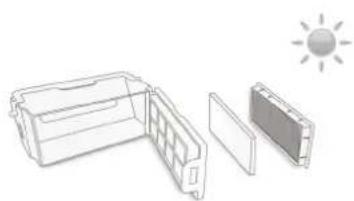
4. Maintenance
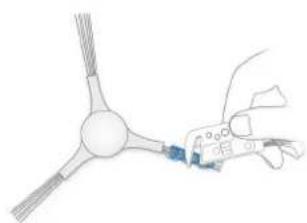
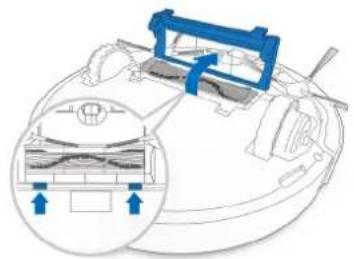
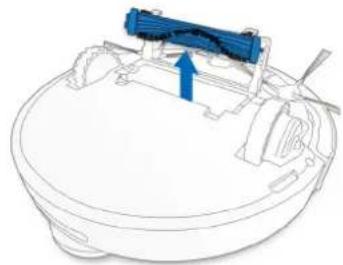
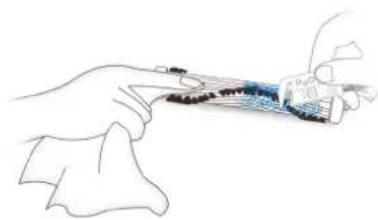
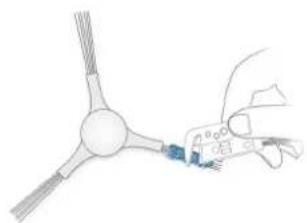
4.3 Main Brush, Direct Suction Option and Side Brushes
Note: A Multi-Function Cleaning Tool is provided for easy maintenance. Handle with care, this cleaning tool has sharp edges.
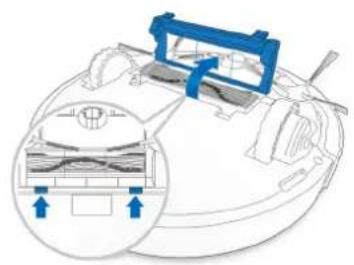
Main Brush
1
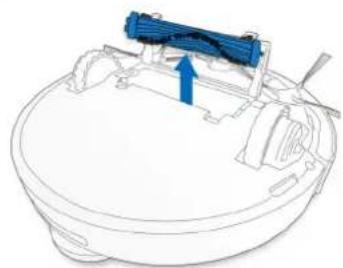
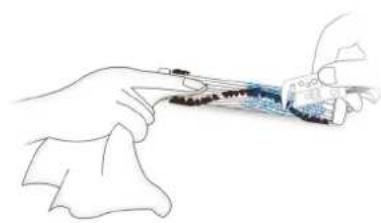
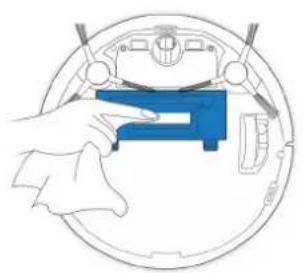
Direct Suction Option Side Brushes
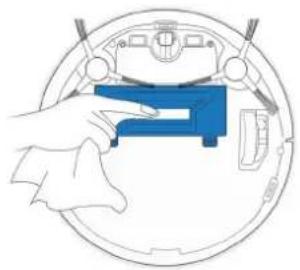
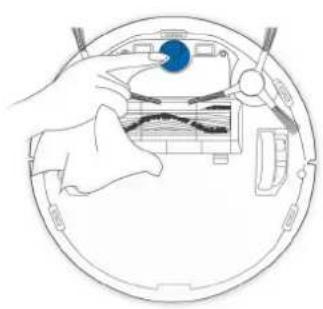
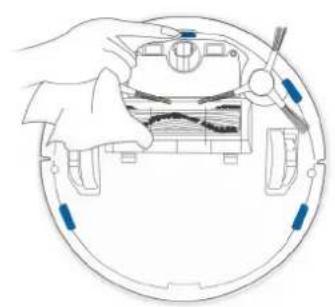
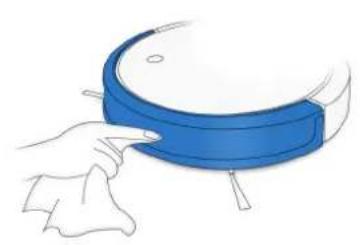
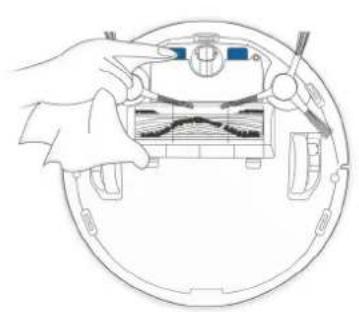
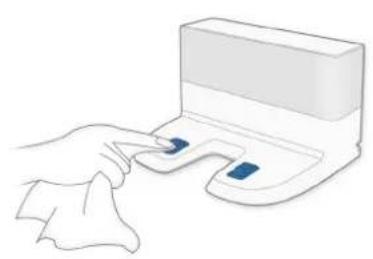
4.4 Other Components
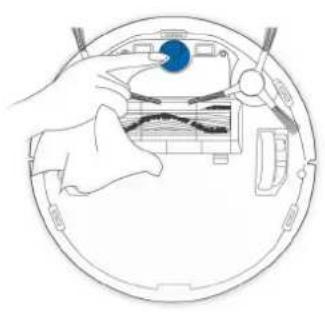
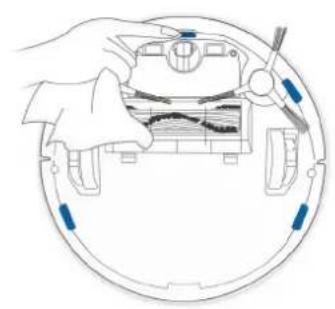
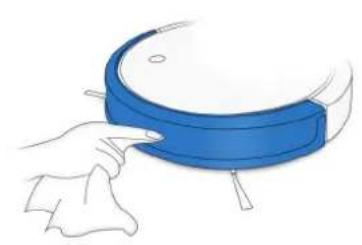
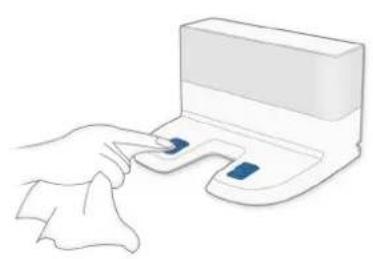
Note: Before cleaning the robot's Charging Contacts and Docking Station Pins, turn the robot OFF and unplug the Docking Station.

4. Maintenance
4.5 Regular Maintenance
To keep DEEBOT running at peak performance, perform maintenance tasks and replace parts with the following frequencies:
| Robot Part Maintenance | Frequency Replacement Frequency | |
| Cleaning Cloth After each use | Every 50 washings | |
| Reservoir/Cleaning Cloth Plate After each use / | ||
| Side Brush Once every 2 weeks | weeks Every 3-6 months | |
| Main Brush Once per week | Every 6-12 months | |
| Sponge Filter/ High Efficiency Filter Once per week | Once per week Every 3-6 months | |
| Universal Wheel Anti-Drop Sensors Bumper Charging Contacts Docking Station Pins | Once per week / |
A multi-function Cleaning Tool is provided for easy maintenance. Handle with care, this cleaning tool has sharp edges.
Note: ECOVACS manufactures various replacement parts and fittings. Please contact Customer Service for more information on replacement parts.
5. Troubleshooting
| No. | Malfunction Possible Causes Solutions | ||
| 1 | DEEBOT is not charging. | DEEBOT is not switched ON. Switch ON DEEBOT. | |
| DEEBOT has not connected to the Docking Station. | Be sure that the robot's Charging Contacts have connected to the Docking Station Pins. | ||
| The battery is completely discharged. | Re-activate the battery. Switch ON. Place DEEBOT on the Docking Station by hand, remove after charging for 3 minutes, repeat 3 times; then charge normally. | ||
| 2 | DEEBOT cannot return to the Docking Station. | The Docking Station is not correctly placed. | Refer to Section 3.2 to correctly place the Docking Station. |
| 3 | DEEBOT gets stuck while working and stops. | DEEBOT is tangled with something on the floor (electrical wires, curtains, carpet fringing, etc.). | DEEBOT will try various ways to free itself. If it is unsuccessful, manually remove the obstacles and restart. |
| 4 | DEEBOT returns to the Docking Station before it has finished cleaning. | When the battery gets low, DEEBOT automatically switches to Return to Charger Mode and returns to the Docking Station to recharge itself. | This is normal. No solution necessary. |
| Working time varies according to floor surface, room complexity and the Cleaning Mode selected. | This is normal. No solution necessary. |
5. Troubleshooting
| No. | Malfunction Possible Causes Solutions | ||
| 5 | DEEBOT does not clean automatically at the scheduled time. | Time Scheduling function is cancelled. | Program DEEBOT to clean at specific times using the ECOVACS App. |
| The Continuous Cleaning function is turned ON and DEEBOT has just finished cleaning the scheduled cleaning area. | This is normal. No solution necessary. | ||
| DEEBOT is switched OFF. Switch ON DEEBOT. | |||
| The robot's battery is low. | Keep DEEBOT switched ON and connected to the Docking Station to make sure it has a full battery to work at any time. | ||
| The robot's Suction Intake is blocked and/or there is debris stuck in its components. | Power OFF DEEBOT, clean the Dust Bin and invert the robot. Clean the robot's Suction Intake, Side Brushes and the Main Brush as described in Section 4. | ||
| 6 | DEEBOT does not clean the whole area. | The cleaning area is not tidy. | Remove small objects from the floor and tidy up the cleaning area before DEEBOT starts cleaning. |
5. Troubleshooting
| No. | Malfunction Possible Causes Solutions | ||
| 7 | DEEBOT misses cleaning spots to be cleaned, or repeats cleaning the area cleaned. | DEEBOT automatically cleans the area missed. | This is normal. No solution necessary. |
| 8 | DEEBOT is not able to connect to the home Wi-Fi network. | Incorrect home Wi-Fi username or password entered. | Enter the correct home Wi-Fi username and password. |
| DEEBOT is not within range of your home Wi-Fi signal. | Make sure DEEBOT is within range of your home Wi-Fi signal. | ||
| Network setup started before DEEBOT was ready. | Turn ON Power Switch. Press the RESET Button using a needle for 3 seconds. DEEBOT is ready for network setup when it plays a musical tune and its Wi-Fi Indicator light flashes slowly. | ||
| Your smartphone's operating system needs to be updated. | Update your smartphone's operating system. The ECOVACS App runs on iOS 9.0 and above, Android 4.0 and above. |
6. Technical Specifications
| Model DN5G | |||
| Rated input 20 V DC, 0.8 A | |||
| Docking Station Model CH1630A | |||
| Input | 100-240 V AC, 50-60 Hz, 25W | Output 20 V DC, 0.8 A | |
| Laser | max. power: 2.5mW Frequency: 1.8KHz Rotate Speed: 300±5 circle/min | ||
| Frequency Bands 2412-2472Mhz | |||
| Off Mode Power Less than 0.50 W | |||
| Networked Standby Power Less than 2.00 W | |||
Note: Technical and design specifications may be changed for continuous product improvement. Output power of the WIFI module is less than 100mW.
For more information, please visit the ECOVACS ROBOTICS official website: www.ecovacs.com
https://www.ecovacs.com/global/compliance

Hinweis: When DEEBOT completes the cleaning cycle or when the battery gets low, DEEBOT automatically returns to the Docking Station to recharge itself. DEEBOT can also be sent back to the Docking Station at any time by using the ECOVACS App or by pressing the AUTO Button on the robot for 3 seconds.
7 Pause
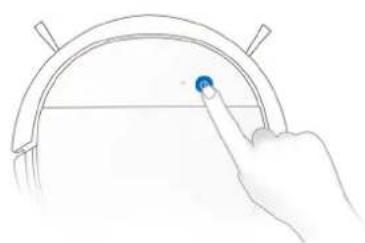
Hinweis: For models with App-connectivity, various functions can be performed using the ECOVACS App.
iOS 9.0 or later Android 4.0 or later
https://www.ecovacs.com/global/compliance
iOS 9.0 or later Android 4.0 or later
6. Specifications techniques
iOS 9.0 or later Android 4.0 or later
BCacbBaHn
γbcbn
BbICOKOaΦΦeKTnHBbI
ΦMnBtpbI

KpaTKoe pyKOBOCTBO
yIyUeHHoH

BnaxHo/ cyxOy bOpKn
MHOROΦyHKUHOHaBbHbI
HHCTpyMeHT OUHCTKIN
PpmeHne. PcyHKn HnnIOCTpaunn pnpBeHeBb O3HaKOMITeNbHbIX cIeJX MOryT OTNnATcbcO rOaKTHeCKoR BHeUHero BnDa n3dennr. KoHctpykui NTexHnueckne XapAKTeepntNK n3dennr MOYt 6b1b N3MeHeHb 6e3 npedBaHTeNBHO yBeOMnHn.
2. Kompaneя
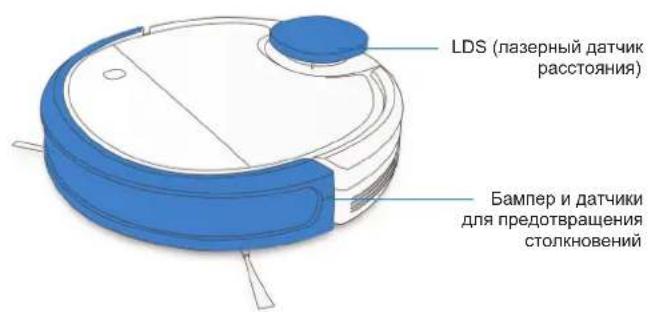
2.2 Cxema n3dennia Po6oT
2. Kompaneçania
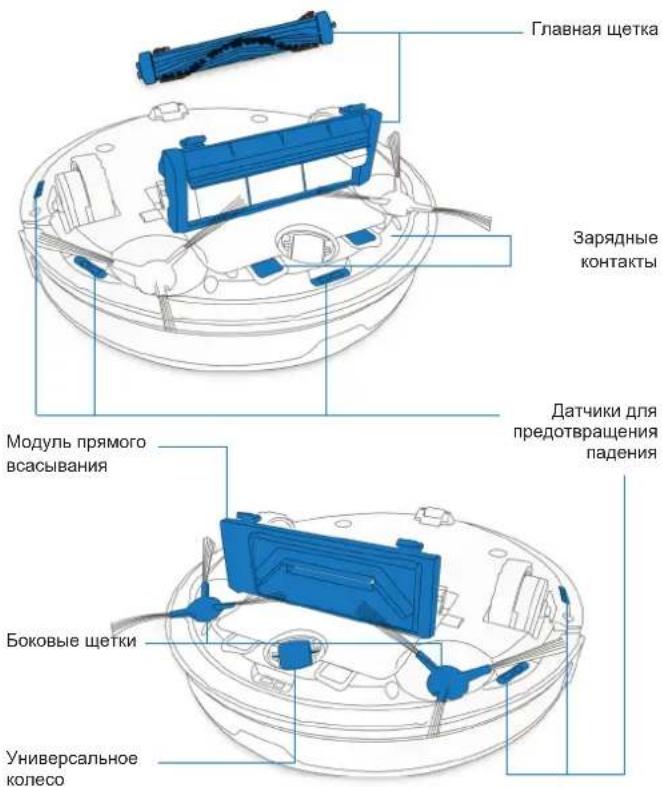
BnD CHn3y
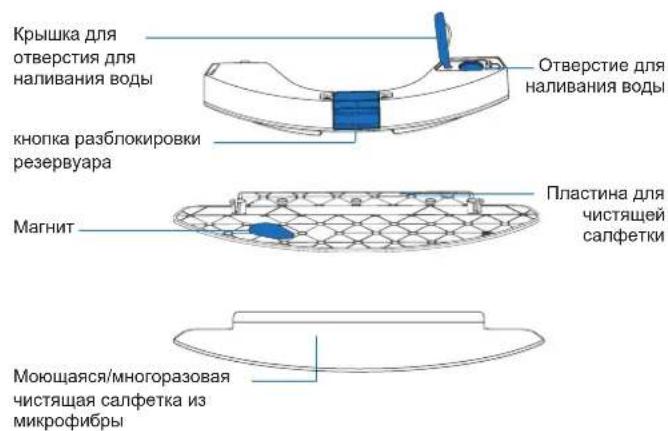
ДЯунушень Blaxно/vey60pkn
3.Экплuyaataци И поррамmarpoBaHne
3.1ПоюгтOBКочнстke
PPEyIPEKDEHNE. He nnonb3yute po6oTa DEEBOT Ha MOKpbix NOBepxHOCTX INH Na NOBepxHOCTX CO CTOaey BDOH.
Ipeep nCnOJb3oBaHHe m np6opa Ha KOBpe c 6aXpOMo no KpaM Heo6xoJIMO noDBeRHyTb KpaKOBpa.
PpBBeNTe B npOIOK 30Hy y6OpKn, pacCTaBnB Me6enb, HApnPmep CtyIb, Ha CBOE O6bIuHoe MecTo.
Bo3MOxHO,notpe6yETcraTahOBnTBfN3Hueckoe npenrTCTBHe Ha rpaHnce nepenada BbICOTb,UTo6blnpedotBpataNTb naedeHne npnbopa.
Y6epntcnonnpoBodaHHe6onbWne npedMeTb, KOToPbe MoryT nomeatapeDnKEnHIO np6opa.
8 Bbikluoyehne nHTaHn
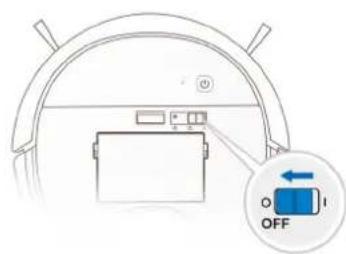
PpmeaHne. KOrda po6oT DEEBOT He nCnoJb3yETcra, peKOMeHnyETcra octabntb erO BKNIOUeHHbIM Ha 3apdHoi CTaHUN.
iOS 9.0 or later Android 4.0 or later
3.Экплuyaataци и порpaMMnpOBaHne
3.3 CnCTemaMbITbI NOIOB OZMO
1
2
3.4 BbI6Op MOUHOCn BCaCbIBaHnA
Tnabhaeta. TnaBhaaeta MoHoe BcabaHne neaeIbHO noDoydny ny60koonocTKN.
Modynb npamoro BcacbBaHn. NdeaIbHo nOdoJeT dna rIy6okoOn ONUCTKn.Pekm BcacbBaHn pa3pa6oTaH cneuaIbHo dna c6opa BONOC 6e3 CnytBHaHn n IdeaIbHo noXoJNT dna BnaJeIbueB DOMaWHNX XINBOTbIX.
UcTaHOBka MoDyIaI npMOrO BCaCbIbAHn
1
2
3
YcTaHOBka rnaBHOn 1eTKN
1
2
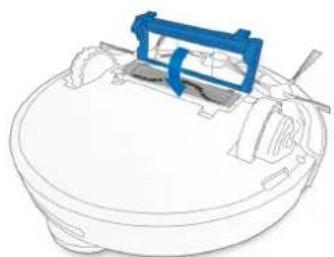
3
4. Texnueckoe obcnykBaHne
IpeXeJe Hm npctyntB K ouncTke N Texnueckomy o6cnyxnbHno po6oTa DEEBOT, OTKIOHTe erO n 3BJIeKNTe BNJky DOK-CTaHcHn n3 po3ETKn.
4.1 CnCTemaMbITbI NOIOB OZMO
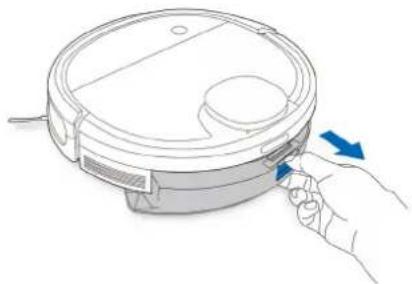
1
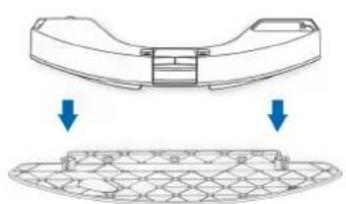
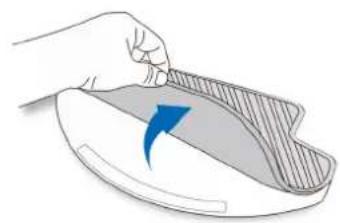
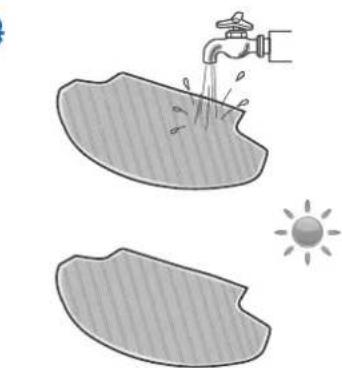
4
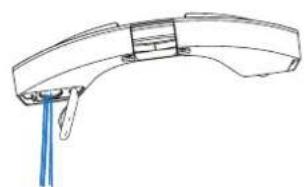
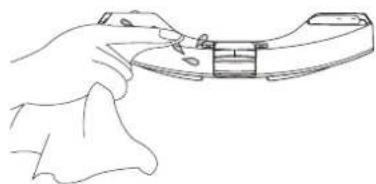
4. Texnueckoe obcnyxnbHne
4.2Пьilec6opohbI KOHTeHepиФИbTpbl Пьilec6opohbI KOHTeHep

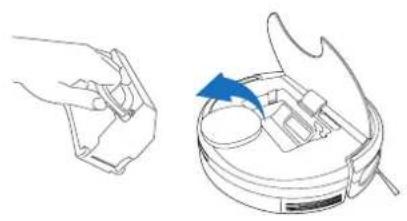
1
2
3
4
5
4. Texnueckoe obcnyxnbHne
4.3 TnaBnA yetka, MoDyIb npraMOrO BCaCbIBaHnR N 60KOBbIe 9eTkn
PnmeaHne. B kOMnNeKT BXoNT MHOrOcYHKcNHOHaJIbHbI YcTReaI INcTpyMeHT dIyO6CTBa 06cnyKbAHNA. YnCTraI INcTpyMeHT nMeet octpble Kpa, no3tOMy nCNoJIb3yIe erO c OCTopoXHOCTbIO.
TnaBnA yetka
1
MóyNb npRMORO BCaCbBaHn
Bokobbie ueTkn
4. Texnueckoe obcnyxnbHne
4.4 pyrne kOMnoHeHtbl
PpmeaHne. PpeXeJe Yem npctyntB KoNCTke 3apnBbIX KOthakTOB po60Ta N DOK-CTAHUN, OTKnIOHTe po60Ta N N3BNeKInTe BnIKy DOK- CTAHUN N3 pO3eTKN.
4. Texnueckoe obcnykBaHne
4.5 PerylaepHoe 6cbnyxmbaHne
Yto6bIpo6oT DEEBOT npo0nXan o6ceueHBaTB haHnyuwee kaecTBO y6opKn, BblnoHnTe 6cnyxnbAHe n 3ameHy paCXoHNKOB B COOTBETCTBN co cneDyUOUMN HcTpyKUAMN.
5. YcTpaHHe HeNCpPaBHOCTeI
5. YcTpaHenne HeNCnPaBHOCTeI
EU-Declaration of conformity
Document number:0043
Manufacturer: Ecovacs Robotics Co., Ltd.
Address:No.18, Youxiang Road, Wuzhong District, Suzhou City, Jiangsu Province, China.
We hereby declare that the following products listed below are in accordance with the provisions in the latest version of EC in this document.
Product designation:
Brand:
Automatic battery-operated cleaner

Model:
DN5G,DN5G.** (^* = 0 - 9) (the first * denote different colours, the second * denote different accessories.)
Specification:
Electrical appliances for household and similar purposes
EC Regulations or Directives:
RED
Directive 2014/53/EU
RoHS
Directive 2011/65/EU
WEEE
Directive 2012/19/EU
REACH
Directive1907/2006/EC
Eco-design
Directive 2009/125/EC
Standards the product is in conformity with:
EN 60335-2-2:2010 + A11:2012 + A1:2013
EN 55014-1:2006+A1:2009+A2:2011
Final draft EN 301 489-1 V2.2.0
EN 60335-1:2012+A11:2014+A13:2017
EN 55014-2:2015
Final draft EN 301 489-17 V3.2.0
EN 61558-1:2005 + A1:2009
EN 61000-3-2:2014
EN 62311:2008
EN 61558-2-16:2009 + A1:2013
EN 61000-3-3:2013
EN 50564:2011
EN 62233:2008
EN 300 328 V2.1.1
For EU Declaration of Conformity information in multiple languages, visit https://www.ecovacs.com/global/compliance
General Manager: Zhuang Jianhua
Date: 2018-08-22
Ecovacs Robotics Co., Ltd
No. 18 You Xiang Road, Wuzhong District, Suzhou City,
Jiangsu Province, P.R.China
DEEBOT OZMO 905-EU01-IM2019R01