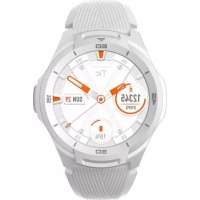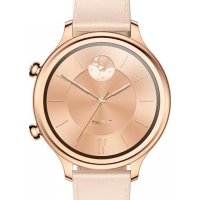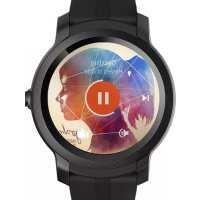
E2 - Sports Watch TicWatch - Free user manual and instructions
Find the device manual for free E2 TicWatch in PDF.



| Product Type | Sports Smartwatch |
| Brand | TicWatch |
| Model | E2 |
| Operating System | Wear OS by Google |
| Display | AMOLED 1.39 inches, 400x400 pixels, 287 ppi |
| Processor | Qualcomm Snapdragon Wear 2100 |
| Memory | 512 MB RAM, 4 GB ROM |
| Connectivity | Bluetooth 4.1 BLE, Wi-Fi 2.4 GHz b/g/n, GPS/GLONASS/Beidou |
| Sensors | Optical heart rate sensor, accelerometer, gyroscope |
| Battery | 415 mAh lithium-ion, magnetic charging |
| Strap | Width 22 mm |
| Compatibility | Android 4.4+ / iOS 9.0+ |
| Main Functions | Activity tracking, notifications, Google Assistant, Google Fit |
| Box Contents | Watch, magnetic charger, user manual |
| Power | Rechargeable lithium-ion battery 415 mAh |
| Care and Cleaning | Clean with a soft, dry cloth. Avoid chemicals. |
| Safety | Do not expose to extreme temperatures or violent shocks. |
| Spare Parts and Repairability | Contact importer Tic-Benelux (TJM Imports B.V.) for assistance. |
| General Information | Manufactured by Mobvoi. Manual available in multiple languages. |
Frequently Asked Questions - E2 TicWatch
User questions about E2 TicWatch
0 question about this device. Answer the ones you know or ask your own.
Ask a new question about this device
Download the instructions for your Sports Watch in PDF format for free! Find your manual E2 - TicWatch and take your electronic device back in hand. On this page are published all the documents necessary for the use of your device. E2 by TicWatch.
USER MANUAL E2 TicWatch
((802.11 b/g/n) (2.4GHz) HT20 for FCC, IC. 2412MHz
- 2472MHz (802.11 b/g/n) (2.4GHz) HT20 for CE.
Adress: Building 2-106, 1690 Cailun Road, Shanghai (China)
Email: support@mobvoi.com
((802.11 b/g/n) (2.4GHz) HT20 for FCC, IC. 2412MHz
- 2472MHz (802.11 b/g/n) (2.4GHz) HT20 for CE.
Fabricant: Shanghai Mobvoi Information Technology Company Limited.
Adresse: Building 2-106, 1690 Cailun Road, Shanghai (China)
Email: support@mobvoi.com
Accessories and appearance
((802.11 b/g/n) (2.4GHz) HT20 for FCC, IC. 2412MHz
- 2472MHz (802.11 b/g/n) (2.4GHz) HT20 for CE.
Adresse: Building 2-106, 1690 Cailun Road, Shanghai (China)
Email: support@mobvoi.com
Tic-Benelux is part of TJM Imports B.V. ©2019
Welcome to TicWatch - S2/E2
Developed by the Mobvoi and powered by Wear OS by Google™, the TicWatch line of smartwartches are a perfect blend of both software and hardware.
Mobvoi is an artificial intelligence company which specializes in numerous areas of technology such as voice recognition, semantic analysis, speech synthesis, vertical search and smart notifications are just to name a few. Till date, it has completed six rounds of funding w 2
Accessories and appearance - S2/E2
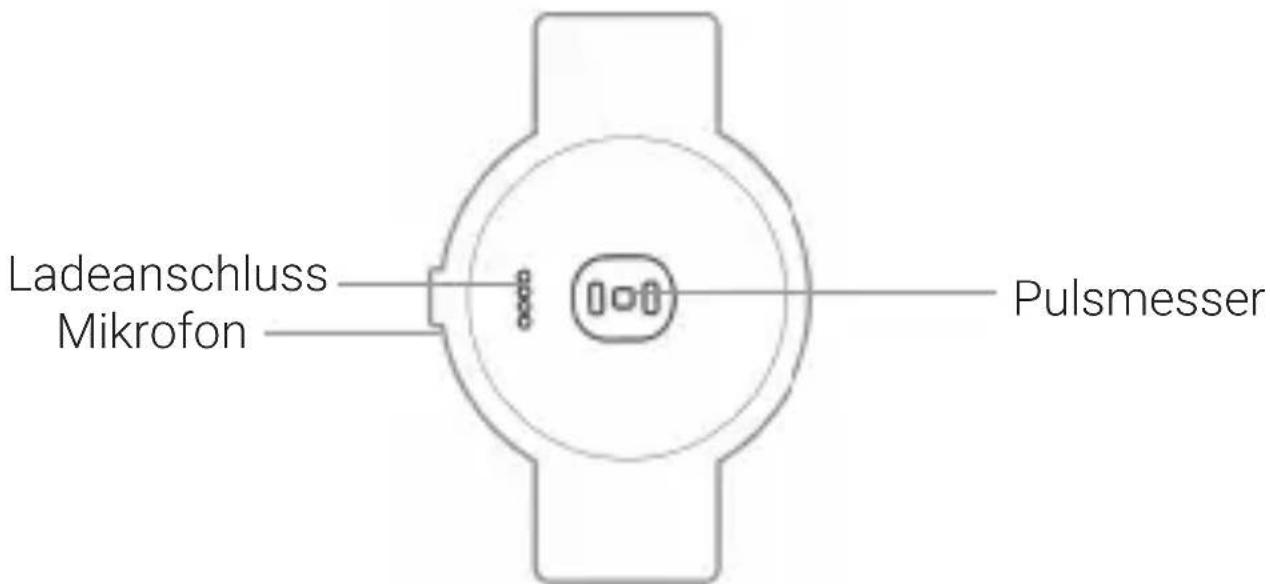
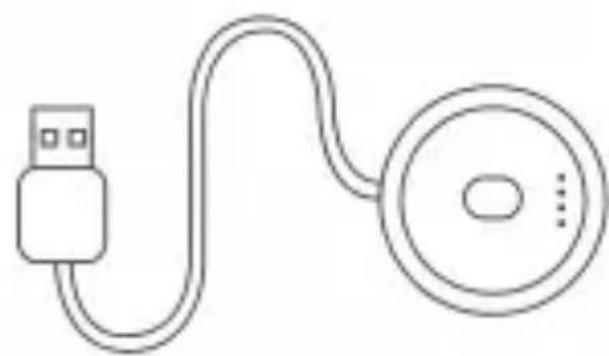
Included in the box are the TicWatch smartwatch , a magnetic contact charger ,and a product manual.
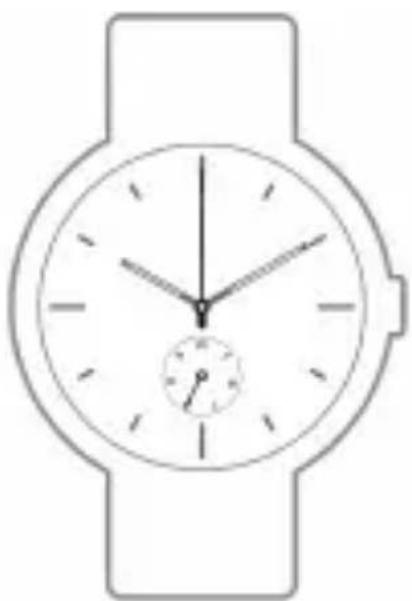
Crown:
Long press while powered off: power on Long press while powered on: activate The Google Assistant
1-click while powered on click: app menu
Screen:
1.4 inch full round dial
Resolution:
400x400 pixels
Strap width:
22mm
Accessories and appearance - S2/E2
Charging port Microphone
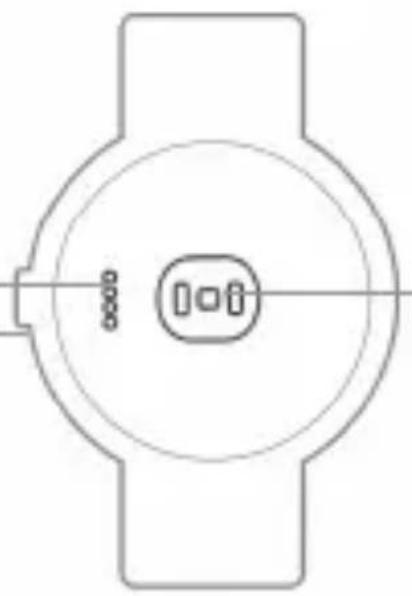
Dynamic optical heart rate sensor
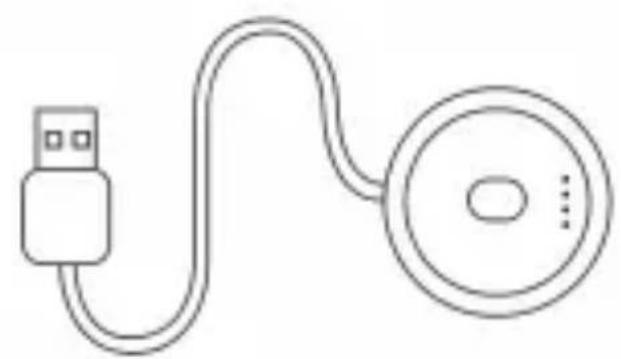
Magnetic contact charger
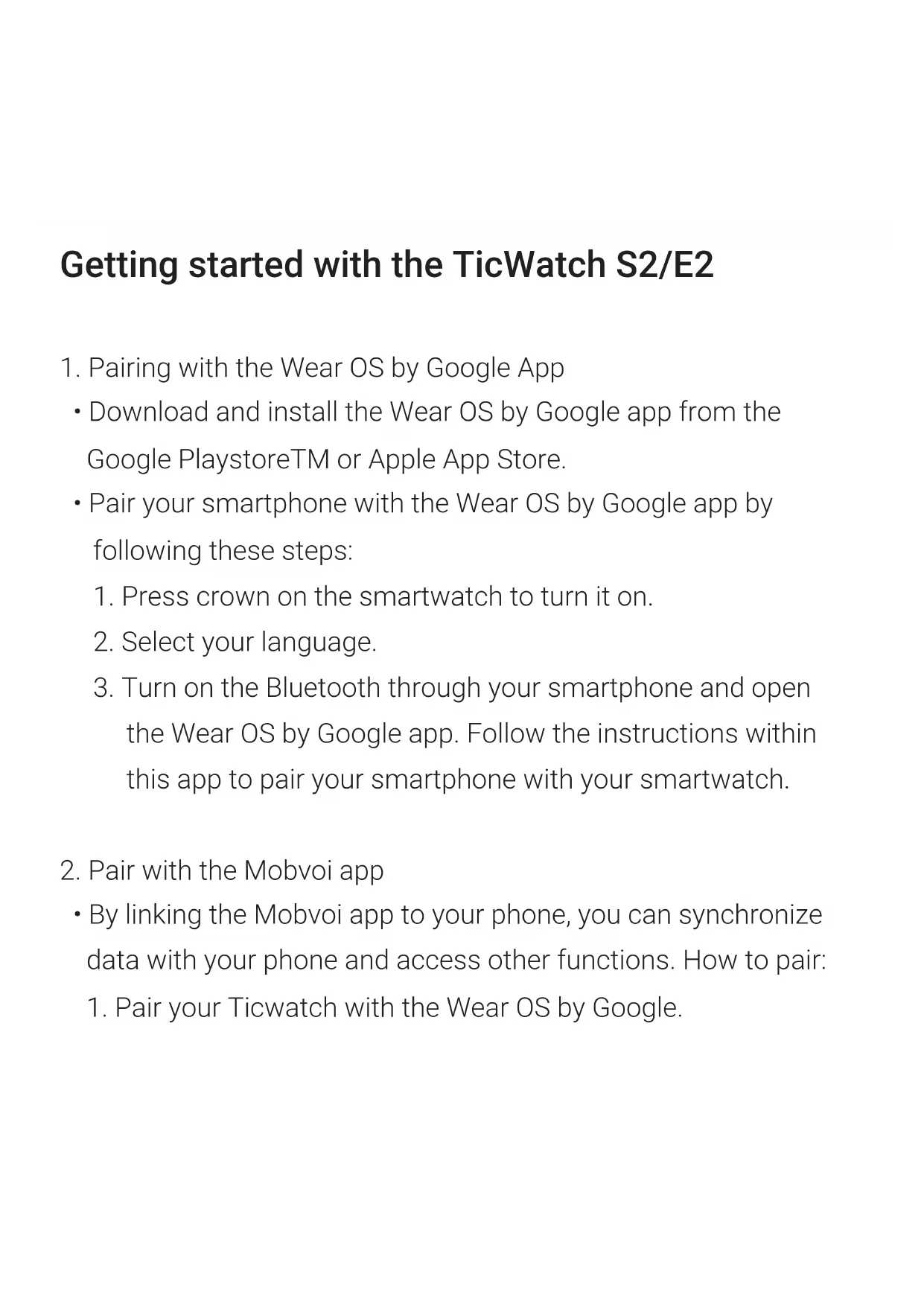
Getting started with the TicWatch S2/E2
-
Pairing with the Wear OS by Google App
-
Download and install the Wear OS by Google app from the Google PlaystoreTM or Apple App Store.
-
Pair your smartphone with the Wear OS by Google app by following these steps:
-
Press crown on the smartwatch to turn it on.
- Select your language.
-
Turn on the Bluetooth through your smartphone and open the Wear OS by Google app. Follow the instructions within this app to pair your smartphone with your smartwatch.
-
Pair with the Mobvoi app
-
By linking the Mobvoi app to your phone, you can synchronize data with your phone and access other functions. How to pair:
-
Pair your Ticwatch with the Wear OS by Google.
Getting started with the TicWatch S2/E2
- Download the Ticwatch app from the Google Playstore or the Apple App store.
- Start the pair process.
iPhone
When your smartwatch is successfully paired with the Wear OS by Google app, you need to pair with the Ticwatch app again to synchronize the data from your smartphone.
-
Instructions:
-
Pair your smartwath with the Wear Os by Google app and go to the Ticwatch app. Log in or create a new Mobvoi account and click on start.
- Select your smartwatch name on your phone and let the pair process begin. (You can find the smartwatch name under Settings> System> About)
- Click "ok" when the devices are paired.
Getting started with the TicWatch S2/E2
Android
When your smartwatch is paired with the Wear OS by Google app, you download the Ticwatch App and log in with an existing account or create a new one. The app should immediately report that the devices are paired. You do not need to pair again.
Important: You must first pair your smartwatch and smartphone with the Wear OS by Google app. When this is successful you pair with the Ticwatch app. The other way around does not work. It is also important that you do not follow these steps via the Bluetooth interface.
Your smartphone must use Android 4.4 or higher and / or iOS 9.0 or higher. When your smartphone and smartwatch are connected successfully, it will display "connected".
Getting started with the TicWatch S2/E2
If you can not successfully pair, the smartwatch can not be used. Reset the smartwatch and restart it. Restart your smartphone and turn the Bluetooth on again and restart the pair process.
Pair more smartwatches to your phone
If you like, you can pair multiple smartwatches to your smartphone. Note: You can't do this with an iPhone. But you can only pair your watch with one phone at a time.
If you have more than one phone that you want to pair with your smartwatch, or you own multiple smartwatches, keep in mind:
One smartwatch and multiple phones
You can't pair one watch with multiple phones at the same time. You can switch which phone your watch is paired with, but you
Getting started with the TicWatch S2/E2
need to reset your watch to factory settings first. Then you can pair your watch to the new phone.
Multiple smartwatches and one phone
Note: You can't do this with an iPhone.
You can pair multiple smartwatches to a single phone. Simply repeat the pairing steps for each smartwatch. Below the smartwatch you'll see if it's connected or disconnected. Your smartwatch will be disconnected if it can't communicate with your phone or if you've chosen to disconnect it from the settings.
Trouble pairing existing watch to a new phone
You can pair an existing smartwatch with a new phone, but you need to reset your watch to factory settings first. Then you can pair your smartwatch.
Getting started with the TicWatch S2/E2
Connect to Wi-Fi
Your watch can automatically connect to saved Wi-Fi networks when it loses the Bluetooth connection with your phone.
- If your screen is dim, tap it to wake up the smartwatch.
- Swipe down from the top of the screen.
- Tap Settings. If you don't see it right away, swipe left and tap Settings.
- Turn on Wi-Fi. Scroll down and tap Connectivity. If Wi-Fi is set to off, tap Wi-Fi to switch it to Automatic.
Add or change your watch's Wi-Fi network
- If your screen is dim, tap it to wake up the watch.
- Swipe down from the top of the screen.
- Tap Settings. If you don't see it right away, swipe left and tap Settings.
- Set up the new network. Scroll down and tap Connectivity and then
Getting started with the TicWatch S2/E2
Note: To enter a password if a password is required, tap Enter on phone. When prompted, enter the password on your phone. Then tap Connect.
Note: Your watch can't connect to Wi-Fi networks that take you to a page before you can connect (for example, Wi-Fi networks at places like hotels or coffee shops).
Connect to known networks
As long as your smartwatch's Wi-Fi is on, it'll connect automatically to Wi-Fi networks saved in your phone. Note: This doesn't work on iPhones.
Connect Bluetooth devices to your smartwatch
You can pair Bluetooth accessories, such as headphones or a
Getting started with the TicWatch S2/E2
- If your screen is dim, tap the screen to wake up the watch.
- Swipe down from the top of the screen.
- Tap Settings and then Connectivity and then Bluetooth and then Available devices.
- Your watch will search for nearby devices. When you see the name of your headphones, tap it to connect.
Connect a Bluetooth device that has an app
Some Bluetooth devices, like heart rate monitors, come with an app for your watch. If you have one of these:
- Open its app on your smartwatch.
- Follow the instructions to pair the accessory to your smartwatch.
Note: ANT+ accessories can't be paired with Wear OS by Google smartwatches.
Common operating gestures S2/E2
| Display screen Press this button to the application list to open. Hold this button to the Activate Google Assistant. | |
| Click | Confirm. |
| Swipe left Activate | Google Fit. |
| Swipe right Activate | Google Assistant. |
| Swipe up View and manage notifications. | |
| Swipe down Access the fast shadow setting. | |
| Long press Select a watch face that suits you style fits. | |
Parameter information S2/E2
Screen AMOLED screen and display
1.4 inch / 400 x 400 px / 287 ppi
Processor Snapdragon Wear 2100
Memory 512 M RAM + 4 GB ROM
Bluetooth 2.4 GHz Bluetooth V4.1 / BLE
GPS GPS / GLONASS / Beidou
WiFi 2.4 GHz 802.11 b/g/n
Sensor Dynamic optical heart rate monitor, speed sensor, gyroscope
Capacity 415 mAh
Output BT classic & EDR 9.95 dBM
BLE 1.33 dBm - Wifi 13.34 dBm
Works by 2402MHz - 2480MHz (BT/BT4.1) 2412MHz - 2462 MHz
((802.11 b/g/n) (2.4GHz) HT20 for FCC, IC. 2412MHz
- 2472MHz (802.11 b/g/n) (2.4GHz) HT20 for CE.
Parameter informatie S2/E2 and Contact
*The contents of these specifications can be changed without prior notice. Look for more info on the official website (www.mobvoi.com).

Please get in touch if you have any issues or prolems:
Manufacturer: Shanghai Mobvoi Information Technology Company Limited.
Adress: Building 2-106, 1690 Cailun Road, Shanghai (China)
Email: support@mobvoi.com
Imporer: Tic-Benelux is part of TJM Imports B.V.
Visit the official Ticwatch website for more information:
https://www mobvoi.com
Contact us if you have problems:
support@mobvoi.com
Manufacturer:
Shanghai Mobvoi Information Technology Company Limited.
Adress: Building 2-106, 1690 Cailun Road, China (Shanghai) Free trade area.
Importer:
Tic-Benelux is part of TJM Imports B.V.
Adress: Zompstraat 8, 8102 HX Raalte, Netherlands.
Website: www.tic-benelux.nl
Email: verkoop@tic-benelux.nl