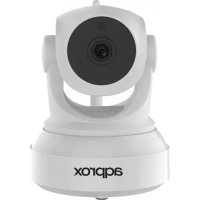
appIP02P2PV2 - Surveillance Camera Approx - Free user manual and instructions
Find the device manual for free appIP02P2PV2 Approx in PDF.



| Product type | IP surveillance camera |
| Brand | Approx |
| Model | appIP02P2PV2 |
| Resolution | HD |
| Night vision | Yes (day and night) |
| Two-way audio | Yes (2 audio channels) |
| Local storage | Micro SD slot up to 128GB |
| Connectivity | Wi-Fi (ONE KEY WIFI) and LAN RJ-45 |
| Power supply | Adapter 5 VDC / 2 A |
| Mobile app | EyeCloud (iOS and Android) |
| Installation | Plug and Play, simplified Wi-Fi configuration |
| Package contents | Camera, adapter, CD, quick guide, Wi-Fi antenna, wall mount, screws |
| Mounting | Wall or ceiling (professional recommended) |
| Maintenance | Clean with a soft dry cloth, device turned off |
| Safety | Do not open, do not expose to water, use approved cables |
| Certifications | CE, compliance with directives 2014/53/EU, 2014/30/EU, 2014/35/EU, 2011/65/EU |
| Warranty | Legal warranty (normal wear excluded) |
| Technical support | Email: soporte@approx.es, website: www.approx.es |
Frequently Asked Questions - appIP02P2PV2 Approx
User questions about appIP02P2PV2 Approx
0 question about this device. Answer the ones you know or ask your own.
Ask a new question about this device
Download the instructions for your Surveillance Camera in PDF format for free! Find your manual appIP02P2PV2 - Approx and take your electronic device back in hand. On this page are published all the documents necessary for the use of your device. appIP02P2PV2 by Approx.
USER MANUAL appIP02P2PV2 Approx
Introduction and product description
Thank you for choosing the IP HD PNP camera APPIP02P2PV2.
TThe APPIP02P2PV2 has been developed with HD resolution to monitor a private home, office, shop or any other room both day and night in excellent quality. Its PnP technology allows automatic installation without having to configure your router to access the camera externally. Its new ONE KEY WIFI CONFIGURATION function, allows you to configure the camera without the need of a computer, via Wi-Fi with only the application intended for smartphones.
It incorporates a micro SD slot with which you can insert micro SD cards of up to 128GB and record directly in this storage and access in real time to video over the Internet on a desktop or laptop computer or Smartphone, with its own applications.
The APPIP02P2PV2 includes 2 audio channels to communicate by voice in both directions as well as other practical functions and a multitude of alarm functions. All this makes it an excellent solution in the field of video surveillance.
Package contents
- APPIP02P2PV2
Installation CD - Power Adaptor
- Quick installation guide
- Wifi antenna (not removable)
- Wall support
- Screws and wall plugs
English
Make sure your package contains the elements described above. If you find something is missing or damaged, please contact your dealer.
System Requirements
- Router with a LAN connection available (for its first installation)
- Computer equipment or Smartphone
- Electrical outlet
Parts Description
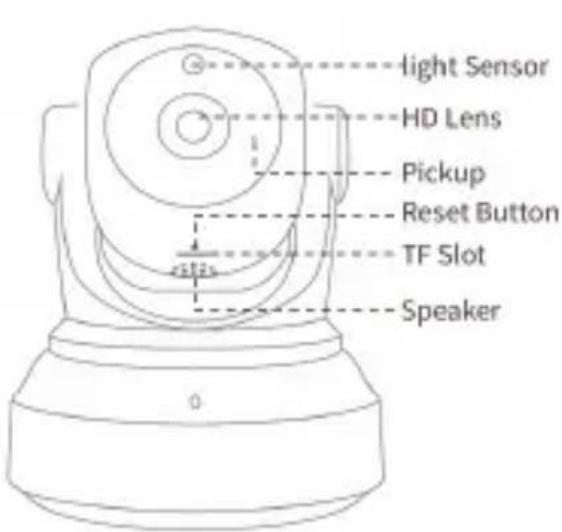
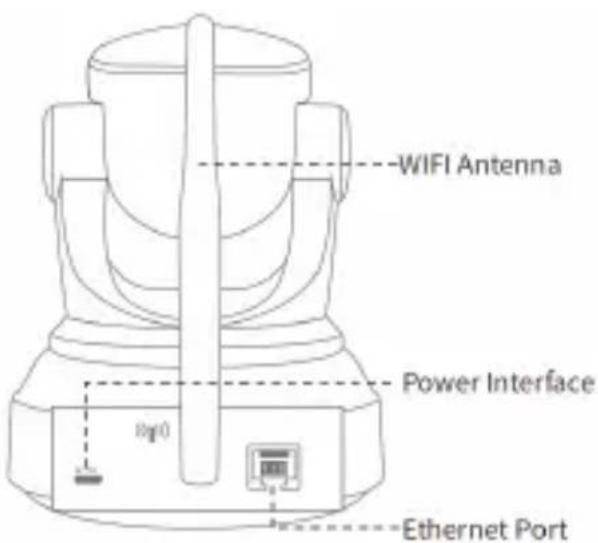
Hardware installation for RJ-45 connection
For your first installation, connect the Lan RJ-45 cable supplied between the Lan output of the router and the Lan input of the camera, then connect the power adapter to an electrical outlet in your home and to the Micro Usb input of the camera.
Hardware installation for ONE KEY WIFI CONFIGURATION
Connect the power adapter between the camera and the home electrical outlet.
Installation and configuration for Smartphone Software EYECLoud
Access to Google Play Store from Android or Apple Store on iPhone, download and install it on your smartphone.
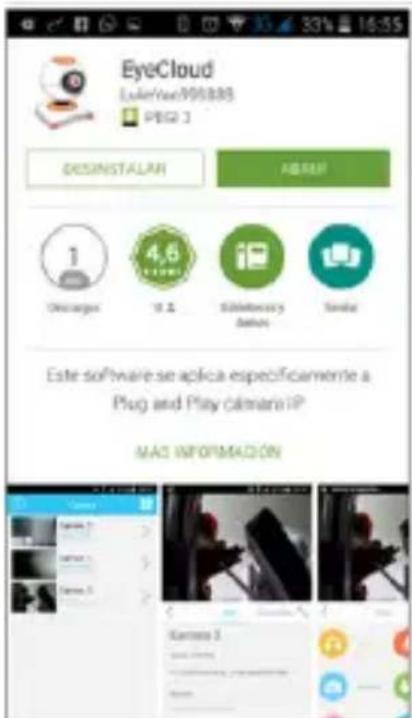
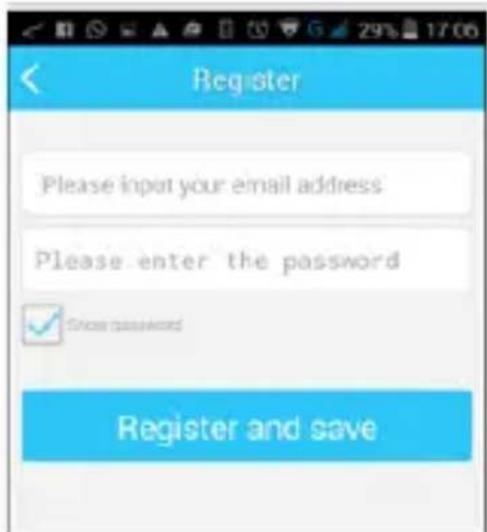
You can see the application icon in the list of applications on your smartphone, run it. The first thing you need is to create an account and register. Insert your email and enter a password to register.
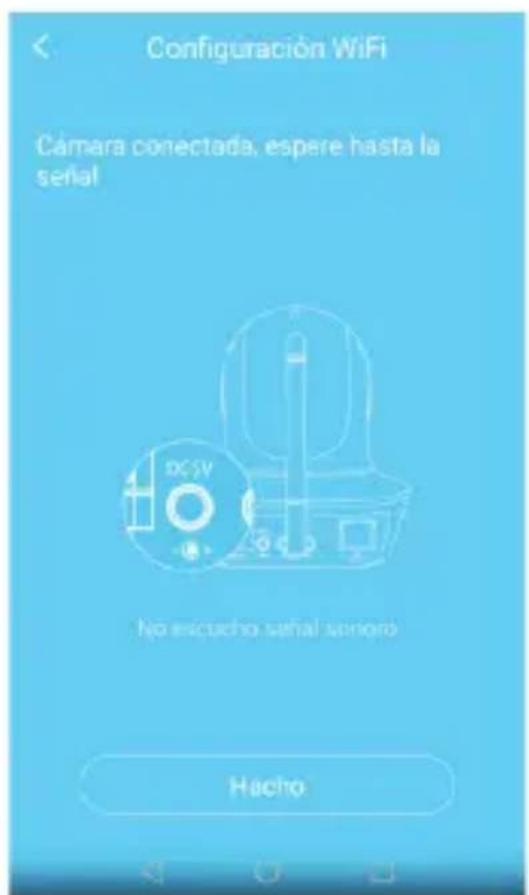
EYECLLOUD configuration for ONEKEYWIFI CONFIGURATION
Connect your phone to a Wi-Fi which will connect the network camera.
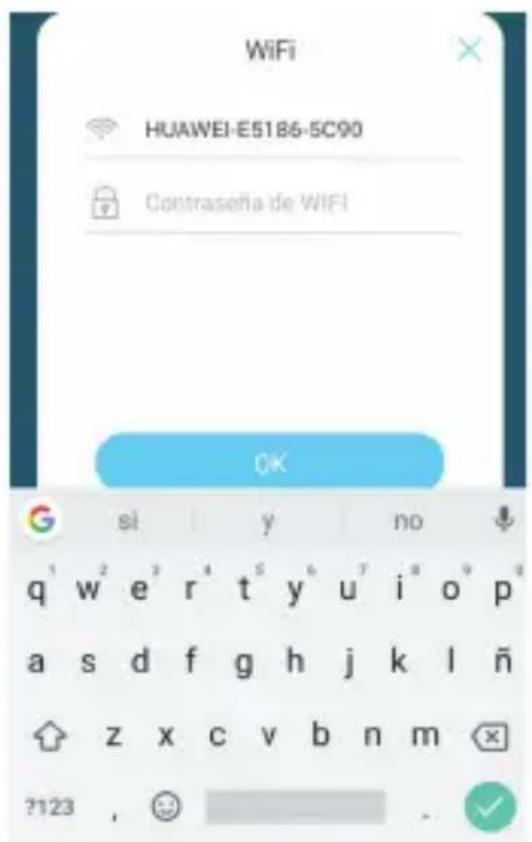
Open the EYECLLOUD application, click the + button in the top left corner, press the ONE WiFi Setup key, the list of WiFi access points available will come up, select the desired one and enter the Wi-Fi key, finally press OK.
If everything was successful the camera UID will appear.
Insert the password (default password) Default 888888
You can check the state (status) of the camera is on line, click on the camera and it will be automatically displayed.
EYECLLOUD configuration by scanning QR code
Open the EYECLLOUD application, click the + button at the upper left corner, press Scanning and scan the QR code on the back of the camera, the data will be entered automatically.
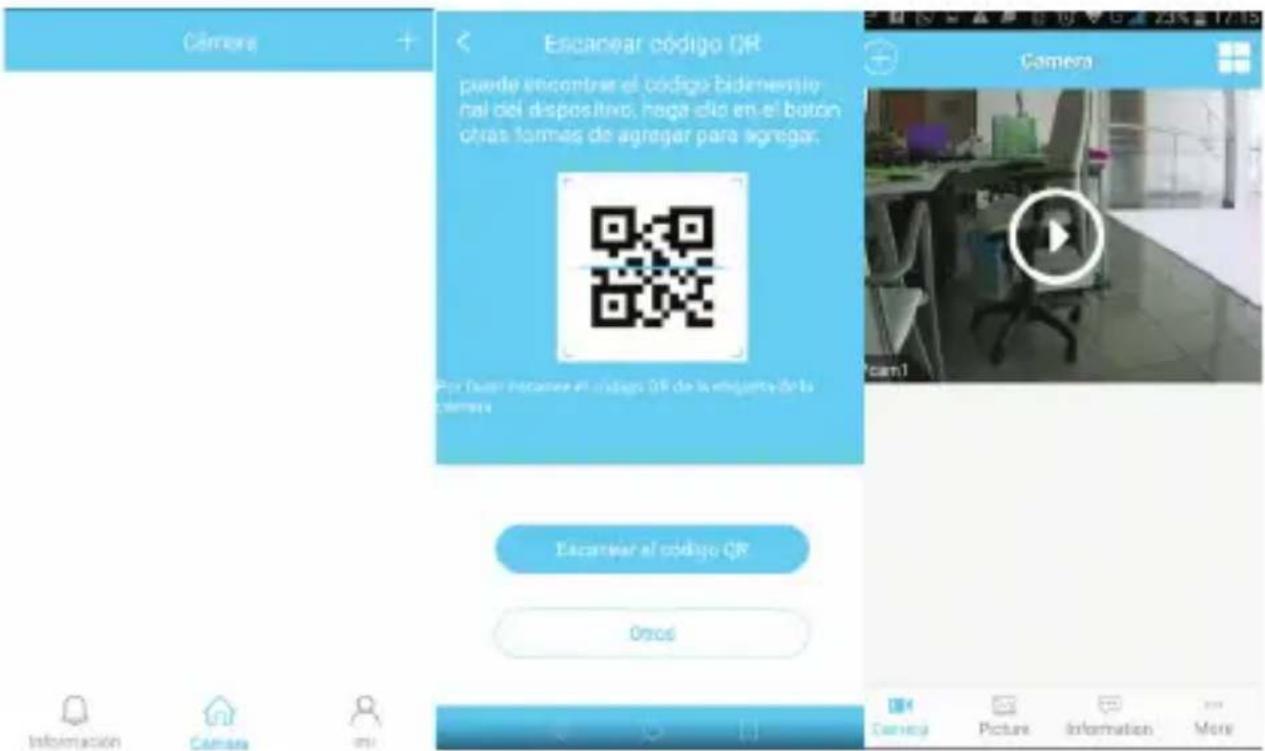
Insert the password (default password) Default 888888. You can check the state (status) of the camera is on line, click on the camera and automatically displayed. If you click on the camera image, you can access it. And if you click operation, you will have access to all functions.
Software PC installation
Insert the installation CD in your drive and double-click on the icon in My Computer or My PC, double-click in the drive where you placed the CD and run autorun.exe.
Install the software IP Eye Cloud Client PC.
English
Once installed you the IP camera icon appears Eye Cloud.

Execute it and the following image will appear, you must enter the same account and password previously created.
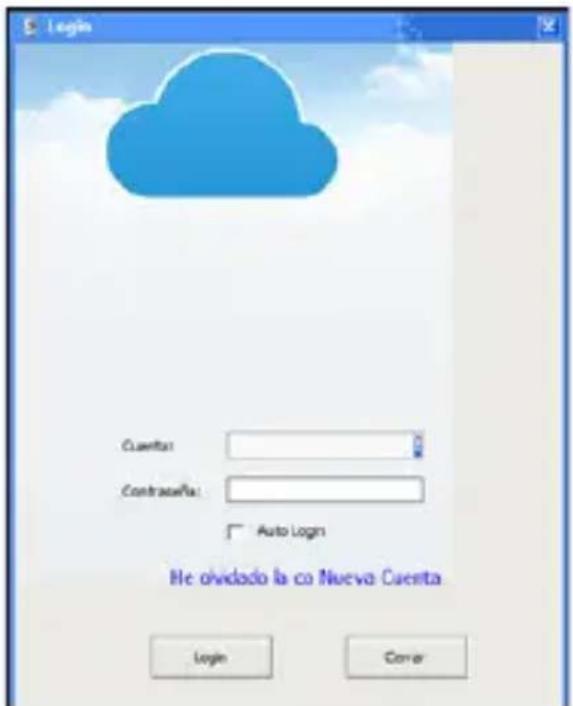
If you have added in your Smartphone cameras they will appear later in the PC without adjusting anything.
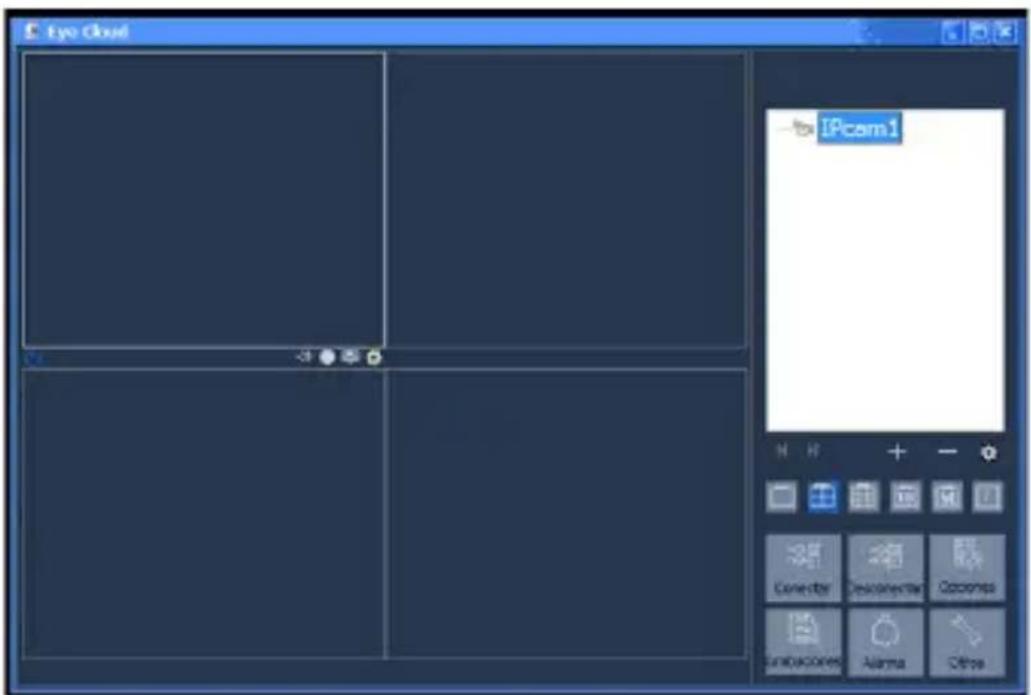
If you do not have any added or you want to add new cameras, click on the + button to Add Equipment and the following image will appear.
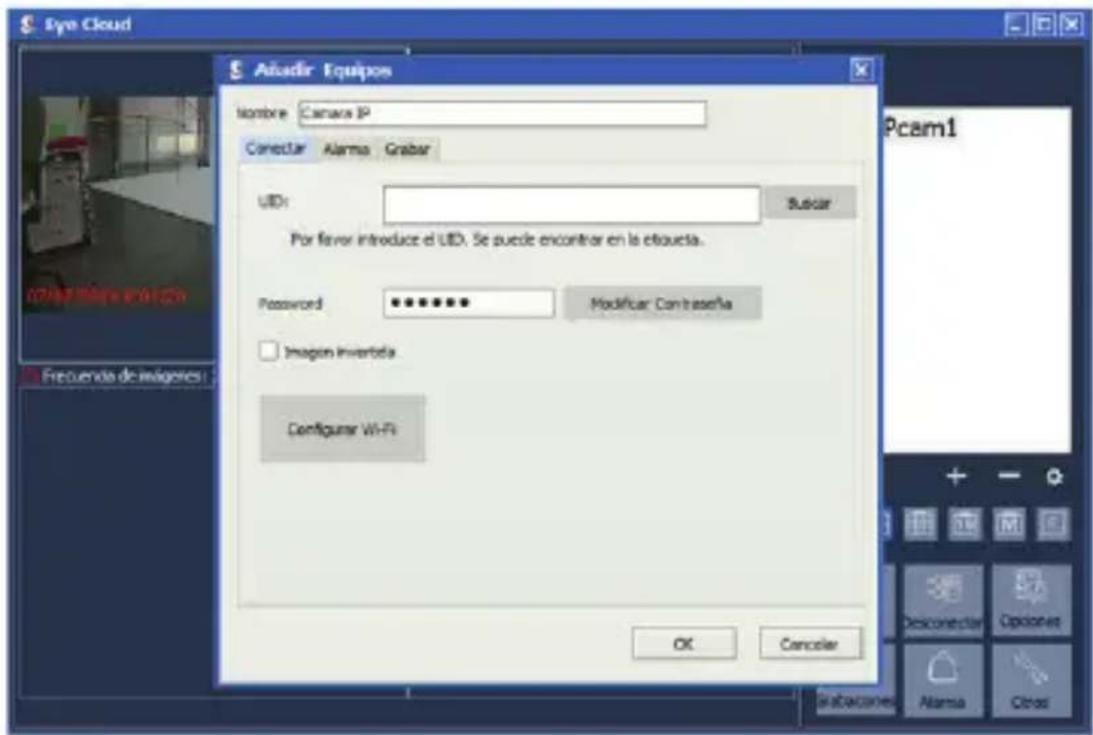
Click on Search to locate the camera on your local network
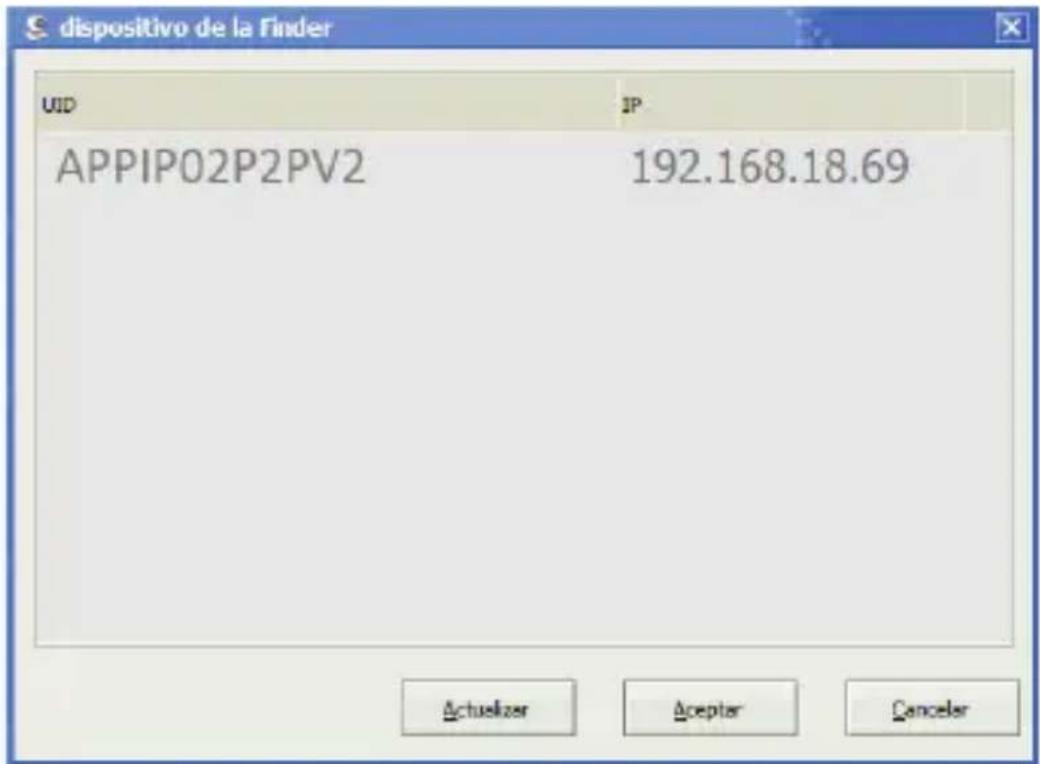
Select the found camera and press the OK button.
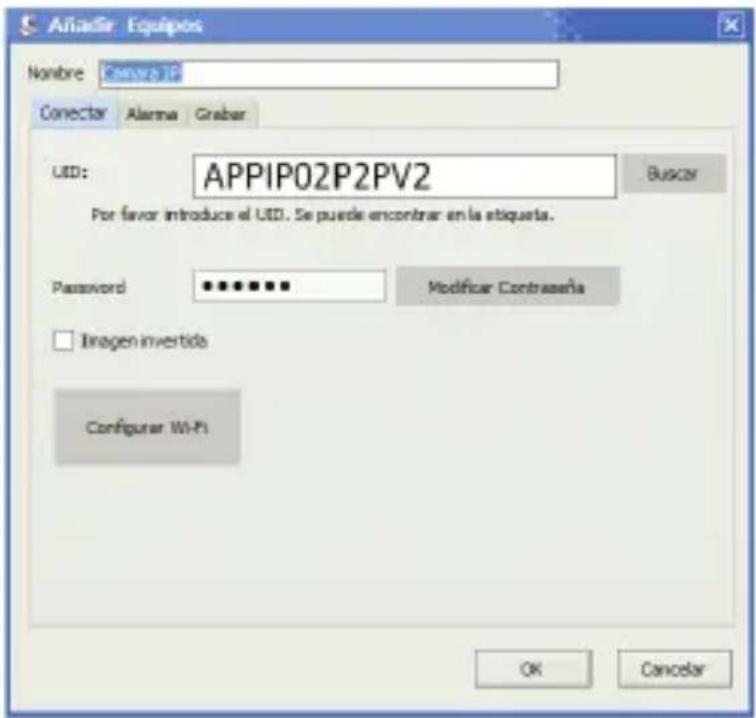
Press the Set button Wi-Fi if you want to establish a wireless connection.
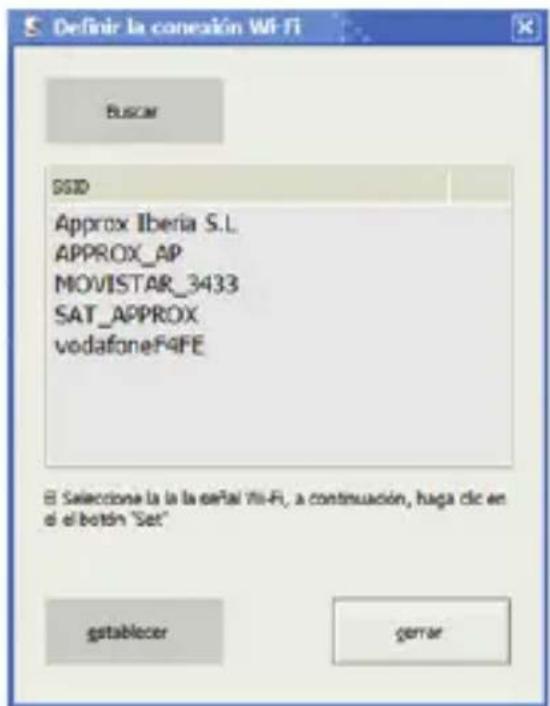
Click the Search button to search for wireless networks and enter the Wi-Fi password.
Finally, the following message will appear if everything was set up correctly.
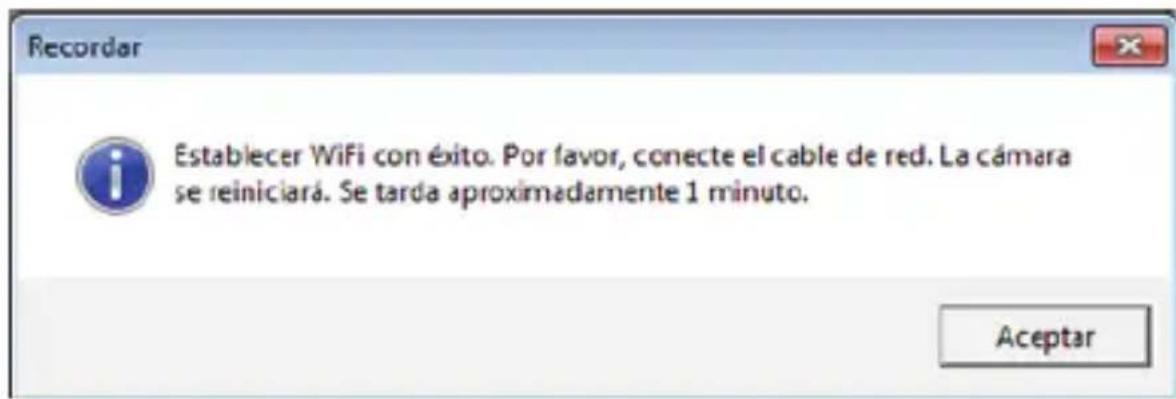
Press the ok button to complete the configuration.
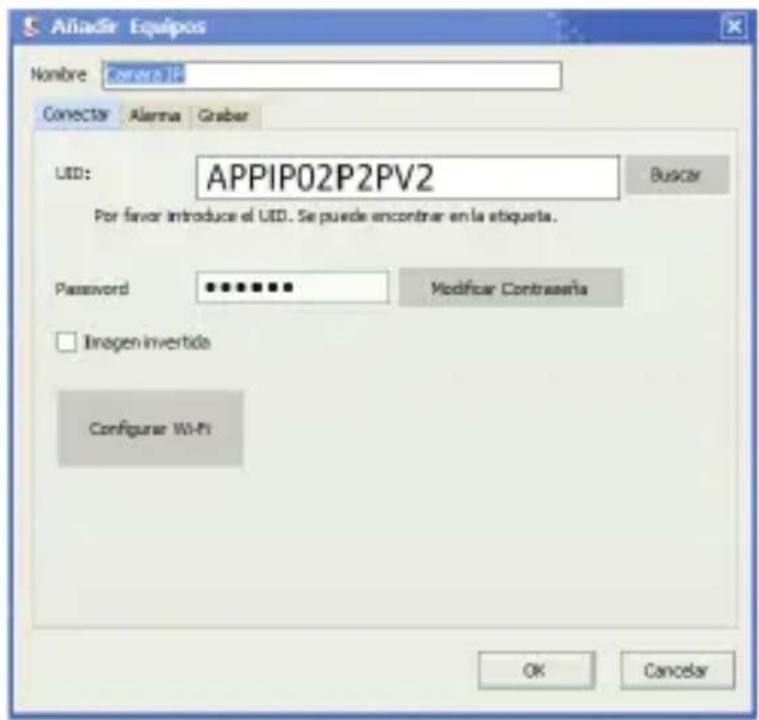
Enter the default password 888888.
The following image will appear and press the Connect button.
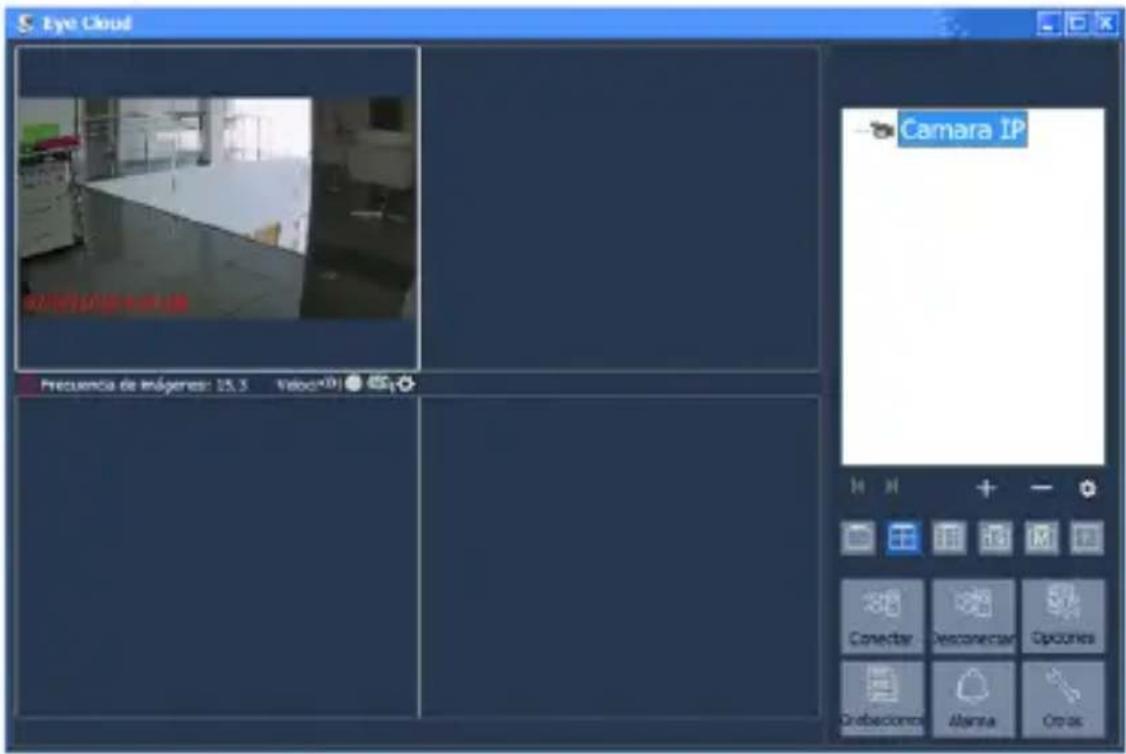
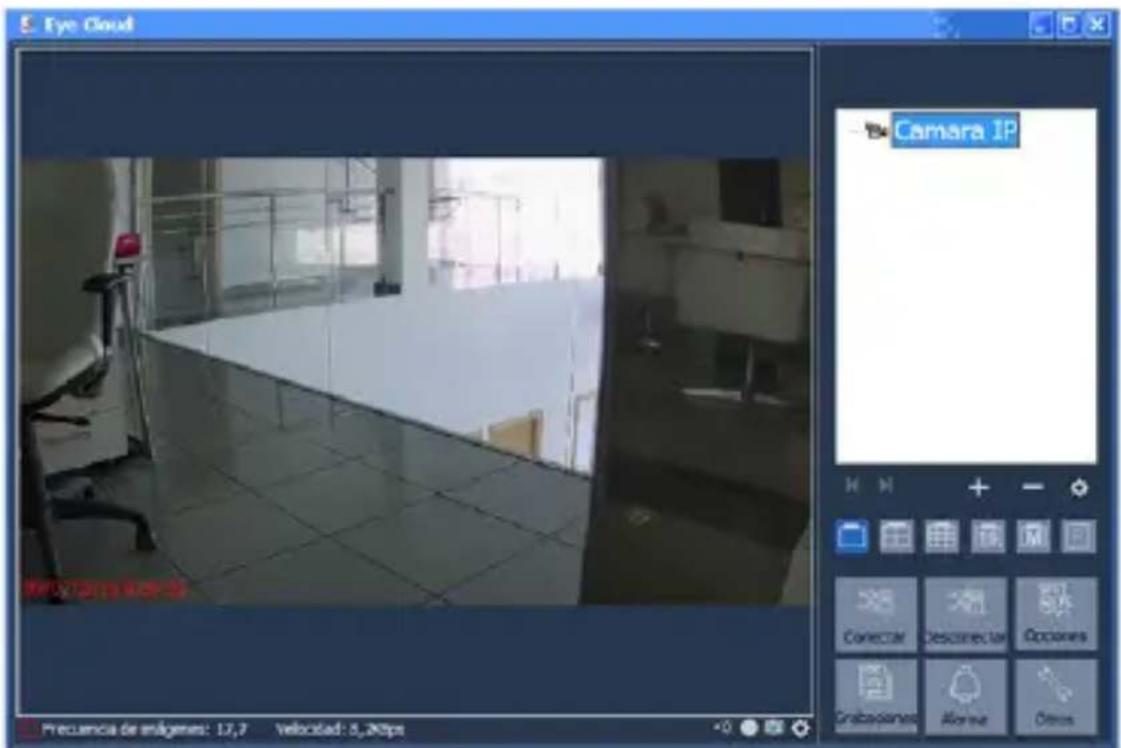
You can view the image offered by the camera.
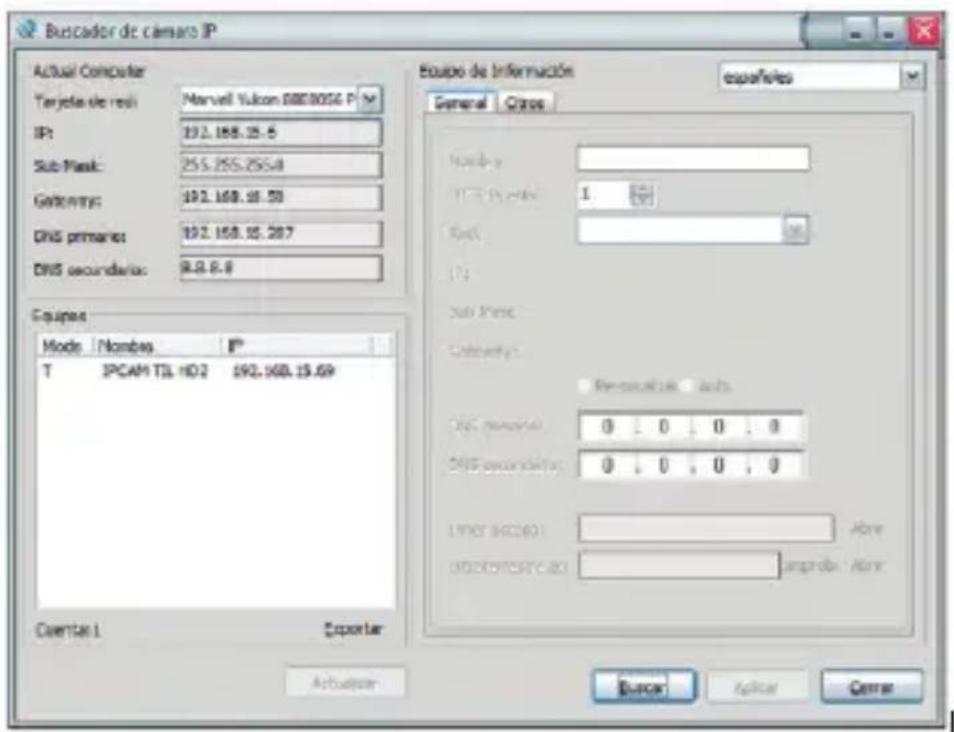
Note: If you cannot find the camera in your Wi-Fi network, run the application included in the installation CD-find app, and set it in your network range.
Configuration via web interface
Enter the ip camera in your web browser, followed by a colon and the port.
Example: 192.168.1.17:82.
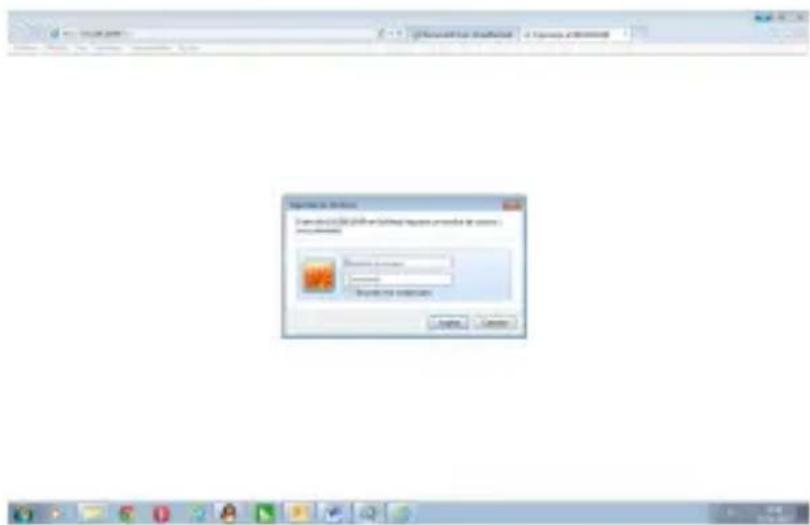
For username type admin and password 888888.
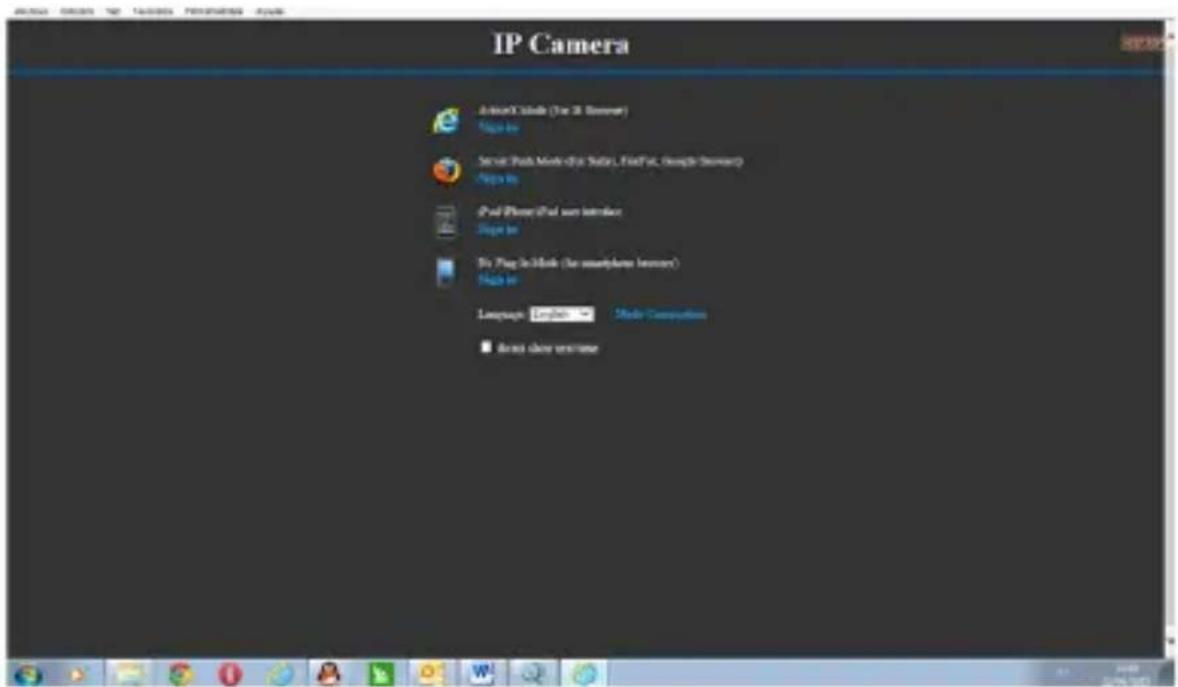
Run the icon according to your browser.
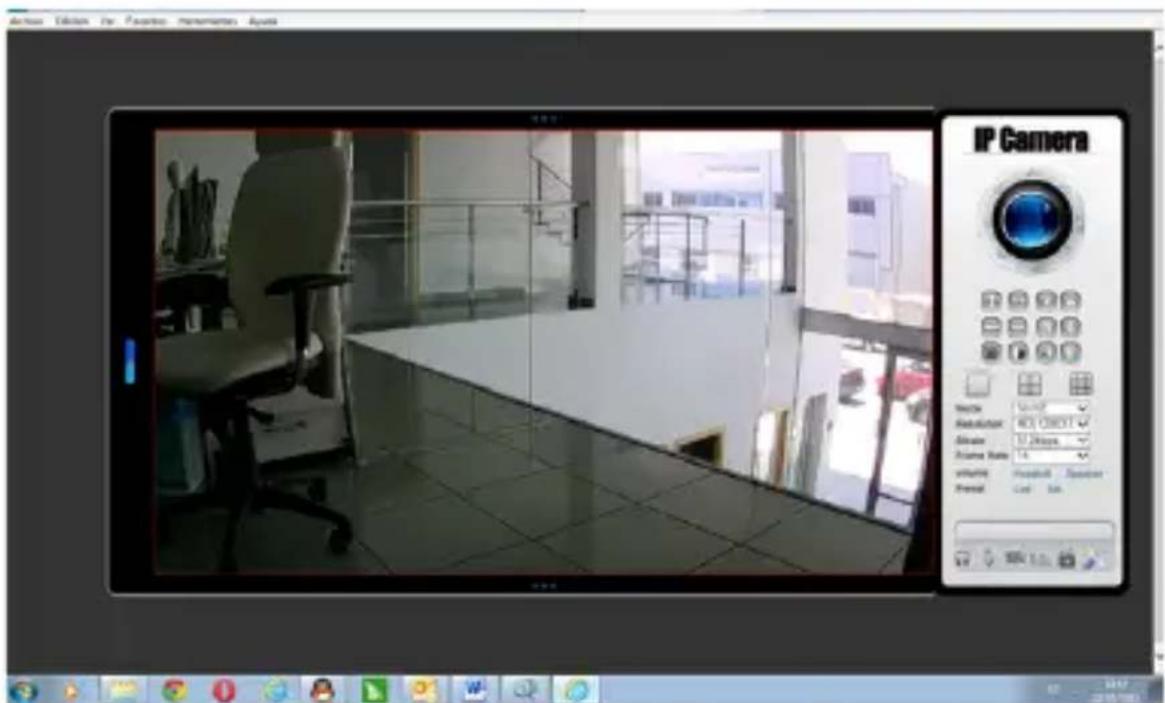
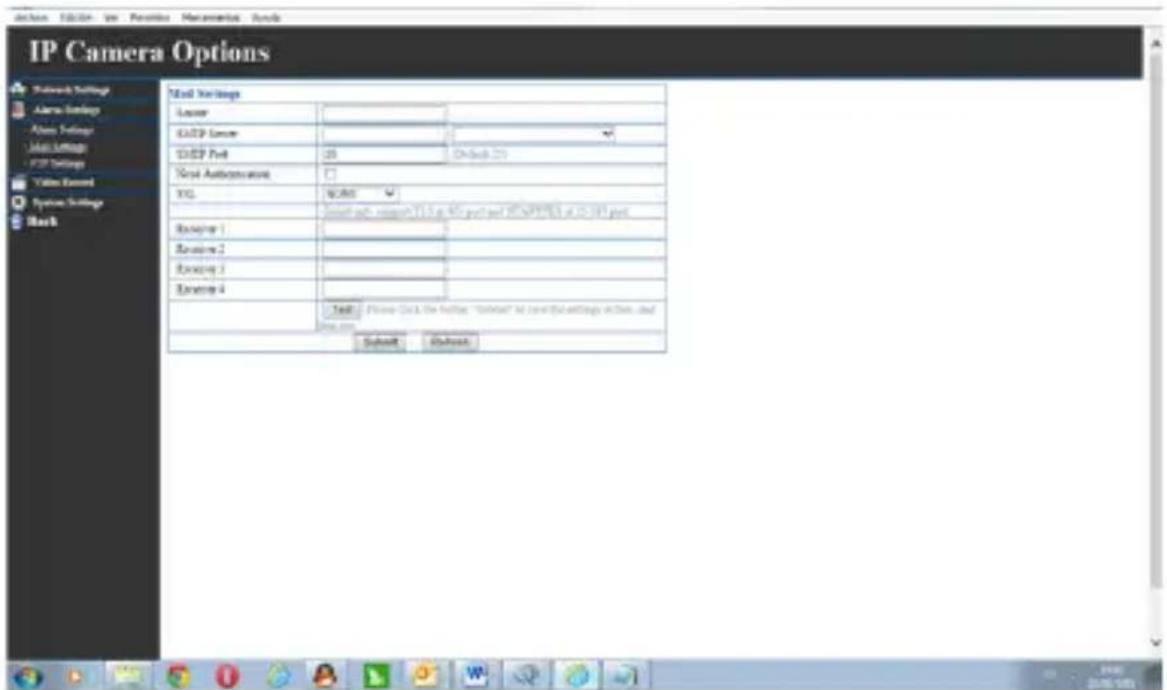
The web environment, in which has full access to all camera functions opens..
Recordings in SD
To make recordings in a SD card (Recommended), insert a Micro SD card of up to 128 GB in its respective slot and the recordings will be made automatically, to consult the recordings you can do it through the Eyecloud application of PC or Smartphone.
Technical support
For more information on installing and configuring this product go to our website www.approx.es support section or write an email to soporte@approx.es.
SAFETY, MAINTENANCE AND RECYCLING INSTRUCTIONS
- Caution: Never open the device. The internal parts are shock hazard.
- Do not install this unit near water, for example, in a wet basement, in an unprotected outdoor installation, or any area classified as a wet location.
- Do not insert objects of any kind into this unit through openings as they may touch voltage points and short out parts that could result in fire or electric shock.
- Do not spill any liquid on the unit. Danger of short circuits.
- Always use cables approved by the manufacturer.
- Before connecting make sure the voltage of the country of origin: 230VAC maximum.
- The adapter is 5VDC / 2A maximum. Never use other, it could be dangerous for explosions.
- To mount on ceiling or wall, always contact a professional, risk of falls from heights
- Clean the product with a soft dry cloth. Always with the device turned off!
- Follow local regulations for disposing of the product.
SECURITE, ENTRETIEN ET INSTRUCTIONS DE RECYCLAGE
EU DECLARATION OF CONFORMITY SIMPLIFIED
Hereby, APPROX declares that the radio equipment type APPIP02P2PV2 is in compliance with Directives 2014/53/EU, 2014/30/EU, 2014/35/EU and 2011/65/EU.
The full text of the EU declaration of conformity is available at the following internet address: http://approx.es/CE/APPIP02P2PV2_DEclaration.pdf
Déclaration UE DE CONFORMITE SIMPLIFIÉE
This is a class B product. In a domestic environment, this product may cause radio interference, in which case the user may be required to take adequate measures.
Information about RF exposure
This device complies with the requirements of the EU (2014/53 / EU) on the limitation of public exposure to electromagnetic fields by means of health protection.
This device has been tested and found to comply with the Exposure Guidelines.
While using the device, keep it at least 0.5cm away from your body to ensure exposure levels.
National Restrictions:
This device is designed for home and office use in all EU countries without any limitation except for the countries listed below:
| CountryRe strictions Reason | |
| BulgariaR requires authorization for r ou tdoor use and public service | |
| FranceO outdoor use limited to 10 mW Within the band 2454-2483.5 MHz | Use of Military Radiolocation. |
| ItalyI implemented Public use is subject to general authorization | |
| LuxemburgG eneral authorization r required for network and service (not for spectrum) | |
| Norway ImplementedTh is subsection does not apply to the geographical area within a radius of 20 km from the e center of Ny-Alesund | |
| RussiaC an only be used indoors | |
| Ukraine | |
ATTENTION
AEE RE-RAEE 5548 In this manual, the container (bin) symbol indicates that the product is subject to the European directive 2002/96 / EC, electrical and electronic products, batteries, and batteries and other accessories must necessarily be subject to a selective collection.
At the end of the life of the device, make use of the recycling bins. This gesture will help reduce the health risks and preserve the environment.
Municipalities and distributors, will provide essential details on recycling your old device. If this device carries an internal battery, it must be removed and deposited separately for proper management.
Recyclage
The content of this guide is subject to typographical errors


- INTRODUCTION AND PRODUCT DESCRIPTION
- PACKAGE CONTENTS
- ENGLISH
- SYSTEM REQUIREMENTS
- PARTS DESCRIPTION
- HARDWARE INSTALLATION FOR RJ-45 CONNECTION
- HARDWARE INSTALLATION FOR ONE KEY WIFI CONFIGURATION
- INSTALLATION AND CONFIGURATION FOR SMARTPHONE SOFTWARE EYECLOUD
- EYECLLOUD CONFIGURATION FOR ONEKEYWIFI CONFIGURATION
- EYECLLOUD CONFIGURATION BY SCANNING QR CODE
- SOFTWARE PC INSTALLATION
- CONFIGURATION VIA WEB INTERFACE
- RECORDINGS IN SD
- TECHNICAL SUPPORT
- SAFETY, MAINTENANCE AND RECYCLING INSTRUCTIONS
- SECURITE, ENTRETIEN ET INSTRUCTIONS DE RECYCLAGE
- EU DECLARATION OF CONFORMITY SIMPLIFIED
- DÉCLARATION UE DE CONFORMITE SIMPLIFIÉE
- INFORMATION ABOUT RF EXPOSURE
- NATIONAL RESTRICTIONS
- ATTENTION
- RECYCLAGE
Brand : Approx
Model : appIP02P2PV2
Category : Surveillance Camera