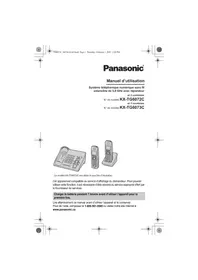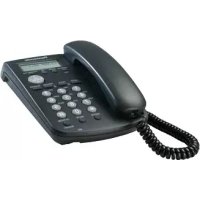
KXTGF374 - Cordless phone PANASONIC - Free user manual and instructions
Find the device manual for free KXTGF374 PANASONIC in PDF.


User questions about KXTGF374 PANASONIC
0 question about this device. Answer the ones you know or ask your own.
Ask a new question about this device
Download the instructions for your Cordless phone in PDF format for free! Find your manual KXTGF374 - PANASONIC and take your electronic device back in hand. On this page are published all the documents necessary for the use of your device. KXTGF374 by PANASONIC.
USER MANUAL KXTGF374 PANASONIC
TG175CSK_QG(en).fm Page 1 Thursday, March 10, 2016 9:16 AM
natural_image
Pure geometric diagram with intersecting lines and circles, no text or symbols presentPanasonic
Model No. KX-TGF372C/KX-TGF373C
KX-TG175CSK
Quick Guide
Connections
Base unit
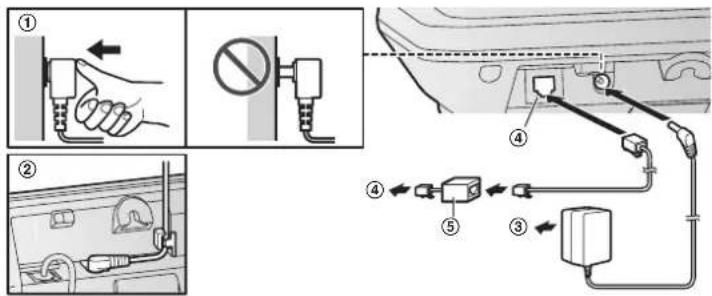
① Connect the AC adaptor to the unit by pressing the plug firmly.
② Fasten the cord by hooking it.
③ Connect the AC adaptor to the power outlet.
④ Connect the telephone line cord to the unit, then to the single-line telephone jack (RJ11C) until you hear a click.
⑤ A DSL/ADSL filter (not supplied) is required if you have a DSL/ADSL service.
Note:
- Use only the supplied Panasonic AC adaptor PNLV226.
text_image
Diagram showing car door wiring and plug installation steps with numbered instructions for connectionCharger
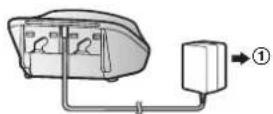
① Connect the AC adaptor to the power outlet.
Printed in Malaysia
PNQW4254ZA
TT0316MG0
text_image
Printe
text_image
6MG0
TG175CSK_QG(en).fm Page 2 Thursday, March 10, 2016 9:16 AM
natural_image
Pure geometric diagram with intersecting lines and circles, no text or symbols presentBattery installation/Battery charging
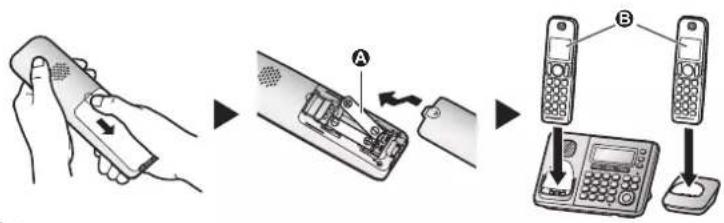
Charge for about 7 hours.
flowchart
graph TD
    A["Hand gesture"] --> B["Device insertion"]
    B --> C["Switch labeled A"]
    C --> D["Phone with keyboard"]
    D --> E["Connection to keypad via B"]
    E --> F["User interface with keypad"]
Note:
- USE ONLY rechargeable Ni-MH batteries AAA (R03) size (A).
- Do NOT use alkaline/manganese/Ni-Cd batteries.
- Confirm correct polarities (⊕, ⊖).
- Follow the directions on the display to set up the unit.
- Confirm "Charging" is displayed (B).
Operating tips
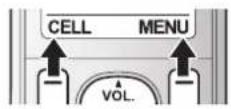
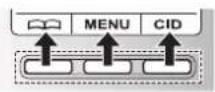
Soft keys
By pressing a soft key, you can select the feature shown directly above it on the display. Pay attention to the display to see what functions the soft keys are assigned during operation.
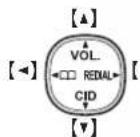
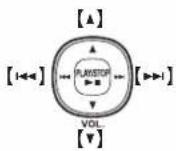
Navigator key
Handset:
- [▲], [▼], [◀], or [▶]: Scroll through various lists and items.
- VOL. (Volume: [▲] or [▼]): Adjust the receiver or speaker volume while talking.
- 【◀】□□: View the phonebook entry.
- 【▶】REDIAL: View the redial list.
-【▼】CID (Call Display): View the caller list.
Base unit:
- [▲], [▼], [◄◄], or [►►]: Scroll through various lists and items.
- VOL. (Volume: [▲] or [▼]): Adjust the speaker volume while talking.
- [◀◀]/[▶▶]: Repeat/skip messages during playback.
Handset Base unit
▶]
natural_image
Pure geometric lines and shapes without any text, numbers, or symbols

natural_image
Pure geometric diagram with intersecting lines and shapes, no text or symbols present
TG175CSK_QG(en).fm Page 3 Thursday, March 10, 2016 9:16 AM
natural_image
Pure geometric diagram with intersecting lines and circles, no text or symbols presentDate and time (Handset)
1 [MENU]#101
2 Enter the current month, date, and year. → [OK]
3 Enter the current hour and minute (12-hour clock format).
4 ☒: Select "AM" or "PM". → [SAVE] → [OFF]
Recording your greeting message of the answering system for the landline (Handset)
You can record your own greeting message instead of using a pre-recorded greeting message.
1 [MENU]#302 → [▲]: "Yes" → [SELECT]
2 After a beep sounds, hold the handset about 20 cm (8 inches) away and speak clearly into the microphone (2 minutes max.).
3 Press [STOP] to stop recording. → [OFF]
Link to cell
You can connect your base unit and cellular phone using Bluetooth® wireless technology, so that you can make or answer cellular calls using your phone system. For more details, please visit our Web site: www.panasonic.ca/link2cell
- Locate your cellular phone near the base unit. If the cellular phone is too close to the base unit during a cellular call, you may hear noise. For best performance, we recommend placing the cellular phone between 0.6 m to 3 m (2 feet to 10 feet) away from the base unit.

flowchart
graph LR
    A["Mobile Phone"] <-->|DECT 6.0| B["Telephone"]
    B <-->|Bluetooth*| C["Smartphone"]
    C <-->|A| D["Tower Tower"]
A Cell line
B Cell phone service providers
Trademarks
- The Bluetooth ^® word mark and logos are registered trademarks owned by Bluetooth SIG, Inc., and any use of such marks by Panasonic Corporation is under licence.
- All other trademarks identified herein are the property of their respective owners.
natural_image
Pure geometric diagram with intersecting lines and circles, no text or symbols present
natural_image
Pure geometric diagram with intersecting lines and circles, no text or symbols present
Link to cell
Pairing a Bluetooth cellular phone
1 Base unit:
Press and hold [CELL 1] or [CELL 2] for a few seconds.
- After the corresponding CELL indicator on the base unit starts flashing, the rest of the procedure must be completed within 5 minutes.
2 Your cellular phone:
While the corresponding CELL indicator is flashing, follow the instructions of your cellular phone to enter the pairing mode.
- Depending on your cellular phone, it may ask you to enter the Bluetooth PIN (default: "0000"). If your cellular phone shows PassKey confirmation on its display, follow the directions to proceed.
3 Base unit:
Wait until a long beep sounds.
- It may take more than 10 seconds to complete pairing.
- When the corresponding CELL indicator lights up, the cellular phone is connected to the base unit. You are ready to make cellular calls.
4 [EXIT]
Note:
Make sure that your cellular phone is set to connect to this product automatically. Refer to your cellular phone's operating instructions.
Base unit: CELL indicators
| Status Meaning | ||
| On A cellular phone is connected. Ready to make/receive cellular calls. | ||
| Flashing -The cellular line is in use.-Phonebook entries are being copied from a cellular phone.-The base unit is searching for the paired cellular phone.-The base unit is pairing a cellular phone.-A cellular call is put on hold. | ||
| Flashing rapidly A cellular call is being received. | ||
| Light off | - A cellular phone is not paired to the base unit.-A cellular phone is not connected to the base unit. | |
| Handset: Link to cell display items | ||
| ☐!A cellular line is in use. *1●When flashing: The cellular call is put on hold.●When flashing rapidly: A cellular call is being received.*1 Corresponding lines (1, 2: cellular line) are indicated next to the item. | ||
| ☒!A cellular phone is connected. *1 Ready to make/receive cellular calls.◆When turned off: A cellular phone is not connected to the base unit.*1 Corresponding lines (1, 2: cellular line) are indicated next to the item. | ||
| ☒1 ☑-A cellular call is in progress on that line.-The cellular line is selected for the setting. | ||
natural_image
Pure geometric lines and shapes without any text, numbers, or symbols
natural_image
Pure geometric diagram with intersecting lines and shapes, no text or symbols present
TG175CSK_QG(en).fm Page 5 Thursday, March 10, 2016 9:16 AM
natural_image
Pure geometric diagram with intersecting lines and circles, no text or symbols present| Link to cell | |
| Base unit: Link to cell display items | |
| C1 C2-A cellular call is in progress on that line.-The cellular line is selected for the setting. | |
| APP | App alert is temporarily off. |
| EC | A Bluetooth headset is connected to the base unit. It is ready for use. |
| Q | A Bluetooth headset is in use. |
| Connecting/disconnecting the cellular phone (Handset) | |
| Auto connection to the Bluetooth devices (cellular phones)The unit connects to the Bluetooth devices at regular intervals if the connection is lost. To change the interval (default: “1 min”), see the operating instructions.When 3 Bluetooth devices (2 cellular phones and 1 headset) are paired to the base unit, only 2 Bluetooth devices can be used with the unit at the same time, and the base unit loses its connection from other Bluetooth devices. To automatically resume the connection to Bluetooth devices, leave the auto connection on.Connecting/disconnecting the cellular phone manuallyIf you will not be using the paired cellular phone’s link to cell feature temporarily (for example, you do not want the unit to ring when your cellular line receives a call), you can disconnect your cellular phone from the base unit. If you want to use it again, reconnect the cellular phone to the base unit.After you disconnect a paired cellular phone from the base unit manually, it will automatically be connected to the base unit in 30 minutes. If you do not use the link to cell feature anymore, unpair the cellular phone.A disconnected cellular phone is not unpaired from the base unit, so pairing it to the base unit again is unnecessary.1 To connect/disconnect:For CELL 1: [MENU]#6251For CELL 2: [MENU]#6252●A long beep sounds.2 [OFF] | |
| Cellular line only mode (If you do not use the landline) (Handset) | |
| If you do not use the landline, we recommend setting the unit to the cellular line only mode. The default setting is “off”.If you turn on the “Cell line only mode”, disconnect the telephone line cord from the base unit. Otherwise the “Cell line only mode” cannot be activated.1 [MENU]#1572 To turn on:[+]: “on” → [SELECT] → [+]: “Yes” → [SELECT]To turn off:[+]: “off” → [SELECT] | |

natural_image
Pure geometric diagram with intersecting lines and circles, no text or symbols present
natural_image
Pure geometric diagram with intersecting lines and circles, no text or symbols present| Basic operations | |
| Making/Answering calls (Handset) | |
| Making cellular calls | 1 Dial the phone number. → [CELL]●When the cellular line only mode is set, you can also press [↖]/[↔] instead of [CELL].●When only 1 cellular phone is paired, the unit starts dialing.2 When 2 cellular phones are paired:[↔]: Select the desired cellular phone. → [SELECT] |
| Making landline calls | Dial the phone number. → [↖]/[↔] |
| Answering calls [↖]/[↔] | |
| To hang up [OFF] | |
| To adjust the receiver/speaker volume | Press [▲] or [▼] repeatedly while talking. |
| Making a call using the redial list | 1 [▶] REDIAL → [↔]: Select the desired phone number.2 To make a cellular call:When only 1 cellular phone is paired: [CELL]orWhen 2 cellular phones are paired:[CELL] → [↔]: Select the desired cellular phone. → [SELECT]To make a landline call:[↖] |
| To adjust the ringer volume (cellular line/landline) | Press [▲] or [▼] repeatedly to select the desired volume while ringing. |
| Making/Answering calls (Base unit) | |
| Making cellular calls | Dial the phone number. → [CELL 1]/[CELL 2]●When the cellular line only mode is set, you can also press [↔] without pressing [CELL 1]/[CELL 2]. |
| Making landline calls | Dial the phone number. → [↔] |
| Answering calls [↔] | |
| To hang up [↔] | |
| To adjust the speaker volume | Press [▲] or [▼] repeatedly while talking. |
| Making a call using the redial list | 1 [REDIAL] → [↔]: Select the desired phone number.2 To make a cellular call: [CELL 1]/[CELL 2]To make a landline call: [↔] |
| To adjust the ringer volume (cellular line/landline) | Press [▲] or [▼] repeatedly to select the desired volume while ringing. |

natural_image
Pure geometric diagram with intersecting lines and circles, no text or symbols present
natural_image
Pure geometric diagram with intersecting lines and shapes, no text or symbols present
TG175CSK_QG(en).fm Page 7 Thursday, March 10, 2016 9:16 AM
natural_image
Pure geometric diagram with intersecting lines and circles, no text or symbols present| Basic operations | |
| Phonebook (Handset) | |
| Adding entries | 1 [→] □□ → [MENU]2 [+: “Add new entry” → [SELECT]3 Enter the party's name (16 characters max.). → [OK]4 Enter the party's phone number (24 digits max.). → [OK]5 [+: Select the desired group. → [SELECT] 2 times → [OFF] |
| Making calls | 1 [→] □□ → [+: Select the desired entry.2 To make a cellular call:When only 1 cellular phone is paired: [CELL]orWhen 2 cellular phones are paired:[CELL] → [+: Select the desired cellular phone. →[SELECT]To make a landline call:[→] |
| Phonebook (Base unit) | |
| Making calls 1 [ | □□] → [+: Select the desired entry.2 To make a cellular call: [CELL 1]/[CELL 2]To make a landline call: [↔] |
| Answering system for the landline (Base unit) | |
| Answering on/off | Press [ANSWER ON/OFF] to turn on/off the answering system. |
| Listening to messages | [▶■] (PLAY) |
| Answering system for the landline (Handset) | |
| Listening to messages To listen to new messages: [PLAY] or [MENU]# 3 2 3To listen to all messages: [MENU]# 3 2 4 | |
natural_image
Pure geometric diagram with intersecting lines and circles, no text or symbols present
natural_image
Pure geometric diagram with intersecting lines and a central circle, no text or symbols present
TGI75CSK_QG(en).fm Page 8 Thursday, March 10, 2016 9:16 AM
natural_image
Pure geometric diagram with intersecting lines and circles, no text or symbols presentUsing Bluetooth devices
Copying phonebook entries from a Bluetooth cellular phone (phonebook transfer)
You can copy phonebook entries from the paired cellular phones or other cellular phones (not paired) to the unit's phonebook.
1 Handset: [MENU]#618
2 Handset:
To copy from paired cellular phones:
[▲]: Select the desired cellular phone. → [SELECT]
- Copied items are stored to the group ("Cell 1" or "Cell 2") which the cellular phone is paired to.
To copy from other cellular phones (not paired):
[◆]: "other cell" → [SELECT] → [◆]: Select the group you want to copy to. → [SELECT]
3 Handset:
When "Use the cell to transfer phone book" is displayed: Go to step 4.
When "Select mode" menu is displayed:
[▲]: Select "Auto" or "Manual". → [SELECT]
"Auto": Download all entries from the cellular phone automatically. Go to step 5.
"Manual": Copy entries you selected.
- "Select mode" menu is displayed only when the cellular phone supports PBAP (Phone Book Access Profile) for Bluetooth connection.
4 Cellular phone:
Follow the instructions of your cellular phone to copy phonebook entries.
- For other cellular phones (not paired), you need to search for and select the base unit. The Bluetooth PIN (default: "0000") may be required. If your cellular phone shows PassKey confirmation on its display, follow the directions to proceed.
● The entries being copied are displayed on the handset.
5 Handset:
Wait until "Completed" is displayed. → [OFF]
natural_image
Pure geometric diagram with intersecting lines and circles, no text or symbols present
natural_image
Pure geometric diagram with intersecting lines and shapes, no text or symbols present
TG175CSK_QG(en).fm Page 9 Thursday, March 10, 2016 9:16 AM
natural_image
Pure geometric diagram with intersecting lines and circles, no text or symbols presentUsing Bluetooth devices
Using a Bluetooth wireless headset (optional) for landline calls
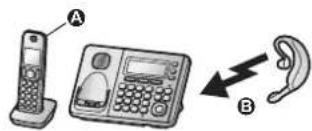
By pairing a Bluetooth headset to the base unit, you can have a hands-free conversation wirelessly for landline calls.
- Only 2 Bluetooth devices can be used with the unit at the same time (for example, 2 cellular lines, or the headset and 1 cellular line).
Pairing a headset to the base unit
1 Your headset:
Set your headset to pairing mode.
- Refer to your headset operating instructions.
2 Handset:
[MENU]#621
text_image
Diagram showing a mobile phone, a keypad, and an ear with directional arrows indicating signal or communication.A Pair using the handset.
B Paring
3 If your headset PIN is "0000", go to step 4.
If your headset PIN is other than "0000", press [CLEAR], then enter your headset PIN.
- Typically, default PIN is "0000". Refer to the headset operating instructions.
4 Press [OK], then wait until a long beep sounds. → [OFF]
- When × Q is displayed on the base unit, the headset is available for use.
Operating a Bluetooth wireless headset using a landline
Refer to your headset operating instructions for headset operations.
■Answering landline calls with your headset
To answer a landline call, press your headset's button referring to your headset operating instructions.
When you finish talking, press your headset's button referring to your headset operating instructions.
- If you cannot hang up the call using your headset, press [◀] on the base unit 2 times.
■Switching between the base unit and your headset
You can switch between the base unit and your headset:
—during a landline call with the base unit speakerphone.
—during an intercom call between the base unit and handset.
-while listening to messages recorded on the base unit answering system.
To switch to your headset:
Press [O] on the base unit.
To switch to the base unit:
Press [◀] on the base unit.
natural_image
Pure geometric diagram with intersecting lines and circles, no text or symbols present
9


| Frequently asked questions | |
| Question Cause/solution | |
| Why is displayed? | The handset is too far from the base unit. Move closer.The base unit's AC adaptor is not properly connected. Reconnect AC adaptor to the base unit.The handset is not registered to the base unit. Register it.Handset: [MENU]#130Base unit: Press and hold [LOCATOR] for about 5 seconds.Handset: Press [OK], then wait until a long beep sounds. |
| Why am I unable to pair a cellular phone to the base unit? | Depending on the compatibility of the cellular phone, you may not be able to pair it to the base unit. For more information, please visit www.panasonic.ca/link2cellConfirm that the Bluetooth feature of your cellular phone is turned on. You may need to turn this feature on depending on your cellular phone. |
| Why is there no dial tone? (cellular line) | Make sure that the CELL indicator lights up and the cellular phone is connected to the base unit.The cellular phone has not been paired to the base unit. Pair the cellular phone. |
| How can I increase the handset volume level? | Press the volume key [▲] repeatedly while talking. |
| Why is the conversation noisy or cutting off? | Try to relocate the base unit so that distance to the handset is minimized.If the same problem occurs even if the handset is next to the base unit, contact an authorized service centre. |
| Can I add another accessory handset to my base unit? | Yes, you can add up to 6 handsets (including the handset(s) sold with your base unit) to a single base unit. |
| Can I keep the batteries charging all the time? | You can leave the handset on the base unit or charger anytime. This will not harm the batteries. |
| How can I answer a Call Waiting call (2nd call)? | Press [CALL WAIT] when you hear the Call Waiting tone. |
text_image
10
natural_image
Pure geometric diagram with intersecting lines and shapes, no text or symbols present
TGF37xC(fr-fr)_QG.fm Page 1 Tuesday, December 16, 2014 11:07 AM
natural_image
Pure geometric diagram with intersecting lines and circles, no text or symbols presentPanasonic
text_image
Diagram showing car door wiring and plug installation steps with numbered instructions for connectionChargeur
natural_image
Pure geometric diagram with intersecting lines and circles, no text or symbols present
TGF37xC(fr-fr)_QG.fm Page 2 Tuesday, December 16, 2014 11:07 AM

natural_image
Pure geometric diagram with intersecting lines and circles, no text or symbols presentflowchart
graph LR
    A["Hand with scroll"] --> B["Device with keyboard"]
    B --> C["Switch labeled A"]
    C --> D["Switch labeled B"]
    D --> E["Phone with keypad"]
Nota :
natural_image
Pure geometric diagram with intersecting lines and circles, no text or symbols present
natural_image
Pure geometric diagram with intersecting lines and circular shapes, no text or symbols present
TGF37xC(fr-fr)_QG.fm Page 3 Tuesday, December 16, 2014 11:07 AM
natural_image
Pure geometric diagram with intersecting lines and circles, no text or symbols presentnatural_image
Pure geometric diagram with intersecting lines and circles, no text or symbols present
natural_image
Pure geometric diagram with intersecting lines and shapes, no text or symbols presentLiaison cellulaire
natural_image
Pure geometric lines and shapes without any text, numbers, or symbols
natural_image
Pure geometric lines and shapes without any text, numbers, or symbols
TGF37xC(fr-fr)_QG.fm Page 5 Tuesday, December 16, 2014 11:07 AM
natural_image
Pure geometric diagram with intersecting lines and circles, no text or symbols presentLiaison cellulaire
natural_image
Pure geometric diagram with intersecting lines and circles, no text or symbols present
natural_image
Pure geometric diagram with intersecting lines and circles, no text or symbols presentnatural_image
Pure geometric lines and shapes without any text, numbers, or symbols(6)
TGF37xC(fr-fr)_QG.fm Page 7 Tuesday, December 16, 2014 11:07 AM
natural_image
Pure geometric diagram with intersecting lines and circles, no text or symbols presentnatural_image
Pure geometric diagram with intersecting lines and circles, no text or symbols present
natural_image
Pure geometric diagram with intersecting lines and shapes, no text or symbols present

TGF37xC(fr-fr)_QG.fm Page 8 Tuesday, December 16, 2014 11:07 AM

natural_image
Pure geometric diagram with intersecting lines and shapes, no text or symbols present
TGF37xC(fr-fr)_QG.fm Page 9 Tuesday, December 16, 2014 11:07 AM
natural_image
Pure geometric diagram with intersecting lines and circles, no text or symbols presenttext_image
Diagram showing a mobile phone, a keypad, and an ear with directional arrows indicating signal or communication.natural_image
Pure geometric diagram with intersecting lines and circles, no text or symbols present
(9)

TGF37xC(fr-fr)_QG.fm Page 10 Tuesday, December 16, 2014 11:07 AM
natural_image
Pure geometric diagram with intersecting lines and circles, no text or symbols presentnatural_image
Pure geometric lines and shapes without any text, numbers, or symbols