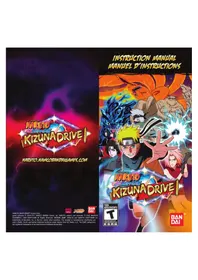
Naruto Shippuden Kizuna Drive (PSP) - Game SONY - Free user manual and instructions
Find the device manual for free Naruto Shippuden Kizuna Drive (PSP) SONY in PDF.


| Product Type | Video game on UMD for PlayStation Portable (PSP) console |
| Brand | Sony |
| Model | Naruto Shippuden Kizuna Drive |
| Platform | PSP (PlayStation Portable) |
| Genre | Action-adventure, fighting |
| Number of players | 1 (single player), up to 2 in ad hoc multiplayer |
| Game modes | Story Mission, Free Mission, Training, Ranked Missions, Ad Hoc Multiplayer |
| Data storage | Memory Stick Duo or Memory Stick PRO Duo (sold separately) |
| Case dimensions (approx.) | 13.5 x 12.5 x 1.5 cm |
| Case weight (approx.) | 100 g |
| Power | Powered by the PSP console (built-in battery or AC adapter) |
| Audio languages | English or Japanese (adjustable in settings) |
| Main features | Story campaign with missions, character customization (scrolls, jutsu, ninja tools), team battles with Kizuna points, training and ranked missions, ad hoc multiplayer mode |
| Maintenance and cleaning | Clean the UMD disc with a soft dry cloth. Do not use solvents, gasoline, or antistatic products. Avoid dust, heat, and direct light. |
| Safety | Observe warnings about epilepsy and seizures. Play in a well-lit area, take breaks every hour. Do not use while driving or walking. |
| Spare parts and repairability | Not applicable (sealed UMD product, no removable parts). Limited 90-day warranty for manufacturing defects. |
| General information | Requires an up-to-date PSP console. A PSP system update is included on the UMD. To save progress, a Memory Stick Duo is required. |
Frequently Asked Questions - Naruto Shippuden Kizuna Drive (PSP) SONY
User questions about Naruto Shippuden Kizuna Drive (PSP) SONY
0 question about this device. Answer the ones you know or ask your own.
Ask a new question about this device
Download the instructions for your Game in PDF format for free! Find your manual Naruto Shippuden Kizuna Drive (PSP) - SONY and take your electronic device back in hand. On this page are published all the documents necessary for the use of your device. Naruto Shippuden Kizuna Drive (PSP) by SONY.
USER MANUAL Naruto Shippuden Kizuna Drive (PSP) SONY
For safe use of this product, carefully read the following section of this manual and the Precautions section of the instruction manual supplied with the PSP (PlayStation Portable) system before use. Retain both this software manual and the instruction manual for future reference.
WARNING:PHOTOSENSITIVITY/EPILEPSY/SEIZURES
A very small percentage of individuals may experience epileptic seizures or blackouts when exposed to certain light patterns or flashing lights. Exposure to certain patterns or backgrounds on a screen or when playing video games may trigger epileptic seizures or blackouts in these individuals. These conditions may trigger previously undetected epileptic symptoms or seizures in persons who have no history of prior seizures or epilepsy. If you, or anyone in your family, has an epileptic condition or has had seizures of any kind, consult your physician before playing. IMMEDIATELY DISCONTINUE use and consult your physician before resuming gameplay if you or your child experience any of the following health problems or symptoms:
- dizziness - disorientation
- altered vision - seizures
eye or muscle twitches any involuntary movement or convulsion
loss of awareness
RESUME GAMEPLAY ONLY ON APPROVAL OF YOUR PHYSICIAN.
Use and handling of video games to reduce the likelihood of a seizure
Use in a well- lit area and keep a safe distance from the screen.
- Avoid prolonged use of the PSP system. Take a 15-minute break during each hour of play.
- Avoid playing when you are tired or need sleep.
Stop using the system immediately if you experience any of the following symptoms: lightheadedness, nausea, or a sensation similar to motion sickness; discomfort or pain in the eyes, ears, hands, arms, or any other part of the body. If the condition persists, consult a doctor.
Do not use while driving or walking. Do not use in airplanes or medical facilities where use is prohibited or restricted. Set the PSP^® system's wireless network feature to off when using the PSP^® system on trains or in other crowded locations. If used near persons with pacemakers, the signal from the PSP^® system's wireless network feature could interfere with the proper operation of the pacemaker.
Use and handling of UMD
- This disc is PSP® (PlayStation® Portable) format software and is intended for use with the PSP® system only. If the disc is used with other devices, damage to the disc or to the device may result. - This disc is compatible for use with the PSP® system marked with SALE AND USE IN U.S. AND CANADA ONLY. - Depending on the software, a Memory Stick Duo™ or Memory Stick PRO Duo™ (both sold separately) may be required. Refer to the software manual for full details. - If paused images are displayed on the screen for an extended period of time, a faint image may be left permanently on the screen. - Do not leave the disc in direct sunlight, near a heat source, in a car or other places subject to high heat and humidity. - Do not touch the opening on the rear of the disc (recording surface of the disc; see drawing). Also, do not allow dust, sand, foreign objects or other types of dirt to get on the disc. - Do not block the opening with paper or tape. Also, do not write on the disc. - If the
opening area does get dirty, wipe gently with a soft cloth. To clean the disc, wipe the exterior surface gently with a soft cloth. Do not use solvents such as benzine, commercially-available cleaners not intended for CDs, or anti-static spray
intended for vinyl LPs as these may damage the disc. Do not use cracked or deformed discs or discs that have been repaired with adhesives as these may cause console damage or malfunction. SCE will not be held liable for damage resulting from the misuse of discs.

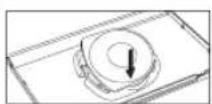
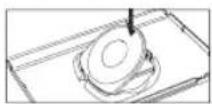
Ejecting the disc
Press the right side of the disc until it is in the position shown in the drawing and then remove it. If excess force is applied this may result in damage to the disc.
Storing the disc
Insert the bottom side of the disc and then press on the top side until it clicks into place. If the disc is not stored properly, this may result in damage to the disc. Store the disc in its case when not in use and keep in a place out of the reach of children. If the disc is left out this may result in warping or other damage to the disc.
Table of Contents
GETTING STARTED 2
GAME CONTROLS 3
MAIN MENU. 4
QUEST FOR THE TRUTH 4
PAUSE MENU
FREE MISSIONS 5
CUSTOMIZE 6
CUSTOMERSUPPORT&WARRANTY
FRANÇAIS 9
NOTES 15
CREDITS. 16


GETTING STARTED
Set up your PSP® (PlayStation® Portable) system according to the instructions in the manual supplied with the system. Turn the system on. The power indicator lights up in green and the home menu is displayed. Press the OPEN latch to open the disc cover. INSERT NARUTO SHIPPUDEN™: Kizuna Drive disc with the label facing away from the system, slide until fully inserted and close the disc cover. From the PSP® system's home menu, select the Game icon and then the UMD icon. A thumbnail for the software is displayed. Select the thumbnail and press the button of the PSP® system to start the software. Follow the on-screen instructions and refer to this manual for information on using the software.
NOTICE: Do not eject a UMD® while it is playing.
Memory Stick DuoTM
Warning! Keep Memory Stick Duo media out of reach of small children, as the media could be swallowed by accident.
To save game settings and progress, insert a Memory Stick Duo into the memory stick slot of your PSP® system. You can load saved game data from the same memory stick or any Memory Stick Duo containing previously saved games.
GAME CONTROLS
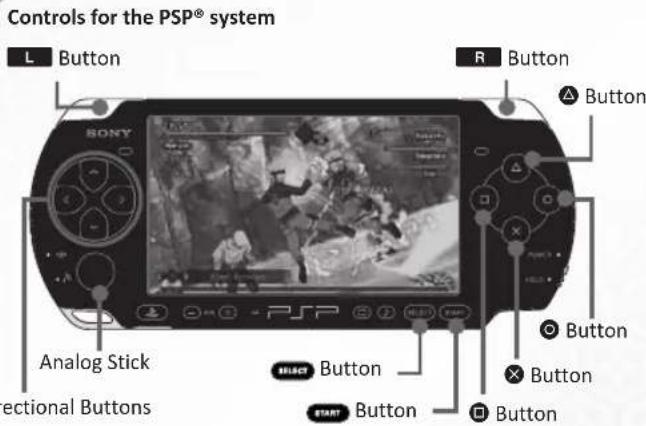
| MENU CONTROLS | |
| Directional buttons Navigate menu | |
| Select option | |
| Cancel/Go back | |
| Save | |
| Delete Record | |
| MANUELCONTROLS | |
| Analog stick Move | |
| Jump | |
| when attacked Substitution jutsu | |
| Attack | |
| , , , , , | |
| after combo attack Finisher | |
| Jutsu | |
| , , , , , , | |
| Use Ninja Tools | |
| Directional buttons ←/→ | Change Ninja Tools |
| Hold Chakra charge | |
| Assist attack | |
| Directional buttons ↑/↓ | Select teammate for assist attack |
| + (while enemy is stunned) | Team attack |
| Open pause menu | |
| L | Rotate camera left |
| R | Rotate camera right |
Main Menu /Quest For The Truth
Pause Menu / Free Missions

MAIN MENU PAUSE MENU
SCENARIO MISSION
Select the Scenario Mission option to begin playing the main story missions. Once you complete a Scenario Mission, the next one unlocks.
FREE MISSION
Select the Free Mission option to play a series of objective based levels, where you can earn more scrolls or participate in Drills, which teach you the skills needed for survival in the dangerous world of the ninja. Free Mission levels unlock as you complete Scenario Missions.
CUSTOMIZE
In the Customize menu, set up any unlocked characters; view unlocked Scrolls, Jutsu, and Ninja Tools; or change the game settings.

QUEST FOR THE TRUTH
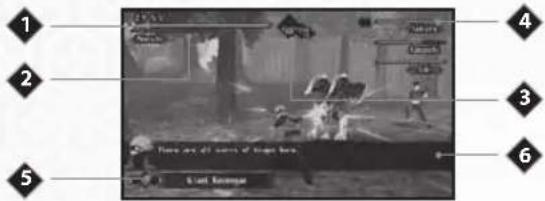
HEALTH
This green gauge at the top of the screen displays your current health level. As you take damage, the gauge decreases. Certain Jutsu, Ninja Tools, and food items can be used to restore health.
CHAKRA
This blue gauge under the health bar shows your current Chakra reserves. Chakra is required to use Jutsu moves, Ninja Tools, Finishers, and Substitute Jutsu. If you find yourself running low on Chakra, then hold down the button to recharge.
KIZUNA POINTS
The diamond at the top center of the screen shows your current amount of Kizuna Points. Landing successful assist attacks, performing Kizuna combos, or reviving fallen teammates gives you Kizuna Points. Losing all your health during a battle causes you to lose Kizuna Points. The more Kizuna Points you have at the end of a mission, the more scrolls you are awarded.
TEAM HEALTH
Your teammates and their current health are listed in the upper right corner of the screen. The small icon to the left of your teammate's health gauge indicates they are currently selected as your assist attack.
5 JUTSU AND NINJA TOOL
The icon at the lower left corner of the screen shows the currently selected Jutsu move or Ninja Tool. If the currently selected item has a limited number of uses, that number is displayed under the item's name. If a Jutsu or Ninja Tool cannot be used, the name appears in light grey.
6 MESSAGES
Character dialog and other important messages appear above the Jutsu and Ninja Tool display.

STATUS
The Status option displays the current state of your team. Press the L and R buttons to scroll through the available characters and press the button to switch between the character's stats and assist attack description.
MISSION CONTENT
View the current mission, active objective, time remaining, and Kizuna Points collected.
RETIRE
Select the Retire option to retry from the mission's starting point, or choose to quit the current mission and return to the Mission Select menu.

FREE MISSIONS
Battle for new scrolls in objective-based missions of increasing difficulty, practice your Jutsu in a series of Drills, or play with other NARUTO SHIPPUDENTM; Kizuna Drive users over ad hoc mode in Multi Play. In Free Missions, you may use any of the characters you have unlocked in Scenario Missions to build your ultimate dream team. When selecting a character, press the
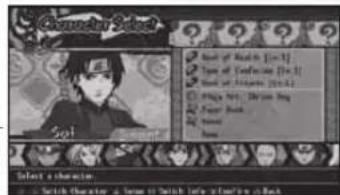
button to enter the Setup menu and assign scrolls, Jutsu, and tools. Press button to view additional stats for your highlighted character.
SINGLE PLAY
Many exciting challenges await you in Single Play. Complete missions and earn as many Kizuna Points as possible to unlock new scrolls to boost your characters' abilities.
Drill
Complete a series of tutorial challenges and hone the skills needed to survive in NARUTO SHIPPUDEN™: Kizuna Drive.
Rank Missions
Build your ninja team using any unlocked characters and take on a series of challenges built to push your limits. New Rank Missions are unlocked as you complete Scenario Missions.
MULTIPLAY
Create an ad hoc game to play with your friends.
Room Select
Choose from N, E, S, or W rooms when hosting your ad hoc multiplayer session. Once an additional player enters the same room, you have the option to begin playing. From there, the host can choose the mission.
Mission Select
The host of the Multi Play match selects the mission after the team has been finalized.
Customize

CUSTOMIZE
In the Customize menu, assign stat boosting scrolls to any unlocked characters, keep track of unlocked items, or change the game settings.
SETUP
Change the scrolls, Jutsu, and Ninja Tools equipped to each character.
Character Select
Scroll through the list of available characters using the directional buttons /, and select the character you wish to modify with the button.
Equipping Scrolls, Jutsu, And Ninja Tools
After selecting your character, use the directional buttons / to switch between item slots. Select the slot you wish to change by pressing the button. Scroll through the list of available items and view their individual stats or abilities. To quickly switch between characters without returning to the Character Select screen, press the and buttons.
GUIDE
View the lists of items and powers in NARUTO SHIPPUDEN™; Kizuna Drive. Items not yet unlocked are listed with question marks.
Scroll Guide
View the list of available scrolls and their individual affects on your character.
Jutsu Guide
View the list of available Jutsu, including the power's description and ability statistics.
Ninja Tool Guide
View the list of available Ninja Tools in the game, including the tool's description and ability statistics.
SETTINGS
Set your volume, audio, and name settings.
Volume Settings
Adjust the volume levels for BGM (back ground music) and SE (sound effects). Press the × button to change the sound level and the button to format the settings.
Change Audio
Choose between English Audio and Japanese Audio.
Name Change
Change your player name. This is the name that is displayed during Multi Play Free Missions.
LIMITED WARRANTY
Ever get stuck and just need that extra edge to beat the level?
Having problems getting your game to work properly?
Now you can get one-on-one help from NAMCO BANDAI Games America Inc.
using your web browser!
Simply go to livehelp.namco.com for more details.
Live Counselors available from 9am-5pm Monday-Friday Pacific Time.
NAMCO BANDAI Games America Inc.
ATTN: Customer Service
4555 Great America Parkway, Suite 201
Santa Clara, CA 95054
Before returning any defective materials to us, please contact us for a Return Merchandise Authorization (RMA) number. You can reach us at the address above, via e-mail at support@namcobandaigames.com or contact us at (408) 235-2222. Please note that any materials sent to us without an RMA number will be refused and returned. We highly recommend that you use a traceable and / or insured method of shipping the materials to us.
Namco Bandai Games America Inc.
Online: www.namcobandalgames.com
Visit our Website to get information about our new titles.
LIMITED WARRANTY
NAMCO BANDAI Games America Inc. warrants to the original purchaser that this NAMCO BANDAI Games America Inc. game pack shall be free from defects in material and workmanship for a period of ninety (90) days from the date of purchase. If a defect covered by this limited warranty occurs during this 90-day limited warranty period, NAMCO BANDAI Games America Inc. will repair or replace the defective game pack or component part, at its option, free of charge. This limited warranty does not apply if the defects have been caused by negligence, accident, unreasonable use, modification, tampering, or any other cause not related to defective material or workmanship.
LIMITATIONS ON WARRANTY
Any applicable implied warranties of merchantability and fitness for a particular purpose, are hereby limited to ninety (90) days from the date of purchase and are subject to the conditions set forth herein. In no event shall NAMCO BANDAI Games America Inc. be liable for consequential or incidental damages resulting from the possession or use of this product. The provisions of the limited warranty are valid in the United States only. Some states do not allow limitations on how long an implied warranty lasts, or exclusion of consequential or incidental damages, so the above limitation or exclusion may not apply to you. This limited warranty provides you with specific legal rights. You may have other rights which vary from state to state.

Net BSD
The communications function of this product includes software developed by the NetBSD Foundation, Inc. and its contributors. For a complete list of contributors please see http://www.scei.co.jp/psp-license/pspnet.txt
"PlayStation", "PS" Family logo, "PSP", and "UMD" are registered trademarks of Sony Computer Entertainment Inc.
Memory Stick Duo and Memory Stick PRO Duo are trademarks of Sony Corporation.
Updating the PSP® (PlayStation®Portable) system
Updating the PSP system software
This UMD® includes the latest update data for the PSP® system. If a screen prompting you to update the system software is displayed when you start the UMD®, you must perform an update to start the software title contained on the UMD®.
Performing the update
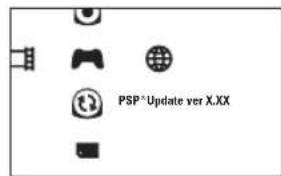
When you insert the UMD, an icon (as shown on the right) is displayed under [Game] in the home menu. Select the icon, and then follow the on-screen instructions to perform the update.
Before starting the update:
Fully charge the PSP system battery.
- Connect the AC adaptor to the system and plug it into an electrical outlet.
During an update:
- Do not remove the AC adaptor, turn off the system or remove the UMD
If an update is canceled before completion, the system software may become damaged, and the system may require servicing to repair or exchange.
Checking that the update was successful
After the update has been completed, select [System Settings] under [Settings] from the home menu, and then select [System Information]. If the System Software field displays the version number of the update, the update was successful.
Original Story and Art
Masashi Kishimoto
Weekly SHONEN JUMP
Developed By
Premium Agency Inc.
Produced By
NAMCO BANDAI Games Inc.
Published By
NAMCO BANDAI Games America Inc.
Director of Japan Production
Takahiro Sasanoi
Japan Production Manager
Nobuaki Taguchi
Associate Localization Producer
Andrew Davis
Senior Manager, Brand Marketing
Dennis Lee
Brand Management Consultant
Kim Morgan
Senior PR Manager
Arne Pedroso
Creative Services Manager
Michiko Wang
Director of Operations
Tad Hirabayashi
Senior Operations Manager
Jennifer Tersigni
QA Manager
Michael Peterson
CQC Supervisor
Damon Bernal
Project Coordinator
Jesse Mejia
Department Coordinator
Tereza Siegel
QA Lead
Greg Anderson
QA Testers
Andrew Corpuz
Nathan Schmidt
Adam Menist
Phil Ponsaran
Mike Mok
Steven Nguyen
Jonathan Drescher
Andy Cameron
CQC
David Moya
Saiho Kwan
Special Thanks
UNO Production members
All Japan Production members
All CQC members
Genichi Ito
Kenji Hisatsune
Nobuhiro Kasahara
Makoto Iwai
Shuji Tanaka
Carlson Choi
Justin Lucas
Ryan Grissom
Paul Caparotta
Julia Loranger
Janna Smith
Martin Nguyen
Charlie Chough
Terry Carlson
Corey Tran
Keisuke Kumiji
Charmaine Morena
NARUTO SHIPPUDENTM: Kizuna Drive
game software © 2004-2011 NAMCO BANDAI
Games Inc. NARUO artio and elements 2002
MASASHI KISHIMOTO / 2007 SHIPPUDEN All rights reserved.
RESERVED:SHIONENJMP,NAHOTTOANDNAROTTO
SHIPPODEN are trademarks of Shindo, Inc. in the U.S. and/or other countries. This product is
manufactured, distributed and sold in North, South
and Central American territories under license from VIZ Media, LLC.
Fonts used in-game are provided by Bitstream Inc. All rights reserved.
This software uses specially-designed fonts
created under license from Fontworks Inc.
Fontworks and font names are trademarks or
registered trademarks of Fontworks Inc.
GARANTIE LIMITEE
DES CONSEILS MAINTENANT OFFERTS EN LIGNE!
4555 Great America Parkway, Suite 201
Santa Clara, CA 95054
To register product online go to
WWW.NAMCOREG.COM