
DVP3850 - DVD player PHILIPS - Free user manual and instructions
Find the device manual for free DVP3850 PHILIPS in PDF.


| Product type | DVD player |
| Brand | Philips |
| Model | DVP3850 |
| Dimensions (W × H × D) | 360 × 42 × 209 mm |
| Net weight | 1.4 kg |
| Power supply | 230 V, 50 Hz |
| Power consumption (operation) | Less than 8 W |
| Power consumption (standby) | Less than 0.3 W |
| Supported disc formats | DVD, DVD±R/RW, DVD+R DL, CD, CD-R/RW, VCD, SVCD |
| Video file formats | .avi, .divx, .mp4, .xvid |
| Audio file formats | .mp3, .wma |
| Image file formats | .jpg, .jpeg (JPEG-EXIF) |
| Video outputs | Composite, Component (YUV), SCART |
| Analog audio output | 2 channels (Left/Right) |
| Digital audio output | Coaxial |
| DVD region code | Europe (region 2) |
| Main functions | DVD/VCD/CD playback, zoom, repeat, search, photo slideshow, CD to MP3 conversion, parental control |
| USB port | Yes (USB 2.0 compatible, FAT16/FAT32) |
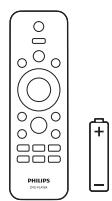
| Supplied accessories | Remote control with battery, user manual |
| Care and cleaning | Clean with a soft, dry cloth. Do not use solvents. |
| Safety | Do not open the casing, risk of electric shock. Use only the supplied power adapter. |
| Spare parts and repairability | Contact Philips service for spare parts. Do not repair yourself. |
Frequently Asked Questions - DVP3850 PHILIPS
User questions about DVP3850 PHILIPS
0 question about this device. Answer the ones you know or ask your own.
Ask a new question about this device
Download the instructions for your DVD player in PDF format for free! Find your manual DVP3850 - PHILIPS and take your electronic device back in hand. On this page are published all the documents necessary for the use of your device. DVP3850 by PHILIPS.
USER MANUAL DVP3850 PHILIPS
ABOUT DIVX VIDEO: DivX® is a digital video format created by DivX, Inc. This is an official DivX Certified device that plays DivX video. Visit www.divx.com for more information and software tools to convert your files into DivX video.
ABOUT DIVX VIDEO-ON-DEMAND: This DivX Certified® device must be registered in order to play DivX Video-on-Demand (VOD) content. To generate the registration code, locate the DivX VOD section in the device setup menu. Go to vod.divx.com with this code to complete the registration process and learn more about DivX VOD.
DivX, DivX Certified and associated logos are registered trademarks of DivX, Inc. and are used under license.

Manufactured under license from Dolby Laboratories. Dolby and the double-D symbol are trademarks of Dolby Laboratories.
'DVD Video' is a trademark of DVD Format/Logo Licensing Corporation.

1


VIDEO OUT

TV OUT

COAXIAL
AUDIO OUT


2

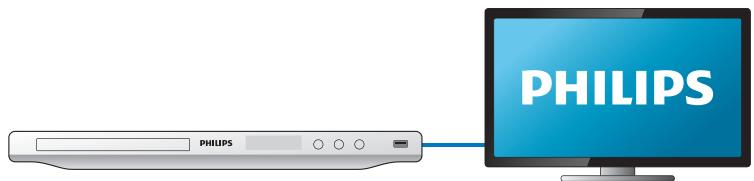
VIDEO OUT + AUDIO OUT


TV OUT


3
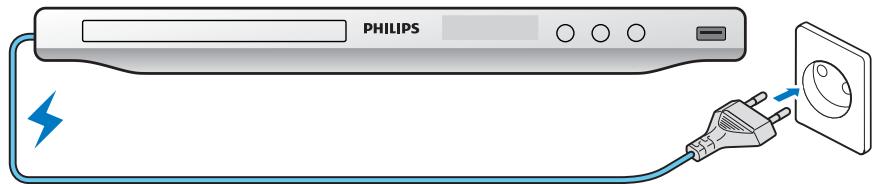
4
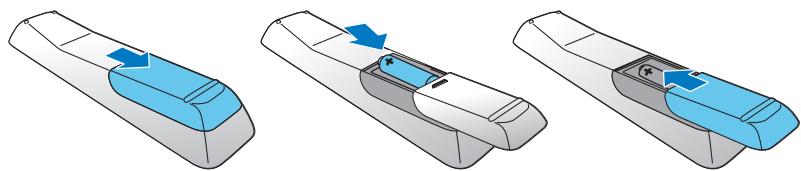
5




SOURCE
PHILIPS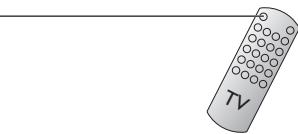
6

2


1
3

4

Contents
Connect and play 3 Control and play 8 Photo and music slideshow 10 Options 11 Convert audio CD to MP3 files 12 Setup 13
General setup 13 Video setup 14 Audio setup 15 Preference 16
Software update 18 Troubleshooting 19 Specifications 20

Note
- When "X" appears, it means that this operation is unavailable for the current media or at the current time.
| Media | Function | Buttons / Actions |
| Stop the play | ||
| Pause or resume the play | ||
| Skip to the previous/next title, chapter, track, or file | ||
| Select an audio language or audio channel | ||
| Select a subtitle language | ||
| Return to the home page | ||
| Return to the root menu | ||
| Return to the disc menu | ||
| Enable or disable the PBC (playback control) feature | ||
| Select a repeat mode | ||
| Repeat a specific section within a track | ||
| Skip to a title or chapter | ||
| 1) Press GOTO. 2) Press ▲ / ▼ to enter the title/chapter number. 3) Press OK to confirm. | ||
| VIDEO CO.2 SUPER VIDEO | Skip to a track | 1) Disable PBC. 2) Press GOTO. 3) Press ▲ / ▼ to enter the track number. 4) Press OK to confirm. |
| Search backward/forward fast | Press ▲ / ▲ ▲ repeatedly to select a speed. | |
| Search forward slowly | Press ▲ repeatedly to select a speed. | |
| DVD VIDEO | Search backward slowly | Press ▼ repeatedly to select a speed. |
| Zoom in or out | Press □. • To pan through an enlarged photo, press ▲ / ▲ ▲ ▲ ▲ ▲. | |
| Rotate a photo | Press ▲ / ▲ / ▲ ▲ ▲ ▲ ▲. | |
| Preview photos | 1) Press ▷ BACK during photo slideshow. 2) Press ▲ / ▲ / ▲ ▲ ▲ ▲ ▲ to select a thumbnail. | |
| Switch between Fun Mode (pictures in color) and Simple Mode (pictures in black and white) | Press DISC MENU during photo slideshow. | |

Note
- You can only play DivX videos that were rented or purchased with the DivX® registration code of this player. (Refer to "Setup" > "General Setup" > [DivX(R) VOD Code])
- Subtitle files with the following filename extensions (.srt, .smi, .sub, .ssa, .ass) are supported but not displayed in the file list.
- The subtitle filename must be the same as the filename of the DivX video (excluding the file extension).
- The DivX video file and the subtitle file must be saved in the same directory.
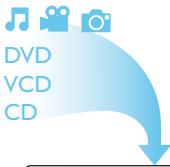
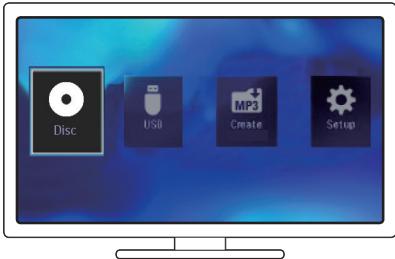
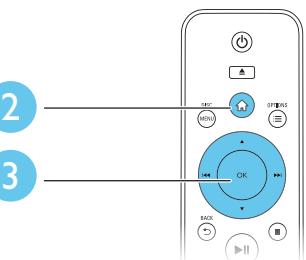
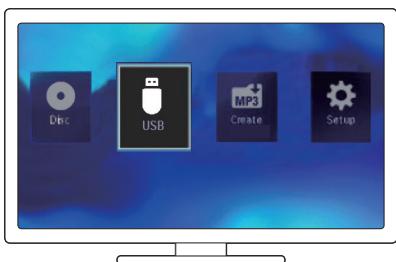
1 Press / to select, and then press OK.
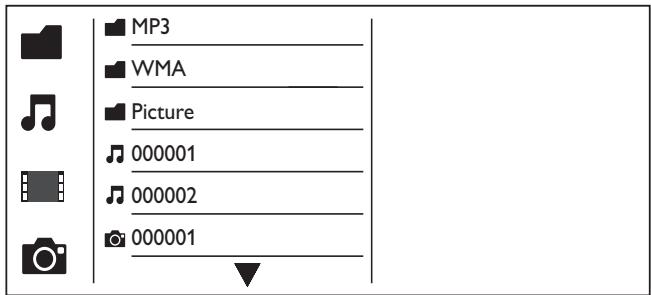
→ All supported folders and files are listed.
2 Press / to select a music file, and then press OK to start playing.
If the music file is saved in a folder or subfolder, access its directory first.
3 Press / to select a picture file, and then press OK to start the slideshow.
If the picture file is saved in a folder or subfolder, access its directory first. To stop the slideshow, press To stop the music, press again.

Note
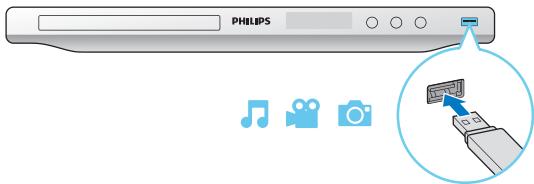
- Music and picture files must be stored on the same disc or USB storage device.
- If a large number of files are compiled onto one disc or USB storage device, it requires longer time to read and display the content.
- This player can only display digital camera pictures with JPEG-EXIF format, which is widely used in digital cameras. It cannot display Motion JPEG, nor pictures in formats other than JPEG. Sound clips associated with pictures cannot be displayed either.
- If a JPEG picture is not recorded as an "exif" type file, its thumbnail picture is displayed as "blue mountain".
During play, press OPTIONS to access the following items.
| Media | Setting item | Function |
| VIDEO | [Info] | Display the play information. |
| VIDEO | [BC] | Enable or disable PBC. |
| VIDEO | [Aspect ratio] | Select a display ratio of picture on TV. |
| VIDEO | [Volume] | Adjust the volume level. |
| VIDEO | [Angle] | Select an available camera angle. |
| [Colour] | Select Fun Mode (pictures in color) or Simple Mode (pictures in black and white). | |
| [Photo preview] | Display the thumbnail of photos. |
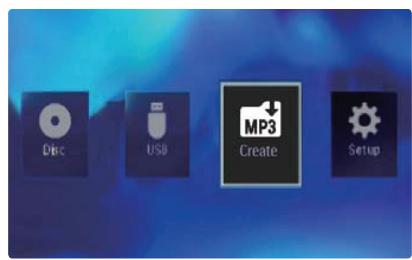
Create
Make sure disc and USB device are inserted

Start
Exit
123
Follow the on-screen instructions to complete the process.
The created MP3 files are saved in a folder named "_.PHILIPS".

Note
- DTS CDs and copy-protected CDs cannot be converted.
- A write-protected or encrypted USB storage device cannot be used to store MP3 files.
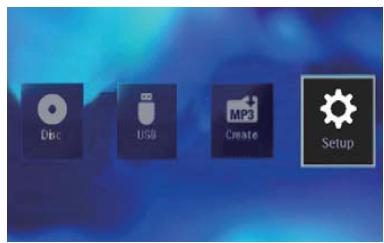
| General | Disc Lock | · Unlock |
| OSD Language | · English | |
| Video | Sleep Timer | · Off |
| Auto Standby | · On | |
| Audio | DivX(R) VOD Code | · Registration |
| Preference |
Press OK to access the lower-level menu. Press BACK to return to the upper-level menu.

Note
- When a menu item is grayed out, it means that its setting cannot be changed at the current state.
General setup
| General | Disc Lock | · Unlock |
| OSD Language | · English | |
| Video | Sleep Timer | · Off |
| Auto Standby | · On | |
| Audio | DivX(R) VOD Code | · Registration |
| Preference |
[Disc Lock] - Restrict the play of a disc (maximum 20 discs can be locked).
- [Lock] - Lock the current disc. To play or unlock this disc, you must enter the password. [Unlock] - Play all discs.
[OSD Language] - Select a language for on-screen menu.
[Sleep Timer] - Set a period of time for the player to switch to Eco-power standby mode automatically.
[Auto Standby] - Enable this feature to automatically switch to Eco-power standby mode after 15 minutes of inactivity.
[DivX(R) VOD Code] - Display the DivX® registration code and deregistration code.

Note
- Go to www.divx.com/vod for how to register your player and rent or purchase DivX videos. DivX videos rented or purchased by this registration code can be played only on this player.
Play a locked disc
When you load a locked disc, [Please enter password] is displayed, and "0" is displayed as the first digit of the password.
1 Press ▲/▼ to set a value (0 to 9) to the first digit. 2 Press ▶. 3 Repeat steps 1 and 2 to enter the 6-digit password. 4 Press OK to confirm.

Tip
Refer to "Setup" > "Preference" > [Password] for how to change the password.
Video setup
| General | TV System | PAL |
| Aspect Ratio | 4:3 Pan Scan | |
| Video | Picture Setting | Standard |
| RGB | On | |
| Audio | ||
| Preferences |
[TV System] - Select a TV system that matches your TV. By default, this setting matches common TVs in your country.
[Aspect ratio] - Select a display ratio that matches your TV screen.
[Picture Setting] - Select a predefined setting for picture color, or customize the setting.
[RGB] - Enable or disable the video output through TV OUT.
Audio setup
| General | Analogue Output · Stereo |
| Digital Audio | |
| Video | Volume |
| Sound Mode | |
| Audio | Night Mode · Off |
| Preferences |
[Analogue Output] - Adjust this setting for audio output through AUDIO OUT L/R.
[Stereo] - Compress multi-channel Dolby digital sound to stereophonic sound. - [LT/RT] - Compress multi-channel Dolby digital sound to 2-channel surround sound.
[Digital Audio] - Adjust this setting for audio output through COAXIAL/DIGITAL OUT.
[Digital Output] - Select a type of digital output.
- [Off] - Disable digital output. [All] - Support multi-channel audio formats. [PCM Only] - Downmix to two-channel audio signal.
- [LPCM Output] - Select the LPCM (Linear Pulse Code Modulation) output sampling rate.

Note
- [LPCM Output] setting is changeable only when [Digital Output] is set as [PCM Only].
- The higher the sampling rate, the better the sound quality.
[Volume] - Set the default volume level.
[Sound Mode] - Select a preset sound effect.
[Night Mode] - Equalize loud and soft sounds. Enable this feature to watch DVD movies at a low volume at night.

Note
Applicable to Dolby Digital encoded DVD discs only.
Preference
| General | Audio | · English |
| Subtitle | · Off | |
| Video | Disc Menu | · English |
| Parental Control | · 8 Adult | |
| Audio | PBC | · On |
| Password | · Change | |
| Preferences | DivX Subtitle | · Standard |
| Version Info | ||
[Audio] - Select an audio language.
[Subtitle] - Select a language for subtitles.
[Disc Menu] - Select a language for the disc menu.

Note
- For some DVDs, the subtitle or audio language can only be changed from the disc menu.
- For a language that is not listed, select [Others]. Check the list of language codes (see "Language Code"), and then enter the respective language code.
[Parental Control] - Select a rating level to restrict the play of discs to children. These discs must be recorded with rating levels.

Note
- To play a DVD disc that has a rating level higher than your setting, enter the password first. (Refer to "Setup" > "General setup" > "Play a locked disc" for details)
- The rating levels are country-dependent. To allow all discs to be played, select [8 Adult].
- Some discs have ratings printed on but are not recorded with ratings. This function has no effect on such discs.
[PBC] - Enable or disable the PBC (playback control) feature.
[Password] - Change the password for playing discs that are locked or restricted with rating levels.

Note
- If you forget the password, enter "136900" before you set a new password.
Change the password
1 Select [Preference] > [Password] > [Change], and then press OK. The interface for changing password is displayed. 2 Press OK again. → "0" is displayed behind [Old Password] as the first digit of old password. 3 Press △ / ▽ to set a value (0-9) to the first digit. 4 Press▶. 5 Repeat steps 3 and 4 to enter the 6-digit old password. 6 Repeat steps 3 and 4 to enter the new password behind [New Password]. 7 Repeat steps 3 and 4 to enter the new password behind [Confirm PWD].
[DivX Subtitle] - Select a character set that supports the subtitle of your DivX video.
[Version Info] - Display the information about software version of this player.
[Default] - Reset all settings to factory default, except for the settings for [Disc Lock], [Parental Control], and [Password].

Note
- Power supply must not be interrupted during software update.
Check the current software version of this player, and then go to the Philips website for information about software update.
Check the current software version
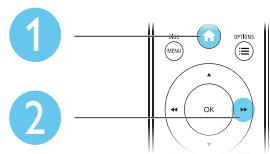
1 Press 2 Select , and then press OK. 3 Select [Preference]> [Version Info], and then press OK.
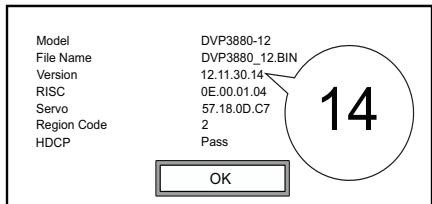
4 Write down the last two digits "XX" behind [Version].
The version of current software is VXX.
Perform the update
1 Go to www.philips.com/support. 2 Search for support information with "DVP3850/12" as the keywords. 3 Click the search result to display available support information. 4 Read the Firmware Upgrade Readme File and follow the instructions to complete the software update.
Troubleshooting

Warning
- Risk of electric shock. Never remove the casing of the player.
To keep the warranty valid, never try to repair the player yourself.
If you have problems using this player, check the following points before you request service. If you still have a problem, register your player and get support at www.philips.com/welcome.
If you contact Philips, you will be asked for the model and serial number of this player. The model number and serial number are on the back of this player. Write the numbers here:
Model No.
Serial No.
No picture.
Refer to the TV user manual for how to select the correct video input channel. Switch to the default mode if the progressive scan setting or the TV system setting is changed.
No sound output from the TV.
- Make sure that the audio cables are connected to the audio input sockets that are grouped with the selected video input sockets.
No sound during DivX video playback.
The audio codes are not supported.
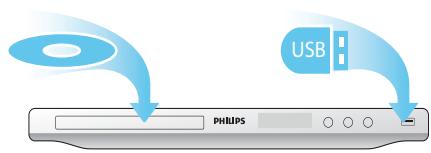
Disc or USB storage device cannot be read.
Make sure that this player supports the disc or USB storage device. (Refer to "Specifications" > "Playable media") For a recorded disc, make sure that the disc is finalized.
Recorded files (JPEG, MP3, WMA) cannot be played or read.
Make sure that the file was recorded in the format of UDF, ISO9660, or JOLIET. Make sure that the number of files does not exceed the limitation (648 files maximum). Make sure that this player supports these files. (Refer to "Specifications" > "Playable media")
DivX video files cannot be played.
Make sure that the DivX video file is complete. Make sure that the file extension is correct. DRM-protected video files that are stored on a USB flash drive cannot be played through an analog video connection (for example, composite, component, and scart). Transfer the video content onto a supported disc to play these files.
DivX subtitles are not displayed correctly.
Make sure that the subtitle filename is the same as the video filename. Make sure that the DivX video file and the subtitle file are saved under the same directory. Select the character set that supports the subtitle. (Refer to [Preference] > [DivX Subtitle])

Note
- Specifications are subject to change without notice
DVD region code
Countries

Europe
Playable media
Disc
DVD, DVD-Video, VCD, SVCD, Audio CD, DVD+R/+RW, DVD-R/-RW, DVD+R/-R DL (Dual Layer), CD-R/-RW (Maximum number of files: 648)
File
Video: .avi, .divx, .mp4, .xvid; Audio: .mp3, .wma; Picture: .jpg
USB storage device
- Compatibility: Hi-Speed USB (2.0); Class support: MSC (Mass Storage Class); File system: FAT16, FAT32; Maximum number of albums/folders: 300; Maximum number of tracks/titles: 648
Video
Signal system: PAL / NTSC; Composite video output: 1 Vp-p (75 Ohm); Component video output: 0.7 Vp-p (75 Ohm); Scart: European connector
Audio
2-channel analog output; Audio Front L&R: 2 Vrms (47k Ohm); Digital output: 0.5 Vp-p (75 Ohm) Coaxial
Sampling frequency:
MP3: 8 kHz, 11 kHz, 12 kHz, 16 kHz, 22 kHz, 24 kHz, 32 kHz, 44.1 kHz, 48 kHz WMA: 44.1 kHz, 48 kHz
- Constant bit rate:
MP3: 8 kbps - 320 kbps WMA: 64 kbps - 192 kbps
Main unit
Dimensions (W x H x D): 360 x 42 x 209 (mm) Net Weight: 1.4 kg
Power
Power supply rating: 230 V ~ ; 50 Hz Power consumption: < 8 W Power consumption in standby mode: < 0.3 W
Accessories supplied
Remote control and one battery - User Manual
Laser specification
Type: Semiconductor laser InGaAlP (DVD), AlGaAs (CD) Wave length: 658 nm (DVD), 790 nm (CD) Output Power: 7.0 mW (DVD), 10.0 mW (VCD/CD) - Beam divergence: 60 degrees
Specification for laser
Type: Semiconductor laser InGaAlP (DVD), AlGaAs (CD) Wavelength: 658 nm (DVD), 790 nm (CD) Output power: 7.0 mW (DVD), 10.0 mW (VCD/CD) Beam divergence: 60 degrees
Audio Front L&R: 2 Vrms (47 Kiloohm)
MP3: 8 kHz, 11 kHz, 12 kHz, 16 kHz, 22 kHz, 24 kHz, 32 kHz, 44 kHz, 48 kHz WMA: 44.1 kHz, 48 kHz
Constant bitrate:
Make sure disc and USB device are inserted

Start
Exit
123
MP3: 8 kHz, 11 kHz, 12 kHz, 16 kHz, 22 kHz, 24 kHz, 32 kHz, 44 kHz, 48 kHz WMA: 44.1 kHz, 48 kHz
- Constant bitrate:
MP3: 8 kbps - 320 kbps WMA: 64 kbps - 192 kbps
Main unit
Dimensions (L x W x H): 360 x 42 x 209 mm - Net weight: 1.4 kg
Power supply
MP3: 8 kHz, 11 kHz, 12 kHz, 16 kHz, 22 kHz, 24 kHz, 32 kHz, 44.1 kHz, 48 kHz WMA: 44.1 kHz, 48 kHz
MP3: 8 kHz, 11 kHz, 12 kHz, 16 kHz, 22 kHz, 24 kHz, 32 kHz, 44.1 kHz, 48 kHz WMA: 44.1 kHz, 48 kHz
Constant bit rate:
MP3: 8 kbps - 320 kbps WMA: 64 kbps - 192 kbps
Main unit
Dimensions (L x W x H) .. 360 x 42 x 209 (mm) - Net weight: 1.4 kg
Power
- Power rating: 230V~ 50 Hz Power consumption: < 8 W Power consumption in standby mode: < 0.3 W
Make sure disc and USB device are inserted
Start
Exit

123
MP3: 8 kHz, 11 kHz, 12 kHz, 16 kHz, 22 kHz, 24 kHz, 32 kHz, 44.1 kHz, 48 kHz WMA: 44.1 kHz, 48 kHz
USE OF CONTROLS OR ADJUSTMENTS OR PERFORMANCE OF PROCEDURES OTHER THAN THOSE SPECIFIED HEREIN MAY RESULT IN HAZARDOUS RADIATION EXPOSURE.
CAUTION:
VISIBLE AND INVISIBLE LASER RADIATION WHEN OPEN AND INTERLOCK DEFEATED. DO NOT STARE INTO BEAM.
LOCATION:
INSIDE, NEAR THE DECK MECHANISM.
Italia
- CONTENTS
- NOTE
- CREATE
- START
- PLAY A LOCKED DISC
- TIP
- VIDEO SETUP
- AUDIO SETUP
- PREFERENCE
- CHANGE THE PASSWORD
- CHECK THE CURRENT SOFTWARE VERSION
- PERFORM THE UPDATE
- TROUBLESHOOTING
- WARNING
- NO PICTURE
- NO SOUND OUTPUT FROM THE TV
- NO SOUND DURING DIVX VIDEO PLAYBACK
- DISC OR USB STORAGE DEVICE CANNOT BE READ
- RECORDED FILES (JPEG, MP3, WMA) CANNOT BE PLAYED OR READ
- DIVX VIDEO FILES CANNOT BE PLAYED
- DIVX SUBTITLES ARE NOT DISPLAYED CORRECTLY
- PLAYABLE MEDIA
- DISC
- FILE
- USB STORAGE DEVICE
- VIDEO
- AUDIO
- MAIN UNIT
- POWER
- ACCESSORIES SUPPLIED
- LASER SPECIFICATION
- SPECIFICATION FOR LASER
- POWER SUPPLY
- CAUTION
- LOCATION
- ITALIA
Brand : PHILIPS
Model : DVP3850
Category : DVD player