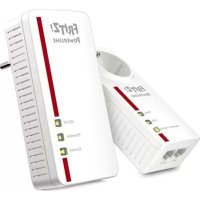
FRITZ!Powerline 1260E - Router AVM - Free user manual and instructions
Find the device manual for free FRITZ!Powerline 1260E AVM in PDF.

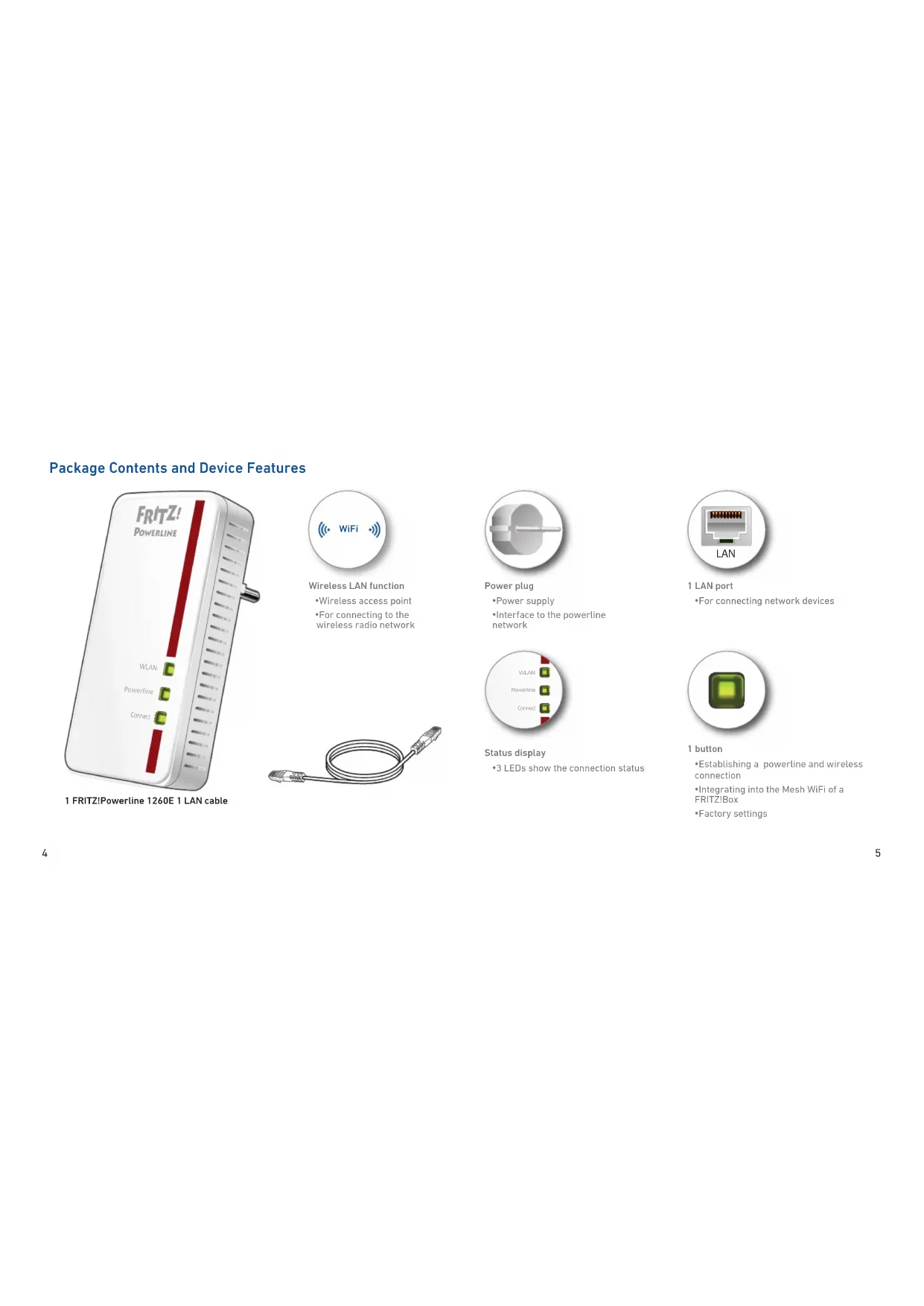


| Product Type | Powerline Adapter / Wireless Router |
| Brand | AVM |
| Model | FRITZ!Powerline 1260E |
| Dimensions (H x W x D) | 132.3 x 67 x 69.3 mm (with plug) / 32.5 mm (without plug) |
| Weight | 186 g |
| Power Supply | 230 V, 50 Hz, 6.7 W (average) |
| Maximum Powerline Rate | 1200 Mbit/s (gross) with 2x2 MIMO technology |
| WLAN 5 GHz Rate | Up to 866 Mbit/s (AC) |
| WLAN 2.4 GHz Rate | Up to 400 Mbit/s (N) |
| Ethernet Port | 1 x Gigabit (1000 Mbit/s) |
| Wireless Security | WPA2, WPS |
| Powerline Security | AES 128-bit encryption |
| Powerline Standards | HomePlug AV2, IEEE P1901 |
| Functions | WiFi Repeater, Mesh (with FRITZ!Box), Access Point |
| Operating Temperature | 0 °C to +40 °C |
| Care and Cleaning | Disconnect before cleaning; use a damp cloth |
| Safety | Use in a dry, dust-free place away from direct sunlight; do not open the casing |
| Manufacturer Warranty | 5 years |
Frequently Asked Questions - FRITZ!Powerline 1260E AVM
User questions about FRITZ!Powerline 1260E AVM
0 question about this device. Answer the ones you know or ask your own.
Ask a new question about this device
Download the instructions for your Router in PDF format for free! Find your manual FRITZ!Powerline 1260E - AVM and take your electronic device back in hand. On this page are published all the documents necessary for the use of your device. FRITZ!Powerline 1260E by AVM.
USER MANUAL FRITZ!Powerline 1260E AVM
Service information and help can be found on our website and in the social networks:
Service
en.avm.de/service
Manual
en.avm.de/nc/service/downloads
Support Request
en.avm.de/service/support-request/your-support-request
Social Networks

FRITZ!Powerline 1260E
en.avm.de
AVM GmbH, Alt-Moabit 95, D-10559 Berlin; Germany info@avm.de

Installation and Opertation
English 4
Deutsch 18
Español 32
Français 46
Italiano 60
Nederlands 74
Package Contents and Device Features
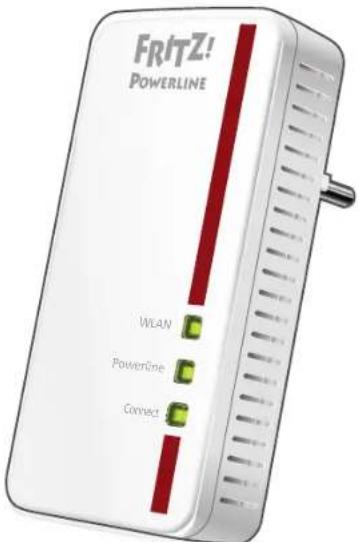
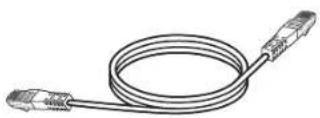
1 FRITZ!Powerline 1260E 1 LAN cable
Wireless LAN function
- Wireless access point
- For connecting to the
wireless radio network
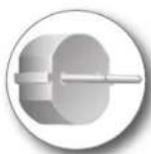
Power plug
•Power supply
•Interface to the powerline
network
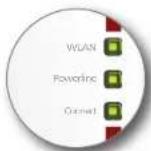
Status display
•3 LEDs show the connection status
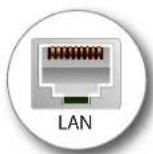
1 LAN port
•For connecting network devices

1 button
• Establishing a powerline and wireless
connection
• Integrating into the Mesh WiFi of a
FRITZ!Box
•Factory settings
FRITZ!Powerline 1260E
FRITZ!Powerline 1260E expands your existing powerline network and can be used with your wireless LAN and network devices as a secure access point to the home network and the internet.
In the FRITZ!Box home network, FRITZ!Powerline 1260E automatically adopts the FRITZ!Box's settings. With a FRITZ!Box that has FRITZ!OS 6.90 or higher installed, you can also benefit from expanded Mesh WiFi functionality. More detailed information about the benefits and the configuration of Mesh WiFi is presented at en.avm.de/mesh-networking.
For device settings FRITZ!Powerline 1260E has a user interface. In the user interface you can update the FRITZ!OS device software, set up a wireless schedule and a wireless guest access, or confi gure FRITZ!Powerline 1260E as a wireless repeater to expand your existing wireless radio network.
Thanks to these properties FRITZ!Powerline 1260E is a versatile device with many application possibilities, that can expand
the range of your home network over powerline, wireless LAN and over LAN connections.
Have fun with your FRITZ!Powerline 1260E!
Security
- Operate FRITZ!Powerline 1260E in a dry place that is free of dust and protected from direct sunlight, and provide for sufficient ventilation.
- Connect FRITZ!Powerline 1260E to easily accessible outlets.
- FRITZ!Powerline 1260E is intended for indoor use only. Never let liquids get inside the device.
- Do not open FRITZ!Powerline 1260E. Opening and/or repairing the device can present a hazard.
- Remove FRITZ!Powerline 1260E from the mains before cleaning. Clean the device using a moist cloth.
User Interface
FRITZ!Powerline 1260E has a user interface you can open in the web browser on your computer. In the web browser, enter the following IP address:
- In the home network of a FRITZ!Box: http://fritz.powerline
For multiple FRITZ!Powerline devices with a user interface:(the IP address is displayed in http://fritz.box under Home Network) - In the home network of another Internet router:
(the IP address is displayed in the user interface of the router)
● Without a connection to the home network and router: 192.168.178.2
Requirements for Gigabit Data Rates
For high data rates with gigabit speeds (up to 1200 Mbit/s gross), the FRITZ!Powerline 1260E deploys MIMO technology. MIMO requires a modern circuit with safety outlets and with live (L), neutral (N) and protective earth (PE) conductors. In these three-wire circuits, FRITZ!Powerline 1260E can combine the live and the earth conductor to make an additional wire pair for data transmission to increase the data rate. You can also deploy the FRITZ!Powerline 1260E in older circuits with two conductors, in which the neutral conductor takes on the function of the protective earth. Data rates of up to 600 Mbit/s (gross) are possible in such circuits.
FRITZ!Powerline 1260E Expands Your Powerline Network
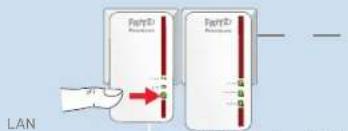
- Insert FRITZIPowerline 1260E in an outlet in the vicinity of a powerline adapter that is part of the powerline network already set up.
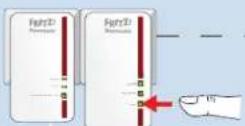
- Wait until the WLAN LED on FRITZ!Powerline 1260E lights steadily and then press and hold the Connect button for 1 second.
- Within 2 minutes, press and hold the button for powerline pairing (usually labeled „Pairing“ or „Security“) on another adapter in the powerline network for 1 second.
- If you have a FRITZ!Box with FRITZ!OS 6.90 or higher installed, you can integrate FRITZ!Powerline 1260E into the Mesh WiFi of your FRITZ!Box: First trigger registration mode with the "WPS" or "Connect" button on the FRITZ!Box, and then press the "Connect" button on FRITZ!Powerline 1260E and hold it down for 1 second. The LEDs on FRITZ!Powerline 1260E will start fl ashing.
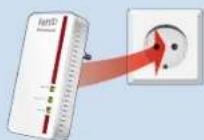
- As soon as the "Connect" LED stops flashing, you can insert FRITZ!Powerline 1260E into an outlet at the location where you need access to the Internet and the home network for your smartphone, tablet and other network devices.
1
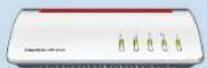
LAN
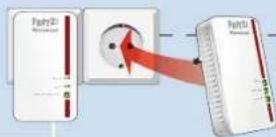
Electrical wiring
FRITZ!Powerline 1260E
2
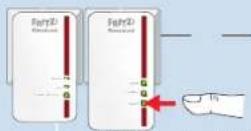
FRITZ!Powerline 1260E
3
FRITZ!Powerline 1260E
4
LAN
FRITZ!Powerline 1260E
5
Connecting Devices
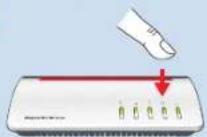
You can use FRITZ!Powerline 1260E with your wireless and network devices as an access point to the home network and the internet. For this you can connect devices using a LAN cable or via WiFi.
- Remove FRITZ!Powerline 1260E from the outlet and take note of the network key printed on the back of the device.
- Select the wireless network of FRITZ!Powerline 1260E on your wireless device and enter the network key.
FRITPowerline 1220E
ABCD-EFGH-IJKL-MNOP
00:00:00:00:00:00
Serial no.: H022.454.40.000.001
LED display / button shortcuts: Power: Unit supplied with power LAN: Connected over ethernet Powerline • Security:
Status display, register device
Article no.: 2000 2753
Input: 230V\~; 50 Hz; Max. 10A
AVM GmbH, 10S47 Berlin

FRITZ!Powerline 1260E in the Home Network of a FRITZ!Box
Because FRITZ!Powerline 1260E, FRITZ!Boxes and other FRITZ! products work together especially efficiently, FRITZ!Powerline 1260E can realize its entire spectrum of performance in the home network of a FRITZ!Box.
FRITZ!Powerline 1260E in the Home Network of a FRITZ!Box with FRITZIOS Version 6.90 or Higher
- In the home network of a FRITZ!Box with the FRITZ!OS device software version 6.90 or higher
– updates for the FRITZ!Powerline 1260E can be started directly from the Home Network Overview in the FRITZ!Box user interface: http://fritz.box.
- FRITZ!Powerline 1260E benefits from expanded Mesh WiFi functionality
● With Mesh WiFi functionality
- FRITZ!Powerline 1260E adopts the FRITZ!Box's wireless LAN settings automatically.
- FRITZ!Powerline 1260E adopts changes to settings that are configured in the FRITZ!Box.
- wireless devices always establish connections with the strongest wireless network and switch between the radio networks automatically (here: FRITZ!Box or FRITZ!Powerline 1260E).
● Information on AVM Mesh WiFi is presented atn.avm.de/mesh-networking.
FRITZ!Powerline 1260E WLAN Set in the Home Network of a FRITZ!Box with FRITZ!OS up to 6.6x
- In the home network of a FRITZ!Box with the FRITZ!OS device software up to version 6.6x
updates for the FRITZ!Powerline 1260E can be started directly from the Home Network Overview in the FRITZ!Box user interface: http://fritz.box.
- FRITZ!Powerline 1260E cannot benefit from expanded Mesh WiFi functionality, but can adopt the FRITZ!Box's wireless LAN settings at the push of a button. Information on this is presented in the FRITZ!Powerline 1260E PDF manual available at en.avm.de/service.
Expanding the Wireless Network with FRITZ!Powerline
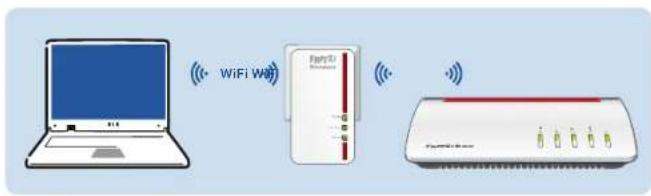
Here is how to use FRITZ!Powerline 1260E as a WLAN repeater.
- In the web browser, enter the address http://fritz.powerline. The FRITZ!Powerline 1260E user interface opens.
- Select Access to the Home Network and click Change Connection Type.
- Select Wireless Bridge and click Next. A Wizard takes you step by step through the configuration of FRITZ!Powerline 1260E.
- At the end of configuration, click Finish.
- Select Powerline, disable the Powerline active checkbox, and click OK.
- Connect your wireless LAN and network devices with FRITZ!Powerline 1260E.
LEDs and Buttons
| Condition Meaning | ||
| WLAN | on Wireless LAN enabled | |
| off Wireless LAN disabled (in the user interface) | ||
| fl ashing | in "Wireless Bridge" mode: Searching for the access point | |
| Powerline | on Connected with the powerline network | |
| off | No connection with the powerline network, or power-line switched off (in the user interface) | |
| Connect | Flashing along with "WLAN" and Powerline | FRITZ!Powerline is being integrated into the FRITZ!Box's Mesh WiFiReceiving or transmitting the password of the powerline networkPerforming WPS (Wi-Fi Protected Setup)Restart |
| Press Connect for | |
| Integrating FRITZ!Powerline into the network /Triggering WPS / Enabling Mesh WiFi | 1 second |
| Loading factory settings longer than 15 seconds |
Optimizing the Data Rate
A powerline network is influenced by many factors. With the following steps you can contribute to an optimal data rate in your powerline network:
- Insert powerline devices directly into wall outlets and avoid using multi-outlet strips.
- If you can't avoid using multi-outlet strips:
-Use a multi-outlet strip without surge protection.
-Connect as few devices as possible to the multi-outlet strip.
- Insert your powerline device in the first socket, directly at the cable.
- If you cannot avoid using a multi-outlet strip with surge protection, then the surge protection should be located behind the powerline device.
● The data rate in a powerline network drops for:
-a connection over multiple phases
- a connection that has to pass through a junction box, a circuit breaker, a dimmer or ballast units
-use of a power drill or a vacuum cleaner
Attempt to minimize these influences.
- The quality of your powerline network can also be optimized using the AVM FRITZ!Powerline software, which you can download fromen.avm.de/powerline.
Technical specifications
● Height x width x depth (in mm): 132.3 x 67 x 69.3 / 32.5 (with/without plug)
230 V, 50 Hz A/C
- 0 °C to +40 °C
● Average power consumption: ca. 6.7 W
Weight: 186 g
● expands your home network using the wiring in your house (powerline)
● Powerline data rate of up to 1200 Mbit/s (gross) thanks to 2 x 2 MIMO technology
● Powerline connection at the push of a button; secure encryption with AES 128-bit
● Wireless AC at up to 866 Mbit/s in the 5-GHz band, connects computers, tablet, smartphone, printer and other network devices
● Wireless N with up to 400 Mbit/s in the 2.4-GHz band
● Wireless LAN security with WPA2, simple configuration with WPS at the touch of a button
● Wireless LAN range extension (repeat-er function) available as an option
- 1 x gigabit Ethernet (1000 Mbit/s) for connecting TV, Blue-ray, stereo, game consoles
- Standardized in accordance with HomePlug AV2, compatible with IEEE P1901
● Works with all current powerline adapters
- user interface of its own: http://fritz.powerline
Radio Frequencies and Transmitter Power
● Wireless LAN radio technology at 2.4 GHz range: 2.4 GHz – 2.483 GHz, maximal 100 mW
● Wireless LAN technology at 5 GHz range: 5.15 GHz – 5.35 GHz, maximal 200 mW plus 5.47 GHz – 5.725 GHz, maximal 1000 mW
- In the 5-GHz band for wireless LAN, the range from 5.15 GHz to 5.35 GHz is intended only for indoor use. This restriction or requirement is effective in the EU member states AT, BE, BG, CY, CZ, DE, DK, EE, EL, ES, FI, FR, HR, HU, IE, IT, LT, LU, LV, MT, NL, PL, PT, RO, SE, SI, SK, UK.
Disposal
In accordance with the Electrical and Electronic Equipment Act, FRITZ!Powerline 1260E and its cable may not be disposed with household waste. Please bring these to your local collection points for disposal.

Legal Notice
Legal information and the valid licensing conditions are presented in the user interface under Help / Legal Notice.
CE Declaration
AVM declares herewith that the device is compliant with the basic requirements and the relevant rules in directives 2014/53/EU, 2009/125/EC and 2011/65/EU.
The long version of the declaration of CE conformity is available at http://en.avm.de/ce.

Diagnostics and Maintenance
The FRITZ!Powerline 1260E transfers diagnostics data to AVM, which support us in further developing the product. This allows you to benefit directly from optimizations and FRITZ!OS updates. For more detailed information, see the help on the user interface at http://fritz.powerline.
Manufacturer's Warranty
We offer a manufacturer's warranty of 5 years for this original product. The warranty period begins with the purchase date from the first end user. Compliance with the warranty period can be proven by submission of the original invoice or comparable documents. This warranty does not restrict your warranty rights based on the contract of sale or other statutory rights.
Within the warranty period, we will remove defects to the product which are demonstrably due to faults in materials or manufacturing. Our warranty does not cover defects which occur due to incorrect installation, improper use, non-observance of instructions in the user manual, normal wear and tear or defects in the environment of the system (third-party hardware or software). We may, at our discretion, repair or replace the defective product. Claims other than the right to the removal of defects which is mentioned in these terms of warranty are not constituted.
We guarantee that the software conforms with general specifications, not, however, that the software meets your individual requirements. Delivery costs will not be reimbursed. Products which have been replaced revert to our ownership. Claims recognized under warranty entail neither an extension or recommencement of the warranty period. If we reject a warranty claim, this claim lapses no later than six months after being rejected by us.
This warranty shall be governed by German substantive law, to the exclusion of the United Nations Convention on Contracts for the International Sale of Goods (CISG).
Diodos y botones
Power: Unit supplied with power
LAN: Connected over ethernet
Powerline • Security:
Status display, register device
Article no.: 2000 275
Input: 230V\~: 50 Hz: Max. 10A
Tasti e LED
Knoppen en leds
- Service
- Manual
- Support Request
- FRITZ!Powerline 1260E
- en.avm.de
- Security
- User Interface
- Requirements for Gigabit Data Rates
- FRITZ!Powerline 1260E Expands Your Powerline Network
- Connecting Devices
- FRITZ!Powerline 1260E in the Home Network of a FRITZ!Box
- FRITZ!Powerline 1260E in the Home Network of a FRITZ!Box with FRITZIOS Version 6.90 or Higher
- FRITZ!Powerline 1260E WLAN Set in the Home Network of a FRITZ!Box with FRITZ!OS up to 6.6x
- Expanding the Wireless Network with FRITZ!Powerline
- Optimizing the Data Rate
- Technical specifications
- Radio Frequencies and Transmitter Power
- Disposal
- Legal Notice
- CE Declaration
- Diagnostics and Maintenance
- Manufacturer's Warranty
Brand : AVM
Model : FRITZ!Powerline 1260E
Category : Router