
SRU7060 - Universal remote PHILIPS - Free user manual and instructions
Find the device manual for free SRU7060 PHILIPS in PDF.



| Product type | Universal remote control |
| Brand | Philips |
| Model | SRU7060 |
| Controllable devices | Up to 6: TV, DVD player/recorder, VCR, STB, amplifier/receiver, CD player/recorder |
| Power supply | 2 AA batteries (1.5 V) |
| Dimensions (approx.) | 20 x 5 x 2.5 cm |
| Weight (approx.) | 100 g (without batteries) |
| Setup methods | Auto search, manual code entry, online setup (www.philips.com/urc) |
| Learning function | Yes, copies IR signals from original remote (30-60 kHz range) |
| Macro commands | Yes, programming key sequences onto one key |
| Backlight | Yes, can be turned on/off, auto-off after 5 seconds |
| Infrared range | Approximately 10 m (depending on conditions) |
| Selector window area | Indicators for TV, VCR, DVD, STB, AMP, CD modes |
| Special keys | SELECT, LEARN, SHIFT, numeric keys, directional keys, volume, etc. |
| Factory reset | Yes, by key combination (9,8,1) |
| Maintenance and cleaning | Clean with a soft, dry cloth. Do not use solvents. |
| Safety | Do not expose to moisture, shock or extreme temperatures. Remove batteries if not used for prolonged periods. |
| Spare parts and repairability | Not user-serviceable. Contact Philips support service. |
| General information | Ref. SRU7060/10. Compliant with WEEE directive. Visit www.philips.com/urc for support. |
Frequently Asked Questions - SRU7060 PHILIPS
User questions about SRU7060 PHILIPS
0 question about this device. Answer the ones you know or ask your own.
Ask a new question about this device
Download the instructions for your Universal remote in PDF format for free! Find your manual SRU7060 - PHILIPS and take your electronic device back in hand. On this page are published all the documents necessary for the use of your device. SRU7060 by PHILIPS.
USER MANUAL SRU7060 PHILIPS
- Introduction 3
- Installing the remote control 3-6
Inserting the batteries 3
Testing the remote control 3-4
Setting the remote control 4-6
- Keys and functions 6-7
- Extra possibilities 7-12
Programming Macros 7-8
Learn a key 8-9
Switching backlighting on or off 9
Reset a key 9
Copy a device mode 10
Reset all functions in a device mode 10-11
Assign Volume control to another mode 11
Restoring all original functions 12
- Troubleshooting 12
6.Need help? 13
Code list of all brands / equipment 121-145
Information to the Consumer 147
1. Introduction
Congratulations on your purchase of the Philips SRU 7060 universal remote control. After installing the remote control you can operate a maximum of 6 different appliances with it:
TV, DVD player/ recorder, STB (settop box, satellite tuner/cable decoder),
AMP (amplifier/receiver), VCR and CD player/ recorder.
You can find information about how to prepare this remote control for use in the chapter 'Installing the remote control'.
2. Installing the remote control
Inserting the batteries
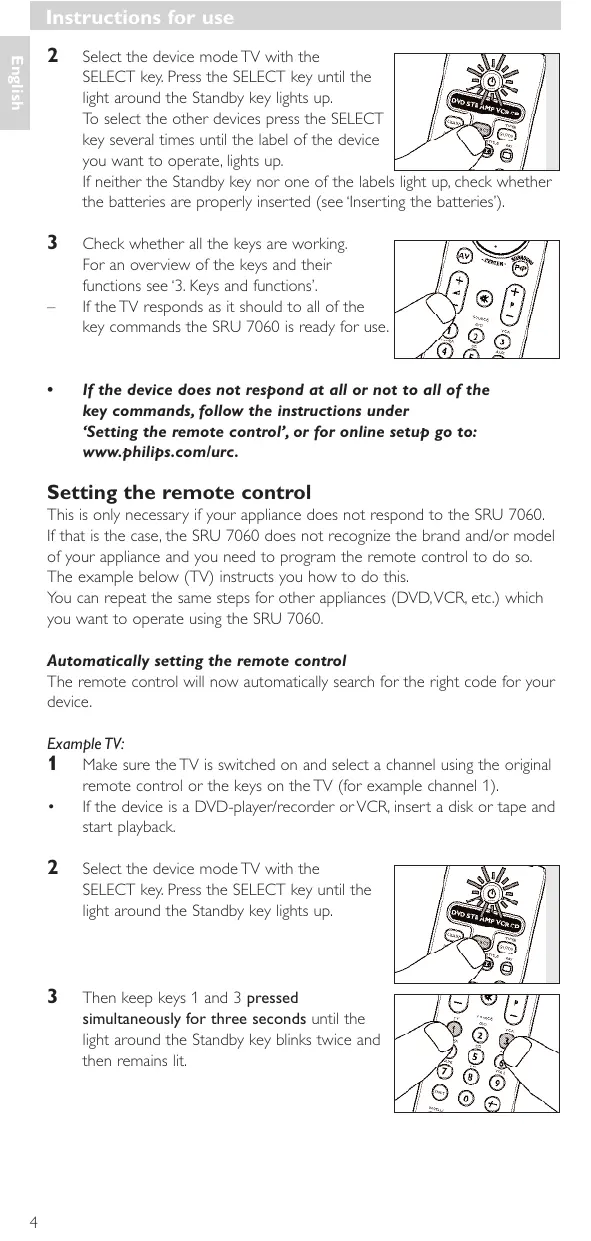
1 Press the cover inwards and slide it in the direction of the arrow.
2 Place two AA type batteries into the battery compartment, as shown.
3 Slide the cover back and click it firmly into place.
Testing the remote control
The remote control has been programmed to operate most Philips appliances. Because the SRU 7060 may use different signals for each brand and even for different models of the same brand, it is advisable to test whether your appliance responds to the SRU 7060.
The example below (TV) instructs you how to do this.
You can repeat the same steps for other appliances (DVD, VCR, etc.) which you want to operate using the SRU 7060.
Example of TV:
1 Turn your TV on manually or use the original remote control.
Tune to channel 1.
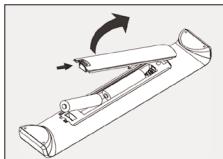
2 Select the device mode TV with the SELECT key. Press the SELECT key until the light around the Standby key lights up. To select the other devices press the SELECT key several times until the label of the device you want to operate, lights up.
If neither the Standby key nor one of the labels light up, check whether the batteries are properly inserted (see 'Inserting the batteries').
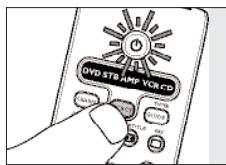
3 Check whether all the keys are working. For an overview of the keys and their functions see '3. Keys and functions'.
If the TV responds as it should to all of the key commands the SRU 7060 is ready for use.
If the device does not respond at all or not to all of the key commands, follow the instructions under 'Setting the remote control', or for online setup go to: www.philips.com/urc.
Setting the remote control
This is only necessary if your appliance does not respond to the SRU 7060. If that is the case, the SRU 7060 does not recognize the brand and/or model of your appliance and you need to program the remote control to do so. The example below (TV) instructs you how to do this.
You can repeat the same steps for other appliances (DVD, VCR, etc.) which you want to operate using the SRU 7060.
Automatically setting the remote control
The remote control will now automatically search for the right code for your device.
Example TV:
1 Make sure the TV is switched on and select a channel using the original remote control or the keys on the TV (for example channel 1).
- If the device is a DVD-player/recorder or VCR, insert a disk or tape and start playback.
2 Select the device mode TV with the SELECT key. Press the SELECT key until the light around the Standby key lights up.
3 Then keep keys 1 and 3 pressed simultaneously for three seconds until the light around the Standby key blinks twice and then remains lit.
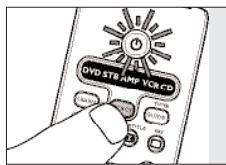
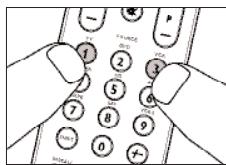
4 Press and hold the Standby key of the SRU 7060 briefly.
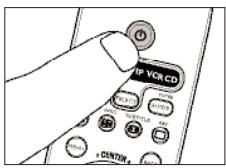
The SRU 7060 now starts emitting all known TV off' signals, one by one. Each time a code is sent, the light around the Standby key lights up.
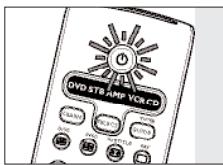
5 When your TV switches off (standby), release the Standby key of the SRU 7060 immediately.
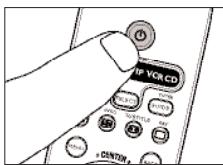
The SRU 7060 has now found a code that works on your TV.
6 Check if you can operate all functions on your TV with the SRU 7060.
If this is not the case, you can redo the automatic setting. The SRU 7060 will then search for a code that perhaps works better.
After the SRU 7060 has run through all the known codes, the search will stop automatically and the light will stop blinking.
Automatic programming of a TV takes a maximum of 3 minutes. For DVD, CD, VCR, AMP and STB this time is 2 minutes.
Manually setting the remote control
Example TV:
1 Turn on the TV manually or use the original remote control. Tune in to channel 1.
2 Look up the brand of your TV in the code list at the back of this manual. One or more four-figure codes are shown for each brand. Note the first code. Be careful! There are separate tables for TV, VCR, DVD, etc.
On our website www.philips.com/urc you can directly select your device, typenumber to find the right code.
Make sure you use the codes from the correct table.
3 Select the device mode TV with the SELECT key. Press the SELECT key until the light around the Standby key lights up.
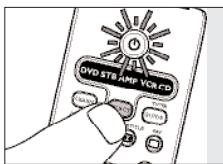
4 Then keep keys 1 and 3 pressed simultaneously for three seconds until the light around the Standby key blinks twice and then remains lit.
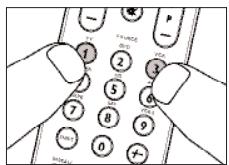
5 Enter the code noted in step 2, using the digit keys.
- The light will now blink twice.
If the light blinks once for an extended period, the code has not been entered properly or the wrong code has been entered.
Start again from step 2.
6 Point the SRU 7060 at the TV and check that it responds as it should. - If the TV responds to all of the key commands, the SRU 7060 is ready for use. Do not forget to note your code.
If the device does not respond at all, or not to all of the key commands, start again from step 2 and try the next code from the list.
3. Keys and functions
The illustration on page 3 gives an overview of all keys and their functions.
① Standby. switches the remote control on or off.
(2) LEARN . . . . . . . switches the SRU 7060 in programming or learning mode.
③ MENU. turns the menu on and off.
④ Cursor ring.....cursor up,down,left and right in a menu.
(5) AV selects external Audio/video input(s).
⑥ -Δ+...... Volume up / down of TV or Amplifier.
⑦ Digit keys - direct choice of channels and other functions; source selection in AMP (amplifier) mode. source selection in AMP (amplifier) mode. Press the SHIFT-key together with the desired Source key (TV, DVD, VCR, TUNER, CD, AUX, TAPE, VCR2).
⑧ SHIFT . . . . . . . . . . . . . . . . . . . . . . . . . . . . . . . . . . . . . . . . . . . . . . . . . . . . . . . . . . . for extra functions. When pressed at the same time as a second key, the second key will get another function. For example:
SHIFT + record;
SHIFT + ←: previous track;
SHIFT +▶:... next track;
SHIFT + BACK:...system menu (DVD).
Try out other combinations with the SHIFT-key on your appliance in order to find out which functions are available. Only functions featured on the original remote control are available.
(9) VCR/CD/DVD: rewinds the tape or disc.
TV/STB/CBL: red fasttext key.
10 VCR/CD/DVD: stops the tape or disc.
TV/STB/CBL: green fasttext key.
(11) VCR/CD/DVD: play tape or disc.
SHIFT+: record.
TV/STB/CBL: white fasttext key.
12 Ⅱ VCR/CD/DVD: pause.
TV/STB/CBL: yellow fasttext key.
(13) VCR/CD/DVD: winds the tape or disc.
TV/STB/CBL: blue fasttext key.
14 -- selects between one- and two-figure channel numbers.
15 1 mutes the sound of the TV or amplifier.
16 -P+ . program up/down, channel up/down, next/previous.
17 < . previous program/channel.
18 OK. OK, enter, acknowledge.
19 BACK. jumps back one level in the menu, or turn off menu.
20 111 . . . . . TV: teletext on/off, hold, movie expand, teletext off.
VCR: text, text on/off, txt hold, Showview, Videoplus, clear.
STB: text, text on/off, info, OSD, subtitle, favorite.
DVD: menu, disc menu, info, display, subtitle, angle.
AMP: top menu, title, disc, RDS, info,
Dolby mode, repeat.
CD: disc, info, display, program, repeat.
GUIDE .........guide, info or white.
22 SELECT selects the device you want to operate:
TV, VCR, STB (settop box, satellite tuner/cable decoder), AMP, DVD or CD. The corresponding device indicator lights up in the selector window (for TV this is the LED around the Standby (b) key).
If the device does not respond at all, or not to all of the key commands, follow the instructions under 'Setting the remote control'. It is possible that you must enter another code for the device.
4. Extra possibilities
Programming Macros
A macro allows you to automate actions you have to do frequently with your remote control. E.g. if you want to watch a DVD, you have to turn on the DVD, turn on the TV, turn on the receiver/amplifier, select the DVD input channel on your amplifier and start playing the DVD. The different keys you have to press to do this, can be stored under one single key. So you only have to press one button to start up your system for watching a DVD.
Example 'Watching DVD' macro:
1 Select the required mode with the SELECT key, e.g. DVD mode.
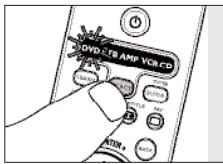
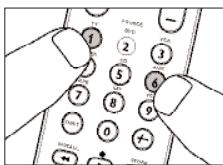
2 Press keys 1 and 6 of the SRU 7060 simultaneously for 5 seconds until the DVD label blinks twice and then remains lit.
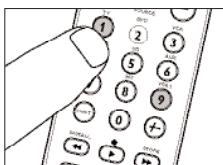
3 Press keys 9, 9 and 1, in that order.
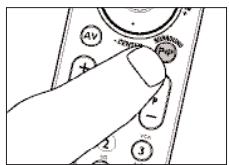
4 Press the key under which you want to store the macro, e.g. the P&P key. Notes:
Once a macro is stored under a key, the original function of the key can not be used anymore.
You can also store the macro by pressing Shift in combination with a target key (the target key keeps its original function).
You cannot store a macro under the SELECT, LEARN or SHIFT key.
5 Enter the sequence of keys to be stored, e.g.:
- Select DVD mode with SELECT key and press the Standby key.
- Select TV mode with SELECT key and press 1.
- Select AMP mode with SELECT key and press the Standby key.
- Select DVD mode with SELECT key and press
6 To close the macro press the LEARN key.
The DVD label blinks twice to confirm.
If you now select DVD mode and press the P-P key, the remote will switch on the DVD, the TV and the AMP and starts playing the disc.
Learn a key
If you miss certain functions from your original remote control of the SRU 7060, the SRU 7060 can learn these functions from the original remote. You can store a fuction under any of the available keys of the SRU 7060, except LEARN, SELECT and SHIFT. Please, note that any function already stored under a key will be deleted.
Example for VCR:
Make sure you have the original VCR remote control at hand.
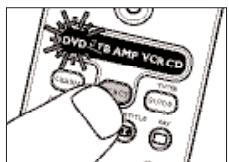
1 Select the device mode VCR, with the SELECT key.
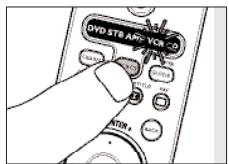
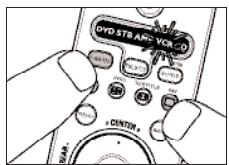
2 Press the LEARN key and the target key on the SRU 7060 simultaneously for 5 seconds, until the VCR label blinks twice and remains lit.
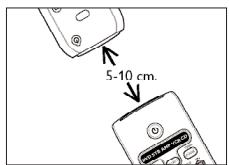
3 Place both remote controls on a flat surface (like a coffee table) and aim them head-to-head with about 10cm in between.
4 Press the button you want to copy on the original remote control.
If the SRU 7060 has learned the code, the VCR label will blink twice to confirm the signal is stored.
- If the VCR light blinks once for a longer period, the IR signal is not learned by the SRU 7060. Please, try a few times and make sure the remotes are aligned as described in step 3.
If the SRU 7060 cannot learn the code after several times trying, it is possible that:
The IR signal of your original device is out of range (the SRU 7060 can only learn IR signals with a carrier signal of 30 - 60kHz
The memory of the SRU 7060 is full.
- The SRU 7060 stopped the learning process after 20 seconds if no IR signals are found. Check if your original remote control is working correctly.
Switch backlighting on or off
With the backlighting of the SRU 7060 you can find the right key on your remote, even in a dimly lit room. As the backlighting consumes additional power, the battery lifetime will reduce when the backlighting is used frequently. Therefore it is possible to switch this function off.
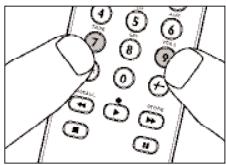
Turn on the backlighting:
Press keys 7 and 9 simultaneously for 5 seconds.
The Standby light will blink twice to confirm the backlighting is enabled.
Everytime you press a key on the remote the backlighting will switch on. After 5 seconds it will switch off automatically
Turn off the backlighting:
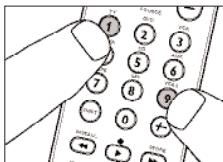
- Press keys 1 and 9 simultaneously for 5 seconds.
The Standby light will blink twice to confirm the backlighting is disabled.
The backlighting will not switch on anymore when you press a key.
Reset a key
To delete a learned function or a macro from a key and restore the original function, do the following:
1 Select the correct device mode in which you want to restore a key.
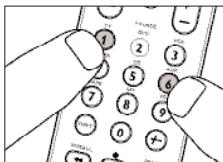
2 Press the keys 1 and 6 simultaneously for 5 seconds until the label of the selected mode blinks twice and remains lit.
3 Press keys 9, 9 and 6, in that order.
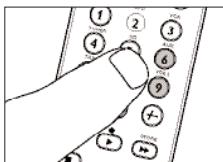
4 Press the key you want to reset twice.
The label of the selected mode blinks twice to confirm that the learned code or macro is deleted and the original function is restored.
Copy a device mode
In case you have two TV's, you can change any of the other device modes of the SRU 7060 into a second TV mode for controlling that second TV.
Example: You have two TVs, but no satellite or cable box.
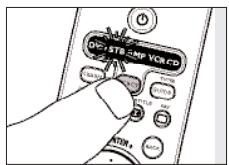
1 Select the target mode STB with the SELECT key.
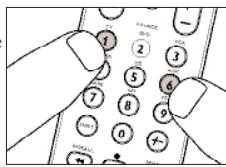
2 Press keys 1 and 6 simultaneously for 5 seconds until the label of the selected mode blinks twice and remains lit.
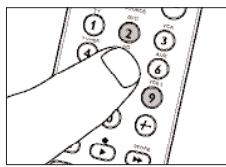
3 Press keys 9, 9 and 2, in that order.
4 Select the source mode (TV) you want to copy.
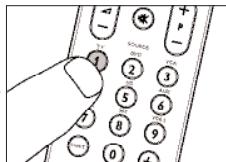
5 Press key 1.
The STB mode label will blink twice to confirm. You can now program the STB mode for operating a second TV. Please read chapter 2 'Installing the remote' how to do this.
Any satellite device, learned keys or macros stored in the STB mode will be deleted.
- If the mode light blinks once for a longer time, the copying failed. Try again from step 1.
Reset all functions in a device mode
To reset a copied device mode to the original mode or to delete all learned keys or macros stored in a mode, you can reset this mode to the default factory settings.
1 Select the mode to be reset with the SELECT key.
2 Press keys 1 and 6 simultaneously for 5 seconds until the label of the selected mode blinks twice and remains lit.
3 Press keys 9, 9 and 6, in that order.
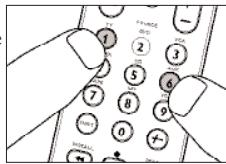
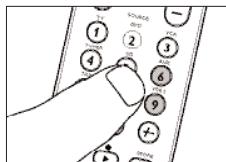
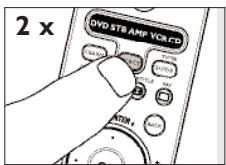
4 Press the SELECT key twice to confirm
The mode light will blink twice to confirm the selected mode is reset to default settings.
If the mode light blinks once for a longer time, the reset failed. Try again from step 1.
Assign Volume control to another mode
The volume controls (Volume up, Volume down and Mute) on the SRU 7060 are assigned to either your TV or your amplifier/receiver, depending on the device you have selected;
MODE VOLUME CONTROLS
TV mode selected.......Volume controls work with TV
VCR mode selected.......Volume controls work with amplifier/ receiver DVD mode selected.......Volume controls work with amplifier/ receiver STB mode selected.......Volume controls work with TV
Receiver mode selected.......Volume controls work with amplifier/ receiver CD mode selected.......Volume controls work with amplifier/ receiver
If you want a different setup, the volume control assignment can be changed.
Example: In VCR mode you want to operate the TV volume control
1 Select the VCR mode with the SELECT key.
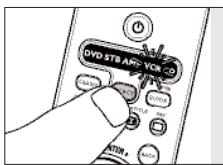
2 Press keys 1 and 6 simultaneously for 5 seconds until the label of the selected mode blinks twice and remains lit.
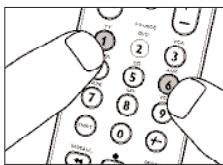
3 Press keys 9, 9 and 3, in that order.
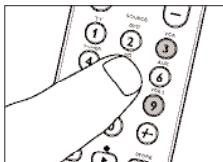
4 Select the TV mode with the SELECT key.
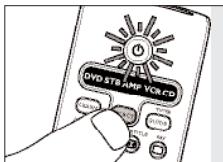
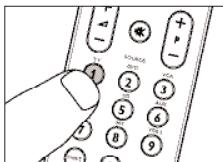
5 Press key 1.
The mode light will blink twice to confirm that the VCR volume controls are assigned to TV.
- If the mode light blinks once for a longer time, the volume assignment failed. Try again from step 1.
Restoring all original functions
To revert the SRU 7060 back to the factory default settings, do the following:
1 Press keys 1 and 6 simultaneously for
5 seconds until the label of the selected mode blinks twice and remains lit.
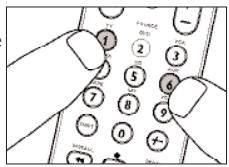
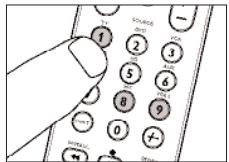
2 Press keys 9, 8 and 1, in that order.
- The mode light will blink twice to confirm a successful reset. Your remote is now reverted to the state it was when you first took it out of the packaging.
5. Troubleshooting
Problem
Solution
- The device you want to operate does not respond and the device label does not blink when you press a key.
Replace the old batteries with two new 1.5 Volt, R03, UM4 or AA batteries.
- The device you want to operate does not respond but the device label does blink when a key is pressed.
- Point the SRU 7060 at the device and make sure that there are no obstructions between the SRU 7060 and the device.
The SRU 7060 does not respond properly to commands.
- Maybe you are using the wrong code. Try programming the SRU 7060 again using another code, which is mentioned under the brand of your device, or reset for automatic search to find the right code.
If the device still does not respond, call our helpline, or for online setup go to: www.philips.com/urc.
You have difficulties operating all of the functions on your device.
- Maybe the SRU 7060 has to be adapted to the model of the device.
Call our helpline for details. For online help go to: www.philips.com/urc.
- Your brand of device is not in the code list.
Try to set the SRU 7060 automatically.
See 'Automatically setting the remote control'.
- None of the codes works during manual setting of the remote control.
If that is the case, follow the instructions under
'Automatically setting the remote control'.
6. Need help?
If you have any questions about the SRU 7060, call our special helpline. You will find the telephone number after the code list at the back of this manual. For online help go to: www.philips.com/urc.
Read this manual carefully before you make a call. You can solve most of the problems yourself. If you cannot find any answers to your problems, write down the details of your device shown in the code list at the back of this manual. This will help our operators to assist you better and more quickly. Look up the numbers of the models in the instructions accompanying the device or on the back of your device. When you call our helpline, make sure the device is to hand so that our operators can help you determine whether your remote control is working properly.
The model number of your Philips universal remote control is SRU 7060/10.
Date of purchase:
/
(day/month/year)
Sommaire
TV/STB/CBL: tecla fasttext azimuth.
Showview, Videoplus, limpar.
STB: texto, texto ligado/desligado, informacao, OSD,
legendas, favorito.
Admiral .0114,0120,0190,0390
Adyson 0243,0244
Agashi 0243,0244
Agazi 0243
AGB. 0543
Agef. 0114
Aiko .0243,0036,0398,0099,0062
0388, 0218, 0244, 0243
Aim 0064,0099,0583,0482
0733,0832
Aiwa 0728,1943
Akai .0036,0062,0064,0099,0190
0218,0243,0244,0245,0378,0388
0398,0475,0500,0507,0543,0575
0579,0583,0633,0658,0729,0741
0742,0839,1564
Akashi 0036
Akiba .0064, 0245, 0309, 0321, 0482
0583
Akira 0445
Akito 0064,0583
Akura. 0036, 0064, 0245, 0303, 0309
0386, 0695, 0741, 1064
Alaron 0243
Alba .0036,0063,0064,0190,0243
.0245,0262,0274,0382,0398,0445
0458, 0514, 0695, 0741, 1064, 0583
Alcyon 0103
Allorgan. 0233, 0244, 0321
Allstar 0064,0583
Ambassador 0204
Amplivision 0244,0397,0427
Amstrad. .0036, 0064, 0204, 0245, 0398
0543,1064,0583
Anam. 0036
Anam National 0677
Anex 0448
Anglo. 0036
Anitech....0036,0064,0103,0309,0583
Ansonic .0397,0064,0036,0695,0401
.0190,0319,0286,0274,0455,0319
0131,1464
AOC 0036,0120,0135
Apollo 0500
Arc en Ciel .0426, 0136, 0595, 0223
0528
Arcam. 0243, 0244
Ardem 0064,0741
Aristona. 0064, 0583
ART 1064
Arthur Martin. 0427, 0190, 0264
ASA .0132,0373,0114,0131
Asberg. 0064, 0583, 0103
Asora. 0036
Astra 0064
Asuka. 0245, 0244, 0309
Atlantic 0064,0583,0233
Atori 0036
Auchan 0427,0190
Audiosonic. 0064, 0583, 0244, 0401
0397,0741,0364,0742,0245,0513
0455,0036,0136,0847
Audioton. 0244, 0455, 0513
Ausind. 0103
Autovox. .0103, 0114, 0233, 0244, 0264
0274
AWA .0038,0063,0064,0583,0243
.0244,0135,0036,0401,0633
Axxent 0036
Axxon 0741
Ayomi 0265
Baihe 0036
Baile. 0036, 0401
Baird. 0099, 0220, 0244, 0136
Bang & Olufsen. 0114, 0592
Baosheng. 0036
Barco. 0190, 0579, 0407
Basic Line. 0245,0401,0583,0190
0695,0244,0309,0482,0036,0064
0244,0366,0583,1064
Bastide. 0244
Bauer. 0832
Baur. 0222, 0064, 0583, 0581, 0218
0388,1532,0376,0482,0539,0562
0581
Bazin 0244
Beijing. 0036, 0253, 0401, 0839
Beko. 0397, 0513, 0583, 0742, 0062
0741,0633,0064,0445,0835,1064
Beon 0064,0583,0445
Berthen. 0695
Best. 0364,0397,0448
Bestar. 0064, 0583, 0397, 0401
Bestar-Daewoo 0401
Binatone 0244
Black Diamond .0641,0847,1064,1936
Black Star 0274
Blacktron. 0309
Blackway 0309,0245
.0482,0742,0309,0245,0583
Blue Star 0309
Bondstec 0274
Bondstec 0274
Boots. 0244, 0036
BPL 0064,0309
Brandt . . . . . . 0652, 0528, 0426, 0314, 0223
0314,0362,0595,0136,0587
0264,0741
Brandt Electronic .0314, 0362, 0528
0595
Brinkmann .0445,0583,0513,0064
0695
Brionvega. 0064, 0583, 0114
Britannia 0243,0244
Bruns. 0114,0455
BSR 0321,0190,0579
BTC. 0245
Bush. 0245, 0695, 0376, 0036, 0063
0064,0398,0309,0401,0388,0382
1064,0514,0244,0583,0741,0262
0390,0321,0579,0641,0644,1927
Caihong. 0036
Canton 0245
Carad. 0637, 0064, 0695, 1064
Carena. 0482, 0583, 0064
Carrefour 0063,0583
Carver. 0197
Cascade. 0036, 0064
Casio 0064,0583
Cathay. 0064, 0583
CCE. 0064,0583,0244
Celestial 0847
Centrum 1064
Centurion 0064,0583
Century. 0114, 0274, 0265
CGE. 0101,0274,0103,0190,0303
0445,0397,0445,0579
Changcheng. 0036, 0401
Changfei. 0036, 0401
Changhai 0036
Changhong. 0036, 0535, 0847
Chengdu 0036
Ching Tai 0036
Chun Yun. 0036
Chunfeng. 0036
Chung Hsin. 0063, 0135
Chunsun 0036
Cimline 0036,0245
City 0036
Clarivox. 0445, 0064, 0364
Clatronic . . . 0245, 0397, 0583, 0398, 0741
0244,0245,0103,0274,0036,0064
Clayton 1064
CMS. 0243, 0244
CMS Hightec. 0244
Commercial Solutions 1474
Concorde 0036
Condor .0243,0064,0309,0583,0397
0036,0445,0190,0274
Conia. 0847
Conrac 0835
Conrad 0064,0583
Conrowa. 0036
Contec. 0243,0036,0063,0064
Continental Edison .0528, 0314, 0223
0595,0426,0136,0264,0514
Cosmel 0036,0064,0364
Cosmel 0064
Crosley. .0114, 0274, 0101, 0103, 0374
0579
Crown. .0036, 0397, 0064, 0448, 0583
.0514,0741,0386,0742,0445,0366
0103,0513,0633,0739,1064
Crystal. 0458
CS Electronics. 0274, 0243, 0245
CTC 0274
Curtis Mathes. 0120, 0729
Cybertron. 0245
Daewoo. .0661, 0401, 0243, 0036, 0245
1164,0244,0064,0135,0197,0583
0907,1936
Dainichi 0243,0245
Dansai .0064,0583,0062,0036,0063
0244,0243
Dantax. 0397, 0513, 0741, 0742
Dawa 0064,0583,0036
Dayton 0036
Elbe .0462,0265,0397,0190,0064
0583, 0245, 0218, 0637, 0244, 0543
0388,0286,0319,0657
Elbe-Sharp. 0543
Elcit .0114,0274
Elekta. 0036, 0583, 0309
Elfunk. 1064
ELG 0064,0583
Elin .0243,0583,0131,0575,0388
0190,0036,0064,0376,0475
Elite 0245,0583
Elta. 0036, 0458
Emco 0274
Emerson. .0204, 0114, 0064, 0583
0398,0309,0388,0513,0397,0190
0274,0695,0741,1936
Emperor 0309
Erres 0064,0583
ESA 0839
ESC 0064,0244
Ether 0036
Etron .0064,0583,0036,0847
Euro-Feel. 0244
Euromann. .0064, 0243, 0244, 0448
0243,0244,0397,0448
Europa. 0064
Europhon. 0064, 0543, 0583, 0274
0244,0243,0458,0579
Expert. 0233, 0286
Exquisit . 0064,0583,0274
Feilang. 0036
Feilu. 0036
Feiyue 0036
Fenner 0401,0036,0401
Ferguson .0652,0265,0220,0136,0587
0064,0583,0131,0135,0388,0064
0222, 0314, 0362, 0575, 1064
Fidelity .0220,0190,0398,0064,0583
0243,0388,0390,0539
Filsai. 0244
Finlandia. . . . 0373, 0386, 0190, 0099, 0314
0390
Finlux. .0132, 0131, 0741, 0373, 0244
0099,0190,0543,0742,0658,0103
0519,0507,0500,0445,0114,0064
0244,0374,0579,0835
First Line .0321,0064,0243,0401
0695,0741,0190,0036,0243,0274
0265, 0099, 0244, 0388, 0099, 0244
0262,0376,0579,0583,0835,1064
Firstar 0036
Fisher. 0131, 0244, 0397, 0388, 0190
0099,0114,0063,0579,0582
Flint. . . 0064, 0583, 0099, 0245, 0482, 0637
Forgestone 0220
Formenti . . . 0114, 0190, 0243, 0583, 0513
0103,0064,0114,0243,0374,0579
Formenti-Phoenix. 0243, 0579
Fortress. 0120, 0114
Fraba 0397,0583,0064
Friac. 0036, 0064, 0397, 0448, 0637
Frontech. . . . 0274, 0458, 0190, 0036, 0244
0390,0475
Fujitsu. .0233, 0099, 0036, 0710, 0064
0583, 0388, 0286, 0244, 0286, 0379
Fujitsu General . . . 0036, 0233, 0244, 0710
Funai 0695,0321
Future 0064,0583
Galaxy 0064,0583
Galaxis. 0397,0445,0064
GBC. 0190, 0245, 0036, 0401, 0579
GE .0309,0136,0362,0120,0587
0652,1474
Geant Casino 0190
GEC. .0190, 0064, 0583, 0543, 0099
0244,0376,0388
Geloso .0274,0401,0036,0374,0390
0579
General 0136
General Electric 0314
General Technic 0036
Genesis 0036,0064
Genexxa .0245,0583,0190,0036
Gericom 0835,0907
Giant 0036, 0244
Goldfunk. 0695
Goldhand 0243
Goldline. 0364
Goldstar....0064,0036,0317,0244,0274
0243,0583,0458,0190,0388,0136
.0482,0390,0633,0741,0742
Gooding 0514
Goodmans. 0063, 0661, 0064, 0583
0036,1064,0695,0543,0514,0317
0507,0398,0587,0244,0362,0245
1936,0062,0099,0262,0398,0401
0587,0614,0657,0661,0741,0835
0907,1927
Gorenje. 0397, 0448
GPM 0245
Gradientale 0197
Graetz . . . . 0388, 0398, 0366, 0583, 0190
0374,0514,0741
Granada. .0064, 0583, 0099, 0386, 0135
0244,0063,0366,0543,0103,0500
0362,0587,0190,0575,0378,0383
0390,0427
Grandin .0309,0064,0427,0036,0190
0637,0741,0742,0695,0482,0401
.0309,0245,0695,0907,1064
Grundig .0562, 0264, 0218, 0614, 0581
0583,0064,0103,0036,0063,0222
0514,0657,0710,0733
H&B. 0835
Haaz 0733
Haier 0064,0535,0614
Haihong. 0036
Halifax 0243,0244
Hampton 0243,0244
Hanimex 0245,0321
Hanseatic...0064,0583,0309,0388,0661
0321, 0455, 0397, 0036, 0321, 0244
0303,0458,0835
Hantarex .0036,0064,0543,0265
Hantor. 0064, 0583
Harwood. 0036, 0064, 0514
Hauppauge. 0064, 0583
Havermy 0120
HCM .0036,0064,0583,0244,0245
0445,0309
Hema. 0244,0036
Hifivox . . . . 0528, 0136, 0595, 0223, 0426
Higashi. 0243
Hikona. 0245
HiLine 0064
Hinari. 0064, 0036, 0245, 0190, 0514 0063, 0262, 0321, 0382
Hisawa. 0309, 0245, 0637, 0427, 0482 0741
Hisense .0036,0535,0583
Hit. 0114
Hitachi .0252, 0244, 0376, 0383, 0500
0543,0583,0244,0063,0064,0099
.0132,0190,0223,0036,0135,0374
0390,0500,0507,0519,0535,0575
.0579,0661,1064,1072,1164,1252
1603
Hitachi Fujian 0135
Hitsu 0036,0482,0245,0637
HMV 0114,0220
Hoeher 0741
Home Electronics. 0633
Hongmei 0036,0120
Hornyphon 0064,0583
Hoshai 0245,0309
Hua Tun. 0036
Huafa. 0036
Huanghaimei 0036
Huanghe 0036
Huanglong. 0036
Huangshan. 0036
Huanyu 0401,0243
Hygashi 0244,0243
Hyper. 0036, 0243, 0244, 0274
Hypersonic 0388
Hypson. .0064, 0583, 0742, 0244, 0309 .0265, 0482, 0427, 0513, 0695, 0741
1064
Iberia. 0064,0583
ICE...0398,0064,0036,0245,0244,0243
Ices 0245,0243
ICT 0064,1164
Imperial .0064,0190,0583,0445,0388
0101,0103,0376,0223,0274,0397 0458,0579,0657
Imperial Crown. 0036, 0401
Indesit 0264
Indiana. 0064, 0583
Ingelen . . . . . . 0514, 0637, 0388, 0190, 0741
Ingersol 0036
Inno Hit.....0036,0099,0245,0244,0543
0274,0317,0309
Innova 0064
Innovation. 0064, 0583
inotech 0847
Interactive .0064,0583,0190,0388
0397,0136
Interbuy .0036, 0064, 0539, 0583, 0274
Interfunk . . . 0064, 0583, 0114, 0190, 0388
0397,0136,0274,0528,0595,0376
0539
Internal 0064,0583,1936
International 0243
Intervention .0309, 0244, 0398, 0513
0397,0514,0245,0190,0274
0036,0583,0458,0064,0309
0475,0482
IR 0064
Irradio .0036,0064,0274,0398,0317
0103,0245
Isukai .0245,0064,0482,0309
ITC 0244,0579
ITS .0064,0398,0243,0036,0583
ITT. 0190, 0507, 0376, 0575, 0220
0373,0366,0388,0637,0374
0378,0500
ITT Nokia .0388, 0575, 0507, 0373
0366,0637,0658,0190,0374,0376
0378,0458,0500,0633
ITV. 0064,0401
Jean 0063,0036
JEC 0062
JiaLiCai 0036
Jinfeng 0253
Jinque. 0036
Jinta 0036
Jinxing 0036,0064,0583
JMB 0064,0583,0661
Jocel. 0739
Jubilee 0583
JVC. 0680, 0220, 0398, 0245, 0445
.0063,0120,0535,0633,0677,0710
Kaige 0036
Kaisui .0036,0245,0064,0583,0243
0482,0244,0309
Kambrook. 0244, 0458
Kamp. 0243
Kangli. 0036, 0401
Kangyi 0036
Kapsch. 0233, 0190, 0286, 0131, 0388
Karcher .0064, 0583, 0309, 0637, 0190
0448,0633,0741
0397,0455,0064,0262,0321,1464
Kennedy. 0233, 0190, 0462, 0579
Kennex 1064
KIC 0244
Kingsley. 0243
Kiota 0398,0482
Kioto 0583,0733
Kiton 0583,0064,0695
KLL 0064
Kneissel . . . 0462, 0064, 0401, 0583, 0286
0319,0265,0637
Kolin 0063,0135
Kolster. 0064, 0583, 0274, 0376
Kongque 0036
Konichi 0036
Konka. .0064, 0583, 0245, 0445, 0245
0309,0398,0614,0741
Kontakt. 0514
Korpel 0064,0583
Kosmos 0064,0583
Koyoda 0036
Kraking 0265
KTV. 0244
Kuaile 0036
Kuba 0190,0376
Kulun. 0036
Kunlun 0253,0401
Kyoshu. 0445
Kyoto. 0190,0243,0244
L&S Electronic. 0741, 0835
LaSat 0513,0397
Leader. 0036
Lecson. 0064, 0583
Legend. 0036, 0364
Lenco. .0064, 0190, 0131, 0401, 0614
1064
Lenoir 0036
Lesa. 0274
Levis Austria 0064, 0583
Leyco. 0099,0321,0064
LG .0244,0274,0397,0458,0036
.0064,0190,0243,0135,0583,0671
0741,0742,0883,1664
Liesenk & Tter. 0064, 0583
Liesenkotter 0064
Lifetec. .0036,0064,0695,0539,1064
1164,0583,0245,0401,0741
Lloyds 0036
LME. 0458
Local India TV. 0036, 0398
Lodos 1064
Loewe. .0539, 0064, 0397, 0114, 0319
0543
Logik 0038
Logik. .0036, 0038, 0220, 0398, 0907
Logix 0695
Luma. .0233,0064,0401,0036,0286
0390,1064
Lumatron . . . 0233, 0064, 0286, 0388, 0244
Lux May. 0064, 0036
Luxor. 0264, 0384, 0519, 0388, 0383
0575,0190,0373,0500,0244,0658
0317,0376,0390,0507,1064
M Electronic .0373,0064,0274,0132
.0131,0401,0036,0244,0507,0519
.0243,0190,0314,0583,0661,0388
0218,0222,0136
Madison. 0064
Magnadyne..0114,0274,0374,0543,0579
Magnafon 0543,0243,0103
Magnavox. 0063, 0733
Magnum. 0064, 0741, 0742
Manesth . . . . 0064, 0583, 0190, 0303, 0062
Manesth . . . . 0062, 0064, 0244, 0262, 0321
Manhattan 0064,0695,1064
Marantz. 0064, 0583
Marelli 0114
Mark. .0064, 0583, 0401, 0036, 0741
0742,0244
Master's. 0064
Masuda. .0036, 0064, 0244, 0245, 0398
Matsui. .0262, 0204, 0064, 0382, 0583
.0038,0398,0244,0099,0321,0063
.0482,0190,0543,0222,0218,0362
0062,0036,0262,0390,0458,0514
0741,1064
Matsushita 0677
Matsuviama 0614
MCE 0036
Mediator 0064,0583
Medion. . . . . 0064, 0695, 1164, 0539, 0583
0741,0835,0907,1064,1464,1927
Megas 0637
MEI 1064
Melectronic. .0036,0064,0131,0132
0190,0222,0243,0244,0274,0373
0376,0401,0507,0519,0539,0661
0741
Melvox. 0427
Memorex. 0036, 1064
Memphis 0364,0099
Mercury. 0036, 0064
Mermaid 0064
Metronic 0652
Metz. 0114, 0222, 0562, 0394, 0064
0583,0695,0581,0415,0474,0614
0695,0773
MGA .0064,0131,0245
0401
Micromaxx. .0064, 0583, 0835, 0657
0695,1064
Microstar. 0835
MicroTEK 0847
Minato. 0064, 0583
Minerva . . . 0514, 0222, 0543, 0103, 0135
0581,0264,0562
Minoka 0064
Minoka 0386
Mirror 1927
Mistral Electronics 0220
Mitsubishi. 0135, 0120, 0539, 0114
0220,0063,0583,0264,0064,0562
1064
Mitsuri General. 0190
Mivar . . . . . . 0397, 0317, 0243, 0103, 0636
0543,0244,0318,0319
Monaco 0036
Morgan's 0064,0583
Motion. 0103
Motorola. 0120
MTC. 0397, 0539, 0243, 0388, 0376
MTlogic. 0741
Mudan 0036,0253
Multibroadcast 0220
Multitec . . . 0064, 0513, 0695, 1064, 0583
Multitech. 0244, 0036, 0243, 0397
0274,0583,0064,0103,0390,0513
Murphy 0131,0243,0190
Musikland. 0064, 0245, 0274
Myryad 0583,0064
NAD 0388
Naiko. 0064, 0583, 0633
Nakimura. 0401, 0064
Nanbao 0036
Naonis. 0190, 0390
NAT 0253
National. 0264, 0253, 0535
NEC. 0063,0197,0036,0401,0244
0064,0583,0038,0482,0535,0614
1731
Neckermann .0064,0218,0583,0190
0445,0274,0581,0244,0583,0539
0376,0114,0390,0390,0397
NEI. 0064, 0583, 0458, 0364, 0398
Nesco 0274
Netsat. 0064, 0583
Network. 0364
Neufunk. . . . 0064, 0036, 0245, 0309, 0583
0637,0741
New Tech 0244,0475
NewWorld. 0245
Newave. 0036, 0120
Newtech 0064,0036
Nicamagic 0243
Nikkai .0099,0244,0062,0364,0243
0036,0063,0064,0245
Nobliko 0103,0243
Nogamatic. 0426, 0528, 0223, 0595
Nokia. 0190, 0388, 0376, 0519, 0500
0366,0401,0658,0373,0386,0637
0136,0384,0374,0378,0507,0575
0633
Nordic. 0244
Nordmende. 0136, 0314, 0595, 0426
.0223,0064,0222,0528,0587,0741
Normerel 0064
Novatronic 0064,0132,0401
Nu-Tec. 0482, 0847
Oceanic . . . . 0190, 0388, 0374, 0427, 0500
0575
Okano 0397,0036,0064
Onimax 0741
Onwa. 0398, 0245
Opera 0064
Optimus 0677
Optonica 0120
Orbit. 0064
Orion. 0262, 0204, 0064, 0543, 0382
0038,0036,0321,0583,0741,0907
1943
Online 0064, 0245
Ormond 0695,1064
Orsowe. 0543
Osaki .0099,0245,0064,0401,0583
0303,0064,0244,0382
Osio 0317
Oso 0245
Osume. .0063, 0064, 0583, 0099, 0245
Otto Versand. 1532, 0120, 0539, 0064
0583,0222,0218,0388,0136,0253
0274,0562,0244,0036,0376,0309
.0581,0455,0543,0262,0321,0063
0374,0579
Pacific. 0583, 0741, 1064, 1164
Pael 0243
Palladium . . . 0397, 0064, 0445, 0583, 0274
0190,0581,0244,0376,0114,0390
0397,0657,0741,1164
Palsonic .0064, 0244, 0245, 0445, 0475
Panama. .0036, 0244, 0064, 0583, 0274
Panasonic . . . 0677, 0264, 0253, 0543, 0575
0388, 0190, 0394, 0064, 0374, 0135
0378,0535,0677,1337,1677
Panavision 0064
Panda. 0036, 0253, 0535, 0733
Pathe Cinema . . . 0265, 0319, 0190, 0243
0427,0458,0579
Pathe Marconi . . . 0528, 0426, 0264, 0595
0223
Pausa 0036
Perdio. .0099, 0064, 0190, 0243, 0309
Perfekt. 0064
Philco . . . . . . 0114, 0101, 0445, 0103, 0274
0397,0064,0579
Philex. 0220, 0378
Philharmonic. 0244
Philips. .0583, 0064, 0883, 0581, 0218
0114,0220,0036,0135,0265,0388
0401,0539
Phoenix .0064, 0114, 0243, 0513, 0579
Phonola .0064,0243,0114,0220
Pilot. 0733,0739
Pioneer. . . . . 0064, 0455, 0136, 0038, 0190
0197,0314,0388,0513,0539
Pionier. 0513
Plantron. 0064, 0036
Playsonic. . . . 0064, 0244, 0366, 0741, 0742
Policom . 0595, 0528
Polytron. 0309
Poppy. 0036
Portland. 0401
Powerpoint 0064,0514
Prandoni-Prince. 0274, 0543, 0103
0388,0390
Precision 0244
Prima. 0036
Prinston. 1064
Prinz 0099,0388
Profex. .0036, 0388, 0103, 0190, 0390
Profi. 0036
Profitronic. 0064
Profi-Tronic. 0064
Proline .0099,0064,0652,0657,0661
1064
Proscan 1474
Prosonic....0064,0243,0244,0695,0741
Protech. .0064, 0036, 0445, 0695, 0376
.0458,0364,0244,0274,0513,0579
1064
Proton. 0036, 0671
ProVision. 0064, 0583, 0741
Pye . . . 0064, 0583, 0114, 0376, 0401, 0581
Pymi. 0036
Qingdao 0253
Quadral. 0245
Quasar. 0274, 0036, 0677
Quelle .0064,0131,0388,0539,0528
.0562,0581,0063,0244,0274,0101
0038,0579,0695,1064
Questa 0063
Radialva .0136,0245,0364,0458
Radiola. 0064, 0583, 0244
Radiomarelli. 0114, 0543, 0064
RadioShack 0064
Radiotone. . 0036, 0064, 0455, 0695, 1064
Rank Arena 0063
RCA. 1474,0120,0587,0652
Recor 0445
Rediffusion. 0388, 0063, 0373, 0378
0575
Reflex. 0064, 0695, 1064
Reoc 0741
Revox 0064,0397
Rex. 0233, 0190, 0286, 0390
RFT 0114,0455,0064,0099
Rhapsody. 0243
R-Line 0064
Roadstar 0036,0064,0245,0309
0445,0695,0741,1064,1927
Robotron 0114
Rover. 0063
Rowa .0036,0064,0243,0614,0739
Roxy 0475
Royal Lux 0448,0362
RTF 0114
Saba .0652,0314,0114,0136,0426
0543,0388,0362,0575,0587,0528
0525,0223,0190,0374,0595,0652
0741
Saccs 0265
Sagem 0482,0637
Saige 0036
Saisho. 0262, 0543, 0204, 0244, 0190
0036,0038,0458
Saivod. .0064, 0583, 0695, 0739, 1064
Sakai 0190
Sakyno. 0482
Salora. .0317,0383,0388,0386,0543
0575,0366,0190,0376,0390,0507
0579,0658
Salsa. 0362
Sambers. 0543, 0103
Sampo .0036,0063,0120,0677
Samsung. . . . 0064, 0036, 0244, 0397, 0243
0671,0099,0317,0190,0729,0839
0841,0064,0120,0253,0475,0583
0614
Sandra 0243,0244
Sansui. .0064, 0583, 0482, 0398, 0733
0741, 1564
Santon. 0036
Sanyo .0319,0038,0397,0366,0131
0099,0243,0244,0190,0036,0135
.0064,0583,0513,0063,0197,0535
0582
Sanyuan 0036,0120
SBR 0064,0583,0220
Schaub Lorenz....0376,0575,0513,0374
0388,0401,0633,0741
Schneider. 0064, 1164, 0244, 0286
0274,0398,0388,0245,0695,1064
0190,0741,0064,0376,0379,0583
Scotland. 0190
Seaway. 0661
Seelver. 1064
SEG. 0244, 0695, 0063, 0064, 0036,
.0103,0243,0244,0245,0376,0514
0579,0661,1064,1464
SEI....0114,0321,0233,0064,0204,0374
0543,0579
Sei-Sinudyne. .0064,0114,0233,0321
0374,0543,0579
Seleco. .0233, 0190, 0286, 0373, 0374
0390,0398,0462
Sencora. 0036
Sentra 0303,0062
Serino 0120,0482,0637
Shanghai. 0036, 0253
Sharp .0120, 0036, 0063, 0220, 0321
0543,0677,1220
Shen Ying. 0036
Shencai 0036
Sheng Chia 0036,0120
Shenyang. 0036
Sherwood 0036
Shintoshi 0064
Shivaki 0064
Shorai 0321
Show 0036,0099,0445
Siarem .0114,0543,0374,0579
Siemens .0218, 0222, 0581, 0064, 0374
0562
Siera. 0583, 0064
Siesta. 0397
Silva . 0243, 0064, 0388
Silva Schneider 0064
Silver 0063,0388,0482,0742
SilverCrest 1064
Singer. 0114, 0036, 0362, 0398, 0462
1564
Sinudyne. 0204, 0543, 0321, 0388
0114,0233,0262,0374,0579
Skantic. 0384, 0383
SKY 0064,0309,0907
Skyworth. 0036, 0064, 0832
Sliding 0907
SLX 0695
Smaragd. 0514
Solavox. .0388, 0099, 0064, 0190, 0378
0575
Sonawa 0245
Songba. 0036
Soniko 0064
Sonitron. 0397, 0244, 0366
Sonoko. 0064, 0036, 0244, 0309
Sonolor .0190, 0309, 0374, 0388, 0575
Sontec .0064,0397,0036,0321
Sony. 1678,0063,0101,0038,0064
0120,0197,0677,1037,1532
Sound & Vision 0245,0401
Soundwave. 0064, 0445, 0742
Sowa 0063,0253
Spectra 0036
Ssangyong 0036
Staksonic. 0036
Standard. .0245, 0036, 0064, 0244, 0401
1064
Star Lite. 0064
Starlite. 0036, 0064, 0579
Stenway. 0309, 0245
Stern 0233,0286,0190,0390
Strato. 0036, 0064
Sunkai. 0321, 0382, 0245, 0262
Sunkai. .0321, 0382, 0482, 0514, 0637
Sunstar. 0036, 0064, 0398
Sunwatt. 0482
Sunwood. 0064, 0036
Superla. 0543, 0243
Superscan 0120
Supersonic. 0036, 0482, 0832
Supertech. 0036, 0064, 0243, 0245
Supra. 0401,0036
Susumu 0245,0314,0362
Sutron. 0036
SVA 0614
Svasa 0482
Swissline 0274
Sydney 0243,0244
Synco. 0063, 0120
Systline 0064
Sytong. 0243
T + A. 0474
Tacico 0036
Tai Yi 0036
Taishan. 0036, 0401
Tandberg. 0394, 0136
Tandy .0245,0120,0244,0274,0303
0099,0190
Targa 0729
Tashiko. .0063, 0190, 0243, 0244, 0386
0390,0677
Tatung. .0064, 0099, 0038, 0036, 0063
0244,0543,0580
TCL. 0733, 1564
TCM .0741,0835
Teac .0036, 0064, 0445, 0482, 0695
1064,0197,0244,0309,0445,0458
0539,0733,0739,0741,1464,1695
1936
TEC. 0244, 0274, 0498, 0362, 0036
0064,0286,0364,0579
Tech Line. 0064, 0695, 1464
Technica 0245
Technics. 0583, 0677
TechniSat. 0583
Technisson. 0741
Technosonic 0583
TecnImagen 0583
Teco. 0036, 0063, 0120, 0245, 0680
Tedelex....0036,0244,0303,0445,0458
0633,1564
Tek. 0847
Teleavia. .0136, 0528, 0517, 0595, 0223
0426
Telecor. 0064, 0190, 0286
Telefunken .0136, 0528, 0498, 0362
.0652,0729,0426,0064,0583,0101
.0593,0595,0136,0223,0314,0373
.0513,0517,0525,0587,0614,0739
0741,0847
Telefusion 0064
Telegazi 0064,0190
Telesonic 0064
Telestar 0036,0064,0583
Teletech. .0036, 0274, 0064, 0364, 0695
1064
Teleton. 0244, 0063, 0233, 0286, 0376
0390
Televideon. 0243, 0579
Teleview 0064
Temco 0321
Tempest. 0036, 0482
Tennessee 0064
Tensai. 0131, 0245, 0321, 0036, 0132
0401,0398,0064,0244,0274,0742
1064
Tenson. 0036
Tevion. .0583,0695,0741,0835,1064
1164
Texet .0244,0036,0243,0245,0401
Thompson. 0652
Thomson . .0264, 0314, 0136, 1474, 0362
0426,0517,0528,0498,0595,0223
0064,0264,0376,0587,0652
Thorn. 0220, 0064, 0539, 0388, 0101
.0265,0062,0063,0099,0131,0136
0220,0362,0386,0562,0580
Thorn-Ferguson 0220, 0265
Tiane. 0120
TMK 0204
Tobishi 0245
Tobo 0036
Tokai. .0099, 0064, 0036, 0190, 0364
0401,0475,0695,1064
Tokaido 1064
Tokyo. 0243, 0062, 0475
Tomashi. 0309, 0245
Tongtel 0614
Topline. 0695
Toshiba. .0270,0535,0677,0063,0062
0036, 0120, 0136, 0222, 0244, 0270
.0517,0580,0671,0741,1535,1731
Towada 0376,0244,0579
Toyoda. 0036,0398,0303
Trakton 0244
Trans Continens..0244,0695,0064,1064
Transonic . . . 0064, 0583, 0539, 0739, 0036
0445,0482,0614
Transtec. 0243
Triad. 0064, 0583, 0245
Trident. 0543, 0244
Tristar 0245,0220
Triumph. .0204, 0543, 0593, 0064, 0270
0373,0583
Tsoschi 0309
TunTEX. 0036
TVTEXT 95. 0583
Uher. .0103,0064,0401,0445,0513
0397,0286,0233,0507
Ultravox. . . . 0114, 0401, 0243, 0190, 0064
0583,0274,0378,0579
Unic Line. 0064,0583,0482
United .0064,0583,0741,0742,1064
1943
Universal 0064
Universum .0373,0132,0562,0388
.0274,0519,0507,0397,0445,0038
.0539,0063,0190,0321,0131,0064
0583,1532,0695,0244,0136,0658
0036,0101,0103,0197,0204,0317
0373
Univox. . . . . 0364, 0064, 0190, 0265, 0114
0364
Utax 0190
V7Videoseven 0907
Vestel . . . . . . . . . . . . . . . . . . . . . . . . . . . . . . . . . . . . . . . . . . . . . . . . . . . . . . . . . . . . . . . . . . . . . . . . . . . . . . . . . . . . . . . . . 0064, 0190, 0695, 1064, 0244
0579,0583
Vexa. 0036, 0583
Victor. 0063,0677,0680
Videocon. 0535
Videologic 0243, 0245
Videologique 0243,0245
Videomac 0036
Videosat 0274
VideoSystem 0064,0583
Videotechnic. 0243, 0244
Videoton. 0383, 0190
Vidtech 0063
Visiola 0243
Vision. 0064, 0583, 0244
Vistar. 0303,0388,0233
Vortec 0064,0583
Voxson. .0114, 0064, 0445, 0190, 0390
Waltham. . . . 0244, 0695, 0445, 0314, 0064
.0583,0136,0136,0190,0383,0458
0517, 1064
Warumaia 0401
Watson....0064,0583,0245,0036,0695
1064, 1464
Watt Radio .0243,0190,0579
Wega 0064,0063,0114
Wegavox 0036,0064
Weipai. 0036
Welltech 0741
Weltblick. 0064, 0583, 0244
Weston 0064, 0583
Wharfedale 0064,0583
White Westinghouse. . . . 0243, 0364, 0064
1936
Windsor 1064
Windstar. 0309, 0364
Windy Sam 0583
Wintel. 0741
World-of-Vision 0907
Worldview 0482
Xenius. 0661
Xiahua. 0036
Xianghai. 0036
Xiangyu. 0036
Xingfu 0036
Xrypton. 0064,0583
Yamaha 0677,1603
Yamashi .0309,0482,0244,0583
Yamishi. 0244, 0309, 0482
Yingge 0036
Yokan. 0064, 0583
Yoko. 0244, 0064, 0036, 0397, 0366
.0243,0274,0458,0036,0245,0448
Yonggu. 0036
Yorx. 0245
Yousida 0036
Yuhang. 0036
Zanela 0265
Zanussi. 0233, 0244, 0390
Zenith 1936
Zenor 0366
ZhuHai 0036,0401
SETUP CODES FOR DVD
3DLAB 0566
Acoustic Solutions .0740, 0757, 1255
AEG. 0797, 0815, 0817
AFK 1078
Aim 0699,0726,0860
Airis. 0699,1251
Aiwa. 0560, 0668, 1270
Akai .0717,0722,0732,0743,0793
0797,0806,0815,0817,1110,1142
1722
Akira 0726
Akura 1078
Alba .0566,0699,0722,0726,0740
0744, 0757, 0810, 1078, 1722
Alco. 0817
Alize 1178
Allegro. 0896
Altacom. 1251
Amitech. 0797
Amoi 0879
Amstrad. 0740, 1178
Ansonic 0858
Apex Digital. . . . . . . 0699, 0744, 1031, 1127
Aria 0920
Arianet 0845,0920
Aristona 0673
Asono 1251
Atacom 1251
ATD. 0745
A-Trend. 0741
Audiosonic 0717
Audiovox. 0744, 0817
Audioworld. 0817
Auvio. 1117
Awa. 0757
Axion. 0757
Basic Line 0740,2021
BBK 1111, 1251
Beko 1180
Bellagio 1031
Black Diamond .0740, 0793, 0860
Blaupunkt 0744
Blue Parade 0598
Blue Sky . . . 0726, 0722, 0678, 0699, 0740
0817
Boghe 1031, 1248
Boman. 0810
Brainwave 0797,1142
Brandt 0678,0530,0578
Broksonic 0722
Bush. .0726, 0717, 0740, 0699, 0716
0744,0750,0757,0858,0860,0906
California Audio Labs 0517
Cambridge Audio 1111
Cambridge Soundworks. 0717, 0723
Cat 0726
CCE. 0757
Centrex. 0699, 1031
Centrum .0740,0806,2021
CGV 1142
Changhong 0654
Cinea. 0858
Cineral 0757
Cinetec 0740
CineUltra 0726
CineVision. 0860, 0896
Classic. 0757, 1757
Clatronic. 0699, 0815, 0845
Clayton 0740
Coby 0757,0879
Conia. 0699, 0879
Continental Edison. 0858
Craig 0858
CrossWood 1180
Crown. .0797, 0678, 0717, 0740, 1142
Crypto 1255
Cybercom. 0858
CyberHome 0741,0843
Cytron. 0678, 0732, 0743
Daewoo. 0732, 0741, 0797, 0860
0896,1933
Dalton 1063
Dansai .0797,0810,1142,1722
Dantax. 0566, 0740, 0750, 0817
DCE 0858
DEC 0845
Decca 0797,1142
Denon .0517,0661,1661
Denver. .0726, 0815, 1110, 1131
Denzel. 0692
Desay. 1117
Diamond 0678,0795,0817
Dick Smith Electronics. 0860, 1757
Digihome. 0740
digiRED 0744
Digital i 0920
Digitor. 0678, 0717, 0860
Digitrex. 0699, 1031, 1127
DiK 0858
Dinamic. 0815
DiViDo 0732
DK Digital. 0858, 1281
DMTech. 0810, 1124
Dragon 0858
DreamX 1178
DSE 0860,1757
Dual. 0678, 0692, 0740, 0757, 0806
0810,0817,0858
Durabrand. 0740, 0858
D-Vision 1142
DVX 0795
EagleTec. 0741
ECC. 0757
Eclipse 0750
Elfunk. 0740
Elin. 0797
Elta . . . 0699, 0717, 0797, 0815, 1142, 1178
Eltax 0793
Emerson 0618,0732
Enterprise 0618
Enzer. 0793, 1255
EuroLine 0815, 1110, 1142
Fenner. 0678
Ferguson .0678,0722,1722,1757
Finlux. .0618,0699,0768,0797,0810
1174
Firstline 0740,0896
Fisher. 0697
Funai 0722
GE. 0549,0744
General Electric 0744
Giec. 1248
Global Solutions 0795
GlobalSphere. 0795
Go Video . . . 0768, 0810, 0860, 0896, 1757
GoldStar 0618,0768
Goodmans. 0678, 0717, 0740, 0750
0757,0810,0817,0860,0906,1031
1248, 1281, 1757
GPX 0726
Gradienté 0517,0678
Graetz. 0692
GranPrix 0858
Grandin .0740,0743,1281
Greenhill 0744
Grundig .0566,0578,0678,0697,0713
0722,0732,0740,0802,0817,1031
1063,1722,1757
Grunkel .0797,0817
H&B. 0740,0845
Haier. 1117
Hanseatic. 0768, 0810, 0817, 1180
HCM. 0815
HDT 0732
Henss 0740
Hisense 0745
Hitachi .0600, 0691, 0722, 0740, 2021
0692
Hiteker 0699
Hoeher. . . . . 0678, 0740, 0858, 1031, 1251
Home Electronics. 0757, 0797
Home Tech Industries. 1251
Hoyo 0692
Humax. 0673
Hyundai .0793,0810,1255
ICP 1180
Ingelen. 0815
Initial 0744
Integra .0598, 0654, 1661
IRT. 0810
ISP 0722
Jamo 1063
Jaton 0692
JDB 0757
Jeken 0726
IMB 0722
JNC 0699
JVC. 0530, 0566, 0650, 0894, 1191
1967
jWin 1078
Karcher. 0810
Kawasaki 0817
Kendo 0726,0740,0858
Kennex 0740,0797
Kenwood. 0561,0517
Kiiro 0797
Kingavon 0845
Kiss 0692
KLH. 0744,0817
KLH Digital. 0744
Koss. 0678
Lawson. 0732, 0743, 0795
Leccson. 0723, 1560
Lenco. 0726, 0678
Lenco. 0678, 0726, 0740, 0797
Lenoxx 0717
Lexia 0726,0795
LG .0618,0768,0817,0896,1933
Lifetec 0678,0858
Limit. 0743,0795,1131
Lodos 0740
Loewe 0566,0768
LogicLab 0795
Logix .0732,0810,1128
Lumatron. 0722, 0732, 0768, 0860
1124, 1142
Lunatron 0768
Luxman 0600
Luxor. 0740, 1031, 1722, 1757
Magnasonic 0678
Magnavox. 0530, 0566, 0673, 0740
1941
Magnex 0750
Manhattan 0732,0740
Marantz. 0566
Mark 0740
Marquant. 0797
Mastec. 1248
Matsui. .0678, 0699, 0722, 0740, 1031
1722, 1757
Maxdorf. 0815
Maxim. 0740
MBO 0717,0757,1757
McIntosh 1560
MDS 0740
Mecotech 0797
Medion. .0657, 0678, 0743, 0810, 0858
0906
MEI 0817
Memorex. 0717, 0722, 0858
Memory 1110
Metronic 0717
Metz. 0598, 0740
MiCO. 0750, 1248, 1281
Microboss 0745
Micromaxx 1722
Micromedia. 0530, 0566
Micromega 0566
Microsoft. 0549
Microstar. 0858
Minax. 0740
Minerva. 0732
Minoka 0797
Mintek. 0744
Mirror 0906
Mitsubishi 0740
Mizuda. 0797, 0845
Monyka 0692
Mustek. 0757, 1757
Mx Onda. 0678, 1281
Myryad 1281
Mystral 0858
NAD 0618,0768
Naiko. 0797, 1031
NEC 0896
Nesa 0744
Neufunk 0692
Nevir 0797,0858
Nintaus 1078
Nordmende 0858
Nu-Tec 1255
Olidakata 0699
Omni. 0717, 0860, 1131
Onkyo 0530,0654,1639
Oppo. 1251
Optimus 0598
Orava 0845
Orion. 0722, 1722
Oritron 0678
Ormond 0740
P&B 0845
Pacific. 0722, 0740, 0795, 0817, 0858
Packard Bell 0858
Palladium. 0722, 0806, 1933
Palsonic .0699,0716,0879,1110
Panasonic. .0517, 0530, 1517, 1935
Panda. 0744
Paramount Pictures 0806
peeKTon 1251
Philco. 0717, 0815, 0817
Philips. .0566,0530,0673,1367,1941
Phonotrend. 0726
Pioneer 0517,0598,1929
Plu2. 1117
Polk Audio. 0566
Portland. 0797
Prima 0793,1255
Prima Electronic. 0793
Prinz 0858
Prism 0732,0858,1180
Proceed. 0699
Proline .0678,0699,0713,0737,0860
1031
Proscan 0549
Proson. 0740
Prosonic 0726
ProVision. 0726
Pye. 0673
QONIX. 1078
Qwestar 0678
Radionette. 0768, 0896, 1933
Raite 0692
RCA. 0549, 0598, 0744, 0817
REC. 0517,0716,0793
Red star. 0797, 0815
Reoc 0795
Revoy 0726
Rio. 0896
Roadstar....0716,0717,0726,0740,0757
0845,0860,0906,1078
Ronin. 0737
Rotel 0650
Rowa. 0744,1031
Saba. 0578, 0678
Saivod 0858
Salora 0768
Samsung. 0517, 0600, 0847
Sansui. .0722, 0743, 0795, 1180, 1255
1722
Santosh 1142
Sanyo .0697,0722,0740
Scan. 0732
ScanMagic 0757
ScanSonic 1722
Schaub Lorenz....0797,0815,1142,1178
Schneider. 0566, 0678, 0732, 0740
.0806,0810,0815,0817,0858,0896
1128, 1180
Scientific Labs. 0795
Scott. 0678, 0699, 0745, 1063
Seeltech. 1251
SEG 0692,0740,0795,2021
Semp. 0530
Shanghai 0699
Sharp. 0657, 0740
Sherwood 0744,0768,0797
Shinco 0744
Shinsonic 0560
Signatek 1251
Siltex 1251
Silva. 0815
Silva Schneider 0858,1174
Singer. 0717, 0743, 0795
Sinudyne 1248
Skantic. 0566, 0740
Skymaster 0757,0795
Skysonic 0793
Skyworth. 0793
Sliding 1142
Slim Art. 0797
SM Electronic 0717,0757,0795
Smart. 0732, 0740, 0745
Sonashi 0743,0858
Sonic Blue 0810,0896
Sony. 0560, 0600, 0799, 0891, 1097
1560, 1930, 1931
Soundmaster. 0795
Soundmax 0795
Soundwave 0810
Standard. 0678, 0795, 0815, 0858
Starmedia 0845,1251
Strong 0740
Sunkai 0797
Sunstech 0858
Sunwood 0815
Supervision 0795
SVA 0699,0744
Sylvania 0657
Synn. 0795
Tandberg 0740,1722,2021
Tatung 0797,1722
Teac .0598,0722,0744,0768,0795
0817,0860
Technica. 1124, 1722
Technics. 0517
Technika. . . . 0797, 0858, 1124, 1142, 1722
Technisson. 1142
Technosonic. 0757, 1078, 1142
Techwood 0740
Tedelex .0717,1031,1255
Telefunken .0817, 0860, 1110, 1255
Teletech. 0740, 0795
Tensai. 0678, 0717, 0797
Tevion. 0678, 0795, 0860, 1063
Theta Digital 0598
Thomson. 0549, 0578
Tokai 0692,0815,0817
Tokiwa. 0743
Top Suxess 1251
Toshiba 0530,0722
TRANS-continents 0858
Transonic. 0757
TSM. 1251
TYT. 0732
Umax. 0717, 1178
United . . . . . . . . . . . . . . . . . . . . . . . . . . . . . . . . . . . . . . . . . . . . . . . . . . . . . . . . . . .
1142, 1255
Universum . . . . . . . . 0618, 0740, 0768, 0806
0817,0896
Urban Concepts 0530
Venturer 0817
Vestel. 0740, 2021
Vieta 0732
Viewmaster. 1111, 1251
Voxson. 0717, 0757, 0858
Vtrek. 1255
Waitec. 1178, 1251
Walkvision. 0744
Welkin. 0858
Wellington. 0740
Welltech 1248
Weltstar 0740
Wesder 0726
Wharfedale .0713,0723,0817
Wilson. 0858
Windsor 0740
Windy Sam 0600
WIZE 1142
Woxter 1178, 1251
Xbox. 0549
Xenius. 0817
XLogic. 0795, 1255
XMS. 0716,0797,0815
Xoro 1248
Yakumo 1031
Yamada 1031, 1178
Yamaha. 0517, 0566, 0673
Yamakawa .0692,0737,0792,1131
Yukai 0757,1757
Zenith. .0530,0618,0768,0896,1933
SETUP CODES FOR STB SAT
@sat 1327
@Sky. 1361
1+ 0579
ABsat. 0150, 0695, 0740
ADB. 0669,1394,1500,1518
ADT 0579
AGS. 0695
Akai. 0227
Akena 0695
Alba .0448,0482,0740,0761,1311
Aldes 0315,0761
Allsat . 0227,0761
Allsonic 0315,0396
Alltech. 0740
Allvision. 1361
Alpha. 0695, 0227
Altai. 0423
Amitronica 0740
Ampere 0423
Amstrad. . . . 0270, 0423, 0528, 0740, 0769
0874,0890,0912,1140,1202
Anglo. 0740
Ankaro. 0315, 0396, 0740, 1306
AntSat 1110
Anttron 0448
Apollo 0448, 0482
Arcon. 0861, 1102, 1306
Armstrong. 0270
Arnion. 1327
ASA. 0424
ASAT 0400,0227
Asat 0227,0400
ASCI 1361
ASLF 0740
AssCom 0880
Astacom 0695
Astra .0270,0400,0540,0566,0634
0740
Astro .0385,0396,0528,0634,0685
1140
Athena. 0695
Atsat 1327
AtSky. 1361
Aura 0566
Aurora. 0669
Austar 0669,0890,0890,1203
Avalon 0423
Axiel 0695
Axis .0396,0861,0907,1138
Beko 0482
Best. 0396
Bestar 0270
Black Diamond 1311
Blue Sky. 0740
Boca. 0270, 0540, 0740, 0821
Boston. 0695
Brainwave 0685,1321
British Sky Broadcasting . 0874, 1202, 1874
Broco 0740
BskyB. 0874,1202
BT 0695,1323
BT Satellite 0695
Bubu Sat 0740
Bush. 1311
Cambridge 0528
Canal Digital 0880
Canal Sat Pilotime. 1366
CanalSatellite. 0319,0880
Canal+ 0880
Century. 0883
Cherokee 0150
Chess. 0740, 1361
CityCom .0421,0634,0825,0845
1102, 1203
Clemens Kamphus .0423,0529,0861
CNS. 1394
Cobra 0423
Colombia 0695
Columbus 0695
Commlink. 0315
Comtec. 0315
Condor 0396,0634
Connexions. 0423
Conrad 0396,0528,0634
Contec 0421
Crown. 0270
Cryptovision. 0482
Cyrus. 0227
Daeryung 0423
Daewoo....0400,0448,0740,1138,1323
Däumling. 0821
D-box 0750,0900,1154
Delfa 0890
Deltasat. 1102
Dew. 0400
Dgtec. 1269, 1569
Digatron 1321
Digiality 0634
DigiLogic 1311
DigiQuest 0890,1327,1500
DigitAll World. 1254
Dijam. 1323
DiPro. 1394
DirecTV 0126
Discovery 0695
Distratel 0912
DMT 1102
DNT 0227,0423
Dream Multimedia 1264, 1464, 1564
1664
DST. 0448
Dual. 0400
Dune 0396
Durabrand. 1311
Echostar. 0194, 0423, 0637, 0695
0740,0880,0898,1350,1500,1504
Einhell. .0270, 0315, 0448, 0528, 0540
0740,0821
Elap 0740,1594
Elsat. 0740
Elta. 0227,0396,0448
Emanon 0448
Emme Esse 0396,0529,0898
eMTech 1241
Engel 0740
EP Sat 0482
Eurieult 0912
Eurocrypt 0482
Europa 0528,0634,0890
European. 0821
Europhon 0634
Eurosat 0270
Eurosky .0270,0396,0528,0634
Eurostar. .0566, 0634, 0845, 0907, 0925
Eutelsat 0740
Eutra 0825
Exator 0448
Fenner .0184,0396,0695,0740
Ferguson 0482,1318
Fidelity. 0528
Finlandia 0482
Finlux. 0424, 0482
Flair Mate 0740
Fortec Star 1110
Foxtel. 0482, 0747, 1203, 1383
Fracarro. 0448, 0695, 0898
Freecom 0448,0528,0761
Freesat 0634
Fresat 0912
FTEmaximal. .0358,0396,0683,0740
0890,1583
Fuba. 0396, 0421, 0423, 0448, 1241
Galaxis. .0315, 0396, 0683, 0861, 0880
0890,1138
Gardiner. 0845
Garnet. 1102
GbSAT 1241
GeneralSatellite. 1203
GF 0861
Globo 1653
GMI 0270
GOD Digital 0227
Gold Box. 0319, 0880
GoldStar 0421
Goodmans. 0482, 1311
Gradient .0126,0883
Granada. 0482
Grundig .0832,0874,0880,1318,1357
Hantor. 0448
Harting & Helling 0529
Hauppauge 1321
HB. 1241
HDT 1186
HE@D 1306
Heliocom 0634
Helium. 0634
Hinari 0448
Hirschmann. . . . . . 0314, 0396, 0423, 0424
0528, 0529, 0634, 0825, 1138
0469
Hitachi. 0482, 1311
Homecast 1241
Houston 0423,0695
Humax. .0890, 1203, 1252, 1454, 1595
Huth. 0270, 0315, 0529, 0634, 0821 1102
Hwalin. 0912
Hyundai. 1102, 1186
iCan. 1394
ID Digital. 1203
Ingelen. 0423
Innova 0126
International 0270
Interstar 1241
Intertronic. 0270
Intervention. 0634, 0655
InVideo 0898
Italtel 0898
Jadeworld 0669
Jaeger 1361
Kamm 0740,0907
Kaon 1327
KaTelco 1138
Kathrein. .0150, 0227, 0358, 0385, 0421
0469,0531,0649,0685,0740,0845 0925,1594,0695
Kenwood. 0880
Key West. 0821
Klap. 0695
Kolon. 0448
Konig. 0634
Koscom. 0861
Kosmos 0358,0469,0529
KR. 0761,0825
Kreiling 0685
Kreiselmeyer. 0315
K-SAT 0740
Kyostar 0448
L&S Electronic. 0396, 1361
Labgear 1323
LaSAT. .0184, 0270, 0396, 0540, 0634
Lenco. .0396, 0400, 0448, 0634, 0740
Lenoxx 1638
Lenson. 0528
Lexus. 0227
LG 1102
Lifesat .0184,0396,0740
Lodos 1311
Loewe 0270
Logik 1311
Logix 1102
Lorenzen. .0634,0769,0821,0894,1321
Lupus. 0396
Luxor. 0528
M & B 0566
Manata. 0695, 0740
Manhattan .0482,0815,0861,1110,0695
Marantz. 0227
Mascom. 0469
Maspro 0740
Master's. 0421
Matsui 1311
Max. 0634
Maximum. 1102, 1361
MDS 1252
Mediabox. 0319, 0880
Mediacom 1233
Mediamarkt. 0270
MediaSat 0319,0528,0880
Medion. .0396, 0740, 1102, 1361, 1653
Medison. 0740
Mega 0227
Melectronic. 0845
Metronic. .0270, 0315, 0448, 0740, 0845
0912, 1306, 1361
Micro .0528,0634,0740,1321
Micro Elektronic. 0740
Micro Technology 0566
Micromaxx 0396
Microstar. 1102
Microtec 0740
Mitsubishi 0482
Mitsumi 0540
Morgan's....0227,0270,0540,0740,0821
Motorola. 0883
Multichoice 0669
Multistar 0358
Myryad 0227
Mysat. 0740
NEOTION 1361
Netgem. 1349
Netsat. 0126
Neuf TV. 1349
Neuhaus. .0528, 0634, 0683, 0740, 0861
Neusat. 0740, 0815, 0861, 1306
Newton. 0423
Nikko. 0227, 0270, 0740, 0761
Nokia. 0424, 0482, 0750, 0778, 0880
0900,1050,1154,1337,1338,1365
1750
Nordmende. 0448, 0482, 1638
NTC 0529,0825
Octagon. 0400, 0448
OctalTV 1321
Okano .0270,0358,0469,0529,0695
Optex. 0421, 0579, 0740, 0861, 1638
Optima 0529
Orbis. 1361
Orbit. 0400
Orbitech .0184,0448,0528,0861
Oxford 0695
Pace .0227,0356,0482,0747,0818
0874,0880,0894,1202,1350,1383
1450
Pacific 1311
PacificSatellite 0861
Packard Bell 1138
Palladium .0270,0423,0448,0528
Palsat. 0184, 0528
Panarex 1186
Panasonic. .0482, 0874, 1331, 1347
Panda. 0482, 0634, 0861
Pansat 1186
Patriot. 0695
Philips. .0126, 0227, 0319, 0482, 0695
.0832,0845,0880,0883,0925,1141
1145, 1560, 1647, 1670
Phonotrend. 0315, 0529, 0683, 0815 0890
Pilotime. 1366
Pino 1361
Pioneer 0319,0356,0880,1335
Pixx . 0579
Planet. 0423, 0898
Plasmatic. 0469
PMB. 0740
Polytron. 0421, 0423
Portland. 1323
Predki 0448
Preisner .0423, 0540, 0821, 1140, 0270
Premier 0319,0529
Premiere .0319,0750,0900,0880
1203,0685
Primacom 1138
Pro Visat 0761
Profile 0695
Promax 0482
Prosat 0315,0655
Pyxis 0861
QNS 1394
Quadral .0315,0396,0655,0695
Quelle 0634,0769
Radiola 0227
Radix .0421,0423,1140
RCA 1318
Rebox 1241
Red Star 0396
RFT 0227,0315
Roadstar 0740,0880
Romsat 0448
Rover. 0396, 0655, 0740
Saba. 0634, 0761, 0912
Sabre 0482
Sagem. 0847, 1141, 1280, 1334
Samsung. .0314, 0880, 0890, 1233, 1270
1320, 1485
SAT 0528
Sat Control. 1327
Sat Partner. .0448, 0528, 0529, 0761
Sat Team 0740
Satcom 0634
Satec 0740,0861
Satelco. 0396
Satline 0655
Satpartner. 0529,0761
Satplus. 0184
Satstation 1110
Schaub Lorenz 1241
Schneider. 0184, 0695, 0832, 1233
Schwaiger. 0184, 0421, 0531, 0579
.0634,0890,0912,1102,1110,1138
1361
Sedea Electronique .0448,1233,1653
Seemann 0270,0423
SEG 0396,0448,0566,0769,1102
1653
Seleco 0898
Septimo 0912
Serino 0637
ServiSat. 0740
Siemens. 1684
Skantin. 0740
SKR 0740
SKY .0126,0874,0883,1202,1874
1875
SKY Italia. 0880, 1874, 1875
Sky+ 1202
Skymaster .0184,0315,0655,0740
0907,1102,1638
Skymax 0227,0566
Skyplus 1361
SkySat. 0184, 0528, 0634, 0740
Skyvision 1361
SL. 0270,0769,1321
SM Electronic 0184, 0740
Smart. 0423,0740,0821,1140
Sony .0309,0319,0874,0880,1585
0482
SR 0540
StarTrak 0448
Starion. 0566
Starlite. 0227
Stream. 1874, 1875
Strong. .0396, 0400, 0448, 0740, 0847
0880,1186,1311,1327,1653
Sumida. 0270
Sunkai 0150
Sunny. 1327
Sunny Sound 0396
Sunsat 0740
Sunstar. .0270, 0396, 0540, 0669, 0821
Systec 1361
Tantec 0482
Tarbs 1252
Tatung 0482
Teac 1252, 1254, 1349
TechniSat .0184,0227,0423,0482
0528,0890,1222,1224,1349
Technosat 1233
Technowelt 0634
Techwood 1311, 1653
Teco. 0270,0400,0540
Telasat 0634
Tele System. 0423, 1638
Tele System Electronic 1638
Teleciel 0761
Telefunken. 0448
Teleka. .0270, 0423, 0528, 0634, 0825
0861,0469
Telestar 0184,0528,1361
Teletech. 0907
Televes . . . . 0482, 0528, 0579, 0761, 1241
1327
Telewire. 0683
Tensai 0400
Tevion 0740,1594
Thomson. 0319, 0482, 0634, 0695
0740, 0847, 0874, 0880, 1073, 1202
1318, 1525, 1927
Thorn 0482
Tioko. 0270
Tokai 0227
Tonna. .0482, 0528, 0695, 0740, 0861
1638
Topfield 1233
Toshiba 0482,1473
TPS. 0847, 1280, 1334
Trend Plain 0540
Trendline 0540
Triasat 0528
Triax. 0227, 0423, 0528, 0740, 0880
1140, 1254, 1318
Trio 1102
Tristar 0400
Turnsat 0740
Twinner 0740
UEC. 1383
Uher 0184
Uniden. 0861
Unisat 0227,0270
Universum . . . . . . . . 0424, 0634, 0683, 0769
Vega 0396
Ventana 0227
Vestel. 0769
Visionic 1306
Visiosat . 0579, 0740
Vortec. 0314, 0448
VTech 0845
Wela 0740
Welltech 0184
Wetekom 0184,0528
Wewa 0482
Wharfedale 1311
Wibo. 0270
Wintergarten 0315
Wisi .0423,0482,0528,0579,0634
0665,1377,0861
Worldsat .0150, 1241, 1350, 0695
Xanadu 0579
Xcom. 0150,0695
Xcom Multimedia. 0695
XMS. 1102
Xrypton 0396
Xsat .0150,0695,0740,0874,1241
1350
Xtreme 1327
Zehnder. .0358, 0396, 0421, 0531
0579,0769,0845,1102,1361
Zenith 0883
Zeta Technology 0227
Zodiac. 0423
Birmingham Cable Communications. 0303
British Telecom 0030
BT Cable. 0030
Cable & Wireless 1095
Canal plus 0470
Comcrypt 0470
Contec 0046
Daeryung 0304
Filmnet 0470
Filmnet Cablecrypt. 0470
France Telecom . 0478, 0844
Funai 0046
General Instruments. 0303, 0030
HyperVision 0646
Jerrold. 0030, 0303
Kabelvision 0030
Macab 0844
Melita 0030
Mnet 0046,0470
Motorola. 0303
Mr Zapp 0844
Multichoice 0046,0470
Noos. 0844
NTL. 0030, 0304, 0087, 1095
Oak 0046
Ono. 1095
Optus 0303,1087
Pace. 1087, 1095
Philips. .0313, 0646, 0844, 1175, 0478
PVP Stereo Visual Matrix .0030
Sagem 0844
Samsung 1087
Scientific Atlanta 0304
Starcom. 0030
Supercable. 0303
Tele Danmark. 0646
Tele+1 0470
Telepiu. 0470
Telewest 1095
Torx. 0030
Trans PX. 0303
TS 0030
Tudi 0313,0646
United Cable. 0030
UPC. 1175
US Electronics. 0303
Visiopass. 0478, 0844
SETUP CODES FOR STBVID
ABS 1299
Alienware 1299
CyberPower 1299
Gateway 1299
Hauppauge 1435
Hewlett Packard 1299
Howard Computers 1299
HP. 1299
Hush 1299
BUYPOWER. 1299
Linksys. 1299
Media Center PC 1299
Microsoft. 1299
Mind 1299
Niveus Media 1299
Northgate 1299
Packard Bell 1299
Philips. 1299, 1435, 1796
Ricavision 1299
Sony. 1299
Stack 9. 1299
Systemax. 1299
Tagar Systems 1299
Toshiba 1299
Touch. 1299
Viewsonic 1299
Voodoo 1299
ZT Group 1299
SETUP CODES FOR AMP
AEG. 1417
Aiwa. 0148, 0216, 1116, 1415, 1432
1668
Akai 0142,0636,1205,1417
Alco. 1417
All-Tel 1417
Amstrad 0771
Anam. 0636
Arcam . 0216, 1216, 0116
ASCOMTEC. 1416
Audiolab 1216,0116
Audiosonic 1416
Audiotronic. 1216
Audiovox. 1417
Audioworld. 1417
Bang & Olufsen. 0826
Basic Line 1581
Belson 1416
Binatone 1416
Blue Sky. 1417
Bose. 1256, 1382, 1656
Bush. 0824, 1305
Cairn 0216
Cambridge 0216
Carver .0148, 0216, 0387, 1116, 1216
1316
CCE. 1379
Centrum 1416
Classic 1379
Clatronic. 0824
Coby 1416
Cosmotron 0824
Criterion. 1447
Curtis 0824
Curtis Mathes. 0327
Daewoo. 1205, 1277
Dantax. 1417
Denon .0148,0300,1131,1387,1487
0299
Denver 1416
Diamond 1417
DiK 0824
DK Digital. 1447
Dual. 1417, 1447
Dynamic Bass 0387
eBench. 0771,0824
Elta. 0771,0824,1417
Ferguson 1181
Fine Arts 1216
Fisher. 0387
Fonmix 1387
Garrard. 0771
Go Video. 1379
Goldmund. 0216
Goodmans. .0636, 0771, 0824, 1205
1416, 1417, 1447,
GPX 0771
Grundig . 0216, 0824, 1216, 1371
Grunkel. 0771, 1417
Hanseatic. 1417
Harman/Kardon 0216,1216,1316
1331,1337
Harwood. 0771
HCM 1417
HE. 1416
Hitachi 1371, 1581
Hitech 0771
Integra. 0162, 1347
Intersound. 0771
JBL. 1030
JCPenney. 0771
JVC. 0101, 0491, 1085, 1401
Kenwood . . . 0213, 1054, 1340, 1596, 1597
Kioto. 0824
KLH. 1417
Komperna 0824
Koss. 0771
Lifetec 0824
Limit 1408
Linn 0216
Loewe 0216
LXI. 0771
Magnat. 1416
Magnavox. .0216, 1116, 1216, 1296
Marantz .0216,0771,1116,1216,1296
1316
Mark 1030
Matsui 0771,0824
MaXmann Electronics. 1357
MBO 1379
McIntosh 1316
Medion 0824,1447
MEI 1417
Micro Lab 1357
Micromaxx 1447
Micromega. 0216, 1216
Microstar. 0824
Minowa 1156
Musicmagic 1116
Mustek 1379
Mx Onda. 0771,0824
Myryad 0216,1216
NAD 0636
Nakamichi 1340
NEC 1277
Nikkai 1416
Nikkei 0771
Nikko 0636
Norcent 1416
Nova 1416
NTDE Geniesom 0771
Onkyo 0162,1347
Optimus. . . . 0213, 0771, 0824, 1050, 0327
Orient Power 0771
Palladium .0824,1371,1417,1452
Panasonic. 0394, 1315, 1335, 1545
1790, 1792
Philco. 1417
Philips. .0216, 1116, 1216, 1296, 1316
1645, 1343,
Pioneer. .0213, 0271, 0316, 1050, 1211
1311,1411,1486,0327
Polk Audio. 0216, 1316
Prima Electronic 0824
Proline. 0824, 1417
Proscan 1281
ProVision. 1416
Qisheng. 1417
Quelle 1205
Radiola 0216
RadioShack 0771
RCA. 0387, 1050, 1181, 1281, 1417
1486,0327
Recco 0824
Red Star 1416, 1408
Redstar 1408
Reoc 1408
Restek. 0216
Revox 0216,1116
Roadstar 0824
Samsung. 1322, 1331, 1451
Sansui. .0216, 0636, 1116, 1216, 1357
1408
Sanyo 0387,0771
Schneider. 0771, 1205, 1417, 1156
SEG 1277,1581
Sharp. 0213
Sharper Image. 0824
Shinco 1417
Siemens. 0636
Silsonic 0203
Silva Schneider 1417
Sony. 1085, 1185, 1285, 1468, 1481
1585, 1685, 1785, 1786, 1885
Soundwave 0636
Starlight. 0824
Stereophonics 1050
Sumida. 0771
Sunfire 1340
Sylvania 0824
Synn. 1408
TAG McLaren 1216
Tandberg 1581
TCM 0824,1156
Teac .0636,0771,0824,1205,1305
1417, 1452, 1506
Technics. .0235, 1335, 1336, 1411, 1545
1790, 1792,
Techwood 0636
Telefunken 1417, 1357
Tevion 1416, 1452, 1156
Thomson. 1181, 1281, 1381, 1156
Thorens. 0216, 1216
Thorn 0771
Tokai 1417
Toshiba 0162,1599
United. 1417
Universum. .0216,0636,0771,0824
1205, 1417, 1452
Venturer 1417
Vestel. 1581
Victor 0101
Voxson 1447
Waitec. 1379
Wards. 0216
Watson. 0824
Welltech 0824
Wharfedale 1417
Xenius, 1417
Yamaha. . . . 0203, 0213, 1203, 1303, 0381
0875
Yukai 1379
Zenith 0771
SETUP CODES FOR VCR
Accent. 0099
Admiral 0075,0236
Adventura 0027
Adyson 0099
Aiko. 0305
Aim 0305,0375
Aiwa. .0027,0059,0064,0236,0334
0375,0379,1164
Akai .0064,0068,0080,0133,0267
0342,0375,0379
Akiba. 0099
Akitan 0322
Akura. 0099, 0068
Alba .0027,0099,0108,0236,0305
0322, 0342, 0375, 0379
Allegro. 1164
Allorgan. 0267
Allstar 0108
America Action. 0305
American High 0062
Amstrad. . . . 0027, 0099, 0305, 0352, 0359
Anam .0064, 0189, 0253, 0267, 0305
Anam National .0189,0253,1189,1589
Anitech 0099
Ansonic. 0027
Aristona. 0108, 0173
ASA. 0064, 0108
Asha 0267
Asuka. 0099, 0064, 0065
Audiosonic 0305
Audiovox. 0064, 0305
AVP 0027,0379
Awa. 0064,0070,0305
Baird. .0133,0305,0068,0027,0131
Basic Line ..0305, 0236, 0073, 0099, 0131
Beaumark 0267
Beko 0131
Bell & Howell 0131
Bestar 0305
Black Panther 0305
Black Panther Line 0305
Blaupunkt... 0253, 0108, 0189, 0430, 0222
Blue Sky . . . 0064, 0099, 0236, 0305, 0375
0379,1164
Bondstec. 0099
BPL 0073
Brandt .0068, 0214, 0348, 0520, 0233
0347
Brandt Electronique 0068
Brinkmann. 0236, 0375
Brionvega 0371
Broksonic. 0236, 0322, 0375
Bush. .0099, 0305, 0379, 0375, 0027
0108,0236,0342
Calix 0064
Canon 0062
Carena. 0236, 0108
Carrefour 0072
Carver. 0108, 0173
Casio 0027
Cathay. 0305
CCE. 0099, 0305
Centrum 0620
CGE. 0068,0027
Changhong 0075,0108
Cimline 0099,0236
Cineral 0305
CineVision. 1164
Citizen. 0064, 0305
Clatronic. 0027, 0099
Colt. 0099
Combitech 0379
Condor 0305
Craig 0064,0074,0099,0267
Crown. 0064, 0099, 0305
Curtis Mathes 0062,0068,0189
Cybernex 0267
Cyrus. 0108
Daewoo. .0072, 0073, 0131, 0236, 0305
0379,1164
Dansai 0099,0305
Dantax. 0379
Daytron. 0305
De Graaf .0069,0073,0075,0108
0131,0193
Decca. .0068, 0094, 0108, 0236, 0379
0027
Deitron 0305
Denko 0099
Denon 0069
Diamant. 0064
Diamond 0375
Domland 0236
Dual .0027,0068,0108,0305,0375
Dumont. 0027, 0108, 0131, 0132
Durabrand. 0065, 0620
Dynatech. 0027
Elbe 0305,0065
Elcatech. 0099
Electrohome 0064,0070
Electrophonic 0064
Elin. 0267
Elsay. 0099
Elta. 0099,0305
Emerex 0059
Emerson. 0027, 0062, 0064, 0070
0072,0099,0115,0235,0236,0267
0305,0322,0375,0620
ESA 1164
ESC 0305,0267
Etzuko 0099
Ferguson .0027,0068,0080,0305,0347
0348,0520
Fidelity. .0027, 0099, 0267, 0352, 0379
0459
Finlandia....0027,0034,0064,0069,0070
0073,0075,0108,0131,0133,0193
0253,0411
Finlux. .0027, 0069, 0108, 0131, 0132
Firstline .0064,0070,0072,0099,0115
0236,0305,0375,1164,0069
Fisher. 0074, 0131, 0065, 0073
Flint 0236,0375
Frontech 0099
Fuji. 0060, 0062
Fujitsu 0027,0072
Fujitsu General 0064
Funai 0027,0620
Galaxis. 0305
Garrard. 0027
GE. .0062, 0075, 0253, 0267, 0347, 0834
GEC. 0108
General 0072
General Technic 0375
Genexxa 0131
Go Video. 0267,0459,1164
Goldhand 0099
GoldStar...0064,0065,0236,0253,1164
Goodmans. .0099, 0064, 0108, 0375
0236,0430,0379,0027,0305
GPX 0064
Gradiente 0027
Graetz .0068,0131,0267,0371
Granada . . . 0131, 0073, 0075, 0108, 0027
0267,0064,0253,0069
Grandin .0027,0064,0099,0236,0305
Grundig .0034,0222,0376,0253,0379
0430,0347,0099,0108,0374,0375
Haaz 0375
Hanimex. 0322, 0379
Hanseatic. 0064, 0065, 0108, 0236
Haojie 0267
Harley Davidson. 0027
Harman/Kardon 0065,0108,0173
Harwood. 0099
HCM 0099
Headquarter 0073
Hinari .0099,0236,0379,0068,0115
0305,0235,0267
HI-Q 0074
Hisawa. 0236,0379
Hischito. 0072
Hitachi .0069,0193,0267,0108,0131
0027,0064,0068,0073,0132
0430,0620
Hoeher 0305
Hornyphone 0108
Hughes Network Systems 0069
Hypson. .0027, 0064, 0099, 0236, 0305
Imperial . 0267,0027
Ingersoll. 0236, 0267
Inno Hit. 0267, 0099
Interbuy. 0064, 0099
Interfunk. 0108, 0131
Internal 0305
International 0064,0305
Intervention 0305,0375,0027,0236
Irradio. 0099, 0108, 0064
ITT. 0133,0068,0411,0131,0267
0073,0371
ITV. 0064, 0305
JBL. 0305
Jensen 0068
IMB 0236,0375,0379
Joyce 0027
JVC. 0068, 0072, 0094, 0108, 0233
0411,1189
Kaisui. 0099
Kambrook. 0064
Karcher 0108,0305
KEC. 0064,0305
Kendo. . . . . . 0133, 0236, 0375, 0099, 0305
0342
Kenwood. 0065, 0068, 0094, 0411
KIC 0027
Kimari 0074
Kioto. 0375
KLH. 0099
Kneissel .0064,0236,0305,0375,0379
Kodak 0062,0064
Kolin 0068,0070
Kolster 0236
Korpel 0099
Kuba Electronic. 0074
Kyoto. 0099
Lenco 0305
Leyco. 0099,0115
LG .0064,0065,0069,0072,0080
0236,1164
Lifetec 0236,0375
Lloyd's 0027,0235
Loewe. .0064, 0108, 0132, 0189, 1589
Loewe Opta 0108,0189
Logik .0099,0133,0236,0267
Lumatron. 0620, 1164
Lunatron 1164
Lux May. 0099
Luxor. 0133, 0073, 0131, 0074, 0070
0075,0342
LXI. 0064
M Electronic 0064, 0027, 0065
Magnasonic 0305, 0620
Magnavox...0108,0430,0027,0062,0620
Magnin. 0267
Manesth. 0072, 0099, 0108, 0236
Marantz .0108,0065,0322,0236,0062
0173
Mark 0027,0305
Marta. 0064
Master's. 0305
Matsui. . . . . . 0236, 0375, 0064, 0235, 0115
.0267,0379,0359,0305,0322
Matsushita 0062,0189,0253,1189
Mediator 0108
Medion. 0236, 0375, 0379
MEI 0062
Melectronic. 0027, 0064, 0065
M-Electronic 0064
Memorex. 0027, 0062, 0064, 0073
0074,0075,0131,0189
Memphis 0099
Metronic 0108
Metz. 0064, 0108, 0189, 0222, 0253
0374,0863,0864,1189,1589
MGA 0070,0267
MGN Technology 0267
Micormay 0375
Micromaxx 0236
Minerva. 0222
Minolta 0069,0132
Mitsubishi. 0027, 0068, 0070, 0075
0094,0108,0834
Motorola. 0062, 0075
MTC 0027,0267
Multitec. 0064
Multitech 0027,0099
Murphy 0027
Myryad 0108
NAD 0131
Naiko. 0375
National. 0253, 0189
Nebula Electronics 0060
NEC. 0062, 0064, 0065, 0068, 0075
0094,0131,0233,0305,1164
Neckermann .0068,0235,0371,0108
Nesco 0099
Neufunk 0236
Newave. 0064
Nikkai 0099,0305
Nikko 0064
Noblex 0267
Nokia. .0131, 0133, 0073, 0371, 0267
0075,0069,0108,0305,0342,0068
Nordmende. 0068, 0411, 0214, 0521
0555,0520,0094,0347,0348
Nu-Tec 0236
Oceanic .0075,0131,0068,0073,0027
0108,0133
Okano .0099,0236,0305,0342,0375
Olympus 0062,0253
Optimus. .0064, 0075, 0131, 0189, 0459
0620,1189
Orbit. 0099
Orion. 0236, 0379, 0322, 0375, 0115
0235,0376
Osaki. 0027, 0064, 0099
Osume 0099
Otake 0236
Otto Versand. 0108
Pace. 0379
Pacific. 0027, 0375
Palladium . 0099, 0342, 0236, 0267
0375,0064,0068
Palsonic 0027,0099
Panasonic. .0062, 0189, 0253, 0863, 0864
1189, 1589
Pathe Cinema 0070
Pathe Marconi. 0068
Penney .0062,0064,0065,0069,0267
Pentax .0069,0132
Perdio 0027,0236
Philco. 0027, 0062, 0065, 0099, 0236
0253
Philips. 0027, 0062, 0108, 0173, 0253
0411,0430,0620,0673,1296
Phoenix. 0305
Phonola. 0108
Pilot. 0064
Pioneer 0069,0094,0108,0189
0233,1830
Polk Audio. 0108, 0173
Portland. 0305
Prinz 0027,0115
Profi-Tronic 0108, 0267
Proline 0027,0305,0347
Prosonic 0236,0305
Protec 0099
Protech 0108
Provision 0305
Pye. 0027, 0108
Quarter. 0073
Quartz. 0073
Quasar. 0062, 0189, 0305, 1189
Quelle 0108,0371
Radialva . 0064,0099,0075
Radiola 0108
Radionette. 0064, 1164
RadioShack 0027,0064
Radix 0064
Ranex 0064
Rank Arena 0068
RCA. .0027,0062,0069,0075,0132
0133,0253,0267,0347,0834
Realistic. . . . 0027, 0062, 0064, 0073, 0074
0075,0131
Reoc 0375
Rex 0068,0411
RFT 0099,0430
Rio. 1164
Roadstar. . . . 0064, 0099, 0108, 0267, 0305
Royal 0099
Saba .0068,0214,0348,0411,0521
0233,0305,0347
Saisho. 0115, 0235, 0236, 0375
Salora. 0070,0073,0131,0133
Sampo 0064,0075
Samsung. 0072, 0080, 0267, 0459
Sanky. 0075
Sansui. .0027,0068,0094,0099,0133
0236,0375
Sanyo .0073,0074,0075,0094,0131
0236,0267,0375,1164
Saville. 0267, 0305, 0379
SBR. 0108,0173
Schaub Lorenz....0027,0068,0131,0133
0342,0371,0375
Schneider. 0027, 0064, 0069, 0099
0108,0173,0267,0305,0375,0379
1164
Scott 0070,0072,0620
Sears. .0027, 0062, 0064, 0069, 0073
0074,0131,0132
Seaway. 0305
SEG 0099,0108,0267,0305
SEI-Sinudyne 0108
Seleco 0064,0068,0411
Semp 0072
Sentra 0099
Sentron 0099
Sharp .0064,0075,0236,0596,0834
Shinco 0027
Shintom. 0099, 0131
Shivaki 0064
Shogun. 0267
Shorai 0115
Siemens .0222,0034,0108,0173
0430,0064,0073,0131,0347,0374
Sierra. 0108
Silva. 0064
Silver 0305
Singer. 0072, 0099, 0375
Sinudyne 0108,0236,0379
Smaragd. 0375
Sonic Blue 1164
Sonitron 0074
Sonneclair 0099
Sonoko 0305
Sonolor 0075,0073
Sontec. 0064
Sony. .0059, 0133, 0060, 0027, 0062
1059
Soundwave. 0064, 0236, 0375
Sangyong 0099
Standard 0305
Starlite. 0064, 0131
Stern 0305
Stern 0305
STS 0069
Sunkai. 0236, 0305, 0322, 0375
Sunstar 0027
Suntronic. 0027
Sunwood. 0099
Supra .0064,0305,0375,0267
Sylvania. . . . 0027, 0062, 0070, 0108, 0620
Symphonic. 0099, 0027, 0620
T+A. 0189
Taisho 0236
Taisho 0115,0236
Tandberg 0305
Tandy. 0027, 0131
Tashiko. 0075, 0064, 0027, 0108, 0267
Tatung. .0027, 0068, 0070, 0072, 0075
0080, 0094, 0108, 0236, 0375, 0379
Tchibo. 0375
TCM 0375
Teac .0027,0064,0068,0099,0305
0334,0430,0620
TEC. 0305,0099
Tech Line. 0099
Technics. .0062, 0108, 0189, 0253, 1189
Teco .0062,0064,0065,0068,0075
Tedelex .0064,0236,0375
Teknika. 0027, 0062, 0064
Teleavia . 0068, 0520, 0214
Telefunken. .0214, 0068, 0411, 0520
.0521,0620,0233,0236,0305
0347,0348
Telerent. 0253
Telestar 0064
Teletech. 0027, 0099, 0305
Tenosal 0099
Tensai. 0027, 0099, 0305
Tevion 0236,0375
Texet 0305
Thomas. 0027
Thomson. 0068,0411,0348,0520
0521,0555,0347,0094,0305
Thorn. 0064, 0068, 0131
TMK 0235,0267
Tokai 0064,0099
Topline. 0375
Toshiba. .0072, 0068, 0108, 0430, 0069
0094, 0236, 0379, 0411, 0459
Totevision 0064,0267
Towada 0099
Towika. 0099
Toyoda. 0305
Tradex. 0108
Triad 0305
Triumph. 0235
Uher 0064,0267,0371
Ultravox. 0371, 0305
Unitech 0267
United 0375
United Quick Star 0305
Universum .0352,0064,0133,0375
0222, 0236, 0027, 0267, 0108, 0131
0430,1164
Vector 0072
Vector Research. 0065
Victor. 0068, 0094, 0411
Video Concepts 0072
Video Technic 0027
Videomagic 0064
Videosonic 0267
Villain. 0027
Wards. .0027, 0060, 0062, 0065, 0069
0072, 0073, 0074, 0075, 0099
0108,0267
Watson 0108,0379
Weltblick. 0064
Wewa 0520
Wharfedale 0620
White Westinghouse. .0099, 0236, 0305
0371
World 0375
XR-1000 .0027,0062,0099
Yamaha 0065,0068
Yamashi 0099,0305
Yamishi. 0099, 0305
Yokan. 0099
Yoko. 0064,0099,0267
Yoshita. 0099
Zenith .0027,0060,0236,1164
ZX. 0236,0375,0379
SETUP CODES FOR CD
Advantage 0059
Aiwa 0151,0184
Alba. 0424,0642
Alto 0652
Arcam 0184
Ariston 0652
Audio Research 0184
Audiolab .0184
Audiomeca 0184
Audioton. 0184
Bang & Olufsen. 0239
Bush. 0642
Cairn 0184
California Audio Labs. 0056, 0330
Cambridge. 0184, 0652
Cambridge Audio 0652
Carver. 0184, 0206
CCE. 0184
Craig 0642
Cyrus. 0184
Daihatsu 0642
Denon 0030,0653,0900
DKK 0027
DMX Electronics 0184
Dual. 0030
Dynaco 0184
Dynamic Bass 0206
Eclipse 0652
Fidelity. 0652
Fisher. 0206
Gemini. 0652
Genexxa .0059, 0642, 0064
Goldmund. 0184
Goodmans 0652
Grundig. 0184
Harman/Kardon 0184,0200
HCM. 0652
Hiro. 0652
Hitachi. 0059
JVC 0099
Kenwood. 0055, 0064, 0184, 0217
0653,0708
Krell. 0184
Linn 0184
Loewe 0184
Magnavox 0184
Marantz .0056,0184,0653
Matsui 0184
MCS. 0056
Memorex. 0059
Meridian 0184
Micromega 0184
Miro. 0027
Mission 0184
MTC 0652
Myryad 0184
NAD 0027
Naim 0184
Nikko 0652
NSM 0184
Optimus....0027,0059,0064,0206,0495
Panasonic. 0056, 0330
Philips. 0184, 0301, 0653, 1794
Pink Triangle 0652
Pioneer 0059,0495
Polk Audio. 0184
Proton. 0184
QED 0184
Quad. 0184
Quasar 0056
Radiola 0184
Radiotone. 0642, 0652
RCA. 0059, 0206, 0495
Realistic. 0206
Restek. 0184
Revox 0184
Rotel 0184
SAE 0184
Sansui. 0184, 0652
Sanyo 0206
SAST 0184
Schneider 0642
SEG 0652
Sharp. 0064
Siemens. 0184
Simaudio 0184
Sonic Frontiers 0184
Sony. 0027, 0127, 0424, 0517
Sugden. 0184
SuperTech 0652
Synergy 0652
TAG McLaren 0184
Tandy. 0059
Teac 0424,0642,0652
Technics. 0056, 0234, 0330
Thorens. 0184
Thule Audio 0184
Traxdata 0653
Universum. 0184
Victor 0099
Wards 0027,0059,0184,0206
Watson 0642
Yamaha 0059,0517
YBA. 0652
Zenith 0642
Zonda 0184



TV
Equipment
Brand
Model number
Number of original remote
Code
DVD
Equipment
Brand
Model number
Number of original remote
Code
STB SAT
Equipment
Brand
Model number
Number of original remote
Code
STB CABLE
Equipment
Brand
Model number
Number of original remote
Code
STBVIDEO ACCESSORIES
Equipment
Brand
Model number
Number of original remote
Code
AMP
Equipment
Brand
Model number
Number of original remote
Code
VCR
Equipment
Brand
Model number
Number of original remote
Code
CD
Equipment
Brand
Model number
Number of original remote
Code
Country
Belgie/ Belgique/ Belgien
Danmark
France
Deutschland
Espana
Eλáδa
Ireland
Italia
Luxembourg
Nederland
Norge
Osterreich
Portugal
Suomi
Sverige
Suisse/ die Schweiz/ Svizzera
United Kingdom
Phone number
070 253 011
35258758
0891650007
01805007533
902 889 343
0080031221219
01 6011158
199404043
4066615645
0900 0400 062
22708258
0820 901116
21359 1441
0922948258
087505196
01 212 0045
0906 1010 018
Tariff
€ 0,17
Local tariff
0,23
0,12
€ 0,15
Local tariff
Local tariff
0.25
Local tariff
0,20
Local tariff
Local tariff
Local tariff
Local tariff
Local tariff
Local tariff
£ 0.15
EN Information to the Consumer
Disposal of your old product
Your product is designed and manufactured with high quality materials and components, which can be recycled and reused.
When this crossed-out wheeled bin symbol is attached to a product it means the product is covered by the European Directive 2002/96/EC.
Please inform yourself about the local separate collection system for electrical and electronic products.
Please act according to your local rules and do not dispose of your old products with your normal household waste. The correct disposal of
your old product will help prevent potential negative consequences for the environment and human health.
Guarantee certificate
Certificat de garantie
Garantiebewijs
Záručné list
Garantieschein
Dealer's name, address and signature
- Introduction
- Installing the remote control
- Inserting the batteries
- Testing the remote control
- Example of TV:
- Setting the remote control
- Automatically setting the remote control
- Example TV:
- Manually setting the remote control
- Keys and functions
- Extra possibilities
- Programming Macros
- Example 'Watching DVD' macro:
- Learn a key
- Example for VCR:
- Switch backlighting on or off
- Reset a key
- Copy a device mode
- Reset all functions in a device mode
- Assign Volume control to another mode
- Restoring all original functions
- Troubleshooting
- Need help?
- Sommaire
- SETUP CODES FOR DVD
- SETUP CODES FOR STB SAT
- SETUP CODES FOR STBVID
- SETUP CODES FOR AMP
- SETUP CODES FOR VCR
- SETUP CODES FOR CD
- TV
- DVD
- STB SAT
- STB CABLE
- STBVIDEO ACCESSORIES
- AMP
- VCR
- CD
- Country
- Phone number
- Tariff
- EN Information to the Consumer
- Disposal of your old product
Brand : PHILIPS
Model : SRU7060
Category : Universal remote