ManualGo.com
LE58F3281 - TV HAIER - Free user manual and instructions
Find the device manual for free LE58F3281 HAIER in PDF.



Download the instructions for your TV in PDF format for free! Find your manual LE58F3281 - HAIER and take your electronic device back in hand. On this page are published all the documents necessary for the use of your device. LE58F3281 by HAIER.
USER MANUAL LE58F3281 HAIER
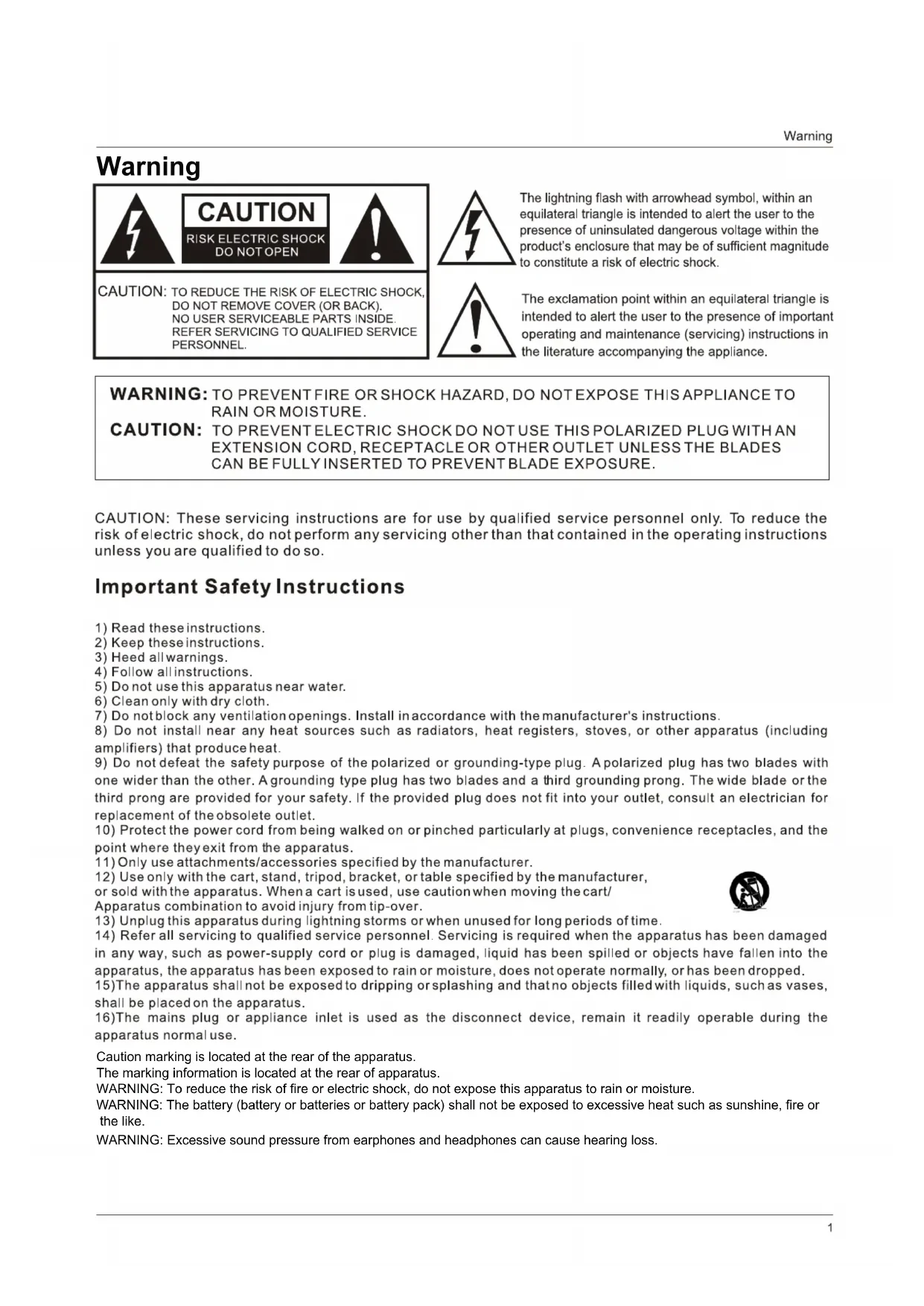
LE58F3281 LEDWARNING: The battery (battery or batteries or battery pack) shall not be exposed to excessive heat such as sunshine, fire or the like.
WARNING: Excessive sound pressure from earphones and headphones can cause hearing loss.
Caution marking is located at the rear of the apparatus. The marking information is located at the rear of apparatus.
WARNING: To reduce the risk of fire or electric shock, do not expose this apparatus to rain or moisture.
Warning2 Safety Instructions This equipment has been tested and found to comply with the limits for a Class B digital device, pursuant to Part 15 of the FCC Rule. These limits are designed to provide reasonable protection against harmful interference in a residential installation. This equipment generates, use and can radiate radio frequency energy and, if not installed and used in accordance with the instructions, may cause harmful int erference to radio communications. However there is no guarantee that interference will not occur in particular installation. If this equipment does cause harmful interference to radio or television reception, which can be determined by turning the equipment off and on, the user is encourage to try to correct the interference by one or more of the following measures: *Reorient or relocate the receiving antenna. *Increase the separation between the equipment and receiver. *Connect the equipment into an outlet on a circuit different from that to which the receiver is connected. *Consult the dealer or an experienced radio/TV technician for help. This device compiles with Part 15 of the FCC Rules. Operation is subject to the following two conditions: (1) This dev ice may be not cause harmful interference. (2) this device must accept any interference received, including interference that may cause undesired operation. FCC CAUTION: To assure continued compliance and possible undesirable interference, the provided ferrite cores must be used when connecting this display to video equipment; and maintain at least 15.7” spacing to other peripheral device. CANADIA N NOTICE: This Class B digital apparatus compiles with Canadi an ICES-003. FCC STATEMENT This product qualifies for ENERGY STAR in the "factory default" setting and this is the setting in which power savings will be achieved. Changing the factory default picture setting or enabling other features will increase power consumption that could exceed the limits necessary to qualify for Energy Star rating. Safety InstructionsSAVE THESE INSTRUCTIONS your Thank you for purchasing a Haier product. This easy-to-use manual will guide you in getting the best use of product. Remember to record the model and serial number. They are on label on the back of the unit. Model number serial number Date of purchase Staple your receipt to your manual. You will need it to obtain warranty service.
Safety Instructions theContents Warning Safety Instructions Unit and Accessories Product Features Introduction
Connection Basic Operation OSD Menu
Simple Troubleshooting Warranty
8Instruction for Wall Mount .3 Contents
1). (IR) Infrared Receiver: Receives IR signals from the remote control. (Power on/Standby)LED Indicator: Press POWER to turn on and off. Indicator on(Red) Standby mode Indicator off Power on mode 2). The functions of the buttons: INPUT: Press to show the input source list. Use the up and down arrow keys to select a source, and then press the VOL + key. MENU: Press to display the OSD (on screen display) menu, press again to exit the menu. VOL+/-: Press to adjust the volume. In the OSD menu, use the VOL+/- buttons to move right/left. The effective receiving range for the signal is up to 26 feet from the front of the remote control window, and 30
to the right side and 20
above or below the remote control window. Led Indicator Remote Control window (Keep clear) POWER/STANDBY: Turn on/off (standby) the TV set. CH / : Press to scan through channels. In the OSD menu, use the CH /\ / \/ buttons to move up/down. 6Introduction
AC POWER IN : Connect the power cable to a wall outlet. USB: Insert a USB storage device to the USB port to view JPEG photos, or listen to MP3 music. This port is also used for software updates. HDMI1/2/3 : Connect the source(s) for digital video such as a Blu-ray player, video game console, or set top box through this all digital connector. The HDMI2 port is MHL enabled. You can connect MHL devices, such as the Roku Streaming Stick and compatible mobile phones and tablets. NOTE: a USB to HDMI cable (not included) is required to connect a mobile phone or tablet to the TV. Please check the documentation of your device. VGA: Connect a VGA (D-sub 15) cable from the 15-pin VGA connector on your PC. PC audio: Connect an audio cable from the audio output or headphone jack of your PC. Coax: Digital audio output. YPbPr: Connect the component video cables from a device, such as a DVD Player or cable box. Use red for Pr, blue for Pb, and green for Y. Connect the yellow video cable from a composite video device to the Y jack. VIDEO: Connect the cable for composite video from a device, such as a DVD player, VCR, or camcorder. RF IN: Connect to an antenna or digital cable (out-of-the-wall, not from Cable Box) for Digital TV. R/L in: Connect the audio cables from the composite or component video device. Use red for right audio (R) and white for left audio (L).
AUDIO OUT R/L: Connect the audio cables to an external audio device, such as a sound bar or stereo system. Use red for right audio (R) and white for left audio (L). COAX
HDMI2(MHL) HDMI3 USB RF IN
AUDIO OUT Headphone: Connect headphones. When it is inserted to the jack, the integrated speakers will be muted.
AUDIO INY/Video Pb Pr HDMI 1Introduction Dimensions for Mounting Hole Pattern A wall mount kit (purchased separately) will allow you to mount your TV on the wall. For detailed information on installing the wall mount, refer to the instructions provided by the wall mount manufacturer. It is strongly recommended to contact a technician for professional assistance for wall mount installation. HAIER is not responsible for any damage to the product or injury to yourself or others resulting from wall-mounting. - This TV is compatible with a 400mm x 200mm mounting hole pattern. - Do not mount your TV at more than a 15 degree tilt. - Always use at least two people to mount the TV to a wall. - Do not install your Wall Mount Kit while your TV is turned on. It may result in personal injury due to electric shock. - 4 pcs of type M5 screws are required for installing the wall mount bracket to your TV. Do not use screws that are longer than 12 mm. Screws that are too long may cause damage to the inside of the TV set. - Do not fasten the screws too tight for this may damage the TV or cause the TV to fall, resulting in personal injury. HAIER is not liable for these kinds of incidents
3. Instruction for Wall Mount
200mm400mm - We suggest that you keep your TV at least 2.36 inches (60 mm) from the wall to prevent cable interference. - Before mounting your TV on the wall, you need to remove the base if you attached it. - For your safety, please use only with UL listed wall mount brackets with minimum weight of the TV without stand (53lbs).Introduction
4. Remote Control Installing Batteries˄The picture is only for your reference.˅
1). Open the battery compartment cover on the back of the remote control. 2). Insert two 1.5V AAA size batteries observing the polarity markings inside the battery compartment. Don’t mix di fferent types or used batteries with new ones. 3). Close the cover. - The remote control should be operated within 26 feet (8m) and 30
to the right of the IR receiver at the front of the TV. - Used batteries should be disposed of properly
Batteries shall not be exposed to excessive heat such as direct sunlight or fire. Step 1 Step 2 Step 3 Battery Compartment Cover 2 x AAA BatteryIntroduction
The remote control is using infrared (IR) signals. Point it towards the front of the TV. The remote control may not work correctly if it is operated out of range (see previous page).
source, such as TV channel information, display resolution, current time, etc.
22. PICTURE: Press to select the available video picture modes: Standard, Vivid, Mild, User,
2. INPUT: Press to show the input source list. Use the up and
down arrow keys to select a source, and then press the OK key.
10. MUTE: Press to mute the sound. Press again or
9. CH / : Press to scan through the channels.
11. MENU: Press to display the OSD (on screen display) menu.
23. FAVORITE : Press to show the Favorite Channel List. Use the up and down arrow keys to
select a channel, and then press OK. 12/13. Arrow Keys < > : Allows you to navigate the
is connected, press this button to go back to the previous screen.
: Press to play/pause music or photo slideshow in USB mode. This button can also be used with the Roku Streaming Stick.
27. / (Reverse, Fast forward): Use these buttons to control music/photo playback. These
buttons can also be used with the Roku Streaming Stick.
4. CC: Press to display the closed captions.
5. : If the Roku Streaming Stick is connected, press this
button to go to the Roku home screen.
20. SAP: For analog TV, press to switch the sound mode: Stereo, SAP or Mono. For digital TV,
press to switch the audio language if the TV program provides an alternative.
21. AUDIO: Press to select the sound mode: Standard, Music,Theater User.
7. RECALL: Return to the previous channel viewed.
Streaming Stick is connected, press this button to go back to the previous screen.
13Connection Connection Antenna (RF) Connection Power Cord Connection
buttons to select TVˈ and then press the OK - Connect the TV to a wall outlet using the included AC power cord. - When you connect the power cord, the TV enters into standby mode and the LED indicator on the front of the TV will be red. - Turn on the TV by pressing the POWER ro VT n theo nottub remote control, and the LED indicator will be turn off. Wall jack with F-Connector External Antenna
Note: It is recommended to unplug the TV if it will not be used for a long time, such as during a vacation. button to confirm.You will need to perform a channel scan to be able to view TV channels. Please see the auto scan section on page 17.
HDMI2(MHL) HDMI3 USB RF INAUDIO INY/Video Pb Pr HDMI 1 COAX AUDIO OUTAUDIO INY/Video Pb Pr HDMI 1 AV Input Connection Note: All cables shown are not included with the TV. - Connect the VIDEO and AUDIO output jacks on the DVD player or VCR to the AV IN jacks on the TV set using RCA cables. - Match the jack's colors: Video=green , Audio left=White, Audio right=red. - Turn on the DVD player/VCR, and select “Composite” in the input source menu. RCA Video Cable RCA Audio Cable RCA Audio Cable DVD player or VCR YPbPr (Component) Connection Note: All cables shown are not included with the TV. - Connect the YPbPr output jacks on the DVD player or VCR to the YPbPr input jacks on the
set component video (YPbPr) cable. The picture quality is improved compared to the video (composite) input. - Match the jacks colors: Y=Green, Pb=Blue, Pr=red. - Connect the audio output jacks on the DVD player or VCR to the audio input jacks on the back of the TV with a RCA audio cable. - Turn on the DVD player or VCR, and select “Component ” in the input source menu. DVD player or VCR Component Video (YPbPr) Cable Y Pb Pr Connection
12HDMI 2 /HML HDMI3 USB
Y/Video Pb Pr HDMI 1 HDMI Connection PC Connection Note: All cables shown are not included with the TV. Note: All cables shown are not included with the TV. DVD player or VCR - Connect the HDMI port on the DVD player to the HDMI port on the back of the TV with a HDMI - Turn on the DVD player, and select “HDMI1/2/3” in the input source menu. A/V interface that supports uncompressed audio and video - Connect the VGA port on the PC to the VGA port on the back of the TV with a VGA(D-sub 15) cable. - Connect the audio output or headphone jack on the PC to the PC AUDIO jack on the back of the TV with a 3.5mm audio cable. - Turn on the PC, and select “VGA” in the input source menu. - If you are using a sound card, adjust the PC sound as required. - Set the video resolution of your PC to 1920x1080, 60Hz on its original monitor. It is recommended that you make the connections between the TV and your PC, and then switch on the TV before booting the PC. You can now set your preferred resolution from the choice supported. See the table of supported resolutions on the right. 1920 x 1080, 60Hz HDMI cable VGA cable audio cable (3.5mm) Connection
1. Connect the TV to a wall outlet using the included AC power cord.
2.-To turn on the TV Press the POWER button on the TV or remote control. -To turn off the TV Press the POWER button on the TV or remote control. Input Source select Press the INPUT button on the remote control to display the input source menu, and use the
the remote control to select the input source. Press the OK button on the remote control to switch to the selected input. Note: Before you select the input source, make sure the cables are properly connected.
- (Press the EXIT button to exit the menu display.) Note1: Some options can only be accessed in certain modes. Main menu Picture, Audio, Channel, Setup, Lock Submenu (Picture menu shown as an example) Buttons Use the buttons listed here to navigate the OSD menu.
Picture mode: Select between Standard, Vivid, Mild, User and Energy Saving. You may select the picture mode directly by pressing the PICTURE button on the remote control. Contrast: Control the difference between the bright and dark regions of the picture. Brightness: Adjust brightness of the picture. Color: Adjust the amount of color in the picture. Tint: Adjust the tint (color tone) of the picture. Sharpness: Color Temp.: Select between Normal, Cool and Warm. Description
PC Setting (only for PC): If the video input signal comes from your PC, you may adjust the H-Position, V-Position, Clock, Phase or perform an Auto adjustment. 120Hz: Set the 120 Hz function to: Off, Low, Medium or High.2. Audio menu Description OSD Menu Sound Mode: Select your desired audio mode : Standard, Music, Theater, User. Bass: Adjust the bass (low frequency audio). Treble: Adjust the treble (high frequency audio). Balance: Left and right stereo audio channels balance. Surround sound: Activate or deactivate the surround sound function.
Air/Cable: Select Air or Cable. If you selet “Cable”, the following items (Favorite, Channel Skip, Channel NO, Channel Label and DTV Signal) will be available. Auto Scan: Enter the Auto Scan menu to start auto scan.
If you select “Cable” as the input signal
you can press the OK button to search the channels automatically The receivable channels will be stored automatically. When searching channels, press MENU to stop.
If you select “Air” as the input signal, you can press the OK button to search the channels automatically. The receivable channels will be stored automatically. When searching channels, press MENU to stop. NOTE: It may take a while to auto scan in "Air" mode, please wait patiently. Favorite: Add/remove channels to/from the favorite channels list. Use the Ĥ0ĥ button to highlight the desired channel, then press the OK button to add or remove the highlighted channel as a favorite. See image on the right. CH LabelsChannel Skip: Allows you to show or hide channels. Use the Ĥ0ĥ button to highlight the desired channel, then press the OK button to show or hide the highlighted channel. Channel No.: Show and select the channel. CH Labels: Change the label (name) of a channel. Press the =!0!?! button to select the position , and press the Ĥ0ĥ button to select the letter. Press the MENU button when you are finished. OSD Menu
Audio Only: When Audio Only is turned on, the TV screen will be off, but audio will still be on. Press any key to turn the screen back on ( Except Vol+/- and mute buttons). MTS: Select Mono, Stereo or SAP.(Only for analog TV) Blue Screen: When the TV does not have a signal, you can set the background to blue. Time: Time zone: Select your time zone from Newfoundland, Atlantic, Eastern, Central, Mountain, Pacific, Alaska, Hawaii, Samoa. Sleep timer: Set the sleep timer: (off / 5 / 10 / 15 / 30 / 60 / 90 / 120 / 180 / 240 mins). The TV will automatically turn off (standby mode) after the selected period of time passes. Daylight Saving Time (Could only be activated in DTV mode): Turn on/off daylight saving time. E-ManualOSD Menu
Noise Reduction: Select the noise reduction mode: Off, Low, Medium, or High. Closed Caption: CC Mode: Select the CC Mode: CC Off, CC On, and CC on Mute. Menu shown in the image on Analog CC: Select the analog TV captions: CC1, CC2, CC3, CC4, Text1, Text2, Text3 or Text4. Digital CC: Select the digital TV captions : Service1, Option: Customize the font, style, color, etc. of the captions. Over Scan: Turn on/off the over scan function. Service2, Service3 Service4, Service 5 or Service 6. the right. Restore Default: Restore all settings to the factory default settings. CEC: Turn on/off HDMI CEC function. This option is only available in HDMI Input Mode. E-Manual: Electronic manual.5. Lock menu You must enter the password to gain access to the Lock menu. The default password is 0000. You may modify the following options: Change password: it. Note: Do not forget the password. System Lock: Allows you to turn on or off the system lock. If deactivated, the functions described below will not be activated. US Rating:
Use the Ĥ0ĥ buttons to select the desired rating and press the OK button to block or unblock. MPAA: The Movie rating (MPAA) is used for movies rated by the Motion Picture Association of America (MPAA) as broadcasted on cable TV and not edited for television. Use the Ĥ0ĥ button to select N/A, G, PG, PG-13, R, NC-17 or X. Canada Rating:
This option menu allows you to block programming based on the TV or MPAA rating. TV: RRT Setting: Set the RRT for TV. RATING DESCRIPTION G General Audiences. Movie is appropriate for all ages. PG Parental Guidance Suggested. May contain material not suited for yonunger viewers. PG-13 Contains content that may not be appropriate for viewers under the age of 13. R Restricted. Contains adult content, no one under 17 admitted without parent. NC-17 No one 17 and under admitted. X Adults only.6. USB mode Description OSD Menu
2. Press the USB button on the remote control, the
TV will search for the device automatically, and display the menu shown below. Note: You can also enter the USB mode by selecting the USB source in the input source menu. Basic Operation:
1. Press the > / < buttons
to select Photo or Music.
2. Press the OK button to confirm the selection and enter the USB device list.
Use the > / < buttons to select an option in the menu, press the OK button to select it, and press Play/Pause: Play/pause the photo view. Prev./Next: View the previous/next photo. Stop: Stop the photo slideshow and return to the folder view. Repeat: Select the repeat mode: Repeat All, Repeat 1, None. Music: Play/Pause the music. Music can only be played during a photo slideshow if music files are in the same folder as the photos. Playlist: Display the playlist on the screen. Use the / button and OK buttons to select a file, and press the OK button to play the file. Press the EXIT button to exit the list. Info: Display the information of the file. Rotate: Rotate the photo clockwise/counterclockwise. Zoom Out/In: Zoom out/in the photo. Move View: Move the photo in Zoom in mode.
Display the playlist on the screen. Use the / buttons to select a file and press the OK button to play the file. Use the < / > buttons to select the option in the menu, and press the OK button to select. Play/Pause: Play/pause the music. FB/FF: Fast backward/fast forward. Prev./Next: Play the previous/next file. Stop: Stop the music. Repeat: Select the repeat mode: Repeat All, Repeat 1, None. Songlist: You can Press the EXIT button to exit the list.
Press the OK button to display the music menu, and press the button to hide it. ĥSimple Troubleshooting Simple Troubleshooting If the display fails or performance dramatically deteriorates check the Display in accordance with the following instructions.Remember to check the peripherals to pinpiont the source of the failure. If the display still fails to perform as expected, contact customer assistance: 1-877-337-3639. No power - Check all connections to the TV. - Press either the power button on the TV or the Standby button on the Remote control. No picture or sound - Ensure that the TV is plugged in and the power is on. - Ensure that the aerial antenna is connected. - Try a different program. Poor picture quality - Check the aerial connections. - Check that the channel is tuned in properly. - Adjust the picture settings: brightness, color, sharpness, contrast, tint. - Make sure that the TV is not located close to electrical appliances that may emit radio frequency interference. No color - Adjust the color setting. - Check that the program is broadcast in color. - Check that the channel is tuned properly. TV does not respond to remote control - Check that there are no obstructions between the remote control and the TV. - Check that the remote control is within range of the TV. - Check that the batteries in the remote control and not weak or exhausted.
Multimedia Categories File Extension Decoder Notes Music *.mp3 MPEG1 Audio LAYER,,, (Not corresponding MP3 Pro) Sampling Freguency [KHz]: 32/44.1/48 Bit Rate [kbit/s]: 32/40/48/56/64/80/96/112/128/ 160/192/224/256/320/VBR Photo *.jpg/.jpeg Progressive JPEG Baseline JPEG Max Resolution: 1024×768 Max Resolution: 8192×8192 Note: Licenses involved in specification above are supposed to be obtained by customers themselves.Warranty This Haier brand product, when shipped in its original container, will be free from defective workmanship and materials, and agrees that it will, at its option, either repair the defect or replace the defective product with a new or re-manufactured equivalent at no change to the purchaser, for parts or labor for the periods set forth below: This warranty does not apply to the appearance of the product or the exterior of the product, which has been damaged or defaced, altered or modified in design or construction. It does not apply to the additional excluded items set forth below: The warranty commences on the date the item was purchased and the original purchase receipt must be presented to the authorized service center before warranty repairs are rendered. The limited warranty described herein is in addition to whatever implied warranties may be granted to purchasers by law. ALL
IMPLIED WARRANTIES INCLUDING THE
WARRANTIES OF MERCHANTABILITY AND
FITNESS FOR USE ARE LIMITED TO THE PERIOD(s) FROM THE DATE O F PURCHASE SET FORTH BELOW. Some states do not allow limitations on how long an implied warranty lasts, so the above limitation may not apply to you. Neither the sales personnel of the seller nor any other person is authorized to make any warranties other than those described herein, or to extend the duration of any warranties beyond the time period described herein on behalf of Haier. The warranties described herein shall be the sole and exclusive warranties granted by Haier and shall be the sole and exclusive remedy available to the purchaser. Correction of defects in the manner and for the period of time described herein, shall constitute complete fulfillment o f all abilities and Responsibility of Haier to the purchaser with respect to the product, and shall constitute full satisfaction of all claims, whether based on contract, negligence, strict duality or otherwise. In no event shall Haier be liable, or in any way responsible for any damages or defects in the product which were caused by repairs or attempte d repairs performed by anyone other than an authorized service center or dealer; nor shall Haier be liable, or in any way responsible for incidental or consequential economic or property damage. Some states do not allow the exclusion of incidental or consequential damages, so that above exclusion may not apply to you.
ALSO HAVE OTHER RIGHTS WHICH
VARY FROM STATE TO STATE. Warranty period for this product: