Insignia 800M - Tablet GOCLEVER - Free user manual and instructions
Find the device manual for free Insignia 800M GOCLEVER in PDF.



| Brand | GoClever |
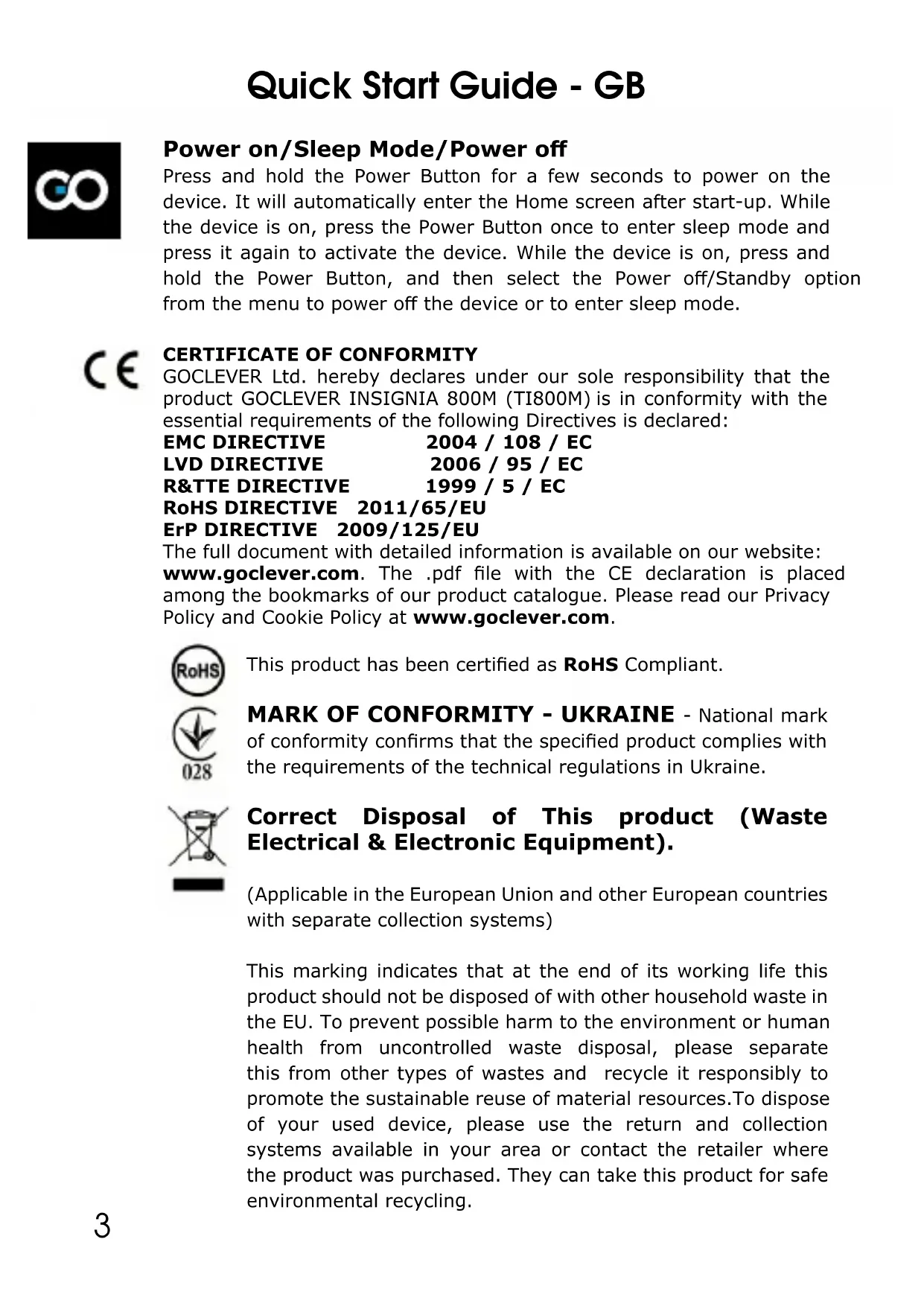
| Model | Insignia 800M (TI800M) |
| Product Type | Touchscreen Tablet |
| Dimensions (estimated) | Approximately 200 x 130 x 10 mm |
| Weight (estimated) | Approximately 350 g |
| Power Supply | Built-in rechargeable lithium-ion battery |
| Power Button | Press and hold to turn on/off; briefly press for sleep mode |
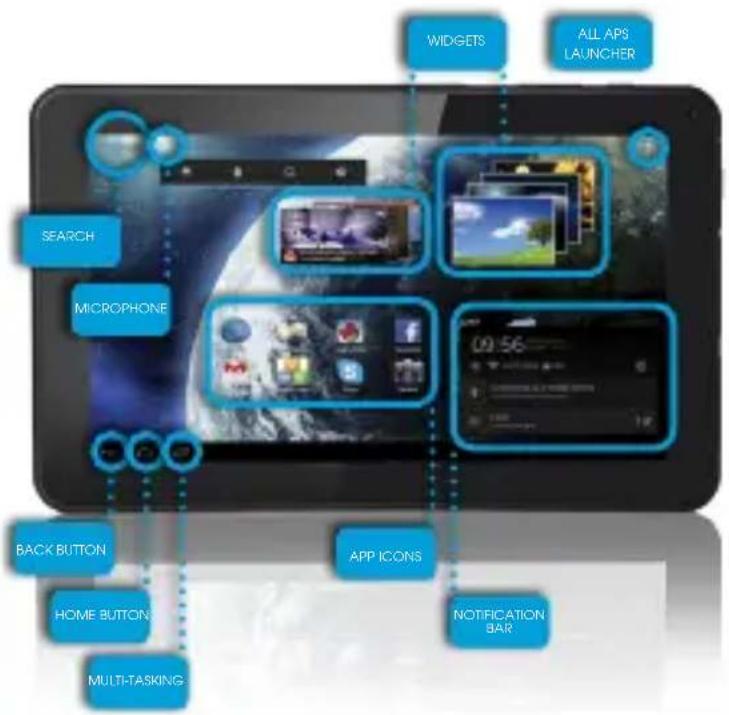
| Navigation Buttons | Back, Home, Recent Apps, App Drawer, Search, Microphone |
| Wi-Fi Connection | IEEE 802.11b/g/n, channels 1 to 13 (2.4 GHz) |
| Wi-Fi Restrictions France | Indoor use only, channels 1 to 6 allowed |
| Notification Bar | Swipe from the top right corner (battery status, Wi-Fi) or left (updates, messages) |
| Customization | Change wallpaper by pressing on an empty space on the screen |
| Operating System (estimated) | Android (unspecified version) |
| Certifications | CE, RoHS, ErP, R&TTE, LVD, EMC |
| Manufacturer Warranty | 24 months (some countries with annual door-to-door service) |
| Maintenance and Cleaning | Wipe with a soft, dry cloth; do not use abrasive products |
| Safety | Do not expose to moisture; dispose of battery separately |
| Spare Parts and Repairability | Contact an authorized GoClever service center for battery replacement or repairs |
| General Information | Manual available at www.goclever.com/support; product registration at register.goclever.com |
Frequently Asked Questions - Insignia 800M GOCLEVER
User questions about Insignia 800M GOCLEVER
0 question about this device. Answer the ones you know or ask your own.
Ask a new question about this device
Download the instructions for your Tablet in PDF format for free! Find your manual Insignia 800M - GOCLEVER and take your electronic device back in hand. On this page are published all the documents necessary for the use of your device. Insignia 800M by GOCLEVER.
USER MANUAL Insignia 800M GOCLEVER
2 | English | GB
7 | Polish | PL
14 Bulgarian BG
19 Croatian HR
24 | Czech | CZ
29 | Estonian | EST
34 | French | FR
39 | German | DE
46 | Greek | GR
51 Hungarian | HU
56 Italian IT
61 Latvian | LV
66 Lithuanian | LT
71 | Portuguese | PT
76 | Romanian | RO
82 Russian RU
87 | Serbian | SRB
92 Slovak SK
97 Slovenian | SI
102 | Spanish | ES
107 | Ukrainian | UA
114 Service center information
Quick Start Guide - GB
BRAND NAME: INSIGNIA 800M
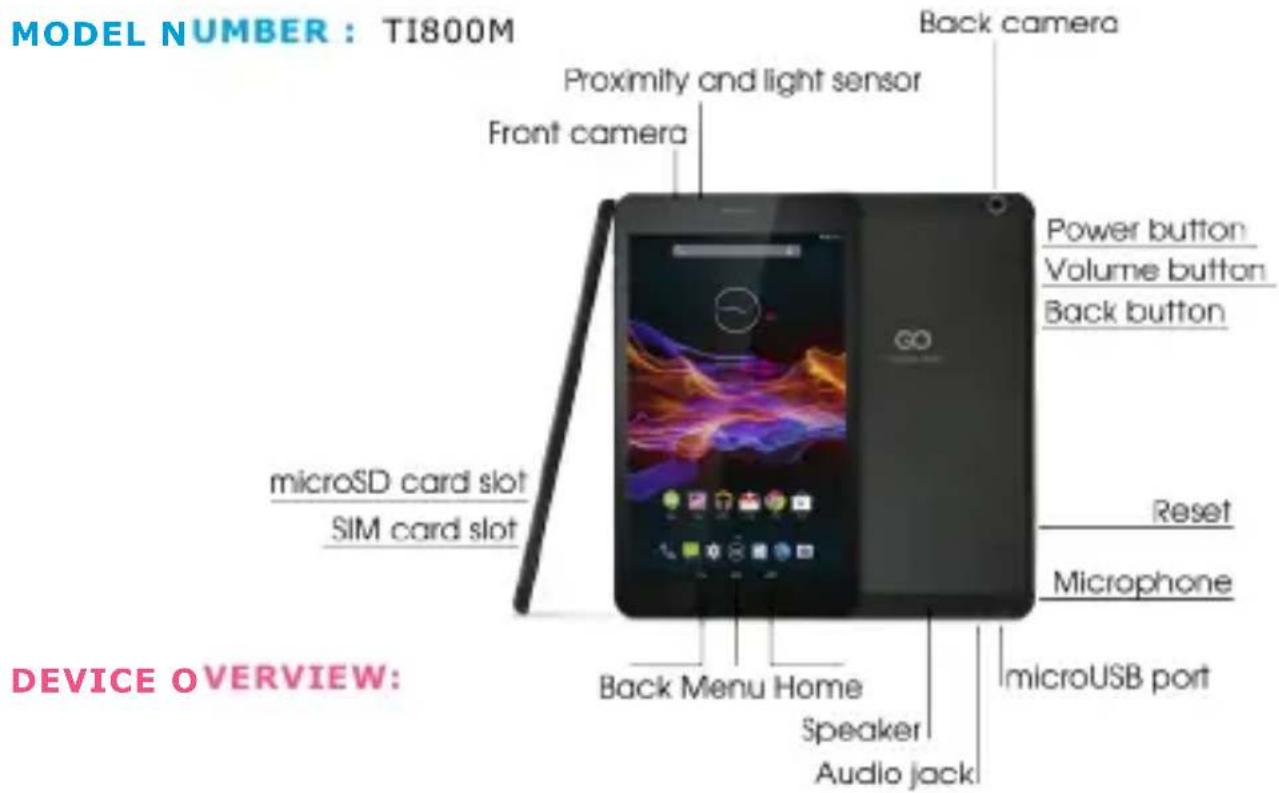

BACK BUTTON - tap to go back to the previous screen
HOME BUTTON - tap to return to your Home Screen
MULTI-TASKING - tap to view the recent apps list; tap to open an app, or swipe to close it
ALL APPS LAUNCHER - tap to view all your apps and widgets
SEARCH - tap to open an online search engine
MICROPHONE - tap to search using speech recognition
APP ICONS - tap to open the selected application
SETTING MENU - tap to view all available options
NOTIFICATION BAR - tap and swipe the top left of your screen to view the notification bar, informing you of updates, emails etc. Tap and swipe the top right of your screen to view the battery, Wi-Fi status etc.
WIZGETS - tap the 'All apps' button, then select Widgets. These are small 'apps' that run on your home screen for instance showing live weather, photo gallery, new emails, youtube videos.
PERSONALISE - to change your wallpaper to a pre-loaded or downloaded wallpaper or a photo you've taken. Tap some blank space on your home screen and follow the on-screen instructions.

Quick Start Guide - GB
Power on/Sleep Mode/Power off
Press and hold the Power Button for a few seconds to power on the device. It will automatically enter the Home screen after start-up. While the device is on, press the Power Button once to enter sleep mode and press it again to activate the device. While the device is on, press and hold the Power Button, and then select the Power off/Standby option from the menu to power off the device or to enter sleep mode.

CERTIFICATE OF CONFORMITY
GOCLEVER Ltd. hereby declares under our sole responsibility that the product GOCLEVER INSIGNIA 800M (TI800M) is in conformity with the essential requirements of the following Directives is declared:
EMC DIRECTIVE 2004/108/EC
LVD DIRECTIVE 2006/95/EC
R&TDE DIRECTIVE 1999/5/EC
RoHS DIRECTIVE 2011/65/EU
ErP DIRECTIVE 2009/125/EU
The full document with detailed information is available on our website: www.goclever.com. The .pdf file with the CE declaration is placed among the bookmarks of our product catalogue. Please read our Privacy Policy and Cookie Policy at www.goclever.com.

This product has been certified as RoHS Compliant.

MARK OF CONFORMITY - UKRAINE - National mark of conformity confirms that the specified product complies with the requirements of the technical regulations in Ukraine.
Correct Disposal of This product (Waste Electrical & Electronic Equipment).
(Applicable in the European Union and other European countries with separate collection systems)
This marking indicates that at the end of its working life this product should not be disposed of with other household waste in the EU. To prevent possible harm to the environment or human health from uncontrolled waste disposal, please separate this from other types of wastes and recycle it responsibly to promote the sustainable reuse of material resources. To dispose of your used device, please use the return and collection systems available in your area or contact the retailer where the product was purchased. They can take this product for safe environmental recycling.
Quick Start Guide - GB
Disposal of waste batteries (applicable in the European Union and other European countries with separate collection systems)
The symbol may appear on the battery or on the packaging to indicate that the battery provided with this product shall not be treated as household waste. On certain batteries this symbol might be used in combination with a chemical symbol. The chemical symbols for mercury (Hg) or lead (Pb) are added if the battery contains more than 0.0005% mercury or 0.004% lead. By ensuring these batteries are disposed of correctly, you will help prevent potentially negative consequences for the environment and human health which could otherwise be caused by inappropriate waste handling of the battery. The recycling of the materials will help to conserve natural resources. In case of products that for safety, performance or data integrity reasons require a permanent connection with an incorporated battery, this battery should be replaced by qualified service staff only. To ensure that the battery will be treated properly, hand over the product at end-of-life to the applicable collection point for the recycling of electrical and electronic equipment. Hand the battery over to the applicable collection point for the recycling of waste batteries. For more detailed information about recycling of this product or battery, please contact your local government Office, your household waste disposal service or the shop where you purchased the product.
CONDITIONS OF WI-FI USAGE
When using the IEEE 802.11b/g/n Wireless LAN standard, channels 1 to 13 (2.4 GHz...2.4835 GHz) are selectable for both indoor and outdoor use, however with restrictive conditions applying in France, Italy and Norway, as follows: France: When using this product indoors, all channels can be used without restrictions. Outdoors only channels 1 to 6 are allowed. This means that in Peer-to-Peer mode, the WLAN feature can only be used outside if the peer sets up the communication on an authorized channel (i.e., between 1 & 6).
Please make sure the access point is configured properly to a channel ranging from 1 to 6 before setting up the connection.
Italy: Use of the RLAN network is governed: Disposal of Old Electrical & Electronic - with respect to private use, by the Legislative Decree of 1.8.2003, no. 259 ("Code of Electronic Communications"). In particular Article 104 indicates when the prior obtainment of a general authorization is required and Art. 105 indicates when free use is permitted - with respect



Quick Start Guide - GB
to the supply to the public of the WLAN access to telecom networks and services, by the Ministerial Decree 28.5.2003, as amended, and Art. 25 (general authorization for electronic communications networks and services) of the Code of electronic communications.
Norway: Use of this equipment is not allowed within 20km of the center of Ny-Alesund, Svalbard.
REGISTER A PRODUCT
Register your GOCLEVER product to get more!
Thank you for choosing GOCLEVER! We want you to enjoy your purchase to the fullest. So that You can enjoy Your purchase to the fullest please register Your device. Registration will take you a few minutes. Go to www.goclever.com and get more! Do not miss the chance to enjoy these benefits:
- 12 months of door-to-door warranty (for selected countries and products),
- Handy tips and rapid technical support,
- Reminders about firmware updates that will keep your product up to date
- Exclusive previews of new products,
- Special offers and promotions - up to 30% discount (for selected countries and products),
- Free map updates (for selected countries and products).
TECHNICAL SUPPORT
WEBSITE: www.goclever.com/support
- USER GUIDES (have a look on online user's manual, download and share with).
- SOFTWARE AND UPDATE MANUALS (be up to date with the latest OS software or use the backup files to solve your software problems).
- FREQUENTLY ASKED QUESTIONS
- SERVICE CENTRE LOCATIONS (we recommend to use GOCLEVER Central Service and local partner services directly than make a complaint or technical inquiries to stores).
- WARRANTY INFORMATION (your GOCLEVER TAB includes 24 month guarantee. The optional for selected countries is 12 month "door2door" guarantee. See our website for details).
- SERVICE PROCEDURE
- RMA APPLICATION (depends on country).
Quick Start Guide - GB
The full manual is available at www.goclever.com

WARRANTY CARD
DATE OF SALE:
DATE OF MANUFACTURE:
PRODUCT NAME:
SERIAL NUMBER:
DEALER'S NAME / STAMP
SIGNATURE
Date and customer's signature
Repairs history
| Date | Confirmed defect | Made repairs | Servive sign and stamp |
Quick Start Guide - PL
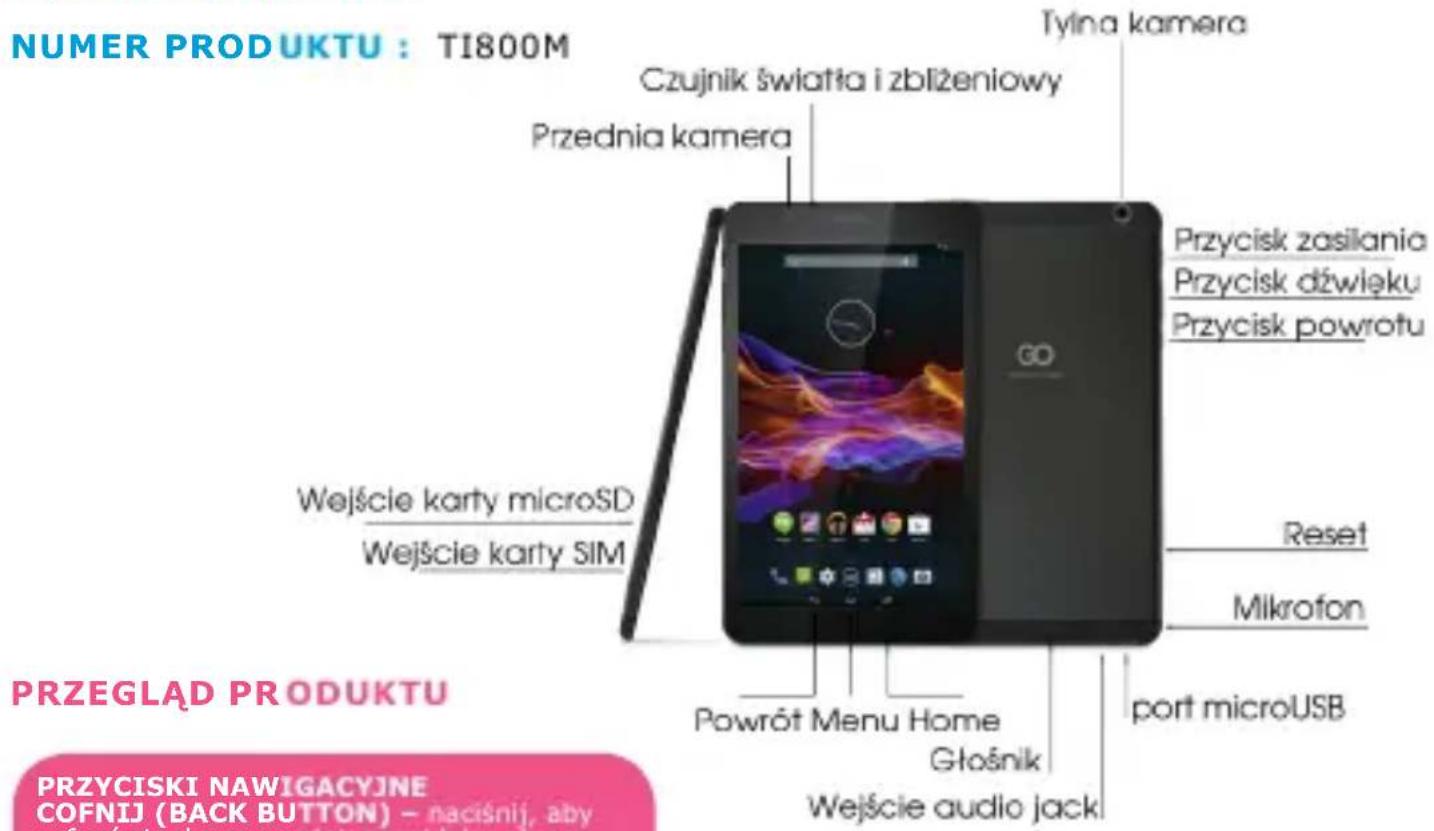
NAZWA HANDLOWA:INSIGNIA 800M

OGOLNE WARUNKI GWARANCJI GOCLEVER

STRONA: www.goclever.com/support
UCIOBn3A N3PON3BAHE HAWI-FI
B cnyuaynHa n3noJ3BaHe Ha 6e3xuHn HHTepHeT mpeXa LAN IEEE B cTaHapra 802.11b/
g/n B Ebpona, KaHJIte ot 1 do 13 (2,4 GHz ... 2,4835 GHz) moJce da ce n3noI3BaT KaKTo BbTpe B NOMEUeHNrTa, TaKa n N3BbH Tax. Po-CTpOrn ca ycNoBnra T BbB OpaHcNry, NtAIny HOpBernry.
PENTCPNPAI TE IPODyKTA
Ha register.goclever.com
PernctpnpaTe npoodykta GOCLEVER, 3a da nojyute nobuee!
STRANICA: www.goclever.com/support
- KORISNIČKI PRIRUČNIK (pogledajte Vodič za brzi početak, preuz majte datoteka te ih podijelite).
- SOFTVER I AZURIRANJE UPUTSTVA (budite u tijeku s majnovijim softverom, iskoristite sigurnosnu kopiju datoteke, da se brzo rijesi softverski problem).
- CESTO POSTAVLJANA PITANJA(tehnička pitanja i svi odgovori po temi).
- LOKALITETI SERVISA (preporučujemo ovlastene servise GOCLEVER, kako bi ubrzati Vaš zahtjev).
- INFORMACIJE O JAMSTVU (obezbjedujectemo 24-mesećno jamstvo proizvodáca. Za izabrane zemlje nudimo godišnji sustav "od vrata do vrata". Detalji se mogu naci na našoj web stranici.
- POSTUPCI ZA USLUGE (pročitajte priseedo što se urežaj servisira).
- OBRAZAC PRIJAVLJIVANJA REKLAMACije (za izabrane zemplje).

Quick Start Guide - HR

JAMSTVENAKARTICA
DATUM PRODAJE:
DATUM PROIZVODNJE:
NAZIV PROIZVODA:
SERIISKI BROJ:
PREHLED APLIKACI (ALL APPS LAUNCHER) -
NARIZENI RoHS 2011/65/EU
NARIZENI ErP 2009/125/EU
NUMBER TOODE: TI800M
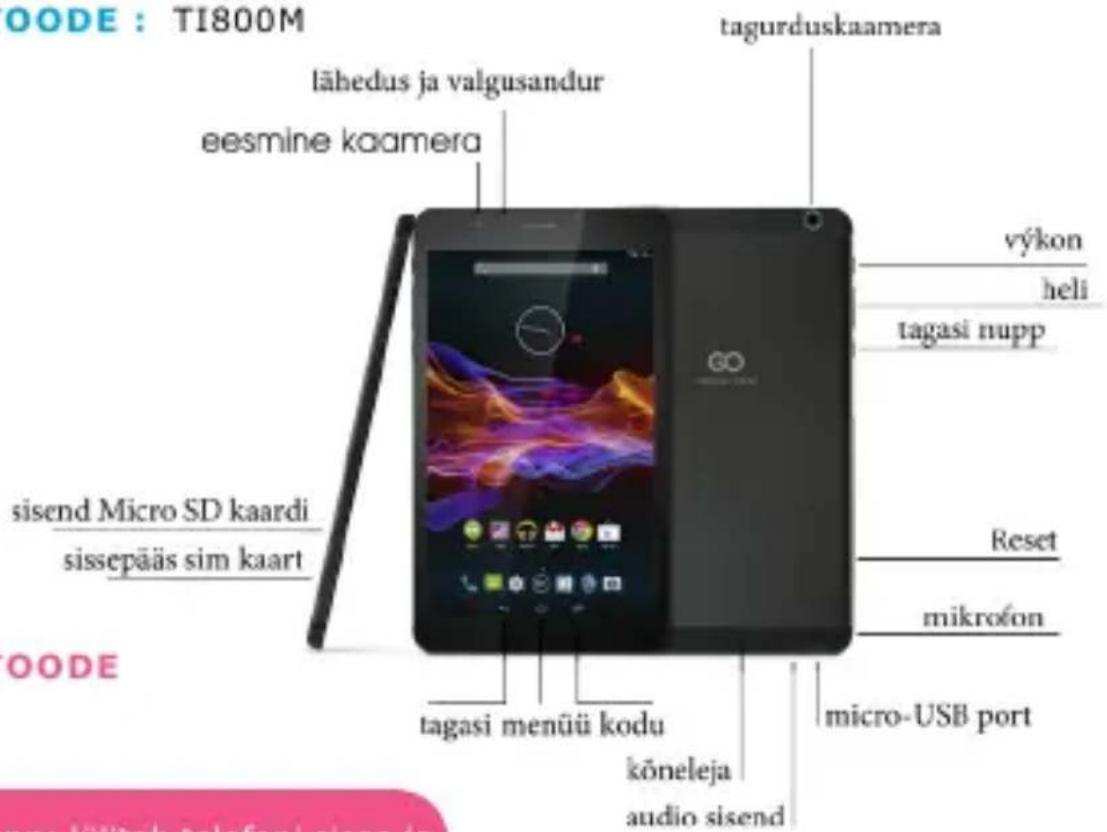
ESITLUS TOODE
www.goclever.com/support
- KASUTUSJUHENDID (online ja allalaaditavad).
-TARKVARAUUENDUSTE JUHISED (uuendage tarkvara voi taastage vajadusel tehaseseaded).
PRESENTATION DU PRODUIT
BOUTONS DE NAVIGATION
www.goclever.com/support
OPOI XPHSEH2 TOY WI-FI
LVD 2006/95/ECIRANYELV
WWW oldal: www.goclever.com/support
SITO WEB: http://www.goclever.com/it/it/pages/Service_CenterLocations.html
www.goclever.com/support
www.goclever.com/support
PÁGINA: www.goclever.com/support
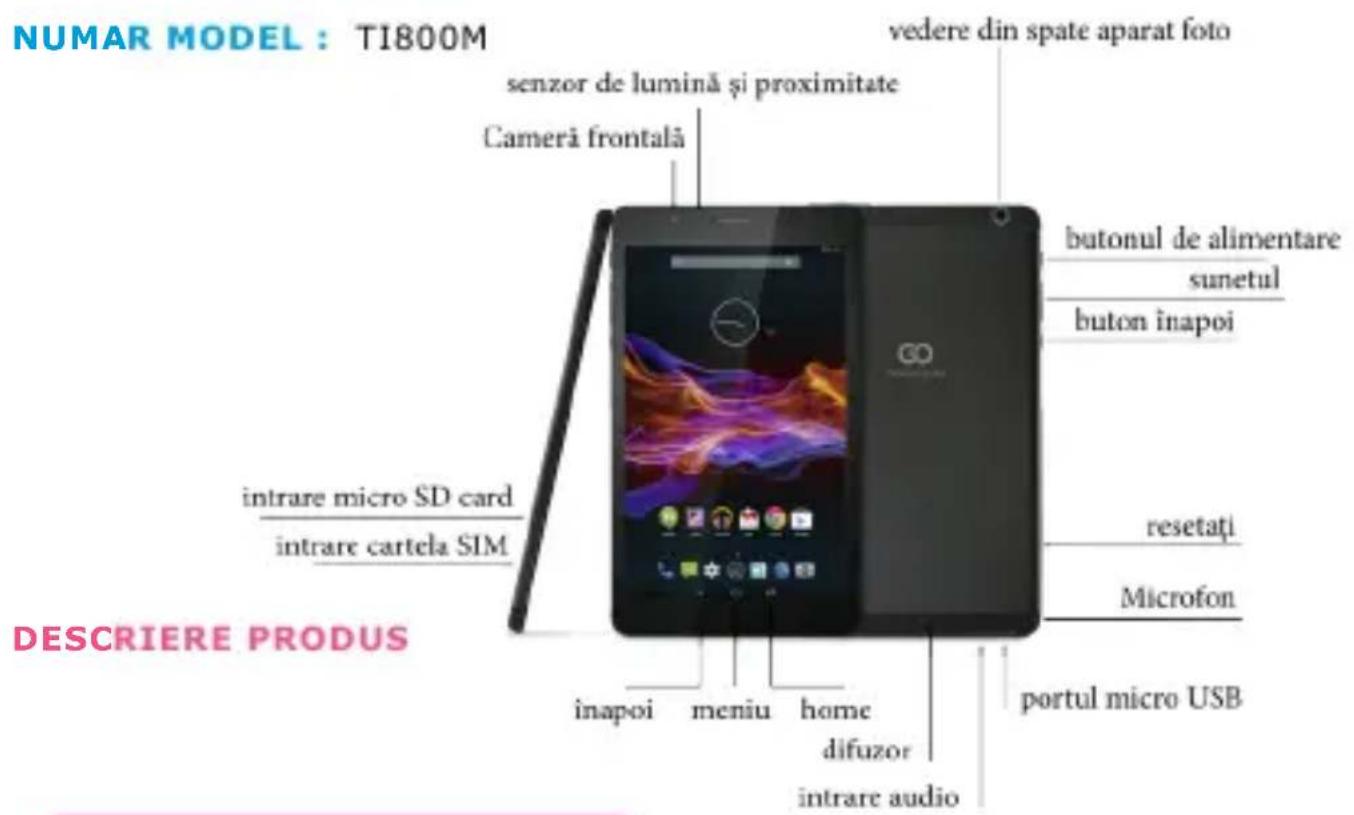
NUME PRODUCATOR:INSIGNIA 800M
BUTO NE NAVIGARE
WEBSITE: www.goclever.com/support
- GHIDURI DE UTILIZARE (consultati manualul de'utilizare online). - SOFTWARE SI MANUALE DE ACTUALIZARE (fiti la zi cu ultimele versiuni de software sau folositi fisierele de backup pentru a va rezolva problemele de soft).
- INTREBARI FRECVENTE
- LOCATII CENTRE DE SERVICE (va recomandam sa contactati GOCLEVER Central Service si partenerii locali in mod direct decat sa faceti reclamatii si cereri de suport tehnic la magazine).
- INFORMATII GARANTIE (dispositivul dvs GOCLEVER are 24 de luni garantie. Optional pentru tarile selectate puteti benefici de 12 luni de gratie cu colectare si livrare. Verificati website-ul nostru pentru detailii).
- PROCEDURE DE SERVICE
- APLICATIE RMA (in functie de tara).


GOCLEVER
INFINITE INVENTION
Quick Start Guide - RO

CERTIFICAT DE GARANTIE
| DATA VANZARII: |
| DATA PRODUCTIEI: |
| NUME PRODUS: |
| NUMAR SERIAL: |
| NUME DEALER /STAMPILA | SEMNATURA |
UCIOBnAДЯ PABOTbl WI-FI

- UcTpoIcTBo He HaxoIIT 6ecnpoBOHbIe ceTI Wi-Fi, He pa6oTaET INHTepHeT
-убeитесь в pa6oTe yctpoiCTBa, pa3daIoцero cnHnaI.
-PacctoHne MeKdy UcTpoiCTBOM n TOnkO JocTypa/MapuPyTu3aTopoM, pa3daUoIIM CnHaI, He DoJxHo PpeBbIaTb 50M, cJeIte 3a TeM, uTo6blДЯ nepeDaun CnHaIa He 6blIo nperepaDbI (dBepb, cTeHa n dp.).

Quick Start Guide - RU
He ynycntte wahc noIyunb BbiroHbIe npedloxhenoT npOn3BODntela:
12 MeçaeB rapaHTnHOro 06cLyXnBaHn,
- Cobetbl no camocToaTeIbHomy yCTpaHeHIO npo6JIem n TexHnuecka noIeppka,
- HanomnHaHna 6 06HOBHeHn IIO (nporpaMMHoro o6ecneueHna),
-3KCKJIIO3INBHyI 063Op HOBbIX yCTPOINCTB,
- CneuNbHbIe npedloXeHn I aKun - cKnDkn Do 30% (JЯ OTeJIbHbIX npOdyKToB)
-BeCnIaTHbIe O6HOBJIeHnIa KApT (DOnOJIHITeJIbHo)
Quick Start Guide - RU

TAPAHNTINHbI TAOH
Дага пOKуПК:
Ha3BaHne IpoIyKta:
CepnHbI HOMep:
Φ.II.O npOaBua/IIeauTb IOnIINCb
Iata n IIOJIINcB IOKyIaTeIa
NCTOpHpaMeOHTa
NOTRANJE: www.goclever.com/support
PÁGINA: www.goclever.com/support
O3HAnOMJIeHHJ 3 IPINCTPOEM
HabiraqiHi KHONK
IIOBEPHYTINCA HA3AD (BACK BUTTON) -
HaTNCHiB, 0o5 nobepHyTuHa nonepeHIO
CTOPIHKY
NOBEPHTNCA HA NOYATKOBY CTOPINK
(HOME BUTTON) - HATNCHTb, 406
NOBEPHyTnCHaNoaTKOByCTOpHky.
MЛьТИЗАДАЧИСТВ (MULTI-TASKING)
- HaTNCHITb, ⅢO6 IpePrrnHyTN HeoDABHO BnKOpncTOBvBaHi npOrpamN, 3HOBy BiKpnTu 3aKnptn ix.
CINCOK IPOPGAM (ALL APPS LAUNCHER)
- HATNCHITb, ⅢO6 nepeRJHyTn Cnncok ycix nporpaM Ta BiDxetIB.
N0UyK - HATnCHITb, 0o6 nepeuTN B NOUyKOBy OH-JaIH CNCTemy.
MIKPOOH-HaTNCHTb,IO6YBIMKHHTI TOJOCBNI NOWVK.
3HAOKIPOPAMN-HaTNCHTb,io6 BiDKpTNIOpaHny npoRpaMy.
KOHTPOJIb XNMBJIeHHRA (APP ICONS) -
HaTNCHiB, 06b yBIMKHyTn CneuaIbHy ONJIO WBNKOROBUMKHeHHy/YBIMKHeHHN pNCTPOIO.

MEHIO HAJAUHTYBAHb-HaTnCHITb,0o6 nepernytn cncok onci.
PRAOK CNOBIUEHb (NOTIFICATION BAR)
- Hatncihtb i npoBeiTb no BepxHi niBiy
actnHi ekpHa, 06 noNBtncra naHeni
OHOBLeHb, eKeTPOHHOI nowTo.
HaNTCHiB
i npoBeiTb no BepxHi npaBIy cactnHi ekpaHa,
06 noNBtncra ctaTyc 3apdKn 6atapei, Wi- Fi too
BIDXETN -HaTnCHiTB Ha CnncOK Bcix nporpam Ta 06epitb onuio BiXetn. Ue nporpamn, k Bu moxete nephectn Ha NoyatKoby ctopiKy (a came, nporHO3 noroDn, fOtoranepey, HOB eNEktpoHHIO NobidomJeHH, Bideo 3 you tube).
NEPCOHAI3AU1I - DnToro, 0o6 3miHNTuHaJIepn HaTNCHTb Ha BInbHOMy MicuHa NocatKOBi CTopin Ta DotpmyTecb IHCTpykui.
Quick Start Guide - UA
YBIMKHEHH/PEXUMCHY/BNMKHEHH
HaTnCHiB Ta yTpIMyIe KHOJky XINBJIeHNa DeKIIbKa CeKYHd IaTorO, 0o6 BKNIOHTN npICCTPII. NooATKOBI eKpaH 3'ABITbc BIDpa3y nicJa 3aNyCKy. Pn yBIMKHeHOMy npICCTPOI HATNCiTB KHOJky XINBJIeHNa OAnH pa3 IaI TorO, 0o6 nepeiTu Y Pexm Chy; HATNCiTB Ie pa3, 0o6 aKTINByBaTHn npICCTPII. Pn yBIMKHeHOMy npICCTPOI HATNCiTB Ta yTpIMyIte KHOJky XINBJIeHHa, a Notim oBeipTB B MeHIO OnciIO BImKHeHHa/Pexm OuiKyBaHHa Ia TorO, 0o6 BIMKHyTN npICCTPII a6o nepeiTu Do pexmMy ChY.
CEPTNΦIKAT BIDNOBIDHOCTI
TOB "GOCLEVER" 3 BnKlouHIO BiIIOBiaIbHiCTIO 3aIbIe npo Te, zo ToBap GOCLEVER INSIGNIA 800M (TI800M) BiIIOBiae BCIM BaJINBIM BImOram Ta IIOJOKeHHaM HaCTUPhNX DInpeKTNB:
| EMC DIRECTIVE | 2004 / 108 / EC |
| LVD DIRECTIVE | 2006 / 95 / EC |
| R&TTE DIRECTIVE | 1999 / 5 / EC |
| RoHS DIRECTIVE | 2011/65/EU |
| ErP DIRECTIVE | 2009/125/EU |
www.goclever.com. Φайу φорматi .pdf 3 Декларачю BiДноВIDиСТI Hopmam EC poЗтaweBOHи B зakладкх Ншо Каталогу npodukii.
O3haioMTecb, 6ydb Jaacka, 3 HaioIO PoIITkoIO KoHcIeHciHocTi Ta PoiITkoIO BnKOpncTahnnr Cookie Ha caTI www.goclever.com. Preberite naS Pravilnik o zasebnosti in Politike datoteke "Cookies" na www.goclever.com.com.


YTNJI3AciI PiCJIa 3AKIHcEHHr TEPMIHy ClyXbN
YcTaHOBKn dIyTnI3aui 3apa3 DoCTynH I dIy ycix KJIeHTIB, De Bn MoXeTe 3aIIuHTn Bawi cIapi npncTpoi GOCLEVER a6o 6yDb-aki iHwi eIektpnHi TObApn. Ze E BImoRO bIDnoBIdNo do EbponeCbKO rakOHODABCTBa (DInpeKTHBa 2002/96/EC npo BiXdOAn eIektpnHOrO Ta eIektpOnHOrO o6laHaHH). KJIeHTn MaOTb 3Mory BiIDHeCTn Yce cTape eIektpnUHe O6laHaHHdo UeHTpIB N6bluHoi yTNIlaaui a60 ToOK npodJy. Dnra TOrO, 0o6 HaraDatn Bam npo Heo6xidHicThy TtNl3aui, yci eIektpnHi TObApn MicTAYb nepeKpcSLeHe 3O6paJxehn CmITTeBOrO KOHTeHepa. DaHn CmBBoI npCytHi Ha ycix npncTpox GOC LEVER.
Quick Start Guide - UA

yMOBn KopnctyBaHHa WI-FI
Пд час викорисань стандарту Wireless LAN IEEE 802.11b/g/n, каданыд 1do 13 (2.4 Гц...2.4835 Гц) образовся对于我们 викорисаня впримиени, я надови, поулбалынму mOBamn 3aCTOCyBaHny yФразцii, Italii ta Hopberi HabtynHmЧINHom:Фразцia:Коли Викорисовуete дани писрив римишни, усі кадан можут b Wnkорисовуbatиь 6e3 obmexkeNB.Ha BIDkpITOMy nobITpi Do3BOleHo Inше кадан bid 1do 6. Ze o3naue, zuB peximi "Peer-to-Peer" onuzЯ MEpeksi WLAN moze wnkorresobvatncb liuwe Ha BIDkpITOMy nobitpi, kIIO np BCTAHOBLOE 3B'J3OK Ha ABTOPN3OBAHOMy KaHani (To6TO mix 1 ta 6).пepekoahTeCb, 6ydI nacka, zuToTuKa DoCTUpy HalaSTOBaHa npaBilno do kaHany bID 1do 6 nepeD Tm,ЯK BCTAHOBLOBATN 3B'J3OK. Itaiia: KopincTyBaHHa Mepexeo RLAN peryIooTbc: Ytnlizauia CTapnx eIeKTPuHNx Ta eIeKTPoHNxПрисpoIB - CTOCOBHO OC6NCTORO KOPINCTYBAHHa - 3rIdno 3aKOHODaBuOro akTu N#259 Bid 01.08.2003 ("KodekceleKTPoHNOrO 3B'J3KU").3okpemaВ cTaTTi 104 za3Nauaetbcra, KOJI Heo6XiIdNo nonepedHbo OTPIMATn reHepaIbHni Do3Bil, aВ cTaTTi 105 3a3Nauaetbcra, Koln Do3BOJaETbcra 6e3KoSTOBHe KOpNCTyBaHHa; - no BIDHOseHHO do noCTaunHЯ KOpNCTyBaUam DoCTUny uee3 Wlan mepejky do MepejTa noclyr 3B'J3KU, 3rIdno PocTahOBn MiHicTepcTBaВ peDAKcii BiD 28.05.2003p., ta CT. 25 (reHepaIbHni Do3Bil Na WnkorresTahHЯ MepejTa noclyr eIeKTPoHNOrO 3B'J3KU) KoideKcy eIeKTPoHNOrO 3B'J3KY. Hopberia: WnkorresTahHЯ daHoro oblaadHaHHa 3abOpOHeNo B Mekax Tepntopii 20 KM 3 ceHTPOM B HIO-Oleccyn, Cbaplb6apd.
3AΓΑΙβHI ΠΟΙΟχΕΝΗ RA YMΟΒΙ ΓΑΡΑHTΙΚOMΠΑΗΙΙ “GOCLEVER”
Ha nidaTabi daHoro taIoha rapaHTyETbCBA KICTb, i 6e3doarHHe yHKioHyBaHHa Bnpo6y, 3a yMOBn DOTpMaHHa npaBnE kcnLyataii Bka3aHnx B iHCTpyKciK KopNcTyBaHa. Lm rapaHTiHN M TaIohom niTBePdJxycbC npaBnictb cboRo Bnpo6y i 6epTeBcra 306OB'3aHHa 3 6e3KOStOBHO ycHEnHb BCix HecnpaBHOcte, 1O BuHKn 3 BuHn Bnpo6HnKa, npotraqom 12 mcaizB 3 dH naDaxy.
1.ΓapaHTiHi 306OB'zaHnHa DiiChi npi DoTpMaHHI NaCTyHnX yMOB:
-
HЯВись розбірліво i B NOBHyOMy 663i 3anOBHeHOro rapaHTiHOro TaIOna Ha DepeKabHiM MoBi;
-
HadaHHa npictpoB B noBHOMy KOMnJIeKti;
2.Бe3KoUToBnH pEmOHT npOBODTncr TIlbKn npOTraRm rapaHTiHoro TepMIny 3a3HaueHOrO B rapaHTiHOMy TaIohi.
Quick Start Guide - UA
3.Buip6 He iindrae rapaHTiHOMy peMOHTy B hAcTyNHx BNnakax:
- BnKOpNCTaHnI npNcTpoI He 3a npN3HaueHnIeM; npOySeHnI npaBnI ekCnIyaTauii a6o 36epirAHnI BnpO6y;
-HaBhictb MexaHuiHnx yWkoJxHeb (BM'YTNH, TpiuHH, NOprnHH), cnidib peMOHTHX po6iT, po3KpTTI i T.d.;
- HāyBHicTb πoшкοДжeHb, BnKlnKaHnx CTnxiEIO (dou, BiTeP, 6nckaBka i T.D.), noxexeio, no6yTOBmN ΦaKTopamN (HaMipHa BOlorictb, arpeCnBHe cepedobuIe, 3aIIneHiCTb i T.D.);
- BnKOpncTaHnB Bnpo6y 3 npuyweHnM npabnE kcnnyatau, BiNobiDHO do TexHiHoI DokUmeHTaui Ha Bnpi6;
- Pemont Bnpo6y Oco6oH He ynoBHOaKeHO Bnpo6HnKOM;
- HaarBHeTb ycepeuHi CTOpOHHix npeMeTiB, piHn a6o KOMax;
-Пошкоженя abo BiicyThicTB nIOM6 (ctikepiB);
- YcTaHOBka nporpaM 6e3 Do3BOJy Bnpo6HnKa, MoiNphiIkaIy nporpaMHOro 3a6e3neueHHra;
- HenpaBnIbHa yctaHOBka Bnpo6y;
-Пдкючень Виробу до Heсправно, со He BiДповidaс CTандapтам abo Textичим ВIMoram Ha Bnpi6 6opTOBOI МерекiЖИВлени (6opTOBOI Мерекi abTomobil);
- BnKOpncTaHHa HeOpnirHaJIbHnx akcecyapib;
- BičCyTHiCt b rapaHTiHOrO TaIOnHa, HeBiNobiHicTb MoJeni Ta cepiHOrO HOMepa Bnpo6y Bka3aHnx B rapaHTiHOMy TaIOnHi.
4.Гаразгия He почюетбя на 3бержени данх та конфигурацio napametpiB habaHTyBaHb.
5.Γapantia TakoJ He nooipOeTbCra Ha mikpocxemn, 0o BiinobiIdaHTb 3a po6oty nepupepiHoro o6laadHaHHa (Bideo Bxid / Buxid, nopTN XnBHeHHa, USB i T.D. Ix npaue3daTHicTB Heo6xIDHO nepeBiprtn npn NOKyni).
6.Гараня He noшюетбя Ha BHTpaTHi MaTepiaIи Ta akcecyapn (Трмачi, каби, elementny Крпльення, пьыдистанiiHoro KepybaHHa i T.d.), a takox npuyшениnpaцe3daTHOCTi, ВИКЛИКаHI HopmaJIbHIM 3HOCOM.
7.Гаразиий Терmin Ha akумлароги 6a tarpei Ta 3apядни npicctpoi cklaадae 6 (wictb) micaizB.
8.3amHa MaTpui (PK-dncnnej) y npncTrooi npoBOuNTbcra npn HaaBHOCTi 10 rpyn no 1 tocu, a6o 3 rpyn no 2 tockn, a6o 1 rpynn no 3 tockn.
9.Y rapaHTiIHe 06cnyroByBaHHn He BXoNTb HABuHn3aMOBnHa pO6OTi 3 npndbaHm 06laHaHHnM.


Quick Start Guide - UA
10.Tepmin rapaHTiHoro peMOHTy moKe 6yTu npOobXeHn, 3 Oob'zKOBm ONoBISeHHam 3aMOBnKa, Upe3 3aTpIMKn iMnpTy 3apanachnx yactn, a TaK cAmO uepe3 iHsi, Hepepe6aueHi o6ctabHn, 9o He cypeepaTb 3akOHy npo 3axIcT PpaB CnoXnBaua.
11.Tepmin cnjx6n Bnpo6y - 2 pokn.
12.Telefon rapyoi liHH: 044 221 08 96
13. Inφopmaζίη no po3TaψyBaHHIO cepBicHx ΚεHTpɪB ε Na caɪTi: www.goclever.com.ua
TEXHICHAPINIDTPMKA BEBCAHT:
www.goclever.com/support
- NOCIBHNI KOPNUCTYBAU (neperehhe nociHK KopucTyBaHa OHnaH, 3aBaHTaKTe a6o noiitbcn Hm);
- IHCTPYKciI 5OIO IPOrPAMHOrO 3A6E3NEUeHHRA OHOBJIeHb (6yDbTe B Kypci OctaHHbOro nporpamHoro 3a6e3neuEHnA 60 BnKOpNCToBvIpe3epBHi KOnii faiLiB, 5o6 BnpiHTn BaWi npo6lemn 3 nporpamHM 3a6e3neueHHaM;
-NOUINPEH3ANITAHN
- MICU3HAXOJXEHH CEPBICHNX CEHTPIB (Mn paIMo 3BepTaTncb 3i cKapram Ta TexHiHmPiTaHnAm6e3nocepEnbO do LcHTpaIbHoro cepBichoro ceHTpy GOCLEVER a6o MicueBnx cepBichnx ceHTpiB napThepiB, a He do Mara3HHIB).
-
IAPAHTIiHA IHΦOPMAUIA ( Baw npicrtpi GOCLEVER TAB Maé rapaHTIO 24 mica.ДоаTKOBOIO NOcLyROIO dIЯпьнх КраIH E obcLyROByBaHH3 DoCTabKOIO Do DBepei(T.3B. "door -to-door service") TepmiHOM 12 micaizB. BiDbiAaTe Hau Be6-caIT dIyOTpMaHHa DeTaIbHOI iHΦopMauii)
-
NOPRAOK O6CJyOBOYBAHH
-3ABA RMA (B 3aJIeXHOCTi BiД КpaIHN). - NOPRAOK OBCJLYTGYBAHHY (HTaTN Do TORO,oprAHIauii peMOHTy npncIpo).
Quick Start Guide - UA
Service Center information
GB: Service center available at www.goclever.com