Hermes M3 - Keyboard Gamdias - Free user manual and instructions
Find the device manual for free Hermes M3 Gamdias in PDF.



| Brand | Gamdias |
| Model | Hermes M3 |
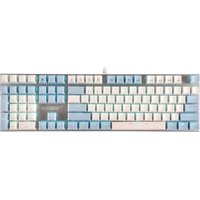
| Product type | Gaming mechanical keyboard |
| Interface | USB |
| Switch type | Mechanical (unspecified) |
| Backlighting | Yes, RGB with 4 preset effects (wave, rotation, slideshow, static/off) + customization via HERA software |
| Programmable macro keys | 2 keys (FN+G1/G2) per profile |
| Gaming profiles | 6 customizable profiles (PF1~PF6) |
| Multimedia functions | Yes (dedicated keys: previous track, next track, play/pause, mute, volume -/+) |
| Gaming mode | Yes (Windows key lock via Fn+Win) |
| Keyboard lock | Yes (Fn+F11) |
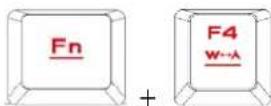
| WASD/Arrow key swap | Yes (Fn+F4) |
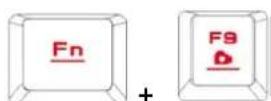
| On-the-fly macro recording (OTF) | Yes (Fn+F9) |
| Internal memory | Yes (store profiles and macros) |
| Configuration software | HERA (download from gamdias.com) |
| Compatible operating system | Windows XP/Vista/7/8/10 |
| Power | Via USB port |
| Package contents | Keyboard, keycap puller |
| Care and cleaning | Clean with a soft, dry cloth. Avoid contact with liquids. |
| Safety | Do not expose to moisture. Use on a flat and stable surface. |
| Spare parts and repairability | No spare parts provided. Contact GAMDIAS support for any repairs. |
Frequently Asked Questions - Hermes M3 Gamdias
User questions about Hermes M3 Gamdias
0 question about this device. Answer the ones you know or ask your own.
Ask a new question about this device
Download the instructions for your Keyboard in PDF format for free! Find your manual Hermes M3 - Gamdias and take your electronic device back in hand. On this page are published all the documents necessary for the use of your device. Hermes M3 by Gamdias.
USER MANUAL Hermes M3 Gamdias
Mechanical Gaming Keyboard
<韓國兒>
<0s>
《English》
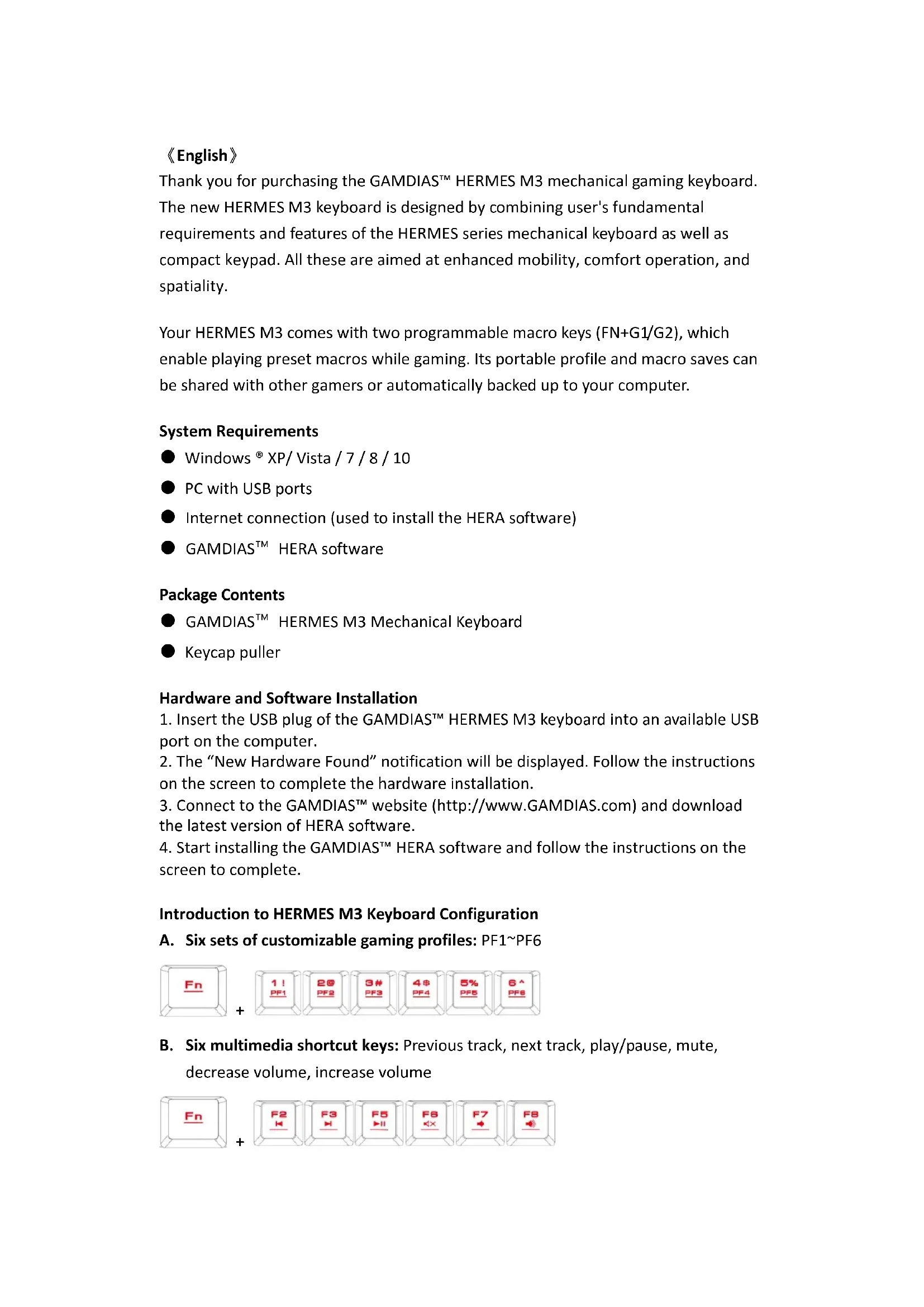
Thank you for purchasing the GAMDIASTM HERMES M3 mechanical gaming keyboard. The new HERMES M3 keyboard is designed by combining user's fundamental requirements and features of the HERMES series mechanical keyboard as well as compact keypad. All these are aimed at enhanced mobility, comfort operation, and spatiality.
Your HERMES M3 comes with two programmable macro keys (FN+G1/G2), which enable playing preset macros while gaming. Its portable profile and macro saves can be shared with other gamers or automatically backed up to your computer.
System Requirements
WindowsXP/Vista/7/8/10
PC with USB ports
- Internet connection (used to install the HERA software)
GAMDIAS™ HERA software
Package Contents
GAMDIASTM HERMES M3 Mechanical Keyboard
Keycap puller
Hardware and Software Installation
- Insert the USB plug of the GAMDIASTM HERMES M3 keyboard into an available USB port on the computer.
- The "New Hardware Found" notification will be displayed. Follow the instructions on the screen to complete the hardware installation.
- Connect to the GAMDIAS™ website (http://www.GAMDIAS.com) and download the latest version of HERA software.
- Start installing the GAMDIAS™ HERA software and follow the instructions on the screen to complete.
Introduction to HERMES M3 Keyboard Configuration
A. Six sets of customizable gaming profiles: PF1~PF6

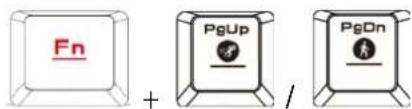
B. Six multimedia shortcut keys: Previous track, next track, play/pause, mute, decrease volume, increase volume

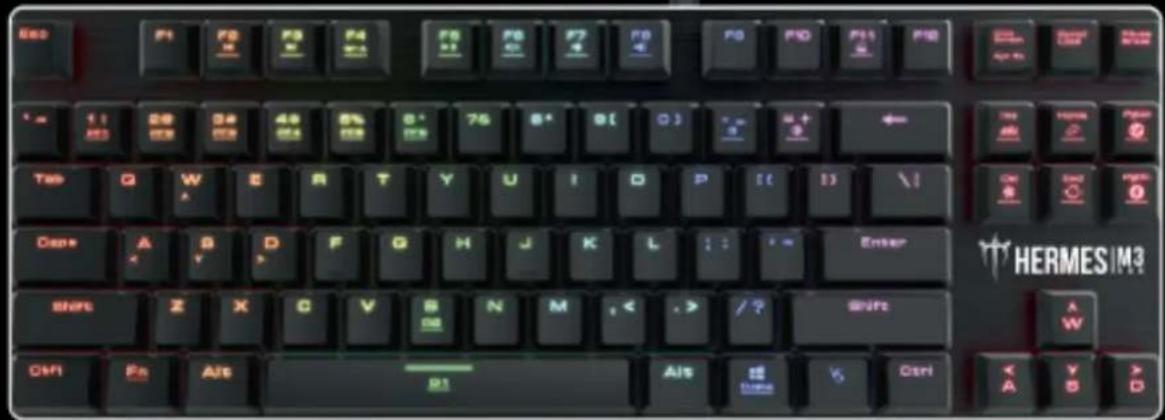
C. Four shortcut keys for switching among four keyboard light effects.( Wave, Rotation, Slide in, Static/Light off)

- (1) Additional light effect options require HERA support
- (2) Selected light effects will be auto saved in current profile
- (3) Direction of the Wave and Rotation light effects will be changed by pressing the FN and arrow key the same time.
D. Speed adjustment of shortcut key: There are 11 speed steps in existence (0~11 where 0 represents stop).
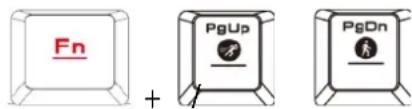
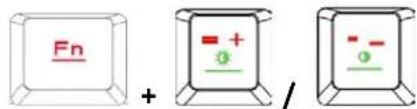
E. Keyboard backlight brightness level adjustment: [Fn + Num8] increases brightness, [Fn + Num2] decreases brightness. There are 4 phases for brightness level adjustment; OFF / 30% / 60% / 100%

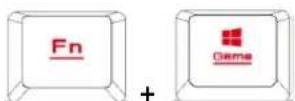
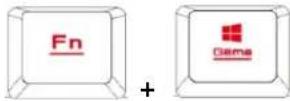
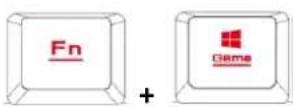
F. Game mode: Press [Fn + Win] once to lock the Windows key so there will be no response when it is pressed. Press again to unlock the key
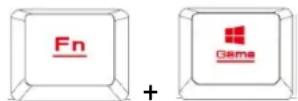
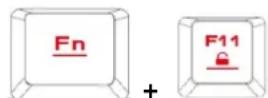
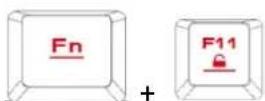
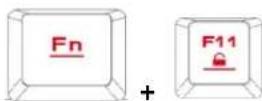
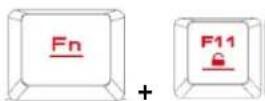
G. Lock keyboard keys: Press [Fn + F11] once to lock the keyboard keys so there will be no response when they are pressed. Press again to unlock the keys
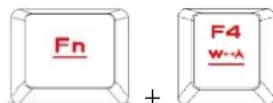
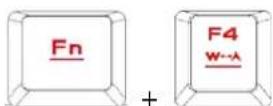
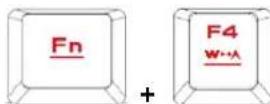
H. Swap between WASD and arrow key modes: Press [Fn + F4] once to enable swap mode. Press again to disable
I. On-The-Fly macro recording (OTF):
*[OTF record indicator] = LED on the top-right corner of the keyboard (Game light)
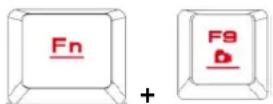
*[Fn + F9] = OTF Record on/off
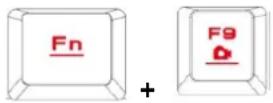
(1) Start OTF recording: Press [Fn +F9] and all keys will start flashing simultaneously.
(2) OTF recording: Enter the macro action (keyboard keys) to record
(3) End OTF recording: Press [Fn+F9] and all keys will start rapidly blinking
(4) Specify macro key: Press the key to execute the macro and all keys will return from rapidly blinking to their original indicator statuses
- To cancel OTF recording during the process, press [Fn + F9] after step (3) to cancel recording; at this time the all keys will return to their original statuses
- If no keys were pressed for 20 seconds during step (2) the macro recording process or step (4) specify macro key process, macro recording will end automatically and all keys will return to their original statuses
Register your GAMDIASTM HERMES M3 Mechanical Keyboard
Please visit www.GAMDIAS.com for online product registration
《ESPNOL》
F. Game mode: Press [Fn + Win] once to lock the Windows key so there will be no response when it is pressed. Press again to unlock the key
G. Lock keyboard keys: Press [Fn + F11] once to lock the keyboard keys so there will be no response when they are pressed. Press again to unlock the keys
H. Swap between WASD and arrow key modes: Press [Fn + F4] once to enable swap mode. Press again to disable
I. On-The-Fly macro recording (OTF):
*[OTF record indicator] = LED on the top-right corner of the keyboard (Game light)
^*[Fn + F9] = OTF Record on/off
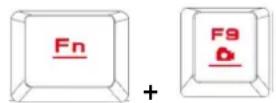
(1) Start OTF recording: Press [Fn +F9] and all keys will start flashing simultaneously
(2) OTF recording: Enter the macro action (keyboard keys) to record
(3) End OTF recording: Press [Fn+F9] and all keys will start rapidly blinking
(4) Specify macro key: Press the key to execute the macro and all keys will return from rapidly blinking to their original indicator statuses
- To cancel OTF recording during the process, press [Fn + F9] after step (3) to cancel recording; at this time the all keys will return to their original statuses
- If no keys were pressed for 20 seconds during step (2) the macro recording process or step (4) specify macro key process, macro recording will end automatically and all keys will return to their original statuses
Register your GAMDIASTM HERMES M3 Mechanical Keyboard
Please visit www.GAMDIAS.com for online product registration
《Italiano》
*[Fn+F9] = KhoNka 3aNNcN OTP
(1) 3aŋyctnte cnHxpoHHyIO 3aɪncb MaKpOca: NaJkMnTe KlaBnSi [Fn +F9]. Bce KlaBnSi HaHT OndHOBpeMeHNO MmTaTb.
(2) 3aIIuIte MaKpOc: BBeIITe Tpe6yEmbIe KOMaHdbI MaKpOca (HaXaB KJIaBnH NaKlaBnaType)
(3) 3aBepuTe cHxpoHHyU 3aHncb MaKpOca: HaxMITE KnaBnN [Fn +F9]. Bce KnaBnN NaHyT Yacto MnTaTb.
(4)Ha3NaUbTe KlaBnUy MaKpOca: HaxMMte KlaBnUy, c NOMoUbIO KOtOpO bYdet BbINOJHrTbcRA MaKpoc. Bce KlaBnUIN ppeKpaTyr qacto MIRaTb N BepHyTcB INCXODHOe COCTOHNu INDnKaun.
*Чтобл перваь поцess синхонн Запис мakрosa, нажмITE клавши [Fn + F9] посяша (3). Тогда ве Клавши Вер hyтсь в Incxodhoe coctordne.
* Ecn He HaxaTb Hkaknx KlaBnB TeueHne 20 cekyHd Ha Ware (2) npn 3annc MaKpocn nn Ha Ware (4) npn Ha3NaueHnn KlaBnSh MaKpoca, 3anscb MaKpoca aBTOMaTHueCKn PpeKpaTHTcR, n BCE KlaBnSh BepHyTCB INCXODHoe COCTOHNHe.
PerictpaunMexanhuecko hropoBKnlabnaTypbI GAMDIAS™ HERMES M3
Pnurlaaem Bac noceTb haw caT www.GAMDIAS.com dny perncptaun npoodykta
《中国》
GAMDIASTM HERMES M3 1I KI BOTrn to uJH HuaH.
HERMES M3 KI BOTrn HERMES SIRIZKI 1I KI BOTrn of kIboTrn of kIboTrn of kIboTrn of kIboTrn of kIboTrn of kIboTrn of kIboTrn of kIboTrn of kIboTrn of kIboTrn of kIboTrn of kIboTrn of kIboTrn of kIboTrn of kIboTrn of kIboTrn of kIboTrn of KIBOTrn of KIBOTrn of KIBOTrn of KIBOTrn of KIBOTrn of KIBOTrn of KIBOTrn of KIBOTrn of KIBOTrn of KIBOTrn of KIBOTrn of KIBOTrn of KIBOTrn of KIBOTrn of KIBOTrn of KIBOTrn of KIBOTrn of
F. [Fn + Win] Windows
G. anu wuww: n [Fn + F11] uuaaowamauwuw
H. nauwunwn WASD uanu: nui [Fn + F4] wannnnaaennnnn
I. mnnnnaaennnn (OTF):
Jusu aulil g ruiy GAMDIASTM HERA 4
Hermes M3
:PF1\~PF6Jusill aIilal Jyjia clda jao gao C. A

B
Gall

.
Static/Light off, Slide in, Rotation, Wave)

HERA
ylll l 10000000000000000000000000000000000000000000000000000000000
F N C 1500000000000000000000000000000000000000000000000000000000000000000000
(0111\~0):jaiy 11:
[Fn + Num2] y [Fn + Num8]: jaiy aaiy aaiy aaiy e ayu y uua. E
%%100/%60/%30/44! 2
Windows [Fn + Win]
2
[Fn+F11] 2
jiaol Jaaclly s jai ojo Inaiial. luei Inaiial
Jbual. Jusllg uucuul sry [Fn+F4] 1e Juaal: wASD ciaa eauo jy
jess
:OTF)On-The-FlySloJ.1
(a)(g))
OTF 山 _ 山 1/] = [Fn + F9]*
J Fn+F9] 1 OTF: (1)
aalalalalalalalalalalalalalalalalalalalal
GAMDIASTM Hermes M3aL
zjy jlll www.GAMDIAS.com

GAMDIAS
GAMING ART IN MOTION
- Mechanical Gaming Keyboard
- 《English》
- System Requirements
- Package Contents
- Hardware and Software Installation
- Introduction to HERMES M3 Keyboard Configuration
- 《ESPNOL》
- On-The-Fly macro recording (OTF):
- Register your GAMDIASTM HERMES M3 Mechanical Keyboard
- 《Italiano》
- PerictpaunMexanhuecko hropoBKnlabnaTypbI GAMDIAS™ HERMES M3
- GAMDIAS
Brand : Gamdias
Model : Hermes M3
Category : Keyboard