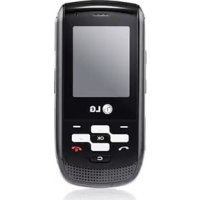
KP265C - Phone LG - Free user manual and instructions
Find the device manual for free KP265C LG in PDF.



| Features | Details |
|---|---|
| Model | LG KP265C |
| Phone type | Mobile phone |
| Dimensions | 107 x 50 x 14 mm |
| Weight | 90 g |
| Screen | TFT screen, 2.0 inches, 240 x 320 pixels |
| Battery capacity | 950 mAh |
| Standby time | Up to 300 hours |
| Talk time | Up to 8 hours |
| Camera | 2 MP |
| Connectivity | GPRS, Bluetooth |
| Internal storage | 512 MB |
| Memory expansion | MicroSD card up to 8 GB |
| Operating system | Proprietary |
| Additional features | FM radio, MP3 player |
| Maintenance | Regular cleaning, software update if available |
| Security | PIN code lock, password protection |
| General information | Check network compatibility before purchase |
Frequently Asked Questions - KP265C LG
User questions about KP265C LG
0 question about this device. Answer the ones you know or ask your own.
Ask a new question about this device
Download the instructions for your Phone in PDF format for free! Find your manual KP265C - LG and take your electronic device back in hand. On this page are published all the documents necessary for the use of your device. KP265C by LG.
USER MANUAL KP265C LG
LG ELECTRONICS PANAMA, S.A. (LGEPS) guarantees this product (including its battery and original accessories) against production defects and labor as follows:
- LABOR: If this product is found to be faulty within a period of one (1) year from the date the consumer purchased the new product, LGEPS shall bear the costs for repair at the Authorized Service Centers designated for these purposes in each country. Once the warranty period has expired, LGEPS shall no longer be liable for labor costs.
- PARTS: If this product is found to be faulty within a period of one (1) year from the date the consumer purchased the new product, LGEPS shall bear the cost of new parts purchased at the Authorized Service Centers designated for these purposes in each country. Once the warranty period has expired, LGEPS shall no longer be liable for the cost of parts.
- BATTERIES AND ACCESSORIES: If this product is found to be faulty within a period of six (6) months from the date the consumer purchased the new product, LGEPS shall bear the cost of new parts purchased at the Authorized Service Centers designated for these purposes in each country. Once the warranty period has expired, LGEPS shall no longer be liable for the cost of batteries and accessories.
Exclusions from the Warranty. This Warranty does not provide cover for the following situations:
a. Any damage caused by negligence, incompetence, or non-compliance with the telephone user manual.
b. Damage caused by contact with liquids, food, or corrosion of metal parts.
c. Damage caused by the penetration of foreign bodies into the product such as sand and insects.
d. Improper installation of the equipment.
e. Damage caused to telephones for commercial use (hired equipment).
f. The use of non-original accessories.
g. Damage caused to telephones that have been submitted for repair work and upgrades, or that have been opened for the installation of accessories, carried out by personnel other than those at the service centers authorized by LGEPS.
h. Modifi cations to voltage conversion or frequency of the equipment.
i. Damage caused by connections to inappropriate voltages.
j. Damage caused by the SIM card. The Warranty does not cover any incidental damage such as loss of profits and/or loss of opportunity due to the loss of information contained on the user's SIM card.
k. Deterioration of the equipment's external surfaces due to normal wear and tear.
I. Cosmetic damage, damage caused by incidents, or force due to major or unforeseeable events.
m. In cases where the serial number assigned by the factory has been altered or removed from the product.
n. When the battery seals are broken, wet, or damp.
0. When the battery has been charged using a charger that was not manufactured by LG Electronics Inc. or its subsidiaries.
p. When the battery has been used in equipment other than that for which it was intended.
q. When the equipment label is illegible, missing, or has been altered.
Replacement products: Those products delivered as a replacement for a faulty product shall come with a one-year (1-year) warranty, valid from the date the first product was purchased, except in those countries and states where the law forbids it.
REPAIR OR REPLACEMENT OF THE PRODUCT, AS SET OUT IN THIS CERTIFICATE, IS THE ONLY COMPENSATION THAT THE CONSUMER SHALL RECEIVE. LGEPS SHALL NOT BE LIABLE FOR INCIDENTAL OR CONSEQUENTIAL DAMAGE DUE TO NON-COMPLIANCE WITH THIS WARRANTY.
EXCEPT IN CASES WHERE IT IS EXPRESSLY PROHIBITED BY THE LAW IN THE COUNTRY WHERE THE PRODUCT WAS PURCHASED, ANY IMPLIED WARRANTY OF MERCHANTABILITY OR FITNESS FOR A PARTICULAR PURPOSE ON THIS PRODUCT SHALL BE LIMITED IN DURATION TO THE TERM OF THIS WARRANTY.
This Warranty shall be valid in the country the product was purchased. You may have other rights depending on the country in which the product was purchased. This Warranty is not valid internationally. You may not make a claim in a country other than the country the product was purchased. Some countries and states do not permit the exclusion or limitation of incidental or consequential damage or permit some limitation with regard to the duration of the implied warranty. As such, the limitations and exclusions set out above may not apply.
To validate the Warranty, you must present the purchase invoice or receipt of payment and this warranty certificate.
For more information, please contact us at http://pa.lge.com or call the following telephone numbers:
PANAMA: 800-5454, ECUADOR: 800-545454, VENEZUELA: 800-5424477, GUATEMALA: 1801-422LGLG(5454), COSTA RICA: 256-6878, 256-3396
KP265c User Guide
- ENGLISH
Contents
Introduction 6
For your safety 7
Guidelines for safe and efficient use 8
KP265c features 13
Parts of the phone
Display Information 17
On-Screen Icons
Installation 19
Installing the SIM card and the handset battery
Charging the Battery 21
Disconnecting the charger 22
Turning Handset ON/OFF
General functions 23
Making a Call
Answering a Call 24
In-call menu 25
During a Call
Conference Calls 26
Menu Tree 28
SIM Service 30
Call history 31
All calls
Missed calls
Dialed calls
Received calls
Call duration 32
GPRS Information
Organizer 33
Calendar
Memo
Todo
Multimedia 34
MP3 player
Camera 35
Video camera 37
FM Radio
Voice recorder 38
Messages 39
New message
Inbox 40
Bluetooth box 41
Drafts
Outbox
Sent
Listen to voice mail 42
Info messages
Templates 43
Settings 44
Contents
| My stuff 46 Images Sounds | |
| Videos | 47 |
| Others Games & Apps External memory | |
| Profiles | 48 |
| Contacts Search | 49 |
| New contact Speed dial | |
| Groups | 50 |
| Copy all Delete all Settings Information | |
| Fun & Tools 52 |
| Favorites |
| Alarm clock |
| Calculator |
| Stopwatch |
| Unit converter |
| World clock 53 |
| SIM services |
| Live | 54 |
| Home | |
| Yahoo! oneSearch 55 | |
| Bookmarks | |
| Enter address | |
| History | |
| Saved pages | |
| Settings | |
| Information | 56 |
Connectivity 57
Bluetooth
Network
USB connection 60
Settings 61
Date & Time
Languages
Display
Call 62
Shortcut 64
Security
Flight mode 65
Power save 66
Master reset
Memory status
Accessories 67
Introduction
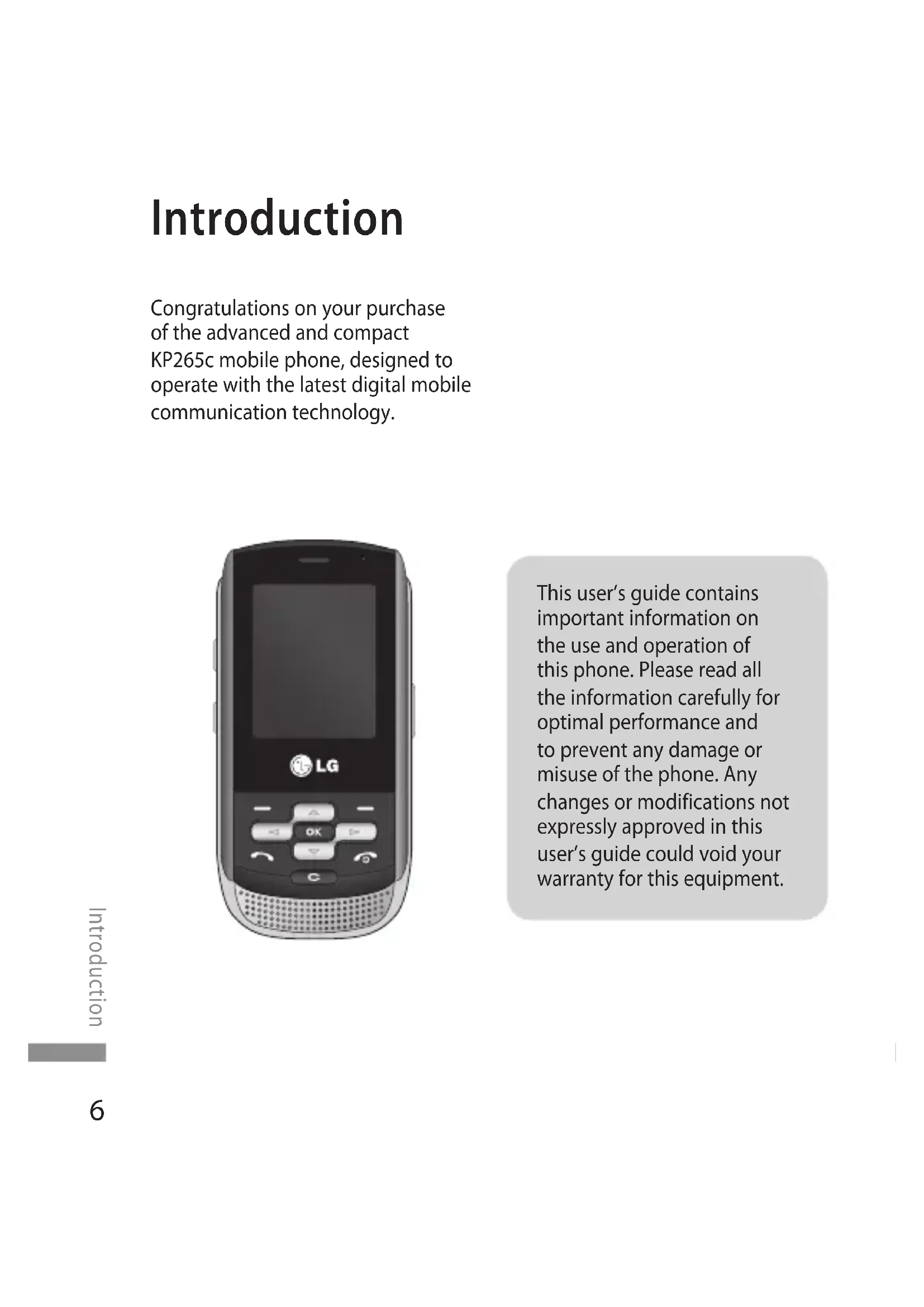
Congratulations on your purchase of the advanced and compact KP265c mobile phone, designed to operate with the latest digital mobile communication technology.
This user's guide contains important information on the use and operation of this phone. Please read all the information carefully for optimal performance and to prevent any damage or misuse of the phone. Any changes or modifications not expressly approved in this user's guide could void your warranty for this equipment.
For your safety
Warning!
- Mobile Phones must be switched off at all times in aircrafts.
- Do not hold the phone in your hand while driving.
- Do not use your phone near petrol stations, fuel depots, chemical plants or blasting operations.
- For your safety, use ONLY specified ORIGINAL batteries and chargers.
- Do not handle the phone with wet hands while it is being charged. It may cause an electric shock or seriously damage your phone.
- Keep the phone in a safe place out of small children's reach. It includes small parts which, if detached, may cause a choking hazard.
- Not to charge a handset near flammable material as the handset can get hot and smoulder the material, hence possible house fire.
Caution!
- Switch off the phone in any area where required by special regulations. For example, do not use your phone in hospitals or it may affect sensitive medical equipment.
- Emergency calls may not be available under all mobile networks. Therefore, you should never depend solely on your mobile phone for emergency calls.
- Only use ORIGINAL accessories to avoid damage to your phone.
- All radio transmitters carry risks of interference with electronics in close proximity. Minor interference may affect TVs, radios, PCs, etc.
- Batteries should be disposed off in accordance with relevant legislation.
- Do not dismantle the phone or battery.
- Risk of explosion if battery is replaced by an incorrect type.
Guidelines for safe and efficient use
Please read these simple guidelines. Not following these guidelines may be dangerous or illegal. Further detailed information is given in this manual.
Exposure to radio frequency energy
Radio wave exposure and Specific Absorption Rate (SAR) information
This mobile phone model KP265c has been designed to comply with applicable safety requirements for exposure to radio waves. This requirement is based on scientific guidelines that include safety margins designed to assure the safety of all persons, regardless of age and health.
The radio wave exposure guidelines employ a unit of measurement known as the Specific Absorption Rate, or SAR. Tests for SAR are conducted using standardised methods with the phone transmitting at its highest certified power level in all used frequency bands.
- While there may be differences between the SAR levels of various LG phone models, they are all designed to meet the relevant guidelines for exposure to radio waves.
The SAR limit recommended by the International Commission on Non-Ionizing Radiation Protection (ICNIRP) is 2W / kg averaged over ten (10) gram of tissue.
SAR data information for residents in countries/regions that have adopted the SAR limit recommended by the Institute of Electrical and Electronics Engineers (IEEE), which is 1.6W / kg averaged over one (1) gram of tissue (for example USA, Canada, Australia and Taiwan).
Product care and maintenance
Warning!
Only use batteries, chargers and accessories approved for use with this particular phone model. The use of any other types may invalidate any approval or warranty applying to the phone, and may be dangerous.
Do not disassemble this unit. Take it to a qualified service technician when repair work is required.
- Keep away from electrical appliances such as TVs, radios or personal computers.
The unit should be kept away from heat sources such as radiators or cookers.
- Never place your phone in a microwave oven as it will cause battery to explode.
Do not drop.
Do not subject this unit to mechanical vibration or shock.
The coating of the phone may be damaged if covered with wrap or vinyl wrapper.
Do not use harsh chemicals (such as alcohol, benzene, thinners, etc.) or detergents to clean your phone. There is a risk of this causing a fire.
Do not subject this unit to excessive smoke or dust.
Do not keep the phone next to credit cards or transport tickets; it can affect the information on the magnetic strips.
Do not tap the screen with a sharp object as it may damage the phone.
Do not expose the phone to liquid or moisture.
Use accessories, such as earphones and headsets, with caution. Ensure that cables are tucked away safely and do not touch the antenna unnecessarily.
Please remove the data cable before powering on the handset.
Guidelines for safe and efficient use
Electronic devices
All mobile phones may get interference, which could affect performance.
Do not use your mobile phone near medical equipment without requesting permission. Avoid placing the phone over pacemakers (i.e. in your breast pocket.)
Some hearing aids might be disturbed by mobile phones.
- Minor interference may affect TVs, radios, PCs, etc.
Road safety
Check the laws and regulations on the use of mobile phones in the areas when you drive.
Do not use a hand-held phone while driving.
Give full attention to driving.
Use a hands-free kit, if available.
Pull off the road and park before making or answering a call if driving conditions so require.
RF energy may affect some electronic systems in your motor vehicle such as a car stereo or safety equipment.
If your vehicle is equipped with an air bag, do not obstruct it with installed or portable wireless equipment. It can cause serious injury due to improper performance.
If you are listening to music whilst out and about, please ensure that the volume is at a reasonable level so that you are aware of your surroundings. This is particularly imperative when attempting to cross the street.
Avoid damage to your hearing
Damage to your hearing can occur if you are exposed to loud sound for long period of time. We therefore recommend that you do not turn on or off the handset close to your ear. We also recommend that music and call volumes are set to a reasonable level.
Blasting area
Do not use the phone where blasting is in progress. Observe restrictions, and follow any regulations or rules.
Potentially explosive atmospheres
Do not use the phone at a refuelling point. Don't use near fuel or chemicals.
- Do not transport or store flammable gas, liquid, or explosives in the compartment of your vehicle, which contains your mobile phone and accessories.
In aircraft
Wireless devices can cause interference in aircraft.
- Turn off your mobile phone before boarding any aircraft.
Do not use it on the ground without crew permission.
Children
Keep the phone in a safe place out of small children's reach. It includes small parts which if detached may cause a choking hazard.
Emergency calls
Emergency calls may not be available under all mobile networks. Therefore, you should never depend solely on your mobile phone for emergency calls. Check with your local service provider.
Guidelines for safe and efficient use
Battery information and care
You need not completely discharge the battery before recharging. Unlike other battery systems, there is no memory effect that could compromise the battery's performance.
- Use only LG batteries and chargers. LG chargers are designed to maximize the battery life.
Do not disassemble or short-circuit the battery pack.
- Keep the metal contacts of the battery pack clean.
Replace the battery when it no longer provides acceptable performance. The battery pack may be recharged hundreds of times until it needs replacing.
- Recharge the battery if it has not been used for a long time to maximize usability.
Do not expose the battery charger to direct sunlight or use it in high humidity, such as the bathroom.
Do not leave the battery in hot or cold places, this may deteriorate the battery performance.
Risk of explosion: If battery is replaced by an incorrect type.
- Dispose of used batteries according to the manufacturer's instructions.
If you need to replace the battery, take it to the nearest authorized LG Electronics service point or dealer for assistance.
Always unplug the charger from the wall socket after the phone is fully charged to save unnecessary power consumption of the charger.
KP265c features
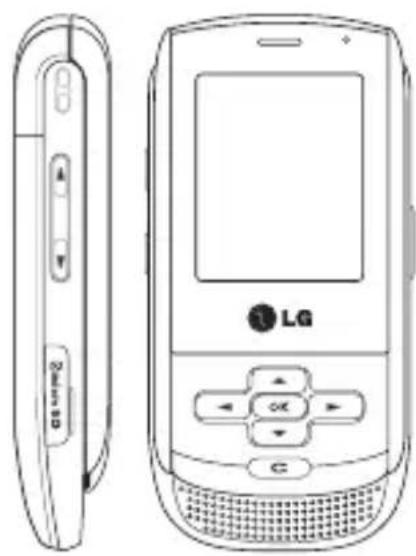
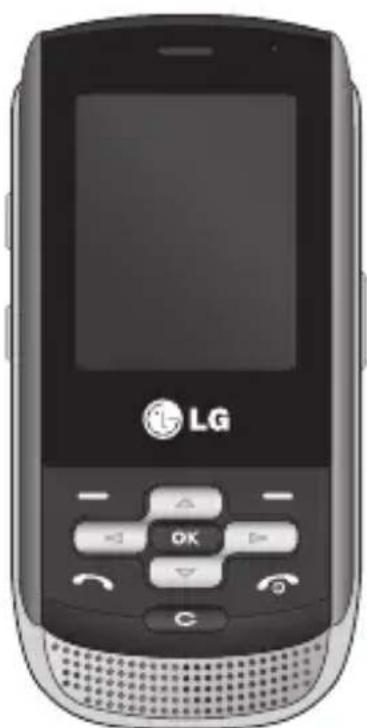
Parts of the phone
Front view
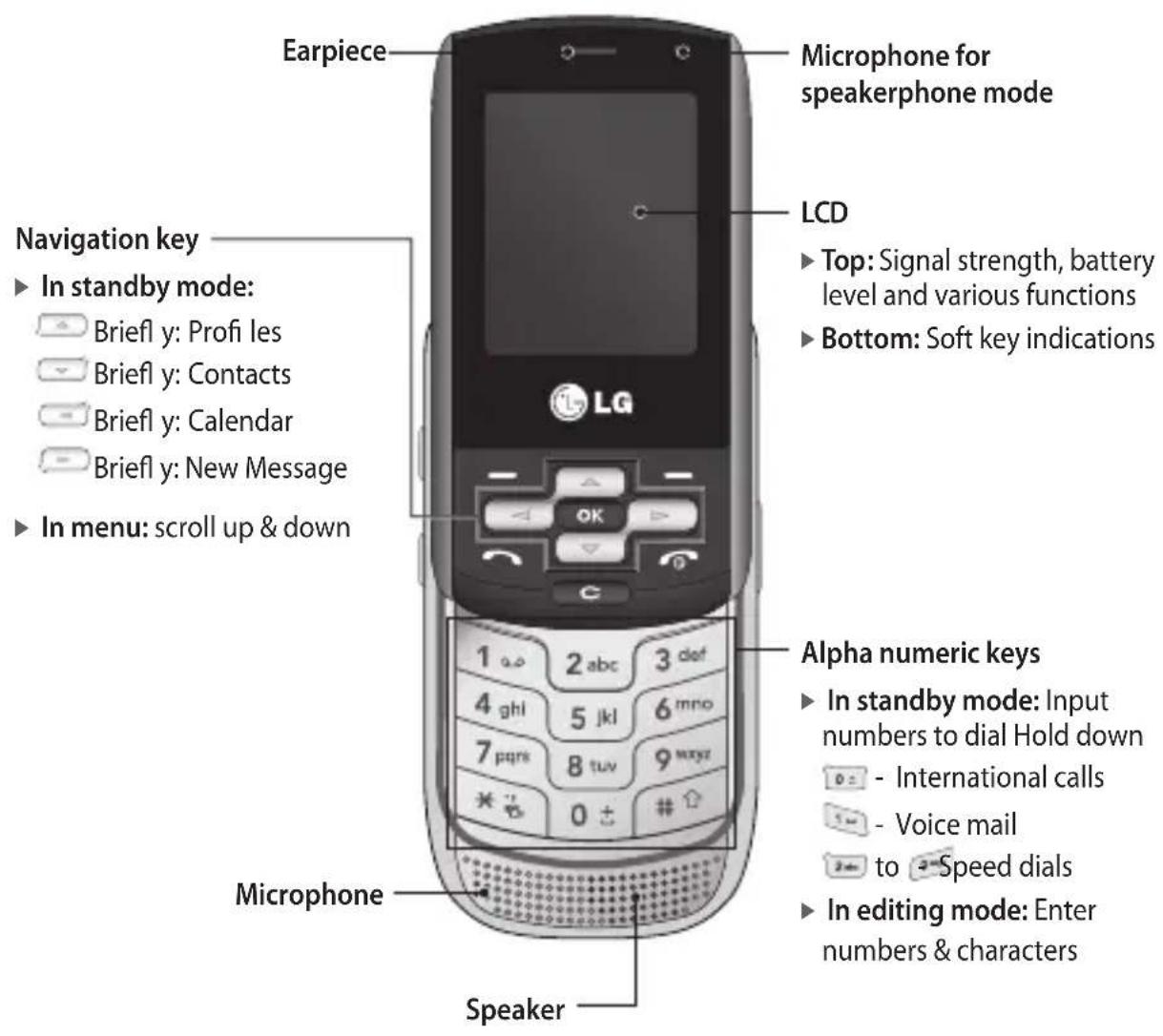
KP265c features
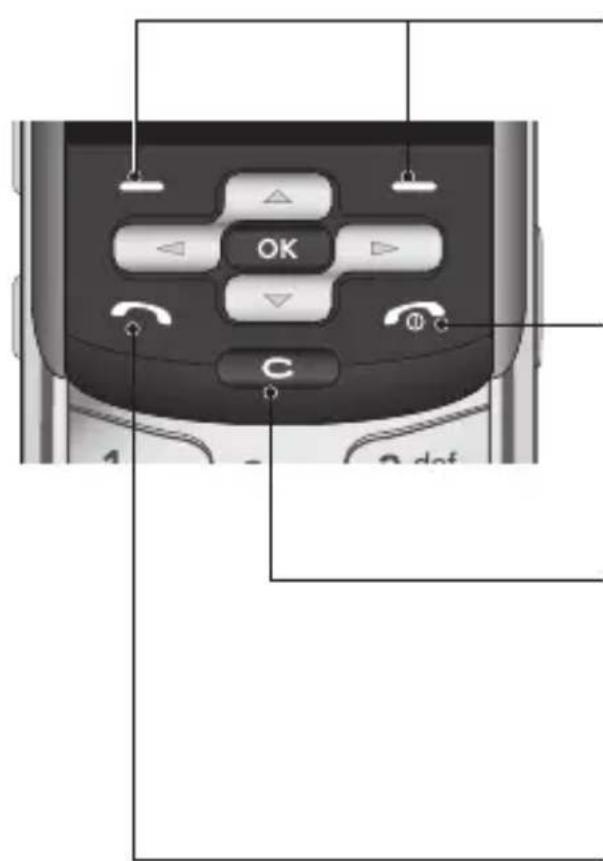
Left soft key/Right soft key
These keys performs the function indicated in the bottom of the display.
End key
Switch on/off (hold down)
End or reject a call.
Clear key
Deletes a character with each press. Hold the key down to clear all input. Use this key to go back to a previous screen.
Send key
▶ Dial a phone number and answer a call.
In standby mode: Shows recently dialed, received and missed call list.
Left side view Right side view
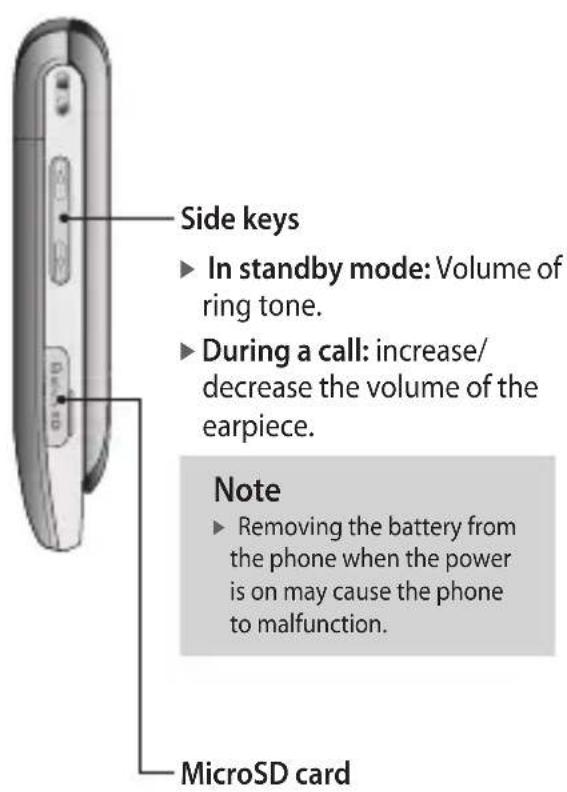
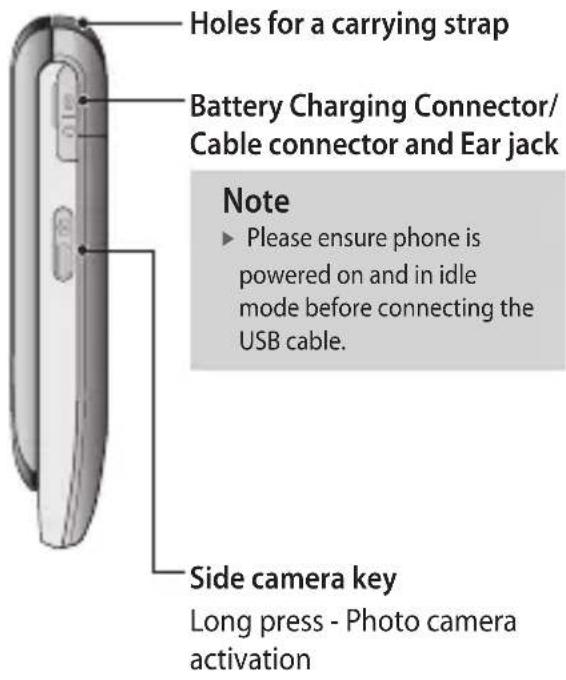
KP265c features
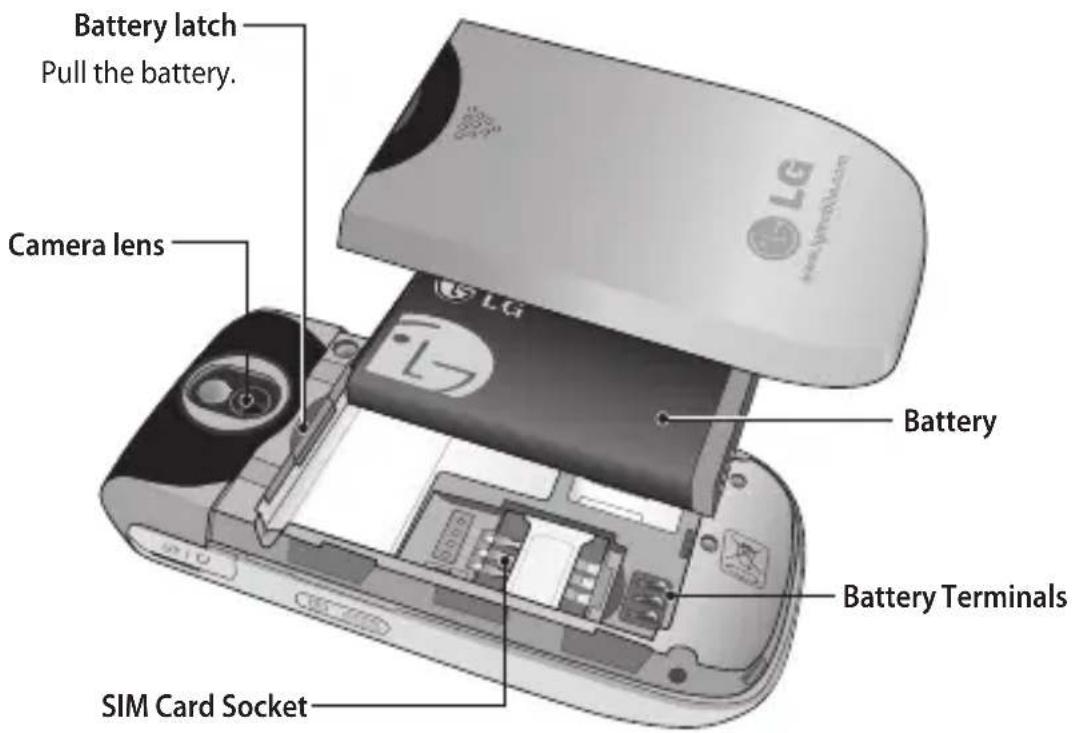
Rear view
Display Information
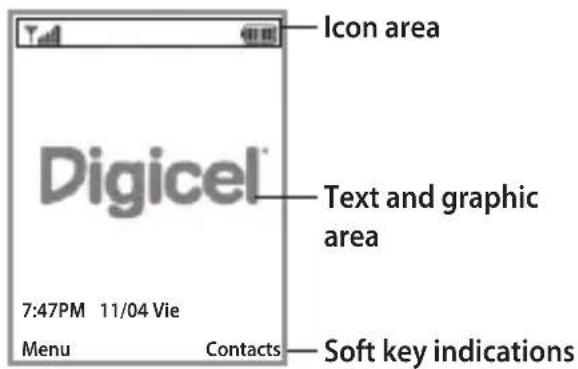
| Area Description | |
| First line Displays various icons. | |
| Middle lines | Display messages, instructions and any information that you enter, such as numbers dialed. |
| Last line Shows the functions currently assigned to the two soft keys. | |
The screen displays several icons. These are described below.
On-Screen Icons
| Icon Description | |
| Y. | Tells you the strength of the network signal. |
| R | Shows that you are using a roaming service. |
| The alarm has been set and is on. | |
| Tells you the status of the battery. | |
| You have received a text message. | |
| You have received a voice message. | |
| Schedule | |
| External memory | |
| Flight mode | |
| WAP Connection | |
| EDGE available | |
| GPRS available | |
| Calling | |
KP265c features
| Icon Description | |
| √ | General option in Profi les. |
| Silent option in Profi les. | |
| Vibrate only option in Profi les. | |
| √√ | Outdoor option in Profi les. |
| Headset option in Profi les. | |
| You can divert a call. | |
| You have activated Bluetooth connectivity. | |
| Bluetooth searching | |
| Bluetooth headset is connected | |
| Bluetooth fi le transfer with computer | |
- The quality of the conversation may change depending on network coverage. When the signal strength is below 2 bars, you may experience muted, call drop and poor audio. Please refer to this signal as an indicator for your calls. When there are no bars, that means that there is no network coverage: in this case, you won't be able to access the network for any service (call, messages and so on).
Installation
Installing the SIM card and the handset battery
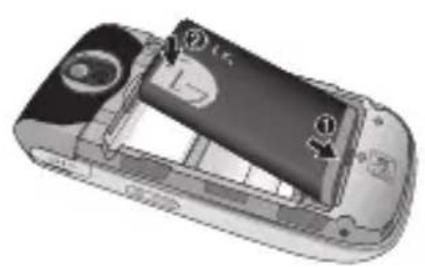
Make sure the power is off before you remove the battery.
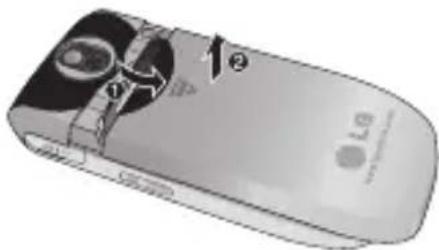
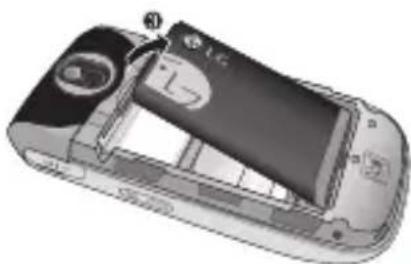
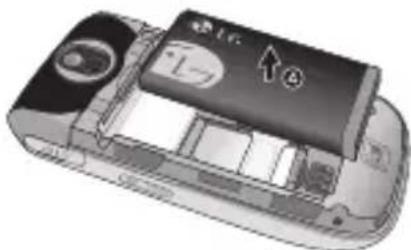
1. Remove the battery.
Slide down the battery cover and pull out the battery.
Note
- Removing the battery from the phone when the power is on may cause the phone to malfunction.
2. Install the SIM card.
Insert and slide the SIM card into the SIM card holder. Make sure that the SIM card is inserted properly and that the gold contact area on the card is facing downwards. To remove the SIM card, press down lightly and pull it in the reverse direction.
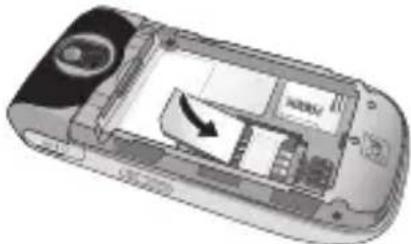
To insert the SIM card
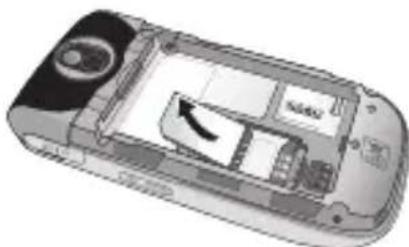
To remove the SIM card
Installation
Note
The metal contact of the SIM card can be easily damaged by scratches. Pay special attention to the SIM card while handling. Follow the instructions supplied with the SIM card.
Warning!
- Do not replace or remove the SIM card while your phone is being used or turns on, or data on the SIM card might be damaged.
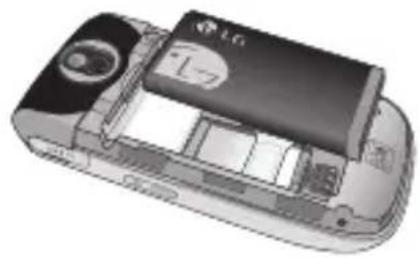
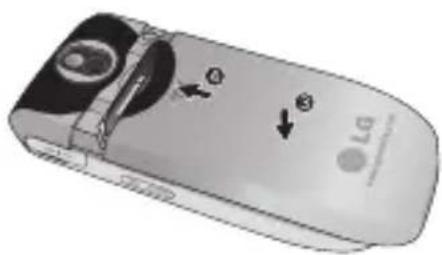
3. Install the battery.
Insert the battery onto the back of the phone, and push the battery cover upwards until it snaps back into place.
Charging the Battery
Before connecting the travel adapter to the phone you must first install the battery.
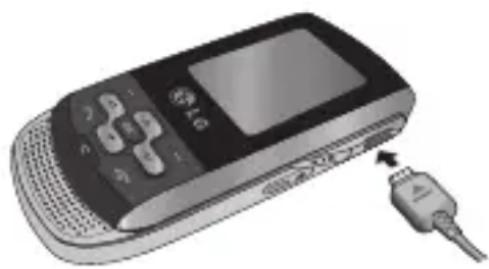
- Ensure the battery is fully charged before using the phone for the first time.
- With the arrow facing you as shown in the diagram push the plug on the travel adapter into the socket on the side of the phone until it clicks into place.
- Connect the other end of the travel adapter to the main socket. Use only the charger included in the box.
- The moving bars of battery icon will stop after charging is complete.
Caution!
- If the battery is completely discharged, the charging display will appear on the LCD approximately 1 to 1.5 minutes after connecting TA.
- Do not force the connector as this may damage the phone and/or the travel adapter.
- Insert the battery pack charger vertically to wall power outlet.
- If you use the battery pack charger out of your own country, use an attachment plug adaptor for the proper configuration.
- Do not remove your battery or the SIM card while charging.
Warning!
- Unplug the power cord and charger during lightning storms to avoid electric shock or fire.
- Make sure that no sharp-edged items such as animal teeth or nails, come into contact with the battery. There is a risk of this causing a fire.
Installation
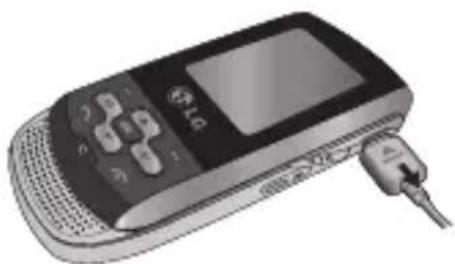
Disconnecting the charger
Disconnect the charger from the phone by pulling the connector, not the cord.
Turning Handset ON/OFF
Turning your Handset On
Ensure that your SIM card is in your handset and the battery is charged. Press and hold until the power comes on. Enter the SIM PIN code that was supplied with your SIM card if the PIN code request is set to Enable.
After a few seconds you will be registered on the network.
Turning your Handset Off
Press and hold until the power goes off. There may be a few seconds delay while the handset powers down. Do not turn the handset on again during this time.
General functions
Making a Call
- Make sure your phone is powered On.
- Enter a phone number including the area code. To edit a number on the display screen, simply press the key to erase one digit at a time.
Press and hold the key to erase the entire number.
- Press the key to call.
- When you want to finish, press the key.
Making a Call by Send Key
- Press the key, and the most recent incoming, outgoing and missed phone numbers will be displayed.
- Select the desired number by using the navigation key.
- Press the key.
Making International Calls
- Press and hold the key for the international prefix. The + character can be replaced with the international access code.
- Enter the country code, area code, and the phone number.
- Press the key.
Ending a Call
When you have finished a call, press the key.
Making a Call From the Contact list
You can store names and phone numbers dialed frequently in the SIM card as well as the phone memory.
You can dial a number by simply looking up a name in the contact list.
General functions
Adjusting the Volume
During a call, if you want to adjust the earpiece volume, use the side keys of the phone.
In idle mode, you can adjust the ring tone volume using the side keys.
Answering a Call
When you receive a call, the phone rings and the flashing phone icon appears on the screen. If the caller can be identified, the caller's phone number (picture or name if stored in your Address Book) is displayed.
- Slide up and press the key or the left soft key to answer an incoming call. If the Press any key menu option (Menu #.4.4.2) has been set, any key press will answer a call except for the key or the right soft key.
- End the call by closing the phone or pressing the key.
Note
- You can answer a call while using the Address Book or other menu features. In case phone is connected with PC via USB cable, call and messages are not available.
In-call menu
Your phone provides a number of control functions that you can use during a call. To access these functions during a call, press the left soft key [Options].
During a Call
The menu displayed on the handset screen during a call is different than the default main menu displayed when in idle screen, and the options are described below.
Making a Second Call (Network Dependent)
You can search and dial the number from Address Book to make a second call.
Swapping Between Two Calls
To switch between two calls, press key or the left soft key, and then select Swap Call.
Answering an Incoming Call
To answer an incoming call when the handset is ringing, simply press the key. The handset is also able to warn you of an incoming call while you are already on a call. A tone sounds in the earpiece, and the display will show that a second call is waiting.
This feature, known as Call waiting, is only available if your network supports it. For details of how to activate and deactivate it see Call waiting (Menu #.4.6).
If Call Waiting is On, you can put the first call on hold and answer the second, by pressing the left soft key
Rejecting an Incoming Call
You can reject an incoming call without answering by simply pressing the key.
During a call, you can reject an incoming call by pressing the key.

In-call menu
Conference Calls
The conference service provides you with the ability to have a simultaneous conversation with more than one caller, if your network service provider supports this feature. A conference call can only be set up when you have one active call and one call on hold, both calls having been answered.
Once a conference call is set up, calls may be added, disconnected or separated (that is, removed from the conference call but still connected to you) by the person who set up the conference call. These options are all available from the In-Call menu. The maximum callers in a conference call are five. Once started, you are in control of the conference call, and only you can add calls to the conference call.
Making a Second Call
You can make a second call while currently in call. Enter the second number and press the key.
When the second call is connected, the first call is automatically placed on hold. You can swap between calls, by pressing the key.
Setting Up a Conference Call
To set up a conference call, place one call on hold and while the active call is on, press the left soft key and then select Join calls.
Activate the Conference Call on Hold
To activate a conference call on hold, press the key. Alternatively press the left soft key [Options] and select Retrieve call/Hold all calls. Other users on hold will stay connected.
Adding Calls to the Conference Call
To add a call to an existing conference call, press the left soft key, and then select the Join menu of Conference call.
Private Call in a Conference Call
To have a private call with one caller from a conference call, display the number of the caller you wish to talk to on the screen, then press the left soft key. Select the Private from the Conference call menu to put all the other callers on hold.
Ending a Conference Call
Currently displayed caller from a conference call can be disconnected by pressing the key.
Menu Tree
The menu in this phone can be displayed in 2 ways. One is by grid type and secondly by list view type. Please note that menu number options are different in each view.
The default setting on the phone is set to show the menu in grid type, so therefore all the menu number selections throughout the manual are shown according to that setting.
The following illustration shows the available menu structure and indicates the:
Number assigned to each menu option.
Page where you can find the feature description.
You can go to the desired menu using the left soft key [Menu], navigation keys and the [OK] key. And you can also take a shortcut by pressing the corresponding number key of desired menu after pressing the left soft key [Menu].
| 1. SIM Service |
| 2. Call history |
| 2.1 All calls 2.2 Missed calls 2.3 Dialed calls 2.4 Received calls 2.5 Call duration 2.6 GPRS Information |
| 3. Organizer |
| 3.1 Calendar 3.2 Memo 3.3 To do |
| 4. Multimedia |
| 4.1 MP3 player 4.2 Camera 4.3 Video camera 4.4 FM Radio 4.5 Voice recorder |
| 5. Messages |
| 5.1 New message |
| 5.2 Inbox |
| 5.3 Bluetooth box |
| 5.4 Drafts |
| 5.5 Outbox |
| 5.6 Sent |
| 5.7 Listen to voice mail |
| 5.8 Info messages |
| 5.9 Templates |
| 5.0 Settings |
| 6. My stuff |
| 6.1 Images |
| 6.2 Sounds |
| 6.3 Videos |
| 6.4 Others |
| 6.5 Games & Apps |
| 6.6 External memory |
| 7. Profiles |
| 7.1 General |
| 7.2 Silent |
| 7.3 Vibrate only |
| 7.4 Outdoor |
| 7.5 Headset |
| 8. Contacts |
| 8.1 Search |
| 8.2 New contact |
| 8.3 Speed dial |
| 8.4 Groups |
| 8.5 Copy all |
| 8.6 Delete all |
| 8.7 Settings |
| 8.8 Information |
| 9. Fun & Tools |
| 9.1 Favorites |
| 9.2 Alarm clock |
| 9.3 Calculator |
| 9.4 Stopwatch |
| 9.5 Unit converter |
| 9.6 World clock |
| 9.7 SIM services |
| *.Live |
| *.1 Home |
| *.2 Yahoo! oneSearch |
| *.3 Bookmarks |
| *.4 Enter address |
| *.5 History |
| *.6 Saved pages |
| *.7 Settings |
| *.8 Information |
| 0. Connectivity |
| 0.1 Bluetooth 0.2 Network 0.3 USB connection |
| #. Settings |
| #.1 Date & Time #.2 Languages #.3 Display #.4 Call #.5 Shortcut #.6 Security #.7 Flight mode #.8 Power save #.9 Master reset #.0 Memory status |
SIM Service
This feature depends on SIM and the network services.
In case the SIM card supports SAT (i.e. SIM Application Toolkit) services, this menu will be the operator specific service name stored on the SIM card.
Call history
You can check the record of missed, received, and dialed calls only if the network supports the Calling Line Identification (CLI) within the service area.
The number and name (if available) are displayed together with the date and time at which the call was made. You can also view the number of times you have called.
All calls
Menu 2.1
You can view all lists of outgoing, missed and incoming calls.
Missed calls
Menu 2.2
This option lets you view the last 50 unanswered calls. You can also:
View the number if available and call it, or save it in the Address Book
Enter a new name for the number and save in the Address Book
Send a message by this number
Delete the call from the list
Dialed calls
Menu 2.3
This option lets you view the last 50 outgoing calls (called or attempted). You can also:
View the number if available and call it or save it in the Address Book
Enter new name for the number and save in the Address Book
Send a message by this number
Delete the call from the list
Received calls
Menu
2.4
This option lets you view the last 50 incoming calls. You can also:
View the number if available and call it or save it in the Address Book
Enter new name for the number and save both in the Address Book
Send a message by this number
Delete the call from the list
Call history
Call duration
Menu 2.5
Allows you to view the duration of your incoming and outgoing calls. You can also reset the call timers.
The following timers are available:
Last call: Length of the last call.
All calls: Total length of all calls made and incoming calls since the timer was last reset.
Sent calls: Length of the outgoing calls.
Received calls: Length of the incoming calls.
GPRS Information
Menu 2.6
You can check the amount of data transferred over the network through the GPRS information option.
In addition, you can also view how much time you were Online.
Organizer
Calendar
Menu 3.1
When you enter this menu a calendar will show up. On top of the screen there are sections for date. Whenever you change the date, the calendar will be updated according to the date. And square cursor will be used to locate the certain day. If you see marked date in the calendar, it means that there is a schedule on that day. This function helps to remind you of your schedule and memo.
To change the day, month, and year.
Key Description

Yearly

Monthly

Weekly

Daily
In the scheduler mode, press left soft key [Options].
Memo
Menu 3.2
- Select the Memo by pressing the left soft key [OK].
- If the entry is empty, press the left soft key [New].
- Input the memo and then press left soft key [Options] > [Save].
Note
If you want to change the text input mode, press the in order.
To do
Menu 3.3
You can view and create To do notes.
- Select the To do by pressing the left soft key [OK].
- If the note is not created yet, press the left soft key [New].
- Input the to do and then press the left soft key [Options] > [Save].
Multimedia
You can enjoy your multimedia function such as camera, voice recorder, MP3 for your fun and convenience.
Note
When the status of the battery indicates low, you may not use Camera or Multimedia function.
While using Multimedia function, the status of the battery is changeable.
MP3 player
Menu 4.1
The KP265c has an integrated MP3 player built-in.
You can enjoy listening to MP3 music files on your phone using a compatible headset or via the internal loudspeaker.
Note
Because of the small dimension of the speaker, in some cases the audio could be distorted, especially at maximum volume and when there are lots of bass sounds. Therefore, we recommend you to use the stereo headset in order to appreciate the high quality of your music.
You can transfer MP3 files from a compatible PC to the memory in your phone using the Mass Storage.
When you connect the phone to a PC using the USB cable, and then you can show removable disk through windows explorer. After you copy songs in removable disk, you should execute safe remove from your system.
Note
- You should copy MP3 to Sounds/MP3 folder. If you copy to another folder, you can't see MP3 files.
The PC should run Windows 98 SE, Windows ME, Windows 2000, Windows XP operating system.
Music is copyright protected in international treaties and national copyright laws. It may be necessary to obtain permission or a license to reproduce or copy music. In some countries national law prohibits private copying of copyrighted material. Please check the national legislation of the applicable country concerning the use of such material.
Camera
Menu 4.2
Using the camera module built in your phone, you can take pictures of people. Additionally, you can send photos to other people and select photos as wallpaper.
Note
When using the camera, power consumption increases. If this icon appears on the wallpaper, indicating low battery, recharge the battery before use.
To take a picture
Hold down the camera button.
- To take clear pictures, press the camera button while holding the camera without any movement.
- Appropriately adjust distance to the object that you want take a picture of (more than 50~cm ).
- Handle carefully since the camera is vunerable to shock and use a soft cloth when cleaning the camera lens.
- Do not disassemble or modify the camera as this may lead to fire or malfunctioning.
Multimedia
- Hold down the in standby mode.
- Focus on the subject to capture the image, and then press the /
Note
You can adjust the brightness by using the
To change the below functions, press the left soft key [Options].
Resolution: Allows you to set the image size. (1280x960), (640x480) and (320x240).
Quality: Allows you to set the image quality from Normal, Fine and Super fine.
- Timer: Allows you to select the delay time (Off, 3 seconds, 5 seconds, 10 seconds). Then the phone takes a photo after the specified time.
View mode: Allows you choose Full image or Full screen.
Save to: You can set the space after taking a picture. (External/Phone)
Multi shot: Allows to take multishot photos successively.
Color effect: 4 settings are available.
White Balance: Allows you to change the settings according to the environment.
Shutter tone: You can set the sound when taking a picture.
Reset setting: Allows you to reset the settings.
Video camera
Menu 4.3
- Select Video camera menu.
- Video camera settings menu is the same with Photo camera settings, except following items:
To change the below function, press the left soft key [Options].
Video mode: Allows you to set to send a video file through MMS or General.
FM Radio
Menu 4.4
You can search radio stations and enjoy listening to the radio.
Note
To improve the radio reception, extend the headset cord which functions as the FM antenna.
- Press the corresponding number key of a channel to store the currently selected radio station.
- After presetting radio channels, you can listen to other channel by pressing the corresponding number key (short press).
- You can access the following option menus by pressing the left soft key [Options].
Edit channel: You can adjust frequency and change the radio station in the selected channel. You can change the frequency 0.1 MHz at a time with Left/Right navigation keys and number keys.
Auto scan: If you select "Auto Scan Now?" On, automatically set the radio channel. And When "Save this station?" message will be popped up, if you select Yes, the selected frequency will be stored.
Reset channels: You can delete all channels you saved.
Listen via: You can listen to the radio via speaker.
Multimedia
Voice recorder
Menu 4.5
You can record voice memo.
Record
- Press OK to start recording. Once recording is started, the message Recording and the counter is displayed.
- If you want to finish recording, press right soft key [Stop].
Album
You can view the Sounds folder which lists all sound files saved in the memory.
Messages
This menu includes functions related to SMS (Short Message Service), MMS (Multimedia Message Service), voice mail, as well as the network's service messages.
New message
Menu 5.1
SMS/MMS
You can write and edit text message, checking the number of message pages.
- Enter the New message menu by pressing the left soft key [OK].
- If you want to write a new message, select SMS or MMS.
- To make text input easier, use T9.
- Press [Options] to attach the followings.
Options
Send to: Sends text messages.
1. Enter numbers of recipients.
2. Press key to add more recipients.
3. You can add phone numbers from the address book.
- Press the [Options] and then press send after entering numbers. If the message sent is failed, it will be saved in the outbox folder.
Insert
- Symbol: You can add special characters.
- Image: You can add image.
- Sound: You can add sound.
- SMS template: You can use Text templates already set in the phone.
- Contacts: You can add phone numbers or addresses in the contacts.
- Business card: You can add preset your information.
- Save to Drafts: Stores messages in Drafts.
Set T9: Activate/Deactivate T9 input mode by selecting ON/OFF.
Writing language: Select the language for T9 input mode.
New T9 word: Select the New T9 word for inputting new word into the dictionary.
Messages
Clear text: You can clear text while writing Message.
Exit: If you select Exit while writing a message, you can end the writing message and back to the New message menu. The message you have written is not saved.
Bluetooth message
To send/receive the message via Bluetooth, you should switch on the Bluetooth.
Inbox
Menu 5.2
You will be alerted when you have received messages. They will be stored in Inbox. You can save SMS up to 110 (SMS: 100, Delivery report: 10). If the phone shows 'No space for SIM message', you have to delete only SIM messages from Inbox. If the phone displays 'No space for new message', you can make space of each repository as deleting messages, media and applications.
View: You can view the received messages.
Delete: You can delete the current message.
Reply: You can reply to the sender.
Forward: You can forward the selected message to another party.
Return call: You can call back to the sender.
- Save number: Choose the contact type (New contact or Update contact).
Information: You can view information about received messages; Sender's address, Subject (only for Multimedia message), Message date & time, Message type, Message size.
New message: By selecting this menu, you can write a new message.
Multi delete: After selecting the messages you want to remove, you can delete the selected messages.
Delete all read: You can delete all messages read.
Delete all: You can delete all messages.
Bluetooth box Menu 5.3
All messages you receive via Bluetooth are placed into your Bluetooth box. Here you can read, reply to and forward your messages.
Drafts Menu 5.4
Using this menu, you can preset multimedia messages that you use most frequently. This menu shows the preset multimedia message list.
Outbox Menu 5.5
This menu allows to view the message which is about to send or is failed to send.
After sending the message successfully, the message will be moved to sent box.
View: You can view the message.
Delete: You can delete the message.
Resend: You can reshape the selected message.
Edit: Modifies the message you choose.
Information: You can check information of each message.
New message: Creates new message by SMS, MMS, Bluetooth message.
Multi delete: Select and delete the selected messages.
Delete all: You can delete all messages in the folder.
Sent
Menu 5.6
This menu allows you to view the messages which are already sent. You can check the time and the contents of message.
View: You can view the message.
Delete: You can delete the message.
Forward: You can forward the selected message.
Information: You can check information of each message.
Messages
New message: Creates new message by SMS, MMS, Bluetooth message.
Multi delete: Select and delete the selected messages.
Delete all: You can delete all messages in the folder.
Listen to voice mail
Menu
Once this menu has been selected, simply press the left soft key [OK] to Listen to voice mail. You can also hold down the key in standby mode to Listen to voice mail.
Note
When you receive a voice mail, your phone displays the icon and you hear an alert. Please check with your network provider for details of their service in order to confi gure the handset correctly.
Info messages
Menu 5.8
(Dependent to network and subscription)
Info service messages are text messages delivered by the network to GSM. They provide general information such as weather reports, traffic news, taxis, pharmacies, and stock prices.
Each type of info message has the number; therefore, you can contact service provider as long as you have input the certain number for the information.
When you have received an info service message, you can see the popup message to show you that you have received a message or the info service message is directly displayed.
Templates
Menu 5.9
SMS template
View: You can see text templates.
Edit: Use this to write a new message or edit the selected template message from the text template list.
Send via
SMS/MMS: Use this to send the selected template message by message.
Bluetooth message: This menu allows you to send the message via Bluetooth.
Delete: deletes the template.
New template: Use this to create new template.
Delete all: Allows you to delete all multimedia messages.
MMS templates
After saving new template, you can use the following options.
View: You can see multimedia templates.
Edit: Use this to write a new message or edit the selected template message from the multimedia template list.
Send: Use this to send the selected template message.
Delete: deletes the template.
New template: Use this to create new template.
Delete all: Allows you to delete all multimedia messages.
Messages
Settings
Menu 5.0
SMS
Message type:
Text, Voice, Fax, Paging, X.400, Email, ERMES.
Validity period: This network
service allows you to set how long your messages will be stored at the message centre.
Delivery report: If you set to
On, you can check whether your message is sent successfully.
Reply via same service center:
When a message is sent, it allows the recipients to reply and charge the cost of the reply to your telephone bill.
SMS Center: If you want to
send the text message, you can
configure the address of SMS centre through this menu.
Character encoding: Choose how
the characters in your messages are
encoded, this impacts the size of
your message and therefore data
charges.
MMS
Subject: Select this to insert a subject.
▶ Slide duration: Displays the duration of each page when viewing the message.
Delivery time: Deliver your message at a specific time.
Priority: You can set the priority of the message you choose.
Validity period: This network service allows you to set how long your text messages will be stored at the message centre.
Delivery report: If you set to On, you can check whether your message is sent successfully.
Read report: You can receive the report whether the receiver read the message or not.
- Auto download: If you select On, you receive multimedia messages automatically. If you select Off, you receive only notification message in the inbox and then you can check this notification. If you select Home network only, you receive multimedia messages depends on Home network.
Network profiles: If you select multimedia message server, you can set URL for multimedia message server.
Permitted message types Personal: Personal message.
Advertisements: Commercial message.
Information: Necessary information.
Voice mail number
You can receive voicemail if your network service provider supports this feature. When a new voicemail is arrived, the symbol will be displayed on the screen. Please check with your network service provider for details of their service in order to configure the phone accordingly.
Service message
You can set the option whether you will receive the message or not.
Info service
Receive
On: If you select this menu, your phone will receive Info service messages.
Off: If you select this menu, your phone will not receive Info service messages any more.
Alert
On: Your phone will beep when you have received Info service message numbers.
Off: Your phone will not beep even though you have received info service messages.
▶ Languages
You can select the language you want by pressing OK key. Then, the info service message will be shown in the language that you selected.
My stuff
Images
Menu 6.1
Shows the list of JPG files at My stuff/ Images in phone's memory.
View: You can see the JPG file when pressing OK key or selecting View menu of Option menus.
Set as
- Wallpaper: Currently selected image can be set as a wallpaper.
-
Picture ID: Currently selected image can be set as a Picture ID.
-
File info: Show the file information such as name, size, date, time and type.
▶ Slide show: You can view a slide show of the files you stored.
New folder: You can create a new folder.
Sort by: You can arrange the files as a date, type and name.
View style: Allows you to set the view type.
Sounds
Menu 6.2
Displays the list of MP3, MIDI, AAC, AMR, MMF files at My stuff/Music in phone's memory.
- Play: You can play the MP3 file when pressing OK key or selecting Play menu of Option menu.
Delete: Delete the file in the list. - Set as: Currently selected sound can be set as a Ringtone/Ringtone ID.
- Send via: Send the selected file to another device via Multimedia message or Bluetooth.
- File: Edit the file or show the file information such as name, size, date, time and type.
New folder: You can create a new folder.
Multi delete: You can remove a number of files you selected.
Delete all: Delete all files in the list.
Sort by: You can arrange the files as a type and name.
Videos
Menu 6.3
Show the list of 3GP, 3G2 files at My stuff/Video in phone's memory. Supported only .3gp files, that are encoded with MPEG4 and h.263 video-codecs and AMR audio-codecs.
- Play: You can play the video file when pressing OK key or selecting Play menu of Option menu.
Delete: Delete the file in the list. - Send via: Send the selected file to another device via Multimedia message or Bluetooth.
Warning!
-
You can't use the following characters, /:*? < >
-
File: Edit the file or show the file information such as name, size, date, time and type.
New folder: You can create a new folder.
Multi delete: You can remove a number of files you selected.
Delete all: Delete all files in the list.
Sort by: You can arrange the files as a type and name.
Others
Menu 6.4
Show the list of files in My media/Others in the phone's memory.
Games & Apps
Menu 6.5
Your KP265c comes with preloaded games to keep you amused when you have time to spare. If you choose to download any additional games or applications they will be saved into this folder.
External memory
Menu 6.6
If you've inserted a memory card it will be displayed as a folder within My stuff. Your external memory folder will be divided into further folders: Images, Sounds, Videos and Others.
Each folder will contain all the files of that type which are saved to your memory card rather than your handset.
Profiles
In Profiles, you can adjust and customise the phone tones for different events, environments, or caller groups.
There are five preset profiles: General, Silent, Vibrate only, Outdoor and Headset.
Some profiles (General, outdoor, headset) can be personalized. Press the left soft key [Menu] and select Profiles using up/down navigation keys.
Contacts
Search
Menu 8.1
- Select Search by pressing the left soft key [OK].
- Enter the name that you want to search.
Note
- Instant searching is available by inputting the initial letter of the name.
- If you want to edit, delete, copy an entry, or to add the voice to one, select left soft key [Options].
New contact
Menu 8.2
You can add phonebook entry by using this function.
SIM card memory capacity depends on the cellular service provider. The number of character is SIM dependent feature.
Note
Maximum stored name and number length depends on SIM-card type.
- Select New contact by press left soft key [OK].
- Select Phone in the Storage field and below input a name.
- Press, then you can input a number.
- You can set a group for the entry by pressing
- You can set a ringtone and a photo for the entry by press left soft key [Options].
Speed dial
Menu 8.3
You can assign any of the keys 2 to with a Name list entry. You can call directly by pressing this key.
- Open the contacts first by pressing the left soft key [Menu] in standby mode, and then Contacts.
- Scroll to Speed dial, then press the left soft key [OK].
- If you want to add speed dial, select
by pressing the left soft key [Assign]. Then, you can search the name in contacts.
Contacts
- After assigning the number as speed dial, you can change and delete the entry. You can also make a call or send a message by this number.
Groups
Menu 8.4
You can list up to the members per each group. There are 7 groups you can make lists to.
Copy all
Menu 8.5
You can copy entries from SIM card memory to Phone memory and vice versa.
Delete all
Menu 8.6
You can delete all entries from SIM or Phone.
Settings
Menu 8.7
- Press the left soft key [Menu] in standby mode, and then Contacts.
- Scroll to Settings, then press the left soft key [OK].
View options
You can set the contact display option as name only, name & number or with pictures.
View contacts from
Select which contact information shall be displayed (from handset memory, from SIM card or both). All is the default setting.
Backup Contacts
(External Memory dependent) You can save Contacts data to the others folder in external memory.
Restore contacts
(External Memory dependent) You can restore all the phonebook data in an external memory card to the phone memory by the form of vcard.
Information
Menu 8.8
Service dial number
Use this function to access a particular list of services provided by your network operator (if supported by the SIM card).
Own number (SIM dependent)
You can save and check your own number in SIM card.
Business card
This option allows you to create your own business card featuring name and a mobile phone number.
To create a new business card, press the left soft key [New] and enter the information into the fields.
If you want to edit, delete or to send a business card, select left soft key [Options].
Fun & Tools
Favorites
Menu 9.1
This menu allows you to store the favorite menus for easy access at a later time.
Alarm clock
Menu 9.2
You can set the alarm clock to go on at a specified time.
Calculator
Menu 9.3
This contains the standard functions such as +, -, x, / Addition, Subtraction, Multiplication, and Division.
Furthermore, you can use the various function of calculator such as + / - , sin, cos, tan, log, In, exp, sqrt.
- Input the numbers by pressing numeric keys.
- Use a navigation key to select a sign for calculation.
- Then input the numbers.
-
Press key to view the result.
-
To input the decimal number, press key.
- To end Calculator, press the right soft key [Back].
Stopwatch
Menu 9.4
- Press [Start] to take time and record the lap time by pressing [Lap].
- Press [Stop] to ascertain the record of lap time.
- Press [Reset] to default condition.
Unit converter
Menu 9.5
This converts any measurement into a unit you want. There are 7 types that can be converted into units: Currency, Area, Length, Weight, Temperature, Volume and Velocity.
- You can select one of unit types by pressing [OK] key.
- Select the unit you want to convert by pressing It is impossible to input - symbol in unit converter.
World clock
Menu 9.6
You can view clocks of the world's major cities.
- Select the city belonged to the time zone by pressing key.
- You can set the current time to the city time you select by pressing the left soft key [OK].
SIM services
Menu 9.7
This feature depends on SIM and the network services.
In case the SIM card supports SAT (i.e. SIM Application Toolkit) services, this menu will be the operator specific service name stored on the SIM card.
Live
You can access various WAP (Wireless Application Protocol) services such as banking, news, weather reports and flight information. These services are specially designed for mobile phones and they are maintained by WAP service providers.
Check the availability of WAP services, pricing and tariffs with your network operator and/or the service provider whose service you wish to use.
Service providers will also give you instructions on how to use their services.
Once connected, the homepage is displayed. The content depends on the service provider. To exit the browser at any time, press the key. The phone will return to the idle screen.
Using the phone keys
When surfing the Internet, the phone keys function differently to phone mode.
| Key Description | |
| , | Scrolls each line of the content area |
| Returns to the previous page | |
| Select options and confirm actions | |
Home
Menu *.1
Connects to a homepage. The homepage will be the site which is defined in the activated profile. It will be defined by the service provider if you have not defined it in the activated profile.
Yahoo! oneSearchMenu *.2
To access Yahoo! services, touch Menu and select Live then Yahoo! oneSearch.
You may be unable to access Yahoo! in some countries. This is dependent on Network Services.
Bookmarks
Menu *.3
This menu allows you to store the URL of favourite web pages for easy access at a later time.
To create a bookmark.
- Press the left soft key [Options].
- Select New bookmark and press the OK key.
- After entering the desired URL and title, press the OK key.
After selecting a desired bookmark, the following options are available.
Enter address
Menu *.4
You can connect directly to the site you want. After entering a specific URL, press the OK key.
History
Menu *.5
This menu shows the recently browsed pages.
Saved pages
Menu *.6
The phone can save the page on display as an offline file.
Settings
Menu *.7
You can set the profile, cache and security related to internet service.
Network profiles
A profile is the network information used to connect to the Internet.
There are default profiles for some operators, stored in phone memory. It's impossible to rename default profiles.
Live
View mode
For your WAP browser, you can choose the normal view mode or optimized view mode in this menu. The normal mode is set for the default setting.
Cache
The information or services you have accessed are saved in the cache memory of the phone.
Note
A cache is a buffer memory, which is used to save data temporarily.
Cookies
Enabling cookies allows you to store cookies sent from the server. Disabling this function will prevent cookies from being stored on your phone.
Security certificates
You can see the list of personal certificates that have been stored in your phone.
Show image
You can select to display image or not during WAP browsing.
JavaScript
Select whether to turn JavaScript On or Off.
Information
Menu *.8
This menu shows you about the version of Browser.
Connectivity
Bluetooth
Menu 0.1
Bluetooth enables compatible mobile devices, peripherals and computers that are in close proximity to communicate directly with each other without wires.
This handset supports built-in Bluetooth connectivity, which makes it possible to connect them with compatible Bluetooth headsets, computer applications and so on.
Note
Always use genuine LG accessories.
Failure to do this may invalidate your warranty.
Accessories may be different in different regions; please check with our regional service company or agent for further inquiries.
Bluetooth on/off
You can activate or cancel the Bluetooth function.
My devices
You can view all devices which your phone is already paired to. If you enter paired devices, you access one of the device lists
Settings
My visibility: This indicates whether or not your handset will be visible to other Bluetooth devices.
My name: You can set the name of Bluetooth device.
My address: You can view the address of your Bluetooth device.
Primary storage: You can choose phone or memory card.
Network
Menu 0.2
You can select a network which will be registered either automatically or manually.
Connectivity
Network selection
Usually, the network selection is set to Automatic.
Automatic: If you select Automatic mode, the phone will automatically search for and select a network for you. Once you have selected Automatic, the phone will be set to Automatic even though the power is off and on.
- Manual: The phone will find the list of available networks and show you them. Then you can select the network which you want to use if this network has a roaming agreement with your home network operator.
- The phone lets you select another network if the phone fails to access the selected network.
- Preferred: You can set a list of preferred networks and the phone attempts to register with first, before attempting to register to any other networks. This list is set from the phone's predefined list of known networks.
GPRS attach
You can set GPRS service depending on various situations.
Power on
If you select this menu, the phone is automatically registered to a GPRS network when you switch the phone on. Starting a WAP or PC dial-up application created the connection between phone and network and data transfer is possible. When you end the application, GPRS connection is ended but the registration to the GPRS network remains.
When needed
If you select this menu, the GPRS connection is established when you connect a WAP or application service and closed when you end the WAP or application connection.
Access point
This menu shows the access point list. You can create new profiles, delete or edit them by using the Option Menu.
However, you cannot delete or edit default configurations depending on country variant.
View: You can see the selected profile.
Edit: You can edit the selected profile.
New access point
- Name: You can type the network name.
- Bearer: You can set the bearer data service. Data/GPRS.
Appears only if you select Data Settings as a Bearer/service.
- Dial number: Enter the telephone number to dial to access your WAP gateway.
-
User ID: The users identity for your dial-up server (and NOT the WAP gateway).
-
Password: The password required by your dial-up server (and NOT the WAP gateway) to identify you.
- Call type: Select the type of data call, Analog or Digital (ISDN)
- Linger time: You need to enter timeout period.
After entering that, the WAP navigation service will be unavailable if any data is not input or transferred.
- Primary server: Input the IP address of the primary DNS server you access.
- Secondary Server: Input the IP address of the secondary DNS server you access.
The service settings are only available when GPRS is chosen as a bearer service.
- APN: Input the APN of the GPRS.
- User ID: The users identify for your APN server.
- Password: The password required by your APN server.
Connectivity
- Primary server: Input the IP address of the primary DNS server you access.
- Secondary server: Input the IP address of the secondary DNS server you access.
USB connection Menu 0.3
You can activate USB connection mode of your phone for several usages.
If you use Mass storage function like USB memory card, select Mass storage in this menu. Mass storage is available for only external memory card.
If you use Data service such as PC suite application, select Data service in this menu.
Settings
Date & Time
Menu#.1
You can set functions relating to the date and time.
Set date
You can enter the current date.
Date format
You can set the Date format such as YYYY/MM/DD, DD/MM/YYYY, MM/DD/YYYY. (D: Day / M: Month / Y: Year)
Set time
You can enter the current time.
Time format
Your can set the time format between 24 hours and 12 hours.
Auto update
Select On, the phone willautomatically update the data andtime.
Languages
Menu#.2
You can change the language for the display texts in your phone. This change will also affect the Language Input mode.
Display
Menu#.3
Wallpaper
You can select the background pictures in standby mode.
Backlight time
You can set the light-up duration of the display.
Brightness
You can set the brightness of LCD: 100% , 80% , 60% , 40%
Home screen shortcut
Selecting On displays the functionalities of 4 Navigation keys and Menu key as pictures on the middle of the idle window.
Settings
Clock
You can select the clock format to display the clock on the Internal/External Phone screen.
Font size
You can change the font size for display text in your phone.
Menu style
Your phone provides you with Grid and Wheel menu themes. Set the menu style by scrolling and pressing the left soft key [OK].
Dial font color
You can set the dial font color on or off in this menu.
Greeting note
If you select On, you can edit the text which is displayed in standby mode.
Network name
If this function is activated, network name will be displayed on LCD.
Call
Menu#.4
You can set the menu relevant to a call by pressing [Select] in the Setting menu.
Call divert
The Call divert service allows you to divert incoming voice calls, fax calls, and data calls to another number. For details, contact your service provider.
All voice calls: Diverts voice calls unconditionally.
If busy: Diverts voice calls when the phone is in use.
If no reply: Diverts voice calls which you do not answer.
If out of reach: Diverts voice calls when the phone is switched off or out of coverage.
All data calls: Diverts to a number with a PC connection unconditionally.
- Cancel all: Cancel all call divert service.
Call barring
The Call barring service prevents your phone from making or receiving certain category of calls. This function requires the call barring password. You can view the following submenus.
All outgoing calls: The barring service for all outgoing calls.
Outgoing international: The barring service for all outgoing international calls.
Outgoing international expect home country: The barring service for all international outgoing calls when roaming
All incoming: The barring service for all incoming calls.
- Incoming when abroad: The barring service for all incoming calls when roaming.
- Cancel all barring: You can cancel all barring services.
Change password: You can change the password for Call Barring Service.
Fixed dial number
(SIM dependent)
You can restrict your outgoing calls to selected phone numbers. The numbers are protected by your PIN2 code.
Answer mode
- Open slide: If you select this menu, you can receive an incoming call when you open the slide.
Press any key
If you select this menu, you can receive a call by pressing any key except [End] / keys.
'SEND' key only
If you select this menu, you can receive a call by only pressing [Send] key.
Send my number
(network and subscription dependent)
Set by network
If you select this, you can send your phone number depending on two line service such as line 1 or line 2.
Settings
Call waiting
(network dependent)
On
If you select On, you can accept a waiting (receiving) call.
Off
If you select Off, you cannot recognize the waiting (receiving) call.
Status
Shows the status of Call waiting.
Minute minder
If you select On, you can check the call duration by a beep sound given every minute during a call.
Auto redial
On
When this function is activated, the phone will automatically try to redial in the case of failure to connect a call.
Off
Your phone will not make any attempts to radial when the original call has not connected.
Select line
(SIM dependent)
Depending on the support or not of 2 line services on your SIM card, you can select the line you wants.
SendDTMF tones
You can send touch tones during an active call to control your voice mailbox or other automated phone services.
Shortcut
Menu#.5
This option allows you to add your own favourites to the list already provided. Once you create your own menu, you can access the desired function quickly in the idle screen by pressing the right navigation key.
Security
Menu#.6
PIN code request
In this menu, you can set the phone to ask for the PIN code of your SIM card when the phone is switched on. If this function is activated, you'll be requested to enter the PIN code.
- Select PIN code request in the security settings menu, and then press OK.
- Set Enable/Disable.
- If you want to change the setting, you need to enter PIN code when you switch on the phone.
- If you enter wrong PIN code more than 3 times, the phone will lock out. If the PIN is blocked, you will need to key in PUK code.
- You can enter your PUK code up to 10 times. If you put wrong PUK code more than 10 times, you can not unlock your phone. You will need to contact your service provider.
Auto Key Lock
This menu allows to set the time of Auto key lock.
Phone lock
You can use a security code to avoid unauthorised use of the phone. Whenever you switch on the phone, the phone will request security code if you set phone lock to When switch on.
If you set phone lock to When SIM changed, your phone will request security code only when you change your SIM card.
Change codes
PIN is an abbreviation of Personal Identification Number to prevent use by unauthorised person.
You can change the access codes: Security code, PIN2 code.
-
If you want to change the Security code/PIN2 code input your original code, and then press OK.
-
Input new Security code/ PIN2 code and verify them.
Flight mode
Menu .7
This allows you to use only the phone's features that do not require the use of the wireless network when you are in an airplane or in places where the wireless network is prevented.
If you set the flight mode on, the icon will be displayed on the screen instead of the network signal icon.
Settings
Power save Menu#.8
If you set Always on, you can save the power when you don't use the phone.
Master reset Menu#.9
You can initialize all factory defaults. You need Security code to activate this function.
Memory status Menu#.0
You can check free space and memory usage of phone, sim card and external memory (if inserted).
Common
This function shows the status of the user memory of the mobile phone. Since this function scans the overall file system for statistics, a few seconds are required.
Reserved
This function shows the status of the User reserved memory. The usual contents are Text message, Contacts, Calendar, To do, Memo, Alarms, Call history, and Bookmarks. And it gives a clear illustration of the actual amount compared with the total amount for each item.
SIM card
This function shows the status of the SIM card user memory.
External memory
This function shows the status of the External card user memory. This function displays the In-use and free memory usage statistics.
Accessories
There are various accessories for your mobile phone. You can select these options according to your personal communication requirements.
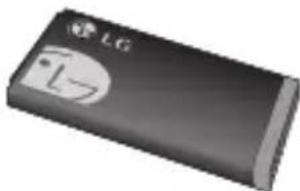
Standard Battery
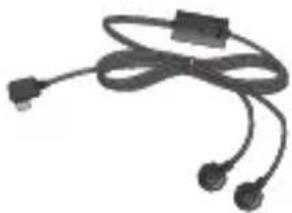
Hands free ear microphone
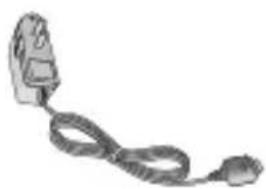
Travel Adapter
This charger allows you to charge the battery while away from home or your office.
Note
Always use genuine LG accessories.
Failure to do this may invalidate your warranty.
Accessories may be different in different regions; please check with our regional service company or agent for further inquiries.