KM710C - Telephone LG - Free user manual and instructions
Find the device manual for free KM710C LG in PDF.



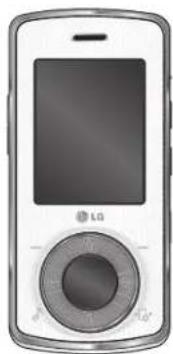
| Product type | Mobile phone |
| Brand | LG |
| Model | KM710C |
| Main functions | 3 MP camera, video camera, MP3 player, FM radio, Bluetooth, SMS/MMS/Email messaging, Web browser, organizer, voice recorder |
| Camera | Resolution up to 2048x1536 pixels (3M), white balance options, color effects, self-timer |
| Video camera | Resolution 320x240 or 176x144, recording for MMS |
| Storage | External memory card up to 4 GB (microSD) |
| Connectivity | Bluetooth 2.0, USB 2.0 (mass storage mode or data service) |
| Audio | MP3 player, stereo FM radio (requires headset), voice recorder |
| Messaging | SMS, MMS, Email, Bluetooth |
| Network | GSM/GPRS/EDGE |
| Power | Rechargeable lithium-ion battery, charger included (wall plug) |
| Maintenance and cleaning | Use a dry cloth to clean the outside. Do not use solvents such as benzene, thinner, or alcohol. |
| Safety | SAR (ear): 0.36 W/kg (10g) / 0.631 W/kg (1g) depending on region. Do not use in explosive atmospheres, hospitals, airplanes. |
| Spare parts and repairability | Use only LG original accessories. Do not disassemble the phone. Entrust to a qualified technician. |
| General information | User manual in French available online. 293 pages. |
Frequently Asked Questions - KM710C LG
User questions about KM710C LG
0 question about this device. Answer the ones you know or ask your own.
Ask a new question about this device
Download the instructions for your Telephone in PDF format for free! Find your manual KM710C - LG and take your electronic device back in hand. On this page are published all the documents necessary for the use of your device. KM710C by LG.
USER MANUAL KM710C LG
KM710c cover_081201 1904.2.7 9:30 PM 1
KM710c| User Guide
LG Electronics Inc.
P/N:MMBB0293001(1.0)
KM710c User Guide

ENGLISH FRANÇAIS ESPAÑOL
LG Electronics Inc.
| KM710c| User Guide
Some of the contents in this manual may differ from your phone depending on the software of the phone or your service provider.
KM710c cover_081201 1904.2.7 9:30 PM 2
Bluetooth QD ID B013750
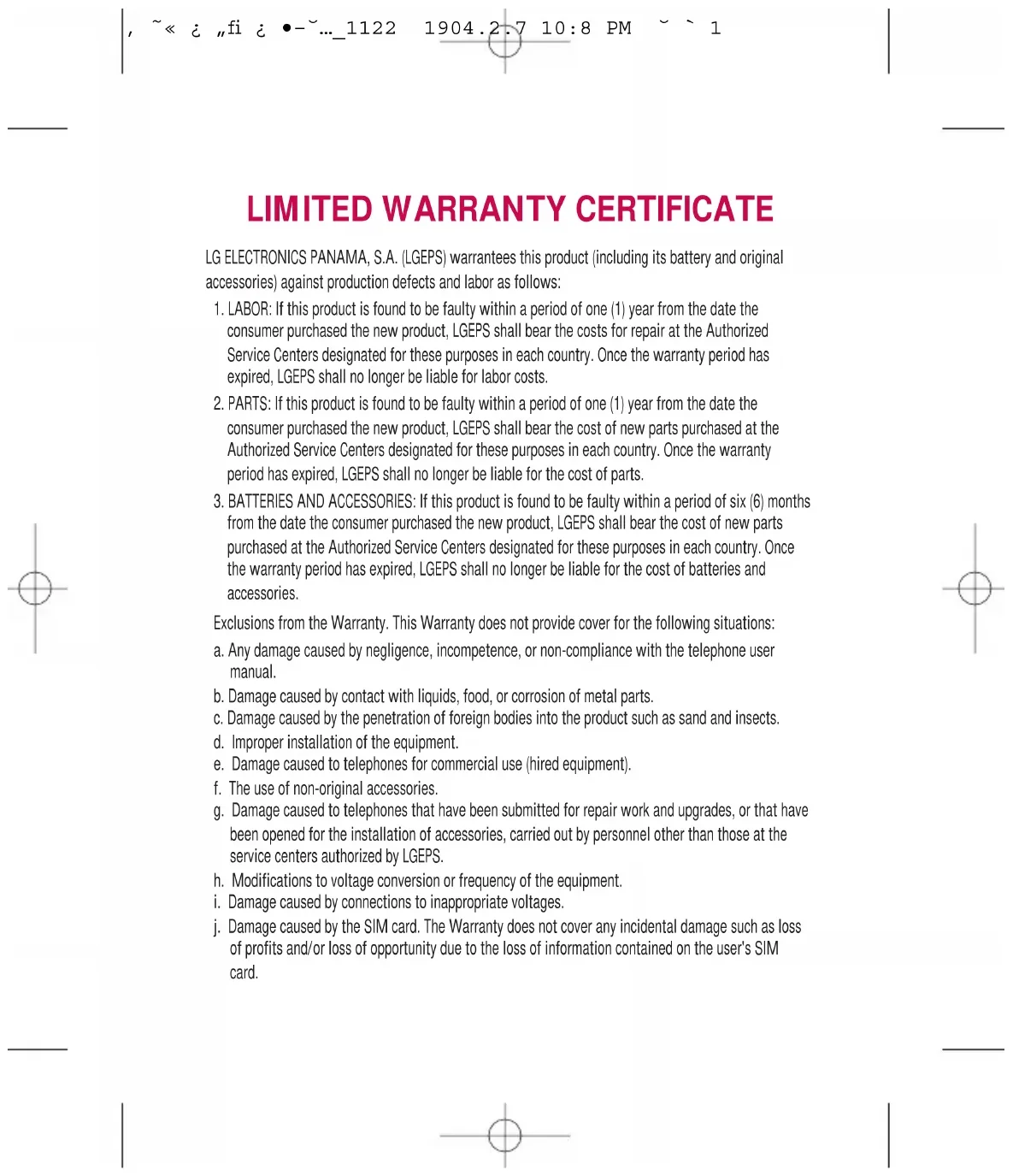
LIMITED WARRANTY CERTIFICATE
LG ELECTRONICS PANAMA, S.A. (LGEPS) warranties this product (including its battery and original accessories) against production defects and labor as follows:
- LABOR: If this product is found to be faulty within a period of one (1) year from the date the consumer purchased the new product, LGEPS shall bear the costs for repair at the Authorized Service Centers designated for these purposes in each country. Once the warranty period has expired, LGEPS shall no longer be liable for labor costs.
- PARTS: If this product is found to be faulty within a period of one (1) year from the date the consumer purchased the new product, LGEPS shall bear the cost of new parts purchased at the Authorized Service Centers designated for these purposes in each country. Once the warranty period has expired, LGEPS shall no longer be liable for the cost of parts.
- BATTERIES AND ACCESSORIES: If this product is found to be faulty within a period of six (6) months from the date the consumer purchased the new product, LGEPS shall bear the cost of new parts purchased at the Authorized Service Centers designated for these purposes in each country. Once the warranty period has expired, LGEPS shall no longer be liable for the cost of batteries and accessories.
Exclusions from the Warranty. This Warranty does not provide cover for the following situations:
a. Any damage caused by negligence, incompetence, or non-compliance with the telephone user manual.
b. Damage caused by contact with liquids, food, or corrosion of metal parts.
c. Damage caused by the penetration of foreign bodies into the product such as sand and insects.
d. Improper installation of the equipment.
e. Damage caused to telephones for commercial use (hired equipment).
f. The use of non-original accessories.
g. Damage caused to telephones that have been submitted for repair work and upgrades, or that have been opened for the installation of accessories, carried out by personnel other than those at the service centers authorized by LGEPS.
h. Modifications to voltage conversion or frequency of the equipment.
i. Damage caused by connections to inappropriate voltages.
j. Damage caused by the SIM card. The Warranty does not cover any incidental damage such as loss of profits and/or loss of opportunity due to the loss of information contained on the user's SIM card.
k. Deterioration of the equipment's external surfaces due to normal wear and tear.
I. Cosmetic damage, damage caused by incidents, or force due to major or unforeseeable events. m. In cases where the serial number assigned by the factory has been altered or removed from the product.
n. When the battery seals are broken, wet, or damp.
o. When the battery has been charged using a charger that was not manufactured by LG Electronics Inc. or its subsidiaries.
p. When the battery has been used in equipment other than that for which it was intended.
q. When the equipment label is illegible, missing, or has been altered.
Replacement products: Those products delivered as a replacement for a faulty product shall come with a one-year (1-year) warranty, valid from the date the first product was purchased, except in those countries and states where the law forbids it.
REPAIR OR REPLACEMENT OF THE PRODUCT, AS SET OUT IN THIS CERTIFICATE, IS THE ONLY COMPENSATION THAT THE CONSUMER SHALL RECEIVE. LGEPS SHALL NOT BE LIABLE FOR INCIDENTAL OR CONSEQUENTIAL DAMAGE DUE TO NON-COMPLIANCE WITH THIS WARRANTY.
EXCEPT IN CASES WHERE IT IS EXPRESSLY PROHIBITED BY THE LAW IN THE COUNTRY WHERE THE PRODUCT WAS PURCHASED, ANY IMPLIED WARRANTY OF MERCHANTABILITY OR FITNESS FOR A PARTICULAR PURPOSE ON THIS PRODUCT SHALL BE LIMITED IN DURATION TO THE TERM OF THIS WARRANTY.
This Warranty shall be valid in the country the product was purchased. You may have other rights depending on the country in which the product was purchased. This Warranty is not valid internationally. You may not make a claim in a country other than the country the product was purchased. Some countries and states do not permit the exclusion or limitation of incidental or consequential damage or permit some limitation with regard to the duration of the implied warranty. As such, the limitations and exclusions set out above may not apply.
To validate the Warranty, you must present the purchase invoice or receipt of payment and this warranty certificate.
For more information, please contact us at http://pa.lge.com or call the following telephone numbers:
PANAMA: 800-5454, ECUADOR: 800-545454, VENEZUELA: 800-5424477,
GUATEMALA: 1801-422LGLG(5454), COSTA RICA: 256-6878, 256-3396

LG
Some of the contents in this manual may differ from your phone depending on the software of the phone or your service provider.
KM710c User Guide
Congratulations on your purchase of the advanced and compact KM710c phone by LG, designed to operate with the latest digital mobile communication technology.
Gracenote® End User License Agreement
Version 20061005
This application or device contains software from Gracenote, Inc. of Emeryville, California ("Gracenote"). The software from Gracenote (the "Gracenote Software") enables this application to perform disc and/or file identification and obtain music-related information, including name, artist, track, and title information ("Gracenote Data") from online servers or embedded databases (collectively, "Gracenote Servers") and to perform other functions. You may use Gracenote Data only by means of the intended End-User functions of this application or device.
You agree that you will use Gracenote Data, the Gracenote Software, and Gracenote Servers for your own personal non-commercial use only. You agree not to assign, copy, transfer or transmit the Gracenote Software or any Gracenote Data to any third party. YOU AGREE NOT TO USE OR EXPLOIT GRACENOTE DATA, THE GRACENOTE SOFTWARE, OR GRACENOTE SERVERS, EXCEPT AS EXPRESSLY PERMITTED HEREIN.
You agree that your non-exclusive license to use the Gracenote Data, the Gracenote Software, and Gracenote Servers will terminate if you violate these restrictions. If your license terminates, you agree to cease any and all use of the Gracenote Data, the Gracenote Software, and Gracenote Servers. Gracenote reserves all rights in Gracenote Data, the Gracenote Software, and the Gracenote Servers, including all ownership rights. Under no circumstances will Gracenote become liable for any payment to you for any information that you provide.
You agree that Gracenote, Inc. may enforce its rights under this Agreement against you directly in its own name.
The Gracenote service uses a unique identifier to track queries for statistical purposes. The purpose of a randomly assigned numeric identifier is to allow the Gracenote service to count queries without knowing anything about who you are. For more information, see the web page for the Gracenote Privacy Policy for the Gracenote service.
The Gracenote Software and each item of Gracenote Data are licensed to you "AS IS."
Gracenote makes no representations or warranties, express or implied, regarding the accuracy of any Gracenote Data from in the Gracenote Servers. Gracenote reserves the right to delete data from the Gracenote Servers or to change data categories for any cause that Gracenote deems sufficient. No warranty is made that the Gracenote Software or Gracenote Servers are error-free or that functioning of Gracenote Software or Gracenote Servers will be uninterrupted. Gracenote is not obligated to provide you with new enhanced or additional data types or categories that Gracenote may provide in the future and is free to discontinue its services at any time.
GRACENOTE DISCLAIMS ALL WARRANTIES EXPRESS OR IMPLIED, INCLUDING, BUT NOT LIMITED TO, IMPLIED WARRANTIES OF MERCHANTABILITY, FITNESS FOR A PARTICULAR PURPOSE, TITLE, AND NON-INFRINGEMENT. GRACENOTE DOES NOT WARRANT THE RESULTS THAT WILL BE OBTAINED BY YOUR USE OF THE GRACENOTE SOFTWARE OR ANY GRACENOTE SERVER. IN NO CASE WILL GRACENOTE BE LIABLE FOR ANY CONSEQUENTIAL OR INCIDENTAL DAMAGES OR FOR ANY LOST PROFITS OR LOST REVENUES.
© Gracenote 2006
SET UP 01
Getting to know your phone .....9
Installing the SIM and battery .....11
Memory card ....13
Menu map ......14
The main menu ....16
03 THE BASICS
Calls....17
Making a call 17
Making a call from your contacts .....17
Answering and rejecting a call .....17
In-call options....18
Speed dialling....19
Viewing your call logs 19
Using call divert ....20
Using call barring 20
Changing the call settings .....21
Contacts 22
Searching for a contact 22
Adding a new contact .....22
Contact options ......22
Adding a contact to a group .....23
Renaming a group 23
Adding a picture to a contact 24
Copying your contacts to your SIM .....24
Deleting all your contacts ....24
Viewing information ......24
Messaging....25
Messaging 25
Sending a message 25
Entering text 25
Message folders ......26
Managing your messages ......26
Using templates 27
Changing your text message settings ....27
Changing your multimedia message
settings....28
Changing your other settings .....28
04 GET CREATIVE
Camera....29
Taking a quick photo 29
After you've taken your photo .....29
Using your toolbar options .....29
Changing the image size ....30
Viewing your saved photos ....30
Setting a photo as wallpaper or Picture ID ....30
Video camera 31
Shooting a quick video 31
After you've shot your video 31
Using your toolbar options ....31
Watching your saved videos .....32
Adjusting the volume when viewing a video 32
My stuff 33
Images ....33
Images options menu....33
Sending a photo 34
Organising your images ....34
Deleting an image ....34
Deleting multiple images 34
Creating a slide show....35
Sounds 35
Using a sound 35
Videos 35
Watching a video 35
Using options while video is paused .....36
Sending a video clip 36
Using the video options menu 36
Others 36
Games & Apps 37
Playing a game 37
Using the games options menu......37
External memory 37
Using your phone as a Mass storage device ....37
Transferring a fi le to your phone ......38
Multimedia 39
Music 39
Transferring music onto your phone .....40
Playing a song 40
Using options while playing music......40
Creating a playlist 41
Playing a playlist 41
Editing a playlist 42
Deleting a playlist 42
Using the radio 43
Searching for stations 43
Resetting channels 43
Listening to the radio 44
Voice recorder 44
Sending a voice recording 44
Muvee 44
Contents
05 GET ORGANISED
Organiser/Tools......45
Adding an event to your calendar .....45
Editing a calendar event .....45
Sharing a calendar event 46
Adding a memo 46
Adding an event to your To do list .....46
Setting your alarm 46
Using your calculator ....47
Using the stopwatch 47
Converting a unit 47
Adding a city to your world time .....47
Using the SIM Services ....47
06 THE WEB
The web 48
Accessing the web......48
Adding and accessing bookmarks .....48
Saving a page 49
Accessing a saved page 49
Viewing your browser history .....49
Changing the web browser settings .....49
07 SETTINGS
Settings 50
Personalizing your profi les ....50
Changing your screen settings....50
Changing your phone settings .....51
Changing your connectivity settings .....51
Sending and receiving your fi les using
Bluetooth 52
Changing your Bluetooth settings.....52
Pairing with another Bluetooth device ...53
Using a Bluetooth headset ....53
Changing your security settings .....53
08 ACCESSORIES
Accessories ....54
Guidelines for safe and efficient use .....55
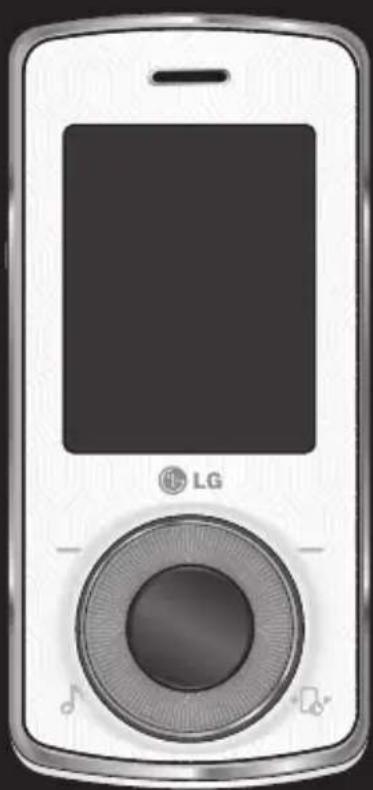
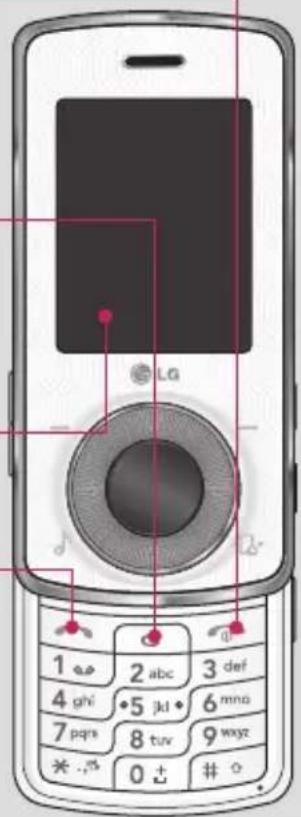
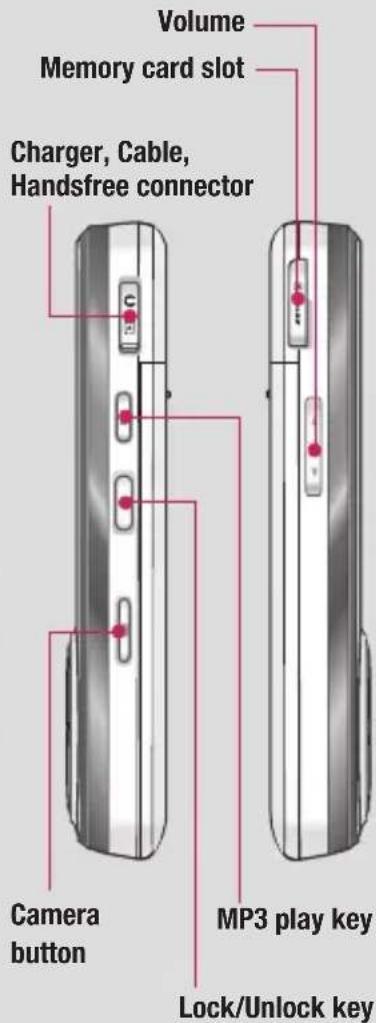
Getting to know your phone
End/Power key

Ends or rejects a call. Turns the phone on/off. Press once to return to the standby screen.
Clear key

Deletes a character with each press. Use this key to go back to the previous screen.
Main screen
Send key

Dials a phone number and answers incoming calls.
01
02
03
04
05
06
07
08
Getting to know your phone
Set up
10
LG KM710c | User Guide
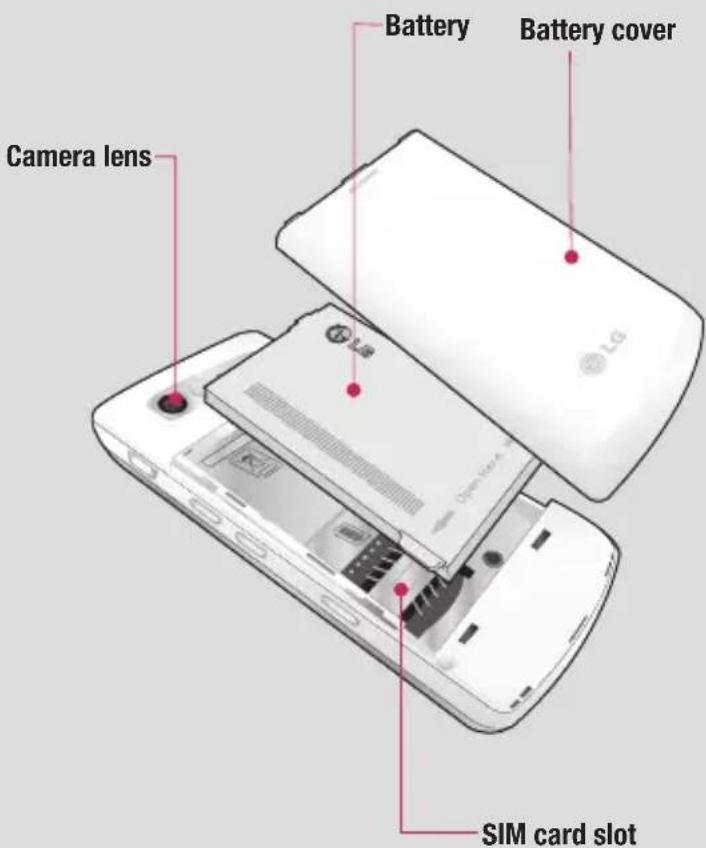
Installing the SIM and battery
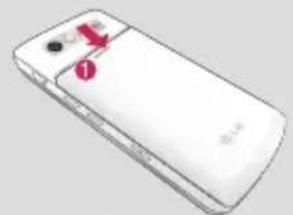
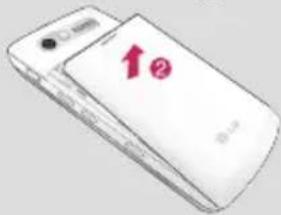
1 Remove the battery cover
Slide the battery cover towards the bottom of the phone and away from it.

WARNING: Do not use your fingernail n removing the battery

WARNING: Do not remove the battery in the phone is switched on, as this may change the phone.
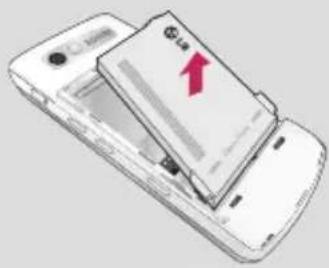
2 Remove the battery
Lever the side edge of the battery and remove it carefully from the battery compartment.
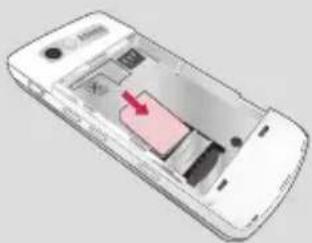
3 Install the SIM card
Slide the SIM card into the SIM card holder. Make sure that the gold contact area on the card is facing downwards. To remove the SIM card, pull it gently in the reverse direction.
Installing the SIM and battery
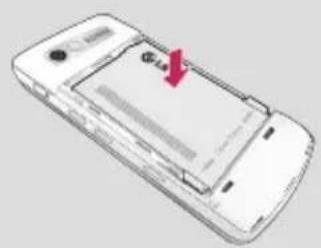
4 Install the battery
Insert the top of the battery into the top edge of the battery compartment. Ensure the battery contacts align with the terminals on the phone. Press down the bottom of the battery until it clips into place.
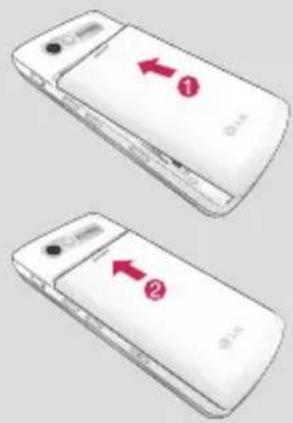
5 Replace the battery cover
Slide the battery cover towards the top of the phone until it clicks into place.
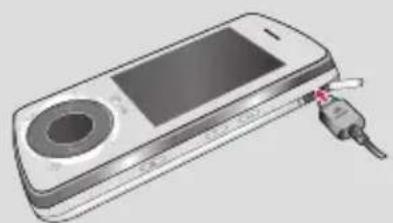
6 Charging your phone
Slide back the cover of the charger socket on the side of your KM710c. Insert the charger and plug into a mains electricity socket. Your KM710c will need to be charged until the battery icon appears completed on the screen.
Memory card
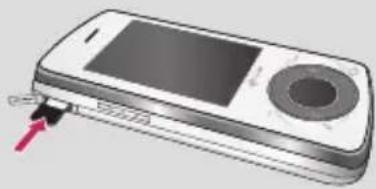
Installing a memory card
Expand the memory space available on your phone by using a memory card. The KM710c supports memory cards of up to 4GB.
To insert the memory card, slide it into the slot at the top until it clicks into place, making sure that the gold contact area is facing upwards.
01
02
03
04
05
06
07
08
Set up
13
Menu map

SIM SERVICE

CALL HISTORY
1 All calls
2 Missed calls
3 Dialed calls
4 Received calls
5 Call duration
6. Data information

ORGANISER
1 Calendar
2 Memo
3 To do

MULTIMEDIA
1 Camera
2 Video camera
3 Muvee
4 FM Radio
5 Voice recorder

MESSAGING
1 New message
2 Inbox
3 E-mail box
4 Bluetooth box
5 Drafts
6 Outbox
7 Sent
8 Listen to voicemail
9 Info messages
0 Templates
* Settings

MY STUFF
1 Images
2 Sounds
3 Videos
4 Others
5 Games & Apps
6 External memory

PROFILES
1 General
2 Silent
3 Vibrate only
4 Outdoor
5 Headset

CONTACTS
1 Search
2 New contact
3 Speed dials
4 Groups
5 Copy all
6 Delete all
7 Settings
8 Information

TOOLS
1 Alarm clock
2 Calculator
3 Tip calculator
4 Stopwatch
5 Unit converter
6 World clock

LIVE
1 Home
2 Google
3 Bookmarks
4 Enter address
5 History
6 Saved pages
7 Settings
8 Information

MP3 PLAYER
1 All songs
2 My playlists
3 Artists
4 Album
5 Genres
6 Shuffle all songs
7 Music ID

SETTINGS
1 Date & Time
2 Languages
3 Display
4 Shortcut
5 Touchpad
6 Connectivity
7 Call
8 Security
9 Flight mode
0 Power save
* Reset
Memory status
Your standby screen
The status bar
The status bar uses various icons to indicate things like signal strength, new messages and battery life, as well as telling you whether your Bluetooth is active.
Below is a table explaining the meaning of icons you are likely to see in the status bar.
| Icon | Description |
| Network signal strength(number of bars will vary) | |
| No network signal | |
| Battery life | |
| Battery empty | |
| New text message | |
| New voice message | |
| Message inbox is full | |
| New text+voice message | |
| An alarm is set |
| Icon | Description |
| Vibrate profi le in use | |
| General profi le in use | |
| Outdoor profi le in use | |
| Silent profi le in use | |
| Headset profi le in use | |
| Calls are diverted | |
| GPRS available | |
| EDGE available | |
| Roaming | |
| Flight mode is selected | |
| Bluetooth | |
Your standby screen
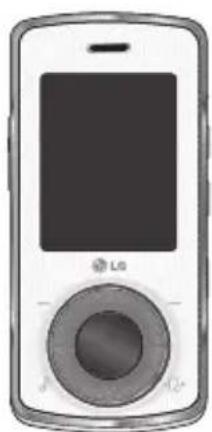
Wheel Navigation Key & Touchpad
With the wheel navigation key, you can select menu and functions more easily. From the main menu, select Settings, then Touchpad. From here you can turn on or off Vibration and select the touchpad Sensibility.
The main menu
The main menu provides twelve menu options.
1 Select Menu.
2 Use the arrow keys or wheel to select the required menu option.
3 When the option you require is selected, press OK to open.
Calls
Making a call
1 Key in the number using the keypad. To delete a digit press C.
2 Press the key to initiate the call.
3 To end the call, press the key.
TIP! Enter + when making an international call, press and hold 0.
Making a call from your contacts
1 Press the key to open the address book.
2 Use the keypad to enter the first letter of the contact you want to call. For example for Offi ce, press 6 three times.
3 To scroll through the contacts and their different numbers use 🎨 and 🏠
4 Press the key to initiate the call.
Answering and rejecting a call
When your phone rings press the 🔔 key to answer the call.
While your phone is ringing, open your handset or press the camera key, then select
Silent to mute the ringing. This is great if you've forgotten to change your profi le to Silent for a meeting.
Press the 🔍 key to reject the incoming call.
TIP! You can change the settings on your phone to answer your calls in different ways.
Press the - or and, select choose Call.
Select Answer mode and choose from Slide open, Any key or Send key only.
Calls
In-call options
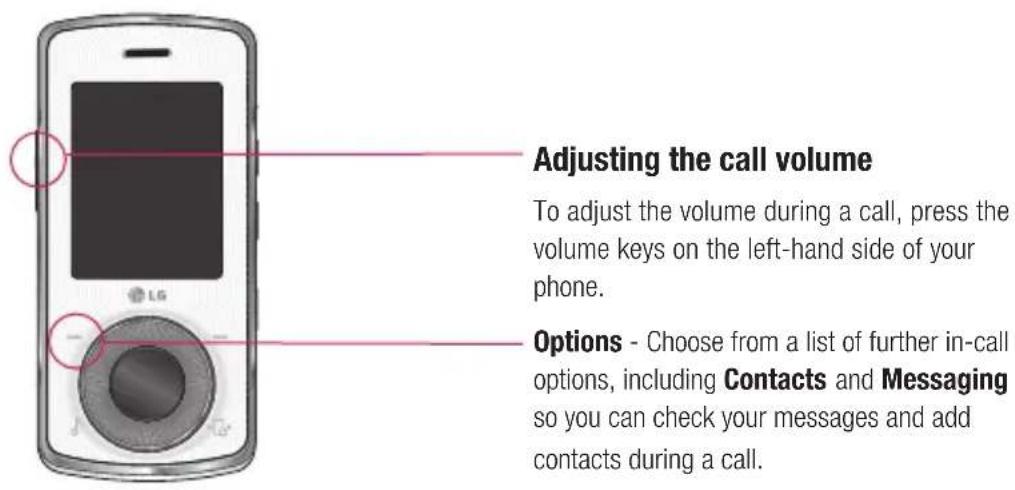
Adjusting the call volume
To adjust the volume during a call, press the volume keys on the left-hand side of your phone.
Options - Choose from a list of further in-call options, including Contacts and Messaging so you can check your messages and add contacts during a call.
Speed dialling
You can assign a speed dial number to a contact you call frequently.
1 Press or and select
2 Select Speed dials.
3 Your voicemail is set to speed dial 1. You cannot change this. Select any other number either by using the 📁 and
keys, and pressing the to
select Assign, or by pressing the hard key number.
4 Your address book will open. Select the contact you would like to assign to that number using the and keys, then select OK.
To call a speed dial number, press and hold the assigned number until the contact appears on screen. The call will initiate automatically; there's no need to press
Viewing your call logs
Press or and select to view:
All calls - View the complete list of all your dialed, received and missed calls.
Missed calls - View the list of any calls you have missed.
Dialed calls - View the list of all the numbers you have called.
Received calls - View the list of all the numbers that have called you.
Call duration - View details of how long you have spent on your calls.
Data information - View the amount of all your received and sent data in kilobytes.
TIP! From any call log select Options and choose Delete to delete selected or Delete all to delete all the recorded items.
TIP!
Using and , highlight any single call entry to view the date and time of the call. To view the call duration select Options and choose View.
Calls
Using call divert
1 Press — or ●, select ⚙ and choose Call.
2 Select Call divert.
3 Choose whether to divert all calls, when the line is busy, when there is no reply or when you are out of reach.
4 Choose Activate and select whether to divert to voicemail, another number or your favourite number.
5 Enter your divert number or select Contacts to browse for your divert number.
Note: Charges are incurred for diverting calls. Please contact your network provider for details.
TIP! To turn off all call diverts, choose Cancel all from the Call divert menu.
Using call barring
1 Press or , select and choose Call.
2 Select Call barring.
3 Choose any or all of the six options:
Outgoing international
O/G international except home country
All incoming
Incoming when abroad
Cancel all barrings
Change password
4 Select Activate and enter the call barring password. Please check with your network operator for this service.
TIP! Select Fixed dial number from the Security menu to turn on and compile a list of numbers which can be called from your phone. You'll need your PIN2 code from your operator. When activated, only numbers included in the fixed dial list can be called from your phone.
Changing the call settings
1 Press or , select and choose Call.
2 From here you can amend the settings for:
Call divert – Choose whether to divert your calls.
Call barring – Select when you would like calls to be barred.
Answer mode – Choose whether to answer the phone using the accept key, any key or by sliding your handset open.
Send my number – Choose whether your number will be displayed when you call someone.
Call waiting alerted when you have a call waiting.
Minute minder – Select On to hear a tone every minute during a call.
Auto redial Choose On or Off.
Closed User Group Choose Default, On or Off.
Send DTMF tones – Choose On or Off.
Contacts
Searching for a contact
Press — or ●, select ■ and choose Search.
Or, using the slightly quicker method...
1 Press from the standby screen.
2 Enter the first letter of the contact you want to call.
3 To scroll through the contacts and their different numbers use 🎨 and 🏠
Adding a new contact
1 Press or , select and choose New Contact.
2 Choose whether to store your new contact on your Phone or SIM card.
3 Enter all the information you have in the fi elds provided and select Save.
Or, using the slightly quicker method...
1 Enter the number you wish to store from the standby screen and select Options and choose Save as new contact or Add to existing contact.
2 Enter the relevant information as above and select Save.
Note: When you are storing a contact's email address, press 📄 to enter a symbol and scroll with 🔍 and until you see @.
LG KM710c | User Guide
Contact options
There are many things you can do when viewing a contact. Here's how to access and use the options menu:
1 Open the contact you'd like to use. See Searching for a contact above.
2 Press ☐ to open the list of options.
From here you can:
Edit - Change any of the contact's details.
Send via - Send the contact's details to another person as a business card. Choose to send as a Text message, Multimedia message, via Bluetooth or by Email.
Delete - Delete the contact. Select OK or press ● if you are sure.
New contact - Add a new contact.
Copy to SIM/Phone - Choose to move or copy to the SIM card or phone (depending on where you originally saved the contact).
Adding a contact to a group
You can collect your contacts into groups, for example, keeping your work colleagues and family separate. There are a number of groups including Friends, Family, Work, and VIP already set up on the phone.
1 Press or , select and choose Groups.
2 Scroll to the group you wish to add a contact to, select Options and Add member.
3 Your contacts will open. Scroll to any contacts you would like to add to the group and select Options and Mark all (or just press ☐), then Done.
TIP! You can assign a ringtone or icon to a group. Select the group you wish to assign the ringtone or icon to and select Options and choose an item you want.
Renaming a group
You can rename any of the groups to fit your lifestyle.
1 Press or , select and choose Groups.
2 Highlight the one you want to rename.
3 Choose Options, select Rename and enter your new group name.
4 Select Save.
Note: You can only assign a contact to a group or add a picture to a contact that is saved on your Phone (not SIM) memory.
Contacts
Adding a picture to a contact
You can change the appearance of your contacts in your address book to include a picture.
1 Press or , select and choose Settings.
2 Select View Options and choose With picture.
3 Then return to the address book and select the contact you want to add a photo to.
4 Choose Options and select Edit.
5 Scroll down to the Picture section.
Choose Options and select New Picture.
Your camera viewfi nder will open, so you can take a picture of your contact.
Alternatively you can select a picture from the Images fi le.
Copying your contacts to your SIM
You can also choose to copy your contacts from your SIM to your handset or from your handset to your SIM.
1 Press or , select and choose Copy All.
2 Select to copy the contacts from SIM to phone or Phone to SIM.
3 Choose whether to keep the original records or delete them.
LG KM710c | User Guide
Deleting all your contacts
1 Press or , select and choose Delete all.
2 Select to delete contacts from SIM or Phone.
3 Select OK if you are sure.
Viewing information
Press or, select and choose
Information.
From here you can view Service dial number, your Own number and your My business card.
TIP! If you haven't yet created a business card, the My business card screen will give you the option to create one. Select New and enter your details as you would for any contact. Choose Save.
Messaging
Messaging
Your KM710c combines Text messages, Multimedia messages, Bluetooth messages and Email into one intuitive and easy to use menu. Simply Press 📄 or 🚗 and select

Sending a message
The quick way to begin sending a Text message is to press 📋 from the standby screen and go straight to step 4 below. Otherwise:
1 Press ☐ or ●, select ▼ and then New message.
2 Choose to send Text or Multimedia. (If you want to send a message using Bluetooth, see page 52).
3 A new message will open.
4 Enter your message using T9 predictive mode or Abc manual mode.
See Entering text to see how to switch between the different text entry modes.
5 Select Options and choose Insert to add a symbol, image, animation, sound, text template, name and number or my business card.
6 Select Options and choose Send to or just press 🔒.
7 Enter the phone number or select Options and choose Contacts to open your contacts list. You can add multiple contacts.
8 Select Options and choose Send or just press ●.
Entering text
There are two ways to enter text: T9 predictive and Abc manual.
To turn on T9 predictive text, begin a new message, choose Options, select Set T9 and choose On. With T9 on, you can switch between T9 predictive, Abc manual and numbers by pressing
T9 predictive
T9 mode uses a built-in dictionary to recognise words you are rewriting based on the key sequences you press. Simply press the number key associated with the letter you want to enter, and the dictionary will recognise the word as you type. For example, press 8, 3, 5, 3, 7, 4, 6, 6, 3 to write 'telephone'.
If the word you want doesn't appear, choose Options and select New T9 word. Enter the word using Abc manual mode and your word or name will be added to the dictionary.
Messaging
Abc manual
In Abc mode you must press the key repeatedly to enter a letter. For example, to write 'hello', press 4 twice, 3 twice, 5 three times, 5 three times again, then 6 three times.

WARNING: You will be charged per 160
character text message for each person that you send the message to.
Message folders
Press or, select. You'll
recognise the folder structure used on your KM710c, it's fairly self-explanatory.
Inbox - All the messages you receive are placed into your inbox. From here you can reply, forward and more, see below for details.
E-mail - Contains all your e-mail messages.
Bluetooth box - The Bluetooth box folder contains your Bluetooth messages.
Drafts - If you don't have time to fi nish writing a message, you can save what you have done so far here.
Outbox - This is a temporary storage folder while messages are being sent.
Sent - All the messages you send are placed into your Sent folder.
LG KM710c | User Guide
Info messages - All info messages and updates received from your operator
Templates - A list of useful messages, already written for a quick reply.
You can also access your voicemail from here by selecting Listen to voicemail and your messaging settings by selecting Settings.
Managing your messages
You can use your Inbox to manage your messages.
1 Press - or , select and then Inbox.
2 Select Options and then choose to:
View - View a selected message.
Delete - Delete a selected message.
Reply - Send a reply to the selected message.
Forward - Send the selected message on to another person.
Return call - Call the person who sent you the message.
Save number - Save as a new or existing contact.
InformationView the details of a message, for example, the time it was sent.
Multi Delete - Delete selected messages.
Delete all read - All opened messages will be deleted.
Delete all - You can select whether to delete all of each message type.
Using templates
You can create templates for the Text and Multimedia messages you send most frequently. There are some templates already on your phone, which you can edit if you wish.
1 Press 📋 or 🔍, select 📋 and then Templates.
2 Choose Text templates or Multimedia templates. You can then select Options and choose Edit to change existing templates or select Options to add New template or Delete templates.
3 To send a template, select the one you want to send, choose Options and select Send via.
4 Choose how you'd like to send the template; as a Text, Multimedia, E-mail or Bluetooth message.
5 Select a contact and choose Options, Send (or just press ●).
Changing your text message settings
Your KM710c message settings are pre- defi ned so that you can send messages immediately.
If you'd like to change the settings, see below for more information.
Press or, select, then choose
Settings and Text message. You can make changes to:
Message types - Convert your text into Voice, Fax, X.400, Email or ERMES.
Validity period - Choose how long your message is stored at the message center.
Delivery report - Choose to receive confirmation that your message was delivered.
Reply charging - Choose to be billed for your message recipient's reply.
Message center number - Enter the details for your message center.
Character encoding - Choose how your characters are encoded. This impacts the size of your message and therefore data charges.
Bearer setting - Chose the bearer when you send your text message.
Messaging
Changing your multimedia message settings
Your KM710c message settings are pre- defi ned so that you can send messages immediately.
If you'd like to change the settings, see below for more information.
Press — or ● select , then choose
Settings and Multimedia message.
You can make changes to:
Subject- Include a subject fi eld in your multimedia messages.
Slide duration - Choose how long your slides appear on screen.
Delivery time - Choose how long before each message is sent.
Priority - Choose the priority level of your multimedia message.
Validity period - Choose how long your message is stored at the message center.
Delivery report - Choose to allow and/or request a delivery report.
Read report - Choose to allow and/or send a read report.
Auto download - Choose to automatically or manually download multimedia messages, depending on whether you are at home or roaming.
Network Profi les - Select a operator specifi c network profi le for sending multimedia messages.
Permitted message types - Select which type of senders to allow multimedia messages from.
Changing your other settings
Press or, select, choose
Settings then:
E-mail - Set your e-mail account, choose your access point and retrieve interval, and add a signature.
Voicemail number - Your voicemail number is stored here. Contact your network operator for more information on the service they provide.
Service message - Here you can switch off Service message, which means your messages will no longer be pushed directly to your device as they are received, only when you check for new messages.
Info message - View all the info messages and update received ones from your operator.
Camera
Taking a quick photo
1 Press and hold down the key on the right hand side of the handset and the camera's viewfinder will appear on screen.
2 Holding the phone horizontally, point the lens towards the subject of the photo.
3 Press ● or the 🔒 key on the right side of the handset to take a photo.
After you've taken your photo
Your captured photo will appear on screen. The name of the image runs along the bottom of the screen.
Select a sub menu of right side where you can choose to shoot a New image, set your image as Wallpaper or Picture ID, look at the other photos in your Album, or send the photo as a Multimedia message, Bluetooth or Email. To exit the Camera, press and hold C.
Using your toolbar options
Selecting Options will display a new toolbar across the bottom of the viewfi nder screen. Use ◆ and ◆ to navigate through the toolbar options.
Resolution – See Changing the image size on page 31.
Quality - Choose between Normal, Fine and Super fi ne. The fi ner the quality the sharper a photo will be but the fi le size will increase as a result. You'll be able to store fewer larger photo fi les in your memory.
Those options will appear on the right side of the screen, before you take your picture:
Shutter tone - Select one of the three shutter sounds or switch the sound off.
Reset settings – Choose Yes to reset your phone to its original camera settings. In the viewfinder screen of landscape mode, pressing ◆ or ◇ will show you the below sub-menus for more detail camera setting.
Self timer - The delay-timer allows you to set a delay after the capture button is pressed. Choose from 3 seconds, 5 seconds or 10 seconds. Great for that group photo you want to be part of.
Continuous shot - This enables you to take up to six shots automatically in very quick succession. Great for taking photos of moving objects or at sporting events.
White balance - The white balance ensures that any white in your photo is realistic. In order for your camera to correctly adjust the white balance you may need to determine the light conditions. Choose from Auto, Daylight, Incandescent, Cloudy, Night mode or Fluorescent.
Camera
Colour effect – Choose from four color tone options: Off (normal/color), Sepia, Mono (black and white) or Negative.
EV - This enables you to regulate exposure value.
Changing the image size
You can change the size of the photo to save memory space. The more pixels, the larger the fi le size, which in turn means they take up more of your memory. If you want to fi t more pictures on your phone, you can alter the pixel number to make the fi le size smaller.
1 Choose Options and select Resolution from the toolbar.
2 Select a pixel value from the four numerical options (QV: 320X240, V: 640X480, 1M: 1280X960, 2M: 1600X1200, 3M: 2048X1536.
3 Select the size you would like to use and choose OK.
Viewing your saved photos
1 You can access your saved photos from within the camera mode and from the standby screen. From the viewfinder, simply select Album. From the standby screen you should press 📄 or 🌐 then select My stuff and Images.
2 Your gallery will appear on screen.
3 Use the arrows to select the photo you want to view and choose Options, View or just press 🔒 to enlarge it.
Setting a photo as wallpaper or Picture ID
You can set the image to appear at certain times. From your image gallery, use ◆ and ◆ to select an image and choose Options, Set as to use the selected image as Wallpaper or Picture ID for one of your contacts.
Note: Picture ID can only be added to contacts saved to your phone, not your SIM.
Video camera
Shooting a quick video

1 Press the — or ● and select then Video camera.
2 Point the camera lens towards the subject of the video.
3 Press ● once or press the 🔒 key on the right side of the handset to start recording.
4 ● REC will appear in the bottom left corner of the viewfinder and a timer will show the length of your video.
5 To pause the video choose Pause and resume by selecting Resume.
6 Select Stop to stop recording.
After you've shot your video
A still image representing your captured video will appear on screen. The name of the image runs along the bottom of the screen.
Select a sub menu where you can choose to take a New video, Play, Send via Multimedia message, Bluetooth or Email, or look at the other videos in your Album.
Using your toolbar options
Selecting Options will display a new toolbar across the bottom of the viewfi nder screen. Use the arrow keys to navigate the toolbar options.
Display – Chose the display mode of view fi nder.
Camera – Select to switch to camera mode.
Resolution – If you want to fi t more videos onto your phone you can alter the pixel number to make the fi le size smaller. Choose between two options for your video, 320 x 240 or 176 x 144.
Quality - Choose between Fine, Normal and Super Fine. The fi ner the quality the sharper a video will be, but the fi le size will increase as a result. You'll be able to store fewer larger video fi les in the phone's memory.
Save to – You can choose Phone or External memory.
Reset settings – Choose Yes to reset your phone to it's original video camera settings.
In the viewfinder screen of landscape mode, pressing ◆ or ◆ will show you the below sub-menus for more detail video camera setting.
Video camera
This options will appear on the right side of the screen, before you take your picture:
Video mode - To shoot a video you want to send in a multimedia message, select MMS.
White balance - The white balance ensures that any white in your photo is realistic. In order for your camera to correctly adjust the white balance you may need to determine the light conditions. Choose from Auto, Daylight,
Incandescent, Cloudy, Night mode or Fluorescent.
Colour effect – Choose from four color tone options: Off (normal/color), Sepia,
Mono (black and white) or Negative.
EV - This enables you to regulate exposure value.
TIP! The settings menu is superimposed over the viewfinder. When you change elements of the image colour or quality, you'll be able to see the image change in preview behind the settings menu.
Watching your saved videos
1 You can access your saved videos either from within video camera mode or from the standby screen. From the viewfinder, simply select Album. From the standby screen you should press 📄 or 📞 then select My stuff and Videos.
2 Your gallery will appear on screen.
3 Use the and to select the video you want to view and choose Options, Play or just press to watch it.
Adjusting the volume when viewing a video
To adjust the volume of the audio on a video whilst it is playing, use the keys on the left side of the handset.
My stuff
You can store any multimedia fi les on your phone's memory so that you have easy access to all of your pictures, sounds, videos and games. You can also save your fi les to a memory card. The advantage of using a memory card is that you can free up space on your phone's memory.
All your multimedia fi les will be saved in My stuff. To access My stuff, press 📄 or 🙏 then 📋 to open a list of folders storing all of your multimedia fi les.
Images
Images contains a folder of default images pre-loaded onto your phone, images downloaded by you and images taken on your phone's camera.
Images options menu
The options which are available to you in Images depend on what type of image you have selected. All of the options will be available for pictures you have taken on the phone's camera. Only the View, Set as, File, Slide show, Sort by and List view options are available for default images. In the Images folder, select Options to bring up your list of options.
View - View the selected message.
Delete - Delete the selected image.
Send via - Send the selected image to a friend via MMS, Bluetooth or E-mail.
Note: The image may need to be resized before it can be sent by MMS.
Set as - Set selected image as your Wallpaper or as a Picture ID.
File - Edit image, rename, make animation or view the information (Name, Size, Date, Resolution, Type, and Copyright) of the selected image. If you have an external memory card inserted, two additional options will show: Move to external memory and
Copy to external memory.
Print via Bluetooth - Print an image fi le via Bluetooth.
Slide show - See Creating a slide show on page 36.
New folder - Create a new folder within the main Images folder.
Delete all - Delete all the photos in your Images folder.
Sort by - Arrange your images by Date, Type or Name.
List view - Change the way you view your photos.
Mark/Unmark - Select more than one image file to be deleted.
My stuff
Sending a photo
1 Press - or ● then select □.
2 Scroll to and select Images.
3 Select a photo and choose Options.
4 Select Send via and choose from Multimedia message, Bluetooth or E-mail.
5 If you choose Multimedia message or E-mail, your photo will be attached to the message and you can write and send the message as normal. If you choose Bluetooth, you will be prompted to turn Bluetooth on and your phone will search for a device to send the picture to.
Organising your images
1 Press ☐ or ● then select □.
2 Scroll to and select Images.
3 Select Options then Sort by.
4 Choose from Date, Type or Name.
Deleting an image
1 Press - or ● then select
2 Scroll to and select Images.
3 Select an image and choose Options.
4 Select Delete.
Deleting multiple images
1 Press — or ● then select
2 Scroll to and select Images.
3 Choose Options and select Mark/Unmark then Delete.
4 A box will appear next to each image. Select the image and select Options, Mark all or just press ● to mark it. To unmark an image, select Options, Unmark all or just press ● so that the tick disappears from the box.
5 Once you have marked all of the appropriate boxes, select Done and confirm you want to delete all of the marked images.
Creating a slide show
If you want to look at all of the images on your phone or scan through what you've got, you can create a slide show to save you from having to open and close each individual image.
1 Press ☐ or ● then select

2 Scroll to and select Images.
3 Select the photo you would like to begin the slideshow and choose Options.
4 Select Slide show and it will begin.
5 Select Options, Pause to pause the slide show and Quit to end the slide show and return to the Images folder.
Selecting Options during the slide show presents further choices:
Set repeat - Decide whether you want the slide show on repeat or not.
Sounds
The Sounds folder contains the Default sounds and your voice recordings. From here you can manage, send or set sounds as ringtones.
Using a sound

1 Press ☐ or ● then select
2 Scroll to and select Sounds.
3 Select Default sounds or choose from the list of voice recording fi les.
4 Select a sound and choose Options, Play or just press ● to listen to it.
5 Select Options, Set as and choose from Ringtone, Ringtone ID, or Message tone.
Videos
The Videos folder shows the list of downloaded videos and videos you have recorded on your phone.
Watching a video
1 Press - or ● then select
2 Scroll to and select Videos.
3 Select a video and choose Options, Play or just press ●.
01
02
03
04
05
06
07
08
My stuff
Using options while video is paused
By selecting Options, the video you are playing will be in pause mode and you can choose from:
Delete - Delete the video.
Send via - Send the video in a Multimedia message, by Bluetooth or by E-mail.
File - Rename the video, Move the selected video to a folder, View the Information (Name, Date, Size, Type, Duration, and Copyright).
Landscape view - Change how you view your video.
Sending a video clip
1 Select a video by using the arrow keys.
2 Select Options, Send via and choose from Multimedia message, Bluetooth or E-mail.
3 If you choose Multimedia Message or E-mail, your video clip will be attached to a message and you can write and send it as normal. If you choose Bluetooth, you will be prompted to turn Bluetooth on and your phone will search for a device to send the video to.
Note: The video may need to be resized before it can be sent by MMS. Some videos may be too large to send by MMS at all, in which case choose one of the other sending options.
LG KM710c | User Guide
Using the video options menu
In the Videos folder, select Options to bring up the following list of options.
Play - watch the selected video.
Delete - Delete the selected video.
Send via - Send the video using a Multimedia message, Bluetooth or E-mail.
File - Rename, move the video, or view the information (Name, Size, Date, Type, Duration, and Copyright).
New folder - Create a new folder within the main Videos folder.
Mark/Unmark - Select more than one video clip to be deleted.
Delete all - Delete all the clips in your Video folder.
Sort by - Arrange your videos by Date, Type or Name.
List view/Thumbnail view - Change the way you view your videos.
Others
The Others folder is used to store fi les which are not pictures, sounds, videos, games or applications.
You may find that when you transfer files from your computer to your phone, they will appear in the Others folder.
Games & Apps
Your KM710c comes with preloaded games to keep you amused when you have time to spare. If you choose to download any additional games or applications they will be saved into this folder.
Playing a game
1 Press ☐ or ● then select

2 Scroll to and select Games & Apps.
3 Select the game of your choice and choose Options, Play or just press
Using the games options menu
In the Games folder, select Options to bring up the following list:
Play – Select this to play the game.
Information - View the Name, Version, Vendor, Data-size and Domain of the file.
External memory
If you've inserted a memory card it will be displayed as a folder within My stuff. Your external memory folder will be divided into four further folders: Images, Sounds, Videos and Others. Each folder will contain all the fi les of that type saved to your memory card rather than your handset.
Using your phone as a Mass storage device
Your KM710c can be used as a mass storage device, just like a USB stick. This is a great way of moving your fi les from your computer to your phone. If you've inserted a memory card, when connecting as Mass storage it will be displayed as two drives on your computer. The handset memory and external memory.
1 Press — or ●, select 📍 then Connectivity.
2 Select USB connection mode.
3 Scroll to Mass storage and select OK.
4 Insert the smaller end of the USB cable into the USB cable connector on the edge of the KM710c. Plug the larger end into the USB port of your computer.
01
02
03
04
05
06
07
08
My stuff
5 A removable disk folder will open automatically, two if you have a memory card inserted, showing all the folders on your phone or memory card.
6 Drag and drop your images, videos, music or others into the correct folders.
7 Safely remove your phone by clicking on the Safely remove hardware icon in your desktop toolbar.
8 When you want to then access a file, for example an image, press or then select followed by External memory then Images. All the images you just transferred will be contained in this file.
Transferring a fi le to your phone
You can also transfer fi les from your computer to your phone using Bluetooth.
1 Make sure your phone and computer have Bluetooth switched on and are visible to one another.
2 Use your computer to send the fi le via Bluetooth.
3 When the fi le is sent you will have to accept it on your phone by selecting Yes.
4 The fi le will be saved within the appropriate folder depending on its type. For example, photographs will be saved in the Images folder and music in the Sounds folder. If your phone cannot identify the fi le type, the fi le will be saved in the Others folder.
Note: Files sent using Bluetooth will be saved to the phone memory.
Multimedia
Music
Your LG KM710c has a built-in MP3 player so you can play all your favourite music.

Music recognition technology and related data are provided by
Gracenote ® .
Gracenote is the industry standard in music recognition technology and related content delivery. For more information, visit www.gracenote.com.
CD and music-related data from Gracenote, Inc., copyright © 2000-2006 Gracenote. Gracenote Software, copyright © 2000-2006 Gracenote. This product and service may practice one or more of the following U.S. Patents: #5,987,525; #6,061,680; #6,154,773, #6,161,132, #6,230,192, #6,230,207, #6,240,459, #6,330,593, and other patents issued or pending. Some services supplied under license from Open Globe, Inc. for U.S. Patent: #6,304,523.
Gracenote and CDDB are registered trademarks of Gracenote. The Gracenote logo and logotype, and the “Powered by Gracenote” logo are trademarks of Gracenote.
To access the MP3 player, press 📄 or 🌿 and select 🏠. From here you have access to:
All songs - Contains all of the songs you have on your phone.
My playlists - Contains any playlists you have created as well as On the go. You can select specific music by each of these characteristics: Artists, Albums, Genres and Shuffl e all songs.
TIP! You can access the MP3 player through the MP3 hot key on the front. By using the key, you can get directly to your playlist.
Multimedia
Transferring music onto your phone
The easiest way to transfer music onto your phone is via Bluetooth or your USB cable. To transfer using Bluetooth:
1 Make sure both devices have Bluetooth switched on and are visible to one another.
2 Select the music file on the other device and choose to send it via Bluetooth.
3 When the fi le is sent you will have to accept it on your phone by selecting Yes.
4 The file should appear in MP3 player> All songs.
TIP! When you want to charge KM710c by USB data cable without animation message for USB Mass Storage or Music Sync, please choose the Data Service mode. In this mode, you can see the animation message for data service mode only when KM710c exchanges the data with your computer.
Playing a song
1 Press or and select
2 Select All songs and then the song you want to play. Press ☐.
3 Press ● to pause the song.
4 Press to skip to the next song.
5 Press to skip to the previous song.
6 Select Options, Minimise to hide the music player screen so that you can continue using your phone as normal while music is playing.
7 Select Back to stop the music and return to the music menu.
TIP! If there is no key action within 7 seconds, it jumps to the music which is playing now.
Using options while playing music
Select Options and choose from:
Minimise
Natural sound
Add to playlist
Listen via Bluetooth
Set as
Rating
Information
Settings - Change the Equalizer or Visualization, change the music highlight settings or shuffle to mix up the music.
TIP! To change the volume while listening to music, use the volume keys on the side of your phone.
Note:
Music ID: Music ID enables users to identify and discover new songs. Consumers simply hold up their phone anywhere the music is playing - in a bar, at a party, or on the radio. Then a short clip of the music, from any section of the song, is matched to Gracenote's global database of audio fi ngerprints and music information. Once short clip of music is identifi ed, whole Meta data (Artist, Track Title and Album Title) is displayed.
TIP! You need to use E-mail network profile Menu > Messages > Settings > Email > Access point to use Gracenote functions.
Creating a playlist
You can create your own playlists by choosing a selection of songs from the All songs folder.
1 Press - or and select
2 Choose My playlists.
3 Select New playlist, enter the playlist name and choose OK.
4 The All songs folder will show. Select all of the songs that you would like to include in your playlist by scrolling to the ones you want and pressing; a tick will show next to the song name. If you accidentally add a song you don't want, select it and press again to untick it.
5 Select Done to store the playlist.
Playing a playlist
1 Press — or Ⓞ and select ♪
2 Choose My playlists.
3 Select the playlist you would like to play then press 🔒.
01
02
03
04
05
06
07
08
Multimedia
Editing a playlist
From time to time, you may want to add new songs or delete songs from a playlist. You may also want to organise your playlists. When you want to do this, you can edit the playlist.
1 Press or and select
2 Choose My playlists.
3 Scroll to the playlist you want to edit then choose Options.
Add – You can add or delete songs from the playlist using this option.
Search – You can search the song in playlist.
Remove – Remove a song from the playlist.
Move up/Move down – Move the song up or down the list to change the playing order.
Send via – You can send theplaylist via multimedia messag, bluetooth or E-mail.
Settings – You can chage your playlist settings.
Remove all – Remove all of the songs from the playlist.
Information – View the playlist information.
Deleting a playlist
1 Press or and select
2 Choose My playlists.
3 Scroll to the playlist you want to delete and choose Options.
4 Select Delete and select Yes to confirm.
Note:
DRM (Digital Rights Management)
As a result of the Digital Rights Management (DRM) system, some of the media items you download from the Internet or receive by MMS may have a “Purchase right” menu to access them. You can acquire the key to purchase the right from the website which owns the rights to the contents.
Music is copyright protected in international treaties and national copyright laws. It may be necessary to obtain permission or a license to reproduce or copy music. In some countries national law prohibits private copying of copyrighted material. Please check the national legislation of the applicable country concerning the use of such material.
When an MP3 is playing on the MP3 player, if you press MP3 short key, you can use BGM mode.
In BGM mode MP3 can be played while other functions are being used. BGM can be stopped on the MP3 player screen.
Using the radio
Your LG KM710c has an FM radio feature so you can tune into your favourite stations to listen to on the move.
Note: You will need to insert your headphones in order to listen to the radio. Insert them into the headphone socket (this is the same socket that you plug your charger into).
Searching for stations
You can tune radio stations into your phone by searching for them either manually or automatically. They will then be saved to specifi c channel numbers so you don't have to keep re-tuning. You can save up to 12 channels in your phone.
To auto tune:
1 Press ☐ or ● and select
2 Choose FM radio.
3 Select Options, after that Auto scan and then Yes.
4 Each time a station is found, your KM710c will ask if you want to save it. Select Yes if you want to store the channel and No if you don't. Any stations you choose to save will automatically be allocated to a channel number in your phone.
To manually tune:
1 Press ☐ or ● and select
2 Choose FM radio.
3 Select a channel number that you want to save a station to and select Options and after Edit channels.
4 To enter your station, you can either use the arrow keys to search for the frequency, or you can enter the frequency using the keypad.
5 Select OK.
Note: You can also edit the stations you have saved in a channel number by using the same Edit channels feature you use to manually tune in stations.
TIP! To improve the radio reception, extend the headset cord, which functions as the radio antenna.
Resetting channels
1 Press or and select
2 Choose FM radio.
3 Select Options, Reset channels. Choose Yes to confirm the reset. Each channel will return to the starting 87.5Mhz frequency.
01
02
03
04
05
06
07
08
Multimedia
Listening to the radio
1 Press - or and select.
2 Choose FM radio.
3 Select the channel number of the station 2 you would like to listen to.
Voice recorder
Use your Voice recorder to record voice memos or other sounds.
1 Press - or and select .
2 Choose Voice recorder.
3 Press to begin recording.
4 Select Pause to pause the recording.
5 Choose Stop to end the recording.
6 Select Options, Play to listen to the recording.
Note: You can listen to all of the voice recordings you have saved by selecting Album.
Sending a voice recording
1 Once you have finished recording, select Options.
Select Send via and choose from
Multimedia message, Bluetooth or Email. If you choose Message or Email, the recording will be added to the message and you can write and send it as normal. If you choose Bluetooth, you will be prompted to turn Bluetooth on.
TIP! If you plan to send your recording as a message, before you start recording, choose Options and select Recording mode. Choose MMS. This will ensure that the recording fits into a message.
Muvee
This menu is a function to make new contents by mixing sounds and images with various effects and the image can be played and transformed automatically followed by the music. These contents fi les will be saved in
My stuff.
1 Press - or and select .
2 Choose Muvee.
3 Select the one of the Muvee styles, then choose a image you would like to mix to.
Organiser/Tools
Adding an event to your calendar
1 From the standby screen press — or ●, and select 30, then Calendar.
2 Select the date you would like to add an event to. You can choose a date either by scrolling to it using ☐, or by selecting Options and manually entering the date.
Note: Once you've already got an event saved in your calendar, you will need to select Go to date after selecting Options in order to enter a date to set your event to.
3 Select Options and choose New schedule and enter the time you would like your event to begin. Scroll down using the arrow keys and enter the end time of your event.
4 Scroll down and enter a Subject for the event.
5 Scroll down again and choose whether you would like to set an Alarm for the event. Scroll left or right to see the available options. You can set the alarm to go off at the starting time of the event or at a set period of time before the event starts to remind you the event is coming up.
6 Scroll down once more to select whether the event is a one-off or if it is to be repeated at Daily, Weekly, Monthly or Yearly intervals. If the event is repeated, you can also scroll down to enter an Expiration date for when the events will stop completely.
7 Select Save and your event will be saved in the calendar. A triangular cursor will mark the days that any events have been saved to.
Editing a calendar event
1 From the standby screen press — or ●, and select 📋30, then Calendar.
2 Choose Options and select All schedules to see a list of all your events. Scroll to the event you would like to edit and select Options, View or just press ⚙️. Alternatively select the day of the event in the calendar and choose Options, View or just press ⚙️.
3 Select Options, Edit or just press and scroll to the event detail you want to change. Make your modifi cations and select Save to store the edited event.
Note: You can delete an event from your calendar by selecting to view the event and then select Options, Delete.
Organiser/Tools
Sharing a calendar event
1 From the standby screen press - or , and select , then Calendar.
2 Select the event you would like to share and choose Options.
3 Choose Send via and select from Text message, Multimedia message, Bluetooth or Email.
Adding a memo
1 From the standby screen press or , and select , then Memo.
2 Select New and type your memo.
3 Choose Options, Save or just press
4 Your memo will appear on screen the next time you open the Memo application.
Tip! You can edit an existing memo. Select the one you want to edit, select Options and select Edit.
Adding an event to your To do list
1 From the standby screen, press or and select 3 then To do.
2 Select New and type Due date, Note, Priority and Status of your new to do. (Using the Options, you can select the date referring to your calendar)
LG KM710c | User Guide
3 Choose Options, Save.
4 Your to do list will appear on screen and you can View, Edit, Delete and do several things by choosing from the Options.
Setting your alarm
1 From the standby screen press or , and select , then Alarm clock.
2 Select New.
3 Scroll down and enter the time you would like the alarm to sound at.
4 Choose whether you would like your alarm to sound Once, Daily, Mon - Fri, Mon - Sat, Sat - Sun or Choose weekday.
5 Scroll down to choose the alarm sound. Choose Options, Sounds to select a new sound.
6 Scroll down and enter a name for the alarm or keep the suggested name.
7 Select Options and Save.
Note: You can set up to 5 alarms.
The alarm will be alerted on even if the phone is switched off.
Using your calculator
1 From the standby screen press or , and select , then Calculator.
2 Press the numeric keys to input numbers.
3 For simple calculations, select the function you require (+,-,×,÷) , followed by =.
4 For more complex calculations, select Function to select a command.
5 Select Clear to clear the screen to start a new calculation.
Using the stopwatch
1 From the standby screen press or , and select , then Stopwatch.
2 Select Start to begin the timer.
3 Choose Lap if want to record a lap time.
4 Select Stop to end the timer.
5 Choose Resume to restart the stopwatch at the time you stopped it at, or select Reset to begin the time again.
Converting a unit
1 From the standby screen press - or , and select then Unit converter.
2 Choose whether you would like to convert Currency, Area, Length, Weight, Temperature, Volume or Velocity.
3 Scroll up to choose from the unit of measurement you want to enter. Scroll left and right to select a unit, then scroll down and enter the unit quantity.
4 Scroll down to the unit conversion box and choose the unit measurement you want to convert into. The conversion will show automatically in the line below.
Adding a city to your world time
1 From the standby screen press — or ●, and select , then World clock.
2 Select Options and choose Change time zone and select a city.
3 Choose New city from the options to add more cities in your list.
Using the SIM Services
This feature depends on SIM and the network services.
In case the SIM card supports SAT (i.e. SIM Application Toolkit) services, this menu will be the operator specific service name stored on the SIM card.
The web
With browser at the tip of your fingers, you can get the up to date news and weather forecast as well as information on sports or traffic whenever you need it. In addition, browser allows you to download the latest music, ringtones, wallpapers and games.
Accessing the web
1 From the standby screen press - or , select and choose OK.
2 To access the browser homepage directly, select Home. Alternately select Enter address and type in your desired URL.
Note: An additional cost is incurred when connecting to this service and downloading content. Check your data charges with your network provider.
Adding and accessing bookmarks
For easy and fast access to your favourite websites, you can add bookmarks and save web pages.
1 From the standby screen press or , select and choose OK.
2 Select Bookmarks. A list of your Bookmarks will appear on the screen.
3 To add a new bookmark, select Options and choose New bookmark. Enter a name for your bookmark followed by the URL.
4 Select Save. Your Bookmark will now appear in the list of bookmarks.
5 To access the bookmark simply scroll to the required bookmark and select Options, Connect or just press . You will be connected to your bookmarked page.
Saving a page
1 Access your required web page as described above.
2 Choose Options and scroll to Save, select This page.
3 Select OK.
TIP! This menu will also allow you to edit titles of saved pages, protect or unprotect the screen memo, and delete saved pages.
Accessing a saved page
1 From the standby screen press or , select and choose OK.
2 Select Saved pages.
3 Select the required page and select Options, Connect or just press
Viewing your browser history
1 From the standby screen press or , select and choose OK.
2 Select History and choose OK.
3 A list of web page titles you have accessed recently will be displayed. To access one of these pages, scroll to the required page and select Options, Connect or just press .
Changing the web browser settings
1 From the standby screen press or , select . Select Settings.
2 You can choose the way your mobile handles, displays and uses information when browsing the internet. You can amend settings within Network Profi les, Rendering mode, Cache, Cookies, Security certifi cates, Show image, JavaScript and Memory in use.
3 Once you have changed your settings, select OK.
Settings
Within this folder you can adapt your settings to make your KM710c personal to you.
Note: For information on call settings see page 22.
Personalizing your profi les
You can quickly change your profi le from the standby screen. Simply press ⚙ and select
®, then the profi le you would like to activate. Choose from:
General
Silent
Vibrate only
Outdoor
Headset
Using the Settings menu you can personalise each profi le setting.
Changing your screen settings
1 Press — or ⓔ and select ⏱.
2 Select Display and choose from:
Wallpaper - Choose a wallpaper to appear on your screen display.
Clocks - Choose a style of the clock to appear on your screen display.
Screen saver - Change Display item and Display time.
LG KM710c | User Guide
Backlight timer - Choose how long the backlight remains on for.
Brightness - Adjust the screen brightness.
Home screen shortcut - Change your standby screen shortcuts.
Theme - Quickly change the whole look of your screen.
Menu style - Change the menu view from Grid view to List view or vice versa.
Dial style - Adjust the font style for when you are typing a phone number.
Standby text - Choose to add a message to your standby screen.
Network name - Choose to show or hide the network name.
Note: The longer the backlight is on for, the more battery power is used and you may need to charge your phone more often.
Changing your phone settings
Enjoy the freedom of adapting your KM710c so that it works in a way which suits you best.
Press or and select. Choose
from the list below:
Date & time - Adjust your date and time settings or choose to auto update the time when you travel.
Languages - Change the language of your KM710c's display.
Display - Change your screen settings.
Connectivity - See Changing your connectivity settings for more information.
Call - See Call settings on page 22 for more information.
Security - See Changing your security settings on page 54 for more information.
Flightmode - Switch the flight mode On or Off. You will not be able to make calls, connect to the Internet, send messages or use Bluetooth when Flight mode is switched on.
Powersave - Choose to set the power saving option Always on, on for Night only or Off.
Reset - Reset all the settings to their factory definitions.
Memory status - See current status of the memories (Common, Reserved and SIM card) in your KM710c.
Changing your connectivity settings
Your connectivity settings have already been set up by your network operator, so you can enjoy your new phone from the off. If you want to change any settings, use this menu.
Press - or and select . Choose
Connectivity. Your options are:
Bluetooth - Set up your KM710c for Bluetooth use. You can adapt your visibility to other devices or search through devices you're paired with.
Network - Your KM710c connects automatically to your preferred network. To change these settings use this menu. You can also attach GPRS and add new access points using this menu.
USB connection mode - Choose Data service and synchronise your KM710c using the LG PC Suite software to copy fi les from your phone. If you have a memory card inserted select Mass storage to use your phone in the same way as you would a USB stick. Connect to your computer and drag and drop fi les to the KM710c removable device folder. See page 38 for further details.
Settings
Sending and receiving your fi les using Bluetooth
Bluetooth is a great way to send and receive fi les as no wires are needed and connection is quick and easy. You can also connect to a Bluetooth headset to make and receive calls. Before you can start sharing fi les with Bluetooth, you will need to pair your device with another Bluetooth device. For information on pairing devices, see Pairing with another Bluetooth device.
To switch Bluetooth on:
1 Press — or ● and select ⚙️. Choose Connectivity, then Bluetooth.
2 Select Bluetooth on/off and choose On.
3 Select Off to switch Bluetooth off.
To send a fi le:
1 Open the fi le you want to send, typically this will be a photo, video or music fi le.
2 Select Options and choose Send via, then Bluetooth.
3 Select Yes to turn Bluetooth on if it is not already activated.
4 Your KM710c will automatically search for other Bluetooth enabled devices within range.
5 Choose the device you want to send the file to and select OK.
6 Your fi le will be sent.
To receive a fi le:
1 To receive fi les, your Bluetooth must be both On and Visible. See Changing your Bluetooth settings for more information.
2 A message will prompt you to accept the fi le from the sender. Select Yes to receive the fi le.
Tip! Keep an eye on the progress bar to make sure your file is sent.
Changing your Bluetooth settings:
1 Press or and select Choose Connectivity, then Bluetooth.
2 Choose Bluetooth settings to make changes to:
My visibility - Choose whether to Show or Hide your device to others.
My name - Enter a name for your KM710c.
My address - Change your Bluetooth address.
Pairing with another Bluetooth device
By pairing your KM710c and another device, you can set up a passcode protected connection. This means your pairing is more secure.
1 Check your Bluetooth is On and Visible. You can change your visibility in the Bluetooth Settings menu, by selecting My visibility, then Show.
2 Select Device list from the Bluetooth menu and choose New.
3 Your KM710c will search for devices. When the search is completed OK and Refresh will appear on screen.
4 Choose the device you want to pair with, select OK, enter the passcode and then choose OK.
5 Your phone will then connect to the other device, on which you should enter the same passcode.
6 Your passcode protected Bluetooth connection is now ready.
Using a Bluetooth headset
1 Check your Bluetooth is On and Visible.
2 Follow the instructions that came with your headset to put it in pairing mode and pair your devices.
3 Select Yes to Connect now. Your KM710c will automatically switch to Headset profi le.
Changing your security settings
Change your security settings to keep your KM710c and the important information it holds protected.
Press or and select. Choose
Security then select from the list below:
PIN code request - Choose a PIN code to be requested when you turn your phone on.
Auto key lock - Choose a duration for locking the key automatically.
Phone lock - Choose a security code to lock your phone, When powered on, When SIM changed or Immediately.
Fixed dial number – Choose a list of numbers that can be called from your phone.
Change codes - Change your Security code, PIN code or PIN2 code.
Accessories
These accessories were supplied with your KM710c.
Charger
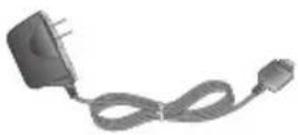
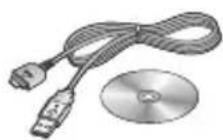
Data cable and CD
Connect and synchronise your KM710c and PC.
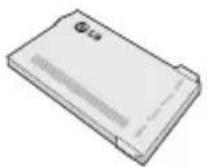
Battery
User Guide
Learn more about your KM710c.
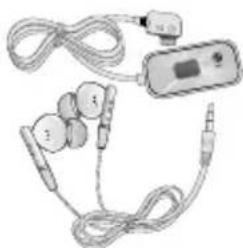
Stereo headset
Note
• Always use genuine LG accessories.
- Failure to do so may invalidate your warranty.
• Accessories may vary in different regions: please check with our regional service company or agent for further information.
Guidelines for safe and efficient use
Please read these simple guidelines. Not following these guidelines may be dangerous or illegal.
Exposure to radio frequency energy
Radio wave exposure and Specific Absorption Rate (SAR) information This mobile phone model KM710c has been designed to comply with applicable safety requirements for exposure to radio waves. These requirements are based on scientific guidelines that include safety margins designed to assure the safety of all persons, regardless of age and health.
-
The radio wave exposure guidelines employ a unit of measurement known as the Specific Absorption Rate, or SAR. Tests for SAR are conducted using standardised methods with the phone transmitting at its highest certified power level in all used frequency bands.
• While there may be differences between the SAR levels of various LG phone models, they are all designed to meet the relevant guidelines for exposure to radio waves -
The SAR limit recommended by the International Commission on Non-Ionizing Radiation Protection (ICNIRP) is 2W/kg averaged over 10g of tissue.
- The highest SAR value for this model phone tested by DASY4 for use at the ear is 0.826 W/kg (10g).
- SAR data information for residents in countries/regions that have adopted the SAR limit recommended by the Institute of Electrical and Electronics Engineers (IEEE), which is 0.631 W/kg averaged over 1g of tissue.
Product care and maintenance
WARNING
Only use batteries, chargers and accessories approved for use with this particular phone model. The use of any other types may invalidate any approval or warranty applying to the phone, and may be dangerous.
- Do not disassemble this unit. Take it to a qualified service technician when repair work is required.
- Keep away from electrical appliances such as TVs, radios, and personal computers.
Guidelines for safe and efficient use
- The unit should be kept away from heat sources such as radiators or cookers.
- Do not drop.
- Do not subject this unit to mechanical vibration or shock.
- Switch off the phone in any area where you are required by special regulations. For example, do not use your phone in hospitals as it may affect sensitive medical equipment.
- Do not handle the phone with wet hands while it is being charged. It may cause an electric shock and can seriously damage your phone.
- Do not to charge a handset near fl ammable material as the handset can become hot and create a fi re hazard.
- Use a dry cloth to clean the exterior of the unit (do not use solvents such as benzene, thinner or alcohol).
- Do not charge the phone when it is on soft furnishings.
- The phone should be charged in a well ventilated area.
-
Do not subject this unit to excessive smoke or dust.
-
Do not keep the phone next to credit cards or transport tickets; it can affect the information on the magnetic strips.
- Do not tap the screen with a sharp object as it may damage the phone.
- Do not expose the phone to liquid or moisture.
- Use the accessories like earphones cautiously. Do not touch the antenna unnecessarily.
Effi cient phone operation
Electronics devices
All mobile phones may get interference, which could affect performance.
- Do not use your mobile phone near medical equipment without requesting permission. Avoid placing the phone over pacemakers, for example, in your breast pocket.
• Some hearing aids might be disturbed by mobile phones.
• Minor interference may affect TVs, radios, PCs, etc.
Road safety
Check the laws and regulations on the use of mobile phones in the area when you drive.
- Do not use a hand-held phone while driving.
• Give full attention to driving.
• Use a hands-free kit, if available. - Pull off the road and park before making or answering a call if driving conditions so require.
• RF energy may affect some electronic systems in your vehicle such as car stereos and safety equipment. - When your vehicle is equipped with an air bag, do not obstruct with installed or portable wireless equipment. It can cause the air bag to fail or cause serious injury due to improper performance.
- If you are listening to music whilst out and about, please ensure that the volume is at a reasonable level so that you are aware of your surroundings. This is particularly imperative when near roads.
Avoid damage to your hearing
Damage to your hearing can occur if you are exposed to loud sound for long periods of time. We therefore recommend that you do not turn on or off the handset close to your ear. We also recommend that music and call volumes are set to a reasonable level.
Blasting area
Do not use the phone where blasting is in progress. Observe restrictions, and follow any regulations or rules.
Potentially explosive atmospheres
• Do not use the phone at a refueling point.
- Do not use near fuel or chemicals.
- Do not transport or store fl ammable gas, liquid, or explosives in the same compartment of your vehicle as your mobile phone and accessories.
In aircraft
Wireless devices can cause interference in aircraft.
- Turn your mobile phone off before boarding any aircraft.
- Do not use it on the ground without permission from the crew.
Guidelines for safe and efficient use
Children
Keep the phone in a safe place out of the reach of small children. It includes small parts which may cause a choking hazard if detached.
Emergency calls
Emergency calls may not be available under all mobile networks. Therefore, you should never depend solely on the phone for emergency calls. Check with your local service provider.
Battery information and care
- You do not need to completely discharge the battery before recharging. Unlike other battery systems, there is no memory effect that could compromise the battery's performance.
- Use only LG batteries and chargers. LG chargers are designed to maximize the battery life.
- Do not disassemble or short-circuit the battery pack.
-
Keep the metal contacts of the battery pack clean.
-
Replace the battery when it no longer provides acceptable performance. The battery pack maybe recharged hundreds of times until it needs replacing.
- Recharge the battery if it has not been used for a long time to maximize usability.
- Do not expose the battery charger to direct sunlight or use it in high humidity, such as in the bathroom.
- Do not leave the battery in hot or cold places, this may deteriorate the battery performance.
- There is risk of explosion if the battery is replaced by an incorrect type.
- Dispose of used batteries according to the manufacturer's instructions. Please recycle when possible. Do not dispose as household waste.
- If you need to replace the battery, take it to the nearest authorized LG Electronics service point or dealer for assistance.
- Always unplug the charger from the wall socket after the phone is fully charged to save unnecessary power consumption of the charger.
NOTE
NOTE

LG
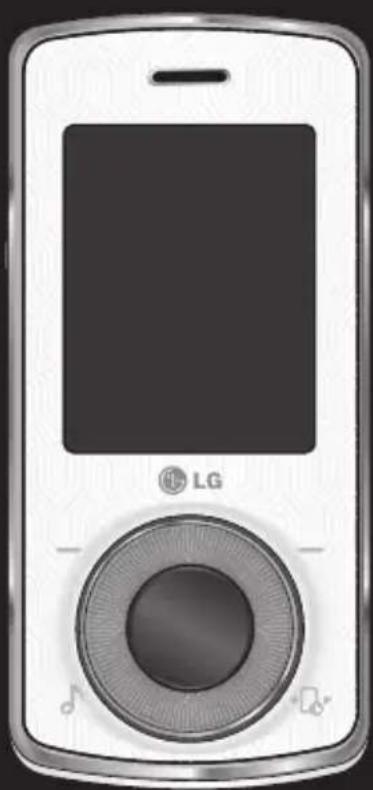
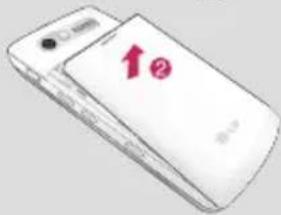
O/G international except home country
DRM (Digital Rights Management)
Remarque
Teclas laterales
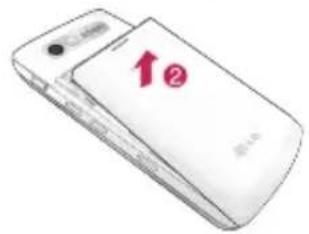
Para empezar
Nota
Para empezar
Extraer la tarjeta de memoria externa
Nota
Advertencia
Aviso
Accesorios
(http://www.fcc.gov/oet/rfs safety)
(http://www.nrpb.org.uk/)
Glosario

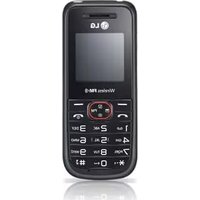

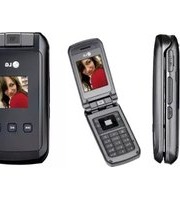

- LIMITED WARRANTY CERTIFICATE
- GRACENOTE® END USER LICENSE AGREEMENT
- 03 THE BASICS
- 04 GET CREATIVE
- CONTENTS
- 05 GET ORGANISED
- 06 THE WEB
- 07 SETTINGS
- 08 ACCESSORIES
- GETTING TO KNOW YOUR PHONE
- END/POWER KEY
- CLEAR KEY
- MAIN SCREEN
- SEND KEY
- INSTALLING THE SIM AND BATTERY
- 1 REMOVE THE BATTERY COVER
- 2 REMOVE THE BATTERY
- 3 INSTALL THE SIM CARD
- 4 INSTALL THE BATTERY
- 5 REPLACE THE BATTERY COVER
- 6 CHARGING YOUR PHONE
- MEMORY CARD
- INSTALLING A MEMORY CARD
- MENU MAP
- SIM SERVICE
- CALL HISTORY
- ORGANISER
- MULTIMEDIA
- MESSAGING
- MY STUFF
- PROFILES
- CONTACTS
- TOOLS
- LIVE
- MP3 PLAYER
- SETTINGS
- MEMORY STATUS
- YOUR STANDBY SCREEN
- THE STATUS BAR
- WHEEL NAVIGATION KEY & TOUCHPAD
- THE MAIN MENU
- CALLS
- MAKING A CALL
- MAKING A CALL FROM YOUR CONTACTS
- ANSWERING AND REJECTING A CALL
- IN-CALL OPTIONS
- ADJUSTING THE CALL VOLUME
- SPEED DIALLING
- VIEWING YOUR CALL LOGS
- TIP
- USING CALL DIVERT
- USING CALL BARRING
- CHANGING THE CALL SETTINGS
- SEARCHING FOR A CONTACT
- ADDING A NEW CONTACT
- CONTACT OPTIONS
- ADDING A CONTACT TO A GROUP
- RENAMING A GROUP
- ADDING A PICTURE TO A CONTACT
- COPYING YOUR CONTACTS TO YOUR SIM
- DELETING ALL YOUR CONTACTS
- VIEWING INFORMATION
- INFORMATION
- SENDING A MESSAGE
- ENTERING TEXT
- T9 PREDICTIVE
- ABC MANUAL
- MESSAGE FOLDERS
- MANAGING YOUR MESSAGES
- USING TEMPLATES
- CHANGING YOUR TEXT MESSAGE SETTINGS
- CHANGING YOUR MULTIMEDIA MESSAGE SETTINGS
- SETTINGS AND MULTIMEDIA MESSAGE
- CHANGING YOUR OTHER SETTINGS
- CAMERA
- TAKING A QUICK PHOTO
- AFTER YOU'VE TAKEN YOUR PHOTO
- USING YOUR TOOLBAR OPTIONS
- CHANGING THE IMAGE SIZE
- VIEWING YOUR SAVED PHOTOS
- SETTING A PHOTO AS WALLPAPER OR PICTURE ID
- VIDEO CAMERA
- SHOOTING A QUICK VIDEO
- AFTER YOU'VE SHOT YOUR VIDEO
- WATCHING YOUR SAVED VIDEOS
- ADJUSTING THE VOLUME WHEN VIEWING A VIDEO
- IMAGES
- IMAGES OPTIONS MENU
- COPY TO EXTERNAL MEMORY
- SENDING A PHOTO
- ORGANISING YOUR IMAGES
- DELETING AN IMAGE
- DELETING MULTIPLE IMAGES
- CREATING A SLIDE SHOW
- SOUNDS
- USING A SOUND
- VIDEOS
- WATCHING A VIDEO
- USING OPTIONS WHILE VIDEO IS PAUSED
- SENDING A VIDEO CLIP
- USING THE VIDEO OPTIONS MENU
- OTHERS
- GAMES & APPS
- PLAYING A GAME
- USING THE GAMES OPTIONS MENU
- EXTERNAL MEMORY
- USING YOUR PHONE AS A MASS STORAGE DEVICE
- TRANSFERRING A FI LE TO YOUR PHONE
- MUSIC
- TRANSFERRING MUSIC ONTO YOUR PHONE
- PLAYING A SONG
- USING OPTIONS WHILE PLAYING MUSIC
- NOTE
- CREATING A PLAYLIST
- PLAYING A PLAYLIST
- EDITING A PLAYLIST
- DELETING A PLAYLIST
- USING THE RADIO
- SEARCHING FOR STATIONS
- RESETTING CHANNELS
- LISTENING TO THE RADIO
- VOICE RECORDER
- SENDING A VOICE RECORDING
- MUVEE
- ORGANISER/TOOLS
- ADDING AN EVENT TO YOUR CALENDAR
- EDITING A CALENDAR EVENT
- SHARING A CALENDAR EVENT
- ADDING A MEMO
- ADDING AN EVENT TO YOUR TO DO LIST
- SETTING YOUR ALARM
- USING YOUR CALCULATOR
- USING THE STOPWATCH
- CONVERTING A UNIT
- ADDING A CITY TO YOUR WORLD TIME
- USING THE SIM SERVICES
- THE WEB
- ACCESSING THE WEB
- ADDING AND ACCESSING BOOKMARKS
- SAVING A PAGE
- ACCESSING A SAVED PAGE
- VIEWING YOUR BROWSER HISTORY
- CHANGING THE WEB BROWSER SETTINGS
- PERSONALIZING YOUR PROFI LES
- GENERAL
- SILENT
- VIBRATE ONLY
- OUTDOOR
- HEADSET
- CHANGING YOUR SCREEN SETTINGS
- CHANGING YOUR PHONE SETTINGS
- CHANGING YOUR CONNECTIVITY SETTINGS
- SENDING AND RECEIVING YOUR FI LES USING BLUETOOTH
- TO SWITCH BLUETOOTH ON
- TO SEND A FI LE
- TO RECEIVE A FI LE
- CHANGING YOUR BLUETOOTH SETTINGS
- PAIRING WITH ANOTHER BLUETOOTH DEVICE
- USING A BLUETOOTH HEADSET
- CHANGING YOUR SECURITY SETTINGS
- ACCESSORIES
- CHARGER
- DATA CABLE AND CD
- BATTERY
- USER GUIDE
- STEREO HEADSET
- GUIDELINES FOR SAFE AND EFFICIENT USE
- EXPOSURE TO RADIO FREQUENCY ENERGY
- PRODUCT CARE AND MAINTENANCE
- WARNING
- EFFI CIENT PHONE OPERATION
- ELECTRONICS DEVICES
- ROAD SAFETY
- AVOID DAMAGE TO YOUR HEARING
- BLASTING AREA
- POTENTIALLY EXPLOSIVE ATMOSPHERES
- IN AIRCRAFT
- CHILDREN
- EMERGENCY CALLS
- BATTERY INFORMATION AND CARE
- REMARQUE
- TECLAS LATERALES
- PARA EMPEZAR
- NOTA
- EXTRAER LA TARJETA DE MEMORIA EXTERNA
- ADVERTENCIA
- AVISO
- ACCESORIOS
- GLOSARIO
Brand : LG
Model : KM710C
Category : Telephone