Router AX3200 - Router Xiaomi - Free user manual and instructions
Find the device manual for free Router AX3200 Xiaomi in PDF.



| Product Type | Wi-Fi 6 Router |
| Brand | Xiaomi |
| Model | Router AX3200 |
| Wi-Fi Standard | 802.11ax (Wi-Fi 6) |
| Frequency Bands | 2.4 GHz and 5 GHz |
| Total Maximum Speed | 3200 Mbps (combined) |
| Antennas | 4 external antennas |
| Ethernet Ports | 1 Gigabit WAN port + 3 Gigabit LAN ports |
| USB Port | None |
| Processor | Dual-core |
| RAM Memory | 256 MB |
| Flash Memory | 128 MB |
| Power Supply | 12 V / 1 A |
| Dimensions (L x W x H) | Approx. 240 x 165 x 70 mm |
| Weight | Approx. 400 g |
| Main Features | Dual-band Wi-Fi 6, MU-MIMO, OFDMA, beamforming, repeater mode, parental control |
| Security | WPA2/WPA3, built-in firewall, MAC filtering |
| Maintenance and Cleaning | Unplug before cleaning, use a dry cloth, do not use chemicals |
| Spare Parts and Repairability | Not available as spare parts, repair by authorized service |
| General Information | Configuration via Mi Wi-Fi app, firmware update via app |
| Warranty | 2 years (estimated) |
| Operating Temperature | 0°C to 40°C |
| Operating Humidity | 10% to 90% non-condensing |
| Certifications | CE, FCC |
Frequently Asked Questions - Router AX3200 Xiaomi
User questions about Router AX3200 Xiaomi
0 question about this device. Answer the ones you know or ask your own.
Ask a new question about this device
Download the instructions for your Router in PDF format for free! Find your manual Router AX3200 - Xiaomi and take your electronic device back in hand. On this page are published all the documents necessary for the use of your device. Router AX3200 by Xiaomi.
USER MANUAL Router AX3200 Xiaomi
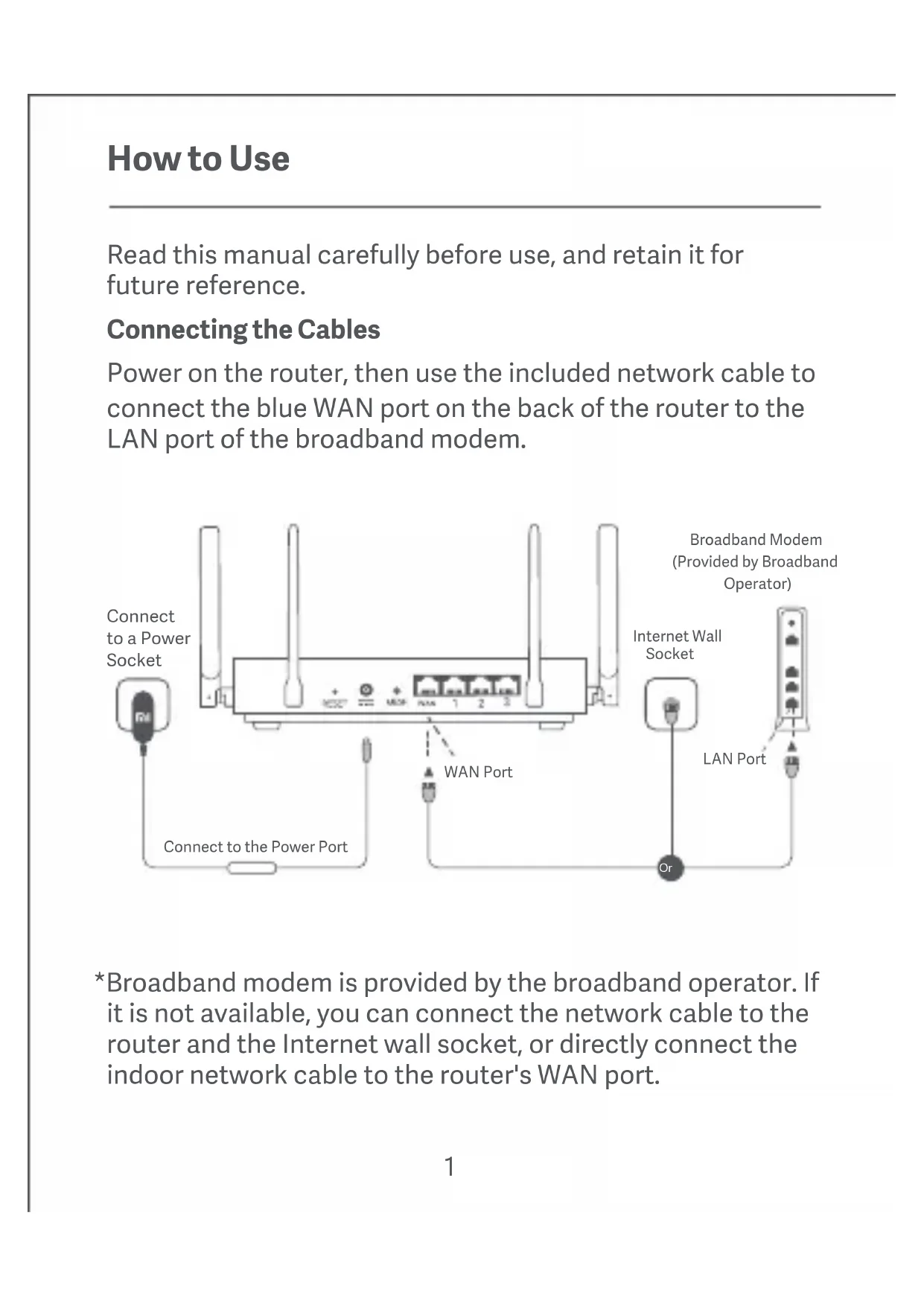
Read this manual carefully before use, and retain it for future reference.
Connecting the Cables
Power on the router, then use the included network cable to connect the blue WAN port on the back of the router to the LAN port of the broadband modem.

* Broadband modem is provided by the broadband operator. If it is not available, you can connect the network cable to the router and the Internet wall socket, or directly connect the indoor network cable to the router's WAN port.
Configuring the Network
- When the router's system indicator turns blue, use your phone or computer to connect with the initial Wi-Fi.

* See the nameplate on the bottom of the router for the initial Wi-Fi name.
- Once the initial Wi-Fi is connected, you will be directed to the configuration page. Follow the instructions on the page to complete the configuration process.
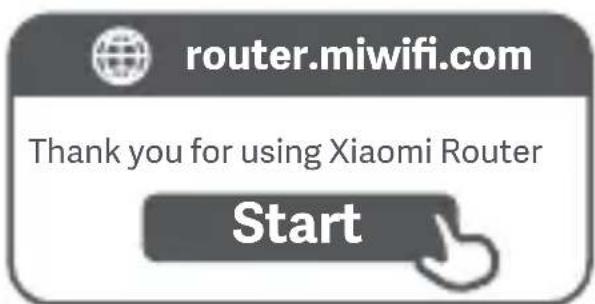
* If the configuration page is not present, open the browser and go to router.miwifi.com to complete the configuration.
Managing by Mi Home/Xiaomi Home App
It is recommended to use the Mi Home/Xiaomi Home app to manage routers for a better experience.
Connect the phone with the router's Wi-Fi, then open the Mi Home/Xiaomi Home app. Sign in to your Mi account and follow the on-screen instructions to pair.

User-friendly Interaction
Remote Control
More Features
* Scan the QR code or go to the app store to download the Mi Home/Xiaomi Home app.
Xiaomi Mesh Networking Methods
To achieve network coverage as much as possible in a larger-sized home, you can purchase the routers that support the Xiaomi Mesh function* to realize the networking. Follow the steps below to configure the network.
* Please go to www.mi.com/global to check the product model and version of the routers that support the Xiaomi Mesh function.
Method 1 (recommended):
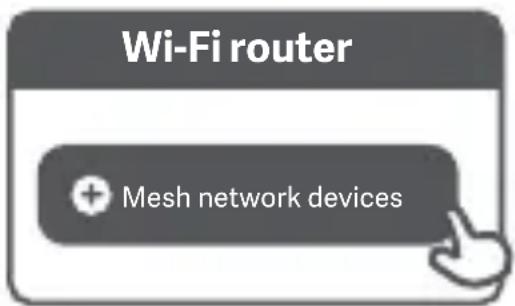
Open the Mi Home/Xiaomi Home app, and enter the "Mesh network devices" page of the main router. Click "Add", and then follow the instructions to complete the wireless networking.
Note: Illustrations of product, accessories, and user interface in the user manual are for reference purposes only. Actual product and functions may vary due to product enhancements.
Method 2:
- Reset the satellite router to the factory settings, and then power it on. To avoid mutual interference, place two routers near each other but keep the distance between them greater than one meter so that the network can be configured successfully.
- When the satellite router's system indicator turns blue or white (the indicator color depends on the specific model), the main router will automatically discover the satellite router, and the Internet indicator of the main router will blink slowly (one blink per second).
- Press the Mesh button on the back of the main router, and the Internet indicator will begin to blink quickly (two blinks per second), indicating the Mesh networking starts.
- When the Internet indicator of the satellite router remains lit, the networking is successfully completed. Place the satellite router in the room that needs network coverage.
Method 3:
-
Reset the satellite router to the factory settings, and then power it on. Wait for the satellite router's system indicator to turn blue or white (the indicator's color depends on the specific model).
-
Connect the network cable to the satellite router's WAN port and the main router's LAN port, then the Internet indicator will begin to blink quickly (two blinks per second), indicating the Mesh networking starts.
-
When the Internet indicator of the satellite router remains lit, the Mesh networking is successfully completed.
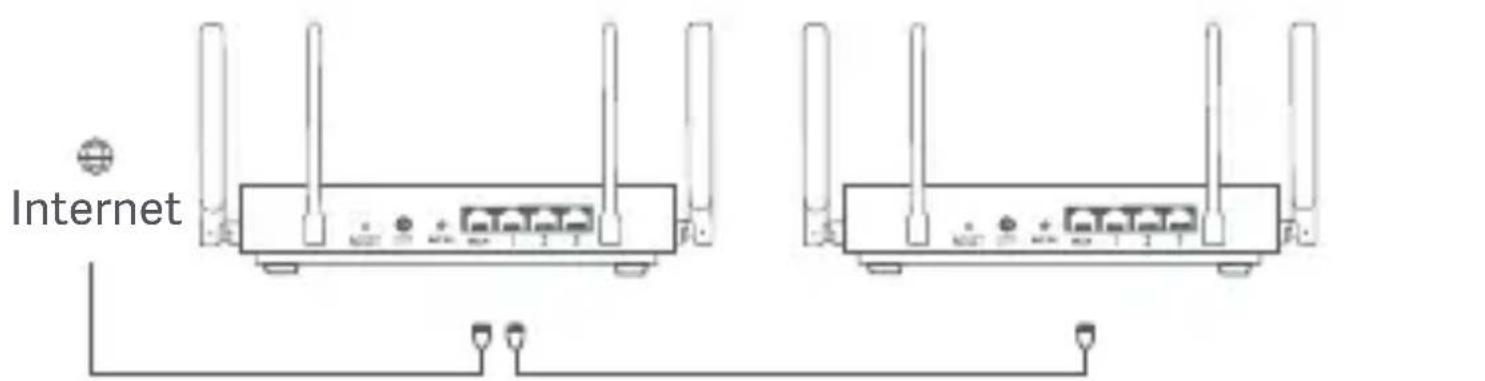
Satellite RouterMain Route
Indicator Status
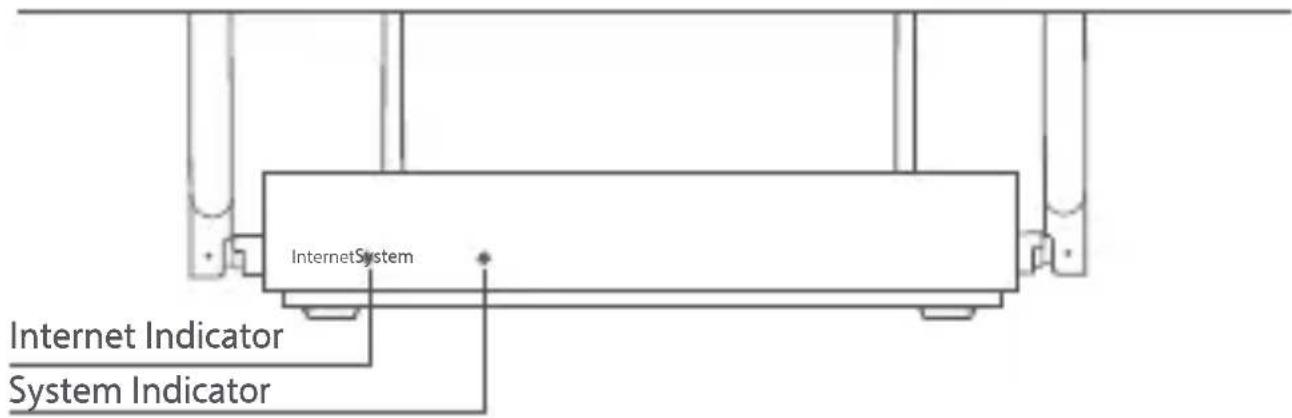
Internet Indicator
| Off | No network cable connected to the WAN port |
| Orange | On: The WAN port has been connected to the network cable, but the upper-level network has an error. |
| Blue | On: The WAN port has been connected to the network cable, and the upper-level network is working normally.Blink slowly (one blink per second): Available Mesh satellite routers are discovered.Blink quickly (two blinks per second): The pairing of Mesh routers is ongoing. |
System Indicator
| Off | Not connected to a power socket |
| Orange | Blinking: The system is updating.On (turns blue in about one minute): The system is starting up.On (does not turn blue for more than 2 minutes): The system has an error. |
| Blue | On: Working normally |
FAQ
- Why can't I access the Internet after configuring the network?
Step 1: Use your phone to search for the Wi-Fi that is configured by the router. If you cannot find the Wi-Fi, make sure the router is powered on and starts working.
Step 2: Connect the phone to the router's Wi-Fi and go to router.miwifi.com. Then try to fix the problem according to the network's diagnosis.
- What should I do if I forget the router's management password?
If you do not make any change to the management password, it will be the same as the Wi-Fi password, please try to sign in with this password. If the problem still persists, it is recommended to reset the router to the factory settings and reconfigure the network.
- How to reset the router to the factory settings?
Make sure the router is powered on and starts working. Press and hold the Reset button on the back of the router for more than 5 seconds, and release the button when the system indicator turns orange. The resetting will be complete after the router is successfully restarted.
Certifications
Operating Frequency and Radio Frequency Power
Wi-Fi 2412 MHz–2472 MHz ( ≤ 20 dBm), 5150 MHz–5250 MHz ( ≤ 23 dBm)
CE
Hereby, Xiaomi Communications Co., Ltd. declares that the radio equipment type RB01 is in compliance with Directive 2014/53/EU. The full text of the EU declaration of conformity is available at the following internet address:
http://www.mi.com/global/service/support/declaration.html

All products bearing this symbol are waste electrical and electronic equipment (WEEE as in directive 2012/19/EU) which should not be mixed with unsorted household waste. Instead, you should protect human health and the environment by handing over your waste equipment to a designated collection point for the recycling of waste electrical and electronic equipment, appointed by the government or local authorities. Correct disposal and recycling will help prevent potential negative consequences to the environment and human health. Please contact the installer or local authorities for more information about the location as well as terms and conditions of such collection points.
Warning:
To comply with CE RF exposure requirements, the device must be installed and operated 20cm (8 inches) or more between the product and all person's body.
This device is restricted to indoor use only when operating in 5150-5250MHz frequency range in following countries:
 | AT | BE | BG | HR | CY | CZ | OK | EE | FI |
| FR | DE | EL | HU | IE | IT | LV | LT | LU | |
| MT | NL | PL | PT | RO | SK | SI | ES | SE | |
| UK (NO) | IS | LI | NO | CH | TR | ||||
Specifications
| Name | Xiaomi Router AX3200 |
| Model | RB01 |
| Input | 12 V, 1.5 A |
| Wired Technology | 1 × 10/100/1000 Mbps WAN port3 × 10/100/1000 Mbps LAN ports |
| Wireless Technology | 2.4 GHz Wi-Fi (800 Mbps), 4 × 4 MIMO5 GHz Wi-Fi (2402 Mbps), 4 × 4 MIMO |
| Operating Temperature | 0°C to 40°C |
Xiaomi Communications Co., Ltd.
Address: #019, 9th Floor, Building 6, 33 Xi'erqi Middle
Road, Haidian District, Beijing, China
For further information, please go to www.mi.com
Benutzung
http://www.mi.com/global/service/support/declaration.html

Xiaomi Communications Co., Ltd.
Adresse: #019, 9th Floor, Building 6, 33 Xi'erqi Middle
Road, Haidian District, Beijing, China


Brand : Xiaomi
Model : Router AX3200
Category : Router